> ## Documentation Index
> Fetch the complete documentation index at: https://docs.truu.ai/llms.txt
> Use this file to discover all available pages before exploring further.
# 1. Create the TOTAL Application in Azure
### 1.1 — Create the Enterprise Application
1. Sign in to the [Entra Portal](https://entra.microsoft.com/#home)
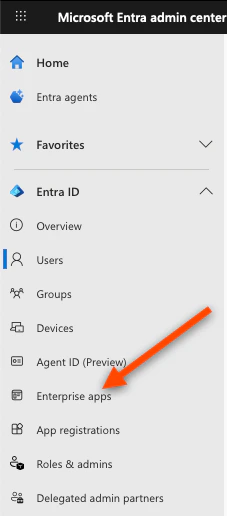
2. In the left sidebar, click **Enterprise applications**
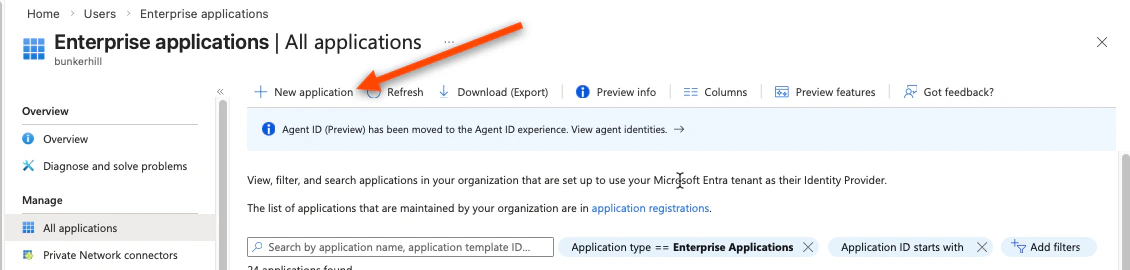
 3. Click **New application** (top left)
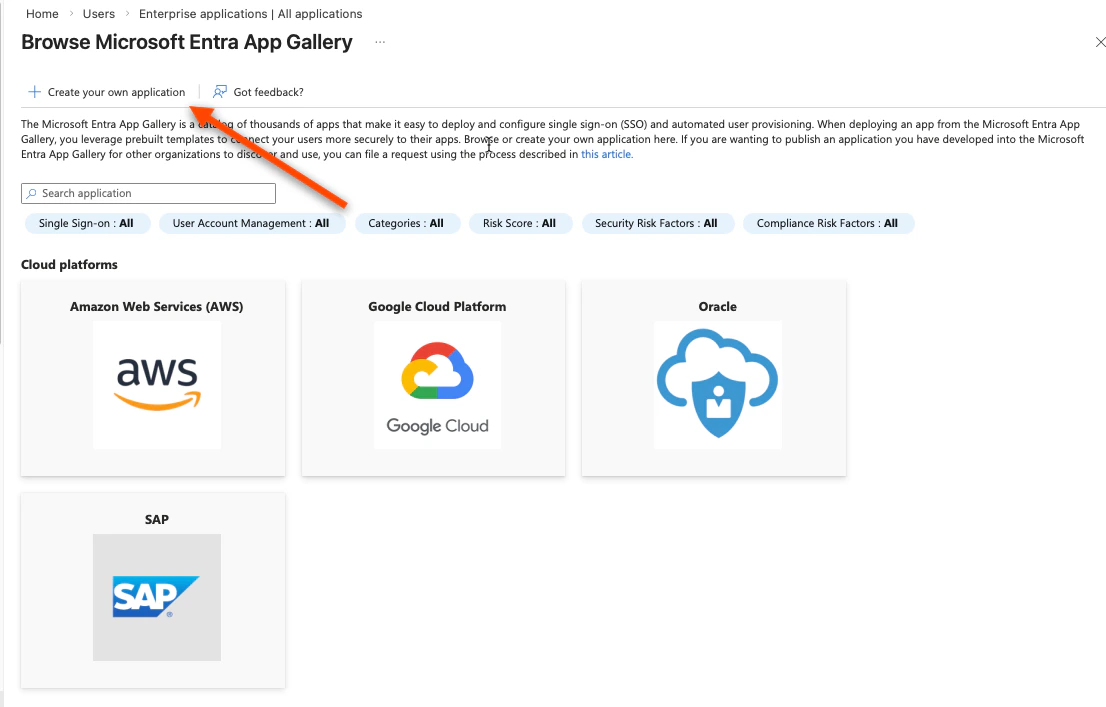
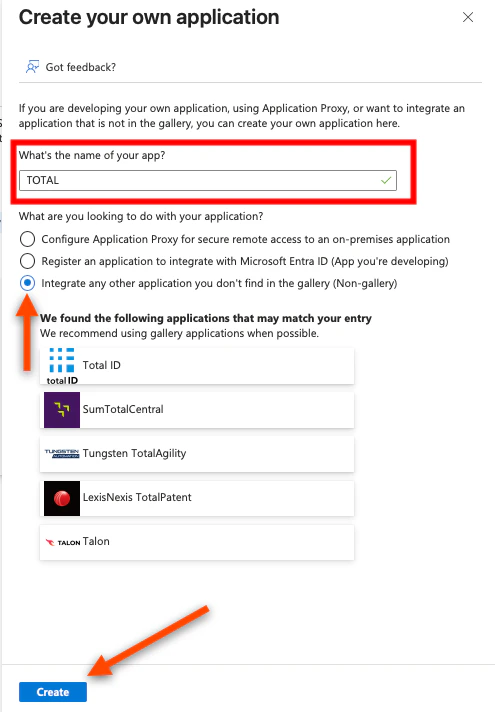
 4. Click **Create your own application**
 5. Give it a name — we recommend **"TOTAL"**
6. Select **"Integrate any other application you don't find in the gallery"**
7. Click **Create**
5. Give it a name — we recommend **"TOTAL"**
6. Select **"Integrate any other application you don't find in the gallery"**
7. Click **Create**
 ### 1.2 — Register the Application to Get Credentials
You now need to create an App Registration, which is where Azure issues the credentials TOTAL uses to verify sign-ins.
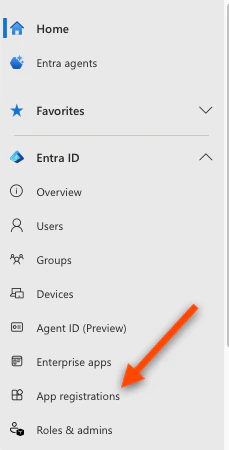
1. In the Azure search bar, search for **App registrations** and open it
### 1.2 — Register the Application to Get Credentials
You now need to create an App Registration, which is where Azure issues the credentials TOTAL uses to verify sign-ins.
1. In the Azure search bar, search for **App registrations** and open it
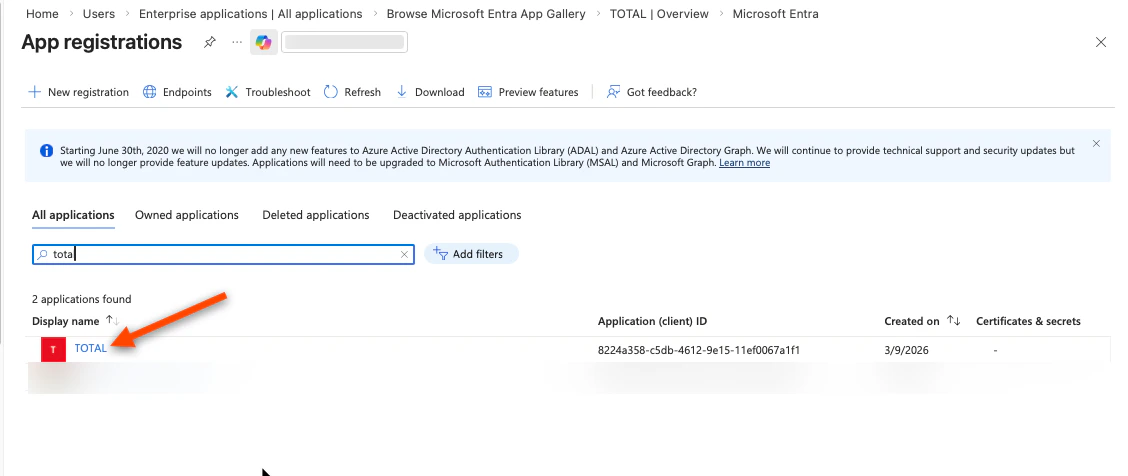
 2. Find the app you just created and click it (it should appear under "All applications")
 3. You are now on the app registration page. From the left sidebar:
**Collect your Tenant ID and Client ID:**
* Click **Overview**
3. You are now on the app registration page. From the left sidebar:
**Collect your Tenant ID and Client ID:**
* Click **Overview**
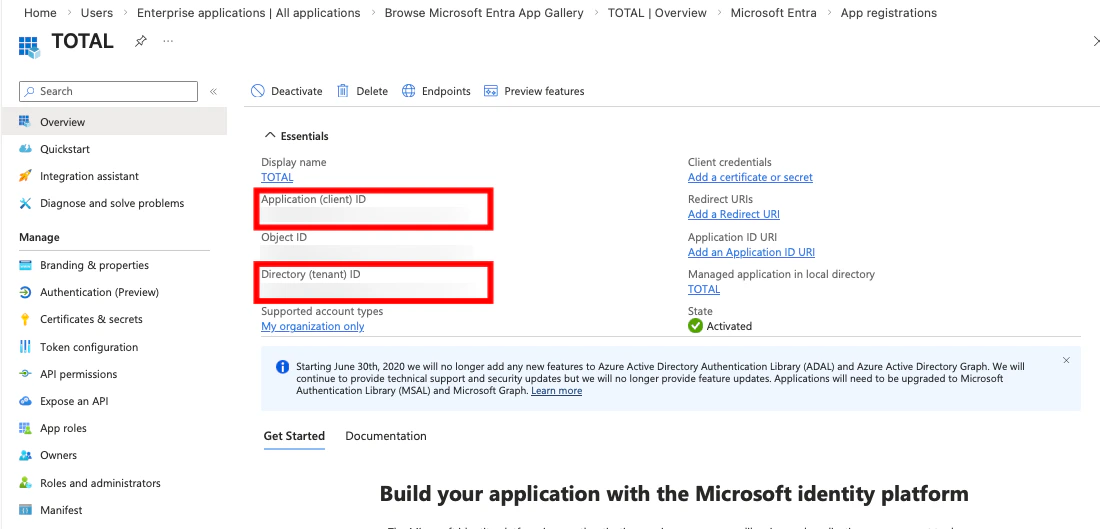 * Copy the **Application (client) ID** — enter into the TOTAL enrollment console
* Copy the **Directory (tenant) ID** — enter into the TOTAL enrollment console
**Create a Client Secret:**
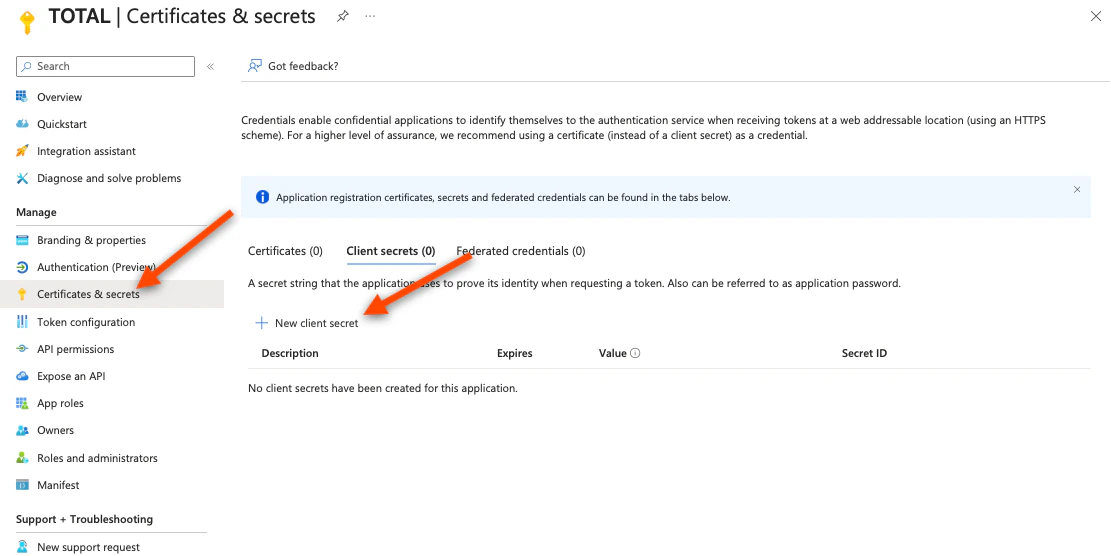
* Click **Certificates & secrets** in the left sidebar
* Click **New client secret**
* Copy the **Application (client) ID** — enter into the TOTAL enrollment console
* Copy the **Directory (tenant) ID** — enter into the TOTAL enrollment console
**Create a Client Secret:**
* Click **Certificates & secrets** in the left sidebar
* Click **New client secret**
 * Enter a description (e.g. "TOTAL integration") and choose an expiry (24 months recommended)
* Click **Add**
* **Copy the secret Value immediately** — it is only shown once. If you navigate away, you must create a new one.
* Enter a description (e.g. "TOTAL integration") and choose an expiry (24 months recommended)
* Click **Add**
* **Copy the secret Value immediately** — it is only shown once. If you navigate away, you must create a new one.
 * Save this value and enter it into the TOTAL enrollment console
**Configure the Redirect URI (where Microsoft sends users after sign-in):**
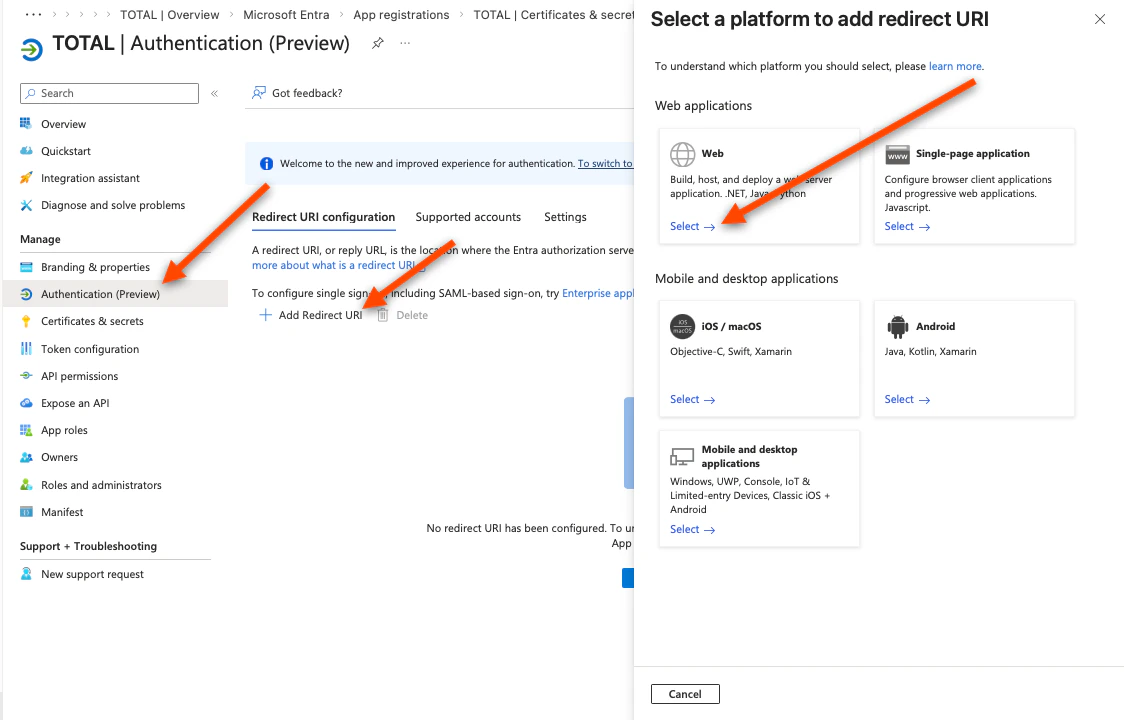
* Click **Authentication** in the left sidebar
* Click **Add Redirect URI** → select **Web**
* Save this value and enter it into the TOTAL enrollment console
**Configure the Redirect URI (where Microsoft sends users after sign-in):**
* Click **Authentication** in the left sidebar
* Click **Add Redirect URI** → select **Web**
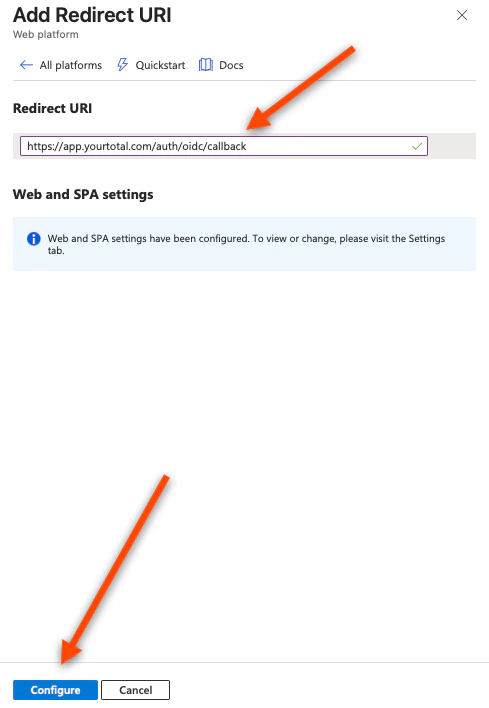
 * In the **Redirect URIs** field, enter the value given in the TOTAL Enrollment console (it will look like `https://app.yourtotal.com/auth/oidc/callback`).
* Click **Configure**, then **Save**
* In the **Redirect URIs** field, enter the value given in the TOTAL Enrollment console (it will look like `https://app.yourtotal.com/auth/oidc/callback`).
* Click **Configure**, then **Save**
 **Grant API permissions (required for sign-in and provisioning to work):**
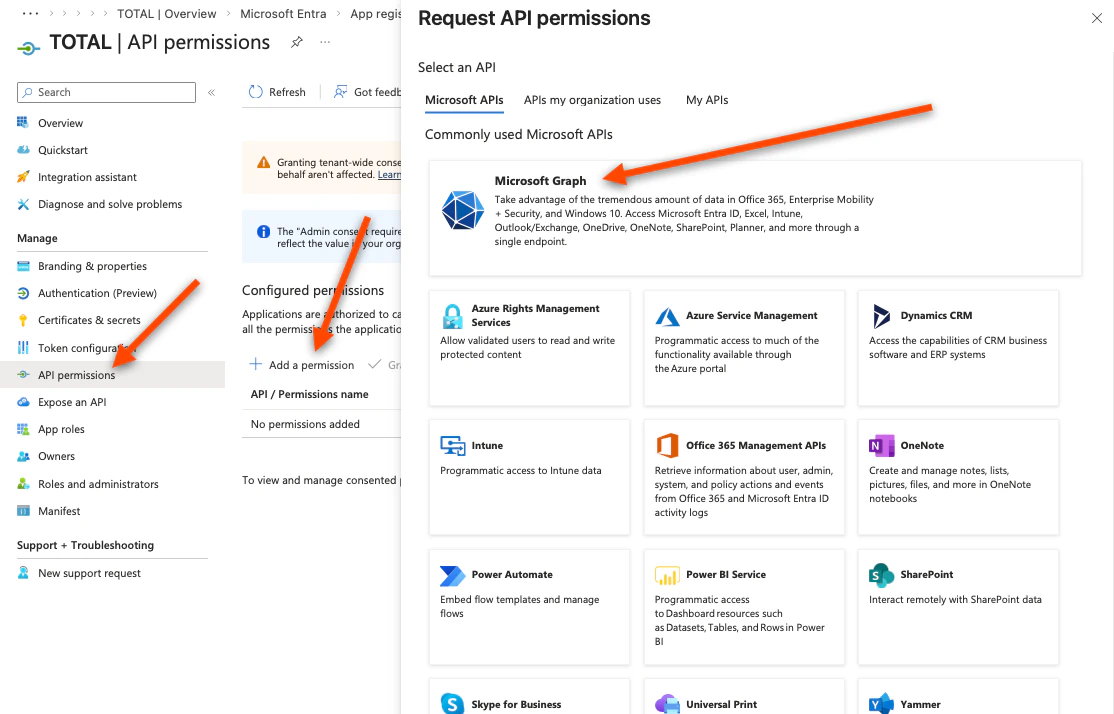
* Click **API permissions** in the left sidebar
* Click **Add a permission** → **Microsoft Graph**
**Grant API permissions (required for sign-in and provisioning to work):**
* Click **API permissions** in the left sidebar
* Click **Add a permission** → **Microsoft Graph**
 * Click **Delegated Permissions**
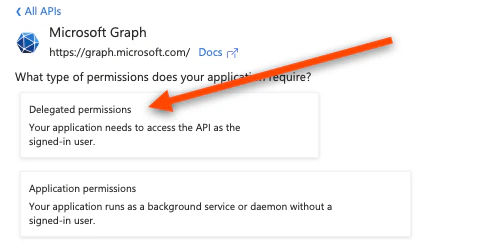 * Search for and add: `openid`, `profile`, `email`
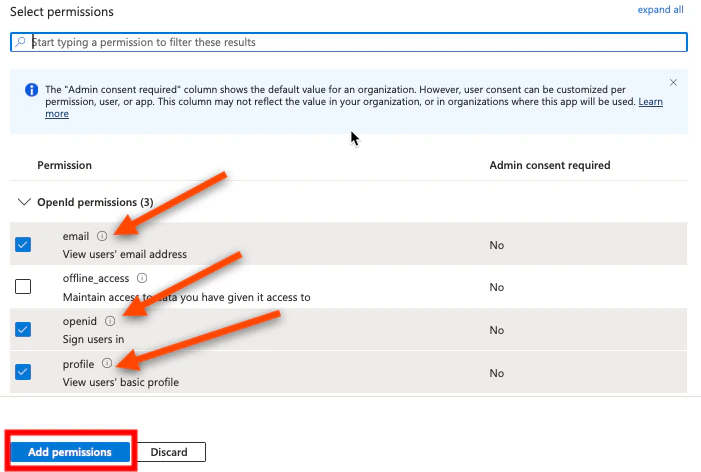 * Click **Add permissions**
* Navigate back to the "Overview" screen and, again, click **Add a permission** → **Microsoft Graph**
* Click **Add permissions**
* Navigate back to the "Overview" screen and, again, click **Add a permission** → **Microsoft Graph**
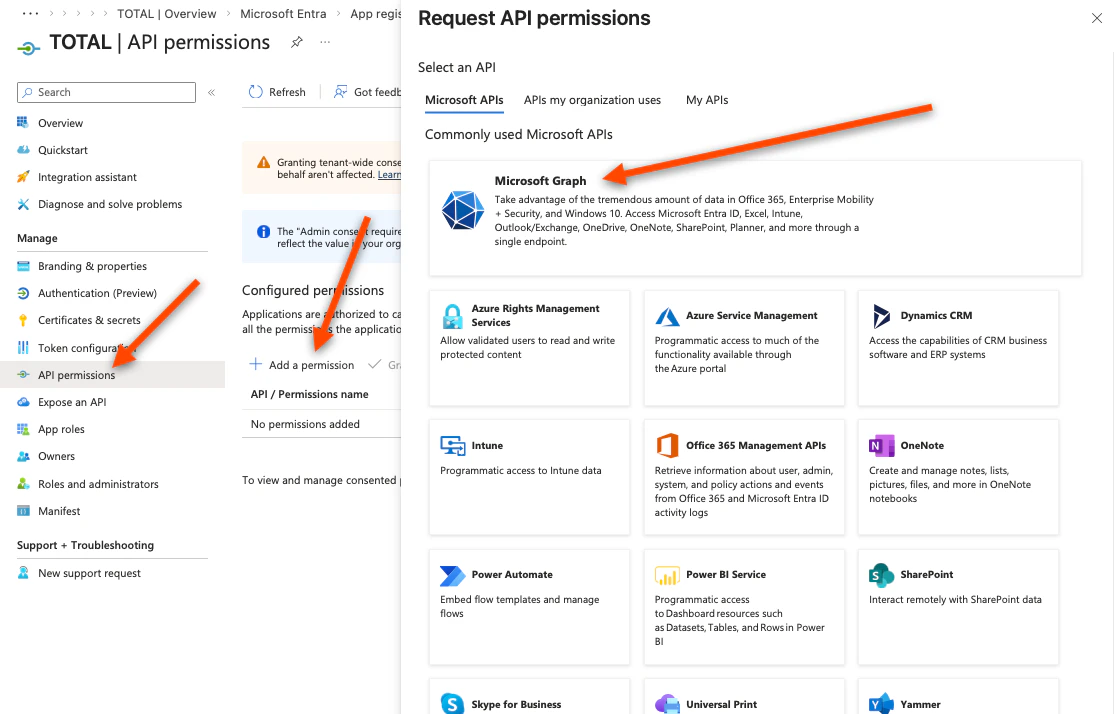 * Click **Application Permissions**
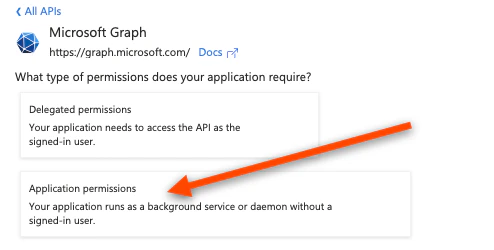 * Search for and add: `User.ReadBasic.All, GroupMember.Read.All`
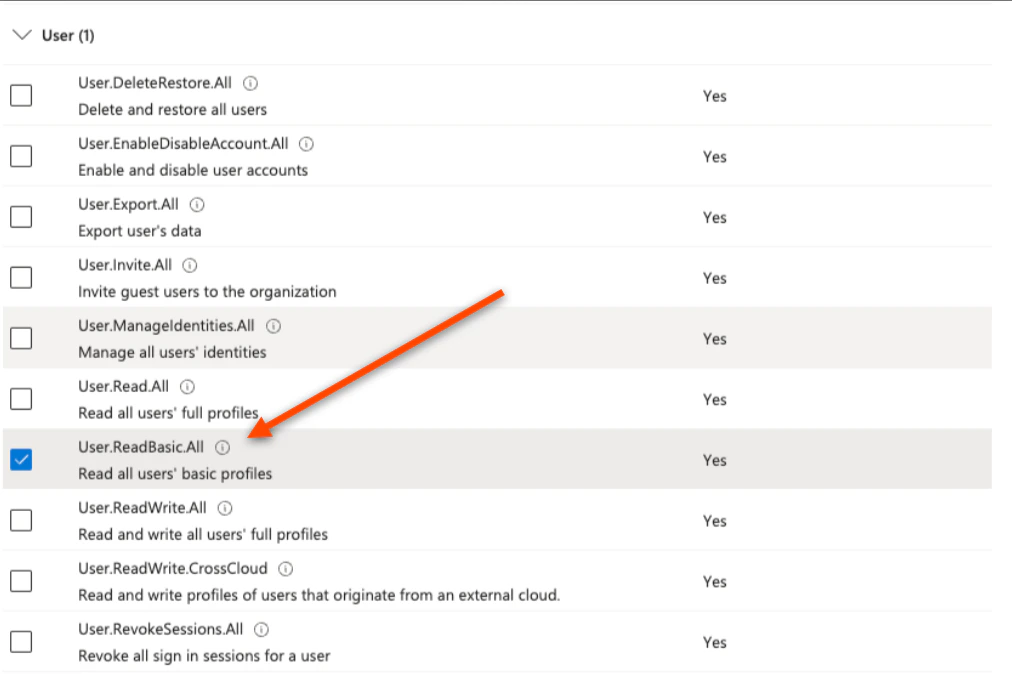
 * Click **Add permissions**
> These scopes are required. `profile` tells Azure to include the user's Object ID (`oid`) in the sign-in token — which is how TOTAL identifies each user. `email` includes their email address. Without these, sign-in will fail. **Why these are required:**
>
> * `profile` / `email` / `openid` — required for sign-in. `profile` includes the user's Object ID (`oid`), which is how TOTAL identifies each user.
> * `GroupMember.Read.All` — required to let TOTAL query Microsoft and see whether a user belongs to certain groups when needed to confirm access immediately.
> * `User.ReadBasic.All`— required so TOTAL can query Microsoft Graph for users’ basic directory profile (for example name and UPN) when it needs to resolve or show who someone is
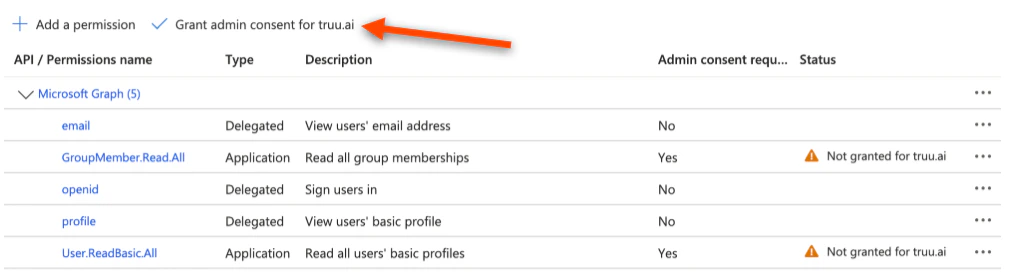
* Click **Grant Admin Consent** to apply changes
* Click **Add permissions**
> These scopes are required. `profile` tells Azure to include the user's Object ID (`oid`) in the sign-in token — which is how TOTAL identifies each user. `email` includes their email address. Without these, sign-in will fail. **Why these are required:**
>
> * `profile` / `email` / `openid` — required for sign-in. `profile` includes the user's Object ID (`oid`), which is how TOTAL identifies each user.
> * `GroupMember.Read.All` — required to let TOTAL query Microsoft and see whether a user belongs to certain groups when needed to confirm access immediately.
> * `User.ReadBasic.All`— required so TOTAL can query Microsoft Graph for users’ basic directory profile (for example name and UPN) when it needs to resolve or show who someone is
* Click **Grant Admin Consent** to apply changes