> ## Documentation Index
> Fetch the complete documentation index at: https://docs.truu.ai/llms.txt
> Use this file to discover all available pages before exploring further.
# Add Issuing CA Cert to NT Auth Store
> This step will add the Cloud Trust Issuing CA Certificate to the NTAuth store of the domain.
1. Open a command prompt as an Administrator and navigate to the Downloads folder or location where you have copied the downloaded certificates.
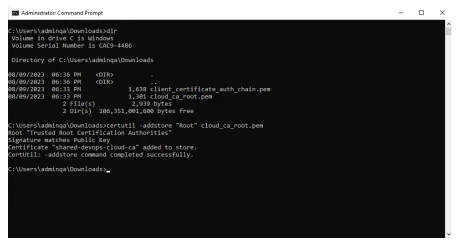
2. Execute this command:
1. This command will add the TruU Cloud Trust Issuing CA certificate to the NTAuth store of the domain. What this does is add the TruU issuing CA as a trusted issuing certificate authority:
```text theme={null}
certutil -dspublish -f “client_certificate_auth_chain.pem” NTAuthCA
```
Example:
 ## Validation step
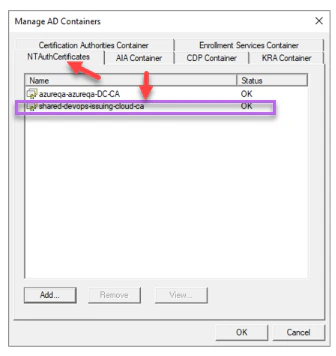
1. To check the above succeeded, logon to your Certificate Authority server and go to Start > Run and type ***pkiview\.msc***.. Right-click on **Enterprise PKI** and Select **Manage AD Containers**.
2. On the "**NTAuthCertificates**" tab, check to ensure now that the Issuing Cloud Trust CA is now listed with Status OK. Click **OK**.
## Validation step
1. To check the above succeeded, logon to your Certificate Authority server and go to Start > Run and type ***pkiview\.msc***.. Right-click on **Enterprise PKI** and Select **Manage AD Containers**.
2. On the "**NTAuthCertificates**" tab, check to ensure now that the Issuing Cloud Trust CA is now listed with Status OK. Click **OK**.
 ***
[Downloading Cloud Trust certs from TruU Cloud](/docs/importing-cloud-trust-certs-into-active-directory)
[Add TruU Cloud Trust Certificates Domain Controllers](/docs/add-truu-cloud-trust-certificates-domain-controllers)
***
[Downloading Cloud Trust certs from TruU Cloud](/docs/importing-cloud-trust-certs-into-active-directory)
[Add TruU Cloud Trust Certificates Domain Controllers](/docs/add-truu-cloud-trust-certificates-domain-controllers)