> ## Documentation Index
> Fetch the complete documentation index at: https://docs.truu.ai/llms.txt
> Use this file to discover all available pages before exploring further.
# Automatically Select Certificate
## Login as Administrator User and configure the below process
To disable of popup selection of Certificate in **Chrome** configure the below steps:
1. Open **Run console** and type *regedit.exe* and click **Enter**
2. On the Left Panel traverse through **HKEY\_LOCAL\_MACHINE** -> **SOFTWARE** ->
**Policies**
3. Right click on **Policies** and click on **New -> Key** and name it “Google”
4. Right click on **Google** and click on **New** -> **Key** and name it “Chrome”
5. Right click on **Chrome** and click on **New** -> **Key** and name it “AutoSelectCertificateForUrls”
6. Right click on **AutoSelectCertificateForUrls** and click on **New** -> **String Value** and input it as *“1”*
7. Double click on the *"1"* and add the following code:
```text theme={null}
{"pattern":"*","filter":{"ISSUER":{"CN":"Your_Certificate_Issuer_N ame"}}}
```
**NOTE**: Here, "TRUU-SUBENT-CA01" is the issuer name
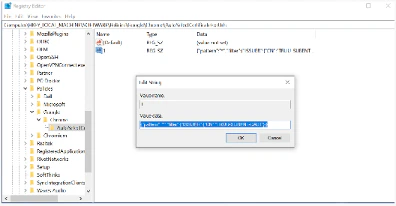 8. Click **OK**
## To disable of popup selection of Certificate in Microsoft Edge configure the below steps:
1. Open **Run console** and type *regedit.exe* and click **Enter**
2. On the Left Panel traverse through **HKEY\_LOCAL\_MACHINE -> SOFTWARE ->**
**Policies -> Microsoft**
3. Right click on **Microsoft** and click on **New** -> **Key** and name it *“Edge”*
4. Right click on **Edge** and click on **New** -> **Key** and name it as *“AutoSelectCertificateForUrls”*
5. Right click on **AutoSelectCertificateForUrls** and click on **New** -> **String Value** and it as *“1”*
6. Double click on “**1**” and add the following code:
```text theme={null}
{"pattern":"*","filter":{"ISSUER":{"CN":"Your_Certificate_Issuer_N ame"}}}
```
**NOTE**: Here, "TRUU-SUBENT-CA01" is the issuer name
8. Click **OK**
## To disable of popup selection of Certificate in Microsoft Edge configure the below steps:
1. Open **Run console** and type *regedit.exe* and click **Enter**
2. On the Left Panel traverse through **HKEY\_LOCAL\_MACHINE -> SOFTWARE ->**
**Policies -> Microsoft**
3. Right click on **Microsoft** and click on **New** -> **Key** and name it *“Edge”*
4. Right click on **Edge** and click on **New** -> **Key** and name it as *“AutoSelectCertificateForUrls”*
5. Right click on **AutoSelectCertificateForUrls** and click on **New** -> **String Value** and it as *“1”*
6. Double click on “**1**” and add the following code:
```text theme={null}
{"pattern":"*","filter":{"ISSUER":{"CN":"Your_Certificate_Issuer_N ame"}}}
```
**NOTE**: Here, "TRUU-SUBENT-CA01" is the issuer name
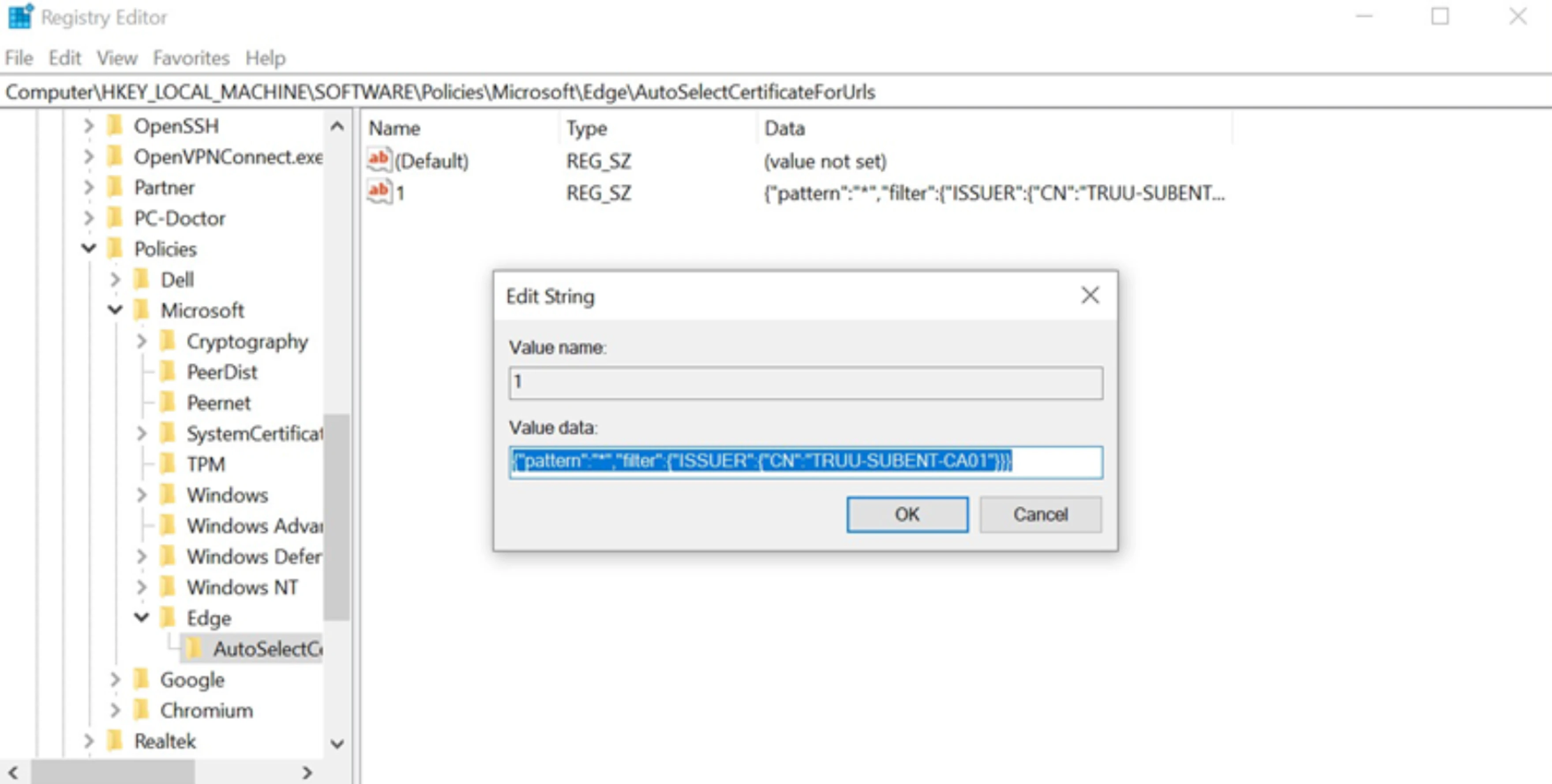 7. Click **OK**
## To disable of popup selection of Certificate in Chromium configure the below steps:
1. Open **Run console** and type **regedit.exe** and click enter
2. On the Left Panel traverse through **HKEY\_LOCAL\_MACHINE** -> **SOFTWARE** ->
**Policies**
3. Right click on **Policies** and click on **New -> Key** and name it as *“Chromium”*
4. Right click on **Chromium** and click on **New** -> **Key** and name it as
*“AutoSelectCertificateForUrls”*
5. Right click on **AutoSelectCertificateForUrls** and click on **New** -> **String Value** and it as ***“1”***
6. Double click on “**1**” and add the following code:
```text theme={null}
{"pattern":"*","filter":{"ISSUER":{"CN":"Your_Certificate_Issuer_N ame"}}}
```
**NOTE**: Here, "TRUU-SUBENT-CA01" is the issuer name
7. Click **OK**
## To disable of popup selection of Certificate in Chromium configure the below steps:
1. Open **Run console** and type **regedit.exe** and click enter
2. On the Left Panel traverse through **HKEY\_LOCAL\_MACHINE** -> **SOFTWARE** ->
**Policies**
3. Right click on **Policies** and click on **New -> Key** and name it as *“Chromium”*
4. Right click on **Chromium** and click on **New** -> **Key** and name it as
*“AutoSelectCertificateForUrls”*
5. Right click on **AutoSelectCertificateForUrls** and click on **New** -> **String Value** and it as ***“1”***
6. Double click on “**1**” and add the following code:
```text theme={null}
{"pattern":"*","filter":{"ISSUER":{"CN":"Your_Certificate_Issuer_N ame"}}}
```
**NOTE**: Here, "TRUU-SUBENT-CA01" is the issuer name
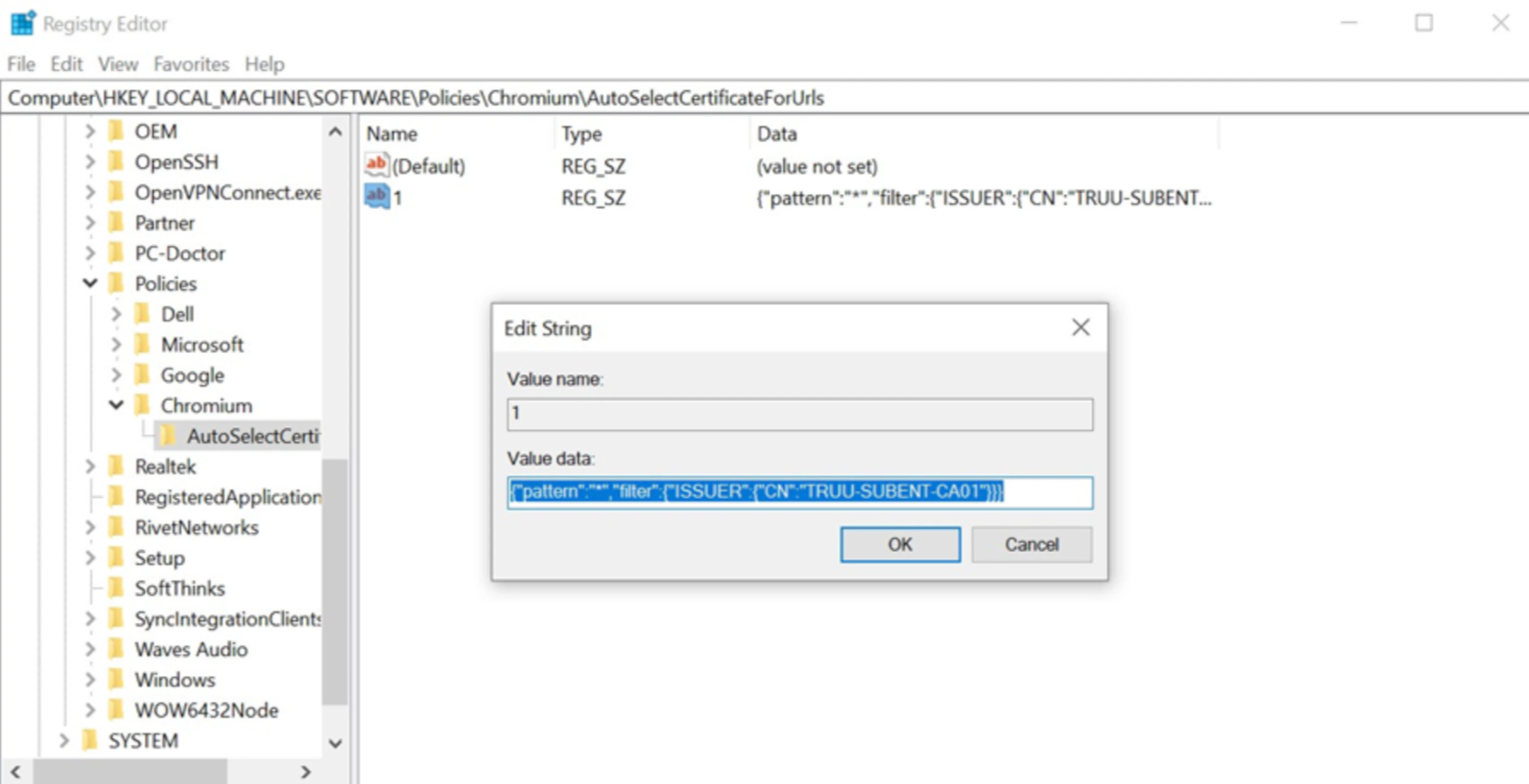 7. Click **OK**