> ## Documentation Index
> Fetch the complete documentation index at: https://docs.truu.ai/llms.txt
> Use this file to discover all available pages before exploring further.
# Change PIN - Windows
> This is a step-by-step as to how one changes their TruU PIN on a Windows device.
1. Login to your Windows Workstation
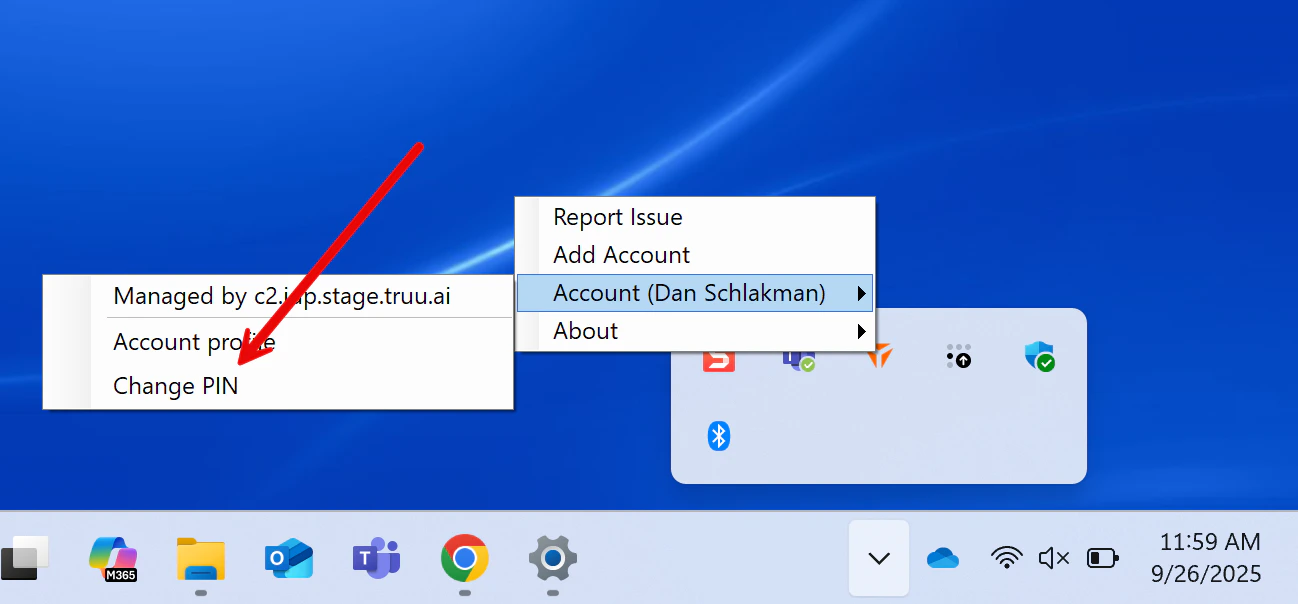
2. Click the **carrot** at the bottom of your screen. Right click on the **TruU** logo, hover over **Account** and navigate to "**Change PIN**"
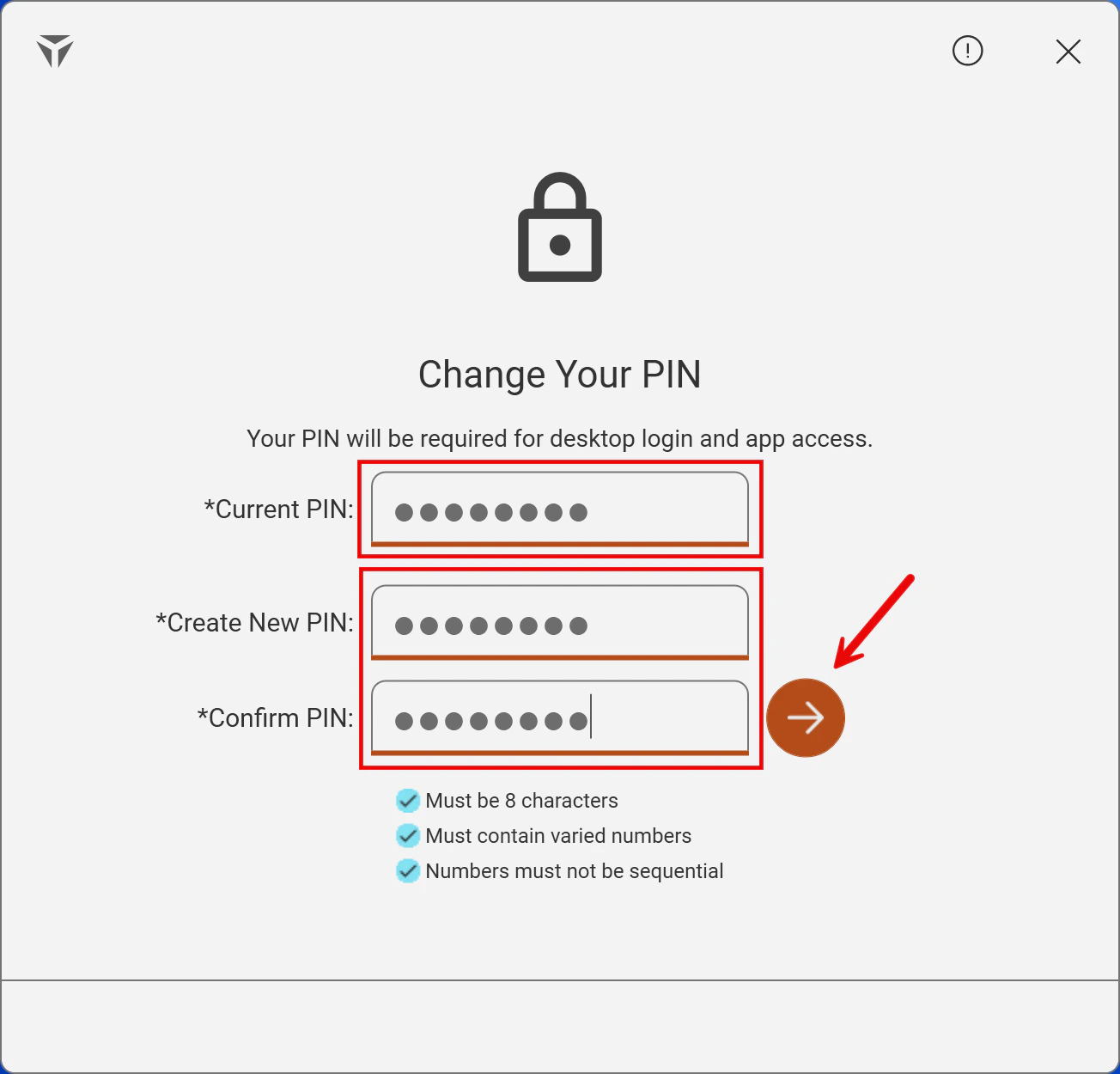
 3. Next, enter your *current PIN* in the designated box. Then, create a New PIN satisfying the required security requirements. Once completed, click the **arrow**
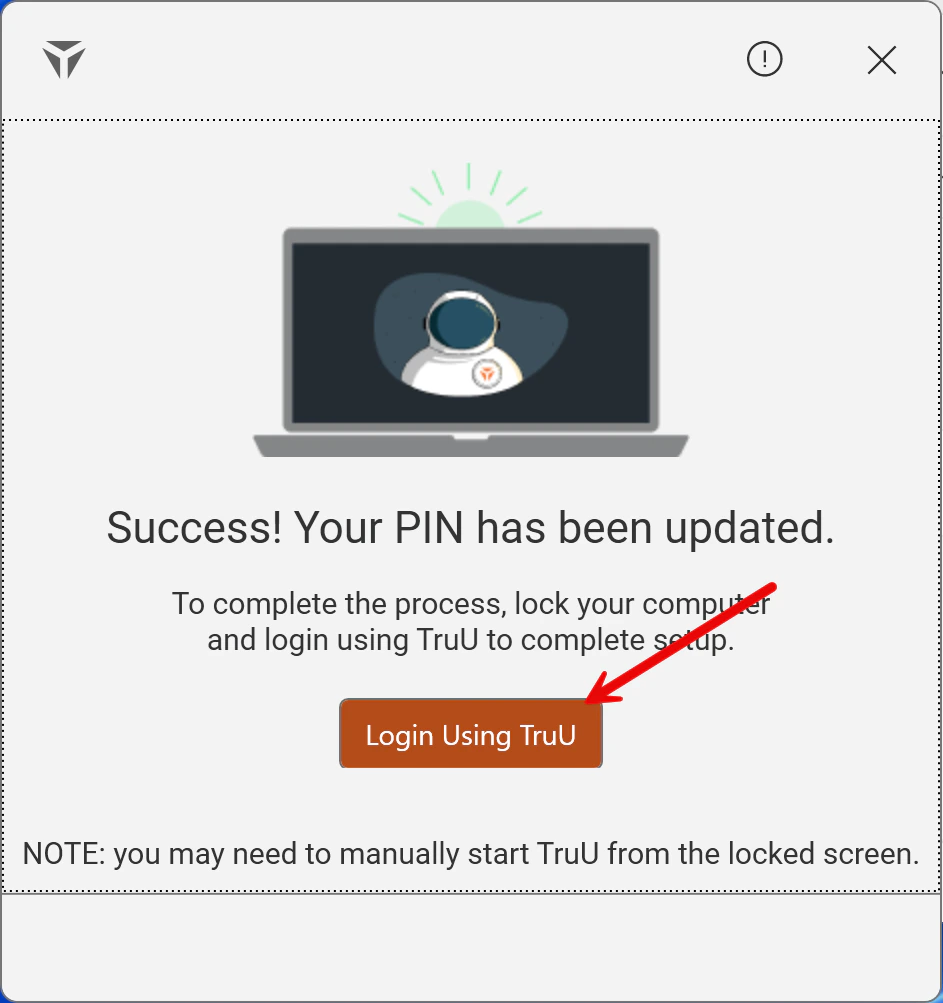
 4. The following screen will populate, and click the **Login Using TruU** button to finalize your updated PIN
 ***
[Submitting Logs - Windows](/docs/submitting-logs-windows)
[Manually Reporting TruU Logs](/docs/manually-filtering-logs)
***
[Submitting Logs - Windows](/docs/submitting-logs-windows)
[Manually Reporting TruU Logs](/docs/manually-filtering-logs)