> ## Documentation Index
> Fetch the complete documentation index at: https://docs.truu.ai/llms.txt
> Use this file to discover all available pages before exploring further.
# Cloud RADIUS Adapter Setup Guide
> The TruU Cloud RADIUS adapter connects RADIUS clients with TruU identity servers, whether those servers are hosted in the TruU cloud or on a customer’s network. The adapter is designed to run on Red Hat Enterprise Linux 8 (RHEL 8) servers. A TruU Cloud RADIUS adapter acts as a RADIUS server and can satisfy authentication requests from RADIUS clients.
## Supported RADIUS Protocols
The TruU Cloud RADIUS adapter supports the Password Authentication Protocol (PAP) and the Client Handshake Authentication Protocol (CHAP).
**TECHNICAL NOTE**: RADIUS clients may require a password from the end user. For instance, the GUI for VPN endpoint software may not let a user click to log in if a password field is empty. The RADIUS client will include this password when communicating with the TruU Cloud RADIUS adapter (the password will either be encrypted with the client/server shared secret or hashed depending on whether PAP or CHAP is used). TruU will always ignore the password. Users need not type a valid password. Whether or not a user is prompted for a password is a function of the RADIUS client, and cannot be influenced by the TruU adapter.
## Server Hardware Requirements
Customers are encouraged to consult server sizing guidelines from Red Hat. TruU recommends these minimums:
* 2 vCPUs at 2+ GHz
* 8GB RAM
* 20GB Disk
## Server Software Requirements
* RHEL 8
* Java 21
* TruU IDS v25.180 or higher
TruU recommends installing the OpenJDK Java 21 runtime (JRE). Run the following to install the OpenJDK Java 21 runtime:
```text theme={null}
sudo yum install java-21-openjdk
```
Test your installation by running the following command:
```text theme={null}
java -version
```
Confirm the output indicates Java 21. Please see [Red Hat Documentation](https://docs.redhat.com/en-us/documentation/red_hat_build_of_openjdk/21/pdf/installing_and_using_red_hat_build_of_openjdk_21_on_rhel/Red_Hat_build_of_OpenJDK-21-Installing_and_using_Red_Hat_build_of_OpenJDK_21_on_RHEL-en-US.pdf) for more detailed installation procedures and options.
## Networking Requirements
The server running the TruU Cloud RADIUS adapter must allow UDP traffic inbound on **port 1812** from RADIUS clients.
## Installation Process
1. Prepare the RHEL 8 server
1. Install Java 21
2. Test network connectivity from the RADIUS client(s)
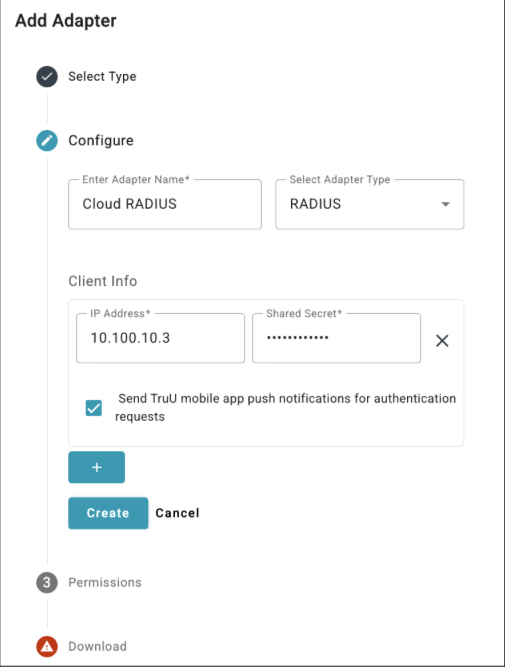
2. Configure a RADIUS adapter in the TruU admin console and download the associated files
1. Provide a meaningful *name* for the adapter
2. Select **RADIUS** as the adapter type
1. **NOTE**: the previous RADIUS solution which was built directly into the identity server has been renamed “Legacy RADIUS”Enter the IP address of your RADIUS client and the shared secret you wish to use between this client and the adapter
3. Enable the **Send TruU mobile app push notifications** option if you want users to receive a push notification on their mobile phones running the TruU mobile app
1. If this option is unchecked, users must open the TruU mobile app to look for an authentication request when using the RADIUS adapter
4. Add additional client configurations as needed
1. **NOTE**: you can add, modify, or remove clients from the adapter at any time by updating the adapter in the TruU admin console. The adapter will automatically apply these updates within 5 minutes of the changes being saved in the admin console.
 3. Download the RADIUS package **truu-radius-server-version.zip** and the accompanying **truu-radius.yml**configuration file
4. Upload **truu-radius-server-version.zip** and **truu-radius.yml** files to the RHEL 8 server
5. Unzip the **truu-radius-server-version.zip** archive to extract the RPM installer
1. Do this in the home folder of the user account used to connect to the server
2. You should now have **truu-radius.yml** and **truu-radius-version-1.el8.noarch.rpm** together in the same home folder
6. Install the RPM with the following command:
```text theme={null}
sudo rpm -i truu-radius--1.el8.noarch.rpm
```
7. Check the status of the truu-radius service with the following command. Confirm that the output indicates “Active: active (running)”:
```text theme={null}
sudo service truu-radius status
```
8. Test the integration
## Installation Directory and Service Account
Installation of the RPM will create the following directory on the RHEL 8 server:
```text theme={null}
/opt/truu/radius
```
Installation will also create a TruU service account under which the **truu-radius** service will execute.
This directory will be populated with the Java application (**truu-radius-version.jar** and a symbolic link, **truu-radius.jar**), the **truu-radius.yml**configuration file, and an application log file named **radius-app.log**. Customers are encouraged to apply log management practices around this file as it will continuously grow over time. [Logrotate](https://www.redhat.com/en/blog/setting-logrotate) is a tool commonly used for this type of task.
## Uninstallation
Use the following command to test if the **truu-radius** RPM is installed (sudo is not required):
```text theme={null}
rpm -qi truu-radius
```
Use the following command to uninstall the RPM:
```text theme={null}
sudo rpm -e truu-radius
```
## Architectural Overview
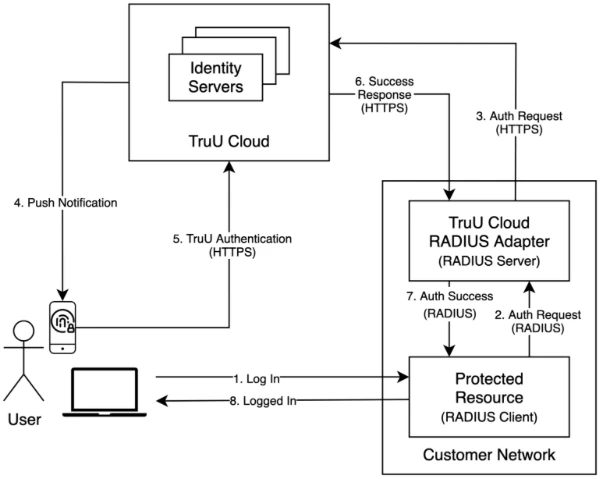
The TruU Cloud RADIUS adapter translates RADIUS authentication requests (UDP port 1812) to HTTPS REST API calls (TCP port 443). The REST API is managed by TruU identity servers, whether those are hosted in the TruU cloud or on a customer-managed network. The **truu-radius.yml** file contains the connection details that allow the adapter to communicate with the identity servers.
3. Download the RADIUS package **truu-radius-server-version.zip** and the accompanying **truu-radius.yml**configuration file
4. Upload **truu-radius-server-version.zip** and **truu-radius.yml** files to the RHEL 8 server
5. Unzip the **truu-radius-server-version.zip** archive to extract the RPM installer
1. Do this in the home folder of the user account used to connect to the server
2. You should now have **truu-radius.yml** and **truu-radius-version-1.el8.noarch.rpm** together in the same home folder
6. Install the RPM with the following command:
```text theme={null}
sudo rpm -i truu-radius--1.el8.noarch.rpm
```
7. Check the status of the truu-radius service with the following command. Confirm that the output indicates “Active: active (running)”:
```text theme={null}
sudo service truu-radius status
```
8. Test the integration
## Installation Directory and Service Account
Installation of the RPM will create the following directory on the RHEL 8 server:
```text theme={null}
/opt/truu/radius
```
Installation will also create a TruU service account under which the **truu-radius** service will execute.
This directory will be populated with the Java application (**truu-radius-version.jar** and a symbolic link, **truu-radius.jar**), the **truu-radius.yml**configuration file, and an application log file named **radius-app.log**. Customers are encouraged to apply log management practices around this file as it will continuously grow over time. [Logrotate](https://www.redhat.com/en/blog/setting-logrotate) is a tool commonly used for this type of task.
## Uninstallation
Use the following command to test if the **truu-radius** RPM is installed (sudo is not required):
```text theme={null}
rpm -qi truu-radius
```
Use the following command to uninstall the RPM:
```text theme={null}
sudo rpm -e truu-radius
```
## Architectural Overview
The TruU Cloud RADIUS adapter translates RADIUS authentication requests (UDP port 1812) to HTTPS REST API calls (TCP port 443). The REST API is managed by TruU identity servers, whether those are hosted in the TruU cloud or on a customer-managed network. The **truu-radius.yml** file contains the connection details that allow the adapter to communicate with the identity servers.
 ## High Availability
Customers may configure one or more TruU Cloud RADIUS adapters to satisfy high availability needs. With multiple adapters, a customer has two HA deployment options:
1. Configure RADIUS clients to use multiple RADIUS servers
1. Recall that an adapter acts as a RADIUS server
2. Configure a network load balancer “in front of” multiple RHEL 8 servers, with each server running a TruU Cloud RADIUS adapter
1. In this scenario, the network load balancer IP address is the address that you would use for the RADIUS server when configuring your RADIUS clients
***
[Webhook Event Logging Adapter Setup Guide](/docs/copy-of-s3-event-logging-adapter-setup-guide)
[Other](/docs/other)
## High Availability
Customers may configure one or more TruU Cloud RADIUS adapters to satisfy high availability needs. With multiple adapters, a customer has two HA deployment options:
1. Configure RADIUS clients to use multiple RADIUS servers
1. Recall that an adapter acts as a RADIUS server
2. Configure a network load balancer “in front of” multiple RHEL 8 servers, with each server running a TruU Cloud RADIUS adapter
1. In this scenario, the network load balancer IP address is the address that you would use for the RADIUS server when configuring your RADIUS clients
***
[Webhook Event Logging Adapter Setup Guide](/docs/copy-of-s3-event-logging-adapter-setup-guide)
[Other](/docs/other)