> ## Documentation Index
> Fetch the complete documentation index at: https://docs.truu.ai/llms.txt
> Use this file to discover all available pages before exploring further.
# TruU IdP for NetSkope
> Combining TruU with NetSkope offers users a streamlined login experience while accessing NetSkope-protected resources. The following guide outlines how to set up TruU as a SAML Forward Proxy with NetSkope.
## **Getting Started:**
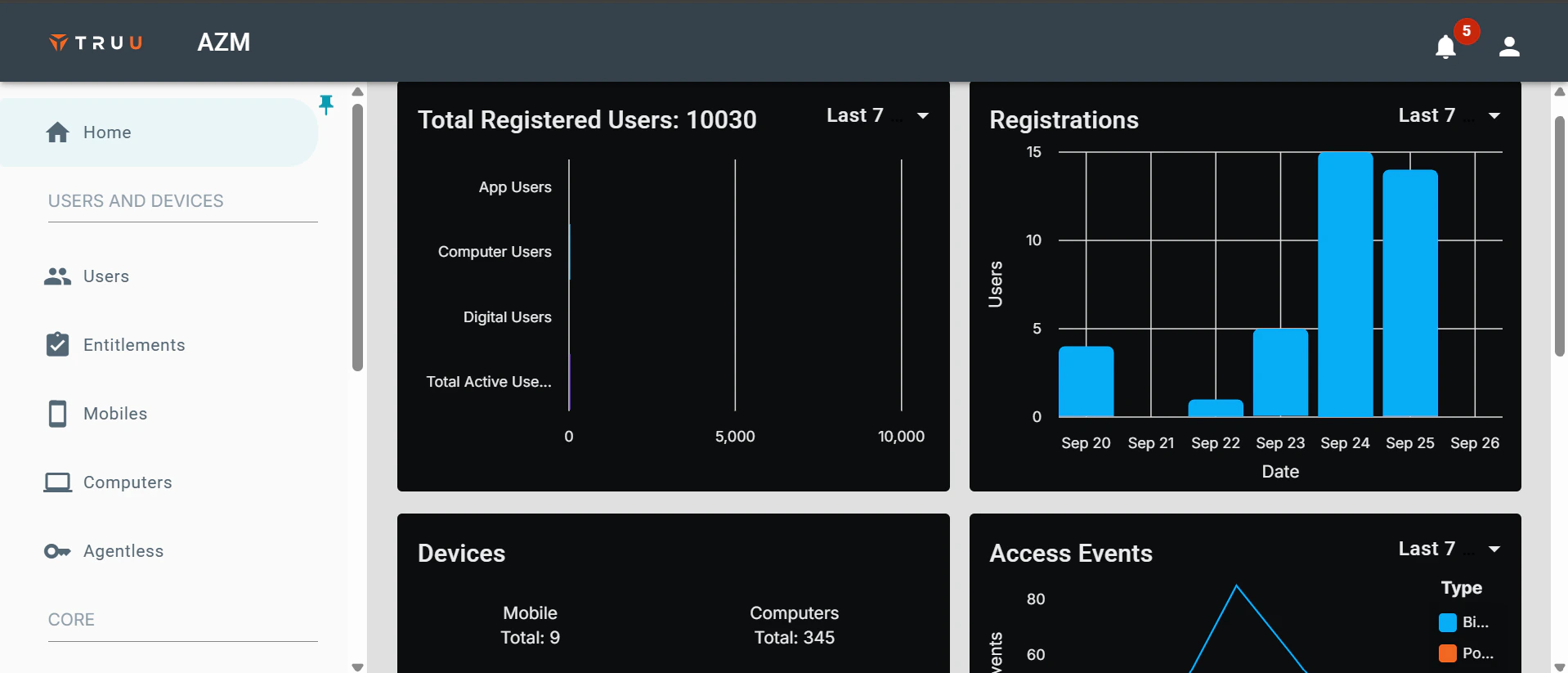
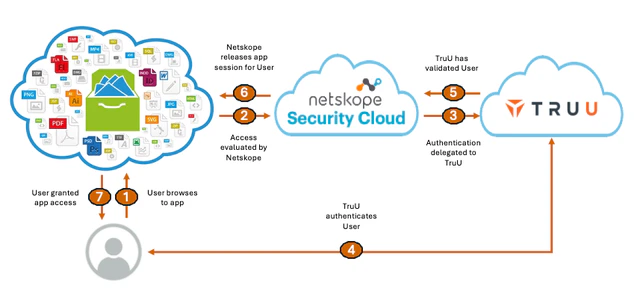 * Sign in to the **TruU Admin Console** as either a "**Digital Admin**" or "**Super Admin**."
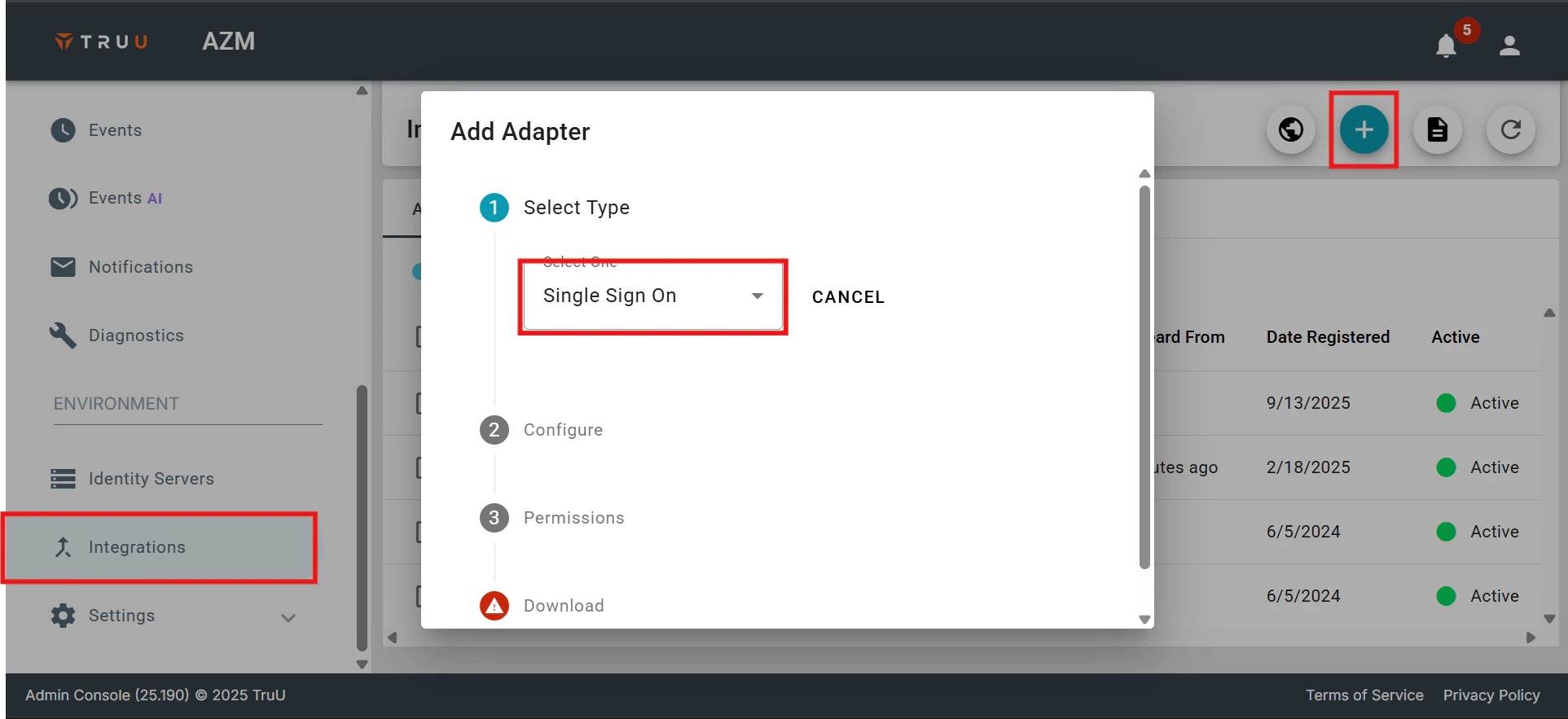
 * After logging in, go to the **Integrations** menu, click the **(+)** button, and choose New **Single Sign-On** Adapter.
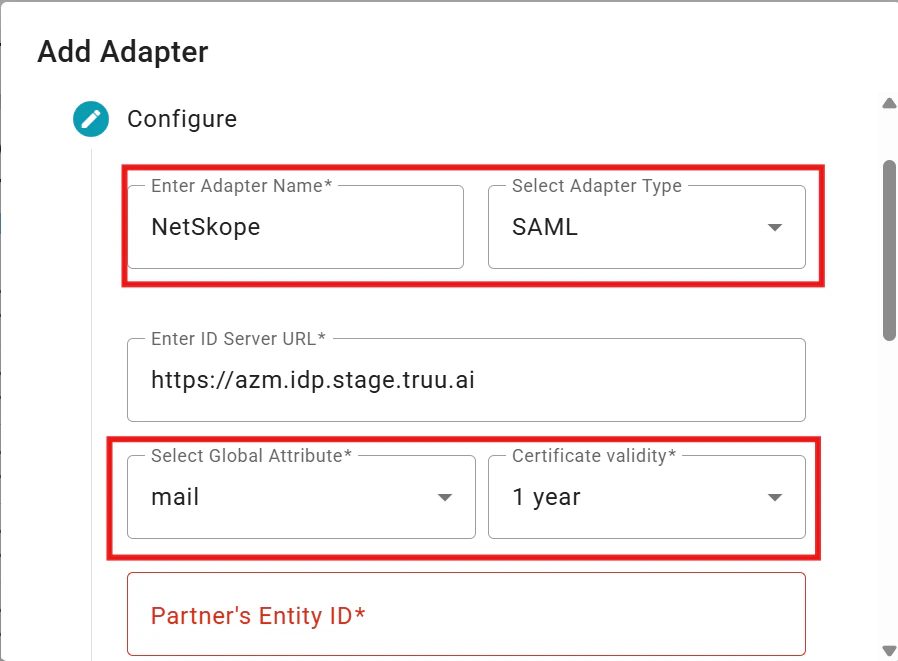
 * Configure the **SAML Adapter** by providing a name, selecting the primary **SAML identifier (Global Attribute)**, specifying the **Certificate validity period, Partner’s Entity ID**, and the Assertion Consumer Service URL from your **NetSkope instance**.
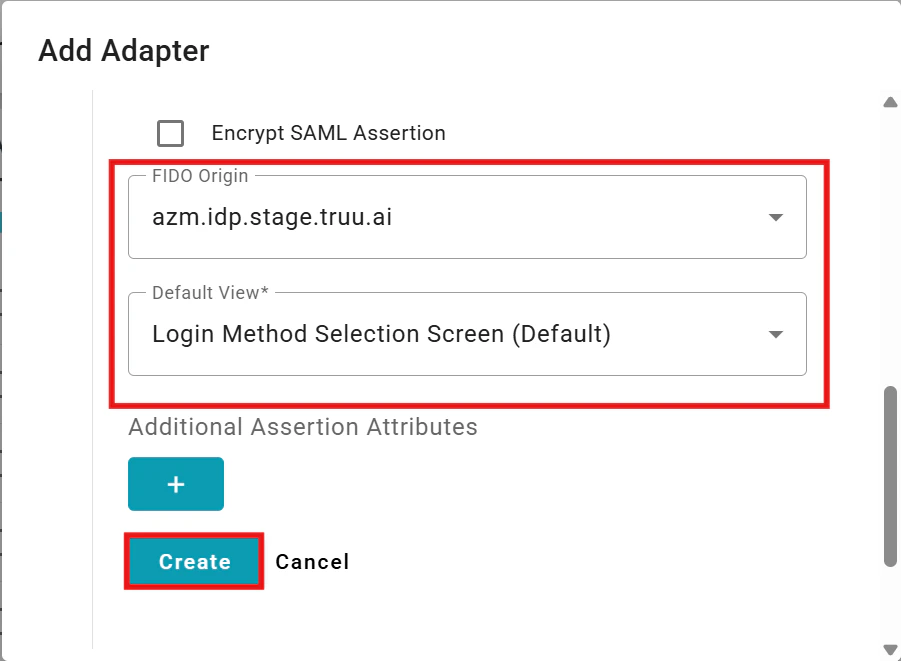
 * After configuration, click **Create** to set up the adapter. A **.txt file** containing the necessary **SAML configuration** details for your NetSkope tenant will be **automatically downloaded**.
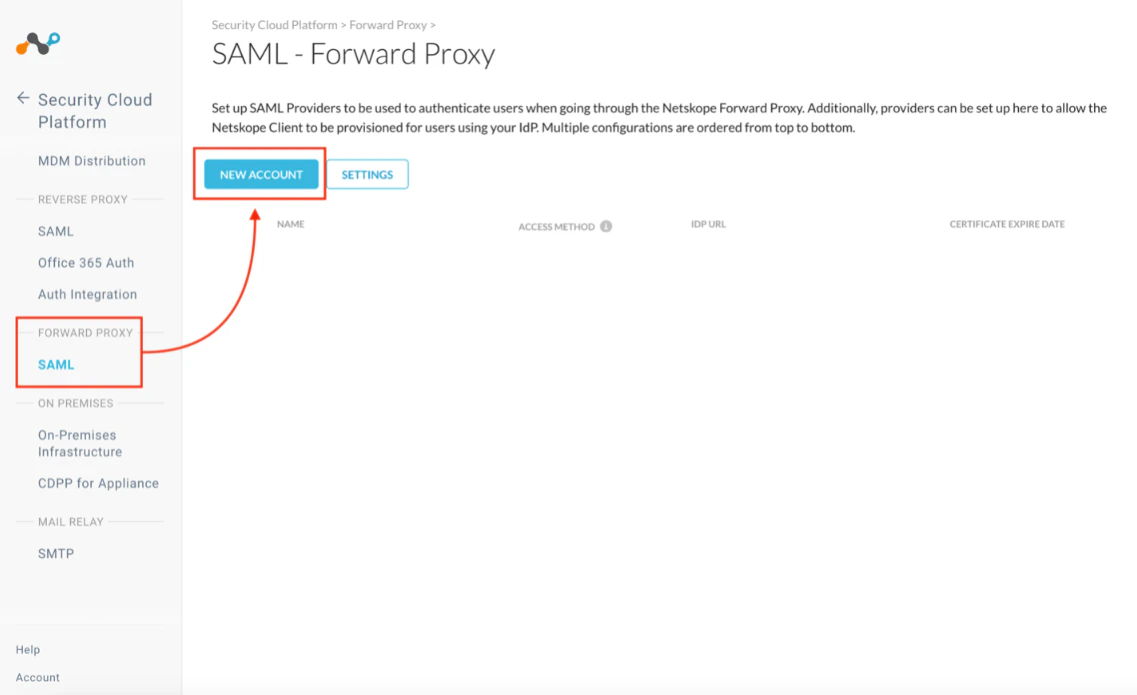
 5. Next, login to your Netskope instance and navigate to the "Settings" tab, then go to “Security Cloud Platform” and select “SAML – Forward Proxy”. Click **New Account** to add a SAML integration with TruU
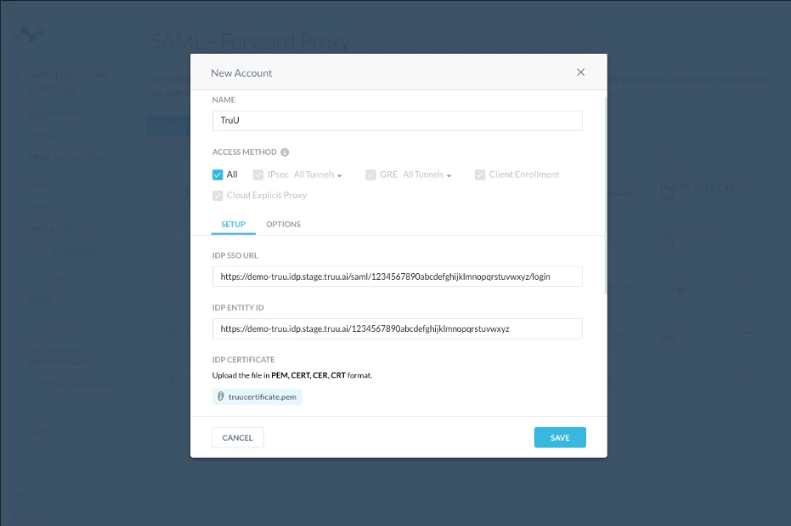
 6. Add the TruU SAML configurations (from the .txt file downloaded from your browser in Step 4 above) in your Netskope instance
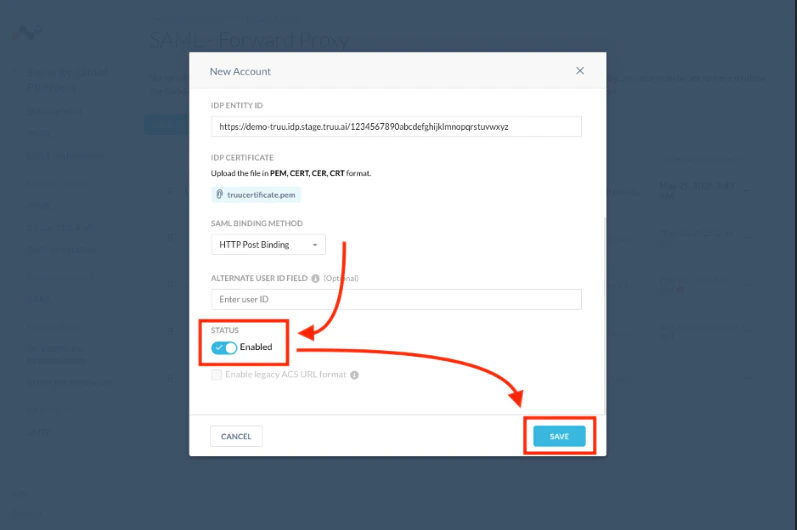
 7. Once the SAML configurations are complete, toggle the “Status” indicator to **Enabled** to enable the SAML integration between Netskope and TruU. Click **Save** to complete
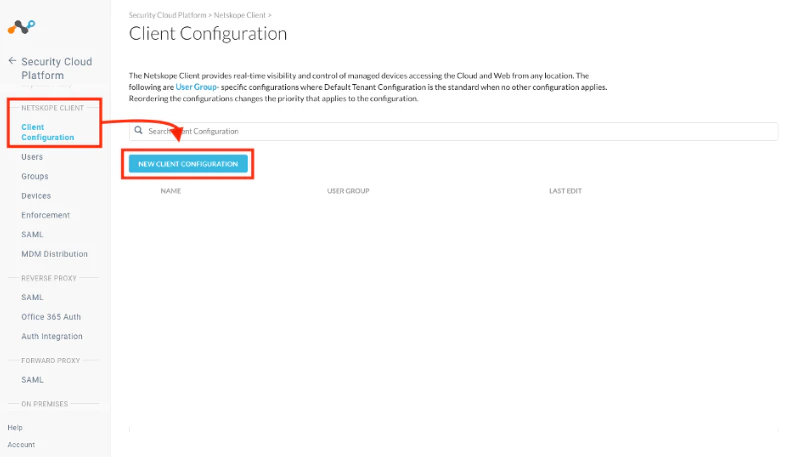
 8. Once the SAML integration between TruU and Netskope (Step 7) is completed, navigate to the “Client Configuration” menu and click on **New Client Configurations** to configure a new TruU client within Netskope
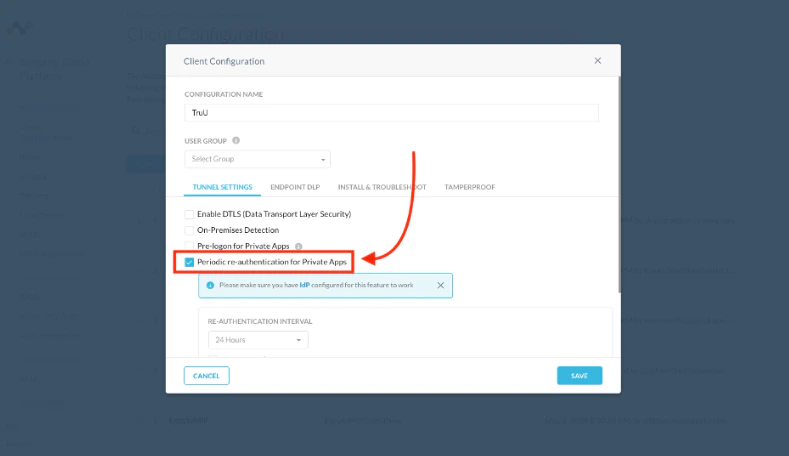
 9. Within the “Client Configuration” menu, enable the **Periodic re-authentication for Private Apps** option. When enabled, users must authenticate with TruU (via the SAML integration) before access to private apps is granted
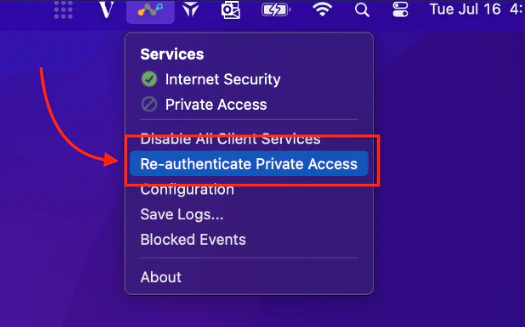
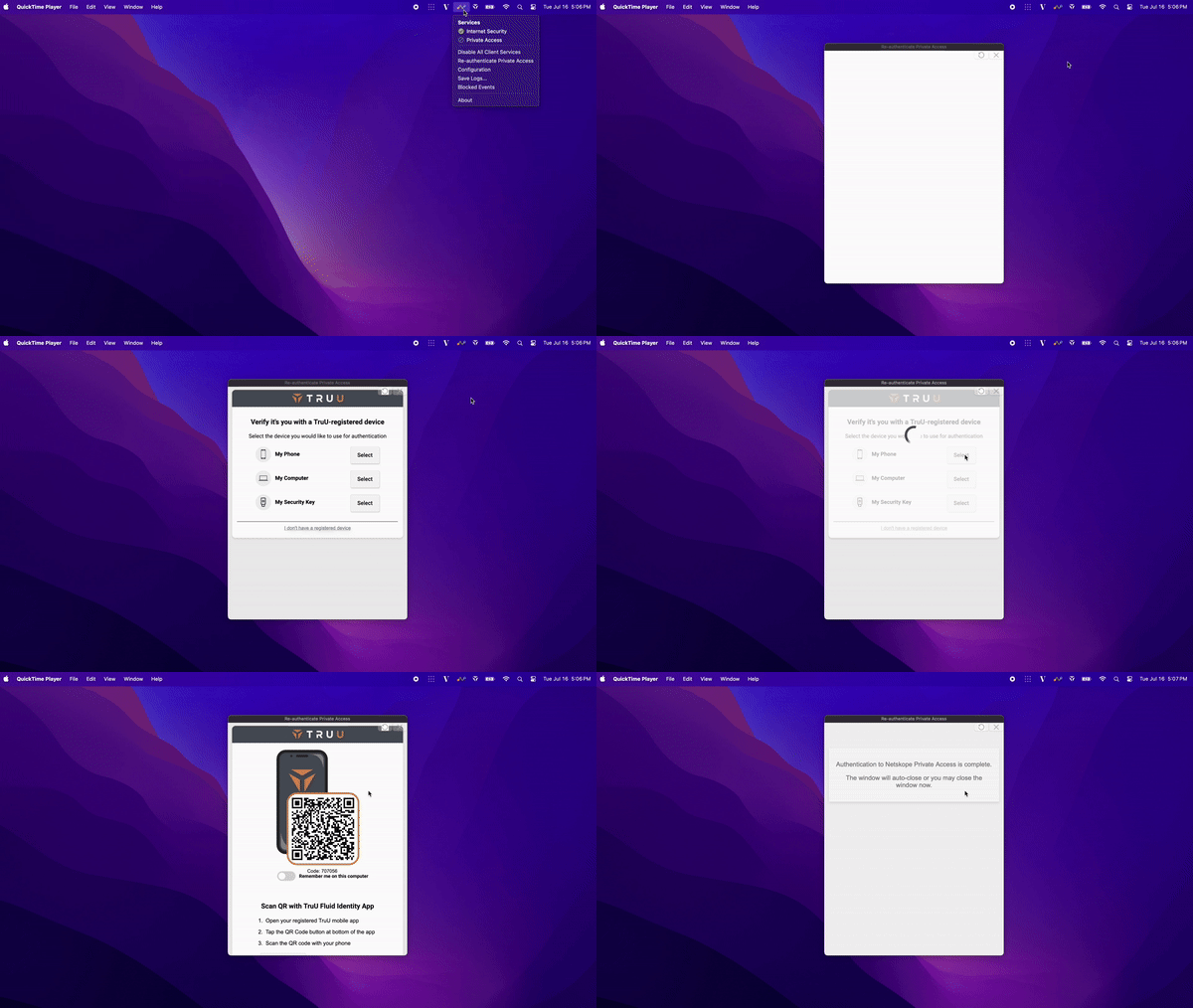
 10. To test the integration, launch the Netskope client on your computer, and choose the **Re-authenticate Private Access** option
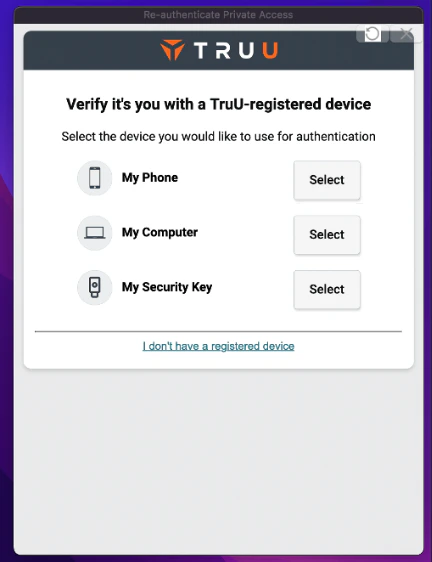
 11. Once selected, options to authenticate with TruU will appear. Select and complete an authentication option with TruU to access private apps secured by Netskope
 ## **Demo GIF:**
 ***
[SAML Adapter Setup Guide](/docs/saml-adapter-setup-guide-1)
[ForgeRock](/docs/forgerock)
***
[SAML Adapter Setup Guide](/docs/saml-adapter-setup-guide-1)
[ForgeRock](/docs/forgerock)