> ## Documentation Index
> Fetch the complete documentation index at: https://docs.truu.ai/llms.txt
> Use this file to discover all available pages before exploring further.
# Create Enrollment Agent Computer Template
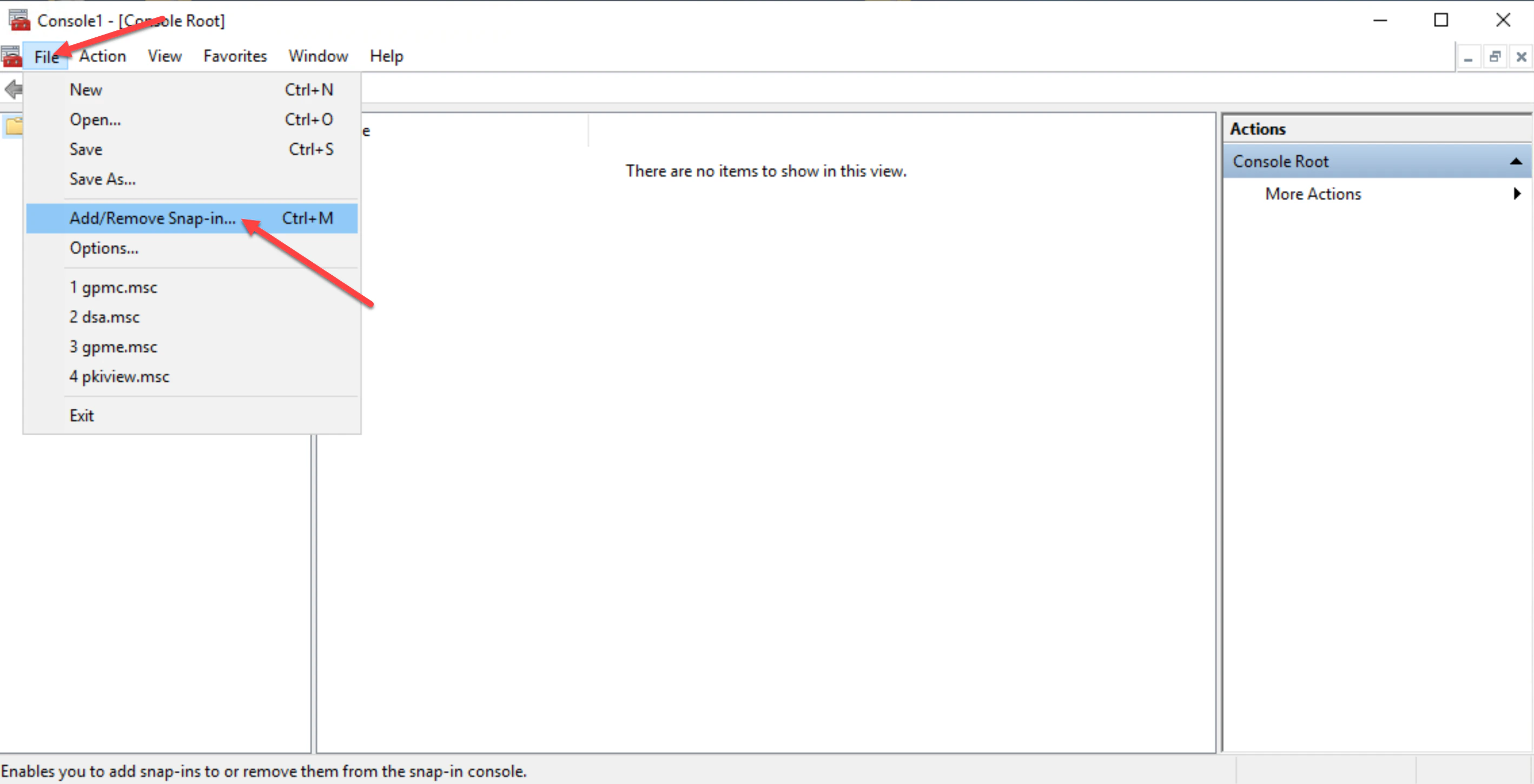
1. Open the Microsoft Management Console (MMC) and click **File** then click **Add/Remove Snap-in…** to add a new snap-in.
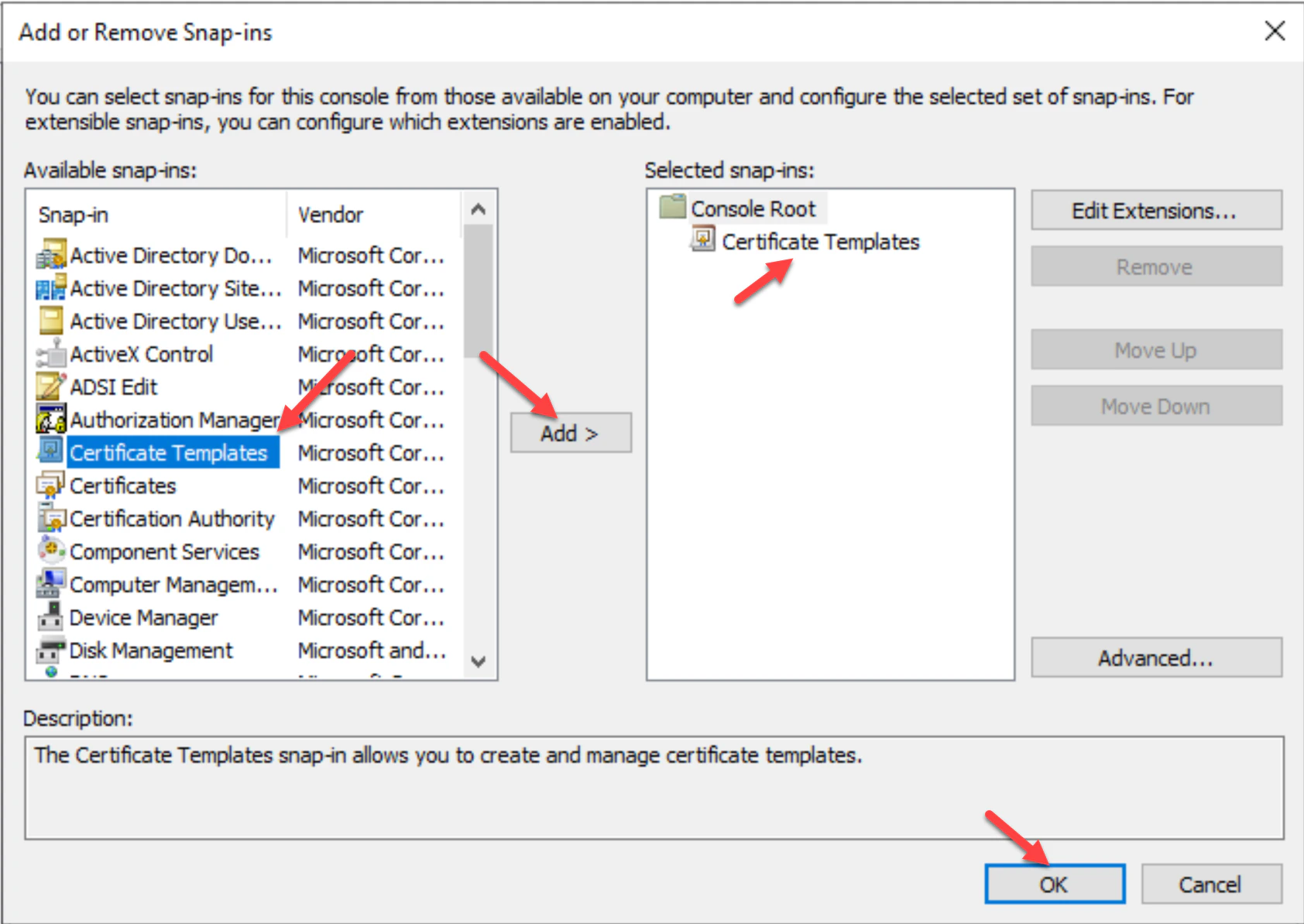
 2. Click **Certificate Templates,** then click **Add** and **OK**.
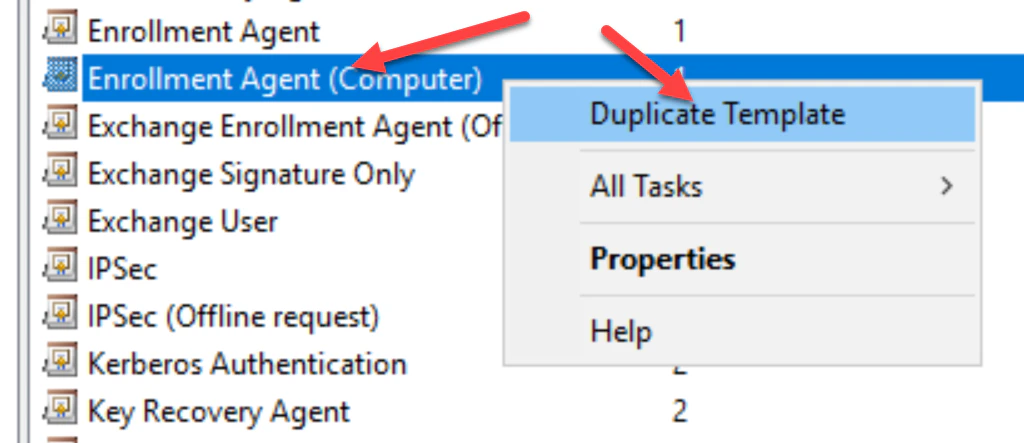
 3. Double-click on the **Certificate Templates** , then in the list of templates right-click on the **Enrollment Agent (Computer)** template and choose **Duplicate Template**.
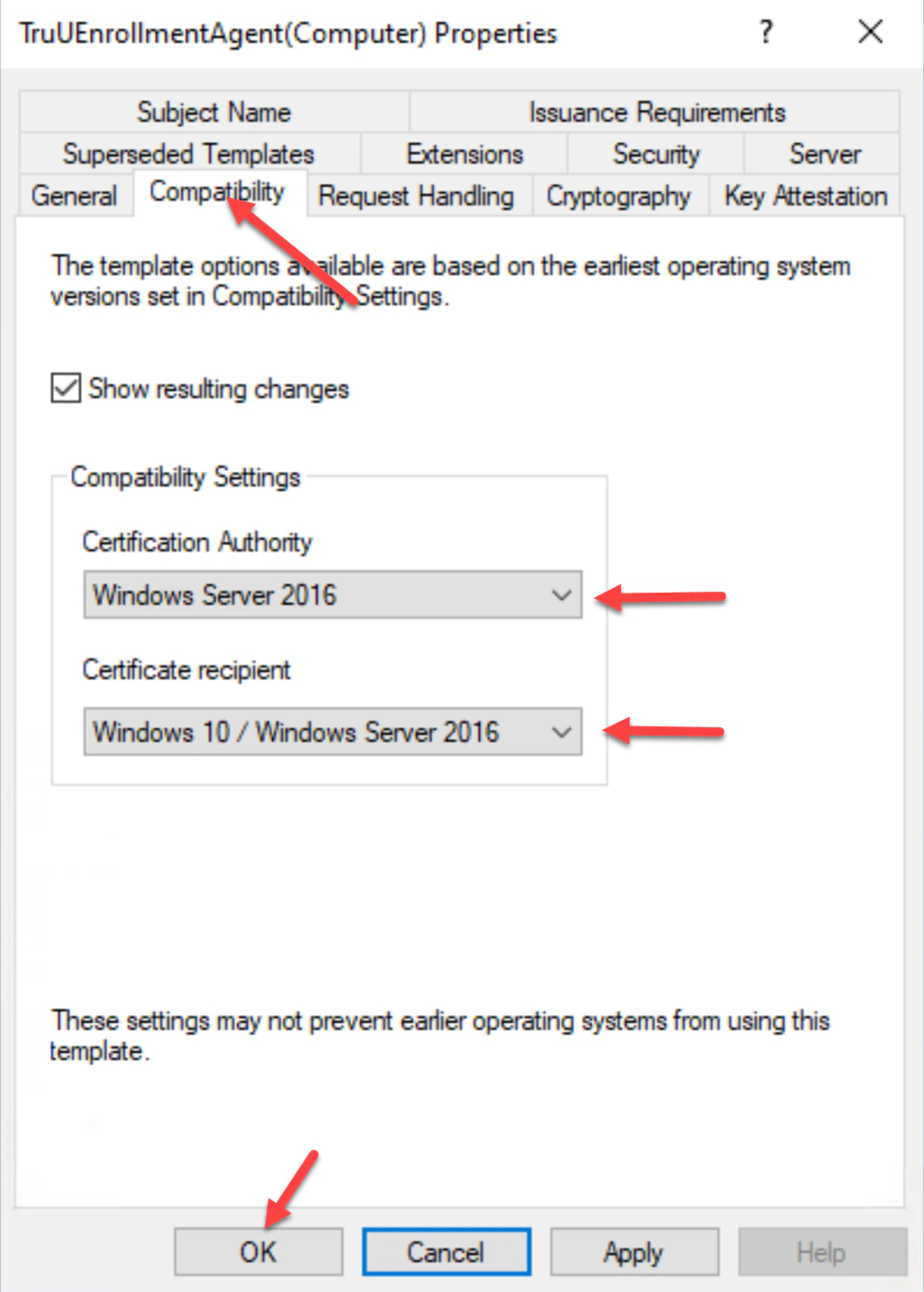
 4. Navigate to the **Compatibility** tab. Ensure the operating system versions of the **Certificate Authority** and **Certificate recipient** are appropriately selected for your environment.
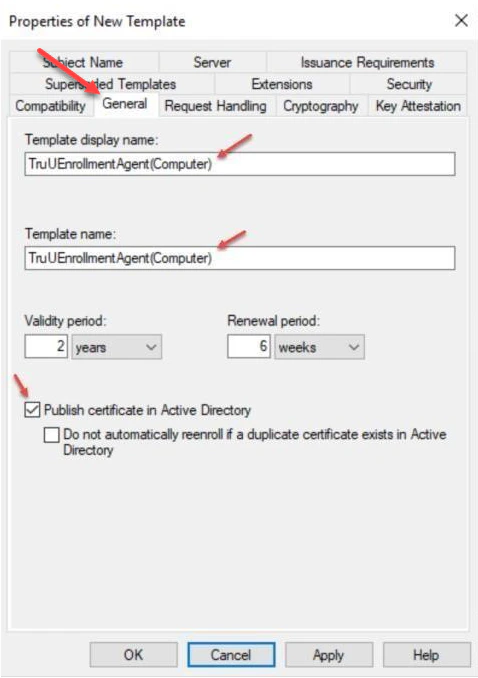
 5. Navigate to the **General** tab and provide a **Template display name:** for the template. I.E TruUEnrollmentAgent(Computer).
**NOTE: Do not leave any spaces in the name of the Template display name. Also the Publish certificate in Active Directory is optional if your company policy doesn’t allow this. This will allow certificate info to be available in the AD object.**
5. Navigate to the **General** tab and provide a **Template display name:** for the template. I.E TruUEnrollmentAgent(Computer).
**NOTE: Do not leave any spaces in the name of the Template display name. Also the Publish certificate in Active Directory is optional if your company policy doesn’t allow this. This will allow certificate info to be available in the AD object.**
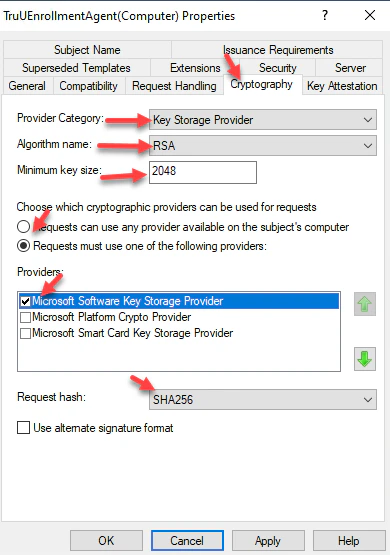
 6. Navigate to the **Cryptography** tab and set the following settings for **Key Storage Provider** (KSP) support:
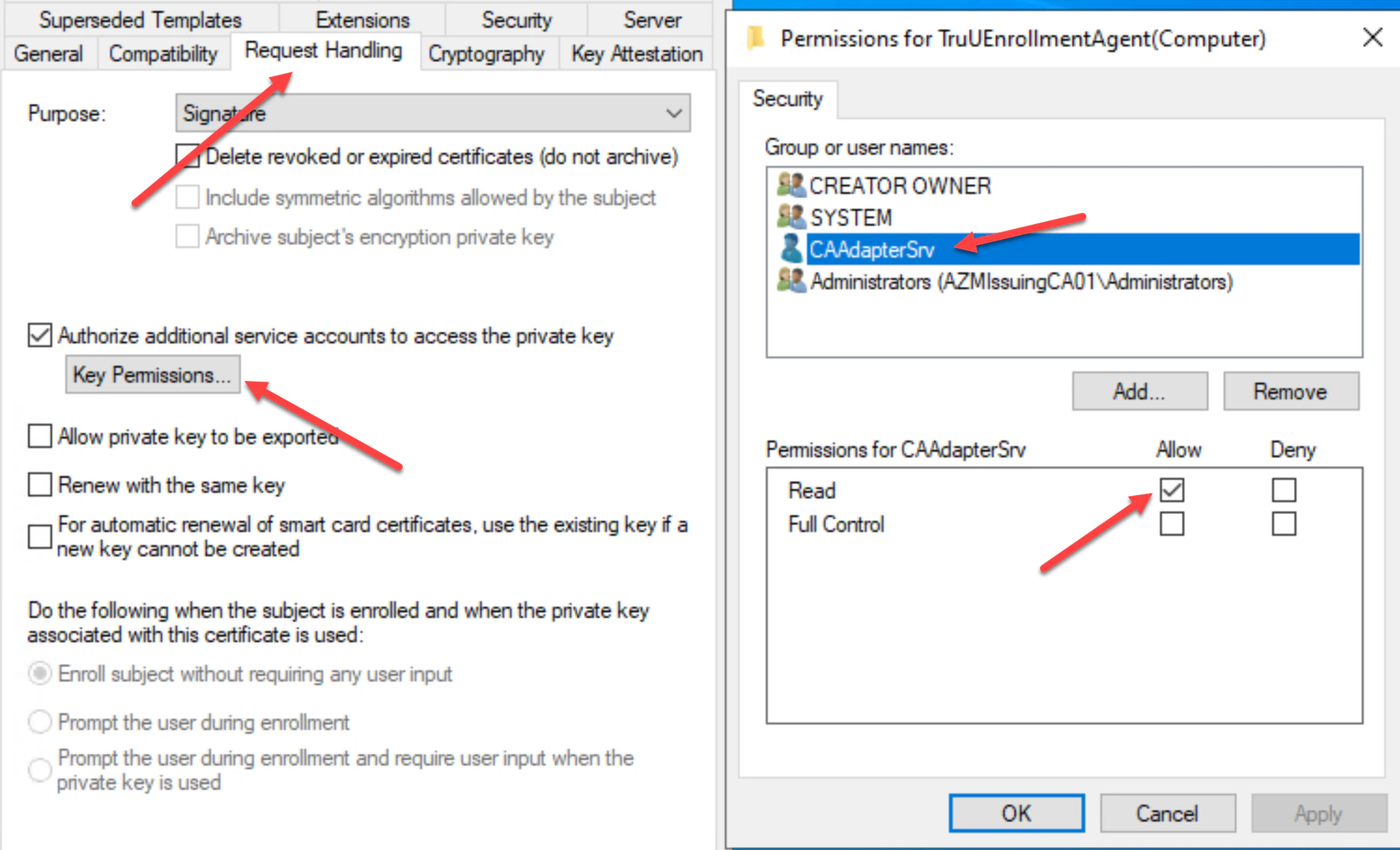
 7. In the **Request Handling** tab, select **Authorize additional service accounts to access the private key,** then add the **TruU service account** created for the CA Adapter service. Assign the TruU account **Read** permission, then click **Apply** to complete setup in this tab.
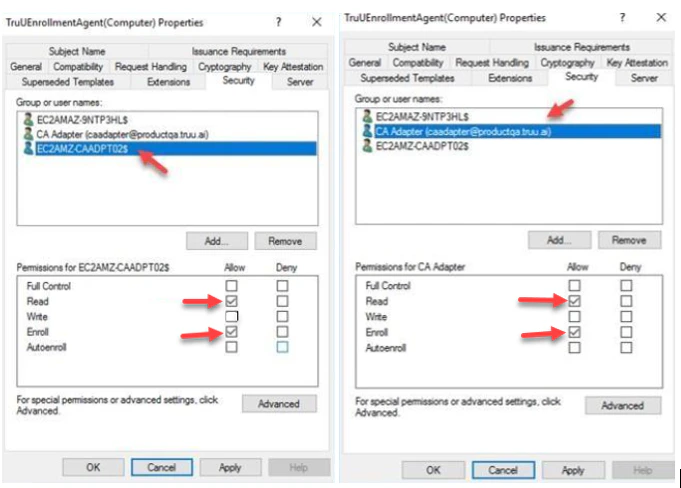
 8. In the **Security** tab, add the **Server that the CA Adapter is installed on** with **Read** and **Enroll** permissions, and the **TruU service account** with **Read** and **Enroll** permissions. Click **Apply** to complete setup in this tab and then **OK**.
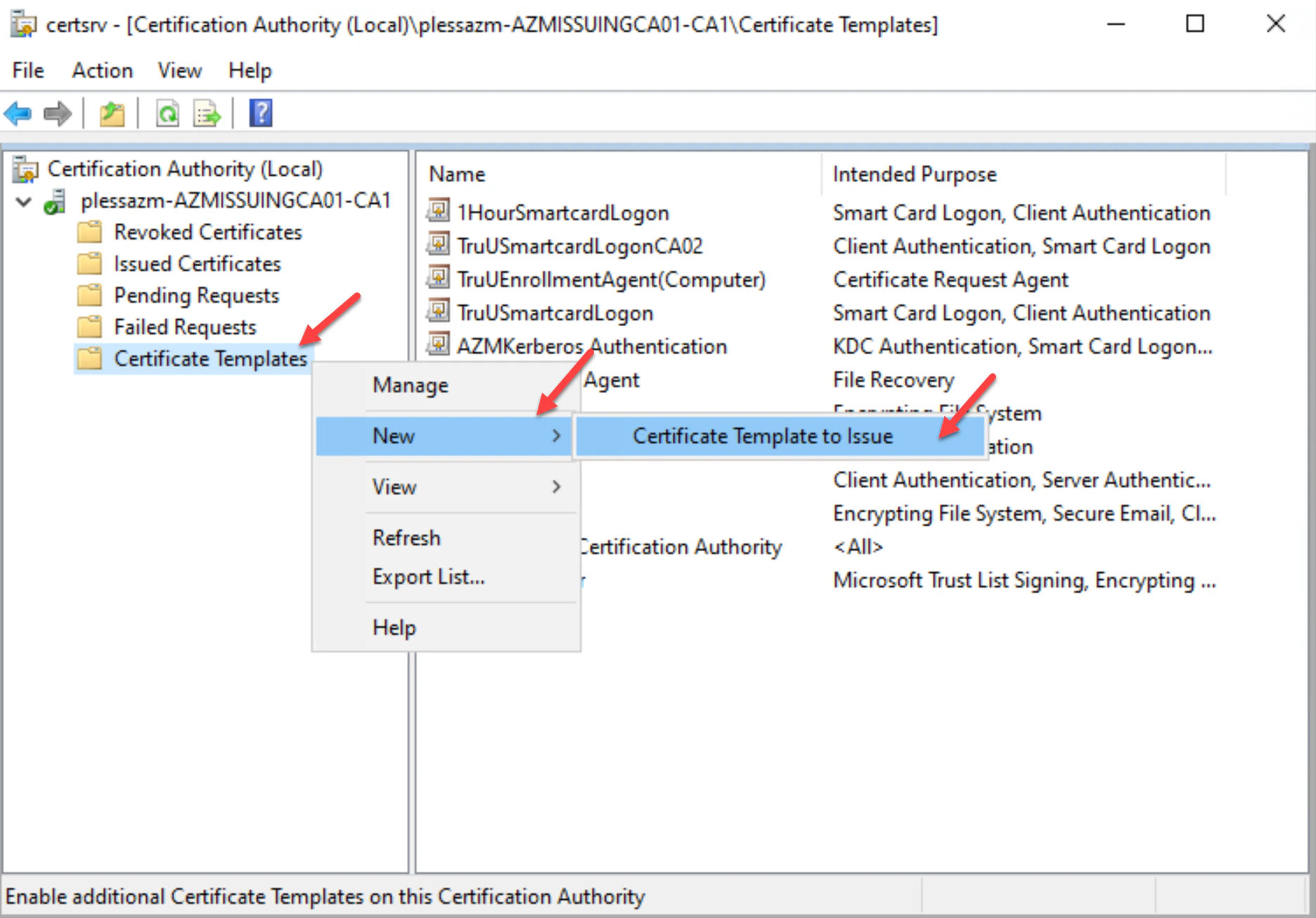
 9. Next, navigate to your **Certificate Authority,** then click the **Certificate Templates** folder. Right-click on the **folder** and choose **New** then, **Certificate Template to Issue**.
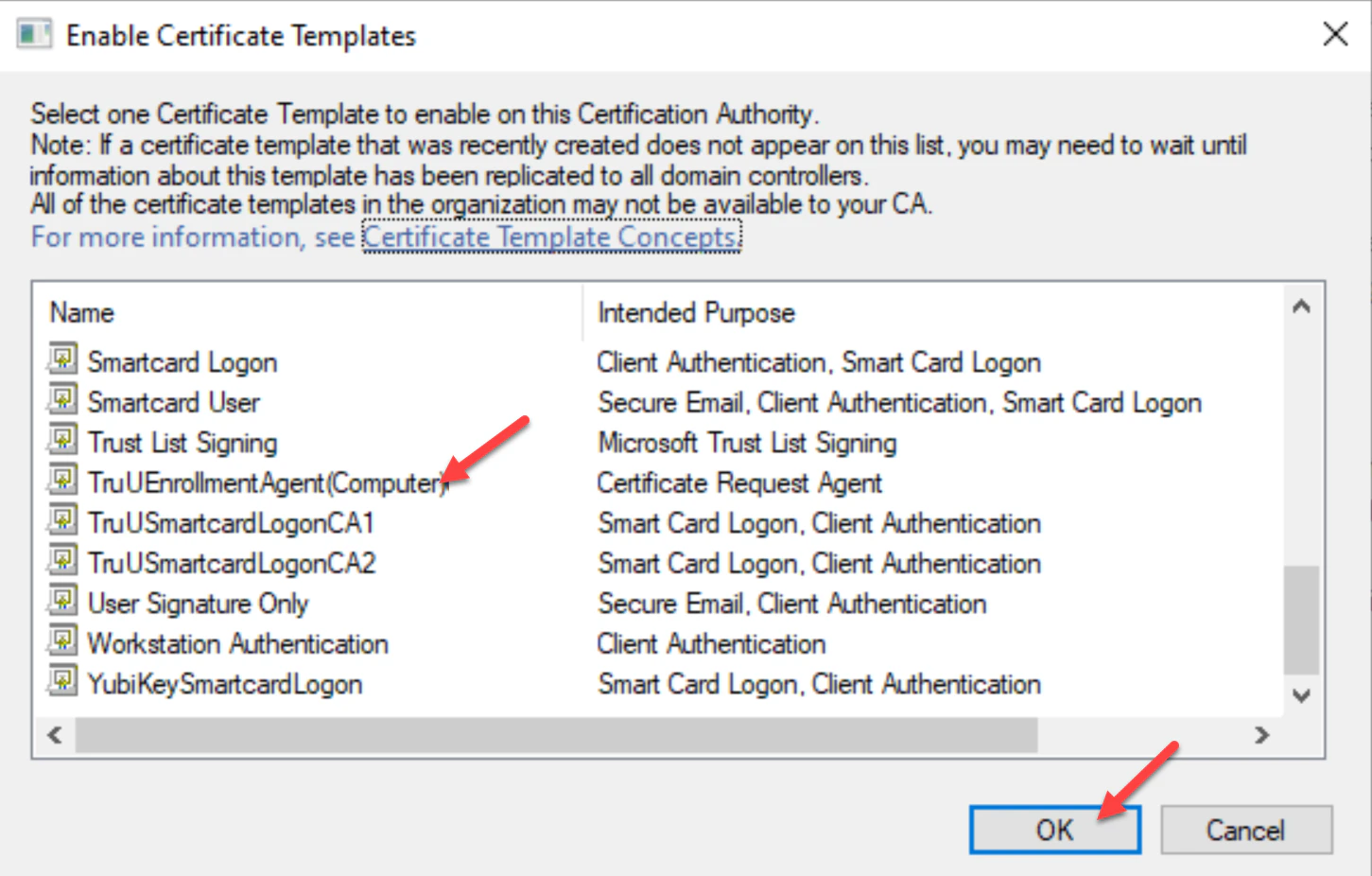
 10. Select the **TruUEnrollmentAgent(Computer)** template, then click **OK**.
 11. The new **TruUEnrollmentAgent(Computer)** template will appear in the list of **Certificate Templates**. Rightclick on the new **Enrollment Agent** template to verify its properties are set. Then, click **OK** to complete.
**Note:** The **Certificate Request Agent** intended purpose is configured for this certificate template only.
***
[Configure TruU CA Adapter with ADCS](/docs/untitled-page)
[Create the Smartcard Logon Template](/docs/create-the-smartcard-logon-template)
11. The new **TruUEnrollmentAgent(Computer)** template will appear in the list of **Certificate Templates**. Rightclick on the new **Enrollment Agent** template to verify its properties are set. Then, click **OK** to complete.
**Note:** The **Certificate Request Agent** intended purpose is configured for this certificate template only.
***
[Configure TruU CA Adapter with ADCS](/docs/untitled-page)
[Create the Smartcard Logon Template](/docs/create-the-smartcard-logon-template)