> ## Documentation Index
> Fetch the complete documentation index at: https://docs.truu.ai/llms.txt
> Use this file to discover all available pages before exploring further.
# Create the Smartcard Logon Template
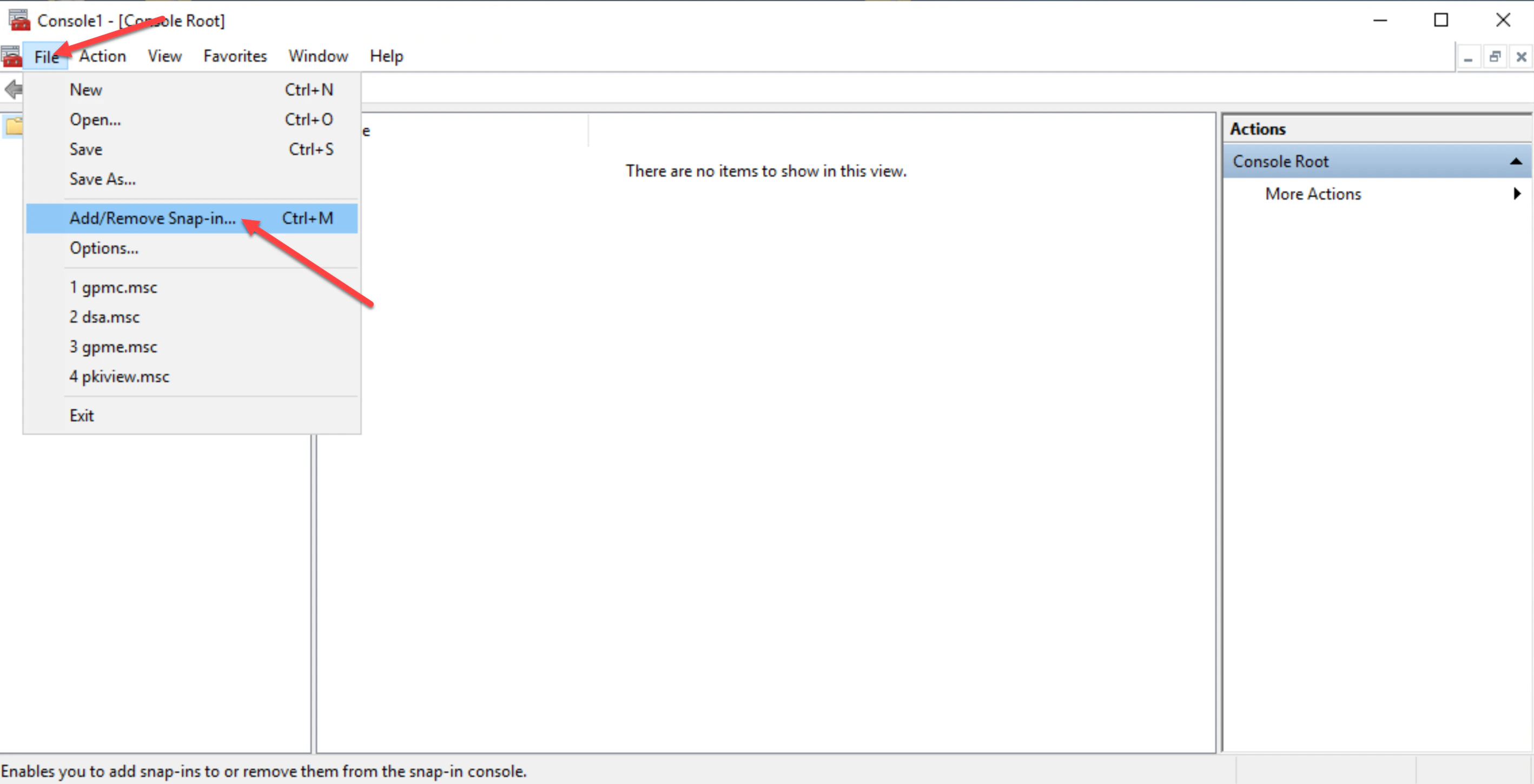
1. Log onto the certificate authority server, then launch the Microsoft Management Console (MMC) and click **File** then **Add/Remove Snap-in**.
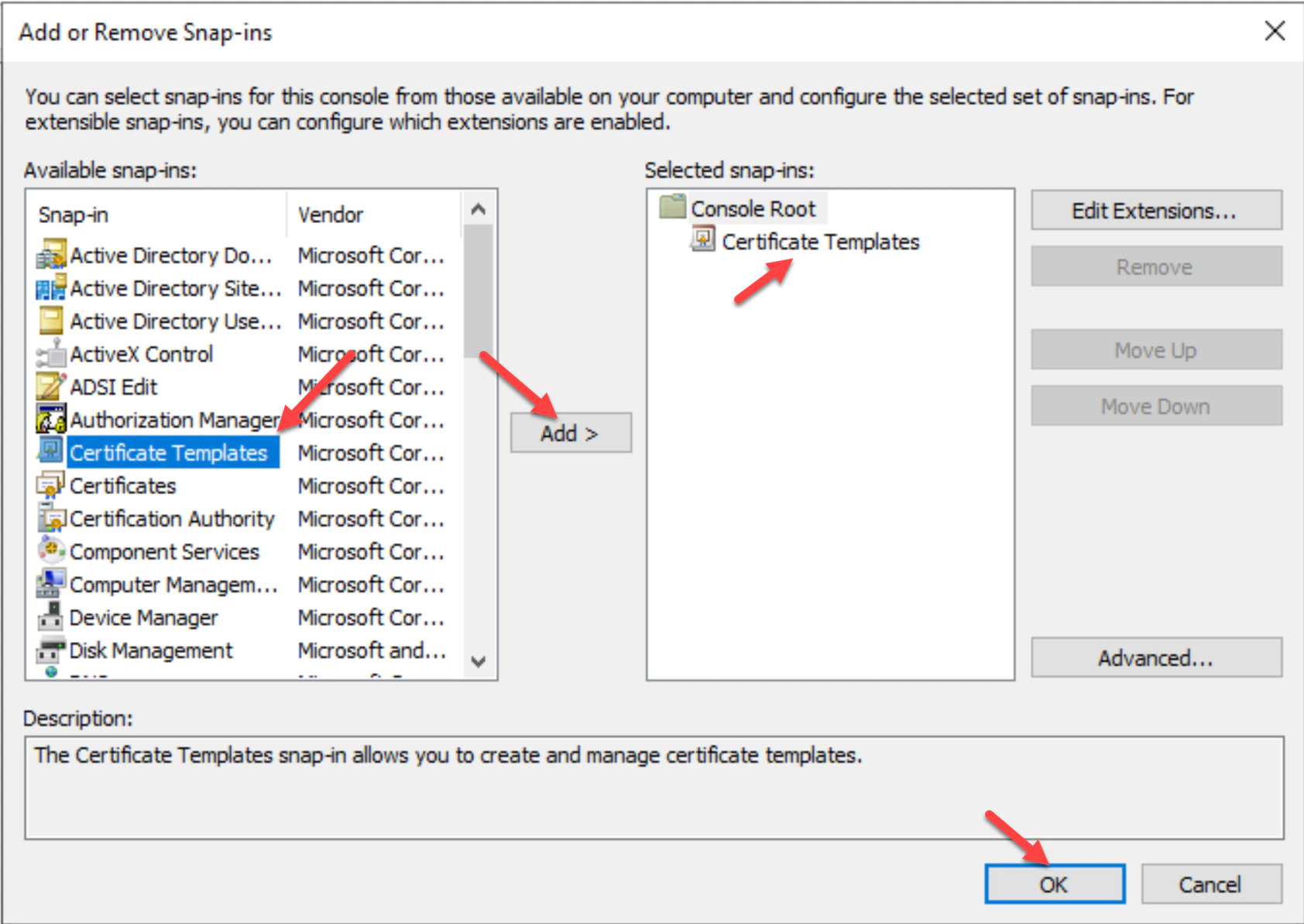
 2. In the "Add or Remove Snap-ins" list, choose **Certificate Templates**, then click **Add**.
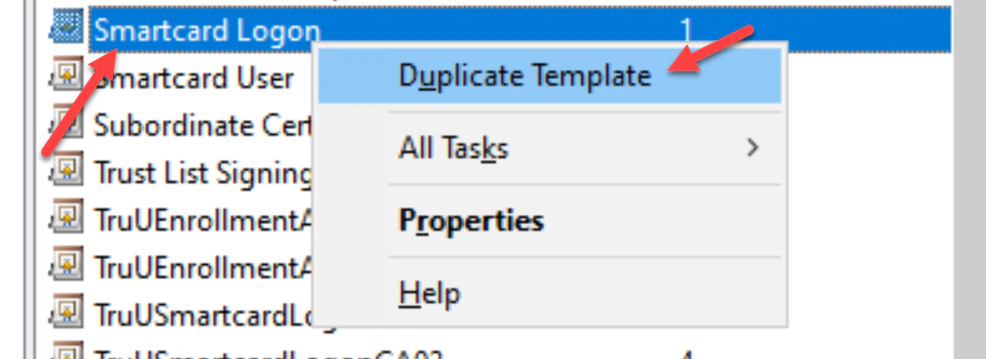
 3. Double-click on the **Certificate Template** under **Selected snap-ins,** then right click on the **Smartcard Login** template. Choose **Duplicate Template**.
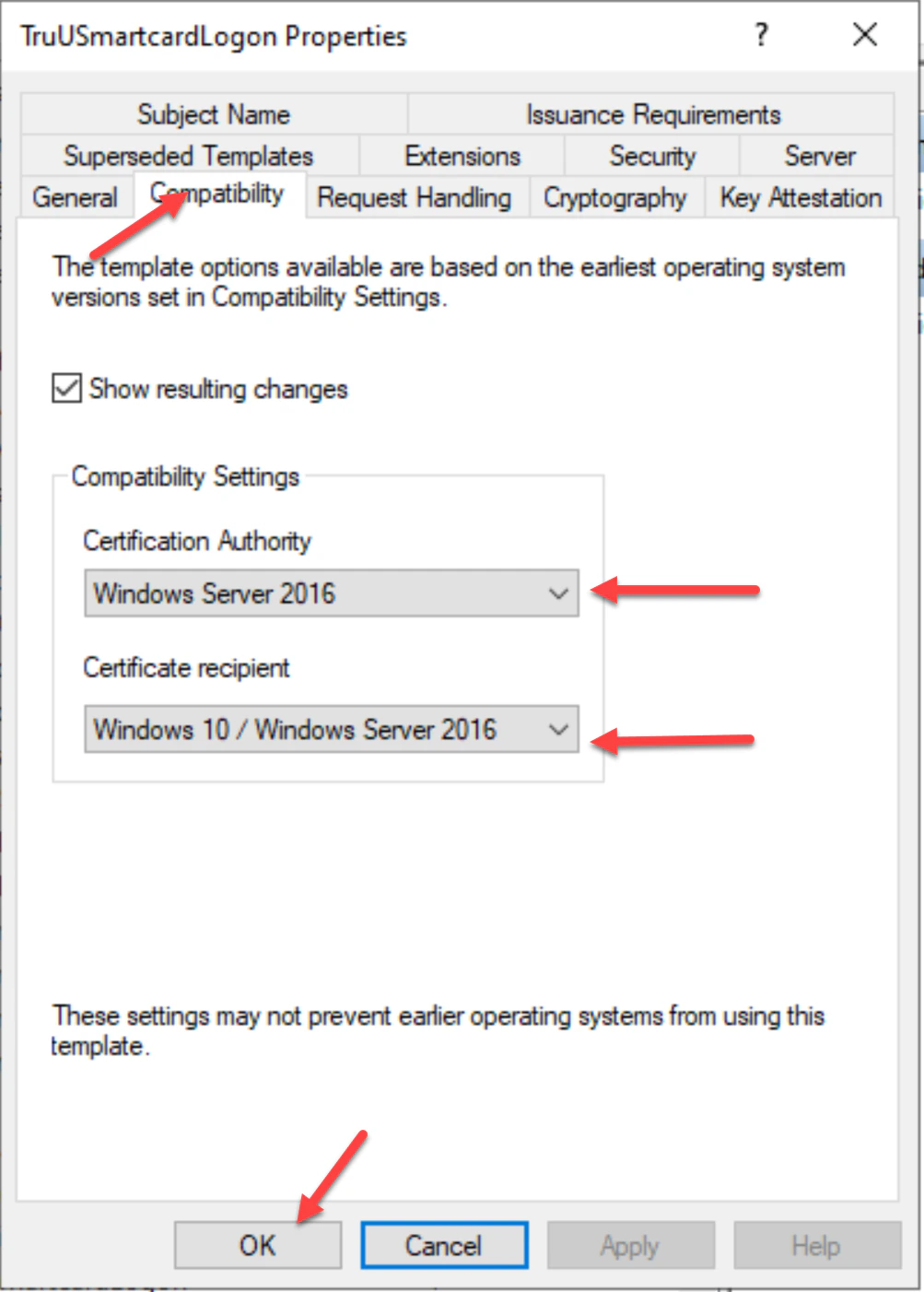
 4. Navigate to the **Compatibility** tab and check to make sure the operating system versions of the **Certificate Authority** and **Certificate recipient** are appropriately selected for your environment.
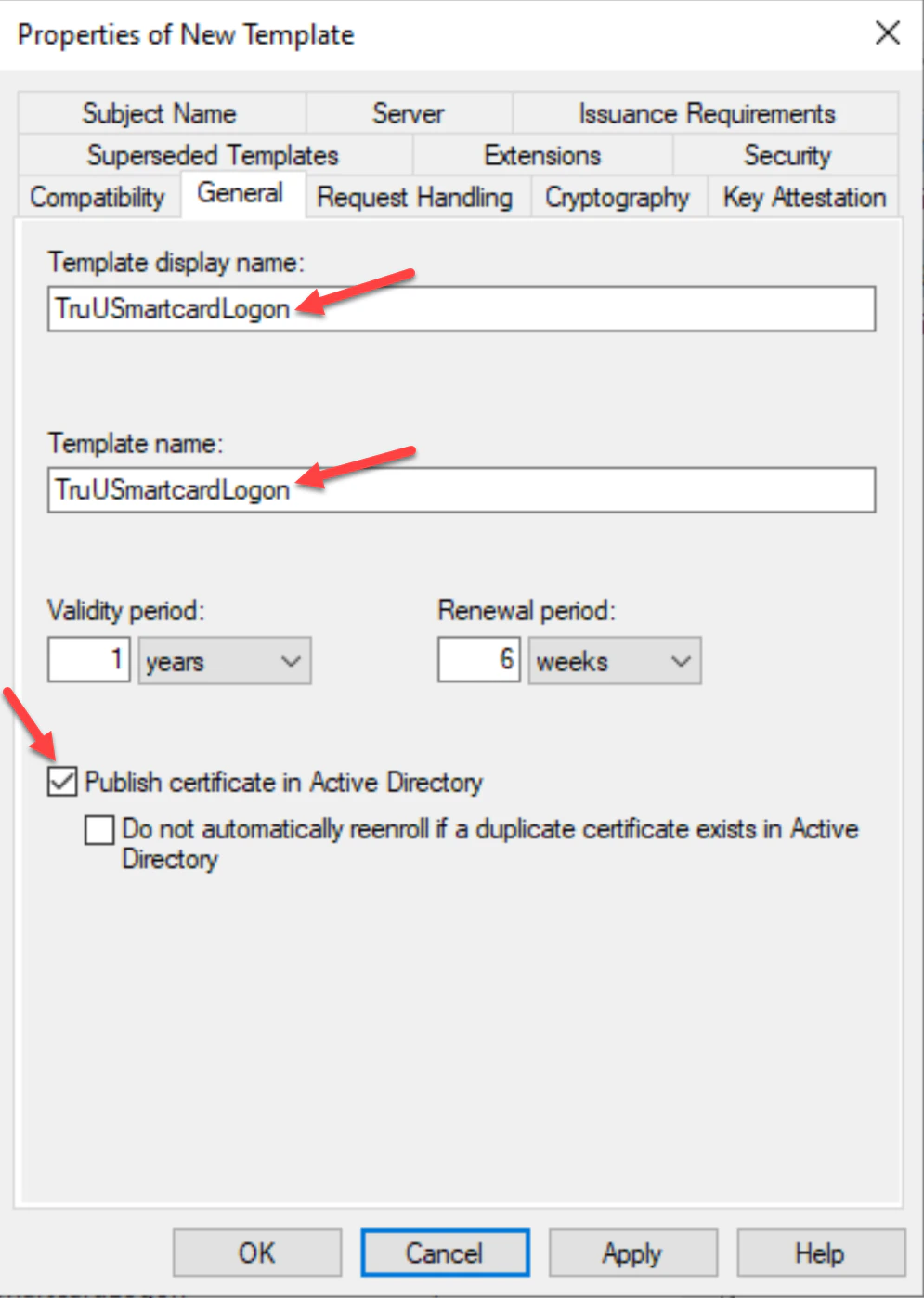
 5. In the **General** tab, create a **Template Display Name** for the template, then select **Publish certificate in Active Directory**. Additionally, specify the appropriate template validity and renewal period for your environment. I.E \_TruUSmartCardLogon
**NOTE: Do not leave any spaces in the name of the Template display name. Also the Publish certificate in Active Directory is optional if your company policy doesn’t allow this**.
5. In the **General** tab, create a **Template Display Name** for the template, then select **Publish certificate in Active Directory**. Additionally, specify the appropriate template validity and renewal period for your environment. I.E \_TruUSmartCardLogon
**NOTE: Do not leave any spaces in the name of the Template display name. Also the Publish certificate in Active Directory is optional if your company policy doesn’t allow this**.
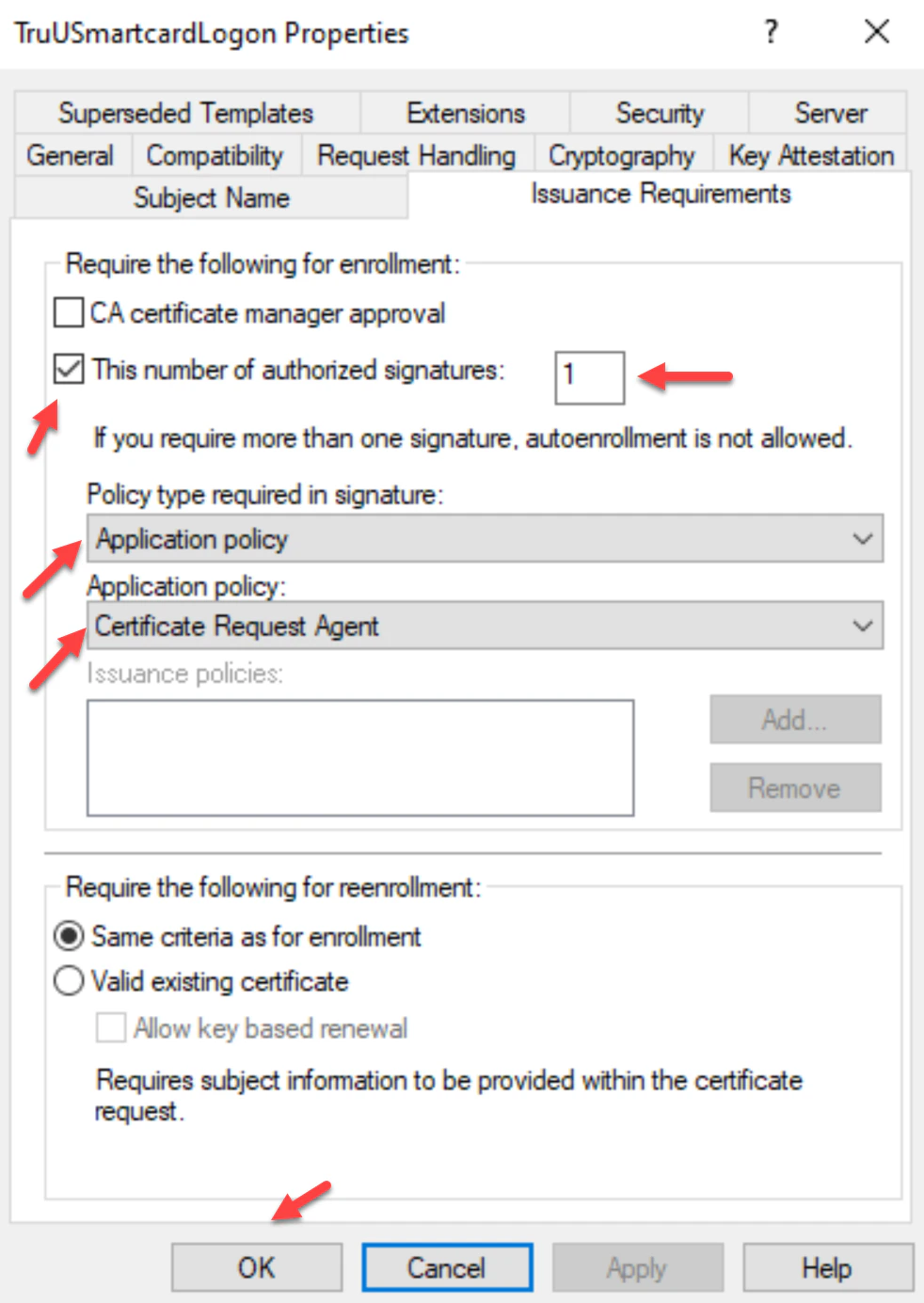
 6. Navigate to the **Issuance Requirements** tab, select **This number of authorized signatures** checkbox and set the number of authorized signatures to *1*. Then, select **Policy type required in signature** setting **to Application Policy** and the **Application Policy** setting to **Certificate Request Agent**.
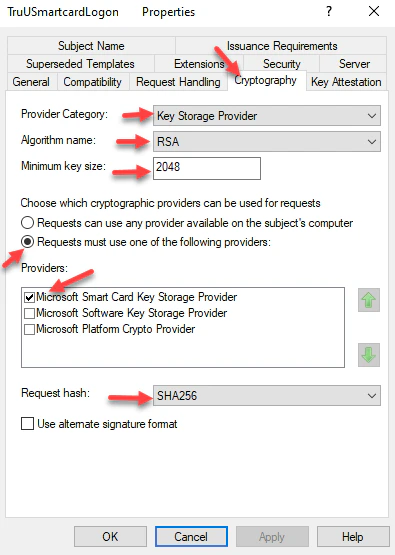
 7. Navigate to the **Cryptography** tab and set the following settings for **Key Storage Provider** (KSP) support:
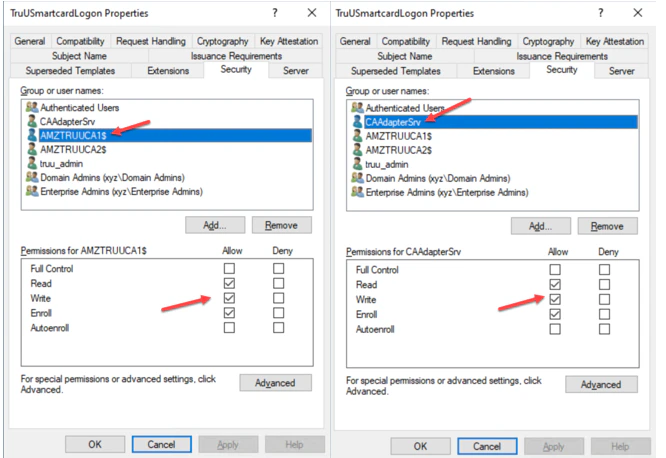
 8. Navigate to the **Security** tab, add the **Server that the CA Adapter is Installed on** with **Read**, **Write** and **Enroll** permissions. Then, select the **TruU service account** with **Read**, **Write** and **Enroll** permissions. Click **Apply** to complete setup in this tab. Then, click **OK**.
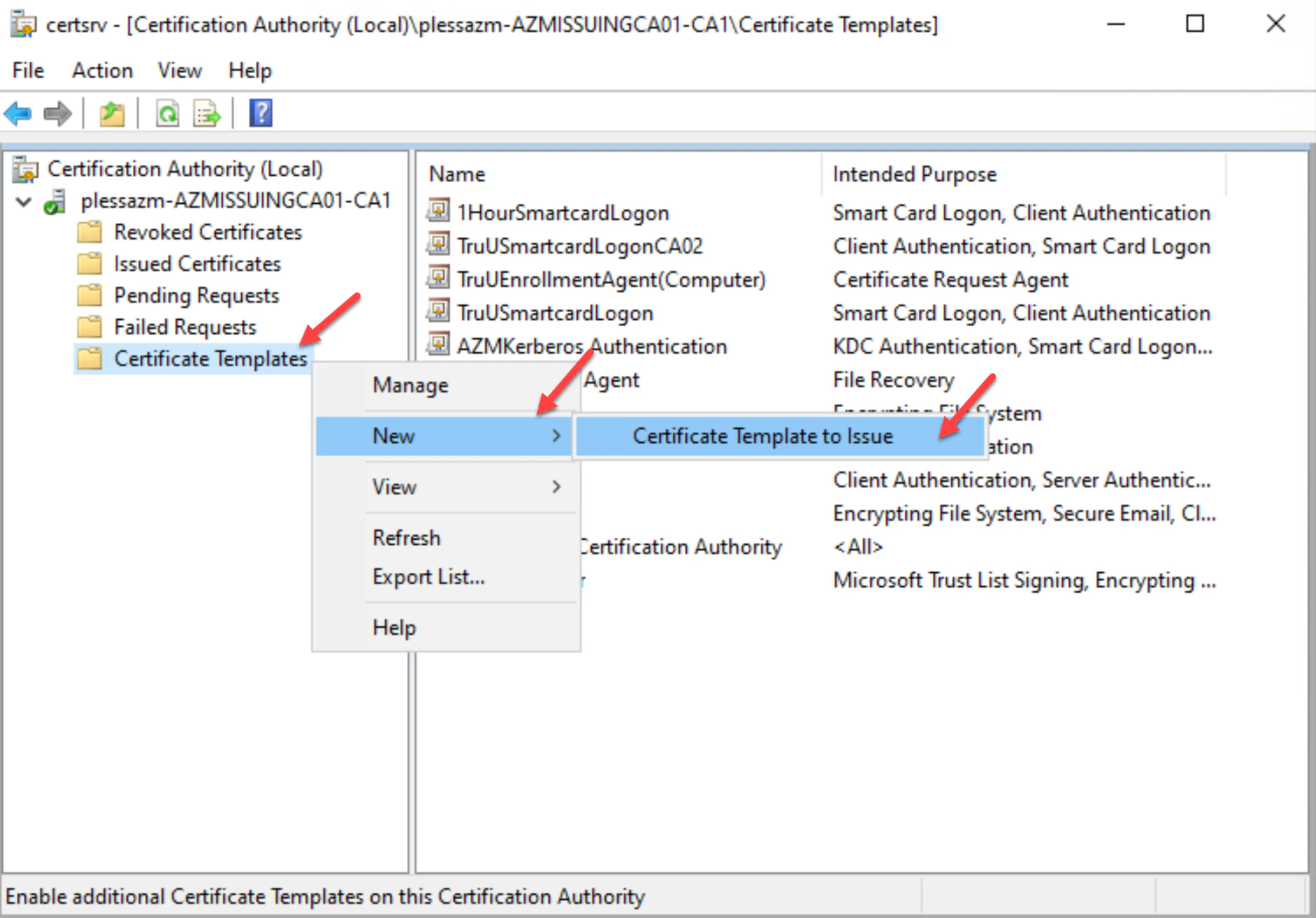
 9. Next, navigate to your **Certificate Authority** tab and click the **Certificate Templates** folder. Right-click on the folder and choose **New** then **Certificate Template to Issue**.
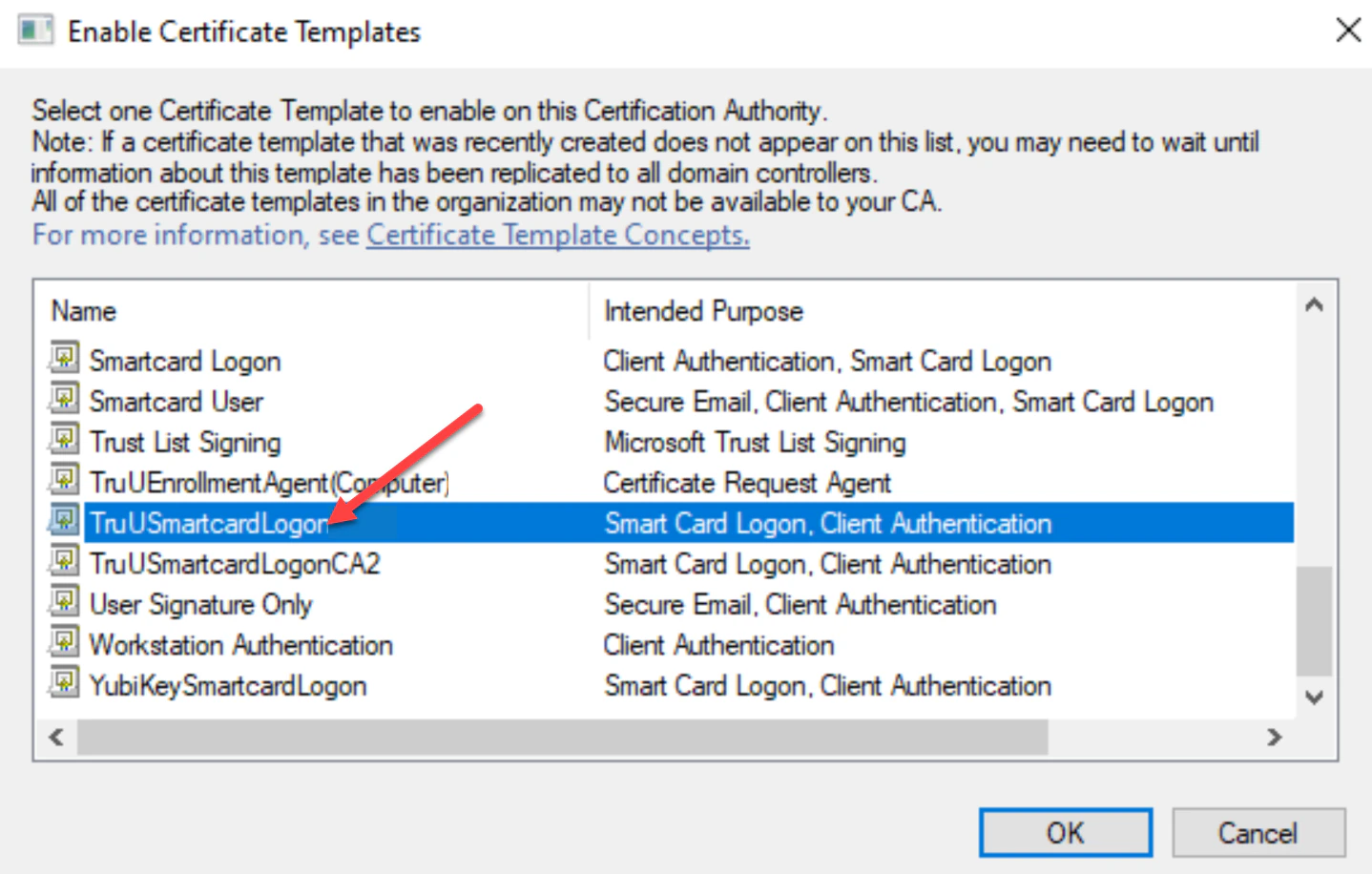
 10. Select the **TruUSmartcardLogon** template, then click **OK**.
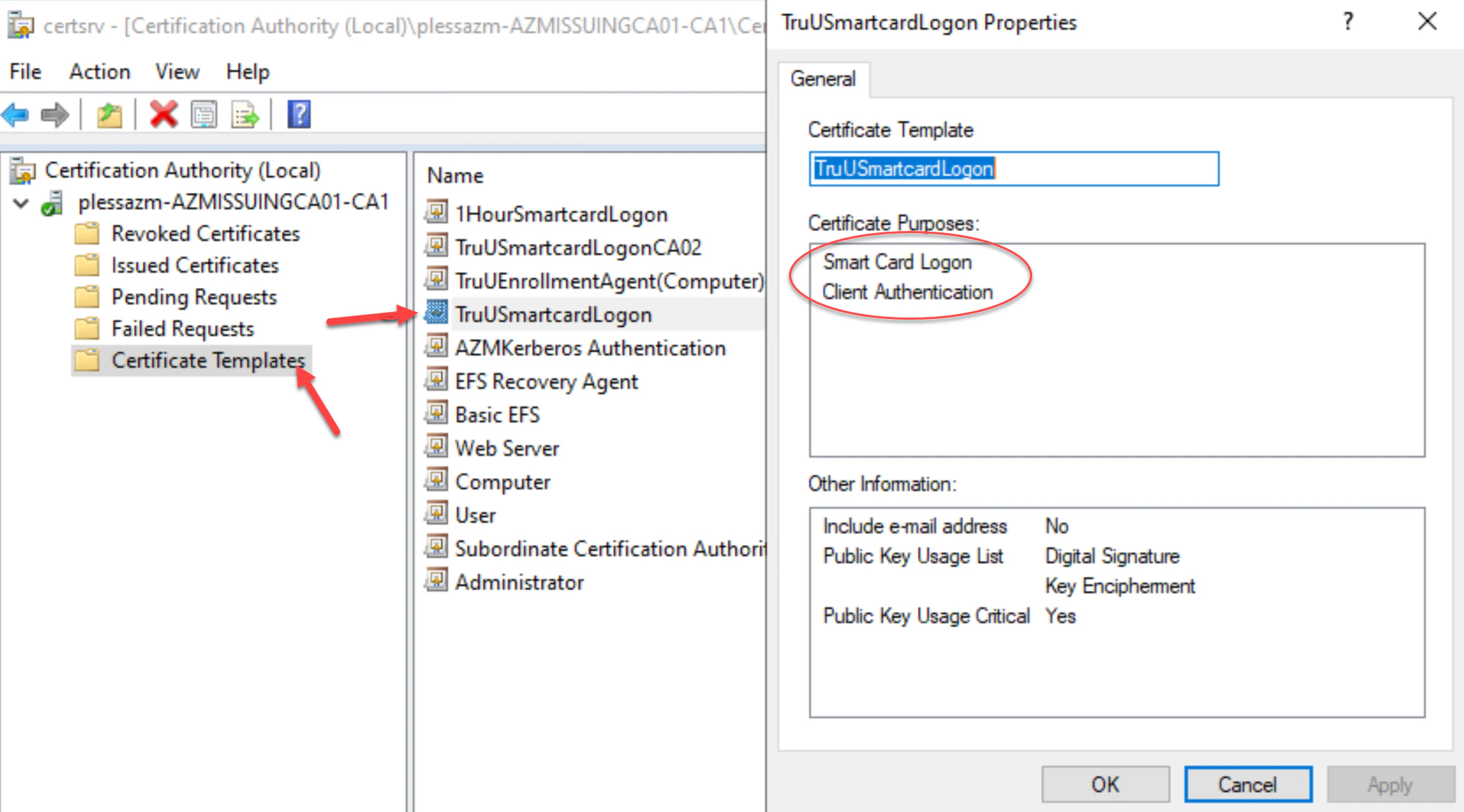
 11. Right-click on the new **TruUSmartcardLogon** template to verify its properties are set. Then, click **OK**.
**Note**: The **"Smart Card Logon"** and **"Client Authentication"** intended purposes are configured for this certificate template.
11. Right-click on the new **TruUSmartcardLogon** template to verify its properties are set. Then, click **OK**.
**Note**: The **"Smart Card Logon"** and **"Client Authentication"** intended purposes are configured for this certificate template.
 ***
[Create Enrollment Agent Computer Template](/docs/create-the-computer-template)
[Create Enrollment Agent Certificate](/docs/requesting-enrollment-agent-certificate)
***
[Create Enrollment Agent Computer Template](/docs/create-the-computer-template)
[Create Enrollment Agent Certificate](/docs/requesting-enrollment-agent-certificate)