> ## Documentation Index
> Fetch the complete documentation index at: https://docs.truu.ai/llms.txt
> Use this file to discover all available pages before exploring further.
# Enable TruU FIDO2 Authenticator for Entra ID
> Step-by-step guide to enabling Passkey (FIDO2) authentication for your organization using Microsoft Entra ID.
### 1. Navigate to Authentication Methods
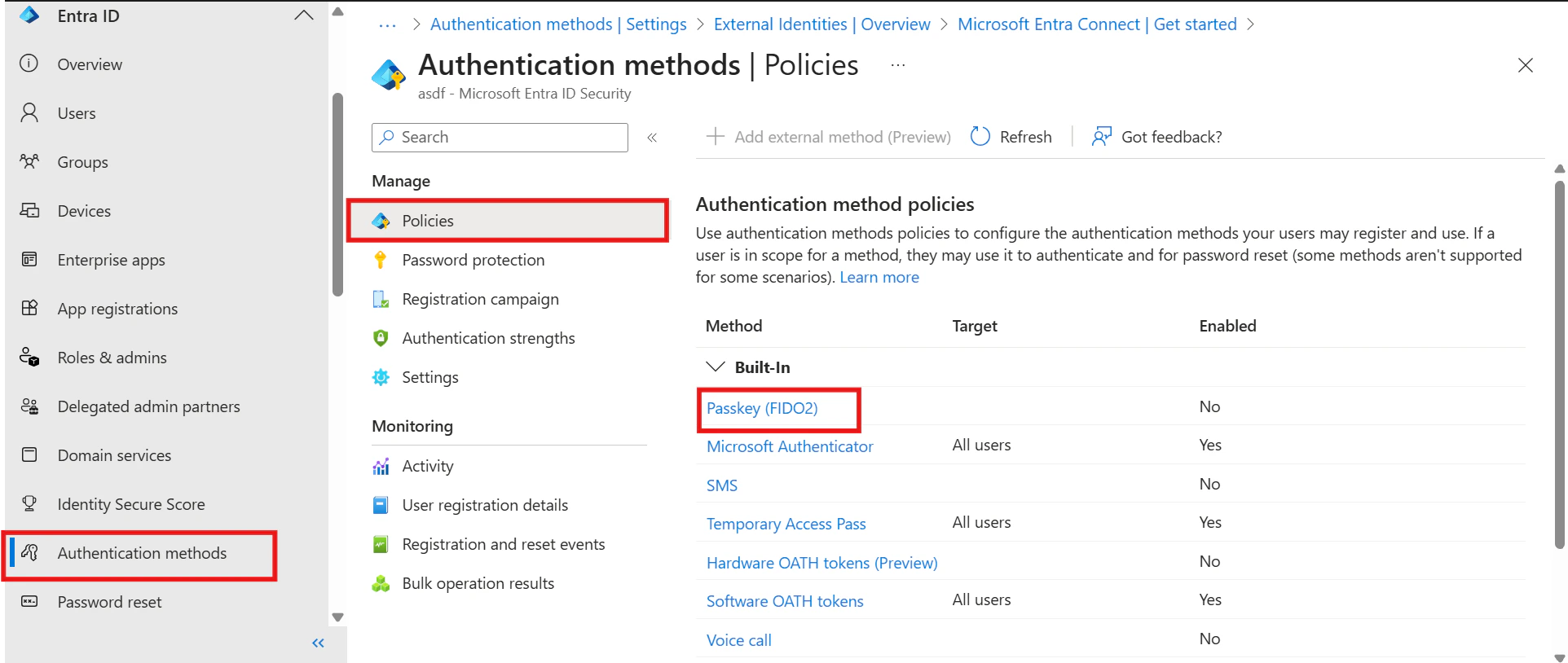
Sign in to the **Entra ID Admin Portal**, go to the **Entra ID** dropdown, select **Authentication Methods**, then click **Policies**.
 ### 2. Enable Passkey (FIDO2)
Select the **Passkey (FIDO2)** policy. On the **Enable and target** tab, toggle **Enable** to **On**.
### 2. Enable Passkey (FIDO2)
Select the **Passkey (FIDO2)** policy. On the **Enable and target** tab, toggle **Enable** to **On**.
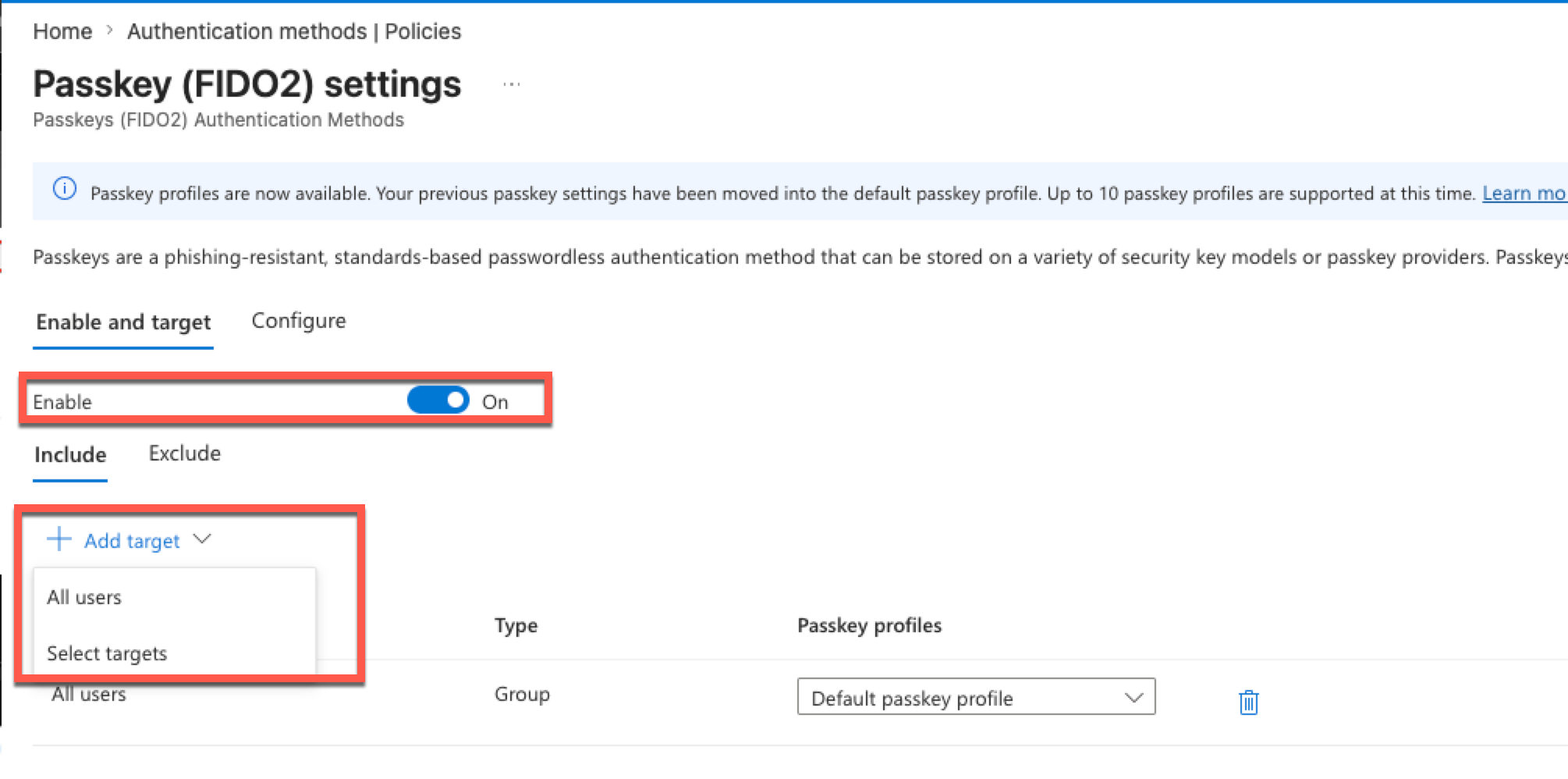 TruU recommends to enable the policy for all users and provides control in the TruU tenant to limit the enrollment of Passkeys to selected group of users.
### 3. Enable Self-Service Setup
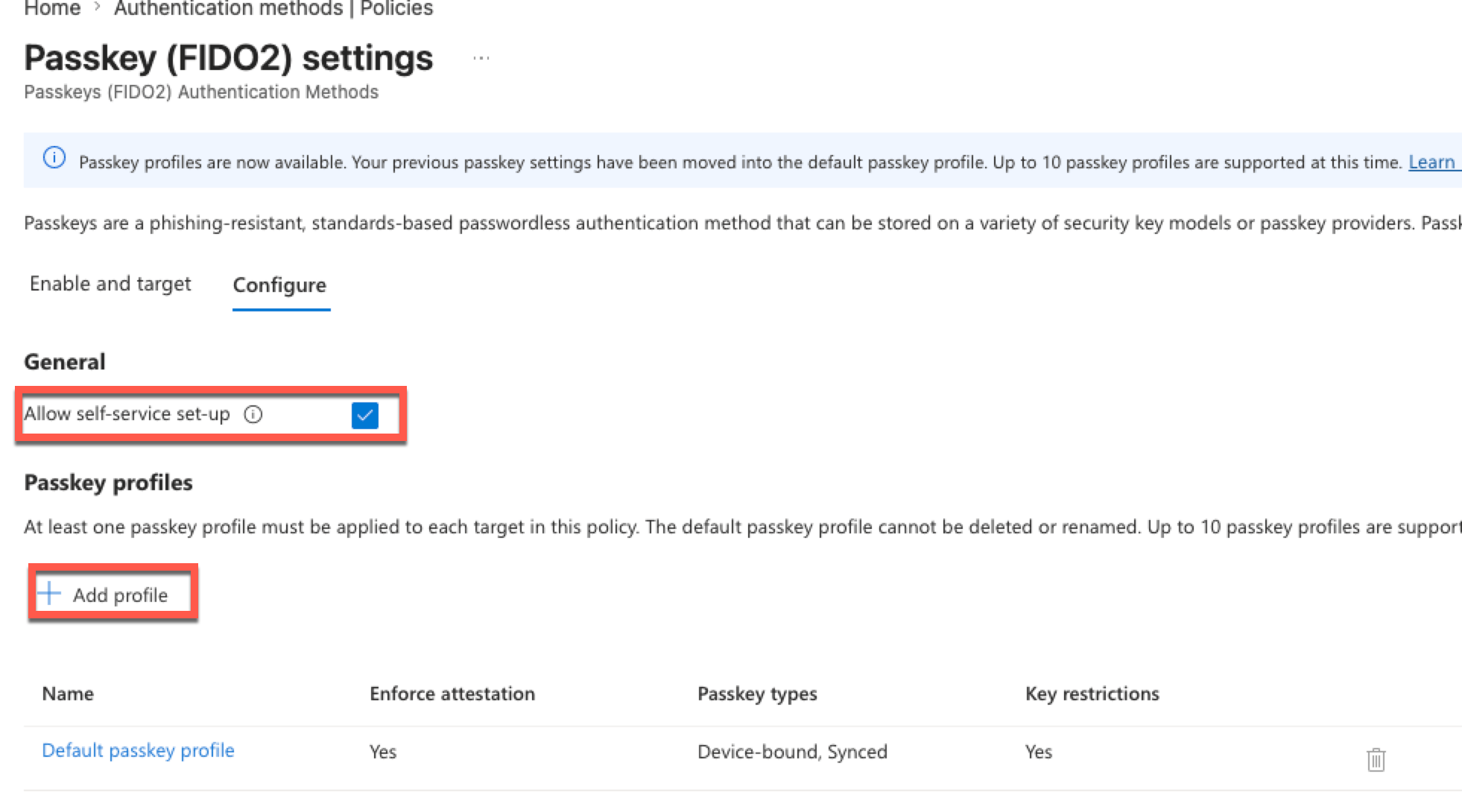
Click the **Configure** tab. Under **General**, ensure **Allow self-service set-up** is checked. If disabled, users cannot register a passkey through Security Info even when Passkey (FIDO2) is enabled.
TruU recommends to enable the policy for all users and provides control in the TruU tenant to limit the enrollment of Passkeys to selected group of users.
### 3. Enable Self-Service Setup
Click the **Configure** tab. Under **General**, ensure **Allow self-service set-up** is checked. If disabled, users cannot register a passkey through Security Info even when Passkey (FIDO2) is enabled.
 ### 4. Add a TruU FIDO2 Passkey Profile
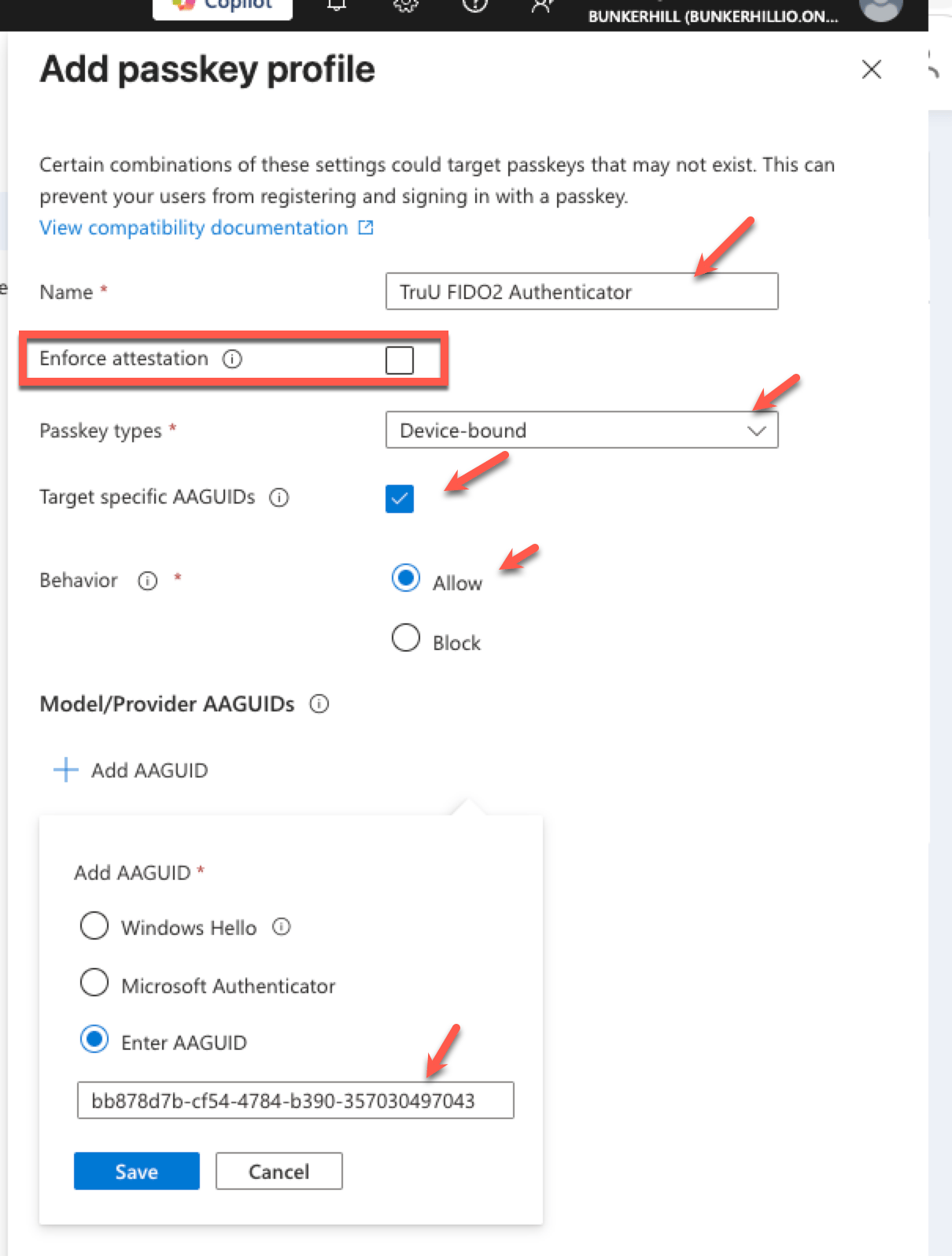
On the **Configure** tab, under **Passkey profiles**, click **+ Add profile** and fill in the following:
| Setting | Value |
| ----------------------- | ------------------------ |
| Name | TruU FIDO2 Authenticator |
| Enforce attestation | Leave **unchecked** |
| Passkey types | Device-bound |
| Target specific AAGUIDs | Checked |
| Behavior | Allow |
Under **Model/Provider AAGUIDs**, click **+ Add AAGUID**, select **Enter AAGUID**, and enter the value for your TruU version:
* Version 24.x / 25.x (deprecated): `ba86dc56-635f-4141-aef6-00227b1b9af6`
* Version 26.x and above: `bb878d7b-cf54-4784-b390-357030497043`
### 4. Add a TruU FIDO2 Passkey Profile
On the **Configure** tab, under **Passkey profiles**, click **+ Add profile** and fill in the following:
| Setting | Value |
| ----------------------- | ------------------------ |
| Name | TruU FIDO2 Authenticator |
| Enforce attestation | Leave **unchecked** |
| Passkey types | Device-bound |
| Target specific AAGUIDs | Checked |
| Behavior | Allow |
Under **Model/Provider AAGUIDs**, click **+ Add AAGUID**, select **Enter AAGUID**, and enter the value for your TruU version:
* Version 24.x / 25.x (deprecated): `ba86dc56-635f-4141-aef6-00227b1b9af6`
* Version 26.x and above: `bb878d7b-cf54-4784-b390-357030497043`
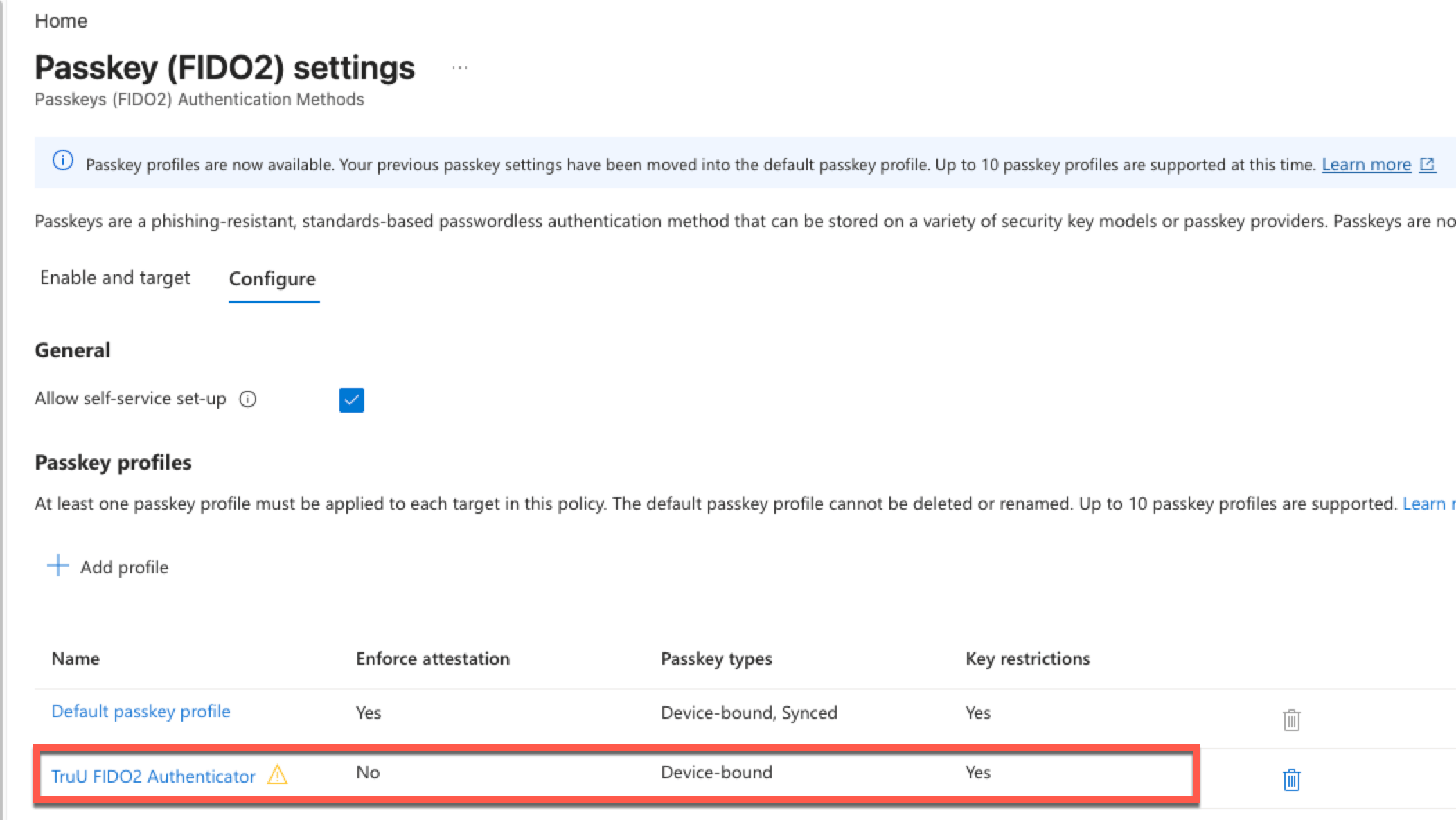 Click **Save**.
Do not check **Enforce attestation**. Attestation is intended to verify hardware manufacturing processes and prevent unauthorized hardware. TruU is a virtualized solution that operates on Microsoft-verified hardware and does not require specialized hardware.
### 5. Assign the Profile to a Target Group
Go back to the **Enable and target** tab. Click **+ Add target**, select **Select targets**, and choose your user security group or deploy to All users
In the **Passkey profiles** column for that group, select **TruU FIDO2 Authenticator** from the drop-down.
Click **Save**.
Do not check **Enforce attestation**. Attestation is intended to verify hardware manufacturing processes and prevent unauthorized hardware. TruU is a virtualized solution that operates on Microsoft-verified hardware and does not require specialized hardware.
### 5. Assign the Profile to a Target Group
Go back to the **Enable and target** tab. Click **+ Add target**, select **Select targets**, and choose your user security group or deploy to All users
In the **Passkey profiles** column for that group, select **TruU FIDO2 Authenticator** from the drop-down.
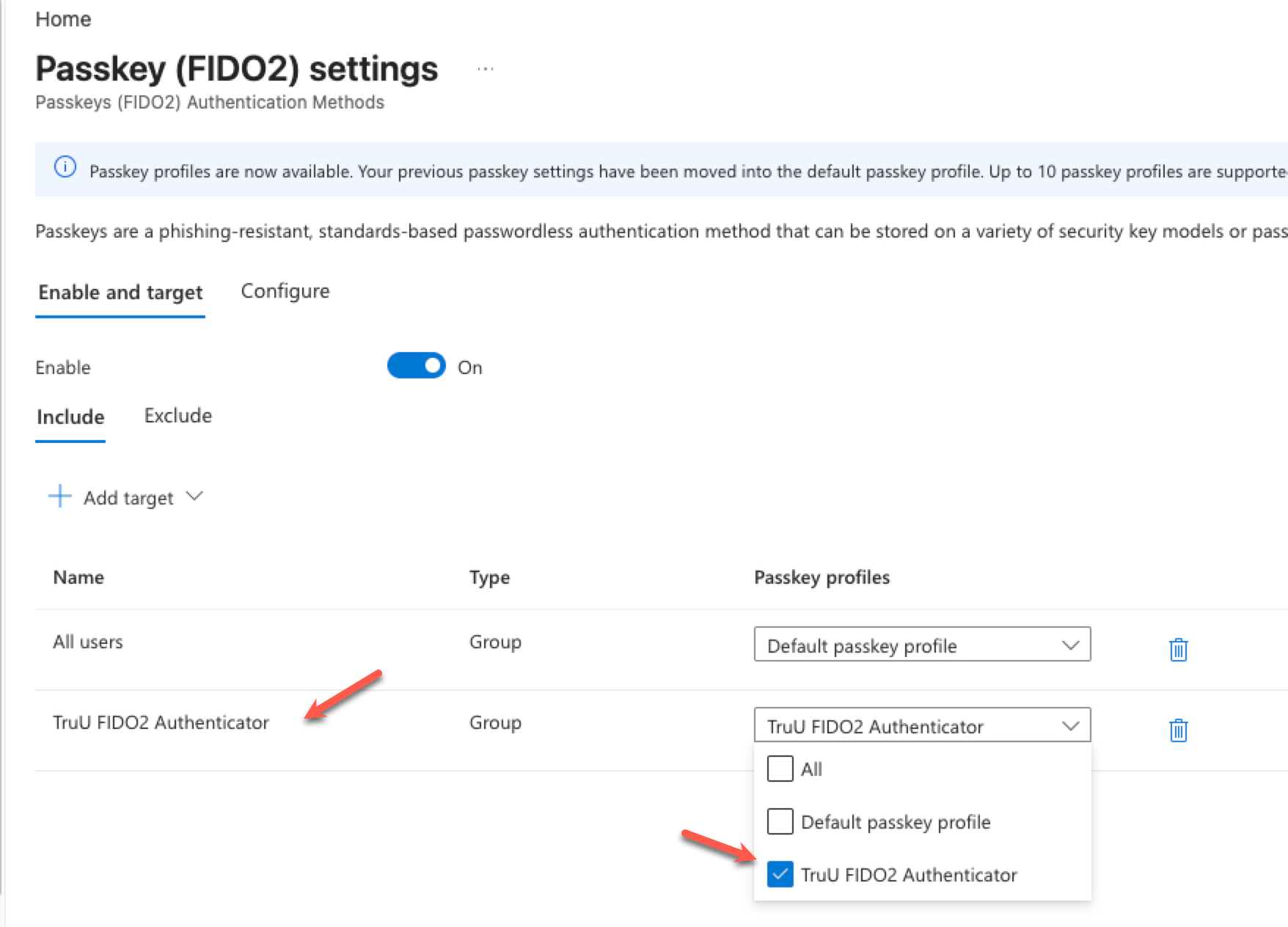 Click **Save**.