> ## Documentation Index
> Fetch the complete documentation index at: https://docs.truu.ai/llms.txt
> Use this file to discover all available pages before exploring further.
# Enroll Touch ID
> Touch ID is dependent on user’s hardware availability. TruU leverages Touch ID set on your Mac device. This guide provides a step-by-step tutorial on how to Enroll your Touch ID on your Mac device to TruU.
# Add your Fingerprint to your Mac
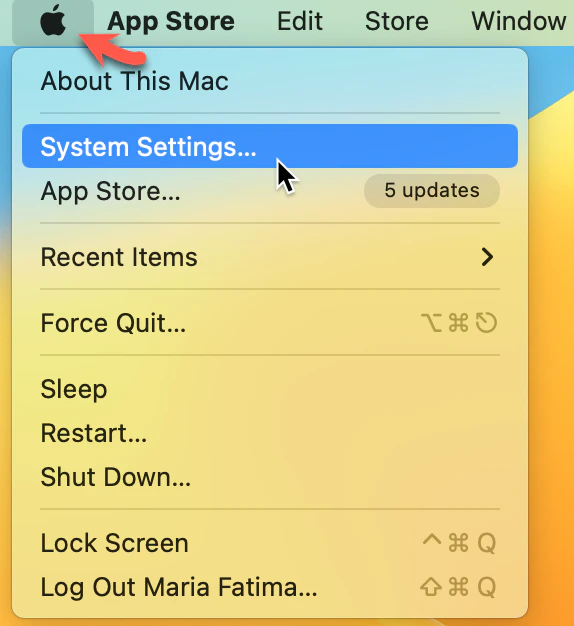
1. On the top left corner, Click the **Apple icon** and Select **System Settings**
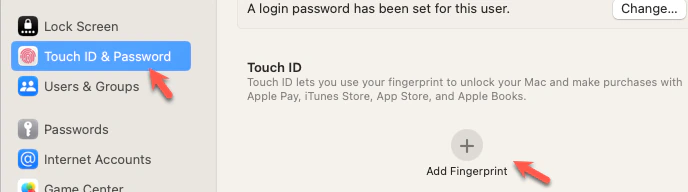
 2. Click **Touch ID & Password**, and **Add Fingerprint**
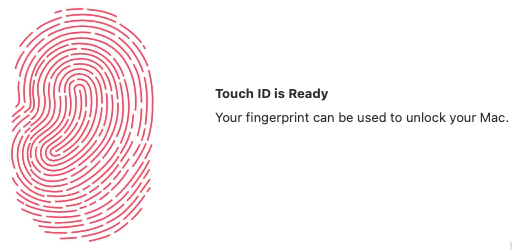
 3. Identify the fingerprint sensor on your device to set Touch ID
 # Add your TouchID to TruU
## Enroll your fingerprint during enrollment process
1. On your Mac, Click on the **TruU** icon on the top right of the Menu Bar (If TruU icon is not appearing and enrollment menu is not appearing, run the following command in terminal: `-R 777 /Library/TruU`)
# Add your TouchID to TruU
## Enroll your fingerprint during enrollment process
1. On your Mac, Click on the **TruU** icon on the top right of the Menu Bar (If TruU icon is not appearing and enrollment menu is not appearing, run the following command in terminal: `-R 777 /Library/TruU`)
 2. Click the **Tough ID** button in the dropdown menu
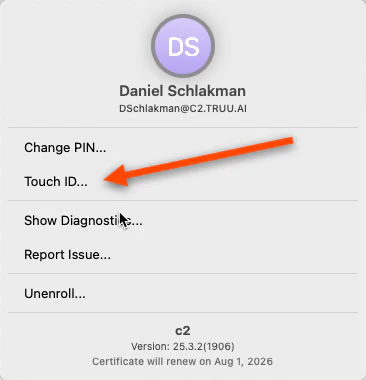 3. Click **Enable** in the prompted window
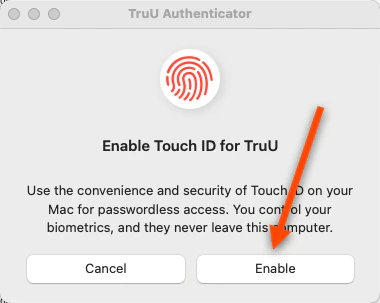 4. You will then be able to login/authenticate to TruU using your fingerprint
***
[Mac Workstation Login](/docs/mac-workstation-login)
[Passwordless Login to Apps - Mac](/docs/passwordless-login-to-apps-mac)
4. You will then be able to login/authenticate to TruU using your fingerprint
***
[Mac Workstation Login](/docs/mac-workstation-login)
[Passwordless Login to Apps - Mac](/docs/passwordless-login-to-apps-mac)