> ## Documentation Index
> Fetch the complete documentation index at: https://docs.truu.ai/llms.txt
> Use this file to discover all available pages before exploring further.
# Enroll Your Phone (Contractor)
> This guide provides a step-by-step tutorial on how to enroll on your Mobile device enrolled with TruU as a contractor.
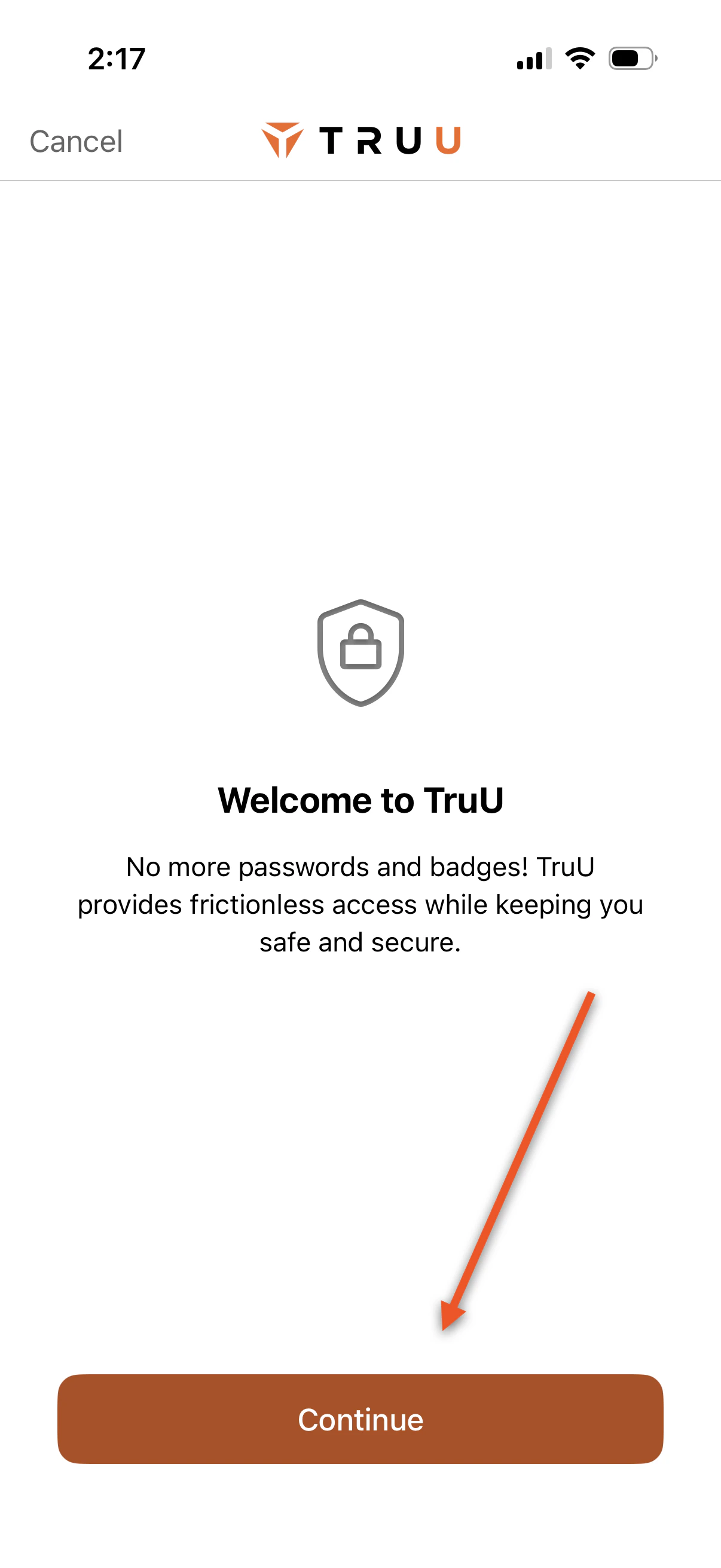
1. Launch the app and press **Continue**
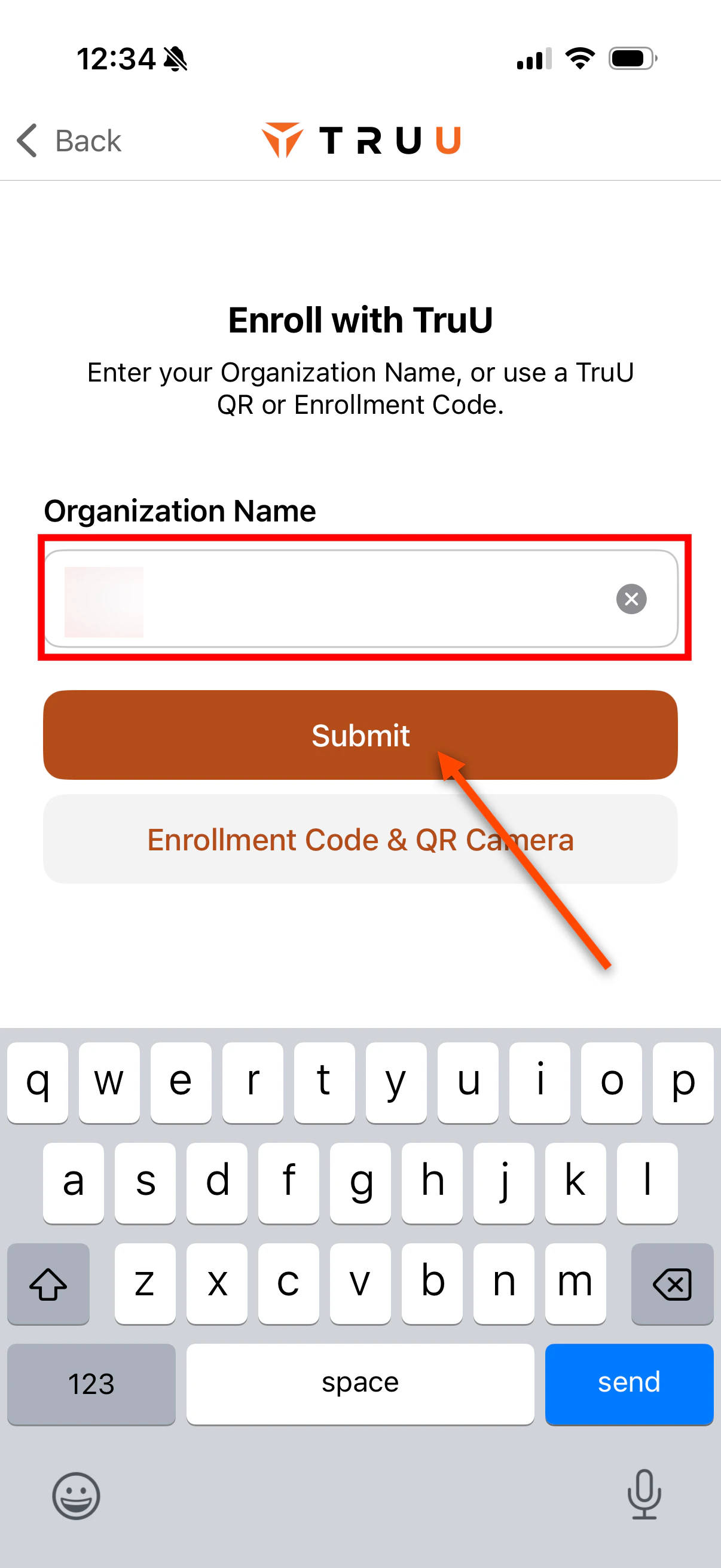
 2. Enter your company name and click **Submit**
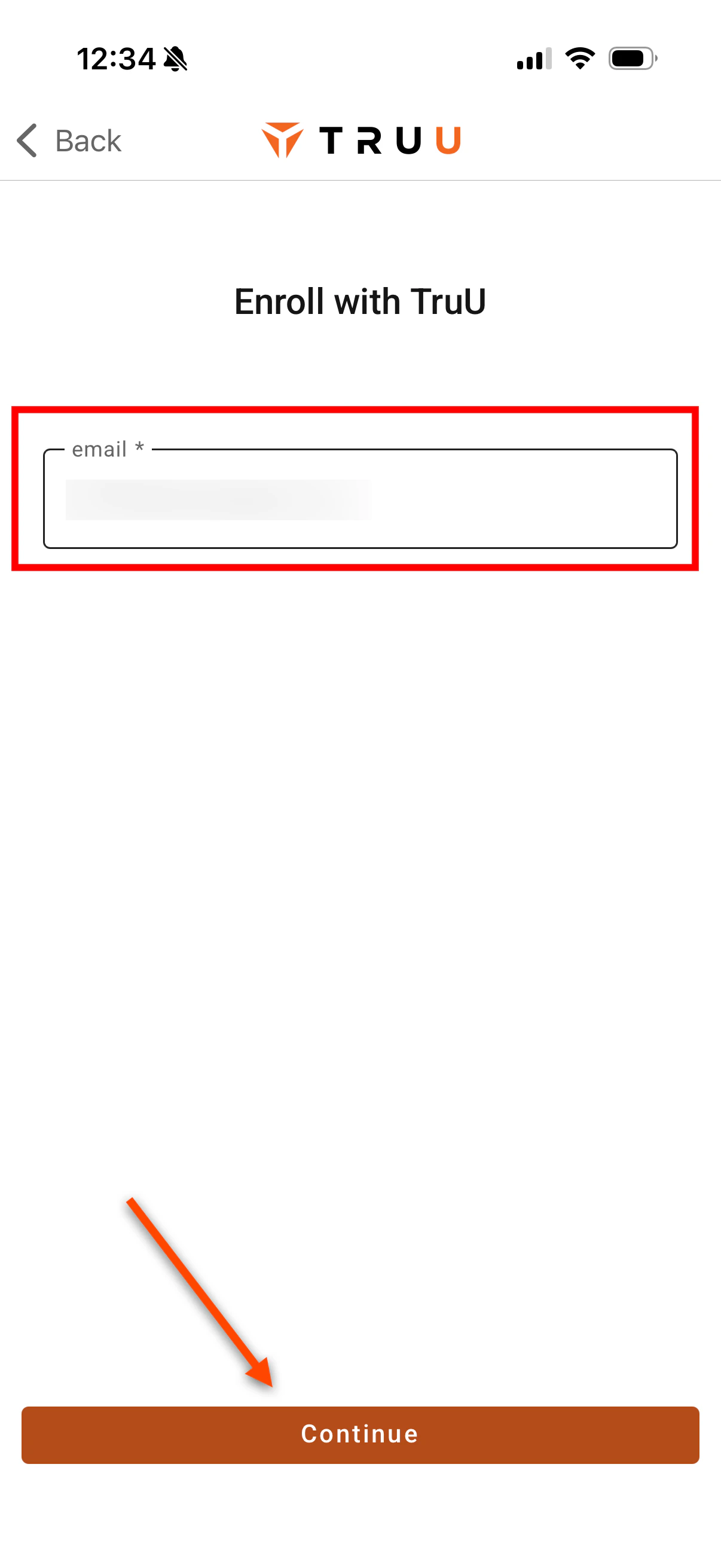
 3. Enter your contractor *email address* and click **Continue**
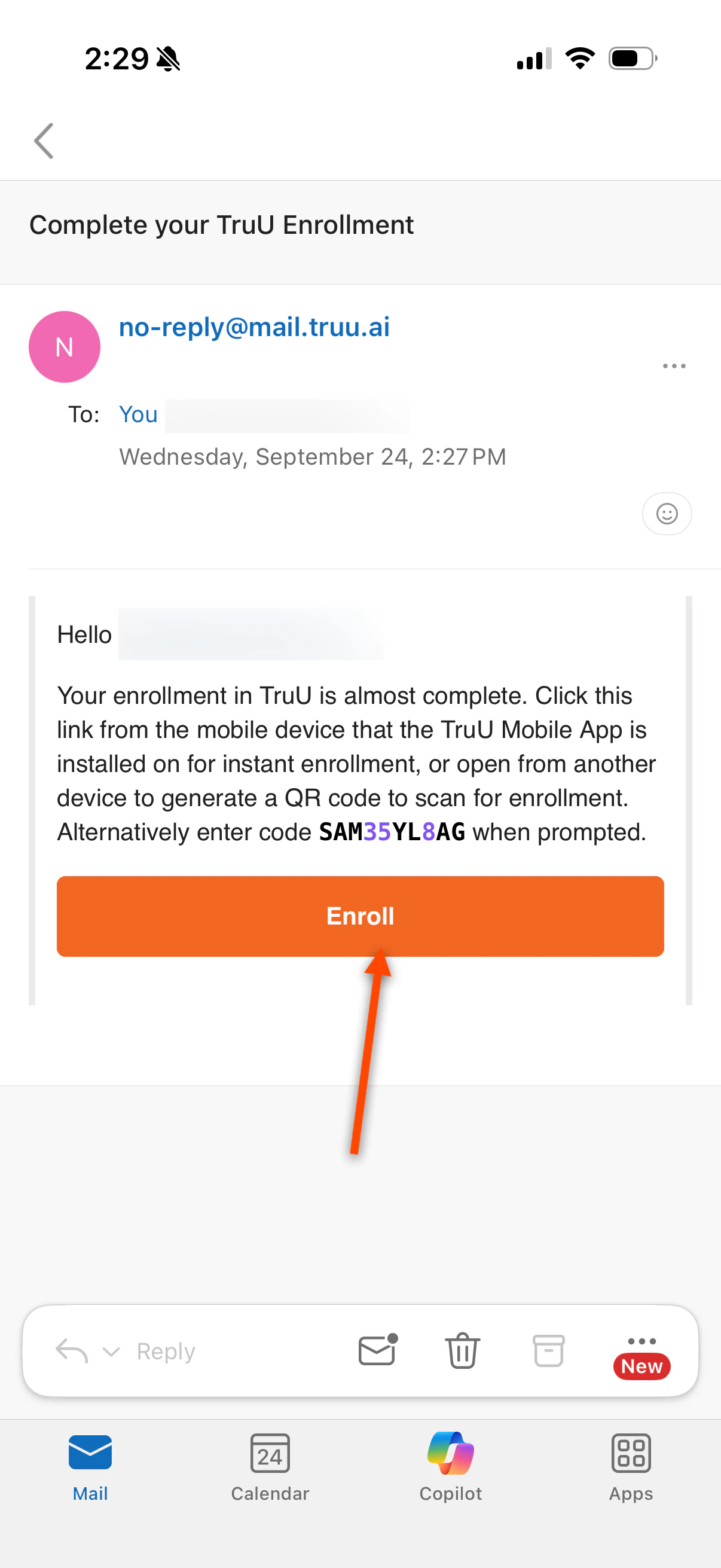
 4. Navigate to your email, you will receive an email from [\[email protected\]](/cdn-cgi/l/email-protection#d6b8b9fba4b3a6baaf96bbb7bfbaf8a2a4a3a3f8b7bf) with an enrollment code. You can:
1. Tap **Enroll**, which will reroute you to the TruU app
2. Copy the enrollment code and paste it into the TruU app
4. Navigate to your email, you will receive an email from [\[email protected\]](/cdn-cgi/l/email-protection#d6b8b9fba4b3a6baaf96bbb7bfbaf8a2a4a3a3f8b7bf) with an enrollment code. You can:
1. Tap **Enroll**, which will reroute you to the TruU app
2. Copy the enrollment code and paste it into the TruU app
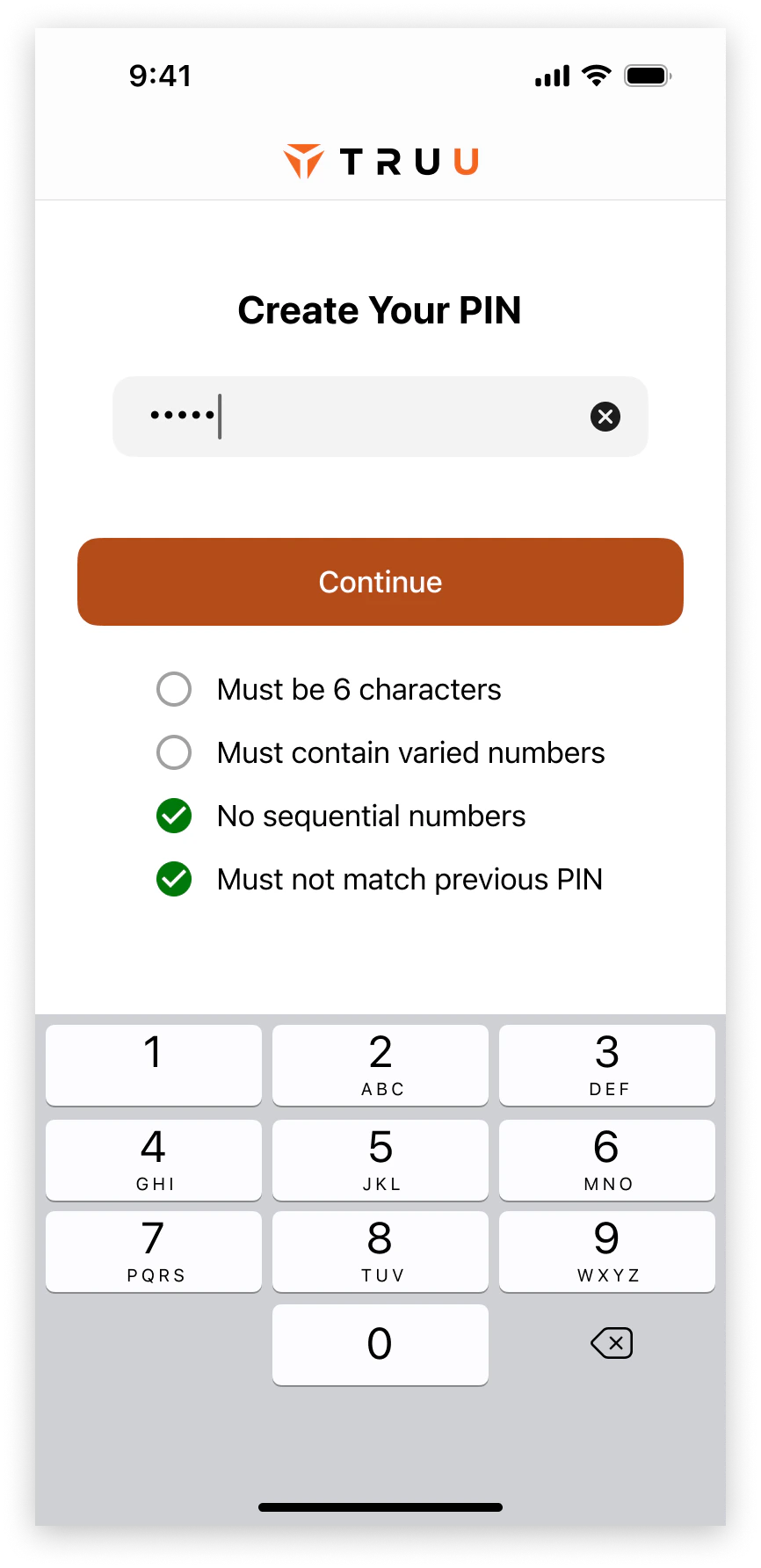
 6. Create a TruU PIN which meets all the requirements listed below
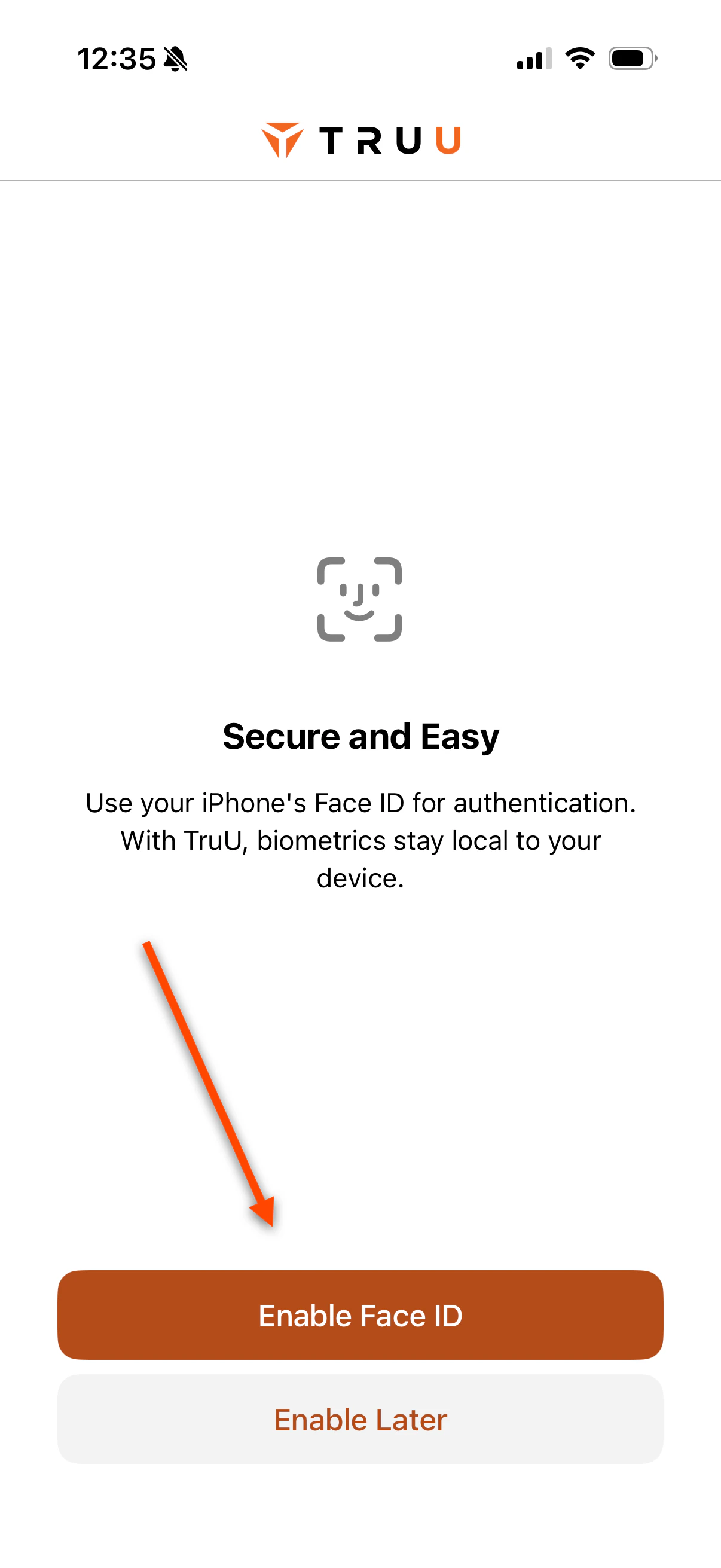
 7. You will then be presented the opportunity to **Enable Biometrics**.
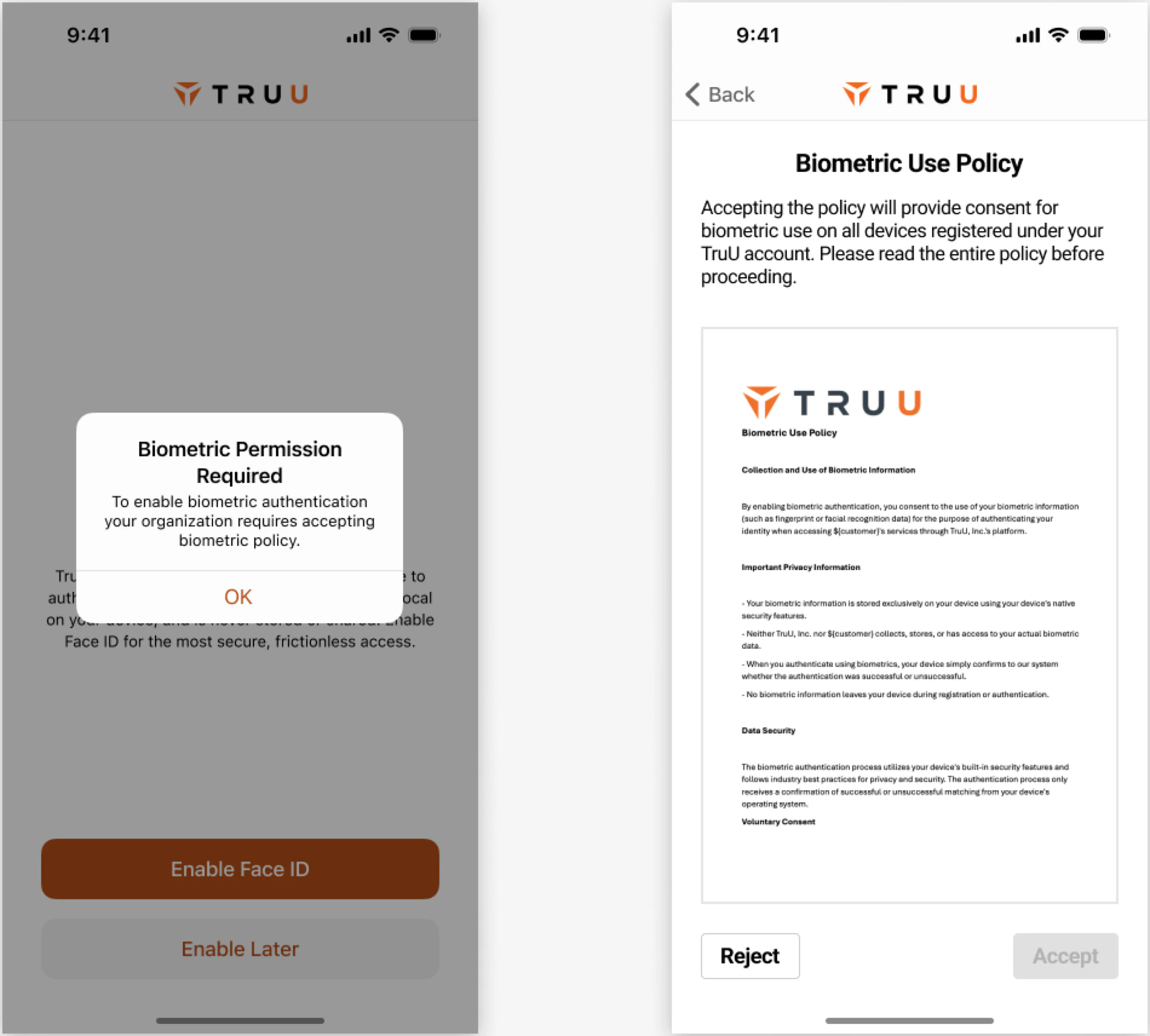
 **NOTE**: If your organization required a **Biometric Permission Policy** to be accepted prior to enabling your Face ID/Fingerprint, you will be prompted to **Review and Accept** said policy
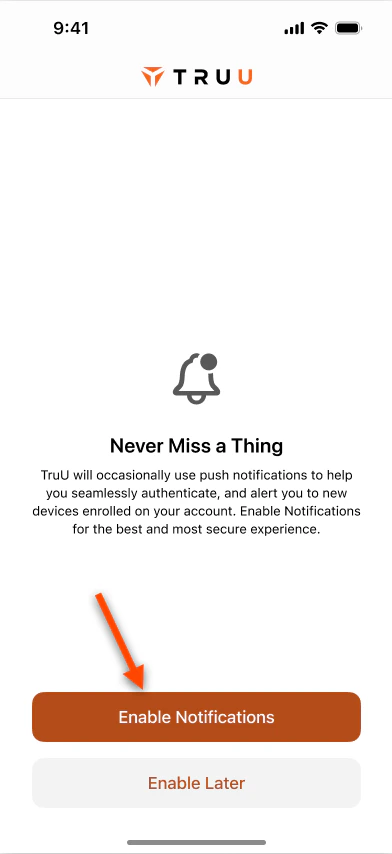
 8. You will then be presented the option to **Enable Notifications**
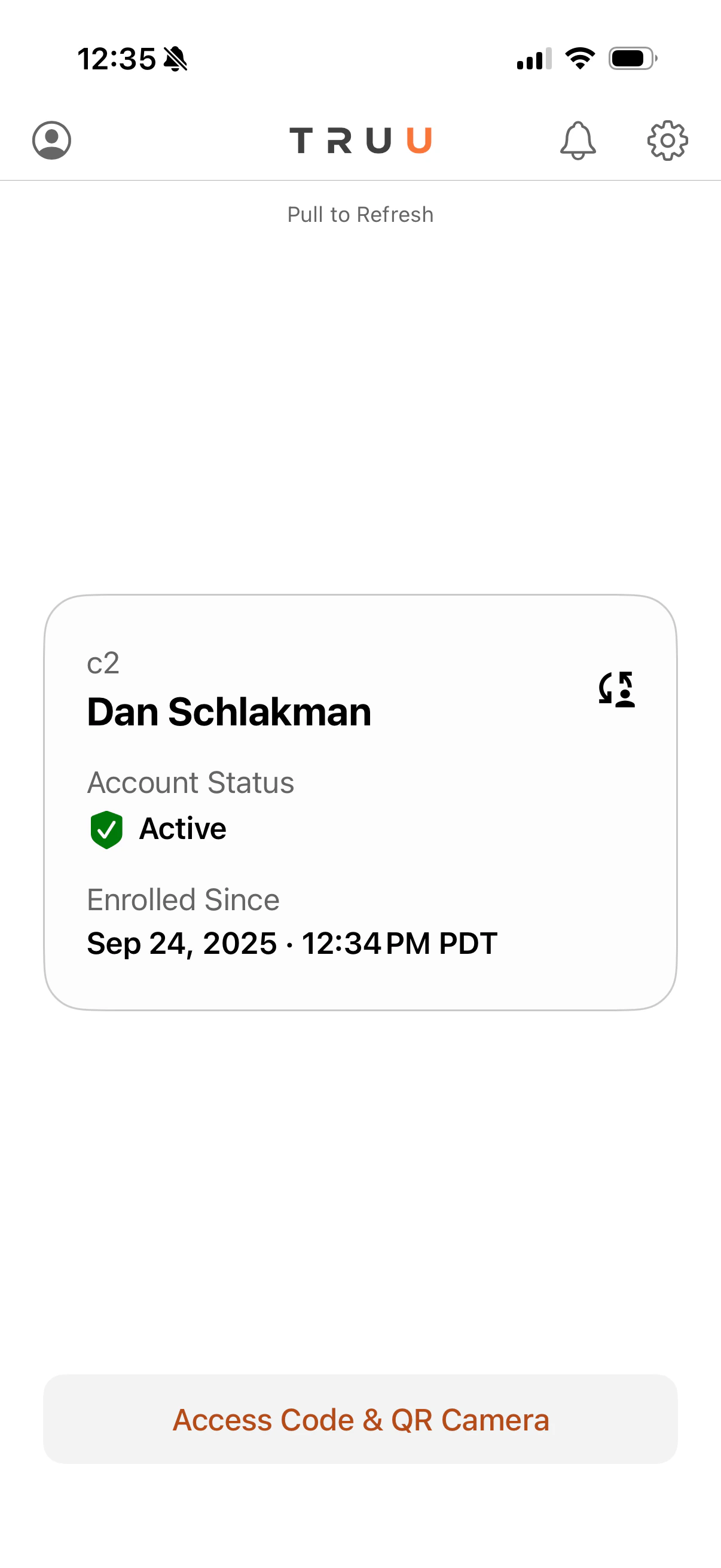
 9. You will see the following screen indicating the successful enrollment with TruU. You can also confirm enrollment and information by clicking on the user icon in the top left of the homepage
 ***
[Enroll Your Phone](/docs/enroll-your-phone)
[Passwordless Login to Apps - Mobile](/docs/passwordless-login-to-apps-mobile)
***
[Enroll Your Phone](/docs/enroll-your-phone)
[Passwordless Login to Apps - Mobile](/docs/passwordless-login-to-apps-mobile)