> ## Documentation Index
> Fetch the complete documentation index at: https://docs.truu.ai/llms.txt
> Use this file to discover all available pages before exploring further.
# Enroll Your Phone
> This guide provides a step-by-step tutorial on how to enroll on your Mobile device enrolled with TruU.
# **Option 1: Enroll directly in TruU Mobile app**
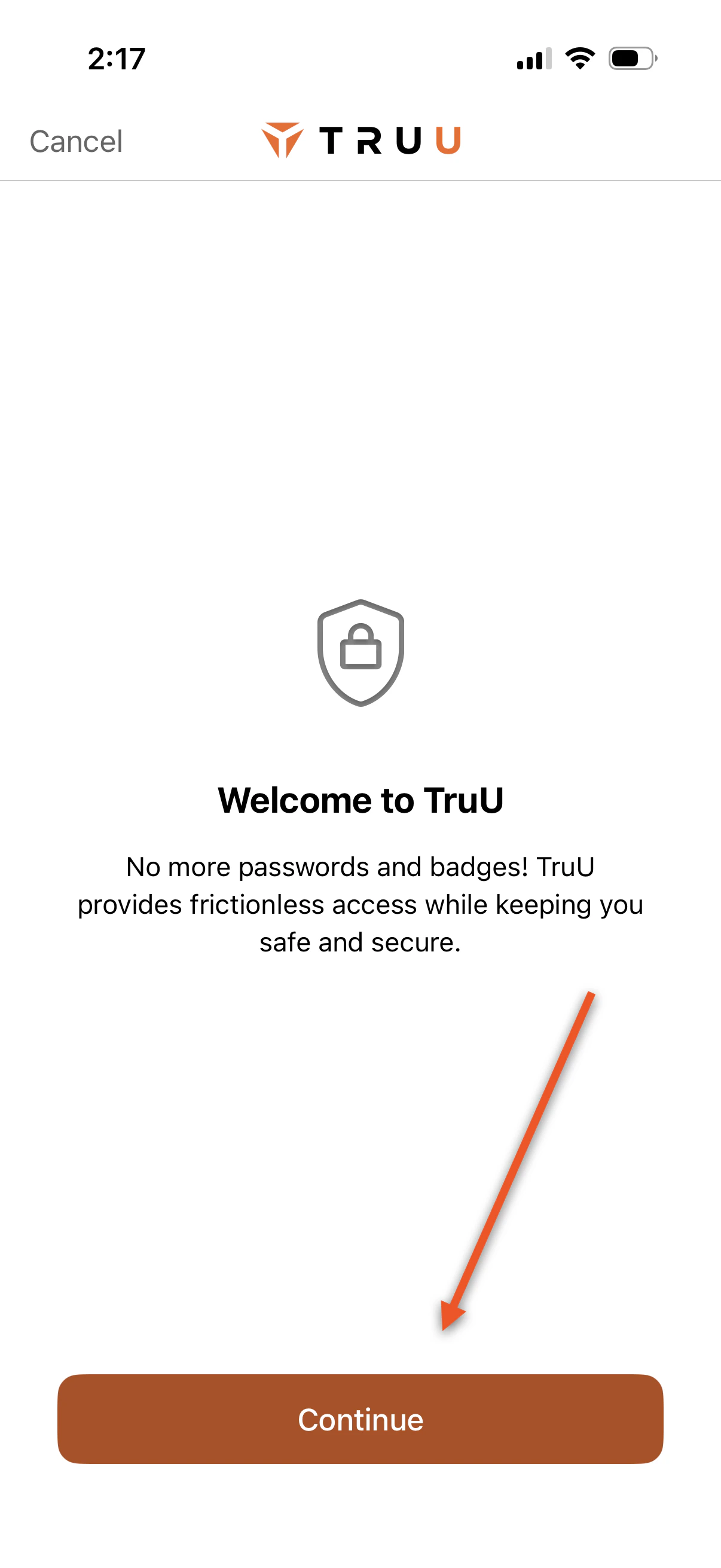
1. Launch the app and press **Continue**
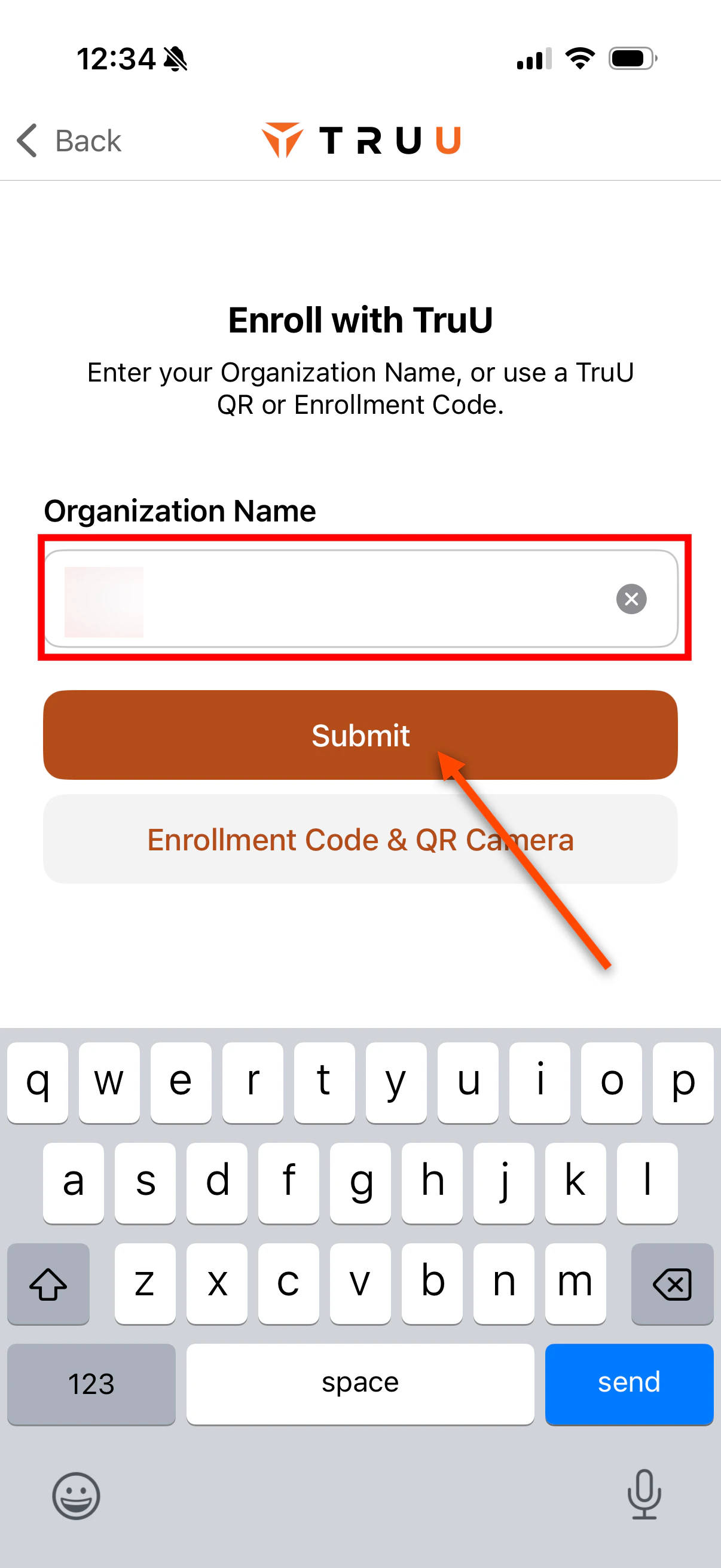
 2. Enter your company name and click **Submit**
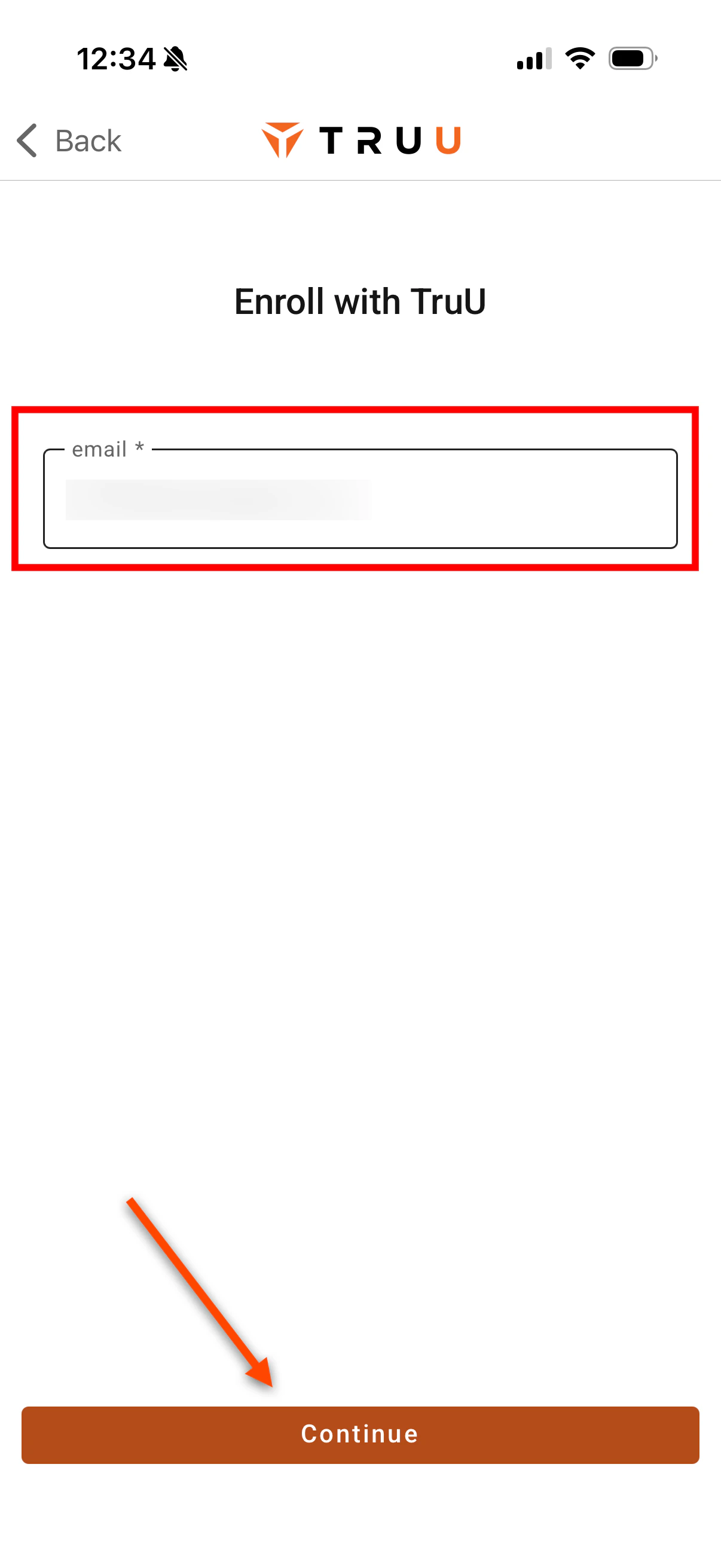
 3. Enter your *email address* and click **Continue**
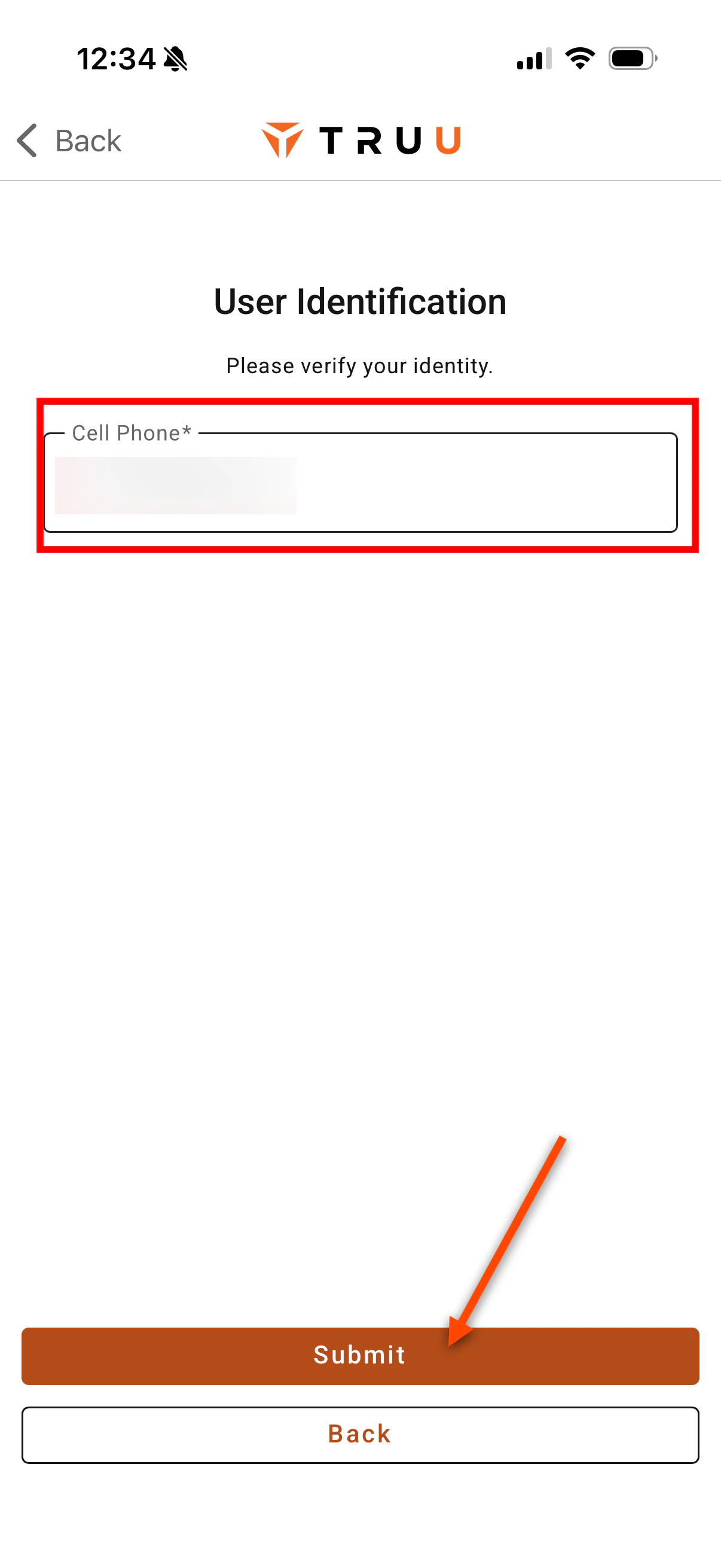
 **NOTE**: if your organization has set up a second Knowledge factor for User Identification, you will be prompted to input that identifier here. In this case, you see the user enrolling being prompted to enter their personal cell phone number as their identifier, then click **Submit**:
 4. Click on **Email Me** to receive the magic link to your email or **Text Me** to receive the magic link to your phone number
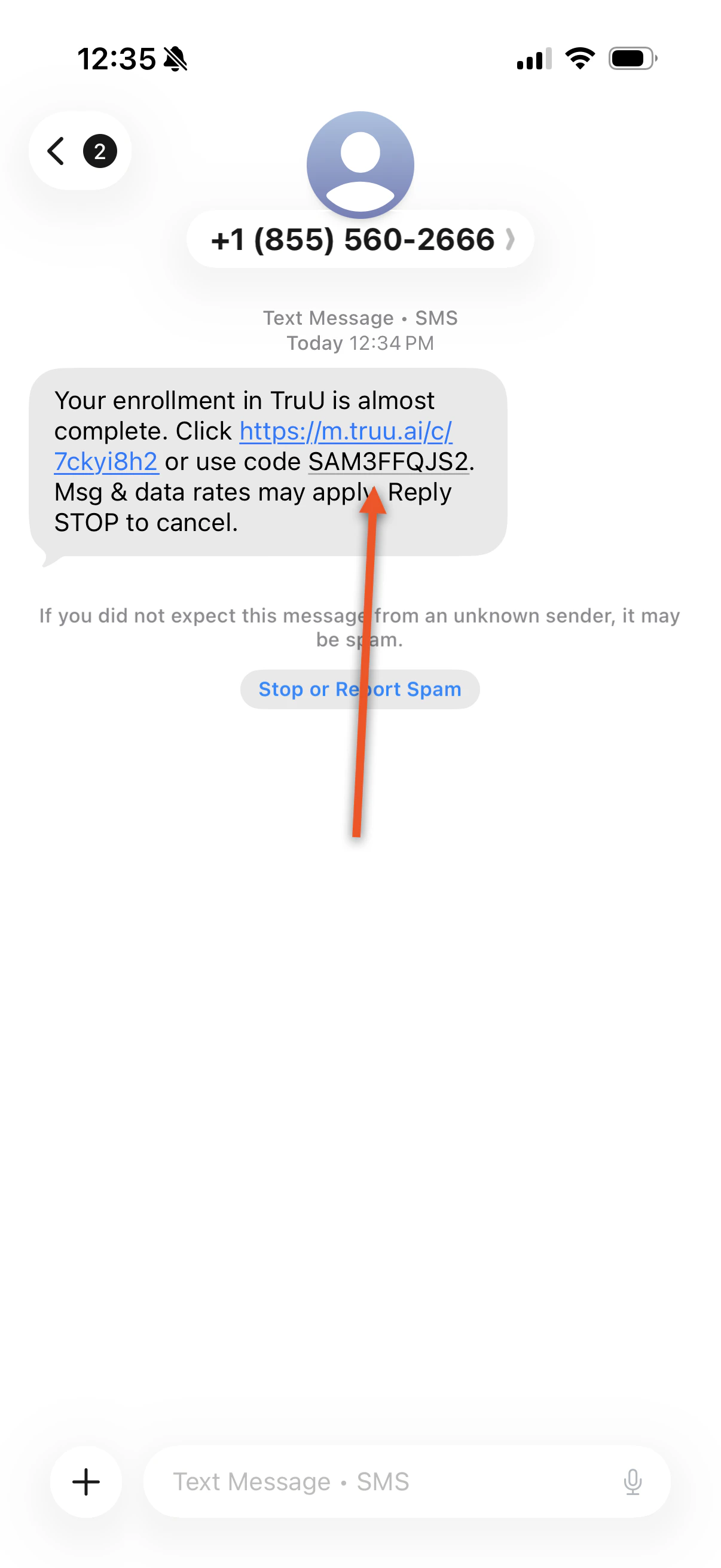
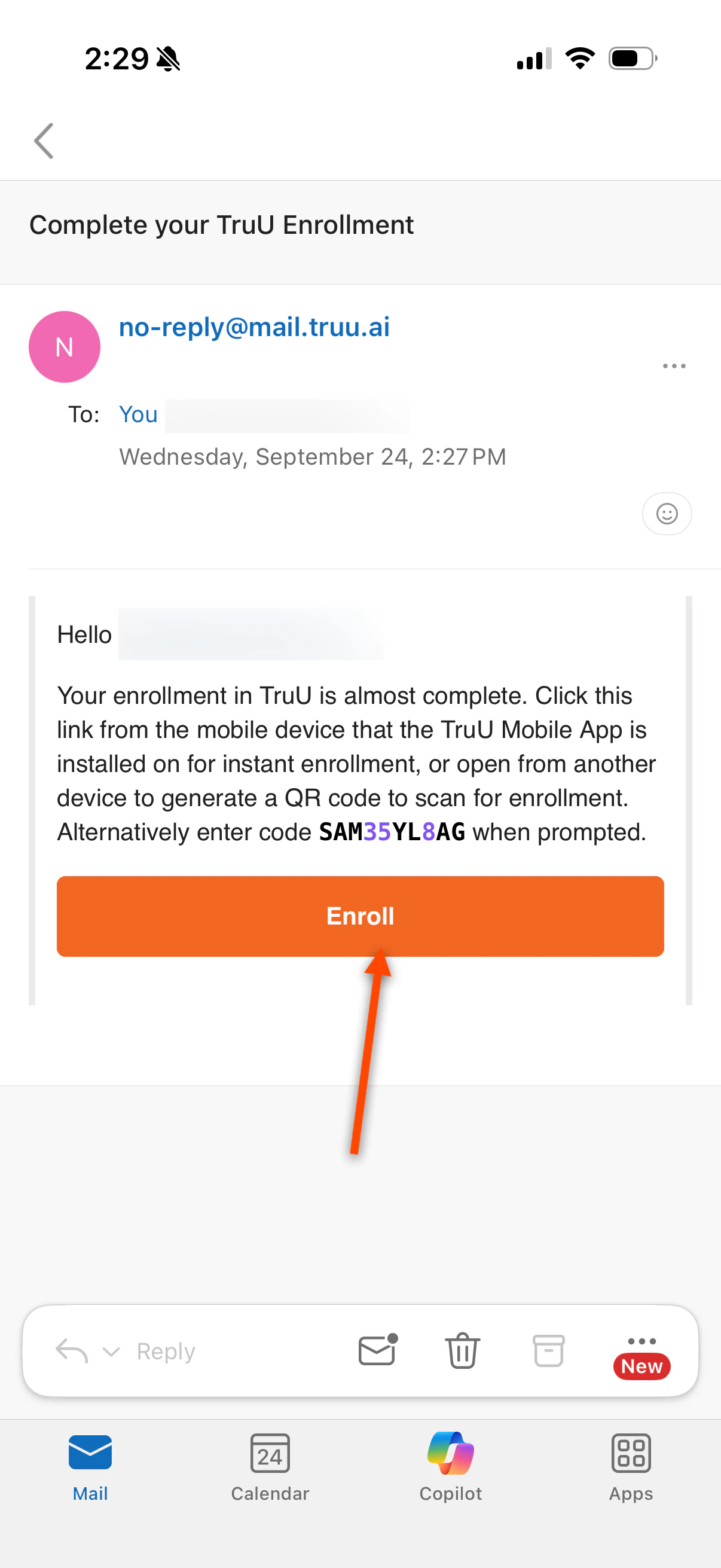
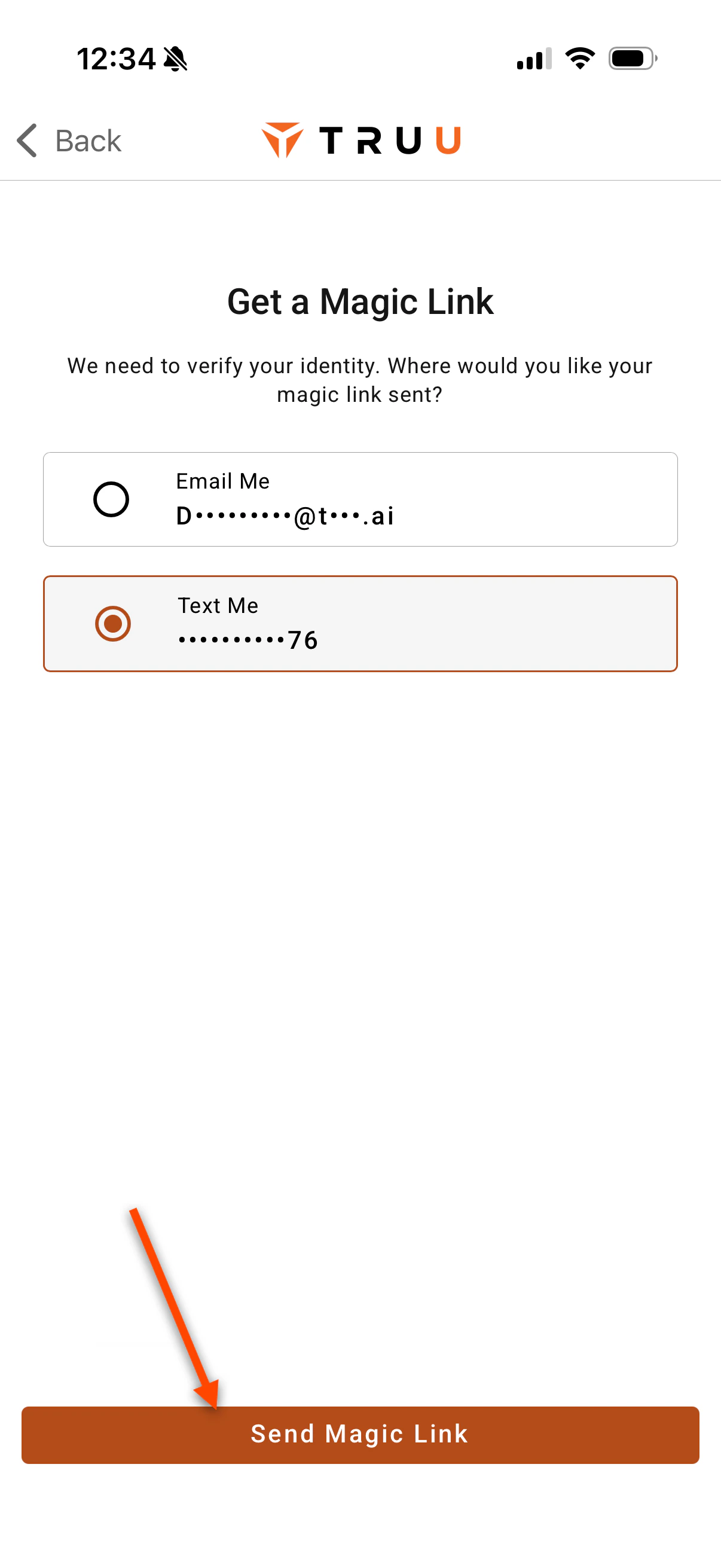 5. Open the email on your device and paste the **Enrollment Code** or click the **Enroll** button seen below OR enter/auto populate the **Enrollment Code** into the text box when receiving an SMS. Then, click **Submit**
1. **NOTE**: You can also copy and paste the code from your email into the TruU App
5. Open the email on your device and paste the **Enrollment Code** or click the **Enroll** button seen below OR enter/auto populate the **Enrollment Code** into the text box when receiving an SMS. Then, click **Submit**
1. **NOTE**: You can also copy and paste the code from your email into the TruU App
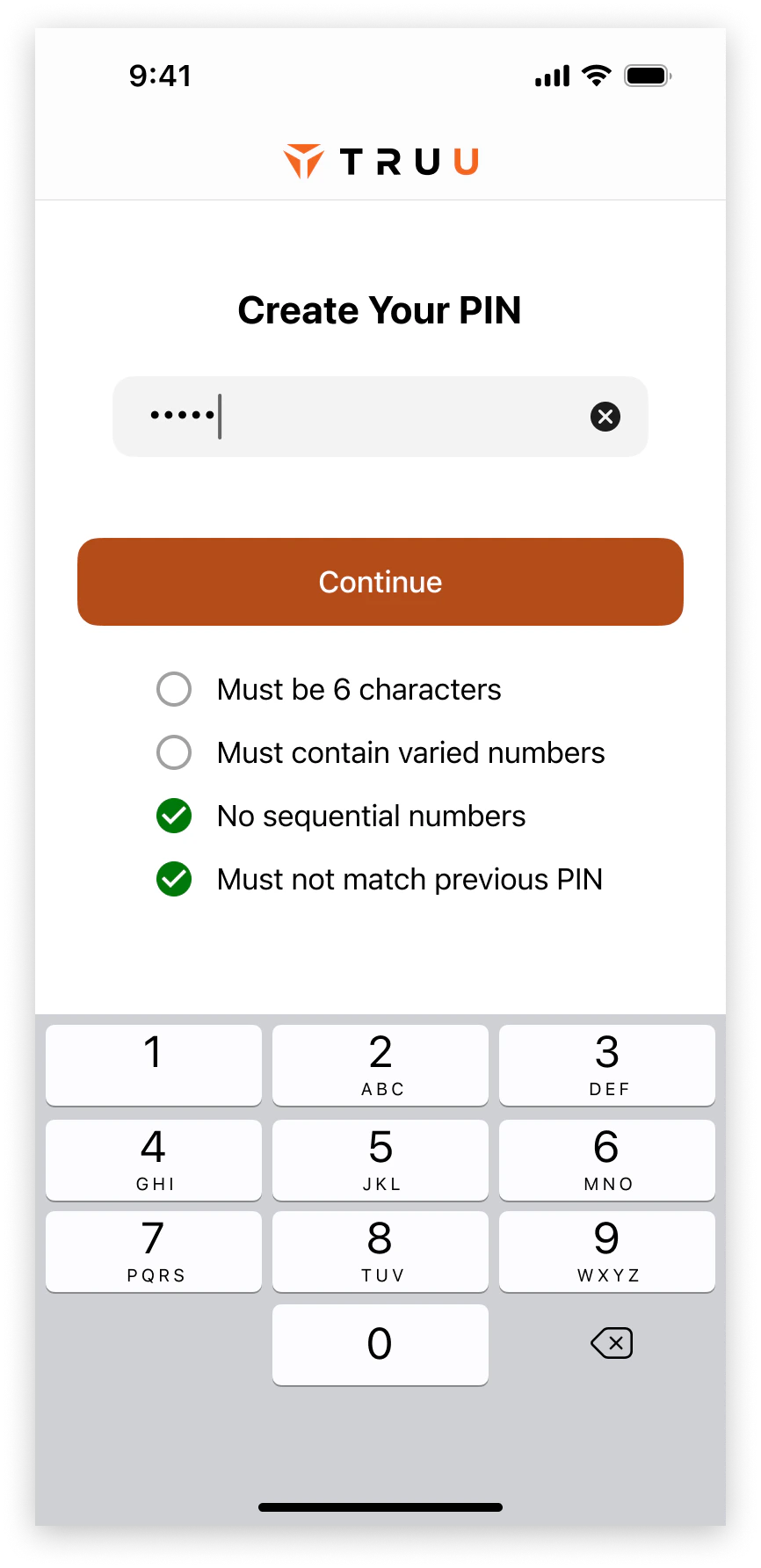
 6. Create an 8-digit TruU PIN then confirm that very PIN for the TruU App
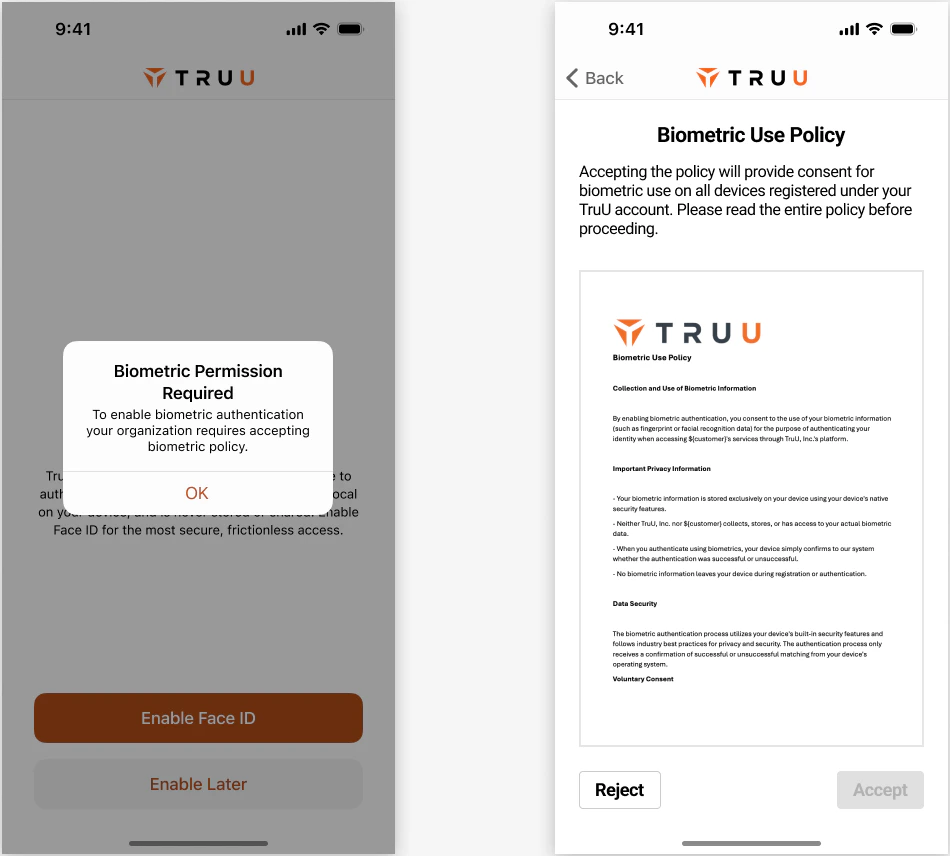
 7. You will then be presented the opportunity to **Enable Biometrics**.
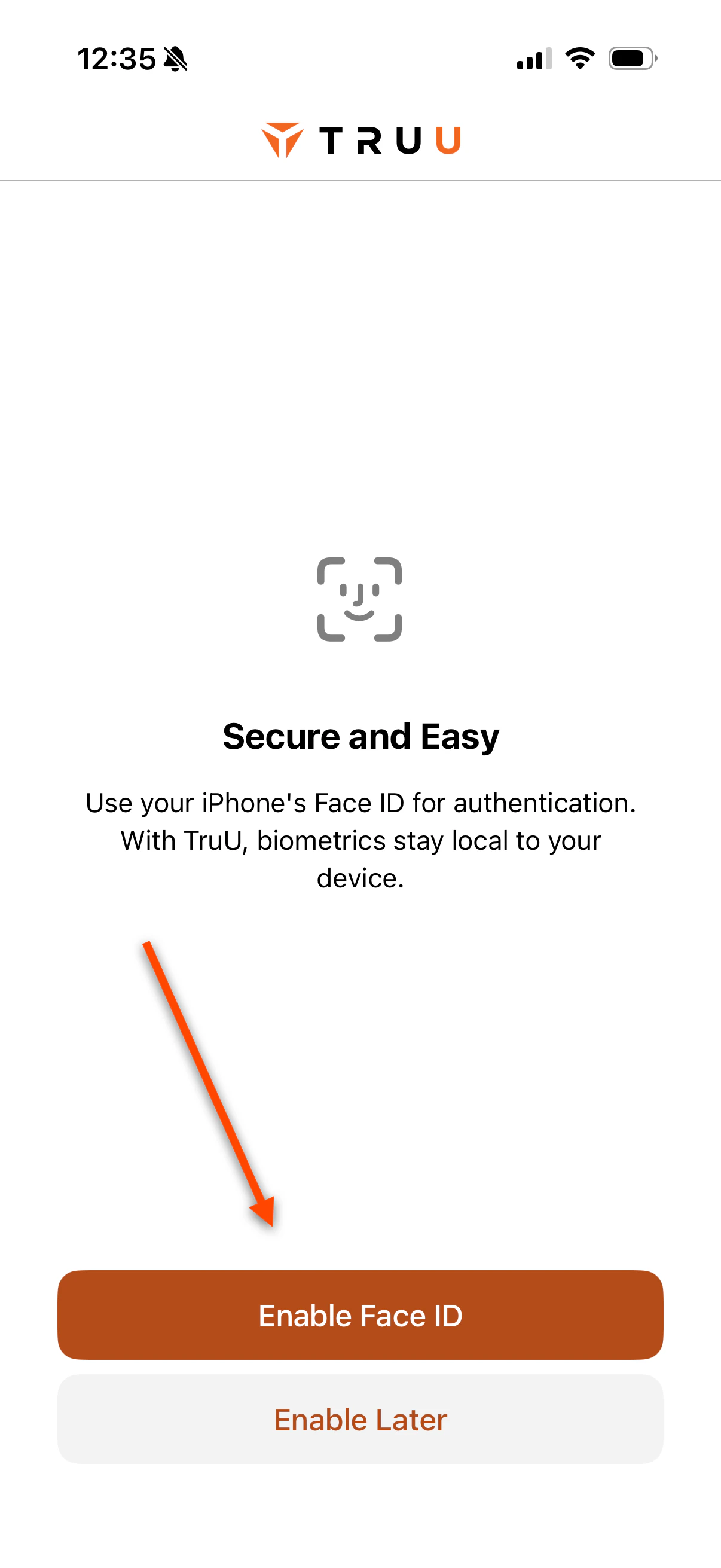 1. **NOTE**: If your organization required a **Biometric Permission Policy** to be accepted prior to enabling your Face ID/Fingerprint, you will be prompted to **Review and Accept** said policy
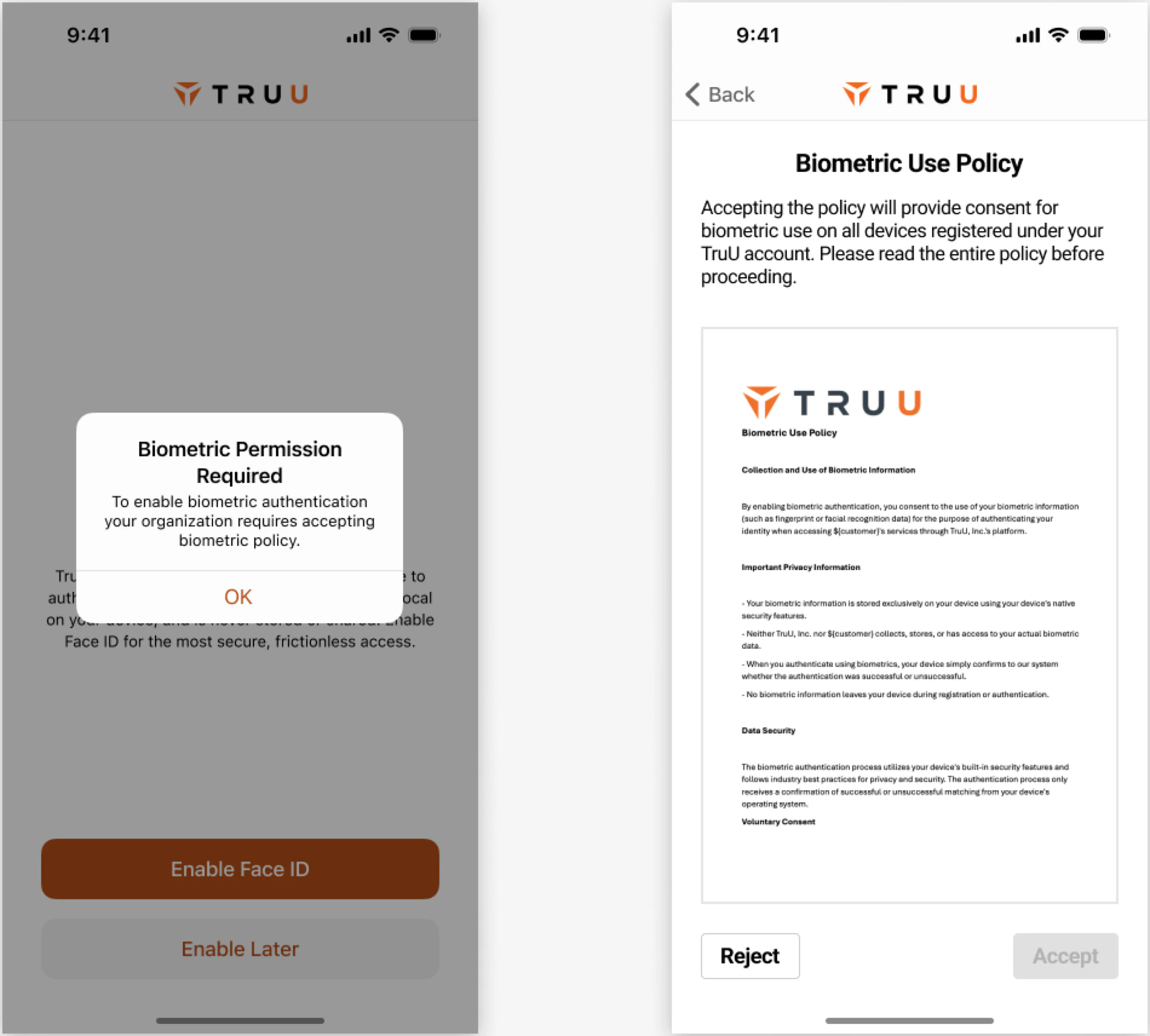 8. You will then be presented the option to **Enable Notifications**
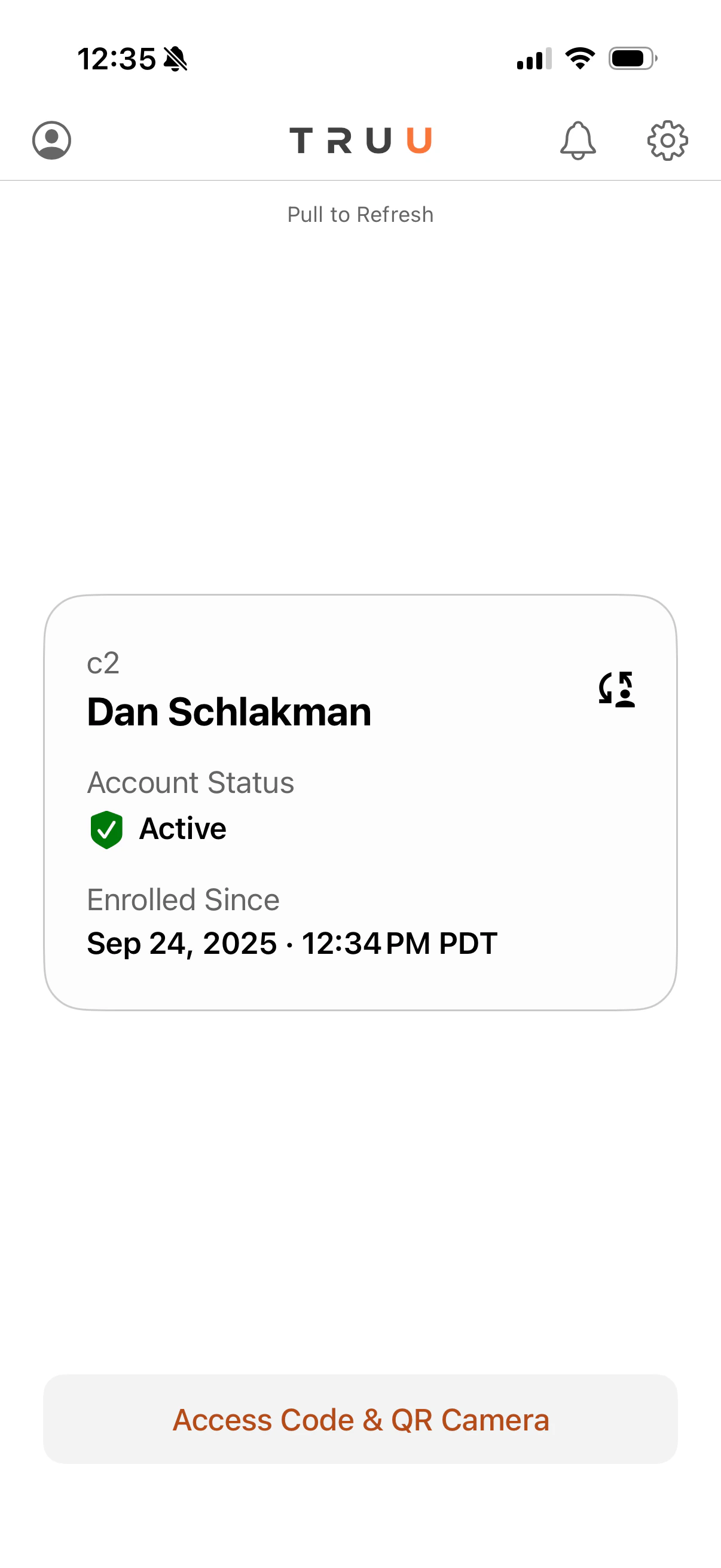
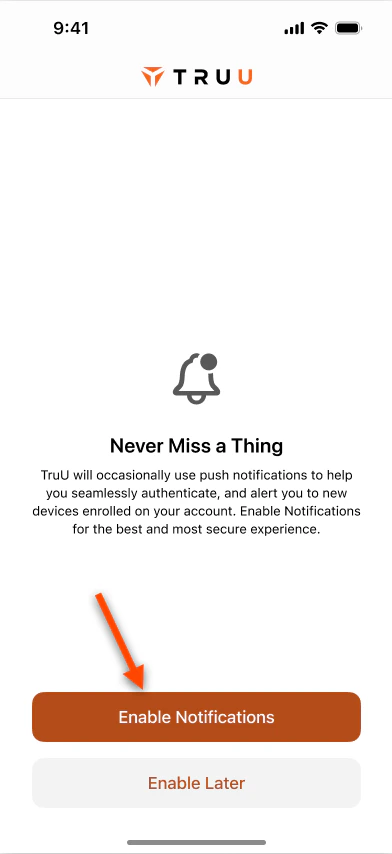 9. You will see the following screen indicating the successful enrollment with TruU. You can also confirm enrollment and information by clicking on the user icon in the top left of the homepage
 # **Option 2: Enroll through User Portal**
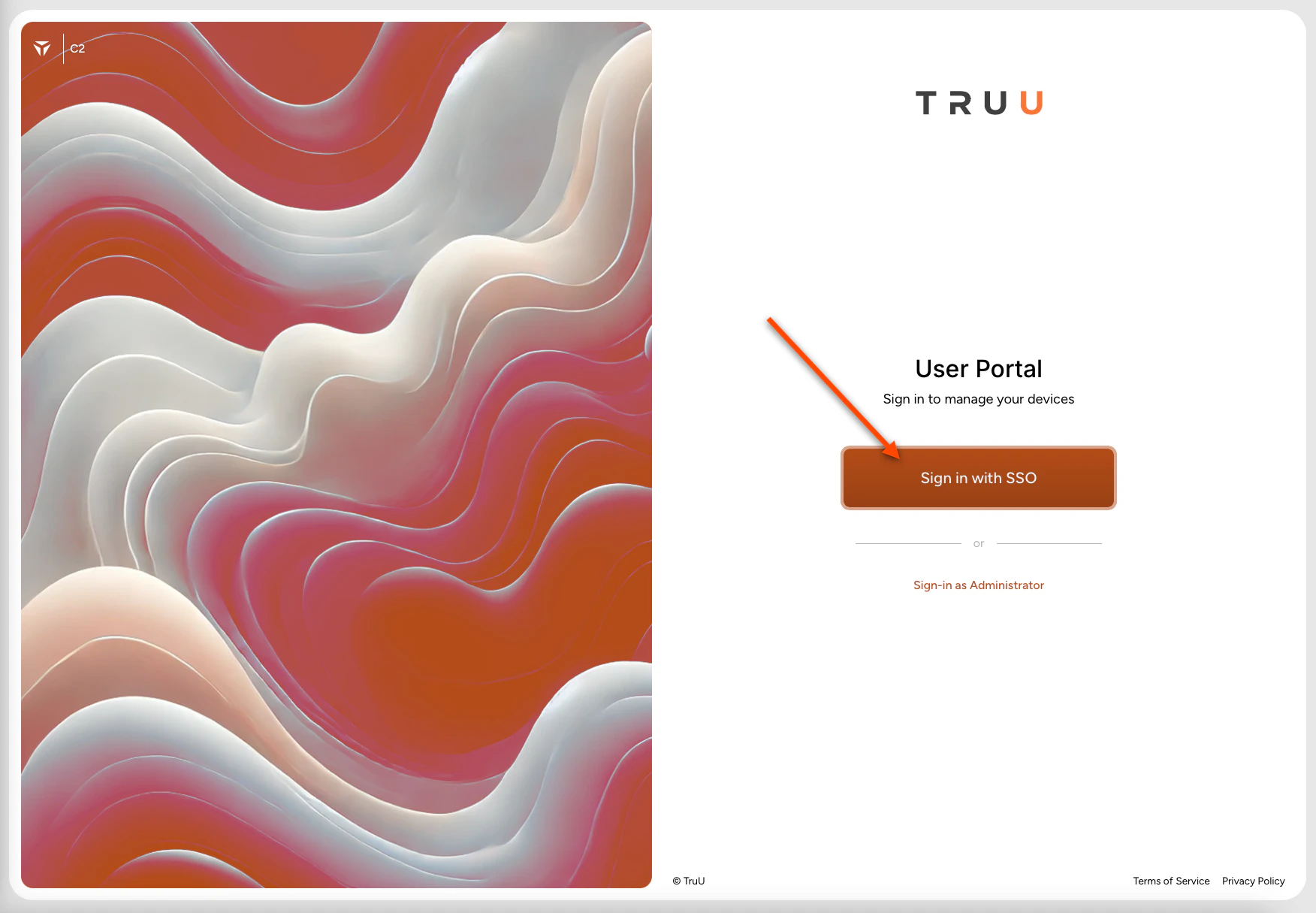
1. Go to your company's User Portal and click **Log in With Single Sign-On**
NOTE: You may need to enter your email address as the *User Logon Name*. Click the **Email Me** button to receive an enrollment magic link to your company email address. Press **Log in to your TruU User Portal** to proceed with the following steps
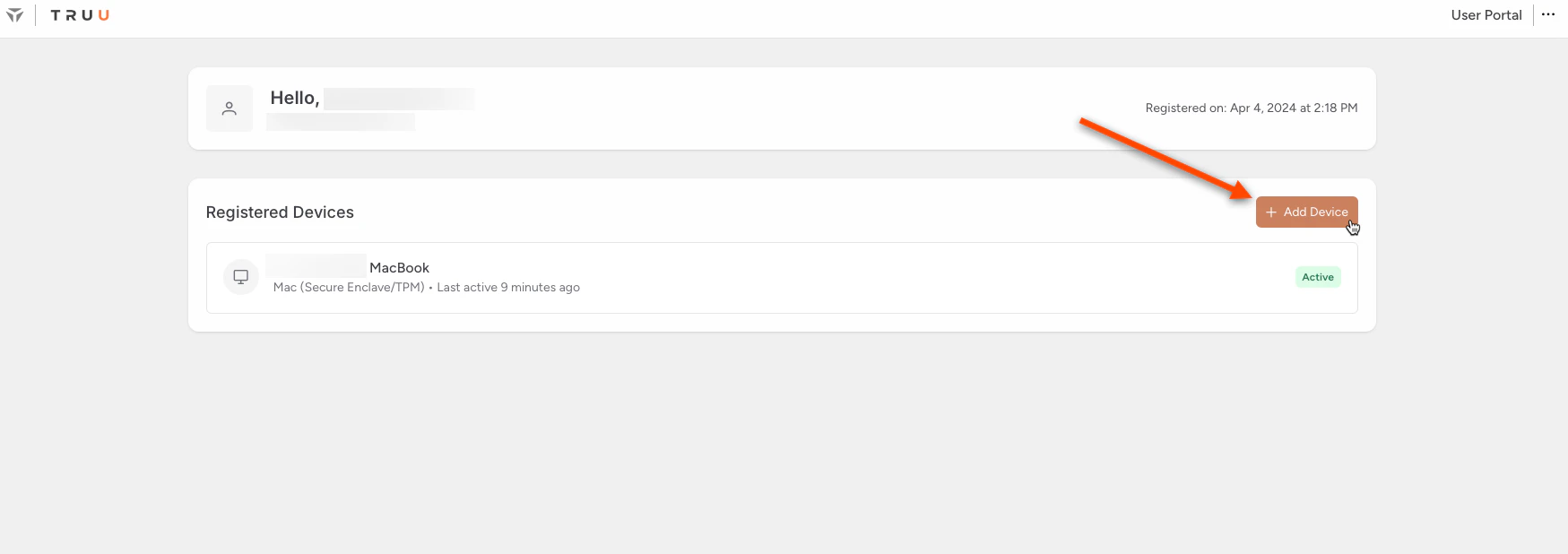
2. In the User Portal, click the **(+)** icon labeled "Enroll New Device" in the top right corner
# **Option 2: Enroll through User Portal**
1. Go to your company's User Portal and click **Log in With Single Sign-On**
NOTE: You may need to enter your email address as the *User Logon Name*. Click the **Email Me** button to receive an enrollment magic link to your company email address. Press **Log in to your TruU User Portal** to proceed with the following steps
2. In the User Portal, click the **(+)** icon labeled "Enroll New Device" in the top right corner
 3. Select **Add Device**
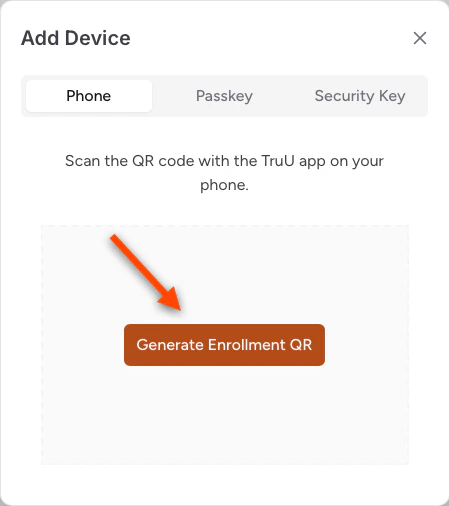
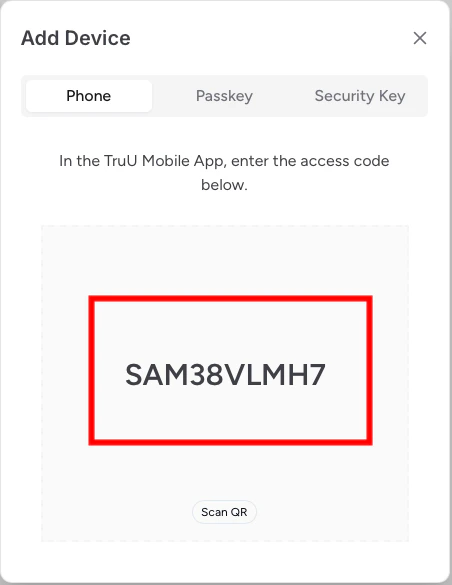
 4. Under the **Phone** header, click **Generate Enrollment QR**. You will then see a QR code displayed on your computer screen
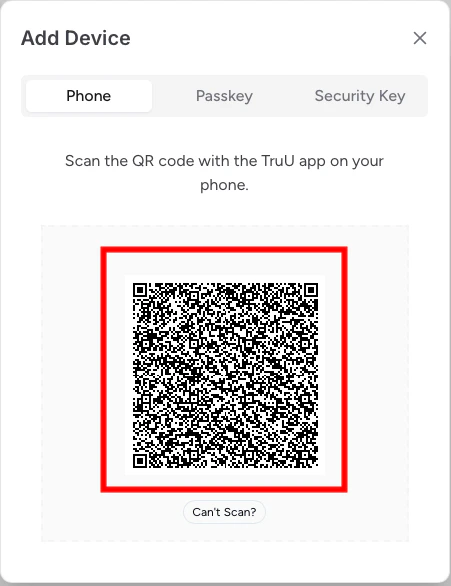 **NOTE**: If you cannot scan your QR code, click the **Can't Scan?** button below the QR code. You will be directed to a **Secure Access Code**
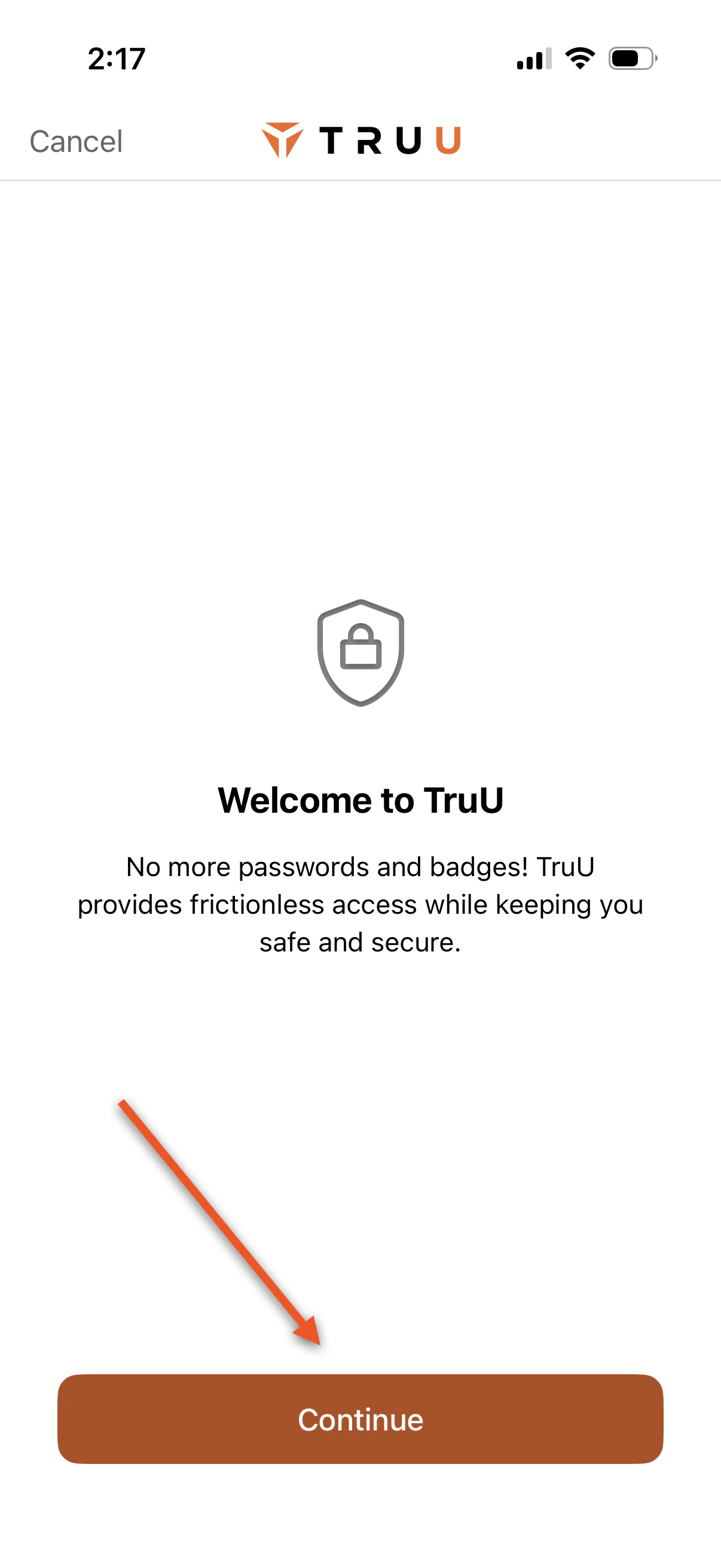
 5. On your phone, launch the "TruU Mobile App" and select **Continue**
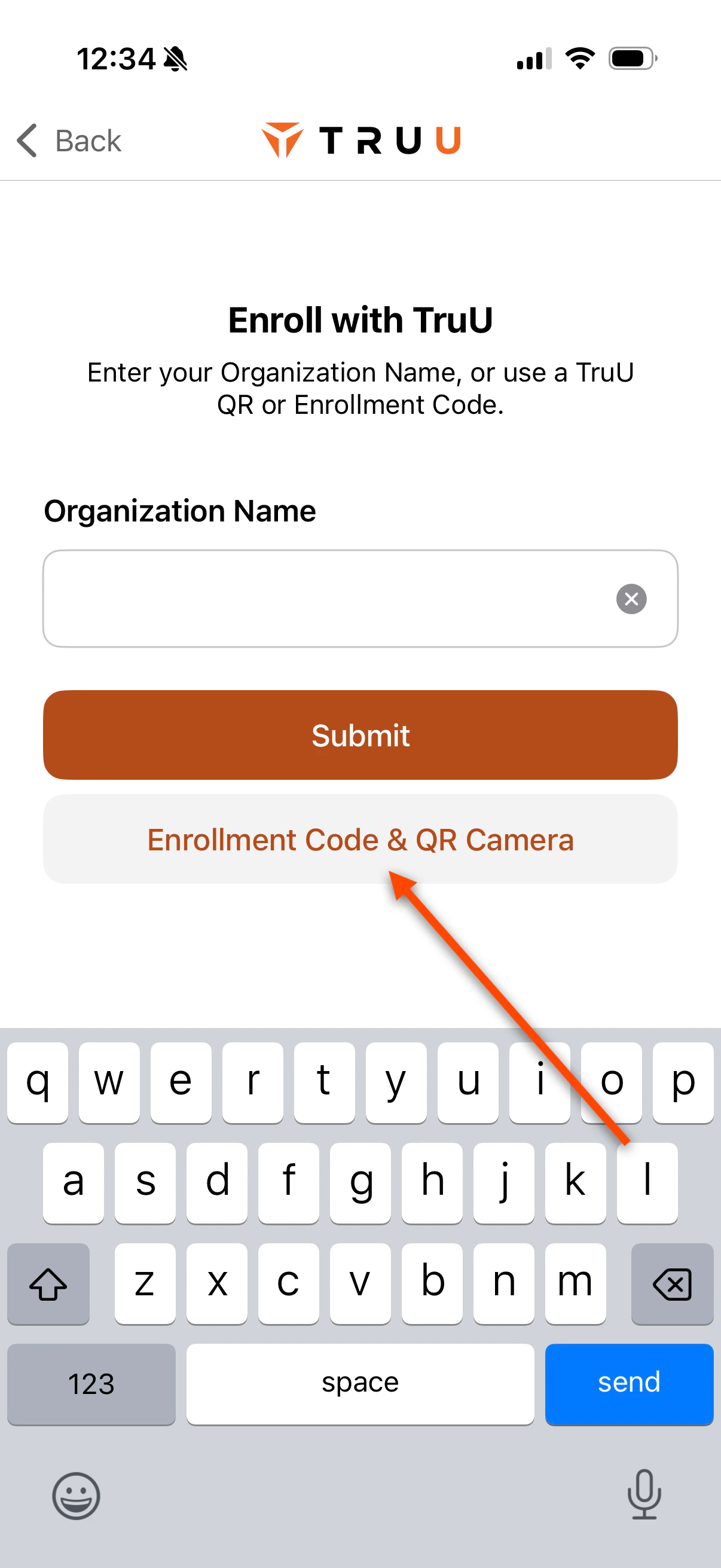
 6. Select **Enrollment Code & QR Camera**
 7. Scan the QR code displayed on your computer
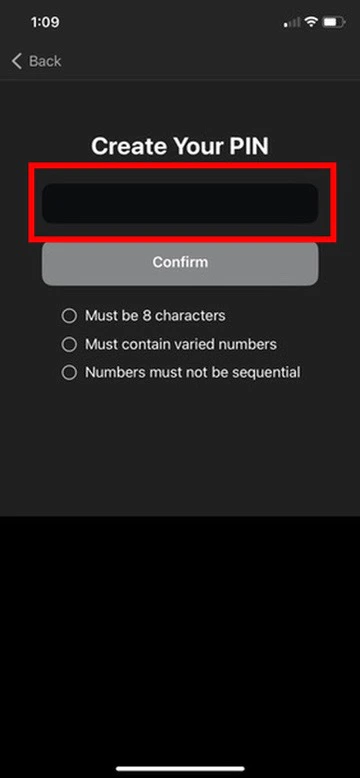
8. Create your *TruU PIN*, then confirm it
7. Scan the QR code displayed on your computer
8. Create your *TruU PIN*, then confirm it
 9. You will then be presented the opportunity to **Enable Biometrics**.
1. **NOTE**: If your organization required a **Biometric Permission Policy** to be accepted prior to enabling your Face ID/Fingerprint, you will be prompted to **Review and Accept** said policy
9. You will then be presented the opportunity to **Enable Biometrics**.
1. **NOTE**: If your organization required a **Biometric Permission Policy** to be accepted prior to enabling your Face ID/Fingerprint, you will be prompted to **Review and Accept** said policy
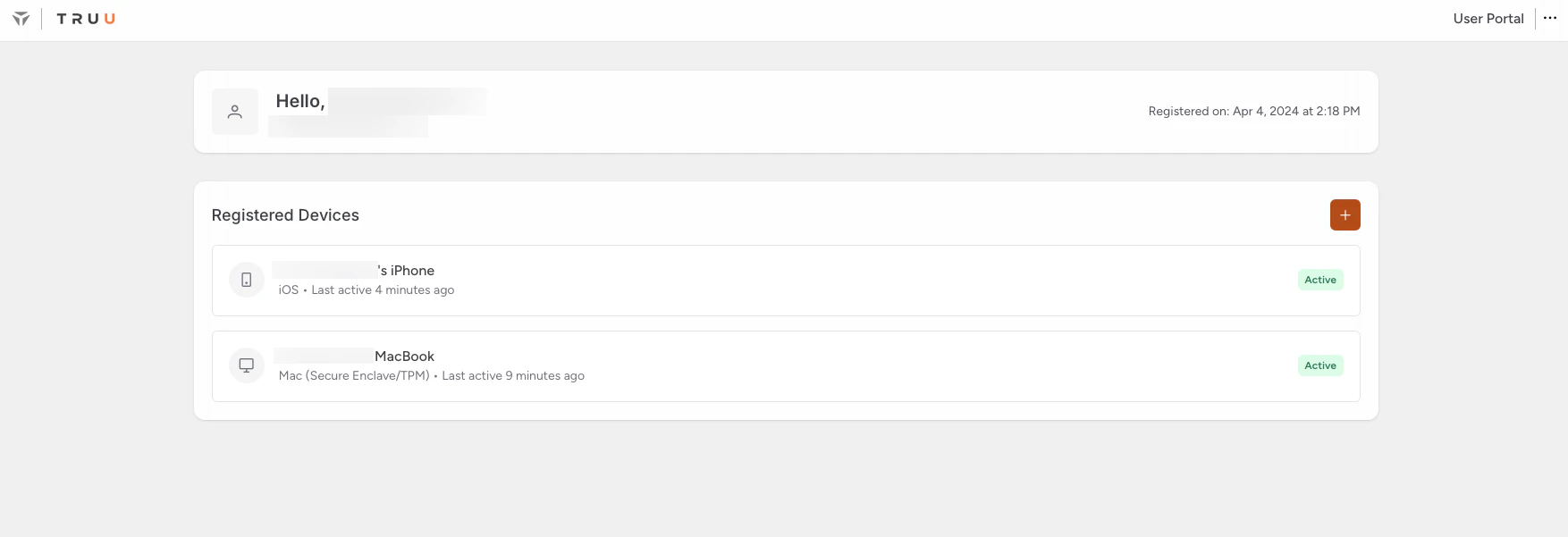
 10. You will be directed back to the User Portal displaying your **Registered Devices** indicating successful enrollment with TruU
 ***
[Installing TruU Mobile Application](/docs/installing-truu-mobile-application)
[Enroll Your Phone (Contractor)](/docs/enroll-your-phone-contractor)
***
[Installing TruU Mobile Application](/docs/installing-truu-mobile-application)
[Enroll Your Phone (Contractor)](/docs/enroll-your-phone-contractor)