> ## Documentation Index
> Fetch the complete documentation index at: https://docs.truu.ai/llms.txt
> Use this file to discover all available pages before exploring further.

# Enroll your AD Joined Windows

> This guide provides a step-by-step tutorial on how to Enroll your AD Joined Windows device to TruU.

When you open your laptop, the TruU authenticator will automatically appear on your lock screen

1. Click ***Get Started***

<img src="https://mintcdn.com/truu-2/m22YLP0oXSNG0U3O/images/docs/6e5374f-1.PNG?fit=max&auto=format&n=m22YLP0oXSNG0U3O&q=85&s=65eeb8cc12a1f028fe73972af836602c" alt="" width="728" height="433" data-path="images/docs/6e5374f-1.PNG" />

2. Enter your *email*

<img src="https://mintcdn.com/truu-2/m22YLP0oXSNG0U3O/images/docs/87cde5a-2.PNG?fit=max&auto=format&n=m22YLP0oXSNG0U3O&q=85&s=f896fec108e2927528278761abae573f" alt="" width="703" height="434" data-path="images/docs/87cde5a-2.PNG" />

3. Select **Email Me** or **Text Me** to receive an enrollment code

<img src="https://mintcdn.com/truu-2/jMF4bYA9yOA_2TKv/images/docs/3334e0d-3.PNG?fit=max&auto=format&n=jMF4bYA9yOA_2TKv&q=85&s=92c05c96fccfbe90354547951fa79614" alt="" width="668" height="429" data-path="images/docs/3334e0d-3.PNG" />

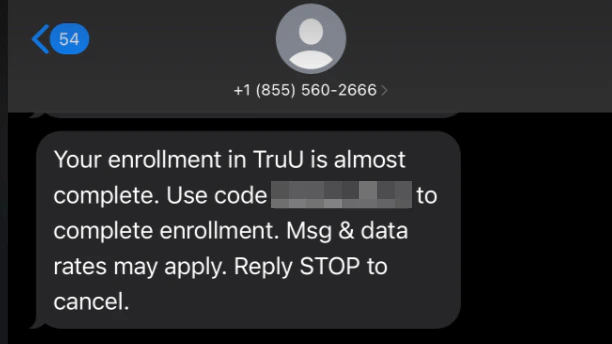
4. Check your email/phone for a code from TruU

<img src="https://mintcdn.com/truu-2/qCK1oWL4jNpZKJ8A/images/docs/902e39a-2024-08-14_15-40-43.PNG?fit=max&auto=format&n=qCK1oWL4jNpZKJ8A&q=85&s=020d7999ef5cbf65667b2bdbebfab79c" width="794" height="224" data-path="images/docs/902e39a-2024-08-14_15-40-43.PNG" />

<img src="https://mintcdn.com/truu-2/qCK1oWL4jNpZKJ8A/images/docs/8b8af94-3a98684-image.png?fit=max&auto=format&n=qCK1oWL4jNpZKJ8A&q=85&s=125d8cea8b86686f268412a3d7760482" width="612" height="344" data-path="images/docs/8b8af94-3a98684-image.png" />

5. Enter the enrollment code sent to your email/text

<img src="https://mintcdn.com/truu-2/jMF4bYA9yOA_2TKv/images/docs/3d3aa6c-4.PNG?fit=max&auto=format&n=jMF4bYA9yOA_2TKv&q=85&s=6624e1eed5032e92a72f007758072377" alt="" width="658" height="427" data-path="images/docs/3d3aa6c-4.PNG" />

6. Create your ***TruU PIN***

<img src="https://mintcdn.com/truu-2/YlfY4z_3_-uDkBaP/images/docs/51c202f-5.PNG?fit=max&auto=format&n=YlfY4z_3_-uDkBaP&q=85&s=519521563f11a9a3f5f22f0eb2a91661" alt="" width="735" height="435" data-path="images/docs/51c202f-5.PNG" />

7. Click ***Login Using TruU*** to complete enrollment

<img src="https://mintcdn.com/truu-2/jMF4bYA9yOA_2TKv/images/docs/4002576-19.PNG?fit=max&auto=format&n=jMF4bYA9yOA_2TKv&q=85&s=ab6a3e78f101bc3fd34bf46e2fa7e95f" alt="" width="722" height="428" data-path="images/docs/4002576-19.PNG" />

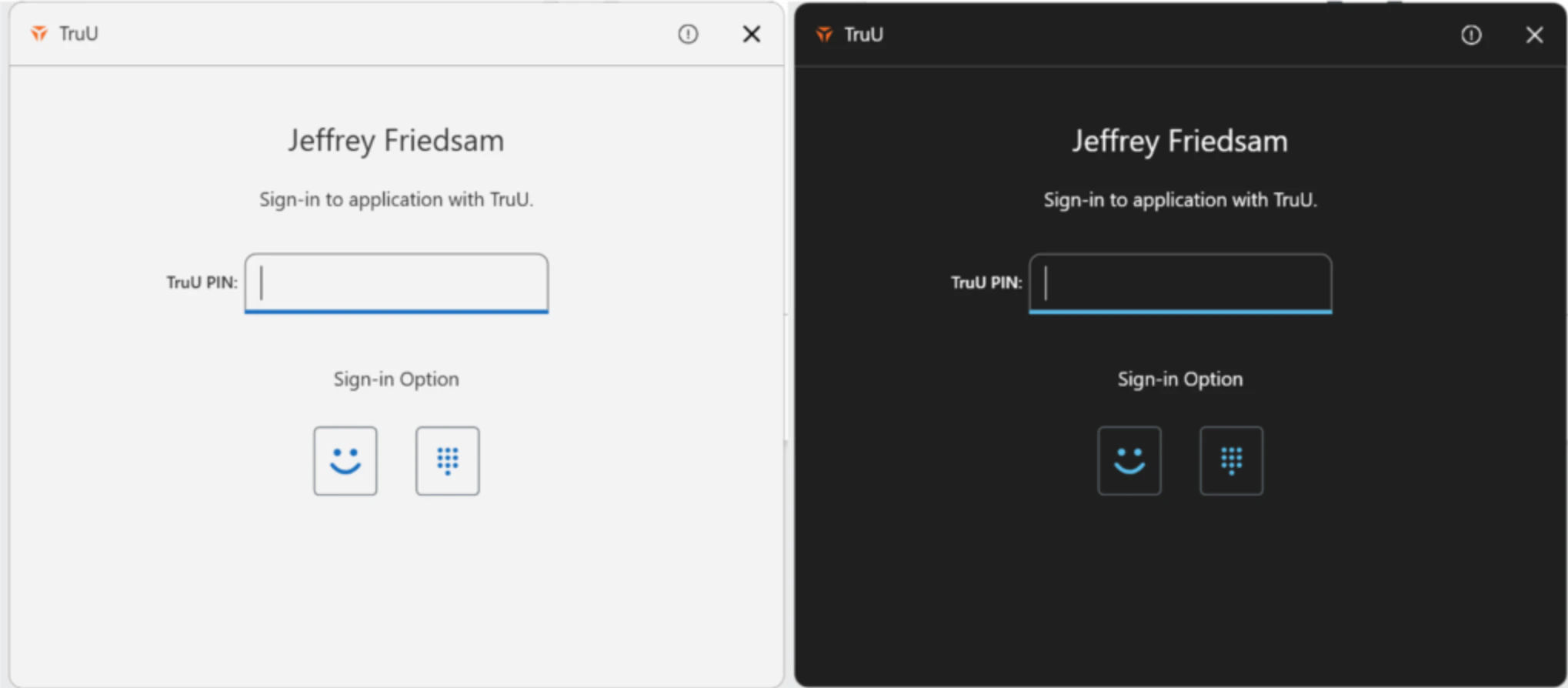
8. You may sign in to your application following enrollment
<img src="https://mintcdn.com/truu-2/m22YLP0oXSNG0U3O/images/docs/86de5d9dbd6b8a7d7f0133b332d5b48e7da28a7bfdea769683dedda01424a5c1-image.png?fit=max&auto=format&n=m22YLP0oXSNG0U3O&q=85&s=9c348fc4dc4be1e270f1a9fba72c5140" alt="" width="2038" height="894" data-path="images/docs/86de5d9dbd6b8a7d7f0133b332d5b48e7da28a7bfdea769683dedda01424a5c1-image.png" />

***

[Manager's Approval](/docs/manager-approval)

[Enroll your Entra Joined Windows](/docs/enroll-your-entra-joined-windows)