> ## Documentation Index
> Fetch the complete documentation index at: https://docs.truu.ai/llms.txt
> Use this file to discover all available pages before exploring further.
# Creating Entitlement Groups for Shared Workstation
> Computer Entitlement Groups are a mandatory tool used to group registered devices within the TruU console. These groups define which workstations follow specific security rules and control exactly where Shared Workstation policies are enforced. Administrators can add computers manually by device name or add their existing directory groups.
| Use Case Example | Description |
| -------------------------- | ---------------------------------------------------------------------------------------------------------------------------------------------------------------------------------- |
| Shift Workers | Group all factory floor workstations into a single entitlement group to enable rapid, tap-and-go badge authentication specifically for shift workers. |
| High-Security Workstations | Group terminals in sensitive areas to enforce stricter requirements, such as Badge + PIN, and use "Authorized Users" controls to restrict access to specific management personnel. |
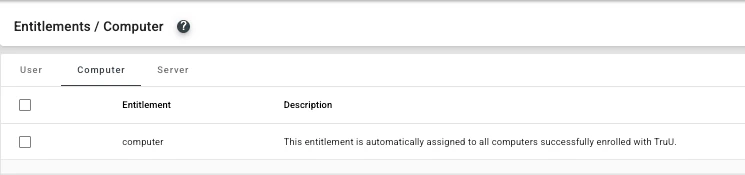
A *computer* entitlement group is created by default in TruU as shown below. We recommend creating a separate entitlement group for Shared Workstations.
 ## Computer Entitlement Groups
1. In the TruU admin console, navigate to Entitlements > Computer
## Computer Entitlement Groups
1. In the TruU admin console, navigate to Entitlements > Computer
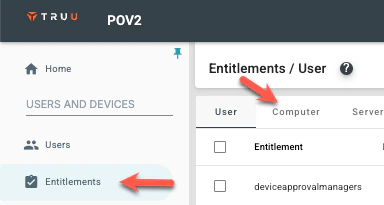 2. Click on the blue plus (+) icon
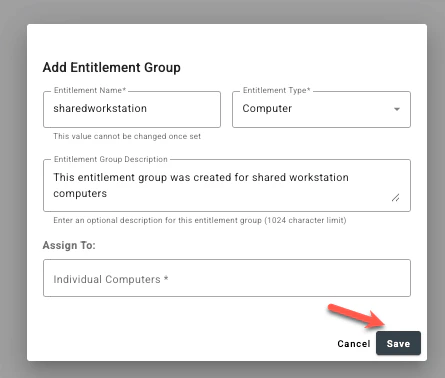
 3. Create a Computer Entitlement Group by giving it a name and a short description.
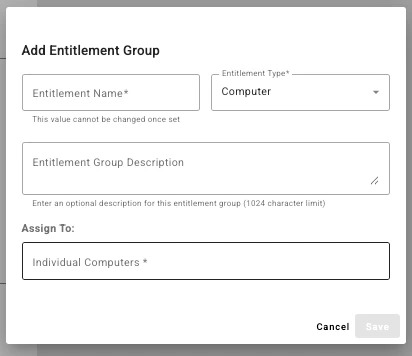 4. Under *Assign to*, add Directory groups or computers by their registered computer names. Computers can also be automatically assigned to entitlement groups during registration by specifying the group in the configuration file.
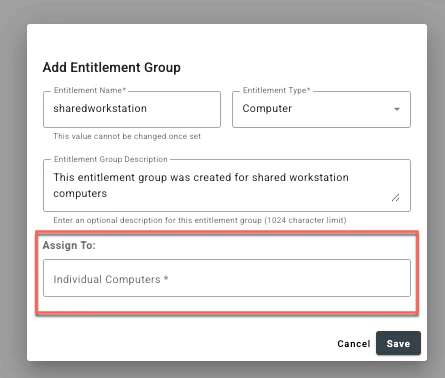 5. Click *Save* once the entitlement group is completed.
 **Note:** Entitlement groups are processed automatically every three hours. To process an entitlement group immediately, select the group and choose Process Now from the Actions menu.
***
[Enabling Shared Workstation](/docs/sw-admin-console-policy-setup)
[Creating Policies for Shared Workstation Login](/docs/policies-1)
**Note:** Entitlement groups are processed automatically every three hours. To process an entitlement group immediately, select the group and choose Process Now from the Actions menu.
***
[Enabling Shared Workstation](/docs/sw-admin-console-policy-setup)
[Creating Policies for Shared Workstation Login](/docs/policies-1)