> ## Documentation Index
> Fetch the complete documentation index at: https://docs.truu.ai/llms.txt
> Use this file to discover all available pages before exploring further.
# Events AI
Events AI lives in the TruU Admin Console under **Core → Events AI**. You search and review activity using natural language and filters. Whatever is active appears as chips under the search bar so the rules behind your results are always visible.
Data in this view comes from your organization’s current Events AI data pipeline in TruU. Which events you see depends on your tenant configuration, time range, permissions, and platform data retention—not every historical event may appear here. For long‑range or archival questions, use Events or contact TruU.
***
## What You See on the Page
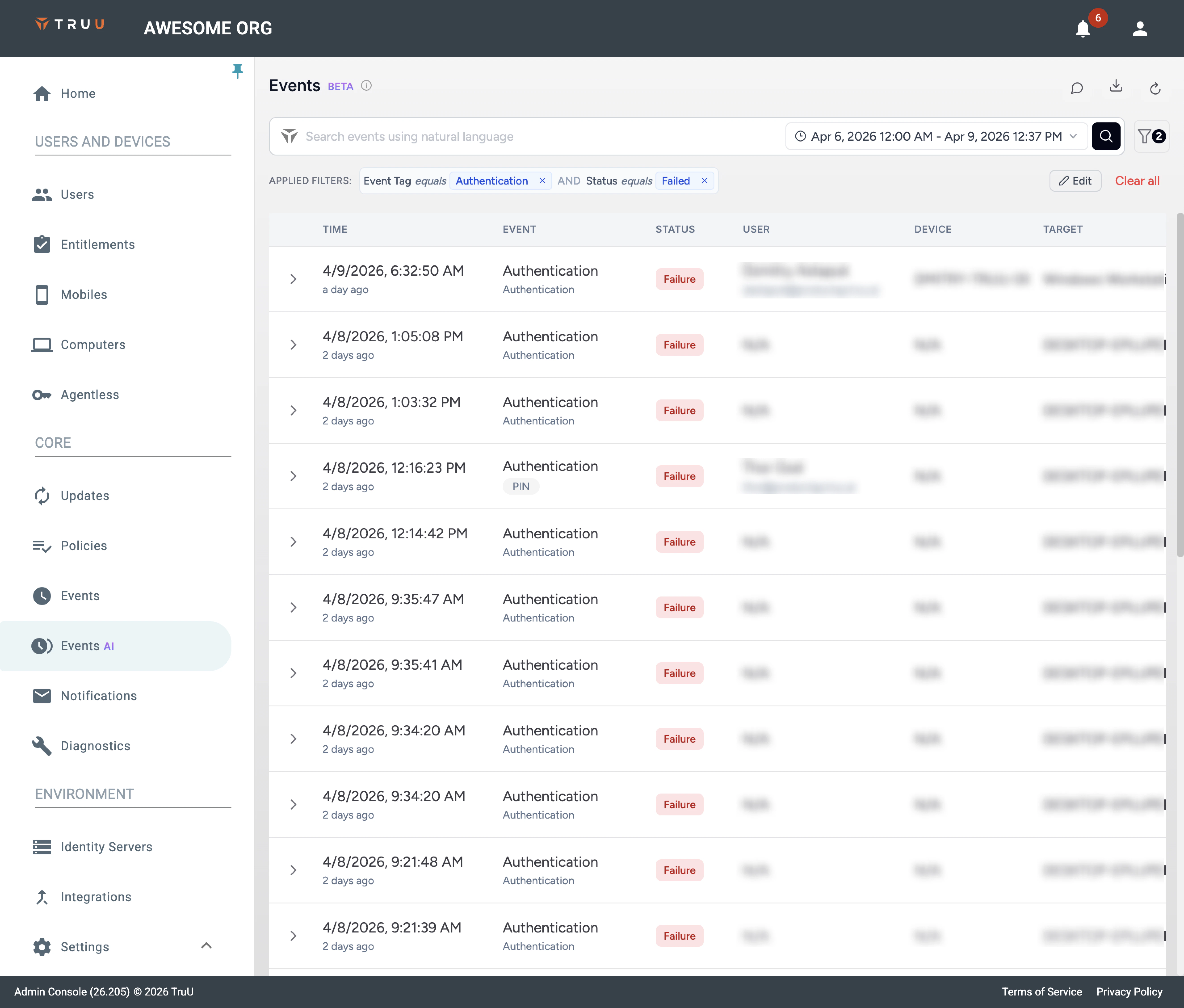 | **Area** | **Purpose** |
| :-------------------------- | :-------------------------------------------------------------------------------------------------- |
| Search | Enter a question or keywords. Press **Enter** or the search icon. **X** clears the field. |
| Time | Sets the evaluation window; a natural-language question may adjust it. |
| Filter | Filter icon (funnel): opens the filter panel. The badge shows how many filters are active. |
| Applied filters | One chip per condition. **Edit** opens the panel; **Clear all** removes them. |
| How to use Events AI | Text link to product help or your published guide (same topic as this page). |
| Feedback · Export · Refresh | Toolbar icons beside the page title: feedback, export events (if your role allows), reload results. |
***
## Search
| **Area** | **Purpose** |
| :-------------------------- | :-------------------------------------------------------------------------------------------------- |
| Search | Enter a question or keywords. Press **Enter** or the search icon. **X** clears the field. |
| Time | Sets the evaluation window; a natural-language question may adjust it. |
| Filter | Filter icon (funnel): opens the filter panel. The badge shows how many filters are active. |
| Applied filters | One chip per condition. **Edit** opens the panel; **Clear all** removes them. |
| How to use Events AI | Text link to product help or your published guide (same topic as this page). |
| Feedback · Export · Refresh | Toolbar icons beside the page title: feedback, export events (if your role allows), reload results. |
***
## Search
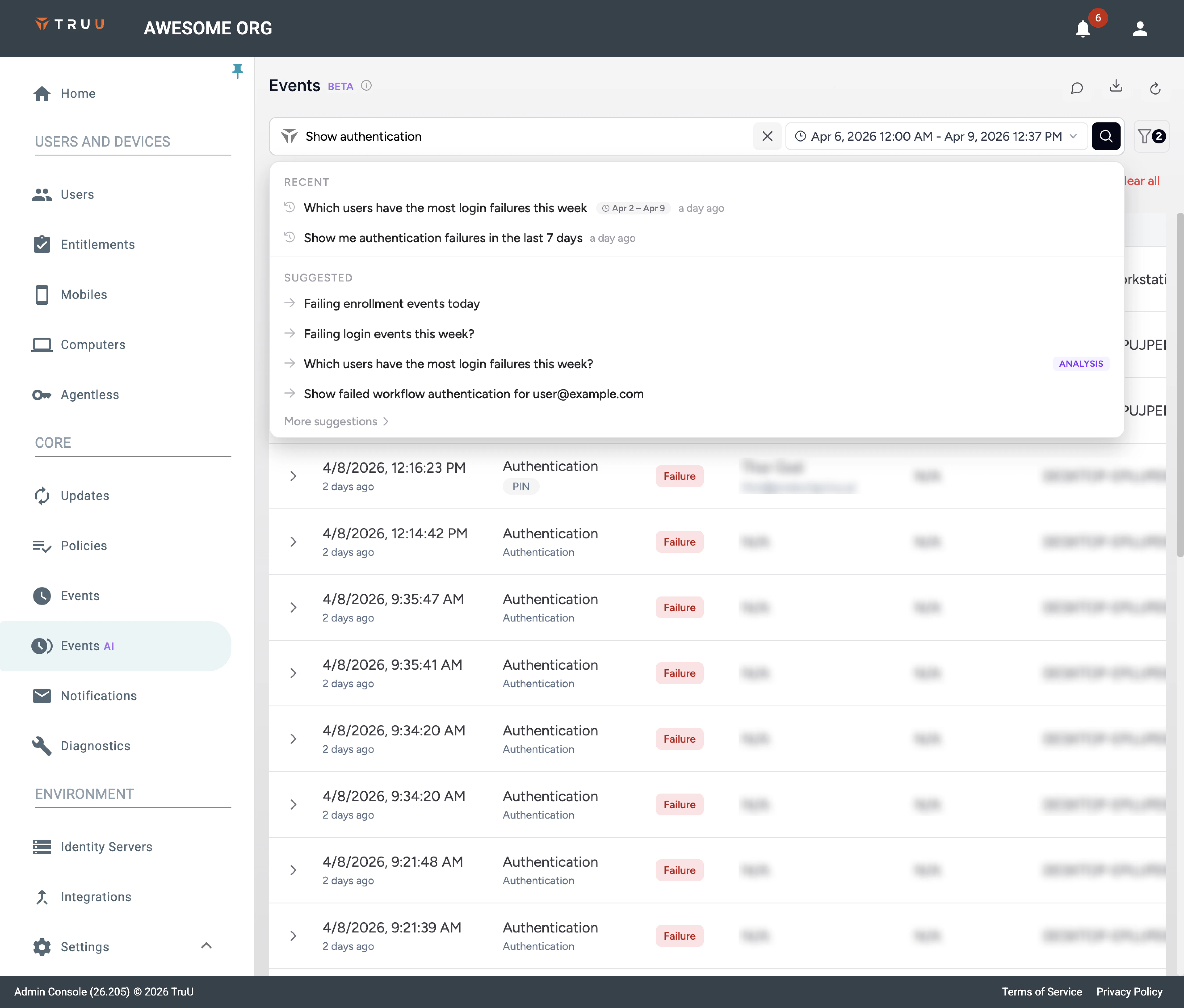 1. Type, then press **Enter** or click search. While a run is in progress, search controls stay disabled so you don’t submit twice.
2. **X** clears the field and resets toward the default view.
3. Focusing the field may show recent searches and suggestions; choosing one runs it.
4. After a run, read **Applied filters** to see how your wording was translated into structured rules.
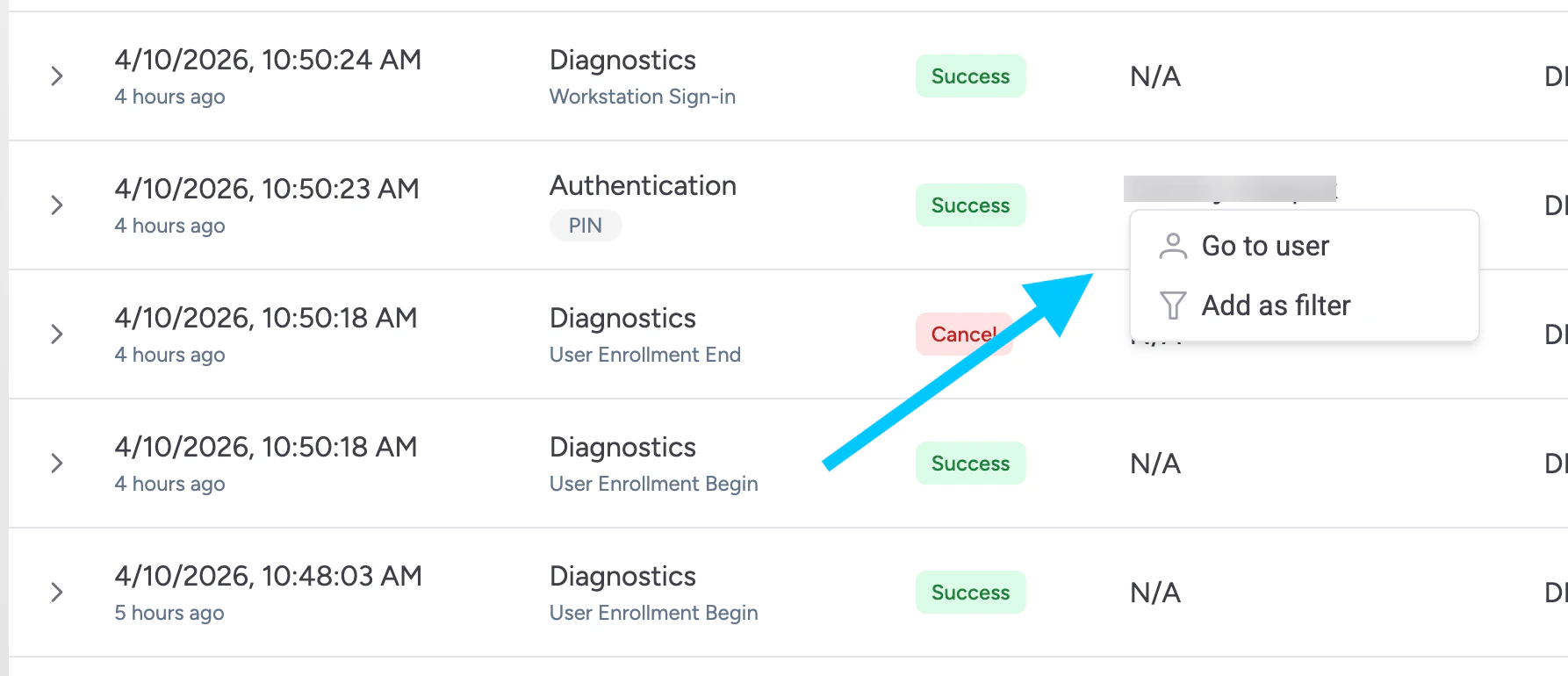
**Table shortcuts:** **User** and **Device** cells may offer **Go to user** / **Go to device** or **Add as filter**. **Status** or **Event** may apply a filter in one click.
1. Type, then press **Enter** or click search. While a run is in progress, search controls stay disabled so you don’t submit twice.
2. **X** clears the field and resets toward the default view.
3. Focusing the field may show recent searches and suggestions; choosing one runs it.
4. After a run, read **Applied filters** to see how your wording was translated into structured rules.
**Table shortcuts:** **User** and **Device** cells may offer **Go to user** / **Go to device** or **Add as filter**. **Status** or **Event** may apply a filter in one click.
 ***
## Time Range
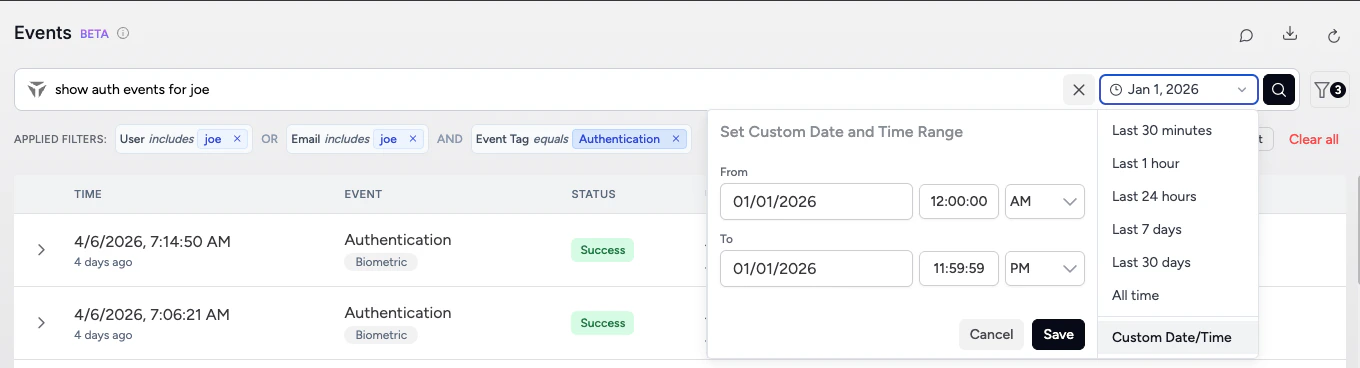
Pick a **preset** or a **custom** start and end (including time of day). Only events inside that window are evaluated. If results are large, start with a narrow window, then widen.
***
## Time Range
Pick a **preset** or a **custom** start and end (including time of day). Only events inside that window are evaluated. If results are large, start with a narrow window, then widen.
 ***
## Filters
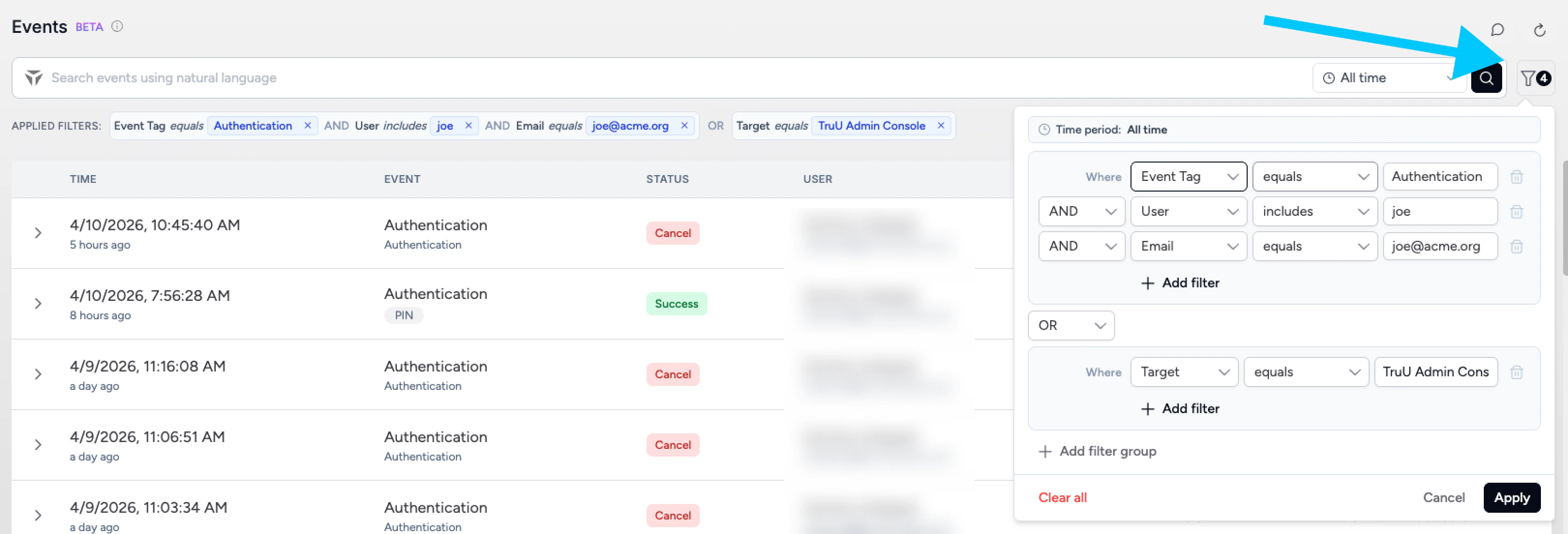
Open the panel from the **filter** icon or **Edit** on the chip strip. Each row is field → operator → value.
Fields include: **User**, **Email**, **Event tag** (sometimes labeled **Event category** in places), **Event type**, **Auth method**, **Status**, **Search text**, **Device** and **Target**.
Operators include: **equals**, **not equals**, and text match options such as **contains** / **includes** and **does not contain** / **excludes**—match the labels in your UI.
Within one group, conditions connect with **AND** or **OR** (not mixed in the same group—use **Add filter group** for complex logic). **Apply** saves and refreshes; the search text is usually cleared so chips define the query. **Clear all** clears rows in the panel; **Cancel** discards edits. Rows with an empty value are not applied.
***
## Filters
Open the panel from the **filter** icon or **Edit** on the chip strip. Each row is field → operator → value.
Fields include: **User**, **Email**, **Event tag** (sometimes labeled **Event category** in places), **Event type**, **Auth method**, **Status**, **Search text**, **Device** and **Target**.
Operators include: **equals**, **not equals**, and text match options such as **contains** / **includes** and **does not contain** / **excludes**—match the labels in your UI.
Within one group, conditions connect with **AND** or **OR** (not mixed in the same group—use **Add filter group** for complex logic). **Apply** saves and refreshes; the search text is usually cleared so chips define the query. **Clear all** clears rows in the panel; **Cancel** discards edits. Rows with an empty value are not applied.
 ***
## Applied Filters
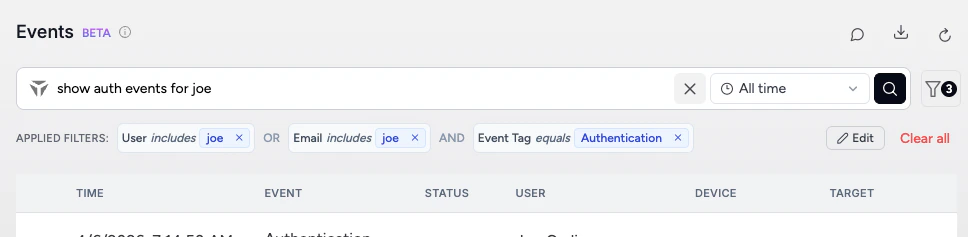
Each chip shows **field**, **operator**, and **value**. Remove one chip with its **x**, or use **Clear all** to reset the strip and search field together.
***
## Applied Filters
Each chip shows **field**, **operator**, and **value**. Remove one chip with its **x**, or use **Clear all** to reset the strip and search field together.
 ***
## Results: List vs Aggregation
**Event list** — one row per event (time, category and tags, status, user, device, target, etc.).
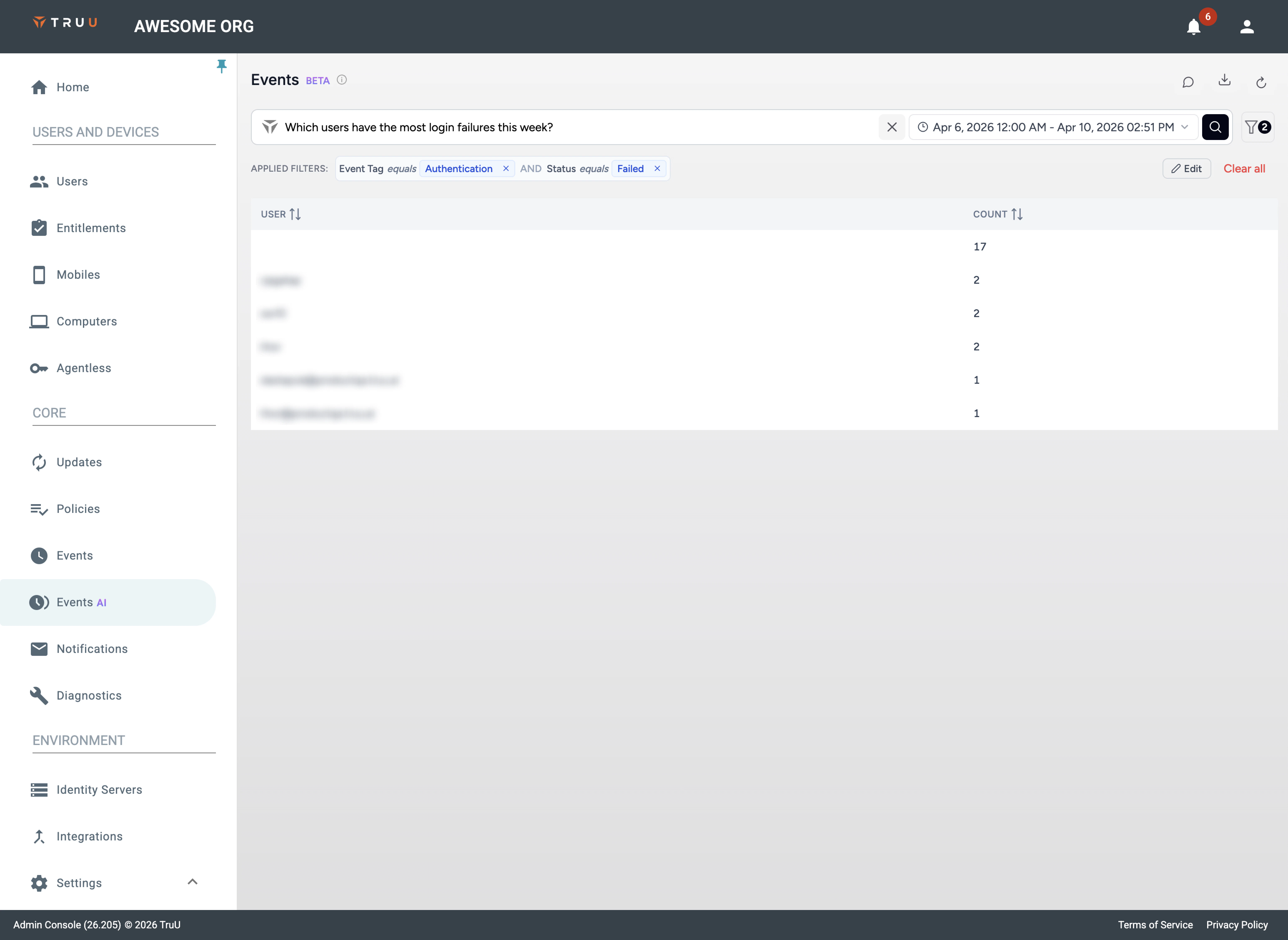
**Aggregation** — for questions about counts, “most”, or “distribution”, you may see a summary table (for example by user or auth method). Clicking a summary value often adds filters and moves you toward the underlying events.
***
## Results: List vs Aggregation
**Event list** — one row per event (time, category and tags, status, user, device, target, etc.).
**Aggregation** — for questions about counts, “most”, or “distribution”, you may see a summary table (for example by user or auth method). Clicking a summary value often adds filters and moves you toward the underlying events.
 ***
## Row Details
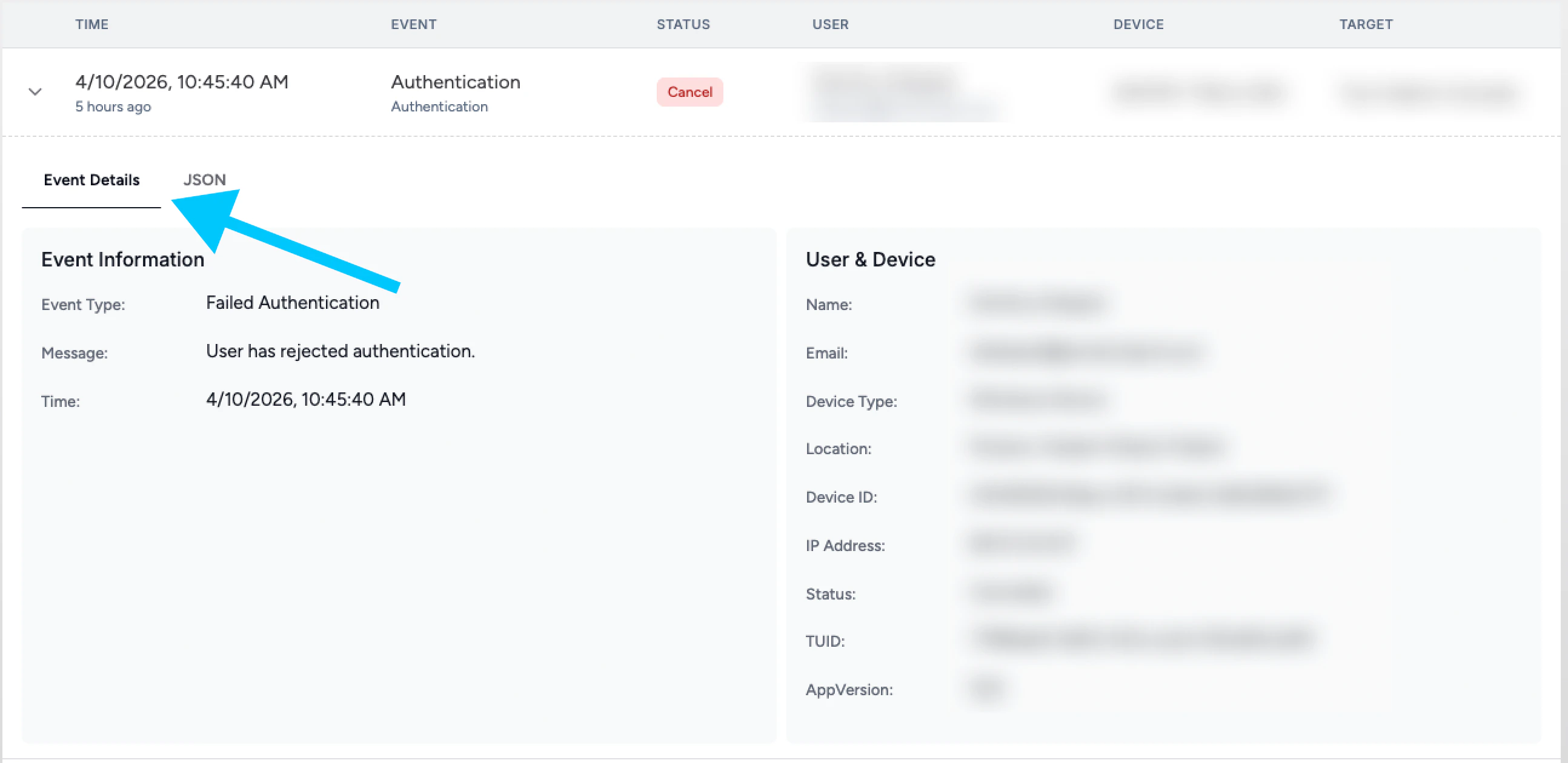
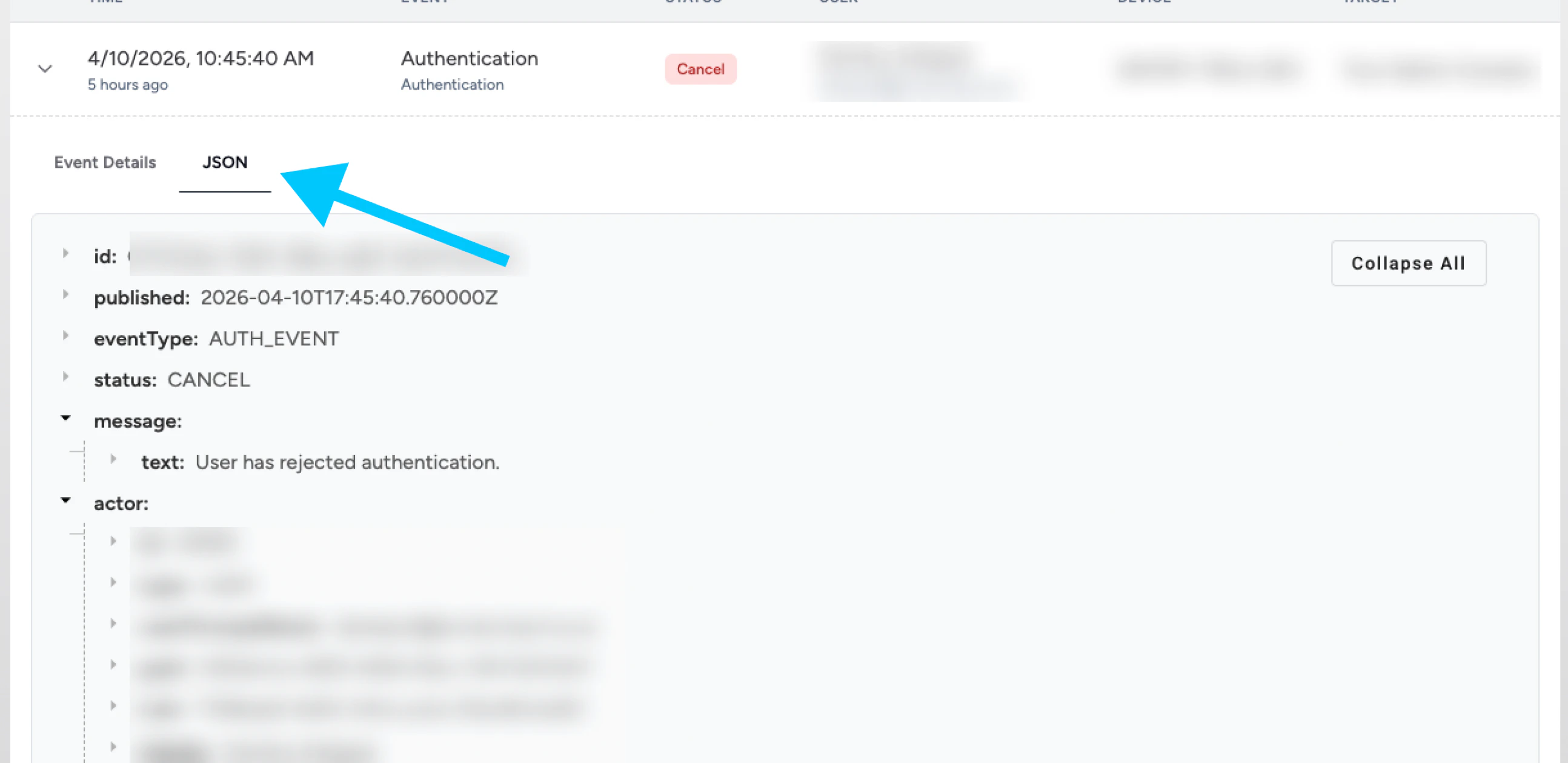
Expand a row for **Event details** (structured fields) and **JSON** (full payload). Labels for event type, auth method, and status should match the filter dropdowns.
***
## Row Details
Expand a row for **Event details** (structured fields) and **JSON** (full payload). Labels for event type, auth method, and status should match the filter dropdowns.
 ***
## Export
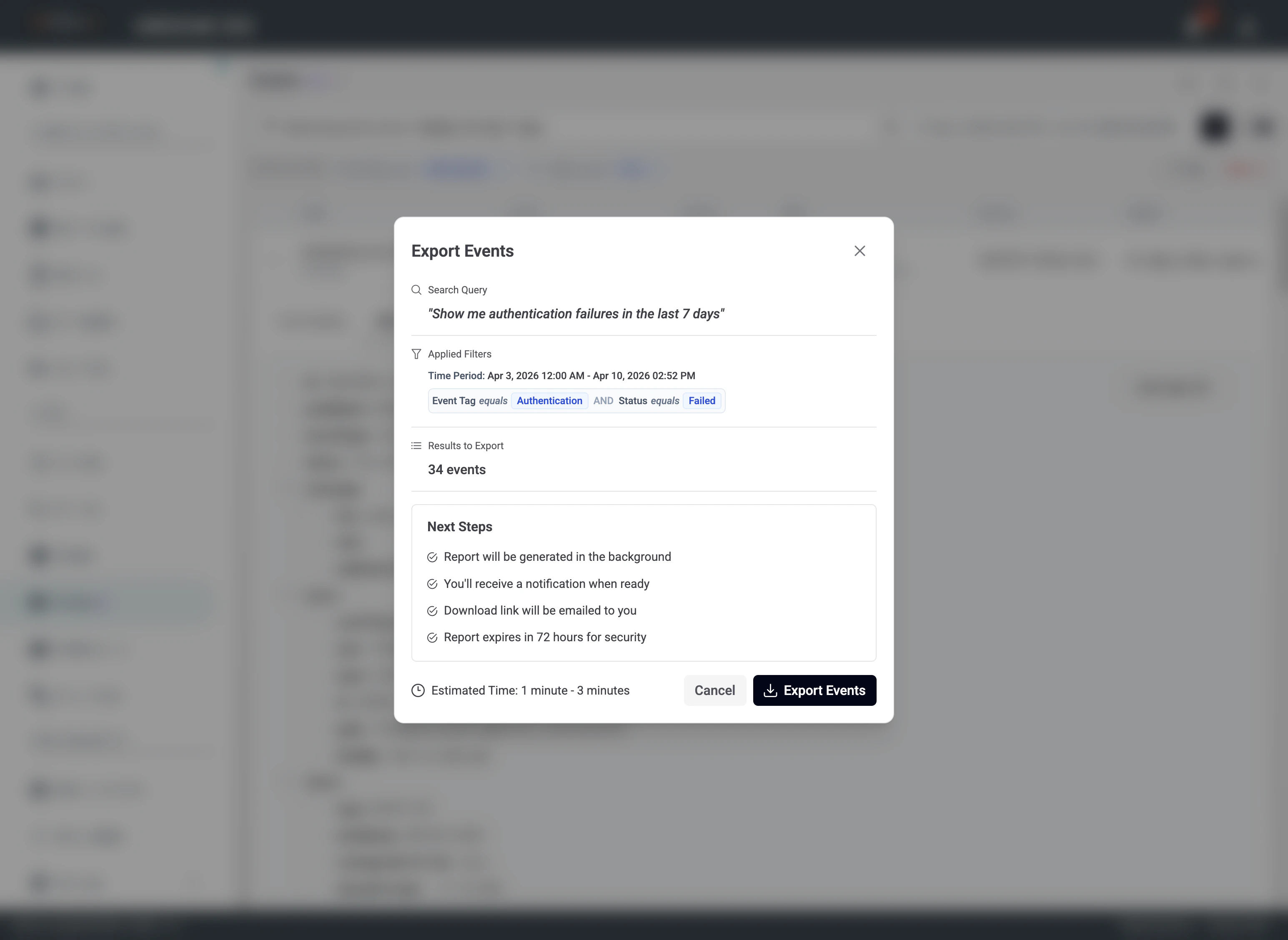
The dialog summarizes your search query, time range, applied filters, and how many events will be included. Confirm those match what you intend (list results vs an aggregation you still have on screen). Processing is asynchronous; use the in-app notification and email link before it expires.
***
## Export
The dialog summarizes your search query, time range, applied filters, and how many events will be included. Confirm those match what you intend (list results vs an aggregation you still have on screen). Processing is asynchronous; use the in-app notification and email link before it expires.

 ***
## Feedback
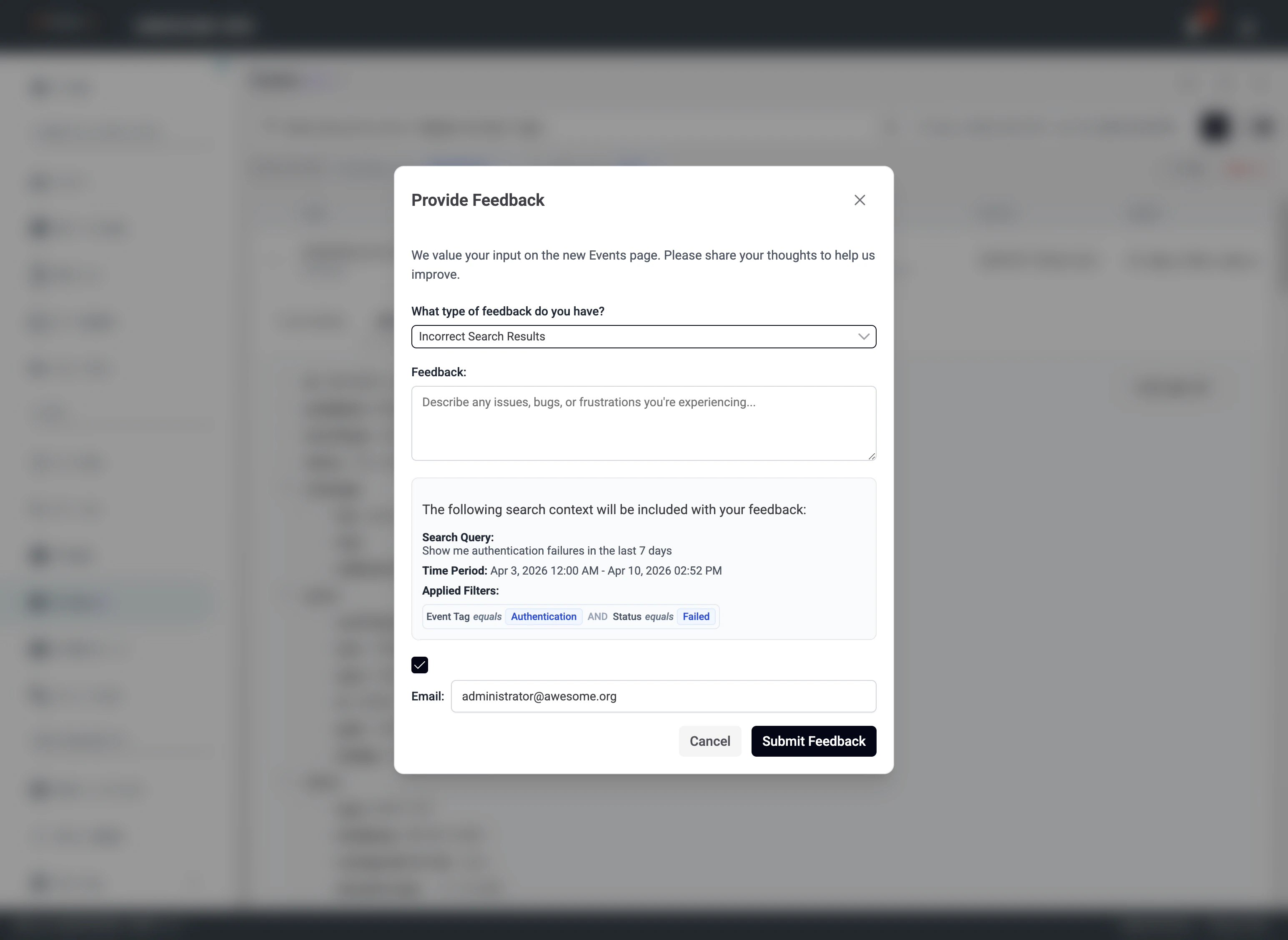
Use Feedback when results are wrong or unclear. Choose a category, describe what you expected versus what you saw. TruU receives your query, time range, and applied filters with the message.
***
## Feedback
Use Feedback when results are wrong or unclear. Choose a category, describe what you expected versus what you saw. TruU receives your query, time range, and applied filters with the message.

 ***
## Privacy considerations
Natural language search is built so your security and privacy stay first.
#### Your event data stays in TruU’s trust boundary
The AI does not learn from your event payloads. It is aware of data structure and field names only—it does not see, process, or store your actual event content for model training. Sensitive event data remains in TruU’s secure backends, under the same protections as the rest of the platform you use today.
#### How it works
* The LLM is oriented around schemas and query patterns, not customer content.
* The model acts as a translation layer: your words become structured queries.
* Retrieval of events happens in TruU’s existing backend systems after that translation.
#### Enterprise-grade AI safeguards
* TruU uses an enterprise LLM with strict isolation and no retention policies appropriate for this use.
* Customer queries and data are not used to train or improve the model.
* AI processing follows the same encryption, access controls, and compliance standards as the core Admin Console.
***
## Privacy considerations
Natural language search is built so your security and privacy stay first.
#### Your event data stays in TruU’s trust boundary
The AI does not learn from your event payloads. It is aware of data structure and field names only—it does not see, process, or store your actual event content for model training. Sensitive event data remains in TruU’s secure backends, under the same protections as the rest of the platform you use today.
#### How it works
* The LLM is oriented around schemas and query patterns, not customer content.
* The model acts as a translation layer: your words become structured queries.
* Retrieval of events happens in TruU’s existing backend systems after that translation.
#### Enterprise-grade AI safeguards
* TruU uses an enterprise LLM with strict isolation and no retention policies appropriate for this use.
* Customer queries and data are not used to train or improve the model.
* AI processing follows the same encryption, access controls, and compliance standards as the core Admin Console.