> ## Documentation Index
> Fetch the complete documentation index at: https://docs.truu.ai/llms.txt
> Use this file to discover all available pages before exploring further.
# Frontline Access Badge Enrollment
This guide walks you through enrolling your physical access badge (TruBadge) in the TruU User portal. Once enrolled, your badge can be used as a factor for authentication.
1. Login to the TruU User Portal
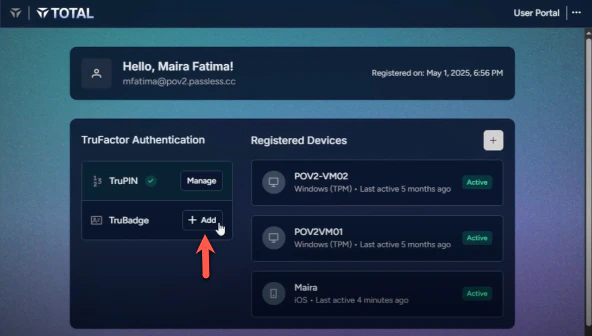
2. Under the TruFactor Authentication section, locate the TruBadge and Click **+ Add**
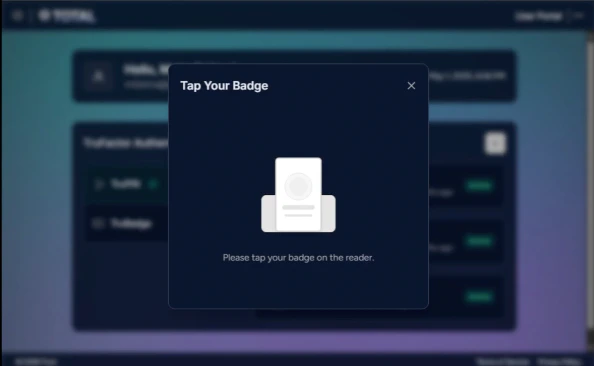
 3. A screen will appear prompting you to tap your badge. Place your physical access badge on the connected badge reader. The system will automatically detect the badge.
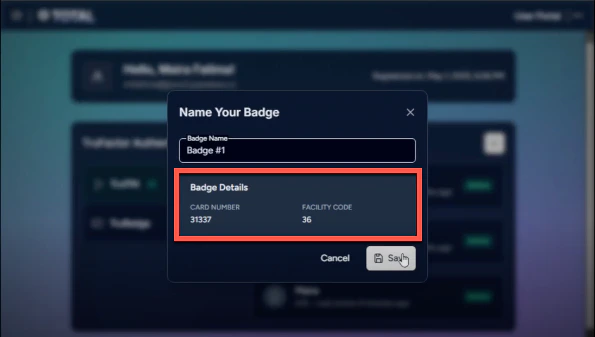
 4. Once the badge is detected, enter a name for you badge (e.g, "Badge #1").
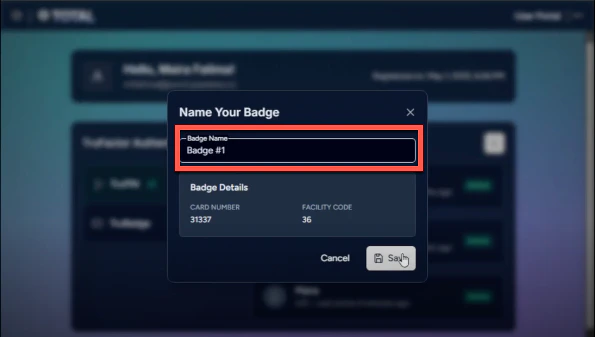 5. Verify the badge details showing the card number and facility code.
 6. Click **Save** to continue
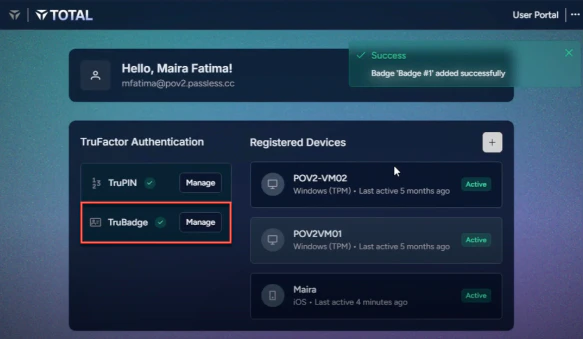
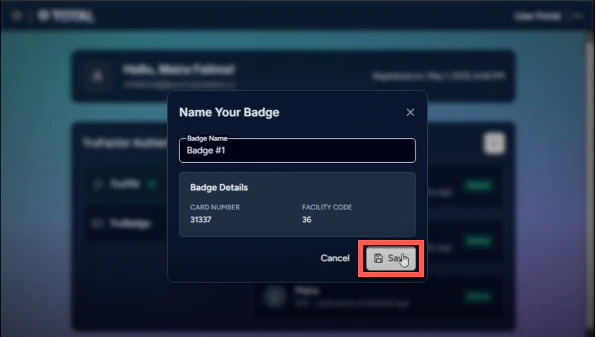 7. A success notification will appear on the top right, confirming your badge has been added. TruBadge will now show a checkmark, indicating successful enrollment.