> ## Documentation Index
> Fetch the complete documentation index at: https://docs.truu.ai/llms.txt
> Use this file to discover all available pages before exploring further.
# Frontline Access Enrollment
> This guide detail enrollment methods for frontline access employee to enroll their account for Shared Workstation
# Enrollment Methods Overview
| Enrollment Method | Description |
| ----------------- | ----------------------------------------------------------------------------------------------------------------------------------------------------------- |
| Knowledge Factor | User enrolls directly through the User Portal using their email and a knowledge factor configured to set up their TruFactor authentication. |
| Admin Invite | Admin sends an enrollment invitation email through the TruU Admin Portal to the user with a TruU User Portal link to set up their TruFactor Authentication. |
# Enrollment using Knowledge Factor
### Set up TruPIN
1. Go to your TruU User Portal (URL provided by your admin).
2. Log in using your username and knowledge factor (depending on the configuration set by your organization).
3. Under TruFactor Authentication, Click *+ Add* to begin the setup process.
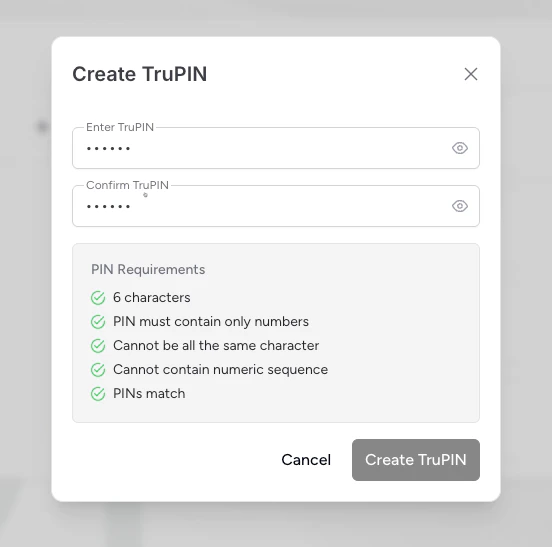
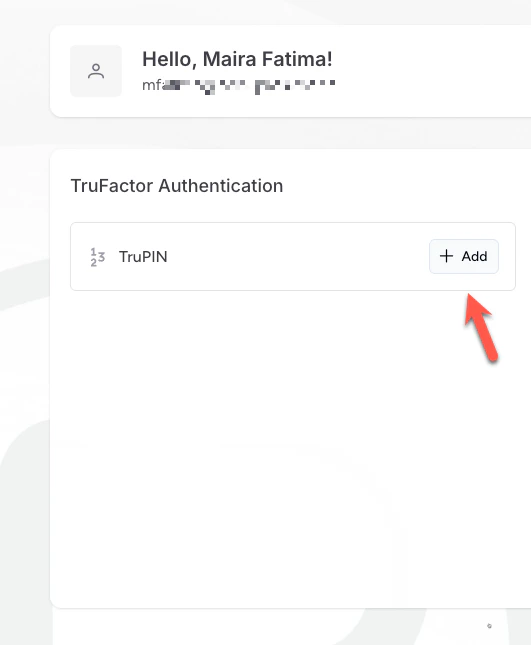 4. Create your TruPIN. Ensure it meets all the PIN requirements listed below
 ### Set up your Badge
1. Follow the on-screen instructions to set up your TruU badge (virtual or physical, depending on configuration).
2. Once setup is complete, your badge will appear under your TruFactor Authentication section.
# Admin Invite Enrollment
1. Open the enrollment email from TruU.
2. Click the enrollment link provided in the email.
3. Under TruFactor Authentication, Click *+ Add* to begin the setup process.
4. Create your TruPIN. Ensure it meets all the PIN requirements listed below
***
[Badgeless (Physical)](/docs/badgeless-physical)
[Shared Workstation Login](/docs/shared-workstation-login)
### Set up your Badge
1. Follow the on-screen instructions to set up your TruU badge (virtual or physical, depending on configuration).
2. Once setup is complete, your badge will appear under your TruFactor Authentication section.
# Admin Invite Enrollment
1. Open the enrollment email from TruU.
2. Click the enrollment link provided in the email.
3. Under TruFactor Authentication, Click *+ Add* to begin the setup process.
4. Create your TruPIN. Ensure it meets all the PIN requirements listed below
***
[Badgeless (Physical)](/docs/badgeless-physical)
[Shared Workstation Login](/docs/shared-workstation-login)