> ## Documentation Index
> Fetch the complete documentation index at: https://docs.truu.ai/llms.txt
> Use this file to discover all available pages before exploring further.

# Importing CyberArk ZTPKI certificates into Active Directory

## *Downloading CyberArk ZTPKI Certificates from the CyberArk Console*

1. Log into your CyberArk console

2. Navigate to Certificates

3. Download the root CA certificate

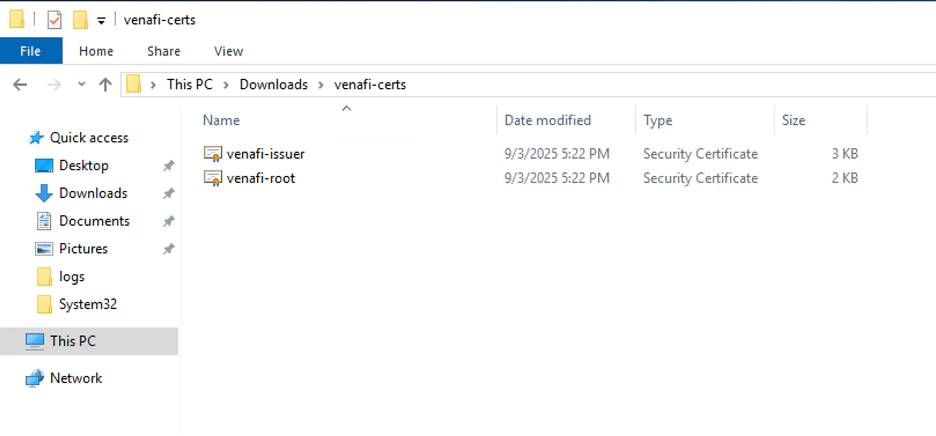
   1. For the purposes of this document, we will refer to this as **venafi-root.cer**

4. Download the issuing CA certificate

   1. We will refer to this as **venafi-issuer.cer**

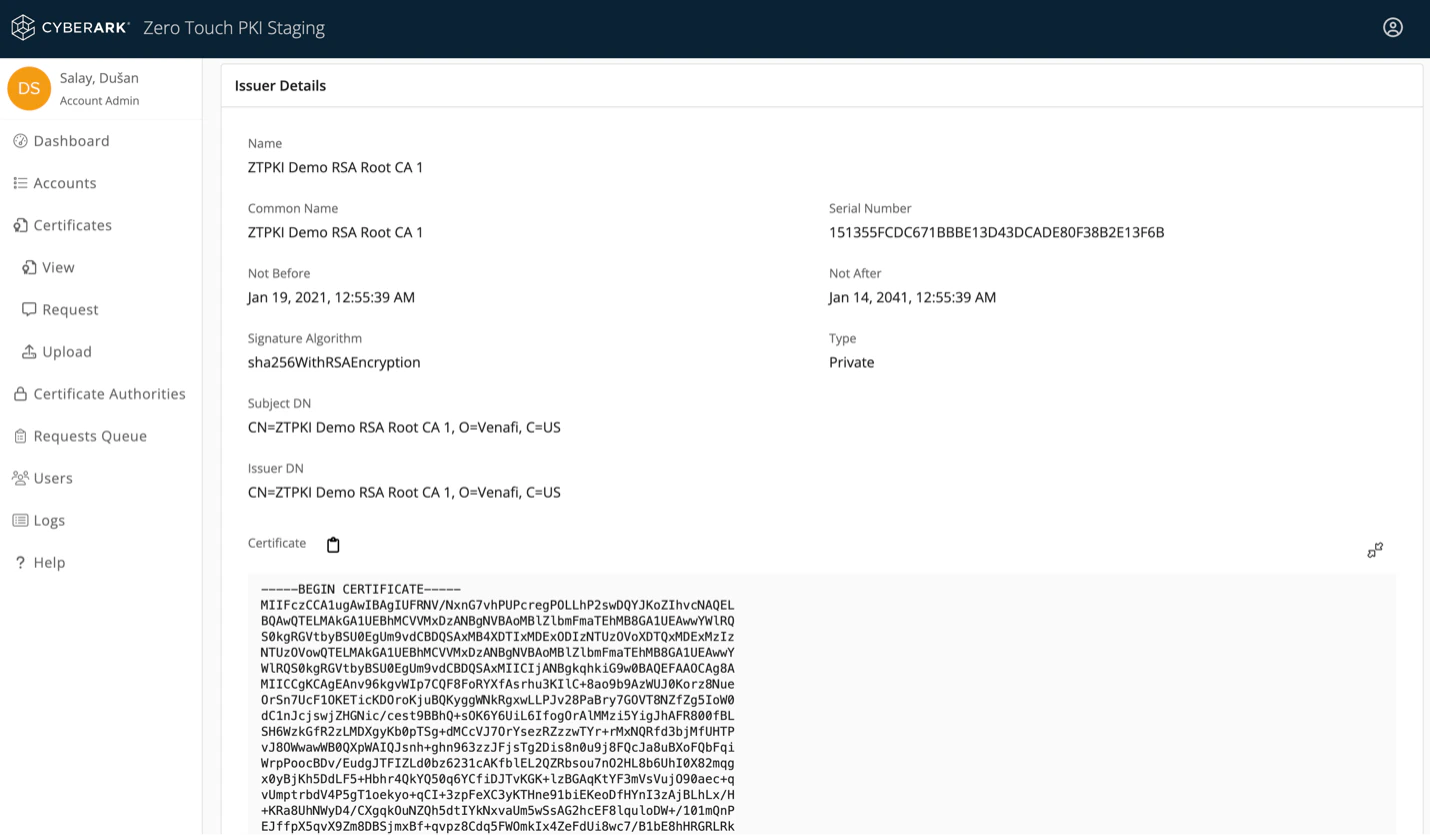
The body of issuing CA certificate can be copied from Certificate Authority Details section or via Download button.
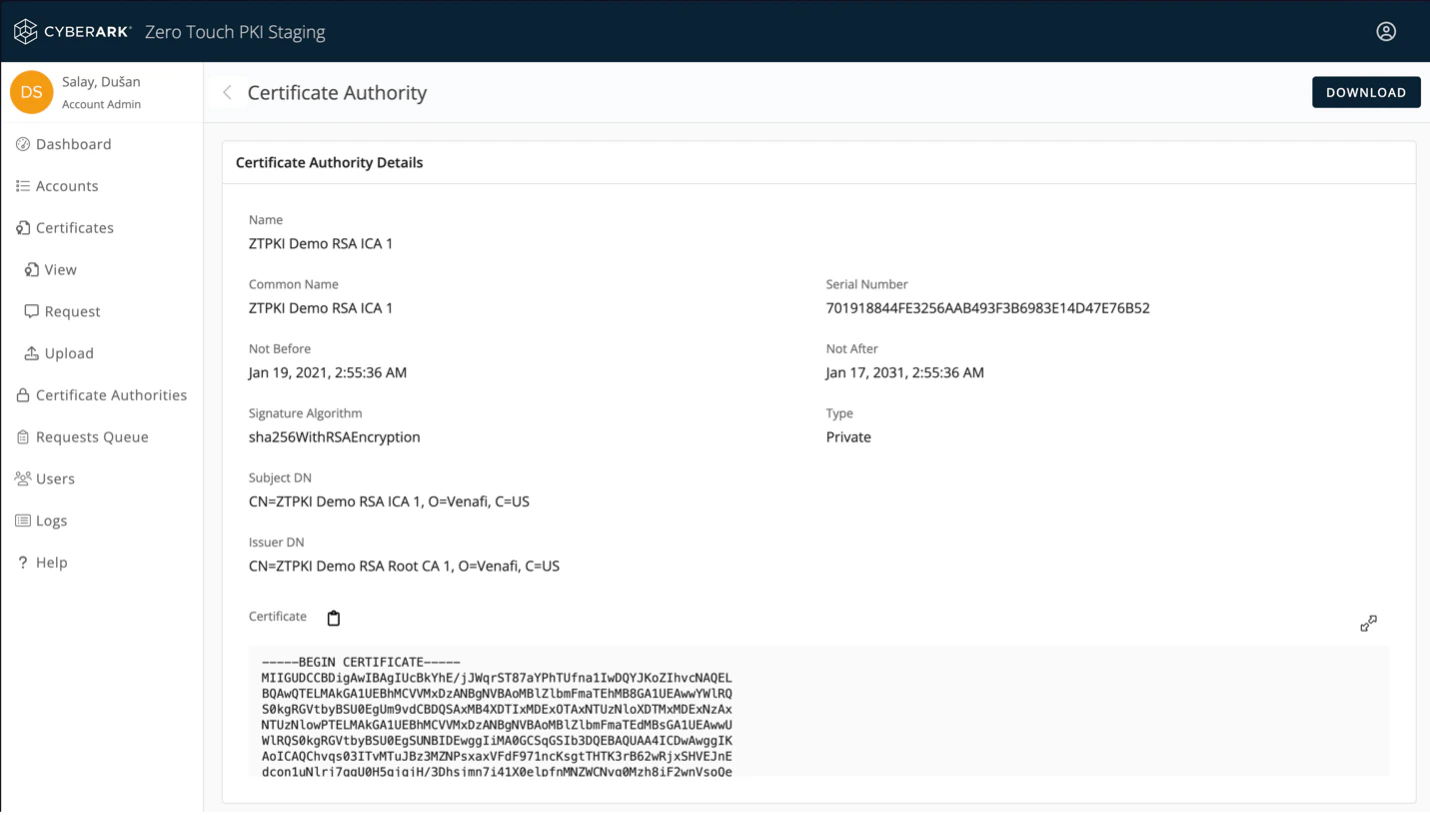
<img src="https://mintcdn.com/truu-2/jMF4bYA9yOA_2TKv/images/docs/22615744d729d642690300d917aa8863b245b36f9f09f9b282875f0c2e667db4-ven1.png?fit=max&auto=format&n=jMF4bYA9yOA_2TKv&q=85&s=02de8bb478162dbb8fb8f35c8b2f58e5" alt="" width="1430" height="815" data-path="images/docs/22615744d729d642690300d917aa8863b245b36f9f09f9b282875f0c2e667db4-ven1.png" />

<img src="https://mintlify.s3.us-west-1.amazonaws.com/truu-2/docs/ed407d0d53fb63bf3e668ad4fbdfa261.png" alt="" />Body of root CA certificate can be copied from Issuer Details section
<img src="https://mintcdn.com/truu-2/qCK1oWL4jNpZKJ8A/images/docs/a678112122705a87bb31ac6740fca947a3ed0aaab3b105626cd3f32a87863e9d-ven2.png?fit=max&auto=format&n=qCK1oWL4jNpZKJ8A&q=85&s=40166faf8d8010cbf8047e776b5a47e5" alt="" width="1430" height="837" data-path="images/docs/a678112122705a87bb31ac6740fca947a3ed0aaab3b105626cd3f32a87863e9d-ven2.png" />

5. Copy the downloaded .cer files to your domain controller.
<img src="https://mintcdn.com/truu-2/qCK1oWL4jNpZKJ8A/images/docs/9dad33fb0e9e2a3e96f14c99ffd7d6e4c737acdb4a931cbd68c00debd51390ee-ven3.png?fit=max&auto=format&n=qCK1oWL4jNpZKJ8A&q=85&s=f0d4f2b8feb6dc5178bb946959f3a2d8" alt="" width="936" height="436" data-path="images/docs/9dad33fb0e9e2a3e96f14c99ffd7d6e4c737acdb4a931cbd68c00debd51390ee-ven3.png" />

## Adding Certs to NT AuthStore

1. Open a command prompt as an Administrator and navigate to the Downloads folder or location where you have copied the downloaded certificates.

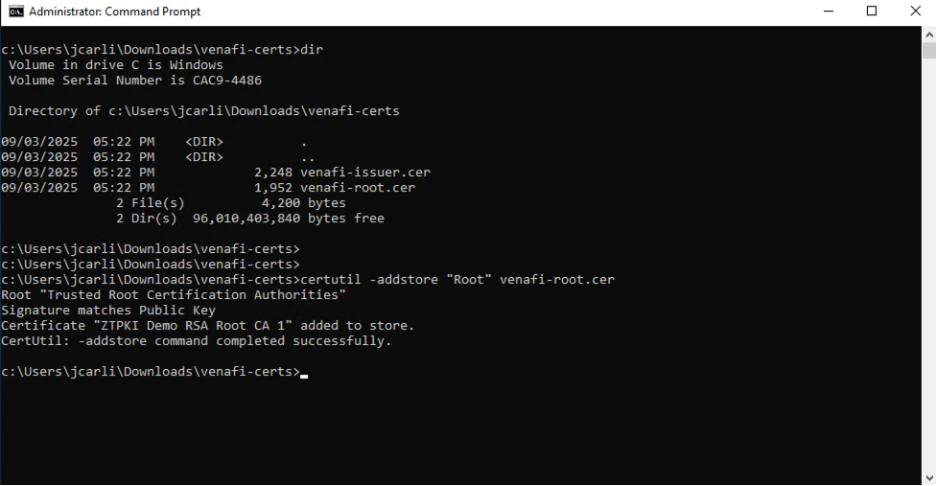
2. Execute **certutil -addstore “Root” venafi-root.cer**

*This adds the CyberArk Root certificate to the domain’s list of trusted root certificates.*
<img src="https://mintcdn.com/truu-2/YlfY4z_3_-uDkBaP/images/docs/64beb4e8c1e16aa253dc26622911069261ec2472c128e297aaf01daa8854ec04-AS1.png?fit=max&auto=format&n=YlfY4z_3_-uDkBaP&q=85&s=b79d0bc330562d31888c2fb3979230e8" alt="" width="936" height="486" data-path="images/docs/64beb4e8c1e16aa253dc26622911069261ec2472c128e297aaf01daa8854ec04-AS1.png" />

**Note**: For steps below *you may need to install active directory certificates tools to view Enterprise PKI snap-in.*

3. Open **Run** on the server by pressing **Windows Key + R**.

4. In Run type in **mmc** and hit **Enter**.

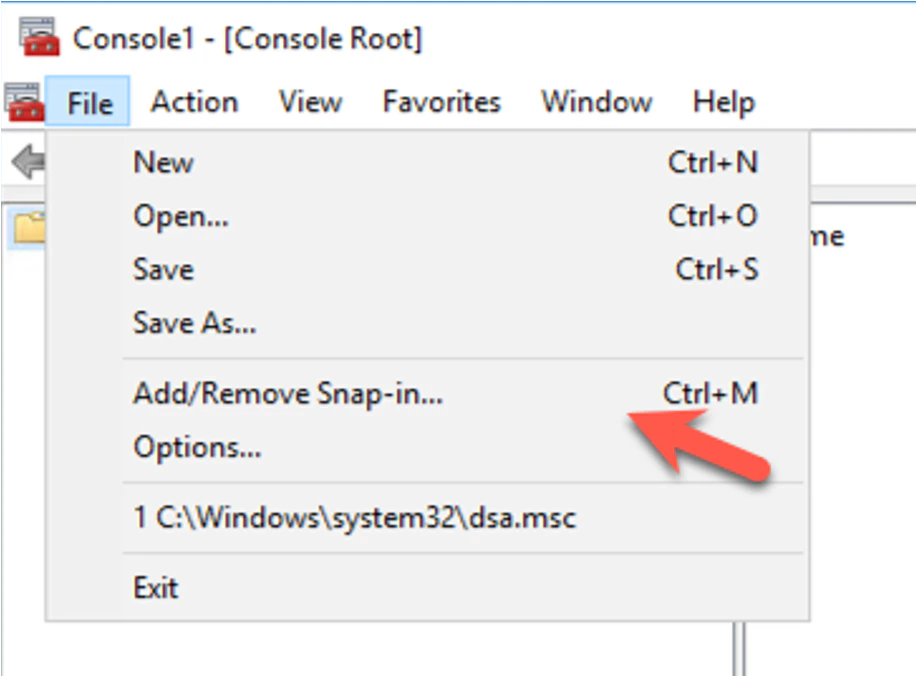
5. Go to **File** and then select **Add/Remove Snap In**.
   <img src="https://mintcdn.com/truu-2/qCK1oWL4jNpZKJ8A/images/docs/9f5e16881653fce32468c47642f3d1a5723ec8950ef5cb697a217a85186d1a83-hr1.png?fit=max&auto=format&n=qCK1oWL4jNpZKJ8A&q=85&s=c99239f5f47d242f42888a865be484cd" alt="" width="916" height="676" data-path="images/docs/9f5e16881653fce32468c47642f3d1a5723ec8950ef5cb697a217a85186d1a83-hr1.png" />

   <img src="https://mintlify.s3.us-west-1.amazonaws.com/truu-2/docs/a438a083d7dc437897ef636ae19a8f93.png" alt="" />

6. Add **Enterprise PKI** snap-in then click **OK**.
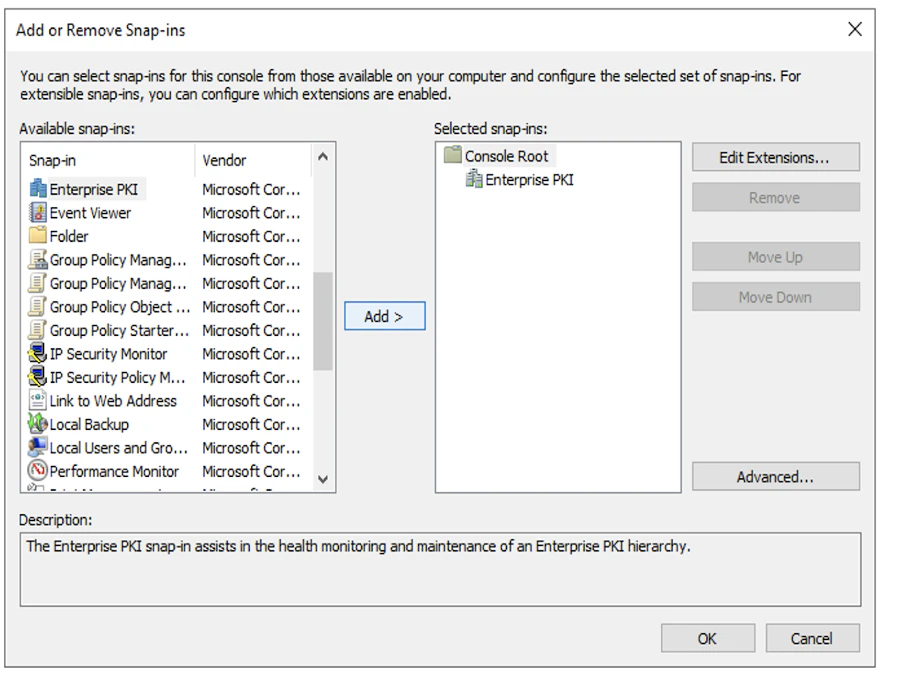
   <img src="https://mintcdn.com/truu-2/rjjBxA7Z_Wk_-34G/images/docs/d8c9875208d85c0532d8361ae98e52f09868ce4dd93d64932485544ccae2b1fa-hr2.png?fit=max&auto=format&n=rjjBxA7Z_Wk_-34G&q=85&s=18f591f35fcf3b8e6e5805031f7b450c" alt="" width="916" height="690" data-path="images/docs/d8c9875208d85c0532d8361ae98e52f09868ce4dd93d64932485544ccae2b1fa-hr2.png" />

7. Right-click on Enterprise PKI and Select **Manage AD Containers**
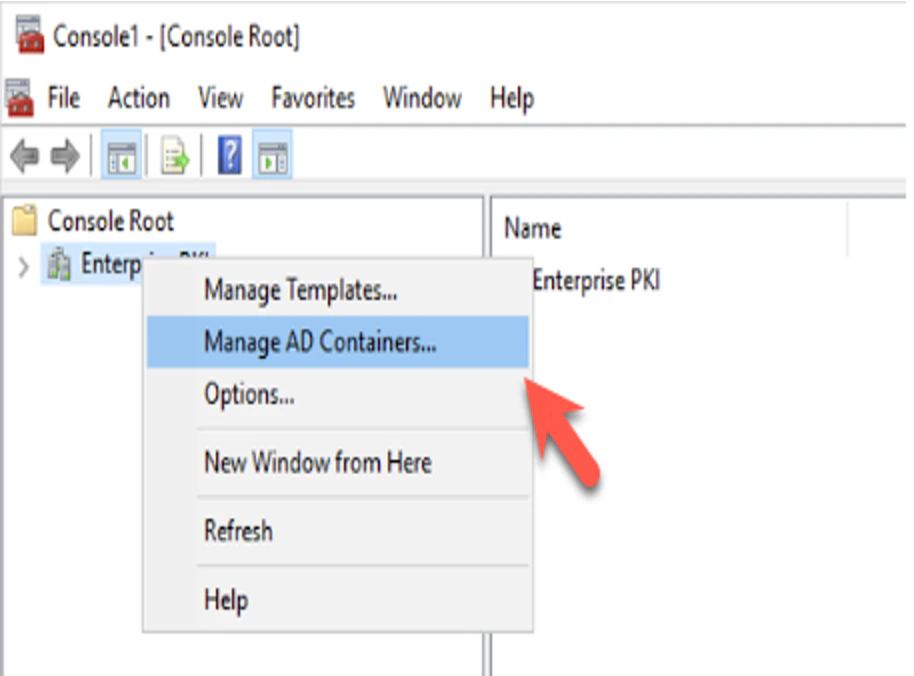
   <img src="https://mintcdn.com/truu-2/qCK1oWL4jNpZKJ8A/images/docs/940234a2a1853f5f5fb793167a7c130924456d3358a3197edca016f64cdef74d-hr3.png?fit=max&auto=format&n=qCK1oWL4jNpZKJ8A&q=85&s=df303be1ce4a09b004cf85559625cd35" alt="" width="914" height="676" data-path="images/docs/940234a2a1853f5f5fb793167a7c130924456d3358a3197edca016f64cdef74d-hr3.png" />

<img src="https://mintlify.s3.us-west-1.amazonaws.com/truu-2/docs/bb97be006f41d1524f0a6e98b15f5bdf.png" alt="" />

8. From the **NTAuthCertificates** tab, Click **Add**
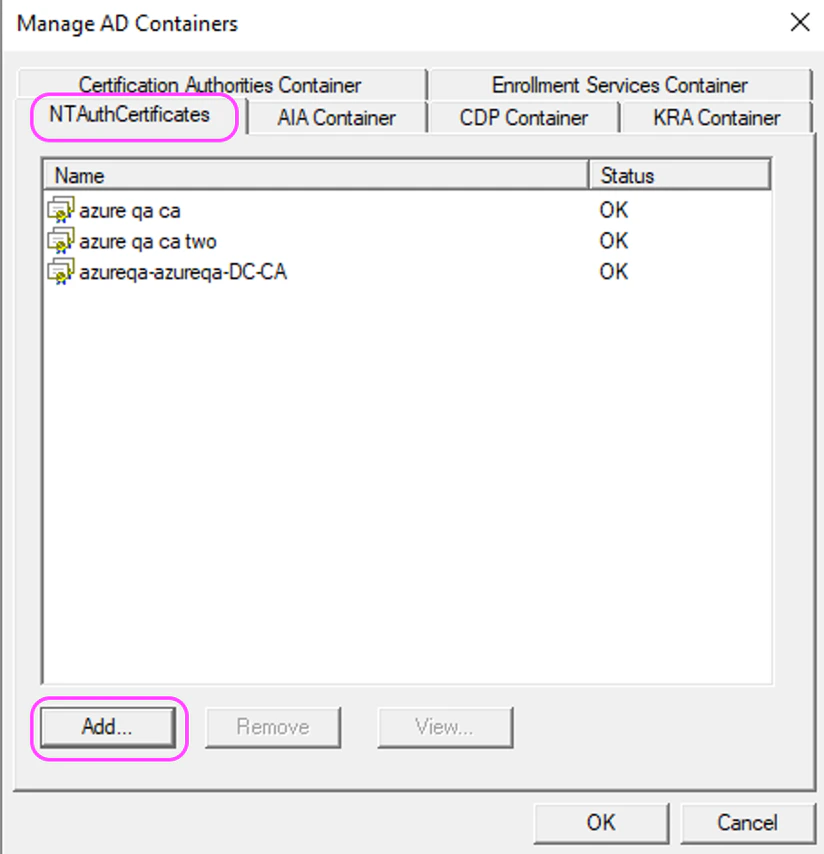
   <img src="https://mintcdn.com/truu-2/rjjBxA7Z_Wk_-34G/images/docs/f10c8ad4833e28d0aae604b2987f3392ce6dfb07eb1807ec7ec762fc0708df92-hr4.png?fit=max&auto=format&n=rjjBxA7Z_Wk_-34G&q=85&s=2899402b5c8a45b926d9fa16ad4fb2ae" alt="" width="824" height="854" data-path="images/docs/f10c8ad4833e28d0aae604b2987f3392ce6dfb07eb1807ec7ec762fc0708df92-hr4.png" />

9. Locate the **venafi-issuer.cer** file and Click Open. (If file not present, Set File types to *All Files*)
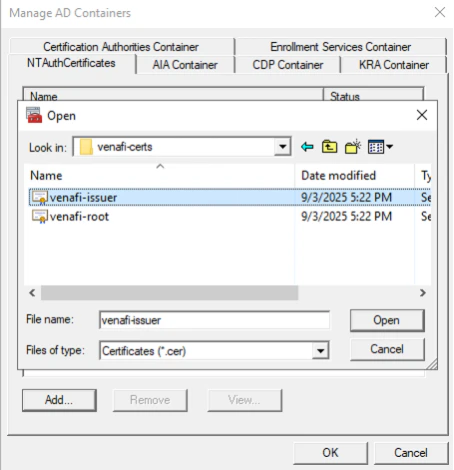
   <img src="https://mintcdn.com/truu-2/L38yxuvvUa8uAW5I/images/docs/111559cba6514a6560721efe42c78c37d2f43a5e73a5b873443729231825f3b5-AS6.png?fit=max&auto=format&n=L38yxuvvUa8uAW5I&q=85&s=87a11042f99a98dcaf4e78a083caf4f1" alt="" width="454" height="470" data-path="images/docs/111559cba6514a6560721efe42c78c37d2f43a5e73a5b873443729231825f3b5-AS6.png" />

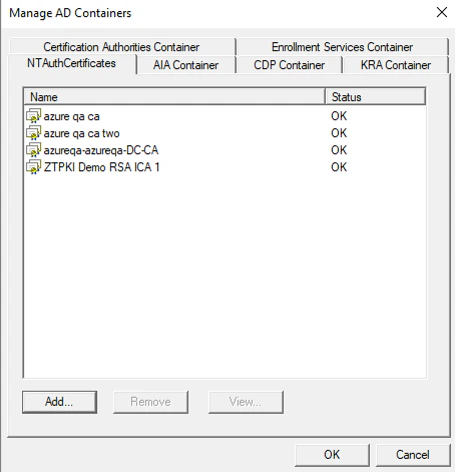
10. See that the issuing CyberArk certificate is now listed with Status OK. Click OK
    <img src="https://mintcdn.com/truu-2/m22YLP0oXSNG0U3O/images/docs/83dee020d08d3652a458e814a60dabae61f4d226ca273d7a17b0cf1f7770e634-AS7.png?fit=max&auto=format&n=m22YLP0oXSNG0U3O&q=85&s=e28de793bbe1eefc6c1a26d396f54fe6" alt="" width="456" height="472" data-path="images/docs/83dee020d08d3652a458e814a60dabae61f4d226ca273d7a17b0cf1f7770e634-AS7.png" />

## Adding CyberArk Certificates to Each Domain Controller

CyberArk certificates must be added to each domain controller. Customers can use group policy or manually install the certificates on each domain controller.

### Updating Domain Controller GPO

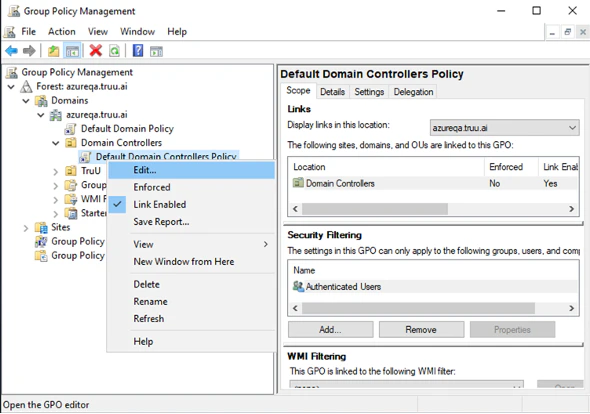
1. Go to Group Policy Management.

2. Edit the “**Default Domain Controller Policy**”
   <img src="https://mintcdn.com/truu-2/0zTsJHKKI2cGP3Gv/images/docs/feeedfba488bc6d90ec8b900f0eff704fda80f057cb05e510b9a6698b8ecd50a-DC1.png?fit=max&auto=format&n=0zTsJHKKI2cGP3Gv&q=85&s=36edcbece7ab0c2db296e41098b21f74" alt="" width="590" height="414" data-path="images/docs/feeedfba488bc6d90ec8b900f0eff704fda80f057cb05e510b9a6698b8ecd50a-DC1.png" />

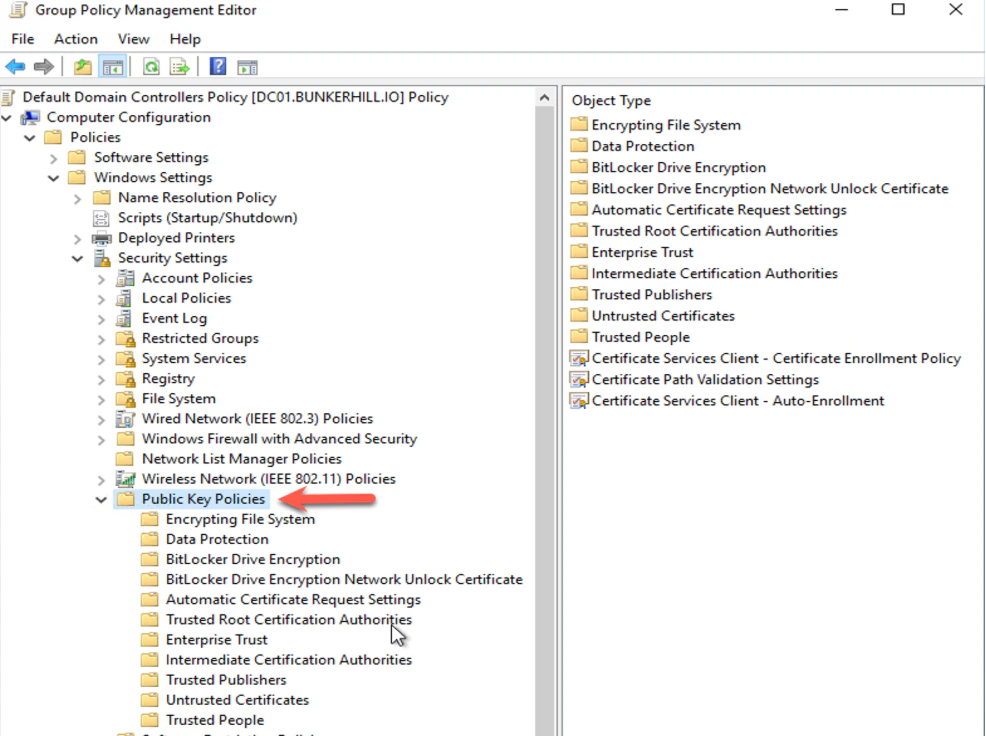
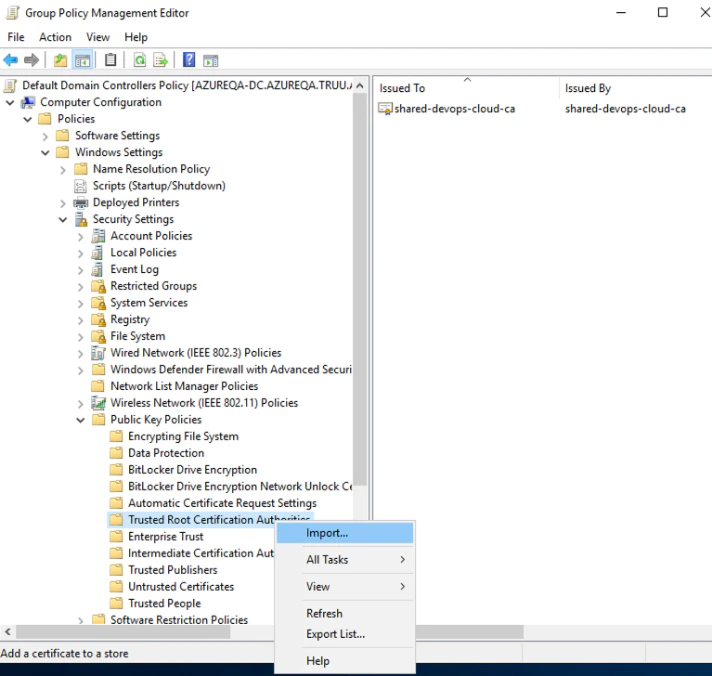
3. Go to Computer Configuration > Windows Settings > Security Settings > Public Key Policy
   <img src="https://mintcdn.com/truu-2/L38yxuvvUa8uAW5I/images/docs/1283e2b3a75fc8d01c1e18ec86837b1324c4478fa579a6281744f280e2edd38c-DC2.png?fit=max&auto=format&n=L38yxuvvUa8uAW5I&q=85&s=eedd35ee6e98e191dfeb0ba2cb160db4" alt="" width="712" height="676" data-path="images/docs/1283e2b3a75fc8d01c1e18ec86837b1324c4478fa579a6281744f280e2edd38c-DC2.png" />

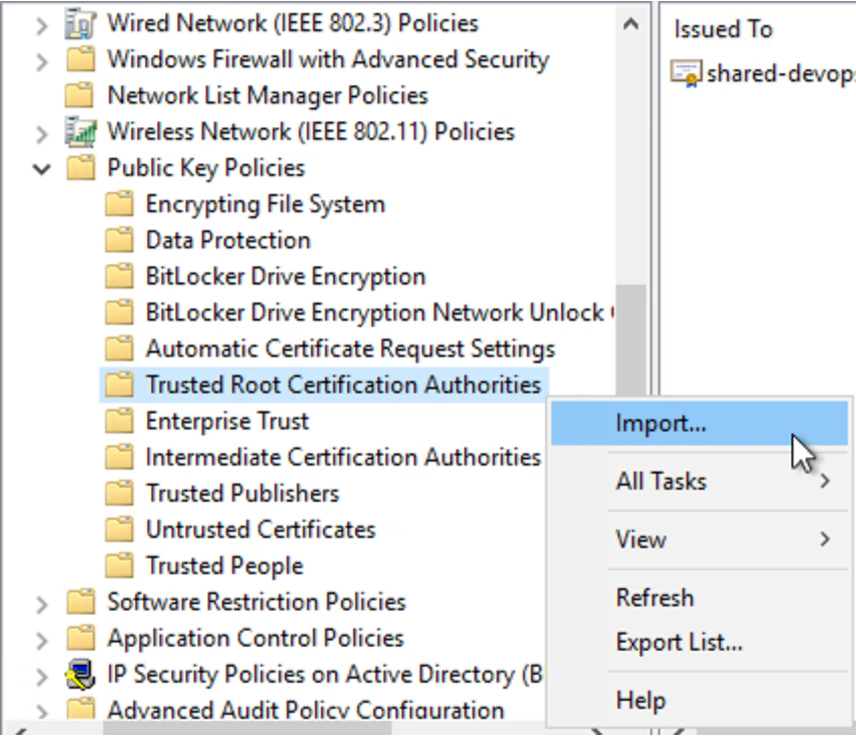
4. Right Click on **Trusted Root Certification Authorities** and Click **Import**
<img src="https://mintcdn.com/truu-2/m22YLP0oXSNG0U3O/images/docs/6e5838024e1cea645fe8999ab4ab0167dc3275fea31be36e4f74a1a91fa91dfd-blur_fix.png?fit=max&auto=format&n=m22YLP0oXSNG0U3O&q=85&s=c24393cef65aa976366ca934ad78f07b" alt="" width="856" height="736" data-path="images/docs/6e5838024e1cea645fe8999ab4ab0167dc3275fea31be36e4f74a1a91fa91dfd-blur_fix.png" />

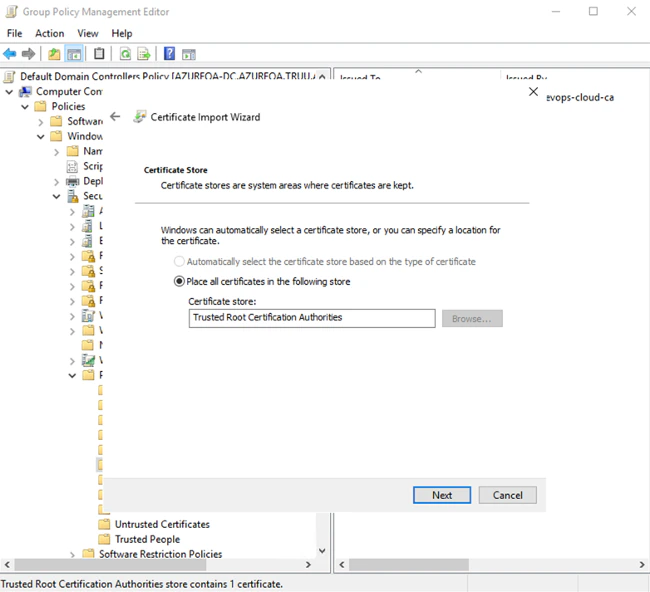
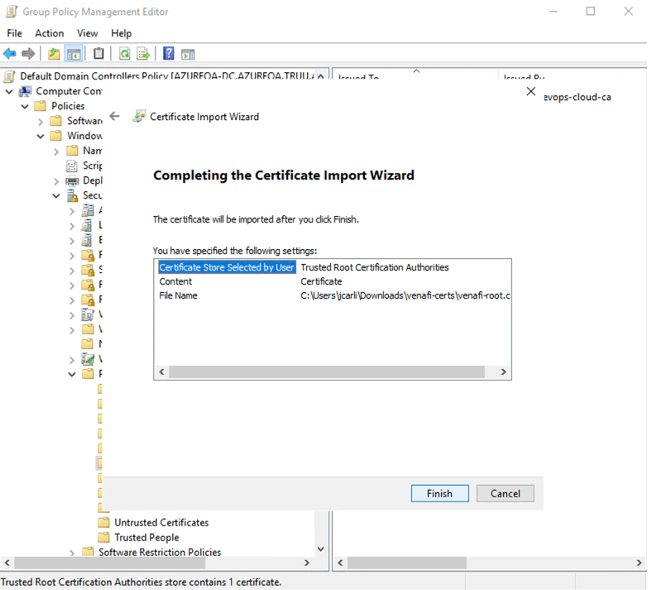
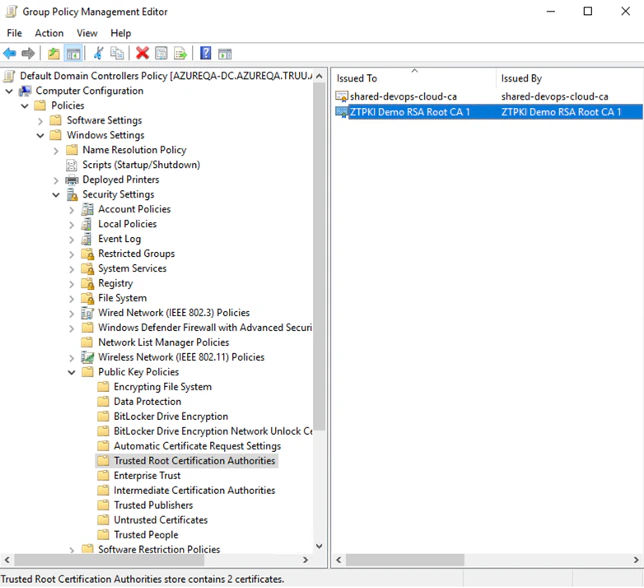
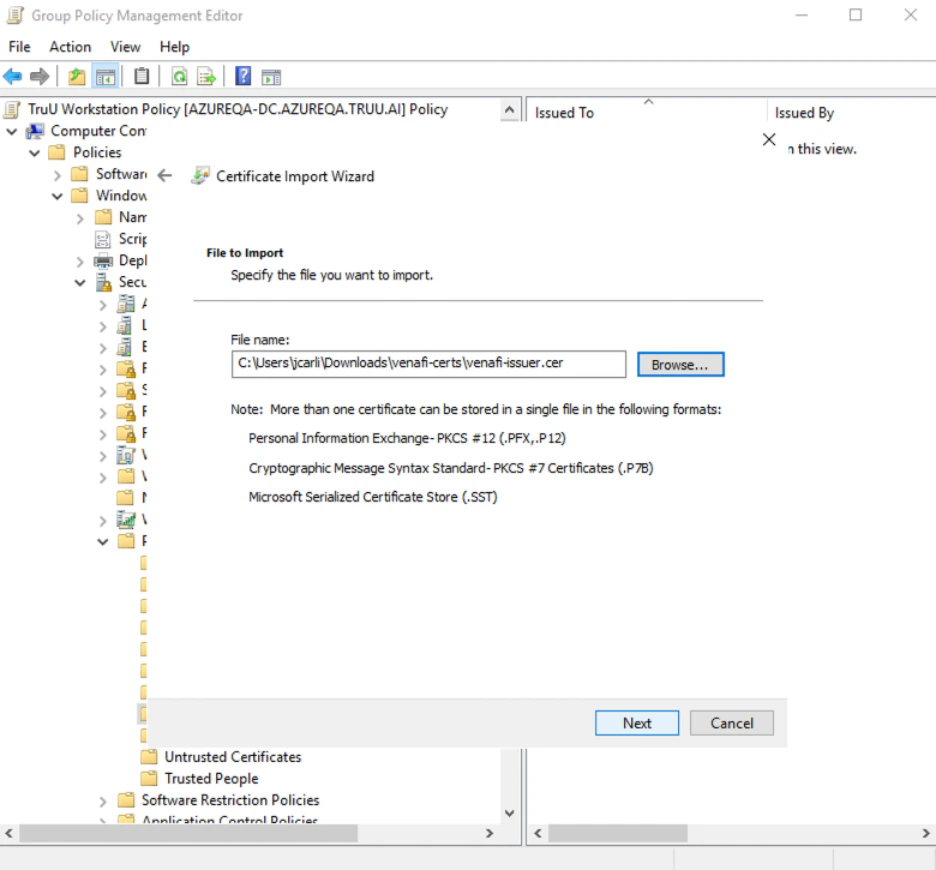
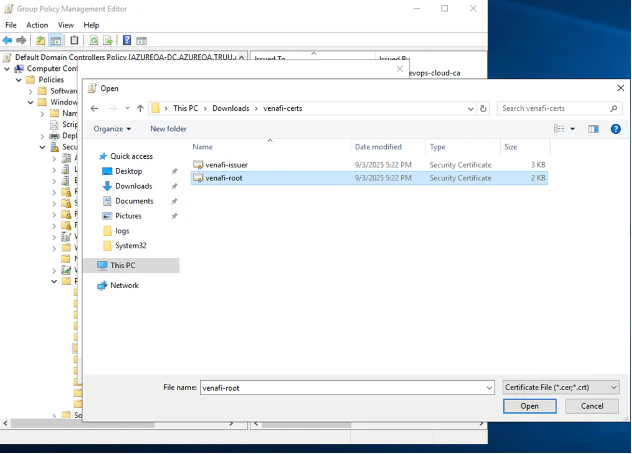
5. Import the **CyberArk root certificate**
<img src="https://mintcdn.com/truu-2/rjjBxA7Z_Wk_-34G/images/docs/e40e775c4c7b474d384a9e1a4389322742c701842038a6c32bdfcdbb1b4a931b-DC4.png?fit=max&auto=format&n=rjjBxA7Z_Wk_-34G&q=85&s=c6db562a4abf284f93a8bca80a9b998e" alt="" width="632" height="454" data-path="images/docs/e40e775c4c7b474d384a9e1a4389322742c701842038a6c32bdfcdbb1b4a931b-DC4.png" />

<img src="https://mintcdn.com/truu-2/ehCBQgFdl_pQd0MN/images/docs/abafdf72349254d0ce2347e8c23611656054bb2cfb1e2f0c12f94e48a341e437-DC5.png?fit=max&auto=format&n=ehCBQgFdl_pQd0MN&q=85&s=10ee910a3b82345ee841db188d5e9fcf" alt="" width="650" height="592" data-path="images/docs/abafdf72349254d0ce2347e8c23611656054bb2cfb1e2f0c12f94e48a341e437-DC5.png" />

<img src="https://mintcdn.com/truu-2/qCK1oWL4jNpZKJ8A/images/docs/9886e6a36a754eeaf4e333b22d169a11158c2b6155c1c60edffba5a94be18247-DC6.png?fit=max&auto=format&n=qCK1oWL4jNpZKJ8A&q=85&s=340864b627e1fc70ea8c525e7816fbcb" alt="" width="650" height="592" data-path="images/docs/9886e6a36a754eeaf4e333b22d169a11158c2b6155c1c60edffba5a94be18247-DC6.png" />

<img src="https://mintcdn.com/truu-2/0zTsJHKKI2cGP3Gv/images/docs/fbb0730319443eb2809f94a13183a1b6d905eccd2b95b81c22d2674202b8dbf7-DC7.png?fit=max&auto=format&n=0zTsJHKKI2cGP3Gv&q=85&s=ce3cb3b49263a1bf561d5731659a9190" alt="" width="648" height="590" data-path="images/docs/fbb0730319443eb2809f94a13183a1b6d905eccd2b95b81c22d2674202b8dbf7-DC7.png" />

<img src="https://mintcdn.com/truu-2/rjjBxA7Z_Wk_-34G/images/docs/dd074ca14beb27e67054b35c7266685ad8a3e2132235619abfe7a80d6bb4dd02-DC8.png?fit=max&auto=format&n=rjjBxA7Z_Wk_-34G&q=85&s=485fca5957b7477261fe0d9e74a78535" alt="" width="644" height="588" data-path="images/docs/dd074ca14beb27e67054b35c7266685ad8a3e2132235619abfe7a80d6bb4dd02-DC8.png" />

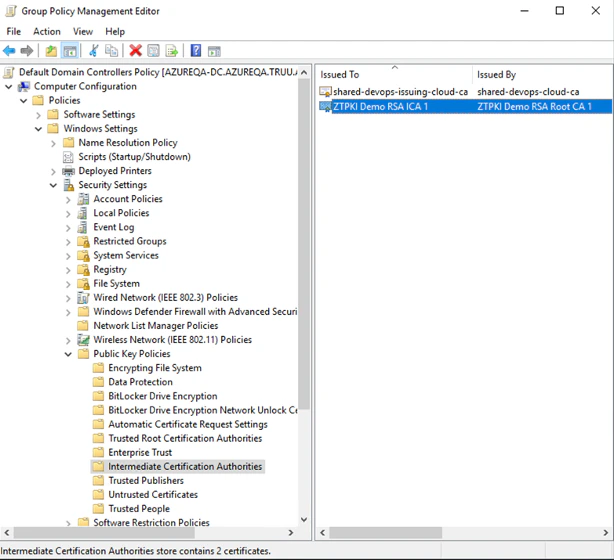
6. Right Click on **Intermediate Certification Authorities** and Click **Import**

   <img src="https://mintcdn.com/truu-2/L38yxuvvUa8uAW5I/images/docs/05d852e5e20855c3134bfbb3fd9394e1e0545742cb3e8e72f325e5343dc8fc9b-DC9.png?fit=max&auto=format&n=L38yxuvvUa8uAW5I&q=85&s=8cf4fbcf25bd8f94f59ce75aaff9242a" alt="" width="628" height="624" data-path="images/docs/05d852e5e20855c3134bfbb3fd9394e1e0545742cb3e8e72f325e5343dc8fc9b-DC9.png" />

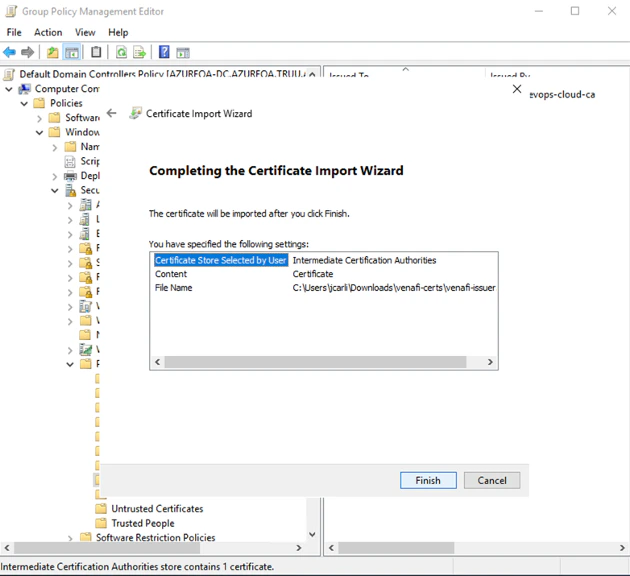
7. Import the **Issuing CyberArk certificate**

<img src="https://mintcdn.com/truu-2/L38yxuvvUa8uAW5I/images/docs/114278446bd9e6e0e5e4c92ecbbf45ca2dc94e47fd392357ca1587265d13706f-DC10.png?fit=max&auto=format&n=L38yxuvvUa8uAW5I&q=85&s=52b74107d104e3349986c643312a9a79" alt="" width="630" height="576" data-path="images/docs/114278446bd9e6e0e5e4c92ecbbf45ca2dc94e47fd392357ca1587265d13706f-DC10.png" />

<img src="https://mintcdn.com/truu-2/m22YLP0oXSNG0U3O/images/docs/761623f3adb6703e486e2f74b8610eefc4f2dd71338be8163eb5ceae5e3a4381-DC11.png?fit=max&auto=format&n=m22YLP0oXSNG0U3O&q=85&s=52f81757e3168b64d5d94512d6c88e7c" alt="" width="630" height="576" data-path="images/docs/761623f3adb6703e486e2f74b8610eefc4f2dd71338be8163eb5ceae5e3a4381-DC11.png" />

<img src="https://mintcdn.com/truu-2/0zTsJHKKI2cGP3Gv/images/docs/fdccb03d8f740cad076025aae82a2dac8eb8a1e8a2492d62b470d911e852aac0-DC12.png?fit=max&auto=format&n=0zTsJHKKI2cGP3Gv&q=85&s=506ee0a3328d363ca5262cef8f865512" alt="" width="614" height="560" data-path="images/docs/fdccb03d8f740cad076025aae82a2dac8eb8a1e8a2492d62b470d911e852aac0-DC12.png" />

### Validating

1. Go to Domain controller

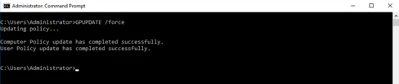
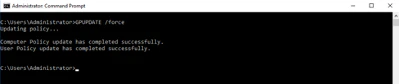
2. Open the command prompt as administrator and run **gpupdate /force.**

   <img src="https://mintcdn.com/truu-2/L38yxuvvUa8uAW5I/images/docs/08284e1e9d374c06fc064262c2c79610e05da9da213aca84a38744ec1da9890c-v1.png?fit=max&auto=format&n=L38yxuvvUa8uAW5I&q=85&s=b445b8ce1e99055d221bf77289debdcb" alt="" width="399" height="84" data-path="images/docs/08284e1e9d374c06fc064262c2c79610e05da9da213aca84a38744ec1da9890c-v1.png" />

3. Open local domain controller certificate store

4. Open **Run** on the server by pressing **Windows Key + R**.

5. In Run type in **certlm.msc** and hit **Enter**.

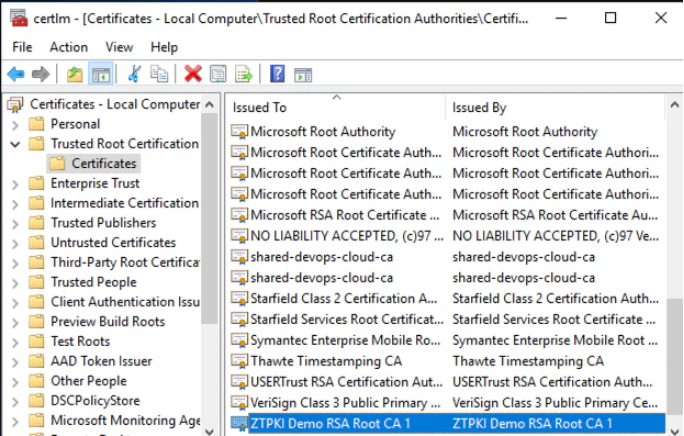
6. Go to the **Trusted Root Certification Authorities** and then **Certificates**, you will see the root certificate.

   <img src="https://mintcdn.com/truu-2/YlfY4z_3_-uDkBaP/images/docs/632c7266dedc8d2274de68abf36ba1611830601699ffdbc4e04cdd8f63f242e4-v2.png?fit=max&auto=format&n=YlfY4z_3_-uDkBaP&q=85&s=1b09eab3d678a584e395af872fea9a11" alt="" width="684" height="436" data-path="images/docs/632c7266dedc8d2274de68abf36ba1611830601699ffdbc4e04cdd8f63f242e4-v2.png" />

7. Go to the **Intermediate Root Certification Authorities** and then **certificates**, you will see the issuing certificates certificate.

   <img src="https://mintcdn.com/truu-2/E6hYbyLPrBHWbQ3m/images/docs/d3ead2c6bfb2d02cb3f20289a6afddbf6d895e0f36a6effbea522ea13077af23-v3.png?fit=max&auto=format&n=E6hYbyLPrBHWbQ3m&q=85&s=56ad10ffc74736a3551805ce6e9c79f2" alt="" width="712" height="454" data-path="images/docs/d3ead2c6bfb2d02cb3f20289a6afddbf6d895e0f36a6effbea522ea13077af23-v3.png" />

## Adding CyberArk Certificates to Computers

CyberArk certificates must be added to each computer for authentication to work.

### Creating GPO

1. Go to Group Policy Management.

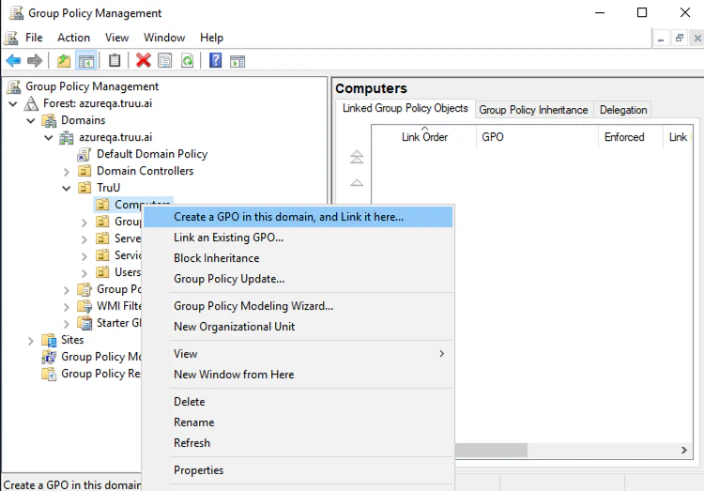
2. Create a New group policy at your **Computers** OU to apply to your workstations.

   <img src="https://mintcdn.com/truu-2/E6hYbyLPrBHWbQ3m/images/docs/c1ecd85fe61561a5af5dce2b50bf41960ed9e948ddfa7338212352c09e9ea19b-L.png?fit=max&auto=format&n=E6hYbyLPrBHWbQ3m&q=85&s=3de5b9ee3e9d6c5a21446ce5223df163" alt="" width="704" height="492" data-path="images/docs/c1ecd85fe61561a5af5dce2b50bf41960ed9e948ddfa7338212352c09e9ea19b-L.png" />

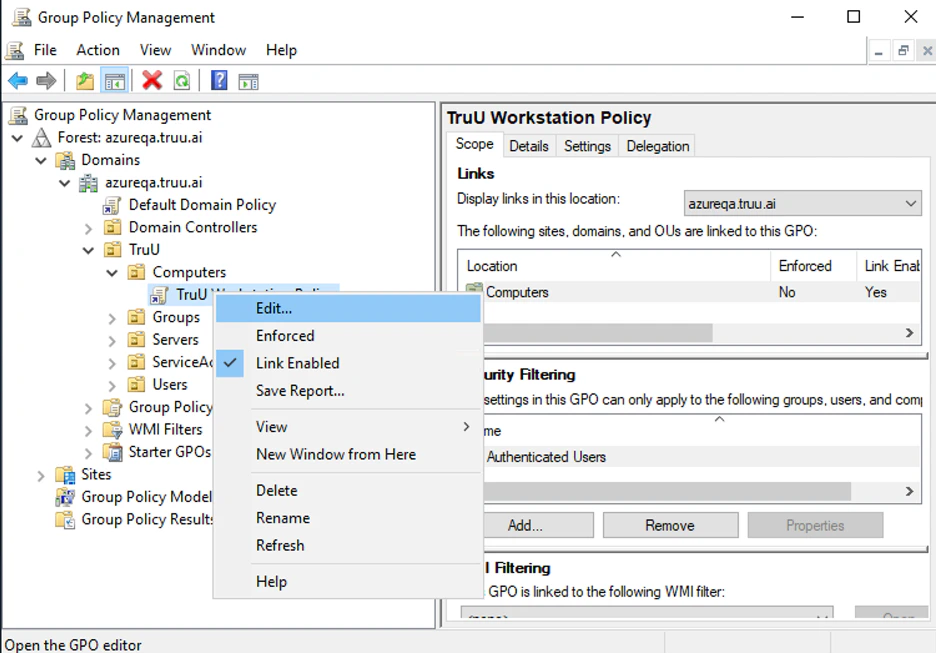
3. Edit the new group policy for the workstations (new screenshot below).

   <img src="https://mintcdn.com/truu-2/qCK1oWL4jNpZKJ8A/images/docs/8f71298125aad20d4d28898bf7faf714215ff90cc7d7e22348345a7c097a26c8-L2.png?fit=max&auto=format&n=qCK1oWL4jNpZKJ8A&q=85&s=e81b2a42e6f8b85dbd77e15d7244e0c0" alt="" width="936" height="654" data-path="images/docs/8f71298125aad20d4d28898bf7faf714215ff90cc7d7e22348345a7c097a26c8-L2.png" />

<img src="https://mintlify.s3.us-west-1.amazonaws.com/truu-2/docs/10c8589e595b0d31205b0411558de317.png" alt="" />

4. Go to Computer Configuration > Windows Setting > Security Settings > Public Key Policy

   <img src="https://mintcdn.com/truu-2/rjjBxA7Z_Wk_-34G/images/docs/e147ae28228d2e48a756b414b578a5f489a7172cd4b6d063212c8a954b1fbf0b-hr5.png?fit=max&auto=format&n=rjjBxA7Z_Wk_-34G&q=85&s=39280718283fec40366d834092bd48dc" alt="" width="986" height="736" data-path="images/docs/e147ae28228d2e48a756b414b578a5f489a7172cd4b6d063212c8a954b1fbf0b-hr5.png" />

<img src="https://mintlify.s3.us-west-1.amazonaws.com/truu-2/docs/5c933e763d85844d08a3df9fadddcc62.png" alt="" />

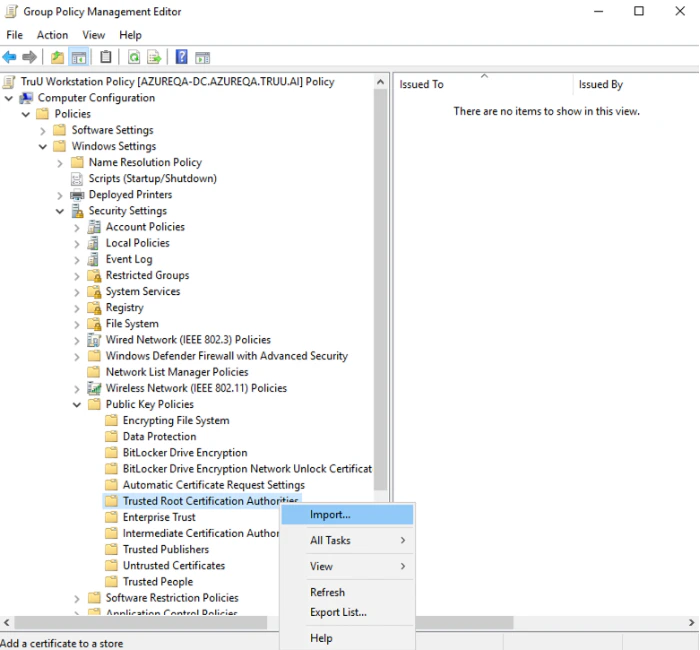
5. Right Click on **Trusted Root Certification Authorities** and Click **Import**

<img src="https://mintcdn.com/truu-2/L38yxuvvUa8uAW5I/images/docs/1199f240a25aa38ea74f1b1adb1fb191a6aabee898ae2c7b8bb881458736bcb1-L4.png?fit=max&auto=format&n=L38yxuvvUa8uAW5I&q=85&s=088dfe3e7cfb511f71d2c7e8056592c7" alt="" width="700" height="650" data-path="images/docs/1199f240a25aa38ea74f1b1adb1fb191a6aabee898ae2c7b8bb881458736bcb1-L4.png" />

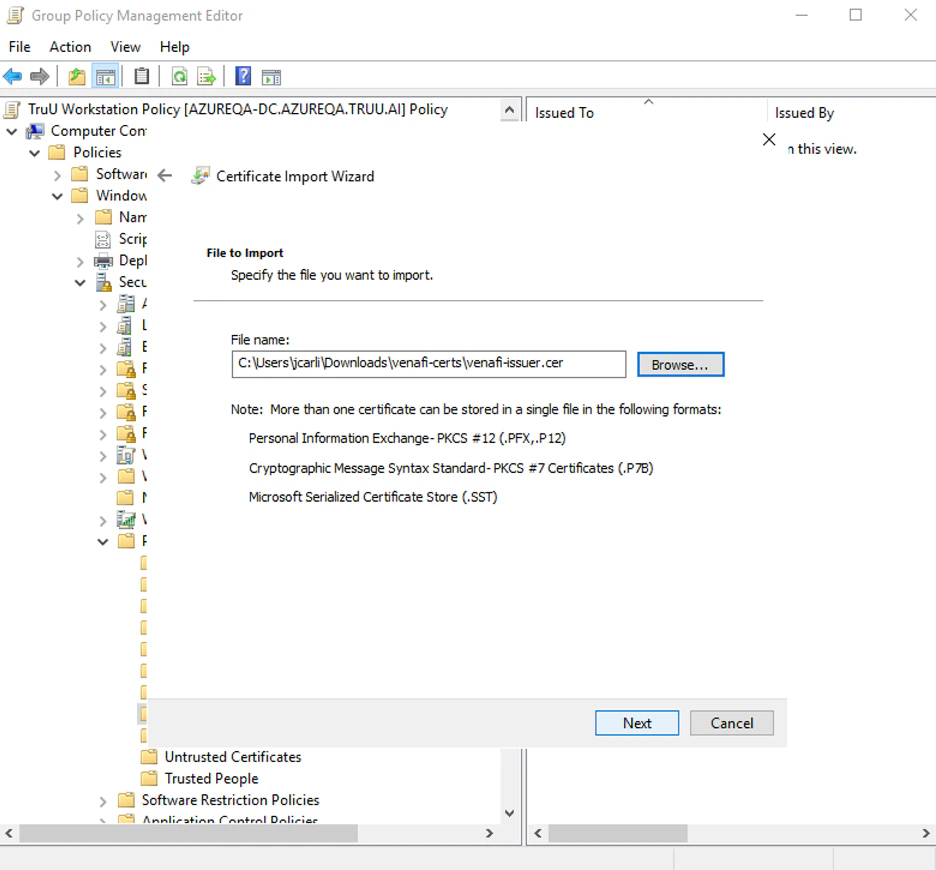
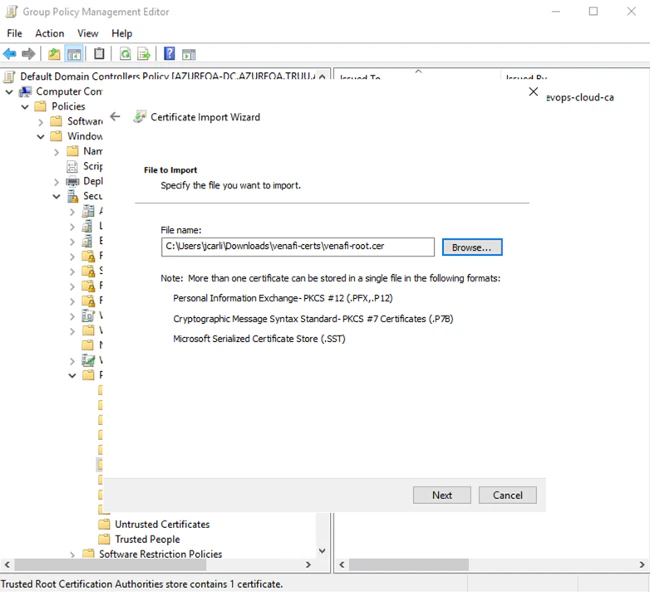
6. Import the **CyberArk root certificate**
   <img src="https://mintcdn.com/truu-2/rjjBxA7Z_Wk_-34G/images/docs/ef5f193ae646d33f36733a02d6267a2700083cb2915588fdd2b76a4c4c050f5e-L7.png?fit=max&auto=format&n=rjjBxA7Z_Wk_-34G&q=85&s=890ff2838dc3420bac4064f2f78cbd07" alt="" width="936" height="870" data-path="images/docs/ef5f193ae646d33f36733a02d6267a2700083cb2915588fdd2b76a4c4c050f5e-L7.png" />

<img src="https://mintlify.s3.us-west-1.amazonaws.com/truu-2/docs/121f1b9e5824027da7784bb94d964e78.png" alt="" />

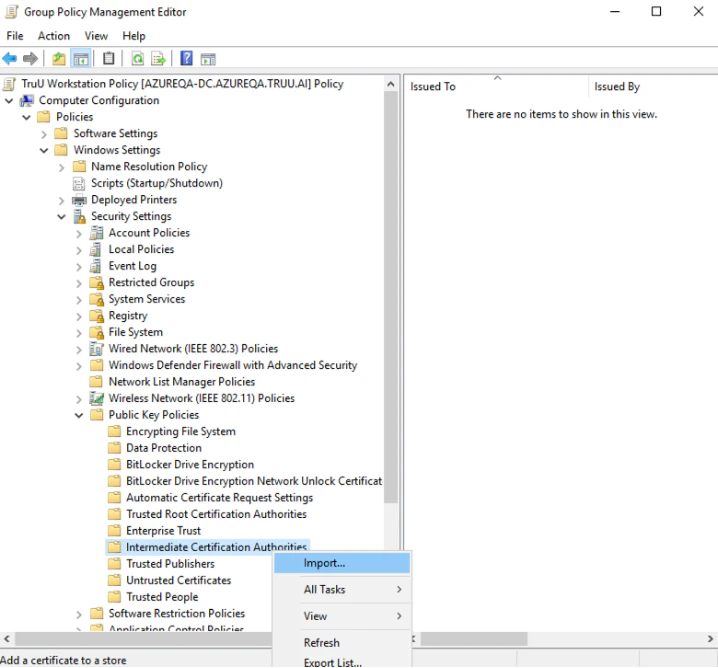
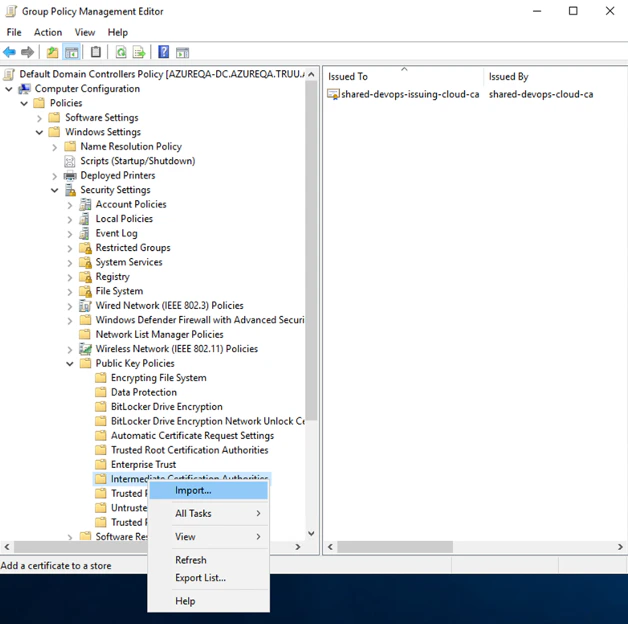
7. Right Click on **Intermediate Certification Authorities** and Click **Import**
   <img src="https://mintcdn.com/truu-2/rjjBxA7Z_Wk_-34G/images/docs/e81957e6b3a2037bc5abf6c065a66f67bcab969d6a78044c547d912a4108e176-7.png?fit=max&auto=format&n=rjjBxA7Z_Wk_-34G&q=85&s=b67529279224248cccef4538d01c31be" alt="" width="718" height="668" data-path="images/docs/e81957e6b3a2037bc5abf6c065a66f67bcab969d6a78044c547d912a4108e176-7.png" />

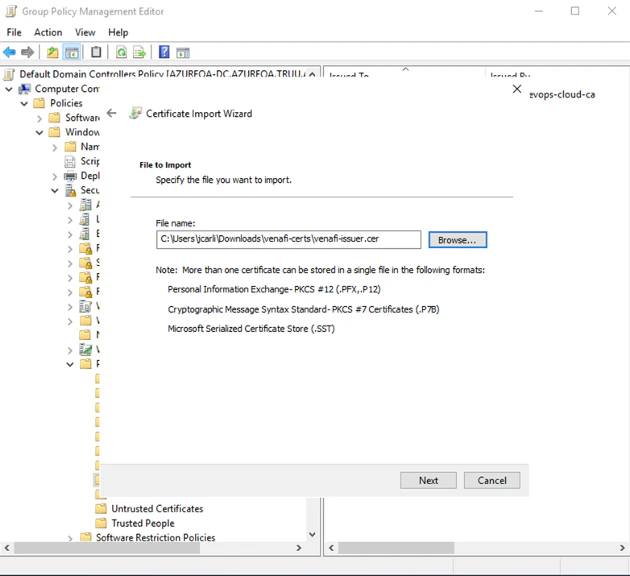
8. Import the **Issuing CyberArk certificate**
   <img src="https://mintcdn.com/truu-2/jMF4bYA9yOA_2TKv/images/docs/3e1db6530619af7a3de414d20437ec527a3b84c9051fed8c3581adefb8d39cce-8.png?fit=max&auto=format&n=jMF4bYA9yOA_2TKv&q=85&s=03e6bfab62538ecee0fdce90471e5df6" alt="" width="936" height="870" data-path="images/docs/3e1db6530619af7a3de414d20437ec527a3b84c9051fed8c3581adefb8d39cce-8.png" />

### Validating

1. Go to the domain controller and also any workstation GPO is applied to.

2. Open the command prompt as administrator and run **GPUPDATE /force.**

   <img src="https://mintcdn.com/truu-2/jMF4bYA9yOA_2TKv/images/docs/436628b88b17ad04a6f8c91b6fa7256e31896409e2943ef498c87ae8222d6e2d-F1.png?fit=max&auto=format&n=jMF4bYA9yOA_2TKv&q=85&s=1f89f67ea42a7d3c825289cdd25d428e" alt="" width="399" height="84" data-path="images/docs/436628b88b17ad04a6f8c91b6fa7256e31896409e2943ef498c87ae8222d6e2d-F1.png" />

3. Open local computer certificate store

4. Open **Run** on the server by pressing **Windows Key + R**.

5. In Run type in **certlm.msc** and hit **Enter**.

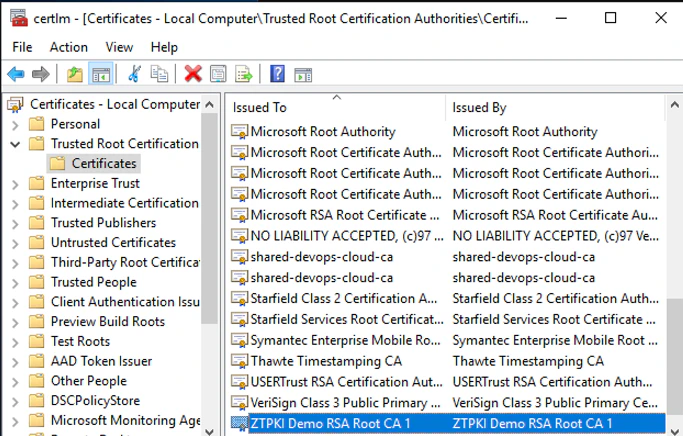
6. Go to the **Trusted Root Certification Authorities** and then **Certificates**, you will see the root certificate.
   <img src="https://mintcdn.com/truu-2/L38yxuvvUa8uAW5I/images/docs/21ec99b73319dc8ce9277271ed504f3fdc7ca9343b78957a5c5375d683b25aa2-f2.png?fit=max&auto=format&n=L38yxuvvUa8uAW5I&q=85&s=650f55b4ed8bbe77cd125c9e626e50de" alt="" width="684" height="436" data-path="images/docs/21ec99b73319dc8ce9277271ed504f3fdc7ca9343b78957a5c5375d683b25aa2-f2.png" />

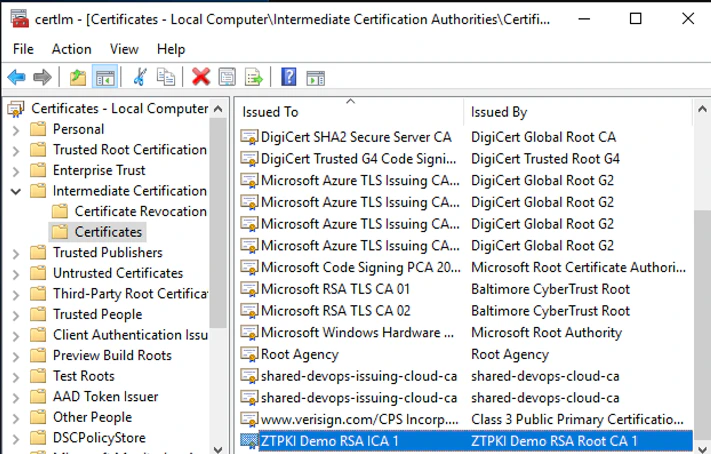
7. Go to the **Intermediate Certification Authorities** and then **certificates**, you will see the issuing certificates certificate.
***

[CyberArk Zero Touch PKI](/docs/venafi-zero-touch-pki)

[TruU Tenant Setup](/docs/step-3-initial-tenant-setup)