> ## Documentation Index
> Fetch the complete documentation index at: https://docs.truu.ai/llms.txt
> Use this file to discover all available pages before exploring further.
# MacOS 26.4 Keychain Repair
## Overview
MacOS 26.4 introduced a change to user’s keychains the prevented TruU from accessing information stored there. Following an upgrade to this version of macOS, the Mac Authentictor may initiate a repair process to restore normal access to the user’s keychain. Only users who have already upgraded to macOS 26.4 and are running TruU v26.1.1 will be affected.
## Steps to Complete the Repair
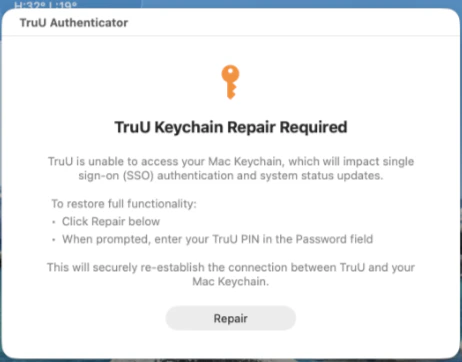
1. When prompted, click **Repair**
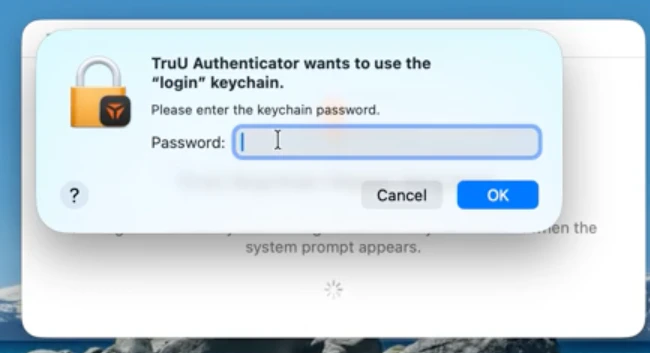
 2. Enter your **PIN** and click **OK**
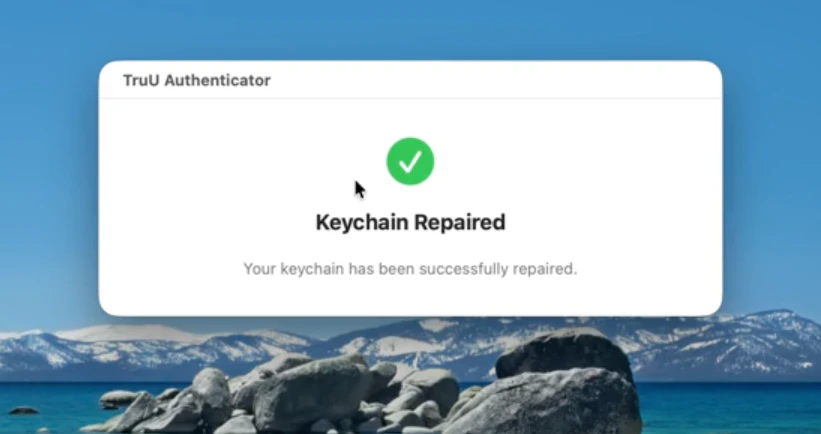
 3. Confirm you see the **Keychain Repaired** screen
 If the user starts the repair process but cancels the keychain prompt, they will have to restart it. They may see many keychain prompts after cancelling. They must click the “Repair” button and complete the first prompt to restore proper operation.