> ## Documentation Index
> Fetch the complete documentation index at: https://docs.truu.ai/llms.txt
> Use this file to discover all available pages before exploring further.
# Manager's Approval
> This is a step-by-step guide for manager's who are required to approve their employee's/contractors devices.
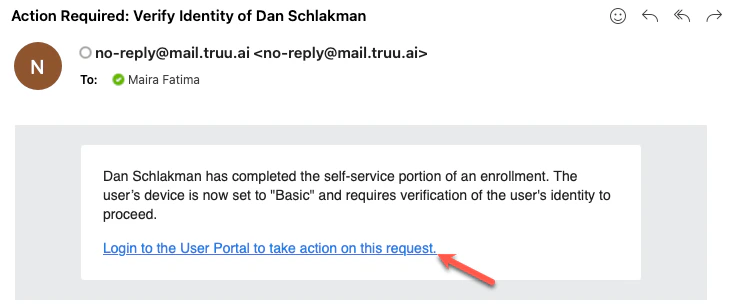
Once the employee completes enrolling their device in TurU, their manager receives an email notification requesting to approve the user’s new device.
1. Click the **Login to the User Portal to take action on this request** to be rerouted to the TruU User Portal.
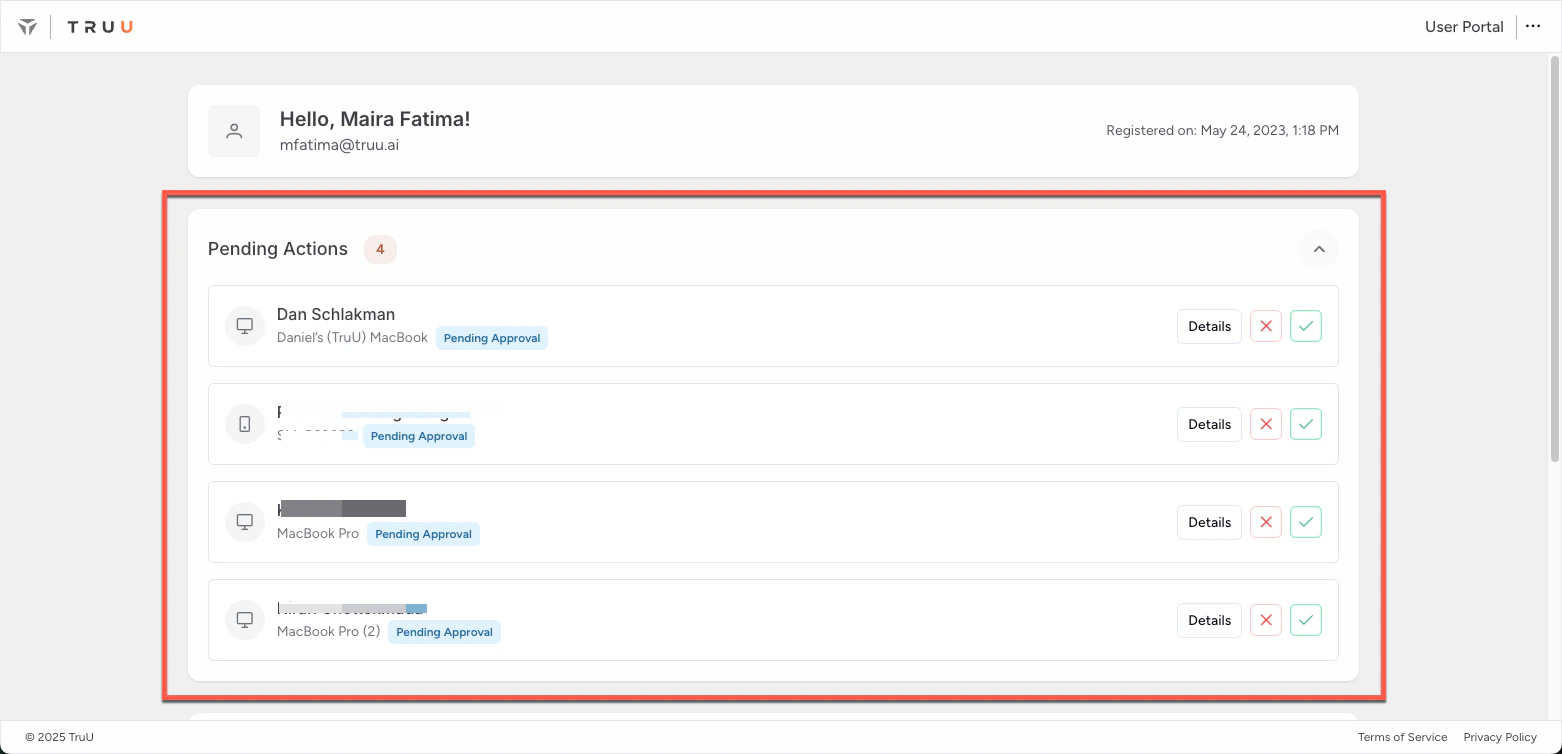
 2. The pending enrollment requests will be displayed on the manager dashboard. Contacts the employee directly (via email, phone, or in-person) to confirm that the device enrollment request is legitimate.
**Note** This step ensures that only authorized devices are approved.
2. The pending enrollment requests will be displayed on the manager dashboard. Contacts the employee directly (via email, phone, or in-person) to confirm that the device enrollment request is legitimate.
**Note** This step ensures that only authorized devices are approved.
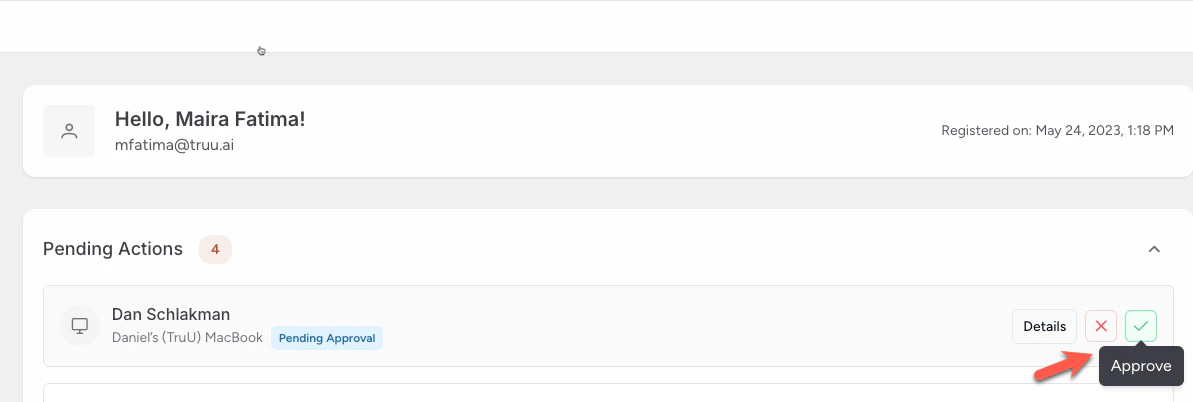
 3. After confirming with the employee, Click *Approve*
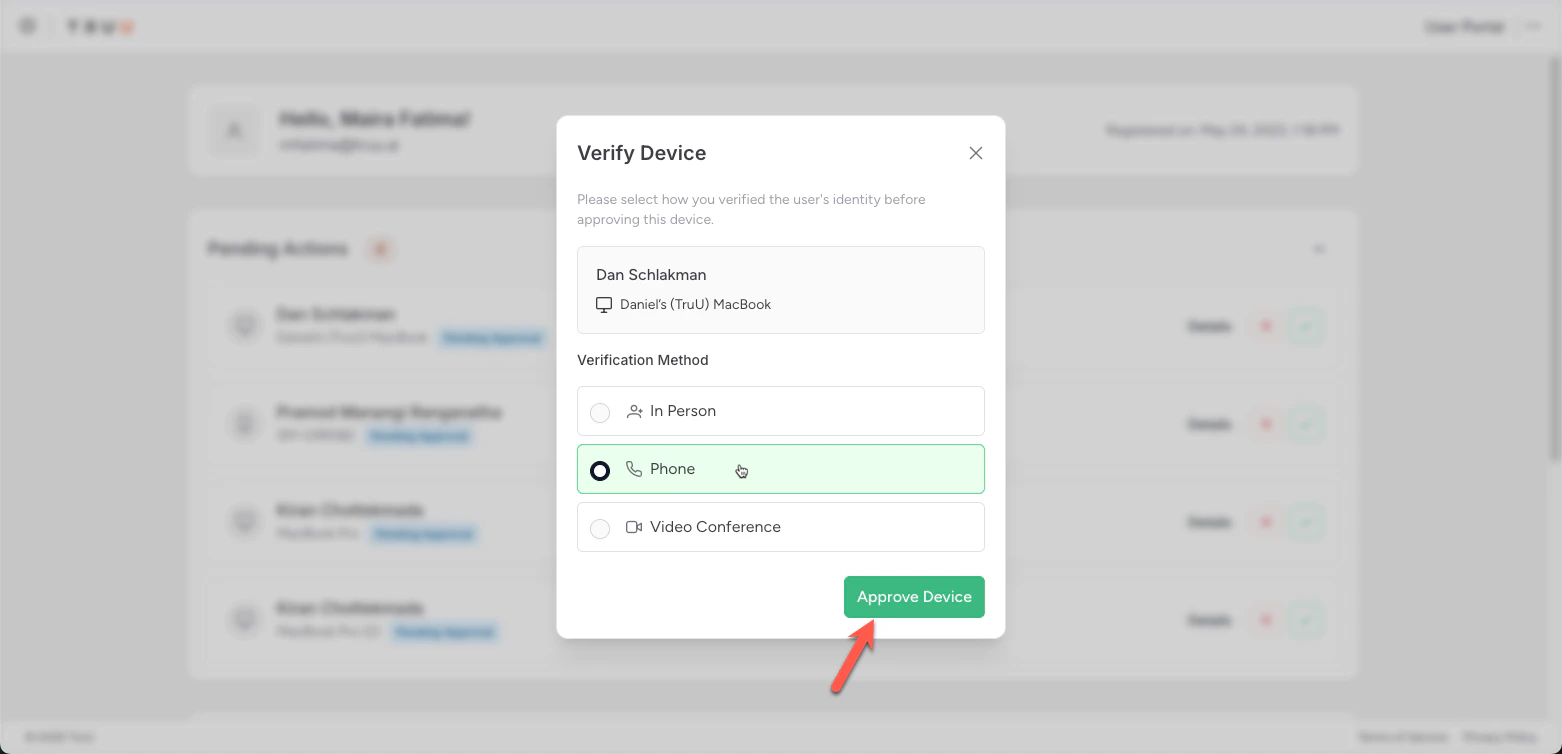
 4. Select the mode of verification and click *Approve Device*
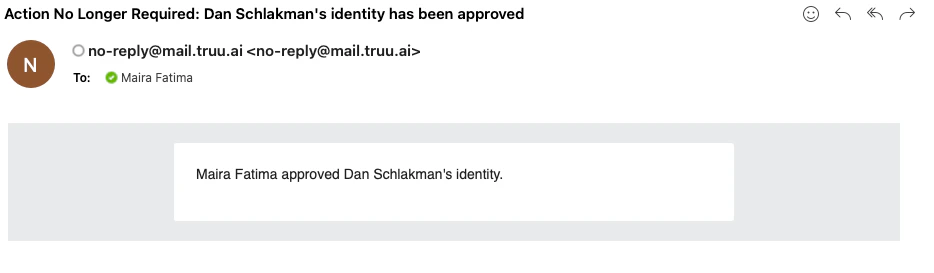
 6. Once approval and verification are complete, the employee is notified via email and will be able to access company resources on that device.
 **Note:** *This workflow is fully configurable and can be tailored to include or exclude specific user groups or organizational units based on access policies and enrollment requirements.*
***
[User Portal and Device Management](/docs/user-portal-and-device-management)
[Windows](/docs/windows)
**Note:** *This workflow is fully configurable and can be tailored to include or exclude specific user groups or organizational units based on access policies and enrollment requirements.*
***
[User Portal and Device Management](/docs/user-portal-and-device-management)
[Windows](/docs/windows)