> ## Documentation Index
> Fetch the complete documentation index at: https://docs.truu.ai/llms.txt
> Use this file to discover all available pages before exploring further.
# Mandatory GPO Update for Chrome Version 147
Google updated Chrome’s handling of local device and local network access, so this setting must now be explicitly managed through Group Policy. This should be deployed as a mandatory machine-level browser policy using the latest Chrome ADMX/ADML templates, following the same centralized administrative template model Microsoft documents for Edge.
## **Required Configuration**
Allow TruU domains to access other apps and services on the device using this value:
\[\*.][truu.ai](http://truu.ai)
### **1. Download the latest Chrome policy templates**
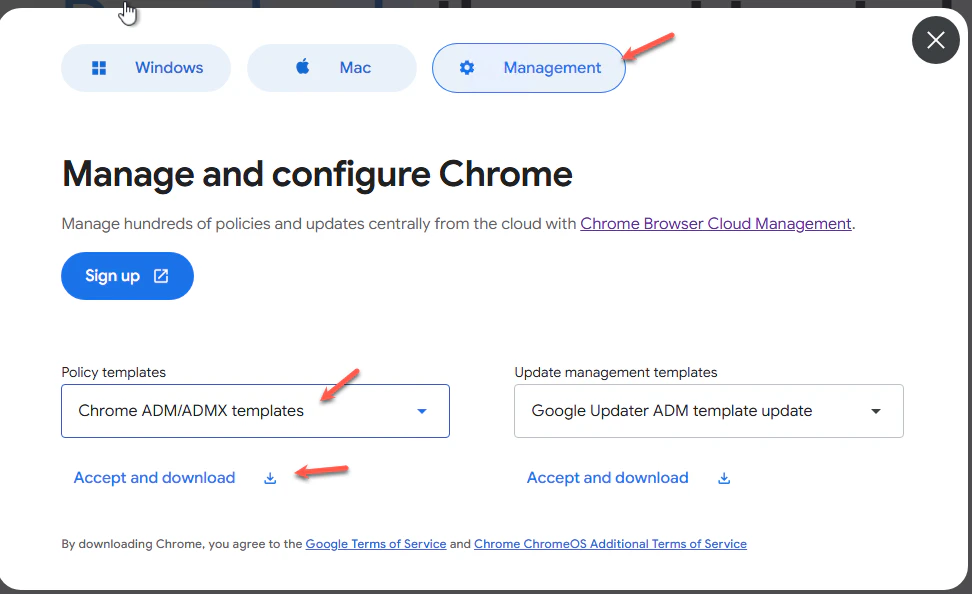
Go to the Chrome Enterprise download page, select **Management**, choose **Chrome ADM/ADMX templates**, and download the package.
 ### **2. Import the Chrome ADMX/ADML templates**
Extract the download and copy the Chrome ADMX file(s) into your Group Policy Central Store or local PolicyDefinitions folder. Copy the matching ADML language files into the appropriate language folder.
### **3. Open the Target GPO**
In **Group Policy Management Editor**, edit the GPO that applies to the target Windows devices.
### **4. Browse to the Chrome policy**
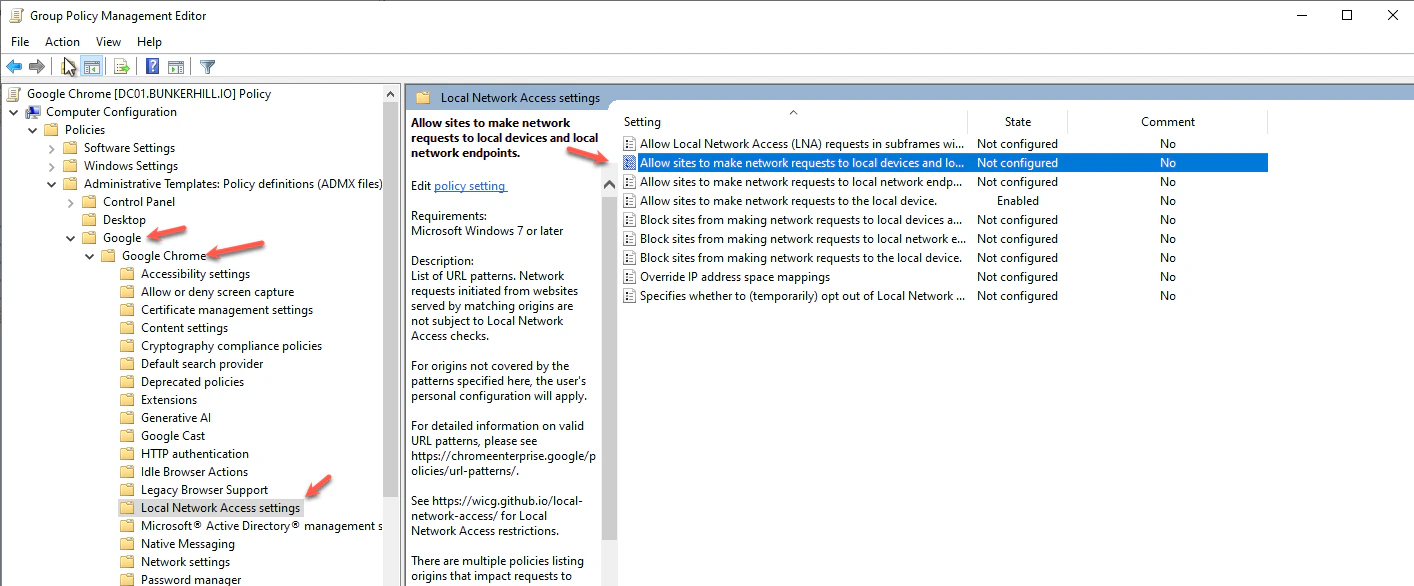
Navigate to the Computer Configuration → Policies → Administrative Templates → Google → Google Chrome → Local Network Access settings. Then, open **Allow sites to make network requests to the local device.**
### **2. Import the Chrome ADMX/ADML templates**
Extract the download and copy the Chrome ADMX file(s) into your Group Policy Central Store or local PolicyDefinitions folder. Copy the matching ADML language files into the appropriate language folder.
### **3. Open the Target GPO**
In **Group Policy Management Editor**, edit the GPO that applies to the target Windows devices.
### **4. Browse to the Chrome policy**
Navigate to the Computer Configuration → Policies → Administrative Templates → Google → Google Chrome → Local Network Access settings. Then, open **Allow sites to make network requests to the local device.**
 ### **5. Enable the policy**
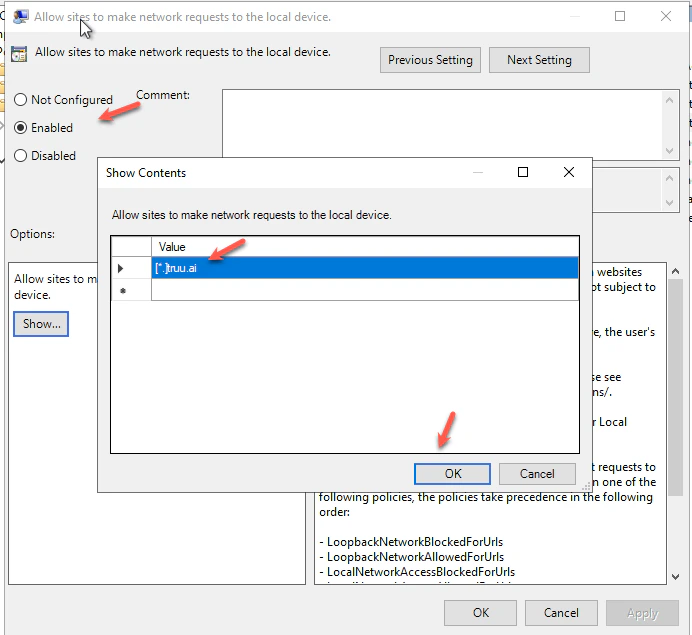
Set the policy to **Enabled**, then click **Show…**
### **6. Add the TruU allowlist entry**
Add this value:
\[\*.][truu.ai](http://truu.ai)
Click **OK**, then **Apply**.
### **5. Enable the policy**
Set the policy to **Enabled**, then click **Show…**
### **6. Add the TruU allowlist entry**
Add this value:
\[\*.][truu.ai](http://truu.ai)
Click **OK**, then **Apply**.
 ### **7. Verify the registry entry**
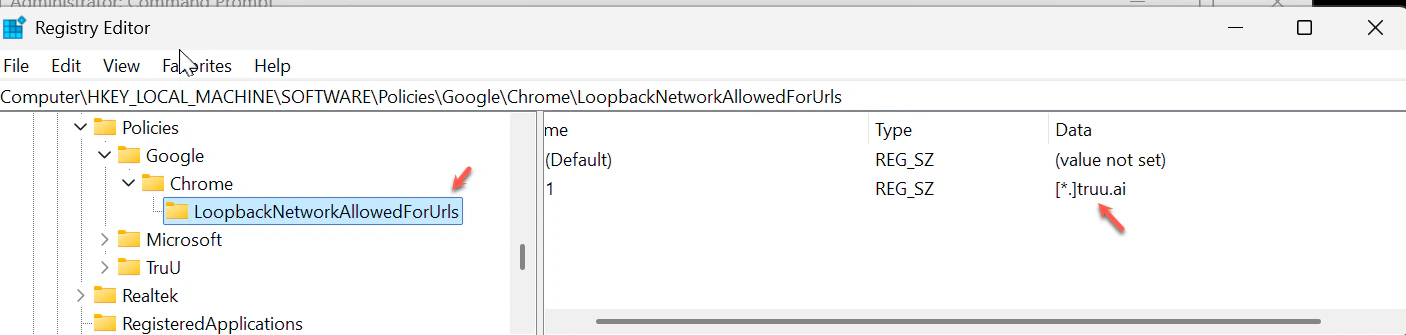
On a target machine, confirm this registry path exists:
```text theme={null}
HKEY_LOCAL_MACHINE\SOFTWARE\Policies\Google\Chrome\LoopbackNetworkAllowedForUrls
```
Expected value:
* 1 = \[\*.][truu.ai](http://truu.ai)
### **7. Verify the registry entry**
On a target machine, confirm this registry path exists:
```text theme={null}
HKEY_LOCAL_MACHINE\SOFTWARE\Policies\Google\Chrome\LoopbackNetworkAllowedForUrls
```
Expected value:
* 1 = \[\*.][truu.ai](http://truu.ai)
 ### **8. Refresh policy**
Run:
```text theme={null}
gpupdate /force
```
### **9. Confirm in Chrome**
Open:
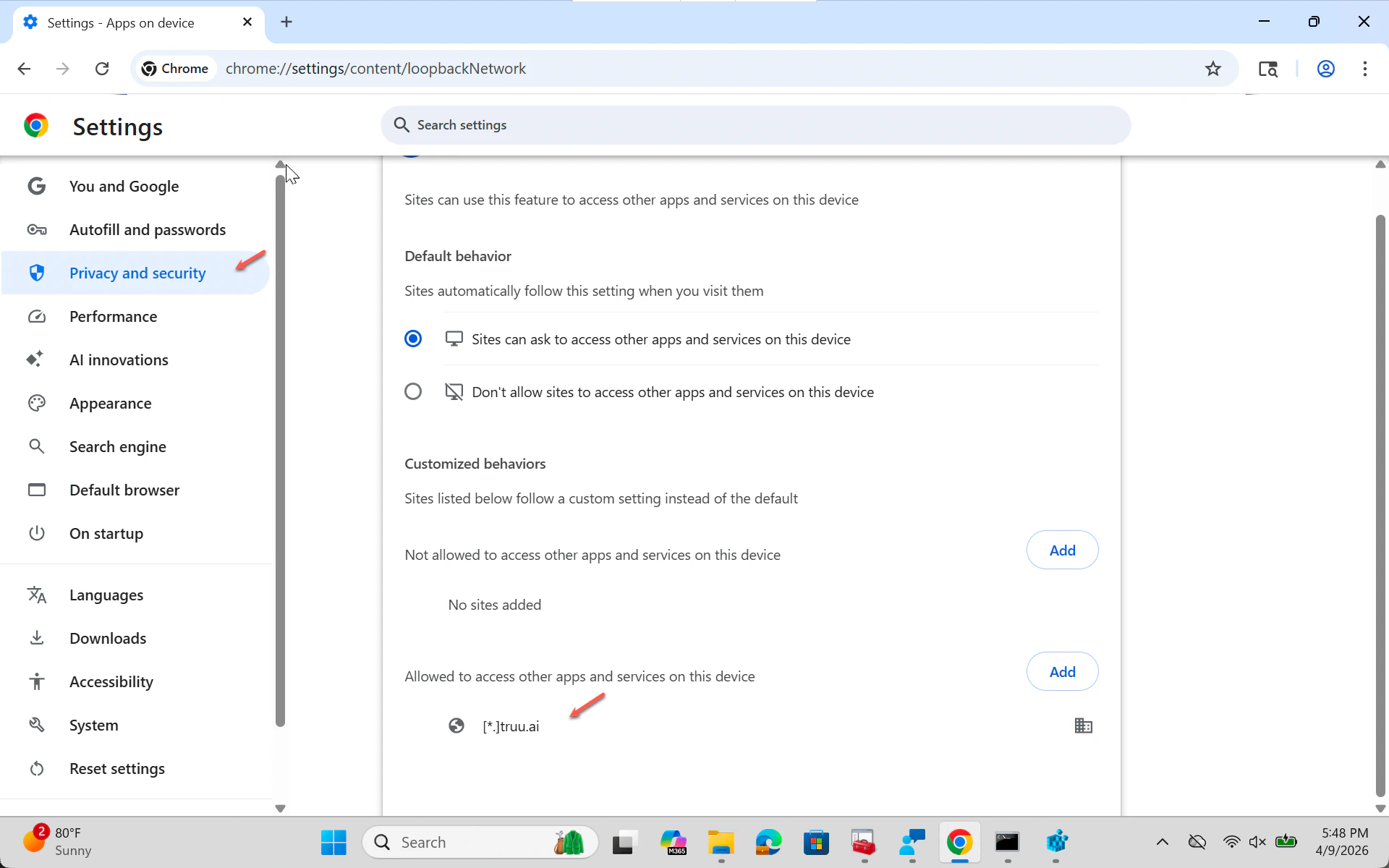
chrome://settings/content/loopbackNetwork
Verify \[\*.][truu.ai](http://truu.ai) appears under allowed sites.
### **8. Refresh policy**
Run:
```text theme={null}
gpupdate /force
```
### **9. Confirm in Chrome**
Open:
chrome://settings/content/loopbackNetwork
Verify \[\*.][truu.ai](http://truu.ai) appears under allowed sites.
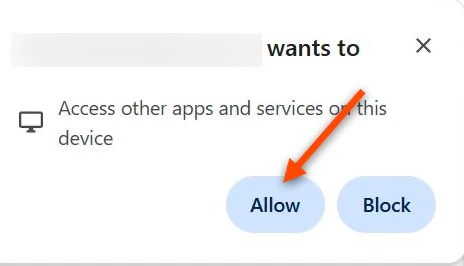
 ### **10. Validate the user prompt**
Once applied, TruU browser flows that access local device services should now be properly allowlisted.
### **10. Validate the user prompt**
Once applied, TruU browser flows that access local device services should now be properly allowlisted.