> ## Documentation Index
> Fetch the complete documentation index at: https://docs.truu.ai/llms.txt
> Use this file to discover all available pages before exploring further.
# Mandatory Intune Policy Update for Chrome and Edge (Windows, Version 147+)
Chrome and Edge (v147+) enforce Local Network Access / loopback restrictions more strictly. To keep TruU SSO flows working on managed Windows endpoints, you must explicitly allowlist the TruU origin via Intune policy.
## Scope
**Platform**: Windows 10/11 (Intune-managed)
**Browsers**: Google Chrome, Microsoft Edge
**Use Cases**: TruU SSO/browser flows that need local device access (loopback/local network)
## Microsoft Edge via Intune
1. Go to Intune admin center → **Devices** → **Configuration profiles** → **Create profile**.
**Platform**: Windows 10 and later.
**Profile type**: *Settings catalog*
2. Search for the setting name: *Allow sites to make requests to local network endpoints.*
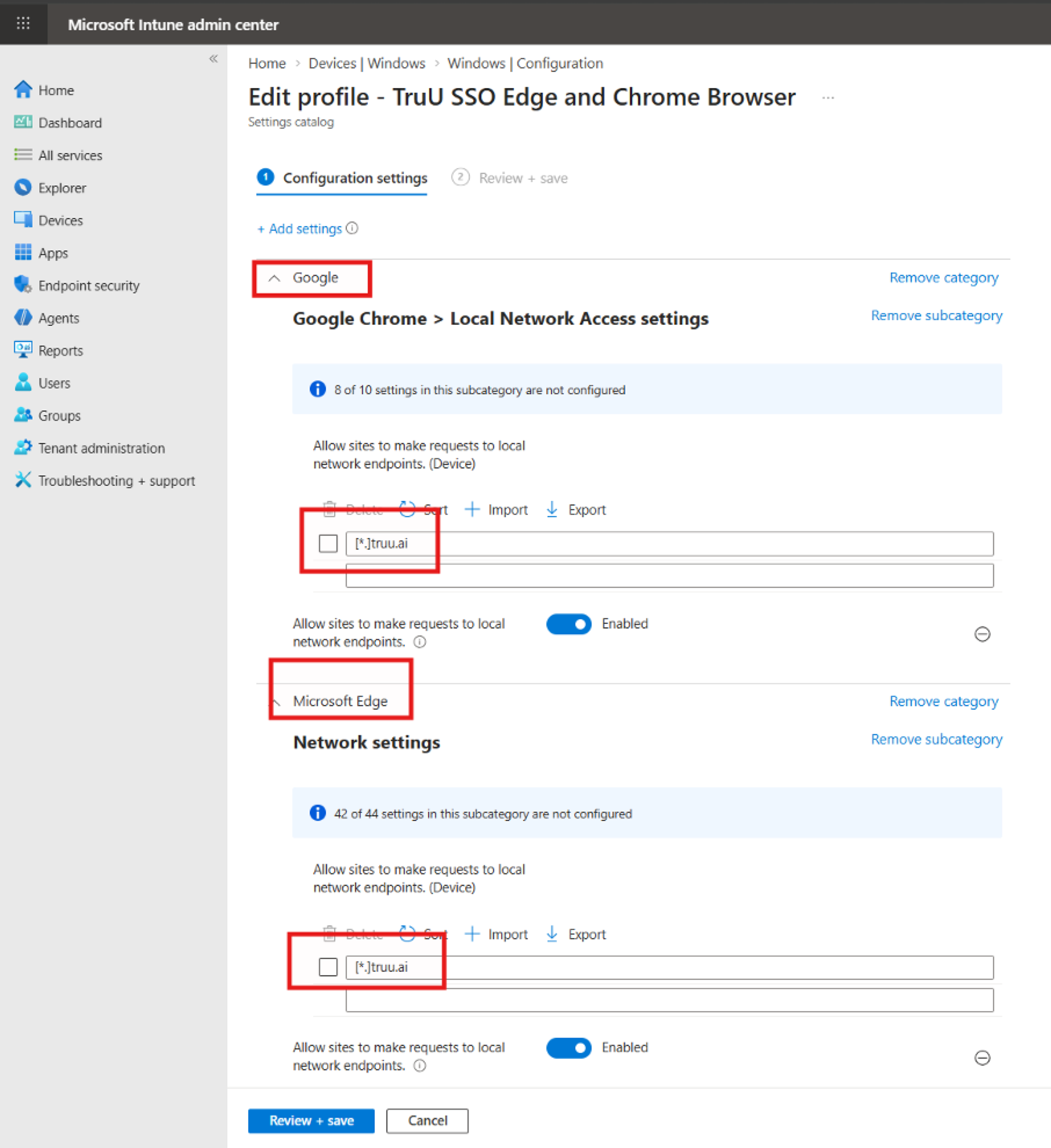 3. Select **Edge** and **Chrome** (If you would like to allow TruU SSO on both the browsers)
**Policy name**: *LocalNetworkAccessAllowedForUrls*
**Add list entry**: \[\*.][truu.ai](http://truu.ai)
4. Assign to target Windows device groups. Then, click **Save** and deploy.
5. Verify on endpoint Check registry:
```text theme={null}
HKEY_LOCAL_MACHINE\SOFTWARE\Policies\Microsoft\Edge\LocalNetworkAccessAllowedForUrls
```
Expected: \[\*.][truu.ai](http://truu.ai)
6. Then, check browser for *edge://policy* and *Chrome://policy*
3. Select **Edge** and **Chrome** (If you would like to allow TruU SSO on both the browsers)
**Policy name**: *LocalNetworkAccessAllowedForUrls*
**Add list entry**: \[\*.][truu.ai](http://truu.ai)
4. Assign to target Windows device groups. Then, click **Save** and deploy.
5. Verify on endpoint Check registry:
```text theme={null}
HKEY_LOCAL_MACHINE\SOFTWARE\Policies\Microsoft\Edge\LocalNetworkAccessAllowedForUrls
```
Expected: \[\*.][truu.ai](http://truu.ai)
6. Then, check browser for *edge://policy* and *Chrome://policy*