> ## Documentation Index
> Fetch the complete documentation index at: https://docs.truu.ai/llms.txt
> Use this file to discover all available pages before exploring further.
# Package and Deploy TruU Windows Authenticator in Intune
### Step 1: Download the TruU Application and Config file
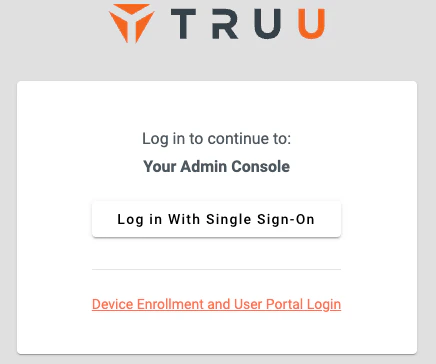
1. Login to your TruU Admin Console
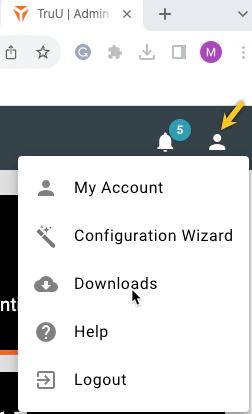
 2. Top right corner, Click on the **user icon** and select **Downloads**
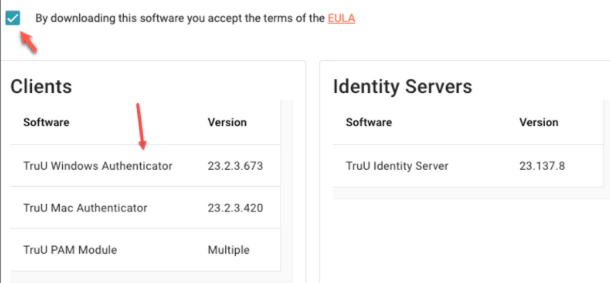
 3. Accept EULA terms to download software
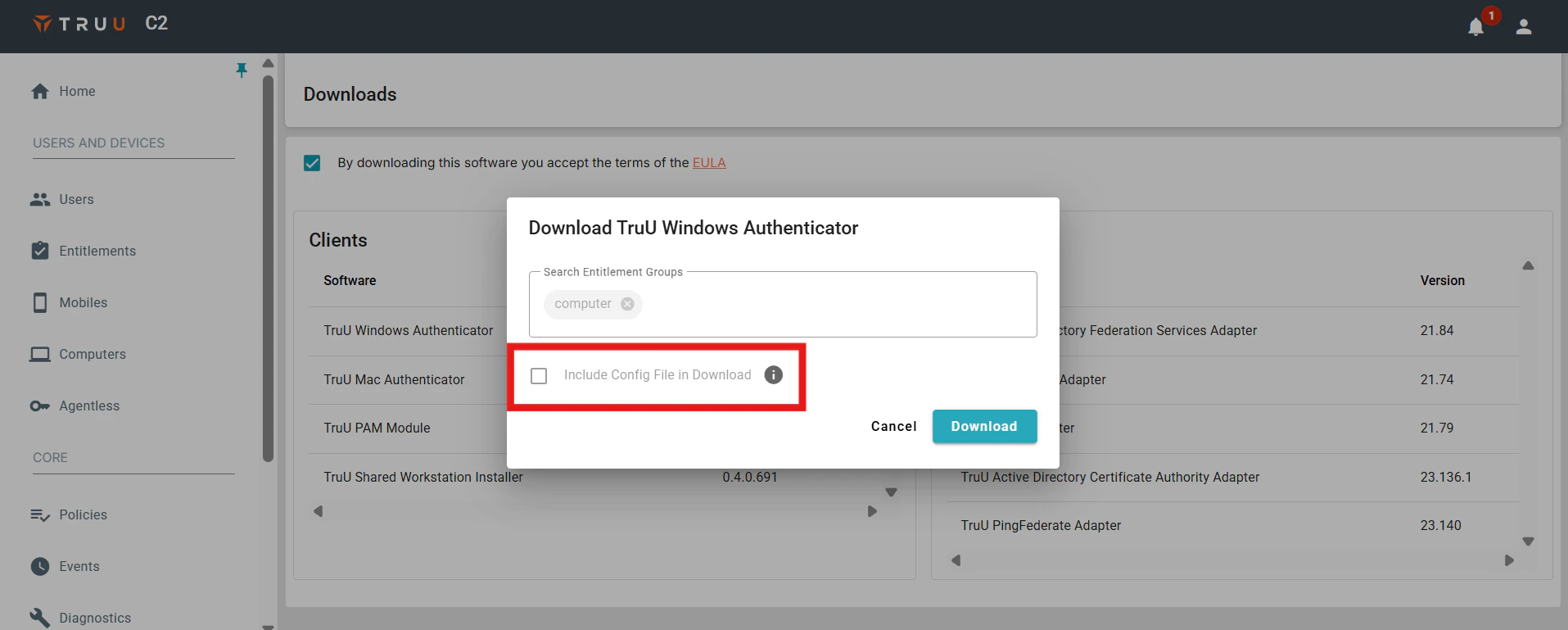
 4. Click on the version of the **Windows Authenticator** that you would like to download, enable the **Include Config File in Download** and click **Download**
 ### Step 2: Download the Win32 Content Prep Tool
1. **Download the Win32 packaging tool** from Microsoft's official GitHub repository: [Win32 Content Prep Tool](https://github.com/microsoft/Microsoft-Win32-Content-Prep-Tool)
2. **Extract the downloaded ZIP file** to a preferred location (e.g., `C:\IntuneWinAppUtil`).
### Step 3: Prepare Your Source Files
Before running the packaging tool, place the TruU installation file (.exe) and Application.config file in a single folder:
1. Create a folder (e.g., `C:\SourceApp`).
2. Copy the **EXE installer** (`TruU XX.XX.XX.exe`) into this folder.
3. Copy the **configuration file** (e.g., `Application.config`) into the same folder if required for installation.
### Step 4: Run the Win32 Content Prep Tool
1. In the extracted folder, open the IntuneWinAppUtil application and specify the source folder.
2. Specify the installation **file name along with file type**. (Eg: TruUInstallerBundle\_24.2.0.2893.exe)
3. Specify the **output folder path** where the packaged Win32 file should be saved.
4. As there is no catalog folder, enter 'N' for **Do you want to specify catalog folder (Y/N)?**
### Step 2: Download the Win32 Content Prep Tool
1. **Download the Win32 packaging tool** from Microsoft's official GitHub repository: [Win32 Content Prep Tool](https://github.com/microsoft/Microsoft-Win32-Content-Prep-Tool)
2. **Extract the downloaded ZIP file** to a preferred location (e.g., `C:\IntuneWinAppUtil`).
### Step 3: Prepare Your Source Files
Before running the packaging tool, place the TruU installation file (.exe) and Application.config file in a single folder:
1. Create a folder (e.g., `C:\SourceApp`).
2. Copy the **EXE installer** (`TruU XX.XX.XX.exe`) into this folder.
3. Copy the **configuration file** (e.g., `Application.config`) into the same folder if required for installation.
### Step 4: Run the Win32 Content Prep Tool
1. In the extracted folder, open the IntuneWinAppUtil application and specify the source folder.
2. Specify the installation **file name along with file type**. (Eg: TruUInstallerBundle\_24.2.0.2893.exe)
3. Specify the **output folder path** where the packaged Win32 file should be saved.
4. As there is no catalog folder, enter 'N' for **Do you want to specify catalog folder (Y/N)?**
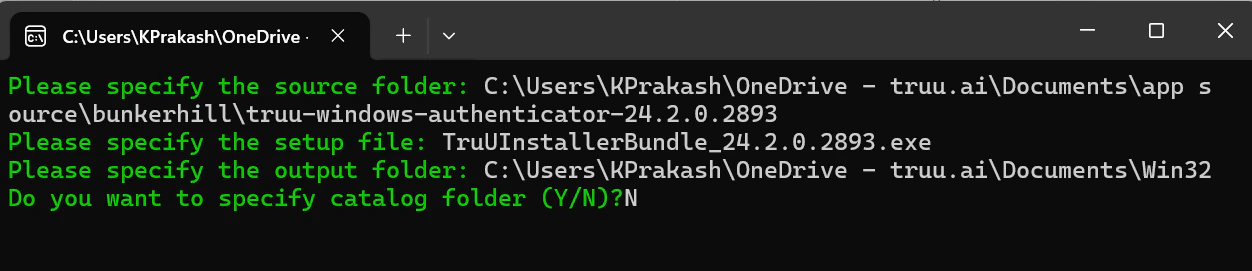 5. The tool will process the files and create a `.intunewin` package in the **output folder**.
### Step 5: Upload and Deploy a Win32 App in Intune
1. Go to the **Microsoft Endpoint Manager Admin Center**: [https://endpoint.microsoft.com](https://endpoint.microsoft.com)
2. In the left-hand menu, go to **Apps > Windows**. Click **Create** and select **Windows app (Win32)**.
3. Click **Select app package file**.
4. Click **Browse** and select your `TruU_XX.XX.XX.intunewin` file which we packaged in the previous step. Click **OK** to upload the file.
5. Enter a **Name** (e.g., "TruU Client").
6. Add a **Description** for users.
7. Choose the **Publisher** (e.g., "TruU Inc.").
8. Optionally, add **categories, display as featured, and an icon**.
9. Click **Next**.
10. **Install command:** "TruUInstallerBundle\_XX.X.X.XXXX.exe" /quiet /config=application.config
**Note:** The above command which have installation file name with format and the config file name with was packaged along with installation file.
11. **Uninstall command:** "TruUInstallerBundle\_XX.X.X.XXXX.exe" /quiet /uninstall
12. Set **Install behavior** to System and **Device restart behavior** to Intune will force a mandatory device restart of you are deploying for User-driven Autopilot else, you can select App install may force a device restart.
5. The tool will process the files and create a `.intunewin` package in the **output folder**.
### Step 5: Upload and Deploy a Win32 App in Intune
1. Go to the **Microsoft Endpoint Manager Admin Center**: [https://endpoint.microsoft.com](https://endpoint.microsoft.com)
2. In the left-hand menu, go to **Apps > Windows**. Click **Create** and select **Windows app (Win32)**.
3. Click **Select app package file**.
4. Click **Browse** and select your `TruU_XX.XX.XX.intunewin` file which we packaged in the previous step. Click **OK** to upload the file.
5. Enter a **Name** (e.g., "TruU Client").
6. Add a **Description** for users.
7. Choose the **Publisher** (e.g., "TruU Inc.").
8. Optionally, add **categories, display as featured, and an icon**.
9. Click **Next**.
10. **Install command:** "TruUInstallerBundle\_XX.X.X.XXXX.exe" /quiet /config=application.config
**Note:** The above command which have installation file name with format and the config file name with was packaged along with installation file.
11. **Uninstall command:** "TruUInstallerBundle\_XX.X.X.XXXX.exe" /quiet /uninstall
12. Set **Install behavior** to System and **Device restart behavior** to Intune will force a mandatory device restart of you are deploying for User-driven Autopilot else, you can select App install may force a device restart.
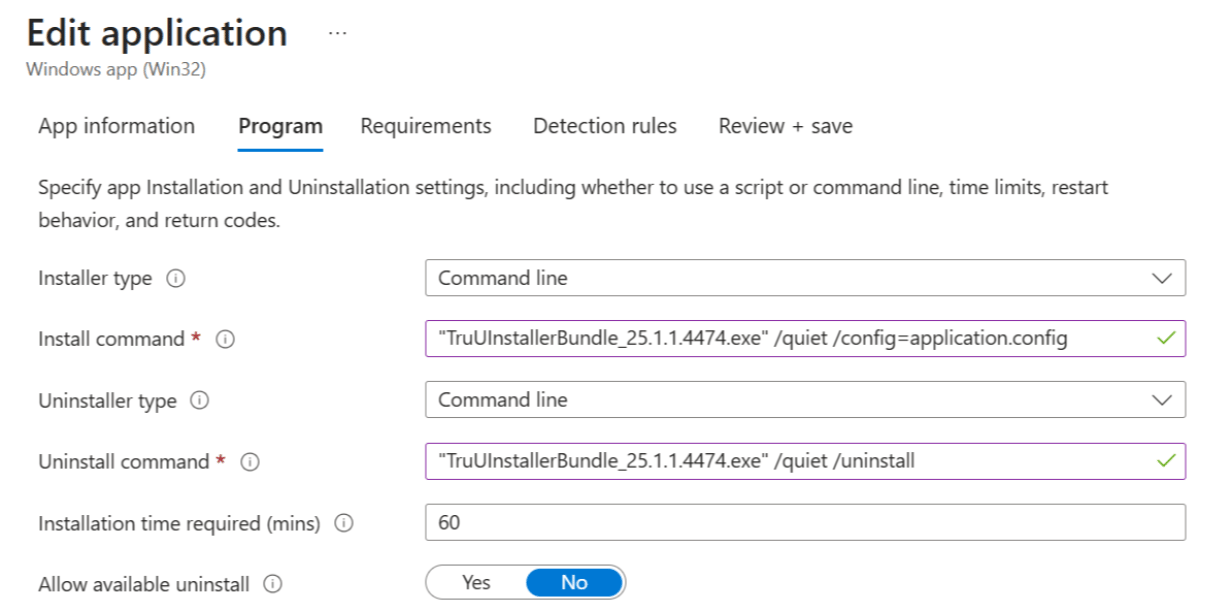 13. Set the minimum requirements as needed.
14. Configure Detection Rules → Select **Manually configure detection rules** → Click **Add** and choose Rule type **File** → Enter the **folder path** of the app after installation`C:\Program Files\TruU Inc\` → file or folder: TruUAgentService.exe → Detection method: String (version) → Operator: Greater than or equal to → Value: the app version which is being deployed (eg: 25.1.1.4474).
13. Set the minimum requirements as needed.
14. Configure Detection Rules → Select **Manually configure detection rules** → Click **Add** and choose Rule type **File** → Enter the **folder path** of the app after installation`C:\Program Files\TruU Inc\` → file or folder: TruUAgentService.exe → Detection method: String (version) → Operator: Greater than or equal to → Value: the app version which is being deployed (eg: 25.1.1.4474).
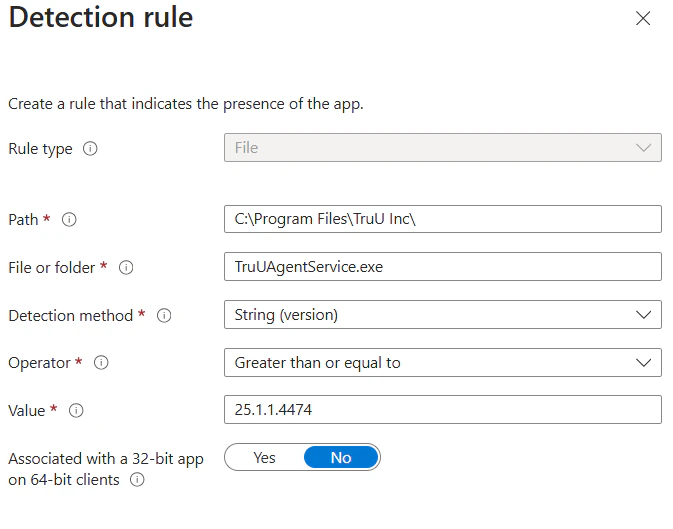 15. Click **OK**, then **Next**.
16. Under **Assignments**, choose Requirement and add the Dynamic group which was created earlier “UserDriven Autopilot Devices”
17. Click **Next → Review → Save.**
***
[Intune Self-Deployment mode Autopilot Enrollment Workflow](/docs/intune-self-deployment-mode-autopilot-enrollment-workflow)
[Windows Authenticator Uninstallation](/docs/windows-authenticator-uninstall-guide)
15. Click **OK**, then **Next**.
16. Under **Assignments**, choose Requirement and add the Dynamic group which was created earlier “UserDriven Autopilot Devices”
17. Click **Next → Review → Save.**
***
[Intune Self-Deployment mode Autopilot Enrollment Workflow](/docs/intune-self-deployment-mode-autopilot-enrollment-workflow)
[Windows Authenticator Uninstallation](/docs/windows-authenticator-uninstall-guide)