> ## Documentation Index
> Fetch the complete documentation index at: https://docs.truu.ai/llms.txt
> Use this file to discover all available pages before exploring further.
# PAM Adapter Setup Guie
> This guide offers detailed instructions for deploying and configuring the TruU Privileged Access Management (PAM) Module on multiple operating systems, including Ubuntu, RedHat, Debian, and AIX. The TruU PAM Module enables biometric authentication for applications and services secured by PAM by interacting with TruU Identity Servers to perform authentication.
**Prerequisites**
The TruU PAM Module is compatible with the following operating systems:
* **Ubuntu**: Versions 22.04, 20.04, and 18.04
* **Red Hat Enterprise Linux (RHEL)**: Versions 9, 8, and 7
* **Debian**: Version 10
* **IBM AIX**: Versions 7.2 and 7.1
In addition, certain firewall ports must be open, as outlined below:
Service: HTTPS
Port: 443
Source: Server hosting PAM Adapter
Destination: Identity Server Load-Balancer
**Description & Endpoint:** This port facilitates secure communication between the servers running the TruU PAM Modules and the TruU Identity Server load balancer. It enables the Identity Server to deliver access decisions, such as approving or denying operating system logins. The **TruU Identity Server(s)** listen for incoming requests on **port 443** from the PAM Module hosts. Communication occurs over SSL, so public certificates trusted by the enterprise root **Certificate Authority (CA)** must be installed on the host operating system.
**Download the TruU PAM Adapter**
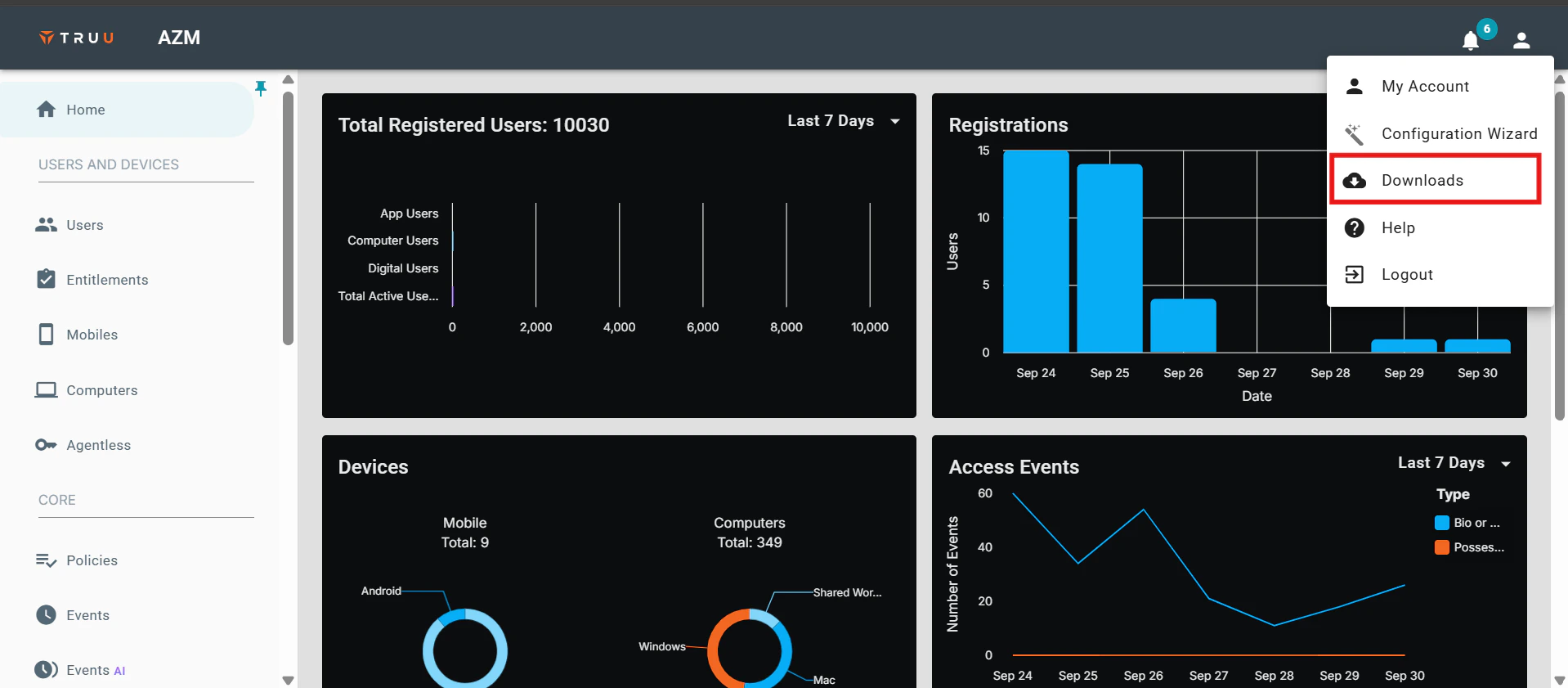
* Sign in to the **TruU Admin Console** and navigate to the **Downloads** section.
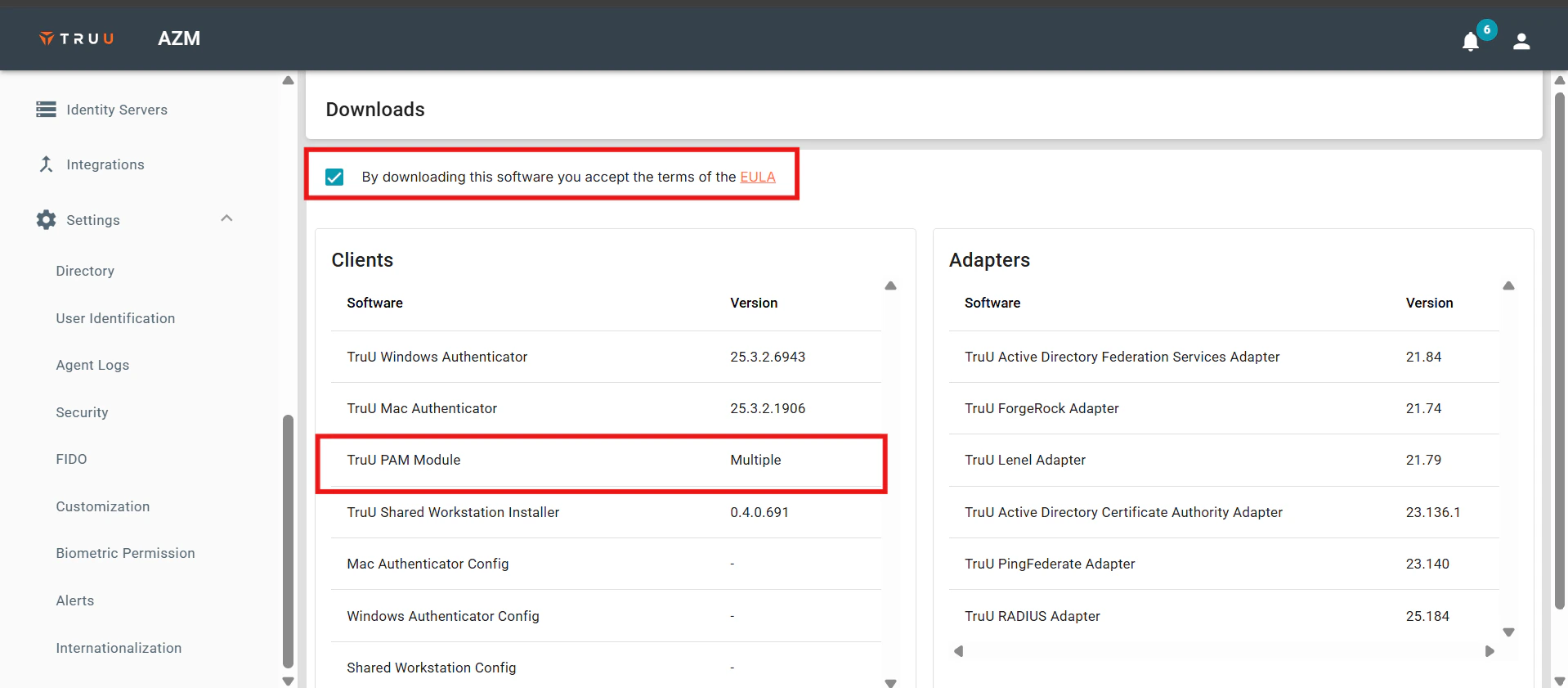
 * Check the **EULA** box and select the **TruU PAM Module** option.
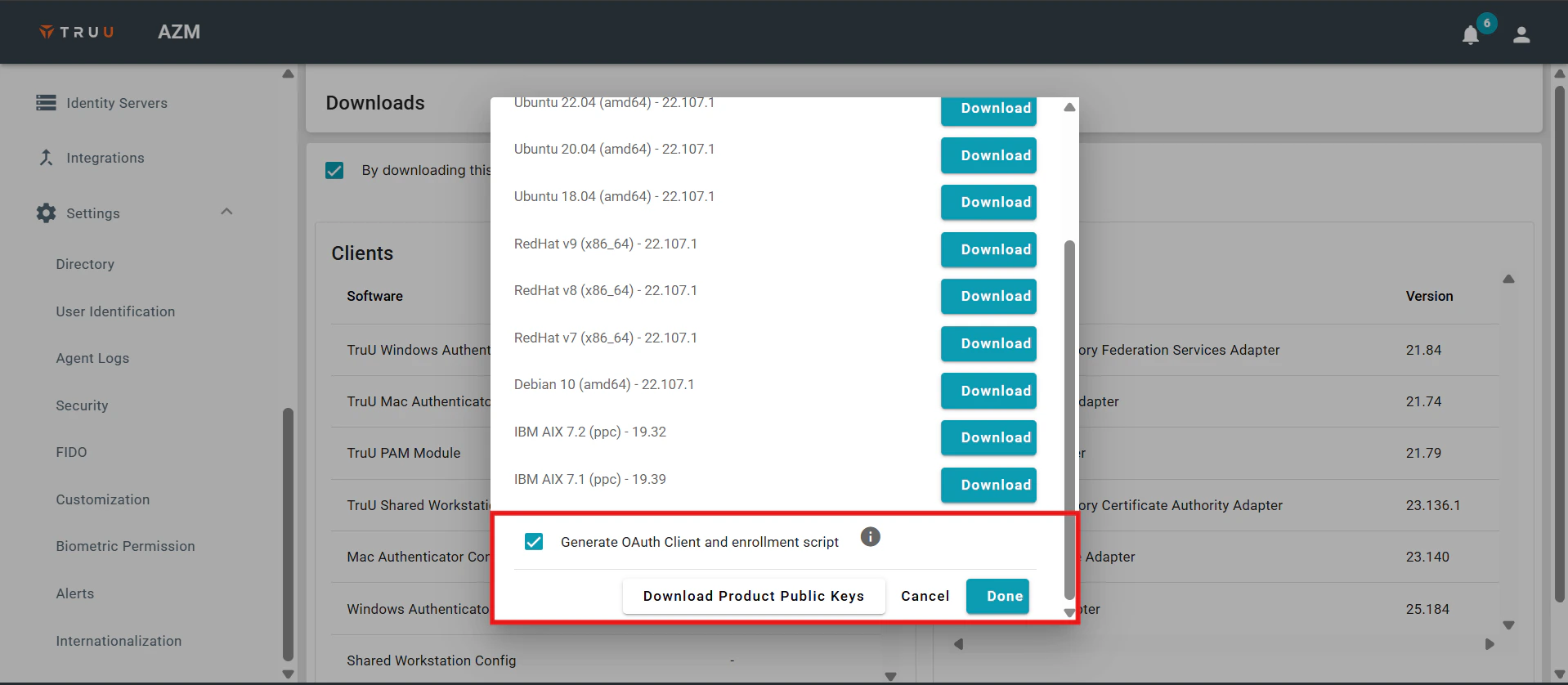
 * Choose the software package that corresponds to your environment, then select the **Generate OAuth Client and Enrollment Script** option. You can also download the **product's public keys**. Click **Done** to initiate the download process.
 **Note:** When deploying the TruU PAM Module on Ubuntu, the process includes enrolling the host server(s) with the TruU service using both the enrollment script and the TruU product public key. Once the module is installed, you can configure authentication for various applications and services running on the Ubuntu server.
**Install the TruU PAM Adapter**
* Transfer the TruU software package designed for Ubuntu, along with the enrollment script and product public key, from the TruU Admin Console to the host server. Ensure the software package is compatible with the host operating system.
**Note**: TruU strongly recommends verifying the fingerprint of the downloaded public key before proceeding with the installation. To do this, run the command that compares the key’s fingerprint to the one displayed in the Downloads section of the TruU Admin Console.
**Note:** When deploying the TruU PAM Module on Ubuntu, the process includes enrolling the host server(s) with the TruU service using both the enrollment script and the TruU product public key. Once the module is installed, you can configure authentication for various applications and services running on the Ubuntu server.
**Install the TruU PAM Adapter**
* Transfer the TruU software package designed for Ubuntu, along with the enrollment script and product public key, from the TruU Admin Console to the host server. Ensure the software package is compatible with the host operating system.
**Note**: TruU strongly recommends verifying the fingerprint of the downloaded public key before proceeding with the installation. To do this, run the command that compares the key’s fingerprint to the one displayed in the Downloads section of the TruU Admin Console.
 * Install the **Product Public Key** on the host operating system using the provided command. This step is required only during the initial installation of the TruU PAM Adapter.
 * Install the Ubuntu software package on the host OS using the specified command.
 * Run the TruU enrollment shell script using the provided command. For additional configuration options available during enrollment, refer to the Appendix section.
 * After installation, the **pam\_truu.conf** file will be created in the **/etc** directory. This file must be owned by the root user and have **0600** permissions. Default configuration parameters for this file are shown in the screenshot below:
 **Note**: The installation process for RedHat involves similar steps: copying the appropriate TruU software package, enrollment script, and product public key from the TruU Admin Console to the host server.
**TruU PAM Adapter Insurance Check**
Ensuring compatibility between the TruU software package and the host operating system is crucial for a successful installation.
* Before proceeding, validate the fingerprint of the downloaded key by running the command that compares it with the fingerprint displayed in the **Downloads** section of the TruU Admin Console. This verification step is critical to the installation process.
**Note**: The installation process for RedHat involves similar steps: copying the appropriate TruU software package, enrollment script, and product public key from the TruU Admin Console to the host server.
**TruU PAM Adapter Insurance Check**
Ensuring compatibility between the TruU software package and the host operating system is crucial for a successful installation.
* Before proceeding, validate the fingerprint of the downloaded key by running the command that compares it with the fingerprint displayed in the **Downloads** section of the TruU Admin Console. This verification step is critical to the installation process.
 * Install the **Product Public** Key on the host operating system using the provided command.
**Note**: This step is only required during the initial installation of the TruU PAM Adapter.
* Install the **Product Public** Key on the host operating system using the provided command.
**Note**: This step is only required during the initial installation of the TruU PAM Adapter.
 * Install the RedHat software package on the host system using the specified command.
 * Run the TruU enrollment shell script using the command provided below. For any additional configuration options during enrollment, refer to the **Appendix** section.
 * After installation, the **pam\_truu.conf** file will be created in the **/etc** directory. This file must be owned by the root user and have **0600** permissions. Default configuration parameters for this file are shown in the screenshot below:
 **AIX Deployment of the TruU PAM Adapter**
When deploying the TruU PAM Adapter on AIX systems, the module is installed on the host server(s) and enrolled with the TruU service using the enrollment script and the TruU product public key. Before starting the deployment, it's important to address specific AIX system requirements. For example, IBM’s open-source ca-certificates package may need to be installed, and PAM must be enabled on the system. IBM also recommends keeping an additional terminal session open with root access during PAM enablement to avoid being locked out.
* To enable PAM authentication, ensure the appropriate settings are configured in the **/etc/security/login.cfg file**. This file controls how user authentication is handled on the system.
**AIX Deployment of the TruU PAM Adapter**
When deploying the TruU PAM Adapter on AIX systems, the module is installed on the host server(s) and enrolled with the TruU service using the enrollment script and the TruU product public key. Before starting the deployment, it's important to address specific AIX system requirements. For example, IBM’s open-source ca-certificates package may need to be installed, and PAM must be enabled on the system. IBM also recommends keeping an additional terminal session open with root access during PAM enablement to avoid being locked out.
* To enable PAM authentication, ensure the appropriate settings are configured in the **/etc/security/login.cfg file**. This file controls how user authentication is handled on the system.
 * Additional configuration is required to enable PAM for the SSH daemon (**sshd**). For detailed steps, refer to IBM's support documentation available via the provided link.


 * Transfer the **TruU software package, enrollment script**, and product public key from the TruU Admin Console to the AIX host server. Make sure the software package is compatible with the host's OS version. You can verify the fingerprint of the downloaded key by running a command that compares it to the fingerprint shown in the **Downloads** section of the TruU Admin Console.
 * Install the Product Public Key using the specified command.
 **Note**: This step is required only during the initial installation of the TruU PAM Adapter.
* After installing the key, install the AIX software package on the host system using the appropriate command.
**Note**: This step is required only during the initial installation of the TruU PAM Adapter.
* After installing the key, install the AIX software package on the host system using the appropriate command.
 * Run the TruU enrollment shell script to complete the enrollment. For advanced configuration options, refer to the **Appendix** section.
 * Once completed, the **pam\_truu.conf** file will be generated in the\*\* /etc\*\* directory. Ensure this file is owned by the root user and has **0600** permissions to maintain security. The file contains default parameters that define its behavior.
 **TruU Pam Module Implementation Possibilities**
**Option One:**
* To enable TruU authentication for users executing the **su** command, a specific configuration stanza must be added at the beginning of the **/etc/pam.d/su** file. This stanza uses the "**sufficient**" control flag, allowing TruU to attempt biometric or FluidID-based authentication. If the TruU authentication attempt fails, the system will fall back to the next authentication method defined in the file. The type of identity challenge (e.g., biometrics or FluidID) is determined by policies configured in the TruU Admin Console.
**TruU Pam Module Implementation Possibilities**
**Option One:**
* To enable TruU authentication for users executing the **su** command, a specific configuration stanza must be added at the beginning of the **/etc/pam.d/su** file. This stanza uses the "**sufficient**" control flag, allowing TruU to attempt biometric or FluidID-based authentication. If the TruU authentication attempt fails, the system will fall back to the next authentication method defined in the file. The type of identity challenge (e.g., biometrics or FluidID) is determined by policies configured in the TruU Admin Console.
 **Option Two**
* To enforce biometric authentication specifically for users accessing the system via SSH, an additional stanza should be placed at the top of the **/etc/pam.d/sshd** file. This ensures that only biometric verification is used during SSH sessions.
In the example configuration, the **enforcebio** option is enabled, requiring biometric authentication regardless of any policies set in the TruU Admin Console. Additionally, the **suppressnotification** option is used to disable push notifications to the user's mobile device. The **hideuserinstruction** option is also applied, removing any on-screen prompts instructing the user to respond through the TruU mobile app. Instead, users must manually open the app, navigate to the Actions menu, and perform a pull-to-refresh gesture to view and respond to the authentication request.
**Option Two**
* To enforce biometric authentication specifically for users accessing the system via SSH, an additional stanza should be placed at the top of the **/etc/pam.d/sshd** file. This ensures that only biometric verification is used during SSH sessions.
In the example configuration, the **enforcebio** option is enabled, requiring biometric authentication regardless of any policies set in the TruU Admin Console. Additionally, the **suppressnotification** option is used to disable push notifications to the user's mobile device. The **hideuserinstruction** option is also applied, removing any on-screen prompts instructing the user to respond through the TruU mobile app. Instead, users must manually open the app, navigate to the Actions menu, and perform a pull-to-refresh gesture to view and respond to the authentication request.
 **Option Three**
* To make TruU the exclusive authentication method for executing the `sudo` command, a specific stanza must be added at the beginning of the `/etc/pam.d/sudo` file. This configuration uses the **"required"** control flag, meaning TruU authentication must succeed for the process to continue.
* Although the **`enforcebio`** option is not explicitly included in this stanza, biometric enforcement can still be controlled through policies defined in the TruU Admin Console. For detailed information on configuring this behavior and understanding **Policy Groups**, refer to the **Appendix** section.
**Option Three**
* To make TruU the exclusive authentication method for executing the `sudo` command, a specific stanza must be added at the beginning of the `/etc/pam.d/sudo` file. This configuration uses the **"required"** control flag, meaning TruU authentication must succeed for the process to continue.
* Although the **`enforcebio`** option is not explicitly included in this stanza, biometric enforcement can still be controlled through policies defined in the TruU Admin Console. For detailed information on configuring this behavior and understanding **Policy Groups**, refer to the **Appendix** section.
 **Option Four**
* The `pam_truu.so` configuration file includes several options that can be customized to fine-tune the authentication process based on specific requirements.
For example:
* **`debug`**: When enabled, this option logs debugging information to syslog using the AUTH facility, which is helpful for troubleshooting.
* **`enforcebio`**: Forces the TruU Identity Server to always require biometric authentication for user verification, regardless of console policies.
* **`nooauthcach`**: Disables OAuth token caching, ensuring a new token is requested during each authentication attempt. This is especially relevant in standalone mode.
* **`https_timeout=#`**: Specifies the maximum time (in seconds) to wait for an authentication response before timing out.
* **`https_oauth_timeout=#`**: Sets the time limit for retrieving an OAuth token.
**For deployments not using a caching server:**
* **`standalone`**: Enables standalone mode, allowing the adapter to function without a caching service.
* **`failifnoqueueserver`**: Prevents the module from attempting to retrieve an OAuth token if no queue server is available.
* **`disablequeueautostart`**: Stops the queue service from starting automatically.
* **`disablerestartonqueuetimeout`**: Prevents automatic restarts of the queue service when communication timeouts occur between `pam_truu` and `truuservice`.
**To customize the user experience:**
* **`suppressnotification`**: Disables push notifications during authentication, requiring users to manually open the TruU mobile app and refresh the **Actions** menu to view pending approvals.
* **`hideuserinstruction`**: Removes any on-screen instructions prompting users to respond via the mobile app. Additionally, policies can be centrally managed via the **TruU Admin Console**. Administrators can apply consistent policies across multiple servers by assigning them to **Entitlement Groups** through the **Entitlements** tab (under the "Server" or "Computers" page).
**Important**: Any settings configured directly in the pam\_truu.so file on the server will override policies set in the Admin Console. For instance, if the console allows both biometric and behavioral authentication, but the enforcebio flag is set locally in a PAM-enabled application, users will be required to use biometric authentication exclusively.
**Option Four**
* The `pam_truu.so` configuration file includes several options that can be customized to fine-tune the authentication process based on specific requirements.
For example:
* **`debug`**: When enabled, this option logs debugging information to syslog using the AUTH facility, which is helpful for troubleshooting.
* **`enforcebio`**: Forces the TruU Identity Server to always require biometric authentication for user verification, regardless of console policies.
* **`nooauthcach`**: Disables OAuth token caching, ensuring a new token is requested during each authentication attempt. This is especially relevant in standalone mode.
* **`https_timeout=#`**: Specifies the maximum time (in seconds) to wait for an authentication response before timing out.
* **`https_oauth_timeout=#`**: Sets the time limit for retrieving an OAuth token.
**For deployments not using a caching server:**
* **`standalone`**: Enables standalone mode, allowing the adapter to function without a caching service.
* **`failifnoqueueserver`**: Prevents the module from attempting to retrieve an OAuth token if no queue server is available.
* **`disablequeueautostart`**: Stops the queue service from starting automatically.
* **`disablerestartonqueuetimeout`**: Prevents automatic restarts of the queue service when communication timeouts occur between `pam_truu` and `truuservice`.
**To customize the user experience:**
* **`suppressnotification`**: Disables push notifications during authentication, requiring users to manually open the TruU mobile app and refresh the **Actions** menu to view pending approvals.
* **`hideuserinstruction`**: Removes any on-screen instructions prompting users to respond via the mobile app. Additionally, policies can be centrally managed via the **TruU Admin Console**. Administrators can apply consistent policies across multiple servers by assigning them to **Entitlement Groups** through the **Entitlements** tab (under the "Server" or "Computers" page).
**Important**: Any settings configured directly in the pam\_truu.so file on the server will override policies set in the Admin Console. For instance, if the console allows both biometric and behavioral authentication, but the enforcebio flag is set locally in a PAM-enabled application, users will be required to use biometric authentication exclusively.
 * Certain modifications are required in the `sshd_config` file to enable sshd integration with `pam_truu`.
 * To apply the changes, restart PAM by running the appropriate command.
 * Similarly, to ensure consistent authentication prompts for sudo commands, the `sudoers` file must be updated accordingly.
 Once these modifications are in place, all sudo operations will be handled by `pam_truu`, enabling auditing and enforcement of policies.
If the module becomes unresponsive, the issue may be due to a stuck IPC queue. This can happen if the `truuservice` hangs or is forcibly terminated (e.g., with `kill -9`), leaving behind an orphaned IPC queue disconnected from any active service. To investigate, use the `ipcs` command.
Once these modifications are in place, all sudo operations will be handled by `pam_truu`, enabling auditing and enforcement of policies.
If the module becomes unresponsive, the issue may be due to a stuck IPC queue. This can happen if the `truuservice` hangs or is forcibly terminated (e.g., with `kill -9`), leaving behind an orphaned IPC queue disconnected from any active service. To investigate, use the `ipcs` command.
 Upon execution of this command, look for a queue with the key *0x54727555*, which corresponds to the TruU queue. It is also important to note the user associated with this queue; it should be "root". If the queue belongs to a different user, the appropriate action is to terminate all '"truuservice" processes and then remove the IPC queue, assuming it does not get removed automatically. Additionally, verify that the permissions for the "/etc/pam\_truu.conf" file are correctly set to root ownership with 0600 permissions.
Look for a queue with the key `0x54727555`, which identifies the TruU queue. Verify the queue’s owner; it should be `root`. If it’s owned by a different user, terminate all `truuservice` processes and manually remove the IPC queue if it hasn’t been automatically cleared. Also, confirm that `/etc/pam_truu.conf` is owned by root and has `0600` permissions.
If the `truuservice` is not running (check with `ps aux | grep truuservice`) but the queue key still exists, there are two main ways to resolve the issue:
1. Run `/usr/sbin/truuservice` as root, which will remove the old queue and restart the service automatically.
2. Use the `ipcrm` command to manually delete the queue, for example:
```bash bash theme={null}
ipcrm -Q 0x54727555
```
This command must be run as root to have the necessary permissions.
***
[Cloud RADIUS Adapter Setup Guide](/docs/cloud-radius-setup-guide)
[Required System Permissions](/docs/required-system-permissions)
Upon execution of this command, look for a queue with the key *0x54727555*, which corresponds to the TruU queue. It is also important to note the user associated with this queue; it should be "root". If the queue belongs to a different user, the appropriate action is to terminate all '"truuservice" processes and then remove the IPC queue, assuming it does not get removed automatically. Additionally, verify that the permissions for the "/etc/pam\_truu.conf" file are correctly set to root ownership with 0600 permissions.
Look for a queue with the key `0x54727555`, which identifies the TruU queue. Verify the queue’s owner; it should be `root`. If it’s owned by a different user, terminate all `truuservice` processes and manually remove the IPC queue if it hasn’t been automatically cleared. Also, confirm that `/etc/pam_truu.conf` is owned by root and has `0600` permissions.
If the `truuservice` is not running (check with `ps aux | grep truuservice`) but the queue key still exists, there are two main ways to resolve the issue:
1. Run `/usr/sbin/truuservice` as root, which will remove the old queue and restart the service automatically.
2. Use the `ipcrm` command to manually delete the queue, for example:
```bash bash theme={null}
ipcrm -Q 0x54727555
```
This command must be run as root to have the necessary permissions.
***
[Cloud RADIUS Adapter Setup Guide](/docs/cloud-radius-setup-guide)
[Required System Permissions](/docs/required-system-permissions)