> ## Documentation Index
> Fetch the complete documentation index at: https://docs.truu.ai/llms.txt
> Use this file to discover all available pages before exploring further.
# Configuring Physical Access Badge for Shared Workstation
> The physical access badge solution for Shared Workstations (SW) provides a secure and efficient login experience by allowing users to authenticate with a simple tap on an attached card reader.
To enable this workflow, administrators must perform a one-time setup in the TruU console to ensure the system correctly interprets badge hardware formats (such as facility codes) and links the scanned data to the correct user identity through directory attributes or manual registration
TruU does not connect directly to a physical badging system; instead, it reads badge data from your corporate directory or through manual user registration
## Badge Use Requirements:
In order for users to use an access badge to access a Shared Workstation, you will need to do the following:
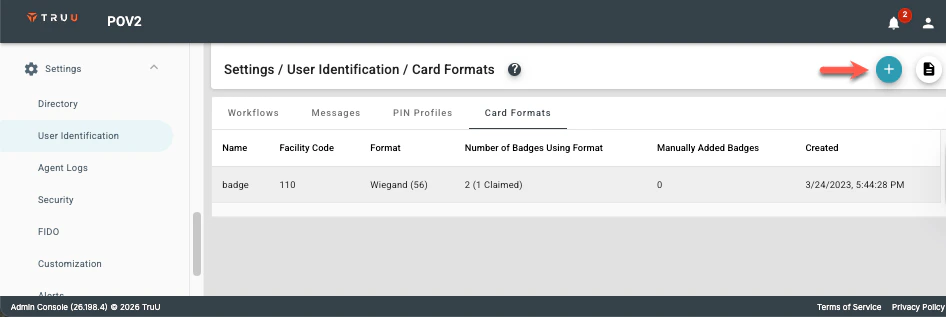
1. You will need to add the Card Format for the access cards used in your organization so that TruU knows how to read a badge when it is scanned. Go to Settings > User Identification > Card Formats to set this up.
 2. Enable users to use access badges in one of the following ways:
1. If your badge values are in your user directory, you will need to set up a Global Attribute with an ‘Attribute Type’ of ‘Access Badge’.
2. Enable users to use access badges in one of the following ways:
1. If your badge values are in your user directory, you will need to set up a Global Attribute with an ‘Attribute Type’ of ‘Access Badge’.
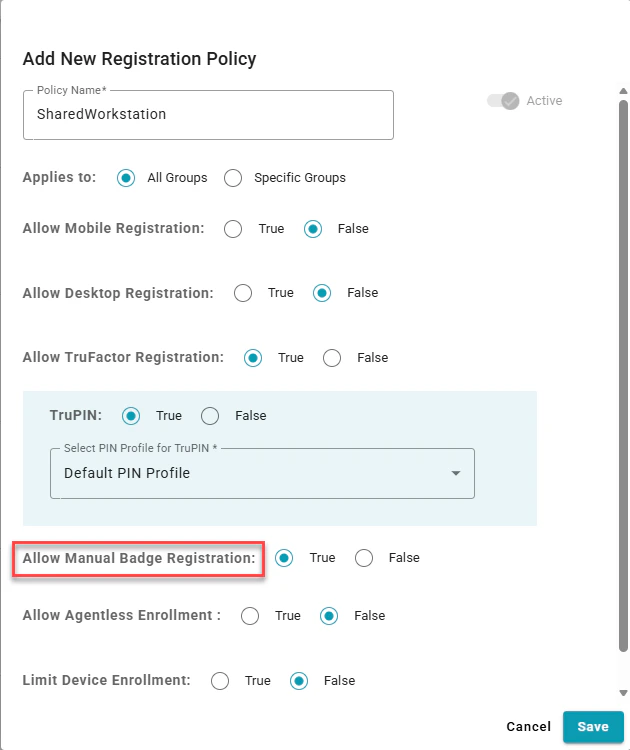
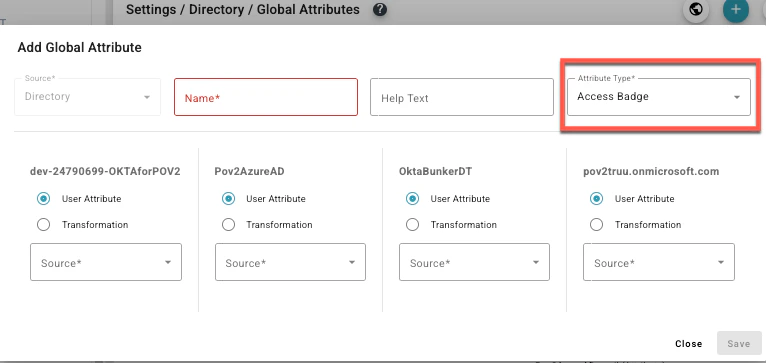 ii. If your badge values are not in your user directory, you will need to enable your users to register their badges through the User Portal by enabling “Allow Manual Badge Registration” as a Registration Policy.
 ## Card Formats
Card Formats define how physical access badges are interpreted by TruU during badge-based authentication. Configure Card Formats for your Shared Workstation users based on your organization’s Physical Access Control System (PACS).
In the TruU admin console, navigate to Settings > User Identification > Card Formats and click on the blue plus (+) icon:
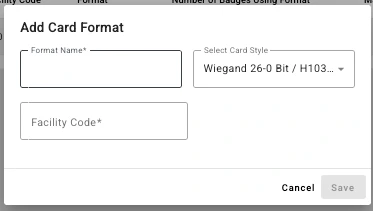
To add a card:
1. Provide a name for the card format.
2. Select the card style from the pre-configured dropdown (or configure your own card format by selecting ‘Advanced Configuration’),
3. Provide a facility code (value between 1-255).
4. Click Save
## Card Formats
Card Formats define how physical access badges are interpreted by TruU during badge-based authentication. Configure Card Formats for your Shared Workstation users based on your organization’s Physical Access Control System (PACS).
In the TruU admin console, navigate to Settings > User Identification > Card Formats and click on the blue plus (+) icon:
To add a card:
1. Provide a name for the card format.
2. Select the card style from the pre-configured dropdown (or configure your own card format by selecting ‘Advanced Configuration’),
3. Provide a facility code (value between 1-255).
4. Click Save
 ***
[Creating Policies for Shared Workstation Login](/docs/policies-1)
[Group Policy Setup for Shared Workstaion](/docs/group-policy-setup-for-shared-workstaion)
***
[Creating Policies for Shared Workstation Login](/docs/policies-1)
[Group Policy Setup for Shared Workstaion](/docs/group-policy-setup-for-shared-workstaion)