> ## Documentation Index
> Fetch the complete documentation index at: https://docs.truu.ai/llms.txt
> Use this file to discover all available pages before exploring further.
# TruU + PingFederate Integration Guide
> This guide covers the end-to-end configuration required to register TruU as a SAML Identity Provider in PingFederate and enable passwordless authentication for the TruU User Portal.
## **1**. **Overview**
This guide provides the steps required to configure TruU as a SAML 2.0 Identity Provider (IdP) within PingFederate, enabling passwordless authentication for the TruU User Portal.
**1.1 Authentication Flow**
**End-to-End Flow**
> 1. User navigates to the TruU User Portal login page.
> 2. Portal redirects to PingFederate for authentication.
> 3. PingFederate presents both login options:
> * Username / Password (Active Directory)
> * "Sign in with TruU Passwordless"
> 4. On passwordless selection, PingFederate delegates to the TruU SAML IdP Connection.
> 5. TruU authenticates the user and returns a SAML assertion to PingFederate.
> 6. PingFederate issues a SAML assertion to the User Portal (SP Connection).
> 7. User is logged into the portal.
**1.2 Prerequisites**
Ensure the following are in place before proceeding:
> * PingFederate Admin Access
> * Active Directory / LDAP Data Store — AD-Directory already configured.
> * AD Password Credential Validator (AD-PCV) — already configured in PingFederate.
> * TruU Admin Console Access — with permissions to configure SAML integrations.
> * TruU User Portal — deployed and accessible.
## **PART A — TRUU ADMIN CONSOLE: SAML CONFIGURATION**
## **2. Configure TruU as a SAML Identity Provider**
Log in to the TruU Admin Console and complete the following steps to create a SAML adapter that will act as the IdP for PingFederate.
**2.1 Create the SAML Adapter**
> * Step 1: Log in to the TruU Admin Console.
> * Step 2: Navigate to Integrations → Single Sign-On.
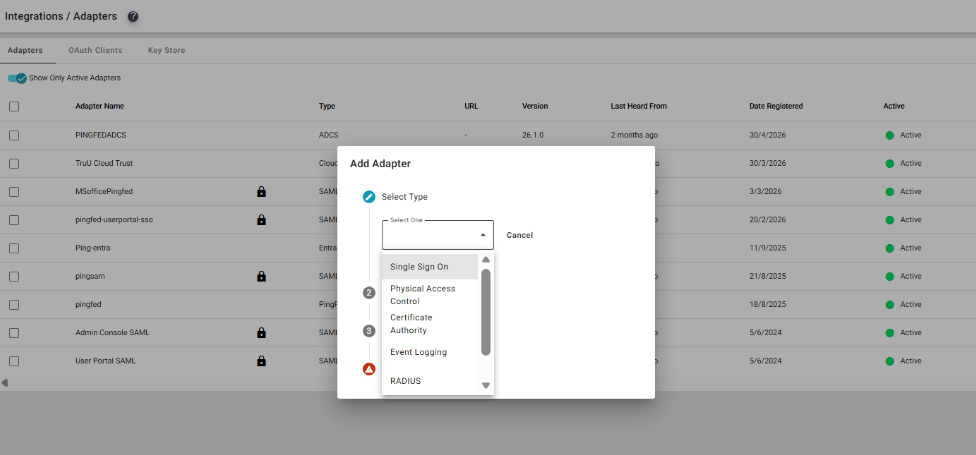 > * Step 3: Click Add and select Adapter Type: SAML.
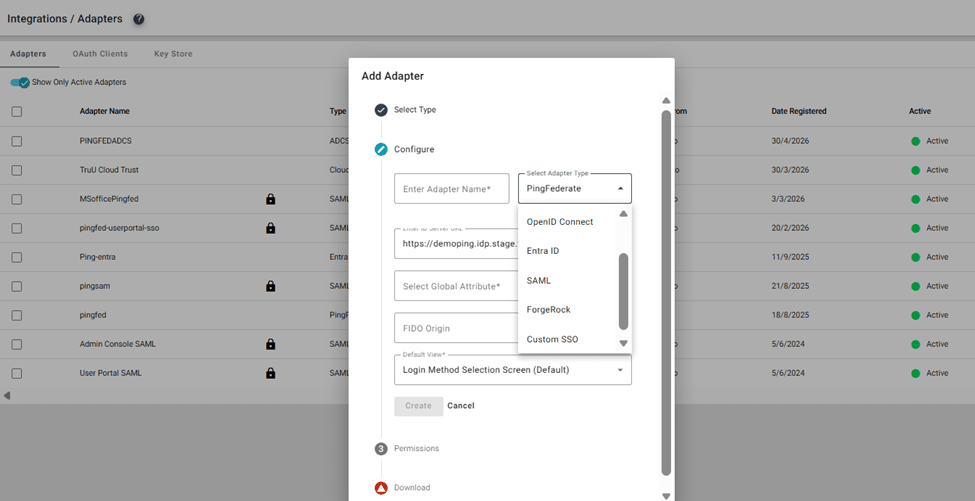 > * Step 4: Enter the Adapter Name and set FIDO Origin to your environment-specific IdP domain (e.g.,demoping.idp.truu.ai).
> * Step 5: Under Assertion Attributes, add: userPrincipalName.
> * Step 6: Set the Partner's Entity ID and ACS URL to match your PingFederate SP Connection values.
> * Step 4: Enter the Adapter Name and set FIDO Origin to your environment-specific IdP domain (e.g.,demoping.idp.truu.ai).
> * Step 5: Under Assertion Attributes, add: userPrincipalName.
> * Step 6: Set the Partner's Entity ID and ACS URL to match your PingFederate SP Connection values.
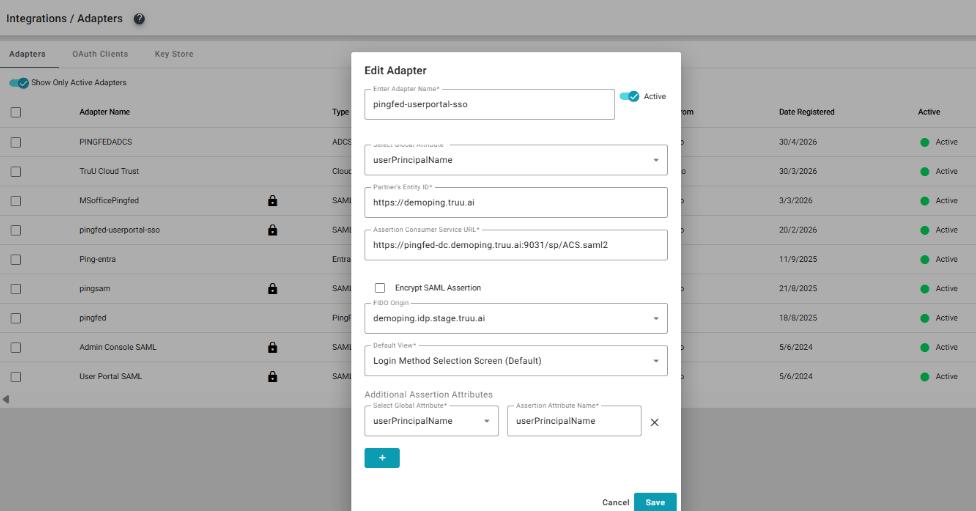 > * Step 7: Click Download IDP Metadata and save the file — this will be needed in Part B.
| **Field** | **Value** |
| ------------------- | ----------------------------------------------------------------------------------- |
| Adapter Type | SAML |
| FIDO Origin | [demoping.idp.stage.truu.ai](http://demoping.idp.stage.truu.ai) |
| Assertion Attribute | userPrincipalName |
| Partner Entity ID | [https://demoping.truu.ai](https://demoping.truu.ai) |
| ACS URL | https\:// pingfed-dc [demoping.truu.ai](http://demoping.truu.ai)::9031/sp/Acs.saml2 |
**2.2 Configure User Portal Metadata (TruU Side)**
Step 1: In the TruU Admin Console, navigate to Settings → Security → Sign. \
Step 2: Click User Portal → Configure IdP and SP Metadata. \
Step 3: In the IdP Metadata section, provide:
> * Entity ID — the PingFederate IdP entity ID
> * SSO Login URL — the PingFederate SSO endpoint.
> * IdP Signing Certificate — import the PingFederate signing certificate (X.509).
> * Step 7: Click Download IDP Metadata and save the file — this will be needed in Part B.
| **Field** | **Value** |
| ------------------- | ----------------------------------------------------------------------------------- |
| Adapter Type | SAML |
| FIDO Origin | [demoping.idp.stage.truu.ai](http://demoping.idp.stage.truu.ai) |
| Assertion Attribute | userPrincipalName |
| Partner Entity ID | [https://demoping.truu.ai](https://demoping.truu.ai) |
| ACS URL | https\:// pingfed-dc [demoping.truu.ai](http://demoping.truu.ai)::9031/sp/Acs.saml2 |
**2.2 Configure User Portal Metadata (TruU Side)**
Step 1: In the TruU Admin Console, navigate to Settings → Security → Sign. \
Step 2: Click User Portal → Configure IdP and SP Metadata. \
Step 3: In the IdP Metadata section, provide:
> * Entity ID — the PingFederate IdP entity ID
> * SSO Login URL — the PingFederate SSO endpoint.
> * IdP Signing Certificate — import the PingFederate signing certificate (X.509).
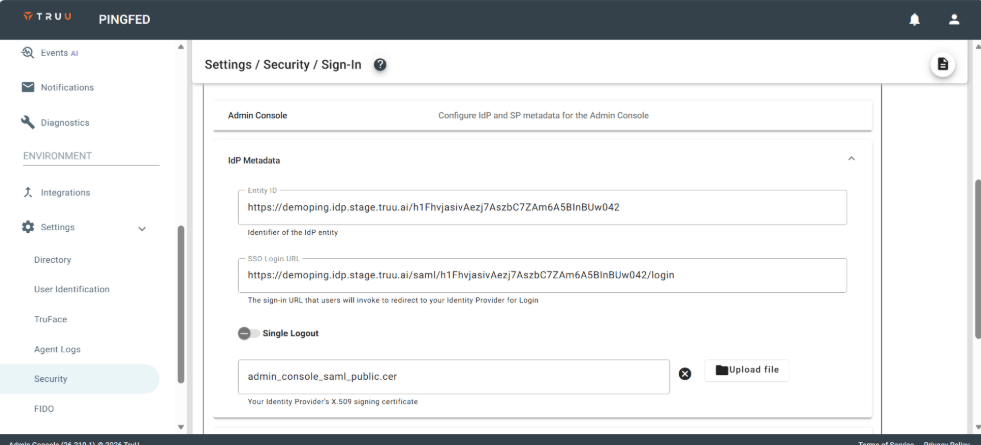 **Step 4:** Save the configuration.
## **PART B — PINGFEDERATE: TRUU IDP CONNECTION**
## **3. Register TruU as an IdP Connection in PingFederate**
This section configures PingFederate to trust TruU as a SAML 2.0 Identity Provider. The TruU IDP Metadata file downloaded in Step 2.1 is required.
**3.1 Create the TruU IdP Connection**
Step 1: Log in to the PingFederate Admin Console. \
Step 2: Navigate to Authentication → Integration → IdP Connections. \
Step 3: Click Create Connection. \
Step 4: On the Connection Type tab, select: Browser SSO Profiles → SAML 2.0. \
Step 5: On the Connection Options tab, check: Browser SSO.
**3.2 Load TruU Metadata**
Step 6: On the General Info tab, click Metadata URL → Manage Partners Metadata URL. \
Step 7: Provide a name and the TruU metadata URL (or upload the downloaded XML file).
**Step 4:** Save the configuration.
## **PART B — PINGFEDERATE: TRUU IDP CONNECTION**
## **3. Register TruU as an IdP Connection in PingFederate**
This section configures PingFederate to trust TruU as a SAML 2.0 Identity Provider. The TruU IDP Metadata file downloaded in Step 2.1 is required.
**3.1 Create the TruU IdP Connection**
Step 1: Log in to the PingFederate Admin Console. \
Step 2: Navigate to Authentication → Integration → IdP Connections. \
Step 3: Click Create Connection. \
Step 4: On the Connection Type tab, select: Browser SSO Profiles → SAML 2.0. \
Step 5: On the Connection Options tab, check: Browser SSO.
**3.2 Load TruU Metadata**
Step 6: On the General Info tab, click Metadata URL → Manage Partners Metadata URL. \
Step 7: Provide a name and the TruU metadata URL (or upload the downloaded XML file).
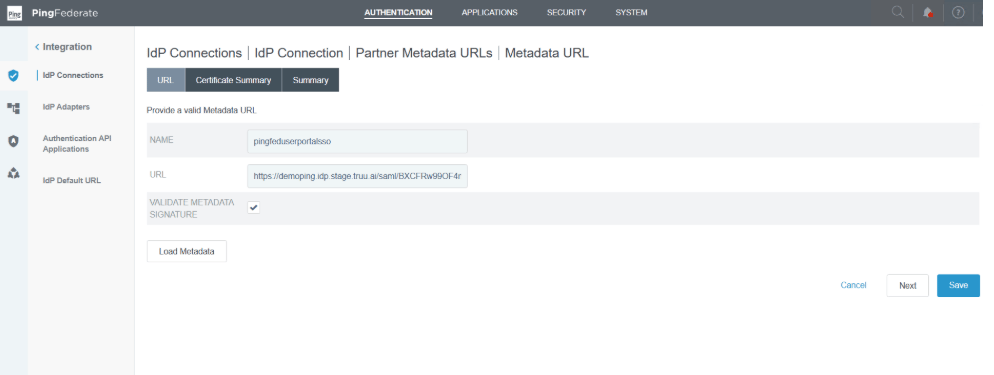 Step 8: Check Validate Metadata Signature and load the metadata.
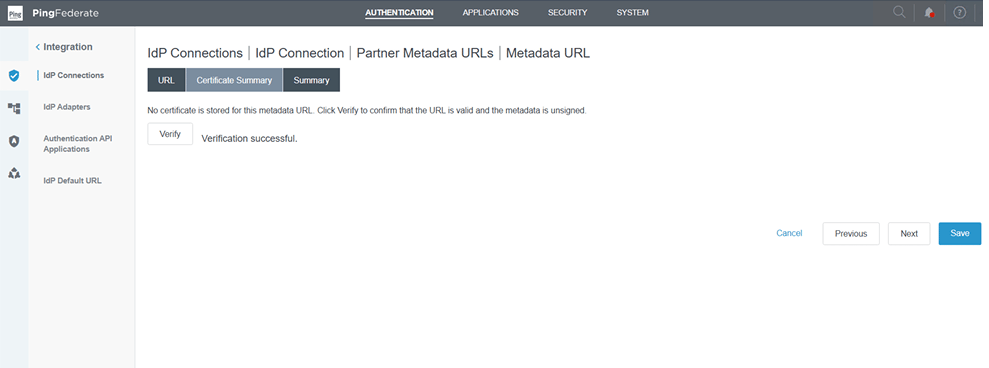 Step 9: Verify the certificate in the Certificate Summary and click Save.
| **⚠** | *The metadata auto-populates the Partner Entity ID, Connection Name, Base URL, and SSO Service URLs. Verify these match your TruU environment.* |
| :---- | :---------------------------------------------------------------------------------------------------------------------------------------------- |
| Field | Example Value |
| --------------------------------- | --------------------------------------------------------------------------------------------------------------------------------------------------- |
| Partner Entity ID (Connection ID) | [https://demoping.idp.stage.truu.ai/BXCFRw99OF4mWebN1zSdIMk4a1GpPlrwlZa C](https://demoping.idp.stage.truu.ai/BXCFRw99OF4mWebN1zSdIMk4a1GpPlrwlZaC) |
| Connection Name | [https://demoping.idp.stage.truu.ai/BXCFRw99OF4mWebN1zSdIMk4a1GpPlrwlZaC](https://demoping.idp.stage.truu.ai/BXCFRw99OF4mWebN1zSdIMk4a1GpPlrwlZaC) |
| Base URL | URL: [https://demoping.idp.stage.truu.ai](https://demoping.idp.stage.truu.ai) |
| POST SSO URL | /saml/BXCFRw99OF4mWebN1zSdIMk4a1GpPlrwlZaC/login |
| Redirect SSO URL | /saml/BXCFRw99OF4mWebN1zSdIMk4a1GpPlrwlZaC/login |
**3.3 Configure Browser SSO**
Step 10: Select Browser SSO → Click Configure Browser SSO.\
Step 11: Enable both IdP-Initiated SSO and SP-Initiated SSO.\
Step 12: Under User-Session Creation, click Configure User-Session Creation → select Account Mapping.
**3.4 Attribute Contract**
Step 13: In the Attribute Contract section, add the attribute: userPrincipalName. \
Step 14: Save the attribute contract.
| **Attribute** | **Format** |
| ----------------- | ----------------------------------------------------- |
| SAML\_SUBJECT | urn:oasis:names:tc:SAML:1.1:nameid-format:unspecified |
| userPrincipalName | urn:oasis:names:tc:SAML:2.0:attrname-format:basic |
**3.5 Target Session Mapping & Policy Contract**
Step 15: Under Target Session Mapping, select Map Authentication Policy.\
Step 16: Create a new Policy Contract (e.g., TruUUserPortalContract).\
Step 17: In Contract Attributes, add: userPrincipalName. Save.\
Step 18: Under Attribute Retrieval, select: Use only the attributes available in the SSO Assertion.
**3.6 Contract Fulfillment**
Map the assertion attributes to the policy contract as follows:
| **Attribute** | **Source** | **Value** |
| ----------------- | ---------- | ----------------- |
| subject | Assertion | SAML\_SUBJECT |
| userPrincipalName | Assertion | userPrincipalName |
**3.7 Protocol Settings**
* Click Protocol Settings → Configure Protocol Settings.
**SSO Service URLs**
* Under SSO Service URLs, confirm both POST and Redirect endpoints are populated automatically from the TruU IDP Metadata. The URLs should appear as follows:
| **Binding** | **Endpoint URL** |
| ----------- | ------------------------------------------------ |
| POST | /saml/xHyJveZy1UZAmNWvL03wCtyIBgylzljLKW1V/login |
| Redirect | /saml/xHyJveZy1UZAmNWvL03wCtyIBgylzljLKW1V/login |
**NOTE** : These SSO Service URL values are extracted automatically from the TruU IDP Metadata file. The adapter ID segment in the URL path is unique to your TruU environment and will differ from the example above. Do not modify these values manually.
**3.8 Credentials**
Step 19: Navigate to the Credentials tab.\
Step 20: Set Trust Model to: Unanchored.\
Step 21: In Certificate Management, import the X.509 Signing Certificate from the TruU IDP Metadata file.
Step 9: Verify the certificate in the Certificate Summary and click Save.
| **⚠** | *The metadata auto-populates the Partner Entity ID, Connection Name, Base URL, and SSO Service URLs. Verify these match your TruU environment.* |
| :---- | :---------------------------------------------------------------------------------------------------------------------------------------------- |
| Field | Example Value |
| --------------------------------- | --------------------------------------------------------------------------------------------------------------------------------------------------- |
| Partner Entity ID (Connection ID) | [https://demoping.idp.stage.truu.ai/BXCFRw99OF4mWebN1zSdIMk4a1GpPlrwlZa C](https://demoping.idp.stage.truu.ai/BXCFRw99OF4mWebN1zSdIMk4a1GpPlrwlZaC) |
| Connection Name | [https://demoping.idp.stage.truu.ai/BXCFRw99OF4mWebN1zSdIMk4a1GpPlrwlZaC](https://demoping.idp.stage.truu.ai/BXCFRw99OF4mWebN1zSdIMk4a1GpPlrwlZaC) |
| Base URL | URL: [https://demoping.idp.stage.truu.ai](https://demoping.idp.stage.truu.ai) |
| POST SSO URL | /saml/BXCFRw99OF4mWebN1zSdIMk4a1GpPlrwlZaC/login |
| Redirect SSO URL | /saml/BXCFRw99OF4mWebN1zSdIMk4a1GpPlrwlZaC/login |
**3.3 Configure Browser SSO**
Step 10: Select Browser SSO → Click Configure Browser SSO.\
Step 11: Enable both IdP-Initiated SSO and SP-Initiated SSO.\
Step 12: Under User-Session Creation, click Configure User-Session Creation → select Account Mapping.
**3.4 Attribute Contract**
Step 13: In the Attribute Contract section, add the attribute: userPrincipalName. \
Step 14: Save the attribute contract.
| **Attribute** | **Format** |
| ----------------- | ----------------------------------------------------- |
| SAML\_SUBJECT | urn:oasis:names:tc:SAML:1.1:nameid-format:unspecified |
| userPrincipalName | urn:oasis:names:tc:SAML:2.0:attrname-format:basic |
**3.5 Target Session Mapping & Policy Contract**
Step 15: Under Target Session Mapping, select Map Authentication Policy.\
Step 16: Create a new Policy Contract (e.g., TruUUserPortalContract).\
Step 17: In Contract Attributes, add: userPrincipalName. Save.\
Step 18: Under Attribute Retrieval, select: Use only the attributes available in the SSO Assertion.
**3.6 Contract Fulfillment**
Map the assertion attributes to the policy contract as follows:
| **Attribute** | **Source** | **Value** |
| ----------------- | ---------- | ----------------- |
| subject | Assertion | SAML\_SUBJECT |
| userPrincipalName | Assertion | userPrincipalName |
**3.7 Protocol Settings**
* Click Protocol Settings → Configure Protocol Settings.
**SSO Service URLs**
* Under SSO Service URLs, confirm both POST and Redirect endpoints are populated automatically from the TruU IDP Metadata. The URLs should appear as follows:
| **Binding** | **Endpoint URL** |
| ----------- | ------------------------------------------------ |
| POST | /saml/xHyJveZy1UZAmNWvL03wCtyIBgylzljLKW1V/login |
| Redirect | /saml/xHyJveZy1UZAmNWvL03wCtyIBgylzljLKW1V/login |
**NOTE** : These SSO Service URL values are extracted automatically from the TruU IDP Metadata file. The adapter ID segment in the URL path is unique to your TruU environment and will differ from the example above. Do not modify these values manually.
**3.8 Credentials**
Step 19: Navigate to the Credentials tab.\
Step 20: Set Trust Model to: Unanchored.\
Step 21: In Certificate Management, import the X.509 Signing Certificate from the TruU IDP Metadata file.
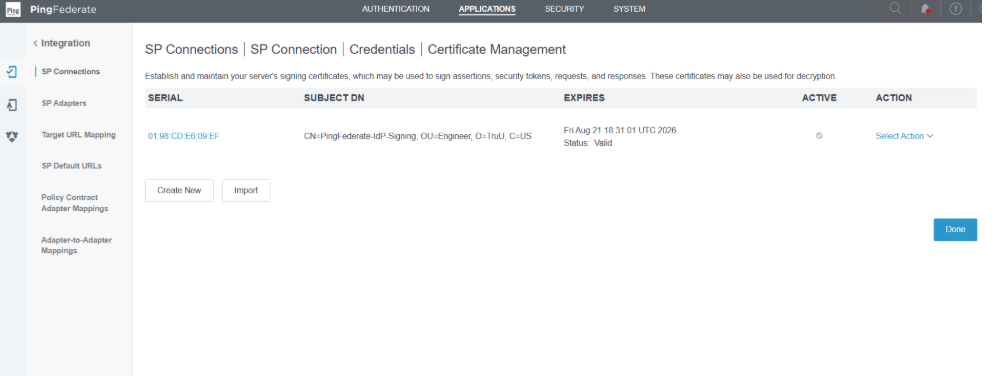 Step 22: Save the IdP Connection.
## **PART C — PINGFEDERATE: USER PORTAL SP CONNECTION**
## **4. Configure the TruU User Portal SP Connection**
This SP Connection defines how PingFederate issues SAML assertions to the TruU User Portal after a user successfully authenticates.
**4.1 Create the SP Connection**
Step 1: Navigate to Applications → Integration → SP Connections.\
Step 2: Click Create Connection.\
Step 3: On Connection Type, select: Browser SSO Profiles → SAML 2.0.\
Step 4: On Connection Options, check: Browser SSO.
**4.2 General Info**
Step 5: On the General Info tab, set the Partner Entity ID:
Step 22: Save the IdP Connection.
## **PART C — PINGFEDERATE: USER PORTAL SP CONNECTION**
## **4. Configure the TruU User Portal SP Connection**
This SP Connection defines how PingFederate issues SAML assertions to the TruU User Portal after a user successfully authenticates.
**4.1 Create the SP Connection**
Step 1: Navigate to Applications → Integration → SP Connections.\
Step 2: Click Create Connection.\
Step 3: On Connection Type, select: Browser SSO Profiles → SAML 2.0.\
Step 4: On Connection Options, check: Browser SSO.
**4.2 General Info**
Step 5: On the General Info tab, set the Partner Entity ID:
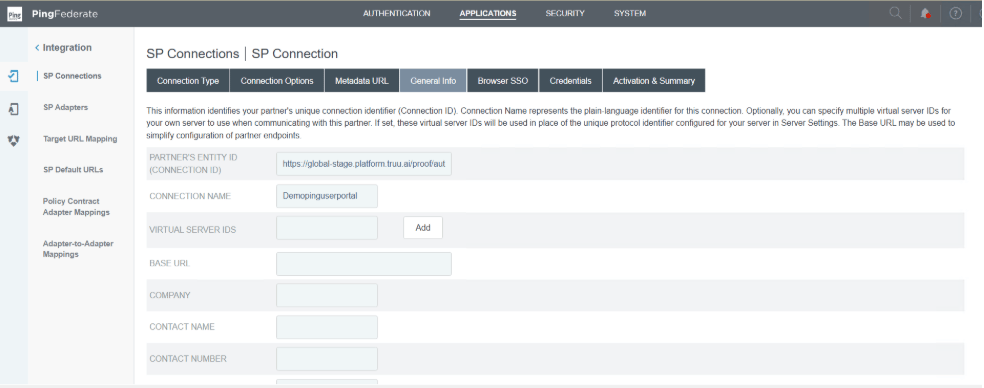 | | **User Portal Entity ID**[https://globalstage.platform.truu.ai/proof/auth/sso/portal/metadata/\](https://globalstage.platform.truu.ai/proof/auth/sso/portal/metadata/\) This value is found in TruU Admin Console → Settings → Security → Sign → User Portal → Configure IdP and SP Metadata → SP Metadata section. |
| :- | :-------------------------------------------------------------------------------------------------------------------------------------------------------------------------------------------------------------------------------------------------------------------------------------------------------------------------------------------- |
**4.3 Browser SSO — Assertion Creation** \
\
Step 6: Select Browser SSO → Configure Browser SSO. \
Step 7: Enable both IdP-Initiated SSO and SP-Initiated SSO. \
Step 8: Under Assertion Creation, click Configure Assertion Creation → select Standard.
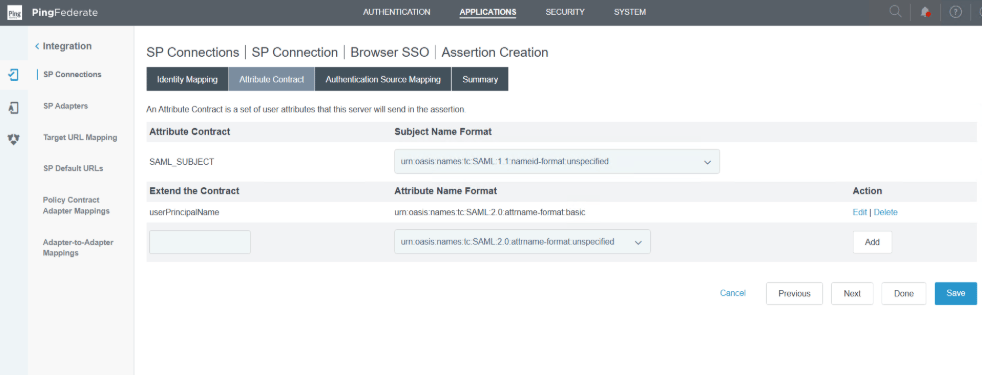
**4.4 Attribute Contract**
| Attribute | Name Format |
| ----------------- | ----------------------------------------------------- |
| SAML\_SUBJECT | urn:oasis:names:tc:SAML:1.1:nameid-format:unspecified |
| userPrincipalName | urn:oasis:names:tc:SAML:2.0:attrname-format:basic |
| | **User Portal Entity ID**[https://globalstage.platform.truu.ai/proof/auth/sso/portal/metadata/\](https://globalstage.platform.truu.ai/proof/auth/sso/portal/metadata/\) This value is found in TruU Admin Console → Settings → Security → Sign → User Portal → Configure IdP and SP Metadata → SP Metadata section. |
| :- | :-------------------------------------------------------------------------------------------------------------------------------------------------------------------------------------------------------------------------------------------------------------------------------------------------------------------------------------------- |
**4.3 Browser SSO — Assertion Creation** \
\
Step 6: Select Browser SSO → Configure Browser SSO. \
Step 7: Enable both IdP-Initiated SSO and SP-Initiated SSO. \
Step 8: Under Assertion Creation, click Configure Assertion Creation → select Standard.
**4.4 Attribute Contract**
| Attribute | Name Format |
| ----------------- | ----------------------------------------------------- |
| SAML\_SUBJECT | urn:oasis:names:tc:SAML:1.1:nameid-format:unspecified |
| userPrincipalName | urn:oasis:names:tc:SAML:2.0:attrname-format:basic |
 **4.5 Authentication Policy Mapping**
Step 9: Click Manage Policy Contracts. \
Step 10: Select the Policy Contract created in Step 3.5 (e.g., TruUUserPortalContract). \
Step 11: Mapping Method: check Use only the Authentication Policy Contract values in the SAML assertion.
**4.6 Contract Fulfillment**
| **Attribute** | **Source** | **Value** |
| ----------------- | ---------- | ----------------- |
| SAML\_SUBJECT | Contract | subject |
| userPrincipalName | Contract | userPrincipalName |
**4.7 Credentials**
Step 12: Navigate to Credentials → Configure Credentials. \
Step 13: Select the PingFederate Signing Certificate.\
Step 14: Click Save SP Connection.
## **PART D — PINGFEDERATE: AUTHENTICATION POLICY**
## **5. Configure the Authentication Policy**
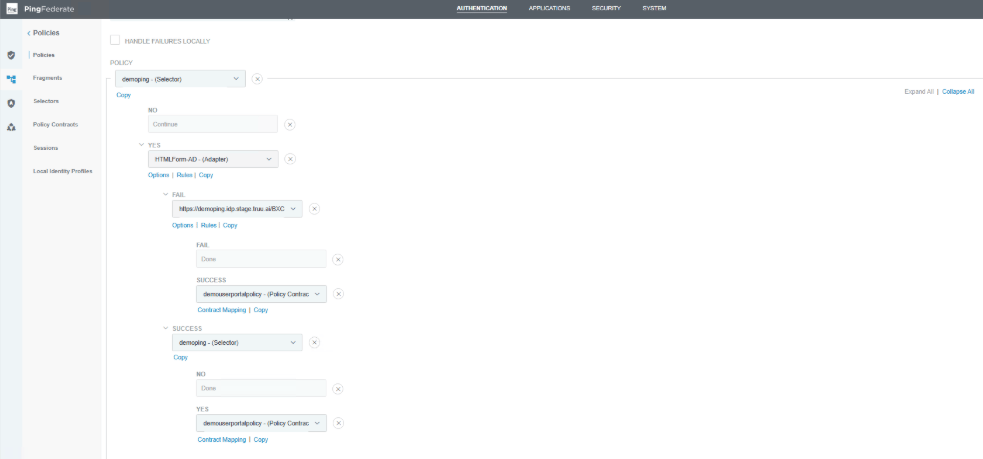
The Authentication Policy orchestrates which authentication mechanism is invoked based on user selection. It wires together the HTML Form Adapter (username/password) and the TruU IdP Connection (passwordless) into a single unified policy for the User Portal.
**5.1 Policy Overview**
| | \*\*Policy: demopinguserportal \*\* The policy uses a Selector to determine which path to invoke: • If the user selects passwordless → TruU IdP Connection path • Otherwise → HTML Form Adapter (username/password) path Both paths ultimately map to the same Policy Contract for downstream SP assertion issuance. |
| :- | :------------------------------------------------------------------------------------------------------------------------------------------------------------------------------------------------------------------------------------------------------------------------------------------------------------------- |
**5.2 Policy Tree**
**4.5 Authentication Policy Mapping**
Step 9: Click Manage Policy Contracts. \
Step 10: Select the Policy Contract created in Step 3.5 (e.g., TruUUserPortalContract). \
Step 11: Mapping Method: check Use only the Authentication Policy Contract values in the SAML assertion.
**4.6 Contract Fulfillment**
| **Attribute** | **Source** | **Value** |
| ----------------- | ---------- | ----------------- |
| SAML\_SUBJECT | Contract | subject |
| userPrincipalName | Contract | userPrincipalName |
**4.7 Credentials**
Step 12: Navigate to Credentials → Configure Credentials. \
Step 13: Select the PingFederate Signing Certificate.\
Step 14: Click Save SP Connection.
## **PART D — PINGFEDERATE: AUTHENTICATION POLICY**
## **5. Configure the Authentication Policy**
The Authentication Policy orchestrates which authentication mechanism is invoked based on user selection. It wires together the HTML Form Adapter (username/password) and the TruU IdP Connection (passwordless) into a single unified policy for the User Portal.
**5.1 Policy Overview**
| | \*\*Policy: demopinguserportal \*\* The policy uses a Selector to determine which path to invoke: • If the user selects passwordless → TruU IdP Connection path • Otherwise → HTML Form Adapter (username/password) path Both paths ultimately map to the same Policy Contract for downstream SP assertion issuance. |
| :- | :------------------------------------------------------------------------------------------------------------------------------------------------------------------------------------------------------------------------------------------------------------------------------------------------------------------- |
**5.2 Policy Tree**
 | **Node** | **Type** | **Outcome / Next Node** |
| --------- | ---------------------- | -------------------------------------- |
| demoping | Selector | Routes based on user login choice |
| YES → | HTMLForm-AD | HTML Form IdP Adapter (AD credentials) |
| SUCCESS → | TruUUserPortalContract | Policy Contract — map attributes |
| FAIL → | TruU IdP Connection | Delegate to TruU SAML IdP |
| SUCCESS → | TruUUserPortalContract | Policy Contract — map attributes |
| NO → | Continue | — |
**5.3 Contract Mapping — TruU IdP Connection (SUCCESS)**
When TruU IdP Connection authentication succeeds, map attributes to the Policy Contract as follows:
| **Contract Attribute** | **Source** | **Value** |
| ---------------------- | -------------- | ----------------- |
| subject | IdP Connection | SAML\_SUBJECT |
| userPrincipalName | IdP Connection | userPrincipalName |
**5.4 Contract Mapping — HTML Form Adapter (SUCCESS)**
When HTML Form Adapter (AD) authentication succeeds, map attributes:
| **Contract Attribute** | **Source** | **Value** |
| ---------------------- | -------------------- | ----------------- |
| subject | Adapter (htmlformad) | userPrincipalName |
| userPrincipalName | Adapter (htmlformad) | userPrincipalName |
| **⚠** | *The "subject" for the AD path is set to userPrincipalName (not sAMAccountName) to ensure attribute consistency with the TruU path and downstream SP assertion requirements.* |
| :---- | :---------------------------------------------------------------------------------------------------------------------------------------------------------------------------- |
Step 15: Click Save on the Authentication Policy.
## **PART E — VERIFICATION**
## **6. Verify the Integration**
Once all configurations are saved, complete the following tests to validate end-to-end functionality.
**6.1 Username / Password Login Test** \
\
Step 1: Open the User Portal URL (e.g., [https://demoping.stage.portal.truu.ai/login](https://demoping.stage.portal.truu.ai/login)).
| **Node** | **Type** | **Outcome / Next Node** |
| --------- | ---------------------- | -------------------------------------- |
| demoping | Selector | Routes based on user login choice |
| YES → | HTMLForm-AD | HTML Form IdP Adapter (AD credentials) |
| SUCCESS → | TruUUserPortalContract | Policy Contract — map attributes |
| FAIL → | TruU IdP Connection | Delegate to TruU SAML IdP |
| SUCCESS → | TruUUserPortalContract | Policy Contract — map attributes |
| NO → | Continue | — |
**5.3 Contract Mapping — TruU IdP Connection (SUCCESS)**
When TruU IdP Connection authentication succeeds, map attributes to the Policy Contract as follows:
| **Contract Attribute** | **Source** | **Value** |
| ---------------------- | -------------- | ----------------- |
| subject | IdP Connection | SAML\_SUBJECT |
| userPrincipalName | IdP Connection | userPrincipalName |
**5.4 Contract Mapping — HTML Form Adapter (SUCCESS)**
When HTML Form Adapter (AD) authentication succeeds, map attributes:
| **Contract Attribute** | **Source** | **Value** |
| ---------------------- | -------------------- | ----------------- |
| subject | Adapter (htmlformad) | userPrincipalName |
| userPrincipalName | Adapter (htmlformad) | userPrincipalName |
| **⚠** | *The "subject" for the AD path is set to userPrincipalName (not sAMAccountName) to ensure attribute consistency with the TruU path and downstream SP assertion requirements.* |
| :---- | :---------------------------------------------------------------------------------------------------------------------------------------------------------------------------- |
Step 15: Click Save on the Authentication Policy.
## **PART E — VERIFICATION**
## **6. Verify the Integration**
Once all configurations are saved, complete the following tests to validate end-to-end functionality.
**6.1 Username / Password Login Test** \
\
Step 1: Open the User Portal URL (e.g., [https://demoping.stage.portal.truu.ai/login](https://demoping.stage.portal.truu.ai/login)).
 Step 2: Confirm the portal redirects to the PingFederate login page.
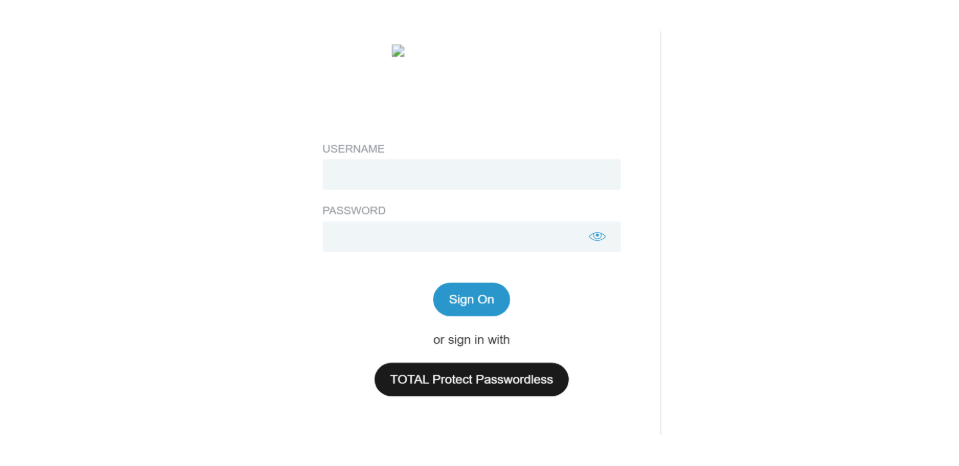 Step 3: Enter a valid Active Directory username and password. Step 4: Confirm successful login and redirect to the User Portal.
## **6.2 TruU Passwordless Login Test**
> * Step 5: Open the User Portal URL.
> * Step 6: Click Sign In with TruU Passwordless.
> * Step 7: Confirm redirect to the TruU IdP verification screen.
> * Step 8: Authenticate via the TruU mobile app or QR code.
> * Step 9: Confirm redirect back to PingFederate and then to the User Portal.
## **APPENDIX — QUICK REFERENCE**
## **A. Configuration Summary**
| Component | Type | Purpose |
| ------------------------- | ------------------ | --------------------------------------------------------- |
| TruU SAML Adapter | TruU Admin Console | Exposes TruU as a SAML 2.0 IdP |
| TruU IdP Connection | PingFederate | Trusts TruU as external IdP for passwordless SSO |
| User Portal SP Connection | PingFederate | Issues SAML assertions to the TruU User Portal |
| HTML Form-AD Adapter | PingFederate | Username/password authentication against Active Directory |
| Authentication Policy | PingFederate | Orchestrates passwordless vs. password login routing |
| Policy Contract | PingFederate | Common attribute contract for both auth paths |
[PingFederate IDP Setup Guide](/docs/pingfederate-idp-setup-guide)
[SAML](/docs/saml)
Step 3: Enter a valid Active Directory username and password. Step 4: Confirm successful login and redirect to the User Portal.
## **6.2 TruU Passwordless Login Test**
> * Step 5: Open the User Portal URL.
> * Step 6: Click Sign In with TruU Passwordless.
> * Step 7: Confirm redirect to the TruU IdP verification screen.
> * Step 8: Authenticate via the TruU mobile app or QR code.
> * Step 9: Confirm redirect back to PingFederate and then to the User Portal.
## **APPENDIX — QUICK REFERENCE**
## **A. Configuration Summary**
| Component | Type | Purpose |
| ------------------------- | ------------------ | --------------------------------------------------------- |
| TruU SAML Adapter | TruU Admin Console | Exposes TruU as a SAML 2.0 IdP |
| TruU IdP Connection | PingFederate | Trusts TruU as external IdP for passwordless SSO |
| User Portal SP Connection | PingFederate | Issues SAML assertions to the TruU User Portal |
| HTML Form-AD Adapter | PingFederate | Username/password authentication against Active Directory |
| Authentication Policy | PingFederate | Orchestrates passwordless vs. password login routing |
| Policy Contract | PingFederate | Common attribute contract for both auth paths |
[PingFederate IDP Setup Guide](/docs/pingfederate-idp-setup-guide)
[SAML](/docs/saml)