> ## Documentation Index
> Fetch the complete documentation index at: https://docs.truu.ai/llms.txt
> Use this file to discover all available pages before exploring further.
# PACS Adapter
> This guide explains how to configure the TruU wizard for your physical access control system (PACS). The TruU wizard supports various PACS, each with specific integration requirements. After setting up the wizard, follow the steps below to configure TruU with your PACS.
### Prerequisites
* CCURE 9000: Requires CCURE 9000 version 2.5 or higher and Victor Web Service license
* SoloInsight/CG Licensing
* HID Readers (NFC compatible)
### Creating PACS Adapter
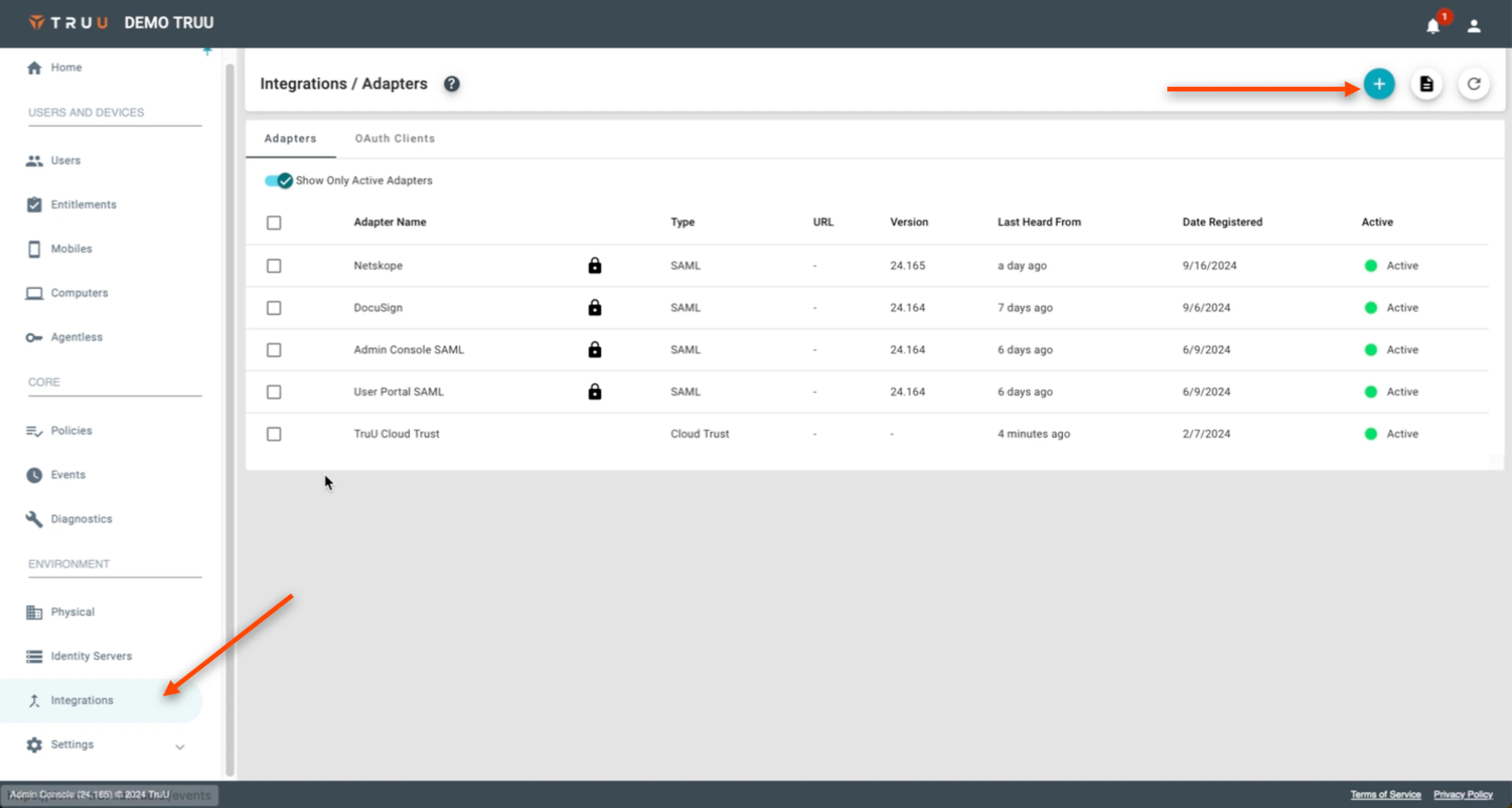
1. On the TruU Admin Console, navigate to the "Integrations" tab, then hit the blue **(+)** to "Add a New Adapter"
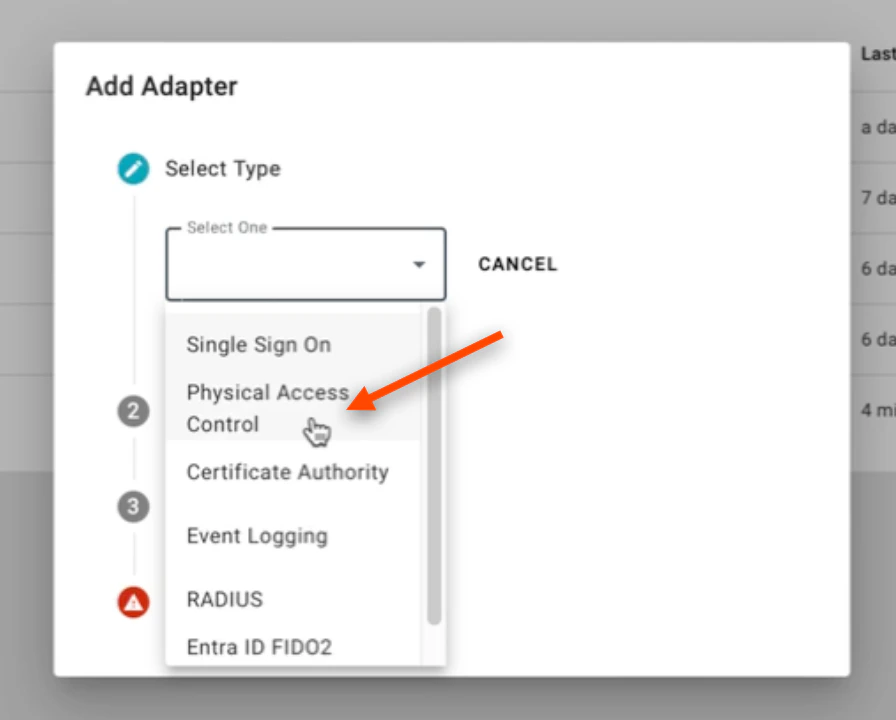
 2. Select **Physical Access Control** on the ensuing dropdown menu
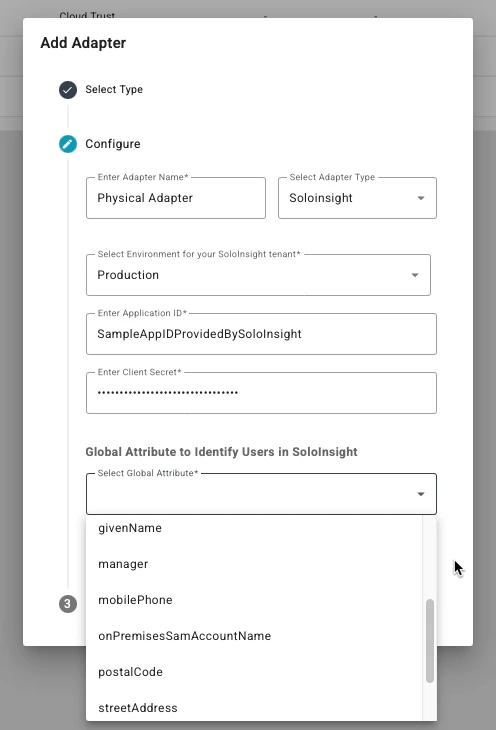
 3. Next, under the "Select Adapter Type" dropdown menu, select **SoloInsight**. Name your Adapter as well. Additionally, as SoloInsight handles the provisioning of virtual badge credentials, they will be providing either Production or Sandbox credentials to complete the configuration (the communication from TruU to the CG Cloud). The Application ID and Client Secret will be provided by the SoloInsight team. Lastly, under the **Select Global Attribute** section, select the **Identifier** that you wish to use for provisioning.
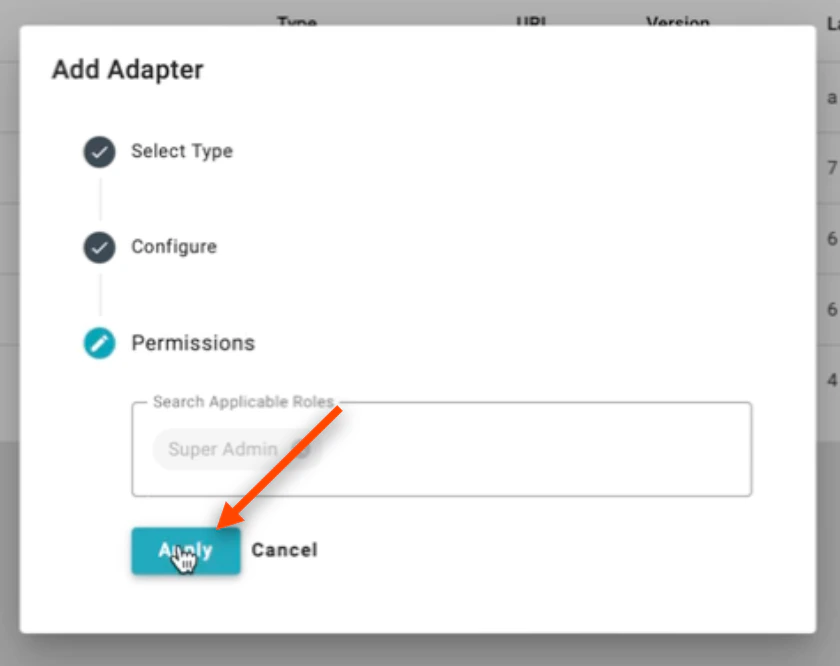
 4. Click **Apply**
 ***
[Custom SSO](/docs/custom-sso-adapter)
[Event Logging](/docs/logs)
***
[Custom SSO](/docs/custom-sso-adapter)
[Event Logging](/docs/logs)