> ## Documentation Index
> Fetch the complete documentation index at: https://docs.truu.ai/llms.txt
> Use this file to discover all available pages before exploring further.
# Set up Manager Approval
> TruU supports two methods for enabling Manager Approval when users attempt to verify or enroll their devices: Verification by Entitlement Group Verification by User’s Manager (from User Directory) This guide outlines how each option works and how to configure the appropriate workflow.
## Overview of Manager Approval Methods
| Method | Description | When to Use |
| ----------------------------------------------- | ------------------------------------------------------------------------------------------------------------------------------------ | ------------------------------------------------------------------------------------------------------------------------------------- |
| Verification by Entitlement Group | A designated entitlement group is created in TruU. Members of this group are responsible for approving device verification requests. | When you want a specific set of managers or approvers (not tied to user directory) to review and approve new user device enrollments. |
| Verification by User’s Manager (User Directory) | The device approval request is automatically routed to the user’s manager assigned in the user directory. | When your organization’s user directory manager reporting structure is populated and can be used operationally. |
## Verification by Entitlement Group
**Prerequisites**
* You must create an entitlement group in TruU before enabling manager approval workflow.
* Add all intended approvers (managers or delegated reviewers) to this group.
### Create Entitlement Group
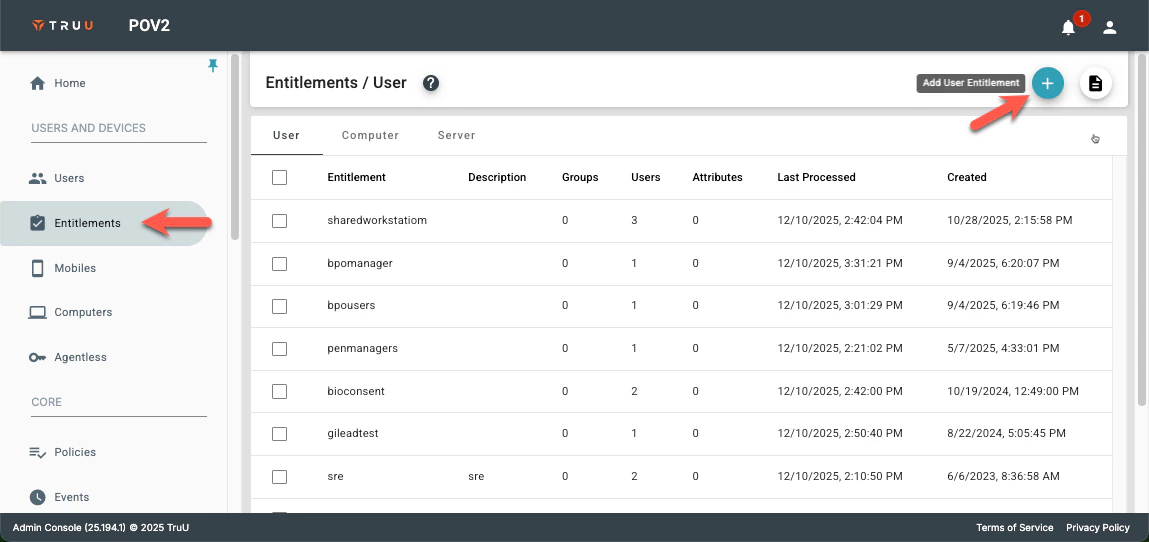
1. In the TruU Admin Console, navigate to Entitlement Groups and Click Add User Entitlement.
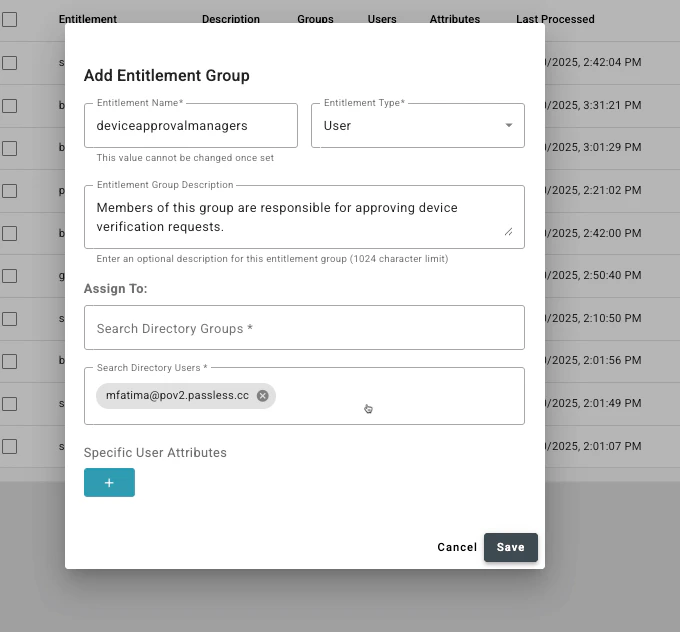
 2. Under Add Entitlement Group,
1. Provide a group name (e.g., “Device Approval Managers”).
2. Entitlement Group Description
3. Assign to certain directory groups our add directory users who will be responsible for approving device verification requests.
2. Under Add Entitlement Group,
1. Provide a group name (e.g., “Device Approval Managers”).
2. Entitlement Group Description
3. Assign to certain directory groups our add directory users who will be responsible for approving device verification requests.
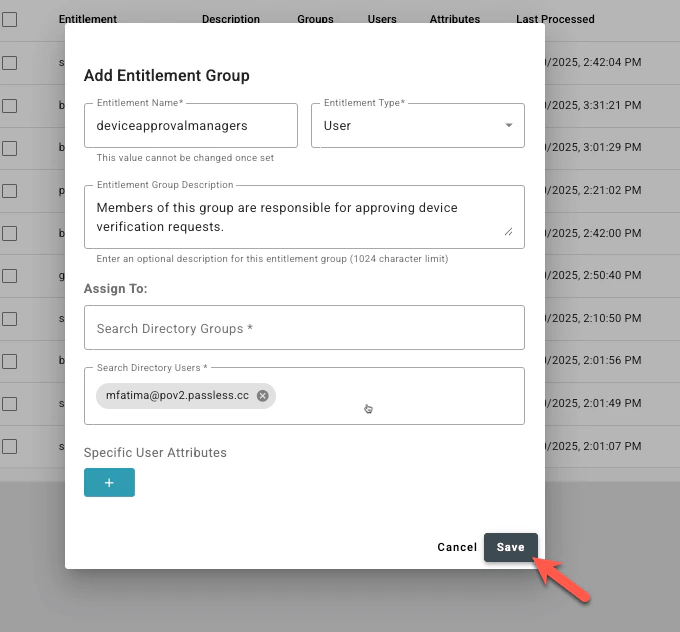
 3. Save the group.
 ### Set up Manager's Approval Workflow
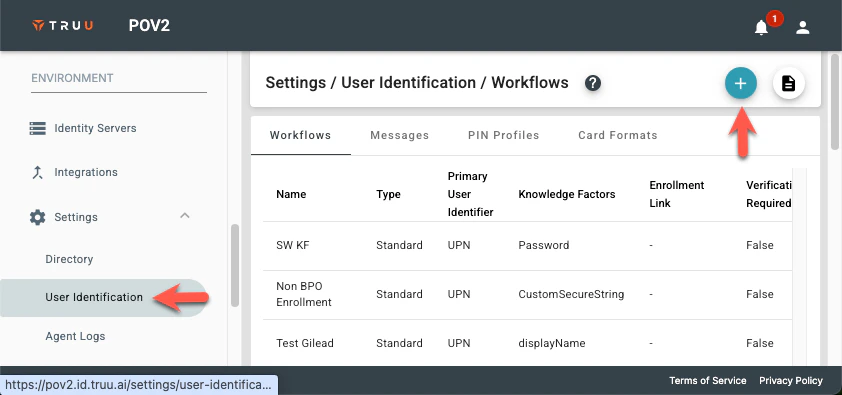
1. Go to User Identification and Click *Add Identity Verification Workflow* on top right
### Set up Manager's Approval Workflow
1. Go to User Identification and Click *Add Identity Verification Workflow* on top right
 2. Provide a workflow name and select the User Self-Service needed
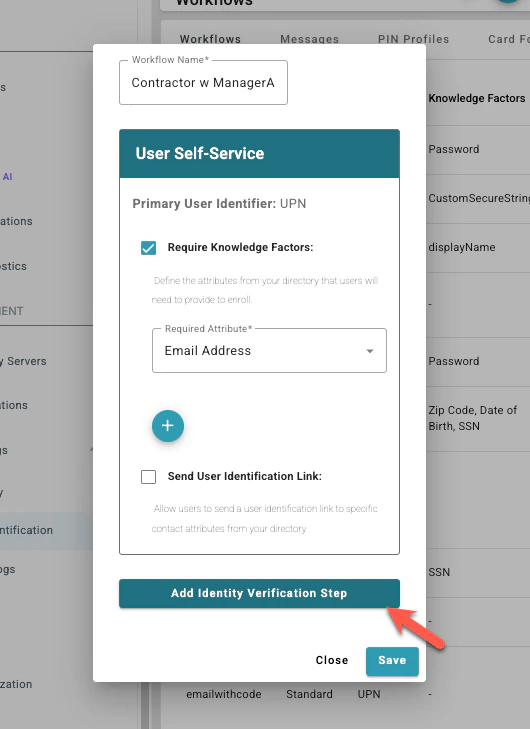
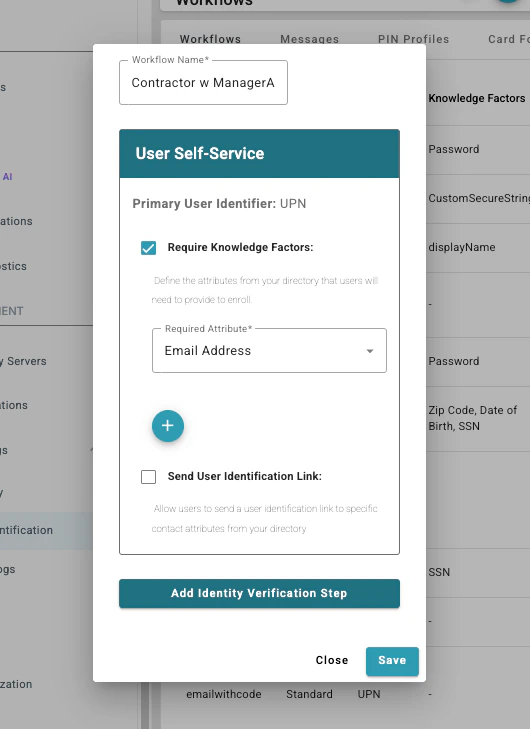 3. Select **Add Identity Verification Step**
 4. Choose the approvers needed.
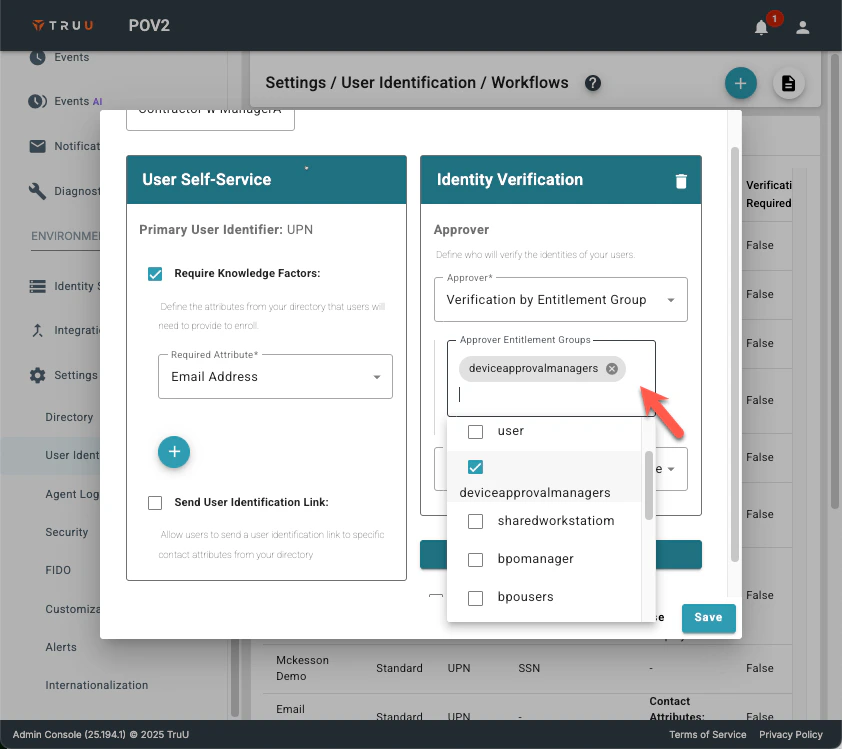
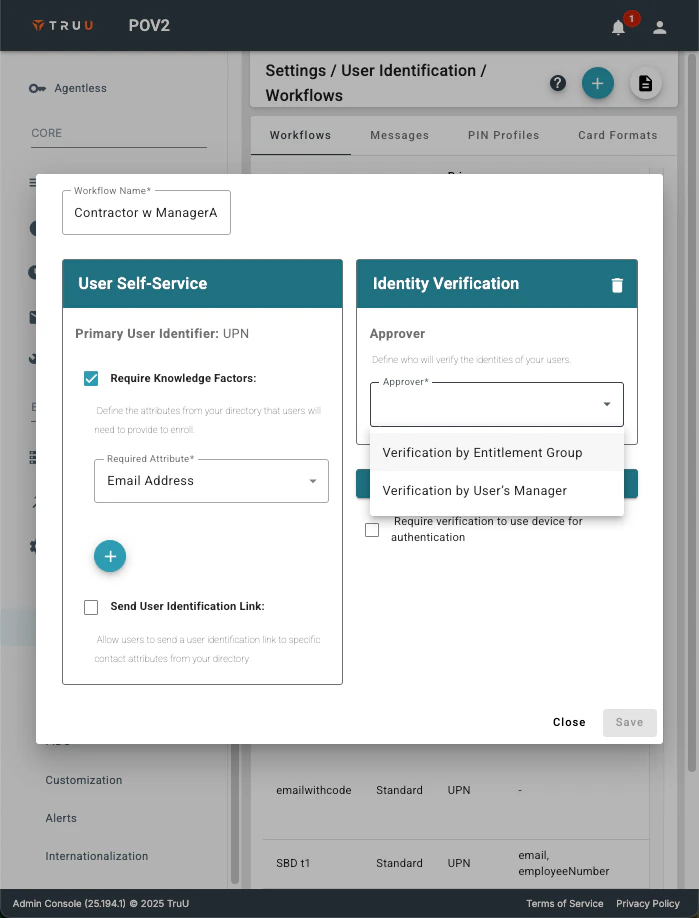 i. For **Verification by Entitlement Group**, Select the entitlement group created previously.
 ii. For **Verification by User's Manager**, Select a default action if there is no manager saved for that User.
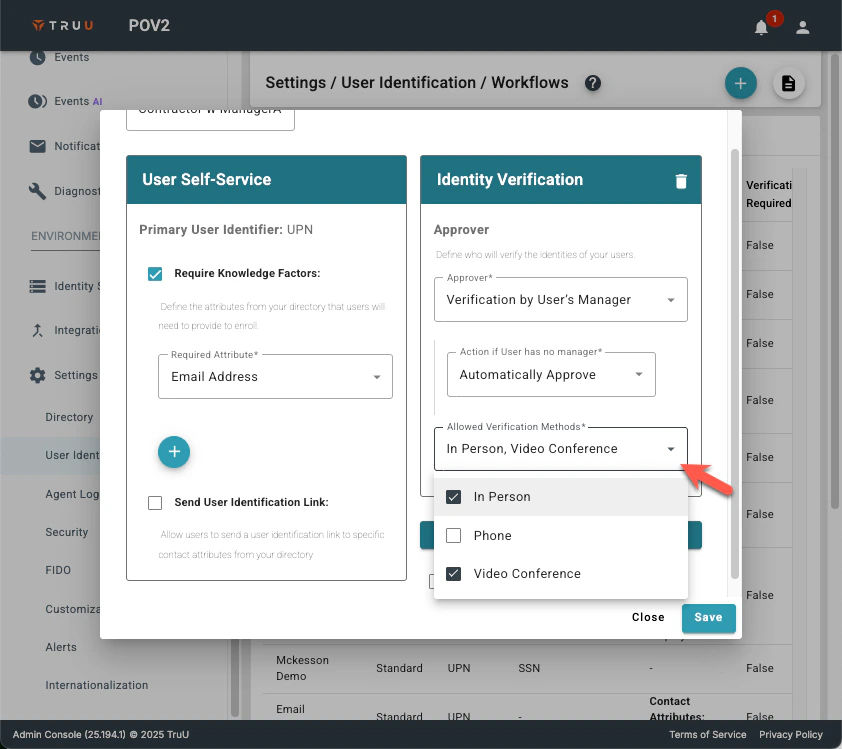
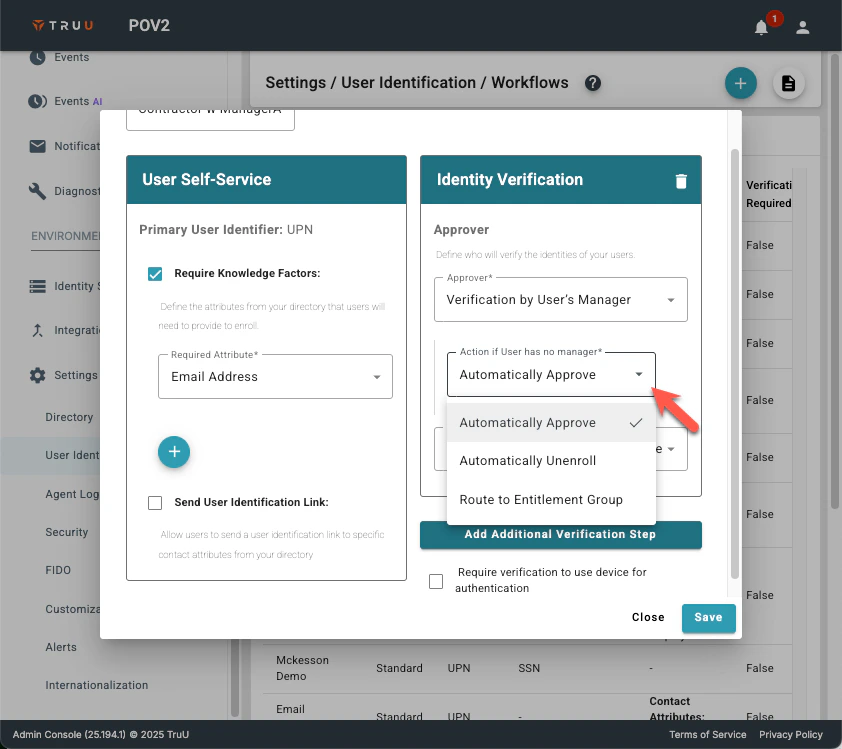 5. Choose the Allowed Verification Methods for the managers.
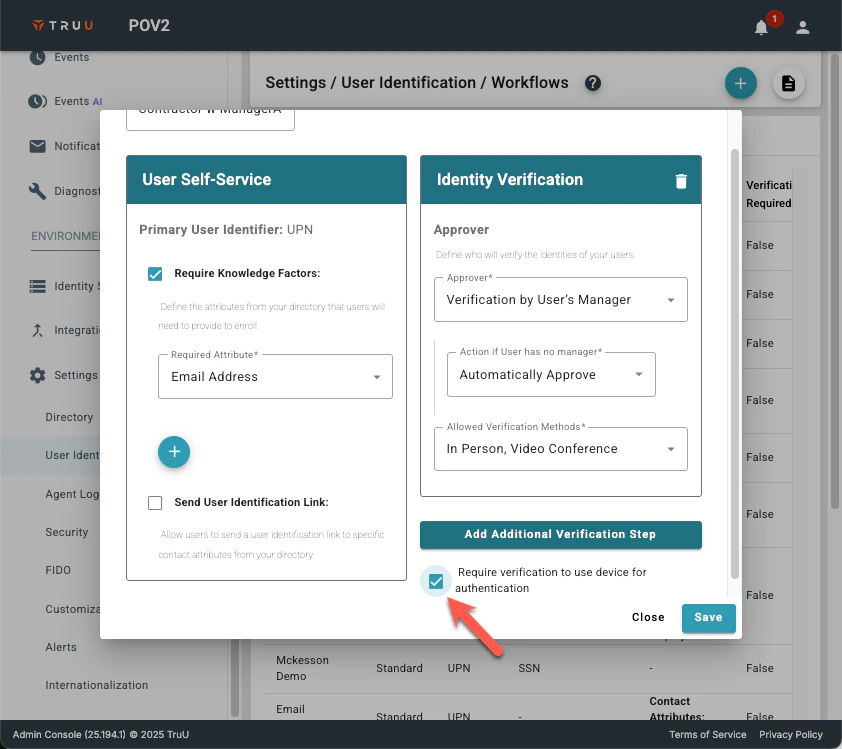
 6. Select **Require verification to use device for authentication**
**Note**: Devices will be enrolled after completing the self-service portion of enrollment with a state of ‘Unverified’ (which is below ‘Basic’). If a user tries to use this device for authentication, they will be prevented from using it.
6. Select **Require verification to use device for authentication**
**Note**: Devices will be enrolled after completing the self-service portion of enrollment with a state of ‘Unverified’ (which is below ‘Basic’). If a user tries to use this device for authentication, they will be prevented from using it.
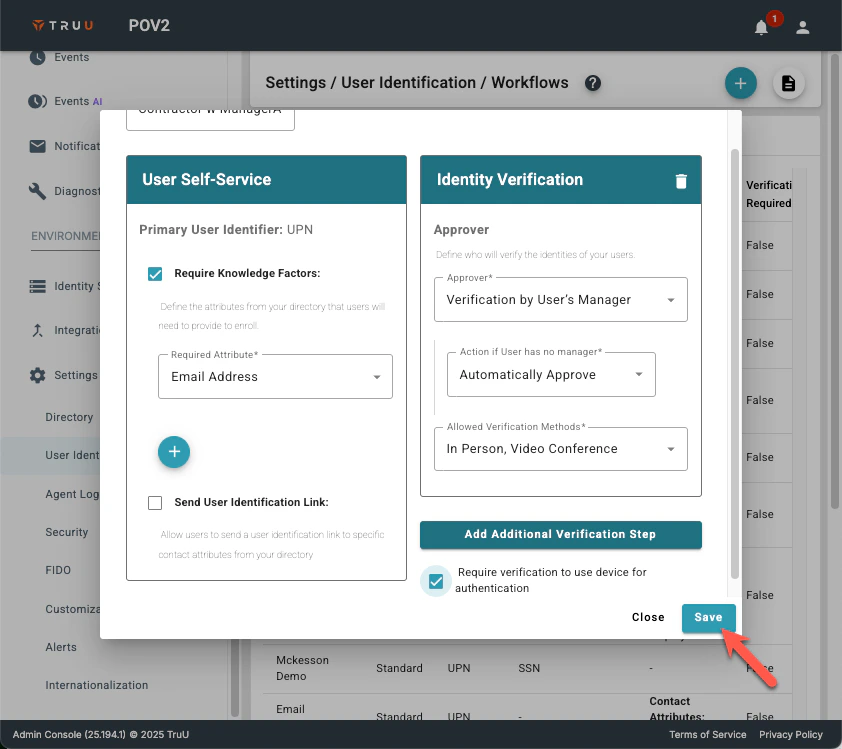
 7. Click Save to complete this workflow set up.
 ***
[Settings: User Identification](/docs/settings-user-identification)
***
[Settings: User Identification](/docs/settings-user-identification)