> ## Documentation Index
> Fetch the complete documentation index at: https://docs.truu.ai/llms.txt
> Use this file to discover all available pages before exploring further.
# Install SW via TruU Admin Console
> TruU supports deployment to shared workstations using standard enterprise software distribution mechanisms. For large-scale or production deployments, TruU can be installed via: Microsoft Endpoint Configuration Manager (SCCM) Microsoft Intune These tools enable centralized deployment, version control, and policy enforcement across shared device environments. For small-scale validation, pilot programs, or testing scenarios, TruU can also be installed directly from the TruU Admin Console, allowing administrators to quickly deploy and evaluate functionality without full endpoint management integration.
1. Log in to the TruU Admin Console.
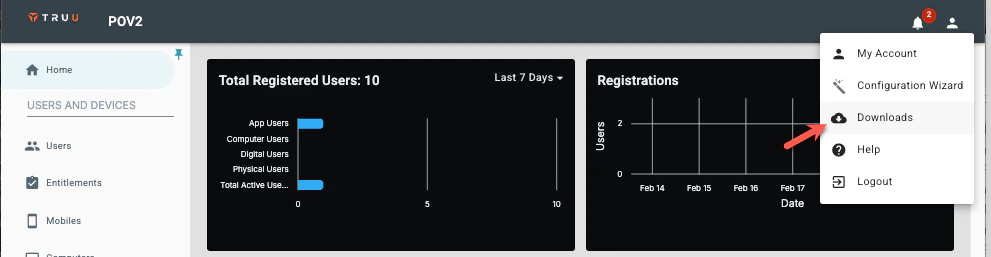
2. Navigate to Profile Menu → Downloads.
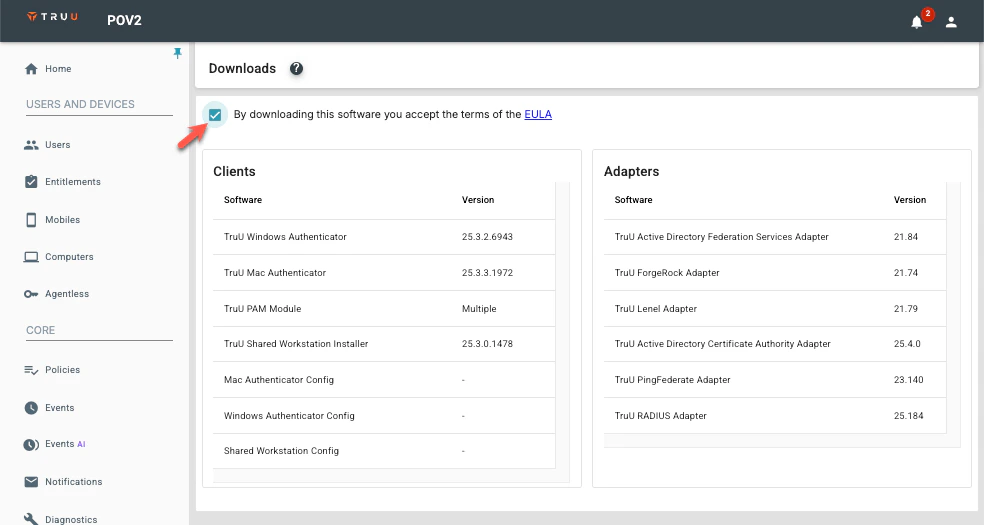
 3. Accept the EULA.
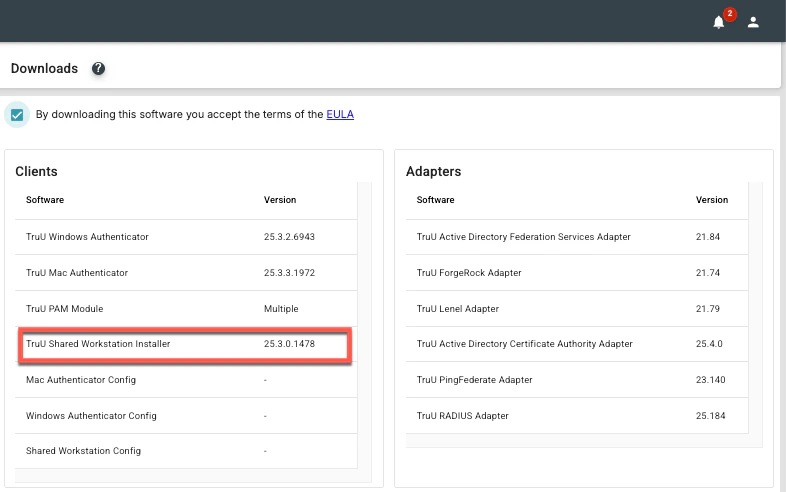
 4. Download the TruU Shared Workstation Installer.
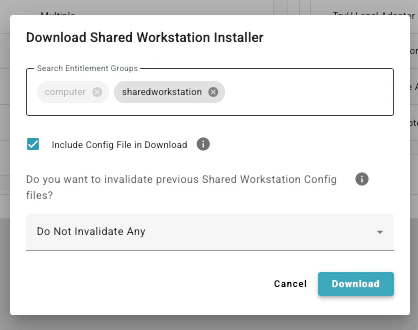
 5. Once you see the window below,
1. Add the Shared Workstation Entitlement group
2. Check the "Include Config File in Download" box.
3. Select Do Not Invalidate Any
5. Once you see the window below,
1. Add the Shared Workstation Entitlement group
2. Check the "Include Config File in Download" box.
3. Select Do Not Invalidate Any
 5. This will install two files in the Downloads folder.
1. Extract the **truu-shared-workstation** file
2. Drag and drop the **application** file into the **truu-shared-workstation** file
**Note:** *Keep the installer and config file in the same folder before starting installation*
5. This will install two files in the Downloads folder.
1. Extract the **truu-shared-workstation** file
2. Drag and drop the **application** file into the **truu-shared-workstation** file
**Note:** *Keep the installer and config file in the same folder before starting installation*
 6. Double-click the installer file to launch the TruU Shared Workstation installer.
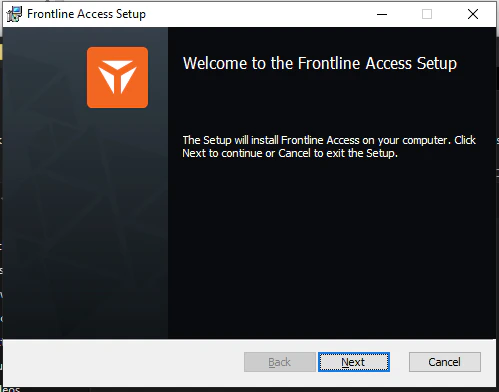
 7. Click Next
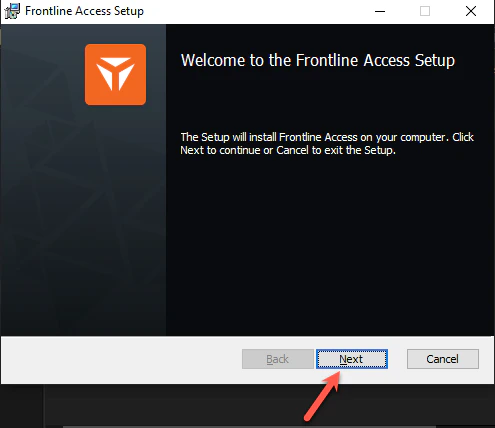 8. Ensure all requirements are met. Click Next.
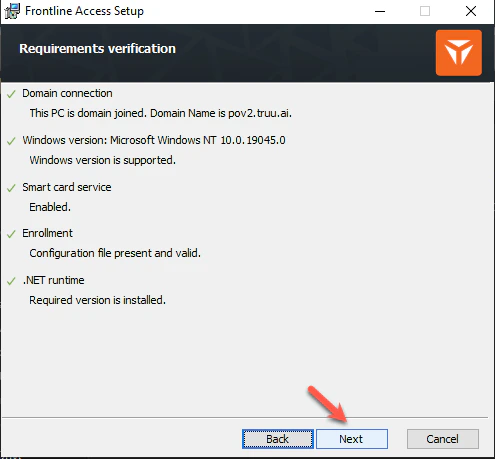 9. Follow the prompts to finish Installation
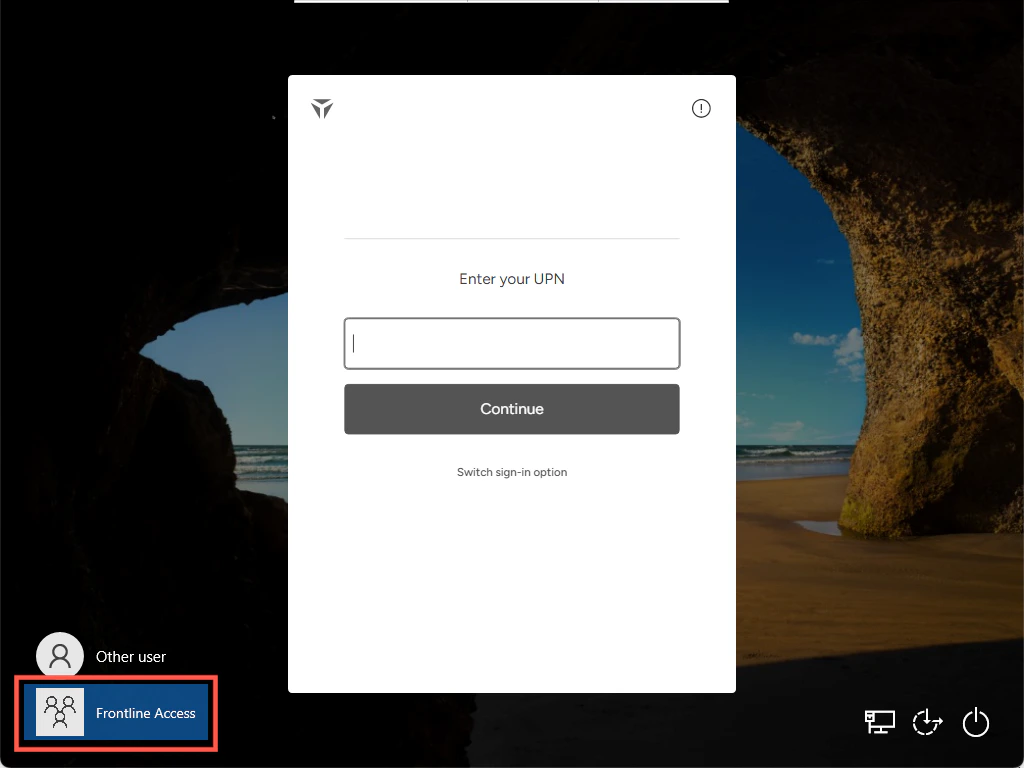
 10. Navigate to the lock screen to confirm the presence of the Shared Workstation login tab.
 ***
[Group Policy Setup for Shared Workstaion](/docs/group-policy-setup-for-shared-workstaion)
[Deploy SW via SCCM](/docs/deploy-sw-via-sccm)
***
[Group Policy Setup for Shared Workstaion](/docs/group-policy-setup-for-shared-workstaion)
[Deploy SW via SCCM](/docs/deploy-sw-via-sccm)