> ## Documentation Index
> Fetch the complete documentation index at: https://docs.truu.ai/llms.txt
> Use this file to discover all available pages before exploring further.
# TruU Windows Authenticator Modalities
> TruU supports two authentication methods for Windows — FIDO2 and Certificate-Based Authentication (CBA). Which one you deploy depends on how your Windows devices are joined to your identity infrastructure.
## Why Two Modalities?
TruU offers two distinct authentication methods for Windows because Microsoft defines three ways a device can be joined to an identity infrastructure — and each join type has different authentication capabilities. The join type is what determines which TruU modality you can use.
Before choosing a modality, confirm your device join type. See [Microsoft Device Join Types](/docs/microsoft-device-join-types) for details.
## TruU Authentication Modalities
Table below provides the details on TruU modality to be used based on Microsoft device join type.
| Device Join Type | Description | TruU Modality |
| :-------------------------------- | :----------------------------------------------------------------- | :---------------------------------------------------------------------------------- |
| **Active Directory Joined** | Device is joined to on-premises AD only. No Entra ID registration. | **TruU SmartCard Authenticator** |
| **Microsoft Entra Hybrid Joined** | Device is joined to on-premises AD and registered in Entra ID. | **TruU FIDO2 Authenticator** (recommended)
**TruU SmartCard Authenticator \*** |
| **Microsoft Entra Joined** | Device is joined to Entra ID (cloud only). No on-premises AD. | **TruU FIDO2 Authenticator** |
Not sure which join type your devices use? In PowerShell, run `dsregcmd /status` on a device and check the **AzureAdJoined** and **DomainJoined** fields.
| | **TruU FIDO2 Authenticator** | **TruU Smartcard Authenticator** |
| :------------------------------ | :-------------------------------------------------------------------------------------------------------------------- | :---------------------------------------------------------------------------------------------------- |
| **Purpose** | Passwordless, phishing-resistant sign-in using FIDO2. | Certificate-based authentication using a virtual smartcard (PKI). |
| **Technology** | FIDO2 / WebAuthn + CTAP. Public/private key pairs protected by device TPM. | X.509 certificates (PKI). Keys stored in a TPM-backed virtual smartcard. |
| **Standards** | Open FIDO Alliance standard with broad OS and browser support. | PKI-based authentication model. |
| **How it works** | User authenticates via the TruU mobile app using biometrics or PIN. A FIDO2 assertion is sent to Windows for sign-in. | User authenticates with a smartcard certificate. Fits Windows smartcard logon and Entra CBA flows. |
| **Supported device join types** | Entra hybrid joined and Entra joined. Not supported on AD-only devices. | Recommended for AD-only (domain joined) devices. Supported with prerequisites on Entra hybrid joined. |
| **On-premises resource access** | Hybrid joined: via AD Kerberos trust. Entra joined: requires Kerberos Key Trust for on-prem resources. | AD joined: native on-prem access. Hybrid joined: can access on-prem resources. |
| **Certificate revocation** | No CRL/OCSP lifecycle. Remove or disable the registered authenticator to revoke access. | Certificate revocation via CRLs/OCSP per your PKI policy. |
| **Deployment complexity** | Simpler at scale. Managed through Intune and Entra ID policies. | Requires PKI: certificate issuance, renewal, and lifecycle management. |
## **TruU SmartCard Authenticator**
Recommended for **Active Directory joined (domain joined)** devices.
### Prerequisites
* Windows 11 version 24H1 or later
* Requires PKI infrastructure (ADCS, TruU Cloud Trust or third-party CA) — see [PKI Configuration & Setup Overview](pki-configuration-and-setup-overview) for details.
* For Entra ID Managed domain customer must enable Microsoft CBA to obtain PRT token ( Optional) — see [Enable Microsoft CBA for TruU Authenticator](docs.truu.ai) for details.
* TruU config file setting must be set as under.
```xml theme={null}
```
## TruU FIDO2 Authenticator
Recommended for **Entra hybrid joined** or **Entra only joined** devices.
### Prerequisites
* Windows 11 version 24H1 or later
* FIDO2 Security Keys authentication method enabled in Microsoft Entra ID — see [Enable TruU FIDO2 Authenticator for Entra ID](pki-configuration-and-setup-overview) for details.
If you are using a directory other than Entra ID, you need the **Entra ID FIDO2 Enrollment Adapter**. This adapter lets TruU verify that a FIDO2 security key has been registered with Entra ID using an OAuth client and mapping attributes. It is required for Windows Authenticator version 24.2 or later in FIDO2 mode. If you are using Entra ID as your directory, this is not needed.
[Entra ID FIDO2 Enrollment Adapter Guide](entra-id-fido-2-enrollment-adapter)
* Enable FIDO2 logon on Windows OS -- see [Enable FIDO2 security key sign-in for Windows](pki-configuration-and-setup-overview) for details.
* Cloud Kerberos Trust configured — see [Enable Entra ID Cloud Kerberos Trust](pki-configuration-and-setup-overview) for details.
* Required for Hybrid Entra joined devices.
* Optional for Entra joined, required is user need to access on prem resources like printer and files shares.
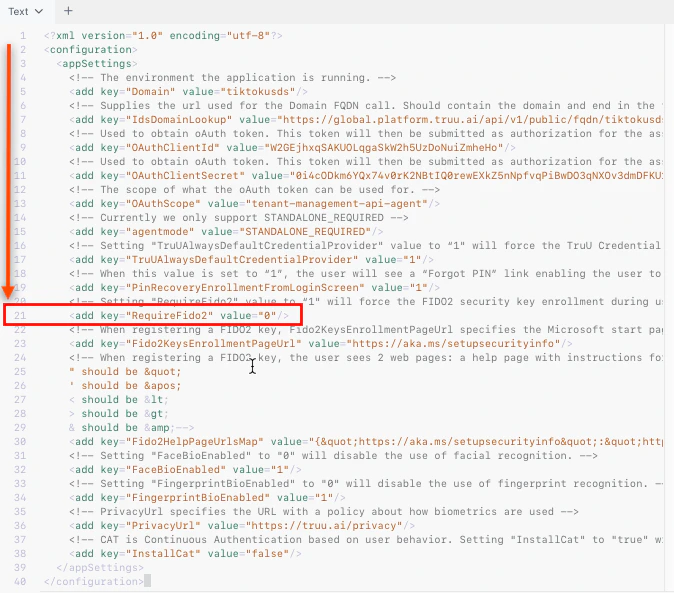
* TruU config file must be updated (default is `0`, must be changed to `1`):
```xml theme={null}
```
 ## Networking and Firewall Requirements
TruU agent must communicate with TruU cloud and requires internet connectivity at the logon screen of Windows OS. If your organization is blocking any outbound traffic then allow outbound traffic to the following URLs from the client Windows device.
**TruU URLs**
Replace **customer** with your TruU tenant name.
* `https://global.platform.truu.ai`
* `https://customer.idp.id.truu.ai`
* `https://customer.cert.id.truu.ai`
**Microsoft URLs**
```text theme={null}
customer.microsoftonline.com
customer.microsoftonline-p.com
customer.msauth.net
customer.msauthimages.net
customer.msecnd.net
customer.msftauth.net
customer.msftauthimages.net
customer.phonefactor.net
enterpriseregistration.windows.net
management.azure.com
policykeyservice.dc.ad.msft.net
secure.aadcdn.microsoftonline-p.com
```
## Networking and Firewall Requirements
TruU agent must communicate with TruU cloud and requires internet connectivity at the logon screen of Windows OS. If your organization is blocking any outbound traffic then allow outbound traffic to the following URLs from the client Windows device.
**TruU URLs**
Replace **customer** with your TruU tenant name.
* `https://global.platform.truu.ai`
* `https://customer.idp.id.truu.ai`
* `https://customer.cert.id.truu.ai`
**Microsoft URLs**
```text theme={null}
customer.microsoftonline.com
customer.microsoftonline-p.com
customer.msauth.net
customer.msauthimages.net
customer.msecnd.net
customer.msftauth.net
customer.msftauthimages.net
customer.phonefactor.net
enterpriseregistration.windows.net
management.azure.com
policykeyservice.dc.ad.msft.net
secure.aadcdn.microsoftonline-p.com
```