> ## Documentation Index
> Fetch the complete documentation index at: https://docs.truu.ai/llms.txt
> Use this file to discover all available pages before exploring further.
# TruU-Intune Self-Deployment Autopilot Setup
> Windows Autopilot self-deploying mode allows deployment of a device with little to no user interaction. For devices with an Ethernet connection, no user interaction is required. For devices connected via Wi-Fi, the user must only:
* Select the language, locale, and keyboard.
* Make a network connection.
* [Prerequisite](#prerequisite)
* [Step 1: Create a dynamic device group with the Group tag for Self-deployment devices](#step-1-create-a-dynamic-device-group-with-the-group-tag-for-self-deployment-devices)
* [Step 2: Create Self-Deployment mode Autopilot Profile](#step-2-create-self-deployment-mode-autopilot-profile)
* [Step 3: Register devices as Autopilot devices](#step-3-register-devices-as-autopilot-devices)
* [Step 4: Package and Deploy TruU Windows Authenticator in Intune](#step-4-package-and-deploy-truu-windows-authenticator-in-intune)
* [Step 5: Configure and assign Autopilot Enrollment Status Page (ESP)](#step-5-configure-and-assign-autopilot-enrollment-status-page-esp)
* [Step 6: Enable the Security Keys (FIDO2) sign-in](#step-6-enable-the-security-keys-fido2-sign-in)
## **Prerequisite**
1. Windows 10/11 device with Trusted Platform Module (TPM) 2.0
2. Intune Administrator account to configure the setup.
3. Microsoft Intune and Entra ID P1 license
4. MDM user scope should be set.
## **Step 1: Create a dynamic device group with the Group tag for Self-deployment devices**
1. Sign in to the Microsoft Intune admin center > Groups > New Group.
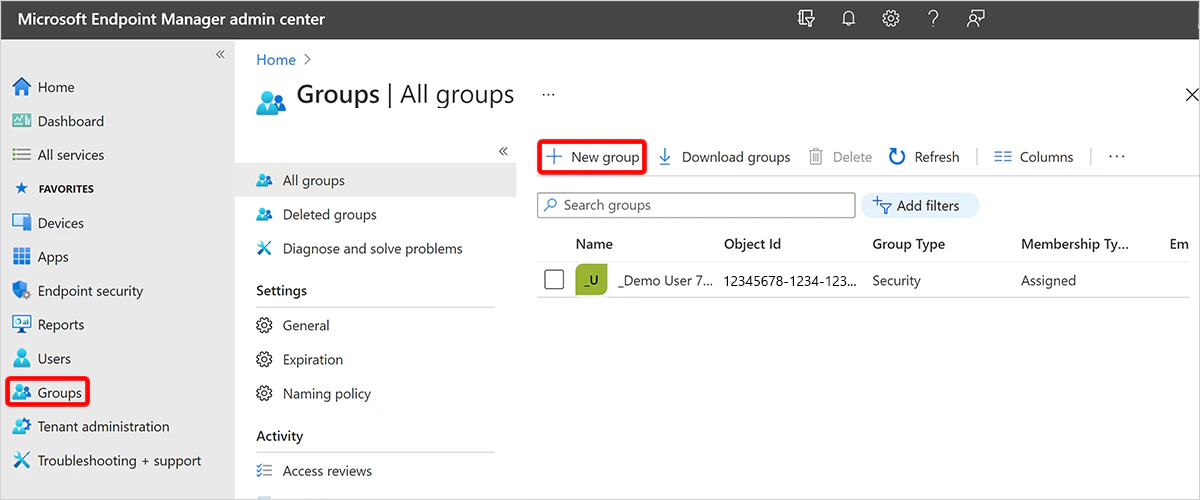 2. Select **Security** for **Group type**, give a name. (eg. Self-deployment devices)
3. For **Membership type**, choose **Dynamic Device**.
4. Select **Add dynamic query**.
*(device.devicePhysicalIds -any (* -eq "\[OrderID]:SelfDeployment"))\_
In the above query, ‘SelfDeployment' stands for GroupTag. Any device that has group tag 'SelfDeployment’ will automatically be member of this group.
5. Save the created group.
## **Step 2: Create Self-Deployment mode Autopilot Profile**
You can refer to the Microsoft article and create the self-deployment Autopilot profile as per your organization requirement. [Self-deploying Autopliot profile#Create and assign self-deploying-autopilot profile](https://learn.microsoft.com/en-us/autopilot/tutorial/self-deploying/self-deploying-autopilot-profile#create-and-assign-self-deploying-autopilot-profile)
**Note:** Assign the created Self-Deployment Autopilot Profile to the dynamic device group which was created in the previous step.
## **Step 3: Register devices as Autopilot devices**
1. Collect the HardwareID/hash from the devices which needs to be enrolled in self-deployment mode by referring the [/autopilot/add-devices#collect-the-hardware-hash](https://learn.microsoft.com/en-us/autopilot/add-devices#collect-the-hardware-hash)
2. Sign into the [Microsoft Intune admin center](https://go.microsoft.com/fwlink/?linkid=2109431).
3. In the **Home** screen, select **Devices** in the left hand pane.
4. In the **Devices | Overview** screen, under **By platform**, select **Windows**.
5. In the **Windows | Windows devices** screen, under **Device onboarding**, select **Enrollment**.
6. In the **Windows | Windows enrollment** screen, under **Windows Autopilot**, select **Devices**.
7. In the **Windows Autopilot devices** screen that opens, select **Import**.
2. Select **Security** for **Group type**, give a name. (eg. Self-deployment devices)
3. For **Membership type**, choose **Dynamic Device**.
4. Select **Add dynamic query**.
*(device.devicePhysicalIds -any (* -eq "\[OrderID]:SelfDeployment"))\_
In the above query, ‘SelfDeployment' stands for GroupTag. Any device that has group tag 'SelfDeployment’ will automatically be member of this group.
5. Save the created group.
## **Step 2: Create Self-Deployment mode Autopilot Profile**
You can refer to the Microsoft article and create the self-deployment Autopilot profile as per your organization requirement. [Self-deploying Autopliot profile#Create and assign self-deploying-autopilot profile](https://learn.microsoft.com/en-us/autopilot/tutorial/self-deploying/self-deploying-autopilot-profile#create-and-assign-self-deploying-autopilot-profile)
**Note:** Assign the created Self-Deployment Autopilot Profile to the dynamic device group which was created in the previous step.
## **Step 3: Register devices as Autopilot devices**
1. Collect the HardwareID/hash from the devices which needs to be enrolled in self-deployment mode by referring the [/autopilot/add-devices#collect-the-hardware-hash](https://learn.microsoft.com/en-us/autopilot/add-devices#collect-the-hardware-hash)
2. Sign into the [Microsoft Intune admin center](https://go.microsoft.com/fwlink/?linkid=2109431).
3. In the **Home** screen, select **Devices** in the left hand pane.
4. In the **Devices | Overview** screen, under **By platform**, select **Windows**.
5. In the **Windows | Windows devices** screen, under **Device onboarding**, select **Enrollment**.
6. In the **Windows | Windows enrollment** screen, under **Windows Autopilot**, select **Devices**.
7. In the **Windows Autopilot devices** screen that opens, select **Import**.
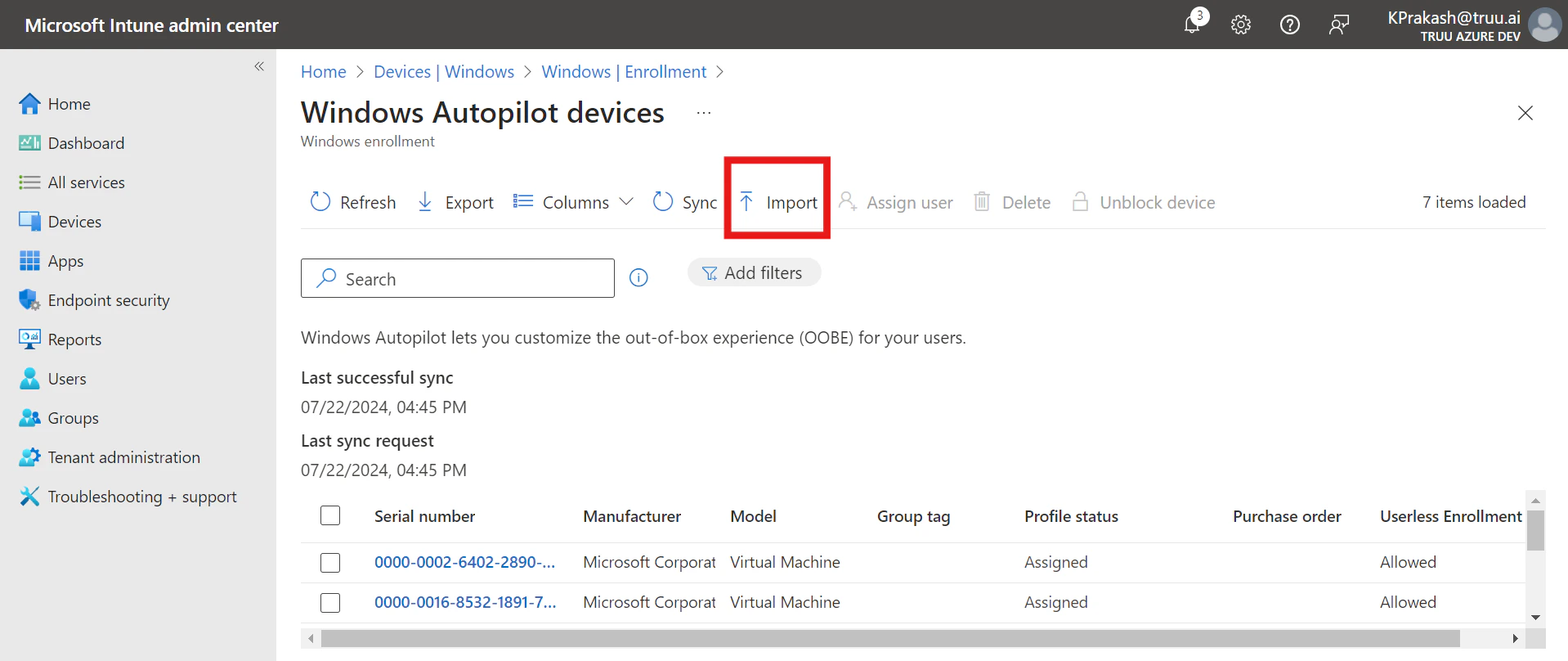 8. Import the .csv(hardware hash) file of the all devices which needs to be enrolled.
9. After the import is complete, select **Sync**. (A message displays saying that the sync is in progress. The sync process might take a few minutes to complete, depending on how many devices are being synchronized.)
10. Click on the newly added devices and add the Group tag as ‘SelfDeployment’
11. Once the GroupTag has been assigned, wait for the Profile status to change from **Unassigned** to **Assigned** state.
## **Step 4: Package and Deploy TruU Windows Authenticator in Intune**
Complete this step by following the instructions in the link [Package and Deploy TruU Windows authenticator in Intune](https://docs.truu.ai/docs/package-and-deploy-truu-windows-authenticator-in-intune)
## **Step 5: Configure and assign Autopilot Enrollment Status Page (ESP)**
1. Sign into the [Microsoft Intune admin center](https://go.microsoft.com/fwlink/?linkid=2109431).
2. In the **Home** screen, select **Devices** in the left hand pane.
3. In the **Devices | Overview** screen, under **By platform**, select **Windows**.
4. In the **Windows | Windows devices** screen, under **Device onboarding**, select **Enrollment**.
5. In the **Windows | Windows enrollment** screen, under **Windows Autopilot**, select **Enrollment Status Page**.
6. In the **Enrollment Status Page** screen that opens, select **Create**.
7. The **Create profile** screen opens. In the **Basics** page:
8. Next to **Name**, enter a name for the ESP profile. Eg; Self-deployment ESP
9. Next to **Description**, enter a description.
10. Select **Next**.
11. In the **Settings** page, toggle the option **Show app and profile configuration progress** to **Yes**.
12. Configure the settings as desired. However, make sure that you select the latest **TruU for Windows application which was created in step 4** under “**Block device use until these required apps are installed if they are assigned to the user/device**:”
8. Import the .csv(hardware hash) file of the all devices which needs to be enrolled.
9. After the import is complete, select **Sync**. (A message displays saying that the sync is in progress. The sync process might take a few minutes to complete, depending on how many devices are being synchronized.)
10. Click on the newly added devices and add the Group tag as ‘SelfDeployment’
11. Once the GroupTag has been assigned, wait for the Profile status to change from **Unassigned** to **Assigned** state.
## **Step 4: Package and Deploy TruU Windows Authenticator in Intune**
Complete this step by following the instructions in the link [Package and Deploy TruU Windows authenticator in Intune](https://docs.truu.ai/docs/package-and-deploy-truu-windows-authenticator-in-intune)
## **Step 5: Configure and assign Autopilot Enrollment Status Page (ESP)**
1. Sign into the [Microsoft Intune admin center](https://go.microsoft.com/fwlink/?linkid=2109431).
2. In the **Home** screen, select **Devices** in the left hand pane.
3. In the **Devices | Overview** screen, under **By platform**, select **Windows**.
4. In the **Windows | Windows devices** screen, under **Device onboarding**, select **Enrollment**.
5. In the **Windows | Windows enrollment** screen, under **Windows Autopilot**, select **Enrollment Status Page**.
6. In the **Enrollment Status Page** screen that opens, select **Create**.
7. The **Create profile** screen opens. In the **Basics** page:
8. Next to **Name**, enter a name for the ESP profile. Eg; Self-deployment ESP
9. Next to **Description**, enter a description.
10. Select **Next**.
11. In the **Settings** page, toggle the option **Show app and profile configuration progress** to **Yes**.
12. Configure the settings as desired. However, make sure that you select the latest **TruU for Windows application which was created in step 4** under “**Block device use until these required apps are installed if they are assigned to the user/device**:”
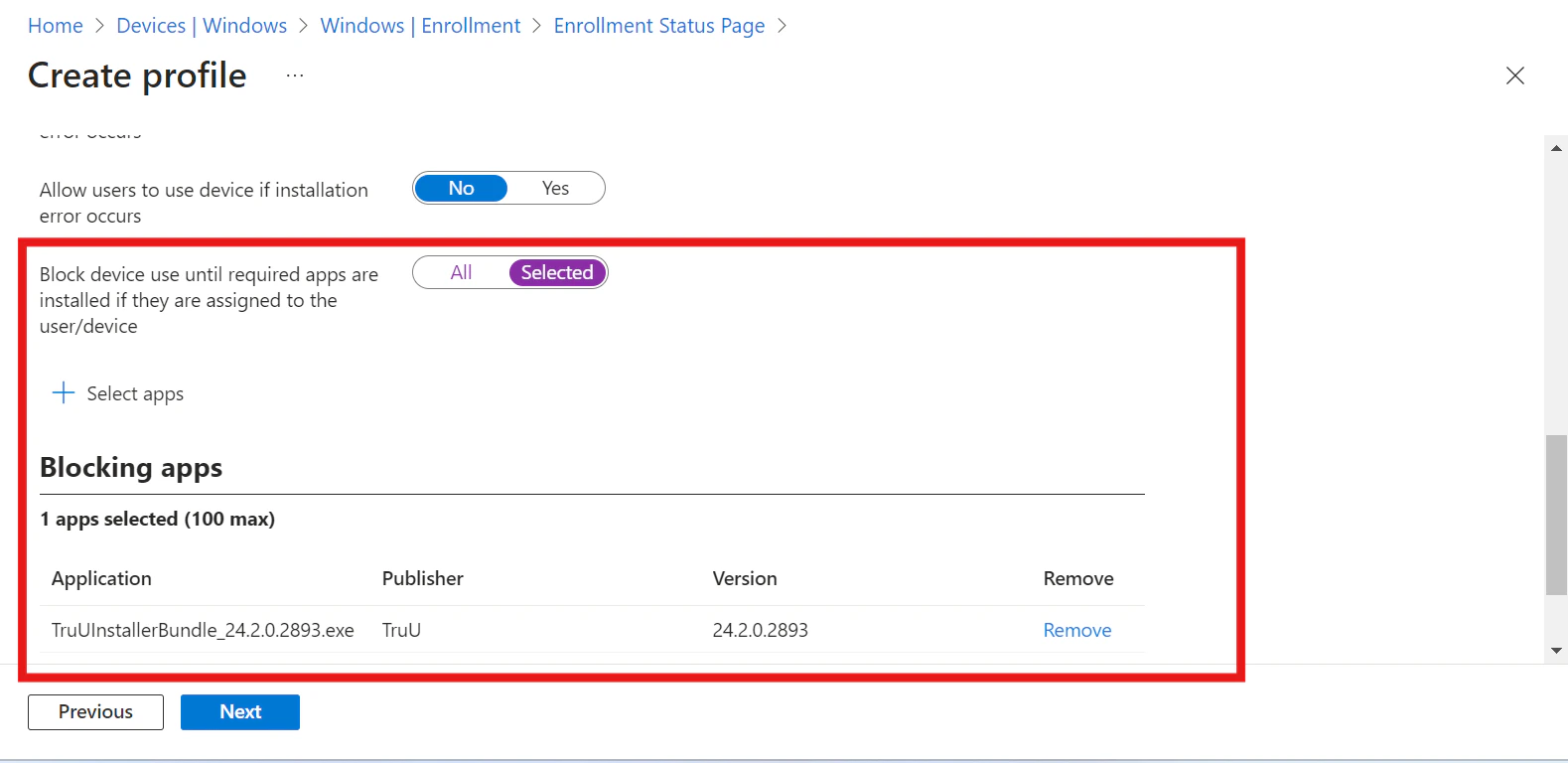 13. Assign this ESP profile to the dynamic device group created earlier.
## Step 6: Enable the Security Keys (FIDO2) sign-in
To enable the use of security keys using Intune, complete the following steps:
1. Sign in to the [Microsoft Intune admin center](https://intune.microsoft.com/).
2. Browse to **Devices** > **Enroll Devices** > **Windows enrollment** > **Windows Hello for Business**.
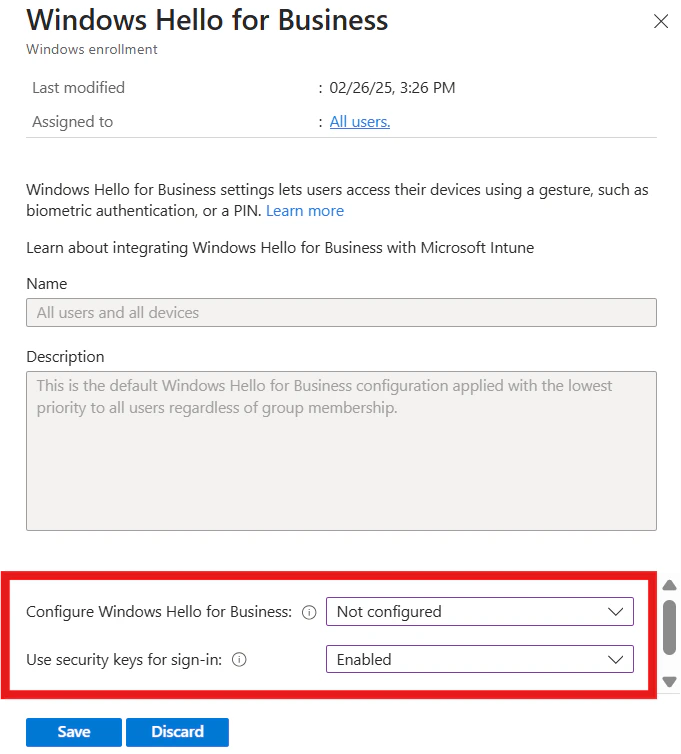
3. Set **Use security keys for sign-in** to **Enabled**.
4. Configure Windows Hello for Business shall be **Not configured** or **Disabled** state.
13. Assign this ESP profile to the dynamic device group created earlier.
## Step 6: Enable the Security Keys (FIDO2) sign-in
To enable the use of security keys using Intune, complete the following steps:
1. Sign in to the [Microsoft Intune admin center](https://intune.microsoft.com/).
2. Browse to **Devices** > **Enroll Devices** > **Windows enrollment** > **Windows Hello for Business**.
3. Set **Use security keys for sign-in** to **Enabled**.
4. Configure Windows Hello for Business shall be **Not configured** or **Disabled** state.
 **Note:** This will not enable security keys on already provisioned devices. In that case use the next method (Targeted Intune deployment)
To target specific device groups to enable the credential provider, use the following custom settings via Intune:
1. Sign in to the [Microsoft Intune admin center](https://intune.microsoft.com/).
2. Browse to **Devices** > **Windows** > **Configuration profiles** > **Create profile**.
3. Configure the new profile with the following settings:
* Platform: Windows 10 and later
* Profile type: Templates > Custom
* Name: Security Keys for Windows Sign-In
* Description: Enables FIDO Security Keys to be used during Windows Sign In
4. Select **Next** > **Add** and in **Add Row**, add the following Custom OMA-URI settings:
* Name: Turn on FIDO Security Keys for Windows Sign-In
* Description: (Optional)
* OMA-URI: ./Device/Vendor/MSFT/PassportForWork/SecurityKey/UseSecurityKeyForSignin
* Data Type: Integer
* Value: 1
5. Assign the Policy to the device group which was created in step 1.
Now your Self-Deployment Intune Autopilot along with TruU setup is complete. To understand the Enrollment workflow and User experience refer to the following link [TruU-Intune+Self-Deployment+mode+Autoliot+Enrollment+Workflow](https://docs.truu.ai/docs/intune-self-deployment-mode-autopilot-enrollment-workflow)
***
[Intune User Driven Autopilot Setup](/docs/intune-user-driven-autopilot-setup)
[Intune User-driven Autopilot Enrollment Workflow](/docs/intune-user-driven-autopilot-enrollment-workflow)
**Note:** This will not enable security keys on already provisioned devices. In that case use the next method (Targeted Intune deployment)
To target specific device groups to enable the credential provider, use the following custom settings via Intune:
1. Sign in to the [Microsoft Intune admin center](https://intune.microsoft.com/).
2. Browse to **Devices** > **Windows** > **Configuration profiles** > **Create profile**.
3. Configure the new profile with the following settings:
* Platform: Windows 10 and later
* Profile type: Templates > Custom
* Name: Security Keys for Windows Sign-In
* Description: Enables FIDO Security Keys to be used during Windows Sign In
4. Select **Next** > **Add** and in **Add Row**, add the following Custom OMA-URI settings:
* Name: Turn on FIDO Security Keys for Windows Sign-In
* Description: (Optional)
* OMA-URI: ./Device/Vendor/MSFT/PassportForWork/SecurityKey/UseSecurityKeyForSignin
* Data Type: Integer
* Value: 1
5. Assign the Policy to the device group which was created in step 1.
Now your Self-Deployment Intune Autopilot along with TruU setup is complete. To understand the Enrollment workflow and User experience refer to the following link [TruU-Intune+Self-Deployment+mode+Autoliot+Enrollment+Workflow](https://docs.truu.ai/docs/intune-self-deployment-mode-autopilot-enrollment-workflow)
***
[Intune User Driven Autopilot Setup](/docs/intune-user-driven-autopilot-setup)
[Intune User-driven Autopilot Enrollment Workflow](/docs/intune-user-driven-autopilot-enrollment-workflow)