> ## Documentation Index
> Fetch the complete documentation index at: https://docs.truu.ai/llms.txt
> Use this file to discover all available pages before exploring further.
# TruU's Internationalization
> This is a step-by-step guide as to how one configures internationalization on TruU
While TruU automatically localizes all system-generated language into the supported languages listed below, some user-visible content can't be localized because it was created by admins within your environment.
This page enables you to localize the **Global Attributes**, **Messages**, **SSO Adapters**, and **Labels** that have been added to your tenant.
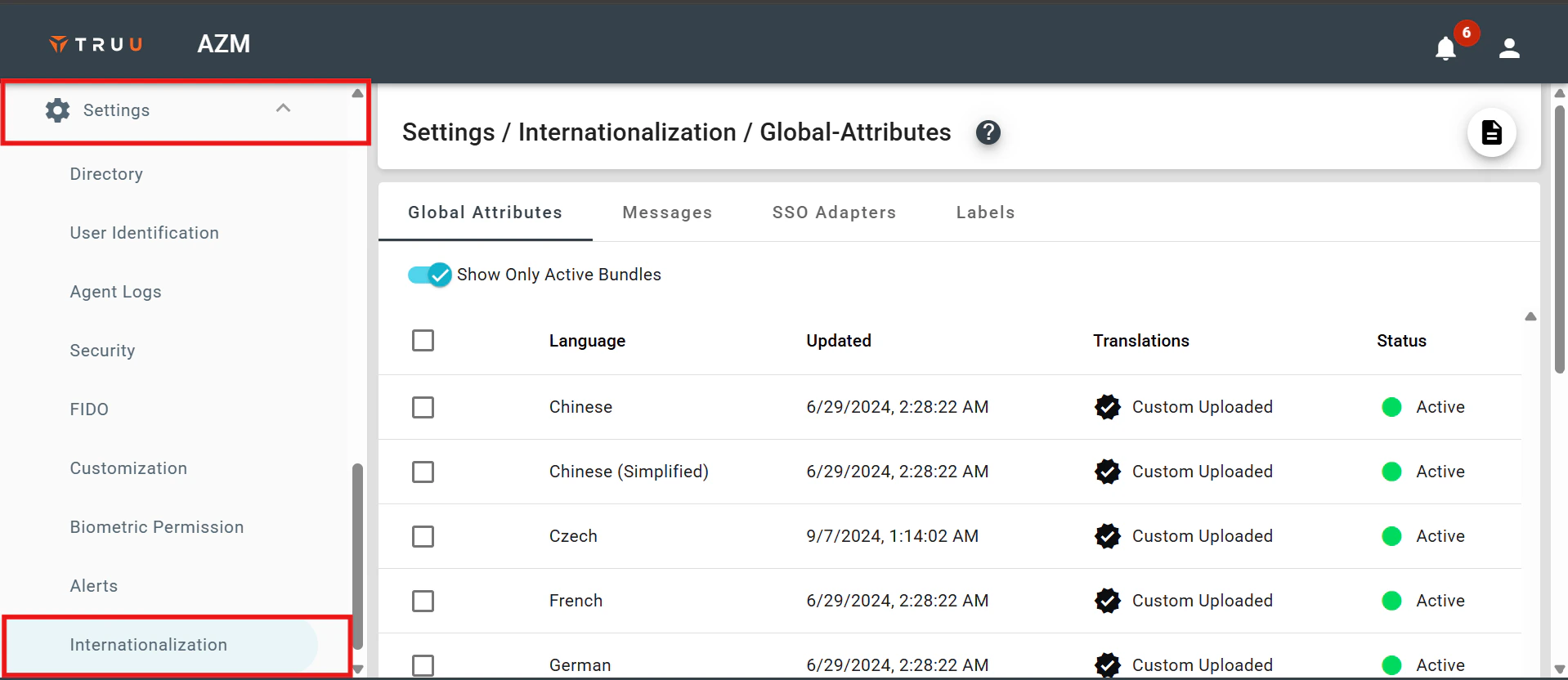
* To localize the language, log in to the **TruU Admin console**, open the **settings dropdown**, and select **Internationalization**.
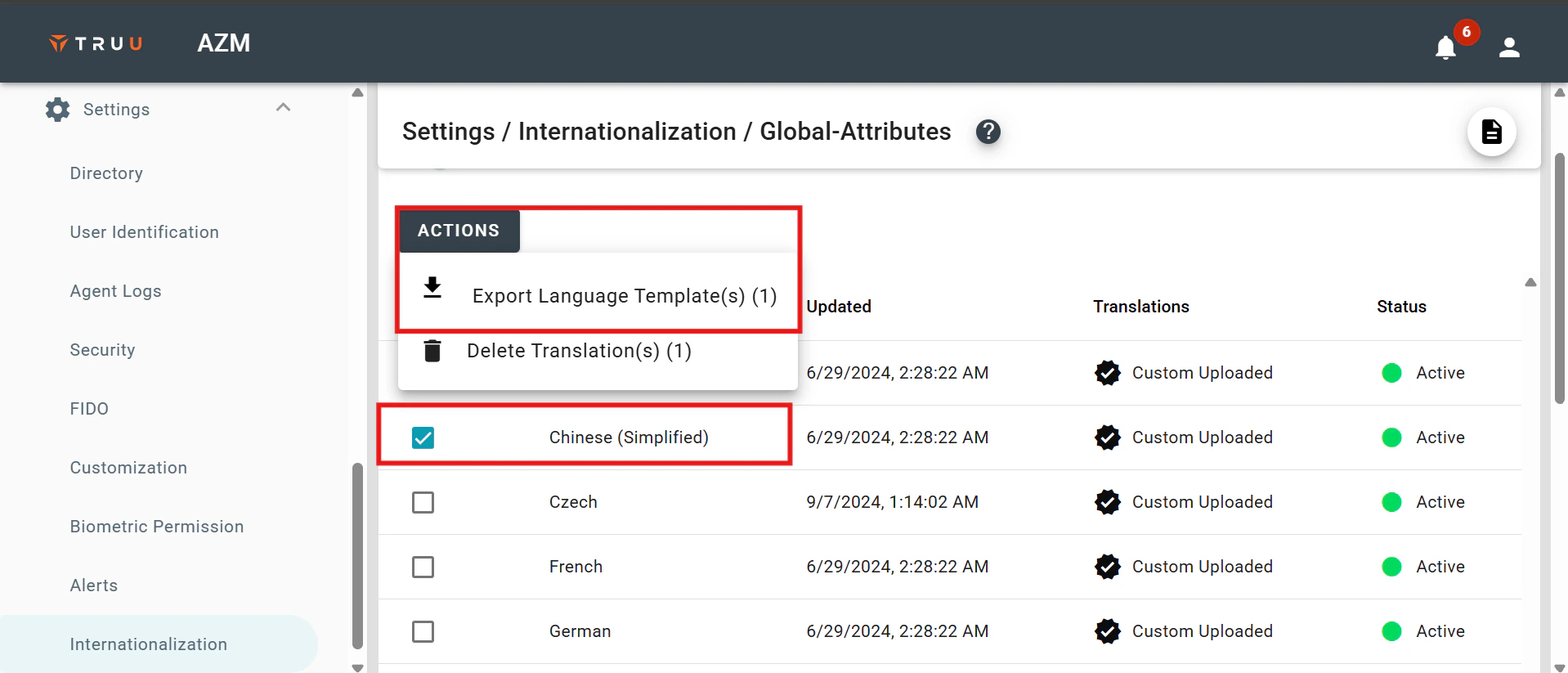
 * Choose the desired language, click on **Actions**, and then select **Download** Language Template.
 * You can modify the variables to your desired values in the file you downloaded.
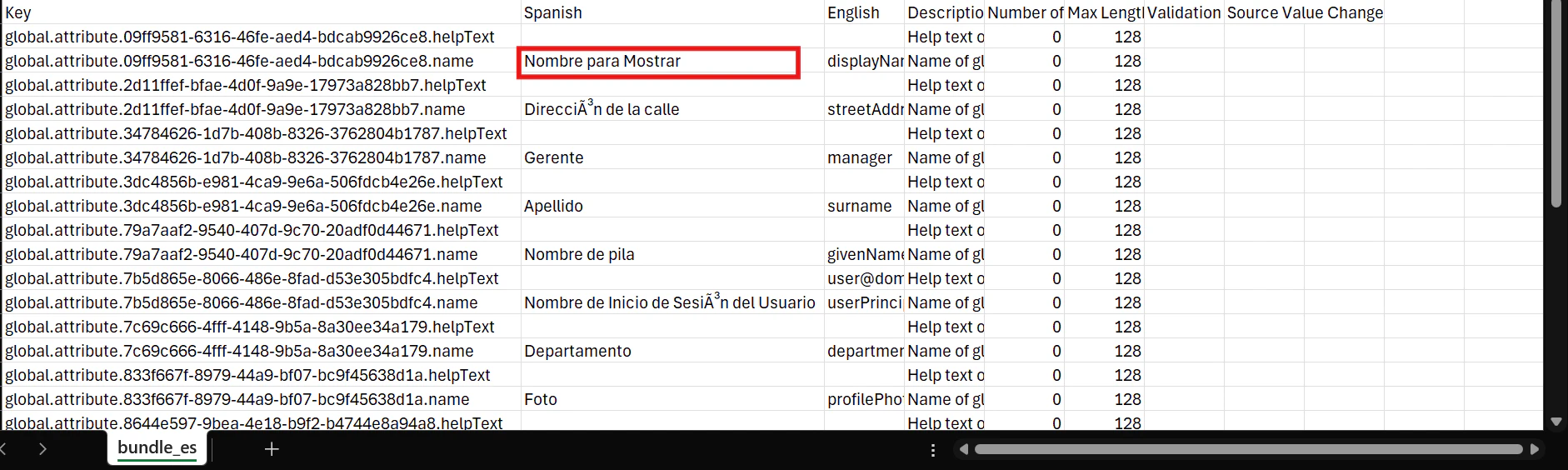 **Note**: To preserve multibyte characters and symbols, ensure the CSV file is opened and saved with UTF-8 encoding. If you're using Microsoft Excel to edit the file, it's recommended to open Excel first, use the Text Import Wizard from the Data menu to import the CSV, and then save it with UTF-8 encoding.
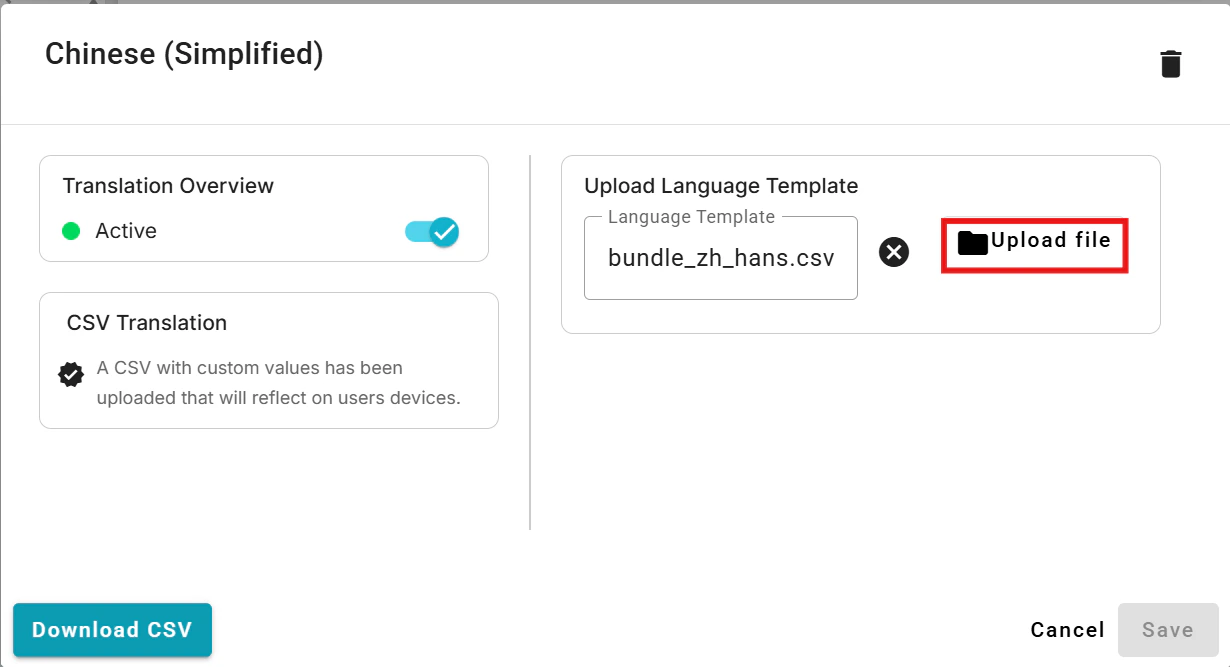
* Now, click on the row for the desired language (the one you exported the template for), and upload the corresponding CSV file.
**Note**: To preserve multibyte characters and symbols, ensure the CSV file is opened and saved with UTF-8 encoding. If you're using Microsoft Excel to edit the file, it's recommended to open Excel first, use the Text Import Wizard from the Data menu to import the CSV, and then save it with UTF-8 encoding.
* Now, click on the row for the desired language (the one you exported the template for), and upload the corresponding CSV file.
 * If the source content is updated after translations have been provided, a warning indicator will appear in the table to notify you that the source content has been modified.
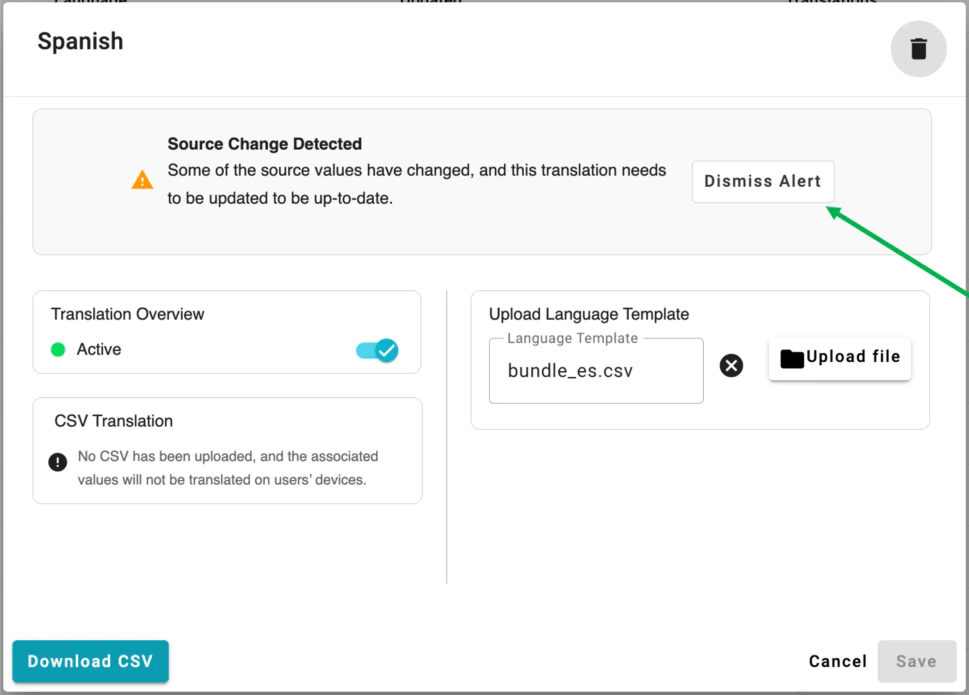
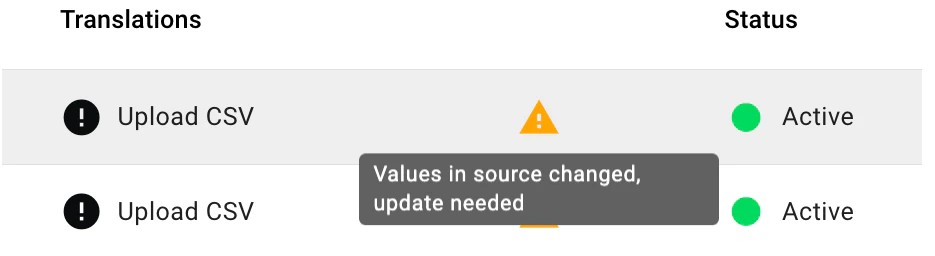 You can remove those warnings by:
* Downloading the CSV, updating the text as needed, and re-uploading the CSV
* By clicking in the row and dismissing the alert
You can remove those warnings by:
* Downloading the CSV, updating the text as needed, and re-uploading the CSV
* By clicking in the row and dismissing the alert
 ***
[TruU for RDP and UAC Feature](/docs/truu-utilization-of-rdp-and-uac)
[RDP from one laptop to another Use Cases](/docs/truu-rdp-use-cases)
***
[TruU for RDP and UAC Feature](/docs/truu-utilization-of-rdp-and-uac)
[RDP from one laptop to another Use Cases](/docs/truu-rdp-use-cases)