> ## Documentation Index
> Fetch the complete documentation index at: https://docs.truu.ai/llms.txt
> Use this file to discover all available pages before exploring further.
# User Portal and Device Management
> This is a step-by-step guide as to how you can add or remove a device from a User on the TruU User Portal.
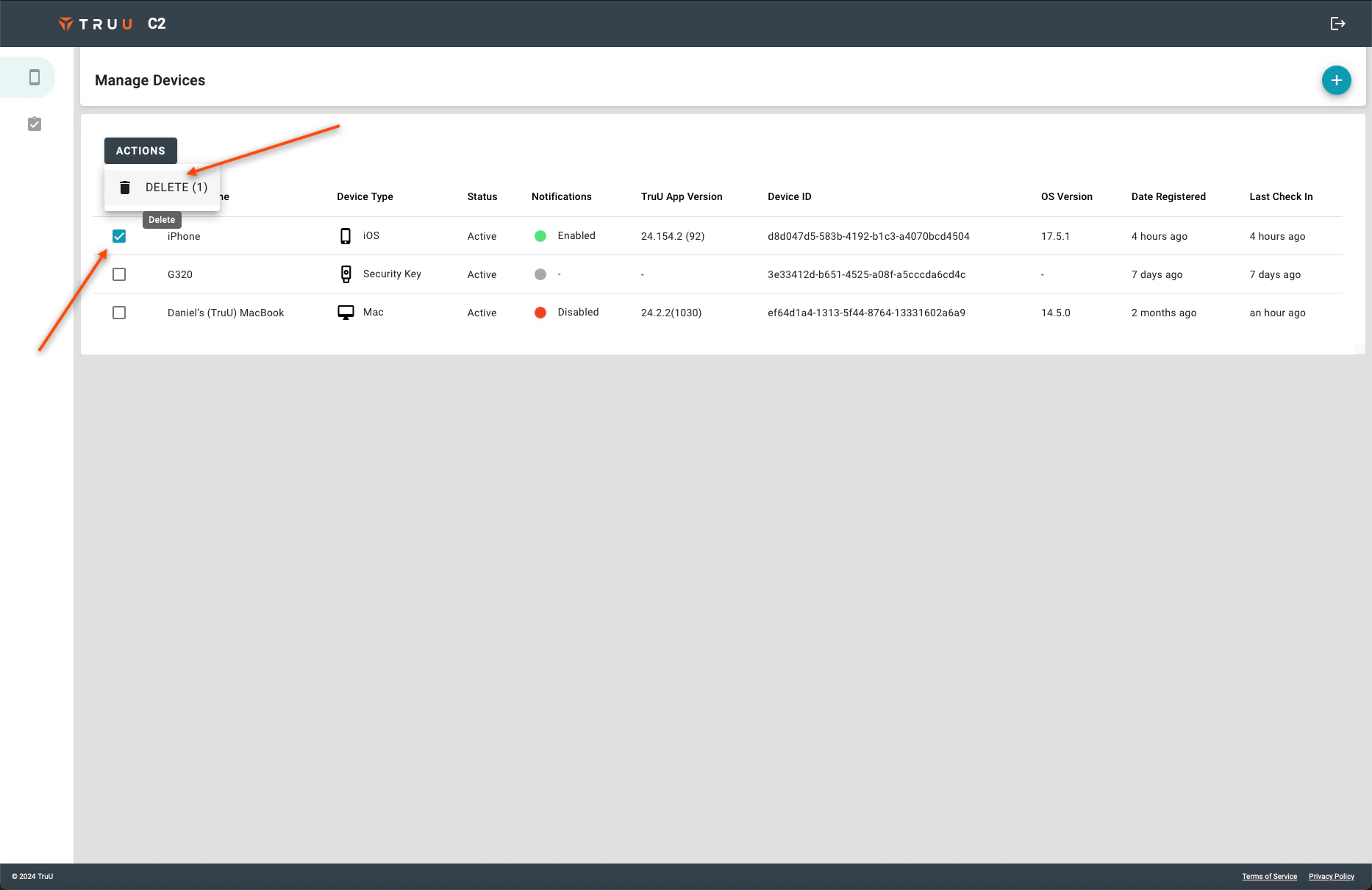
**How to Delete a Device**
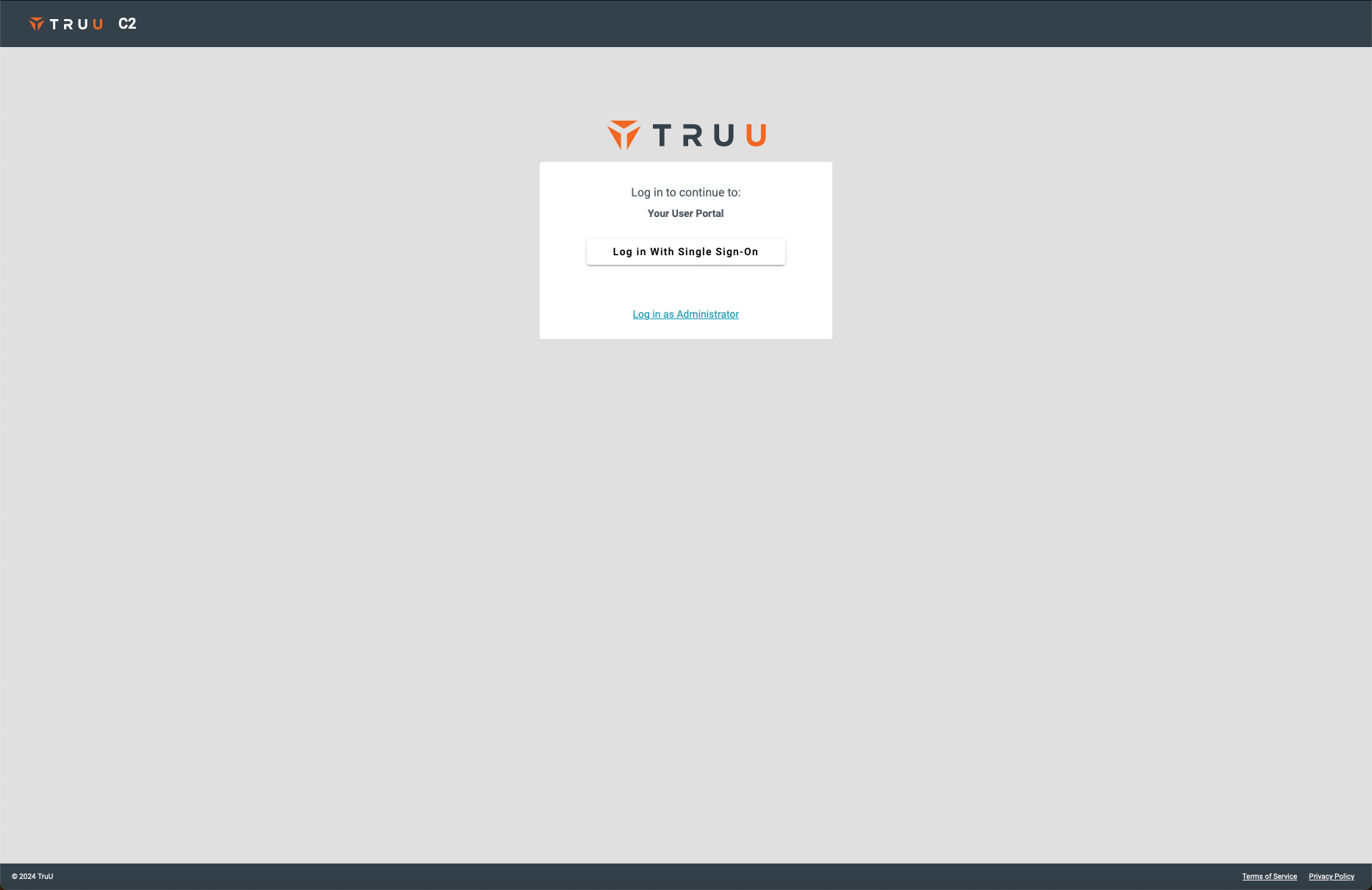
1. Login to the TruU User Portal
 2. Navigate to the "Manage Devices" tab, select the **device** you wish to delete, click **Actions**, and select **Delete**.
 **How to Add a Device**
1. Login to the TruU User Portal
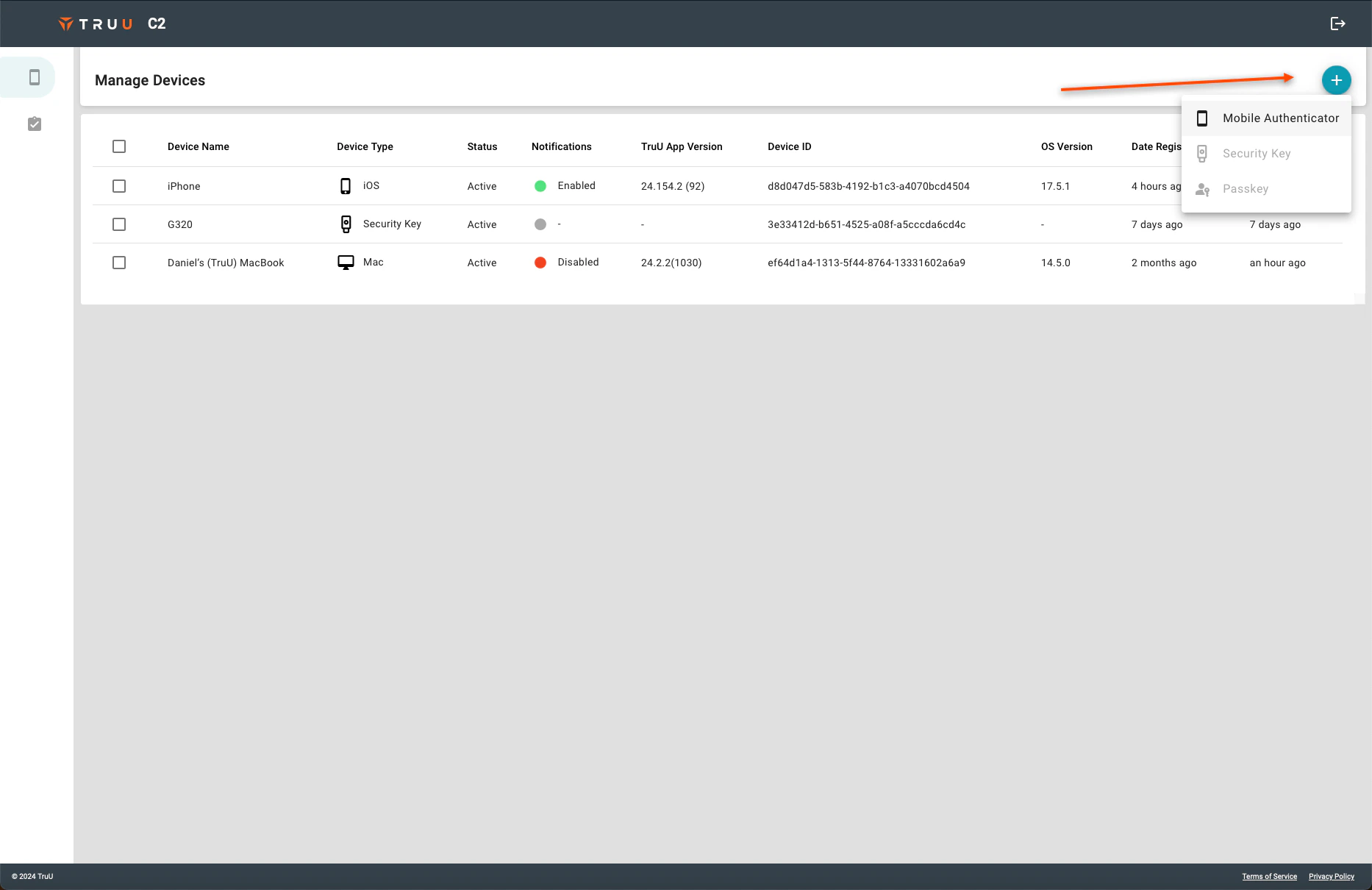
2. On the right side of the screen, click the blue **(+)** and then select which type of device you wish to add
**How to Add a Device**
1. Login to the TruU User Portal
2. On the right side of the screen, click the blue **(+)** and then select which type of device you wish to add
 ***
[Install SW via TruU Admin Console](/docs/shared-workstation-installation)
[Manager's Approval](/docs/manager-approval)
***
[Install SW via TruU Admin Console](/docs/shared-workstation-installation)
[Manager's Approval](/docs/manager-approval)