# 1. Create the OIDC app (SSO)
Source: https://docs.truu.ai/1-create-the-oidc-app-sso
### 1.1 Create the OIDC app integration
1. Okta Admin Console: Applications → Applications
2. Click **Create App Integration**
3. Select:
* OIDC - OpenID Connect
* Web Application
4. Click **Next**
5. Configure:
* App integration name: *TOTAL (OIDC SSO)*
* Grant types: **Authorization Code** and **Client Credentials**
* Sign-in redirect URI: from the TOTAL Enrollment Console Example: [https://app.yourtotal.com/auth/oidc/callback](https://app.yourtotal.com/auth/oidc/callback)
* Assignments, controlled access: Skip group assignment for now
6. Click **Save**
### 1.2 Copy values into TOTAL
From the OIDC app’s General tab, copy:
* *Client ID*
* *Client Secret*
* For the Okta issuer or tenant value, use your Okta domain:
* Example: [https://mycompany.okta.com](https://mycompany.okta.com) (or your Okta custom domain)
Enter these values in the TOTAL Enrollment Console.
### 1.3 Grant Okta API scope
In the OIDC app:
* Open **Okta API Scopes**
* Grant **okta.users.read**
# 2. Create Okta groups for TOTAL
Source: https://docs.truu.ai/2
1. Access the Okta Admin Console, navigate to the **Directory** → **Groups**
2. Click **Add group**
3. Create at minimum:
* *TOTAL-Admin* (or the exact name agreed with TOTAL)
4. Add administrators to the group
# 3. Create the SAML app
Source: https://docs.truu.ai/3
This app exists only to enable SCIM provisioning and push Groups.
### 3.1 Create the SAML app integration
1. In the Okta Admin Console, navigate to the "Applications" tab
2. Click **Create App Integration**
3. Select **SAML 2.**
4. Name it *TOTAL (Provisioning)*
* Okta requires SAML values to create the app. Use these placeholders:
* Single sign on URL: [https://total.invalid/saml/acs](https://total.invalid/saml/acs)
* Recipient URL: [https://total.invalid/saml/acs](https://total.invalid/saml/acs)
* Destination URL: [https://total.invalid/saml/acs](https://total.invalid/saml/acs)
* Audience Restriction: [https://total.invalid/saml/metadata](https://total.invalid/saml/metadata)
5. **Save** the application
### 3.2 Enable SCIM on the SAML app and connect to TOTAL
1. Open the **TOTAL (Provisioning) app**
2. Go to the **Provisioning** tab
3. Click **Configure API Integration**
4. **Enable** API Integration
5. Enter the following:
* **Base URL**: TOTAL SCIM Base URL
* **API Token**: TOTAL SCIM Secret Token
6. Click **Test API Credentials**
7. Click **Save**
### 3.3 Turn on provisioning actions
1. Navigate to the Provisioning tab and select your app
2. Click **Edit**, select enable for the following:
1. Create Users
2. Update User Attributes
3. Deactivate Users
3. Click **Save**
### 3.4 Push groups
Inside the TOTAL (Provisioning) app:
1. Go to **Push Groups**
2. Push the following groups:
* TOTAL-Admin (required)
* Any additional TOTAL groups you use
3. For each group, select **Create Group** and keep **Push group memberships immediately** enabled
### 3.5 Assign groups to the provisioning app
Inside the TOTAL (Provisioning) app:
1. Go to **Assignments**
2. Assign the TOTAL-Admin group (and any other TOTAL groups)
3. To verify provisioning activity:
* In the Okta Admin Console, navigate to the "Reports" tab, then click "System Log"
* Filter by the *TOTAL (Provisioning)* app
* Confirm provisioning events are present
* **NOTE**: Only users assigned to the provisioning app (directly or via assigned groups) will be created, updated, or deactivated in TOTAL.
# 4. End to End Testing
Source: https://docs.truu.ai/4-end-to-end-testing
1. Confirm a test admin user is a member of TOTAL-Admin
2. Confirm TOTAL-Admin is:
* Assigned to TOTAL (Provisioning)
* Pushed in Push Groups
3. Confirm the user is provisioned (System Log)
4. Have the user sign into TOTAL using Sign in with Okta (OIDC)
# Adding Integrations to TOTAL
Source: https://docs.truu.ai/adding-integrations-to-total
TOTAL’s Integrations page brings together data providers and external tools that enhance and enrich your organization’s security intelligence.
These integrations extend TOTAL’s capabilities by adding contextual data, improving identity insights, and strengthening risk detection across your environment. Connect your existing systems to centralize signals, enrich decision-making, and gain a more complete view of your security posture.

# List hydrated cases with threat events
Source: https://docs.truu.ai/api-reference/cases/list-hydrated-cases-with-threat-events
https://eris.platform.total.truu.ai/api/v1/external/docs get /cases
Returns cases scoped to the caller's domain. Each case includes the full
threat event objects referenced by `event_ids`, so external systems can
process a case without making a second `/threats` lookup.
For polling integrations, use `created_after` with an ISO 8601 timestamp
to query cases created within a specific time window, for example:
`GET /cases?created_after=2026-06-15T00:00:00Z`.
**Side effect:** Any `discover` case included in the response is
automatically claimed — it transitions to `pending_investigation`
and an investigation record is created. Repeated polling of the
same case is safe; already-claimed cases are not double-counted.
# Submit a verdict for a case
Source: https://docs.truu.ai/api-reference/cases/submit-a-verdict-for-a-case
https://eris.platform.total.truu.ai/api/v1/external/docs post /cases/{case_id}/verdict
Feed back a verdict from an external workflow or SOC analyst.
Supply a single **outcome** describing what happened to the case. An optional **comment**
and list of supporting **event_ids** (threat event UUIDs, up to 200) may be included.
**outcome** must be one of: `SAFE`, `TRUE_POSITIVE`, `FALSE_POSITIVE`, `DUPLICATE`, `ESCALATED`.
# Get NHI cluster access rollup
Source: https://docs.truu.ai/api-reference/nhi/get-nhi-cluster-access-rollup
https://eris.platform.total.truu.ai/api/v1/external/docs get /nhi/clusters/{cluster_id}/access
Least-privilege, scope mix, and reach across the cohort — the cluster
Access tab.
# Get one NHI cluster
Source: https://docs.truu.ai/api-reference/nhi/get-one-nhi-cluster
https://eris.platform.total.truu.ai/api/v1/external/docs get /nhi/clusters/{cluster_id}
# Get one NHI overview
Source: https://docs.truu.ai/api-reference/nhi/get-one-nhi-overview
https://eris.platform.total.truu.ai/api/v1/external/docs get /nhi/personas/{nuid}
# Get structured NHI persona detail
Source: https://docs.truu.ai/api-reference/nhi/get-structured-nhi-persona-detail
https://eris.platform.total.truu.ai/api/v1/external/docs get /nhi/personas/{nuid}/detail
Full NHI persona-page payload: story, role, reconstructed purpose,
entitlements, IAM, interactions, data movement, risk, coverage,
stewards, custody, resource/actor edges, call samples, call rhythm,
cluster rank, asset tier, and drift. `delta` and unpublished pending
Persona L fields are omitted.
# List members of one NHI cluster
Source: https://docs.truu.ai/api-reference/nhi/list-members-of-one-nhi-cluster
https://eris.platform.total.truu.ai/api/v1/external/docs get /nhi/clusters/{cluster_id}/members
# List NHI clusters
Source: https://docs.truu.ai/api-reference/nhi/list-nhi-clusters
https://eris.platform.total.truu.ai/api/v1/external/docs get /nhi/clusters
# List NHI identities
Source: https://docs.truu.ai/api-reference/nhi/list-nhi-identities
https://eris.platform.total.truu.ai/api/v1/external/docs get /nhi/personas
Fleet directory over `nhi_profiles`. An identity appears whether or not
Persona L has run. Same API key as the rest of the external API.
# Get persona overview for a user
Source: https://docs.truu.ai/api-reference/personas/get-persona-overview-for-a-user
https://eris.platform.total.truu.ai/api/v1/external/docs get /personas/{tuid}
# Get structured persona detail for a user
Source: https://docs.truu.ai/api-reference/personas/get-structured-persona-detail-for-a-user
https://eris.platform.total.truu.ai/api/v1/external/docs get /personas/{tuid}/detail
Structured projection of the user's identity persona: declared identity,
observed role, workstreams (with cited artifacts and collaborators),
scanned access inventories (entitlements, applications, privileged
grants), IAM/NHI posture, and a coarse risk lens.
The communication graph, item-level NHI detail, sign-in method/network
patterns, and free-text risk narratives are never exposed on this
endpoint.
# List persona overviews
Source: https://docs.truu.ai/api-reference/personas/list-persona-overviews
https://eris.platform.total.truu.ai/api/v1/external/docs get /personas
# List threat events
Source: https://docs.truu.ai/api-reference/threats/list-threat-events
https://eris.platform.total.truu.ai/api/v1/external/docs get /threats
# Get a single user
Source: https://docs.truu.ai/api-reference/users/get-a-single-user
https://eris.platform.total.truu.ai/api/v1/external/docs get /users/{tuid}
# List provisioned users
Source: https://docs.truu.ai/api-reference/users/list-provisioned-users
https://eris.platform.total.truu.ai/api/v1/external/docs get /users
# Continuous Authentication Policies Setup
Source: https://docs.truu.ai/cauth/admin-console-configuration
Continuous Authentication (CAuth) is TruU’s advanced authentication platform that provides real-time user identity verification through behavioral biometrics and multi-signal analysis. It operates as a sophisticated security layer that continuously monitors and validates user identity throughout their session. CAuth unites TruU's TOTAL PROTECT module with continuous monitoring to keep a user protected throughout their entire work session, not just at sign-in to the workstation. This guide will walk you through the steps to configure the Computer and Application policies for CAuth in your Admin Console.
## **Prerequisites to install Unified Agent (Windows + CAuth)**
* OS: Windows 11 (64-bit)
* RAM: 8GB minimum
* Storage: 2GB free space
* Internet: Required for cloud connectivity
* Ensure that your network allows connection to the TruU servers (no firewalls, blockers, disallow lists, etc)
## Computer Policy
To apply CAuth policy for the standard TruU Desktop Authenticator: In the admin console, open Policies and go to the Computer tab. You can either create a new Computer policy (use the blue plus) or edit an existing one. When you save the policy, set Applies to so it applies to all groups or only specific groups, depending on your rollout. That Computer policy works together with the TruU Desktop Authenticator agent on CAuth endpoints.

#### Option: **Setting the policy to Yes**
* Enables continuous authentication on the computer.
* The agent continuously collects behavioral signals (keyboard, mouse, WiFi location).
* Risk evaluation occurs in real-time – prompting user for reauthentication at any time where risk associated with the user’s behavior is high
* If a user fails to promptly validate their identity the system will lock

#### Option: **Mode selection**
| **Mode** | **What it does** |
| - | - |
| Enforce | Takes action based on the sensitivity setting below i.e., when a session's behavioral risk crosses the configured threshold, TruU challenges the user for reauthentication or locks the computer if they don't validate in time. |
| Monitor Only | Evaluates the same signals but takes no action on the endpoint. Instead, it logs the event in the Admin Console so admin can see what *would* have triggered a challenge. |
#### Option: **Tune Continuous Authentication Sensitivity**
* The Sensitivity slider controls how sensitive TruU is when determining whether to prompt for reauthentication based on detected risk signals.

**Available Levels** (from left to right)
1. User Experience: “**Prioritize user experience.** Fewest authentication prompts. Challenge only with strong indicators or insufficient signals.”
2. Balanced - UX: “**Favor user experience.** Fewer prompts. Standard verification thresholds for challenging users.”
3. Balanced: “**Balanced.** Moderate prompts. Challenge when signals show deviation or are insufficient.”
4. Balanced - Security: “**Favor Security.** More prompts. Challenge readily when signals deviate or lack sufficient data.”
5. High Security: “**Prioritize Security.** Most prompts. Challenge at earliest deviation or insufficient signals.”
`Lower sensitivity (left side) = Higher risk tolerance = Fewer lock events `
`Higher sensitivity (right side) = Lower risk tolerance = More lock events`
### Option: Setting the policy to No
* Disables continuous authentication
* No continuous risk evaluation or behavioral monitoring is performed
* Devices operate without CAuth system-level protection
**Recommendation**: Set to Yes for production environments requiring continuous security monitoring.
## Application Policy
Use an Application Policy to define which applications should have SSO access governed by Continuous Authentication. This works in conjunction with the TruU Desktop Authenticator agent so that seamless SSO can be allowed when the user is low-risk (genuine) and continuously monitored for the selected applications.
To configure this, open the admin console and navigate to Policies → Application. From there, an admin can either create a new Application Policy (click the blue plus) or edit an existing policy, then set Applies to so the policy targets all groups or specific groups , depending on your rollout. That application policy works together with the TruU Desktop Authenticator agent on CAuth endpoints.

### Option: **Setting the policy to Yes**
* Enables continuous authentication for application access.
* The agent continuously collects behavioral signals (keyboard, mouse, WiFi location).
* Risk evaluation occurs in real-time.
* SSO decisions are based on calculated risk levels - Seamless SSO is allowed when risk is low.
* When an imposter is identified (elevated risk detected), seamless SSO authentication will not go through and falls back to the authentication method specified in "Requirements (when Continuous Auth Disallows Seamless SSO)". For example, "Biometrics or PIN" (as shown in screenshot):

#### Option: **Tune Continuous Authentication Sensitivity**

This slider controls how sensitive TruU is when deciding whether the user risk is sufficiently low to grant them seamless SSO access to an application without requiring further user input.
**Available Levels** (from left to right)
1. User Experience: “**Prioritize user experience.** Fewest authentication prompts. Challenge only with strong indicators or insufficient signals.”
2. Balanced - UX: “**Favor user experience.** Fewer prompts. Standard verification thresholds for challenging users.”
3. Balanced: “**Balanced.** Moderate prompts. Challenge when signals show deviation or are insufficient.”
4. Balanced - Security: “**Favor Security.** More prompts. Challenge readily when signals deviate or lack sufficient data.”
5. High Security: “**Prioritize Security.** Most prompts. Challenge at earliest deviation or insufficient signals.”
`Lower sensitivity (left side) = Higher risk tolerance = Fewer lock events `
`Higher sensitivity (right side) = Lower risk tolerance = More lock events`
#### Option: **Setting the policy to No**
* Disables continuous authentication.
* No continuous risk evaluation or behavioral monitoring is performed.
* Devices operate without CAuth protection.
* SSO decisions follow traditional policy rules (see "Desktop Authentication Policies (When Continuous Auth is Unavailable)")
**Recommendation**: Set to Yes for production environments requiring continuous security monitoring.
# How to Enable Continuous Authenticator
Source: https://docs.truu.ai/cauth/enable-cauth-application
This guide shows the what to configure for enabling cauth in the installer application.config file and other fields which can be customizable based on customer needs
| Flag name | Default | Purpose | Notes |
| - | - | - | - |
| \`EnableCAuth\` | false | Enables/disables CAuth features, including policy-triggered re-auth prompts. Reg Command : reg add "HKLM\SOFTWARE\Policies\TruU\Authenticator" /v EnableCAuth /t REG\_DWORD /d 1 /f | false = off, true = on |
| \`ReauthTimeoutSec\` | 30 | How long the re-auth prompt stays open before timing out; on timeout the workstation is locked. | Max allowed is 120 |
| \`AuthCooldownSeconds\` | 1800 | Minimum time (in seconds) between consecutive CAuth re-auth prompts. | Minimize if tolerate more frequent step‑up prompts |
| \`authAttempts\` | 8 | TruU PIN lockout threshold (app-level): wrong PIN attempts allowed during TruU re-auth before PIN is locked. | Same flag for standard Pin hammering |
| \`timeExpiredFailedAttemptsSec\` | 3600 | TruU PIN lockout duration (in seconds) after attempts are exhausted. | Same flag for standard Pin hammering |
# Ensuring Privacy
Source: https://docs.truu.ai/cauth/ensuring-privacy
This is a knowledge article detailing how TruU ensures privacy throughout end user interaction with CAuth.
## CAuth Privacy Architecture Overview
TruU's CAuth (Continuous Authentication) implements a multi-layered privacy protection system that ensures user data is never linked to personal information *and* remains secure throughout the entire process.
### Data Encryption and Storage Protection
* **SQLCipher Integration**: CAuth uses SQLCipher for database encryption with 256-bit AES encryption
* **Key Management**: Database encryption keys are generated using AES-256-CBC and stored using Windows Data Protection API
## Behavioral Data as an NRR
CAuth’s keyboard model stores only behavioral embeddings, not raw user data, referred to within this document as a Keyboard NRR (Non-Recoverable Representation). An NRR is a mathematical representation of user behavior patterns (like typing rhythms, mouse movements, etc) which is not invertible; that is – you cannot obtain the raw data that formed the NRR from the NRR itself. The underlying pre-trained deep learning model (packaged within the CAuth installer) which is used to generate the NRRs is specially trained to only encode information which is useful for distinguishing different users within a population and *not* to encode exactly what behavior any given user was engaged in. After all, such a model is only useful for the task of identity verification if it is agnostic to behavior – it must recognize a user regardless of how they choose to interact with their machine at any given moment.
Note that raw keystrokes and precise keystroke timing data is never persisted to disk. It may be held in temporary memory for up to 50 seconds (average of less than 10 seconds) until ready for processing into an NRR.
Users’ keyboard NRRs are stored in the local encrypted SQLite database for up to several weeks where they are used to continually refine and improve CAuth’s ability to recognize the authenticated user on the system via a series of lightweight, locally-trained user-specific models.
## Data Archival
TruU archives a mixture of CAuth telemetry data, CAuth model performance data, machine state data (keyboard, monitor, mouse connected, etc.), environmental data (visible WiFi networks and signal strengths), mouse data, and keyboard NRR data. This data is used to further improve the CAuth product as well as other product lines within TruU, including account takeover protection and insider threat protection. All archived data is anonymized on the client machine before being transported over a secure http connection to the cloud-side Archiver service.
* **Database UUID**: Each installation gets a unique database UUID
* **No Personal Linking**: Within the TruU Archiver cloud service, a user’s Database UUID cannot be linked back to personal information about that user
## Machine Learning Privacy Protection
### Model Training Process
#### User Specific Models
* **Local Training Only**: All user-specific model training happens locally on the user's machine
* **Embedding-Only Training**: User specific models train on NRR embeddings, never raw data
* **Imposter Integration**: Uses crowdsourced, pre-packaged imposter NRRs to create negative examples
#### Population Models
* **Large User Base:** CAuth’s deep-learning “population models” are trained on several 10’s of thousands of users via a crowdsourced raw-typing dataset, learning to generate a representation for each data input which can separate the originating-user from all other users in the population
* **Pre-trained Models**: These population models are trained in advance on TruU’s dedicated servers before being packaged into the CAuth distributable for use within the system
* **Local Adaptation**: User-specific models learn to utilize the output of the pre-trained population-level models in order to recognize behaviors that are representative of the authenticated user on the device
#### Imposter Embeddings
* **Crowdsourced Data**: The CAuth system uses crowdsourced anonymized behavioral data, converted to NRRs via the pre-trained population model, to help train its user-specfic recognition models on device
* **Privacy Protection**: These NRR embeddings recognize when the individual on the device is "not the authenticated user," as opposed to identifying the typing behavior as belonging to a specific user within an org
* **Balanced Training**: Models are trained on both authenticated user embeddings and crowd-sourced anonymous imposter embeddings to prevent overfitting
## Data Retention and Cleanup
### Garbage Collection
* **Automatic Cleanup**: Database cleaner service runs regularly to prune outdated data
* **Configurable Retention**: Each table within the encrypted SQLite database has specific retention policies based on the table’s contents
# Environment Based Location Estimation
Source: https://docs.truu.ai/cauth/environment-based-location-estimation
## **How Is Mouse Data Used?**
CAuth uses environmental signals—currently Wi‑Fi network activity. The collection of observable WiFi networks and their respective signal strengths can give strong indications about the current location of the machine. While this does not pinpoint the location in an absolute sense, it does allow CAuth to infer the machine’s current location relative to previously observed locations. Knowing the frequency with which the authenticated user has been in a particular location in the past can give strong contextual information about the inherent risk associated with accessing the machine at any given time.
# Keyboard Signal
Source: https://docs.truu.ai/cauth/keyboard
## **How Is Keyboard Data Used?**
The collection of idiosyncrasies inherent to the typing behavior of each individual can provide a sort of fingerprint that allows any particular user to be recognized. CAuth observes typing behavior (timing and rhythm) in order to make a simple binary prediction – is the authenticated user typing (“low risk”) or is it someone else at the keyboard (“high risk”)?
## **Keystroke Capture and Processing Flow**
1. **Key Capture:** Press time, release time, and key code are recorded temporarily into memory.
2. **Aggregation:** TruU’s custom aggregation algorithm dynamically evaluates the information content of keystrokes currently cached in memory, flushing the cache when certain conditions are met
3. **Keyboard Sample Creation:** Novel features are extracted from the flushed keystroke set and passed to a state-of-the-art pre-trained deep neural-net, transforming the data into a Non Recoverable Representation (NRR) that encodes user typing behavior.
4. **Sample Scoring:** User specific models are trained on the generated NRR’s, once trained these models will reliably map any newly-gathered NRR into a numerical score - the likelihood that the NRR was generated by the authenticated user. This score is passed along to be combined with other risk signals(mouse, environment etc) in order to determine the overall risk score of the device.
5. **Persistence:** The NRR and associated metadata are persisted locally in a secure database for future on-device model training and evaluation processes.
6. **Archival:** The NRR and its metadata are first anonymized then transmitted to the cloud (every 60 sec cycle) for use in improving CAuth’s predictive algorithm.
## **Model Training**
Implicit to the keyboard model training process is the assumption that the authenticated user, and only the authenticated user, will use the machine during the initial “warmup” phase as CAuth learns the unique behavioral characteristics encoded within the generated NRR’s. The exact duration of this warmup period will depend heavily on *how* a given user types, but is typically less than 10,000 total keystrokes or 400 total complete sentences typed. For typical usage this amount can be achieved in less than a working day.
Beyond the “warmup” phase, CAuth will continue to refine and adapt its internal modelling of typing behavior. All internal models are periodically subject to error-rate benchmarking, a process that remains contained to the device and will aide downstream decision engines in their risk assessment calculations. As the total volume of typing data observed by CAuth increases, and in particular as different usage patterns are learned, the training and evaluation processes will result in a richer and more stable typing model.
## **Persisted Data**
* NRR - Non recoverable representation for the typing sample which encodes behavior which is intrinsic to the user.
* Timestamps - Time that the first key and last key within the typing sample were pressed.
* Length - The total number of keystrokes that contributed to generating the NRR.
* App - The app(s) that was(were) active while the keys were typed.
* CAuth data - Additional labels and/or values generated by CAuth which are not constructed from any of the typing data, for use in other aspects of the total CAuth system.
## **Privacy and Security Safeguards**
Protecting user privacy and securing sensitive data are foundational principles in the design of CAuth’s keyboard risk signal. The system is engineered to ensure that no reconstructable or sensitive information about user input is ever stored or transmitted, while still enabling robust, continuous authentication.
* **No Raw Keystroke Storage:** CAuth never writes raw keystrokes, keycodes, or typed content to disk, nor are they ever transmitted to the cloud. All processing of keyboard input occurs locally and in-memory.
* **Volatile Memory Only:** Keystroke event metadata (such as key press/release times and event types) is held only briefly in volatile memory for aggregation and feature extraction. This data is flushed from memory within seconds—typically less than 10 seconds, and never more than 50 seconds.
* **Non-Recoverable Representation (NRR):** Before any data is persisted, typing samples are transformed into a Non-Recoverable Representation (NRR) using a deep neural network. This process ensures that the original keystrokes or typed content cannot be reconstructed from the stored data. The NRR encodes only behavioral patterns, not the actual text.
* **Secure Database:** All extracted features, risk scores, and event metadata are stored in an encrypted local database on the endpoint device, which is further protected by restricting read or write access to Admin users only. Encryption keys are device-specific ensuring that even if the database is copied, its contents remain inaccessible.
* **Minimal Metadata:** Only anonymized timing features and minimal metadata (such as the number of keystrokes, start/end times, and active application) are retained. No information that could reveal what was typed is ever persisted.
* **Anonymization Before Cloud Upload:** When NRRs and associated metadata are transmitted to the cloud (for model improvement or analytics), they are first anonymized such that any given NRR has no link back to the identity of the individual from whom it was constructed. No reconstructable or identifying information about the user’s input is ever sent off-device.
* **Short Retention Windows:** Data stored locally is retained only as long as necessary for risk assessment, model training and evaluation, with automatic purging after a default period (e.g., 14 days).
* **Privacy by Design:** The system is designed so that sensitive user data never leaves the device, and no reconstructable content is ever stored.
## **Known Limitations**
* **Touchscreen keyboards:** Currently touchscreen keyboards are not supported and CAuth behavior resulting from touchscreen typing may be unpredictable.
* **Typing Speed**: CAuth continuous keyboard behavioral modelling assumes that typing speed consistently remains above 30 words per minute. While the system may continue to perform well for slower typing, performance will degrade - typically resulting in CAuth defaulting to a neutral state wherein it takes no action.
* **Typing Behavior:** Erratic typing (consisting of short bursts of a few keys followed by longer pauses) can lead to similar results as does slow typing.
# Mouse Signal
Source: https://docs.truu.ai/cauth/mouse
## **How Is Mouse Data Used?**
Mouse data is used to infer a human’s presence at the machine. TruU is experimenting with a set of Identity verification models, similar in nature to the existing typing models, which utilize the behavioral biometrics inherent to the way a pointing device is used be different individuals.
## **Mouse Capture and Processing Flow**
1. **Cursor Capture:** Timestamp as well as cursor x, y coordinates with respect to the primary monitor.
2. **Presence Monitor:** CAuth generates realtime estimates of user presence at the machine based on input device usage.
3. **Persistence:** Cursor location information, external monitor information, and metadata are persisted locally in a secure database.
4. **Archival:** Cursor location information, external monitor information, and metadata are first anonymized then transmitted to the cloud for use in training user behavioral models to improve CAuth performance.
## **Usage In Risk Calculation**
* Mouse data is currently used to infer when a user is at the machine, allowing CAuth to estimate the likelihood that the machine has remained in the possession of a single individual.
* The time evolution of CAuth risk estimates are based on the above likelihood estimate.
## **Persisted Data**
* X, Y Coordinates - The position of the cursor relative to the primary monitor.
* dX, dY - Number of pixels travelled since last measurement taken.
* X, Y Scroll Distance - The amount scrolled, if any, in either direction (e.g. via a scroll wheel).
* Buttons - Buttons pressed, if any, at this time.
* Timestamp - Time of the measured event.
* App - The app(s) that was(were) active while the keys were typed.
* CAuth data - Additional labels and/or values generated by CAuth which are not constructed from any of the typing data, for use in other aspects of the total CAuth system.
## **Privacy and Security Safeguards**
Protecting user privacy and securing sensitive data are foundational principles in the design of CAuth.
**Local Processing and Non-Recoverable Representations**
* **Secure Database:** All recorded mouse data is stored in an encrypted local database on the endpoint device, which is further protected by restricting read or write access to Admin users only. Encryption keys are device-specific ensuring that even if the database is copied, its contents remain inaccessible.
* **Anonymization Before Cloud Upload:** When mouse data and associated metadata are transmitted to the cloud (for system improvement or analytics), they are first anonymized such that any data has no link back to the identity of the individual from whom it was recorded.
* **Short Retention Windows:** Data stored locally is retained only as long as necessary for risk assessment, model training and evaluation, with automatic purging after a default period (e.g., 14 days).
# Citations
Source: https://docs.truu.ai/citations
Citations connect the [Threat Brief](/threat-brief) to evidence on the [Timeline](/timeline). They let you verify each claim in the AI summary without hunting through unrelated events.

## Overview
When the brief references a concrete action or pattern, TOTAL can mark that span as a citation. The marked text and the corresponding timeline entry describe the same underlying observation, so narrative and evidence stay aligned.
## Identifying Citations
Citations use visual emphasis in the brief—typically underline or highlight—so they stand out from normal prose. Not every sentence is cited; emphasis appears where there is a direct link to a timeline row you can inspect.
## Navigating to Source Events
Use the timeline on the right to find the event or drift pattern that matches the cited phrase. Expand the row for full detail text and use View Metadata when you need raw fields or provenance. See [Timeline](/timeline) for event types and expansion behavior.
# Closing an Investigation
Source: https://docs.truu.ai/closing-an-investigation
Closing an investigation records that the case is resolved, freezes the operational view for that item, and keeps the outcome available for audit and later review in the completed list.
## Overview
You close an investigation when assessment and any required [enforcement actions](/enforcement-status) are done, or when the case is dispositioned without further action. The investigation remains in the system as a historical record; it moves off active queues into the **Completed** tab described in [Past Investigations](/past-investigations).
## Resolving an Investigation
Mark the investigation complete from the case actions (including options under the card’s **more** menu where your deployment exposes them). The UI updates the card’s status and timestamp (for example “Completed | a month ago”). Confirm that the correct investigation ID and subject match before completing, especially when handling similar summaries.
## Investigation Outcomes
An outcome is the disposition you assign when closing: cleared, escalated and resolved, monitored with no further Enforce steps, or other labels your organization configures. Outcomes should align with internal runbooks so reporting and [enforcement status](/enforcement-status) stay consistent across teams.
## Documentation
Capture **justification** and **notes** your process requires—why the case was closed, what was verified, and any links to tickets or HR/legal steps. That context complements the AI-generated description on the [Predict](/predict-card) card and supports later review of [past cases](/past-investigations).
# TruU Tenant Setup
Source: https://docs.truu.ai/configuration-wizard-option
Follow the Configuration Wizard to set up your new TruU tenant.
When you first log into your new TruU tenant, the Configuration Wizard guides you through all the steps needed to get your environment ready.
## Prerequisites
Before TruU can create your tenant, provide the following:
* **Domain name** for the tenant
* **Display name** for the tenant
* **One email address** with first and last name to create a bootstrap admin account
TruU will create your tenant and share the logon URL. On first login you will be prompted to reset your password via the provided email address.
## Wizard Steps
Once logged in, the Configuration Wizard opens automatically. Complete each step in order:
**1. Directory Configuration**
Configure your user source directory so TruU knows where to find your users. If you need to modify this after setup, go to **Settings > Directory**.
**2. Enable SSO for TruU Portals**
By default TruU enables SSO for the portal to use TruU for passwordless logon. Customer can choose to use their IdP to enable Single Sign-On so users and admins can authenticate seamlessly across your environment. To modify after setup, go to **Settings > Security**.
**3. Add Administrators**
Add additional administrators to your tenant. TruU supports full Role Based Access Control (RBAC) and Delegated Administration. You can complete this step now or return to it later.
Click **Setup** to add admins, or **Skip** to continue.
**4. Configure Integrations**
TruU by default enables SSO to the admin and user portal using TruU. Depending on the requirements, customers may need to configure some adapters for application SSO. In this area you can set up seamless SSO for apps with TruU for Okta, Ping, Entra ID and others, or set up support for PKIs, RADIUS, and more.
To modify after setup or read more on detailed configuration, go to **Integrations > Adapters**.
**5. Setup Policies**
Configure authentication and access policies for your environment. To modify after setup, go to **Policies**.
**6. Finish**
TruU setup is complete, you can download the Windows or macOS agent or use your phone to test on boarding and first logon.
# Configure System Preferred Authentication (MFA) Sign-in Method in Entra ID
Source: https://docs.truu.ai/configure-default-sign-in-method-entra-id
How to disable Microsoft's System-preferred authentication to prevent it from overriding federated sign-in for TruU users.
## Overview
This article covers the reason and resolution for the customer where users are unexpectedly prompted to use a Microsoft passkey or certificate-based authentication (CBA) when authenticating to Entra ID Federated applications or Office 365 either as managed domain or even when their domain is federated to another identity provider (TruU, Okta, PingFed etc) .
## Why This Happens
Customer has Microsoft's **System-preferred authentication** Enabled by default for their Entra ID tenants and this feature automatically selects what it considers the most secure MFA method registered for a user. Even when a domain is federated to TruU, Okta, or another identity provider, Microsoft can override that federation at the point of authentication and present FIDO2 or certificate-based authentication (CBA) instead — methods the user may not have directly available through Microsoft. The result is a passkey or certificate prompt the user cannot complete, causing sign-in failures or a confusing experience. To resolve this issue customer must disable Microsoft default System Preferred Authentication.
## How to Disable System Preferred Authentication
### Step 1: Go to Authentication Methods Settings
1. Sign in to the [Microsoft Entra admin center](https://portal.azure.com).
2. Navigate to **Microsoft Entra ID** → **Security** → **Authentication methods** → **Settings**.
3. Scroll down to the **System-preferred authentication** section.
4. Change the **State** dropdown from `Microsoft managed` (or `Enabled`) to **`Disabled`**.
5. Click **Save**.

> [!NOTE]
>
> Disabling System-preferred authentication does not reduce security. Users still can cancel authentication prompt and choose the desired method . This change restores user choice and prevents Microsoft from overriding the federation flow. Entra ID will still require MFA and user will use their choice of MFA method than the one forced by Microsoft.
## How to Verify the Impact on a User
To check whether a specific user is affected by this setting:
1. In the Entra admin center, go to **Users** and select the affected user account.
2. In the left menu, select **Authentication methods**.
3. Look for the **System preferred MFA authentication method** field.
4. If this shows **FIDO2 Security Key** or **Certificate-based authentication (CBA)**, Microsoft is selecting one of these as the preferred method — neither of which may be directly available to the user through Microsoft at sign-in time. This confirms the issue. After disabling System-preferred authentication at the tenant level (Step 1 above), this field will no longer drive the sign-in experience.

# Predict Card to Persona
Source: https://docs.truu.ai/connecting-to-persona
Predict triage is intentionally focused on **one case at a time**. The **Persona** control on the [Predict Card](predict-card.md) jumps you to the full identity profile when you need depth beyond the brief and timeline.
## Overview
[Personas](../personas/overview.md) aggregate dimensions, drift, peers, and clusters for a single enrolled identity. Predict surfaces **what to look at now**; Persona pages show **how this user usually behaves** and how that profile is changing over time.
## The Persona Button
On the Predict card, click **Persona** to open the linked identity’s Persona experience in context. You stay oriented to the same person you were triaging—no manual search required.
## What You'll See
The Persona page includes narrative and visualizations for **drift**, **signals**, and **cluster** placement, plus paths into related docs such as [Drift Insights](../personas/drift-insights.md), [Persona Signals](../personas/persona-signals.md), and [Clusters](../personas/clusters.md). Use it after [Citations](citations.md) and the [Timeline](timeline.md) when you need peer comparison or historical pattern context.
# Configure TruU CA Adapter with ADCS
Source: https://docs.truu.ai/docs/Configure-TruUCAAdapter-with-ADCS
The TruU CA Adapter enables TruU to automatically request, renew and revoke certificates from your Microsoft Certificate Authority, which are used for logging a user into their workstation. The TruU CA Adapter leverages your existing Active Directory Certificate Authority and Active Directory infrastructure. The detailed instructions for deploying a TruU CA Adapter are in the ensuing pages of this guide.
## Prerequisites
* Domain Joined Windows Server to install CA Adapter
* **Specs**:
* **Operating System**: Windows Server 2022
* **Memory**: 8 GB RAM
* **CPU**: 2 vCPUs
* Create a **service account** that will be used in various locations specifically for the application of the TruU product.
## Port Requirements
The TruU CA Adapter establishes a **persistent outbound HTTPS (443)** WebSocket connection to the TruU Cloud. This connection is used to validate OAuth tokens and securely communicate with the TruU Identity Platform. TruU CA Adapter also requires connectivity to the issuing CA over the DCOM/RPC protocol.
| Service | Port(s) | Source | Destination | Description |
| - | - | - | - | - |
| **HTTPS** | **443** | TruU CA Adapter Server | TruU Cloud | Secure communication and token validation between the CA Adapter and the TruU Identity Platform. |
| **DCOM / RPC** | **Dynamic ports above 1023** + port **135** | TruU CA Adapter Server | Microsoft CA Server | Required for standard Microsoft CA / RPC/DCOM operations. The CA Adapter server must be domain-joined. |
For details on configuring firewall rules for Active Directory Certificate Services:
* [**https://docs.microsoft.com/en-us/archive/blogs/pki/firewall-rules-for-active-directory-certificate-services**](https://docs.microsoft.com/en-us/archive/blogs/pki/firewall-rules-for-active-directory-certificate-services)
* [**https://support.microsoft.com/kb/154596/en-us**](https://support.microsoft.com/kb/154596/en-us)
***
[Create Enrollment Agent Computer Template](/docs/create-the-computer-template)
# Enable macOS Platform SSO for Microsoft Entra ID with TruU in Jamf Pro
Source: https://docs.truu.ai/docs/Deploy-Platform-SSO-TruU-JAMF
## Prerequisites
1. Target computers with either macOS 13 or macOS 14 or later.
2. [Download the Company Portal App from Microsoft](https://learn.jamf.com/en-US/bundle/technical-articles/page/Platform_SSO_for_Microsoft_Entra_ID.html#task-1310)
## Platform SSO Requirements
Before you configure Platform SSO, make sure your environment meets the following requirements:
* Target Macs running **macOS 13 or later** (macOS 14 or later recommended).
* **Apple silicon or a T2-based Mac**, required for the Secure Enclave key used by the authentication method.
* Devices enrolled in **Jamf Pro** via **User-Approved MDM**.
* Integrate Jamf Pro with Microsoft Intune for device ccompliance [https://learn.microsoft.com/en-us/intune/device-security/compliance/jamf-entra-id](https://learn.microsoft.com/en-us/intune/device-security/compliance/jamf-entra-id)
* **Microsoft Entra ID** configured as the identity provider (IdP).
* **Microsoft Company Portal** installed on the device (Extension Identifier `com.microsoft.CompanyPortalMac.ssoextension`, Team Identifier `UBF8T346G9`).
* **TruU Mac Authenticator** deployed and enrolled on the device.
* Network access from the device to the Microsoft/Entra sign-in endpoints listed in the **URLs** step below.
* Authentication method set to **User Secure Enclave Key**.
* **Enable registration during setup** turned on so Platform SSO activates during Setup Assistant.
## Uploading the Company Portal App to Jamf Pro as a Package
After you have downloaded the Company Portal app from Microsoft, you must then upload the Company Portal app to a distribution point in Jamf Pro.
1. In Jamf Pro, click **Settings** in the sidebar.
2. In the Computer Management section, click **Packages**.
3. Create a new package that includes the Company Portal app.
4. Click **Save**.
## Deploying the Company Portal App to Mac Computers
Now that you have uploaded the Company Portal app to Jamf Pro, you must deploy it to your users' computers.
1. In Jamf Pro, click **Computers** in the sidebar.
2. Click **Policies** in the sidebar.
3. Create a policy that deploys the Company Portal app to users.
4. Use the **General** payload to configure the following settings:
* For **Trigger**, select "Enrollment Complete" and "Recurring Check-in".
* For **Execution Frequency**, select "Once per computer".
5. Click the **Packages** payload, and then click **Configure**.
6. Click **Add** for the package that includes the Company Portal app.
7. Configure the settings for the package.
8. Specify a distribution point for computers to download the package from.
9. Click the **Scope** tab to specify which computers should install the Company Portal app.
10. Click **Save**.
## Deploying a Platform Single Sign-on Configuration Profile
You must deploy a configuration profile to your target computers to enable Platform Single Sign-on with Microsoft Entra ID.
1. In Jamf Pro, click **Computers** in the sidebar.
2. Click **Configuration Profiles** in the sidebar.
3. Click **New**.
4. Click the **Single Sign-on Extensions** payload.
5. Click **Add**.
6. Under **Payload Type**, select the **SSO** option.
7. In the **Extension Identifier** field, enter the following value: `com.microsoft.CompanyPortalMac.ssoextension`
8. In the **Team Identifier** field, enter the following value: `UBF8T346G9`
9. Under **Sign-on Type**, select the **Redirect** option.
10. Under **URLs**, copy and paste all the following URLs:
```text theme={null}
https://login.microsoftonline.com
https://login.microsoft.com
https://sts.windows.net
```
If your environment needs to allow sovereign cloud domains, like Azure Government or Azure China 21Vianet, then also add the following URLs:
```text theme={null}
https://login.partner.microsoftonline.cn
https://login.chinacloudapi.cn
https://login.microsoftonline.us
https://login-us.microsoftonline.com
```
These URL prefixes are the identity providers that do SSO app extensions. The URLs are required for redirect payloads and are ignored for credential payloads. For more information on these URLs, go to [Microsoft Enterprise SSO plug-in for Apple devices](https://learn.microsoft.com/en-us/entra/identity-platform/apple-sso-plugin).
11. Use the toggle to include the **Use Platform SSO** setting.
12. Under **Authentication Method**, select **User Secure Enclave Key**.
13. (Optional) Use the toggle to include the **Shared Device Keys** setting.
14. Use the toggle to include the **Display Account Name** setting. This value is used in the notification that macOS displays as part of the registration process — use a value that makes it clear to end users what credentials are required (for example, `TruU Inc.`).
15. Use the toggle to include the **User Mapping** setting, and then configure it with the following claims:
* In the **Full Name** field, enter the following value: `name`
* In the **Account Name** field, enter the following value: `preferred_username`
16. Use the toggle to include the **Account Authorization Type** setting, then use the pop-up menu to select either **Standard** or **Admin**.
17. Use the toggle to include the **New User Account Type** setting, then use the pop-up menu to select either **Standard** or **Admin**.
18. Use the toggle to include the **Authentication when screen is locked** setting, and then select **Do not handle**.
19. Use the toggle to include the **Custom Configuration** setting, and then upload a PLIST file (for example, `PSSO.plist`) containing the following key-value pairs:
| Key | Type | Value |
| - | - | - |
| `AppPrefixAllowList` | String | `com.microsoft.,com.apple.,com.jamf.selfserviceplus.,com.jamf.trust.,com.jamf.management.,com.jamfsoftware.` |
| `browser_sso_interaction_enabled` | Integer | `1` |
| `disable_explicit_app_prompt` | Integer | `1` |
20. Click the **Scope** tab and configure the scope to target your test environment.
## User Experience
1. Once the device is enrolled into JAMF and TruU, you will see a pop-up notification to Register PSSO.
2. Log in with your TruU PIN and click **Continue**.
3. As per the instructions on the screen, go to **System Preferences** and enable the toggle for Company Portal.
4. The PSSO is now enabled on your device. You can verify this in **System Settings > Users & Groups > Network Account Server**.
# Enable AD Kerberos with Platform SSO for macOS in JAMF
Source: https://docs.truu.ai/docs/Enable-AD-Kerberos-PlatfromSSO-JAMF
Setup Kerberos SSO with Platform SSO in JAMF for macOS This guide builds on **Setup Platform SSO in JAMF for macOS**. Complete that setup first — Platform SSO must be deployed and the device registered before Kerberos tickets can be issued.
Platform SSO (PSSO) registers the Mac with Microsoft Entra ID using a Secure Enclave key. Microsoft Entra Kerberos then issues the Kerberos Ticket-Granting Tickets (TGTs) automatically, and PSSO maps them into the native macOS Kerberos store. The ticket comes from Platform SSO and Entra Kerberos — not from a Kerberos extension profile. The optional Kerberos SSO extension profile described at the end only affects how those tickets are used for silent SSO; it does not create them.
## Prerequisites
* Platform SSO already deployed and the device registered, per Setup Platform SSO in JAMF for macOS.
* Target computers running macOS 14.6 or later.
* Microsoft Company Portal 5.2408.0 or later installed (2508 or later if you want to customize TGT mapping).
* Microsoft Entra Kerberos (Cloud Kerberos trust) deployed in your tenant. This is the same configuration used for Windows Hello for Business Cloud Kerberos trust, and is what enables on-premises TGT issuance.
* Your Entra Tenant ID (Microsoft Entra admin center, Overview), if you also need cloud Kerberos.
* Your on-premises Active Directory realm / forest name in uppercase.
* Network line of sight to a domain controller / KDC to use on-premises tickets, or a VPN/ZTNA path for remote Macs.
> **Note:** Device Compliance is not required to obtain Kerberos tickets. Enable it only if you also want compliance status flowing to Entra Conditional Access.
> **Important:** Verify your realm from a live ticket, not from assumption. The realm shown in Ticket Viewer or in the output of `app-sso platform -s` is authoritative. If it differs from what you expected, use the live value everywhere in the configuration below.
## Confirming Kerberos tickets are issued
Once Platform SSO registration is complete, Microsoft Entra issues the TGT(s) automatically. No additional profile is required for the ticket itself.
1. On a registered Mac, open Terminal and run: `app-sso platform -s`
2. Confirm the device and user show as registered, and look for the on-premises TGT (tgt\_ad). If your tenant has Cloud Kerberos configured, you will also see the cloud TGT for KERBEROS.MICROSOFTONLINE.COM, because the default TGT mapping covers both.
3. You can also open Ticket Viewer to see the same tickets and their expiration times.
> **Note:** `klist` is not the source of truth for Platform SSO. It may show empty while the ticket is valid, because PSSO places the TGT in a credential cache that plain `klist` does not read by default. Use `klist -l` or `klist -A` to list all caches, and trust `app-sso platform -s` and Ticket Viewer.
## Validating on-premises access
The functional test is the real confirmation that Kerberos SSO works end to end.
1. In Finder, choose Go, then Connect to Server, and enter an on-premises share using its real DNS name, for example: smb://server.your-domain.com
2. The share should connect without prompting for a username or password.
3. Alternatively, open an internal, Kerberos-protected site in Safari — you should be signed in automatically.
If a valid ticket is present but a resource still prompts for credentials, the cause is usually a host/realm mapping gap or browser configuration.
> **Note:** The Kerberos SSO menu bar extra may report "Not signed in." This is expected with Platform SSO and can be ignored. Validate using the functional test above rather than the menu bar.
## Browser configuration
Browser support for Kerberos SSO is independent of the optional Kerberos extension profile.
* Safari works by default, no configuration required.
* Microsoft Edge: set AuthNegotiateDelegateAllowlist and AuthServerAllowlist to your on-premises Active Directory forest.
* Google Chrome: set the same two policies.
* Mozilla Firefox: set network.negotiate-auth.trusted-uris and network.automatic-ntlm-auth.trusted-uris.
Deploy these through Jamf Pro as managed app configuration or preference profiles.
## (Optional) Kerberos SSO extension profile
Normally customers do not need this profile to obtain kerberos tickets, but in some cases you may need this if cloud trust is not setup or working properly. The native macOS Kerberos stack frequently resolves the ticket to on-premises servers on its own when DNS names map cleanly to the ticket realm.
Deploy the Kerberos SSO extension profile only if:
* On-premises resources use DNS names that do not map cleanly to the ticket realm (split DNS, multiple domains, CNAMEs or aliases, or resources under a different suffix than the realm).
* You want deterministic, declared Kerberos SSO behavior instead of relying on native auto-resolution.
* Specific applications query the SSO extension directly rather than the native Kerberos stack.
> [!NOTE]
>
> Skip it if SMB shares and the browsers you care about already connect silently without it.
### Creating the profile in Jamf Pro
Create a separate configuration profile from your Platform SSO profile.
1. In Jamf Pro, click Computers in the sidebar.
2. Click Configuration Profiles, then click New.
3. Add the Single Sign-on Extensions payload and configure it with the values below, replacing the domain and realm with your own.
4. Click the Scope tab and scope the profile to the same computers and users that have the Platform SSO profile.
5. Click Save.
* **Extension Identifier:** com.apple.AppSSOKerberos.KerberosExtension
* **Payload Type:** Kerberos
* **Realm:** YOUR-DOMAIN.COM (uppercase; must match the live ticket exactly)
* **Hosts:** your-domain.com and .your-domain.com (keep the leading dot on the second entry)
* **Use Platform SSO TGT (usePlatformSSOTGT):** Enforce / true (consume the PSSO-issued TGT)
* **Kerberos requests only (performKerberosOnly):** Enforce / true (skips password-expiry, external password change, and home-directory retrieval)
* **Platform SSO manual sign-on (allowPlatformSSOAuthFallback):** Allow / true (lets users enter an on-premises username if their UPN differs)
* **Password change (allowPasswordChange):** false (explicitly disables password change in the extension)
> **Note:** Setting allowPasswordChange to false disables password change in the extension and in the Kerberos menu bar extra (the menu bar will report that password changes are disabled). The Change Password button in the Ticket Viewer app is native to macOS and cannot be removed by any profile — it is cosmetic and can be ignored.
> **Important:** If a setting change does not take effect, an older Kerberos profile is usually overriding it, because macOS merges SSO extension data across all installed Kerberos profiles. Remove any older Kerberos profiles, confirm with `profiles list`, force a check-in with `sudo jamf policy`, then log out and back in (or reboot) to reload the extension.
## Troubleshooting
* **app-sso platform -s shows null or "not registered":** Platform SSO registration did not complete. Re-trigger the registration notification and confirm Company Portal is installed and current.
* **klist is empty but Ticket Viewer shows the ticket:** normal cache-context difference. Use `klist -l` or `klist -A`, and rely on `app-sso platform -s`.
* **Ticket is present but a resource still prompts:** host/realm mapping gap (deploy the optional Kerberos extension profile with correct Hosts) or a browser allowlist that is not set.
* **Realm mismatch:** the realm shown in Ticket Viewer is authoritative. Correct the Realm and Hosts to match it, including capitalization.
* **A setting will not stick:** a leftover older profile is overriding it. Remove all but the current profile, re-push, and reboot.
# Enable Entra ID Cloud Kerberos Trust
Source: https://docs.truu.ai/docs/EnableEntraIDCloudKerberosTrust
Enable Entra ID Cloud Kerberos Trust to support TruU FIDO2 Authenticator sign-in for hybrid-joined devices and on-premises resource access for Entra-only devices.
Entra ID Cloud Kerberos Trust enables two key capabilities for TruU FIDO2 Authenticator:
* **Hybrid-joined devices** — allows FIDO2 passwordless sign-in for devices that are both Active Directory domain-joined and Entra ID joined.
* **Entra-only devices** — allows users to access on-premises resources (file shares, printers, etc.) using TruU FIDO2 Authenticator, without a traditional domain join.
This setup is independent of your PKI infrastructure and does not require certificate-based authentication.
## Validate First
Most organizations with a hybrid identity setup already have Cloud Kerberos Trust configured. Before proceeding with setup, verify whether it is already enabled.
### Check Active Directory
Sign on to a Domain Controller, navigate to the **Domain Controllers OU**, and confirm that an **AzureADKerberos** object is present.

### Check a Device
On a Windows device, open a command prompt and run:
```text theme={null}
dsregcmd /status
```
Under **SSO State**, confirm:
* `OnPremTgt` : **Yes**
* `CloudTgt` : **Yes**
If both values show **Yes**, Cloud Kerberos Trust is already active — no further action is needed.
## How to Enable
If Cloud Kerberos Trust is not yet configured, follow the steps below.
### Prerequisites
* Devices must be running **Windows 10 version 2004** or later (**Windows 11** is also supported).
* Windows Server Domain Controllers must run **Windows Server 2016 or later**.
* **AES256\_HMAC\_SHA1** must be enabled when the Network security: Configure encryption types allowed for Kerberos policy is configured on domain controllers.
* You must have:
* An **Active Directory user** who is a member of the **Domain Admins** group for a domain and the **Enterprise Admins** group for the forest. Referred to as `$domainCred`.
* A **Microsoft Entra user** with the **Hybrid Identity Administrator** role. Referred to as `$cloudCred`. This must be a **cloud-only** Microsoft Entra account, not one with only local Global Admin rights.
* Users must have the following Microsoft Entra attributes populated through **Microsoft Entra Connect**:
* `onPremisesSamAccountName` (accountName in Microsoft Entra Connect)
* `onPremisesDomainName` (domainFQDN in Microsoft Entra Connect)
* `onPremisesSecurityIdentifier` (objectSID in Microsoft Entra Connect)
### Steps
**1. Install the AzureADHybridAuthenticationManagement Module**
Open PowerShell as Administrator and run:
```text theme={null}
# First, ensure TLS 1.2 for PowerShell gallery access.
[Net.ServicePointManager]::SecurityProtocol = [Net.ServicePointManager]::SecurityProtocol -bor [Net.SecurityProtocolType]::Tls12
# Install or update the AzureADHybridAuthenticationManagement PowerShell module.
Install-Module -Name AzureADHybridAuthenticationManagement -AllowClobber -Force
```
**2. Create a Kerberos Server Object**
Use the **AzureADHybridAuthenticationManagement** module to create a **Microsoft Entra Kerberos Server** object in your on-premises directory. Select the option that matches your environment:
**Option 1 — All credentials (Cloud + Domain)**
**Option 2 — Cloud credentials only**
**Option 3 — All credentials using modern authentication**
**Option 4 — All cloud credentials using modern authentication**
For Options 1–4, refer to the [Microsoft documentation](https://learn.microsoft.com/en-us/entra/identity/authentication/howto-authentication-passwordless-security-key-on-premises#install-the-azureadhybridauthenticationmanagement-module) for the corresponding commands to create **Create a Kerberos Server object.**
## Validate After Enabling
After completing setup, verify using the same checks described above if object is created in ADCS.
Run the following PowerShell command on your Domain Controller to confirm the object was created:
```text theme={null}
# When prompted to provide domain credentials, use the userprincipalname format ([email protected])
Get-AzureADKerberosServer -Domain $domain -UserPrincipalName $userPrincipalName -DomainCredential (Get-Credential)
```
Then confirm in **Active Directory** that the **AzureADKerberos** object is present in the Domain Controllers OU, and run `dsregcmd /status` on a Windows device to verify:
* `OnPremTgt` : **Yes**
* `CloudTgt` : **Yes**
## Plan to Rotate Kerberos Keys
Create a plan to periodically rotate the krbtgt keys for your Kerberos Server object. Microsoft recommends rotating keys every 90–180 days. Use the following command to rotate the key:
```text theme={null}
Set-AzureADKerberosServer -Domain $domain -CloudCredential $cloudCred -DomainCredential $domainCred -RotateServerKey
```
# KDC Certificate Prerequisite
Source: https://docs.truu.ai/docs/EnableandDeployKDConDomainController
Domain Controllers must have the (KDC)Kerberos Authentication template configured for all DCs in the site. Confirm with your PKI team that the (KDC) Kerberos Authentication template exists in your domain and is properly configured and published to all domain controllers. To perform the below procedures, you must be a member of the Domain Admins group, or you must have been delegated the appropriate authority.
**Note** This prerequisite will apply to any PKI type whether on premise PKI such as ADCS or hosted. Some hosted examples include (**Cloud Trust**, **CyberArk**, **Keyfactor**, etc). Check with your cloud hosted vendor on how they procure the KDC template for you.
# KDC Certificate Issuance confirmation
The **(KDC) "Kerberos Authentication"** template has the default intended purposes of **"Client Authentication" "Server Authentication", "Smart Card Logon" and "KDC Authentication"**. This template is critical and serves as the root of trust for clients authenticating using the TruU agent. Ensure that all the Domain Controllers servicing TruU Agent devices have the template below in the local computer certificate store.
To confirm this, follow these steps:
1. Log in to a domain controller.
2. Press **Win+R** to open the Run prompt and type ***certlm.msc*** press **Enter**.
3. In the tree view on the left, navigate to "Certificates (Local Computer)", then go to "Personal", then click **Certificates**.
4. Check that the **Kerberos Authentication** certificate exists in the right pane.

5. If you see the Domain Controller or Domain Controller Authentication certificate. **We recommend publishing the Kerberos Authentication template to replace these older certificates.**
# KDC Template Issuance validation
To verify that the Kerberos Key Distribution Center (KDC) certificate is available and working properly:
1. Log on to a computer within your domain.
2. Click **Start**, point to **"All Programs"**, click **"Accessories"**, right-click **"Command Prompt"**, and then click **"Run as administrator"**.
3. If the User Account Control dialog box appears, confirm that the action it displays is what you want, and then click **Continue**.
4. At the command prompt, type ***certutil -dcinfo verify***, and then press **ENTER**. 
5. To confirm the existence of the KDC cert in the local computer store on the DC, review the command prompt results for 2 items. Note: **To ensure the KDC cert is installed you must run this on each DC individually**.
1. `Scroll to the bottom of the results and it will list the KDC certificates found and the application policies for them:` 
2. `Search through the results for dwErrorStatus is set to zero (0) for the KDC cert found. Anything other than zero should be reviewed for remediation.` 
6. Once successful validation is confirmed, the Kerberos KDC certificate is installed and operating properly.
# Domain controller group policy for autoenrollment of the KDC certificate:
Next **we recommend** enabling the automatic request a of the Domain controller certificate template (KDC). However, domain controllers are unaware of newer certificate templates or superseded configurations on certificate templates. For domain controllers to automatically enroll and renew of certificates, configure a GPO for automatic certificate enrollment, and link it to the Domain Controllers OU. Below are the steps.
1. On a DC, open the Group Policy Management Console (gpmc.msc).
2. Create a GPO and give it a name and **link it to your Domain Controllers OU**.
3. Right-click the new GPO object and select Edit.
4. In the navigation pane, expand **Computer Configuration > Policies > Windows Settings > Security Settings > Public Key Policies.**
5. On the root of Public Key Policies look for **Certificate Services Client - Auto-Enrollment**.
6. In the details pane, right-click Certificate Services Client - Auto-Enrollment and select **Properties**.
7. Select **Enabled** from the Configuration Model list.
8. Select the **Renew expired certificates**, **update pending certificates**, and **remove revoked certificates** check box.
9. Select the **Update certificates that use certificate templates** check box. \*\*Select OK \*\*and close the dialog. 
10. Test the GPO by running **gpupdate /force** and make sure the KDC template you created above is issued to the DC.
# KDC additional requirement for CA Certificate trust (IMPORTANT):
* This is a reminder that typically the KDC certificate is issued by either a Root or Issuing Certificate Authority typically from an on-prem PKI. Because of this, this certificate has a chain to both the issuing and root CA, therefore you **must** push by group policy both the Root and Issuing CA certs to the respective Certificate stores (Trusted Root Certificate Authorities and Intermediate Certificate Authorities) on the DC and all workstations so that the KDC cert is trusted by all systems, thereby creating the trust for any smartcards issued to endpoints.
# Enabling Frontline Access
Source: https://docs.truu.ai/docs/Enabling-Shared-WA
The Shared Workstation (SW) Admin Console Policy Setup provides the necessary framework to deploy the Shared Workstation (SW) agent across your environment. Unlike standard authenticators designed for a single user per device, the SW solution is purpose-built for shared environments, such as factory floors or medical stations, where multiple employees use the same terminals throughout the day.
Administrators can expect a flexible configuration process that allows them to define custom authentication methods, from mobile app QR scans to physical badges, without requiring any changes to the existing corporate directory. The setup process includes the following steps
1. Create an Entitlement Group
2. Setup Registration Policies
3. Setup Authentication Policies
1. TruFace
2. User Identifier + TruPIN
3. Badge (or Badge + TruPIN)
4. TruU Mobile App
4. Set up Physical Access Badge
By completing these configurations, you will have successfully established the foundational framework for your shared environment. It is important to remember that Shared Workstation Policies are only enforced once they are assigned to at least one Computer Entitlement Group.
This layered approach ensures that your Shared Workstation deployment is secure, scalable, and perfectly aligned with your organization’s unique operational needs
***
[Shared Workstaion](/docs/overview)
[Creating Entitlement Groups for Shared Workstation](/docs/entitlement-groups)
# Entra ID Directory
Source: https://docs.truu.ai/docs/EntraID-As-usersource-directory
Connect Microsoft Entra ID to TruU as your user directory.
TruU integrates with Microsoft Entra ID to authenticate users and manage access. You can set up this integration manually through the Azure portal, or use a PowerShell script to automate the process. Both methods produce the same result.
## Prerequisites
Before you begin, confirm you have:
* Global Administrator access in Microsoft Entra ID
* Admin access to the TruU Admin Console
## Step 1: Register TruU in Entra ID
Choose your preferred setup method:
**Manual Setup**
1. In the **Microsoft Entra admin center**, go to **Applications > App Registrations** and click **New Registration**.
2. Set the display name to *TruU* and click **Register**.
3. From the app page, go to **API permissions**, click **Add a permission**, select **Microsoft Graph**, then choose **Application permissions**.
4. Add the following permissions and grant admin consent for each:
* Device.Read.All
* Group.Read.All
* Directory.Read.All
* User.Read *(Delegated — enabled by default; grant admin consent if missing)*
* User.Read.All
* UserAuthenticationMethod.Read.All
* Application.Read.All
* UserAuthenticationMethod.ReadWrite.All
> [!WARNING]
>
> Verify all permission names, types, and admin consent status before continuing.
5. Go to **Certificates & secrets**, click **New client secret**, enter "TruU" as the description, and choose an expiry (12 months recommended).
6. **Copy the Value immediately** — it will not be shown again. You will need it in Step 2.
**PowerShell (Quick Setup)**
This script automates the manual steps. It registers an app named **TruUIDS** in Entra ID, grants the required Microsoft Graph permissions with admin consent, and outputs the credentials you need for TruU.
**Requirements:**
* Global Administrator (or sufficient rights to register apps and grant Microsoft Graph permissions)
* Microsoft Graph PowerShell SDK installed
> [!WARNING]
>
> The client secret is displayed only once when the script completes. Copy it to a secure location before closing the terminal.
Run the following in **PowerShell as Administrator**:
```powershell theme={null}
# Define the application name
$appName = "TruUIDS"
# Define required Application permissions
$permissionNames = @(
"Application.Read.All",
"Device.Read.All",
"Group.Read.All",
"Directory.Read.All",
"User.Read.All",
"UserAuthenticationMethod.Read.All",
"UserAuthenticationMethod.ReadWrite.All"
)
Write-Host "Connecting to Microsoft Graph..." -ForegroundColor Cyan
Connect-MgGraph -Scopes "Application.ReadWrite.All", "AppRoleAssignment.ReadWrite.All"
if (-not (Get-MgContext)) {
Write-Host "Could not connect. Exiting." -ForegroundColor Red
exit
}
$graphSP = Get-MgServicePrincipal -Filter "DisplayName eq 'Microsoft Graph'"
$graphResourceId = $graphSP.AppId
Write-Host "Building permission list..." -ForegroundColor Cyan
$resourceAccessList = @()
foreach ($name in $permissionNames) {
$role = $graphSP.AppRoles | Where-Object { $_.Value -eq $name }
if ($role) {
$resourceAccessList += @{ Id = $role.Id; Type = "Role" }
Write-Host " Added: $name" -ForegroundColor Gray
}
}
$requiredAccess = @(@{ ResourceAppId = $graphResourceId; ResourceAccess = $resourceAccessList })
Write-Host "Creating app registration..." -ForegroundColor Cyan
try {
$app = New-MgApplication -DisplayName $appName -RequiredResourceAccess $requiredAccess
Write-Host "App created: $($app.AppId)" -ForegroundColor Green
} catch {
Write-Error $_.Exception.Message; exit
}
Write-Host "Creating service principal..." -ForegroundColor Cyan
$sp = New-MgServicePrincipal -AppId $app.AppId
Write-Host "Service principal created." -ForegroundColor Green
Write-Host "Granting admin consent..." -ForegroundColor Cyan
foreach ($name in $permissionNames) {
$role = $graphSP.AppRoles | Where-Object { $_.Value -eq $name }
if (-not $role) { continue }
$params = @{
PrincipalId = $sp.Id
ResourceId = $graphSP.Id
AppRoleId = $role.Id
}
try {
New-MgServicePrincipalAppRoleAssignment -ServicePrincipalId $sp.Id -BodyParameter $params
Write-Host " Granted: $name" -ForegroundColor Green
} catch {
Write-Host " Failed: $name" -ForegroundColor Red
}
}
$secretParams = @{
PasswordCredential = @{
DisplayName = "TruU"
EndDateTime = (Get-Date).AddMonths(12)
}
}
try {
$secret = Add-MgApplicationPassword -ApplicationId $app.Id -BodyParameter $secretParams
Write-Host "Client secret created." -ForegroundColor Green
} catch {
Write-Error $_.Exception.Message; exit
}
$tenantId = (Get-MgContext).TenantId
Write-Host ""
Write-Host "========================================" -ForegroundColor Cyan
Write-Host " APPLICATION CREDENTIALS " -ForegroundColor Cyan
Write-Host "========================================" -ForegroundColor Cyan
Write-Host "Application Name : $appName" -ForegroundColor White
Write-Host "Tenant ID : $tenantId" -ForegroundColor White
Write-Host "Client ID (AppId): $($app.AppId)" -ForegroundColor White
Write-Host "Client Secret : $($secret.SecretText)" -ForegroundColor Yellow
Write-Host "Secret Expires : $($secret.EndDateTime)" -ForegroundColor White
Write-Host "========================================" -ForegroundColor Cyan
Write-Host "IMPORTANT: Copy the Client Secret now!" -ForegroundColor Red
```
When the script finishes, note the **Tenant ID**, **Client ID**, and **Client Secret** from the output. You will need these in Step 2.
## Step 2: Configure in TruU
1. In the TruU Admin Console, go to **Settings > Directory** and click **+** to add a new directory.
2. Select **Entra ID** from the drop-down.
3. Enter a **Configuration Name** and your Entra ID domain name.
4. Select whether all users share the same UPN suffix.
5. Enter the credentials from Step 1:
* **Directory (Tenant ID)**
* **Application Client ID**
* **Application Client Secret Value**
6. Choose whether TruU should automatically unenroll devices when a user is disabled or removed, then click **Save**.
7. When prompted, click **Go Now** to continue to the Global Attributes tab.
8. Click the **Gear icon**, select your **Primary User Identifier** (typically "mail"), and click **Save**.
## Verification
Once saved, check that the directory shows **Active** and **Healthy** in the TruU Admin Console. Initial connectivity after a new configuration may take 3–5 minutes.
# Frontline Access
Source: https://docs.truu.ai/docs/FrontlineAccess-Shared-WA-overview
Passwordless, identity-bound access for shared Windows workstations.
# Overview
TruU Frontline Access delivers secure, passwordless, identity-bound access for shared Windows workstations — the terminals in hospitals, manufacturing floors, retail locations, and research facilities where multiple users share the same device. Unlike traditional Windows authentication built for single users, Frontline Access is purpose-designed for dynamic, multi-user settings where speed, security, and accountability must coexist.
With Frontline Access, every login on a shared workstation is a verified individual: it replaces passwords and shared accounts with per-user, certificate-based Windows logon.
> **Every login is a person**
>
> Individual, identity-bound sessions replace shared accounts. Full per-user audit trail on every device.
> **Passwordless by design**
>
> Badge, PIN, mobile, or face. No shared secrets to steal, reuse, or reset.
> **Ephemeral credentials**
>
> Short-lived (\~12 hr), non-exportable certificates. Session teardown purges all artifacts at logout.
> **Built for rapid switching**
>
> Sequential shift and walk-up logins without reboots. Native Windows security subsystem, no retrofits.
## The opportunity
Hospitals, plants, retail floors, and labs run on shared Windows workstations — and most still run on shared accounts and passed-around passwords. The result: no proof of who logged in, cached credentials exposed to the next user, sessions ripe for hijacking, and constant reset tickets. Every audit, incident investigation, and cyber-insurance review lands on the same finding — individual accountability is missing where the frontline actually works.
# Security and Operational Challenges in Shared Access Environments
### Credential Reuse and Sharing
Users routinely share passwords to avoid login delays, resulting in credentials that no longer map to a single identity. If one copy leaks, every system using it is exposed.
### Persistent Authentication Artifacts
Even after logoff, many authentication remnants can remain active:
* Kerberos tickets
* Browser SSO tokens
* Saved passwords
* Application session cookies
This allows subsequent users to inherit prior access unintentionally — sometimes invisibly.
### Weak Identity Binding
Passwords validate knowledge, not identity. In a shared workstation setting, this means:
* You cannot prove who performed actions on the device
* Forensics and audit investigations become inconclusive
* Compliance controls are undermined at the foundation
### Session Hijacking Risk
Long-lived tokens and idle workstation sessions make identity takeover trivial, often without obvious indicators.
### Operational Burden
Frequent password resets, account lockouts, and shared access troubleshooting increase help desk costs and slow down shift transitions.
# How TruU Frontline Access Works
**1. Authenticate**
A user authenticates with a badge tap, TruPIN, the TruU mobile app, or TruFace facial biometrics with deepfake-resistant liveness.
**2. Verify and issue a certificate**
TruU Cloud verifies the user against the enterprise directory, validates cryptographic machine trust, and issues a short-lived, smartcard-equivalent certificate that performs native Windows logon.
**3. Single sign-on across apps**
The session certificate drives SSO to EHR, ERP, and browser apps via Kerberos, PRT, and mTLS — one authentication per shift.
**4. Purge at logout**
When the user logs off, steps away, or the session times out, the certificate expires and all credentials and artifacts are purged. Nothing is left behind for the next user.
Certificates are short-lived — roughly 12 hours — and non-exportable. Frontline Access runs on the native Windows security subsystem and deploys on existing Windows endpoints and PKI, whether Cloud Trust, CyberArk, or ADCS, with no rip-and-replace.
# Why Frontline Access
> **For security teams**
>
> * Shared accounts and passwords are eliminated, not managed — every session is bound to a verified individual
> * Phishing-resistant, certificate-based authentication rooted in cryptographic machine trust
> * Ephemeral, non-exportable credentials with full session teardown at logout
> * Policy control per workstation group: badge-only for speed, or badge + TruPIN / TruFace where risk demands it
> **For frontline users**
>
> * Badge-tap login in seconds — no passwords to remember, type, share, or reset
> * Rapid user switching built for shift work and walk-up use, with no reboots between users
> * One authentication per shift, with SSO into EHR, ERP, and browser apps
> * Choice of factors: badge, TruPIN, mobile app, or TruFace facial biometrics
> **For IT & compliance**
>
> * Per-user audit trail on every shared device, supporting 21 CFR Part 11, HIPAA, and GxP
> * Deploys on existing Windows endpoints and PKI (Cloud Trust, CyberArk, or ADCS) — no rip-and-replace
> * Password-reset and lockout tickets disappear with the passwords themselves
> * SOC 2 Type II and ISO 27001 certified platform, cyber-insurer aligned
# Use Cases
> **Clinical workstations**
>
> Badge tap to claim a session at nursing stations, med carts, and exam-room terminals. Rapid switching between clinicians.
> **Plant-floor terminals**
>
> Per-operator logins on manufacturing and OT workstations across shifts, with policy per line, site, or role.
> **Retail store systems**
>
> Associates authenticate individually on back-office and store terminals. No store-wide shared password.
> **Regulated labs**
>
> Identity-bound sessions and per-user audit trails supporting 21 CFR Part 11 and GxP accountability requirements.
> **MFA where it matters**
>
> Badge-only for speed, or badge + TruPIN / TruFace MFA on sensitive workstation groups — set per policy.
> **SSO into apps**
>
> The session certificate drives SSO to EHR, ERP, and browser apps via Kerberos, PRT, and mTLS. One login per shift.
# The Path to Full Passwordless
Frontline Access is the starting point of a phased journey to enterprise-wide passwordless.
**1. Phase 1 — Frontline Rollout · 8–12 weeks**
Start here: shared workstations, where the risk and friction are highest.
* Shared workstation risk assessment
* Policy and entitlement group design per site and role
* Badge format, directory, and PKI integration (Cloud Trust, CyberArk, ADCS)
* Pilot, production cutover, and training
* Audit and event pipeline standup
**2. Phase 2 — Passwordless Expansion · 6–12 months**
Grow: more sites, more factors, more of the workforce.
* Site and region expansion across the frontline footprint
* TruFace biometric rollout with liveness detection
* TruU IDV for pre-hire, enrollment, and help-desk verification
* Passwordless expansion to office desktops and remote workers
**3. Phase 3 — TruU TOTAL · 12+ months, ongoing**
The destination: continuous identity assurance across the enterprise.
* Continuous behavioral authentication
* Insider threat and account takeover detection
* Identity-context SOC integration
* Risk scoring and tuning
* Incident response playbooks
> **[Next: Enabling Frontline Access](/docs/sw-admin-console-policy-setup)**
>
> Configure entitlement groups and policies to turn on Frontline Access.
# Enable Microsoft CBA for TruU Authenticator
Source: https://docs.truu.ai/docs/MSCBA-for-TruU-Authenticator
For customers with Microsoft Managed domain need to enable Microsoft CBA for PRT token to achieve a seamless logon experience on Microsoft Windows, or to enable passwordless logon on macOS.
If customers are using TOTAL Protect for frontline access (Shared Workstation) or TOTAL Protect Authenticator for Windows with a smart card, they must enable Certificate based authentication on Entra ID. By enabling this authentication method in Entra ID, organizations can ensure users experience smooth logon processes across both Microsoft Windows and macOS platforms, even without traditional federated identity solutions.
* Organizations need to have at least one certification authority (CA) in place, which could be part of an on-premises Public Key Infrastructure (PKI) or a cloud-based PKI solution like TruU Cloud PKI
* Users should possess a client authentication certificate from a trusted PKI that has been configured on the tenant
* Only users with Global admin or Privileged Authentication Administrator roles have the necessary permissions to configure the CA
* CA requires an internet-facing URL that is accessible and has a published Certificate Revocation List (CRL)
***
[Configure Entra ID Certificate Based Authenticaiton](/docs/copy-of-cba-with-entra-id-and-microsoft-ca)
[CBA with Entra ID and Cloud Trust](/docs/configuring-entra-id-cba-using-cloud-trust)
# TruU Data Models / Data Dictionary
Source: https://docs.truu.ai/docs/Passwordless-DataDictionary
Data elements captured from devices, users, and groups, and how that data is stored and transmitted.
> [!NOTE]
>
> All data elements obtained from devices (phones and computers) are visible only to the tenant administrators for the organization. TruU does not have visibility into the data captured from user devices. The sections below describe what data is captured and stored in the TruU Identity Platform.
Last reviewed: September 2026. This page reflects the TruU cloud platform as currently deployed. Where a data element is optional or depends on a feature the organization has enabled, this is noted.
## Phones
Mobile authenticators (the TruU app or an app embedding the TruU SDK). The same record type is used for Windows and Mac built-in authenticators, third-party FIDO2 security keys, and passkeys.
* **Device Name** — Name the user has chosen for their device.
* **Device ID** — A unique alphanumeric string generated by TruU to identify a device.
* **Device Type** — iOS, Android, Windows (TPM), Mac (Secure Enclave), third-party FIDO2 security key, or passkey.
* **Operating System Version** — The operating system version reported by the device.
* **Notification ID** — The push-notification token; captured only if the user has enabled notifications.
* **App Version** — The version of the TruU app.
* **SDK Version** — The version of the TruU SDK.
* **App Identifier** — The bundle identifier of the app that contains the TruU SDK.
* **Hardware Identifier** — An identifier of the device hardware or authenticator model.
* **Language** — The language the device is configured with, used for notifications and messages.
* **Domain ID** — The TruU tenant the device is registered to.
* **TUID** — An alphanumeric string that uniquely identifies the owning user to TruU.
* **Status** — Whether the device is active, when it was enrolled, and when and why it was removed.
* **Last Heard From** — The last time the device checked in with TruU.
* **Last Authentication** — The time and outcome of the most recent authentication performed with the device.
* **PIN Change Timestamps** — When the device PIN was last changed and whether an administrator has requested a PIN change. The PIN itself is never stored (see Authenticators and Credentials).
* **Assurance Level** — The assurance level assigned to the device at enrollment.
* **Device Capabilities** — Which authentication capabilities the device supports, for example biometric unlock or FIDO2.
* **Continuous Authentication Model Status** — Whether a behavioral model has been trained for the device; only when continuous authentication is enabled.
* **Proximity Identifier** — A rotating identifier the device broadcasts for workstation proximity unlock.
* **Administrator Requests** — Pending administrator requests for the device to upload diagnostic logs or renew its certificate.
## Workstations
Windows and Mac computers running the TruU agent, and Linux servers running the TruU PAM module.
* **Device Type** — Windows agent, Mac agent, or PAM module.
* **Device Name** — Computer name and display name.
* **Asset ID** — A unique identifier generated by TruU for the computer.
* **Directory GUID** — The computer's unique identifier in the enterprise directory, when it is domain-joined.
* **Operating System** — Operating system name and version.
* **TruU Agent Version** — Version of the TruU agent installed.
* **Hardware** — Serial number, manufacturer, model, processor, BIOS version, and whether secure hardware storage (TPM or Secure Enclave) is present.
* **Network** — IP and MAC addresses of the computer's network interfaces.
* **Last Signed-in User** — The user principal name of the user who last signed in with TruU.
* **Shared Workstation** — Whether the computer is configured as a shared workstation.
* **Status** — Whether the computer is active, when it was enrolled, when it last checked in, its last authentication, and when and why it was removed.
* **Trust Keys** — The agent's public key and a TruU-held key pair used to establish trust with the agent; the private key is stored encrypted.
* **Software Installation Status** — Status of TruU-initiated agent installations and updates.
* **Administrator Requests** — Pending administrator requests for diagnostic logs.
## Users
TruU uses information and status from the enterprise's directory (Active Directory, Microsoft Entra ID, Okta, Oracle Identity Cloud, Google Cloud Directory, or a customer REST directory). The following data elements are captured for a user during the enrollment / registration process and are refreshed when the user authenticates or the directory record changes. Additional directory attributes are read only when needed, for example to send an enrollment invitation, and are not kept as part of the user record.
* **GUID** — The user's unique identifier within the directory. The previous identifier is kept after a directory migration.
* **DisplayName** — The user's display name in the source directory.
* **UserPrincipalName** — The primary user principal name from the source directory.
* **Email** (optional) — Email address of the user from the source directory, used during the enrollment workflow and for notifications.
* **Login Identifier** — The value of the directory attribute the organization has chosen for single sign-on login.
* **TUID** — An alphanumeric string that uniquely identifies the user to TruU.
* **Source Directory** — Which of the organization's configured directories the user was synchronized from.
* **Activity Timestamps** — Last login and last access per channel (single sign-on, workstation, server, web application, physical access, shared workstation), and last directory synchronization.
* **Risk Score** — A user risk score (0–100), when it last changed, and administrator pin/verify flags; only when the risk feature is enabled.
* **Continuous Authentication Model Status** — Whether a behavioral model has been trained for the user; only when continuous authentication is enabled.
* **Configured Directory Attributes** — The list of directory attributes the organization has chosen to make available to TruU (for example phone numbers, department, manager, photo) and how they are mapped.
* **Enrollment Invitations** — Email address, phone number, display name, one-time enrollment code, expiry, the administrator who issued the invitation, and for manager-assisted enrollment the manager's contact details.
* **Enrollment Verification** — When enrollment requires approval, the approvers and their decision.
* **Entitlements** — Application and workstation entitlements assigned to the user.
## Groups
TruU can be configured to synchronize directory groups from the enterprise directory. These groups can be used to configure and define policies within the admin console. The customer has complete control over which groups are synchronized. Group membership is evaluated against the directory when needed and is not stored by TruU.
* **GUID** — Group unique identifier within the directory.
* **Name** — The name of the group.
* **Type** — The type of the group (Universal, Global, Domain Local) — used for AD installations.
* **DistinguishedName** — The distinguished name of the group — used only for LDAP directories.
* **Account Name and Security Identifier** — The group's account name (sAMAccountName) and SID — used for AD installations.
* **Status** — Whether the group is still present in the directory.
* **Policy Links** — Which TruU policies reference the group.
## Authenticators and Credentials
* **FIDO2 / Passkey Credentials** — For each enrolled authenticator: the credential identifier, the credential's public key, the authenticator type and model identifier (AAGUID), whether it is a resident key (passkey), and the device it belongs to. Private keys never leave the authenticator.
* **Synced Passkeys** — For organizations using Microsoft Entra ID synced passkeys, a sealed key blob stored on the user's behalf. TruU cannot read its contents.
* **PIN** — The user's PIN is never stored. TruU stores only a salted one-way hash used to verify it, together with the PIN policy that applies.
* **Badges** — For physical-access badges assigned to a user: badge nickname, card number, facility code, card serial number, card format, and protocol.
* **Enrollment Codes** — Short-lived one-time enrollment codes and tokens, removed after they expire.
* **Integration Credentials** — Identifiers of TruU agents and API integrations; their secrets are stored only as one-way hashes.
## Biometric Data (TruFace)
Captured only when the organization enables the TruFace factor. Fingerprint and face unlock on phones and computers use the device's own biometric hardware; no fingerprint or device-biometric data is ever sent to TruU.
* **Face Reference Image** — One reference face image per enrolled user, stored encrypted.
* **Face Template** — A mathematical representation of the face, which cannot be converted back into an image, held in a face-recognition collection dedicated to the organization. It is created only when the organization's face configuration permits storing biometric data.
* **Storage Location** — TruU's cloud account by default. The organization may instead configure its own AWS account and region, in which case both the image and the template are stored there and TruU accesses them only through a role the organization grants.
* **Liveness Checks** — Liveness verification runs in the user's browser or app. TruU keeps only the resulting reference image, not the video.
* **Biometric Consent** — Consent status (granted or revoked), the consent policy version and document, the date, the device used, and the IP address and approximate location of the consenting client.
* **Retention** — The image and template are deleted when the user removes the factor, an administrator deletes it, consent is revoked or expires, or the organization is off-boarded.
* **External Photo Sources** — If the organization supplies enrollment photos from its own storage, the connection settings are stored encrypted and photos are read at enrollment only.
## Certificates and Keys
* **Organization Certificates** — Certificates and keys used for single sign-on (SAML/OIDC), identity-server TLS, token signing, and client-certificate trust: name, type, validity period, state, and associated host name. Private keys are stored encrypted.
* **Device Certificates** — For certificate-based (virtual smart card) logon: the certificate identifier, validity period, and issuing certificate-authority path. The certificate and its private key remain on the user's device.
* **Signing Keys** — Key pairs used by TruU services to sign tokens, rotated automatically. Only public keys are shared with relying services.
## Authentication and Audit Events
TruU records events for authentication, enrollment, device activity, policy decisions, continuous authentication, and administrator actions so that administrators can search, export, and route them, for example to a SIEM. Depending on the event type, an event may contain:
* **Event** — Type, time, outcome (success or failure), message, and error code.
* **Actor** — User principal name, display name, directory GUID, TUID, and email; and when the organization has configured them, title, department, and manager.
* **Client** — IP address, approximate geolocation derived from it, browser or user agent, and request details.
* **Device or Workstation** — Device identifier and name, app and SDK version, operating system, hardware summary, network interfaces (IP and MAC addresses), assurance level, and language.
* **Factors** — Which authentication factors were used and their assurance level.
* **Policy and Workflow** — Which policy and workflow applied, their version, and the decision.
* **Target** — The application, workstation, server, or resource that was accessed.
* **Continuous Authentication** — Score and level, when enabled.
* **Administrator Audit Log** — Every administrator action in the admin console: who, what, when, outcome, and details.
* **Administrator Sessions** — Session start, expiry, and login method.
* **Diagnostic Logs** — When requested by an administrator, TruU app or agent diagnostic log archives uploaded from a device, tagged with user and device.
* **Message Delivery Status** — Delivery status of enrollment and notification emails and text messages: recipient, subject, and status.
* **Retention** — Events are kept for the retention period configured for the organization. Exports generated by administrators are kept in a TruU export location and made available through time-limited links.
## Policies and Tenant Configuration
* **Tenant** — Organization name, domain, short code, settings, and licensed features.
* **Policies** — Authentication, registration, privacy, physical access, computer, server, shared workstation, human risk, and update policies, with full version history and the administrator who edited each version.
* **PIN Profiles** — PIN complexity and lifetime rules.
* **Trusted Networks** — Named IP address ranges.
* **Directory Connections** — Connector type, endpoints, search bases, and the service-account identity used to read the directory. Service-account passwords, client secrets, and API tokens are stored encrypted with a key dedicated to the organization.
* **Integrations** — Single sign-on, PKI, physical-access, RADIUS, event-logging, and other connectors: name, type, endpoint, and configuration. Credentials are stored encrypted.
* **Identity Servers** — For organizations running TruU identity servers: host name, version, health, IP address, and certificates.
* **Alerts** — Alert configuration (recipient email addresses, webhooks) and current alerts.
* **Physical Access** — Buildings (name, location, and radius used for geofencing), readers and reader groups (names and identifiers; transport keys stored encrypted), access levels, card formats, and cardholder assignments.
* **Attribute Mapping** — How directory attributes map to TruU attributes and any transformations applied.
* **Branding and Messaging** — Customized portal text, email and text-message templates, and translations.
* **Administrators** — Administrator accounts: user name, name, email, role, and login method. Passwords and one-time codes are stored only as hashes.
## Transient and Cached Data
* Short-lived data is held in in-memory caches with automatic expiry: authentication sessions and challenges, one-time codes, PIN-attempt counters, cached directory lookups (minutes), face-match results (minutes), and service signing keys. This data is purged automatically and is not a long-term record.
## Storage and Data Transmission
Data from the device is securely transferred and stored in the TruU Identity Platform:
* All data in motion is secured with TLS 1.2 or greater; TLS 1.3 is preferred at all public endpoints. HTTP Strict Transport Security is enforced.
* Traffic between TruU services and their databases, caches, search indices, and message bus is encrypted with TLS, and services authenticate to each other with scoped OAuth 2.0 tokens.
* All data at rest is secured with AES-256-bit encryption using AWS Key Management Service keys managed by TruU (databases, search indices, message bus, caches, and object storage).
* Secrets such as directory service-account passwords, connector credentials, and private keys are additionally encrypted with a key dedicated to the organization before they are stored. Platform secrets are held in AWS Secrets Manager.
* PINs and integration secrets are stored only as salted one-way hashes and cannot be recovered.
* Face images and templates are stored encrypted and may optionally be stored in the organization's own AWS account and region.
* The platform is hosted in AWS US West (Oregon); encrypted backups and snapshots are replicated to AWS US East for disaster recovery.
* Removing a user, device, or workstation marks the record deleted and removes dependent data. Devices that stop checking in are removed automatically according to the organization's security settings, enrollment codes and invitations expire, biometric data is deleted as described above, events are retained for the organization's configured retention period, and when an organization is off-boarded its records and biometric collections are removed.
# Setup Platform SSO in JAMF for macOS
Source: https://docs.truu.ai/docs/Setup-platfromSSO-JAMF
## Prerequisites
1. Target computers with either macOS 13 or macOS 14 or later.
2. [Download the Company Portal App from Microsoft](https://learn.jamf.com/en-US/bundle/technical-articles/page/Platform_SSO_for_Microsoft_Entra_ID.html#task-1310)
## Uploading the Company Portal App to Jamf Pro as a Package
After you have downloaded the Company Portal app from Microsoft, you must then upload the Company Portal app to a distribution point in Jamf Pro.
1. In Jamf Pro, click **Settings** in the sidebar.
2. In the Computer Management section, click **Packages**.
3. Create a new package that includes the Company Portal app.
4. Click **Save**.
## Deploying the Company Portal App to Mac Computers
Now that you have uploaded the Company Portal app to Jamf Pro, you must deploy it to your users' computers.
1. In Jamf Pro, click **Computers** in the sidebar.
2. Click **Policies** in the sidebar.
3. Create a policy that deploys the Company Portal app to users.
4. Use the **General** payload to configure the following settings:
* For **Trigger**, select "Enrollment Complete" and "Recurring Check-in".
* For **Execution Frequency**, select "Once per computer".
5. Click the **Packages** payload, and then click **Configure**.
6. Click **Add** for the package that includes the Company Portal app.
7. Configure the settings for the package.
8. Specify a distribution point for computers to download the package from.
9. Click the **Scope** tab to specify which computers should install the Company Portal app.
10. Click **Save**.
## Deploying a Platform Single Sign-on Configuration Profile
You must deploy a configuration profile to your target computers to enable Platform Single Sign-on with Microsoft Entra ID.
1. In Jamf Pro, click **Computers** in the sidebar.
2. Click **Configuration Profiles** in the sidebar.
3. Click **New**.
4. Click the **Single Sign-on Extensions** payload.
5. Click **Add**.
6. Under **Payload Type**, select the **SSO** option.
7. In the **Extension Identifier** field, enter the following value: `com.microsoft.CompanyPortalMac.ssoextension`
8. In the **Team Identifier** field, enter the following value: `UBF8T346G9`
9. Under **Sign-on Type**, select the **Redirect** option.
10. Under **URLs**, enter the URLs that macOS should trigger a redirect to the Company Portal app for authentication. These should include the following:
* login.microsoftonline.com
* login.microsoft.com
* sts.windows.net
* login.partner.microsoftonline.cn
* login.chinacloudapi.cn
* login.microsoftonline.us
* login-us.microsoftonline.com
11. Use the toggle to include the **Use Platform SSO** setting.
12. Under **Authentication Method**, select **UserSecureEnclave**.
13. (Optional) Use the toggle to include the **Shared Device Keys** setting.
14. Use the toggle to include the **Display Account Name** setting.
> [!NOTE]
>
> This value will be used in the notification that macOS uses as part of the registration process. Use a value that will make it clear to end users what credentials are required.
15. Use the toggle to include the **User Mapping** setting, and then configure it with the following claims:
* In the **Full Name** field, enter the following value: `name`
* In the **Account Name** field, enter the following value: `preferred_username`
16. Use the toggle to include the **Account Authorization Type** setting, then use the pop-up menu to select either Standard or Admin.
17. Use the toggle to include the **New User Account Type** setting, then use the pop-up menu to select either Standard or Admin.
18. Use the toggle to include the **Authentication when screen is locked** setting, and then select **Do not handle**.
19. Click the **Scope** tab and configure the scope to target your test environment.
## User Experience
1. Once the device is enrolled into JAMF and TruU, you will see a pop-up notification to Register PSSO.
2. Log in with your TruU PIN and click **Continue**.
3. As per the instructions on the screen, go to **System Preferences** and enable the toggle for Company Portal.

4. The PSSO is now enabled on your device. You can verify this in **System Settings > Users & Groups > Network Account Server**.
# Add CA Adapter to TruU Admin Console
Source: https://docs.truu.ai/docs/add-ca-adapter-to-truu-admin-console
1. Log into your TruU Admin Console and navigate to the **Integrations** tab.

2. Next, navigate to the **Adapters** tab, then click **(+)** to create a new TruU adapter.

3. Select **Active Directory CA** adapter type, then provide a name for the adapter. Add the **Identity Server URL, CA Path**, **Smartcard Template Name**, **Signing Certificate Template Name** and the **Global Attribute Name**, then click **Create** to add the adapter

**Note**: Find Users by saMAccountName can be left unchecked if not required.
**Note**: To identify the path for filling out the **'Enter CA Path'** field above, launch command prompt on a domain joined Windows server, and run the following command: **certutil -config - -ping**. When prompted, select the CA in use from the list, then copy the path to your certificate authority. Once complete, click **Ok**. Copy the line that is highlighted from the response in your command prompt to the Adapter configuration Once complete, click **Ok**.


**Note:** To copy the name of a template for the above form, simply open the CA and go to Certificate Templates and double-click the template and copy the name from the field.

4. This next field allows you to confirm type of admin you'd like on the adapter, you may add **Super** or \*\*Digital \*\*admin here, then click **Apply**. Adding both just gives the permissions to that group.

5. To download the TruU CA Adapter files, check the **Download Adapter Files** and **By downloading this software you accept the terms of the EULA** buttons. Click **Download and Finish** to download the installation files to your system.

***
[Granting Service Account Permissions](/docs/granting-service-account-permissions)
[Template Cofiguration for Shared Workstation](/docs/template-configuration-for-shared-workstation)
# Add Issuing CA Cert to NT Auth Store
Source: https://docs.truu.ai/docs/add-issuing-ca-cert-to-nt-auth-store
This step will add the Cloud Trust Issuing CA Certificate to the NTAuth store of the domain.
1. Open a command prompt as an Administrator and navigate to the Downloads folder or location where you have copied the downloaded certificates.
2. Execute this command:
1. This command will add the TruU Cloud Trust Issuing CA certificate to the NTAuth store of the domain. What this does is add the TruU issuing CA as a trusted issuing certificate authority:
```text theme={null}
certutil -dspublish -f “client_certificate_auth_chain.pem” NTAuthCA
```
Example:

## Validation step
1. To check the above succeeded, logon to your Certificate Authority server and go to Start > Run and type ***pkiview\.msc***.. Right-click on **Enterprise PKI** and Select **Manage AD Containers**.
2. On the "**NTAuthCertificates**" tab, check to ensure now that the Issuing Cloud Trust CA is now listed with Status OK. Click **OK**.

***
[Downloading Cloud Trust certs from TruU Cloud](/docs/importing-cloud-trust-certs-into-active-directory)
[Add TruU Cloud Trust Certificates Domain Controllers](/docs/add-truu-cloud-trust-certificates-domain-controllers)
# Add TruU Cloud Trust Certificates Domain Controllers
Source: https://docs.truu.ai/docs/add-truu-cloud-trust-certificates-domain-controllers
This next step will add TruU Cloud Trust certs to each domain controller. The Customer can use group policy or manually install the certificates on each domain controller.
## Update the Domain Controller GPO
1. Go to "Group Policy Management".
2. Edit the “Default Domain Controller Policy”.

3. Go to "Computer Configuration" > "Windows Settings" > "Security Settings" > "Public Key Policy".

4. Right Click on **Trusted Root Certification Authorities** and Click **Import**.

5. Import the TruU Cloud CA Trust root certificate.

6. Right Click on **Intermediate Certification Authorities** and Click **Import**.

7. Import the Certificate Authority Chain.

### Validation
1. Go to Domain Controller.
2. Open the command prompt as administrator and run *GPUPDATE /force.*

3. Open local domain controller certificate store.
4. Open **Run** on the server by pressing **Windows Key + R.**.
5. In Run type in *certlm.msc* and hit **Enter**.
6. Go to the "Trusted Root Certification Authorities" and then "Certificates", you will see the root certificate.

7. Go to the "Intermediate Root Certification Authorities" and then "Certificates", you will see the issuing certificates certificate.

***
[Add Issuing CA Cert to NT Auth Store](/docs/add-issuing-ca-cert-to-nt-auth-store)
[Add Issuing CA Cert to NT Auth Store](/docs/add-issuing-ca-cert-to-nt-auth-store)
[Add TruU Cloud Trust Certificates to Computers](/docs/add-truu-cloud-trust-certificates-to-computers)
# Add TruU Cloud Trust Certificates to Computers
Source: https://docs.truu.ai/docs/add-truu-cloud-trust-certificates-to-computers
This next step will establish the trust with adding the TruU Cloud Trust Certificates to the Trusted Root and Intermediate Certificate Authorities on the endpoints.
## Create a GPO and link it to computers OU
1. Go to Group Policy Management.
2. Create a new group policy at your Computers OU to apply to your workstations.

3. Edit the new group policy for the workstations.

4. Go to "Computer Configuration" > "Windows Setting" > "Security Settings" > "Public Key Policy"

5. Right Click on **Trusted Root Certification Authorities** and Click **Import**

6. Import the TruU Cloud CA Trust root certificate

7. Right Click on **Intermediate Certification Authorities** and Click **Import**

8. Import the Certificate Authority Chain

## Validation
1. Go to any workstation that is in the OU.
2. Open the command prompt as administrator and run *GPUPDATE /force.*

3. Open local computer certificate store
4. Open **Run** on the server by pressing **Windows Key + R.**
5. In Run type in *certlm.msc* and hit **Enter**.
6. Go to the "Trusted Root Certification Authorities" and then "Certificates", you will see the root certificate.

7. Go to the "Intermediate Certification Authorities" and then "Certificates", you will see the issuing certificates certificate.

***
[Add TruU Cloud Trust Certificates Domain Controllers](/docs/add-truu-cloud-trust-certificates-domain-controllers)
# ADE Tracker
Source: https://docs.truu.ai/docs/ade-tracker
TruU provides an authorization plugin that parses various system logs and tries to deduce the end user’s ADE state. This tool is first installation step during the ADE configuration process, preparing the machine to load BEFORE the built-in login screen (as no enrollment has otherwise occurred at this point, the user has no account to log into → the tracker holds the user until MA is fully installed before enrollment).
TruU's ADE Tracker has 4 stages:
1. The machine waits for the MA installer to be deployed
2. The installer is downloaded
3. The MA is installed
4. Once the MA installation is done, the tracker "hides" and MA’s login/enrollment window is shown.
## Step One
Initially, the ADE trackers displaying messaging saying that the machine is preparing to download/is in the process of downloading the TruU Mac Authenticator:


## Step Two
While the ADE tracker is running, it is checking several locations to determine the Mac Authenticator's download progress:
* JAFM logs (/var/log/jamf.log)
* Installer logs (/var/log/install.log)
* System logs
## Step Three
Once TruU's ADE Tracker recognizes an installation/download in any of the log files, it proceeds to the third stage with the following screen:

## Step Four
When the Mac Authenticator is fully installed, the tracker closes its window and continues to MA screen. This is checked purely by the presence of our main authorization plugin at\_ /Library/Security/SecurityAgents\_ and is not dependent on any log file.
## Troubleshooting
* The ADE Tracker never disappears
* It only disappears once our main authentication plugin has completed installation
* If the user sees the built-in login screen asking for their username and password:
* Either the tracker was not correctly deployed to the system during ADE,
* or MA’s authentication plugin was already installed. resulting in the ADE tracker stopping,
* or MA’s authentication plugin is disabled by config.
## Uninstallation / Recovery
* The installation of the tracker goes on as follows:
* Tracker’s authorization mechanism is added to */var/db/auth.db* so it is invoked during login
* Tracker’s authorization plugin is copied to\_ /Library/Security/SecurityPlugins/ADETracker.bundle\_
* **NOTE**: Removing any of those will result in the tracker not being loaded on the next login. The same can be done via ssh with the *pkill loginwindow* command as an alternative to the restart.
## Versioning
* The tracker shares some code with MA so it is good to keep their versions synced.
## Distribution
* The tracker is distributed inside a DMG file, together with MA. Just double-click the **DMG file** and run/upload a PKG file from the mounted volume like before.
***
[MacOS Resetting a user's password](/docs/masos-resetting-users-password)
[MacOS Log Collection after PIN Lockout](/docs/masos-log-collection-after-pin-lockout)
# ADE/DEP Intune Setup
Source: https://docs.truu.ai/docs/adedep-intune-setup
This article provides step by step instructions to configure your environment to deploy the Mac Authenticator using Apple’s Automated Device Enrollment (“ADE”) process. TruU fully supports ADE using Apple Business Manager and Intune as the MDM.
## **Prerequisites**
* Create Enrollment Program Token
1. Download the Intune public key certificate
2. Add MDM server and download server token
3. Save Apple ID and upload the Token in Intune
* Create an Apple enrollment profile
* Assign, reassign or unassign devices in Apple Business Manager
* Access to Apple Business Manager
* Intune Admin Portal access
* The mac device should be listed in the Apple Business manager device list. If not, please have the mac added by following the steps in this link [Add a new Mac using Apple Configurator for iPhone](https://support.apple.com/en-in/guide/apple-configurator/apd65c9ff558/ios)
* Make sure that the Apple MDM push certificate has been setup and active [Get an Apple MDM Push certificate for Intune - Microsoft Intune](https://learn.microsoft.com/en-us/mem/intune/enrollment/apple-mdm-push-certificate-get)
## **Create Enrollment Program Token**
### 1. Download the Intune public key certificate
The public key certificate is needed to request a trust-relationship certificate from Apple Business Manager.
1. In the [Microsoft Intune admin center](https://go.microsoft.com/fwlink/?linkid=2109431), go to **Devices** > **Enrollment**
2. Select the **Apple** tab
3. Under **Bulk Enrollment Methods**, select **Enrollment program tokens**
4. Select **Add**
5. Select **I agree** to grant permission to Microsoft to send user and device information to Apple
6. Select **Download your public key** and save the key as a PEM file locally. The key will be used to get the MDM server token in the next step

### 2. Add MDM server and download server token
1. In Apple Business Manager, sign in as a user that has the role of Administrator or Device Enrolment Manager
2. Select your name at the bottom of the sidebar, select Preferences, then select MDM Server Assignment
3. Select the Add button, then enter a unique name for the server
4. Upload the public key certificate file which was generated in the previous step, then select Save
5. Select the Download button, then select Download Token (.p7m file)

### 3. Save Apple ID and upload the Token in Intune
1. Return to the Intune admin portal
2. Enter the Apple ID used to download the server token. (Note: This ID is the Apple ID you need to use to renew the token every year)

3. Browse to the server token (.p7m file) on your device which was downloaded in the previous step and add it in Apple token
## **Create an Apple enrollment profile**
The profile defines the enrollment experience for your organization's Mac devices, and enforces enrollment policies and settings on enrolling devices. The profile is deployed to assigned devices over-the-air.
1. In the [admin center](https://go.microsoft.com/fwlink/?linkid=2109431), go to **Devices** > **Enrollment**
2. Select the **Apple** tab
3. Under **Bulk Enrollment Methods**, select **Enrollment program tokens**
4. Select an enrollment program token
5. Select **Profiles** > **Create profile** > **macOS**

6. For **Basics**, enter a name and description for the profile and select Next
7. On the **Management Settings** page, configure **User Affinity**. *User affinity* determines whether devices enroll with or without an assigned user
8. **Setup Assistant with modern authentication**
9. **Await final configuration** enables a locked experience at the end of Setup Assistant to ensure your most critical device configuration policies are installed on the device. Can be set to Yes or No as per your organization requirement
10. You can enforce **Locked enrollment** to prevent users from unenrolling their devices from Intune. Select **Yes** to disable the Mac settings in System Preferences and Terminal that allow users to remove the management profile. After the device enrolls, you can't change this setting without wiping the device. Click on Next
11. Optionally, on the **Account Settings** page, you can configure the local primary account on targeted Macs

Note: These settings are supported on devices running macOS 10.11 or later. Keep in mind while you configure the primary account that this account will be an *admin* account after it's created. Having at least one admin account is a Mac setup requirement
12. Enter the details as per your organization requirement and click on Next
13. On the **Setup Assistant** page, configure the Setup Assistant experience as per your organization needs

## **Assign, reassign or unassign devices in Apple Business Manager.**
1. In Apple Business Manager ,sign in as a user that has the role of Administrator or Device Enrolment Manager
2. Select Devices in the sidebar, search for a device in the search field, then select the device from the list
3. After you have searched for the devices, select the total number of devices at the top of the list, then select Edit next to Edit MDM Server
4. Do one of the following:
* Choose “Assign to server”, then choose the MDM server you want to assign or reassign the device to. (Assign the device to MDM server created in **2.Add MDM server and download server token** )
* Choose Unassign to unassign the device from an MDM server
*Note:* If you select a device that is unassigned, you will not see the unassigned option
5. Select Continue
6. Carefully read the dialogue, then select Continue
A new activity generates a list of the devices that are assigned or reassigned to the selected MDM server, or unassigned from an MDM server. You can wait for the activity to complete, or select Close to close the window
***
[ADE/DEP JAMF Setup](/docs/adedep-jamf-setup)
[Manually Adding a Device to Apple Business Manager](/docs/manually-adding-a-device-to-apple-business-manager)
# ADE/DEP JAMF Setup
Source: https://docs.truu.ai/docs/adedep-jamf-setup
This article provides step by step instructions to configure your environment to deploy the Mac Authenticator using Apple’s Automated Device Enrollment (“ADE”) process. TruU fully supports ADE using Apple Business Manager and Jamf as the MDM.
# **Mac Authenticator Automated Device Enrollment Guide**
Overview
* Apple Business Manager setup
* Create MDM Server
* Apple Configurator setup
* Jamf Pro setup
* Create MDM Server
* Create Configuration Profiles
* Create PreStage Enrollment
## Apple Business Manager setup
1. Sign In Apple Business Manager [Apple Business Manager](https://business.apple.com/)
2. Go to Preferences to add new MDM Server

3. Setup MDM Server
* Provide a name for the MDM Server
* Check the box to “Allow this MDM Server to release devices.”

4. Download token for newly created MDM Server (This token needs to be set on the MDM, e.g., Jamf)

5. Go to App Store and download Apple Configurator iOS app (this is required for the Admin to configure provisioning through the MDM).
* Sign in using Apple Business Manager account
* Pick newly created MDM Server as default assigned for provisioned machines

## **JAMF Pro Setup**
**Step 1:** Sign into your Jamf Pro account [https://DOMAIN.](https://truunfr.jamfcloud.com/)[jamfcloud.com](//jamfcloud.com)
**Step 2:** Go to "Settings", then navigate to the "Automated device enrollment" to create a new MDM server integration

**Step 3:** Setup new instance of MDM server (Choose server token file obtained from Apple Business Manager as described in step 4 in the Apple Business Manager section)

**Step 4:** Setup Configuration Profiles
**4-a:** Go to "Computers", then navigate to "Configuration Profiles"

**4-b:** Create "Account Provisioning Profile"
**4-b-i:** Click the **+ New** button to create new profile

**4-b-ii:** Provide a *name* for the new configuration profile

**4-b-iii:** Open "Application & Custom Settings” and click **Upload**

**4-b-iv:** Define Property List (PLIST) for the Configuration Profile

**NOTE: Make sure that your downloaded PLIST have the following values**
```
enableGetStartedNotification
runPostEnrollmentAfterReboot
```
* Create Preference Domain for ai.truu.ma.dep with the following PLIST:
```bash bash theme={null}
createAdminAccount
```
* You will see the following in your profile:

**4-c:** Create Application Provisioning Profile
**4-c-i:** Follow steps i – iii for part b above to add the Application Provisioning Profile
**4-c-ii:** Enter *ai.truu.ma.configuration* as the Preference Domain
**4-c-iii:** To create the PLIST, you will need to convert your "application.config" file to a PLIST by replacing the “CHANGE IT” variables with the the values from your config file
```bash bash theme={null}
allowPasswordSync
canUnenroll
enableAdminAccess
domain
c2
idsDomainLookup
https://global-stage.platform.truu.ai/api/v1/public/fqdn/{CHANGE IT}
oAuthClientId
{CHANGE IT}
oAuthClientSecret
{CHANGE IT}
oAuthScope
tenant-management-api-agent
ssoRedirectionURLs
{CHANGE IT}
authPluginSettings
enableLoginWindow
accountLockOverride
maxFailedLoginAttempts
10
minutesUntilFailedLoginReset
10
shouldLockScreenOnAccountLock
```
**4-d:** Create Configuration to Enable SSO
**4-d-i:** Scroll to “Single Sign-On Extensions” and click the **+ Add** button

**4-d-ii:** Enter the following:
* **Payload Type –** *SSO*
* **Extension Identifier –** *com.truu.LoginHost.SSO*
* **Team Identifier –** *VGJPA2G633*
* **Sign-on Type –** *Credential*
* **Realm** – *Company Kerberos Ream* (e.g. \{[domain.com](//domain.com) })
* **Hosts** – *Company resources domains* (e.g. \{[domain.com](//domain.com) })

**4-e:** Apply Scope for Provisioning Profiles (as needed)

**Step 5:** Configure PreStage Enrollments
**5-a:** Go to "Computers", then select "PreStage Enrollments"

**5-b:** Setup new PreStage Enrollment
**5-c:** General settings (MDM server, Setup Assistant Options, etc.) Note: TruU agent is responsible for local account creation during enrollment process. Account creation from MDM setting should be skipped

**5-d:** Select the Configuration Profiles that were created above

**5-e:** Define the Distribution Point for the Enrollment Package

You’re all set! Go back to iOS Apple Configuration Application and start provisioning for new machines
***
[Importing TruU Packages for JAMF Setup](/docs/importing-truu-packages-for-jamf-setup)
[ADE/DEP Intune Setup](/docs/adedep-intune-setup)
# Adjust the Installer Application.config file
Source: https://docs.truu.ai/docs/adjust-the-installer-applicationconfig-file
This is a step-by-step guide as to how to adjust the installer applciation.config file
In Line 21 of the Application.config File that is downloaded with the TruU Windows agent installer, you must edit the code shown in the image to the following for Azure Joined Devices:

```
add key="RequireFido2" value="0"/
```
must be changed to
```
add key="RequireFido2" value="1"/
```
prior to installing or packaging the Windows agent installer.
***
[Windows Authenticator Uninstallation](/docs/windows-authenticator-uninstall-guide)
[Understanding Microsoft FIDO2 and User ESP Limitations in Intune Autopilot Self-Deployment Mode](/docs/understanding-microsoft-fido2-and-user-esp-limitations-in-intune-autopilot-self-deployment-mode)
# Admin Assisted Enrollment
Source: https://docs.truu.ai/docs/admin-assisted-enrollment
This is a step-by-step guide as to how one utilizes TruU's Admin Console's Admin Assisted Enrollment.
**Admin Assisted Enrollment**
1. Log in to the "Admin Portal"
2. Click on **Users** in the left hand panel. Then, click the **blue mail icon** on the top of the page

3. Enter the *User's Login Name* and then click **invite**

OR
Click *Generate Enrollment QR* on the top of the page and then enter the *User's Login Name* and choose **verification method**

**Admin Email Invite**
1. Open the email invite generated by your admin and click **Enroll**


2. Create a 6-digit TruU PIN then confirm the PIN for the TruU App

Please note:
* This PIN is specific to TruU and not used to unlock your phone
* The TruU PIN is required to unlock/login to the computer during offline mode (or when the mobile phone is not connected to the Internet and is operating on Bluetooth only)
* The PIN is also required and used for phones that do not Face ID or Fingerprint capabilities
3. Press **Continue** and select **allow** to all the following prompts on the following screen. You can also confirm enrollment and information by clicking on the user icon in the top left corner of the homepage


**Admin Generated QR Code**
1. Admin generates an Enrollment QR code for the user after the user verifies identity via Zoom call

2. On your phone, open the "TruU Mobile App" and click **Begin Enrollment**

3. Scan the QR code on your computers browser using the "TruU Mobile App"
4. Create a 6-digit TruU PIN then confirm the PIN for the TruU App

Please note:
* This PIN is specific to TruU and not used to unlock your phone
* The TruU PIN is required to unlock/login to the computer during offline mode (or when the mobile phone is not connected to the Internet and is operating on Bluetooth only)
* The PIN is also required and used for phones that do not Face ID or Fingerprint capabilities
5. Press **Continue** and select **allow** to all the following prompts on the following screen. You can also confirm enrollment and information by clicking on the user icon in the top left corner of the homepage


***
[Frontline Access 25.3.0 Release Notes](/docs/frontline-access-2530-release-notes)
[Admin Console Overview](/docs/admin-console-overview)
# Admin Assisted Onboarding: Windows
Source: https://docs.truu.ai/docs/admin-assisted-onboarding-windows
This is a step by step guide as to how an end user would otherwise follow admin assisted enrollment steps to enroll on their Windows machine
As part of new employee onboarding, follow these instructions to self-service enroll in Windows with TruU. The TruU application will be installed automatically on the device. In this workflow, the IT Manager will generate an enrollment code from the TruU Admin Console and share the code with the user.
**NOTE:** the user must have the TruU Windows Authenticator app installed on their desktop before proceeding.
1. The admin will Login to TruU Admin Portal to Generate an enrollment code for the New Hire. Then navigate to **Users** and Click on the blue mannequin with plus sign.

2. Go to the **Generate Enrollment QR** tab, and enter the New Hire’s email address in the Enter **UPN field**, click **Search**, and when the user is found, click Phone for **Verification Method**, and then Click the **Generate Enrollment QR** button.

3. Copy the enrollment code shown with red arrow below and share it with user.

4. On the Windows device the user will click “**Get Started**” on the TruU Prompt.

5. Click “**I have an enrollment code**”

6. Enter the enrollment code shared by the admin.

7. User will then create their PIN.

8. Click “Login with TruU” to complete enrollment. This will lock your device, use the temporary PIN to login. This step must be done to complete the enrollment.

***
[Manually Reporting TruU Logs](/docs/manually-filtering-logs)
[MAC](/docs/mac)
# Admin Console Overview
Source: https://docs.truu.ai/docs/admin-console-overview
This is a high level overview as to what the TruU Admin Console has to offer, including an all-inclusive Table of Contents.


***
[Admin Assisted Enrollment](/docs/admin-assisted-enrollment)
[Home](/docs/home)
# Agentless (Passkey) FAQs
Source: https://docs.truu.ai/docs/agentless-passkey-faqs
Frequently asked Questions about TruU's Agentless, or Passkey, capabilities.
### Do you have to use the same Passkey for authentication across the entire environment?
**A:** No, but you must use the same platform where the Passkey was created. For example:
* If you created your Passkey in Chrome browser on Windows, you must use the same browser/computer combination for authentication
* Passkeys are tied to the specific device and platform where they were generated
### Can you create multiple different Passkeys?
**A:** Yes, you can create multiple Passkeys across different devices and platforms:
* Different web browsers (Chrome, Safari, Edge)
* Mobile devices (iPhone, Android)
* Hardware security keys (YubiKey, etc.)
* All created Passkeys can be used for authentication to your organization's resources
### How do I keep track of my Passkeys?
**A:** You can manage Passkeys through two methods:
**TruU User Portal:**
* Navigate to the User Portal
* Access Passkey management section to view, create, or delete Passkeys
**Platform-Specific Management:**
* iPhone/iPad: Settings → Passwords → Passkeys
* Chrome Browser: Settings → Google Password Manager → Passkeys
* Hardware Keys: Use the manufacturer's management software
### Can you delete Passkeys that have been created?
**A:** Yes, Passkey management options include:
* Users can delete their own Passkeys via the TruU User Portal
* Administrators can revoke Passkeys, preventing authentication even if the Passkey remains stored on the device
* Platform-specific deletion through device settings
### Are Passkeys synced across all devices?
**A:** Passkeys can synchronize across devices when enabled:
* Apple Devices: Passkeys sync automatically via iCloud across iPhone, iPad, and Mac
* Google Chrome: Passkeys sync across devices signed into the same Google account
* Cross-Platform: Synchronization typically works within the same ecosystem (Apple-to-Apple, Google-to-Google)
***
[Privacy & Security FAQs](/docs/privacy-security-faqs)
[Custom Policy Creation](/docs/custom-policy-creation)
# Android 25.3.01 Release Notes
Source: https://docs.truu.ai/docs/android-25301-release-notes
We are pleased to announce the release of the 25.3.01 version of the TruU Android Mobile App. Please review this document for details about the release, including known issues.
Date: April 21, 2025
## Highlights
* Reimagined Home Screen
* Redesigned Account Screen
* Notification Center
* Support for Light and Dark Mode
## Enhancements
### Reimagined Home Screen
* The home screen has been simplified — users no longer need to swipe between digital and physical access, making interactions faster and more intuitive. Additionally, the Android Home Screen now includes an account card, presenting the most important information for the selected user at a glance.

### Redesigned Account Screen
* The account screen has been completely redesigned from the ground up, now displaying detailed information regarding identification methods and a full list of enrolled devices tied to the selected account.Users can also now easily toggle between multiple accounts to view data specific to each one.

### Notification Center
* The Android app has now moved its Notification Center onto its own screen, opening up space on the home screen for richer, more relevant content.
### Support for Light and Dark Mode
* We now have consistent support for light and dark modes across all pages throughout the app.
## Bug Fixes
* We have fixed an issue where the PIN screen was either not visible in light mode or would disappear after a few seconds without allowing the user to create/enter their PIN. Now, the PIN screen presents as designed.
* Localization is now applied in all languages across the entirety of the mobile app.
* We have fortified the transitions between screens throughout the app, providing a smooth navigation experience throughout all screens.
* We have fixed an issue where tapping the "Approve authentication" notification does not work. Now, approving the login notification logs the user in.
* We have fixed an issue where action buttons across the app did not function properly. Now, the approve/reject buttons on the action card are visable. The "OK" button on the unenroll account alert functions properly. Pulling to refresh the page now fetches pending requests correctly. Additionally, all button colors change on tap/accessibility.
***
[Android 25.5.0 Release Notes](/docs/android-2550-release-notes)
[Frontline Access](/docs/frontline-access-1)
# Android 25.5.0 Release Notes
Source: https://docs.truu.ai/docs/android-2550-release-notes
We are pleased to announce the release of the 25.5.0 version of the TruU Android Mobile App. Please review this document for details about the release, including known issues.
Date: June 30, 2025
## Highlights
* Support for Custom Branding
* Improved Language Support
* Improved Admin Console Event Logs
* Increased PIN Attempt Limit
* Heartbeat on Pull to Refresh
## Enhancements
### Support for Custom Branding
* We have introduced full support for custom branding based on admin configuration. Now, after navigating to the "Customization" tab in the Admin Console, Admins are able to include their company branding in the mobile app so users can better know to trust the application.
### Improved Language Support
* We now include language support for Malay and Traditional Chinese within our Android application.
### Improved Admin Console Event Logs
* We now include failed PIN attempts in our Admin Console Event logging system. Rather than just tracking when all the PIN attempts are exhausted - and the user is blocked - we track each individual failed PIN attempt within our eventing system.
### Increased PIN Attempt Limit
* In this release, we have extended the default PIN attempt limit from 5 to 8.
### Heartbeat on Pull to Refresh
* In our Android app, each time a user pulls down to refresh the page that they are on, our app returns fresh data (including a heartbeat) to our platform.
## Bug Fixes
* We have fixed an issue where the biometric signature corruption did not clear the user's credentials properly.
* We have fixed "back" navigation issues after an expired enrollment links (multi-enrollment).
* We have fixed an issue where biometric consent errors were shown incorrectly when the network failed. Now, functionality acts as expected.
* We have fixed an issue where there was a lock screen loop during multi-enrollment.
* We have corrected date formatting on the Home screen.
* We have fixed the infinite loader after PIN lock scenario.
* We have fixed an issue where there was missing branding colors on authentication PIN flow.
***
[Android 25.6.1 Release Notes](/docs/android-2561-release-notes)
[Android 25.3.01 Release Notes](/docs/android-25301-release-notes)
# Android 25.6.0 Release Notes
Source: https://docs.truu.ai/docs/android-2560-release-notes
We are pleased to announce the release of the 25.6.0 version of the TruU Android Mobile App. Please review this document for details about the release, including known issues.
Date: July 31, 2025
## Highlights
* Support for Biometric Permission Management
* Improved Integration with SoloInsight
* Increased PIN Hammering lockout threshold
* Bug Fixes
## Enhancements
### Support for Biometric Permission Management
* In this release, we now offer support for biometric permission management. When this feature is enabled in the Admin Console, users will need to approve a biometric use policy before enrolling - or continuing to use - their biometrics.
### Improved Integration with SoloInsight
* We have improved our integration with Soloinsight to further supplement physical access, supporting NFC through the TruU Mobile app itself. This improvement now enables physical access capabilities when the app is installed in a user's "Work Profile".
* Additionally, we now **only** show the "Add to Wallet" button for users who are enabled for physical access when the app is installed in the Personal profile.
### Increased PIN Hammering Lockout Threshold
* We have increased the PIN Hammering lockout threshold from 5 to 8 bad attempts.
## Bug Fixes
* We have fixed an issue where a User's HID badge did not load in one's personal profile, even with a pull to refresh or app restart. Now, the UI appears as it should.
* We have fixed an issue where, upon uploading of a new user policy, multiple renewal notifications would appear on the "Notification" screen.
* We have fixed an issue with the Authentication request still is shown after approval/rejection. Now, it dismisses after an action takes place.
* We have fixed an issue where the "Add to Wallet" button appears even if the user is not permitted to do so, as an error screen would appear if an action is attempted to take place. By utilizing SoloInsight SDK's **isDigitialBadgeAllowed** flag, we can determine if the user is eligible for the pass and then, if applicable, will show the "Add to Wallet" button
***
[Android 25.7.0 Release Notes](/docs/android-2570-release-notes)
[Android 25.6.1 Release Notes](/docs/android-2561-release-notes)
# Android 25.6.1 Release Notes
Source: https://docs.truu.ai/docs/android-2561-release-notes
We are pleased to announce the release of the 25.6.1 version of the TruU Android Mobile App. Please review this document for details about the release, including known issues.
Date: August 27, 2025
## Highlights
* Improved user experience through SoloInsight
* Bug Fixes
## Enhancements
### Improved user experience through SoloInsight
* In this release, we have improved the end user experience when enrolling a physical badge on the TruU Mobile App. In the past, upon enrolling their badge on TruU, users would not get any indication as to whether or not their enrollment was successful, as the physical setup may take up to one minute to complete its setup. Now, users are no longer left in a hanging state and, instead, are presented a loading screen as the badge issuance process is in progress.
## Bug Fixes
* Various minor performance and stability improvements
***
[Android 25.6.0 Release Notes](/docs/android-2560-release-notes)
[Android 25.5.0 Release Notes](/docs/android-2550-release-notes)
# Android 25.7.0 Release Notes
Source: https://docs.truu.ai/docs/android-2570-release-notes
We are pleased to announce the release of the 25.7.0 version of the TruU Android Mobile App. Please review this document for details about the release, including known issues.
Date: September 17, 2025
## Highlights
* UI Improvements
* Improved Physical Access Support
* Bug Fixes
## Enhancements
### UI Improvements
* This update offers a more polished UI experience, with cleaner screens, subtle animations and a redesigned account switcher.

### Improved Physical Access Support
* We have improved our physical access support, including badge revoking and reissuing flows.
## Bug Fixes
* We have fixed an issue where the "Welcome" screen would be presented a second time during the enrollment flow.
* We have fixed an issue where the unlock indicators for physical access would not appear properly if NFC is disabled.
***
[PLAT 24.148 Release Notes](/docs/plat-24148-release-notes)
[Android 25.6.0 Release Notes](/docs/android-2560-release-notes)
# Assigning User/Admin Roles
Source: https://docs.truu.ai/docs/assigning-useradmin-roles
This is a step-by-step guide as to how one assigns/changes User/Admin Roles on the Admin Console
TruU provides Role Based Access Control for Admins working with the product and includes four pre-built Administrator definitions:
* Super Admins
* Read-Only Admins
* Digital Admins
* Physical Admins
Any "Super Admin" can click into any existing Role to modify the rights that Admins in that Role have, as well as the Adapters that those Admins can manage and/or apply policies to. In addition, Super Admins can create brand new Roles by clicking the **(+)** button at the top of the page.

From here, the Admin can base the new Role on any of the 4 existing templates or any of the custom ones already created in your tenant. Once the Roles are created, they can be assigned to Admin users as needed from the "Users" page or by navigating to the "Users" page on the "TruU Admin Console", then the "Admins" tab. This gives you the ability to scope administrative rights based on: (i) functional areas, and (ii) specific adapters. These rights are fully enforced through an authorities framework in the TruU back-end and through the UI itself (e.g. if an Admin is only allowed to administer a specific SSO adapter, then he/she can’t select “All Adapters” when applying policies for authentication)
Below are all specific rights that you can assign for a custom role:


***
[Onboarding Administrators](/docs/onboarding-administrators)
[Configure MS Active Directory Certificate Authority (ADCS) for TOTAL Protect](/docs/configure-ms-active-directory-certificate-authority-adcs-for-total-protect)
# Automatically Select Certificate
Source: https://docs.truu.ai/docs/automatically-select-certificate
## Login as Administrator User and configure the below process
To disable of popup selection of Certificate in **Chrome** configure the below steps:
1. Open **Run console** and type *regedit.exe* and click **Enter**
2. On the Left Panel traverse through **HKEY\_LOCAL\_MACHINE** -> **SOFTWARE** ->
**Policies**
3. Right click on **Policies** and click on **New -> Key** and name it “Google”
4. Right click on **Google** and click on **New** -> **Key** and name it “Chrome”
5. Right click on **Chrome** and click on **New** -> **Key** and name it “AutoSelectCertificateForUrls”
6. Right click on **AutoSelectCertificateForUrls** and click on **New** -> **String Value** and input it as *“1”*
7. Double click on the *"1"* and add the following code:
```text theme={null}
{"pattern":"*","filter":{"ISSUER":{"CN":"Your_Certificate_Issuer_N ame"}}}
```
**NOTE**: Here, "TRUU-SUBENT-CA01" is the issuer name

8. Click **OK**
## To disable of popup selection of Certificate in Microsoft Edge configure the below steps:
1. Open **Run console** and type *regedit.exe* and click **Enter**
2. On the Left Panel traverse through **HKEY\_LOCAL\_MACHINE -> SOFTWARE ->**
**Policies -> Microsoft**
3. Right click on **Microsoft** and click on **New** -> **Key** and name it *“Edge”*
4. Right click on **Edge** and click on **New** -> **Key** and name it as *“AutoSelectCertificateForUrls”*
5. Right click on **AutoSelectCertificateForUrls** and click on **New** -> **String Value** and it as *“1”*
6. Double click on “**1**” and add the following code:
```text theme={null}
{"pattern":"*","filter":{"ISSUER":{"CN":"Your_Certificate_Issuer_N ame"}}}
```
**NOTE**: Here, "TRUU-SUBENT-CA01" is the issuer name

7. Click **OK**
## To disable of popup selection of Certificate in Chromium configure the below steps:
1. Open **Run console** and type **regedit.exe** and click enter
2. On the Left Panel traverse through **HKEY\_LOCAL\_MACHINE** -> **SOFTWARE** ->
**Policies**
3. Right click on **Policies** and click on **New -> Key** and name it as *“Chromium”*
4. Right click on **Chromium** and click on **New** -> **Key** and name it as
*“AutoSelectCertificateForUrls”*
5. Right click on **AutoSelectCertificateForUrls** and click on **New** -> **String Value** and it as ***“1”***
6. Double click on “**1**” and add the following code:
```text theme={null}
{"pattern":"*","filter":{"ISSUER":{"CN":"Your_Certificate_Issuer_N ame"}}}
```
**NOTE**: Here, "TRUU-SUBENT-CA01" is the issuer name

7. Click **OK**
# Badgeless (Physical)
Source: https://docs.truu.ai/docs/badgeless-physical
TruU’s Badgeless capabilities allows you to use your mobile device for physical access in place of a badge. Credentials are automatically provisioned from the organization to your device, and are available through the TruU Mobile App.
**TruU Badgeless User Guide**
Prerequisites
* Mobile Device:
* **iPhone:** iPhone 6s or newer with iOS 14 or greater
* **Android:** Android O/S 7 or greater with biometric capability
* TruU Fluid Identity mobile app installed and enrolled to your organization
* Bluetooth is enabled on the device
**Getting Started**
1. Ensure the TruU Mobile App is running (active or in the background) on your phone, and Bluetooth is enabled
2. Bring your phone near the reader to unlock the door
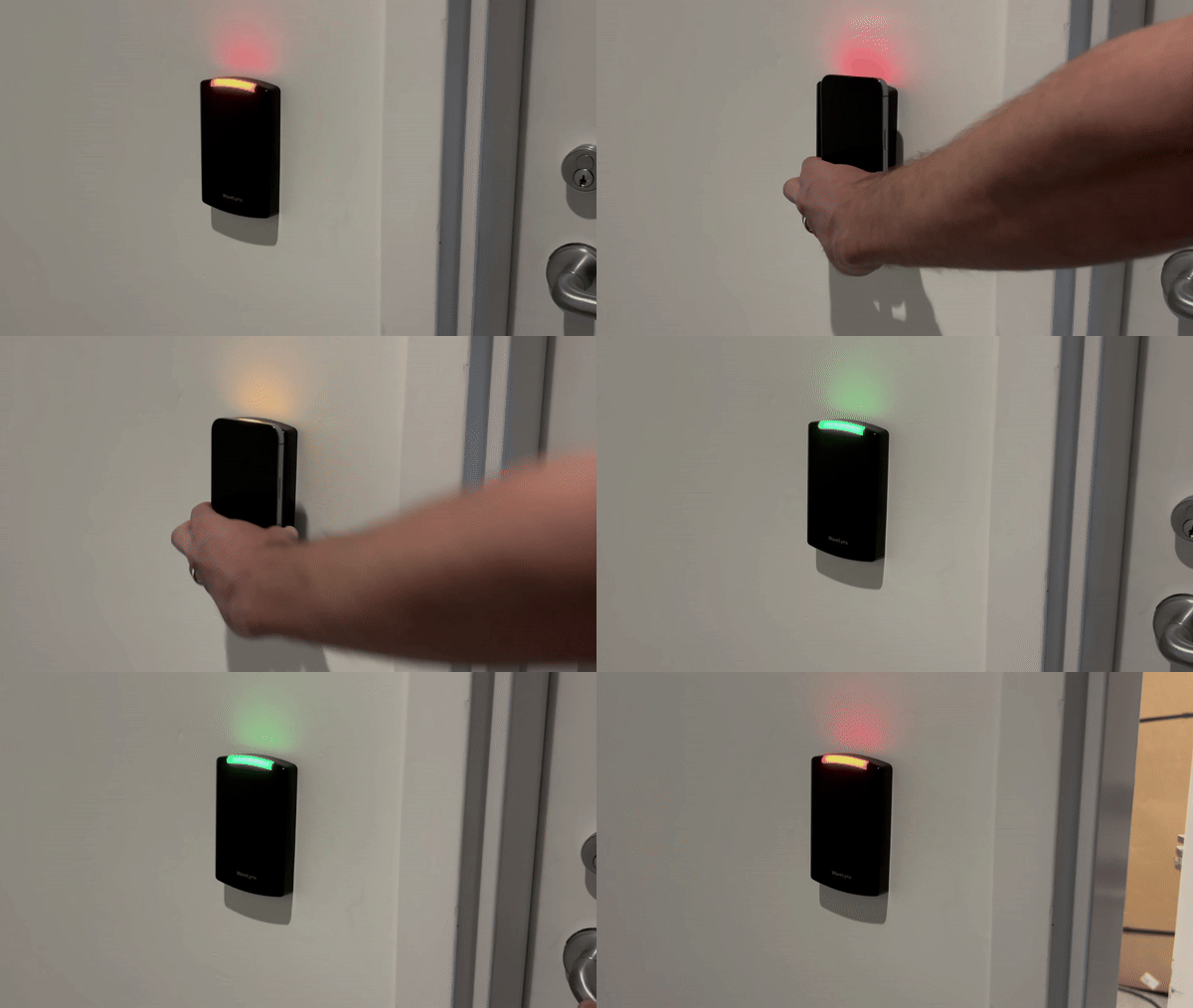
3. Bring your phone near the reader, then provide your biometrics (or device PIN) to unlock the door
Note: Some doors may require additional verification
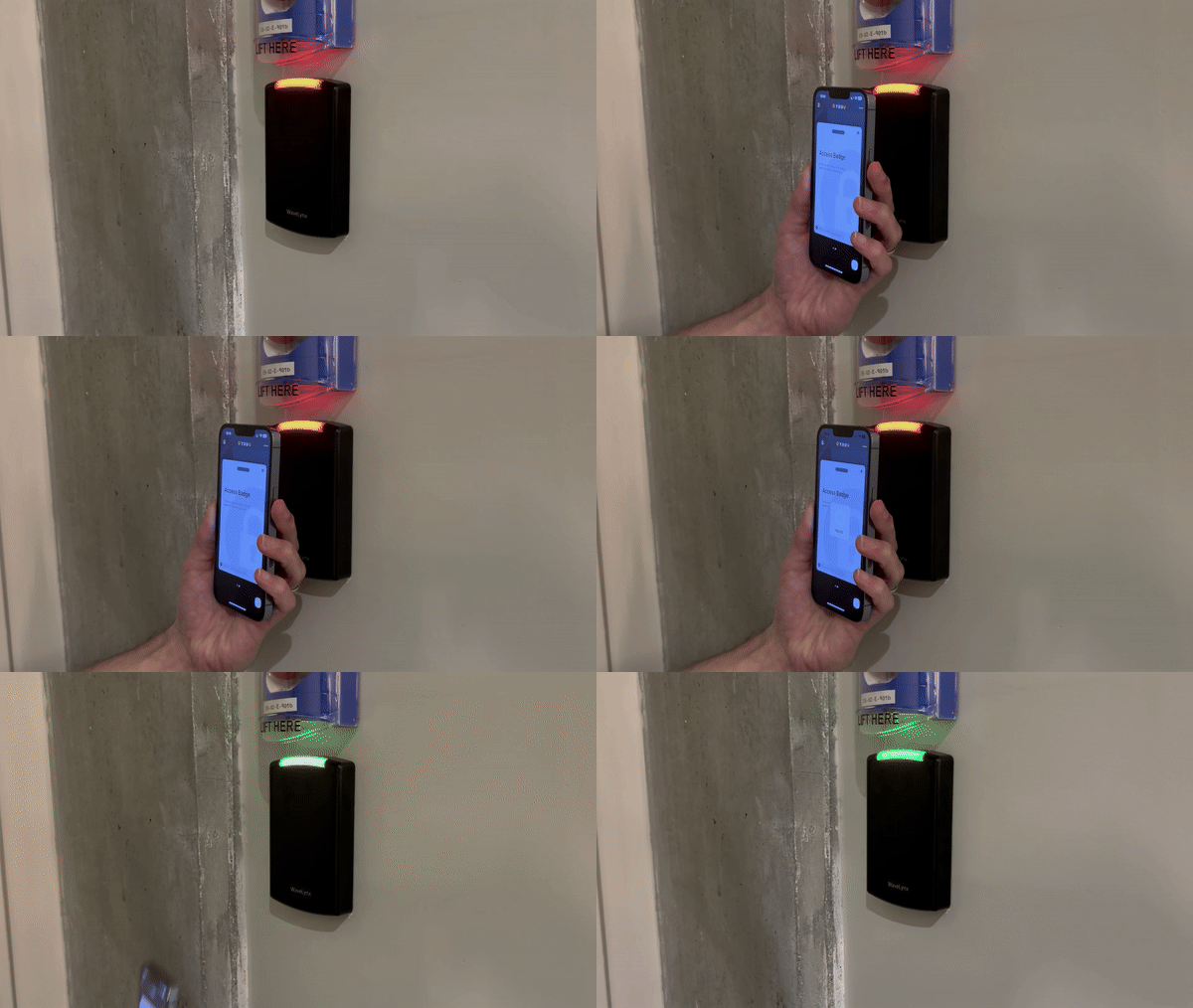
***
[Security Key User Guide](/docs/security-key-user-guide)
[Shared Workstation](/docs/shared-workstation)
# Biometric Permission
Source: https://docs.truu.ai/docs/biometric-consent-permissions
Biometric permission allows customers to require their users to grant permission to the organization for using biometrics with TruU.
## Supported Clients
| Platform | Minimum Version |
| - | - |
| Windows | 25.3 |
| Mac | Not yet supported |
| iOS | 25.6 |
| Android | 25.6 |
## Workflow
At a high-level, the feature works as follows:
1. Admins upload a biometric use policy PDF to the platform. If a biometric use policy has not yet been created, the Admin can first download a guide for creating the policy from the settings page.

2. When uploading the initial policy, if there are already existing users enrolled in TruU, Admins can specify a deadline (up to 90 days out) for users to provide their consent. If permission is not granted by the specified date, the clients will cease to use biometrics until/unless the user grants permission again. If there are no existing users in the tenant, they will not see this option.

3. Once uploaded, the policy will be available to users through the User Portal and the desktop and mobile clients.
4. When users go to add their biometrics to the desktop and mobile clients, they will be presented with the biometric use policy if they have not already granted permission to use their biometrics. **NOTE**: users can remove/add permission at anytime through an enrolled desktop/mobile client and/or the User Portal.
5. Biometric permission status will be reflected in the Users table. Details for which policy the user acted on, the device used, and location will be shown in the drill-down page for that user and in data exported from the Users table. Changes to biometric permissions will also be available in the "Events" table.
**NOTE**: Once the feature is enabled, Admins can *disable* the feature through a toggle control at the top of the page. Additionally, Admins can upload new versions of the policy at any time. If Admins would like users to grant permissions based on the new policy (either because the policy has changed substantially, or to support regular policy renewals for compliance reasons), they can select the option to "Require Permission Renewal" when they upload the policy, and create a deadline for users to renew their permission (again up to 90 days out).
## Mobile Registration Policies
1. "Device Biometrics" can be disabled. This prevents users from enrolling biometrics
2. When "Device Biometrics" is enabled AND "Allow PIN Only" is set, users may enroll their biometrics if they wish to.
3. When "Device Biometrics" is enabled AND "PIN+Biometrics" are set as required, users **must** enroll their biometrics.

## Desktop Registration Policies
1. Device Biometrics can be disabled, thus preventing users from enrolling their biometrics.
2. Device Biometrics can be enabled, and users always have the choice to enroll their biometrics (on the desktop clients, users are not required to do so).

## User Interactions:
* Enrolled users on supported clients will see notifications to review the biometric use policy to continue using biometrics on that device.
* Windows uses device native notification letting users know that they have to review a biometric use policy. Notifications can be dismissed and will be shown daily until the user has taken an action on the policy. If the user does not take an action and the deadline passes, the user will no longer be able to use biometrics.

* If the policy is rejected on another device, or if the renewal period expires, users will see a notification that their biometrics have been removed.

* Mobile clients use in-app notifications to inform users that they have a policy to review. Users will see an indicator on the bell icon letting them know there is a pending notification as well as a toast message in the app stating they must review a new biometric use policy to continue using biometrics. Clicking the toast notification brings up the policy. When the bell icon is clicked, the pending notification is shown and can be clicked to bring up the policy for review.

* On mobile the user will see the following screen when permission has been revoked from another device/user portal or permission has not been provided in time when biometrics are optional:

* **NOTE**: The app cannot be used for authentication until the user takes an action.
* When biometrics are required, they will see this screen:

* **NOTE**: The app cannot be used for authentication until the user takes an action.
* If the user reviews the policy and decides to reject the policy they will see one of two confirmation dialogs:
* Biometrics are optional:

* Biometrics are required:

***
[TruU Stale Device Clean-Up](/docs/truu-stale-device-clean-up)
[TruU's Kerberos Behavior on MacOS](/docs/truus-kerberos-behavior-on-macos)
# CAuth FAQs
Source: https://docs.truu.ai/docs/c-auth-faqs
Frequently asked Questions about TruU's CAuth
#### Q: Why does the TruU app request Location Services permission for Wi‑Fi environment scanning used in risk evaluation?
A: The TruU app uses Wi-Fi environment signals as one of the inputs for risk checks. When enabled, it reads only limited Wi-Fi network metadata such as:
* Network name (SSID) and access point identifier (BSSID / Wi-Fi MAC address)
* Signal strength (RSSI), channel/frequency, link quality
* Network security protocol
* Network connection status
These signals help the system understand typical network environments over time (for example, office vs. home vs. unknown networks). This allows the app to:
* Detect unusual or unfamiliar environments
* Contribute to risk assessments for access decisions
The app does not inspect network traffic, read user files, or capture browsing activity.
#### Q: **What is a re-auth prompt and why does it happens?**
A: It is a risk-driven security action based on the system’s real-time risk level. Note that number of re-auth prompts triggered per configured policy in admin console. It happens when current behavior-based risk crosses configured re-auth thresholds.

**Q: What happens when risk becomes high?**\
A: The system raises security posture and can require re-authentication according to configured policy.
#### Q: What is the `reauth_prompt` risk level in CAuth, and how is it computed from real-risk and confidence thresholds to trigger reauthentication-related actions?
A: When the user risk moves to high. TruU prompted to re-authenticate with valid pin or bio based on enrollment. This prevented using seamless SSO when their risk moves to high so that bad actors cannot perform actions on other user’s systems.
TruU observes the value for “real” risk. When the risk crosses the threshold per configured policy in admin console, the user is prompted to authenticate
* Face, if available
* Fingerprint, if available
* PIN
If the user enters the incorrect PIN enough times to trigger PIN lock, the screen is locked and the PIN is locked out. The authentication prompt displays a message with the reason for the prompt
If the user does not authenticate, TruU will lock the user’s screen
The timeout to be configurable via registry, but with a The default countdown is 30 seconds.
Registry key:` `\
Computer\HKEY\_LOCAL\_MACHINE\SOFTWARE\Policies\TruU\Authenticator` `\
Key name: ReauthTimeoutSec
Default: 30 seconds
Effect: UiRestart required when changed

Meaning: Countdown duration for the re-auth prompt; if user doesn’t re-auth in time, the workstation is locked. Max allowed is 120 seconds.
Send an event that the user was prompted for re-auth and the result of the auth
**Q: Can risk go down after a prompt?**\
A: Yes. Risk is continuously reevaluated and may decrease as new trusted activity is observed.
#### Q: H**ow often can prompts appear?** What is the cool down period?
A: As a user, I don’t want to get prompted too often to re-authenticate so that if Cauth is making a mistake on determining my risk level I am not spammed with re-auth prompts. Customer configurable setting for a Cauth re-auth cooldown: AuthCooldownSeconds Default value is 30 minutes (1800 seconds) When a user is prompted for re-auth, the cooldown period starts. They are not prompted for re-auth again during the cooldown period even if the risk changes to a value that should trigger the prompt If the cooldown period passes and the risk is above the threshold, the user is immediately prompted WA does not wait for a risk change, but instead checks the current risk value when the period ends Checklist
#### Q: **What does a Risk Change Event mean for a user session, and what triggers it?**
A: Risk Change Events are generated when the system detects a change in the session’s re-authentication risk level (Real Risk).\
ex:
For all Cauth events:
Search with "cauth events" or "windows\_cauth" In /events/events-ai page
For all high risk user events:
Search with "cauth events high concern" In /events/events-ai page


#### Q: **What if re-authentication prompt was correctly triggered by policy, but the prompt timed out because the user took no action?**
A: If the re-auth prompt times out because the user takes no action, the behavior is expected:
* Outcome is treated as `Timeout`.
* It records a failed auth event with message like “Re-authentication failed: timeout”.
* Then it calls to lock the machine.
So this indicates user non-response to the prompt, not a potential high risk user

#### Q: **What happens if the user successfully verifies with a valid PIN or biometric after a policy-triggered re-authentication prompt?**
A: When that happens, the flow is a successful re-authentication:

* Prompt is triggered because `RealRisk >= policy threshold`.
* User completes verification with valid PIN/BIO.
* Outcome is marked Success and a success auth event is recorded.
* A cooldown starts (`AuthCooldownSeconds`) to suppress immediate repeat prompts.
* Workstation is not locked.

#### Q: **What happens when a user enters an incorrect PIN during re-authentication if they have biometrics enrolled?**
A: After policy re-auth, a bad PIN uses up attempts and can lock PIN entry for a cooldown, but with biometrics enrolled the user is expected to finish using fingerprint or face during that time; only if biometrics don’t succeed does the session fail and the workstation may be locked.

#### Q: **What does it indicate when a Continuous Authentication event is logged as Success with additional info ‘Re-authentication prompted due to high risk’?**
A: This event is triggered at the moment the re-auth flow starts and the final outcome (success/timeout/cancel/error) is logged afterward as separate auth events

#### **Q: What does the `CAUTH_NO_KEYBOARD_MODEL_TRAINED` event mean, and under what conditions is it generated?**
This event means CAuth/TCAT was installed, but the keystroke model has not been trained/available yet. TCAT model status can be Learning, Trained, or Unavailable. Operationally, when the keyboard model is missing, the scoring pipeline can’t produce a keyboard-based risk output. So, the event is essentially telling you: keyboard-based continuous-auth risk is not yet usable; it will start contributing once the “keyboard model … is now available / trained” event fires.

#### **Q: What does the `CAUTH_KEYBOARD_MODEL_INITIAL_TRAIN` event indicate, and what changes after it is generated?**
Truu has finished training an updated keystroke behavior model (used for risk scoring during continuous authentication), and the system is now able to use that newly trained model for future authentication decisions.

#### **Q: What is the local retention policy for Model Data in Windows?**
Local data retention is enforced automatically by the endpoint DB cleaner using configured per-table policies (Over all 14-day default rule)
#### Q: What is the role of the Archiver endpoint URL in the agent’s transmission of device-stored records to the cloud service?
A: The Archiver URL (Prod: [https://arc.truu.ai](https://arc.truu.ai)) is the HTTPS endpoint where the TruU agent periodically uploads batched following records from the local database.
* CAuth model performance metrics
* CAuth models themselves
* Risk scores
* All peripherals are attached to machines (mice, monitors, etc.)
* All raw mouse movement information
* Keyboard embeddings and typing metadata
It authenticates with a token using encrypted transport and only the specific records our software stores in its internal database.
Note: It does not read or upload arbitrary files from the device.
All archived data is anonymized, which means that it cannot simply attach any particular user identity to any piece of data.
#### Q: Why is CAuth model status not visible in the Admin Console ?
A: Future release part of **Plat 26.204 Build** Admin can view the column “model status” for the devices that are “trained“ and “unavailable” (when model is not trained due to not enough keystrokes supplied by user )
# Change PIN - macOS
Source: https://docs.truu.ai/docs/change-pin-mac
This guide provides a step-by-step tutorial on how to change your PIN on your Mac device enrolled with TruU.
1. Click on **TruU icon** on the top right of the Menu Bar

2. Click **Change PIN**

3. Enter your *Current PIN*

4. Create and Confirm a *New PIN*
> [!NOTE]
>
> ### Why do I see different PIN requirements?
>
> PIN requirement may differ as your organization will set the PIN policies.

5. Click on the **blue arrow** to successfully change your PIN

> [!TIP]
>
> ### Is this it?
>
> You did it! Lock your screen and try out your new TruU PIN.
***
[Submitting Logs - Mac](/docs/submitting-logs-mac)
[Mobile](/docs/mobile)
# Change PIN - Shared Workstation
Source: https://docs.truu.ai/docs/change-pin-shared-workstation
This is a step-by-step guide as to how a frontline access employee can change their TruPIN
1. On the **User Portal**, click **Manage** to change your TruPIN

2. Click **Change TruPIN**

3. Follow the instructions to update/change your TruPIN. Then, click **Update TruPIN**

***
[Submitting Logs - Shared Workstation](/docs/submitting-logs-shared-workstation)
[Upgrade TruU CA Adapter](/docs/upgrade-truu-ca-adapter)
# Change PIN - Windows
Source: https://docs.truu.ai/docs/change-pin-windows
This is a step-by-step as to how one changes their TruU PIN on a Windows device.
1. Login to your Windows Workstation
2. Click the **carrot** at the bottom of your screen. Right click on the **TruU** logo, hover over **Account** and navigate to "**Change PIN**"

3. Next, enter your *current PIN* in the designated box. Then, create a New PIN satisfying the required security requirements. Once completed, click the **arrow**

4. The following screen will populate, and click the **Login Using TruU** button to finalize your updated PIN

***
[Submitting Logs - Windows](/docs/submitting-logs-windows)
[Manually Reporting TruU Logs](/docs/manually-filtering-logs)
# Cloud RADIUS Adapter Setup Guide
Source: https://docs.truu.ai/docs/cloud-radius-setup-guide
The TruU Cloud RADIUS adapter connects RADIUS clients with TruU identity servers, whether those servers are hosted in the TruU cloud or on a customer’s network. The adapter is designed to run on Red Hat Enterprise Linux 8 (RHEL 8) servers. A TruU Cloud RADIUS adapter acts as a RADIUS server and can satisfy authentication requests from RADIUS clients.
## Supported RADIUS Protocols
The TruU Cloud RADIUS adapter supports the Password Authentication Protocol (PAP) and the Client Handshake Authentication Protocol (CHAP).
**TECHNICAL NOTE**: RADIUS clients may require a password from the end user. For instance, the GUI for VPN endpoint software may not let a user click to log in if a password field is empty. The RADIUS client will include this password when communicating with the TruU Cloud RADIUS adapter (the password will either be encrypted with the client/server shared secret or hashed depending on whether PAP or CHAP is used). TruU will always ignore the password. Users need not type a valid password. Whether or not a user is prompted for a password is a function of the RADIUS client, and cannot be influenced by the TruU adapter.
## Server Hardware Requirements
Customers are encouraged to consult server sizing guidelines from Red Hat. TruU recommends these minimums:
* 2 vCPUs at 2+ GHz
* 8GB RAM
* 20GB Disk
## Server Software Requirements
* RHEL 8
* Java 21
* TruU IDS v25.180 or higher
TruU recommends installing the OpenJDK Java 21 runtime (JRE). Run the following to install the OpenJDK Java 21 runtime:
```text theme={null}
sudo yum install java-21-openjdk
```
Test your installation by running the following command:
```text theme={null}
java -version
```
Confirm the output indicates Java 21. Please see [Red Hat Documentation](https://docs.redhat.com/en-us/documentation/red_hat_build_of_openjdk/21/pdf/installing_and_using_red_hat_build_of_openjdk_21_on_rhel/Red_Hat_build_of_OpenJDK-21-Installing_and_using_Red_Hat_build_of_OpenJDK_21_on_RHEL-en-US.pdf) for more detailed installation procedures and options.
## Networking Requirements
The server running the TruU Cloud RADIUS adapter must allow UDP traffic inbound on **port 1812** from RADIUS clients.
## Installation Process
1. Prepare the RHEL 8 server
1. Install Java 21
2. Test network connectivity from the RADIUS client(s)
2. Configure a RADIUS adapter in the TruU admin console and download the associated files
1. Provide a meaningful *name* for the adapter
2. Select **RADIUS** as the adapter type
1. **NOTE**: the previous RADIUS solution which was built directly into the identity server has been renamed “Legacy RADIUS”Enter the IP address of your RADIUS client and the shared secret you wish to use between this client and the adapter
3. Enable the **Send TruU mobile app push notifications** option if you want users to receive a push notification on their mobile phones running the TruU mobile app
1. If this option is unchecked, users must open the TruU mobile app to look for an authentication request when using the RADIUS adapter
4. Add additional client configurations as needed
1. **NOTE**: you can add, modify, or remove clients from the adapter at any time by updating the adapter in the TruU admin console. The adapter will automatically apply these updates within 5 minutes of the changes being saved in the admin console.

3. Download the RADIUS package **truu-radius-server-version.zip** and the accompanying **truu-radius.yml**configuration file
4. Upload **truu-radius-server-version.zip** and **truu-radius.yml** files to the RHEL 8 server
5. Unzip the **truu-radius-server-version.zip** archive to extract the RPM installer
1. Do this in the home folder of the user account used to connect to the server
2. You should now have **truu-radius.yml** and **truu-radius-version-1.el8.noarch.rpm** together in the same home folder
6. Install the RPM with the following command:
```text theme={null}
sudo rpm -i truu-radius--1.el8.noarch.rpm
```
7. Check the status of the truu-radius service with the following command. Confirm that the output indicates “Active: active (running)”:
```text theme={null}
sudo service truu-radius status
```
8. Test the integration
## Installation Directory and Service Account
Installation of the RPM will create the following directory on the RHEL 8 server:
```text theme={null}
/opt/truu/radius
```
Installation will also create a TruU service account under which the **truu-radius** service will execute.
This directory will be populated with the Java application (**truu-radius-version.jar** and a symbolic link, **truu-radius.jar**), the **truu-radius.yml**configuration file, and an application log file named **radius-app.log**. Customers are encouraged to apply log management practices around this file as it will continuously grow over time. [Logrotate](https://www.redhat.com/en/blog/setting-logrotate) is a tool commonly used for this type of task.
## Uninstallation
Use the following command to test if the **truu-radius** RPM is installed (sudo is not required):
```text theme={null}
rpm -qi truu-radius
```
Use the following command to uninstall the RPM:
```text theme={null}
sudo rpm -e truu-radius
```
## Architectural Overview
The TruU Cloud RADIUS adapter translates RADIUS authentication requests (UDP port 1812) to HTTPS REST API calls (TCP port 443). The REST API is managed by TruU identity servers, whether those are hosted in the TruU cloud or on a customer-managed network. The **truu-radius.yml** file contains the connection details that allow the adapter to communicate with the identity servers.

## High Availability
Customers may configure one or more TruU Cloud RADIUS adapters to satisfy high availability needs. With multiple adapters, a customer has two HA deployment options:
1. Configure RADIUS clients to use multiple RADIUS servers
1. Recall that an adapter acts as a RADIUS server
2. Configure a network load balancer “in front of” multiple RHEL 8 servers, with each server running a TruU Cloud RADIUS adapter
1. In this scenario, the network load balancer IP address is the address that you would use for the RADIUS server when configuring your RADIUS clients
***
[Webhook Event Logging Adapter Setup Guide](/docs/copy-of-s3-event-logging-adapter-setup-guide)
[Other](/docs/other)
# Computers
Source: https://docs.truu.ai/docs/computers
This is the Computer tab on the TruU Admin Console, providing information on all the computers that have been registered with TruU's agent. This tab also includes all the accounts that have been enrolled by a user on a computer, as well as the information on all the servers that have been registered with TruU.


***
[Mobile](/docs/mobiles)
[Core](/docs/core)
# TruU IdP for NetSkope
Source: https://docs.truu.ai/docs/configure-truu-idp-for-netskope-saml-forward-proxy-1
Combining TruU with NetSkope offers users a streamlined login experience while accessing NetSkope-protected resources. The following guide outlines how to set up TruU as a SAML Forward Proxy with NetSkope.
## **Getting Started:**

* Sign in to the **TruU Admin Console** as either a "**Digital Admin**" or "**Super Admin**."

* After logging in, go to the **Integrations** menu, click the **(+)** button, and choose New **Single Sign-On** Adapter.

* Configure the **SAML Adapter** by providing a name, selecting the primary **SAML identifier (Global Attribute)**, specifying the **Certificate validity period, Partner’s Entity ID**, and the Assertion Consumer Service URL from your **NetSkope instance**.

* After configuration, click **Create** to set up the adapter. A **.txt file** containing the necessary **SAML configuration** details for your NetSkope tenant will be **automatically downloaded**.

5. Next, login to your Netskope instance and navigate to the "Settings" tab, then go to “Security Cloud Platform” and select “SAML – Forward Proxy”. Click **New Account** to add a SAML integration with TruU

6. Add the TruU SAML configurations (from the .txt file downloaded from your browser in Step 4 above) in your Netskope instance

7. Once the SAML configurations are complete, toggle the “Status” indicator to **Enabled** to enable the SAML integration between Netskope and TruU. Click **Save** to complete

8. Once the SAML integration between TruU and Netskope (Step 7) is completed, navigate to the “Client Configuration” menu and click on **New Client Configurations** to configure a new TruU client within Netskope

9. Within the “Client Configuration” menu, enable the **Periodic re-authentication for Private Apps** option. When enabled, users must authenticate with TruU (via the SAML integration) before access to private apps is granted

10. To test the integration, launch the Netskope client on your computer, and choose the **Re-authenticate Private Access** option

11. Once selected, options to authenticate with TruU will appear. Select and complete an authentication option with TruU to access private apps secured by Netskope

## **Demo GIF:**

***
[SAML Adapter Setup Guide](/docs/saml-adapter-setup-guide-1)
[ForgeRock](/docs/forgerock)
# Configure User Source Directory Overview
Source: https://docs.truu.ai/docs/configure-user-source-directory-overview
TruU connects to your organization's user directory to manage who can access the system. This section covers the supported directory types and how to add one.
When a user is active in your directory, they can sign in with TruU. If a user is disabled or removed from the directory, they immediately lose access. TruU only reads from your directory — it never makes any changes to it.
## Adding a Directory
In the TruU Admin Console, go to **Settings > Directory**, click the **+** button, select your directory type, and follow the setup steps.

TruU supports the following directory types:
* [Entra ID Directory](https://docs.truu.ai/docs/EntraID-As-usersource-directory)
* [Okta Unified Directory](/docs/okta-unified-directory-configuration)
# Configuring Application Policies
Source: https://docs.truu.ai/docs/configuring-application-policies
At the core of the TruU solution is a rich policy engine that determines exactly who has access to what and what the experience is that ensues. Policies can be applied to all Groups, or to specific Groups (either groups from the underlying user directory, or Entitlement Groups defined in TruU). The policy engine evaluates policy definition based on the first match based on the priority order of the policies. You can change the evaluation order for policies through drag-and-drop. Once a policy is created, you can edit the policy (or set the policy to inactive) by clicking on the policy. This is a step-by-step guide detailing how to Configure Application Policies on the TruU Admin Console.
At the core of the TruU solution is a rich policy engine that determines exactly who has access to what and what the experience is. To add a policy, click the Plus button at the top of the page.

Policies can be applied to all Groups, or to specific Groups (either groups from the underlying user directory, or Entitlement Groups defined in TruU). Application policies can also be applied to specific "Adapters" to create different authentication requirements for different digital resources integrated with TruU. Adapters are added by navigating to the "Environment" section, then selecting "Integrations", then "Adapters". The policy engine evaluates policy definition based on the first match based on the priority order of the policies. You can change the evaluation order for policies through drag-and-drop. Once a policy is created, you can edit the policy (or set the policy to inactive) by clicking on the policy. The following policies can be set for Authentication:
* **Mobile** **Authentication Requirements:** This setting defines what the user must provide to authenticate with the TruU Mobile App. The available options are:
* **Biometrics Only:** When this is selected, the user must authenticate using the built-in biometrics from the mobile device. This means, that users who don’t have supported biometrics on their device will not be able to authenticate to this resource.
* **Biometrics (or PIN if Biometrics are Unavailable):** When this is selected, the user will be asked to provide biometrics if the device is capable of using biometrics but will accept the application PIN created during enrollment if biometrics are not available.
* **PIN Only:** When this is selected, the user must provide the application PIN created during enrollment to authenticate.
* **Biometrics + PIN:** When this is selected, the user must provide both the built-in biometrics from the mobile device and the application PIN created during enrollment to authenticate.

* **Desktop Authentication Policies:** These policies define how users authenticate to SSO applications using the TruU Windows Authenticator. The available options are:
* **Enable Seamless SSO:** By setting this to "Always," the identity server will check whether the Windows Authenticator is installed and enrolled on the machine. In addition, the user must have logged into the desktop using the Windows Authenticator. If these conditions are satisfied, the user will seamlessly login to the application. If these conditions are not met, the user will be use certificate based authentication (or a mobile device or hardware key) to authenticate.

* **Desktop Application Requirements (when seamless in not available):** If Seamless SSO is set to "Never," then the following configuration options are available:
* **Biometrics Only:** User will be prompted to provide the local device biometrics which have been enrolled with the Windows Authenticator. Note: If biometric hardware is not available on the device or if biometrics cannot be provided, the authentication will not succeed.
* **Biometrics or PIN (default and recommended):** User will have the option to either provide device biometrics or enter their TruU PIN (which was created at the time of enrollment)
* **PIN Only:** User is only prompted to enter their TruU PIN
* **Biometrics + PIN:** User is prompted to enter both their TruU PIN as well as their device biometrics

* **NOTES:**
* The "Seamless SSO" policy requires Identity Server version 23.128.11 (or higher)
* The "Desktop Authentication Requirements" policy is supported by the Windows Authenticator version 3.0 and above
* The Mac Authenticator does not enforce the Desktop Authentication Policies. The Mac Authenticator supports PIN or Bio for application login
* **Agentless Authentication Policies:** Setting to "True" enables users with a registered FIDO security key to authenticate using a FIDO key instead of a mobile device or desktop authenticator. A value of ‘False’ prevents users from authenticating with a FIDO security key.  **Note:** 3rd party FIDO devices are currently only supported for application login.
* **Allow authentication through workflow without a registered device:** This setting determines if users are allowed to login to an application using an Identity Verification Workflow rather than a registered device. The available options are:
* **Never:** When this is selected, users must authenticate with an enrolled device.
* **Always:** When this is selected, users always have the option to authenticate using an Identity Verification Workflow (and you will be prompted to select a workflow to use for authentication).
* **New User Only:** When this is selected, users who have not yet enrolled a device will have the option to authenticate using an Identity Verification Workflow (and you will be prompted to select a workflow to use for authentication).

* **Minimum Device Assurance Level:** This setting defines the required assurance level for the authenticating device for the user to access the resource. The available options are:
* **Basic:** When this is selected, users can authenticate with any enrolled device. If you are using an enrollment workflow that requires an identity verification step, users will be able to authenticate to applications under this policy setting before the identity verification step has been completed.
* **Trusted:** When this is selected, users can authenticate using a device that has been enrolled using any form of identity verification.
* **Certified:** When this is selected, access is restricted to users who have performed an in-person identity verification step.

***
[Configuring Registration Policies](/docs/configuring-registration-policies)
[Configuring Physical Policies](/docs/configuring-physical-policies)
# Configure Entra ID and CBA and Cloud Trust
Source: https://docs.truu.ai/docs/configuring-entra-id-cba-using-cloud-trust
To utilize Microsoft Entra's (Azure) certificate-based authentication (CBA) feature, customers can configure their Microsoft Entra (Azure) tenant to support user authentication via X.509 certificates. These certificates are verified against the TruU Cloud Public Key Infrastructure (PKI), facilitating a more secure login process for both apps and browsers. This method of authentication is considered phishing-resistant due to the utilization of an X.509 certificate. When users attempt to sign in, they will be presented with the option to authenticate using a certificate rather than entering a password. In cases where multiple applicable certificates are found on the device, users are able to choose which certificate they wish to authenticate with. The selected certificate undergoes validation, user account binding is confirmed, and if these checks are successful, the user is granted access. Before proceeding with the configuration, it is crucial to ensure that certain prerequisites are met. For detailed instructions, the Microsoft guide on how to configure Microsoft Entra certificate-based authentication should be consulted.
**Prerequisites:**
* Obtaining either the Global admin or Privileged Authentication Administrator role within Microsoft Entra, as only individuals with these roles are authorized to configure the certificate authority (CA) in Microsoft Entra ID
* Configuring the TruU Cloud Trust PKI as specified in the TruU Cloud Trust Configuration Guide
* Setting up a certificate authority (CA) in Microsoft Entra ID (Azure AD) and activating certificate-based authentication (CBA)
* Ensuring the certificate authority (CA) has an Internet-facing URL with a publicly accessible Certificate Revocation List (CRL)
* Confirming that the domain controller can communicate with the CRL by configuring the necessary firewall ports. Alternative solutions are available if company policies restrict internet access for the domain controller
* Issuing and publishing a user certificate designed for client authentication to be used with Microsoft Entra ID (Azure AD)
## Configure TruU Cloud Trust and obtain certs and CRL information
Note: You will need to have the certificates and URLs prepared ahead of time in order to supply this information into the CA setup
1. In the TruU admin console navigate to the "Identity Servers" tab, then go to the "Key Store" page and search for C\_loud Trust entries for Root\_ and *client certificate authentication chain entries* and download the certificates

2. Firstly, access the Cloud Trust entry to download the "client\_certificate\_auth\_chain.pem" file

3. Subsequently, click on the **Cloud Trust Root entry** and download the "cloud\_ca\_root.pem" file

4. Once these files are downloaded, they must be copied to the domain controller or to a system that is accessible by your Microsoft Entra portal

5. On your domain controller, you must add the Root certificate to the Trusted Root Certificate Authorities store. Additionally, the Issue Cloud Trust CA chain certificate should be added to the Intermediate Certificate Authorities store
Note: The issuing certificate is also placed into the NTAuthCertificates container. For detailed instructions, refer to the [TruU Cloud Trust Configuration Guide](https://docs.truu.ai/docs/configuring-cloud-trust-copy)
6. To proceed with the certification authorities configuration, sign into the Microsoft Entra portal as a Global Administrator. Navigate to Microsoft Entra ID, select **Security**, and then choose **Certificate Authorities** from the menu on the left-hand side


7. Next, locate your CRL URL by going to the TruU Admin portal, navigating to "Integrations", then "Adapters", and click on **TruU Cloud Trust**. Upon opening the form, scroll to the top to find your Root and Issuing CA CRL information


8. For both the Root and the Issuing CA certificates, follow these sub-steps
a. Upload the .pem file you have downloaded
b. Indicate whether the CA is a root certificate by selecting **Yes**, and select **No** if it is not
c. Provide the http internet-facing URL for both the Issuing and Root CRLs. The CRLs contain all revoked certificates, which is necessary to ensure that authentication with revoked certificates will fail, thus maintaining control over certificate renewal
d. Optionally, set the *Delta CRL URL*, which is the http internet-facing URL for the CRL that includes all revoked certificates issued since the last base CRL was published
e. After clicking **Add**, remember to save the configuration. Repeat the process for the second .pem file

9. To ensure the domain controller can successfully reach the published Certificate Revocation List (CRL), there are two verification methods that can be employed: using a web browser or the command prompt
a. Firstly, from the domain controller, copy the *URL* for the *Issuing Certification Authority (CA) CRL* obtained earlier and paste it into any web browser. If the URL is accessible, a .crl file should automatically download to the downloads folder

b. Alternatively, an administrator can open a command prompt with elevated privileges and execute the following command, making sure to point it to the .pem file that was downloaded in the previous step:
`certutil -verify -urlfetch “path to truu chain cert”`
During the command's output, one should examine the Certificate Distribution Point (CDP) section. A status of "Verified" indicates proper communication with the CRL. Conversely, a "Failed" status suggests that there may be an issue, such as the need to consult with the firewall team to ensure that the domain controller's internet ports are open to reach the CRL

NOTE: Moving on to the configuration of the authentication binding policy, this policy dictates the required strength of authentication, which can be set to either single-factor or multi-factor authentication. Administrators have the ability to modify the default settings and create custom policy rules by associating them with issuer Subject or policy Object Identifier (OID) fields in the certificate
## To enable certificate-based authentication and configure user bindings in the Entra portal, follow these steps:
1. Log into the Microsoft Entra portal with **Authentication Policy Administrator** credentials
2. Navigate to **Microsoft Entra ID** (formerly Azure Active Directory), and on the left-hand menu, select **Security**
3. Proceed to **Authentication methods** and then to **Policies**
4. Under **Manage**, find and click on **Authentication methods** and then **Certificate-based Authentication**

5. Use the **Configure** option to set up authentication binding and username binding
6. Note that the **protection level** attribute defaults to Single-factor authentication. To enhance security, select **Multi-factor authentication** to change the default setting to MFA

7. We can enhance security by setting up custom authentication binding rules, which determine the protection level required for client certificates. These rules can be based on the certificate's issuer Subject or Policy OID fields. Essentially, authentication binding rules associate certificate attributes—either issuer or Policy OID—with a specified value, establishing a default protection level for that rule. It's possible to create multiple rules to meet various security requirements. To introduce custom rules, one should navigate to the "Add Rule" option

8. When creating a rule based on the certificate issuer, the following steps should be followed
a. Select **Certificate issuer**
b. Choose an identifier for the Certificate issuer from the dropdown menu
c. Set **Multi-factor authentication** as the protection level. To establish a rule using Policy OID, click Policy OID
e. Input the desired value for the *Policy OID*
f. Again, select **Multi-factor authentication** as the protection level
After setting up the rules, click **Ok** to save them
NOTE: Moving on to configuring the username binding policy, this is crucial for identifying the user within the tenant. By default, the system maps the Principal Name in the certificate to the onPremisesUserPrincipalName attribute in the user object. However, administrators have the flexibility to override this default setting by creating custom mappings
Currently, there are two certificate fields supported for this purpose: SAN (Subject Alternate Name) Principal Name and SAN RFC822Name. These can be mapped against two user object attributes: userPrincipalName and onPremisesUserPrincipalName. To configure the username binding policy, one would follow the specific steps provided for these mappings
It's important to note that if a username binding policy utilizes attributes synced from on-premises, like the onPremisesUserPrincipalName attribute of the user object, any administrator with access to the Entra ID Connect server could potentially alter the sync attribute mapping. Consequently, this could change the value of the synced attribute to fit their requirements. Therefore, caution is advised when implementing policies that rely on synced attributes
1. To set up username binding, one must choose from the available X.509 certificate fields and associate them with corresponding user attributes. The order in which username bindings are arranged is significant because it establishes the hierarchy of priority. The top binding in the list is given the highest precedence. If the authentication system locates the designated X.509 certificate field within the certificate and fails to match it with a user object, the authentication will not succeed. In this scenario, Microsoft Entra ID ceases further attempts with subsequent bindings. It is only when the specific X.509 certificate field is absent from the certificate that the system proceeds to the next priority level
2. Once the desired binding is configured, one must click **Save** to ensure the changes are captured

Note that Microsoft Entra ID supports a specific set of username bindings. They are as follows:
* Subject Alternative Name (SAN) Principal Name bound to userPrincipalName
* SAN Principal Name bound to onPremisesUserPrincipalName
* SAN RFC822Name bound to userPrincipalName
* SAN RFC822Name bound to onPremisesUserPrincipalName
## Enabling Certificate-Based Authentication (CBA) within the tenant,
1. Begin by logging into the Microsoft Entra portal as an Authentication Policy Administrator
2. Navigate to the "Security" section found in the menu on the left-hand side
3. Under the "Manage" category, locate and select **Authentication methods** followed by **Certificate-based Authentication**
4. To activate CBA, you will find an "Enable and Target" section, where you should select **Enable** to switch on CBA
5. CBA can be implemented for all users or a targeted subset of users
1. To enable CBA for every user, click on **All Users**
2. Alternatively, if you wish to activate CBA for specific users or groups, opt for **Select Users**

Once certificate-based authentication is enabled on the tenant, all users within the tenant will be presented with the option to sign in using a certificate. However, it's important to note that only those users who have been specifically enabled for certificate-based authentication will successfully authenticate using an X.509 certificate.
Note: To test your configuration, it is essential to verify both your certificate and any custom authentication binding rules you may have set up
To begin testing your certificate, attempt to sign into the MyApps portal using the browser on your device. Follow these steps:
1. Enter your *User Principal Name (UPN)*
2. Click **Next**
3. Choose the **Sign in with a certificate** option


4. Select **Use certificate or Smart card** option
1. It is worth mentioning that users might encounter a certificate prompt during their first login attempt. This prompt can be managed through a registry key or a group policy which can suppress the certificate selection prompt if so desired

***
[Configure Entra ID for Microsoft CBA](https://docs.truu.ai/docs/copy-of-cba-with-entra-id-and-microsoft-ca)
# Configuring Identity Verification Workflows
Source: https://docs.truu.ai/docs/configuring-identity-verification-workflows
Identity Verification Workflows are admin-defined steps for users to register their mobile devices, access applications without an enrolled device and/or to login to the User Portal. This is a step-by-step guide detailing how to Configure Identity Verification Workflows on the TruU Admin Console.
**Configuring Workflows**
To add a workflow, click the **(+)** button at the top of the page

Identity Verification Workflows consist of the following steps:
* **User Self-Service:** Users must provide an attribute (or attributes) that exist in the corporate directory (custom attributes are supported)

* **Primary User Identifier**: The attribute that every user in your organization must provide so that TruU can find the user in your directory to determine which enrollment workflow applies for that user. This value cannot be edited in the workflow itself
* **Require Knowledge Factors**: This enables you to specify additional directory attributes that the user must provide in order to complete the self-service step

The order of the attributes determines the order that the user must enter the attributes in the mobile app. Click the **(+)** button to add more attributes, and click the **X** to remove attributes

**Send User Identification Link**: Enables you to provide users with an ability to receive an email and/or sms with a “magic link” for user identification. If you select this option, you can then specify which of the delivery addresses stored in the directory you wish to allow enrollment links to be sent to

* Users will be presented with the options in their user identification workflow based on what you have selected here and what is populated for the user in your directory

When choosing to send a link to a known delivery address, you will also specify what the user can do if they are unable to access their email or sms. Here you can choose to:
1. **Prevent Enrollment**: selecting this means that the user cannot proceed without the ability to access a known delivery address. If you select this option, you can also choose to
2. **Proceed with Knowledge Factors**: where you can choose to allow the user to complete self-service by answering questions that can be validated against the directory
3. **Include Help Link**: this option presents a link in the enrollment stating “I do not have access to my email or phone”. This link presents the user with an “Access Denied” screen informing them the organization requires the use of the magic link to proceed. They are further instructed to select a contact option or contact the Help Desk for support

You can add up to 2 additional steps for Identity Verification, by clicking the **Add Identity Verification Step** button.

**Identity Verification:** These steps are optional - when enabled workflows are created to require the user identity to be verified (workflows support up to 2 Identify Verification Steps). The approvers can be either:
1. **Entitlement Group:** as defined here by selecting an Entitlement Group that has been created in TruU under "Entitlements"
Or
2. **User’s Manager:** as defined in the user directory

If User’s Manager is selected as one of the steps, you will also specify what to do if the User does not have a Manager in the directory. The available options are:
* Automatically Approve
* Automatically Unenroll
* Route to an Entitlement Group

In addition to defining who is to approve, you can also choose how approvers are allowed to approve. The available options are:
* In Person
* Phone
* Video Conference

If a multi-step workflow has been created, the user device will be enrolled at the "Basic" level once Step 1 is completed. For more on this concept, refer to the Assurance Level topic, in the online help under "Mobile"
***
[Configuring Primary User Identifier](/docs/configuring-primary-user-identifier)
[Configuring Policies](/docs/configuring-policies)
# Configuring Physical Policies
Source: https://docs.truu.ai/docs/configuring-physical-policies
At the core of the TruU solution is a rich policy engine that determines exactly who has access to what and what the experience is that ensues. Policies can be applied to all Groups, or to specific Groups (either groups from the underlying user directory, or Entitlement Groups defined in TruU). The policy engine evaluates policy definition based on the first match based on the priority order of the policies. You can change the evaluation order for policies through drag-and-drop. Once a policy is created, you can edit the policy (or set the policy to inactive) by clicking on the policy. This is a step-by-step guide detailing how to Configure Physical Policies on the TruU Admin Console.
To add a policy, click the **(+)** button at the top of the page.
Note: Physical Policies only apply to companies with WaveLynx readers

Policies can be applied to all Groups, or to specific Groups (either groups from the underlying user directory, or Entitlement Groups defined in TruU). Physical policies can also be applied to specific "Access Levels" to create different unlock requirements for different sets of doors integrated with TruU. Access Levels are defined when doors are added to TruU under the "Environment" tab on the TruU Admin Console, then navigating to the "Physical" tab, then "Readers". The policy engine evaluates policy definition based on the first match based on the priority order of the policies. You can change the evaluation order for policies through drag-and-drop. Once a policy is created, you can edit the policy (or set the policy to inactive) by clicking on the policy. The following policies can be set for Physical:
* **Allow Phone as Badge:** Setting to "True" will enable the user’s mobile phone to unlock doors without requiring the user to authenticate. A value of "False" requires additional authentication beyond possession of the phone.

* **Unlock Method:** This is a nested policy that appears when "Allow Phone as Badge" is set to "True". The available options are:
* **Biometrics Only:** When this is selected, the user must authenticate using the built-in biometrics from the mobile device. This means, that users who don’t have supported biometrics on their device will not be able to unlock these doors.
* **Biometrics (or PIN if Biometrics are Unavailable):** When this is selected, the user will be asked to provide biometrics if the device is capable of using biometrics but will accept the application PIN created during enrollment if biometrics are not available.
* **PIN Only:** When this is selected, the user must provide the application PIN created during enrollment to unlock the doors.
* **Biometrics + PIN:** When this is selected, the user must provide both the built-in biometrics from the mobile device and the application PIN created during enrollment to unlock the doors.

* **Allow LEAF Credential to remain valid for:** This policy provides added security for physical access for readers that use the [LEAF standard](https://leafidentity.com/). The policy sets a time to live for an issued LEAF credential so that mobile devices cannot keep a valid credential indefinitely. The policy enables selecting pre-defined periods from 8 hours to 15 days. LEAF credentials are automatically extended when the mobile device is online and checks in (no action required by the user).
* **Minimum Device Assurance Level:** This setting defines the required assurance level for the authenticating device for the user to access the resource. The available options are:
* **Basic:** When this is selected, users can unlock doors with any enrolled device. If you are using an enrollment workflow that requires an identity verification step, users will be able to unlock doors under this policy setting before the identity verification step has been completed.
* **Trusted:** When this is selected, users can unlock doors using a device that has been enrolled using any form of identity verification.
* **Certified:** When this is selected, access is restricted to users who have performed an in-person identity verification step.

***
[Configuring Application Policies](/docs/configuring-application-policies)
[Onboarding Administrators](/docs/onboarding-administrators)
# Configuring Policies
Source: https://docs.truu.ai/docs/configuring-policies
At the core of the TruU solution is a rich policy engine that determines exactly who has access to what and what the experience is that ensues. Policies can be applied to all Groups, or to specific Groups (either groups from the underlying user directory, or Entitlement Groups defined in TruU). The policy engine evaluates policy definition based on the first match based on the priority order of the policies. You can change the evaluation order for policies through drag-and-drop. Once a policy is created, you can edit the policy (or set the policy to inactive) by clicking on the policy. This is a step-by-step guide detailing how to Configure Policies on the TruU Admin Console.
**Configuring Registration Policies**
To add a policy, click the **(+)** button at the top of the page

**Mobile Registration Policies**
* **Allow Mobile Registration:**
* Setting to "True" enables users in the matching group to register a mobile app, with TruU as an authenticating device. A value of "False" will prevent users from registering

* **Select Enrollment Workflow:**
* Enrollment workflows require a self-service component from the registering user, and optionally allow for up to 2 additional identity verification steps (by a manager, and/or an Entitlement Group)

* **Use same workflow for Re-enrollment:**
* By setting this to "False", you can specify a different enrollment workflow for a first time user vs an existing user. For example, you might wish to allow a new hire to enroll with a password on their first day, but then use a passwordless flow for enrollment thereafter

* **Allow Public App:**
* Setting to "True" enables user to register using the TruU mobile app from the public app stores. A value of "False" will prevent use of the public apps; this should only be selected if deploying TruU by integrating our technology with another app using the TruU SDK, and/or if enabling users for FIDO security keys only

* **Managed Device Only**:
* Setting to "True" restricts TruU enrollment to corporate managed mobile devices only

* **Device Biometrics:**
* Setting to "Enabled" informs the mobile app to have the user enroll their device using the device biometrics. Setting to "Disabled" informs the mobile app that your organization does not wish to use biometrics with TruU and will result in enrollment asking the user to create a TruU app PIN only

* **Enrollment Requirements:**
* Setting to "Allow PIN Only" enables users to register a mobile device that does not have supported biometrics to enroll. A value of "PIN + Biometrics" will prevent users from enrolling a mobile device if the device does not have supported biometrics

* **Select PIN Profile for Mobile Devices:**
* Choose a PIN Profile to specify the required PIN length and complexity rules for users enrolling mobile devices

**Desktop Registration Policies**
* **Allow Desktop Registration:**
* Setting to "True" enables users in the matching group to register a computer, with TruU as an authenticating device. A value of "False" will prevent users from registering

* **Select Enrollment Workflow:**
* Here you can define how your users will enroll with TruU. Enrollment workflows require a self-service component from the registering user, and optionally allow for up to 2 additional identity verification steps (by a manager, and/or an Entitlement Group)

* **Use same workflow for Re-enrollment:**
* By setting this to "False" you can specify a different enrollment workflow for a first time user vs an existing user. For example, you might wish to allow a new hire to enroll with a password on their first day, but then use a passwordless flow for enrollment thereafter

* **Managed Device Only (MacOS):**
* Setting to "True" restricts TruU enrollment to corporate managed Mac computers only

* **Managed Device Only (Windows):**
* Setting to "True" restricts TruU enrollment to corporate managed Windows computers only

* **Device Biometrics:**
* Setting to "Enabled’ informs the desktop authenticator to have the user enroll their device using the device biometrics. Setting to "Disabled" informs the desktop authenticator that your organization does not wish to use biometrics with TruU and will result in enrollment asking the user to create a TruU app PIN only

* **Enrollment Requirements:**
* Setting to "Allow PIN Only" enables users to register a desktop authenticator that does not have supported biometrics to enroll. A value of "PIN + Biometrics" will prevent users from enrolling a desktop authenticator if the device does not have supported biometrics

* **Select PIN Profile for macOS:**
* Choose a PIN Profile to specify the required PIN length and complexity rules for users enrolling Macs (Mac Authenticator is currently available for Early Access customers only)

* **Select PIN Profile for Windows:**
* Choose a PIN Profile to specify the required PIN length and complexity rules for users enrolling Windows

**General Registration Policies**
* **Limit Device Enrollment:**
* Setting to "True" allows you to specify how many devices a user can enroll for authentication. When set to "True", you must specify how many devices can be enrolled. If you allow multiple device types to be enrolled by a user (e.g. mobile, computer and 3rd party FIDO devices), you can optionally set limits for each.. A value of "False" enables users to enroll as many devices as they’d like

***
[Configuring Identity Verification Workflows](/docs/configuring-identity-verification-workflows)
[Configuring Registration Policies](/docs/configuring-registration-policies)
# Configuring Primary User Identifier
Source: https://docs.truu.ai/docs/configuring-primary-user-identifier
There are many areas in the TruU solution that rely on user attributes as defined in the corporate directory. Most notably, User Attributes are used as follows: 1) To identify users in the User Self-Service portion of an Enrollment Workflow and/or to login to the User Portal 2) To dynamically assign users to Entitlement Groups based on User Attribute values 3) To provide virtual badges to the correct user by matching a user from the PACS to the user directory when using Lenel OnGuard for physical access 4) To send emails and/or SMS to users either invite them to use TruU when clicking the email icon in the "Users" page, or to provide a user with an enrollment link as part of the self-service step in an Enrollment Workflow.
**Configuring Primary User Identifier**
**NOTE:** Email and Phone Number attributes can be configured to allow or disallow for sending magic links to users. This can be done by clicking the box(es) next to the attribute name and using the Actions menu, or by clicking on the row to configure the attribute. Also note, SMS messages can only be sent to phone numbers stored in E.164 format
**Adding Global Attributes**
Global attributes provide an ability to map attributes and/or transformations across directories in your tenant. These attributes are made available to the platform for any of the purposes mentioned above. To add a global attribute, you must:
1. Click the **(+)** button
2. Give the attribute a *“Name”*: this is how the attribute will be labeled in an Identify Verification Workflow
3. Enter in *“Help Text”* that will appear in the input field as an example of what the attribute should look like
4. Identify the attribute *“Type”* by selecting the type in the drop-down
5. Map the User Attribute or a Transformation for each Directory in the tenant for this Global Attribute
**Editing / Deleting Existing Attributes**
Click on the row of any attribute you wish to edit to open up a dialog box to modify the user attribute definition.
You can delete any global attribute that is not being used by
**Configure Special Case Attributes**
There are some attributes that server a special purpose for TruU and need to be configured here. Click the Gear icon to expose the “Special Case Attributes” menu:

The special case attributes are as follows:
* **Primary User Identifier:** this is the attribute that is used for user search in the Admin Console and the primary attribute that is used to identify a user in all identity verification workflows
* **Email:** this is the email attribute that TruU will use for any system generated emails
* **Display Name:** this allows you to specify which attribute will be used as the display name for users in the Admin Console, User Portal and on authenticating devices
* **Manager Lookup Attributes:** this allows you to specify which user attribute your directory uses to indicate who is the manger and which attribute TruU should use to look up the manager in the directory. When using cloud directories to lookup a user’s manger (either for sending an invitation or for routing an identity verification request), the way in which the manager attribute may be stored can vary
* **Entra ID**: Entra ID has a special api call for retrieving the manager. If the Entra ID attribute configured as the “Manager” attribute is “manager” then the second attribute will be ignored
* **Google Cloud Directory**: The GCD LDAP schema does not support the built in manager attribute in GCD. In order to use manager lookup with GCD, you will need to add a custom attribute and use that as the “Manager” attribute
Default mappings for all directories:

**Primary User Identifier Setup**
1. Navigate to the "Setting" tab, then the "Directory" drop down on the TruU Admin Console

2. Click **Global Attributes**

3. Click the **Gear** icon

4. Click the **Primary Identifier** of your choice

***
[Importing CyberArk ZTPKI certificates into Active Directory](/docs/importing-cyberark-ztpki-certificates-into-active-directory)
[Configuring Identity Verification Workflows](/docs/configuring-identity-verification-workflows)
# Configuring Registration Policies
Source: https://docs.truu.ai/docs/configuring-registration-policies
At the core of the TruU solution is a rich policy engine that determines exactly who has access to what and what the experience is that ensues. Policies can be applied to all Groups, or to specific Groups (either groups from the underlying user directory, or Entitlement Groups defined in TruU). The policy engine evaluates policy definition based on the first match based on the priority order of the policies. You can change the evaluation order for policies through drag-and-drop. Once a policy is created, you can edit the policy (or set the policy to inactive) by clicking on the policy. This is a step-by-step guide detailing how to Configure Registration Policies on the TruU Admin Console.
**Configuring Registration Policies**
To add a policy, click the **(+)** button at the top of the page

**Mobile Registration Policies**
* **Allow Mobile Registration:**
* Setting to "True" enables users in the matching group to register a mobile app, with TruU as an authenticating device. A value of "False" will prevent users from registering

* **Select Enrollment Workflow:**
* Enrollment workflows require a self-service component from the registering user, and optionally allow for up to 2 additional identity verification steps (by a manager, and/or an Entitlement Group)

* **Use same workflow for Re-enrollment:**
* By setting this to "False", you can specify a different enrollment workflow for a first time user vs an existing user. For example, you might wish to allow a new hire to enroll with a password on their first day, but then use a passwordless flow for enrollment thereafter

* **Allow Public App:**
* Setting to "True" enables user to register using the TruU mobile app from the public app stores. A value of "False" will prevent use of the public apps; this should only be selected if deploying TruU by integrating our technology with another app using the TruU SDK, and/or if enabling users for FIDO security keys only

* **Managed Device Only**:
* Setting to "True" restricts TruU enrollment to corporate managed mobile devices only

* **Device Biometrics:**
* Setting to "Enabled" informs the mobile app to have the user enroll their device using the device biometrics. Setting to "Disabled" informs the mobile app that your organization does not wish to use biometrics with TruU and will result in enrollment asking the user to create a TruU app PIN only

* **Enrollment Requirements:**
* Setting to "Allow PIN Only" enables users to register a mobile device that does not have supported biometrics to enroll. A value of "PIN + Biometrics" will prevent users from enrolling a mobile device if the device does not have supported biometrics

* **Select PIN Profile for Mobile Devices:**
* Choose a PIN Profile to specify the required PIN length and complexity rules for users enrolling mobile devices

**Desktop Registration Policies**
* **Allow Desktop Registration:**
* Setting to "True" enables users in the matching group to register a computer, with TruU as an authenticating device. A value of "False" will prevent users from registering

* **Select Enrollment Workflow:**
* Here you can define how your users will enroll with TruU. Enrollment workflows require a self-service component from the registering user, and optionally allow for up to 2 additional identity verification steps (by a manager, and/or an Entitlement Group)

* **Use same workflow for Re-enrollment:**
* By setting this to "False" you can specify a different enrollment workflow for a first time user vs an existing user. For example, you might wish to allow a new hire to enroll with a password on their first day, but then use a passwordless flow for enrollment thereafter

* **Managed Device Only (MacOS):**
* Setting to "True" restricts TruU enrollment to corporate managed Mac computers only

* **Managed Device Only (Windows):**
* Setting to "True" restricts TruU enrollment to corporate managed Windows computers only

* **Device Biometrics:**
* Setting to "Enabled’ informs the desktop authenticator to have the user enroll their device using the device biometrics. Setting to "Disabled" informs the desktop authenticator that your organization does not wish to use biometrics with TruU and will result in enrollment asking the user to create a TruU app PIN only

* **Enrollment Requirements:**
* Setting to "Allow PIN Only" enables users to register a desktop authenticator that does not have supported biometrics to enroll. A value of "PIN + Biometrics" will prevent users from enrolling a desktop authenticator if the device does not have supported biometrics

* **Select PIN Profile for macOS:**
* Choose a PIN Profile to specify the required PIN length and complexity rules for users enrolling Macs (Mac Authenticator is currently available for Early Access customers only)

* **Select PIN Profile for Windows:**
* Choose a PIN Profile to specify the required PIN length and complexity rules for users enrolling Windows

**Agentless Registration Policies**
* **Allow Security Keys:**
* Setting to "True" enables users to register a FIDO security key to use as an authenticating device for TruU. A value of "False" prevents the registration of FIDO security keys
* **Allowed Verification Types:**
* Setting to "Passcodes or Biometrics" allows users to enroll any device. Setting to "Passcodes" limits device enrollment to non-biometric hardware keys; whereas "Biometrics" limits enrollment to biometric hardware keys only Note: (1) This feature requires the 24.150 (or higher) Identity Servers. (2) If an allowed list has been created, this policy will be ignored, and the allowed list will be honored
* **Allow Passkeys:**
* Setting to "True" enables users to register a FIDO passkey to use as an authenticating device for TruU. A value of "False" prevents the registration of passkeys Note: while security keys and passkeys use the same FIDO standard, we differentiate between the two so that you can choose if you want to require a device bound security key or wish to allow a passkey which can be shared across devices (e.g. through iCloud)
**General Registration Policies**
* **Limit Device Enrollment:**
* Setting to "True" allows you to specify how many devices a user can enroll for authentication. When set to "True", you must specify how many devices can be enrolled. If you allow multiple device types to be enrolled by a user (e.g. mobile, computer and 3rd party FIDO devices), you can optionally set limits for each.. A value of "False" enables users to enroll as many devices as they’d like

***
[Configuring Policies](/docs/configuring-policies)
[Configuring Application Policies](/docs/configuring-application-policies)
# Configure Entra ID for Microsoft CBA
Source: https://docs.truu.ai/docs/copy-of-cba-with-entra-id-and-microsoft-ca
## Configuration of Certificate-Based Authentication:
1. Sign into the Microsoft Entra portal using a Global Administrator account
2. Proceed to Microsoft Entra ID, select **Security**, and then click on **Certificate Authorities** in the menu

3. To upload a CA, click **Upload**:
a. Select the **CA file**
b. Select **Yes** if the CA is a root certificate, otherwise select **No**
c. Set the *http internet-facing URL* for the certification authority's based CRL that contains all revoked certificates. This should be set or authentication with revoked certificates will not fail
d. Set Delta CRL URL - the http internet-facing URL for the CRL that contains all revoked certificates since the last base CRL was published
e. Click **Add**
4. To delete a CA certificate, select the certificate and click **Delete**
5. Click **Columns** to add or delete columns

## Configure Authentication Binding Policy
The authentication binding policy helps determine the strength of authentication to either a single factor or multi factor. An admin can change the default value from single-factor to multifactor and configure custom policy rules by mapping to issuer Subject or policy OID fields in the certificate.
To enable the certificate-based authentication and configure user bindings in the Entra portal, complete the following steps:
1. Sign into the Microsoft Entra portal as Authentication Policy Administrator
2. Select **Microsoft Entra ID** (Azure Active Directory), then choose **Security** from the menu on the left-hand side
3. Click **Authentication methods**, then **Policies**
4. Under Manage, select **Authentication methods**, then **Certificate-based Authentication**

5. Click **Configure** to set up authentication binding and username binding
6. The protection level attribute has a default value of Single-factor authentication. Select **Multi-factor authentication** to change the default value to MFA

7. You can also set up custom authentication binding rules to help determine the protection level for client certificates. It can be configured using either the issuer Subject or Policy OID fields in the certificate
Note: Authentication binding rules will map the certificate attributes (issuer or Policy OID) to a value, and select default protection level for that rule. Multiple rules can be created
8. To add custom rules, click on **Add Rule**

9. To create a rule by certificate issuer, click **Certificate issuer**
a. Select a Certificate issuer identifier from the list box
b. Click **Multi-factor authentication** as a protection level
c. To create a rule by Policy OID, click **Policy OID**
d. Enter a *value* for Policy OID
e. Click **Multi-factor authentication** as a protection level

10. Click **Ok** to save any custom rule
## Configure Username Binding Policy
The username binding policy helps determine the user in the tenant. By default, we map Principal Name in the certificate to onPremisesUserPrincipalName in the user object to determine the user.
An admin can override the default and create a custom mapping. Currently, we support two certificate fields, SAN (Subject Alternate Name) Principal Name and SAN RFC822Name, to map against the user object attribute userPrincipalName and onPremisesUserPrincipalName. Use the following steps to configure the username binding policy.
NOTE: If a username binding policy uses synced attributes, such as onPremisesUserPrincipalName attribute of the user object, be aware that any user with administrative access to the Entra ID Connect server can change the sync attribute mapping, and in turn change the value of the synced attribute to their needs. The user does not need to be a cloud admin

1. Create the username binding by selecting one of the X.509 certificate fields to bind with one of the user attributes. The username binding order represents the priority level of the binding. The first one has the highest priority and so on. If the specified X.509 certificate field is found on the certificate, but Microsoft Entra ID doesn’t find a user object using that value, the authentication fails. Microsoft Entra ID doesn’t try the next binding in the list. The next priority is attempted only if the X.509 certificate field is not in the certificate
2. Click **Save** to save the changes
NOTE: Currently supported set of username bindings:
● SAN Principal Name > userPrincipalName
● SAN Principal Name > onPremisesUserPrincipalName
● SAN RFC822Name > userPrincipalName
● SAN RFC822Name > onPremisesUserPrincipalName
## Enable CBA on the Tenant
1. Sign in to the Microsoft Entra portal as an Authentication Policy Administrator
2. Select **Microsoft Entra ID**, then choose **Security** from the menu on the left-hand side
3. Under Manage, select **Authentication methods**, then **Certificate-based Authentication**
4. Then under Enable and Target, select **Enable to enable CBA**
1. CBA can be enabled for a targeted set of users
a. Click **All users** to enable all users
b. Click **Select users** to enable selected users or groups
c. Click **+ Add users**, select specific users and groups
d. Click **Select** to add them

Once certificate-based authentication is enabled on the tenant, all users in the tenant will see the option to sign in with a certificate. Only users who are enabled for certificate-based authentication will be able to authenticate using the X.509 certificate
To test your configuration, it is essential to verify both your certificate and any custom authentication binding rules you may have set up. To begin testing your certificate, attempt to sign into the MyApps portal using the browser on your device. Follow these steps:
1. Enter your *User Principal Name (UPN)*.
2. Click **Next**
3. Choose the **Sign in with a certificate** option


4. Select **Use Certificate or Smart card** Note: It is worth mentioning that users might encounter a certificate prompt during their first login attempt. This prompt can be managed through a registry key or a group policy which can suppress the certificate selection prompt if so desired

***
[Microsoft CBA Overview](https://docs.truu.ai/docs/configure-cba)
[Configure Entra ID and CBA and Cloud Trust](https://docs.truu.ai/docs/configuring-entra-id-cba-using-cloud-trust)
# Webhook Event Logging Adapter Setup Guide
Source: https://docs.truu.ai/docs/copy-of-s3-event-logging-adapter-setup-guide
This guide provides a detailed walkthrough on how to configure the TruU Webhook Event Logging Adapter.
## Creating a TruU Webhook Event Logging Adapter
**Step 1:** Log into the TruU Admin Console and navigate to the "Integrations" tab.

**Step 2:** Navigate to the **Adapters** tab and click **(+)** to create a new TruU adapter.

**Step 3:** Select the **Event Logging** adapter and choose the **Event Logging** adapter type from the dropdown menu.

**Step 4:** Select Webhook event from the Select Adapter Type Drop down.
**Step 5:** Enter the following information to the adapter:
**Adapter Name**: Provide a name for your adapter. **Webhook URL**: Provide the URL where you would like to publish the Webhook event data. **Apply gzip Compression**: Check the box if you would like to compress the data. **Event Types**: The types of TruU events that can be exported via Webhook. You can choose to export all or a subset of TruU events via Webhook. **HTTP Headers**: You can optionally choose to add HTTP headers (e.g., if you need to include an API key for integration with a SIEM).

Please note:
* TruU exports events every 15 minutes. If an error occurs during an export, a notification message is displayed in the TruU management console. An error message will also be displayed if there is no event data for TruU to export.
* When the adapter is initially deployed, TruU will export events from the previous 7 days from which the adapter was first deployed.
***
[S3 Event Logging Adapter Setup Guide](/docs/s3-event-logging-adapter-setup-guide)
[RADIUS](/docs/radius)
# Create Enrollment Agent Computer Template
Source: https://docs.truu.ai/docs/create-the-computer-template
1. Open the Microsoft Management Console (MMC) and click **File** then click **Add/Remove Snap-in…** to add a new snap-in.

2. Click **Certificate Templates,** then click **Add** and **OK**.

3. Double-click on the **Certificate Templates** , then in the list of templates right-click on the **Enrollment Agent (Computer)** template and choose **Duplicate Template**.

4. Navigate to the **Compatibility** tab. Ensure the operating system versions of the **Certificate Authority** and **Certificate recipient** are appropriately selected for your environment.

5. Navigate to the **General** tab and provide a **Template display name:** for the template. I.E TruUEnrollmentAgent(Computer).
**NOTE: Do not leave any spaces in the name of the Template display name. Also the Publish certificate in Active Directory is optional if your company policy doesn’t allow this. This will allow certificate info to be available in the AD object.**

6. Navigate to the **Cryptography** tab and set the following settings for **Key Storage Provider** (KSP) support:

7. In the **Request Handling** tab, select **Authorize additional service accounts to access the private key,** then add the **TruU service account** created for the CA Adapter service. Assign the TruU account **Read** permission, then click **Apply** to complete setup in this tab.

8. In the **Security** tab, add the **Server that the CA Adapter is installed on** with **Read** and **Enroll** permissions, and the **TruU service account** with **Read** and **Enroll** permissions. Click **Apply** to complete setup in this tab and then **OK**.

9. Next, navigate to your **Certificate Authority,** then click the **Certificate Templates** folder. Right-click on the **folder** and choose **New** then, **Certificate Template to Issue**.

10. Select the **TruUEnrollmentAgent(Computer)** template, then click **OK**.

11. The new **TruUEnrollmentAgent(Computer)** template will appear in the list of **Certificate Templates**. Rightclick on the new **Enrollment Agent** template to verify its properties are set. Then, click **OK** to complete.
**Note:** The **Certificate Request Agent** intended purpose is configured for this certificate template only.
***
[Configure TruU CA Adapter with ADCS](/docs/untitled-page)
[Create the Smartcard Logon Template](/docs/create-the-smartcard-logon-template)
# Create the Smartcard Logon Template
Source: https://docs.truu.ai/docs/create-the-smartcard-logon-template
1. Log onto the certificate authority server, then launch the Microsoft Management Console (MMC) and click **File** then **Add/Remove Snap-in**.

2. In the "Add or Remove Snap-ins" list, choose **Certificate Templates**, then click **Add**.

3. Double-click on the **Certificate Template** under **Selected snap-ins,** then right click on the **Smartcard Login** template. Choose **Duplicate Template**.

4. Navigate to the **Compatibility** tab and check to make sure the operating system versions of the **Certificate Authority** and **Certificate recipient** are appropriately selected for your environment.

5. In the **General** tab, create a **Template Display Name** for the template, then select **Publish certificate in Active Directory**. Additionally, specify the appropriate template validity and renewal period for your environment. I.E \_TruUSmartCardLogon
**NOTE: Do not leave any spaces in the name of the Template display name. Also the Publish certificate in Active Directory is optional if your company policy doesn’t allow this**.

6. Navigate to the **Issuance Requirements** tab, select **This number of authorized signatures** checkbox and set the number of authorized signatures to *1*. Then, select **Policy type required in signature** setting **to Application Policy** and the **Application Policy** setting to **Certificate Request Agent**.

7. Navigate to the **Cryptography** tab and set the following settings for **Key Storage Provider** (KSP) support:

8. Navigate to the **Security** tab, add the **Server that the CA Adapter is Installed on** with **Read**, **Write** and **Enroll** permissions. Then, select the **TruU service account** with **Read**, **Write** and **Enroll** permissions. Click **Apply** to complete setup in this tab. Then, click **OK**.

9. Next, navigate to your **Certificate Authority** tab and click the **Certificate Templates** folder. Right-click on the folder and choose **New** then **Certificate Template to Issue**.

10. Select the **TruUSmartcardLogon** template, then click **OK**.

11. Right-click on the new **TruUSmartcardLogon** template to verify its properties are set. Then, click **OK**.
**Note**: The **"Smart Card Logon"** and **"Client Authentication"** intended purposes are configured for this certificate template.

***
[Create Enrollment Agent Computer Template](/docs/create-the-computer-template)
[Create Enrollment Agent Certificate](/docs/requesting-enrollment-agent-certificate)
# Custom Policy Creation
Source: https://docs.truu.ai/docs/custom-policy-creation
Frequently asked Questions about TruU's Registration Policies.
## How to Create an Agentless-Only Registration Policy
### Step 1: Access the Policies Section
1. Log into the TruU Admin Console
2. Navigate to **Policies > Registration**
3. You will see your existing policies listed

### Step 2: Create New Policy
Click the "Add New Registration Policy" button to open the creation form.
### Step 3: Configure Policy Settings
Fill in the policy configuration form with these exact settings:
#### Basic Information:
* Policy Name: "Agentless Registration Workflow"
* Status: Keep as "Active"
#### Group Assignment:
* Select "Specific Groups" (not "All Groups")
* Use the search to find and select your agentless user group
#### Registration Method Settings:
* Allow Mobile Registration: False
* Allow Desktop Registration: False
* Allow TruFactor Registration: False
* Allow Manual Badge Registration: False
* Allow Agentless Enrollment: True
* Allow Passkeys: True
* All other options: False

### Step 4: Save and Set Priority
1. Click **"Save"** to create the policy
2. **Drag the new policy to the top** of your policies list
3. Policies are evaluated from top to bottom
### Verification Steps
1. Check the policy appears in your policies list
2. Test with a user account from the target group
3. Verify only agentless options appear during registration
4. Monitor the Events section for successful registrations
***
[Agentless (Passkey) FAQs](/docs/agentless-passkey-faqs)
[TruU Flow Diagrams](/docs/truu-flow-diagrams)
# Custom SSO
Source: https://docs.truu.ai/docs/custom-sso-adapter
This guide covers how to use APIs for unique authentication and identification scenarios, such as authenticating users accessing Linux servers from a jump host, identifying enrolled users calling into a help desk, or integrating with self-service account unlock tools.
## Adding a Custom SSO Adapter
**Step 1:** Begin by adding a "Custom SSO Adapter"

**Step 2:** Upon adding the adapter, the Platform automatically creates a scoped OAuth client for API use and generates a file with the Client ID and Secret for API calls

Creating the Adapter simplifies enabling/disabling the OAuth client and integrates seamlessly with the existing policy engine for clean authentication. Policies can be set for a specific Adapter.
## Using TruU Identity APIs
With the OAuth Client ID and Secret generated and downloaded when creating the Custom SSO Adapter, it's now possible to call the TruU Identity APIs to authenticate users.
Here's an example of an identity request API call:
```
POST /api/v1/id
{
"principal": "",
"principalType": "USER_PRINCIPAL",
"appName": "User Authentication",
"enforceBio": false,
"remoteAddrs": ["10.0.0.1"],
"clientAgent": "Identity Test",
"clientAgentType": "BASIC_AGENT",
"resourceType": "SSO_ADAPTER",
"resourceName": "SSO Adapter",
"resourceId": "",
"resourceVersion": "1.0",
"resourceHostname": “server.domain.com”,
“resolvableByInactiveUser”: false
}
```
By default, TruU doesn't allow identity requests to be completed by users inactive in the source directory. However, the payload includes the boolean value “resolvableByInactiveUser”. If this value is omitted or false, TruU won't allow the request to be completed by an inactive user. If this value is included and true, TruU will allow the identity request to be completed by a user marked as inactive in the directory.
Here's an example of the same API request as above that will result in an identity request that can be completed by an inactive user:
```
POST /api/v1/id
{
"principal": "",
"principalType": "USER_PRINCIPAL",
"appName": "User Authentication",
"enforceBio": false,
"remoteAddrs": ["10.0.0.1"],
"clientAgent": "Identity Test",
"clientAgentType": "BASIC_AGENT",
"resourceType": "SSO_ADAPTER",
"resourceName": "SSO Adapter",
"resourceId": "",
"resourceVersion": "1.0",
"resourceHostname": “server.domain.com”,
“resolvableByInactiveUser”: true
}
```
## Blocking Request and IN\_PROGRESS Response
Here's an example of a blocking request from the POST:
```
{
"deviceId": "",
"resourceId": "",
"state": "COMPLETED",
"principalInfo": {
"domainId": "",
"tuid": "",
"userPrincipal": ""
},
"authenticatorTypes": [
"ANDROID_FINGERPRINT"
],
"expiration": 1680563104225,
"notifiedDevices": [
""
],
"request": "",
"status": "SUCCESS",
"accessCode": "",
"processed": "2023-04-03T23:04:10.255209Z"
}
```
The following POST shows a call for the IN\_PROGRESS response for a user:
```
POST https://[domain].idp.stage.truu.ai/api/v1/id?async=true&duration=300
{
"principal": "jsmith",
"principalType": "USER_PRINCIPAL",
"appName": "User Authentication",
"enforceBio": false,
"remoteAddrs": ["10.0.0.1"],
"clientAgent": "Identity Test",
"clientAgentType": "BASIC_AGENT",
"resourceType": "SSO_ADAPTER",
"resourceName": "SSO Adapter",
"resourceId": "OvWNVtpQgah46MZdnoajV0CDBFXpdY8q3oop",
"resourceVersion": "1.0",
"resourceHostname": "server.domain.com"
}
```
This returns the following IN\_PROGRESS response:
```
{
"resourceId": "OvWNVtpQgah46MZdnoajV0CDBFXpdY8q3oop",
"state": "IN_PROGRESS",
"principalInfo": {
"domainId": "e72b19ce-721a-42d1-881d-9d05a32afba3",
"tuid": "b44bfb88-22b7-4904-8f57-jef2dbd98e3d",
"userPrincipal": "[email protected]"
},
"expiration": 1680565310756,
"resolutionUrl": "https://stage.m.truu.ai/id/v1/auth?rid=ZPOZ75mrY_Q&did=e72b19ce",
"adapterId": 465,
"request": "ZPOZ75mrY_Q",
"accessCode": "104757",
"processed": "2023-04-03T23:36:50.762073Z",
"authenticationTypes": [
"FIDO",
"WORKFLOW"
]
}
```
The status changes after the user authenticates:
```
GET https://[domain].idp.stage.truu.ai/api/v1/id/ZPOZ75mrY_Q
{
"deviceId": "29d57fd7-7064-47cd-90f3-3a8a899a8644",
"state": "COMPLETED",
"principalInfo": {
"domainId": "e72b19ce-721a-42d1-881d-9d05a32afba3",
"tuid": "b44bfb88-22b7-4904-8f57-jef2dbd98e3d",
"userPrincipal": "[email protected]"
},
"expiration": 1680565310756,
"adapterId": 465,
"notifiedDevices": [
"29d57fd7-7064-47cd-90f3-3a8a899a8644"
],
"request": "ZPOZ75mrY_Q",
"status": "SUCCESS",
"processed": "2023-04-03T23:38:29.143626Z",
"authenticationTypes": [
"FIDO",
"FIDO2",
"WORKFLOW"
]
}
```
***
[TruU IdP for NetSkope](/docs/configure-truu-idp-for-netskope-saml-forward-proxy-1)
[Physical Access Control](/docs/physical)
# Deploy Frontline Access via Intune
Source: https://docs.truu.ai/docs/deploy-sw-via-intune
Step 1 : Download the TruU Application and Config file
1. Login to TruU Admin console

2. Top right corner, click on the user icon and select Downloads

3. Accept EULA terms to download software

4. Click on the version of the **Shared workstation** that you would like to download, enable the **Include Config File in Download** and click **Download**
5. Validate config is adjusted to the modality used for authentication, for TruU FIDO2 Authenticator “RequiredFIDO2” must be set to 1 refer to [**TruU modalities**](https://docs.truu.ai/docs/tru-u-authentication-modalities) section for details.

Step 2 : Download the Win32 Content Prep Tool
1. Download the Win32 packaging tool from Microsoft's official Github repository : [Win32 Content Prep Tool](https://github.com/microsoft/Microsoft-Win32-Content-Prep-Tool)
2. Extract the downloaded ZIP file to a preferred location (e.g., C:\IntuneWinAppUtil)
Step 3 : Prepare your source files Before running the packaging tool, place the Installer bundle and Application.cofig file in a single folder:
1. Create a folder (e.g C:\app source)
2. Copy the EXE Installer (TruU XX.XX.XX.exe) into this folder
3. Copy the configuration file (e.g., Application.config) into the same folder if required for installation.

Step 4 : Run the Win32 Content Prep tool
1. In the extracted folder, open the IntuneWinAppUtil application and specify the source folder.
2. Specify the installation **file name along with file type**. (Eg: TruUInstallerBundle\_24.2.0.2893.exe)
3. Specify the **output folder path** where the packaged Win32 file should be saved.
4. As there is no catalog folder, enter ‘N’ for **Do you want to specify catalog folder (Y/N)?**

5. The tool will process the files and create a `.intunewin` package in the **output folder**.
### **Step 5: Upload and Deploy a Win32 App in Intune**
1. Go to the **Microsoft Endpoint Manager Admin Center**: [**https://endpoint.microsoft.com**](https://endpoint.microsoft.com)
2. In the left-hand menu, go to **Apps > Windows**. Click **Create** and select **Windows app (Win32)**.
3. Click **Select app package file**.
4. Click **Browse** and select your `TruU_XX.XX.XX.intunewin` file which we packaged in the previous step. Click **OK** to upload the file.
5. Enter a **Name** (e.g., “TruU Client”).
6. Add a **Description** for users.
7. Choose the **Publisher** (e.g., “TruU Inc.”).
8. Optionally, add **categories, display as featured, and an icon**.
9. Click **Next**.
10. **Install command:** "signed-FrontlineAccessInstallerBundle\_XX.X.X.XXXX\_x64.exe" /quiet /config=application.config
\*\*Note:\*\*The above command which have installation file name with format and the config file name with was packaged along with installation file.
11. **Uninstall command:** "signed-FrontlineAccessInstallerBundle\_XX.X.X.XXXX\_x64.exe" /quiet /uninstall
12. Set **Install behavior** to System and **Device restart behavior** to Intune will force a mandatory device restart of you are deploying for User-driven Autopilot else, you can select App install may force a device restart.

13. Set the minimum requirements as needed.
14. Configure Detection Rules → Select **Manually configure detection rules** → Click **Add** and choose Rule type **File** → Enter the **folder path** of the app after installation`C:\Program Files\TruU Inc\` → file or folder: TruUAgentService.exe → Detection method: String (version) → Operator: Greater than or equal to → Value: the app version which is being deployed (eg: 25.1.1.4474).

15. Click **OK**, then **Next**.
16. Under **Assignments**, choose Requirement and add the Dynamic group which was created earlier “UserDriven Autopilot Devices”
17. Click **Next → Review → Save.**
# Diagnostics
Source: https://docs.truu.ai/docs/diagnostics
This is the Events tab of the TruU Admin Console, where an admin can identify the specific policies implemented for each user.

***
[Events](/docs/events)
[Environment](/docs/environment)
# Enable FIDO2 security key sign-in for Windows
Source: https://docs.truu.ai/docs/enable-fido2-security-key-sign-in-for-windows
Step-by-step guide to enabling FIDO2 security key sign-in for Windows using Intune or Group Policy.
## Enabling FIDO2 Logon using Intune
### Create a Device configuration profile
### Option 1: Settings Catalog
* Sign in to the Microsoft Intune admin center.
* Browse to **Devices > Windows > Configuration profiles > Create new policy**.

* Configure the **New Policy** with the following settings:
* Platform: **Windows 10 and later**
* Profile type: **Setting catalog**
* Name: **Security Keys for Windows Sign-In**
* Description: **Enables FIDO Security Keys to be used during Windows Sign In**


* Under **Configuration settings**, click **Add settings**, select **Windows Hello For Business**, and add:
* Use Security Key For Sign-in
* Assign the policy to the groups that should support TruU login.
> [!NOTE]
>
> Once configured, deploy to test group and [validate your FIDO2 setup](#validate-fido2-enablement) before rolling out to users.
### Option 2: OMA-URI method
* To target specific device groups, use the following custom settings via Intune:
* Platform: **Windows 10 and later**
* Profile type: **Template** and select **Custom**
* Name: **Security Keys for Windows Sign-In**
* Description: **Enables FIDO Security Keys to be used during Windows Sign In**

* In the **Configuration Settings** tab, click **Add** and enter the following:
* Name: **Turn on FIDO Security Keys for Windows Sign-In**
* Description: (Optional)
* OMA-URI: **./Device/Vendor/MSFT/PassportForWork/SecurityKey/UseSecurityKeyForSignin**
* Data Type: **Integer**
* Value: **1**

* Assign the policy to the groups that should support TruU login.
> [!NOTE]
>
> Once configured, deploy to test group and [validate your FIDO2 setup](#validate-fido2-enablement) before rolling out to users.
## Enable FIDO2 Logon using Group Policy
* Open the **Group Policy Management Console**.

* Locate the policy you want to apply as a GPO to your Windows clients.
* Edit the policy, navigate to the **Computer Configuration** tab, then go to **Administrative Templates > System > Logon**, and select **Turn on Security Key Sign-in**.


* Setting this policy to **Enabled** allows users to sign in using security keys.
* Setting this policy to **Disabled** or **Not Configured** disables security key sign-in for users.

> [!WARNING]
>
> Some older servers may not have the **CredentialProviders.admx** GPO template installed. This template is included with newer versions of Windows Server and Windows 10 (version 20H1 and later). If the template is missing, use the registry key method below.
### Enable FIDO2 logon manually using a Registry Key
* To enable security key sign-in using a registry key, deploy the following to all your Windows clients using your preferred deployment tool:
```text theme={null}
REG ADD "HKLM\SOFTWARE\policies\Microsoft\FIDO" /v EnableFIDODeviceLogon /t REG_DWORD /d 1 /f
```
> [!NOTE]
>
> Once configured, deploy to test group and [validate your FIDO2 setup](#validate-fido2-enablement) before rolling out to users.
### Validate FIDO2 Enablement
After deploying the policy, verify that FIDO2 sign-in is available on the device. On the Windows sign-in screen, click the username and select **Sign-in options**. The FIDO2 security key option should appear as shown below.

Registry Key validation:
For Entra only joined device: Validate by checking the registry key below to ensure *UseSecuirtyKeyforSigin* is set to 1

For Hybrid Joined device: Validate by checking the registry key below to ensure *EnableFIDODeviceLogon* is set to 1

# Enable TruU FIDO2 Authenticator for Entra ID
Source: https://docs.truu.ai/docs/enable-passkey-fido2
Step-by-step guide to enabling Passkey (FIDO2) authentication for your organization using Microsoft Entra ID.
### 1. Navigate to Authentication Methods
Sign in to the **Entra ID Admin Portal**, go to the **Entra ID** dropdown, select **Authentication Methods**, then click **Policies**.

### 2. Enable Passkey (FIDO2)
Select the **Passkey (FIDO2)** policy. On the **Enable and target** tab, toggle **Enable** to **On**.

> [!NOTE]
>
> TruU recommends to enable the policy for all users and provides control in the TruU tenant to limit the enrollment of Passkeys to selected group of users.
### 3. Enable Self-Service Setup
Click the **Configure** tab. Under **General**, ensure **Allow self-service set-up** is checked. If disabled, users cannot register a passkey through Security Info even when Passkey (FIDO2) is enabled.

### 4. Add a TruU FIDO2 Passkey Profile
On the **Configure** tab, under **Passkey profiles**, click **+ Add profile** and fill in the following:
| Setting | Value |
| - | - |
| Name | TruU FIDO2 Authenticator |
| Enforce attestation | Leave **unchecked** |
| Passkey types | Device-bound |
| Target specific AAGUIDs | Checked |
| Behavior | Allow |
Under **Model/Provider AAGUIDs**, click **+ Add AAGUID**, select **Enter AAGUID**, and enter the value for your TruU version:
* Version 24.x / 25.x (deprecated): `ba86dc56-635f-4141-aef6-00227b1b9af6`
* Version 26.x and above: `bb878d7b-cf54-4784-b390-357030497043`


Click **Save**.
> [!WARNING]
>
> Do not check **Enforce attestation**. Attestation is intended to verify hardware manufacturing processes and prevent unauthorized hardware. TruU is a virtualized solution that operates on Microsoft-verified hardware and does not require specialized hardware.
### 5. Assign the Profile to a Target Group
Go back to the **Enable and target** tab. Click **+ Add target**, select **Select targets**, and choose your user security group or deploy to All users
In the **Passkey profiles** column for that group, select **TruU FIDO2 Authenticator** from the drop-down.

Click **Save**.
# TruU Admin Portal SSO - Entra
Source: https://docs.truu.ai/docs/enable-single-sign-on-sso-for-both-the-admin-and-user-portals-using-entra-id
1. Navigate to the Entra ID admin center. Click **Enterprise Applications** under the *"Applications"* tab on and follow the picture prompted steps below


2. We will be creating two new applications: *TruUAdminPortal* and *TruUUserPortal*. Name the first one *TruUAdmin Portal*

3. Select **Single Sign-on**

4. Select **SAML**

5. Click **Edit** on the first box

6. Click **Add Identifier** and **Add Reply URL** and follow the steps below to get the values you need

7. Return to the TruU Admin Console and navigate to the **"Settings" → "Security"** tabs under the "Environment" section and then select **Enable SAML Login**

8. We are interested in the "Admin Console SP Metadata" links. Follow the pictures below to copy the required information to the Entra ID console


9. Click **Save**
10. Scroll down on this same page to the 3rd and 4th boxes; as we need the Login URL, Microsoft Entra Identifier, and Certificate (Base64). Once all of these steps have been completed, you have now setup your TruU Admin Portal SSO.


11. To test this, visit the TruU Admin Portal URL provided by your TruU CSR. Once you visit the page, it will allow you to logon with Single Sign-On.

[User Portal SSO - Entra](/docs/tru-u-user-portal-sso-config-entra)
# Enable TruU FIDO2 Login for Windows
Source: https://docs.truu.ai/docs/enable-truu-fido2-login-using-windows
This is a step-by-step guide as to how one enables the TruU FIDO2 key login for Windows using Intune or GPO
**Enable TruU FIDO2 Key Login for Windows via Intune**
* **Open the Intune Admin Console** and navigate to the **Devices tab**.

* Under the **Manage Devices** section, choose **Configuration**, then click Create, followed by **New Policy**.

* In the **Platform dropdown**, select **Windows 10 and later**. For the **Profile type**, select **Settings catalog** and then click **Create**.

* Enter a name for the policy, such as **Enable TruU FIDO2 Logon for Windows**, and click **Next**.

* Click **Add Settings**. In the **Settings picker**, search for and select **Windows Hello for Business**. From the available options in that category, choose **Use Security Key for Sign-in**.

* **Note**: Ensure the **Use Security Key for Sign-in setting** is set to **Enabled** and Click **Next**.

* Click **Next**.

* On the assignment screen, choose **Add all devices**, then click **Next**

* Finally, click **Create** to deploy the policy.

**There are 2 options to enable security sign-in on the Windows machine**
**1. Enable security key sign-in with Group Policy**
* Press the **Windows key** and type **gpedit**, then select **Run as Administrator**.
* When prompted, click **Yes** to allow the app to run in elevated mode.

* In the **Group Policy Editor**, navigate to: **Computer Configuration → Administrative Templates → System → Logon→Turn on security key sign-in**

* Double-click on **Turn on security key sign-in**\*\* and set the policy to **Enabled**, then click **OK**.

* Close the Group Policy Editor and **restart your computer** for the changes to take effect.
**2. Enable security key sign-in by editing the registry using Command Prompt**
* Press the **Windows key** and type `cmd`and select **Run as administrator**
* When prompted, click **Yes** to allow the app to run in elevated mode.

* Enter the following input and press **Enter**
```
REG ADD "HKLM\\SOFTWARE\\policies\\Microsoft\\FIDO" /v EnableFIDODeviceLogon /t REG\_DWORD /d 1 /f
```

* Type *exit* to close the Command Prompt.
* Then restart your PC to finish applying the changes.
***
[MacOS: Known Locations Where Users Encounter Password Prompts vs. PIN](/docs/identifying-areas-where-users-encounter-password-prompts-vs-pin)
[MacOS Binding to AD: Consider the Alternatives](/docs/mac-binding-to-ad-consider-the-alternatives)
# Enroll Biometrics
Source: https://docs.truu.ai/docs/enroll-biometrics
This guide provides a step-by-step tutorial on how to Enroll your Biometrics to your Windows device with TruU.
# **Enroll Fingerprint Biometrics**
1. Navigate to the bottom right corner of the Home Screen, hover over the ^ arrow, and right click on the **TruU Logo**

2. Right click on your **Account**, then select **Account Profile**

3. Click on **Add Fingerprint**

4. Enter your *TruU PIN* to add fingerprint biometrics, then click the **arrow**

5. Repeatedly place your finger on the sensor and follow the assistive prompts

6. Click **Close** once prompted

# Enroll Face Biometrics
1. Navigate to the bottom right corner of the Home Screen, hover over the ^ arrow, and right click on the **TruU Logo**

2. Right click on your **Account**, then select **Account Profile**

3. Next, click on **Add Face Biometrics**

4. Follow the on-screen instructions to set up Face biometrics

5. Click **Close** once prompted

**NOTE**: When enrolling face biometrics on a Windows device, ensure that any external cameras are unplugged during the enrollment process. This step is crucial to guarantee that the biometric is linked to the laptop, rather than the external camera. After enrollment is complete, the external camera can remain connected during future logins. If the laptop lid is closed, the external camera will be used for login, and if the lid is open, the system will default to the internal camera. **Please note that both external and internal cameras must be IR (infrared) cameras for face biometric enrollment and authentication to work properly**
**Initial Biometric Enrollment Workflow**

**Standard Biometric Enrollment Workflow**

**Deleting Biometric Records Workflow**

***
[Windows Login](/docs/windows-login)
[Passwordless Login to Apps - Windows](/docs/passwordless-login-to-apps-windows)
# Enroll Physcial Badge
Source: https://docs.truu.ai/docs/enroll-physcial-badge
# Enroll Touch ID
Source: https://docs.truu.ai/docs/enroll-touch-id
Touch ID is dependent on user’s hardware availability. TruU leverages Touch ID set on your Mac device. This guide provides a step-by-step tutorial on how to Enroll your Touch ID on your Mac device to TruU.
# Add your Fingerprint to your Mac
1. On the top left corner, Click the **Apple icon** and Select **System Settings**

2. Click **Touch ID & Password**, and **Add Fingerprint**

3. Identify the fingerprint sensor on your device to set Touch ID

# Add your TouchID to TruU
## Enroll your fingerprint during enrollment process
1. On your Mac, Click on the **TruU** icon on the top right of the Menu Bar (If TruU icon is not appearing and enrollment menu is not appearing, run the following command in terminal: `-R 777 /Library/TruU`)

2. Click the **Tough ID** button in the dropdown menu

3. Click **Enable** in the prompted window

4. You will then be able to login/authenticate to TruU using your fingerprint
***
[Mac Workstation Login](/docs/mac-workstation-login)
[Passwordless Login to Apps - Mac](/docs/passwordless-login-to-apps-mac)
# Enroll your Entra Joined Windows
Source: https://docs.truu.ai/docs/enroll-your-entra-joined-windows
This guide provides a step-by-step tutorial on how to Enroll your Entra ID joined Windows device to TruU.
### Enrolling The Windows Authenticator
**Step 1:** Click **Get Started!** to start the wizard

**Step 2:** Enter the primary user identifier as configured in your tenant (shown below as email)

**Step 3:** Select either **your email** or **your phone number** to receive your enrollment code, then click **Send Enrollment Code**

**Step 4:** Enter the *enrollment code* sent to your email/text

**Step 5:** Create and Confirm your TruU PIN and Click the **Blue arrow** to continue

**Step 6:** You will then be directed to the following "Setting up your account" screen

**Step 7**: Click **Login Using TruU** to log into your device

**Step 7**: As the desktop loads, you may see a TruU pop-up appear on the screen. Here, you are able to setup your face or fingerprint for biometric basic login. Click **Setup Later** or [**Enable Biometrics**](https://docs.truu.ai/docs/enroll-biometrics) to enable the use of biometrics upon login

***
[Enroll your AD Joined Windows](/docs/enroll-your-windows)
[Windows Login](/docs/windows-login)
# Enroll your macOS
Source: https://docs.truu.ai/docs/enroll-your-mac
This guide provides a step-by-step tutorial on how to Enroll your Mac device to TruU.
1. On your Mac, Click on the *TruU* icon on the top right of the Menu Bar (If TruU icon is not appearing and enrollment menu is not appearing, run the following command in terminal: `-R 777 /Library/TruU`)

2. Click **Enroll**

3. Click **Get Started**

4. Enter your *current password* for your workstation login to begin the enrollment process, then click **OK**

5. Enter your email, then click **Continue** 
**NOTE**: if your organization has set up a second Knowledge factor for User Identification, you will be prompted to input that identifier here. In this case, you see the user enrolling being prompted to enter their personal cell phone number as their identifier, then click **Submit**:

6. Select either **your email** or **your phone number** to receive your enrollment code, then click **Send Enrollment Code** 
7. Check your email/phone for a message from TruU

8. Enter the *enrollment code* sent to your email/text 
9. Create and Confirm your TruU PIN and Click the **Blue arrow** to continue 
10. Click **I Understand** 
11. Select **Enable** to trust Safari's Certificate Trust 
12. Enter your *PIN* to complete the enrollment process, then click **Update Settings** and **Finished** 
***
[Admin Assisted Onboarding: Windows](/docs/admin-assisted-onboarding-windows)
[Mac Workstation Login](/docs/mac-workstation-login)
# Enroll Your Phone
Source: https://docs.truu.ai/docs/enroll-your-phone
This guide provides a step-by-step tutorial on how to enroll on your Mobile device enrolled with TruU.
# **Option 1: Enroll directly in TruU Mobile app**
1. Launch the app and press **Continue**

2. Enter your company name and click **Submit**

3. Enter your *email address* and click **Continue**

**NOTE**: if your organization has set up a second Knowledge factor for User Identification, you will be prompted to input that identifier here. In this case, you see the user enrolling being prompted to enter their personal cell phone number as their identifier, then click **Submit**:

4. Click on **Email Me** to receive the magic link to your email or **Text Me** to receive the magic link to your phone number

5. Open the email on your device and paste the **Enrollment Code** or click the **Enroll** button seen below OR enter/auto populate the **Enrollment Code** into the text box when receiving an SMS. Then, click **Submit**
1. **NOTE**: You can also copy and paste the code from your email into the TruU App


6. Create an 8-digit TruU PIN then confirm that very PIN for the TruU App

7. You will then be presented the opportunity to **Enable Biometrics**.

1. **NOTE**: If your organization required a **Biometric Permission Policy** to be accepted prior to enabling your Face ID/Fingerprint, you will be prompted to **Review and Accept** said policy

8. You will then be presented the option to **Enable Notifications**

9. You will see the following screen indicating the successful enrollment with TruU. You can also confirm enrollment and information by clicking on the user icon in the top left of the homepage

# **Option 2: Enroll through User Portal**
1. Go to your company's User Portal and click **Log in With Single Sign-On**
NOTE: You may need to enter your email address as the *User Logon Name*. Click the **Email Me** button to receive an enrollment magic link to your company email address. Press **Log in to your TruU User Portal** to proceed with the following steps
2. In the User Portal, click the **(+)** icon labeled "Enroll New Device" in the top right corner

3. Select **Add Device**

4. Under the **Phone** header, click **Generate Enrollment QR**. You will then see a QR code displayed on your computer screen


**NOTE**: If you cannot scan your QR code, click the **Can't Scan?** button below the QR code. You will be directed to a **Secure Access Code**

5. On your phone, launch the "TruU Mobile App" and select **Continue**

6. Select **Enrollment Code & QR Camera**

7. Scan the QR code displayed on your computer
8. Create your *TruU PIN*, then confirm it

9. You will then be presented the opportunity to **Enable Biometrics**.

1. **NOTE**: If your organization required a **Biometric Permission Policy** to be accepted prior to enabling your Face ID/Fingerprint, you will be prompted to **Review and Accept** said policy

10. You will be directed back to the User Portal displaying your **Registered Devices** indicating successful enrollment with TruU

***
[Installing TruU Mobile Application](/docs/installing-truu-mobile-application)
[Enroll Your Phone (Contractor)](/docs/enroll-your-phone-contractor)
# Enroll Your Phone (Contractor)
Source: https://docs.truu.ai/docs/enroll-your-phone-contractor
This guide provides a step-by-step tutorial on how to enroll on your Mobile device enrolled with TruU as a contractor.
1. Launch the app and press **Continue**

2. Enter your company name and click **Submit**

3. Enter your contractor *email address* and click **Continue**

4. Navigate to your email, you will receive an email from [\[email protected\]](/cdn-cgi/l/email-protection#d6b8b9fba4b3a6baaf96bbb7bfbaf8a2a4a3a3f8b7bf) with an enrollment code. You can:
1. Tap **Enroll**, which will reroute you to the TruU app
2. Copy the enrollment code and paste it into the TruU app

6. Create a TruU PIN which meets all the requirements listed below

7. You will then be presented the opportunity to **Enable Biometrics**.

**NOTE**: If your organization required a **Biometric Permission Policy** to be accepted prior to enabling your Face ID/Fingerprint, you will be prompted to **Review and Accept** said policy

8. You will then be presented the option to **Enable Notifications**

9. You will see the following screen indicating the successful enrollment with TruU. You can also confirm enrollment and information by clicking on the user icon in the top left of the homepage

***
[Enroll Your Phone](/docs/enroll-your-phone)
[Passwordless Login to Apps - Mobile](/docs/passwordless-login-to-apps-mobile)
# Enroll your AD Joined Windows
Source: https://docs.truu.ai/docs/enroll-your-windows
This guide provides a step-by-step tutorial on how to Enroll your AD Joined Windows device to TruU.
When you open your laptop, the TruU authenticator will automatically appear on your lock screen
1. Click ***Get Started***

2. Enter your *email*

3. Select **Email Me** or **Text Me** to receive an enrollment code

4. Check your email/phone for a code from TruU


5. Enter the enrollment code sent to your email/text

6. Create your ***TruU PIN***

7. Click ***Login Using TruU*** to complete enrollment

8. You may sign in to your application following enrollment

***
[Manager's Approval](/docs/manager-approval)
[Enroll your Entra Joined Windows](/docs/enroll-your-entra-joined-windows)
# Enrollment FAQs
Source: https://docs.truu.ai/docs/enrollment
Frequently asked Questions about TruU's enrollment process.
**Can I uninstall TruU from my devices?**
* You cannot uninstall TruU application from your laptop. However, you can uninstall the TruU application from your mobile devices due to which you will lose access to company resources from your phone
**Is it safe to use biometrics on corporate issued devices?**
* Cybersecurity teams recommend all users use biometrics as the primary means of access and PIN as the backup in case your biometric hardware is not functioning properly. Please be assured that biometrics is safe and secure. All biometric data is fully encrypted, and no one can access your data and it is under your control. You can also unenroll biometrics if you choose to do it at any time
**Can I enroll with a non-company email?**
* No, you can only enroll with a company email ID
**I don't have access to my corporate email. What should I do?**
* TruU can send the code via email or SMS as long as it is in the directory. Additionally, admins can provide end users a code after verification
**How long does it take to get the enrollment code via email?**
* You should receive the code within 2 minutes and if you don’t get the code, please click resend
**What happens if I do not complete the full enrollment process?**
* You need to start over and complete enrollment
**Can I enroll multiple devices with TruU?**
* Yes, you can enroll multiple devices with TruU unless your admin has set a limit
**Am I required to change my PIN in the future?**
* You are only required to change your PIN if it has been compromised
**What is the sender email ID for enrollment code?**
* Please look for an email from [\[email protected\]](/cdn-cgi/l/email-protection#c6a8a9ebb4a3b6aabf86aba7afaae8b2b4b3b3e8a7af). Sample screen capture is shown below

**I see a yellow warning sign when enrolling my biometrics. What do I do?**
* A yellow warning sign on either of the biometrics indicates that your hardware is not compatible with TruU

***
[General User FAQs](/docs/general-user-faqs)
[Windows FAQs](/docs/windows-faqs)
# Creating Entitlement Groups for Frontline Access
Source: https://docs.truu.ai/docs/entitlement-groups
Computer Entitlement Groups are a mandatory tool used to group registered devices within the TruU console. These groups define which workstations follow specific security rules and control exactly where Shared Workstation policies are enforced. Administrators can add computers manually by device name or add their existing directory groups.
| Use Case Example | Description |
| - | - |
| Shift Workers | Group all factory floor workstations into a single entitlement group to enable rapid, tap-and-go badge authentication specifically for shift workers. |
| High-Security Workstations | Group terminals in sensitive areas to enforce stricter requirements, such as Badge + PIN, and use "Authorized Users" controls to restrict access to specific management personnel. |
> [!NOTE]
>
> A *computer* entitlement group is created by default in TruU as shown below. We recommend creating a separate entitlement group for Shared Workstations.
>
> 
## Computer Entitlement Groups
1. In the TruU admin console, navigate to Entitlements > Computer

2. Click on the blue plus (+) icon

3. Create a Computer Entitlement Group by giving it a name and a short description.

4. Under *Assign to*, add Directory groups or computers by their registered computer names. Computers can also be automatically assigned to entitlement groups during registration by specifying the group in the configuration file.

5. Click *Save* once the entitlement group is completed.

**Note:** Entitlement groups are processed automatically every three hours. To process an entitlement group immediately, select the group and choose Process Now from the Actions menu.
***
[Enabling Shared Workstation](/docs/sw-admin-console-policy-setup)
[Creating Policies for Shared Workstation Login](/docs/policies-1)
# Entitlements
Source: https://docs.truu.ai/docs/entitlements
This is the Entitlements page, where one is about to manage user groups within TruU, providing a flexible approach to policy enforcement and access provisioning.

***
[Users](/docs/users)
[Mobile](/docs/mobiles)
# Events
Source: https://docs.truu.ai/docs/events
This is the Events tab of the TruU Admin Console, where an admin can track all user interactions using a real-time view of how systems are being used.


***
[Policies](/docs/policies)
[Diagnostics](/docs/diagnostics)
# Events AI
Source: https://docs.truu.ai/docs/events-ai
Events AI lives in the TruU Admin Console under **Core → Events AI**. You search and review activity using natural language and filters. Whatever is active appears as chips under the search bar so the rules behind your results are always visible.
Data in this view comes from your organization’s current Events AI data pipeline in TruU. Which events you see depends on your tenant configuration, time range, permissions, and platform data retention—not every historical event may appear here. For long‑range or archival questions, use Events or contact TruU.
***
## What You See on the Page

| **Area** | **Purpose** |
| :- | :- |
| Search | Enter a question or keywords. Press **Enter** or the search icon. **X** clears the field. |
| Time | Sets the evaluation window; a natural-language question may adjust it. |
| Filter | Filter icon (funnel): opens the filter panel. The badge shows how many filters are active. |
| Applied filters | One chip per condition. **Edit** opens the panel; **Clear all** removes them. |
| How to use Events AI | Text link to product help or your published guide (same topic as this page). |
| Feedback · Export · Refresh | Toolbar icons beside the page title: feedback, export events (if your role allows), reload results. |
***
## Search

1. Type, then press **Enter** or click search. While a run is in progress, search controls stay disabled so you don’t submit twice.
2. **X** clears the field and resets toward the default view.
3. Focusing the field may show recent searches and suggestions; choosing one runs it.
4. After a run, read **Applied filters** to see how your wording was translated into structured rules.
**Table shortcuts:** **User** and **Device** cells may offer **Go to user** / **Go to device** or **Add as filter**. **Status** or **Event** may apply a filter in one click.

***
## Time Range
Pick a **preset** or a **custom** start and end (including time of day). Only events inside that window are evaluated. If results are large, start with a narrow window, then widen.

***
## Filters
Open the panel from the **filter** icon or **Edit** on the chip strip. Each row is field → operator → value.
Fields include: **User**, **Email**, **Event tag** (sometimes labeled **Event category** in places), **Event type**, **Auth method**, **Status**, **Search text**, **Device** and **Target**.
Operators include: **equals**, **not equals**, and text match options such as **contains** / **includes** and **does not contain** / **excludes**—match the labels in your UI.
Within one group, conditions connect with **AND** or **OR** (not mixed in the same group—use **Add filter group** for complex logic). **Apply** saves and refreshes; the search text is usually cleared so chips define the query. **Clear all** clears rows in the panel; **Cancel** discards edits. Rows with an empty value are not applied.

***
## Applied Filters
Each chip shows **field**, **operator**, and **value**. Remove one chip with its **x**, or use **Clear all** to reset the strip and search field together.

***
## Results: List vs Aggregation
**Event list** — one row per event (time, category and tags, status, user, device, target, etc.).
**Aggregation** — for questions about counts, “most”, or “distribution”, you may see a summary table (for example by user or auth method). Clicking a summary value often adds filters and moves you toward the underlying events.

***
## Row Details
Expand a row for **Event details** (structured fields) and **JSON** (full payload). Labels for event type, auth method, and status should match the filter dropdowns.


***
## Export
The dialog summarizes your search query, time range, applied filters, and how many events will be included. Confirm those match what you intend (list results vs an aggregation you still have on screen). Processing is asynchronous; use the in-app notification and email link before it expires.


***
## Feedback
Use Feedback when results are wrong or unclear. Choose a category, describe what you expected versus what you saw. TruU receives your query, time range, and applied filters with the message.


***
## Privacy considerations
Natural language search is built so your security and privacy stay first.
#### Your event data stays in TruU’s trust boundary
The AI does not learn from your event payloads. It is aware of data structure and field names only—it does not see, process, or store your actual event content for model training. Sensitive event data remains in TruU’s secure backends, under the same protections as the rest of the platform you use today.
#### How it works
* The LLM is oriented around schemas and query patterns, not customer content.
* The model acts as a translation layer: your words become structured queries.
* Retrieval of events happens in TruU’s existing backend systems after that translation.
#### Enterprise-grade AI safeguards
* TruU uses an enterprise LLM with strict isolation and no retention policies appropriate for this use.
* Customer queries and data are not used to train or improve the model.
* AI processing follows the same encryption, access controls, and compliance standards as the core Admin Console.
# Event Schema
Source: https://docs.truu.ai/docs/eventschema
TruU event structure, defined by publicly available JSON Schema files.
This page describes the TruU event structure, which is specified by JSON Schema files that are publicly available under the TruU Assets URL.
> [!NOTE]
>
> The schema files are published to a public S3 bucket and can be referenced directly at [https://assets.truu.ai/json-schema/event/v2.20/event.json](https://assets.truu.ai/json-schema/event/v2.20/event.json)
## Base rules
### Formatting
* An event record is a JSON structure.
* All attribute names use the `camelCase` convention.
* All enum values are `UPPERCASE`.
* All letters in `UUID`, `MAC address`, `IPv4`, and `IPv6 address` values are `lowercase`.
* All dates and timestamps are strings in UTC, formatted per ISO 8601 (the trailing `Z` is required).
### Structure
> [!WARNING]
>
> **Only one source of truth.** Avoid duplicating the same information across multiple attributes.
Keep backward compatibility:
* Keep the minimal set of data required.
* Adding new sections and attributes is safe.
* Avoid renaming, removing, or shuffling attributes.
## JSON Schema
### Parts of the JSON Schema
> **General Event Structure — event.json**
>
> Contains the main event structure and common related objects, including common abstract objects and objects used in many places (such as Policy).
>
> **Public URL:** [event.json](https://assets.truu.ai/json-schema/event/v2.20/event.json)
>
> ```json theme={null}
> {
> "$schema": "https://json-schema.org/draft/2020-12/schema",
> "title": "Event",
> "description": "Common TruU event structure",
> "type": "object",
> "properties": {
> "id": {
> "title": "ID",
> "description": "Event unique identifier",
> "type": "string"
> },
> "published": {
> "title": "Published",
> "description": "Date and time when event was published",
> "$comment": "Always in UTC, formated by ISO 8601",
> "type": "string",
> "format": "date-time"
> },
> "eventCategory": {
> "title": "Event Category",
> "description": "Category of the event, is used for proper processing of the event",
> "$comment": "Category should replace processing by eventType when all producers will populate it",
> "type": "string",
> "enum": ["AUTH", "REG", "HEARTBEAT", "CAUTH", "DEVICE", "SERVICE"]
> },
> "eventType": {
> "title": "Event Type",
> "description": "Type of the event",
> "$comment": "This value is event type discriminator, values are the union of all event type subsets like AuthEvent, RegEvent, etc.",
> "type": "string",
> "enum": [
> "AUTH_EVENT",
> "BIO_AUTH_EVENT",
> "PIN_AUTH_EVENT",
> "BIOMETRIC_AND_PIN_AUTH_EVENT",
> "BIOMETRIC_OR_PIN_AUTH_EVENT",
> "FLUID_UNLOCK_EVENT",
> "BIO_UNLOCK_EVENT",
> "PIN_UNLOCK_EVENT",
> "BIOMETRIC_AND_PIN_UNLOCK_EVENT",
> "POSSESSION_UNLOCK_EVENT",
> "POSSESSION_LOCK_EVENT",
> "THIRD_PARTY_FIDO2_AUTH_EVENT",
> "WORKFLOW_AUTH_EVENT",
> "CONTINUOUS_AUTH_EVENT",
> "WORKSTATION_UNLOCK_PROXIMITY",
> "WORKSTATION_UNLOCK_PROXIMITY_AND_BIOMETRIC",
> "WORKSTATION_UNLOCK_PROXIMITY_AND_PIN",
> "WORKSTATION_UNLOCK_NETWORK",
> "WORKSTATION_UNLOCK_DEVICE_BIOMETRIC",
> "WORKSTATION_LOCK_PROXIMITY",
> "WORKSTATION_LOCK_USER_ACTION",
> "WORKSTATION_LOCK_NETWORK",
> "WORKSTATION_LOGON_PROXIMITY",
> "WORKSTATION_LOGON_PROXIMITY_AND_BIOMETRIC",
> "WORKSTATION_LOGON_PROXIMITY_AND_PIN",
> "WORKSTATION_LOGON_NETWORK",
> "WORKSTATION_LOGOFF_USER_ACTION",
> "WORKSTATION_LOGOFF_NETWORK",
> "WORKSTATION_LOGON_NATIVE_PLUS_PROXIMITY",
> "WORKSTATION_UNLOCK_NATIVE_PLUS_PROXIMITY",
> "WORKSTATION_LOGON_STANDALONE_PIN",
> "WORKSTATION_LOGON_STANDALONE_BIO",
> "POLICY_AUTH_EVENT",
> "BADGE_AUTH_EVENT",
> "BADGE_AND_PIN_AUTH_EVENT",
> "SSO_BEGIN",
> "SSO_END",
> "SSO_SWITCH",
> "REG_EVENT",
> "DEREG_EVENT",
> "USER_DELETE_EVENT",
> "MAGIC_LINK_SENT_EVENT",
> "MAGIC_LINK_USED_EVENT",
> "MAGIC_LINK_EXPIRED_EVENT",
> "FACTOR_CREATE_EVENT",
> "FACTOR_CHANGE_EVENT",
> "FACTOR_DELETE_EVENT",
> "BADGE_TRANSFER_EVENT",
> "BIOMETRIC_CONSENT_GRANTED",
> "BIOMETRIC_CONSENT_REVOKED",
> "ASSET_HEARTBEAT_EVENT",
> "DEVICE_HEARTBEAT_EVENT",
> "DEVICE_HEARTBEAT_EVENT_COLLECTING_DATA",
> "DEVICE_HEARTBEAT_EVENT_DATA_COLLECTED",
> "DEVICE_HEARTBEAT_EVENT_NO_DATA",
> "USER_ENROLLMENT_BEGIN",
> "USER_ENROLLMENT_END",
> "CLIENT_PIN_CHANGE",
> "CLIENT_PIN_CHANGE_START",
> "CLIENT_PIN_RESET",
> "CLIENT_PIN_RESET_START",
> "CLIENT_BIOMETRIC_ADDED",
> "CLIENT_BIOMETRIC_REMOVED",
> "CLIENT_BIOMETRIC_UPDATED",
> "CLIENT_BIOMETRIC_REENROLL_PROMPT",
> "CLIENT_PIN_LOCKED",
> "CLIENT_PIN_UNLOCKED",
> "CLIENT_LOGIN",
> "CLIENT_NETWORK",
> "CLIENT_TPM",
> "CLIENT_DRIVER_MISSING",
> "CLIENT_DRIVER_REPAIR",
> "CLIENT_APP_DOWNLOAD",
> "CLIENT_APP_INSTALLATION",
> "CLIENT_ACCOUNT_UNLOCK",
> "CLIENT_ACCOUNT_UNLOCK_USER_INFO",
> "CLIENT_SECURITY_KEY_REPAIR",
> "WALLET_CONFIGURATION",
> "WALLET_ADD_PASS",
> "TAMS_STARTUP",
> "TAMS_HEALTHCHECK",
> "CAUTH_CRC_RISK_LEVEL_CHANGE",
> "CAUTH_KEYBOARD_MODEL_INITIAL_TRAIN",
> "CAUTH_KEYBOARD_MODEL_PROMOTION",
> "CAUTH_KEYBOARD_MODEL_RESET",
> "CAUTH_NO_KEYBOARD_MODEL_TRAINED",
> "CAUTH_STARTED",
> "CAUTH_STOPPED",
> "CAUTH_CRASHED",
> "CAUTH_SUSPENDED",
> "CAUTH_RESUMED",
> "CAUTH_HEARTBEAT",
> "CAUTH_TRUENV_MODEL_SCAN_COMPLETED"
> ]
> },
> "eventTags": {
> "title": "Event Tags",
> "description": "Event tags used for additional event classification (like UI grouping)",
> "type": "array",
> "items": {
> "type": "string",
> "enum": [
> "AUTHENTICATION",
> "REGISTRATION",
> "DIAGNOSTICS",
> "IDENTITY",
> "RISK",
> "SYSTEM"
> ]
> }
> },
> "version": {
> "title": "Version",
> "description": "Version of the event format",
> "type": "string"
> },
> "severity": {
> "title": "Severity",
> "description": "Event severity",
> "type": "string",
> "enum": ["TRACE", "DEBUG", "INFO", "WARN", "ERROR"]
> },
> "message": {
> "title": "Event Message",
> "description": "Message to display for this event",
> "$ref": "#/$defs/event-message"
> },
> "actor": {
> "title": "Actor",
> "description": "Entity which performs action which initiated this event",
> "$comment": "WHO initiated this action/event? ACTOR!",
> "$ref": "#/$defs/event-entity"
> },
> "client": {
> "title": "Client",
> "description": "Client which requests action which initiated this event",
> "$comment": "WHERE and HOW was initiated this action/event? On CLIENT as HTTP request!",
> "$ref": "#/$defs/event-client"
> },
> "targets": {
> "title": "Targets",
> "description": "Entities which are affected by action initiated this event",
> "$comment": "WHY was initiated this action/event? Reach TARGET(S)!",
> "type": "array",
> "items": {
> "$ref": "#/$defs/event-entity"
> }
> },
> "device": {
> "title": "Device",
> "description": "Device where was handled action which initiated this event",
> "$comment": "HOW it was handled? By the DEVICE!",
> "$ref": "#/$defs/event-device"
> },
> "asset": {
> "title": "Asset",
> "description": "The Asset that initiated this event",
> "$ref": "#/$defs/event-asset"
> },
> "factors": {
> "title": "Factors",
> "description": "Factors where was handled action which initiated this event",
> "$comment": "HOW it was handled? By the FACTOR! (for future, if needed more than one device, could be stored here, device is also type of factor)",
> "type": "array",
> "items": {
> "$ref": "#/$defs/event-factor"
> }
> },
> "domainId": {
> "title": "Domain ID",
> "description": "Domain/tenant unique identifier",
> "type": "string"
> },
> "status": {
> "title": "Status",
> "description": "This is final status of the action which initiated this event",
> "$comment": "This is union of possible statuses from all events, so not every event type can have every available status",
> "type": "string",
> "enum": ["SUCCESS", "TIMEOUT", "FAILURE", "CANCEL"]
> },
> "errorDetails": {
> "title": "Error Details",
> "description": "Additional error information for failed or exceptional events",
> "$ref": "#/$defs/error-details"
> }
> },
> "required": [
> "id",
> "published",
> "version",
> "severity",
> "domainId",
> "eventType"
> ],
> "$defs": {
> "event-entity": {
> "$schema": "https://json-schema.org/draft/2020-12/schema",
> "title": "Event Entity",
> "description": "Common TruU event entity structure",
> "$comment": "It has two roles, first as actor and second as target in the event",
> "type": "object",
> "properties": {
> "id": {
> "title": "ID",
> "description": "Entity identifier, unique for each subtype",
> "$comment": "For each subtype has that ID different meaning",
> "type": "string"
> },
> "display": {
> "title": "Display",
> "description": "Event entity display",
> "type": "string"
> },
> "type": {
> "title": "Type",
> "description": "Type the entity, union of all subtypes of event entity, it discriminates different properties of particular subtype",
> "type": "string",
> "enum": [
> "USER",
> "SSO_ADAPTER",
> "SERVICE_ADAPTER",
> "PHYSICAL_ACCESS",
> "DESKTOP_AGENT",
> "PAM",
> "DIGITAL_ACCESS",
> "SHARED_WORKSTATION",
> "IOS",
> "ANDROID",
> "INTEGRATION",
> "THIRD_PARTY_FIDO2",
> "PASSKEY",
> "WINDOWS_TPM",
> "MAC_TPM",
> "TRU_PIN",
> "BADGE",
> "WINDOWS_CAUTH",
> "MAC_CAUTH",
> "SERVICE_TAMS",
> "WINDOWS_AGENT",
> "MAC_AGENT",
> "TRU_FACE",
> "ENROLLMENT_SHARE"
> ]
> },
> "alternateIds": {
> "title": "Alternate IDs",
> "description": "Alternate entity identifiers",
> "type": "array",
> "items": {
> "type": "string"
> }
> }
> }
> },
> "event-client": {
> "$schema": "https://json-schema.org/draft/2020-12/schema",
> "title": "Event Client",
> "description": "TruU event client structure (where action initiated that event was performed)",
> "type": "object",
> "properties": {
> "id": {
> "title": "ID",
> "description": "Client identifier",
> "type": "string"
> },
> "display": {
> "title": "Display",
> "description": "Event client display",
> "type": "string"
> },
> "type": {
> "title": "Type",
> "description": "Type of client",
> "type": "string",
> "enum": ["WEB", "MOBILE", "DESKTOP", "SERVER"]
> },
> "ipAddress": {
> "title": "IP Address",
> "description": "IP address related to this client",
> "type": "string"
> },
> "geolocation": {
> "title": "Geolocation",
> "description": "Geolocation data derived from IP address related to this client",
> "$ref": "#/$defs/geolocation"
> },
> "request": {
> "title": "Request",
> "description": "Request related to action which initiated this event",
> "$ref": "#/$defs/event-request"
> },
> "screen": {
> "title": "Screen",
> "description": "Client screen properties like type of screen or resolution",
> "$ref": "#/$defs/event-client-screen"
> }
> }
> },
> "user-agent": {
> "$schema": "https://json-schema.org/draft/2020-12/schema",
> "title": "User Agent",
> "description": "User agent structure",
> "type": "object",
> "properties": {
> "rawUserAgent": {
> "title": "Raw User Agent",
> "description": "Raw user agent identifier string",
> "type": "string"
> },
> "os": {
> "title": "OS",
> "description": "Operating system contained in the raw user agent string",
> "type": "string"
> },
> "browser": {
> "title": "Browser",
> "description": "Browser contained in the raw user agent string",
> "type": "string"
> }
> }
> },
> "geolocation": {
> "$schema": "https://json-schema.org/draft/2020-12/schema",
> "title": "Geolocation",
> "description": "Geolocation structure",
> "type": "object",
> "properties": {
> "display": {
> "title": "display",
> "description": "Computed display property for display, e.g. in events table",
> "type": "string"
> },
> "city": {
> "title": "City",
> "description": "City name",
> "type": "string"
> },
> "continent": {
> "title": "Continent",
> "description": "Continent name",
> "type": "string"
> },
> "country": {
> "title": "Country",
> "description": "Country name",
> "type": "string"
> },
> "subdivisions": {
> "title": "Subdivisions",
> "description": "Subdivisions of country (if exists, e.g. districts)",
> "type": "array",
> "items": {
> "type": "string"
> }
> },
> "postalCode": {
> "title": "Postal Code",
> "description": "Postal code assigned to the city in particular country",
> "type": "string"
> },
> "location": {
> "$schema": "https://json-schema.org/draft/2020-12/schema",
> "title": "Location",
> "description": "Location structure",
> "type": "object",
> "properties": {
> "lat": {
> "title": "Lat",
> "description": "Location latitude in ISO 6709",
> "type": "number"
> },
> "lon": {
> "title": "Lon",
> "description": "Location longitude in ISO 6709",
> "type": "number"
> },
> "zone": {
> "title": "Zone",
> "description": "Location time zone",
> "type": "string"
> }
> }
> }
> }
> },
> "face-scores": {
> "$schema": "https://json-schema.org/draft/2020-12/schema",
> "title": "Face Scores",
> "description": "Contains scores for facial recognition",
> "type": "object",
> "properties": {
> "liveness": {
> "title": "Liveness",
> "description": "Face liveness confidence",
> "type": "number"
> },
> "livenessThreshold": {
> "title": "Liveness Threshold",
> "description": "Face liveness confidence threshold",
> "type": "number"
> },
> "similarity": {
> "title": "Similarity",
> "description": "Face similarity score",
> "type": "number"
> },
> "similarityThreshold": {
> "title": "Similarity Threshold",
> "description": "Face similarity score threshold",
> "type": "number"
> }
> }
> },
> "event-request": {
> "$schema": "https://json-schema.org/draft/2020-12/schema",
> "title": "Event Request",
> "description": "Common TruU event request structure",
> "type": "object",
> "properties": {
> "id": {
> "title": "ID",
> "description": "Request identifier",
> "type": "string"
> },
> "type": {
> "title": "Type",
> "description": "Type of request",
> "type": "string",
> "enum": ["HTTP"]
> }
> }
> },
> "event-client-screen": {
> "$schema": "https://json-schema.org/draft/2020-12/schema",
> "title": "Event Client Screen",
> "description": "Event client screen structure",
> "type": "object",
> "properties": {
> "screenType": {
> "title": "Screen Type",
> "description": "Type of screen",
> "$comment": "Enum values must correspond with enum com.truu.id.server.idp.common.AuthorizationMethod (+ historical removed values)",
> "type": "string",
> "enum": [
> "COMPUTER",
> "QR",
> "AUTH_CODE",
> "DEEPLINK",
> "FIDO2_HARDWARE_KEY",
> "FIDO2_PASS_KEY",
> "WORKFLOW",
> "PRIMARY_IDENTIFIER",
> "USER_IDENTIFIER_PLUS_PIN",
> "BADGE",
> "LANDING"
> ]
> },
> "resolution": {
> "$schema": "https://json-schema.org/draft/2020-12/schema",
> "title": "Resolution",
> "description": "Screen resolution",
> "type": "object",
> "properties": {
> "height": {
> "title": "Resolution Height",
> "description": "Screen resolution height",
> "type": "integer"
> },
> "width": {
> "title": "Resolution Width",
> "description": "Screen resolution width",
> "type": "integer"
> }
> }
> },
> "switchMethod": {
> "title": "Screen Switch Method",
> "description": "Method how screen was switched",
> "type": "string",
> "enum": ["AUTO", "ON_CLICK"]
> }
> }
> },
> "event-factor": {
> "$schema": "https://json-schema.org/draft/2020-12/schema",
> "title": "Event Factor",
> "description": "TruU event factor structure",
> "type": "object",
> "extends": {
> "$comment": "Extends common event entity structure",
> "$ref": "#/$defs/event-entity"
> },
> "properties": {
> "guid": {
> "title": "GUID",
> "description": "Global unique identifier",
> "type": "string"
> },
> "ipAddress": {
> "title": "IP Address",
> "description": "IP address related to this factor",
> "$comment": "This IP address is the one extracted from particular request (e.g. authentication)",
> "type": "string"
> },
> "geolocation": {
> "title": "Geolocation",
> "description": "Geolocation data derived from IP address related to this factor",
> "$ref": "#/$defs/geolocation"
> },
> "assuranceLevel": {
> "title": "Assurance level",
> "description": "Factor assurance level",
> "$ref": "#/$defs/assurance-level"
> }
> }
> },
> "event-device": {
> "$schema": "https://json-schema.org/draft/2020-12/schema",
> "title": "Event Device",
> "description": "TruU event device structure",
> "extends": {
> "$comment": "Extends common event structure",
> "$ref": "#/$defs/event-factor"
> },
> "type": "object",
> "properties": {
> "deviceId": {
> "title": "Device ID",
> "description": "Device UUID identifier",
> "type": "string"
> },
> "relatedDevices": {
> "title": "Related Devices",
> "$comment": "Related device, e.g. Windows device for CAUTH on Windows workstation",
> "type": "array",
> "items": {
> "$ref": "#/$defs/event-device"
> }
> },
> "assetId": {
> "title": "Device Asset ID",
> "description": "Device related asset identifier",
> "type": "string"
> },
> "assetTuid": {
> "title": "Device Asset TUID",
> "description": "Device related asset UUID identifier",
> "type": "string"
> },
> "name": {
> "title": "Name",
> "description": "Event device name",
> "type": "string"
> },
> "appVersion": {
> "title": "Application version",
> "description": "Version of TruU application, used for handling action which initiated this event",
> "type": "string"
> },
> "sdkVersion": {
> "title": "SDK version",
> "description": "Version of TruU SDK, used for handling action which initiated this event",
> "type": "string"
> },
> "deviceRisk": {
> "title": "Device risk",
> "description": "Risk evaluated for this device",
> "type": "integer"
> },
> "riskScoreSource": {
> "title": "Risk Score Source",
> "description": "Source which provide evaluated risk for this device (e.g. Falcon)",
> "type": "string"
> },
> "os": {
> "title": "OS",
> "description": "Operating system details for this device",
> "$ref": "#/$defs/event-os"
> },
> "hw": {
> "title": "HW",
> "description": "Hardware details for this device",
> "$ref": "#/$defs/event-device-hw"
> },
> "interfaces": {
> "title": "Interfaces",
> "description": "Interfaces of this device",
> "$comment": "This interfaces and addresses are obtained from device itself (cauth engine, enrollment, etc.)",
> "type": "array",
> "items": {
> "$ref": "#/$defs/event-device-interface"
> }
> },
> "capabilities": {
> "title": "Capabilities",
> "description": "Capabilities of this device",
> "type": "array",
> "items": {
> "type": "string",
> "enum": [
> "BIOMETRICS",
> "PASSCODE",
> "PIN",
> "PATTERN",
> "POSSESSION",
> "CAUTH",
> "UNDECLARED"
> ]
> }
> },
> "user": {
> "title": "User",
> "description": "User for the enrollment",
> "$ref": "#/$defs/event-user"
> },
> "euid": {
> "title": "EUID",
> "description": "Enrollment ID",
> "type": "string"
> },
> "lastPinChange": {
> "title": "Last PIN Change",
> "description": "Epoch Timestamp for last pin change",
> "type": "integer",
> "format": "utc-millisec"
> },
> "cauthModelStatus": {
> "title": "CAUTH Model Status",
> "description": "Current status of the CAUTH model",
> "type": "string",
> "enum": ["TRAINED", "LEARNING", "UNAVAILABLE"]
> },
> "locale": {
> "title": "Locale",
> "description": "Locale set on this device",
> "type": "string"
> },
> "sharedWorkstation": {
> "title": "Shared Workstation",
> "description": "Flag field if the device is shared workstation",
> "type": "boolean"
> },
> "deleted": {
> "title": "Deleted",
> "description": "Date and time when device was deleted",
> "$comment": "Always in UTC, formated by ISO 8601",
> "type": "string",
> "format": "date-time"
> }
> }
> },
> "event-os": {
> "$schema": "https://json-schema.org/draft/2020-12/schema",
> "title": "Event OS",
> "description": "TruU event device/asset operating system structure",
> "type": "object",
> "properties": {
> "name": {
> "title": "Name",
> "description": "Operating system name",
> "type": "string"
> },
> "version": {
> "title": "Version",
> "description": "Operating system version",
> "type": "string"
> }
> }
> },
> "event-device-hw": {
> "$schema": "https://json-schema.org/draft/2020-12/schema",
> "title": "Operating System HW",
> "description": "TruU event device hardware structure",
> "type": "object",
> "properties": {
> "arch": {
> "title": "Arch",
> "description": "Hardware architecture",
> "type": "string"
> },
> "spec": {
> "title": "Spec",
> "description": "Hardware specification",
> "type": "string"
> },
> "hsmVersion": {
> "title": "HSM Version",
> "description": "Hardware security module version",
> "type": "string"
> },
> "ram": {
> "title": "RAM",
> "description": "Amount of operating memory (RAM) for that hardware configuration",
> "type": "integer"
> },
> "storage": {
> "title": "Storage",
> "description": "Amount of local storage for that hardware configuration (in Gigabytes)",
> "type": "integer"
> }
> }
> },
> "event-device-interface": {
> "$schema": "https://json-schema.org/draft/2020-12/schema",
> "title": "Interface",
> "description": "TruU event device interface structure",
> "type": "object",
> "properties": {
> "name": {
> "title": "Name",
> "description": "Interface name",
> "type": "string"
> },
> "addresses": {
> "title": "Addresses",
> "description": "Addresses belong to that interface",
> "type": "array",
> "items": {
> "$ref": "#/$defs/event-device-interface-address"
> }
> }
> }
> },
> "event-device-interface-address": {
> "$schema": "https://json-schema.org/draft/2020-12/schema",
> "title": "Address",
> "description": "TruU event device interface address structure",
> "type": "object",
> "properties": {
> "type": {
> "title": "Type",
> "description": "Address type",
> "type": "string",
> "enum": ["IPV4", "IPV6", "MAC"]
> },
> "address": {
> "title": "Address",
> "description": "Address",
> "type": "string"
> },
> "netmask": {
> "title": "Netmask",
> "description": "Netmask",
> "type": "string"
> }
> }
> },
> "event-asset": {
> "$schema": "https://json-schema.org/draft/2020-12/schema",
> "title": "Asset",
> "description": "TruU Asset structure",
> "type": "object",
> "extends": {
> "$comment": "Extends common event entity structure",
> "$ref": "#/$defs/event-entity"
> },
> "properties": {
> "tuid": {
> "title": "Asset Tuid",
> "description": "The asset's tuid",
> "type": "string"
> },
> "guid": {
> "title": "Asset Guid",
> "description": "Asset's directory guid",
> "type": "string"
> },
> "appVersion": {
> "title": "Asset App Version",
> "description": "The version of TruU Software running on the asset",
> "type": "string"
> },
> "displayName": {
> "title": "Asset Display Name",
> "description": "Asset's display name",
> "type": "string"
> },
> "machineName": {
> "title": "Asset Machine Name",
> "description": "Asset's hostname",
> "type": "string"
> },
> "hardware": {
> "title": "Asset Hardware",
> "description": "Asset hardware information",
> "$ref": "#/$defs/event-asset-hw"
> },
> "software": {
> "title": "Asset Software",
> "description": "Asset Software Information",
> "$ref": "#/$defs/event-os"
> },
> "interfaces": {
> "title": "Interfaces",
> "description": "Interfaces of this device",
> "$comment": "This interfaces and addresses are obtained from device itself (cauth engine, enrollment, etc.)",
> "type": "array",
> "items": {
> "$ref": "#/$defs/event-device-interface"
> }
> }
> }
> },
> "event-asset-hw": {
> "$schema": "https://json-schema.org/draft/2020-12/schema",
> "title": "Asset Hardware",
> "description": "TruU Asset Hardware structure",
> "type": "object",
> "properties": {
> "hardwareId": {
> "title": "Hardware ID",
> "description": "The calculated hardware identifier",
> "type": "string"
> },
> "secureStorage": {
> "title": "Secure Storage",
> "description": "Boolean indicating if the asset has secure storage",
> "type": "boolean"
> },
> "serialNumber": {
> "title": "Serial Number",
> "description": "The asset serial number",
> "type": "string"
> },
> "manufacturer": {
> "title": "Manufacturer",
> "description": "The asset manufacturer",
> "type": "string"
> },
> "model": {
> "title": "Model",
> "description": "The asset model",
> "type": "string"
> },
> "processor": {
> "title": "Processor",
> "description": "The asset processor",
> "type": "string"
> },
> "biosVersion": {
> "title": "BIOS Version",
> "description": "The asset BIOS version",
> "type": "string"
> }
> }
> },
> "event-policy": {
> "$schema": "https://json-schema.org/draft/2020-12/schema",
> "title": "Event Policy",
> "description": "TruU event policy structure",
> "$comment": "TruU policy involved in handling action which initiated this event",
> "type": "object",
> "properties": {
> "id": {
> "title": "ID",
> "description": "Policy identifier",
> "type": "string"
> },
> "name": {
> "title": "Name",
> "description": "Policy name",
> "type": "string"
> },
> "type": {
> "title": "Type",
> "description": "Policy type",
> "type": "string",
> "enum": [
> "REGISTRATION",
> "AUTHENTICATION",
> "PHYSICAL",
> "PRIVACY",
> "COMPUTER",
> "SERVER",
> "SHARED_WORKSTATION",
> "BIOMETRIC_CONSENT"
> ]
> },
> "version": {
> "title": "Version",
> "description": "Policy version",
> "$comment": "Required to differentiate which version of policy was active in time of publishing this event",
> "type": "integer"
> },
> "decision": {
> "title": "Decision",
> "description": "Evaluation policy final decision",
> "type": "string",
> "enum": [
> "POLICY_GRANTED",
> "POLICY_GRANTED_ON_EMPTY",
> "POLICY_GRANTED_ON_IMPLICIT_DENY",
> "POLICY_DENIED",
> "POLICY_DENIED_ON_EMPTY",
> "POLICY_DENIED_ON_IMPLICIT_DENY"
> ]
> },
> "granted": {
> "title": "Granted",
> "description": "Flag if policy was granted",
> "type": "boolean"
> },
> "assuranceLevel": {
> "title": "Assurance level",
> "description": "Device assurance level",
> "$ref": "#/$defs/assurance-level"
> },
> "errorCode": {
> "title": "Error code",
> "description": "Type of policy denial, if policy not granted, union for all policy types",
> "type": "string",
> "enum": [
> "POLICY_DENIED_BY_GROUP",
> "POLICY_DENIED_BY_DEVICE_CAPABILITIES",
> "POLICY_DENIED_BY_AUTHENTICATOR_TYPE",
> "POLICY_DENIED_IMPLICIT",
> "POLICY_DENIED_ON_EMPTY",
> "POLICY_DENIED_BY_PUBLIC_APP",
> "POLICY_DENIED_BY_INVALID_INPUT",
> "POLICY_DENIED_SMART_CARD_ENROLL_NOT_ALLOWED",
> "POLICY_DENIED_DISALLOWED_DEVICE",
> "POLICY_DENIED_THIRD_PARTY_TOKEN",
> "POLICY_DENIED_DEVICE_ASSURANCE_LEVEL",
> "POLICY_DENIED_MAX_DEVICES_EXCEEDED",
> "POLICY_DENIED_BY_REGISTRATION_DISABLED",
> "POLICY_DENIED_BY_UNMANAGED_DEVICE",
> "POLICY_DENIED_BY_WORKFLOW_AUTH_DISABLED",
> "POLICY_DENIED_FIDO2_PIN_SUPPORT_MISSING",
> "POLICY_DENIED_FIDO2_BIO_SUPPORT_MISSING",
> "POLICY_DENIED_FIDO2_PIN_BIO_SUPPORT_MISSING",
> "POLICY_DENIED_FIDO2_NOT_WHITELISTED"
> ]
> },
> "policyFileName": {
> "title": "Policy file name",
> "description": "Policy file name",
> "type": "string"
> }
> }
> },
> "event-workflow": {
> "$schema": "https://json-schema.org/draft/2020-12/schema",
> "title": "Event Workflow",
> "description": "TruU event workflow structure",
> "$comment": "TruU workflow involved in handling action which initiated this event",
> "type": "object",
> "properties": {
> "name": {
> "title": "Name",
> "description": "Workflow name",
> "type": "string"
> },
> "guid": {
> "title": "GUID",
> "description": "Workflow global unique identifier",
> "type": "string"
> },
> "version": {
> "title": "Version",
> "description": "Workflow version",
> "$comment": "Required to differentiate which version of workflow was active in time of publishing this event",
> "type": "integer"
> }
> }
> },
> "event-message": {
> "$schema": "https://json-schema.org/draft/2020-12/schema",
> "title": "Event Message",
> "description": "TruU event message structure",
> "$comment": "Event message structure, which supports localization by defined key and its params",
> "type": "object",
> "properties": {
> "key": {
> "title": "Message Key",
> "description": "Internal message key, can be used for own message interpretation on presentation client",
> "type": "string"
> },
> "text": {
> "title": "Message Text",
> "description": "Message text used when localized translation is not available (DEFAULT MESSAGE)",
> "type": "string"
> },
> "params": {
> "title": "Message Parameters",
> "description": "Parameters for replacing message pattern placeholders",
> "$comment": "Object without properties, wanted to use here only additionalJsonFields",
> "type": "object"
> },
> "additionalDescription": {
> "title": "Additional Description",
> "description": "Additional description extending message text",
> "$comment": "This will not be localized, it will typically contains details about errors, which will be in programming language dialect e.g. error stacktrace)",
> "type": "string"
> }
> }
> },
> "error-details": {
> "$schema": "https://json-schema.org/draft/2020-12/schema",
> "title": "Error Details",
> "description": "Details of error associated with the event",
> "type": "object",
> "properties": {
> "description": {
> "title": "Error Description",
> "description": "Human-readable description of the error",
> "type": "string"
> },
> "code": {
> "title": "Error Code",
> "description": "Error code identifier",
> "type": "string"
> },
> "subcode": {
> "title": "Error Subcode",
> "description": "More specific error subcode",
> "type": "string"
> }
> }
> },
> "assurance-level": {
> "title": "Assurance level",
> "description": "Assurance level",
> "type": "string",
> "enum": ["UNTRUSTED", "BASIC", "TRUSTED", "CERTIFIED"]
> },
> "event-user": {
> "type": "object",
> "title": "User Event Entity",
> "description": "TruU event entity user specific structure",
> "extends": {
> "$comment": "Extends common event entity structure",
> "$ref": "#/$defs/event-entity"
> },
> "properties": {
> "userPrincipalName": {
> "title": "User Principal Name",
> "description": "User principal name",
> "type": "string"
> },
> "guid": {
> "title": "GUID",
> "description": "Global user identifier (related to source directory)",
> "type": "string"
> },
> "email": {
> "title": "Email",
> "description": "Email Address",
> "type": "string"
> },
> "displayName": {
> "title": "Display Name",
> "description": "User Display Name",
> "type": "string"
> },
> "tuid": {
> "title": "TUID",
> "description": "TruU user identifier (unique over all tenants)",
> "type": "string"
> },
> "title": {
> "title": "Title",
> "description": "Title",
> "type": "string"
> },
> "department": {
> "title": "Department",
> "description": "Department",
> "type": "string"
> },
> "manager": {
> "title": "Manager",
> "description": "User manager identifier",
> "type": "string"
> },
> "directReports": {
> "title": "Direct Reports",
> "description": "Direct Reports",
> "type": "string"
> },
> "roles": {
> "title": "Roles",
> "description": "Roles assigned to the user",
> "type": "array",
> "items": {
> "type": "string"
> }
> }
> }
> }
> }
> }
> ```
> **Application Authentication Event — auth-event.json**
>
> Contains specific event detail for the application authentication event.
>
> **Public URL:** [auth-event.json](https://assets.truu.ai/json-schema/event/v2.20/auth-event.json)
>
> ```json theme={null}
> {
> "$schema": "https://json-schema.org/draft/2020-12/schema",
> "type": "object",
> "title": "Auth Event",
> "description": "Application authentication event specific structure",
> "extends": {
> "$comment": "Extends common event structure",
> "$ref": "event.json"
> },
> "properties": {
> "principalType": {
> "title": "Principal Type",
> "description": "Type of principal",
> "type": "string"
> },
> "identityRequestId": {
> "title": "Identity Request ID",
> "description": "Identity request identifier",
> "type": "string"
> },
> "authenticationMethods": {
> "title": "Authentication Methods",
> "description": "List of authentication methods involved in this authentication resolution",
> "type": "array",
> "items": {
> "type": "string",
> "enum": [
> "BIO",
> "PIN",
> "WORKFLOW",
> "CAUTH",
> "SEAMLESS",
> "TRU_PIN",
> "BADGE",
> "FIDO2",
> "PASSKEY",
> "FACE",
> "FINGERPRINT"
> ]
> }
> },
> "assertionType": {
> "title": "Assertion Type",
> "description": "Type of assertion",
> "$comment": "Describes how was authentication action (request) resolved, which assertion was involved",
> "type": "string",
> "enum": [
> "BIOMETRIC",
> "BEHAVIORAL",
> "POSSESSION",
> "BADGE",
> "BADGE_AND_PIN",
> "BIOMETRIC_UNLOCK",
> "BEHAVIORAL_UNLOCK",
> "POSSESSION_UNLOCK",
> "POSSESSION_LOCK",
> "PIN",
> "PIN_UNLOCK",
> "BIOMETRIC_AND_PIN",
> "BIOMETRIC_AND_PIN_UNLOCK",
> "UNKNOWN",
> "UNKNOWN_UNLOCK",
> "EMPTY",
> "EMPTY_UNLOCK",
> "THIRD_PARTY_FIDO2",
> "WORKFLOW_AUTH",
> "WORKSTATION_UNLOCK_PROXIMITY",
> "WORKSTATION_UNLOCK_PROXIMITY_AND_BIOMETRIC",
> "WORKSTATION_UNLOCK_PROXIMITY_AND_PIN",
> "WORKSTATION_UNLOCK_NETWORK",
> "WORKSTATION_UNLOCK_DEVICE_BIOMETRIC",
> "WORKSTATION_LOCK_PROXIMITY",
> "WORKSTATION_LOCK_USER_ACTION",
> "WORKSTATION_LOCK_NETWORK",
> "WORKSTATION_LOGON_PROXIMITY",
> "WORKSTATION_LOGON_PROXIMITY_AND_BIOMETRIC",
> "WORKSTATION_LOGON_PROXIMITY_AND_PIN",
> "WORKSTATION_LOGON_NETWORK",
> "WORKSTATION_LOGOFF_USER_ACTION",
> "WORKSTATION_LOGOFF_NETWORK",
> "WORKSTATION_LOGON_NATIVE_PLUS_PROXIMITY",
> "WORKSTATION_UNLOCK_NATIVE_PLUS_PROXIMITY",
> "WORKSTATION_LOGON_STANDALONE_PIN",
> "WORKSTATION_LOGON_STANDALONE_BIO",
> "SEAMLESS"
> ]
> },
> "identificationAnnotation": {
> "title": "Identification Annotation",
> "description": "DEPRECATED: removed from event before processing. Identification annotation",
> "deprecated": true,
> "type": "string",
> "enum": [
> "BIO_REQUIRED_BY_POLICY",
> "ENFORCE_BIO_REQUESTED",
> "FLUID_ID_POSITIVE",
> "FLUID_ID_NEGATIVE",
> "PLATFORM_UNAVAILABLE",
> "BIOMETRIC_INVALID",
> "BIOMETRIC_CANCELLED",
> "BIOMETRIC_OTHER",
> "FLUID_ID_NO_MODEL",
> "FLUID_ID_NOT_ENOUGH_DATA",
> "FLUID_ID_INVALID_SCORE",
> "FLUID_ID_LOCKOUT_INVALID_SCORE",
> "FLUID_ID_NO_DATA",
> "POSSESSION_REQUIRED_BY_POLICY"
> ]
> },
> "policy": {
> "title": "Policy",
> "description": "Policy if any involved in action initiated this event",
> "$ref": "event.json#/$defs/event-policy"
> },
> "workflow": {
> "title": "Workflow",
> "description": "Workflow if any involved in action initiated this event",
> "$ref": "event.json#/$defs/event-workflow"
> },
> "tcat": {
> "title": "TCAT",
> "description": "DEPRECATED: replaced by cauthMetrics. TCAT metrics involved in action initiated this event",
> "$ref": "#/$defs/auth-event-cauth",
> "deprecated": true
> },
> "cauthMetrics": {
> "title": "CAUTH",
> "description": "CAUTH metrics involved in action initiated this event",
> "$comment": "Property called metrics, they are evaluated and sent by WA/MA for auth events",
> "$ref": "#/$defs/auth-event-cauth"
> },
> "ssoSessionId": {
> "title": "SSO Session ID",
> "description": "SSO session identifier",
> "type": "string"
> },
> "faceScores": {
> "title": "Face Scores",
> "description": "Scores for facial recognition",
> "$ref": "event.json#/$defs/face-scores"
> }
> },
> "$defs": {
> "auth-event-cauth": {
> "$schema": "https://json-schema.org/draft/2020-12/schema",
> "title": "CAUTH",
> "description": "CAUTH metrics involved in action initiated this event",
> "type": "object",
> "properties": {
> "decayedRisk": {
> "title": "Decayed Risk",
> "description": "Continuous authentication score which controls seamless-SSO or other similar passive decisions that aren't necessarily taken simultaneously with user actively providing behavioral biometric",
> "type": "integer"
> }
> }
> }
> }
> }
> ```
> **Registration Event — reg-event.json**
>
> Contains specific event detail for the registration event.
>
> **Public URL:** [reg-event.json](https://assets.truu.ai/json-schema/event/v2.20/reg-event.json)
>
> ```json theme={null}
> {
> "$schema": "https://json-schema.org/draft/2020-12/schema",
> "type": "object",
> "title": "Reg Event",
> "description": "Registration event specific structure",
> "extends": {
> "$comment": "Extends common event structure",
> "$ref": "event.json"
> },
> "properties": {
> "requestId": {
> "title": "Request ID",
> "description": "Registration request identifier",
> "type": "string"
> },
> "enrollmentId": {
> "title": "Enrollment ID",
> "description": "Enrollment identifier",
> "type": "string"
> },
> "policy": {
> "title": "Policy",
> "description": "Policy if any involved in action initiated this event",
> "$ref": "event.json#/$defs/event-policy"
> },
> "workflow": {
> "title": "Workflow",
> "description": "Workflow if any involved in action initiated this event",
> "$ref": "event.json#/$defs/event-workflow"
> },
> "faceScores": {
> "title": "Face Scores",
> "description": "Scores for facial recognition",
> "$ref": "event.json#/$defs/face-scores"
> }
> }
> }
> ```
> **Device Event — device-event.json**
>
> Contains specific event detail for the device event. Typically used by system and diagnostics events from the device.
>
> **Public URL:** [device-event.json](https://assets.truu.ai/json-schema/event/v2.20/device-event.json)
>
> ```json theme={null}
> {
> "$schema": "https://json-schema.org/draft/2020-12/schema",
> "type": "object",
> "title": "Device Event",
> "description": "The desktop or mobile device produced event specific structure.",
> "$comment": "This is used typically by the system and diagnostics events from the device.",
> "extends": {
> "$comment": "Extends common event structure",
> "$ref": "event.json"
> },
> "properties": {
> "installationDirective": {
> "title": "Installation directive",
> "description": "The app installation directive. The event containing installationDirective reacts on particular installation directive the client got from IDS. Used when eventType is for example CLIENT_APP_DOWNLOAD, CLIENT_APP_INSTALLATION...",
> "$ref": "#/$defs/event-installation-directive"
> },
> "biometricMethods": {
> "title": "Biometric Methods",
> "description": "List of biometric methods involved in this event. Used when eventType is related to biometric manipulation, for example CLIENT_BIOMETRIC_ADDED.",
> "type": "array",
> "items": {
> "type": "string",
> "enum": [
> "FACE",
> "FINGERPRINT"
> ]
> }
> }
> },
> "$defs": {
> "event-installation-directive": {
> "$schema": "https://json-schema.org/draft/2020-12/schema",
> "title": "Installation directive",
> "description": "Defines what should be installed on asset",
> "type": "object",
> "properties": {
> "id": {
> "title": "Id",
> "description": "The identifier of the installation directive. Used as correlation to track the status.",
> "$comment": "Used as correlation to track the status.",
> "type": "string"
> },
> "artifacts": {
> "title": "Artifacts",
> "description": "The artifacts which should be installed on the asset.",
> "type": "array",
> "items": {
> "$ref": "#/$defs/software-artifact"
> }
> }
> }
> },
> "software-artifact": {
> "$schema": "https://json-schema.org/draft/2020-12/schema",
> "title": "Software artifact",
> "description": "Software artifact which can be installed on the asset.",
> "type": "object",
> "properties": {
> "name": {
> "title": "Name",
> "description": "The display name of the artifact",
> "type": "string"
> },
> "artifactId": {
> "title": "Artifact id",
> "description": "The identifier of the artifact",
> "type": "string"
> },
> "version": {
> "title": "Artifact version",
> "description": "The version of the artifact",
> "type": "string"
> }
> }
> }
> }
> }
> ```
> **Asset Heartbeat Event — asset-heartbeat-event.json**
>
> Contains specific event detail for the asset heartbeat event.
>
> **Public URL:** [asset-heartbeat-event.json](https://assets.truu.ai/json-schema/event/v2.20/asset-heartbeat-event.json)
>
> ```json theme={null}
> {
> "$schema": "https://json-schema.org/draft/2020-12/schema",
> "type": "object",
> "title": "Asset Heartbeat Event",
> "description": "Application authentication event specific structure",
> "extends": {
> "$comment": "Extends common event structure",
> "$ref": "event.json"
> },
> "properties": {
> "enrollments": {
> "title": "User Enrollments",
> "description": "List of enrollments belonging to the asset",
> "type": "array",
> "items": {
> "$ref": "event.json#/$defs/event-device"
> }
> },
> "currentEnrollment": {
> "title": "Current Enrollment",
> "description": "Identifier for the currently logged in enrollment",
> "type": "string"
> }
> }
> }
> ```
### Other Structures
Specific structures for the general structures defined in the main schema definition.
> **Resource Event Entity — resource-event-entity.json**
>
> A subtype of Event Entity. Typically represents a resource entity as the target of the action that initiated the event (see types in the main entity).
>
> **Public URL:** [resource-event-entity.json](https://assets.truu.ai/json-schema/event/v2.20/resource-event-entity.json)
>
> ```json theme={null}
> {
> "$schema": "https://json-schema.org/draft/2020-12/schema",
> "type": "object",
> "title": "Resource Event Entity",
> "description": "TruU event entity resource specific structure",
> "$comment": "That will typically represents resource entity as target of action which initiated this event (see types in main entity)",
> "extends": {
> "$comment": "Extends common event entity structure",
> "$ref": "event.json#/$defs/event-entity"
> },
> "properties": {
> "name": {
> "title": "Name",
> "description": "Resource name",
> "type": "string"
> },
> "version": {
> "title": "Version",
> "description": "Resource version",
> "type": "string"
> }
> }
> }
> ```
> **Http Event Request — http-event-request.json**
>
> A subtype of Event Request.
>
> **Public URL:** [http-event-request.json](https://assets.truu.ai/json-schema/event/v2.20/http-event-request.json)
>
> ```json theme={null}
> {
> "$schema": "https://json-schema.org/draft/2020-12/schema",
> "title": "Http Event Request",
> "description": "TruU event request http specific structure",
> "type": "object",
> "extends": {
> "$comment": "Extends common event request structure",
> "$ref": "event.json#/$defs/event-request"
> },
> "properties": {
> "userAgent": {
> "title": "User Agent",
> "description": "User agent related to request performed by action initiated this event",
> "$ref": "event.json#/$defs/user-agent"
> },
> "method": {
> "title": "Method",
> "description": "Http Method",
> "type": "string",
> "enum": ["GET", "HEAD", "POST", "PUT", "DELETE", "CONNECT", "OPTIONS", "TRACE", "PATCH"]
> },
> "host": {
> "title": "Host",
> "description": "Host",
> "type": "string"
> },
> "path": {
> "title": "Path",
> "description": "Request path",
> "type": "string"
> },
> "scheme": {
> "title": "Schema",
> "description": "Schema",
> "type": "string"
> },
> "queryParams": {
> "title": "Query Parameters",
> "description": "Query parameters as list of key value pairs",
> "$comment": "Object without properties, wanted to use here only its additionalJsonFields",
> "type": "object"
> }
> }
> }
> ```
## How the TruU Platform Uses Schema Fields
The schema includes three related elements that serve different purposes for the platform.
**Event Category**
* Determines the Kafka topic onto which a message is published. Different platform and Next-Gen applications subscribe to a subset of Kafka topics, so the choice of Event Category affects which consumers process an event.
* Determines the Elastic/OpenSearch index into which an event is saved. Heartbeat events are tracked separately from authentication and registration events, for instance, due to volume and velocity.
**Event Type**
* A unique event type identifier, which may be used for more specific event handling — for example, biometric events are used to add location (based on IP address) to the biometric consent status for a user.
* Used by the Event UI (filtering) v1 and by event export adapters.
* Serves as a basic discriminator for processors and event consumers.
**Event Tags**
* An array that can contain zero or more strings.
* Used for event classification across different purposes, including event grouping and filtering in Event UI v2. For example, telemetry events captured during user enrollment can carry a `DIAGNOSTICS` tag when an event indicates that a user has successfully created a PIN but has not yet finalized enrollment.
* Think of tags as metadata that helps with classification or additional processing — for example, a tag could be used to exclude an event from export.
# TruU's Interaction with External Cameras
Source: https://docs.truu.ai/docs/external-camera-interaction
This guide will help you use an external camera for secure biometric authentication. The TruU app on your computer can use a compatible external camera to verify your identity.
# Introduction: How does TruU interact with External Cameras?
This process, called facial authentication, allows you to log in to your work applications quickly and securely without typing a password. It uses advanced technology to ensure it's really you—it can even tell the difference between a live person and a photograph.
**A Quick Note on Security**: The external camera feature works best with Infrared (IR) cameras. IR cameras see depth and detail invisible to the human eye, which makes the authentication process significantly more secure against fraud.
# Which cameras are certified to work with TruU?
The following cameras are officially certified to work with the TruU facial authentication system. That said, any camera with IR support should function properly with TruU.
The two primary TruU-Certified IR cameras are:
| Product Name & Model | Type | Key Feature |
| - | - | - |
| Dell UltraSharp 4K w/ IR - WB7022 | External USB IR Camera | 4K Resolution, Infrared for Windows Hello |
| Logitech Brio 4K Desk Webcam | External USB IR Camera | 4K Resolution, Infrared Light for Liveness Detection |
# External Camera Functionality Details
This section explains how TruU interacts with your computer's cameras and how to resolve common issues.
1. How does TruU handle multiple cameras?
1. TruU follows a specific selection priority order when multiple cameras are available:
1. External Cameras
2. Built-in Internal Cameras
2. This means:
* If an external camera is connected, TruU will always use it for both enrolment and authentication, even if your laptop lid is open and its internal camera is available.
* If no external camera is connected, TruU will use your laptop's internal camera (if it is compatible).
* External Camera will only be in use when connected. If device is disconnected, we will always default to internal IR camera if available. If device does not have internal IR camera, we will not show camera icon.
### Scenario: Laptop Lid Closed with Only an Internal Camera
**The Situation**: You are using a laptop (like an HP ZBook) with its lid closed, connected to an external monitor. Your laptop has a compatible internal IR camera. You do not have an external camera connected.
**Expected Behavior**: You see a message: "Open your lid to add your face."
**Why This Happens**: For security and performance reasons, when the laptop lid is closed, the internal camera is automatically disabled by the computer's hardware. TruU cannot access a camera that the computer has turned off. This is the expected behaviour if an external camera is not provided.
**The Solution**:
1. Open your laptop lid. This will reactivate the internal camera.
2. OR, connect a TruU-certified external camera to your laptop. The external camera will work regardless of the laptop lid's position.
### What should I know about first-time camera setup?
**Driver Installation**: When connecting a camera for the first time, it may take a few moments for drivers to install automatically
**Reboot Required**: In some cases, users may need to reboot their computer to make the camera usable
**Verification**: After connection and any required reboot, test the camera in Windows Camera app to confirm functionality
### Troubleshooting Table
| Screenshots | Possible Cause | Solution |
| - | - | - |
|  | 1. The only camera available is a non-IR camera (e.g., Logitech C920e). | |
2. Your laptop lid is closed, disabling the internal camera.
3. The camera drivers are not installed correctly. | 1) Use a TruU-certified IR camera.
2) Open your laptop lid or connect an external camera.
3) Check the Device Manager on Windows to see if the camera is detected. Try unplugging and re-plugging the camera. |
\|  | 1. No camera is connected or available.
2. The camera is unplugged or broken.
3. System permissions are blocking access. | 1) Ensure a camera is connected and your laptop lid is open.
2) Try a different USB port. Test the camera in another app like Windows Camera.
3) Check your OS settings to ensure the TruU app has permission to use the camera. |
# Frequently Asked Questions (FAQ)
**Question**: How do I know if my camera is properly connected?
* Check if the camera appears in Windows Camera app. If it works there, it should work with TruU.
**Question**: What if my camera was working but suddenly stopped?
* Try unplugging and reconnecting the USB cable, or restarting your computer.
**Question**: How far should I sit from the camera?
* Sit about 1-2 feet (30-60 cm) away for best results.
**Question**: Does the camera work in dark rooms?
* Yes, IR cameras work in low light because they use infrared technology.
**Question**: What if I wear glasses or change my appearance?
* Glasses are usually fine. For major changes, you may need to re-enroll your face.
**Question**: Why does TruU sometimes need a restart after connecting a new camera?
* Some camera drivers need to load during system startup to work properly with security features. A restart ensures everything loads correctly.
***
[How to Disable Password Login on Windows](/docs/how-to-disable-password-login-on-windows)
[Configure the Self-Service Password Reset URL for WA](/docs/service-desk-url-configuration)
# Federating EntraID to TruU
Source: https://docs.truu.ai/docs/federating-entraid-to-truu
Customers use EntraID as both a directory and as an Identity-as-a-Service (IDaaS) provider for single sign-on (SSO) access to their applications. While EntraID is capable of strongly authenticating users (i.e., Microsoft offers authentication factors that include FIDO2 compliance security keys and their FIDO2 compliant Microsoft Authenticator app), TruU’s value proposition is password-less access to heterogenous workstations, federated applications, remote infrastructure resources and badge-less physical access all in one platform. The flow diagram below illustrates how the EntraID integration works.

***
[Windows Enrollment - Azure Joined Machine](/docs/windows-enrollment-azure-joined-machine)
[SoloInsight (CloudGate) Adapter](/docs/soloinsight-cloudgate-adapter)
# Hybrid Joined / Entra Joined - FIDO2
Source: https://docs.truu.ai/docs/fido-hybrid-joined-azure-joined
> [!NOTE]
>
> For prerequisites, config file requirements, and firewall rules, see [TruU Authentication Modalities](https://docs.truu.ai/docs/tru-u-authentication-modalities).
**System Requirements**
* Windows 11 version 24H1 or later
> [!NOTE]
>
> If you are using a directory other than Entra ID, you need the **Entra ID FIDO2 Enrollment Adapter**. This adapter lets TruU verify that a FIDO2 security key has been registered with Entra ID using an OAuth client and mapping attributes. It is required for Windows Authenticator version 24.2 or later in FIDO2 mode. If you are using Entra ID as your directory, this is not needed.
>
> [Entra ID FIDO2 Enrollment Adapter Guide](https://docs.truu.ai/docs/entra-id-fido2-enrollment-adapter)
## Enable FIDO2 Security Keys in Entra ID
1. Sign in to Microsoft Entra ID (Azure AD)
2. Go to **Security** > **Authentication Methods**


3. Click **FIDO2 Security Keys**, enable it for all users or a selected group, then click **Save**
> [!NOTE]
>
> If FIDO2 Security Keys are already enabled, proceed to **Configure FIDO2 security key settings** below.


## Configure FIDO2 Security Key Settings
1. Go to the **Configure** tab and set the following:
* **Allow self-service set up:** Yes
* **Enforce attestation:** No
> [!NOTE]
>
> Attestation verifies hardware manufacturing processes to prevent rogue hardware. TruU is a software-based (virtualized) solution that runs on Microsoft-verified hardware and does not require hardware attestation.
* **Enforce key restrictions:** No 
2. Click **Save**
## Enable FIDO2 Login via Group Policy
Follow the steps in [Enable TruU FIDO2 Login using Windows](https://docs.truu.ai/docs/enable-truu-fido2-login-using-windows).
# ForgeRock
Source: https://docs.truu.ai/docs/forgerock
ForgeRock
***
[TruU IdP for NetSkope](/docs/configure-truu-idp-for-netskope-saml-forward-proxy-1)
[Custom SSO](/docs/custom-sso-adapter)
# Forgot PIN - Windows
Source: https://docs.truu.ai/docs/forgot-pin-windows
This guide provides a step-by-step tutorial on how to initiate the PIN recovery process on your AD joined Windows device.
**NOTE**: You must be in office or connected to VPN
1. On the login screen, at the bottom of the TruU agent, click **Add User/Forgot TruU PIN**

2. Click on **Get Started!** and start the TruU Enrollment Process

**NOTE**: From this point on, follow your ["Enroll you Windows"](https://docs.truu.ai/docs/windows-1) Guide
***
What’s Next
* [Windows Authenticator Forgot PIN recovery process VIDEO](https://truuai0.sharepoint.com/:v:/s/CustomersPrePostSales/ESnPX1f4E6pBqvZaKFNQO0MBb4Y0EA-Nk-p83ZdArm-T8g?e=w2jObQ\&xsdata=MDV8MDJ8RFNjaGxha21hbkB0cnV1LmFpfDI1YmQ4MTZjZGQwMjRkZmFjMjI1MDhkYzg5NzVhMjBhfGU2NmEwNDAxMmY4YTRiYWJhYWVmNmQ1NGFhNzJiZTgwfDB8MHw2Mzg1MzYzODU1Mzg3ODQ5MjV8VW5rbm93bnxUV0ZwYkdac2IzZDhleUpXSWpvaU1DNHdMakF3TURBaUxDSlFJam9pVjJsdU16SWlMQ0pCVGlJNklrMWhhV3dpTENKWFZDSTZNbjA9fDB8fHw%3d\&sdata=OElNakcyNEltdlg5cEdUcE5aL3B0RDNxbUpidXpqeWg3QU9rV0VZa3pBbz0%3d)
# Frontline Access 25.3.0 Release Notes
Source: https://docs.truu.ai/docs/frontline-access-2530-release-notes
We are pleased to announce the release of the TruU Frontline Access version 25.3.0. Please review this document in its entirety for details about the release, including known issues.
**Date: December 23, 2025**
We are pleased to announce the first general availability (GA) release of TruU Shared Workstation, version 25.3.0. Please review this document in its entirety for details about the release, including highlights and known issues.
**Highlights**
* Frontline Access Overview
* Policy Management
* Authentication
**Frontline Access Overview**
TruU Shared Workstation enables passwordless sign-in for environments where workstations are shared by multiple users. Each authentication session is isolated, ensuring that no user-specific secrets or credentials persist on the device after sign-out.
Key capabilities include:
* Secure access on non-personal, shared Windows workstations
* No dependency on locally stored passwords
* Centralized authentication and authorization through TruU Cloud
* Designed for regulated and security-sensitive environments
**Policy Management**
TruU Shared Workstation is fully policy-driven, allowing administrators to centrally define and enforce authentication requirements for shared devices.

Administrators can:
* Define which authentication factors are allowed or required for shared workstations
* Control enrollment and authentication behavior without binding devices to individual users
* Enforce consistent security policies across all shared endpoints
* Manage access rules from the TruU Admin Console without local workstation configuration
Policies ensure that security requirements are applied uniformly while still allowing flexibility based on organizational needs. Shared workstation policy includes an authorization component where the policy itself provides the authorization for users, so that Admins have control over who is allowed to use the shared workstation.

**Authentication**
Administrators configure the shared workstation policy to specify the method of authentication. The following authentication means are currently supported:
* **TruPIN**
* **Physical Access Badge**
* **TruU Mobile App**
* **Identity Verification Workflow (available upon request)**

**TruPIN**
TruPIN is a cloud-managed personal identification number (PIN) that users create and maintain through the TruU User Portal. Its availability depends on the applicable registration policy, which determines whether enrollment in this specific TruFactor is permitted. Unlike locally managed credentials, TruPIN is fully managed within the TruU Cloud, not stored or validated on individual workstations or mobile devices.
Depending on policy configuration, the TruPIN may be used in one of two ways:
* **Username-based authentication** - after the user provides an identifier (e.g., username or email address).
* **Badge-assisted authentication** - after the user taps a physical access badge to an attached card reader, which identifies the user and triggers the PIN prompt.
**Physical Access Badge**
For computers equipped with NFC card readers-including those supported through USB-based peripherals-the shared workstation can be configured to accept an access badge as an authentication method. When used, the access badge functions as both the user identifier for the shared workstation and as a possession factor in the authentication process.
Administrators can configure shared workstations to allow badge-only sign-in (single-factor authentication) or to require multifactor authentication (MFA) by combining the badge with their TruPIN as a required knowledge factor.
TruU can register access badges automatically and/or manually:
* **Automatic badge registration:** if badge values are stored in the enterprise directory, badges can be added as a global attribute for the directory. In this mode, a scanned badge value is read and sent to the directory for validation.

* **Manual badge registration:** if badge values are not stored in the enterprise directory, users can be enabled to manually register a badge. When users have manual badge registration enabled as a registration policy, they will see an option to add a badge in the TruU User Portal.
**TruU Mobile App**
When signing in to a shared workstation using the TruU Mobile App, the workstation displays a QR code that can be scanned from the mobile device.
The user can scan the QR code and authenticate using their PIN and/or biometrics with the TruU mobile app to logon to the shared workstation.
**Identity Verification Workflow (available upon request)**
The initial shared workstation offering does not include workflow-based authentication as a default option; however, it can be enabled upon request.
When enabled, workflow-based authentication allows users to verify their identity using knowledge factors and/or possession factors (such as registered phone numbers (SMS) or email (OTP code delivery)) stored within the enterprise directory. These factors can be incorporated into customized authentication workflows to meet specific organizational or security requirements.
### **System Requirements**
The following prerequisites must be met in order to install and use TruU Shared Workstation:
**Supported Windows Versions**
* **Windows 10 - 22H2**
* **Windows 11 - 24H2**
**Workstation Domain Requirements**
* The workstation **must be joined to Active Directory** (Shared Workstation 25.3.0 is supported on Windows devices joined to on-premises Active Directory (AD Join))
**Runtime Requirements**
* The workstation must have **.NET Desktop Runtime 8.0.17 or greater** installed
### **Known Issues**
| **Ticket Number** | **Component** | **Summary** |
| - | - | - |
| WA-23183 | Sign in | SSO from Shared Workstations is not yet supported. |
***
[Android 25.3.01 Release Notes](/docs/android-25301-release-notes)
[Admin Assisted Enrollment](/docs/admin-assisted-enrollment)
# Frontline Access 26.1.0 Release Notes
Source: https://docs.truu.ai/docs/frontline-access-26-1-0-release-notes
We are pleased to announce the release of the TruU Frontline Access version 26.1.0. Please review this document in its entirety for details about the release, including known issues.
**Date: April 23, 2026**
### **Highlights**
* TruFace (1:1 – UPN + Face Authentication)
* Certificate-Based Authentication (CBA) for Single Sign-On (SSO)
* Automatic certificate renewal before expiry
* Group Policy support to limit concurrent signed-in users
* Native Windows profile cleanup policy support
* ARM architecture support
* Bug Fixes
### **Enhancements**
**TruFace (1:1 – UPN + Face Authentication)**
TruFace now supports face-based authentication using a 1:1 verification model, where the user is first identified (e.g., via UPN or badge) and then verified using facial recognition. A live video-based liveness check ensures the presence of a real user before securely matching against enrolled face.
**Certificate-Based Authentication (CBA) for SSO**
Shared Workstation users can now seamlessly access web and enterprise applications using Certificate-Based Authentication (CBA) after signing in to the desktop. The short-lived certificate issued during Shared Workstation sign-in is automatically reused for SSO, enabling passwordless access without additional prompts.
It uses the same certificate issued at Shared Workstation sign-in certificates are automatically cleaned up at session end.
**Automatic Certificate Renewal Before Expiry**
Shared Workstations now proactively renew user certificates before they expire, ensuring uninterrupted desktop access and SSO continuity. It prevents login or SSO failures due to expired certificates.
**Limit Concurrent Signed-in Users via Group Policy**
Administrators can now centrally control how many users may be signed in concurrently on a Shared Workstation using a TruU-provided Group Policy.
The New GPO: Limit Concurrent Signed-in Users - Default limit: 10 users - Configurable range: 1–40 users - When the limit is exceeded, the oldest active session is automatically signed out.
The Shared Workstation runtime now reads this value from the standard Windows Policies registry path, fully aligning with enterprise GPO lifecycle management.
Capacity Summary:
| Configuration | Observed Capacity | Recommended Range |
| :- | :- | :- |
| 8 GB RAM | \~14 users | 10–12 users |
| 16 GB RAM | \~35–40 users | 30–35 users |
**Native Windows profile cleanup policy support**
Shared Workstation now supports native Windows profile cleanup policies, allowing administrators to manage user profile lifecycle using Microsoft-supported mechanisms. This improves reliability and reduces the risk of profile corruption in high-rotation environments.
**ARM Architecture Support**
Shared Workstation is now available as a native ARM build, enabling deployment on ARM-based Windows devices.
**Bug Fixes**
This release includes multiple fixes and internal improvements to enhance reliability, usability, and maintainability of Shared Workstation deployments.
* Fixed several login and UI issues, including missing text on the login screen and windows that could not be closed during administrative credential prompts.
* Improved uninstall behavior to ensure cleanup of cached data, registry settings, and system configuration changes.
* Resolved logging, error-handling, and diagnostics issues to improve troubleshooting and operational stability.
* Addressed edge-case failures related to system metadata collection and service startup.
### **Upgrade Notes**
* Existing deployments can upgrade directly from v25.3.0 to v26.1.0.
* No configuration changes are required for existing environments unless new GPO features are desired.
* Administrators should review and optionally deploy the new TruU Shared Workstation ADMX/ADML templates to take advantage of GPO-based controls.
* Shared Workstation supports all .NET 8 versions; however, **TruU recommends using .NET 8.0.22** (with latest security patches) for optimal stability and smooth operation.
### **Downloads**
The following artifacts are available with this release:
* Shared Workstation Installer (x64/x86/ARM).
* Group Policy templates (ADMX/ADML) are now available for download directly from the Admin Console, enabling streamlined configuration and deployment of TruU policies.
### **Known Limitations**
* If Shared Workstation is installed while Chrome or Edge browsers are running, CBA SSO activation may require a browser to restart.
* Profile cleanup behavior depends on Windows-supported policies; TruU does not perform direct profile deletion.
* Multi-user RDP within the same session is not supported for now, and users will see an error message indicating that they must log in with the required account in a new session. Long term, we will address this properly as part of the SSO-based approach instead of relying on certificates.
### **Known Issues**
| **Ticket Number** | **Component** | **Summary** |
| - | - | - |
| NA | NA | NA |
# Frontline Access 26.2.0 Release Notes
Source: https://docs.truu.ai/docs/frontline-access-26-2-0-release-notes
We are pleased to announce the release of the TruU Frontline Access version 26.2.0. Please review this document in its entirety for details about the release, including known issues.
**Date: July 14, 2026**
### **Highlights**
• Simplified Installation and Enterprise Deployment
• Localized User Experience
• Automatic Recovery from Driver and Service Issues
• Enhanced File System Protection
• Bug fixes
### **Enhancements**
**Simplified Installation and Enterprise Deployment**
You can now deploy Shared Workstation using a single executable (EXE) installer that bundles the required .NET runtime, simplifying enterprise deployments and reducing prerequisite management. The installer supports silent installation, making it suitable for deployment through enterprise management solutions such as Microsoft Intune and Microsoft SCCM.
All release binaries are digitally signed, providing a more trusted installation experience while maintaining the existing MSI installer for advanced deployment scenarios.
**Localized User Experience**
Shared Workstation now supports localization of user-facing text throughout the login experience. Users can view prompts and messages in supported languages, providing a more consistent and intuitive experience across global deployments.
This enhancement improves usability for multilingual organizations and helps deliver a more familiar authentication experience to end users.
**Automatic Recovery from Driver and Service Issues**
Shared Workstation now helps users recover from certain Windows driver or service issues that may occur after operating system updates. When these conditions are detected, users are presented with clear guidance and the option to restart the system to restore normal operation.
This reduces login interruptions and helps users recover more quickly without requiring administrator assistance.
**Enhanced File System Protection**
Shared Workstation has been updated to avoid writing application data into protected Windows system directories. Application files and runtime data are now stored using Windows-recommended locations, improving compatibility with Windows security policies and enterprise management practices.
This enhancement strengthens system security while improving long-term maintainability and deployment reliability.
**Bug Fixes**
• Improved reliability when deploying Shared Workstation using the new EXE installer.
• Improved reliability of .NET runtime configuration during installation.
• Improved installation reliability through enhanced driver installation handling.
• General stability and reliability improvements across installation, upgrade, and authentication workflows.
### **Upgrade Notes**
• A new EXE installer is available and includes the required .NET runtime, simplifying deployment on systems without a pre-installed .NET runtime.
• The existing MSI installer remains available for customers who prefer MSI-based deployment workflows.
### **Downloads**
• Shared Workstation Installer (EXE)
• Shared Workstation Installer (MSI)
• Group Policy Templates (ADMX/ADML) (available from TruU Support until Admin Console distribution is available)
### **Known Issues**
| Ticket Number | Component | Summary |
| - | - | - |
| NA | NA | NA |
# Frontline Access Badge Enrollment
Source: https://docs.truu.ai/docs/frontline-access-badge-enrollment
This guide walks you through enrolling your physical access badge (TruBadge) in the TruU User portal. Once enrolled, your badge can be used as a factor for authentication.
1. Login to the TruU User Portal
2. Under the TruFactor Authentication section, locate the TruBadge and Click **+ Add**

3. A screen will appear prompting you to tap your badge. Place your physical access badge on the connected badge reader. The system will automatically detect the badge.

4. Once the badge is detected, enter a name for you badge (e.g, "Badge #1").

5. Verify the badge details showing the card number and facility code.

6. Click **Save** to continue

7. A success notification will appear on the top right, confirming your badge has been added. TruBadge will now show a checkmark, indicating successful enrollment.

# Frontline Access Enrollment
Source: https://docs.truu.ai/docs/frontline-access-enrollment
This guide detail enrollment methods for frontline access employee to enroll their account for Shared Workstation
# Enrollment Methods Overview
| Enrollment Method | Description |
| - | - |
| Knowledge Factor | User enrolls directly through the User Portal using their email and a knowledge factor configured to set up their TruFactor authentication. |
| Admin Invite | Admin sends an enrollment invitation email through the TruU Admin Portal to the user with a TruU User Portal link to set up their TruFactor Authentication. |
# Enrollment using Knowledge Factor
### Set up TruPIN
1. Go to your TruU User Portal (URL provided by your admin).
2. Log in using your username and knowledge factor (depending on the configuration set by your organization).
3. Under TruFactor Authentication, Click *+ Add* to begin the setup process.

4. Create your TruPIN. Ensure it meets all the PIN requirements listed below

### Set up your Badge
1. Follow the on-screen instructions to set up your TruU badge (virtual or physical, depending on configuration).
2. Once setup is complete, your badge will appear under your TruFactor Authentication section.
# Admin Invite Enrollment
1. Open the enrollment email from TruU.
2. Click the enrollment link provided in the email.
3. Under TruFactor Authentication, Click *+ Add* to begin the setup process.

4. Create your TruPIN. Ensure it meets all the PIN requirements listed below

***
[Badgeless (Physical)](/docs/badgeless-physical)
[Shared Workstation Login](/docs/shared-workstation-login)
# General User FAQs
Source: https://docs.truu.ai/docs/general-user-faqs
Frequently asked Questions about TruU's technology.
**If I forget my PIN, what is the process to reset it?**
* Please follow the [TruU Mac PIN Recovery Guide](https://docs.truu.ai/docs/forgot-pin) or the [TruU Windows PIN Recovery Guide](https://docs.truu.ai/docs/pin-recovery). Essentially, users will need to re-enroll to reset their PIN
**Does TruU store user's biometrics?**
* TruU does not store any biometrics. We use the biometrics that are stored on your device
**How is the PIN safer than a password?**
* The TruU PIN is stored securely in your device hardware (e.g. the TPM or Apple Keychain) and never leaves your device. While the PIN is encrypted and stored securely, TruU also takes measures to protect against PIN Hammering (brute-force attacks where a bad actor has possession of the user's device and tries to repeatedly guess the PIN to gain access as the user)
**Does my PIN expire and will I be required to change my PIN?**
* Your PIN does not expire. You will not be required to change your PIN. If you forget your PIN, please follow the [Forgot PIN - Mac Guide](https://docs.truu.ai/docs/forgot-pin) or the [Forgot PIN- Windows Guide](https://docs.truu.ai/docs/pin-recovery). If you want to change your PIN, please follow either the [Change PIN - Mac Guide](https://docs.truu.ai/docs/change-pin) or the [Change PIN - Windows Guide](https://docs.truu.ai/docs/change-pin-windows), respectfully
**How do I add Biometrics for my device?**
* On Windows, after enrollment, you will get a notification saying to "enable biometrics". Follow the [Enroll Biometrics - Windows Guide](https://docs.truu.ai/docs/enroll-biometrics) or the [Enroll Touch ID - Mac Guide](https://docs.truu.ai/docs/enroll-touch-id) to do so
**I received an email that a new device has been registered for my account, yet I did not enroll another device. What shall I do?**
* Immediately notify your admin. Then, login to your User Portal and remove the unknown device. Follow the [User Portal and Device Management Guide](https://docs.truu.ai/docs/user-portal-and-device-management)
**What happens when I send logs to TruU?**
* You do not need to send logs to TruU. Sometimes, however, when we have an issue, we may be asked by IT Support to send our TruU logs for investigation. When you send logs to TruU, they will be reviewed by the TruU support team. Sending logs helps the TruU team gain insights into any potential issues and aids in resolving them efficiently. Refer to the [Submitting Logs - Windows Guide](https://docs.truu.ai/docs/submitting-logs) and [Submitting Logs - Mac Guide](https://docs.truu.ai/docs/report-an-issue)
**Is the PIN for TruU on the mobile device different from the PIN for TruU Authenticator?**
* Yes. Since they are two different applications, the PIN set for the mobile device can be different from the PIN configured for TruU Authenticator
***
[Establish Cloud Kerberos Key Trust - for Entra Joined Devices](/docs/establish-kerberos-key-trust-only-for-hybrid-joined-devices-1)
[Enrollment FAQs](/docs/enrollment)
# TruU Policy Settings for Windows Authenticator
Source: https://docs.truu.ai/docs/gp
## Account Management URL
**Description:** Specifies the URL for the TruU Account Management Service (TAMS). When configured, this enables the Account Management Service Integration, allowing users to manage their accounts through TruU.
**Registry Key:** HKLM\Software\Policies\TruU\Authenticator\AccountManagementUrl
**Default Setting:** Not configured (no URL).
**Type:** String
**Options:**
* **Not Configured or Disabled:** Account Management Service integration is not active
* **Enabled:** Enter a valid URL pointing to your TAMS web server (e.g., [https://webserver.truu.ai/](https://webserver.truu.ai/)). The default agent installs on port 443; update the URL if a custom port is used.
**Policy Path:**
Computer Configuration → Administrative Templates → TruU → Authenticator → AccountManagementUrl
## Account Unlock Request Period
**Description:** Controls how frequently a single account unlock operation can be repeated. This rate-limiting setting prevents rapid repeated unlock attempts by enforcing a minimum wait period between requests
**Registry Key:** HKLM\Software\Policies\TruU\Authenticator\\**AccountUnlockRequestPeriodSeconds**
**Default Setting:** 259,200 seconds (72 hours).
**Type:** Int32
**Options:**
* **Not Configured or Disabled:** The default period of 259,200 seconds (72 hours) is enforced.
* **Enabled:** Set an integer value (in seconds) to define the minimum time between unlock attempts for a single account.
* Example: A value of 3600 enforces at least 1 hour between each unlock attempt.
**Policy Path:**
Computer Configuration → Administrative Templates → TruU → Authenticator → AccountUnlockRequestPeriodSeconds
## Always Allowed RDP Credential Providers
**Description:** Specifies which credentials providers are permitted for RDP connections before any user is enrolled in TruU. Restricts authentication methods available during RDP sign-in for unenrolled users
**Registry Key:** HKLM\Software\Policies\TruU\Authenticator\alwaysAllowedRDPCPs
**Default Setting:** No restriction (all credential providers allowed).
**Type:** MultiString
**Options:**
* **Not Configured or Disabled:** No restrictions applied — all available credential providers may be used for RDP.
* **Enabled:** Provide a list of credential provider GUIDs that are permitted for RDP. Only the listed providers will be available.
* Example: Configuring only the TruU GUID means no other credential provider can be used for RDP.
**Policy Path:**
Computer Configuration → Administrative Templates → TruU → Authenticator → alwaysAllowedRDPCPs
## Always Allowed Sign-In Credential Providers
**Description:** Specifies which credential providers are permitted on the Windows Login Screen before any user is enrolled in TruU. Restricts which authentication methods can be used at the sign-in screen for unenrolled users.
**Registry Key:** HKLM\Software\Policies\TruU\Authenticator\alwaysAllowedSignInCPs
**Default Setting:** No restriction (all credential providers allowed).
**Type:** MultiString
**Options:**
* Not Configured or Disabled: No restrictions applied — all credential providers may be used at the login screen.
* Enabled: Provide a list of credential provider GUIDs permitted for login screen sign in. Only the listed providers will be available.
* Example: Configuring only the TruU GUID means no other credential provider can be used at the login screen.
**Policy Path:** Computer Configuration → Administrative Templates → TruU → Authenticator → alwaysAllowedSignInCPs
## Always Allowed UAC Credential Providers
**Description:** Specifies which credential providers are permitted for User Account Control (UAC) prompts before any user is enrolled in TruU. Restricts which authentication methods can be used for UAC elevation for unenrolled users.
**Registry Key:** HKLM\Software\Policies\TruU\Authenticator\alwaysAllowedUACCPs
**Default Setting:** No restriction (all credential providers allowed).
**Type:** MultiString
**Options:**
* **Not Configured or Disabled:** No restrictions applied — all credential providers may be used for UAC.
* **Enabled:** Provide a list of credential provider GUIDs permitted for UAC prompts. Only the listed providers will be available.
Example: Configuring only the TruU GUID means no other credential provider can be used for UAC.
**Policy Path:** Computer Configuration → Administrative Templates → TruU → Authenticator → alwaysAllowedUACCPs
## Authentication Attempts
**Description:** Controls the number of incorrect PIN attempts a user can make before being locked out and required to wait for a cooldown period before trying again.
**Registry Key:** HKLM\Software\Policies\TruU\Authenticator\authAttempts
**Default Setting:** 8 attempts.
**Type:** Int32
**Options:**
* **Not Configured or Disabled:** The default limit of 8 attempts is enforced.
* **Enabled:** Set an integer value to define the number of failed PIN attempts before the cooldown period is triggered. Works in conjunction with the AuthCooldownSeconds policy to define the lockout duration.
**Policy Path:** Computer Configuration → Administrative Templates → TruU → Authenticator → authAttempts
## Authentication Cooldown Seconds
**Description:** Sets the duration (in seconds) a user must wait after exceeding the maximum number of failed PIN attempts before they can try again.
**Registry Key:** HKLM\Software\Policies\TruU\Authenticator\AuthCooldownSeconds
**Default Setting:** 1,800 seconds (30 minutes).
**Type:** Int32
**Options:**
* Not Configured or Disabled: The default cooldown of 1,800 seconds (30 minutes) is enforced.
* Enabled: Set an integer value (in seconds) to define the wait period after too many failed PIN attempts. Works in conjunction with the authAttempts policy which defines how many failures trigger the cooldown.
**Policy Path:** Computer Configuration → Administrative Templates → TruU → Authenticator → AuthCooldownSeconds
## Disable Add Biometrics Notifications
**Description:** Controls the behavior of the Windows Toast notification, prompting users to add biometric enrollment. Allows administrators to suppress or limit how often this notification appears.
**Registry Key:** HKLM\Software\Policies\TruU\Authenticator\DisableAddBioNotifications
**Default Setting:** 0 (notification appears at every sign-in).
**Type:** Int32
**Options:**
* Not Configured or Disabled: The notification appears at every user sign-in (value 0).
* Enabled: Set the value to control notification behavior:
0 — Notification appears at every sign-in. 1 — Notification appears only once. 2 — Notification is fully disabled.
**Policy Path:** Computer Configuration → Administrative Templates → TruU → Authenticator → DisableAddBioNotifications
## Enable Authenticator
**Description:** Controls whether the TruU Windows Agent is active. When disabled, the agent's core features like login provider, enrollment, and notifications are all turned off.
**Registry Key:** HKLM\Software\Policies\TruU\Authenticator\EnableAuthenticator
**Default Setting:** 1 (enabled).
**Type:** Boolean
**Options:**
* Not Configured or Disabled (0): The TruU Windows Agent is inactive.
* Enabled (1): The TruU Windows Agent is active, enabling login provider functionality, enrollment, and notifications.
**Policy Path:** Computer Configuration → Administrative Templates → TruU → Authenticator → EnableAuthenticator
## Enable CAuth
**Description:** Controls whether the Continuous Authentication (CAuth) feature is active. CAuth periodically prompts users to re-authenticate while signed in.
**Registry Key:** HKLM\Software\Policies\TruU\Authenticator\EnableCAuth
**Default Setting:** 0 (CAuth disabled).
**Type:** Boolean
**Options:**
* **Not Configured or Disabled (0):** CAuth is disabled; users will not be prompted for continuous re-authentication.
* **Enabled (1):** CAuth is active and will prompt users for re-authentication based on the ReauthTimeoutSec interval.
**Policy Path:** Computer Configuration → Administrative Templates → TruU → Authenticator → EnableCAuth
## Enable Get Started Notification
**Description:** Controls whether a 'Get Started' notification is displayed for users who have not yet enrolled in TruU when signing in with a non-TruU credential provider.
**Registry Key:** HKLM\Software\Policies\TruU\Authenticator\EnableGetStartedNotification
**Default Setting:** 0 (notification not shown).
**Type:** Boolean
**Options:**
* **Not Configured or Enabled (1):** The Get Started notification is shown to unenrolled users to prompt them to enroll.
* **Disabled (0):** The Get Started notification is suppressed and will not be shown.
**Policy Path:** Computer Configuration → Administrative Templates → TruU → Authenticator → EnableGetStartedNotification
## Enrolled Allowed RDP Credential Providers
**Description:** Specifies which credential providers are permitted for RDP connections for users who are already enrolled in TruU. Restricts authentication methods available during RDP sign-in for enrolled users.
**Registry Key:** HKLM\Software\Policies\TruU\Authenticator\enrolledAllowedRDPCPs
**Default Setting:** No restriction (all credential providers allowed).
**Type:** MultiString
**Options:**
* Not Configured or Disabled: No restrictions applied — all credential providers may be used for RDP by enrolled users.
* Enabled: Provide a list of credential provider GUIDs permitted for RDP for enrolled users. Only the listed providers will be available.
**Policy Path:** Computer Configuration → Administrative Templates → TruU → Authenticator → enrolledAllowedRDPCPs
## Enrolled Allowed Sign-In Credential Providers
**Description:** Specifies which credential providers are permitted on the Windows Login Screen for users who are already enrolled in TruU.
**Registry Key:** HKLM\Software\Policies\TruU\Authenticator\enrolledAllowedSignInCPs
**Default Setting:** No restriction (all credential providers allowed).
**Type:** MultiString
**Options:**
* **Not Configured or Disabled:** No restrictions applied — all credential providers may be used at the login screen by enrolled users.
* **Enabled:** Provide a list of credential provider GUIDs permitted for login screen sign-in for enrolled users.
**Policy Path:** Computer Configuration → Administrative Templates → TruU → Authenticator → enrolledAllowedSignInCPs
## Enrolled Allowed UAC Credential Providers
**Description:** Specifies which credential providers are permitted for UAC prompts for users who are already enrolled in TruU.
**Registry Key:** HKLM\Software\Policies\TruU\Authenticator\enrolledAllowedUACCPs
**Default Setting:** No restriction (all credential providers allowed).
**Type:** MultiString
**Options:**
* **Not Configured or Disabled:** No restrictions applied — all credential providers may be used for UAC by enrolled users.
* **Enabled:** Provide a list of credential provider GUIDs permitted for UAC prompts for enrolled users.
**Policy Path:** Computer Configuration → Administrative Templates → TruU → Authenticator → enrolledAllowedUACCPs
## Enrolled Learn More Label
**Description:** Customizes the text of the 'Learn More' hyperlink displayed on the Getting Started enrollment page. Requires the enrollmentLearnMoreUrl key to be set for the link to appear.
**Registry Key:** HKLM\Software\Policies\TruU\Authenticator\enrollmentLearnMoreLabel
**Default Setting:** Default TruU label text.
**Type:** String
**Options:**
* **Not Configured or Disabled:** The default TruU 'Learn more' link text is displayed.
* **Enabled:** Enter custom text to replace the default 'Learn more' label shown on the Getting Started page.
**Policy Path:** Computer Configuration → Administrative Templates → TruU → Authenticator → enrollmentLearnMoreLabel
## Enrollment Learn More Paragraph
**Description:** Customizes the descriptive paragraph text shown on the Getting Started enrollment page, replacing the default TruU enrollment description.
**Registry Key:** HKLM\Software\Policies\TruU\Authenticator\enrollmentLearnMoreParagraph
**Default Setting:** Default TruU paragraph text.
**Type:** String
**Options:**
* **Not Configured or Disabled:** The default TruU enrollment description text is displayed.
* **Enabled:** Enter custom text to replace the default paragraph on the Getting Started page (e.g., 'Enroll in passwordless authentication today').
**Policy Path:** Computer Configuration → Administrative Templates → TruU → Authenticator → enrollmentLearnMoreParagraph
## Enrollment Learn More URL
**Description:** Specifies a custom URL for the 'Learn More' link on the Getting Started enrollment page. Use this to point users to internal help documentation or a custom enrollment guide.
**Registry Key:** HKLM\Software\Policies\TruU\Authenticator\enrollmentLearnMoreUrl
**Default Setting:** No URL configured (link not shown).
**Type:** String
**Options:**
* **Not Configured or Disabled:** No 'Learn More' link is displayed on the Getting Started page.
* **Enabled:** Enter a valid URL. A 'Learn More' link pointing to this URL will appear on the Getting Started page.
**Policy Path:** Computer Configuration → Administrative Templates → TruU → Authenticator → enrollmentLearnMoreUrl
## Face Biometrics Enabled
**Description:** Controls whether facial biometrics are available for TruU enrollment and authentication. When enabled, users can enroll their face to log on to the operating system.
**Registry Key:** HKLM\Software\Policies\TruU\Authenticator\FaceBioEnabled
**Default Setting:** 1 (face biometrics enabled).
**Type:** Boolean
**Options:**
* **Not Configured or Enabled (1):** Facial biometrics are available; users can enroll and use their face to authenticate.
* **Disabled (0):** Facial biometrics are not available for TruU authentication.
**Policy Path:** Computer Configuration → Administrative Templates → TruU → Authenticator → FaceBioEnabled
* **Not Configured or Enabled (1):** Facial biometrics are available; users can enroll and use their face to authenticate.
* **Disabled (0):** Facial biometrics are not available for TruU authentication.
## Fingerprint Biometrics Enabled
**Description:** Controls whether fingerprint biometrics are available for TruU enrollment and authentication. When enabled, users can enroll their fingerprint to log on to the operating system.
**Registry Key:** HKLM\Software\Policies\TruU\Authenticator\FingerprintBioEnabled
**Default Setting:** 1 (fingerprint biometrics enabled).
**Type:** Boolean
**Options:**
* **Not Configured or Enabled (1):** Fingerprint biometrics are available; users can enroll and use their fingerprint to authenticate.
* **Disabled (0):** Fingerprint biometrics are not available for TruU authentication.
**Policy Path:** Computer Configuration → Administrative Templates → TruU → Authenticator → FingerprintBioEnabled
## Hide Add Account
**Description:** Controls whether the 'Add Account' option is visible in the TruU system tray menu for users who have already enrolled.
**Registry Key:** HKLM\Software\Policies\TruU\Authenticator\HideAddAccount
**Default Setting:** 0 (Add Account is visible).
**Type:** Boolean
**Options:**
* **Not Configured or Disabled (0):** 'Add Account' is visible in the system tray menu for all users.
* **Enabled (1):** 'Add Account' is hidden from the system tray menu for users who are already enrolled.
**Policy Path:** Computer Configuration → Administrative Templates → TruU → Authenticator → HideAddAccount
## Hide Add User at Sign-In
**Description:** Controls whether the 'Add User' option is visible on the TruU Windows Sign-In UI for enrolled users.
**Registry Key:** HKLM\Software\Policies\TruU\Authenticator\HideAddUserSignin
**Default Setting:** 0 (Add User is visible).
**Type:** Boolean
**Options:**
* **Not Configured or Disabled (0):** 'Add User' is shown on the Sign-In UI.
* **Enabled (1):** 'Add User' is hidden from the Sign-In UI if a user is already enrolled.
**Policy Path:** Computer Configuration → Administrative Templates → TruU → Authenticator → HideAddUserSignin
## Install or Update Updater Service
**Description:** Controls whether the TruU Updater Service is installed or updated automatically by the Windows Agent.
**Registry Key:** HKLM\Software\Policies\TruU\Authenticator\InstallOrUpdateUpdaterService
**Default Setting:** 0 (Updater Service not auto-installed).
**Type:** Boolean
**Options:**
* **Not Configured or Disabled (0):** The Updater Service will not be installed or updated by the agent.
* **Enabled (1):** The Updater Service will be automatically installed or updated by the agent.
**Policy Path:** Computer Configuration → Administrative Templates → TruU → Authenticator → InstallOrUpdateUpdaterService
## Maximum Fingerprint Failure Attempts
**Description:** Sets the number of consecutive failed fingerprint attempts allowed before the system falls back to PIN authentication.
**Registry Key:** HKLM\Software\Policies\TruU\Authenticator\MaxFingerprintFailureAttempts
**Default Setting:** 4 attempts.
**Type:** Int32
**Options:**
* **Not Configured or Disabled:** After 4 failed fingerprint attempts, the system falls back to PIN.
* **Enabled:** Set a value between 1 and 10 to define how many failed fingerprint attempts are allowed before the PIN fallback is triggered.
**Policy Path:** Computer Configuration → Administrative Templates → TruU → Authenticator → MaxFingerprintFailureAttempts
## PIN Recovery Enrollment from Login Screen
**Description:** Controls whether users see a 'Forgot PIN' link on the lock screen, allowing them to recover or re-enroll their PIN without administrator assistance.
**Registry Key:** HKLM\Software\Policies\TruU\Authenticator\PinRecoveryEnrollmentFromLoginScreen
**Default Setting:** 0 (PIN recovery not shown).
**Type:** Boolean
**Options:**
* **Not Configured or Disabled (0):** Users will not see the 'Forgot PIN' option on the lock screen.
* **Enabled (1):** A 'Forgot PIN' link is displayed, allowing users to re-enroll their PIN from the lock screen.
**Policy Path:** Computer Configuration → Administrative Templates → TruU → Authenticator → PinRecoveryEnrollmentFromLoginScreen
## Privacy URL
**Description:** Specifies a custom URL pointing to your organization's privacy policy regarding biometric data usage. This URL is displayed to users within the TruU agent.
**Registry Key:** HKLM\Software\Policies\TruU\Authenticator\PrivacyUrl
**Default Setting:** [https://truu.ai/privacy](https://truu.ai/privacy).
**Type:** String
**Options:**
* **Not Configured or Disabled:** The default TruU privacy URL ([https://truu.ai/privacy](https://truu.ai/privacy)) is used.
* **Enabled:** Enter a valid URL to replace the default privacy policy link with your organization's own privacy policy.
**Policy Path:** Computer Configuration → Administrative Templates → TruU → Authenticator → PrivacyUrl
## Re-Authentication Timeout Seconds
**Description:** Sets the countdown duration (in seconds) for the CAuth re-authentication prompt. If the user does not authenticate within this window, the session is affected. Used in conjunction with EnableCAuth.
**Registry Key:** HKLM\Software\Policies\TruU\Authenticator\ReauthTimeoutSec
**Default Setting:** 30 seconds.
**Type:** Int32
**Options:**
* **Not Configured or Disabled:** The default timeout of 30 seconds is used.
* **Enabled:** Set an integer value (in seconds) to define the countdown duration for the re-authentication prompt. Lower values give users less time to respond to the re-authentication prompt.
**Policy Path:** Computer Configuration → Administrative Templates → TruU → Authenticator → ReauthTimeoutSec
## Re-Login with TruU Notification
**Description:** Controls whether a notification is shown to users who were previously enrolled with TruU, prompting them to lock and unlock with TruU after a Windows Agent upgrade.
**Registry Key:** HKLM\Software\Policies\TruU\Authenticator\ReloginWithTruU
**Default Setting:** 1 (notification shown).
**Type:** Boolean
**Options:**
* **Not Configured or Enabled (1):** The notification 'Lock/unlock with TruU to continue' is displayed after an agent upgrade for previously enrolled users.
* **Disabled (0):** The notification is suppressed and will not be shown after an upgrade.
**Policy Path:** Computer Configuration → Administrative Templates → TruU → Authenticator → ReloginWithTruU
## Self-Service Password Reset URL
**Description:** Specifies a URL for the Self-Service Password Reset (SSPR) portal. This link is displayed to users on error screens such as account locked, password change required, or password expired.
**Registry Key:** HKLM\Software\Policies\TruU\Authenticator\ssprUrl
**Default Setting:** No URL configured (link not shown).
**Type:** String
**Options:**
* **Not Configured or Disabled:** No SSPR link is shown on error screens.
* **Enabled:** Enter a valid URL to your organization's SSPR portal. The link will appear on relevant error screens to help users self-resolve credential issues.
**Policy Path:** Computer Configuration → Administrative Templates → TruU → Authenticator → ssprUrl
## Time Expired Failed Attempts Seconds
**Description:** Sets the duration (in seconds) a user must wait after exceeding the maximum number of failed PIN attempts (defined by authAttempts) before being allowed to try again.
**Registry Key:** HKLM\Software\Policies\TruU\Authenticator\timeExpiredFailedAttemptsSec
**Default Setting:** Default system value.
**Type:** Int32
**Options:**
* **Not Configured or Disabled:** The default wait period applies after too many failed PIN attempts.
* **Enabled:** Set a value (in seconds) to define how long the user must wait before retrying after exceeding the failed attempt limit.
**Policy Path:** Computer Configuration → Administrative Templates → TruU → Authenticator → timeExpiredFailedAttemptsSec
## TruU for RDP Feature Enabled
**Description:** Controls whether TruU authentication is available for Remote Desktop Protocol (RDP) connections.
**Registry Key:** HKLM\Software\Policies\TruU\Authenticator\TruuForRdpFeatureEnabled
**Default Setting:** 1 (TruU for RDP enabled).
**Type:** Boolean
**Options:**
* **Not Configured or Enabled (1):** TruU can be used for RDP authentication.
* **Disabled (0):** TruU for RDP is completely disabled; users cannot authenticate via TruU over RDP.
**Policy Path:** Computer Configuration → Administrative Templates → TruU → Authenticator → TruuForRdpFeatureEnabled
## TruU for UAC Feature Enabled
**Description:** Controls whether TruU authentication is available for User Account Control (UAC) elevation prompts.
**Registry Key:** HKLM\Software\Policies\TruU\Authenticator\TruuForUacFeatureEnabled
**Default Setting:** 1 (TruU for UAC enabled).
**Type:** Boolean
**Options:**
* **Not Configured or Enabled (1):** TruU can be used for UAC authentication prompts.
* **Disabled (0):** TruU for UAC is completely disabled; users cannot authenticate via TruU at UAC prompts.
**Policy Path:** Computer Configuration → Administrative Templates → TruU → Authenticator → TruuForUacFeatureEnabled
# Granting Service Account Permissions
Source: https://docs.truu.ai/docs/granting-service-account-permissions
1. Log into the **Certificate Authority** and right-click the CA and select **Properties**then navigate to the **Security** menu. Add the same service account created above. Then select **Read** and **Issue and Manage Certificates** permissions, then click **Apply** and OK. This will delegate permissions to the services account to **Read** and **Issue and Manage Certificates** on behalf of users.


***
[Create Enrollment Agent Certificate](/docs/requesting-enrollment-agent-certificate)
[Add CA Adapter to TruU Admin Console](/docs/add-ca-adapter-to-truu-admin-console)
# Group Policy Setup for Frontline Access
Source: https://docs.truu.ai/docs/group-policy-setup-for-shared-workstation
| Policy Name | Default Setting | Configurable Options |
| - | - | - |
| Limit Concurrent Signed-In Users | 10 Users | 1-999 users (value below 1 is auto-adjusted) |
| Delete User Profiles Older Than a Specified Number of Days | Not Configured | Integer value (days), enforced at system restart |
### Purpose
To define and enforce user session limits and automated profile lifecycle management on shared Windows workstations. These policies are intended to preserve system stability, optimize disk usage, and maintain a consistent user experience in multi-user environments.
### Scope
These policies apply to all shared Windows workstations within the organization where multiple users may sign in over time or concurrently.
### Policy Details
#### 1. Configure Limit Concurrent Signed-In Users
**Description:** Specifies the maximum number of users who can be signed in concurrently on a shared workstation.
**Options:**
* **Not Configured or Disabled:** The default limit of 10 concurrent users is enforced.
* **Enabled:** Administrators can configure an integer value between 1 and 999.
* Allowing more than a few concurrent users will slow down the system's performance. If possible, allow only one user to sign in at a time, or keep the value as low as possible.
* Values below 1 are automatically adjusted to 1.
* When the configured limit is reached and a new user attempts to sign in, the oldest active session is automatically signed out, allowing the new user to sign in successfully.
**Default Setting:** 10 users.
#### 2. Delete User Profiles Older Than a Specified Number of Days
**Description:** Automatically deletes local user profiles that have not been used within a specified number of days. Profile cleanup is evaluated and performed during system restart.
**Options:**
* **Not Configured or Disabled:** No automatic deletion of user profiles is performed.
* **Enabled:** Administrators specify an integer value representing the number of days of inactivity after which user profiles are eligible for deletion.
* One day is interpreted as 24 hours after the profile was last accessed.
* At the next system restart, the User Profile Service deletes all profiles exceeding the configured inactivity threshold.
**Implementation Notes:**
* Profile deletion is performed using Windows-supported mechanisms only.
* Profiles currently in use are not deleted.
* This policy is commonly used in shared, lab, kiosk, or transient-user environments.
* This is a Microsoft default policy. If you encounter any issues with it, please reach out to Microsoft.
**Default Setting:** Not Configured.
### Configuration Steps
1. Open Group Policy Management Console (GPMC).
2. To set the concurrent user limit, navigate to Computer Configuration → Administrative Templates → TruU → Frontline Access → Limit Concurrent Signed-In Users, and configure **Limit Concurrent Signed-In Users**.
3. To enable profile cleanup, navigate to Computer Configuration → Administrative Templates → System → User Profiles, and configure **Delete user profiles older than a specified number of days on system restart**.
4. Link and enforce the GPO to the appropriate Organizational Units (OUs).
### Recommendations
* Set the concurrent user limit based on workstation hardware capacity and usage patterns.
* Enable profile deletion by age in environments with frequent user turnover to prevent disk space exhaustion.
* Carefully select the inactivity threshold to balance storage optimization with user convenience.
***
[Configuring Physical Access Badge for Shared Workstation](/docs/physical-access-badge)
[Shared Workstation Installation and Deployment](/docs/sahred-workstation-installation)
# Overview
Source: https://docs.truu.ai/docs/hid-faqs
Frequently asked Questions about TruU's compatibility with HID readers.
**What TruU technology allows the physical card access to open HID readers?**
* When using TruU with HID readers, the TruU Identity Platform handles the user enrollment and creation of credentials by calling SoloInsight APIs to the TruU mobile app. The TruU mobile app gets instructions both for itself and the readers in the ecosystem via recurring device check-ins with TruU and is responsible for enforcement of those policies. Readers securely communicate with panels using the OSDP protocol, which securely encrypts access requests from a reader to the panel. Share payload details around the transmitted data (back-and-forth) between TruU app on user’s managed mobile device and Origo platform that is used to A. establish the connection, B. request the digital badge
**How does TruU authenticate the phisical ID badges if they never recieve an issued digital badge?**
* TruU ensures that it never gets access to the issued digital badge (ID) during the one-time enrollment or subsequently during or right after the transit before the digital badge is stored in the Wallet, e.g., technical details on how TruU facilitates the request, provision, and storage into the native "wallet" platform. This is not described in the deployment guide. The TruU mobile apps were built using the HID Origo SDK to work with HID Origo and the SoloInsight SDK with CloudGate. The SDK ensures secure provisioning of the credentials and secure communication between device and reader
**What happens during the offline scenario? In other words, what controls/policies does TruU have when the Card Reader and the Associated Controllers lose the connection and cannot validate the digital badge?**
* Physical Access Control Systems are built to work with and without network connectivity. The card readers read the card presented by the mobile app and pass the card value to the local access control panel. The panels will accept or reject the mobile credential regardless of network status. The only thing that can’t be done while offline is provisioning and revocation of mobile credentials
**What role does TruU play when the mobile native Wallet app is doing NFC communication with the Card Reader? How does it validate account’s state (disabled/locked etc.)?**
* TruU can be configured to automatically unenroll mobile apps (and remove the mobile credentials) if the user’s account is disabled and/or locked in the directory
**Can you continue to use your previous key fob, or does TruU replace all other physical badges entirely?**
* You can continue using your existing physical badge in addition to TruU
**What do I do if I am unable to unlock a door with my phone?**
* If you are unable to unlock door with phone, try the following:
* Relaunch the TruU Mobile App
* Reach out to your IT support
***
[SSO FAQs](/docs/sso-faqs)
[Privacy & Security FAQs](/docs/privacy-security-faqs)
# Home
Source: https://docs.truu.ai/docs/home
This is the Home page of the TruU Admin Console, largely monitoring the total number of enrolled users in your domain.

This is the home page of the TruU Admin Console. Coming soon will be v2, enhancing the Admin experience even more...
***
[Admin Console Overview](/docs/admin-console-overview)
[Users and Devices](/docs/users-and-devices)
# How to Determine Whether Agent is using FIDO2 or Cert based login
Source: https://docs.truu.ai/docs/how-to-determine-whether-agent-is-using-fido2-or-cert-based-login
Here is an informational article detailing how support staff is able to determine whether an agent is using FIDO2 based login or Certificate based login.
There are 2 ways to identify if the users are using FIDO2-based or certificate-based login on a Windows machine
**1: Determining the Login Method via Windows Log Files**
* Follow the path to access TruU logs on the machine “C:\ProgramData\TruU Inc\logs” and open the latest Windows agent logs

**Note**: If you’re unable to see the **ProgramData** folder on the **C: drive**, go to the **View tab** and enable **Hidden items**.

* Find the last credential provider used by looking up '**credentialProvider**'.

* Look for the GUID to tell which login method was used: • If it's FIDO2, the GUID will be: credentialProvider: **f8a1793b-7873-4046-b2a7-1f318747f427** • If it's a smart card, the GUID will be: credentialProvider: **5fd3d285-0dd9-4362-8855-e0abaacd4af6**
**2. How to Manually Identify Whether an Agent Is Using FIDO2 or Certificate-Based Login**
* Launch the **Registry Editor** on your system

* In the Registry Editor, go to the following path:
**HKEY\_LOCAL\_MACHINE\Software\Microsoft\Windows\CurrentVersion\Authentication\Credential Providers.**

* Select the TruU Credential Provider key. • If the **RequiredFido2 value is set to 1**, the user is logging in using **FIDO2.** • If the **RequiredFido2 value is set to 0**, the user is using **certificate-based authentication (smart card login)**.

***
[RDP from one laptop to another Use Cases](/docs/truu-rdp-use-cases)
[User Management API Guide](/docs/user-management-api-guide)
# How to Disable Password Login on Windows
Source: https://docs.truu.ai/docs/how-to-disable-password-login-on-windows
This is a step by step guidea as to how one configured the operating system to exclude the password credential provider, thereby preventing users from logging in using their username and password. Instead, users authenticate through TruU, using biometrics or TruU PIN
# Option 1: Excluding the Password Credential Provider
### Pros:
* **Streamlined User Experience**: Users can benefit from a more seamless sign-in experience when using modern authentication methods like Truu
* **Passwordless**: Eliminates the risk of password-based attacks such as phishing and brute force entirely.
### Cons:
* **Limited use cases**: Users cannot use this method for Remote Desktop Protocol (RDP), "Run as another user" scenarios, or administrative logins.
### End User Experience
* Observing the behavior associated with the excluded password credential provider is straightforward. To do so, simply start a configured Windows 10 or Windows 11 device and click on "Sign-in options". This will display the available credential providers based on the excluded credential providers’ configuration.
## Disable using Microsoft Intune
Configuring the exclusion of the password credential provider by using the Settings catalog
1. Open the Microsoft Endpoint Manager admin center portal and navigate to the "Devices" tab, then "Windows", then click on "Configuration profiles".
2. On the Windows | Configuration profiles blade, click **Create profile**
3. Then, provide the following information and click **Create**
1. **Platform**: Select “Windows 10 and later” to create a profile for Windows 10 devices
2. **Profile**: Select "Settings catalog" to select the required setting from the catalog
4. On the "Basics" page, provide the following information and click **Next**
1. **Name**: Provide a name for the profile to distinguish it from other similar profiles
2. **Description**: (Optional) Provide a description for the profile to further differentiate profiles
3. **Platform**: (Greyed out) Windows 10 and later
5. On the Configuration settings page, as shown below, perform the following actions
1. Click **Add Settings** and then,
1. Select *Administrative Templates* as a category
2. Select **System**, then *Logon* as a subcategory
3. Select *Exclude credential providers* as a setting
2. Switch the slider with Exclude credential providers to Enable, provide the CLSID of the password credential provider (60b78e88-ead8-445c-9cfd-0b87f74ea6cd) with **Exclude the following credential providers** and click **Next**

**NOTE**: When multiple credential providers should be excluded, add the different CLSIDs separated with a comma.
6. On the “Scope tags” page, configure the required scope tags and click **Next**
7. On the “Assignments” page, configure the assignment and click **Next**
8. On the “Review + create” page, verify the configuration and click **Create**
## Disable using Group Policy
1. Navigate to the “Computer Configuration” tab, then “Administrative Templates”, “System”, and select “Logon”.
2. Find the policy named “Exclude credential providers” on the right side.
3. Right-click on **Exclude credential providers**, click **Edit**, and then:
1. Click **Enabled**.
2. Enter the CLSID 60b78e88-ead8-445c-9cfd-0b87f74ea6cd to exclude the password credential provider.
**Registry Modification Method**:
1. Open the Registry Editor (regedit).
2. Navigate to HKEY\_LOCAL\_MACHINE\SOFTWARE\Microsoft\Windows\CurrentVersion\Authentication\Credential Providers.
3. Find the key with the CLSID 60b78e88-ead8-445c-9cfd-0b87f74ea6cd (password credential provider).
4. Rename or delete the key to disable it.
# Option 2: Enforcing Smart Card logon to the OS using TruU
## Pros:
* **Selective Password Usage**: Passwords are only required for local administrative accounts, while all other logins to the OS are passwordless.
* **Enhanced Security**: Eliminates the risks associated with weak or compromised passwords
## Cons:
* **Implementation limitations**: Azure/Intune environments require custom scripting as there is currently no Group Policy Object (GPO) support available.
## End User experience
### Enforce using Group Policy
1. Navigate to the “Computer Configuration” tab, then select “Administrative Templates”, then “Windows Components”, and then select “Windows Hello for Business”.
2. Find the policy named “Use Windows Hello for business certificates as smart card” and set it to **Enabled**. This ensures that the smart card service is active.
**NOTE**: Ensure that user accounts are set up for smart card authentication. Each user who needs to log in with a smart card should have a corresponding smart card certificate issued.
## Enforce using Microsoft Intune
1. Open the Microsoft Endpoint Manager admin center portal navigate to the “Reports” tab, then go to “Endpoint analytics”, and select “Proactive remediations”.
2. On the “Proactive remediations” dropdown, click **Create script package** to open the “Create custom script wizard.”
3. On the “Basics” page, provide the following information and click **Next**
1. Name: Provide a valid name for the custom script package to distinguish it from other similar script packages
4. On the Settings page, provide the following information and click **Next**
1. Detection script file: Create and select the following detection script to detect the status of the Windows Hello for Business configuration
2. Detection script: \[Greyed out]
3. Remediation script file: Create and select the following remediation script to remediate the Windows Hello for Business configuration
4. Remediation script:
1. ```
$registryPath = "HKLM:\SOFTWARE\Microsoft\Windows\CurrentVersion\Policies\System"
$registryValueName = "scforceoption"
$registryValueData = "1"
if((Test-Path $registryPath)) {
if(Get-ItemProperty -Path $registryPath -Name $registryValueName -ErrorAction Ignore) {
if((Get-ItemPropertyValue -Path $registryPath -Name $registryValueName -ErrorAction Ignore)-eq $registryValueData) {
Write-Host "Windows Hello for Business is required"
exit 0
}
else {
Write-Host "Windows Hello for Business is currently not required"
exit 1
}
}
else {
Write-Host "Windows Hello for Business is currently not required"
exit 1
}
}
else {
Write-Host "Windows Hello for Business is currently not required"
exit 1
}
```
5. Run this script using the logged-on credentials: Select **No** as value to make sure that the script runs in SYSTEM context
6. Enforce script signature check: Select **No** as value to make sure that the signature of the script is not checked
7. Run script in 64-bit PowerShell: Select **Yes** as value to make sure that the script runs in 64-bit, if possible
8. ```
$registryPath = "HKLM:\SOFTWARE\Microsoft\Windows\CurrentVersion\Policies\System"
$registryValueName = "scforceoption"
$registryValueData = "1"
try {
if(!(Test-Path $registryPath)) {
New-Item -Path $registryPath -Force
New-ItemProperty -Path $registryPath -Name $registryValueName -Value $registryValueData -PropertyType DWORD -Force
Write-Host "Successfully configured Windows Hello for Business as required"
}
else {
New-ItemProperty -Path $registryPath -Name $registryValueName -Value $registryValueData -PropertyType DWORD -Force
Write-Host "Successfully configured Windows Hello for Business as required"
}
}
catch {
$errorMessage = $_.Exception.Message
Write-Error $errorMessage
exit 1
}
```
5. On the “Scope tags” page, configure the required scope tags click **Next**
6. On the “Assignments page”, provide the following information and click **Next**
1. Assign to: Select the assigned group and configure the schedule by clicking on the **three dots**
2. Schedule: Select the recurrence frequency by choosing between "Once, Daily, or Hourly"
7. On the “Review + create” page, verify the information and click **Create**
***
[TruU's Kerberos Behavior on MacOS](/docs/truus-kerberos-behavior-on-macos)
[TruU's Interaction with External Cameras](/docs/external-camera-interaction)
# macOS: Known Locations Where Users Encounter Password Prompts vs. PIN
Source: https://docs.truu.ai/docs/identifying-areas-where-users-encounter-password-prompts-vs-pin
Once a user enrolls with TruU, their "Password" becomes their "PIN". In most cases, the user will be prompted to enter their "PIN". In the following such instances, the user will be prompted to enter their "password"; however, the user should enter their "PIN" instead
**Password Prompted Cases**
1. **Users & Groups** : When managing users or making account changes, macOS may prompt for a **Password** by default.
* The user should enter their **TruU PIN** here.

2. **FileVault screen** : When unlocking or modifying FileVault settings, the prompt label says **Password**.
* The user should enter their **TruU PIN.**

3. **Restart/Shutdown System**: After a restart or shutdown, at the macOS login screen, the label will show **Password**.
* The user should still enter their **TruU PIN** at this stage.

4. **Touch ID & Password**: When accessing System Settings → Touch ID & Password, macOS displays a **password** prompt.
* Enter the **TruU PIN** instead.

5. **Terminal** : When performing administrative tasks in Terminal, users may see a **password** prompt.
* Enter the **TruU PIN** instead of the password.

**NOTE:** These are expected macOS behaviors. Even though the system label says “Password,” TruU replaces that credential with your PIN, which serves the same function for authentication.
***
[SoloInsight (CloudGate) Adapter](/docs/soloinsight-cloudgate-adapter)
[Enable TruU FIDO2 Login for Windows](/docs/enable-truu-fido2-login-using-windows)
# Overview
Source: https://docs.truu.ai/docs/identity-servers
This is the Identity Servers tab on the TruU Admin Console, where admins are able to facilitate device enrollments, enforce policies, and authenticate users to TruU enabled resources.

***
[Diagnostics](/docs/diagnostics)
[Integrations](/docs/integration)
# Download Cloud Trust certs from TruU Cloud
Source: https://docs.truu.ai/docs/importing-cloud-trust-certs-into-active-directory
Note: Cloud Trust must first be activated in your TruU Tenant before following any of the next sequence of steps. Talk to your TruU CSR to get more information on activating TruU Cloud Trust options.
1. Navigate to the Integrations > Key Store page in the admin console.

2. Click on the "Cloud Trust" entry and download file "client\_certificate\_auth\_chain\_pem" this represents the cloud trust issuing ca certificate. Save it to a location on your domain controller.

3. Click on the "Cloud Trust Root" entry and download file "cloud\_ca\_root.pem" this represents the cloud trust root ca certificate. Save it to a location on your domain controller.

4. Locate the downloaded .pem files and follow the next steps in the link below.

***
* [TruU Cloud Trust Overview](/docs/tru-u-cloud-trust-overview)
* [Add Issuing CA Cert to NT Auth Store](https://docs.truu.ai/docs/add-issuing-ca-cert-to-nt-auth-store)
# Importing CyberArk ZTPKI certificates into Active Directory
Source: https://docs.truu.ai/docs/importing-cyberark-ztpki-certificates-into-active-directory
## *Downloading CyberArk ZTPKI Certificates from the CyberArk Console*
1. Log into your CyberArk console
2. Navigate to Certificates
3. Download the root CA certificate
1. For the purposes of this document, we will refer to this as **venafi-root.cer**
4. Download the issuing CA certificate
1. We will refer to this as **venafi-issuer.cer**
The body of issuing CA certificate can be copied from Certificate Authority Details section or via Download button.

Body of root CA certificate can be copied from Issuer Details section

5. Copy the downloaded .cer files to your domain controller.

## Adding Certs to NT AuthStore
1. Open a command prompt as an Administrator and navigate to the Downloads folder or location where you have copied the downloaded certificates.
2. Execute **certutil -addstore “Root” venafi-root.cer**
*This adds the CyberArk Root certificate to the domain’s list of trusted root certificates.*

**Note**: For steps below *you may need to install active directory certificates tools to view Enterprise PKI snap-in.*
3. Open **Run** on the server by pressing **Windows Key + R**.
4. In Run type in **mmc** and hit **Enter**.
5. Go to **File** and then select **Add/Remove Snap In**.


6. Add **Enterprise PKI** snap-in then click **OK**.

7. Right-click on Enterprise PKI and Select **Manage AD Containers**


8. From the **NTAuthCertificates** tab, Click **Add**

9. Locate the **venafi-issuer.cer** file and Click Open. (If file not present, Set File types to *All Files*)

10. See that the issuing CyberArk certificate is now listed with Status OK. Click OK

## Adding CyberArk Certificates to Each Domain Controller
CyberArk certificates must be added to each domain controller. Customers can use group policy or manually install the certificates on each domain controller.
### Updating Domain Controller GPO
1. Go to Group Policy Management.
2. Edit the “**Default Domain Controller Policy**”

3. Go to Computer Configuration > Windows Settings > Security Settings > Public Key Policy

4. Right Click on **Trusted Root Certification Authorities** and Click **Import**

5. Import the **CyberArk root certificate**


6. Right Click on **Intermediate Certification Authorities** and Click **Import**

7. Import the **Issuing CyberArk certificate**


### Validating
1. Go to Domain controller
2. Open the command prompt as administrator and run **gpupdate /force.**

3. Open local domain controller certificate store
4. Open **Run** on the server by pressing **Windows Key + R**.
5. In Run type in **certlm.msc** and hit **Enter**.
6. Go to the **Trusted Root Certification Authorities** and then **Certificates**, you will see the root certificate.

7. Go to the **Intermediate Root Certification Authorities** and then **certificates**, you will see the issuing certificates certificate.

## Adding CyberArk Certificates to Computers
CyberArk certificates must be added to each computer for authentication to work.
### Creating GPO
1. Go to Group Policy Management.
2. Create a New group policy at your **Computers** OU to apply to your workstations.

3. Edit the new group policy for the workstations (new screenshot below).


4. Go to Computer Configuration > Windows Setting > Security Settings > Public Key Policy


5. Right Click on **Trusted Root Certification Authorities** and Click **Import**

6. Import the **CyberArk root certificate**


7. Right Click on **Intermediate Certification Authorities** and Click **Import**

8. Import the **Issuing CyberArk certificate**

### Validating
1. Go to the domain controller and also any workstation GPO is applied to.
2. Open the command prompt as administrator and run **GPUPDATE /force.**

3. Open local computer certificate store
4. Open **Run** on the server by pressing **Windows Key + R**.
5. In Run type in **certlm.msc** and hit **Enter**.
6. Go to the **Trusted Root Certification Authorities** and then **Certificates**, you will see the root certificate.

7. Go to the **Intermediate Certification Authorities** and then **certificates**, you will see the issuing certificates certificate.
***
[CyberArk Zero Touch PKI](/docs/venafi-zero-touch-pki)
[TruU Tenant Setup](/docs/step-3-initial-tenant-setup)
# Importing TruU Packages for JAMF Setup
Source: https://docs.truu.ai/docs/importing-truu-packages-for-jamf-setup
This is a step-by-step guide as to how one imports the necessary TruU packages for JAMF installation.
1. Download the TruU Authenticator .dmg package from the TruU Admin Console
2. Open your JAMF Pro Admin Dashboard and click **Settings**

3. Search for *packages* and click the **button** presented in your window

4. Click **New**

5. Name this package *TruU ADE Tracker*

6. Browse and select the downloaded .dmg file for the **FileName**

7. Click the **Options** tab at the top of the page and change the priority of the package to **1**. **NOTE**: You MUST make sure that the priority of the ADE Tracker is higher than the TruU Authenticator pkg. Always set it to 1.

8. Click **Save**

***
[TruU JAMF Pre-Stage Deployment using JAMF Setup Manager](/docs/truu-jamf-pre-stage-deployment-using-jamf-setup-manager)
[ADE/DEP JAMF Setup](/docs/adedep-jamf-setup)
# Installing TruU Mobile Application
Source: https://docs.truu.ai/docs/installing-truu-mobile-application
This guide provides a step-by-step tutorial on how to install the TruU Mobile app on your Mobile Device.
1. Download the TruU Fluid Identity Application on your mobile device
> [!WARNING]
>
> ### Will TruU app work on my phone?
>
> Please review the [supported devices](https://docs.bunkerhill.io/docs/supported-platforms) for TruU
2. Scan the following QR code
for iOS:

for Android

***
[Change PIN - Mac](/docs/change-pin-mac)
[Enroll Your Phone](/docs/enroll-your-phone)
# Integrations
Source: https://docs.truu.ai/docs/integration
This is the Integrations tab on the TruU Admin Console, where admins are able to create and facilitate adapters to further the seamless integration with your existing solution, environment, or infrastructure.

***
[Identity Servers](/docs/identity-servers)
[Settings](/docs/settings)
# Intune Self-Deployment mode Autopilot Enrollment Workflow
Source: https://docs.truu.ai/docs/intune-self-deployment-mode-autopilot-enrollment-workflow
### 1. Turn On the Device
* The device is powered on for the first time (or after a reset).
* The Out-of-Box Experience (OOBE) begins, presenting a welcome screen.
### 2. Network Connection
* **Wi-Fi Connection**:
* The device prompts for a Wi-Fi connection if it doesn't automatically connect via Ethernet.
* The user (or technician) selects the Wi-Fi network and enters the necessary credentials to connect.
* **Ethernet Connection** (if available):
* If the device is connected via Ethernet, it automatically connects to the network without user intervention.
### 3. Autopilot Profile Download
* **Device Contacts Autopilot Service**:
* Once connected to the internet, the device communicates with the Windows Autopilot deployment service using its hardware ID (Hardware Hash).
* **Profile Retrieval**:
* The device checks if an Autopilot profile is assigned to it.
* The appropriate Autopilot profile, configured for Self-Deployment Mode, is downloaded and applied.
* The device detects that the downloaded profile is configured for Self-Deployment Mode.
### 4. ESP Phase 1 : Device Preparation
* **Azure AD Join**:
* The device automatically joins the organization's Azure Active Directory (AAD) without requiring user credentials.
* **Intune Enrollment**:
* Following the Azure AD join, the device automatically enrolls into Microsoft Intune.
* The device starts receiving configuration policies, compliance policies, and any required applications from Intune.
### 5. ESP Phase 2: Device Targeted Policy and Application Deployment
* **Device Configuration Policies**:
* Configuration policies such as security settings, device restrictions, and network configurations are applied.
* **Compliance Policies**:
* The device is checked against compliance policies (e.g., encryption, antivirus status) to ensure it meets organizational standards.
* **Application Deployment**:
* Required applications specified in the Intune profile are automatically installed. **TruU Windows Authenticator Application is installed.**
### 6. TruU enrollment wizard
* TruU enrollment wizard starts at the screen
* User enters the information (login ID, Corporate email, etc. \**configured by admin*) and starts the enrollment process.
* TruU processes the request by validating the user status and presents the enrollment workflow (IVW).
* User selects the enrollment option, email/SMS.
* TruU sends the enrollment code to email/SMS.
* User enters the code in enrollment screen.
* TruU processes the request and asks the user to set TruU PIN and/or biometric ( if the device has biometric capabilities).
* User sets the PIN and/or biometrics.
* TruU Fido2 key gets created in the backend automatically.
* "Login using TruU" button is clicked to complete the initial Windows login.
* Windows desktop screen shows up. (In the background, all the User assigned policies and apps will be deployed)
**Note:** Microsoft’s Autopilot does not support User ESP when login authentication is done via a FIDO2 key in Self-Deployment mode. However, the user targeted policies and apps are still deployed in the background.
You can watch the complete TruU-Intune Self-Deployment Autopilot end-user experience in the following video.
***
[Intune User-driven Autopilot Enrollment Workflow](/docs/intune-user-driven-autopilot-enrollment-workflow)
[Package and Deploy TruU Windows Authenticator in Intune](/docs/package-and-deploy-truu-windows-authenticator-in-intune)
# Intune User-driven Autopilot Enrollment Workflow
Source: https://docs.truu.ai/docs/intune-user-driven-autopilot-enrollment-workflow
### 1. Power On the Device
**First Boot:** User powers on the device. The device automatically enters the Out-of-Box Experience (OOBE) phase.
### 2. Connect to Network
**Wi-Fi/Ethernet Setup**: User connects the device to a Wi-Fi network or Ethernet connection during the OOBE.
### 3. Device Contacting Autopilot Service
**Profile Download:** The device connects to the Autopilot service and downloads the assigned Autopilot profile.
### 4. Customization and Branding
**Welcome Screen:** The user sees a customized welcome screen with organization branding, as defined in the Autopilot profile.
### 5. User Sign-In
* **Azure AD Sign-In:** The user is prompted to sign in with their Azure Active Directory (AAD) credentials.
* **Authentication:**
* User can use the TruU QR scan to login with their TruU registered Phone.
### 6. ESP Phase 1: Device Enrollment
**Azure AD Join**: The device is automatically joined to Azure AD.
**Intune Enrollment**: Simultaneously, the device is enrolled in Microsoft Intune for management.
### 7. ESP Phase 2: Device Targeted Policy and App Deployment
**Configuration Policies**: Intune deploys device configuration policies, security settings, and compliance policies to the device.
**App Installation:**
* Assigned as required apps, and added in the ESP policy are installed on the device
* TruU Windows Authenticator app is installed during this phase
* Once the TruU app is installed, the device will restart and continue with the ESP.
### 8. Enrolling into TruU Windows Authenticator
* TruU enrollment wizard starts at the screen
* User enters the information (login ID, Corporate email, etc. \**configured by admin*) and starts the enrollment process.
* TruU processes the request by validating the user status and presents the enrollment workflow (IVW).
* User selects the enrollment option, email/SMS.
* TruU sends the enrollment code to email/SMS.
* User enters the code in enrollment screen.
* TruU processes the request and asks the user to set TruU PIN and/or biometric ( if the device has biometric capabilities).
* User sets the PIN and/or biometrics.
* TruU Fido2 key gets created in the backend automatically.
* Once the setup is complete, you should be able to login with TruU pin which was created.
### 9. ESP Phase 3: User Targeted Policy and App Deployment
**User ESP**: Once the user click on "Login using TruU" the device takes couple of minutes for Windows to setup and the third phase of ESP continues until all the user assigned policies and apps are deployed.
You can watch the complete TruU-Intune Autopilot end-user experience in the following video.

***
[TruU-Intune Self-Deployment Autopilot Setup](/docs/truu-intune-self-deployment-autopilot-setup)
[Intune Self-Deployment mode Autopilot Enrollment Workflow](/docs/intune-self-deployment-mode-autopilot-enrollment-workflow)
# Intune User Driven Autopilot Setup
Source: https://docs.truu.ai/docs/intune-user-driven-autopilot-setup
TruU Windows Autopilot User-Driven Mode enables new Windows devices to be automatically configured from their factory state to a fully operational, ready-to-use state.
During the **Out-of-Box Experience (OOBE)**, the TruU enrollment process runs seamlessly, ensuring that the device is set up and TruU login is fully configured before the user completes the Autopilot process.
This automated deployment eliminates the need for IT personnel to physically handle the device, streamlining the onboarding process and enhancing security.
The process is simple. Devices can be shipped or distributed to the end user directly with the following instructions:
* Unbox the device, plug it in, and turn it on.
* If it uses multiple languages, select a language, locale, and keyboard.
* Connect it to a wireless or wired network with internet access. If using wireless, first connect to the wi-fi network.
* Specify an e-mail address account and password/TruU QR sign-in for the organization.
The rest of the process is automated. The device does the following steps:
1. Join the organization.
2. Enroll in Microsoft Intune or another mobile device management (MDM) service.
3. Download and install the assigned Applications and Configs (TruU Windows Authenticator is installed)
TruU authenticator **Get Started** screen will automatically appear and user will have to complete the simple on screen instructions.
## **Prerequisite**
1. Windows 10/11 device with Trusted Platform Module (TPM) 2.0
2. Intune Administrator account to configure the setup.
3. Microsoft Intune and Entra ID P1 license
4. MDM user scope should be set.
## Step 1: Create a dynamic device group with the Group tag for User-Driven devices
1. Sign in to the Microsoft Intune admin center > Groups > New Group.

2. Select **Security** for **Group type**, give a name. (eg. UserDriven Autopilot Devices)
3. For **Membership type**, choose **Dynamic Device**.
4. Select **Add dynamic query**.
*(device.devicePhysicalIds -any (* -eq "\[OrderID]:UserDriven"))\_
In the above query, ‘UserDriven' stands for GroupTag. Any device that has group tag 'UserDriven’ will automatically be member of this group.
5. Save the created group.
## Step 2: Create User-Driven Autopilot deployment Profile
You can refer to the Microsoft article and create the User-Driven Autopilot profile as per your organization requirement. [Tutorial/User-driven?Azure-ad-join-autopilot-profile#Create-and-assign-user-driven-microsoft-entra-join-autopilot-profile](https://learn.microsoft.com/en-us/autopilot/tutorial/user-driven/azure-ad-join-autopilot-profile#create-and-assign-user-driven-microsoft-entra-join-autopilot-profile)
**Note:** Assign the created User-Driven Autopilot Profile to the dynamic device group which was created in the previous step.
## Step 3: Register devices as Autopilot devices
1. Collect the HardwareID/hash from the devices which needs to be enrolled in self-deployment mode by referring the [Autopliot/add devices#collect the hardware hash](https://learn.microsoft.com/en-us/autopilot/add-devices#collect-the-hardware-hash)
2. Sign into the [Microsoft Intune admin center](https://go.microsoft.com/fwlink/?linkid=2109431).
3. In the **Home** screen, select **Devices** in the left hand pane.
4. In the **Devices | Overview** screen, under **By platform**, select **Windows**.
5. In the **Windows | Windows devices** screen, under **Device onboarding**, select **Enrollment**.
6. In the **Windows | Windows enrollment** screen, under **Windows Autopilot**, select **Devices**.
7. In the **Windows Autopilot devices** screen that opens, select **Import**.

8. Import the .csv(hardware hash) file of the all devices which needs to be enrolled.
9. After the import is complete, select **Sync**. (A message displays saying that the sync is in progress. The sync process might take a few minutes to complete, depending on how many devices are being synchronized.)
10. Click on the newly added devices and add the Group tag as ‘UserDriven’
11. Once the GroupTag has been assigned, wait for the Profile status to change from **Unassigned** to **Assigned** state.
## Step 4: Package and Deploy TruU Windows Authenticator in Intune
Complete this step by following the instructions in the link [Package and Deploy TruU Windows authenticator in Intune](https://docs.truu.ai/docs/package-and-deploy-truu-windows-authenticator-in-intune)
## Step 5: Configure and assign Autopilot Enrollment Status Page (ESP)
1. Sign into the [Microsoft Intune admin center](https://go.microsoft.com/fwlink/?linkid=2109431).
2. In the **Home** screen, select **Devices** in the left hand pane.
3. In the **Devices | Overview** screen, under **By platform**, select **Windows**.
4. In the **Windows | Windows devices** screen, under **Device onboarding**, select **Enrollment**.
5. In the **Windows | Windows enrollment** screen, under **Windows Autopilot**, select **Enrollment Status Page**.
6. In the **Enrollment Status Page** screen that opens, select **Create**.
7. The **Create profile** screen opens. In the **Basics** page:
a. Next to **Name**, enter a name for the ESP profile.
b. Next to **Description**, enter a description.
c. Select **Next**.
8. In the **Settings** page, toggle the option **Show app and profile configuration progress** to **Yes**.
9. Configure the settings as desired. However, make sure that you select the latest **TruU for Windows application which was created in step 4** under “**Block device use until these required apps are installed if they are assigned to the user/device**:”

10. Assign this ESP profile to the dynamic device group created in step 1.
## Step 6: Enable the Security Keys (FIDO2) sign-in
To enable the use of security keys using Intune, complete the following steps:
1. Sign in to the [Microsoft Intune admin center](https://intune.microsoft.com/).
2. Browse to **Devices** > **Enroll Devices** > **Windows enrollment** > **Windows Hello for Business**.
3. Set **Use security keys for sign-in** to **Enabled**.
4. Configure Windows Hello for Business shall be **Not configured** or **Disabled** state.

**Note:** This will not enable security keys on already provisioned devices. In that case use the next method (Targeted Intune deployment)
To target specific device groups to enable the credential provider, use the following custom settings via Intune:
1. Sign in to the [Microsoft Intune admin center](https://intune.microsoft.com/).
2. Browse to **Devices** > **Windows** > **Configuration profiles** > **Create profile**.
3. Configure the new profile with the following settings:
* Platform: Windows 10 and later
* Profile type: Templates > Custom
* Name: Security Keys for Windows Sign-In
* Description: Enables FIDO Security Keys to be used during Windows Sign In
4. Select **Next** > **Add** and in **Add Row**, add the following Custom OMA-URI settings:
* Name: Turn on FIDO Security Keys for Windows Sign-In
* Description: (Optional)
* OMA-URI: ./Device/Vendor/MSFT/PassportForWork/SecurityKey/UseSecurityKeyForSignin
* Data Type: Integer
* Value: 1
5. Assign the Policy to the Groups that should support TruU login.
Now your user-driven Intune Autopilot along with TruU setup is complete. To understand the Enrollment workflow and User experience refer to the following link [User-driven-autopilot-enrollment-workflow](https://docs.truu.ai/docs/intune-user-driven-autopilot-enrollment-workflow)
***
[TruU Intune Autopilot Deployment](/docs/truu-intune-autopilot-deployment)
[TruU-Intune Self-Deployment Autopilot Setup](/docs/truu-intune-self-deployment-autopilot-setup)
# Deploying TruU using JAMF
Source: https://docs.truu.ai/docs/jamf-setup
Deploying TruU on a Mac Device using JAMF Pro is crucial for ensuring endpoint security and data management. This guide outlines step-by-step instructions to successfully deploy a The TruU Mac agent via JAMF Pro.
**JAMF Setup**
1. Log in to "Jamf Pro"

2. Click **Computers** at the top of the page

3. Click **Policies**

4. Click **New**

5. Use the General payload to configure basic settings for the policy, including the *trigger* and *execution frequency*

6. Select the **Packages payload** and click **Configure**

7. Click **Packages Settings**

8. Click **New**

9. Add *Display Name* and Select **Apps Category**

**NOTE**: The TruU installer package will always fall under apps due to business compliance and does not affect installation
10. Click **Add** for the package you want to install. Then, choose **Install** from the Action pop-up menu
11. Configure the settings for the package. Make sure to specify a distribution point for computers to download the package from. Then, use the Restart Options payload to configure settings for restarting computers

***
[Manual Install TruU](/docs/manual-install-truu)
[TruU JAMF Pre-Stage Deployment using JAMF Setup Manager](/docs/truu-jamf-pre-stage-deployment-using-jamf-setup-manager)
# MA 24.1 Release Notes
Source: https://docs.truu.ai/docs/ma-241-release-notes
We are pleased to announce the release of the TruU Mac Authenticator version 24.1.0. Please review this document in its entirety for details about the release, including known issues.
Date: January 26, 2024
## Highlights
* Policy-Based SSO Support on Safari
* Removed Need to Re-Enable Touch ID
* Improved Enrollment Error Handling
* Support for Distinguishes Name for CSR Subject
## Enhancements
### Policy-Based SSO Support on Safari
* We have extended our policy-based SSO support (previously only available on Chromium-based browsers) to Safari. The application authentication experience for Safari-users will now honor the policy set in the Admin Console for Applications using the following methods:
* Seamless (where the user does not need to take any action if they logged into the computer with TruU)
* Biometrics only
* Biometrics or PIN
* PIN only
* Biometrics + PIN.
### Removed Need to Re-Enable Touch ID
* Users with the macOS Sonoma or Ventura operating systems will no longer be prompted to provide their PIN to re-enable Touch ID for TruU. With this version of the Mac Authenticator, Touch ID will not time out automatically and user will not be bothered to re-enable periodically.
### Improved Enrollment Error Handling
* If an enrollment fails due to a problem where the Mac is unable to obtain a certificate, we now provide a more descriptive error to the user. In the past, the user would see a message stating: “Oops something went wrong”. Now, if the enrollment fails because the Mac was unable to obtain a certificate, we provide a more descriptive error message of: “Unbale to obtain a certificate to complete enrollment.”
### Support for Distinguished Name for CSR Subject
* With this release, we now support use of X500 Distinguished Name values in the subject field for end-user certificates for KeyFactor customers. This enables the certificates issued through TruU / KeyFactor to match the format customers have been using from their legacy Microsoft CA infrastructure. When generating a CSR, we use the following logic:
1. If the Distinguished Name is available, we use that as the subject.
2. Otherwise, we use the displayName as the subject.
## Bug Fixes
* We have fixed an issue where thick client login using an embedded browser would fail on the Mac Authenticator and would require the user to login with another method (e.g., Mobile Authenticator).
* We have fixed an issue in UI when using sudo where user would be prompted to enter their Password instead of their PIN.
* We have fixed an issue where using Touch ID to authenticate may be reported in Admin Console as using a PIN.
* We have fixed an issue where user would be presented with a Password prompt to use the Login Keychain on the lock screen after installing the Mac Authenticator.
* We have fixed an issue where deleting a user / account from the Admin Console would not cause the account to be unenrolled on the device.
* We have fixed an issues in reporting events to Admin Console to prevent duplicate records, and/or blank usernames.
## Known Issues
| Ticket Number | Component | Summary |
| - | - | - |
| WA-13619 | Login | TruU icon may disappear from the macOS menu bar and some capabilities (e.g., Kerberos token refresh) may stop working. If this happens, logging out and logging back in should resolve the issue. |
| WA-18329 | Login | Users may see a “Smartcard initialization error” on the lock screen after upgrading the OS. If this happens, restart the machine to fix the problem. |
***
[MA 24.2.2 Release Notes](/docs/ma-2422-release-notes)
[Platform](/docs/platform)
# MA 24.4.1 Release Notes
Source: https://docs.truu.ai/docs/ma-2411-release-notes
We are pleased to announce the release of the TruU Mac Authenticator version 24.4.1. Please review this document in its entirety for details about the release, including known issues.
Date: October 18, 2024
## Highlights
* This is a patch release with bug fixes only.
## Bug Fixes
* Fixed an issue where the smart card would become unpaired from the user account resulting in the user being asked to use password on lock screen.
* Fixed an issue that caused SSO with Mac Authenticator to fail resulting in user being prompted to authenticate with a mobile app.
## Known Issues
| Ticket Number | Component | Summary |
| - | - | - |
| MA-210 | PIN Reset | After changing PIN, the screen may flicker between a message to Enter PIN / Enter Password for a few seconds. |
| MA-284 | Misc. | OS upgrade may lead to a “SmartCard initialization error”. Rebooting the computer will resolve this issue if it occurs. |
| MA-369 | Misc. | When using Jamf to setup the Mac and TruU through ADE, if the TruU software has not been fully installed before Jamf finishes the setup prior to TruU, the use will be presented with a username and password screen instead of our enrollment wizard. If this happens, the device must be reset for the user to proceed with the TruU enrollment. |
***
[MA 24.4 Release Notes](/docs/ma-244-release-notes)
[MA 24.3 Release Notes](/docs/ma-243-release-notes)
# MA 24.2 Release Notes
Source: https://docs.truu.ai/docs/ma-242-release-notes
We are pleased to announce the release of the TruU Mac Authenticator version 24.2. Please review this document in its entirety for details about the release, including known issues.
Date: June 13, 2024
## Highlights
* ADE Support / TruU Login Window
* Configuration Profile Support
* Augmented Computer Data
## Enhancements
### ADE Support / TruU Login Window
* We are pleased to announce support for Apple’s Automated Device Enrollment (“ADE”, fka Device Enrollment Program, or DEP). With ADE support, the Admin can enable Apple Business Manager to work with their MDM (e.g., Jamf Pro) to enable end users to self-enroll a new Mac without support from IT. With this process, the MDM creates an Admin account and enables TruU to:
* Enable FileVault
* Or allow the MDM to enable FileVault / escrow FileVault keys
* Create local accounts
* Use the TruU login window instead of the native macOS login window. The TruU login window enables users to login to their account, switch accounts, and add user accounts (through TruU).

* **NOTES**:
1. TruU fully supports ADE for Jamf Pro. If you are using Microsoft Intune, Intune does not support PreStage enrollment which is needed to customize the Setup Assistant to create a seamless experience for creating user accounts.
2. The TruU login window can be enabled for non-ADE deployments by modifying the config file used with the Mac Authenticator.
### Configuration Profile Support
* With this release, the Mac Authenticator can get its configuration from a configuration profile distributed by an MDM instead of a config file. Provisioning TruU through a configuration profile is a requirement for ADE. An added benefit of supporting through a configuration profile is that the profile cannot be edited by a user on the computer. On a related note, since the release of Platform v24.157 on May 27th, the config file can be downloaded from the Admin Console as either a json or a plist.
### Augmented Computer Data
* With this release, the Mac Authenticator collects additional hardware data and shares that information with the platform during enrollment and subsequent “heartbeats”. This enriches the context of event data, and the computers drill-down information available in the Admin Console. The enriched data includes:
* MAC Address
* IP Address
* Manufacturer
* Model
* Serial Number
* Processor, and
* BIOS Version (for macOS we present the EFI as the BIOS)
## Bug Fixes
* We have fixed an issue where the Mac Authenticator would freeze for a few seconds after clicking the icon in the menu bar.
## Known Issues
| Ticket Number | Component | Summary |
| - | - | - |
| WA-18880 | Enrollment | When using Automated Device Enrollment on a slow/poor network, the PreStage Enrollment may fail to download causing the Mac to use the default Apple provisioning process. If this happens, the user will not be able to login to the computer. |
| WA-19094 | PIN Reset | After changing PIN, the screen may flicker between a message to Enter PIN/Enter Password for a few seconds. |
| WA-19268 | Configuration | When MDM policy is used to set up FileVault the user may enter a login loop, where the user is repeatedly asked to login to the computer. To avoid this, enable FileVault through the MDM by using a configuration profile instead of a policy. |
| WA-20065 | Configuration | When configuring a Mac through ADE, the user is not prompted to setup Touch ID through the setup assistant. Users can manually setup Touch ID once logged in to the Mac. |
| WA-19011 | Login | When restarting and moving from the FileVault login screen to the TruU screen a black screen appears momentarily. |
| WA-18875 | Misc. | After an OS upgrade, the user may see a “Smartcard initialization error” on the lock screen. If this happens, restart the computer to resolve the issue. |
***
[MA 24.3 Release Notes](/docs/ma-243-release-notes)
[MA 24.2.1 Release Notes](/docs/ma-2421-release-notes)
# MA 24.2.1 Release Notes
Source: https://docs.truu.ai/docs/ma-2421-release-notes
We are pleased to announce the release of the TruU Mac Authenticator version 24.2.1. Please review this document in its entirety for details about the release, including known issues.
Date: June 27, 2024
## Highlights
* This is a patch release with bug fixes only.
## Bug Fixes
* We have fixed an issue where certificates can’t be renewed when the public key is removed from the macOS Keychain.
## Known Issues
| Ticket Number | Component | Summary |
| - | - | - |
| WA-18880 | Enrollment | When using Automated Device Enrollment on a slow/poor network, the PreStage Enrollment may fail to download causing the Mac to use the default Apple provisioning process. If this happens, the user will not be able to login to the computer. |
| WA-19094 | PIN Reset | After changing PIN, the screen may flicker between a message to Enter PIN/Enter Password for a few seconds. |
| WA-19268 | Configuration | When MDM policy is used to set up FileVault the user may enter a login loop, where the user is repeatedly asked to login to the computer. To avoid this, enable FileVault through the MDM by using a configuration profile instead of a policy. |
| WA-20065 | Configuration | When configuring a Mac through ADE, the user is not prompted to setup Touch ID through the setup assistant. Users can manually setup Touch ID once logged in to the Mac. |
| WA-19011 | Login | When restarting and moving from the FileVault login screen to the TruU screen a black screen appears momentarily. |
| WA-19163 | Login | For some users the TruU PIN stops working on the lock screen. When this happens, a reboot may resolve the issue. |
***
[MA 24.2 Release Notes](/docs/ma-242-release-notes)
[MA 24.2.2 Release Notes](/docs/ma-2422-release-notes)
# MA 24.2.2 Release Notes
Source: https://docs.truu.ai/docs/ma-2422-release-notes
We are pleased to announce the release of the TruU Mac Authenticator version 24.2.2. Please review this document in its entirety for details about the release, including known issues.
Date: July 27, 2024
## Highlights
* This is a patch release with bug fixes only.
## Bug Fixes
* We have fixed issues when restarting and moving from the FileVault login screen to the TruU screen a black screen appears momentarily.
* We have fixed an issue where TruU would not work when both TruU and FileVault are enabled through the MDM via Automated Device Enrollment.
* We have updated certificate trust dialog to be more generic (no longer mentions Safari).
* We have fixed an issue where user would need to enter PIN two times after cold boot (once for FileVault and second to unlock), new version only requires a single PIN entry.
* We have fixed a UI bug when opening agent that caused the agent to get truncated on the first open.
* We have resolved an issue where PIN would stop working on the lock screen.
## Known Issues
| Ticket Number | Component | Summary |
| - | - | - |
| WA-18880 | Enrollment | When using Automated Device Enrollment on a slow/poor network, the PreStage Enrollment may fail to download causing the Mac to use the default Apple provisioning process. If this happens, the user will not be able to login to the computer. |
| WA-19094 | PIN Reset | After changing PIN, the screen may flicker between a message to Enter PIN/Enter Password for a few seconds. |
| WA-20065 | Configuration | When configuring a Mac through ADE, the user is not prompted to setup Touch ID through the setup assistant. Users can manually setup Touch ID once logged in to the Mac. |
***
[MA 24.2.1 Release Notes](/docs/ma-2421-release-notes)
[MA 24.1 Release Notes](/docs/ma-241-release-notes)
# MA 24.3 Release Notes
Source: https://docs.truu.ai/docs/ma-243-release-notes
We are pleased to announce the release of the TruU Mac Authenticator version 24.3. Please review this document in its entirety for details about the release, including known issues.
Date: August 30, 2024
## Highlights
* Wi-Fi Picker
* Local Admin Login Support
* Send Login Events to Platform
* Updated Enrollment Prompt
* Local Language Support
## Enhancements
### Wi-Fi Picker
* When enrolling a user through ADE or adding a user from the login screen, we now offer an ability to select a Wi-Fi network. Users can click the ‘Wi-Fi Settings’ button on the login screen to join a Wi-Fi network.

### Local Admin Login Support
* In this release we have also added a feature to enable a local Admin to login to a hidden Admin account with a username and password.

### Send Login Events to Platform
* We have also improved our reporting to include sending login events (when the user logs into the macOS using TruU) to the Admin Console.
### Updated Enrollment Prompt
* We have updated the enrollment prompt notification to use a standard system notification rather than fully opening the enrollment wizard when informing users that they can enroll.

### Local Language Support
* The new agent has been localized for the following languages:
* Chinese (Simplified)
* French
* German
* Italian
* Japanese
* Portuguese
* Russian
* Spanish
* Swedish
* Turkish
* Korean
* The Agent will present the language based on the system settings of the computer. If the computer is using a language that is not supported, the Agent will continue to present in English.
* **NOTE**: the enrollment UI still appears in English currently. Localization support for that will come in the future through a Platform update.
## Bug Fixes
* We have iImproved the UI for enrollment when enrolling from login screen and/or through ADE when using a workflow that allows for sending a magic link to multiple delivery addresses (e.g. mobile phone, work and personal email).
* We have fixed an issue where uninstalling the Mac Authenticator would fail to complete.
* We have fixed an issue where user would be prompted to provide a password for the “login” keychain while on the lock screen.
* We have fixed an issue where the Mac Authenticator would crash during unenrollment when unenrolling multiple accounts.
* We have fixed an issue where users would be asked install developer tools when installing the Mac Authenticator.
* We have fixed an issue where PreStage enrollment would fail when using ADE on a slow / poor network.
## Known Issues
| Ticket Number | Component | Summary |
| - | - | - |
| MA-210 | PIN Reset | After changing PIN, the screen may flicker between a message to Enter PIN / Enter Password for a few seconds. |
| MA-234 | Installation | When installing TruU through ADE, some Setup Assistant Screens (Touch ID) may be skipped. |
| MA-284 | Misc. | OS upgrade may lead to a “SmartCard initialization error”. Rebooting the computer will resolve this issue if it occurs. |
| MA-369 | Misc. | When using Jamf to setup the Mac and TruU through ADE, if the TruU software has not been fully installed before Jamf finishes the setup prior to TruU, the use will be presented with a username and password screen instead of our enrollment wizard. If this happens, the device must be reset for the user to proceed with the TruU enrollment. |
***
[MA 24.4.1 Release Notes](/docs/ma-2411-release-notes)
[MA 24.2 Release Notes](/docs/ma-242-release-notes)
# MA 24.4 Release Notes
Source: https://docs.truu.ai/docs/ma-244-release-notes
We are pleased to announce the release of the TruU Mac Authenticator version 24.4. Please review this document in its entirety for details about the release, including known issues.
Date: September 30, 2024
## Highlights
* Improved Unenrollment from Admin Console
* Updated Enrollment Wizard Welcome Screen
* Improved Security
## Enhancements
### Improved Unenrollment from Admin Console
* If a Mac Authenticator checks in with the TruU Platform and the computer (the Mac itself) or an account (a particular user enrolled on the Mac) has been deleted from the Admin Console the Mac Authenticator will properly remove the existing enrollment(s) from the Mac.
### Updated Enrollment Wizard Welcome Screen
* The enrollment wizard welcome screen has been updated to simply include a text screen with no images to present a cleaner first impression.

### Improved Security
* We have improved the security of the Mac Authenticator to make sure that all communication with the TruU platform goes through a trusted Identity Server and cannot be intercepted through a man-in-the-middle attack.
* NOTE: due to this change, customers must be using a 24.164 (or higher) Identity Server to use the new Mac Authenticator.
## Bug Fixes
* Fixed an issue that prevented Touch ID setup from being included when using Setup Assistant when installed TruU through ADE.
* Fixed an issue that would occasionally prevent use of the PIN after computer sleeps.
* Fixed issue where Mac policy prevents use of TruU by disallowing a smart card. TruU now updates the system’s smart card preferences to allow the use of a smart card so that TruU can unlock the computer.
* Fixed issue to prevent entering a null PIN to prevent lockouts in the event that an empty PIN is submitted repeatedly.
* Improved interoperability with Apple Keychain for PIN creation and use.
* Removed blank dialog box that would appear in the profile setup prior to desktop login during ADE enrollment.
## Known Issues
| Ticket Number | Component | Summary |
| - | - | - |
| MA-210 | PIN Reset | After changing PIN, the screen may flicker between a message to Enter PIN / Enter Password for a few seconds. |
| MA-284 | Misc. | OS upgrade may lead to a “SmartCard initialization error”. Rebooting the computer will resolve this issue if it occurs. |
| MA-369 | Misc. | When using Jamf to setup the Mac and TruU through ADE, if the TruU software has not been fully installed before Jamf finishes the setup prior to TruU, the use will be presented with a username and password screen instead of our enrollment wizard. If this happens, the device must be reset for the user to proceed with the TruU enrollment. |
***
[MA 24.5.1 Release Notes](/docs/ma-2451-release-notes)
[MA 24.4.1 Release Notes](/docs/ma-2411-release-notes)
# MA 24.5 Release Notes
Source: https://docs.truu.ai/docs/ma-245-release-notes
We are pleased to announce the release of the TruU Mac Authenticator version 24.5. Please review this document in its entirety for details about the release, including known issues.
Date: November 7, 2024
## Highlights
* Light and Dark Mode Support for Enrollment
* Autologon Configuration
## Enhancements
### Light and Dark Mode Support for Enrollment
* When enrolling in TruU the Authenticator will now honor the Appearance setting in macOS for the Mac Authenticator for all screens including the enrollment screen that had previously only supported a dark appearance.

### Autologon Configuration
* We now provide an option (through a Config File setting) to determine if FileVault Autologon is enabled or disabled. When Autologon is enabled, the TruU login screen is not presented to users after unlocking FileVault after cold boot. When Autologon is disabled, the user is presented with the TruU login screen after unlocking FileVault after cold boot.
## Bug Fixes
* Fixed an issue which caused a smart card initialization error to appear after an OS upgrade.
* Fixed an issue where all user accounts on the Mac would ask users to enter their PIN on the login screen even if the user had not enrolled with TruU.
* Fixed an issue where messages indicating that the incorrect PIN was used would also contain extraneous letters.
* Fixed an issue that prevented the user account from being created when deploying TruU using Jamf Setup Manager.
## Known Issues
| Ticket Number | Component | Summary |
| - | - | - |
| MAC-210 | PIN Reset | After changing PIN, the screen may flicker between a message to Enter PIN / Enter Password for a few seconds. |
***
[MA 25.1.2 Release Notes](/docs/ma-2512-release-notes)
[MA 24.5.1 Release Notes](/docs/ma-2451-release-notes)
# MA 24.5.1 Release Notes
Source: https://docs.truu.ai/docs/ma-2451-release-notes
We are pleased to announce the release of the TruU Mac Authenticator version 24.5.1. Please review this document in its entirety for details about the release, including known issues.
Date: November 22, 2024
## Highlights
* This is a patch release with bug fixes only.
## Bug Fixes
* Fixed issue where users were forced to re-enroll upon upgrading from 24.1.
* Fixed issue where SSO from Mac Authenticator would fail after enrolling through ADE resulting in presenting user with a QR code to scan to authenticate.
* Improved support for Kerberos with multiple domains.
## Known Issues
| Ticket Number | Component | Summary |
| - | - | - |
| MA-210 | PIN Reset | After changing PIN, the screen may flicker between a message to Enter PIN / Enter Password for a few seconds. |
***
[MA 24.5 Release Notes](/docs/ma-245-release-notes)
[MA 24.4 Release Notes](/docs/ma-244-release-notes)
# MA 25.1 Release Notes
Source: https://docs.truu.ai/docs/ma-251-release-notes
We are pleased to announce the release of the TruU Mac Authenticator version 25.1. Please review this document in its entirety for details about the release, including known issues.
Date: February 18, 2025
## Highlights
* Directory Group Membership Available Locally
* ADE Tracker
* Option to Delay Phase 2 Enrollment with ADE
* Removed Rockets and Astronauts
* Diagnostics View
* Bug Fixes
## Enhancements
### Director Group Membership Available Locally
* TruU now stores a user’s directory group membership (from Entra ID, Active Directory or Okta Uninversal Directory) information in a file stored on the Mac so that they can apply local policies based on group membership. With this version (or higher) of the agent and the 171 (or higher) Identity Servers, we will make this file available on the machine (/Users/\/Library/TruU/user\_group\_Information.json).

### ADE Tracker
* In order to better support deployment of the Mac Authenticator using ADE, we have created a small application that is installed during the ADE deployment that informs users what is happening with the TruU installation, and ensures that the Mac Authenticator is installed before proceeding (this addresses a problem some users had experienced when trying to install on a slow network).
* **NOTE**: Mac Authenticator download is now a dmg file consisting of two pkg files (one for the Mac Authenticator and one for the ADE Tracker).
* **NOTE**: The ADE tracker is incompatible with deployment via Intune, due to Intune's lack of support for ordering packages

### Option to Delay Phase 2 Enrollment with ADE
* We have also had requests to be able to configure when the phase 2 enrollment begins. Specifically, customers had asked to run the post enrollment after a reboot. This can now be controlled through the config file (by setting “runPostEnrollmentAfterReboot” to “true”).
### Removed Rockets and Astronauts
* We have also removed the rocket circling the moon spinner that we used to show during enrollment and replaced that with a standard loading spinner (as seen in the ADE tracker above), and have removed the astronauts that appeared on our error screens.
### Diagnostic View
* We have introduced a view in our Mac Authenticator in which admins are able to quickly determine the state of a system, further allowing them to gather information regarding the system status of a user without needing to send logs or wait for the assessment of potential issues. When a user clicks the "Show Diagnostics" button in their profile menu icon, a new window is displayed with the following items seen in the images below:

## Bug Fixes
* We have removed an extra prompt that would appear during enrollment for the keychain password for SmartCard pairing.
* We have fixed an issue that prevented some users from enrolling (enrollment would fail when trying to create a PIN).
* We have fixed an issue where an enrolled user would see a notification prompting user to enroll with TruU.
* We now inform an existing user that their account already exists and prevent them from continuing with enrollment if they try to register the same account from the lock screen.
* We have now provided more stability for Nitro SSO authentication.
* We have fixed an issue where, upon attempting to create a PIN while enrolling, the agent displayed the error message "Oops! Something went wrong". Now, even after restarting the device, this error message will no longer appear.
* We have fixed an issue where, upon filtering events for application access only, TruU showed MacOS unlock events, thereby making it impossible to view the application access events only. This has now been resolved.
## Known Issues
| Ticket Number | Component | Summary |
| - | - | - |
| MAC-210 | PIN Reset | After changing PIN, the screen may flicker between a message to Enter PIN / Enter Password for a few seconds. |
***
[MA 25.2.3 Release Notes](/docs/ma-2523-release-notes)
[MA 25.1.1 Release Notes](/docs/ma-2511-release-notes)
# MA 25.1.1 Release Notes
Source: https://docs.truu.ai/docs/ma-2511-release-notes
We are pleased to announce the release of the TruU Mac Authenticator version 25.1.1. Please review this document in its entirety for details about the release, including known issues.
Date: February 28, 2025
## Highlights
* Policy Banner Consistency
* User Enrollment Improvement
* Local User Group Configuration
* Bug Fixes
## Enhancements
### Policy Banner Consistency
* Previously, when attempting to accept the company policy during device provisioning, users would have to approve the policy banner every 60 seconds. Now, users will see - and accept - the policy **once** while going through device provisioning.
### User Enrollment Improvement
* In the past while enrolling, users would have to pair their smart card by approving a keychain prompt. Users now will not receive a keychain prompt to pair their smart card while enrolling.
### Local User Group Configuration
* Admin's now can configure whether they would like to store/retrieve user directory groups. This now appears as the *fetchDirectoryGroups* config key within the Config File.
## Bug Fixes
* We have fixed an issue where removed devices are still able to login using TruU, even after several system reboots. Now, devices that are removed by an Administrator will properly unenroll the selected user.
* We have fixed an issue where on the "Enable Certificate Trust" screen, users experienced a hanging screen with no path forward. Now, users are able to follow through the enrollment process without getting stuck.
* We have fixed an issue where the first SSO authentication after the system has been asleep would fail.
## Known Issues
| Ticket Number | Component | Summary |
| - | - | - |
| MAC-210 | PIN Reset | After changing PIN, the screen may flicker between a message to Enter PIN / Enter Password for a few seconds. |
***
[MA 25.1 Release Notes](/docs/ma-251-release-notes)
[MA 25.1.2 Release Notes](/docs/ma-2512-release-notes)
# MA 25.1.2 Release Notes
Source: https://docs.truu.ai/docs/ma-2512-release-notes
We are pleased to announce the release of the TruU Mac Authenticator version 25.1.2. Please review this document in its entirety for details about the release, including known issues.
Date: March 24, 2025
## Highlights
* Account Lockout Prevention
* Bug Fixes
## Enhancements
### Account Lockout Prevention
* Previously, users and other applications were able to change individual PINs by going around the TruU software. That could lead to users being locked out without intentionally changing their PIN. Now, after a user has successfully enrolled their account, both the user and other software will be prevented from changing their PIN using mechanisms other than TruU (terminal commands or system settings).
## Bug Fixes
* We have fixed an issue where the Mac Authenticator was too aggressive in obtaining a Kerberos ticket (hundreds of times a minute). This led to performance issues on the device, as well as issues with the user's account in the directory. Now, the Mac software will attempt to obtain the Kerberos ticket once every ten seconds.
* We have fixed an issue where the Mac Authenticator would crash related to standard periodic operations.
* We have fixed an issue where the Mac Authenticator would crash when the user would try to login using the web SSO.
* We have fixed an issue where, as a part of the ADE enrollment flow, the user would get stuck and would have to restart their system to complete the login process.
## Known Issues
| Ticket Number | Component | Summary |
| - | - | - |
| MA-721 | Web SSO | Problem with enabling browser certificate trust on standard user when using fast user switching |
***
[MA 25.1.1 Release Notes](/docs/ma-2511-release-notes)
[MA 24.5 Release Notes](/docs/ma-245-release-notes)
# MA 25.2 Release Notes
Source: https://docs.truu.ai/docs/ma-252-release-notes
We are pleased to announce the release of the TruU Mac Authenticator version 25.2. Please review this document in its entirety for details about the release, including known issues.
Date: May 8, 2025
## Highlights
* Touch ID Permissions
* Enrollment Events
* Endpoint Security
* Updates to the Status Bar Menu
* Localized Diagnostics View
* Bug Fixes
## Enhancements
### Touch ID Permissions
* Users can now select if they want to allow TruU to use Touch ID when authenticating to SSO applications. If Touch ID has not been setup by the user, they will be directed to System Settings to add their fingerprints. Use of Touch ID for unlocking the screen or for authentication prompts from the OS are controlled by macOS and are not changed by enabling/disabling Touch ID for TruU.

### Enrollment Events
* The Mac Authenticator now sends events when enrollment begins and when enrollment ends or is cancelled. These events are visible in the Admin Console and include details about the client system, as well as information on any errors the user may have encountered while enrolling.
### Endpoint Security
* The Mac Authenticator has added support for the Endpoint Security extension. This extension is used to increase the security of the system by monitoring authentications that may still be using passwords. Endpoint Security requires permissions from the user, or a profile installed via MDM. Please refer to [Required System Permissions](https://docs.truu.ai/update/docs/required-system-permissions#/)
### Updates to the Status Bar Menu
* There are minor changes to the options in the TruU status bar menu. The order of items is updated, and the "Submit Logs..." option has been renamed to "Report Issue...".
### Localized Diagnostics View
* The Diagnostics view is now localized. This update ensures that users will experience the Diagnostics interface in their preferred language, providing a more seamless and accessible experience across supported locales.
## Bug Fixes
* We have fixed an issue where the Mac Authenticator would be unavailable for up to a minute while it is being updated to a new version.
* We have improved our handling of the keychain when a user un-enrolls and will no longer leave behind keys and certificates.
* We have improved the speed of displaying the diagnostics view.
* We have fixed an issue where users that have a keychain password that is not in sync with their account password would see a generic error at the end of enrollment. The user will now see a detailed error message at the beginning of enrollment that their keychain password is out of sync, and they will need to rectify this before they can enroll.
## Known Issues
| Ticket Number | Component | Summary |
| - | - | - |
| MA-210 | PIN Reset | After changing PIN, the screen may flicker between a message to Enter PIN / Enter Password for a few seconds. |
| MA-926 | Reporting Issues | Users are not able to report issues if they are not enrolled. |
| MA-919 | PIN Hammering | Users will hit the account lockout limit sooner than the configured value |
***
[MA 25.3.2 Release Notes](/docs/ma-2532-release-notes)
[MA 25.2.1 Release Notes](/docs/ma-2521-release-notes)
# MA 25.2.1 Release Notes
Source: https://docs.truu.ai/docs/ma-2521-release-notes
We are pleased to announce the release of the TruU Mac Authenticator version 25.2.1. Please review this document in its entirety for details about the release, including known issues.
Date: June 13, 2025
## Highlights
* PIN Change Events
* Bug Fixes
## Enhancements
### PIN Change Events
* The Mac Authenticator sends an event when users attempt to change their PIN. The event captures if the change was successful, failed, or the user canceled the operation. Display of these events in the admin console is coming in a future release of the TruU cloud platform.
## Bug Fixes
* We have fixed an issue where users would not be able to submit logs from the Workstation Login screen. Now, if a user is to encounter an issue, the "Report Issue" button will send the required information.
* We have fixed an issue where the Mac Authenticator would become unresponsive upon updating its versioning. This should no longer occur.
* We have fixed an issue where the Mac Authenticator would not report the accurate number of PIN attempts when the user was unlocking their system. The number of PIN attempt should now be correct in the Admin Console.
## Known Issues
| Ticket Number | Component | Summary |
| - | - | - |
| MA-210 | PIN Reset | After changing PIN, the screen may flicker between a message to Enter PIN / Enter Password for a few seconds. |
| MA-926 | Reporting Issues | Users are not able to report issues if they are not enrolled. |
| MA-1010 | PIN Recovery | Users who have been unenrolled after using the file vault recovery key may not be able to re-enroll without reinstalling the product. |
***
[MA 25.2 Release Notes](/docs/ma-252-release-notes)
[MA 25.2.2 Release Notes](/docs/ma-2522-release-notes)
# MA 25.2.2 Release Notes
Source: https://docs.truu.ai/docs/ma-2522-release-notes
We are pleased to announce the release of the TruU Mac Authenticator version 25.2.2. Please review this document in its entirety for details about the release, including known issues.
Date: July 10, 2025
## Highlights
* Improved Uninstall Process
* Improved Web SSO Performance
* Configuration for use of Touch ID
* Bug Fixes
## Enhancements
### Improved Uninstall Process
* In the past, the uninstallation process was not straightforward; furthermore, it would frequently result in the TruU product not being removed from the system. Now, the uninstall process always will result in the TruU product being removed from the system.
**NOTE**: Only the user that is logged in upon uninstallation will have TruU items removed from their keychain. All other users must manually remove the TruU keychain items.
### Improved Web SSO Performance
* When systems were under load, users could see that their attempts to access Web SSO would fail. In turn, we have improved the performance of the feature so a system under load would experience far fewer Web SSO failures.
### Configuration for use of Touch ID
* The menu item that allowed users to enable/disable Touch ID for use with TruU has been hidden by default. It can be enabled using the `touchIdConsentForSso` configuration key. A value of `true` will show the option in the TruU menu. Enabling/disabling Touch ID for TruU only affects authenticating with web SSO. Touch ID for unlocking the system, or for system auth prompts are managed by macOS.
## Bug Fixes
* We have fixed an issue where users were seeing improperly formatted elements of the change PIN UI. Users should see corrected interface with this change.
* We have fixed an issue where the Mac Authenticator would become unresponsive upon updating its versioning. This should no longer occur.
## Known Issues
| Ticket Number | Component | Summary |
| - | - | - |
| MA-926 | Reporting Issues | Users are not able to report issues if they are not enrolled. |
| MA-1010 | PIN Recovery | Users who have been unenrolled after using the file vault recovery key may not be able to re-enroll without reinstalling the product. |
***
[MA 25.2.1 Release Notes](/docs/ma-2521-release-notes)
[MA 25.2.3 Release Notes](/docs/ma-2523-release-notes)
# MA 25.2.3 Release Notes
Source: https://docs.truu.ai/docs/ma-2523-release-notes
We are pleased to announce the release of the TruU Mac Authenticator version 25.2.3. Please review this document in its entirety for details about the release, including known issues.
Date: August 22, 2025
## Highlights
* Bug Fixes
## Bug Fixes
* We have fixed an issue where users were not able to acquire or renew a kerberos ticket when the kerberos realm was not present in the DNS search domains. This has been changed and the ability to communicate with the KDC is no longer dependent on the configuration of search domains.
* We have fixed an issue where some users would get unenrolled if there was more than one user was enrolled on the system.
## Known Issues
| Ticket Number | Component | Summary |
| - | - | - |
| MA-926 | Reporting Issues | Users are not able to report issues if they are not enrolled. |
| MA-1010 | PIN Recovery | Users who have been unenrolled after using the file vault recovery key may not be able to re-enroll without reinstalling the product. |
***
[MA 25.2.2 Release Notes](/docs/ma-2522-release-notes)
[MA 25.1 Release Notes](/docs/ma-251-release-notes)
# MA 25.3.2 Release Notes
Source: https://docs.truu.ai/docs/ma-2532-release-notes
We are pleased to announce the release of the TruU Mac Authenticator version 25.3.2. Please review this document in its entirety for details about the release, including known issues.
Date: September 26, 2025
## Highlights
* Updated PIN creation UI
* Updated Diagnostics UI
* Events for Incorrect PIN Attempts on Login Screen
* Ability to disable browser certificate authentication, and web SSO features
* Bug Fixes
## Enhancements
### Updated PIN creation UI
* The interface for creating or changing a PIN has been updated. The functionality remains the same, but the screen now provides an intuitive and attractive interface for changing of a user's PIN (suggesting checks and baselines for the PIN change).

### Updated Diagnostics UI
* The diagnostics view has also been updated. It is now more consistent with other parts of the TruU Authenticator. It also adds a possible informational status icon to items that are not positive or negative, but rather information that is useful to have.
### Events for Incorrect PIN Attempts on Login Screen
* Administrators will now be able to see events in the Admin Console when a user incorrectly enters their PIN while logging in. Previously, events were only sent when a user unlocked their screen.
### Ability to disable both browser certificate authentication and web SSO features
* Administrators will be able to disable certificate authentication in browsers or TruU's web SSO features if they do not wish to use them. This is done by adding the values of `"cba"` and `"webSSO"` to the array `"disabledFeatures"` in the configuration file.
## Bug Fixes
* Some views such as "Preparing your desktop" and "Enable certificate trust" had incorrect alignment of certain elements when running macOS Sequoia. These have been fixed and these views should display correctly on all supported versions of macOS.
* While proceeding through the ADE process, users would receive notifications to enroll even though enrollment was already completed. The user will not longer see invalid notifications when completing the ADE process.
* Users previously were unable to report an issue before they were enrolled. If they were having problems with enrollment, this left them without a way to report their problems. This has been changed, and users will now be able to submit an issue regardless of their enrollment status.
* Users that tried to interact with the WiFi control on the login screen could experience the interface becoming unresponsive while the system scanned for available networks. This has been improved and the interface should remain responsive while searching, and joining a WiFi network on the login screen.
## Known Issues
| Ticket Number | Component | Summary |
| - | - | - |
| MA-210 | PIN Reset | After changing PIN, the screen may flicker between a message to Enter PIN / Enter Password for a few seconds. |
***
[MA 25.3.3 Release Notes](/docs/ma-2533-release-notes)
[MA 25.2 Release Notes](/docs/ma-252-release-notes)
# MA 25.3.3 Release Notes
Source: https://docs.truu.ai/docs/ma-2533-release-notes
We are pleased to announce the release of the TruU Mac Authenticator version 25.3.3. Please review this document in its entirety for details about the release, including known issues.
Date: October 15, 2025
## Highlights
* macOS 26 Tahoe support
## Enhancements
### macOS 26 Tahoe support
* This release provides full support for macOS 26, Tahoe.
## Known Issues
| Ticket Number | Component | Summary |
| - | - | - |
| MA-210 | PIN Reset | After changing PIN, the screen may flicker between a message to Enter PIN / Enter Password for a few seconds. |
***
[WA 24.2.2 Release Notes](/docs/wa-2422-release-notes)
[MA 25.3.2 Release Notes](/docs/ma-2532-release-notes)
# MA 26.1.1 Release Notes
Source: https://docs.truu.ai/docs/ma-26-1-1-release-notes
We are pleased to announce the release of the TruU Mac Authenticator version 26.1.1. Please review this document in its entirety for details about the release, including known issues.
Date: April 6, 2026
## Highlights
* Better performance when removing/cleaning systems from the Admin Console
* Admin-Initiated Device Log Collection
* Force Certificate Renewal
* Display Directory Password Expiration
* Periodic User Information Updates
* Enrollment Security Improvements
* Bug Fixes
***
## Enhancements
### New Heartbeat Architecture
* The Mac Authenticator has moved to a new, more responsive heartbeat system. A lightweight heartbeat is now called at sign-in and every 5 minutes to keep device state current, while a deeper device evaluation runs once per hour. Configuration data is now delivered directly in the heartbeat response, and device unenrollment is handled in real time when the server signals it.
### Admin-Initiated Device Log Collection
* Administrators can now request device logs directly from the Admin Console without requiring any action from the end user. When a log request is received during a heartbeat check-in, the Mac Authenticator will automatically collect and upload logs in the background. Each log request is processed only once to prevent duplicate uploads.
### Force Certificate Renewal
* The Mac Authenticator can now automatically renew a user's smart card certificate when instructed to do so by the platform. When a forced renewal is triggered, the existing certificate is replaced with a new one and the old certificate is removed. If the renewal fails, the existing certificate is preserved and the Mac Authenticator will retry once per hour until successful. The renewed certificate is fully compatible with Kerberos and CBA SSO authentication.
### Display Directory Password Expiration
* The TruU status bar menu now displays the user's directory password expiration date, making it easy to know when a password change is needed before it causes a sign-in interruption. The text reads "Directory password expires on" and turns red if the password has already expired. This feature is controlled by a configuration key and is hidden when expiration information is unavailable.
### Periodic User Information Updates
* The Mac Authenticator now periodically refreshes the enrolled user's information from the platform once every 12 hours. If the user's display name has changed, it is updated within the app. If the user's UPN has changed, a new smart card certificate is automatically requested to keep authentication working seamlessly.
### Enrollment Security Improvements
* The enrollment process has been updated to use the latest enrollment endpoints, tying enrollment to the specific device and preventing unauthorized enrollment attempts outside of the TruU software. The enrollment abort flow has also been updated to properly notify the platform when enrollment is cancelled or fails.
***
## Bug Fixes
* Fixed an issue where the app could hang or feel unresponsive at launch. App startup and deferred operations have been refactored for a smoother experience.
* Fixed an issue where a black screen appeared for several seconds after tapping "Get Started" during enrollment. A loading indicator is now shown while the app prepares.
* Fixed an issue where the "Welcome to TruU" screen flickered briefly between the enrollment loader and the "Create Your PIN" page.
* Fixed an issue where tapping "Cancel" on the TruU Token window during enrollment still allowed enrollment to complete unexpectedly.
* Fixed an issue where SSO would time out and leave the user stuck on a web sign-in spinner.
* Fixed an issue where PIN authentication could fail on the first attempt, requiring the user to enter the same PIN a second time to succeed.
* Fixed an issue where changing the PIN multiple times in quick succession could result in the account being unenrolled.
* Fixed an issue where the new PIN did not work for login or uninstall after a PIN change, while the old PIN was still accepted.
* Fixed an issue where the "Different from current PIN" requirement indicator activated while typing in the current PIN field, before the user had entered anything in the new PIN field.
* Fixed an issue where the Change PIN screen displayed "Incorrect Length" instead of showing the required PIN length.
* Fixed an issue where a false "Enrollment Finalization Failed" error was shown during smartcard pairing even though enrollment completed successfully.
* Fixed an issue where enrollment was lost after upgrading to a newer build.
* Fixed an issue where the ADE flow could show "Profile successfully set up" with no way to continue, requiring a hard reboot.
* Fixed an issue where a user's password was written to the logs during ADE enrollment.
* Fixed an issue where clean uninstallation did not complete correctly after upgrading or when the system was in a bad configuration state.
* Fixed an issue where leftover keychain data from a previous enrollment could prevent a new enrollment from succeeding. The old data is now detected and cleaned up automatically at the start of enrollment.
* Fixed an issue where the TruU menu icon would start blinking and the app would enter a broken state after cancelling enrollment multiple times.
* Fixed an issue where XPC calls between the Mac Authenticator and the background daemon timed out, causing enrollment and diagnostics to fail.
* Fixed an issue where the SmartCard token could become unpaired after a PIN change, causing the lock screen to prompt for a password instead of a PIN. A stability-first debounce approach now prevents unnecessary restarts of system components.
* Fixed an issue where Kerberos tickets were being re-issued with a new cache ID after expiry instead of being renewed within the same cache.
* Fixed an issue where Kerberos was not generating any tickets on macOS Sequoia (macOS 15) in recent builds.
* Fixed an issue where the OAuth token stopped refreshing after a few hours or when Kerberos tickets were being generated.
* Fixed an issue where the certificate renewal status in the menu remained stuck on "Renewing certificate…" even after a failure. It now shows "Renewal failed. Tap to retry."
* Fixed an issue where the "Renew Certificate" option remained visible in the TruU menu after a certificate had already been renewed successfully.
* Fixed an issue where the Mac Authenticator still showed a device as enrolled after the user was deleted from the Admin Console.
* Fixed an issue where the "Enable Certificate PIN" window could become stuck during enrollment, requiring a machine restart to dismiss.
* Fixed an issue where the Kerberos Status section in System Diagnostics showed duplicate and redundant error messages.
* Fixed an issue where System Diagnostics showed Touch ID as "Enabled" even when the user had not enabled it within TruU.
* Fixed an issue where the Diagnostics view showed OAuth token dates of "1 Jan 1970" when no user was enrolled.
* Fixed an issue where Domain Status and JAMF Connect showed incorrect status indicators in the Diagnostics view.
* Fixed an issue where the Report Issue feedback text area did not auto-focus on macOS 26.
* Fixed an issue where the Smartcard Agent PIN dialog did not auto-focus, requiring the user to click the field manually before typing.
* Fixed an issue where the `USER_ENROLLMENT_END` event was being triggered twice in the event log.
* Fixed an issue where failed events were being retried too aggressively. Retry logic now backs off appropriately on network errors and retries at most once per hour when the server is unreachable.
* Fixed an issue where the FQDN was not being persisted correctly due to a data type mismatch.
* Fixed an issue where a "Failed PIN" event was incorrectly fired alongside a successful "Change PIN" event.
* Fixed an issue where NitroSSO did not work after a fresh install and enrollment.
* Fixed an issue where logging caused excessive disk writes. The legacy log persistence layer has been removed and log uploads from both the agent menu and the login screen now route through a single unified service.
* Fixed an issue where macOS 26.1 beta caused a black screen at the login window after FileVault authentication.
* Fixed an issue where pressing Cmd+Q could unexpectedly quit the Mac Authenticator. This keyboard shortcut is now ignored.
* Fixed missing translations for "Touch ID" in Malay and Traditional Chinese.
* Fixed an issue where SmartCard identity pairing could be lost after changing a PIN, causing an unexpected "TruU Token" pairing prompt to appear. Pairing is now correctly preserved across PIN changes.
* Fixed a memory leak that caused the Mac Authenticator to consume excessive memory over time, destabilizing the system and requiring users to manually kill the process.
* Fixed an issue where a user could successfully re-enroll on a device that had been unenrolled by an administrator, without a de-registration event appearing in the Admin Console.
* Fixed an issue where the "Enable Certificate Trust" window did not appear for certain users after ADE enrollment, while working correctly for others.
* Fixed an issue where SSO did not work after completing enrollment via the ADE flow.
* Fixed an issue where the certificate trust flow would get stuck in a loop, continuing to display "Certificate trust not yet enabled" even after the user had completed the steps to enable it.
* Fixed an issue when updating macOS 26.4 the Mac Authenticator would not be able to access the users keychain and would not be able to authenticate to the TruU cloud or be able to authenticate when making requests for kerberos tickets.
# MA 26.1.2 Release Notes
Source: https://docs.truu.ai/docs/ma-26-1-2-release-notes
We are pleased to announce the release of the TruU Mac Authenticator version 26.1.2. Please review this document in its entirety for details about the release, including known issues.
Date: April 28, 2026
## Highlights
* Bug Fixes
## Bug Fixes
* Fixed an issue where signing in with a PIN on macOS could fail with a "Smartcard algorithm initialization error", forcing users to reboot or fall back to TouchID. PIN sign-in now works reliably after macOS upgrades and after running through the smart card repair dialog.
* **Important Note:**\
macOS 26.4 introduced a change to user's keychains the prevented TruU from accessing information stored there. Following an upgrade to this version of macOS, the Mac Authentictor may initiate a repair process to restore normal access to the user's keychain. If the user starts the repair process but cancels the keychain prompt, they will have to initiate the repair process again. They may see many keychain prompts after cancelling. After all the prompts they will need to click the "Repair" button and complete the first prompt to restore proper operation.
* Fixed an issue where an enrolled Mac could be unexpectedly unenrolled with an "Enrollment has timed out" message in the Admin Console, even when no user action had been taken. Devices now stay enrolled through normal idle and active use.
* Fixed an issue where smart card pairing failed during enrollment for standard macOS accounts whose usernames contain a dot (such as john.doe), because the helper's sudoers file was silently ignored by macOS. Pairing now completes successfully for these accounts and ctkbind is granted the access it needs.
* Fixed a memory leak that could occur after unenrollment if the unenroll happened during a narrow timing window. The authenticator no longer consumes excessive memory or risks triggering an out-of-memory shutdown of other apps.
# MA 26.1.4 Release Notes
Source: https://docs.truu.ai/docs/ma-26-1-4-release-notes
We are pleased to announce the release of the TruU Mac Authenticator version 26.1.4. Please review this document in its entirety for details about the release, including known issues.
Date: May 27, 2026
## Highlights
* Bug Fixes
***
## Bug Fixes
* Fixed an issue where users were unenrolled shortly completing the Automated Device Enrollment. The ADE process now completes cleanly and users remain enrolled.
* Fixed an issue where the smart card pairing was lost after a Mac was left in sleep for an extended period, causing the lock screen to fall back to a password prompt instead of offering smart card or PIN sign-in. Pairing is now retained across long sleep cycles, so users can continue to authenticate with their smart card and PIN when waking the device.
* Fixed an issue where the lock screen could become stuck in a continuous loading state after a user entered the correct PIN, requiring a force restart to recover. Users can now consistently sign in with a valid PIN without the lock screen hanging.
# MA 26.2 Release Notes
Source: https://docs.truu.ai/docs/ma-26-2-release-notes
We are pleased to announce the release of the TruU Mac Authenticator version 26.2.0 Please review this document in its entirety for details about the release, including known issues.
Date: July 10, 2026
## Highlights
* Faster, More Reliable Certificate-Based Login
* More Reliable Single Sign-On
* Clearer Account Lockout Experience
* More Complete Sign-In Activity in the Admin Console
* Bug Fixes
***
## Important: One-Time Certificate Trust Migration
* As part of this release, if you are already enrolled with TruU, you will see a one-time screen prompting you to enable certificate trust. You will be asked to enter your PIN twice: once to trust the new certificate authority, and once to pair the smart card generated from it. This is a one-time step, and once it is complete you will not see it again. This migration moves you to a new, more robust certificate authority and helps TruU provide a more stable, reliable sign-in experience going forward.


## Enhancements
### Faster, More Reliable Certificate-Based Login
* Smart card and certificate-based sign-in is now backed by a certificate that lives and is managed locally on your Mac. Because it no longer depends on a round trip to the server to be issued or renewed, enrollment and login are quicker and far less likely to fail. The local certificate is renewed automatically and is never allowed to expire out from under you, so you should no longer hit "certificate trust could not be restored" dead ends. If you ever unenroll, the local certificate is cleaned up along with everything else.
* When you upgrade, your existing enrollment is migrated to the new local-certificate model automatically — there is nothing for you to redo. Your PIN keeps working as before.
* A smart card certificate is now only requested when a feature on your device actually requires one for external authentication. If your configuration does not require it, enrollment skips that step entirely and completes faster.
* For deployments that use short-lived cloud trust certificates, the certificate now refreshes well before it expires rather than waiting until the last moment, so you are far less likely to be interrupted by an expired-certificate prompt.
### More Reliable Single Sign-On
* Single sign-on to your browser and apps now recovers on its own. If the SSO service is not quite ready right after you log in, it keeps trying for a few minutes and starts working automatically once it is ready — you no longer have to restart the authenticator to get SSO going. This holds up across the situations that used to break it, including fresh enrollment, logging out and back in, fast user switching between accounts, and re-enrollment.
* If your device genuinely is not set up for SSO, the service now stays quietly idle instead of repeatedly prompting or erroring.
* When SSO is turned off in your configuration, it now stays off everywhere. Sign-on no longer continues to work in the background after being disabled.
### Clearer Account Lockout Experience
* When your account is temporarily locked after too many incorrect PIN attempts, you now see a clear message telling you so — including the exact time and date you can try again.
* The lockout date is now shown in a consistent MM/DD/YYYY format, and the lockout now correctly triggers at the configured number of attempts rather than locking early. A counting issue that could make a single wrong PIN register as two attempts on the lock screen has also been corrected.
### Wi-Fi Setup During Automated Enrollment
* You can now select and connect to a Wi-Fi network during enrollment in the Automated Device Enrollment flow, so a device with no wired connection can still get online and finish setting up.
### More Complete Sign-In Activity in the Admin Console
* Authentication activity is now reported far more completely and accurately to the Admin Console. Every PIN and biometric attempt, PIN changes, failed-attempt and lockout events, and device de-registrations are now recorded and attributed to the correct user. Duplicate events from a single sign-in have been eliminated, and events that previously went missing — such as PIN login attempts, PIN-change failures, and de-registrations triggered by a FileVault password recovery — now appear reliably.
### Accurate Account Details in the Menu
* The account name and details shown in the TruU menu now come directly from your directory, so they stay accurate and up to date with what your organization has on file.
### Automatic Recovery to an Admin Account on Error
* If the authenticator hits an error it cannot complete, it can now fall back to an administrator account so you have a reliable way to get into the device rather than being stuck.
***
## Bug Fixes
* Fixed several smart card pairing issues so PIN-based unlock keeps working as expected: the smart card now reinitializes correctly after the Mac wakes from sleep, stays paired after a PIN change, and pairs reliably after enrollment — preventing the lock screen from falling back to a password prompt.
* Fixed cases where a stale smart card PIN field continued to appear on the lock screen after a user had been unenrolled.
* Fixed certificate renewal and repair problems, including a renewal process that could get stuck in a rapid loop, repeated failures after enrollment, and a misleading "renewal failed" dialog that appeared even when renewal had succeeded.
* Fixed a loop in the certificate trust enable flow that could occur when the SSO agent was disabled.
* Fixed a daily certificate-trust reminder that showed a password field instead of a PIN field, where repeated failures could break PIN authentication.
* Fixed numerous enrollment failures and loops, including enrollment getting stuck on "Preparing your desktop" or "Profile Successfully Setup," looping "Try Again" errors in the Automated Device Enrollment flow, failures after repeated smart card cancellations or an incorrect PIN retry, and a token prompt that kept reappearing even after a valid PIN was entered.
* Fixed an issue where a failed enrollment could leave you signing in with your new PIN instead of your previous password, and a related case where the certificate trust prompt accepted the old password instead of the new PIN when the network was unavailable.
* Fixed app crashes during the certificate trust prompt and during the Automated Device Enrollment "Preparing Your desktop" step.
* Fixed an issue that allowed the authenticator to launch a second copy of itself at the same time.
* Fixed an issue where the app could block macOS Migration Assistant.
* Fixed lock screen flickering between PIN and password that could lead to a system freeze.
* Fixed single sign-on failures in specific situations, including Safari sign-in, the first attempt after the Mac woke from extended sleep, inconsistent Chrome behavior after toggling web SSO, and SSO that was unavailable for a period after Automated Device Enrollment.
* Fixed a stray TruU SSO helper icon that appeared in the menu bar after completing SSO.
* Fixed cases where a device was not removed from the enrolled list after the user unenrolled, and where unenrollment was not properly reflected back to the platform.
* Fixed an issue where a PIN change was applied even after you closed or dismissed the Change PIN window before it completed.
* Fixed a delay where device configuration was not retrieved until several minutes after enrollment.
* Fixed the PIN entry field not automatically receiving focus on the "Create Your PIN" screen, so you can start typing without clicking into it first.
* Fixed a "PIN incorrect" animation on the Get Started screen that kept replaying while you continued typing.
* Fixed confusing error messages when the internet was unavailable: enrollment and PIN submission now show a clear connectivity message and time out properly instead of leaving a spinner running, and a hotspot with no internet now reports a connectivity error rather than "Access Denied."
* Fixed a case where Kerberos tickets from a different domain could briefly be shown after switching tenants.
* Fixed a Wi-Fi password field on the login screen that stayed open after sleep/wake without a network selected, and added a loading indicator while the Wi-Fi list refreshes.
* Fixed an issue where you could not submit macOS logs even when authentication was otherwise working normally.
* Fixed the "Open Certificate Trust" option incorrectly remaining visible when the SSO agent was enabled.
* Fixed an account locking for one hour instead of the configured ten minutes after Automated Device Enrollment.
## Known Issues
**Touch ID appears disabled**
Very rarely, some users may find that Touch ID is unavailable for authentication in the TruU Mac Authenticator.
**Workaround**
1. Open **System Settings → General → Software Update** and check for a pending macOS update. If one is available, install it. Touch ID should be available again once the update completes.
2. If no update is pending, restart the Mac. Touch ID should be available again after the system comes back up.
No re-enrollment is required; your existing Touch ID registration with TruU remains intact.
# MA Configuration Options
Source: https://docs.truu.ai/docs/ma-configuration-options
| Property | Type | Default Value | Applied on | Version | Notes |
| - | - | - | - | - | - |
| domain | String | | | | Tenant Domain is used to for displaying the tenant in the Agent Menu. |
| idsDomainLookup | String | | | | Supplies the url used for the Domain FQDN call. Should contain the domain and end in the form `//` The idsDomainLookup is used to construct our FQDN service and directly to make the FQDN call. It is also used when we send logs. |
| oAuthClientSecret | String | | | | Used as the oAuth token for asset registration call occurring before enrollment (currently being implemented) |
| oAuthClientId | String | | | | Not currently used |
| oAuthScope | String | | | | The scope of what the oAuthClientSecret can be used for. Not currently used |
| disabledFeatures | array of one Of ('sudo', ‘kerberos’) For versions under 24.2.0, also 'unenrolledReminder' | | | | Accepted values are “kerberos”, “sudo”, “unenrolledReminder" Slightly changes the enrollment behavior based on if tenant wants to update their sudo configuration and if tenant is leveraging kerberos unenrolledReminder - Setting to false disables the automatic presentation of the welcome view every login or 24 hours for a non-enrolled user (REMOVED in 24.2.0, this is now handled by the enableGetStartedNotification value returned from the asset/configuration call) |
| canUnenroll (optional) | Boolean | False | | | In agent menu - will determine if “Unenroll” is visible after enrollment |
| accountLockOverride (optional) | Dictionary | `"accountLockOverride" : { "maxFailedLoginAttempts": 8, "minutesUntilFailedLoginReset": 60, "shouldLockScreenOnAccountLock": true }` | | | maxFailedLoginAttempts: number Number of failed PIN entry attempts after which user is blocked from logging in to the macOS for lockout period defined below. Another invalid PIN entry attempt within lockout period extends the lockout period by the same amount of minutes. minutesUntilFailedLoginReset: number Length of the lockout period in minutes. shouldLockScreenOnAccountLock: boolean Determines whether or not the screen will lock when the user gets blocked from logging in to the macOS |
| enableAdminAccess (optional) | Boolean | False | | | If set to true, the menu will display “Admin Access” for standard users |
| allowOtherSmartCard (optional) | Boolean | True | | | If set to false, we search for other smart cards and print a warning if there was any found (i.e. Yubikey) prior enrollment |
| certExpirationOverride (optional) | boolean | False | MA’s start | | Present the “Renew Certificate...” option in the agent menu whole time. (WA-13230) |
| ssoRedirectionURLs (optional) | Array of Strings | | Enrollment, MA Start | | Tells the app to autoselect the identity used to SSO to the resource at the URLs supplied. Example: "ssoRedirectionURLs": \[ "[https://next.cert.stage.truu.ai:443](https://next.cert.stage.truu.ai:443)", "https\://url2:443"] |
| disableAssetAPICalls (optional) | Boolean | False | | | Setting to true disables Asset Enrollment and Heartbeat |
| eventCacheMaxAge (optional) | integer | 720 | MA's Start | 25.2.0 | Specifies for how long we should persist the event. Value is in hours. |
| kerberosRealms (optional) | Array of Strings | | | | Array of Realms and KDCs. Attempts to force use of the listed Realms and KDCs during enrollment. Examples:\\\\"kerberosRealms":\[ "corp.truu.ai" ] or (supplying a cdc in addition to the realm)"kerberosRealms":\[ "corp.truu.ai;kdc1234.corp.truu.ai" ] |
| useLocalNameForKerberos | Boolean | False | | | The option useLocalNameForKerberos = true is needed for an environments, where the Kerberos realm principal name differs from the linked TruU account. In such cases, the principal name constructed from the NSUserName and the realm name. |
| enableLogSubmissionOnLoginView | Boolean | False | MA's Start | 24.2 | Enables the ability to send logs from the custom login view |
| authPluginSettings (optional) | Dictionary | `"authPluginSettings" : { "enableLoginWindow": false }` | | 24.2 | |
| enrollmentReminderDelay | Integer | 10 | MA's Start | 24.3.0 | This key can postpone the enrollment notification, for example, to be shown 1 minute after it is triggered (timer/login/MA installation/…). Value is in seconds. |
| fetchDirectoryGroups (optional) | boolean | False | Ma's Start | 25.1.1 | configure if entra groups should be regularly fetched into "/Library/Preferences/com.truu.user.state.plist" |
| runPostEnrollmentAfterReboot (optional) | boolean | false | ADE account creation | 24.6.0 | This key can controls behavior for post-enrollment phase. If set to "true" then post-enrollment phase postponed until computer reboot. |
| paginationSize (optional) | integer | 1000 | User info groups fetching | 24.6.0 | The agent is pooling data from Identity Server to provide info about user’s groups. For some tenants that’s a tens of thousands. This parameter manages the bulk (page) size what can be fetched at one HTTP GET call. |
| odPwdChangeAllowed (optional) | boolean | true | MA's Start | 25.2.1 | If set to true, users can change their system password when enrolled via system settings, MDM, or using the recovery Key |
| fileVaultAutologon (optional) | boolean | true | Login Window start | 24.5.0 | Defines if the login window should be skipped once credentials were already provided on the FileVault screen. |
**config.json example**
```
{
"domain": "demo-truu",
"idsDomainLookup": "https://global.platform.truu.ai/api/v1/public/fqdn/demo-truu/",
"oAuthClientId": "oauth client value",
"oAuthClientSecret": "client secret value",
"oAuthScope": "tenant-management-api-agent",
"disabledFeatures": ["unenrolledReminder"],
"canUnenroll": true,
"allowPasswordSync": true,
"accountLockOverride" : {
"maxFailedLoginAttempts": 10,
"minutesUntilFailedLoginReset": 10,
"shouldLockScreenOnAccountLock": true
},
"ssoRedirectionURLs": [],
"kerberosRealms" : [],
"useLocalNameForKerberos": true,
"nitroSSO": true
}
```
***
[Required System Permissions](/docs/required-system-permissions)
[Manual Install TruU](/docs/manual-install-truu)
# macOS Binding to AD: Consider the Alternatives
Source: https://docs.truu.ai/docs/mac-binding-to-ad-consider-the-alternatives
Apple generally discourages companies from having domain-joined Macs due to both technical and strategic reasons that align with Apple’s design philosophy and ecosystem. TruU also does not support domain-joined Macs for similar reasons:
For the reasons below, TruU and Apple do not recommend companies to use domain-joined Macs, focusing instead on **modern, cloud-driven identity and access solutions** that align with Apple’s design and security principles. Apple’s official guidance now promotes using Mobile Device Management (MDM) and cloud-based identity platforms like *Microsoft Entra ID* instead of Active Directory binding.
1. **Passwordless Authentication Conflicts**: Domain-joined Macs require syncing with Active Directory, which can cause issues when trying to implement passwordless solutions. Since passwordless devices rely on modern identity solutions, having a domain-joined Mac makes it impossible to deliver a true passwordless experience due to sync and credential management conflicts. **At TruU, passwordless authentication is a requirement**, and domain joining prevents us from achieving that. This is because domain-joined Macs still depend on password-based credential sync with AD, which breaks the passwordless flow.
2. **Focus on Simplicity and User Experience**: Apple’s goal is to provide seamless, simple user experiences. Domain-joining Macs adds unnecessary complexity to the setup, management, and ongoing usage of macOS devices, which conflicts with Apple’s emphasis on simplicity. Apple’s devices are designed to integrate natively with services like iCloud, not third-party systems like Active Directory (AD). TruU prioritizes simplicity in authentication processes, avoiding the complications of domain joins
3. **Security Model Differences**: macOS operates under a different security model compared to Windows, which underpins most Active Directory environments. Domain-joining Macs introduces potential security conflicts, as Apple’s security standards (like FileVault encryption) may not align perfectly with AD environments. TruU supports modern authentication methods that prioritize security without relying on domain-based logins, ensuring better compatibility with Apple’s security architecture. For example, FileVault disk encryption and Secure Enclave operations on macOS are managed differently from Windows’ credential store, often leading to mismatched policies when domain-joined.
4. **MDM Over Domain Joining**: Apple encourages the use of Mobile Device Management (MDM) solutions as a preferred method to manage macOS devices. MDM offers better macOS-native control and policy enforcement without the complexities of a domain join. TruU leverages MDM solutions and cloud-based management for a more integrated and streamlined approach, avoiding the issues associated with AD. Common MDM tools include Intune, Jamf, and Kandji, which provide native macOS policy control and device enrollment without domain dependencies.
5. **Active Directory Limitations**: While AD can technically manage macOS devices, it often results in decreased functionality, slower performance, and configuration complexities. Features like Kerberos authentication and Group Policy do not function optimally on macOS. TruU recognizes these limitations and avoids supporting domain-joined Macs to prevent such inefficiencies. These issues often result in slower logins and reduced access reliability, especially for remote users.
6. **Cloud-First Architecture**: Apple is moving toward cloud-based identity services and modern management platforms (e.g., Azure AD, Okta), favoring solutions that allow remote and flexible management. TruU aligns with this approach by providing cloud-based identity solutions, enabling passwordless, secure, and streamlined access for macOS users, bypassing the need for domain joining.
**NOTE:** For macOS management, Apple and TruU recommend using MDM enrollment with modern authentication (FIDO2 or certificate-based) instead of domain binding. This ensures better compatibility, improved security, and a simpler user experience.
***
[Enable TruU FIDO2 Login for Windows](/docs/enable-truu-fido2-login-using-windows)
[TruU for RDP and UAC Feature](/docs/truu-utilization-of-rdp-and-uac)
# MacOS 26.4 Keychain Repair
Source: https://docs.truu.ai/docs/mac-os-keychain-repair
## Overview
MacOS 26.4 introduced a change to user’s keychains the prevented TruU from accessing information stored there. Following an upgrade to this version of macOS, the Mac Authentictor may initiate a repair process to restore normal access to the user’s keychain. Only users who have already upgraded to macOS 26.4 and are running TruU v26.1.1 will be affected.
## Steps to Complete the Repair
1. When prompted, click **Repair**

2. Enter your **PIN** and click **OK**

3. Confirm you see the **Keychain Repaired** screen

> [!WARNING]
>
> If the user starts the repair process but cancels the keychain prompt, they will have to restart it. They may see many keychain prompts after cancelling. They must click the “Repair” button and complete the first prompt to restore proper operation.
# Mac Authenticator Uninstallation
Source: https://docs.truu.ai/docs/mac-uninstallation
This is a step-by-step guide as to how one uninstalls the TruU Mac Agent from their workstation.
As the Mac Authenticator can provide its services to more than one enrolled user on the same macOS device, uninstallation can potentially consist of two steps:
1. **Unenrollment and removal of the related crypto-material e.g. certificates and keys for all enrolled users.** (This step has to be processed in the context of each enrolled user, which means each of the enrolled users has to login before the step #2 can proceed.)
2. **Uninstallation of the Mac Authenticator application itself.** (This step can be processed once all the crypto-material for each enrolled user is removed.)
The uninstallation is invoked by the command below, but please consider the scenarios that follow:
```bash bash theme={null}
sh /Library/TruU/uninstall.sh
```
This applies only if there is one user enrolled into Mac Authenticator on the macOS machine. In this case, the uninstallation process is simple and straightforward after running the code above. The Mac Authenticator will:
1. a) Unenroll the user b) Remove the related crypto-material
Then
2. Uninstall Mac Authenticator application itself
Once the Mac Authenticator is uninstalled, its icon is removed from the menu bar as well.

Note: This scenario expects the enrolled user to run the uninstallation script when logged-in under the user’s account.
***
[TruU plist JAMF Install](/docs/truu-plist-jamf-install)
[MacOS Resetting a user's password](/docs/masos-resetting-users-password)
# macOS Workstation Login
Source: https://docs.truu.ai/docs/mac-workstation-login
This guide provides a step-by-step tutorial on how to login on your Mac device enrolled utilizing TruU.
1. Use **TruU PIN** or **Touch ID** to log in

Note: On first-time login after the enrollment, you will be prompted to enter the keychain password. Enter your **TruU PIN**

2. You are also able to add a local Admin to the Workstation Login to a hidden Admin account with a username and password

***
[Enroll your Mac](/docs/enroll-your-mac)
[Enroll Touch ID](/docs/enroll-touch-id)
# macOS FAQs
Source: https://docs.truu.ai/docs/macos-faqs
Frequently asked Questions about TruU's macOS agent.
**Where can I find the TruU Authenticator application?**
* The TruU authenticator icon is on the top right menu bar of your Mac computer

**Do I need to VPN connect to enroll with TruU on mac?**
* No, Mac PC does not require VPN connect to enroll with TruU
**Do I need config file to install mac authenticator?**
* Yes, you need a config file with the installer if you are trying to download the mac authenticator manually. Follow the [Manual Install - Mac Guide](https://docs.truu.ai/docs/windows-authenticator-installation-guide-copy)
**What are the pre-requisites specific to installing TruU on macOS**
* We generally recommend disabling any password synchronization tools
**How long does it take to get the enrollment code via email?**
You should receive the code within 2 minutes and if you don’t get the code, please click on resend
**What should I do if I have issues with TruU?**
Please follow the steps below:
1. Click on the TruU icon

2. Click *Send Logs*

3. Important information to mention:
* Brief description of the issue
* Timestamp when the issue occurred
* Able to reproduce the issue
* Device information
* OS Version details
Or, follow the [Submitting Logs - Mac Guide](https://docs.truu.ai/docs/report-an-issue)
***
[Windows FAQs](/docs/windows-faqs)
[Mobile FAQs](/docs/mobile-faqs)
# macOS Local Account Creation Control for ADE
Source: https://docs.truu.ai/docs/macos-local-account-creation-control-for-ade
This document provides guidance on configuring the Special Case Attribute to determine which global directory attribute will be used for creating local accounts on macOS during Automated Device Enrollment (ADE)
### Purpose
Configure which directory attribute is used to create local accounts on macOS during Automated Device Enrollment.
**Step 1:** Go to Settings > Directory > Global Attributes
**Step 2:** Click on the Gear icon to configure special case attributes

**Step 3:** Choose the attribute you would like to use to create local accounts.

You can change the selected attribute anytime based on how you want the local accounts to be created or managed within your organization.
***
[User Management API Guide](/docs/user-management-api-guide)
[PIN Hammering](/docs/pin-hammering)
# Manager's Approval
Source: https://docs.truu.ai/docs/manager-approval
This is a step-by-step guide for manager's who are required to approve their employee's/contractors devices.
Once the employee completes enrolling their device in TurU, their manager receives an email notification requesting to approve the user’s new device.
1. Click the **Login to the User Portal to take action on this request** to be rerouted to the TruU User Portal.

2. The pending enrollment requests will be displayed on the manager dashboard. Contacts the employee directly (via email, phone, or in-person) to confirm that the device enrollment request is legitimate.
**Note** This step ensures that only authorized devices are approved.

3. After confirming with the employee, Click *Approve*

4. Select the mode of verification and click *Approve Device*

6. Once approval and verification are complete, the employee is notified via email and will be able to access company resources on that device.

**Note:** *This workflow is fully configurable and can be tailored to include or exclude specific user groups or organizational units based on access policies and enrollment requirements.*
***
[User Portal and Device Management](/docs/user-portal-and-device-management)
[Windows](/docs/windows)
# Mandatory GPO Update for Chrome Version 147
Source: https://docs.truu.ai/docs/mandatory-gpo-update-for-chrome-version-147
Google updated Chrome’s handling of local device and local network access, so this setting must now be explicitly managed through Group Policy. This should be deployed as a mandatory machine-level browser policy using the latest Chrome ADMX/ADML templates, following the same centralized administrative template model Microsoft documents for Edge.
## **Required Configuration**
Allow TruU domains to access other apps and services on the device using this value:
\[\*.][truu.ai](http://truu.ai)
### **1. Download the latest Chrome policy templates**
Go to the Chrome Enterprise download page, select **Management**, choose **Chrome ADM/ADMX templates**, and download the package.

### **2. Import the Chrome ADMX/ADML templates**
Extract the download and copy the Chrome ADMX file(s) into your Group Policy Central Store or local PolicyDefinitions folder. Copy the matching ADML language files into the appropriate language folder.
### **3. Open the Target GPO**
In **Group Policy Management Editor**, edit the GPO that applies to the target Windows devices.
### **4. Browse to the Chrome policy**
Navigate to the Computer Configuration → Policies → Administrative Templates → Google → Google Chrome → Local Network Access settings. Then, open **Allow sites to make network requests to the local device.**

### **5. Enable the policy**
Set the policy to **Enabled**, then click **Show…**
### **6. Add the TruU allowlist entry**
Add this value:
\[\*.][truu.ai](http://truu.ai)
Click **OK**, then **Apply**.

### **7. Verify the registry entry**
On a target machine, confirm this registry path exists:
```text theme={null}
HKEY_LOCAL_MACHINE\SOFTWARE\Policies\Google\Chrome\LoopbackNetworkAllowedForUrls
```
Expected value:
* 1 = \[\*.][truu.ai](http://truu.ai)

### **8. Refresh policy**
Run:
```text theme={null}
gpupdate /force
```
### **9. Confirm in Chrome**
Open:
chrome://settings/content/loopbackNetwork
Verify \[\*.][truu.ai](http://truu.ai) appears under allowed sites.

### **10. Validate the user prompt**
Once applied, TruU browser flows that access local device services should now be properly allowlisted.

# Mandatory GPO Update for Microsoft Edge Version 147
Source: https://docs.truu.ai/docs/mandatory-gpo-update-for-microsoft-edge
Microsoft Edge now supports managed Local Network Access policies, so TruU should be explicitly allowlisted through Group Policy for consistent device access behavior. The required value is:
\[\*.][truu.ai](http://truu.ai)
### **1. Download the latest Microsoft Edge policy templates**
Go to the Microsoft Edge enterprise policy template download page and download the correct Windows Policy package for your environment. Microsoft’s Edge policies are deployed through the MSEdge.admx administrative template.

### **2. Import the Edge ADMX/ADML templates**
Extract the package and copy *MSEdge.admx* into your Group Policy Central Store or local PolicyDefinitions folder. Copy the matching ADML language files into the appropriate language subfolder. Microsoft’s documented Group Policy configuration for Edge relies on the Edge ADMX template.
### **3. Open the target GPO**
In the "Group Policy Management Editor", open the GPO that applies to the target Windows devices. This should be configured as a mandatory Edge policy.
### **4. Browse to the Edge network policy**
Navigate to the Computer Configuration → Policies → Administrative Templates → Microsoft Edge → Network settings. Then, open \*\*Allow sites to make network requests to local devices and local network endpoints. \*\*

### **5. Enable the policy**
Set the policy to **Enabled**, then click **Show…** Microsoft documents this policy as a list of strings, so each allowed origin is added as a separate list entry.
### **6. Add the TruU allowlist entry**
Add this value:
\[\*.][truu.ai](http://truu.ai)
Click **OK**, then **Apply**. Microsoft’s example syntax for this policy includes wildcard URL patterns such as \[\*.][example.edu](http://example.edu), which matches the format shown in your screenshot.

### **7. Deploy GPO to your device**
Deploy the updated GPO to the target endpoint so the device receives the new Edge policy. Microsoft notes that Edge supports dynamic policy refresh, but standard GPO deployment to the device is still the required administrative step.
### **8. Verify the registry entry**
On the endpoint, confirm the policy was written to:
```text theme={null}
HKEY_LOCAL_MACHINE\SOFTWARE\Policies\Microsoft\Edge\LocalNetworkAccessAllowedForUrls
```
Expected value:
* 1 = \[\*.][truu.ai](http://truu.ai)
Microsoft documents this exact mandatory registry path and value structure for the policy.

### **9. Confirm in Edge settings**
Open *edge://settings/privacy/sitePermissions/allPermissions/localNetwork* and verify \[\*.][truu.ai](http://truu.ai) appears under allowed sites for local network access. Microsoft’s end-user documentation shows "Local network access" under Privacy, search, and services → Site permissions → All permissions.

### **10. Validate the user prompt**
Test a TruU page and confirm the expected Edge permission prompt behavior for local device access. Microsoft documents Local Network Access as a managed permission area in Edge, with enterprise control available through policy.

# Mandatory Intune Policy Update for Chrome and Edge (Windows, Version 147+)
Source: https://docs.truu.ai/docs/mandatory-intune-policy-update-for-chrome-and-edge-windows-version-147
Chrome and Edge (v147+) enforce Local Network Access / loopback restrictions more strictly. To keep TruU SSO flows working on managed Windows endpoints, you must explicitly allowlist the TruU origin via Intune policy.
## Scope
**Platform**: Windows 10/11 (Intune-managed)
**Browsers**: Google Chrome, Microsoft Edge
**Use Cases**: TruU SSO/browser flows that need local device access (loopback/local network)
## Microsoft Edge via Intune
1. Go to Intune admin center → **Devices** → **Configuration profiles** → **Create profile**.
**Platform**: Windows 10 and later.
**Profile type**: *Settings catalog*
2. Search for the setting name: *Allow sites to make requests to local network endpoints.*

3. Select **Edge** and **Chrome** (If you would like to allow TruU SSO on both the browsers)
**Policy name**: *LocalNetworkAccessAllowedForUrls*
**Add list entry**: \[\*.][truu.ai](http://truu.ai)
4. Assign to target Windows device groups. Then, click **Save** and deploy.
5. Verify on endpoint Check registry:
```text theme={null}
HKEY_LOCAL_MACHINE\SOFTWARE\Policies\Microsoft\Edge\LocalNetworkAccessAllowedForUrls
```
Expected: \[\*.][truu.ai](http://truu.ai)
6. Then, check browser for *edge://policy* and *Chrome://policy*
# Manual Install TruU
Source: https://docs.truu.ai/docs/manual-install-truu
The TruU Mac Authenticator is a macOS Credential Provider that enables passwordless login to the workstation and SSO to federated apps. The TruU Mac Authenticator can be installed manually or via software distribution tools. The following section describes a manual installation of the TruU Windows Authenticator.
## Manual Installation
1. Login to your TruU Admin Console

2. Top right corner, Click on the **user icon** and select **Downloads**

3. Accept EULA terms to download software

4. Click on the **Mac Authenticator**
Note: Ensure the "TruUInstallerBundle.exe" and "application. config" files are located in the same directory on the workstation before launching the installer

NOTE: Admins are presented with choices to invalidate previously downloaded config files, as whenever an Admin downloads a **new** TruUInstallerBundle, a new config file is created. The Admin must remember to invalidate the old clients to prevent further usage when new config files are created. This option is seen in the screenshot below:

3. Copy the *installer* to the local disk
4. Run the installer and click **Allow**

5. Click **Continue** and then click **Install**

6. Click **Install**

7. Use **TouchID** or enter **your password** to allow installation

> [!NOTE]
>
> Installation may require administrative access in compliance with your company's policy.
8. Click **OK**

9. Click **Close** to start your passwordless journey

NOTE: With this process, the MDM creates an Admin account and enables TruU to: Enable FileVault, create local accounts, and use the TruU login window instead of the native macOS login window
***
[MA Configuration Options](/docs/ma-configuration-options)
[MDM Install TruU](/docs/mdm)
# Manual Install TruU - WA
Source: https://docs.truu.ai/docs/manual-install-truu-wa
How to manually install the TruU Windows Authenticator on a workstation. The Windows Authenticator is a Microsoft Credential Provider that enables passwordless sign-in and SSO to federated applications.
## System Requirements
* Windows 11 version 23H2 or later
* Approximately 200 MB of available disk space
* TPM 2.0 or higher
* Windows Hello-compatible biometric device
> [!NOTE]
>
> The required Microsoft .NET Runtime is bundled with the TruU installer. You do not need to install it separately.
## Installation Steps
1. Sign in to your TruU Admin Console.

2. In the top-right corner, click the **user icon** and select **Downloads**.

3. Accept the EULA terms to proceed to the download page.

4. Select the **Windows Authenticator** version you want to deploy and click **Download**.
> [!NOTE]
>
> The installer bundle (`TruUInstallerBundle-xx.x.x.x.exe`) and the `application.config` file must be in the same directory on the workstation before you launch the installer.

5. Launch the installer and click **Next** to begin.


6. On the verification screen, confirm that all items show a green check mark, then click **Next**, followed by **Install**.
> [!NOTE]
>
> If the **Enrollment** check shows a red X, the `application.config` file is missing from the installer directory. Place the config file in the same folder as the installer and relaunch.


# Manually Adding a Device to Apple Business Manager
Source: https://docs.truu.ai/docs/manually-adding-a-device-to-apple-business-manager
This is a step-by-step guide as to how one manually adds a device to Apple Business Manager
## Overview
* Apple Business Manager setup
* Create MDM Server
* Apple Configurator setup
## **Apple Business Manager Setup**
**Step 1:** Sign In [https://business.apple.com](https://business.apple.com)
**Step 2:** Go to Preferences to add **New MDM Server**

**Step 3:** Setup MDM Server
**3-a:** Provide a *name* for the MDM Server
**3-B:** Check the box to “Allow this MDM Server to release devices"

**Step 4:** Download token for newly created MDM Server (This token needs to be set on the MDM, e.g., Jamf)

**Step 5:** Go to App Store and download Apple Configurator iOS app (this is required for the Admin to configure provisioning through the MDM)
**5-a:** Sign in using Apple Business Manager account
**5-B:** Pick newly created MDM Server as default assigned for provisioned machines
***
[ADE/DEP Intune Setup](/docs/adedep-intune-setup)
[TruU plist JAMF Install](/docs/truu-plist-jamf-install)
# Manually Reporting TruU Logs
Source: https://docs.truu.ai/docs/manually-filtering-logs
If you find yourself unable to send logs through the TruU Agent, here is a step-by-step guide as to how one is able to capture and send logs manually. Typically our agent is only able to capture logs from the last 24 hours since the incident occurred. The below instructions will allow you to also capture custom date/time ranges for the logs.
To manually report Windows Agent logs, copy the logs from the following paths and zip them and share with TruU:
**System profile logs:**
```
C:\Windows\System32\config\systemprofile\AppData\Local\TruU Inc\Logs
```
**TruU service and installation logs:**
```
C:\ProgramData\TruU Inc\logs
```
**User profile logs (each user has their own folder by`\(user_name)`):**
```
C:\Users\(user_name)\AppData\Local\TruU Inc\logs
```
NOTE: After saving all the logs on your desktop, create a Zip file of the set of logs to prepare them for sharing with the TruU team
### How to Manually Report Event Viewer Logs
1. Search for "Event Viewer" in your Windows search bar

2. Open the desired logs from the user (whether it be **Application**, **Security**, **Biometrics,** or **System)** in your "Event Viewer Windows Logs". Here, you can see the **Application** logs being selected

NOTE: You can find Biometrics Logs under Applications, then navigate to "Service Logs", then "Microsoft", then "Windows", then go to "Biometrics" and then "Operational"
3. Click **Filter Current Log**

4. In the prompted dropdown menu, select **Custom Range**

5. Input the desired time range for the requested logs and click **OK**

6. Then, click **OK** once again after you had specified your desired "Logged Custom Range"

7. Next, click **Save Filtered Log File As...** and save it as the type **.evtx**. *Name* your saved file and save it to your desktop. Then, click **Save**


NOTE: After saving all the logs on your desktop, create a Zip file of the set of logs to prepare them for sharing with the TruU team
***
[Change PIN - Windows](/docs/change-pin-windows)
[Admin Assisted Onboarding: Windows](/docs/admin-assisted-onboarding-windows)
# macOS Log Collection after PIN Lockout
Source: https://docs.truu.ai/docs/masos-log-collection-after-pin-lockout
This step-by-step guide outlines how one collects the necessary data after an account lockout on macOS. These steps are imperative for our team to collect all the necessary information to evaluate the root cause of the issue
1. Log in Using Alternative Credentials:
1. Use another account to log into the system. This could be a hidden account (common for provisioned machines) or any other available account.
2. Submit Logs via TruU:
1. Access the TruU log submission functionality by clicking **Send Logs**
2. Select the maximum interval for the report.
3. Ensure that system logs are included.
3. Collect **System Diagnostics** and **Logs**:
1. Open Terminal and execute the following commands:
1. To generate a sysdiagnose report, run:
1. ```text theme={null}
sudo sysdiagnose -f ~/Desktop/
```
2. To collect logs, run:
1. ```text theme={null}
sudo log show --debug --info --last 3d > ~/Desktop/sys_logs.log
```
**NOTE**: Adjust the "3d" parameter to cover the days after the lockout plus an additional three days. For example, if the lockout occurred yesterday, use *4d*.
4. Share Collected Data:
1. Ensure all output files are collected.
2. Share these files with a TruU team member for further analysis.
***
[ADE Tracker](/docs/ade-tracker)
[WA Configuration Options](/docs/wa-configuration-options)
# macOS Resetting a user's password
Source: https://docs.truu.ai/docs/masos-resetting-users-password
This document explains how to reset a user's macOS password if they forget their TruU PIN.
In normal usage, users enrolled with TruU should be able to complete their daily tasks using the PIN they created as part of enrollment. If the user needs to change their PIN, the recommended method is via the "Change PIN..." option in the TruU menu. If a user forgets their PIN, it is necessary to change the underlying Open Directory password for the user. This will un-enroll the user from TruU, and allow them to enroll again and set a new PIN.
Below are the steps to follow to change the user's Open Directory password and prepare the system for a new enrollment.
## Remove Password Policy if Configured
You will need to ssh or login to an admin account. Follow these steps to clear TruU’s password policy. (This is now an optional flag in the config file: `odPwdChangeAllowed`. If you have this flag set to true, or the flag is missing entirely, you can skip this step).
**NOTE**: TruU’s password policies are set per user.
1. Get user’s account policies (username is the user’s short name for their local Mac account): `sudo pwpolicy -u username -getaccountpolicies`
2. Clear user’s account policies: `sudo pwpolicy -u username -clearaccountpolicies`
3. Clear global deprecated account policies (sometimes set by third parties): `sudo pwpolicy -clearaccountpolicies`
## Reset the User’s Password (within an admin session or ssh):
You will need to ssh or login to an admin account.
**NOTE**: The dash before `setpassword` is required for the command to run successfully.
```text theme={null}
pwpolicy -u {shortusername} -setpassword
Setting password for {shortusername}`
`Enter new password for {shortusername}: ****** `
`Verify new password: ******`
`Password for authenticator adminuser: *********`
```
After resetting the user’s password, the user will be unenrolled.
## Syncing Keychain to the Newly Set Password
After resetting the user's password, the keychain password will be out of sync. To get the login password and keychain password back in sync perform one of the following options:
* Logout and then login to the user account using the new password
* Restart the Mac and login to the user account using the new password
## Resetting the Password if the System Has Been Restarted
A FileVault or iCloud FileVault recovery key is needed. The user's password can be reset in recovery mode.
#### Intel Macs
1. Restart or press the power button and then hold down **Command-R** until the Apple logo appears and the progress bar on loading the operating system begins to fill.
2. When the macOS Recovery screen appears, choose Utilities > Terminal.
3. Enter the text `resetpassword` and press **return**.
4. macOS Recovery launches the special Reset Password assistant. Select the option, “**My password doesn’t work when logging in**” and click **Next**, then follow the remaining steps.
#### Apple Silicon Macs
1. Shut down the Mac if active.
2. Hold down the power button to start up and continue holding it until you see the message “Loading startup options.” That takes about 10 seconds.
3. Release the power button and then click the **Options** icon.
4. If presented with a list of accounts you can use to log in to access macOS Recovery, click “**Forgot all passwords?**”
5. When the macOS Recovery screen appears, choose Utilities > Terminal. Enter the text `resetpassword` and press **return**.
6. macOS Recovery launches the special Reset Password assistant. Select the option “My password doesn’t work when logging in” and click Next, then follow the remaining steps.
## Unlocking Keychain
After resetting the user's password, whether via an admin account, or via recovery mode, it is necessary to unlock the user's keychain. This will enable apps to read data they have stored in the keychain, and it will allow TruU to store the necessary items when the user enrolls.
To unlock the keychain, launch the Keychain Access app. This can be found by searching using Spotlight for "Keychain Access", or navigating to /System/Library/CoreServices/Applications
There may be a prompt to choose between the Passwords app and the Keychain Access app. Choose **Keychain Access.**
The user will be prompted to enter a password (use the new password created during the password reset) or to authenticate with Touch ID if it had been previously setup. Enter the **password** or authenticate using **Touch ID**
After successfully authenticating, quit the Keychain Access app. Authenticating will unlock the keychain.
## Enroll with TruU
The user should now be able to complete the enrollment process with TruU and create a new PIN.
***
[Mac Authenticator Uninstallation](/docs/mac-uninstallation)
[ADE Tracker](/docs/ade-tracker)
# Microsoft Device Join Types
Source: https://docs.truu.ai/docs/microsoft-device-join-types
Reference guide for the three Microsoft device join types — Active Directory Joined, Entra Hybrid Joined, and Entra Joined — and how each affects authentication, management, and resource access.
Microsoft supports three ways to join a Windows device to an identity infrastructure. Understanding your join type is the first step in selecting the right TruU authentication modality.
For a quick summary of which TruU modality applies to each join type, see [TruU Windows Authenticator Modalities](/docs/truu-windows-authenticator-modalities).
For Microsoft's full documentation on device identity, see [What is a device identity?](https://learn.microsoft.com/en-us/entra/identity/devices/overview) on Microsoft Learn.
## Microsoft Device Join Types
The following table describes all three join types — what each means, how devices authenticate, how they are managed, and their access to on-premises and cloud resources.
| Feature | Active Directory Joined | Microsoft Entra Hybrid Joined | Microsoft Entra Joined |
| :- | :- | :- | :- |
| **What it means** | Device is joined to on-premises Active Directory. Sign-in requires an Active Directory account. | Device is joined to on-premises Active Directory and its identity is registered/synced to Microsoft Entra ID. Sign-in uses an Active Directory account. | Device is joined to Microsoft Entra ID (cloud only). Sign-in uses a Microsoft Entra account (or a synced account if applicable). |
| **Authentication** | Password: AD username and password. TruU: certificate-based authentication (CBA). | Password: AD username and password. TruU: FIDO2 (recommended) or certificate-based authentication. | Password: synced account username and password (if used). TruU: FIDO2 authenticator. |
| **Management** | Managed via Group Policy Objects (GPOs) from on-premises Active Directory. | Managed via Group Policy and/or Intune policies. | Managed through Intune (or another MDM solution) with cloud-based policy enforcement. |
| **On-premises resources** | Full, native access to internal resources (file shares, printers, intranet apps). | Full access to on-premises resources via Kerberos — the device maintains an Active Directory trust. | Limited or no native access. Typically requires VPN or proxy, plus Kerberos Key Trust or a connector, as configured. |
| **Cloud resources** | No Primary Refresh Token (PRT) from Microsoft Entra ID. Seamless SSO to Entra-protected resources is not available. | Full access to Microsoft Entra-protected resources (Microsoft 365, Teams, OneDrive). PRT is issued at sign-in. | Full, direct access to Microsoft Entra-protected resources (Microsoft 365, Teams, OneDrive). PRT is issued at sign-in. |
| **Internet dependency** | None for authentication on the corporate network. | Moderate — required for syncing with Microsoft Entra ID and receiving MDM policy updates. | High — required for authentication and device compliance checks. |
| **Ideal for** | On-premises organizations with minimal cloud integration or strict internal control requirements. | Hybrid environments transitioning to the cloud while maintaining on-premises infrastructure. | Cloud-first or fully remote organizations using Microsoft Entra ID. |
> [!NOTE]
>
> To check your device's join type, run `dsregcmd /status` in PowerShell and inspect the **AzureAdJoined** and **DomainJoined** fields.
# Mobile FAQs
Source: https://docs.truu.ai/docs/mobile-faqs
Frequently asked Questions about TruU's mobile application.
**Where can I find the TruU Application on my iPhone?**
* The TruU app will be available on the Apple App Store or Google Play Store Portal to download. Navigate to the App store on your phone, search for the TruU Fluid Identity Application in the search bar. Select the TruU App and tap Install to download on your mobile device
**What are the device requirements to enroll with TruU?**
* iOS 16 or greater
**Can I use TruU on multiple iPhone devices?**
* Yes, you can enroll and use your account on multiple devices unless your admin sets a limit
**Can I use the same PIN on my Computer and Mobile device?**
* Yes, you can use the same PIN on both devices. PIN on each device is local only significant to that device
**Can I use different PIN on my Computer and Mobile device?**
* Yes, PIN can be different or same on your PC and Mobile device. PIN on each device is local only significant to that device
**If I enable access to location, does the TruU mobile device track or share my location?**
* The TruU app request's location access solely to facilitate physical building access capability. If your company does not use the building access functionality; thus, users have the option to disable location and Bluetooth access while still being able to use TruU for authentication purposes
**Will uninstalling TruU App from my phone impact TruU on my computer?**
* No, TruU is device-specific. Uninstalling the mobile app will not impact your TruU enrollment on computers.
**Can I access and download the mobile app in restricted locations/offline?**
* Yes, we are able to package our mobile application for you to be able to deploy via MDM or offline. While it is not available for download in public stores in restricted areas (mainland China, for example), there is a simple workaround to have full access to our resources.
**What authentication methods are available on mobile?**
* Biometric (Face ID, Touch ID, or Android biometrics)
* PIN authentication
**Is my data secure on the mobile app?**
Yes, TruU mobile app:
* Stores all sensitive data locally on your device
* Uses device hardware security features
* Doesn't share personal data or biometric information
* Follows industry security standards
***
[macOS FAQs](/docs/macos-faqs)
[SSO FAQs](/docs/sso-faqs)
# Mobile
Source: https://docs.truu.ai/docs/mobiles
This is the Mobile tab on the TruU Admin Console, showing all the mobile devices that have been enrolled in TruU, while simultaneously providing information about the device and application.

***
[Entitlements](/docs/entitlements)
[Computers](/docs/computers)
# Network and Port Requirements
Source: https://docs.truu.ai/docs/network-and-port-requirements
This is a Knowledge based article detailing the different URLs used by TruU.
## **PORT requirement**: all URLs require port 443
| URL | Purpose |
| - | - |
| [https://global.platform.truu.ai](https://global.platform.truu.ai) | The URL serves as a global access point for TruU cloud services and works alongside the tenant identifier for the client applications to obtain OAuth tokens, submit customer log entries, and send audit events. |
| https\://\[customer].idp.id.truu.ai | This endpoint serves as the dedicated cloud TruU’s Identity Server farm for the customer. TruU client software, including desktop and mobile authenticators along with integration adapters, utilize this endpoint for API calls to TruU cloud. End users will encounter this URL in their browsers when directed to TruU for web authentication via OIDC, SAML, Entra ID, or other SSO adapters. |
| https\://\[customer].id.truu.ai | This is the URL for a customer’s admin console. |
| https\://\[customer].portal.id.truu.ai | This is the URL for a customer’s user portal. End users access this web application when they wish to manage their devices (mobile app, passkeys, desktop clients) and factors (badge or PIN). This is a web application that communicates with [https://global.platform.truu.ai](https://global.platform.truu.ai) for the data it renders and for enrolling devices. |
| https\://\[customer].workflow\.id.truu.ai | This is the URL for the enrollment UI. This is the UI shown to end users who are enrolling the Windows or Mac Authenticator into TruU. This UI renders input forms based on the enrollment workflow configured by the customer admin. This application sends its data to the [https://global.platform.truu.ai](https://global.platform.truu.ai) URL in order to confirm the details supplied by the end user. |
| https\://\[customer].cert.id.truu.ai | This is the URL that performs certificate-based authentication (CBA) for single sign-on (SSO). Not all customers will encounter this URL. Its primary use is to provide SSO support to Frontline Access (Shared Workstation) users. |
Please Note: replace \[customer] with your tenant name. For example, for your tenant **bunkerhill.id.truu.ai**replace \[customer] with bunkerhill.
***
[Configure the Self-Service Password Reset URL for WA](/docs/service-desk-url-configuration)
[Windows Authenticator](/docs/windows-authenticator)
# Okta Unified Directory
Source: https://docs.truu.ai/docs/okta-unified-directory-configuration
A step-by-step guide to configuring TruU with your Okta Unified Directory.
## Directory Configuration
1. Go to your "TruU Admin Portal" and, under the "Settings" drop down menu, select **Directory**. Then, click the **(+)** to add a new directory and select Okta Unified Directory
2. Next, enter the required information in all valid fields:
| Setting | Description |
| - | - |
| Configuration Name | A unique name to identify the directory connection. For best practice, directory names should be based on the instance and region where the directory resides (e.g. US-Denver-Production) |
| Tenant ID | The URL of your Okta tenant (e.g. ‘https\://\.okta.com’) |
| Okta API Token | An Okta API token authorizes TruU Identity Servers to securely query users in the Okta directory |
| Automatically Remove Devices Based on Changes to User Status in Directory | Setting this to ‘True’ will automatically unenroll devices when user accounts are removed from the corporate directory. Additionally, you can specify whether devices should be unenrolled for other user account changes such as Account Deactivated, Account Suspended, or Account Locked (differs depending on directory). You can also choose to remove the user record from the admin console entirely |
NOTE: If not all of your users have the same UPN suffix that ends with \, this can be set to **No** and revisited at a later time
3. To insert your *Okta API Token*, you must create the Okta API Token on your Okta Admin Console. To do so, follow the steps below:
* On the Okta Admin Console, navigate to the "Security" dropdown menu and select **API** 
* Click **Tokens** 
* Click **Create Token** 
* Name your token (we suggest "*TruU*") and select **Any IP** in the second drop down. Then, click **Create token** 
* You have now generated your API Token. This "Token Value" you will be able to copy and paste into your TruU Admin Console by clicking the marked "copy" button, and click **Ok, got it** 
* This token value will be pasted in the "Okta API Token" section of the Directory Configuration page in the TruU Admin Console as seen below 
4. Once you fill in all the fields, click **Save**.
5. Once you fill in all the fields, click **Save**.
6. For new setup You will be prompted with the following pop-up. Select **Go Now** to configure **Global Attributes**
[Entra ID Configuration Automation](/docs/entra-id-configuration-automation)
[FIDO2](/docs/fido2)
# Onboarding Administrators
Source: https://docs.truu.ai/docs/onboarding-administrators
This is a step-by-step guide as to how to onboard/add Administrators to the TruU Admin Console.
**Onboarding Administrators**
1. To add an additional admin user, go to the "Users" page on the TruU Admin console and click **Add New Administrator**

2. Fill out the required fields and click **Save**

***
[Configuring Physical Policies](/docs/configuring-physical-policies)
[Assigning User/Admin Roles](/docs/assigning-useradmin-roles)
# OpenID Connect Adapter Setup
Source: https://docs.truu.ai/docs/open-id-connect-adapter-setup
This is a step-by-step guide as to how one created an OpenID Connect Adapter to facilitate the integration between one's Okta Directory and TruU.
## Prerequisites
* **OpenID Connect IdP**\
In Okta, under Identity Provider, ensure the OpenID Connect IdP integration is enabled
* **Customer directory**\
TruU supports various directories: AD, Entra ID, Okta, or Google
* **Okta version check**\
TruU recommends that the customer run the Okta Identity Engine (OIE) as a platform update from Okta’s classic engine
* **Designate two Admins (this can be the same individual):**
* Okta Admin to perform the Okta configuration and integration with TruU and administer the TruU/Okta relationship
* The Bootstrap admin for the TruU tenant. The Bootstrap admin will be the customer end policy administrator and your TruU tenant point of contact
### Configuring Okta OIDC Integration
#### Add OpenID Connect Adapter
1. Login to your **TruU Admin portal**
2. Navigate to the "Integrations" tab and ensure you are on the "Adapters" tab. Click on the **(+)** to "Add an Adapter"

3. Select **Single Sign On** from the drop-down menu

4. Under "Adapter Type", Select **OpenID Connect**

5. Select **Digital Admin** (Super Admin if not selected)

6. Click on **Download and Finish**
NOTE: Save the ensuing files that are downloaded, as you will need them later
7. Log into your "Okta Admin Portal"
8. Navigate to the **Security** tab, then select the **Identity Providers** tab. Click the **Add Identity Provider** button on this page

9. Select **OpenID Connect** as the provider, then press **Next**

10. Under **General Settings**
1. Add **Name** (Include TruU in name to help identify)
2. Select **SSO only** under IdP Usage
3. Select **Trust AMR Claims from this Identity Provider**

11. Under **Client Details**
1. Open the file downloaded from "Creating a TruU OpenID Connect Adapter"
2. Fill in the following fields: *Client ID, Client Secret, Issuer, Authorize Endpoint, JWKS Endpoint, and Token Endpoint*. Then, click **Finish**


12. **Set a** Routing Rule **with TruU as the configured Identity Provider. This allows Okta to delegate authentication requests to TruU under pre-defined Okta conditions. To set this up, navigate to**Security > Identity Providers > Routing Rules **in the Okta Admin Portal and select**Add Routing Rule

# Package and Deploy TruU Windows Authenticator in Intune
Source: https://docs.truu.ai/docs/package-and-deploy-truu-windows-authenticator-in-intune
### Step 1: Download the TruU Application and Config file
1. Login to your TruU Admin Console

2. Top right corner, Click on the **user icon** and select **Downloads**

3. Accept EULA terms to download software

4. Click on the version of the **Windows Authenticator** that you would like to download, enable the **Include Config File in Download** and click **Download**
5. Validate config is adjusted to the modality used for authentication, for TruU FIDO2 Authenticator "RequiredFIDO2" must be set to 1 refer to [TruU modalities ](/docs/tru-u-authentication-modalities)section for details.

### Step 2: Download the Win32 Content Prep Tool
1. **Download the Win32 packaging tool** from Microsoft's official GitHub repository: [Win32 Content Prep Tool](https://github.com/microsoft/Microsoft-Win32-Content-Prep-Tool)
2. **Extract the downloaded ZIP file** to a preferred location (e.g., `C:\IntuneWinAppUtil`).
### Step 3: Prepare Your Source Files
Before running the packaging tool, place the TruU installation file (.exe) and Application.config file in a single folder:
1. Create a folder (e.g., `C:\SourceApp`).
2. Copy the **EXE installer** (`TruU XX.XX.XX.exe`) into this folder.
3. Copy the **configuration file** (e.g., `Application.config`) into the same folder if required for installation.
### Step 4: Run the Win32 Content Prep Tool
1. In the extracted folder, open the IntuneWinAppUtil application and specify the source folder.
2. Specify the installation **file name along with file type**. (Eg: TruUInstallerBundle\_24.2.0.2893.exe)
3. Specify the **output folder path** where the packaged Win32 file should be saved.
4. As there is no catalog folder, enter 'N' for **Do you want to specify catalog folder (Y/N)?**

5. The tool will process the files and create a `.intunewin` package in the **output folder**.
### Step 5: Upload and Deploy a Win32 App in Intune
1. Go to the **Microsoft Endpoint Manager Admin Center**: [https://endpoint.microsoft.com](https://endpoint.microsoft.com)
2. In the left-hand menu, go to **Apps > Windows**. Click **Create** and select **Windows app (Win32)**.
3. Click **Select app package file**.
4. Click **Browse** and select your `TruU_XX.XX.XX.intunewin` file which we packaged in the previous step. Click **OK** to upload the file.
5. Enter a **Name** (e.g., "TruU Client").
6. Add a **Description** for users.
7. Choose the **Publisher** (e.g., "TruU Inc.").
8. Optionally, add **categories, display as featured, and an icon**.
9. Click **Next**.
10. **Install command:** "TruUInstallerBundle\_XX.X.X.XXXX.exe" /quiet /config=application.config
**Note:** The above command which have installation file name with format and the config file name with was packaged along with installation file.
11. **Uninstall command:** "TruUInstallerBundle\_XX.X.X.XXXX.exe" /quiet /uninstall
12. Set **Install behavior** to System and **Device restart behavior** to Intune will force a mandatory device restart of you are deploying for User-driven Autopilot else, you can select App install may force a device restart.

13. Set the minimum requirements as needed.
14. Configure Detection Rules → Select **Manually configure detection rules** → Click **Add** and choose Rule type **File** → Enter the **folder path** of the app after installation`C:\Program Files\TruU Inc\` → file or folder: TruUAgentService.exe → Detection method: String (version) → Operator: Greater than or equal to → Value: the app version which is being deployed (eg: 25.1.1.4474).

15. Click **OK**, then **Next**.
16. Under **Assignments**, choose Requirement and add the Dynamic group which was created earlier “UserDriven Autopilot Devices”
17. Click **Next → Review → Save.**
***
[Intune Self-Deployment mode Autopilot Enrollment Workflow](/docs/intune-self-deployment-mode-autopilot-enrollment-workflow)
[Windows Authenticator Uninstallation](/docs/windows-authenticator-uninstall-guide)
# PAM Adapter Setup Guie
Source: https://docs.truu.ai/docs/pam-adapter-setup-guide
This guide offers detailed instructions for deploying and configuring the TruU Privileged Access Management (PAM) Module on multiple operating systems, including Ubuntu, RedHat, Debian, and AIX. The TruU PAM Module enables biometric authentication for applications and services secured by PAM by interacting with TruU Identity Servers to perform authentication.
**Prerequisites**
The TruU PAM Module is compatible with the following operating systems:
* **Ubuntu**: Versions 22.04, 20.04, and 18.04
* **Red Hat Enterprise Linux (RHEL)**: Versions 9, 8, and 7
* **Debian**: Version 10
* **IBM AIX**: Versions 7.2 and 7.1
In addition, certain firewall ports must be open, as outlined below:
Service: HTTPS
Port: 443
Source: Server hosting PAM Adapter
Destination: Identity Server Load-Balancer
**Description & Endpoint:** This port facilitates secure communication between the servers running the TruU PAM Modules and the TruU Identity Server load balancer. It enables the Identity Server to deliver access decisions, such as approving or denying operating system logins. The **TruU Identity Server(s)** listen for incoming requests on **port 443** from the PAM Module hosts. Communication occurs over SSL, so public certificates trusted by the enterprise root **Certificate Authority (CA)** must be installed on the host operating system.
**Download the TruU PAM Adapter**
* Sign in to the **TruU Admin Console** and navigate to the **Downloads** section.

* Check the **EULA** box and select the **TruU PAM Module** option.

* Choose the software package that corresponds to your environment, then select the **Generate OAuth Client and Enrollment Script** option. You can also download the **product's public keys**. Click **Done** to initiate the download process.

**Note:** When deploying the TruU PAM Module on Ubuntu, the process includes enrolling the host server(s) with the TruU service using both the enrollment script and the TruU product public key. Once the module is installed, you can configure authentication for various applications and services running on the Ubuntu server.
**Install the TruU PAM Adapter**
* Transfer the TruU software package designed for Ubuntu, along with the enrollment script and product public key, from the TruU Admin Console to the host server. Ensure the software package is compatible with the host operating system.
**Note**: TruU strongly recommends verifying the fingerprint of the downloaded public key before proceeding with the installation. To do this, run the command that compares the key’s fingerprint to the one displayed in the Downloads section of the TruU Admin Console.

* Install the **Product Public Key** on the host operating system using the provided command. This step is required only during the initial installation of the TruU PAM Adapter.

* Install the Ubuntu software package on the host OS using the specified command.

* Run the TruU enrollment shell script using the provided command. For additional configuration options available during enrollment, refer to the Appendix section.

* After installation, the **pam\_truu.conf** file will be created in the **/etc** directory. This file must be owned by the root user and have **0600** permissions. Default configuration parameters for this file are shown in the screenshot below:

**Note**: The installation process for RedHat involves similar steps: copying the appropriate TruU software package, enrollment script, and product public key from the TruU Admin Console to the host server.
**TruU PAM Adapter Insurance Check**
Ensuring compatibility between the TruU software package and the host operating system is crucial for a successful installation.
* Before proceeding, validate the fingerprint of the downloaded key by running the command that compares it with the fingerprint displayed in the **Downloads** section of the TruU Admin Console. This verification step is critical to the installation process.

* Install the **Product Public** Key on the host operating system using the provided command.
**Note**: This step is only required during the initial installation of the TruU PAM Adapter.

* Install the RedHat software package on the host system using the specified command.

* Run the TruU enrollment shell script using the command provided below. For any additional configuration options during enrollment, refer to the **Appendix** section.

* After installation, the **pam\_truu.conf** file will be created in the **/etc** directory. This file must be owned by the root user and have **0600** permissions. Default configuration parameters for this file are shown in the screenshot below:

**AIX Deployment of the TruU PAM Adapter**
When deploying the TruU PAM Adapter on AIX systems, the module is installed on the host server(s) and enrolled with the TruU service using the enrollment script and the TruU product public key. Before starting the deployment, it's important to address specific AIX system requirements. For example, IBM’s open-source ca-certificates package may need to be installed, and PAM must be enabled on the system. IBM also recommends keeping an additional terminal session open with root access during PAM enablement to avoid being locked out.
* To enable PAM authentication, ensure the appropriate settings are configured in the **/etc/security/login.cfg file**. This file controls how user authentication is handled on the system.

* Additional configuration is required to enable PAM for the SSH daemon (**sshd**). For detailed steps, refer to IBM's support documentation available via the provided link.


* Transfer the **TruU software package, enrollment script**, and product public key from the TruU Admin Console to the AIX host server. Make sure the software package is compatible with the host's OS version. You can verify the fingerprint of the downloaded key by running a command that compares it to the fingerprint shown in the **Downloads** section of the TruU Admin Console.

* Install the Product Public Key using the specified command.

**Note**: This step is required only during the initial installation of the TruU PAM Adapter.
* After installing the key, install the AIX software package on the host system using the appropriate command.

* Run the TruU enrollment shell script to complete the enrollment. For advanced configuration options, refer to the **Appendix** section.

* Once completed, the **pam\_truu.conf** file will be generated in the\*\* /etc\*\* directory. Ensure this file is owned by the root user and has **0600** permissions to maintain security. The file contains default parameters that define its behavior.

**TruU Pam Module Implementation Possibilities**
**Option One:**
* To enable TruU authentication for users executing the **su** command, a specific configuration stanza must be added at the beginning of the **/etc/pam.d/su** file. This stanza uses the "**sufficient**" control flag, allowing TruU to attempt biometric or FluidID-based authentication. If the TruU authentication attempt fails, the system will fall back to the next authentication method defined in the file. The type of identity challenge (e.g., biometrics or FluidID) is determined by policies configured in the TruU Admin Console.

**Option Two**
* To enforce biometric authentication specifically for users accessing the system via SSH, an additional stanza should be placed at the top of the **/etc/pam.d/sshd** file. This ensures that only biometric verification is used during SSH sessions.
In the example configuration, the **enforcebio** option is enabled, requiring biometric authentication regardless of any policies set in the TruU Admin Console. Additionally, the **suppressnotification** option is used to disable push notifications to the user's mobile device. The **hideuserinstruction** option is also applied, removing any on-screen prompts instructing the user to respond through the TruU mobile app. Instead, users must manually open the app, navigate to the Actions menu, and perform a pull-to-refresh gesture to view and respond to the authentication request.

**Option Three**
* To make TruU the exclusive authentication method for executing the `sudo` command, a specific stanza must be added at the beginning of the `/etc/pam.d/sudo` file. This configuration uses the **"required"** control flag, meaning TruU authentication must succeed for the process to continue.
* Although the **`enforcebio`** option is not explicitly included in this stanza, biometric enforcement can still be controlled through policies defined in the TruU Admin Console. For detailed information on configuring this behavior and understanding **Policy Groups**, refer to the **Appendix** section.

**Option Four**
* The `pam_truu.so` configuration file includes several options that can be customized to fine-tune the authentication process based on specific requirements.
For example:
* **`debug`**: When enabled, this option logs debugging information to syslog using the AUTH facility, which is helpful for troubleshooting.
* **`enforcebio`**: Forces the TruU Identity Server to always require biometric authentication for user verification, regardless of console policies.
* **`nooauthcach`**: Disables OAuth token caching, ensuring a new token is requested during each authentication attempt. This is especially relevant in standalone mode.
* **`https_timeout=#`**: Specifies the maximum time (in seconds) to wait for an authentication response before timing out.
* **`https_oauth_timeout=#`**: Sets the time limit for retrieving an OAuth token.
**For deployments not using a caching server:**
* **`standalone`**: Enables standalone mode, allowing the adapter to function without a caching service.
* **`failifnoqueueserver`**: Prevents the module from attempting to retrieve an OAuth token if no queue server is available.
* **`disablequeueautostart`**: Stops the queue service from starting automatically.
* **`disablerestartonqueuetimeout`**: Prevents automatic restarts of the queue service when communication timeouts occur between `pam_truu` and `truuservice`.
**To customize the user experience:**
* **`suppressnotification`**: Disables push notifications during authentication, requiring users to manually open the TruU mobile app and refresh the **Actions** menu to view pending approvals.
* **`hideuserinstruction`**: Removes any on-screen instructions prompting users to respond via the mobile app. Additionally, policies can be centrally managed via the **TruU Admin Console**. Administrators can apply consistent policies across multiple servers by assigning them to **Entitlement Groups** through the **Entitlements** tab (under the "Server" or "Computers" page).
**Important**: Any settings configured directly in the pam\_truu.so file on the server will override policies set in the Admin Console. For instance, if the console allows both biometric and behavioral authentication, but the enforcebio flag is set locally in a PAM-enabled application, users will be required to use biometric authentication exclusively.

* Certain modifications are required in the `sshd_config` file to enable sshd integration with `pam_truu`.

* To apply the changes, restart PAM by running the appropriate command.

* Similarly, to ensure consistent authentication prompts for sudo commands, the `sudoers` file must be updated accordingly.

Once these modifications are in place, all sudo operations will be handled by `pam_truu`, enabling auditing and enforcement of policies.
If the module becomes unresponsive, the issue may be due to a stuck IPC queue. This can happen if the `truuservice` hangs or is forcibly terminated (e.g., with `kill -9`), leaving behind an orphaned IPC queue disconnected from any active service. To investigate, use the `ipcs` command.

Upon execution of this command, look for a queue with the key *0x54727555*, which corresponds to the TruU queue. It is also important to note the user associated with this queue; it should be "root". If the queue belongs to a different user, the appropriate action is to terminate all '"truuservice" processes and then remove the IPC queue, assuming it does not get removed automatically. Additionally, verify that the permissions for the "/etc/pam\_truu.conf" file are correctly set to root ownership with 0600 permissions.
Look for a queue with the key `0x54727555`, which identifies the TruU queue. Verify the queue’s owner; it should be `root`. If it’s owned by a different user, terminate all `truuservice` processes and manually remove the IPC queue if it hasn’t been automatically cleared. Also, confirm that `/etc/pam_truu.conf` is owned by root and has `0600` permissions.
If the `truuservice` is not running (check with `ps aux | grep truuservice`) but the queue key still exists, there are two main ways to resolve the issue:
1. Run `/usr/sbin/truuservice` as root, which will remove the old queue and restart the service automatically.
2. Use the `ipcrm` command to manually delete the queue, for example:
```bash bash theme={null}
ipcrm -Q 0x54727555
```
This command must be run as root to have the necessary permissions.
***
[Cloud RADIUS Adapter Setup Guide](/docs/cloud-radius-setup-guide)
[Required System Permissions](/docs/required-system-permissions)
# Passkey User Guide
Source: https://docs.truu.ai/docs/passkey-user-guide
TruU’s Agentless feature (also known as Passkeys) enables access to TruU secured resources without using TruU software (i.e., TruU Mobile App or TruU Platform Authenticator). Instead, you can enroll and store your Passkey(s) across a variety of platforms that include most modern browsers, smartphones, tablets and security keys. See below for prerequisites and steps on how to create and use TruU Agentless feature.
**TruU Agentless User Guide**
**Prerequisites**
* **Computer:** General support is available across modern Windows and MacOS devices with biometrics enabled (i.e., Windows Hello or TouchID)
* Windows: Windows 10 or higher (Windows 11 22H2+ preferred)
* MacOS: MacOS Ventura or higher.
* **Mobile Device:**
* **iPhone:** iOS 16 or greater
* **Android:** Android 9 O/S or greater
* **Browser:** Most modern browsers now support Passkeys – ensure browsers are up to date to take advantage of the latest capabilities for Passkeys
* Chrome: 109
* Safari: 16
* Edge: 109
* **Security Key:** Hardware keys that support FIDO2 protocol (i.e., YubiKey)
**Getting Started**
1. Login to your Organization’s TruU User Portal

2. Click the **(+)** button, then choose the **Passkey** option


3. Next, click on the **Enroll** button

NOTE: The passkey creation experience may vary depending on the operating system and browser. On Windows with Microsoft Edge, the browser displays the native Windows Security passkey prompt.

**Creating Passkey in Browser**
1. Select the appropriate passkey storage option from the **Windows Security** prompt. For example, select **iPhone, iPad, or Android device** to create a passkey using your mobile device, or **Security key** if using a hardware security key.

2. Scan the QR code using your phone or tablet and complete the passkey registration by following the on-screen instructions.
3. Complete the biometric or device authentication on your phone. Once authentication is successful, the passkey is created and registered to your account.
Note: After successful authentication, the passkey is registered to your account and will appear under **Registered Devices** in the TruU User Portal.

**Login with Passkey**
1. As a continuation from above, navigate to a resource, then select the **Passkey** option for login
2. Confirm the Passkey you wish to use for sign-in, then click “Continue” Note: You can register for multiple Passkeys with your Organization and personal apps. All previously registered Passkeys will appear in this menu for your selection

3. To access your Passkey, provide your biometrics (or password) to authenticate to the app

Once your biometrics (or password) are validated, the Passkey within the browser is utilized to authenticate you to the application

**Creating Passkey in Phone**
1. As a continuation from above, once your browser presents the available options for you to create a Passkey, choose the **Use a phone, tablet, or security key** option

2. When the QR code appears on your desktop screen, open the native camera on your phone and scan the QR code. Follow the prompts on your phone to create and save the passkey. \
Note : Bluetooth must be enabled on both devices during this process.

**Login with Passkey**
1. As a continuation from above, navigate to a resource, then select the **Passkey** option for login
2. Confirm the Passkey you wish to use for sign-in, then click **Continue**

3. Based on the Passkey you selected, the browser will intelligently display the appropriate options for authentication. In this example, a QR code is displayed – scan the QR code with the phone containing the Passkey and provide your biometrics (i.e., FaceID for iPhone or Trusted Face for Android)

Note: Once your biometrics (or device PIN) are validated, the Passkey within your phone is utilized to authenticate you to the application.

***
[Switching Accounts on Mobile](/docs/switching-accounts-on-mobile)
[Security Key User Guide](/docs/security-key-user-guide)
# Passwordless Login to Apps - macOS
Source: https://docs.truu.ai/docs/passwordless-login-to-apps-mac
This guide provides a step-by-step tutorial on how to Login to Applications without a password using TruU on your Mac.
# **Passwordless Login to Apps - macOS**
1. Navigate to an application and enter your *Username* on the login screen

2. You will then be redirected to TruU. Select **My Computer** to authenticate with your TruU macOS agent

3. Sign in using either Biometrics or your TruU PIN
**NOTE**: If Policy for this app is set to *Seamless* , you will be logged in with no additional authentication prompt

4. You will be logged into your app

***
[Enroll Touch ID](/docs/enroll-touch-id)
[Submitting Logs - Mac](/docs/submitting-logs-mac)
# Passwordless Login to Apps - Mobile
Source: https://docs.truu.ai/docs/passwordless-login-to-apps-mobile
This guide provides a step-by-step tutorial on how to enable passwordless login to applications on your Mobile device enrolled with TruU.
# **Authentication using Mobile App**
1. Navigate to an application and enter your *Username* on the login screen

2. You will then be redirected to TruU. Select **My Phone** to authenticate with the TruU mobile app

3. Scan the **QR code** using the TruU mobile app

Note: If you click **Remember Me** on the above screen, in the future when you access an app, you will receive a push notification from the TruU mobile app. Click **Approve** on the action card
4. You will be logged into your app

***
[Enroll Your Phone (Contractor)](/docs/enroll-your-phone-contractor)
[Submitting Logs - Mobile](/docs/submitting-logs-mobile)
# Passwordless Login to Apps - Windows
Source: https://docs.truu.ai/docs/passwordless-login-to-apps-windows
This guide provides a step-by-step tutorial on how to login to applications without a password using TruU on your Windows computer.
1. Navigate to an application and enter your *Username* on the login screen

2. You will then be redirected to TruU. Select **My Computer** to authenticate with your WA agent

3. Sign in using either Biometrics or your TruU PIN
**NOTE**: If Policy for this app is set to *Seamless* , you will be logged in with no additional authentication prompt
4. You will be logged into your app

***
[Enroll Biometrics](/docs/enroll-biometrics)
[Forgot PIN - Windows](/docs/forgot-pin-windows)
# Configuring Physical Access Badge for Frontline Access
Source: https://docs.truu.ai/docs/physical-access-badge
The physical access badge solution for Shared Workstations (SW) provides a secure and efficient login experience by allowing users to authenticate with a simple tap on an attached card reader.
To enable this workflow, administrators must perform a one-time setup in the TruU console to ensure the system correctly interprets badge hardware formats (such as facility codes) and links the scanned data to the correct user identity through directory attributes or manual registration
> [!WARNING]
>
> TruU does not connect directly to a physical badging system; instead, it reads badge data from your corporate directory or through manual user registration
## Badge Use Requirements:
In order for users to use an access badge to access a Shared Workstation, you will need to do the following:
1. You will need to add the Card Format for the access cards used in your organization so that TruU knows how to read a badge when it is scanned. Go to Settings > User Identification > Card Formats to set this up.

2. Enable users to use access badges in one of the following ways:
1. If your badge values are in your user directory, you will need to set up a Global Attribute with an ‘Attribute Type’ of ‘Access Badge’.

ii. If your badge values are not in your user directory, you will need to enable your users to register their badges through the User Portal by enabling “Allow Manual Badge Registration” as a Registration Policy.

## Card Formats
Card Formats define how physical access badges are interpreted by TruU during badge-based authentication. Configure Card Formats for your Shared Workstation users based on your organization’s Physical Access Control System (PACS).
In the TruU admin console, navigate to Settings > User Identification > Card Formats and click on the blue plus (+) icon:

To add a card:
1. Provide a name for the card format.
2. Select the card style from the pre-configured dropdown (or configure your own card format by selecting ‘Advanced Configuration’),
3. Provide a facility code (value between 1-255).
4. Click Save

***
[Creating Policies for Shared Workstation Login](/docs/policies-1)
[Group Policy Setup for Shared Workstaion](/docs/group-policy-setup-for-shared-workstaion)
# PIN Hammering
Source: https://docs.truu.ai/docs/pin-hammering
The TruU PIN is stored securely in your device hardware (e.g. the TPM) or through software (e.g. the Apple Keychain) and never leaves your device. While the PIN is encrypted and stored securely, TruU also takes measures to protect against PIN Hammering (brute-force attacks where a bad actor has possession of the user’s device and tries to repeatedly guess the PIN to gain access as the user).
## How PIN Security Works
* **Secure Storage:** Your PIN is encrypted and stored securely in device hardware (**TPM** on Windows, **Keychain** on Apple devices)
* **Local-Only Access:** The PIN never leaves your device and is not transmitted over networks
* **Brute-Force Protection:** TruU automatically locks authentication after multiple failed attempts
## Windows Authenticator PIN Protection
With the Windows Authenticator, we protect the PIN by disallowing its use after too many wrong attempts. The default values for this are as follows:
* **Allowed Incorrect Attempts**: 8
* **Lockout Period (after maximum has been exceeded)**: 1 hour
## Mac Authenticator PIN Protection
With the Mac Authenticator, we have similar protection using these default values:
* **Allowed Incorrect Attempts**: 8
* This value can be changed in the config file used to enroll the device.
* **Lockout Period (after maximum has been exceeded)**: 10 minutes
* **This value can be changed in the config file used to enroll the device.**
Here is how the values should appear in your config file. If your config file does not contain these values, please copy and paste from here.
```
"accountLockOverride" : {
"maxFailedLoginAttempts": 10,
"minutesUntilFailedLoginReset": 6,
"shouldLockScreenOnAccountLock": true
}
```
**NOTE:**
* Locate your device enrollment configuration file
* Add the accountLockOverride section if not present
* Modify values according to security requirements
* Save and redeploy the configuration
### Mobile Authenticator PIN Protection
For the TruU mobile apps, we also prevent brute-force attacks by preventing its use after too many failed attempts. The lockout rules for mobile are not configurable and use the following values:
* **Allowed Incorrect Attempts**: 8
* **Lockout Period (after maximum has been exceeded)**: 30 seconds after maximum attempts exceeded
**NOTE:**
* Mobile app lockout rules are not configurable
* Protection is automatically enforced across all mobile devices
* Provides quick security with minimal user disruption
### TruPIN PIN Protection
For the TruPIN, we also prevent brute-force attacks by preventing its use after too many failed attempts. The lockout rules for TruPIN are not configurable by Admins (but TruU can configure the rules upon request) and use the following values:
* **Allowed Incorrect Attempts**: 5
* **Time Window**: 10 minutes (this value defines the time range for the failed attempts -- e.g., if the user enters an incorrect PIN, and then waits more than 10 minutes for their next attempt, a failed attempt at that point would be the first failed attempt)
* **Lockout Period**: 10 minutes
## Account Lockout Troubleshooting
If user forgets their PIN and cannot log in:
* Wait for the lockout period to expire (varies by platform)
* Contact your IT help desk if lockout persists
* Do not attempt to reinstall the app - this may cause additional issues
## Common lockout scenarios and solutions:
| Scenario | Solution |
| - | - |
| User forgets PIN | User need to wait out lockout period |
| Persistent lockouts | Verify device configuration settings |
| Multiple users affected | Check organizational policy configurations |
Security Considerations
### Why These Protections Matter:
* Prevents unauthorized access to sensitive applications
* Protects against automated brute-force attacks
* Maintains compliance with security standards
* Ensures enterprise data protection
***
[MacOS Local Account Creation Control for ADE](/docs/macos-local-account-creation-control-for-ade)
[TruU Stale Device Clean-Up](/docs/truu-stale-device-clean-up)
# TruU Espresso Adapter
Source: https://docs.truu.ai/docs/pingfederate-espresso-adapter
Detect the TruU desktop authenticator early in a PingFederate policy and route users to a passwordless or password-based flow.
## **1. Overview**
The TruU Espresso adapter for PingFederate tests for the presence of TruU's desktop authenticator on the user's device. Supported authenticators:
> * TruU Windows Authenticator
> * TruU Mac Authenticator
> * TruU Frontline Access
Espresso can be placed early in a PingFederate policy. When a user reaches the adapter, it briefly runs JavaScript in the browser that attempts to connect to the TruU desktop authenticator over a local WebSocket.
| **Result** | **Meaning** | **Policy Behavior** |
| - | - | - |
| Success | TruU was detected locally. | Follows the **Success** branch of the PingFederate policy tree. |
| Failure | TruU was not detected locally. | Follows the **Failure** branch, sending the user down an alternative policy branch. |
Customers can use Espresso to quickly determine whether a user should be sent through a passwordless flow (**Success**) or a password-based flow (**Failure**).
## **2. Installation**
Espresso is installed on PingFederate servers in the same way as other adapters.
**2.1 Download the Adapter**
Download the TruU adapter .zip file from the TruU Admin Console using either method below.
> * **Option A:** Create a PingFederate SSO adapter under Integrations → Adapters.
> * **Option B:** Download the latest PingFederate adapter files from the Downloads page of the Admin Console.
**2.2 Install on PingFederate**
Step 1: Extract the .zip file. The extracted layout mirrors the layout of the PingFederate installation files. \
Step 2: Copy the files into the matching folders on each PingFederate server. \
Step 3: Restart the PingFederate service.
## **3. Configuration**
**3.1 Create the IdP Adapter**
Step 1: Log in to the PingFederate Admin Console. \
Step 2: Create a new IdP Adapter. \
Step 3: Select **TruU Espresso Adapter** as the adapter type.
**3.2 Enter the Tenant ID**
Enter your TruU tenant ID in the adapter configuration. The tenant ID is found in the TruU Admin Console under My Account.
| **Field** | **Value** |
| - | - |
| Tenant ID | Your TruU tenant ID (Admin Console → My Account) |
The remaining options default to values appropriate for most deployments and are described in the next section.
**3.3 Configuration Options**
| **Option** | **Description** | **Default** |
| - | - | - |
| Enable Handshake | Sends a handshake request over the local WebSocket after the connection is established. The response is analyzed to confirm that Espresso has connected to the TruU desktop authenticator and not to another software component listening on the TruU port. Disabling this option can improve performance, at the risk of false positive detections. | Enabled |
| WebSocket Ports | One or more ports (comma-separated) on which Espresso attempts to communicate with the TruU desktop authenticator. Work with TruU before changing this value. | 5100 |
| Secure WebSocket Ports | Ports used for secure WebSocket connections. Espresso uses a secure WebSocket connection by default for Safari browsers on macOS. | 5200 (TruU Mac Authenticator) |
| Connection Timeout | The time, in milliseconds, that Espresso waits while attempting a WebSocket connection or handshake. | 2000 (2 seconds) |
| Loader Color | The color of the subtle loading indicator displayed while Espresso runs in the browser. Customers may change this to match their branding. | Light gray (#BBBBBB) |
## **4. Policy Configuration**
**4.1 Add Espresso to the Policy Tree**
After creating and configuring the Espresso adapter, add it to your policy tree.
| **⚠** | *Espresso does not collect a user identifier. Do not attempt to use the* `subject` *value when applying the adapter in your policy configuration. Identify the* `subject` *after Espresso, either through the passwordless TruU flow or through a traditional flow (for example, with an HTML Form Adapter).* |
| :- | :- |
**4.2 Example Policy Flow**
The diagram below shows an example policy tree that uses Espresso. Espresso is optional in this flow: it avoids the user ID entry screen for TruU Desktop users.
```mermaid theme={null}
flowchart TD
A{Espresso}
A -->|Successfully detected TruU Desktop Authenticator session| ADAPT[TruU Identity Adapter]
A -->|Failure to detect TruU Desktop Authenticator session| HTML[HTML Form Adapter]
HTML --> POLICY[Policy Contract]
ADAPT --> AVAIL{TruU Available?}
AVAIL -->|Yes| LOAD[Load TruU Identity Server]
AVAIL -.->|No — fault tolerance fallback| HTML
LOAD <--> AUTH{Authenticated?}
AUTH -->|Yes| POLICY
AUTH -.->|No — fallback| HTML
```
> * **Espresso Success:** The user goes directly to the TruU Identity Adapter, with no user ID entry screen.
> * **Espresso Failure:** The user goes to the HTML Form Adapter, then to the Policy Contract.
> * **TruU Available:** The TruU Identity Adapter checks whether TruU is available. If it is, PingFederate loads the TruU Identity Server. If it is not, the policy falls back to the HTML Form Adapter (fault tolerance).
> * **Authenticated:** A successful authentication continues to the Policy Contract. A failed authentication falls back to the HTML Form Adapter.
# TruU + PingFederate Integration Guide
Source: https://docs.truu.ai/docs/pingfederate-saml-setup-guide
This guide covers the end-to-end configuration required to register TruU as a SAML Identity Provider in PingFederate and enable passwordless authentication for the TruU User Portal.
## **1**. **Overview**
This guide provides the steps required to configure TruU as a SAML 2.0 Identity Provider (IdP) within PingFederate, enabling passwordless authentication for the TruU User Portal.
**1.1 Authentication Flow**
**End-to-End Flow**
> 1. User navigates to the TruU User Portal login page.
> 2. Portal redirects to PingFederate for authentication.
> 3. PingFederate presents both login options:
> * Username / Password (Active Directory)
> * "Sign in with TruU Passwordless"
> 4. On passwordless selection, PingFederate delegates to the TruU SAML IdP Connection.
> 5. TruU authenticates the user and returns a SAML assertion to PingFederate.
> 6. PingFederate issues a SAML assertion to the User Portal (SP Connection).
> 7. User is logged into the portal.
**1.2 Prerequisites**
Ensure the following are in place before proceeding:
> * PingFederate Admin Access
> * Active Directory / LDAP Data Store — AD-Directory already configured.
> * AD Password Credential Validator (AD-PCV) — already configured in PingFederate.
> * TruU Admin Console Access — with permissions to configure SAML integrations.
> * TruU User Portal — deployed and accessible.
## **PART A — TRUU ADMIN CONSOLE: SAML CONFIGURATION**
## **2. Configure TruU as a SAML Identity Provider**
Log in to the TruU Admin Console and complete the following steps to create a SAML adapter that will act as the IdP for PingFederate.
**2.1 Create the SAML Adapter**
> * Step 1: Log in to the TruU Admin Console.
> * Step 2: Navigate to Integrations → Single Sign-On.

> * Step 3: Click Add and select Adapter Type: SAML.

> * Step 4: Enter the Adapter Name and set FIDO Origin to your environment-specific IdP domain (e.g.,demoping.idp.truu.ai).
> * Step 5: Under Assertion Attributes, add: userPrincipalName.
> * Step 6: Set the Partner's Entity ID and ACS URL to match your PingFederate SP Connection values.

> * Step 7: Click Download IDP Metadata and save the file — this will be needed in Part B.
| **Field** | **Value** |
| - | - |
| Adapter Type | SAML |
| FIDO Origin | demoping.idp.stage.truu.ai |
| Assertion Attribute | userPrincipalName |
| Partner Entity ID | [https://demoping.truu.ai](https://demoping.truu.ai) |
| ACS URL | https\:// pingfed-dc demoping.truu.ai::9031/sp/Acs.saml2 |
**2.2 Configure User Portal Metadata (TruU Side)**
Step 1: In the TruU Admin Console, navigate to Settings → Security → Sign. \
Step 2: Click User Portal → Configure IdP and SP Metadata. \
Step 3: In the IdP Metadata section, provide:
> * Entity ID — the PingFederate IdP entity ID
> * SSO Login URL — the PingFederate SSO endpoint.
> * IdP Signing Certificate — import the PingFederate signing certificate (X.509).

**Step 4:** Save the configuration.
## **PART B — PINGFEDERATE: TRUU IDP CONNECTION**
## **3. Register TruU as an IdP Connection in PingFederate**
This section configures PingFederate to trust TruU as a SAML 2.0 Identity Provider. The TruU IDP Metadata file downloaded in Step 2.1 is required.
**3.1 Create the TruU IdP Connection**
Step 1: Log in to the PingFederate Admin Console. \
Step 2: Navigate to Authentication → Integration → IdP Connections. \
Step 3: Click Create Connection. \
Step 4: On the Connection Type tab, select: Browser SSO Profiles → SAML 2.0. \
Step 5: On the Connection Options tab, check: Browser SSO.
**3.2 Load TruU Metadata**
Step 6: On the General Info tab, click Metadata URL → Manage Partners Metadata URL. \
Step 7: Provide a name and the TruU metadata URL (or upload the downloaded XML file).

Step 8: Check Validate Metadata Signature and load the metadata.

Step 9: Verify the certificate in the Certificate Summary and click Save.
| **⚠** | *The metadata auto-populates the Partner Entity ID, Connection Name, Base URL, and SSO Service URLs. Verify these match your TruU environment.* |
| :- | :- |
| Field | Example Value |
| - | - |
| Partner Entity ID (Connection ID) | [https://demoping.idp.stage.truu.ai/BXCFRw99OF4mWebN1zSdIMk4a1GpPlrwlZa](https://demoping.idp.stage.truu.ai/BXCFRw99OF4mWebN1zSdIMk4a1GpPlrwlZa) C |
| Connection Name | [https://demoping.idp.stage.truu.ai/BXCFRw99OF4mWebN1zSdIMk4a1GpPlrwlZaC](https://demoping.idp.stage.truu.ai/BXCFRw99OF4mWebN1zSdIMk4a1GpPlrwlZaC) |
| Base URL | URL: [https://demoping.idp.stage.truu.ai](https://demoping.idp.stage.truu.ai) |
| POST SSO URL | /saml/BXCFRw99OF4mWebN1zSdIMk4a1GpPlrwlZaC/login |
| Redirect SSO URL | /saml/BXCFRw99OF4mWebN1zSdIMk4a1GpPlrwlZaC/login |
**3.3 Configure Browser SSO**
Step 10: Select Browser SSO → Click Configure Browser SSO.\
Step 11: Enable both IdP-Initiated SSO and SP-Initiated SSO.\
Step 12: Under User-Session Creation, click Configure User-Session Creation → select Account Mapping.
**3.4 Attribute Contract**
Step 13: In the Attribute Contract section, add the attribute: userPrincipalName. \
Step 14: Save the attribute contract.
| **Attribute** | **Format** |
| - | - |
| SAML\_SUBJECT | urn:oasis:names:tc:SAML:1.1:nameid-format:unspecified |
| userPrincipalName | urn:oasis:names:tc:SAML:2.0:attrname-format:basic |
**3.5 Target Session Mapping & Policy Contract**
Step 15: Under Target Session Mapping, select Map Authentication Policy.\
Step 16: Create a new Policy Contract (e.g., TruUUserPortalContract).\
Step 17: In Contract Attributes, add: userPrincipalName. Save.\
Step 18: Under Attribute Retrieval, select: Use only the attributes available in the SSO Assertion.
**3.6 Contract Fulfillment**
Map the assertion attributes to the policy contract as follows:
| **Attribute** | **Source** | **Value** |
| - | - | - |
| subject | Assertion | SAML\_SUBJECT |
| userPrincipalName | Assertion | userPrincipalName |
**3.7 Protocol Settings**
* Click Protocol Settings → Configure Protocol Settings.
**SSO Service URLs**
* Under SSO Service URLs, confirm both POST and Redirect endpoints are populated automatically from the TruU IDP Metadata. The URLs should appear as follows:
| **Binding** | **Endpoint URL** |
| - | - |
| POST | /saml/xHyJveZy1UZAmNWvL03wCtyIBgylzljLKW1V/login |
| Redirect | /saml/xHyJveZy1UZAmNWvL03wCtyIBgylzljLKW1V/login |
**NOTE** : These SSO Service URL values are extracted automatically from the TruU IDP Metadata file. The adapter ID segment in the URL path is unique to your TruU environment and will differ from the example above. Do not modify these values manually.
**3.8 Credentials**
Step 19: Navigate to the Credentials tab.\
Step 20: Set Trust Model to: Unanchored.\
Step 21: In Certificate Management, import the X.509 Signing Certificate from the TruU IDP Metadata file.

Step 22: Save the IdP Connection.
## **PART C — PINGFEDERATE: USER PORTAL SP CONNECTION**
## **4. Configure the TruU User Portal SP Connection**
This SP Connection defines how PingFederate issues SAML assertions to the TruU User Portal after a user successfully authenticates.
**4.1 Create the SP Connection**
Step 1: Navigate to Applications → Integration → SP Connections.\
Step 2: Click Create Connection.\
Step 3: On Connection Type, select: Browser SSO Profiles → SAML 2.0.\
Step 4: On Connection Options, check: Browser SSO.
**4.2 General Info**
Step 5: On the General Info tab, set the Partner Entity ID:

| | **User Portal Entity ID**[https://globalstage.platform.truu.ai/proof/auth/sso/portal/metadata/\](https://globalstage.platform.truu.ai/proof/auth/sso/portal/metadata/\) This value is found in TruU Admin Console → Settings → Security → Sign → User Portal → Configure IdP and SP Metadata → SP Metadata section. |
| :- | :- |
**4.3 Browser SSO — Assertion Creation** \
\
Step 6: Select Browser SSO → Configure Browser SSO. \
Step 7: Enable both IdP-Initiated SSO and SP-Initiated SSO. \
Step 8: Under Assertion Creation, click Configure Assertion Creation → select Standard.
**4.4 Attribute Contract**
| Attribute | Name Format |
| - | - |
| SAML\_SUBJECT | urn:oasis:names:tc:SAML:1.1:nameid-format:unspecified |
| userPrincipalName | urn:oasis:names:tc:SAML:2.0:attrname-format:basic |

**4.5 Authentication Policy Mapping**
Step 9: Click Manage Policy Contracts. \
Step 10: Select the Policy Contract created in Step 3.5 (e.g., TruUUserPortalContract). \
Step 11: Mapping Method: check Use only the Authentication Policy Contract values in the SAML assertion.
**4.6 Contract Fulfillment**
| **Attribute** | **Source** | **Value** |
| - | - | - |
| SAML\_SUBJECT | Contract | subject |
| userPrincipalName | Contract | userPrincipalName |
**4.7 Credentials**
Step 12: Navigate to Credentials → Configure Credentials. \
Step 13: Select the PingFederate Signing Certificate.\
Step 14: Click Save SP Connection.
## **PART D — PINGFEDERATE: AUTHENTICATION POLICY**
## **5. Configure the Authentication Policy**
The Authentication Policy orchestrates which authentication mechanism is invoked based on user selection. It wires together the HTML Form Adapter (username/password) and the TruU IdP Connection (passwordless) into a single unified policy for the User Portal.
**5.1 Policy Overview**
| | \*\*Policy: demopinguserportal \*\* The policy uses a Selector to determine which path to invoke: • If the user selects passwordless → TruU IdP Connection path • Otherwise → HTML Form Adapter (username/password) path Both paths ultimately map to the same Policy Contract for downstream SP assertion issuance. |
| :- | :- |
**5.2 Policy Tree**

| **Node** | **Type** | **Outcome / Next Node** |
| - | - | - |
| demoping | Selector | Routes based on user login choice |
| YES → | HTMLForm-AD | HTML Form IdP Adapter (AD credentials) |
| SUCCESS → | TruUUserPortalContract | Policy Contract — map attributes |
| FAIL → | TruU IdP Connection | Delegate to TruU SAML IdP |
| SUCCESS → | TruUUserPortalContract | Policy Contract — map attributes |
| NO → | Continue | — |
**5.3 Contract Mapping — TruU IdP Connection (SUCCESS)**
When TruU IdP Connection authentication succeeds, map attributes to the Policy Contract as follows:
| **Contract Attribute** | **Source** | **Value** |
| - | - | - |
| subject | IdP Connection | SAML\_SUBJECT |
| userPrincipalName | IdP Connection | userPrincipalName |
**5.4 Contract Mapping — HTML Form Adapter (SUCCESS)**
When HTML Form Adapter (AD) authentication succeeds, map attributes:
| **Contract Attribute** | **Source** | **Value** |
| - | - | - |
| subject | Adapter (htmlformad) | userPrincipalName |
| userPrincipalName | Adapter (htmlformad) | userPrincipalName |
| **⚠** | *The "subject" for the AD path is set to userPrincipalName (not sAMAccountName) to ensure attribute consistency with the TruU path and downstream SP assertion requirements.* |
| :- | :- |
Step 15: Click Save on the Authentication Policy.
## **PART E — VERIFICATION**
## **6. Verify the Integration**
Once all configurations are saved, complete the following tests to validate end-to-end functionality.
**6.1 Username / Password Login Test** \
\
Step 1: Open the User Portal URL (e.g., [https://demoping.stage.portal.truu.ai/login](https://demoping.stage.portal.truu.ai/login)).

Step 2: Confirm the portal redirects to the PingFederate login page.

Step 3: Enter a valid Active Directory username and password. Step 4: Confirm successful login and redirect to the User Portal.
## **6.2 TruU Passwordless Login Test**
> * Step 5: Open the User Portal URL.
> * Step 6: Click Sign In with TruU Passwordless.
> * Step 7: Confirm redirect to the TruU IdP verification screen.
> * Step 8: Authenticate via the TruU mobile app or QR code.
> * Step 9: Confirm redirect back to PingFederate and then to the User Portal.
## **APPENDIX — QUICK REFERENCE**
## **A. Configuration Summary**
| Component | Type | Purpose |
| - | - | - |
| TruU SAML Adapter | TruU Admin Console | Exposes TruU as a SAML 2.0 IdP |
| TruU IdP Connection | PingFederate | Trusts TruU as external IdP for passwordless SSO |
| User Portal SP Connection | PingFederate | Issues SAML assertions to the TruU User Portal |
| HTML Form-AD Adapter | PingFederate | Username/password authentication against Active Directory |
| Authentication Policy | PingFederate | Orchestrates passwordless vs. password login routing |
| Policy Contract | PingFederate | Common attribute contract for both auth paths |
# PLAT 24.148 Release Notes
Source: https://docs.truu.ai/docs/plat-24148-release-notes
We are pleased to announce the release of the 24.148 version of the TruU Platform. Please review this document for details about the release, including known issues.
Date: January 20, 2024
## Highlights
* Improved Event Details
* Webhook for Event Data
* Magic Link Auditing
* Improved UX for Android Deep Links
* Improved Keyfactor CA Adapter
* Clean-up of Secure Desktop Policy
## Enhancements
### Improved Event Details
* This enhancement is the first in a series of upgrades we are making to how we present and make Event data available through the Admin Console. With this release, the Event table will now include a carat icon, that if clicked will show an expanded view of the structured data for that event.

* Most of the data in this expanded view is already included in the standard table view, but there are some additional data elements. This feature is foundational as we will be enriching the data set in future releases.
* You will also see that when the data is expended there is a “Collapse All” button (or “Expand All” depending on the state) that is not functional for this release but gives a glimpse of what is to come. Specifically, as we enrich the structured data, there will be nested objects under specific data elements that can be expanded/collapsed with a standard tree-view.
### Webhook for Event Data
* We are happy to announce that we now offer additional options for consuming TruU Event Data, beyond our original S3 Event Logger. Now, if you go to Integrations and choose to Add an Adapter, you will see “Event Logging” as an Adapter Type, and can then choose to use the original “S3 Event Logging”, or select the new “Webhook Event Logging”.

* When choosing the Webhook option, you can choose which event types to include in the Webhook and can optionally choose to add HTTP headers (e.g., if you need to include an API key for integration with a SIEM). One other difference between the two event loggers is that the S3 event logging sends data every 15 minutes, whereas the Webhook sends data every 5 minutes.
### Magic Link Auditing
* We have also updated our event data to include auditing for when a “Magic Link” is sent and when it expires as part of a user enrolling using an Identity Verification Workflow. Whereas links sent by the Admin had always been tracked (under "Users > Invitations"), there had not been a record of a user-initiated link being sent until the user enrolls. With this new feature, you will see 2 new Event Types in the Admin Console:
1. Magic Link Sent, and
2. Magic Link Expired.

* **NOTE**: There is a known issue with this feature where the IP Address/location for this Event is being reported as the IP Address/location of where the service is running and not the location of the user. This will be fixed in a future release.
### Improved UX for Android Deep Links
* For deep links in Android (e.g., when using Office 365 apps), we previously copied a code automatically to the phone’s clipboard and would then check the clipboard for that code from the authentication pages. The Android OS then changed, causing users to see a persistent notification that TruU has accessed the clipboard. Our customers did not like this experience and so we have modified it. Now, instead of automatically copying/pasting the code to/from the clipboard, we present a page explaining what needs to be done and provide a button to easily copy the code to the clipboard.

* **NOTE**: If you have deployed your own Identity Servers, you will need to upgrade your Identity Servers to 24.148 (or higher) for this feature.
### Improved Keyfactor CA Adapter
* We have also updated our Keyfactor CA Adapter to better support customers in two ways:
1. Added CollectionID to Adapter Integration: this allows you to scope access for Keyfactor based on a collection ID.
2. Added Support for Multiple Metadata Key/Value Pairs: we’ve expanded support for metadata key/value pairs. In the prior release, we only supported creating a single metadata key/value pair, whereas in this release we’ve made this extensible so that Admins can create as many metadata key/value pairs as they require.

* **NOTE**: If you have deployed your own Identity Servers, you will need to upgrade your Identity Servers to 24.148 (or higher) for this feature.
## Bug Fixes
* We have fixed an issue where user assignment to Entitlement Groups would not update if the user’s UPN had changed.
* We have fixed an issue where locking a computer account from the Admin Console would not produce an audit event.
* We have fixed an issue where events for Macs would not appear from the Computer>Events page.
* We have fixed an issue where search was not working on the Computers page.
## Known Issues
| Ticket Number | Component | Summary |
| - | - | - |
| PLAT-9447 | Misc. | Unfriendly error message when Device is below Minimum Device Assurance Level for Application SSO |
| PLAT-9359 | Admin Console | The view of devices does not get updated immediately when dormant settings are modified. If the Admin changes the “Stale Device Handling” configuration under “Settings > Security”, the status for devices (Active / Dormant) may not be accurate for up to 15 minutes as the status is cached and updated every 15 minutes. |
| PLAT-9302 | Admin Console | In rare instances, Admin Console may fail to load. If this happens, refresh the page |
| PLAT-9891 | PIN Reset | If a PIN profile is updated from not requiring PIN rotation to require PIN rotation, already enrolled devices will not honor that policy. Workaround: manually set the enrolled device(s) to require a PIN change. This will force the user to change their PIN on next check-in, and updated PIN profile will be used moving forward. |
| PLAT-10549 | Event Logging | Event reporting for “Magic Link Sent” shows the IP Address / location as the IP Address / location of where the service is running and not the location of the user. |
***
[PLAT 24.150 Release Notes](/docs/plat-24150-release-notes)
[Android](/docs/android)
# PLAT 24.150 Release Notes
Source: https://docs.truu.ai/docs/plat-24150-release-notes
We are pleased to announce the release of the 24.150 version of the TruU Platform. Please review this document for details about the release, including known issues.
Date: February 17, 2024
## Highlights
* Improved Event Data for Failed Workflow Attempts
* Encrypted SAML Assertions
* Special Case Attributes for Manager
* Switch Login Option for Workflow-based Authentication
* Improved Report Delivery for Large Datasets
* Better Control Over Approved FIDO Devices
* Support for Local Cloud Trust CRL
## Enhancements
### Improved Event Data for Failed Workflow Attempts
* We have updated our Event Data to provide better insight into workflow (enrollment and authentication) failure events. Rather than providing a generic message that the user could not properly complete the workflow, we indicate why the workflow failed (e.g., user did not answer knowledge questions correctly, user did not enter the correct enrollment code, or user indicated they did not have access to their email or phone when the workflow required user to provide a code).

### Encrypted SAML Assertions
* When using the SAML adapter as a delegated IdP with another IdP (e.g. PingFederate) or wanting to federate an SP that requires encrypted assertions, we now support encrypting the SAML assertions to prevent threat actors from being able to see what is being passed in the assertion. To use this feature, the Admin must export and upload the public certificate of the IdP or SP to the SAML adapter in the Admin Console.

### Special Case Attributes for Manager
* We have found that when using cloud directories to lookup a user’s manger (either for sending an invitation or for routing an identity verification request), the way in which the manager attribute may be stored can vary. For this reason, we’ve added "Manager Lookup Attributes" as "Special Case Attributes" in the "Global Attributes" page in the Admin Console. This feature enables the Admin to specify which user attribute your directory uses to indicate who is the manger ("Manager") and which attribute TruU should use to look up the manager in the directory ("Manager Lookup").

### Switch Login Option for Workflow-based Authentication
* We’ve added a “Switch Login” option to make it easier to navigate away from a workflow-based authentication for application login to use a different login method (e.g. using a TruU-registered computer, phone or hardware token).

### Improved Report Delivery for Large Datasets
* We’ve improved the “Send Reports” function for sending User/Device and/or Event data from TruU to yourself, or another Administrator, for large datasets. We found that some of our customers with large datasets were not able to receive the emails as they exceeded the file size limit imposed by our mail service. Now, we are more intelligent about how those files are sent and break the large datasets into multiple files and send multiple emails to ensure delivery of the reports.
### Better Control Over Approved FIDO Devices
* Customers have asked us for an easier way of defining which FIDO devices can be used by their users. Specifically, customers wanted to be able to set rules to require their users to use FIDO keys with biometrics (or passcodes), but didn’t want to have to maintain an allowed list for this. With this release, we’ve added a new nested registration policy for 3rd party FIDO devices to specify which verification methods are allowed:
* **Passcodes**: users can enroll any FIDO key that supports passcode authentication only.
* **Biometrics**: users can enroll any FIDO key that supports biometric authentication only.
* **Passcodes or Biometrics**: users can enroll any FIDO key.

* NOTE: If an allowed list has been created, this policy will be ignored, and the allowed list will be honored.
### Support for Local Cloud Trust CRL
* When using TruU Cloud Trust (TruU’s managed PKI service) for Windows desktop login and Azure Certificate Based Authentication, customers must configure their directory to refer to TruU’s certificate revocation list for authentication. Enterprises often prevent their Domain Controllers from accessing the Internet where the CRL is hosted in the TruU Cloud. With this release, we’ve made it easy for customers to replicate their CRL in their own environment so that their Domain Controllers can look to internal resources to validate Cloud Trust certificates. Now, our Cloud Trust customers can:
* Download an "Offline CRL Script" from the Admin Console and modify it for their environment
* Create a daily process to execute the script
* Configure one or more servers to host the local CRL
* Configure DNS so that your Domain Controllers refer to the internal resource(s) for the CRL.

## Bug Fixes
* We have fixed an issue where event reporting for “Magic Link Sent” showed the IP Address / location as the IP Address / location of where the service is running and not the location of the user.
* We have fixed an issue that prevented certain attributes (e.g. sAMAccountName) from being used as the primary identifier for users in Azure.
## Known Issues
| Ticket Number | Component | Summary |
| - | - | - |
| PLAT-9447 | Misc. | Unfriendly error message when Device is below Minimum Device Assurance Level for Application SSO |
| PLAT-9359 | Admin Console | The view of devices does not get updated immediately when dormant settings are modified. If the Admin changes the “Stale Device Handling” configuration under “Settings > Security”, the status for devices (Active / Dormant) may not be accurate for up to 15 minutes as the status is cached and updated every 15 minutes. |
| PLAT-9302 | Admin Console | In rare instances, Admin Console may fail to load. If this happens, refresh the page |
| PLAT-9891 | PIN Reset | If a PIN profile is updated from not requiring PIN rotation to require PIN rotation, already enrolled devices will not honor that policy. Workaround: manually set the enrolled device(s) to require a PIN change. This will force the user to change their PIN on next check-in, and updated PIN profile will be used moving forward. |
***
[PLAT 24.151 Release Notes](/docs/plat-24151-release-notes)
[PLAT 24.148 Release Notes](/docs/plat-24148-release-notes)
# PLAT 24.151 Release Notes
Source: https://docs.truu.ai/docs/plat-24151-release-notes
We are pleased to announce the release of the 24.151 version of the TruU Platform. Please review this document for details about the release, including known issues.
Date: March 2, 2024
## Highlights
* Improved Failure Event Reporting
* Improved OAuth Client Management
## Enhancements
### Improved Failure Event Reporting
* We are pleased to announce that we have further improved our event data to give better insight into failure events. Specifically, we have added a new failure Event Type for “Failed Policy Authentication”. This will give better insight into access failures due to a user not being able to satisfy a policy requirement. For example, if you require users to authenticate with a device using an assurance level of “Certified” but the user attempts to access the resource with a device with the assurance level of “Basic”, that event would be captured and visible in the Admin Console as shown below.

* **NOTE**: the Event “Body” data is only visible from the Admin Console and is not yet included in data exports.
### Improved OAuth Client Management
* TruU leverages OAuth to ensure that only trusted devices, adapters and integrations can communicate with the TruU platform. When software is downloaded from the Admin Console, Admins can download config files at that time. Whenever a config file is downloaded, a new OAuth client is generated. Over time, customers may find OAuth client sprawl and should clean up, and remove, the old clients. With this release, we’ve made management of clients much simpler by providing the following capabilities in the OAuth Clients page:
* We’ve added a bulk actions capability to set multiple clients to Inactive. (**NOTE**: this does not affect enrolled agents; it only prevents the config file from being used for further enrollments).
* We’ve added additional filter options to make finding clients to take actions on simpler. The new filter options are:a. **Created by**: this is the user who created the OAuth Client/downloaded the config file (**NOTE**: this data is not available for clients that were created in the past, but will be there for all clients created going forward).b. **Types**: this allows you to select clients for Mac, Windows, PAM and Unspecified (Unspecified will appear for clients created with the “User Operations” scope or for clients created in the past, as type was not tracked when clients were generated in the past). c. **Date Created**: this allows you to find clients based on when they were generated. d. **Last Heard From**: this allows you to find clients created for User Operations based on the last time the client was used to call a TruU API.

## Bug Fixes
* We have fixed an issue where an Entitlement Group comprised of a directory group with no members would always appear in the “scheduled” state.
* We have fixed an issue where a computer name would not get updated after the name of the computer had been changed on the device.
## Known Issues
| Ticket Number | Component | Summary |
| - | - | - |
| PLAT-9447 | Misc. | Unfriendly error message when Device is below Minimum Device Assurance Level for Application SSO |
| PLAT-9359 | Admin Console | The view of devices does not get updated immediately when dormant settings are modified. If the Admin changes the “Stale Device Handling” configuration under “Settings > Security”, the status for devices (Active / Dormant) may not be accurate for up to 15 minutes as the status is cached and updated every 15 minutes. |
| PLAT-9302 | Admin Console | In rare instances, Admin Console may fail to load. If this happens, refresh the page |
| PLAT-9891 | PIN Reset | If a PIN profile is updated from not requiring PIN rotation to require PIN rotation, already enrolled devices will not honor that policy. Workaround: manually set the enrolled device(s) to require a PIN change. This will force the user to change their PIN on next check-in, and updated PIN profile will be used moving forward. |
***
[PLAT 24.152 Release Notes](/docs/plat-24152-release-notes)
[PLAT 24.150 Release Notes](/docs/plat-24150-release-notes)
# PLAT 24.152 Release Notes
Source: https://docs.truu.ai/docs/plat-24152-release-notes
We are pleased to announce the release of the 24.152 version of the TruU Platform. Please review this document for details about the release, including known issues.
Date: March 16, 2024
## Highlights
* Single Logout Support
* Detailed Events View for User and Device Drill-Down
## Enhancements
### Single Logout Support
* With this release, we’ve added Single Logout (SLO) support for both the TruU Admin Console and User Portal. With single logout, when the user logs out of any federated app where SLO is enabled the user will be logged out of all other federated apps. TruU supports this for both SP-initiated SLO (e.g. the user logs out of the Admin Console or User Portal, and the IdP is instructed to log the user out of all other federated apps) and IdP-initiated SLO (e.g. the user logs out of the IdP portal, or another federated app and the IdP logs the user out of the Admin Console and User Portal). This feature can be configured under Settings > Security.

### Detailed Events View for User and Device Drill-Down
* We’ve added the detail events component to the User and Device drill-down pages. Now, when viewing events from the User or Device pages, you can click drill-in to see the expanded event details.

## Bug Fixes
* We’ve fixed an issue where SMS messages would not be sent if the underlying phone record from the directory included extra characters that are not valid characters for a phone number.
## Known Issues
| Ticket Number | Component | Summary |
| - | - | - |
| PLAT-9447 | Misc. | Unfriendly error message when Device is below Minimum Device Assurance Level for Application SSO |
| PLAT-9359 | Admin Console | The view of devices does not get updated immediately when dormant settings are modified. If the Admin changes the “Stale Device Handling” configuration under “Settings > Security”, the status for devices (Active / Dormant) may not be accurate for up to 15 minutes as the status is cached and updated every 15 minutes. |
| PLAT-9302 | Admin Console | In rare instances, Admin Console may fail to load. If this happens, refresh the page |
| PLAT-9891 | PIN Reset | If a PIN profile is updated from not requiring PIN rotation to require PIN rotation, already enrolled devices will not honor that policy. Workaround: manually set the enrolled device(s) to require a PIN change. This will force the user to change their PIN on next check-in, and updated PIN profile will be used moving forward. |
| WA-18595 | Policies | Failed policy evaluation events from iOS devices appear twice in the Events table. |
| PLAT-10730 | Event Logging | IP address and location information are missing in some events in the Events table. |
***
[PLAT 24.153 Release Notes](/docs/plat-24153-release-notes)
[PLAT 24.151 Release Notes](/docs/plat-24151-release-notes)
# PLAT 24.153 Release Notes
Source: https://docs.truu.ai/docs/plat-24153-release-notes
We are pleased to announce the release of the 24.153 version of the TruU Platform. Please review this document for details about the release, including known issues.
Date: March 30, 2024
## Highlights
* Augmented Computer Data
* Users and Assets APIs
## Enhancements
### Augmented Computer Data
* The to be released Desktop Authenticators will collect additional hardware data and share that information with the platform during enrollment and subsequent “heartbeats”. This enriches the context of event data, and the computers drill-down information available in the Admin Console. The enriched data includes:
* MAC Address
* IP Address
* Manufacturer
* Model
* Serial Number
* Processor
* BIOS Version (for macOS we present the EFI as the BIOS).

* **NOTE**: this data will be visible in the Admin Console with Identity Servers running 24.153 (or higher) and requires Windows Authenticator v24.1 (or higher) and Mac Authenticator v24.2 (or higher).
### Users and Assets APIs
* We’ve also updated our user management APIs to include two new data APIs to query the platform for information about:
* **Users**: The Users API returns users and their enrolled devices.
* **Assets**: The Assets API returns workstations and the enrolled accounts on those workstations (including user information).
* Refer to the User Management API Guide in the online help for full details on how to use the APIs.
## Bug Fixes
* We have improved experience for SSO deep-link failures on Android. Improvements for this fall-back scenario are as follows:
* Users who have successfully authenticated with that browser in the past, and where the browser supports cookies, will get a push notification to authenticate.
* If the browser does not support cookies, but the IdP provides a login hint, the user will see an action card to approve when they open the app.
* For all other cases, the user will see a more streamlined flow including one less screen and reduced text instructions for how to proceed.
* **NOTE**: this fix requires 24.153 (or higher) Identity Servers.
* We have fixed an issue which prevented the name of some card readers from appearing as the Target in the Events page for some physical access events.
* We have fixed an issue where deleting a FIDO hardware token from the User Portal would not create a de-registration event in the Admin Console.
* We have fixed an issue which caused some event data to appear with dates in the future.
* We have fixed an issue where changing a device assurance level through the Admin Console and identified the method of verification as “Video Conference” would result in the device appearing with the assurance level of “Certified” where it should have been “Trusted”.
## Known Issues
| Ticket Number | Component | Summary |
| - | - | - |
| PLAT-9447 | Misc. | Unfriendly error message when Device is below Minimum Device Assurance Level for Application SSO |
| PLAT-9359 | Admin Console | The view of devices does not get updated immediately when dormant settings are modified. If the Admin changes the “Stale Device Handling” configuration under “Settings > Security”, the status for devices (Active / Dormant) may not be accurate for up to 15 minutes as the status is cached and updated every 15 minutes. |
| PLAT-9302 | Admin Console | In rare instances, Admin Console may fail to load. If this happens, refresh the page |
| PLAT-9891 | PIN Reset | If a PIN profile is updated from not requiring PIN rotation to require PIN rotation, already enrolled devices will not honor that policy. Workaround: manually set the enrolled device(s) to require a PIN change. This will force the user to change their PIN on next check-in, and updated PIN profile will be used moving forward. |
| WA-18595 | Policies | Failed policy evaluation events from iOS devices appear twice in the Events table. |
| PLAT-10730 | Event Logging | IP address and location information are missing in some events in the Events table. |
***
[PLAT 24.155 Release Notes](/docs/plat-24155-release-notes)
[PLAT 24.152 Release Notes](/docs/plat-24152-release-notes)
# PLAT 24.155 Release Notes
Source: https://docs.truu.ai/docs/plat-24155-release-notes
We are pleased to announce the release of the 24.155 version of the TruU Platform. Please review this document for details about the release, including known issues.
Date: April 27, 2024
## Highlights
* Informative Enrollment Failure Messages
## Enhancements
### Informative Enrollment Failure Messages
* When a user enrolls a mobile app or a desktop agent by completing an Identity Verification Workflow, there are times when enrollment fails due to policy. In the past, we used a single, generic message for all failure cases to prevent providing information that might help a threat actor to impersonate a user. However, there are times when enrollment fails due to policy violation where this generic message is not helpful to the end user. Making this messaging more specific would not make things easier for a threat actor to cause harm. With this release (and the upgrade of the Identity Server to 24.155, or higher), we give more informative error messages when enrollment fails due to one of the following policy violations:
1. Biometrics are required but are not available on device.
2. Private app is required but user tries to enroll with public app.
3. Device must be managed but user tries to enroll an unmanaged device.
4. Enrolling the device would violate the device limit policy.
## Bug Fixes
* We have fixed an issue where IP address and location information was missing in some events in the Events table.
* We have improved error reporting to differentiate between a failed authentication attempt from an enrolled vs an unenrolled FIDO key.
* We have fixed an issue that prevented sms messages from being sent if phone number in directory had invalid characters (e.g., spaces are removed so numbers conform to E.164 standard).
* We have fixed an issue where failed registrations (where certificates were not being provisioned to computers) appeared as successful registrations.
## Known Issues
| Ticket Number | Component | Summary |
| - | - | - |
| PLAT-9447 | Misc. | Unfriendly error message when Device is below Minimum Device Assurance Level for Application SSO |
| PLAT-9359 | Admin Console | The view of devices does not get updated immediately when dormant settings are modified. If the Admin changes the “Stale Device Handling” configuration under “Settings > Security”, the status for devices (Active / Dormant) may not be accurate for up to 15 minutes as the status is cached and updated every 15 minutes. |
| PLAT-9302 | Admin Console | In rare instances, Admin Console may fail to load. If this happens, refresh the page |
| PLAT-9891 | PIN Reset | If a PIN profile is updated from not requiring PIN rotation to require PIN rotation, already enrolled devices will not honor that policy. Workaround: manually set the enrolled device(s) to require a PIN change. This will force the user to change their PIN on next check-in, and updated PIN profile will be used moving forward. |
| WA-18595 | Policies | Failed policy evaluation events from iOS devices appear twice in the Events table. |
***
[PLAT 24.157 Release Notes](/docs/plat-24157-release-notes)
[PLAT 24.153 Release Notes](/docs/plat-24153-release-notes)
# PLAT 24.157 Release Notes
Source: https://docs.truu.ai/docs/plat-24157-release-notes
We are pleased to announce the release of the 24.157 version of the TruU Platform. Please review this document for details about the release, including known issues.
Date: May 25, 2024
## Highlights
* Agentless
* Improved Security Key Support
* Streamlined User Portal
* Improved Mac Authenticator Config File
* Improved Support for Microsoft Entra ID
## Enhancements
### Agentless
* Our customers have been asking for ways to support their users without an agent or a mobile app. In the past, our agentless solution consisted of FIDO security keys, and the ability to use our Identity Verification Workflows for application access. We are pleased to announce our expanded Agentless offering which includes the addition of passkeys. Passkeys provide a passwordless option based on the FIDO standards for users who will not or cannot use a TruU app or agent. This is a multi-faceted feature with changes to the Admin Console, enrollment (User Portal) and authentication.
* **Admin Console**: changes for agentless consist of new policies as well as updates to how we account for and present devices.
* **Policies**: We have updated our Registration Policies to include a section for “Allow Agentless Enrollment” consisting of separate policy control for hardware key and passkeys (prior policies set for “Allow 3rd Party FIDO Devices” will be automatically migrated). Passkeys are not enabled by default for existing and new registration policies and require Admins to explicitly set the policy to support passkeys.

* **NOTE**: While we provide granular policy control for registration, application policy is for Agentless in general (e.g., if you want to allow use of hardware keys but not passkeys, you set that as a registration policy).
* **Organization of Devices**: With the introduction of Passkeys, we have created a new “Agentless” section in the Admin Console to show hardware keys and Passkeys (and removed the option to force a PIN change from Agentless as that was never a supported action).

* **Enrollment**: We have made several changes to the User Portal to make enrollment simpler. See the "Streamlined User Portal" section below for details.
* **Authentication**: Finally, we’ve updated the authentication flows to support the use of passkeys by updating the device selection UI to include passkeys as an option, and more importantly, to use the passkey for authentication.

* **NOTE**: “My Security Key” and “My Passkey” will appear dynamically based on what has been registered in your environment. In addition, these features require a 24.157 (or higher) Identity Server.
### Improved Security Key Support
* We’ve also improved our support for security keys by supporting resident keys (aka discoverable credentials). With this approach, users can authenticate with the security key without having to enter a user identifier (e.g. email address) first. This feature can be enabled from the FIDO menu under Settings in the Admin Console. If your users have security keys that have been registered as non-resident keys, you can also enable migration to remove the need for a primary identifier. If you do this, your users will be asked for the primary identifier when they use the key for SSO. They will then be prompted to re-enroll (requiring them to use the key a 2nd time) and will then be logged into the app that they were accessing. If there are no non-resident keys in your environment, the migration option will be disabled. Similarly, if you set this option, once all keys have been migrated, the migration option will automatically be de-selected and will be disabled for your environment.

### Streamlined User Portal
* We’ve also streamlined the User Portal to make it much simpler for users to enroll and manage devices. By making the following changes:
1. We have removed the Home Page/Home icon (see 1 in image below). When users login to the User Portal, they will be taken directly to the Devices page.
2. We now have a context-sensitive Add device option (see 2 in the image below). Instead of showing a single page with all the available device enrollments allowed for the user, the menu from the plus button shows the device types that can be enrolled. When the user clicks that device type, we now show the user a device-specific enrollment page.

* We’ve also deprecated two features from the User Portal:
1. We no longer have an option for enrolling a computer through the User Portal, as computers are enrolled through the enrollment wizard in the agent and are already bound to the TruU tenant through the config file.
2. We have removed the “Alert” (bell) icon that appeared next to the logout button at the top of the User Portal. We determined this icon was not necessary as alerts are already communicated to the user through a banner that appears when there are Actions pending.
### Improved Mac Authenticator Config File
* With this release, when downloading a config file for the Mac Authenticator, you can now choose the format for the config file. The config file can now be downloaded as a json file or a plist file. If you are using an MDM (e.g., Jamf) to install TruU on your users’ Macs, you can download the plist directly from your Admin Console instead of manually creating it from the original json file.

### Improved Support for Microsoft Entra ID
* We have made two changes to better align with Microsoft. First, we globally changed Azure Active Directory to Entra ID. Second, we now support automatically removing devices and user accounts when the user account is disabled in Entra ID.
## Bug Fixes
* We have fixed an issue where certificates were not being generated when using Cloud Trust for users with an and (&) sign in their distinguished name.
* We have fixed an issue where a custom role with the “Invite Users” right did not enable those Admins to invite users.
## Known Issues
| Ticket Number | Component | Summary |
| - | - | - |
| PLAT-11042 | Event Logging | No event is generated in the Admin Console when a user cancels enrollment. |
| PLAT-10945 | Login | There is no passkey option to authenticate to apps on a mobile device. |
| PLAT-10946 | UI/UX | Custom branding does not appear on the agentless enrollment screen. |
| PLAT-9447 | Misc. | Unfriendly error message when Device is below Minimum Device Assurance Level for Application SSO |
| PLAT-9359 | Admin Console | The view of devices does not get updated immediately when dormant settings are modified. If the Admin changes the “Stale Device Handling” configuration under “Settings > Security”, the status for devices (Active / Dormant) may not be accurate for up to 15 minutes as the status is cached and updated every 15 minutes. |
| PLAT-9302 | Admin Console | In rare instances, Admin Console may fail to load. If this happens, refresh the page |
| PLAT-9891 | PIN Reset | If a PIN profile is updated from not requiring PIN rotation to require PIN rotation, already enrolled devices will not honor that policy. Workaround: manually set the enrolled device(s) to require a PIN change. This will force the user to change their PIN on next check-in, and updated PIN profile will be used moving forward. |
| WA-19238 | Login | Security keys do not work on Windows when Windows Authenticator is configured to require FIDO2. |
| WA-19238 | Login | Security keys do not work on Windows when Windows Authenticator is configured to require FIDO2. |
***
[PLAT 24.158 Release Notes](/docs/plat-24158)
[PLAT 24.155 Release Notes](/docs/plat-24155-release-notes)
# PLAT 24.158 Release Notes
Source: https://docs.truu.ai/docs/plat-24158
We are pleased to announce the release of the 24.158 version of the TruU Platform. Please review this document for details about the release, including known issues.
Date: June 9, 2024
## Highlights
* Improved Security Key Migration to Resident Key
* Passkey Support on Mobile
* Simpler SSO Management for TruU Improved “Gear Icon” Menus
## Enhancements
### Improved Security Key Migration to Resident Key
* We’ve made two enhancements to better support migration of security keys from non-resident keys to resident keys. First, we’ve added support to migrate keys by groups of users (from the underlying directory and/or entitlement groups).

* In addition, regardless how you choose to migrate keys, when migration is enabled the Agentless table includes a new column for “Key Type” showing which keys are "Resident" and which are "Non-Resident". This provides the visibility needed to help Admins decide at which point to disable the migration and always use the resident key authentication flow where users do not need to provide a user identifier to authenticate with a security key. Agentless data can be sent to Admins for sorting and analysis.

### Passkey Support on Mobile
* We’ve improved our Agentless offering by adding passkey support for SSO on mobile. Now, when using a mobile device to SSO to an app, TruU gives users the option to use either the mobile app or a passkey.
* NOTE: this option will only appear for tenants where passkey usage has been enabled and at least one passkey has been enrolled.

### Simpler SSO Management for TruU
* With this release, we have added an option to federate the TruU web apps (Admin Console and User Portal) to TruU without using an external IdP. For existing customers, this can be enabled from the "Security" menu in "Settings". This will automatically be configured for new tenants created going forward.

* With this feature enabled we create 2 new SAML adapters: one for the User Portal and a second for the Admin Console. These adapters have limited configuration options – only the FIDO origin and the default view can be set as all other configurations are handled by TruU.

## Improved “Gear Icon” Menus
* Finally, we’ve improved the user experience around the “gear icon” menus found throughout the product (in the Readers, Global Attributes, and Identity Server Cluster pages). Specifically, clicking the gear icon brings up the menu as a dialog with clear buttons to cancel or save. In addition, the dialog can be dismissed by clicking outside of the dialog box.

## Bug Fixes
* We have fixed an issue where failed policy evaluation events from iOS devices appear twice in the Events table.
* We have fixed an issue where failed security key login did not generate an event in the Events table.
* We have fixed an issue where migration of security key from non-resident key to resident key would result in an Internal Server Error if the user waited more than two minutes to click the button to upgrade the key.
## Known Issues
| Ticket Number | Component | Summary |
| - | - | - |
| PLAT-11115 | UI/UX | There may be occasional latency in authentication events appearing in the Events table. |
| PLAT-11042 | Event Logging | No event is generated in the Admin Console when a user cancels enrollment. |
| PLAT-10945 | Login | There is no passkey option to authenticate to apps on a mobile device. |
| PLAT-10946 | UI/UX | Custom branding does not appear on the agentless enrollment screen. |
| PLAT-9447 | Misc. | Unfriendly error message when Device is below Minimum Device Assurance Level for Application SSO |
| PLAT-9359 | Admin Console | The view of devices does not get updated immediately when dormant settings are modified. If the Admin changes the “Stale Device Handling” configuration under “Settings > Security”, the status for devices (Active / Dormant) may not be accurate for up to 15 minutes as the status is cached and updated every 15 minutes. |
| PLAT-9302 | Admin Console | In rare instances, Admin Console may fail to load. If this happens, refresh the page |
| PLAT-9891 | PIN Reset | If a PIN profile is updated from not requiring PIN rotation to require PIN rotation, already enrolled devices will not honor that policy. Workaround: manually set the enrolled device(s) to require a PIN change. This will force the user to change their PIN on next check-in, and updated PIN profile will be used moving forward. |
| WA-19238 | Login | Security keys do not work on Windows when Windows Authenticator is configured to require FIDO2. |
| PLAT-1161 | Event Logging | No event is generated in the Events table if a user starts Passkey authentication on mobile and then cancels the authentication attempt. |
| PLAT-11162 | Device Registration | If a user’s passkey is deleted from Admin Console or User Portal, and user mistakenly tries to use that passkey for authentication, failure event will appear for wrong device (e.g. another security key and/or passkey) registered to that user. |
***
[PLAT 24.159 Release Notes](/docs/plat-24159-release-notes)
[PLAT 24.157 Release Notes](/docs/plat-24157-release-notes)
# PLAT 24.159 Release Notes
Source: https://docs.truu.ai/docs/plat-24159-release-notes
We are pleased to announce the release of the 24.159 version of the TruU Platform. Please review this document for details about the release, including known issues.
Date: June 22, 2024
### Highlights
* Updated User Portal Login
* Improved Filter Menus
* Improved Desktop Authenticator SSO Error Handling
## Enhancements
### Updated User Portal Login
* With this release, we are improving the login experience and controllability of the User Portal as follows:
* First, we are changing the User Portal login so that the primary login flow is SSO (no longer mixing the workflow login and the SSO login on the login page).

* Second, the User Portal now operates like any other app where the login flow is based on the application policy applied to the adapter governing access to the User Portal (along with any other applications). This includes having control over whether you allow login with workflow and, if you do, you can now specify which workflow is used for login to the User Portal (in the past this was governed by the registration policy for mobile).
* NOTE: new tenants created after this release will include the auto-created SAML adapters for the User Portal and the Admin Console as well as auto-created policies for the Admin Console (with no worklow allowed) and the User Portal (with the default workflow allowed for login).
### Improved Filter Menus
* We’ve improved the filter menus used throughout the product. The new filter component has changed as follows:
* The filter component now opens from the right and appears over the table.
* The title and the close button (“X”) are fixed to the top of the menu, and the “Apply Filters” and “Clear All” buttons are fixed at the bottom, so you never have to scroll for these options.
* The filter menu can be closed by clicking the “X” or by clicking outside of the filter component.
* Most importantly, when you set a filter the settings will persist throughout the session (the filters will be removed when you logout).

### Improved Desktop Authenticator SSO Error Handling
* Finally, we’ve made improvements to better communicate to an end user specific SSO failure events with the desktop authenticator (and do not revert to using the phone to login).
* If a user tries to login to an app while their account is not active in the directory, they will be informed of the issue and instructed to contact the support organization.
* If a user tries to login to an app that requires identity verification before their identity has been verified they will be informed that they must have their identity verified to access the resource from that computer.

## Bug Fixes
* We have fixed an issue to include custom branding on the agentless enrollment screen.
* We have fixed an issue where events were not generated in the Events table if a user starts Passkey authentication on mobile and then cancels the authentication attempt.
## Known Issues
| Ticket Number | Component | Summary |
| - | - | - |
| PLAT-11115 | UI/UX | There may be occasional latency in authentication events appearing in the Events table. |
| PLAT-11042 | Event Logging | No event is generated in the Admin Console when a user cancels enrollment. |
| PLAT-9447 | Misc. | Unfriendly error message when Device is below Minimum Device Assurance Level for Application SSO |
| PLAT-9359 | Admin Console | The view of devices does not get updated immediately when dormant settings are modified. If the Admin changes the “Stale Device Handling” configuration under “Settings > Security”, the status for devices (Active / Dormant) may not be accurate for up to 15 minutes as the status is cached and updated every 15 minutes. |
| PLAT-9302 | Admin Console | In rare instances, Admin Console may fail to load. If this happens, refresh the page |
| PLAT-9891 | PIN Reset | If a PIN profile is updated from not requiring PIN rotation to require PIN rotation, already enrolled devices will not honor that policy. Workaround: manually set the enrolled device(s) to require a PIN change. This will force the user to change their PIN on next check-in, and updated PIN profile will be used moving forward. |
| WA-19238 | Login | Security keys do not work on Windows when Windows Authenticator is configured to require FIDO2. |
| PLAT-11162 | Device Registration | If a user’s passkey is deleted from Admin Console or User Portal, and user mistakenly tries to use that passkey for authentication, failure event will appear for wrong device (e.g. another security key and/or passkey) registered to that user. |
***
[PLAT 24.160 Release Notes](/docs/plat-24160)
[PLAT 24.158 Release Notes](/docs/plat-24158)
# PLAT 24.160 Release Notes
Source: https://docs.truu.ai/docs/plat-24160
We are pleased to announce the release of the 24.160 version of the TruU Platform. Please review this document for details about the release, including known issues.
Date: July 6, 2024
## Highlights
* Entra ID FIDO2 Enrollment Adapter
* MFA Claim for OpenID Connect Adapter
## Enhancements
### Entra ID FIDO2 Enrollment Adapter
* We’ve added a new adapter for customers who are using a directory other than Entra ID to enable them to enroll the 24.2 Windows Authenticator, when configured, to require FIDO2. This adapter enables the Admin to provide TruU with an OAuth client and secret and the appropriate mapping attribute in order to confirm that TruU has been registered as a FIDO2 security key with Entra ID for the user. This adapter is required for customers who are using the 24.2 (or higher) Windows Authenticator in FIDO2 mode when the directory is anything other than Entra ID. If you are using Entra ID as your directory, this adapter is not required.

### MFA Claim for OpenID Connect Adapter
* To better support Entra ID deployments federated through Okta, we can now pass an MFA claim to Okta Identity Engine. In the past, we were unable to do this, resulting in desktop enrollments through Autopilot requiring the user to authenticate with a mobile device. With this change, and proper configuration of Okta to support Authentication Method Reference (AMR) claims, users can now enroll Windows Authenticators directly through TruU without the need of another device.
## Bug Fixes
* We have fixed an issue when a user’s passkey is deleted from Admin Console or User Portal; furthermore, when that user mistakenly tries to use that passkey for authentication, failure event would appear for the wrong device (e.g. another security key and/or passkey) registered to that user.
* We have fixed an issue where the filters applied for viewing a table (e.g. Users, Mobiles, etc.) would not be passed automatically when choosing to send a report for that page.
* We have improved error message when trying to use a passkey or a security key to authenticate to an Office 365 thick app on macOS (which is not supported).
* We have locked down communication channel used for Single Sign-On to ensure that agents only communicate with their own tenant.
* We have fixed a confusing UI issue when running diagnostics for a user. We removed the device picker as the results when using the picker could be confusing (as it only evaluated the assurance level of the device and not the policy). We now assume the assurance level is Certified (the highest level available) and run the policy evaluation independent of the device.
## Known Issues
| Ticket Number | Component | Summary |
| - | - | - |
| PLAT-11115 | UI/UX | There may be occasional latency in authentication events appearing in the Events table. |
| PLAT-11042 | Event Logging | No event is generated in the Admin Console when a user cancels enrollment. |
| PLAT-9447 | Misc. | Unfriendly error message when Device is below Minimum Device Assurance Level for Application SSO |
| PLAT-9359 | Admin Console | The view of devices does not get updated immediately when dormant settings are modified. If the Admin changes the “Stale Device Handling” configuration under “Settings > Security”, the status for devices (Active / Dormant) may not be accurate for up to 15 minutes as the status is cached and updated every 15 minutes. |
| PLAT-9302 | Admin Console | In rare instances, Admin Console may fail to load. If this happens, refresh the page |
| PLAT-9891 | PIN Reset | If a PIN profile is updated from not requiring PIN rotation to require PIN rotation, already enrolled devices will not honor that policy. Workaround: manually set the enrolled device(s) to require a PIN change. This will force the user to change their PIN on next check-in, and updated PIN profile will be used moving forward. |
| WA-19238 | Login | Security keys do not work on Windows when Windows Authenticator is configured to require FIDO2. |
***
[PLAT 24.162 Release Notes](/docs/plat-24162-release-notes)
[PLAT 24.159 Release Notes](/docs/plat-24159-release-notes)
# PLAT 24.162 Release Notes
Source: https://docs.truu.ai/docs/plat-24162-release-notes
We are pleased to announce the release of the 24.162 version of the TruU Platform. Please review this document for details about the release, including known issues.
Date: August 3, 2024
## Highlights
* User-Aware SSO for OIDC / Entra ID (Primary Identifier Flow)
* Improved Config File Download
* New Location for Agent Logs
## Enhancements
### User-Aware SSO for OIDC / Entra ID (Primary Identifier Flow)
* In this release, we’ve added a new option for the Open ID Connect and Entra ID SSO adapters for the default view to show a page asking the user to provide their primary identifier (e.g. email address).

* This feature enables user-aware login flows as follows:
1. If the user only has a single registered TruU Authenticator (desktop, mobile, passkey / security key or workflow), we immediately start the login process for that device type.
2. If the user has multiple options, we will show the account picker, but the picker will be a curated list only showing the options applicable to that user.

* Upon a successful authentication with a device (non-workflow), the last authentication method will be remembered. That authentication flow will appear as the primary authentication method.
* NOTE: this feature was introduced for the SAML Adapter in the 24.161 release. However, with Open ID Connect and Entra ID, the feature also supports honoring a login hint. For example, if the user enters their user identifier in Entra ID or Okta - and is redirected to TruU for authentication - that identifier is passed to the TruU adapter and the user will not be prompted by TruU to enter the identifier again.
### Improved Config File Download
* In addition to bundling the config file with the agent download, Admins now have an option to download config files for the desktop authenticators without having to download the installers as well.

### New Location for Agent Logs
* If you configure your environment to have agent logs uploaded to the tenant, we now show the logs on the same page within "Settings" where that configuration is made.

## Bug Fixes
* We have fixed an issue that prevented diagnostics and user enrollment from working when a user’s email address contains an apostrophe.
* We have fixed a UI issue where text would overlap in enrollment screens on Android when device font is set to large.
## Known Issues
| Ticket Number | Component | Summary |
| - | - | - |
| PLAT-11042 | Event Logging | No event is generated in the Admin Console when a user cancels enrollment. |
| PLAT-9447 | Misc. | Unfriendly error message when Device is below Minimum Device Assurance Level for Application SSO |
| PLAT-9359 | Admin Console | The view of devices does not get updated immediately when dormant settings are modified. If the Admin changes the “Stale Device Handling” configuration under “Settings > Security”, the status for devices (Active / Dormant) may not be accurate for up to 15 minutes as the status is cached and updated every 15 minutes. |
| PLAT-9302 | Admin Console | In rare instances, Admin Console may fail to load. If this happens, refresh the page |
| PLAT-9891 | PIN Reset | If a PIN profile is updated from not requiring PIN rotation to require PIN rotation, already enrolled devices will not honor that policy. Workaround: manually set the enrolled device(s) to require a PIN change. This will force the user to change their PIN on next check-in, and updated PIN profile will be used moving forward. |
| WA-19238 | Login | Security keys do not work on Windows when Windows Authenticator is configured to require FIDO2. |
| PLAT-11299 | Login | When using SSO for the SAML Adapter configured to require the primary user identifier, the curated method picker screen may contain cached options that are no longer available (if the user has recently viewed that screen, and one of the methods is subsequently removed, and the user navigates back to the screen). |
***
[PLAT 24.165 Release Notes](/docs/plat-24165-release-notes)
[PLAT 24.160 Release Notes](/docs/plat-24160)
# PLAT 24.165 Release Notes
Source: https://docs.truu.ai/docs/plat-24165-release-notes
We are pleased to announce the release of the 24.165 version of the TruU Platform. Please review this document for details about the release, including known issues.
Date: September 14, 2024
## Highlights
* Prevention of OAuth Client Sprawl
## Enhancements
### Prevention of OAuth Client Sprawl
* Whenever an Admin downloads a Config File for the Windows or Mac Authenticator, a new OAuth client is created that allows the config file to be used to enroll the authenticators. These OAuth clients can be set to inactive to prevent the clients form being used for future enrollments. However, Admins need to remember to invalidate the old clients to prevent further usage when new config files are created. With this release, Admins are presented with choices to invalidate previously downloaded config files.

* NOTES: (1) Invalidating existing OAuth clients does not affect already enrolled computers, it just prevents further use of that config file. (2) Only Admins with the “Manage OAuth clients” administrative right will see this option.
## Bug Fixes
* We have improved reporting on events in the device drill-down for security keys that have been unenrolled and then re-enrolled. The security key drill-down now shows all events for that device, not just the events for the current enrollment of that device.
* We have improved error handling for embedded browsers that do not support the use of resident keys for authentication. TruU now detects when an embedded browser does not support a resident key flow and provides users with a way to enter their username in this case (in the past the user would see an error and would not be able to proceed).
* We have fixed an issue that prevented Admins from being able to save changes to the SSO Customization page in the Admin Console.
## Known Issues
| Ticket Number | Component | Summary |
| - | - | - |
| PLAT-11042 | Event Logging | No event is generated in the Admin Console when a user cancels enrollment. |
| PLAT-9447 | Misc. | Unfriendly error message when Device is below Minimum Device Assurance Level for Application SSO |
| PLAT-9359 | Admin Console | The view of devices does not get updated immediately when dormant settings are modified. If the Admin changes the “Stale Device Handling” configuration under “Settings > Security”, the status for devices (Active / Dormant) may not be accurate for up to 15 minutes as the status is cached and updated every 15 minutes. |
| PLAT-9302 | Admin Console | In rare instances, Admin Console may fail to load. If this happens refresh the page. |
***
[PLAT 24.166 Release Notes](/docs/plat-24166-release-notes)
[PLAT 24.162 Release Notes](/docs/plat-24162-release-notes)
# PLAT 24.166 Release Notes
Source: https://docs.truu.ai/docs/plat-24166-release-notes
We are pleased to announce the release of the 24.166 version of the TruU Platform. Please review this document for details about the release, including known issues.
Date: September 28, 2024
## Highlights
* macOS Local Account Creation Control for ADE
## Enhancements
### macOS Local Account Creation Control for ADE
* We have added a new “Special Case Attribute” for specifying which of the global attributes will be used for the creation of the local account on macOS when Mac and TruU are provisioned using ADE. This feature requires version 24.3 (or higher) Mac Authenticators.

* NOTE: this feature requires a 24.166 (or higher) Identity Server.
## Bug Fixes
* We have fixed issue that prevented some Events from appearing in the Admin Console.
## Known Issues
| Ticket Number | Component | Summary |
| - | - | - |
| PLAT-11042 | Event Logging | No event is generated in the Admin Console when a user cancels enrollment. |
| PLAT-9447 | Misc. | Unfriendly error message when Device is below Minimum Device Assurance Level for Application SSO |
| PLAT-9359 | Admin Console | The view of devices does not get updated immediately when dormant settings are modified. If the Admin changes the “Stale Device Handling” configuration under “Settings > Security”, the status for devices (Active / Dormant) may not be accurate for up to 15 minutes as the status is cached and updated every 15 minutes. |
| PLAT-9302 | Admin Console | In rare instances, Admin Console may fail to load. If this happens refresh the page. |
***
[PLAT 24.167 Release Notes](/docs/plat-24167-release-notes)
[PLAT 24.165 Release Notes](/docs/plat-24165-release-notes)
# PLAT 24.167 Release Notes
Source: https://docs.truu.ai/docs/plat-24167-release-notes
We are pleased to announce the release of the 24.167 version of the TruU Platform. Please review this document for details about the release, including known issues.
Date: October 18, 2024
## Highlights
* Internationalization Support
* Update to User Portal UI
## Enhancements
### Internationalization Support
* In the past few months, TruU has added local language support for the client-facing applications (iOS, Android, macOS and Windows). In this release, we have added support for the rest of the user-facing components: the User Portal, SSO pages, and Identity Verification Workflows.

* These user-facing components will be translated into the supported languages based on the browser and/or OS language settings. Local language support is provided for:
* Chinese
* Chinese (Simplified)
* Czech
* French
* German
* Italian
* Japanese
* Korean
* Portuguese
* Russian
* Spanish
* Swedish
* Turkish
* While Internationalization is supported fully by TruU, there is some user-facing text that is generated by Admins through TruU that requires administrative action to localize. Specifically, Admins may:
1. Add **Global Attributes** from their directory and that content is used in workflows.
2. Customize **Messages** (email and sms sent by TruU) can be customized and may require translations.
3. Add **SSO Adapters** to the environment, the names of these adapters can appear in push notifications sent to mobile devices and may require translations.
4. Customize the text link that appears on **User Portal** sign-in page. If the language has been customized, this will require translations.
5. Add **Readers** to a tenant for physical access. The names of the readers can appear in the mobile apps and may require translations.
1. NOTE: while the readers can be localized through the UI, the mobile apps do not yet get the localized reader names from the platform (e.g. they will still appear in English in the mobile app).
### Update to User Portal UI
* We have made a minor change to the User Portal UI. The logo (TruU default logo, or a customer-provided logo) now appears inside the white box (rather that above it). We have also removed the “Powered by TruU” if you have added your logo.

## Bug Fixes
* We have improved the contrast between the button text and the button colors in HTML email to improve accessibility.
* We have fixed an issue that prevented Android users from receiving an action card to approve login when the trying access an app.
## Known Issues
| Ticket Number | Component | Summary |
| - | - | - |
| PLAT-11042 | Event Logging | No event is generated in the Admin Console when a user cancels enrollment. |
| PLAT-9447 | Misc. | Unfriendly error message when Device is below Minimum Device Assurance Level for Application SSO |
| PLAT-9359 | Admin Console | The view of devices does not get updated immediately when dormant settings are modified. If the Admin changes the “Stale Device Handling” configuration under “Settings > Security”, the status for devices (Active / Dormant) may not be accurate for up to 15 minutes as the status is cached and updated every 15 minutes. |
| PLAT-9302 | Admin Console | In rare instances, Admin Console may fail to load. If this happens refresh the page. |
| PLAT-9891 | Policies | If a PIN profile is updated from not requiring PIN rotation to require PIN rotation, already enrolled devices will not honor that policy. Workaround: manually set the enrolled device(s) to require a PIN change. This will force the user to change their PIN on next check-in, and updated PIN profile will be used moving forward. |
***
[PLAT 24.169 Release Notes](/docs/plat-24169)
[PLAT 24.166 Release Notes](/docs/plat-24166-release-notes)
# PLAT 24.169 Release Notes
Source: https://docs.truu.ai/docs/plat-24169
We are pleased to announce the release of the 24.169 version of the TruU Platform. Please review this document for details about the release, including known issues.
Date: November 9, 2024
## Highlights
* Additional Adapters for Physical Access
## Enhancements
### Additional Adapters for Physical Access
* We have expanded our physical access offering by adding adapters (pre-built integrations) for two new physical access control partners:
* SwiftConnect, and
* Soloinsight
* We are very excited about these integrations as they enable NFC support for HID card readers, and both SwiftConnect and Soloinsight integrate with any physical access control system. Please note, HID NFC support requires versions of the iOS and Android apps that have not yet been released. These apps will be released soon and can be provided in advance for testing.

## Bug Fixes
* We have fixed an issue where audit logs were not being maintained for changes made on the ‘Settings > Internationalization’ pages.
* We have fixed an issue where the option to include a config file when downloading a desktop authenticator was obscured by an open drop-down list of entitlement groups.
* We have improved performance for revoking certificates issues by the CA Adapter.
## Known Issues
| Ticket Number | Component | Summary |
| - | - | - |
| PLAT-11042 | Event Logging | No event is generated in the Admin Console when a user cancels enrollment. |
| PLAT-9359 | Admin Console | The view of devices does not get updated immediately when dormant settings are modified. If the Admin changes the “Stale Device Handling” configuration under “Settings > Security”, the status for devices (Active / Dormant) may not be accurate for up to 15 minutes as the status is cached and updated every 15 minutes. |
| PLAT-9302 | Admin Console | In rare instances, Admin Console may fail to load. If this happens refresh the page. |
| PLAT-9891 | Policies | If a PIN profile is updated from not requiring PIN rotation to require PIN rotation, already enrolled devices will not honor that policy. Workaround: manually set the enrolled device(s) to require a PIN change. This will force the user to change their PIN on next check-in, and updated PIN profile will be used moving forward. |
***
[PLAT 24.170 Release Notes](/docs/plat-24170-release-notes)
[PLAT 24.167 Release Notes](/docs/plat-24167-release-notes)
# PLAT 24.170 Release Notes
Source: https://docs.truu.ai/docs/plat-24170-release-notes
We are pleased to announce the release of the 24.170 version of the TruU Platform. Please review this document for details about the release, including known issues.
Date: November 30, 2024
## Highlights
* Improved UI / UX for SSO and Workflow
* Improved and Consolidated Customization
## Enhancements
### Improved UI / UX for SSO and Workflow
* We have completely redesigned the screens we show for SSO to be much more streamlined and consistent across pages / interfaces. The new UI ensures that the main part of the UI (the white box with all the user instructions and interactions) appears in the same position on the screen. While those boxes may have different heights based on the real estate needed for the screen, the width does not change. In addition, we have removed the excessive TruU branding from those screens. In fact, if you have customized the SSO pages to include your logo, we no longer show the ”Powered by TruU” below the white box. In addition, we have added links to the Terms of Service and Privacy Policy to the SSO pages as well.


### Improved and Consolidated Customization
* While we are very excited about the new designs for the SSO screens and the improved user experience, we understand that customers want to control when changes are experienced by their end users. For that reason, we have gated these changes behind our improved and more streamlined Customization pages in the Admin Console. In the Admin Console you will see an “Upgrade Now” banner in the Settings > Customization menu. (Note: this banner / button will appear after Identity Servers are upgraded to 24.170.) When you click this button the following things will happen:
1. The new SSO and Workflow UI described above will be live for end users.
2. The ‘User Portal’ and ‘SSO’ sub-menus will be replaced with sub-menus for ‘Branding’ and ‘Labels’.
**Settings > Customization > Branding**
* On this page you can add logos, and favicons, and set background colors and accent colors. You will note that you can add logos and accent colors for both light and dark modes. The reason we have this broken out into light and dark modes is because in the coming months we will be releasing a version of the Windows Authenticator that will support branding (getting the logo and the accent colors from here). The light mode logo and accent colors are used for the SSO pages and the workflows today. We’ve also improved the preview so you can see how your changes affect the UI without having to leave the page.
**Settings > Customization > Labels**
* On this page you can:
1. Enable / Disable showing the Terms of Service link on the SSO screens.
1. You can also modify the text label, and/or
2. Change the URL.
2. Enable / Disable showing the Privacy Policy link on the SSO screens.
1. You can also modify the text label, and/or
2. Change the URL.
3. Enable / Disable showing the alternate link on the User Portal sign-in screen (the one that by default points to the Admin Console).
1. You can also modify the text label, and/or
2. Change the URL.
4. Enable / Disable showing the ‘User Identification’ header that appears on the screens supporting knowledge factors in the user self-service portion of a workflow used for authentication.
1. You can also modify the text for that header.
As with the Branding page, the changes you make to Labels can be seen in the preview on the same screen.

## Bug Fixes
* We have fixed some performance issues to improve slow page loading in the Admin Console.
* We have fixed an issue where sorting the device list (based on last check-in) did not sort correctly.
## Known Issues
| Ticket Number | Component | Summary |
| - | - | - |
| PLAT-11042 | Event Logging | No event is generated in the Admin Console when a user cancels enrollment. |
| PLAT-9359 | Admin Console | The view of devices does not get updated immediately when dormant settings are modified. If the Admin changes the “Stale Device Handling” configuration under “Settings > Security”, the status for devices (Active / Dormant) may not be accurate for up to 15 minutes as the status is cached and updated every 15 minutes. |
| PLAT-9302 | Admin Console | In rare instances, Admin Console may fail to load. If this happens refresh the page. |
| PLAT-9891 | Policies | If a PIN profile is updated from not requiring PIN rotation to require PIN rotation, already enrolled devices will not honor that policy. Workaround: manually set the enrolled device(s) to require a PIN change. This will force the user to change their PIN on next check-in, and updated PIN profile will be used moving forward. |
***
[PLAT 24.171 Release Notes](/docs/plat-24171-release-notes)
[PLAT 24.169 Release Notes](/docs/plat-24169)
# PLAT 24.171 Release Notes
Source: https://docs.truu.ai/docs/plat-24171-release-notes
We are pleased to announce the release of the 24.171 version of the TruU Platform. Please review this document for details about the release, including known issues.
Date: December 14, 2024
## Highlights
* We have improved the "Security Page" for better structure and organization abilities to the user, providing spliced tabs separating General security settings and Sign-In security settings
## Enhancements
### Improved Security Page
* The original Security Page (under the "Settings" tab) has been separated into two pages with tabs delineating the two sub-sections:
**General**: The general security settings page contains controls for the following: idle session timeout and stale device handling. Each control is "Enabled" or "Disabled" with a toggle switch; furthermore, configuration options for disabled settings are not displayed.

**Sign-In**: The configuration options for **Username/Password Sign-in** and **SAML** are now in the new Sign-In sub-menu in the "Settings" tab under "Security". The page has also been updated with collapsable controls to expose, or hide, the IdP and SP metadata sections.

## Bug Fixes
* We have fixed an issue where users were not able to successfully authenticate after cancelling an authentication attempt using a magic link (e.g. prevents user from getting stuck in a failed authentication loop).
* We have removed unnecessary screens presented during SSO login to create a more streamlined sign-in experience.
* We have fixed an issue where help text (e.g. showing "[\[email protected\]](/cdn-cgi/l/email-protection#255056405765464a57550b464a48)" inside a text entry box) would not go away when the user types in their response.
## Known Issues
| Ticket Number | Component | Summary |
| - | - | - |
| PLAT-11042 | Event Logging | No event is generated in the Admin Console when a user cancels enrollment. |
| PLAT-9359 | Admin Console | The view of devices does not get updated immediately when dormant settings are modified. If the Admin changes the “Stale Device Handling” configuration under “Settings>Security”, the status for devices (Active/Dormant) may not be accurate for up to 15 minutes, as the status is cached and updated every 15 minutes. |
| PLAT-9302 | Admin Console | In rare instances, Admin Console may fail to load. If this happens refresh the page. |
| PLAT-9891 | Policies | If a PIN profile is updated from "Not Requiring PIN Rotation" to "Require PIN Rotation", already enrolled devices will not honor that policy. **Workaround:** manually set the enrolled device(s) to require a PIN change. This will force the user to change their PIN on next check-in, and updated PIN profile will be used moving forward. |
***
[PLAT 25.174 Release Notes](/docs/plat-25174-release-notes)
[PLAT 24.170 Release Notes](/docs/plat-24170-release-notes)
# PLAT 25.174 Release Notes
Source: https://docs.truu.ai/docs/plat-25174-release-notes
We are pleased to announce the release of the 25.174 version of the TruU Platform. Please review this document for details about the release, including known issues.
Date: February 8, 2025
## Highlights
* Cleaner Dashboard (Home Page)
* Physical Security Updates
* “Register” Link Option on User Portal Sign-In Page
* "Contact Help Desk" Customization
* User Friendly QR Code Support
* Updated Entra ID Adapter
* More Intelligent “Switch Sign-in Option” Link
## Enhancements
### Cleaner Dashboard (Home Page)
* We have removed the four widgets that used to appear on the right side next to the graphs as they are no longer meaningful and/or are redundant. Specifically, we have removed the following widgets:
* **Identity Servers:** Most customers are using TruU-managed Identity Servers. For customers with on-prem Identity Servers, they can still be managed by going to Environment>Identity Servers.
* **Secure Desktop Users:** This is no longer meaningful, as this tracked which users could use a smart card on their phones to login to a desktop.
* **Total Doors:** this is no longer needed based on the changes we have made to Physical (see next section for more details).
* **Virtual Badges:** this is no longer needed based on the changes we have made to Physical (see next section for more details).

### Physical Security Updates
* We have greatly simplified our support for Physical Security with this release, and have removed setup requirements and unsupported adapters in the process. Here’s what has changed:
1. We have completely removed the “Physical” section from the “Environment” menu. With this change, you no longer need to add buildings, virtual badges and readers to TruU for Physical.
2. We now support Physical through one of the 3 remaining Physical Access Control Adapters: HID Origo, Soloinsight and SwiftConnect.
3. We no longer show “Physical” policies and/or diagnostics for customers who have not setup one of the 3 supported Adapters mentioned in point 2.
4. We have also simplified our Entitlement Groups, by creating a new “User” Entitlement group category to replace the previously used “Digital” and “Physical” Entitlement Groups. You will not need to take any actions to move your previously created Entitlement Groups.
### “Register” Link Option on User Portal Sign-In Page
* Customers have asked for a simpler way to enable new users to access the User Portal when SSO is not an option. We now provide an option to enable this through the Settings>Customization>Labels menu in a new “Registration” section. This section allows you to include text and a link below the SSO button so that users have an obvious way to enroll when SSO is not available to them. To use this feature, you will need to enable Workflow Authentication for your User Portal.

### Contact Help Desk Customization
* Customers have asked for a way to provide Help Desk contact information when a user encounters an error that requires assistance from the Help Desk. We now provide an option to enable this through the Settings>Customization>Labels menu in a new “Contact Help Desk” section. When this is enabled, whenever a user encounters a TruU error in their browser that suggests to contact the Help Desk, you can now provide contact info for your Help Desk (phone and/or URL).

**NOTE:** While this will be used for errors presented in the browser today, this same customization will be applied to mobile and desktop client error messages in future client releases.
### User Friendly QR Code Support
* We are updating our authentication QR codes to support automatically opening the TruU app if the user scans the code with the native camera app instead of the TruU app. With this support, older TruU mobile apps will no longer work. For this reason, we will monitor user adoption of the required app versions (25.0 (or higher) for iOS and 24.166 (or higher) for Android) before we enable this feature for each customer. We will add support for this for enrollment QR codes soon.
### Updated Entra ID Adapter
* We have updated the capabilities of the Entra ID Adapter to support providing the objectSID to the Windows Authenticator when enrolling a device when the user directory is not Active Directory or Entra ID. TruU requires objectSID to successfully enroll the user with the Windows Authenticator. If the user directory does not include this information (e.g. it is not synced), the Entra ID Adapter ensures the user can enroll successfully.
### More Intelligent “Switch Sign-In” Option Link
* With this release, we remove the “Switch sign-in option” link in our authentication flows when we know who the user is and know they don’t have another sign-in option. For example, if your authentication is configured to accept the login hint from a SAML provider, we will remove this link when we know that the user has no other way of signing in.

## Bug Fixes
* We have added an auditing event for when an Admin updates the API token for integration with Okta.
* We have fixed an issue when the desktop agent SSO would occasionally hang with an active spinner.
* We have improved the performance for page loading when switching between the Security sub-menus (General and Sign-In).
* We have added validation for the Settings > Customization > Labels page to ensure that valid URL syntax is entered when Admins provide link for customization (e.g. privacy policy).
* We have fixed an issue where searching for an Entra group would timeout when searching in a large directory environment.
## Known Issues
| Ticket Number | Component | Summary |
| - | - | - |
| PLAT-11042 | Event Logging | No event is generated in the Admin Console when a user cancels enrollment. |
| PLAT-9359 | Admin Console | The view of devices does not get updated immediately when dormant settings are modified. If the Admin changes the “Stale Device Handling” configuration under “Settings > Security”, the status for devices (Active / Dormant) may not be accurate for up to 15 minutes as the status is cached and updated every 15 minutes. |
| PLAT-9302 | Admin Console | In rare instances, Admin Console may fail to load. If this happens, refresh the page |
| PLAT-9891 | PIN Reset | If a PIN profile is updated from not requiring PIN rotation to require PIN rotation, already enrolled devices will not honor that policy. Workaround: manually set the enrolled device(s) to require a PIN change. This will force the user to change their PIN on next check-in, and updated PIN profile will be used moving forward. |
***
[PLAT 25.176 Release Notes](/docs/plat-25176-release-notes)
[PLAT 24.171 Release Notes](/docs/plat-24171-release-notes)
# PLAT 25.176 Release Notes
Source: https://docs.truu.ai/docs/plat-25176-release-notes
We are pleased to announce the release of the 25.176 version of the TruU Platform. Please review this document for details about the release, including known issues.
Date: March 8, 2025
## Highlights
* Mobile Branding Support
* Bug Fixes
## Enhancements
### Mobile Branding Support
* With this release, we are now providing mobile branding support for the iOS app for both light and dark modes. The customization from the Admin Console replaces the logo inside the mobile app and the accent colors for button text, icons and links in the app.

NOTE: this feature requires 25.176 (or higher) Identity Servers, and the 25.2 (or higher) version of the iOS app.
## Bug Fixes
* We fixed a UI issue where a black bar would appear at the top of the enrollment window when registering a security key or passkey.
* We fixed an issue where policies could not be applied to directory groups.
* We fixed an issue where the background color used for customization was only applied to SSO pages and did not also get applied to the User Portal.
* We fixed an issue that caused the “User Matching Attribute” list to be empty when configuring an external IdP for SAML Authentication to TruU.
## Known Issues
| Ticket Number | Component | Summary |
| - | - | - |
| PLAT-11042 | Event Logging | No event is generated in the Admin Console when a user cancels enrollment. |
| PLAT-9359 | Admin Console | The view of devices does not get updated immediately when dormant settings are modified. If the Admin changes the “Stale Device Handling” configuration under “Settings > Security”, the status for devices (Active / Dormant) may not be accurate for up to 15 minutes as the status is cached and updated every 15 minutes. |
| PLAT-9302 | Admin Console | In rare instances, Admin Console may fail to load. If this happens, refresh the page |
| PLAT-9891 | PIN Reset | If a PIN profile is updated from not requiring PIN rotation to require PIN rotation, already enrolled devices will not honor that policy. Workaround: manually set the enrolled device(s) to require a PIN change. This will force the user to change their PIN on next check-in, and updated PIN profile will be used moving forward. |
***
[PLAT 25.178 Release Notes](/docs/plat-25178-release-notes)
[PLAT 25.174 Release Notes](/docs/plat-25174-release-notes)
# PLAT 25.178 Release Notes
Source: https://docs.truu.ai/docs/plat-25178-release-notes
We are pleased to announce the release of the 25.178 version of the TruU Platform. Please review this document for details about the release, including known issues.
Date: March 30, 2025
## Highlights
* Support for Microsoft 365 Groups
* Updated Branding Preview
* Improved Alerting
* Improved User Portal Experience for Users with no Devices
* Improved CSV Upload for Internationalization
* Bug Fixes
## Enhancements
### Support for Microsoft 365 Groups
* With this latest version of the Platform (and the updated Identity Server), Admins can now define groups using Microsoft 365 Groups in addition to the standard directory security groups. Microsoft 365 Groups can now be used to define Entitlement Group membership, target policies to users, and invite groups of users to TruU (wherever “Search Directory Groups” appears in the UI).

### Updated Branding Preview
**PREREQUISITE:** In order to enable these new features, you must upgrade your tenant. All user portals will be automatically upgraded on April 27, 2025. Please refer to [PLAT 24.170 Release Notes](https://docs.truu.ai/docs/plat-24170-release-notes#/) for details.
* The preview page for Branding (in the "settings", then "Customization" menu) has been updated as follows:
1. The SSO preview now has options to view the customizations as they would appear on a tablet or a mobile device.
2. We’ve added a preview for customizations applied to the mobile apps, and can toggle between light and dark themes.
NOTE: customizations are applied to the 25.2 (or higher) iOS app and will be available for Android soon.
3. We’ve consolidated the light/dark mode preview for Windows into a single page with an option to toggle between light and dark themes.

### Improved Alerting
* We have revamped the Alerts page to both simplify our interface, as well as extend our alerting capabilities. We have simplified the page as follows:
* We no longer show “Identity Servers” as an alert option for environments where customers are using TruU-managed Identity Servers.
* We have created a separate option for setting up alerts on the Directory in regards to the removal of Identity Servers.
* We have removed the sub-options for selecting specific adapters.
* We have also extended the alerting capabilities to enable alerts for certificate expiration (e.g. certificates used for connecting to IdPs) and when enabling for directories (e.g. Entra ID), we will alert when API tokens need to be refreshed. When enabled, alerts will be sent 60, 30 and 14 days prior to expiration. Alerts will be sent daily starting 7 days before expiration.
**NOTE:** when using this feature with Entra ID, the Entra ID App registration requires the "Application.Read.All" permission.

* The table on the alerts page has been updated to reflect this simpler alert structure.

### Improved User Portal Experience for Users with no Devices
* We have updated the flow for users accessing the User Portal when they have no devices registered. Now, if a user has no devices enrolled (regardless if they had devices enrolled previously), we treat the user like they are coming to the User Portal for the first time with a singular call to action to enroll a device.

### Improved CSV Upload for Internationalization
* We have also improved the usability of the CSV upload for internationalization. We now include an option when uploading a CSV to “Skip Blank Values” which allows optional text strings (e.g. help text for global attributes) to be left blank so that files can be uploaded without triggering validation errors.

## Bug Fixes
* We have fixed a UI bug where SSO screens displayed within an embedded browser did not have proper spacing between form fields, labels and button.
* We have fixed an issue where the “Remember Me” toggle option under a QR code would not be visible if the browser zoom level is above 100 percent.
* We have fixed an issue where Admins could set a customization color that is too dark for dark mode and too light for light mode. Now, if the Admin tries to set a color that does not provide enough contrast, we will automatically change the color to a higher contrast color.
* We have fixed an issue where the “Computers” page would occasionally fail to load.
* We have fixed an issue where a computer would appear as having an old entitlement group, if a computer is re-enrolled with a configuration file assigning the computer to a different entitlement group.
## Known Issues
| Ticket Number | Component | Summary |
| - | - | - |
| PLAT-11042 | Event Logging | No event is generated in the Admin Console when a user cancels enrollment. |
| PLAT-9359 | Admin Console | The view of devices does not get updated immediately when dormant settings are modified. If the Admin changes the “Stale Device Handling” configuration under “Settings > Security”, the status for devices (Active / Dormant) may not be accurate for up to 15 minutes as the status is cached and updated every 15 minutes. |
| PLAT-9302 | Admin Console | In rare instances, Admin Console may fail to load. If this happens, refresh the page |
***
[PLAT 25.179 Release Notes](/docs/plat-25179-release-notes)
[PLAT 25.176 Release Notes](/docs/plat-25176-release-notes)
# PLAT 25.179 Release Notes
Source: https://docs.truu.ai/docs/plat-25179-release-notes
We are pleased to announce the release of the 25.179 version of the TruU Platform. Please review this document for details about the release, including known issues.
Date: April 12, 2025
## Highlights
* Redesigned User Portal Sign-in Page
* Support for Background Image for SSO Pages
* Improved Error Handling for SSO Failure Due to Blocked JavaScript
* Bug Fixes
## Enhancements
### Redesigned User Portal Sign-in Page
* We have redesigned the User Portal sign-in page to give it a more modern look and to better support our customer’s branding. The portal now features an image on the left side of the page. The default image is an abstract design based on the accent color set for your environment. The image can be replaced with a custom image that better aligns with your brand. There is also a border on the page that is based on the accent color.
* We understand that our customers like to communicate end-user facing changes to their users in advance of the changes. For this reason, we have given you the control to upgrade the User Portal at your convenience (you will see an “Upgrade Now” banner in the “Settings", then "Customization” menu).

## Support for Background Image for SSO Pages
* We have also updated the customization options for the SSO pages. In the past, you have been able to set a background color to be displayed on the SSO pages. With this release, you can choose between using a background color on an image.

### Improved Error Handling for SSO Failure Due to Blocked JavaScript
We recently had an issue where a customer’s DLP software was blocking JavaScript on our authentication pages preventing users from being able to authenticate. When this happened, the user was stuck on a blank page and the user and the customer were unable to identify the issue. After seeing this, we realized we could improve our error handling to communicate this problem to the user so that they or their IT team could resolve the issue.

## Bug Fixes
* We have fixed an issue where the hover text and part of the registration policy UI did not appear when trying to add a policy in a newly provisioned tenant.
* We have fixed an issue where the enrollment UI would appear in dark mode on Android devices set for light mode.
## Known Issues
| Ticket Number | Component | Summary |
| - | - | - |
| PLAT-11042 | Event Logging | No event is generated in the Admin Console when a user cancels enrollment. |
| PLAT-9359 | Admin Console | The view of devices does not get updated immediately when dormant settings are modified. If the Admin changes the “Stale Device Handling” configuration under “Settings > Security”, the status for devices (Active / Dormant) may not be accurate for up to 15 minutes as the status is cached and updated every 15 minutes. |
***
[PLAT 25.180 Release Notes](/docs/plat-25180-release-notes)
[PLAT 25.178 Release Notes](/docs/plat-25178-release-notes)
# PLAT 25.180 Release Notes
Source: https://docs.truu.ai/docs/plat-25180-release-notes
We are pleased to announce the release of the 25.180 version of the TruU Platform. Please review this document for details about the release, including known issues.
Date: April 26, 2025
## Highlights
* Cloud RADIUS Support
* Improved Error Handling for Incorrect Username in Enrollment
* Improved Event Search
* Encrypted OAuth Credentials in Config Files
* Improved Error Handling for Authentication with Unenrolled Agentless Devices
## Enhancements
### Cloud RADIUS Support
* In the past, we had offered RADIUS support to customers using customer-managed Identity Servers, where the servers run on the customer’s network. With this release, we are extending RADIUS support to customers using TruU-managed infrastructure as well. Admins can now add an integration for RADIUS and then download the TruU RADIUS Adapter to deploy in their environment as an RPM.

### Improved Error Handling for Incorrect Username in Enrollment
* We intentionally do not include information that would give a bad actor information that could help them determine if a user exists in the directory. Now, if a user enters their username incorrectly, the error message includes the name that was entered. While this additional information does not give a bad actor information that they could use to distinguish an invalid account from a valid one, it is very helpful for a user who enters their user identifier (e.g. username) incorrectly.

### Improved Event Search
* We have improved the event search to search across all the columns and expanded data in the tables aside from the Date / Time and Event columns. If you want to search by Date / Time or Event, use the ‘Filter’ menu for that (Filter and Search can be used in tandem). Previously, search was limited to the Events and the Messages columns.

### Encrypted OAuth Credentials in Config Files
* The Windows and Mac Authenticators require OAuth credentials to register with TruU. Those credentials are provided through the configuration files that are download from the tenant. We now encrypt the OAuth credentials in the config files and the latest authenticators (version 24.6 or higher) can properly decrypt the credentials for use. For customers using authenticators older than version 24.6, there is an option to download a config file with unencrypted credentials, otherwise all config files downloaded from TruU will contain encrypted credentials.

### Improved Error Handling for Authentication with Unenrolled Agentless Devices
* We have improved the error handling and messaging for when a user tries to authenticate using an agentless device (security key or a passkey) that has been deleted (e.g. due to stale device cleanup, or an explicit removal by an Admin or the end-user) or locked by an Admin. If a user tries to use a device that has been deleted or locked, the error message will inform them why they can’t use the device and how to proceed.

## Bug Fixes
* We have fixed an issue where audit logs for customization changes were not getting updated.
* We have fixed an issue where the "Submit" button would not function when users re-enter an enrollment code to enroll a device.
* We have fixed an issue where cropping of the background image used for SSO / User Portal would not work correctly.
* We have fixed an issue where the custom background image for SSO would be replaced with a gray background color at certain screen resolutions.
## Known Issues
| Ticket Number | Component | Summary |
| - | - | - |
| PLAT-11042 | Event Logging | No event is generated in the Admin Console when a user cancels enrollment. |
| PLAT-9359 | Admin Console | The view of devices does not get updated immediately when dormant settings are modified. If the Admin changes the “Stale Device Handling” configuration under “Settings > Security”, the status for devices (Active / Dormant) may not be accurate for up to 15 minutes as the status is cached and updated every 15 minutes. |
***
[PLAT 25.184 Release Notes](/docs/plat-25184-release-notes)
[PLAT 25.179 Release Notes](/docs/plat-25179-release-notes)
# PLAT 25.184 Release Notes
Source: https://docs.truu.ai/docs/plat-25184-release-notes
We are pleased to announce the release of the 25.184 version of the TruU Platform. Please review this document for details about the release, including known issues.
Date: June 26, 2025
## Highlights
* Option to Require Identity Verification for Authentication
* Identity Verification Workflows for Agentless
* Improved Management of "FIDO Keys" in Entra ID
* Computer Policy Cleanup
* Improved Agent Log Notification Options
* Bug Fixes
## Enhancements
### Option to Require Identity Verification for Authentication
* We have updated our Identity Verification Workflows and Device Assurance Levels to support requiring some users to have their identity verified without requiring all users to do so. Specifically, we now have an option when configuring a Workflow with an Identity Verification step to “Require verification to use device for authentication”.

* When workflows are setup with this option enabled, devices will be enrolled after completing the self-service portion of enrollment with a state of “Unverified” (which is below “Basic”). If a user tries to use this device for authentication, they will be prevented from using it as it does not meet the minimum assurance level.

### Identity Verification Workflows for Agentless
* We have also updated our workflow support to include workflows for agentless (Security Keys / Passkeys) enrollments. When creating a workflow, you can now choose between:.
* **Standard**: with options to define self-service (knowledge factors and/or possession factors) and identity verification steps.
* **Agentless**: to create a workflow with only an identity verification step (as users don’t perform self-service steps with agentless, they simply enroll though the User Portal).

### Improved Management of "FIDO Keys" in Entra ID
* When using the Windows Authenticator for Entra-joined Windows machines, TruU enrolls the device as a FIDO Security Key in Entra ID on behalf of the user in order to use TruU to authenticate to Windows. We have improved our management of the registered device such that when a user re-enrolls the same device, we will delete the old key in Entra ID.

### Computer Policy Cleanup
* We have removed obsolete policies from the Computer policy section in the Admin Console. Our original desktop authenticators relied on interactions with a mobile device enrolled in TruU using Bluetooth and/or network communications. The policy settings for those obsolete features have remained in the UI as we had customers still using the older agents. Our customer base is now using the modern authenticators that don’t rely on mobile and so we have cleaned up the Admin Console to reflect the computer policies that apply for the modern authenticators.

### Improved Agent Log Notification Options
* To better support delivery of logs from desktop agents and mobile clients to support teams (and to automate ticket creation in ITSM tools), we have added new options to the notification emails that are sent when logs are received. Specifically, we now provide options to include the log files as attachments in the emails that we send. (NOTE: we will only send the logs as an attachment if the files are less than 10 MB).

## Bug Fixes
* We have fixed an issue where recent activity would not appear when viewing events for a user’s device (e.g. clicking on a user, then selecting a device from their device list).
* We have fixed an issue where customization (background colors or images) would get lost upon clicking the “Back” button after an SSO failure.
* We have fixed an issue where workflow used for enrollment or authentication would fail if user included leading or trailing spaces when entering an email address.
* We have updated auditing to include audit events for uploading logos, images and favicons for Branding (Customization).
* We have fixed an issue where users would get sent multiple emails with enrollment codes when multi-clicking the “Send Code” button during enrollment.
* We have fixed an issue where the alternate URL (displayed on the User Portal sign-in page) would still point to the Admin Console even if it had been customized to navigate to a different location.
* We have fixed an issue where the first-time user flow in the User Portal did not work properly when an image is being used for the SSO background.
* We have improved performance of the User Portal login page loading.
* We have fixed an issue where SSO from some applications using an embedded browser would fail.
## Known Issues
| Ticket Number | Component | Summary |
| - | - | - |
| PLAT-11042 | Event Logging | No event is generated in the Admin Console when a user cancels enrollment. |
| PLAT-9359 | Admin Console | The view of devices does not get updated immediately when dormant settings are modified. If the Admin changes the “Stale Device Handling” configuration under “Settings > Security”, the status for devices (Active / Dormant) may not be accurate for up to 15 minutes as the status is cached and updated every 15 minutes. |
***
[PLAT 25.186 Release Notes](/docs/plat-25186-release-notes)
[PLAT 25.180 Release Notes](/docs/plat-25180-release-notes)
# PLAT 25.186 Release Notes
Source: https://docs.truu.ai/docs/plat-25186-release-notes
We are pleased to announce the release of the 25.186 version of the TruU Platform. Please review this document for details about the release, including known issues.
Date: July 31, 2025
## Highlights
* Biometric Permission
* Improved Data Export
* Notifications (Mail Delivery Status)
* Diagnostic and System Event Reporting
* Traditional Chinese and Malay Support
## Enhancements
### Biometric Permission
*This feature is disabled by default. Please contact your account team If you would like to have it enabled in your environment.*
* Customers have often expressed a desire to manage permissions to use biometrics with the TruU products. This way, they can allow their end users to benefit from the simplicity and security provided by biometrics, all the while protecting the organization. With this release, we are introducing biometric permission management and enforcement across the entire platform. From the Admin Console, Admins can upload a biometric use policy that end users must agree to in order to use their biometrics. When uploading the policy, you can define a date by which users must accept the policy for existing users to continue using biometrics. Permission “renewal” is required for existing users when the policy is first enabled, and can be enabled on an ad hoc basis when new policies are uploaded (either because the policy has changed substantially, or to support regular policy renewals for compliance reasons).

* When the feature is enabled, the clients (desktop agents, mobile apps and the User Portal) provide users with the means to manage their permissions.

* Biometric permission status is maintained in the Admin Console and is enforced across the clients so that only users who have accepted your policy can use biometrics with TruU. Biometric permission status, and policy acceptance / rejection events can be viewed in the Admin Console and can easily be exported.

**NOTE**: Client support for this feature is available with:
* Windows Authenticator: Version 25.3
* iOS/Android Mobile App: Version 25.6
* Mac Authenticator: Does not currently support this feature
### Improved Data Export
* We have greatly improved our data export capabilities in the platform by enabling a direct export from the Admin Console (as opposed to requiring Admins to send themselves files via email). In addition, when an email is sent upon completion of report generation, the email now contains a link to download a single file (in the past we would split the file up when it was too big). For security reasons, the download link is only available for 72 hours, but the file can be downloaded from the Admin Console at any time.

### Notifications (Mail Delivery Status)
* We have added better visibility for Admins to see the status of emails that are sent from the system (currently showing emails for data exports, we will update in the future to include emails sent as part of a workflow). The new "Notifications" page shows the mail server status for all messages.

### Diagnostic and System Event Reporting
* With this release, we are also providing better visibility to diagnostic and system events from clients. This new section in the "Events" table will provide details on when an enrollment starts and ends, and when users add or change biometrics and PINs.

### Traditional Chinese and Malay Support
* We have updated our Internationalization support from the platform (workflows, User Portal, and SSO pages) to include Malay and Traditional Chinese (shown in the Admin Console as "Chinese").

## Bug Fixes
* We have fixed an issue where sending magic links would not appear in a local language when using a non-English workflow.
* We have fixed event reporting for failed authentication to properly reflect the type of authentication (PIN code vs biometric) that failed.
* We have fixed an issue where some SSO authentications would fail when authenticating in an embedded browser.
* We have fixed some UI bugs in the Admin Console preventing field labels from appearing properly.
* We have fixed an issue where workflows configured to prevent enrollment if a user could not receive a magic link would include a help link when the workflow was configured to not include the link.
* We have fixed an issue where Usage Reports run from the Admin Console would return no data.
* We have fixed an issue where failed authentications due to a device not meeting a minimum required assurance level would not appear in the Admin Console Events.
## Known Issues
| Ticket Number | Component | Summary |
| - | - | - |
| PLAT-11042 | Event Logging | No event is generated in the Admin Console when a user cancels enrollment. |
| PLAT-9359 | Admin Console | The view of devices does not get updated immediately when dormant settings are modified. If the Admin changes the “Stale Device Handling” configuration under “Settings > Security”, the status for devices (Active / Dormant) may not be accurate for up to 15 minutes as the status is cached and updated every 15 minutes. |
***
[PLAT 25.188 Release Notes](/docs/plat-25188-release-notes)
[PLAT 25.184 Release Notes](/docs/plat-25184-release-notes)
# PLAT 25.188 Release Notes
Source: https://docs.truu.ai/docs/plat-25188-release-notes
We are pleased to announce the release of the 25.188 version of the TruU Platform. Please review this document for details about the release, including known issues.
Date: August 26, 2025
## Highlights
* Improved Management of “FIDO Keys” in Entra ID
## Enhancements
### Improved Management of “FIDO Keys” in Entra ID
* This is an extension to the improvement that was announced with PLAT 25.184. As a reminder, when using the Windows Authenticator for Entra-joined Windows machines, TruU enrolls the device as a FIDO Security Key in Entra ID on behalf of the user in order to use TruU to authenticate to Windows.
* With the PLAT 25.184 release, we improved our management of the registered device such that when a user re-enrolls the same device, we would delete the old key in Entra ID. In this release, we now delete keys from Entra ID when a computer is unenrolled from TruU.

## Bug Fixes
* We have updated the “Notifications” feature introduced in the last release to support showing email status for emails sent as part of a workflow (for authentication or enrollment) and user invites.
* We have fixed an issue where adding or removing users from an entitlement group could take in excess of 15 minutes to be honored by the policy engine.
* We have fixed an issue where users being added to a directory group were not getting policies applied to that directory group.
* We have removed the OS version from the “originating source” field in the events table (the user agent string, which is used to determine the source, does not distinguish the version).
* We have extended the display name character limits to better support users with long display names throughout the product.
## Known Issues
| Ticket Number | Component | Summary |
| - | - | - |
| PLAT-11042 | Event Logging | No event is generated in the Admin Console when a user cancels enrollment. |
| PLAT-9359 | Admin Console | The view of devices does not get updated immediately when dormant settings are modified. If the Admin changes the “Stale Device Handling” configuration under “Settings > Security”, the status for devices (Active / Dormant) may not be accurate for up to 15 minutes as the status is cached and updated every 15 minutes. |
***
[PLAT 25.190 Release Notes](/docs/plat-25190-release-notes)
[PLAT 25.186 Release Notes](/docs/plat-25186-release-notes)
# PLAT 25.190 Release Notes
Source: https://docs.truu.ai/docs/plat-25190-release-notes
We are pleased to announce the release of the 25.190 version of the TruU Platform. Please review this document for details about the release, including known issues.
Date: October 2, 2025
## Highlights
* New User Portal
* Natural Language Event Search (Beta)
* CA Adapter Support for Venafi Zero Touch PKI
* Deprecated Support for HID Origo
* Bug Fixes
## Enhancements
### New User Portal
* We have completely redesigned the User Portal to have a cleaner, more modern look and have made it much more intuitive for new and returning users. The new User Portal features:
* **Branding**: your logo (what you are using for SSO and client customization) appears at the top left corner, your background color or image (what you are using for SSO) is used for the background of the User Portal, and your accent colors (what you are using for SSO and client customization) are also utilized.
* **Onboarding Wizard**: first-time users are walked through the setup of factors and/or devices based on their registration policies. Wizard can be relaunched at any point from the menu.
* **Themes**: light or dark mode can be set from the menu.
* **Help**: while the User Portal is very intuitive, we’ve also added online help that can be accessed from the menu.
* **Actions**: we’ve removed the persistent “Actions” menu and have replaced it with a banner that appears if/when there are pending actions for the user such as onboarding approvals configured in an Identify Verification Workflow.

* As this feature is a significant change in User Experience, we have not enabled the new User Portal for our customers by default. You can enable the new User Portal when you are ready from the Settings > Customization page in the Admin Console. **We intend to deprecate support for the old User Portal by December 31, 2025, please plan your upgrade accordingly.**
**NOTES**:
1. When you choose to upgrade, our workflow engine which is used for authentication and enrollment will move to a new URL (\[tenant name].workflow\.id.truu.ai) for better performance (it’s currently part of the User Portal). **If your organization restricts outbound traffic to specific URLs, you may need to update your firewall or web filtering rules to include this new URL before upgrading.**
2. If you are managing your own Identity Servers, you will need to upgrade to version 25.188 (or higher) in order to upgrade to the new user portal.
### Natural Language Event Search (Beta)
* We are very excited about our new AI-powered natural language search and updated Event UI. This feature is being made available for all customers as a beta and will be available alongside the existing Events interface. There are still a few features missing from the new event search such as reports download. These missing features will be included in future releases.
* **Search and Filtering**: can be done using a combination of natural language search (e.g. “how many authentication failures were there in San Jose today?”, “Show me any time a user used biometrics”, or “show me all Registrations in the past week“, etc.), and clicking on “filter” links that are displayed in the table (e.g. user names, statuses, etc.).
* **Obvious Filters**: Whatever filters are applied are clearly shown in the UI.

* **Advanced Search**: In addition to basic filtering of event data, you can also search for event distribution (e.g. “show me the distribution of event types”) and time series reporting (e.g. “show me the number of events per day for the last month”).


* **New Table Structure**: the event data table UI has been updated to show the data in a simpler and cleaner way. The Events are now grouped into larger categories (e.g. Authentication instead of Biometric Authentication), with tags (e.g. Biometric, PIN).
***Known Limitations***
* The underlying data structure of our event data has been changed to support this new interface and search capabilities. We did not migrate historical data; instead, we are using the new structure for events starting on September 11, 2025.
* Export is not currently available for events from this page (not to worry, it will be available in the future, and the legacy Events page (and event logging) is not affected by this limitation).
***Feedback Requested***
* We are making this available as a beta for all customers to get as much feedback as possible. Please share your thoughts by clicking the comment icon at the top of the page (the comments are sent to TruU so we can incorporate your feedback in future releases).
***Privacy Considerations***
* Our new natural language event search feature is designed with your data security as the top priority. Here's how we protect your data:
**Your Event Data Never Leaves Your Environment**
* The AI system only learns our data structure and field names. It never has access to your data i.e. it does not see, process, or store your actual event data.
* All your sensitive event data remains within our secure backend systems, following the same data protection standards you trust today.
***How It Works***
* Our enterprise-grade LLM is trained solely on data schemas and query patterns, not customer content or data.
* The AI acts as a translation layer, converting your natural language into structured queries.
* Your actual event data is only accessed by our existing, proven backend systems after the query translation is complete.
***Enterprise-Grade AI Protection***
* We use an enterprise LLM service with strict data isolation and zero data retention policies.
* No customer queries or data are used to train or improve the AI model.
* All AI processing follows the same encryption, access controls, and compliance standards as our core platform.
### CA Adapter Support for Venafi Zero Touch PKI
* We have added support for Venafi Zero Touch PKI as a Certificate Authority for certificate-based authentication for Desktop Authenticators and Shared Workstations. The new Venafi Zero Touch PKI Adapter does not require software installation, as it is built into the TruU Identity Cloud. Like all CA adapters, the Venafi adapter supports all certificate lifecycle events: issuance, renewal and revocation. In the near future, we will add these lifecycle events to the Events table in the Admin Console.

### Deprecated Support for HID Origo
* For customers using TruU for physical access, we have removed the native HID Origo Adapter from our product offering. Customers who wish to use TruU for physical access can continue to do so using our Soloinsight Adapter.
## Bug Fixes
* Improved the enrollment experience on iPad to automatically start enrollment of the iPad when a user clicks the Enroll button in the User Portal.
* We have fixed a UI issue where the enrollment UI would include both the “user identification” and the “enrollment code” text entry boxes simultaneously if the user clicks “I have an enrollment code” while submitting a user identifier.
* We have fixed an issue where emails with authentication codes sent in languages other than English did not include a space between the words and the code.
* We have fixed an issue where event would not be generated for users logging in to the User Portal using the “Register a Device” link to login with a workflow.
* We have fixed an issue where Read-Only Admins could not clear their notifications for reports they had run in the Admin Console.
* We have added error handling for use of an expired SMS enrollment link.
* We have fixed an issue where logo files added for customization would not appear in the Windows Authenticator if the file name included spaces.
* We have fixed an issue that prevented the “Enroll New Device” button from appearing in a User Portal when the browser language was set to Chinese.
## Known Issues
| Ticket Number | Component | Summary |
| - | - | - |
| PLAT-11042 | Event Logging | No event is generated in the Admin Console when a user cancels enrollment. |
| PLAT-9359 | Admin Console | The view of devices does not get updated immediately when dormant settings are modified. If the Admin changes the “Stale Device Handling” configuration under “Settings > Security”, the status for devices (Active / Dormant) may not be accurate for up to 15 minutes as the status is cached and updated every 15 minutes. |
***
[PLAT 25.192 Release Notes](/docs/plat-25192-release-notes)
[PLAT 25.188 Release Notes](/docs/plat-25188-release-notes)
# PLAT 25.192 Release Notes
Source: https://docs.truu.ai/docs/plat-25192-release-notes
We are pleased to announce the release of the 25.192 version of the TruU Platform. Please review this document for details about the release, including known issues.
Date: October 17, 2025
## Highlights
* Granular Passkey Policies
* Export for Events Beta
* Log Retrieval by Admins
* Bug Fixes
## Enhancements
### Granular Passkey Policies
Admins can now allow Passkeys, but block users from registering syncable passkeys (ensuring that the user can only use the originally registered passkey and not a copy).

When this policy is enabled, users will be prevented from registering a passkey that can be synced (e.g. to a password manager) while non-syncable passkeys will be permitted. This policy applies to new registrations only (e.g. already enrolled syncable passkeys will not be removed).
**NOTE:** If you are managing your own Identity Servers, you will need to upgrade to version 25.192 (or higher) in order to use this feature.
### Export for Events Beta
The new Events page with natural language search and filtering that was released as a public beta earlier this month now supports exporting data. The confirmation menu and the CSV file that is generated have been updated to show the query that was entered in the search and the resulting filters.

### Log Retrieval by Admins
We are also happy to introduce a new capability for Admins to retrieve TruU logs from devices without requiring an action from the end user. To do so, as seen below, click the new "Action" button, then click "Get Logs" available on the "Computers" tab, then navigate to either the "Workstations" or "Mobiles" pages.

When the action is taken, the device is flagged as a device that needs to send logs. When that device next checks in with the platform, it will be informed that its logs have been requested and the logs will be sent automatically. The logs will be routed to TruU or your tenant based on your configuration in the Settings > Agent Logs page.
This feature is currently supported by the **Windows Authenticator version 25.3.2** and higher. This feature will be supported by the Mac Authenticator, mobile apps and shared workstations in the future.
**NOTE:** If you are managing your own Identity Servers, you will need to upgrade to version 25.192 (or higher) in order to use this feature.
### Bug Fixes
* We have added missing translations in some error messages when using TruU in a non-English language.
* We have fixed our error event reporting to include an event when a someone attempts to login with a user name that is not found in the directory.
* We have fixed an issue that prevented large biometric use policies from being displayed in full from the User Portal or the Admin Console.
### Known Issues
| **Ticket Number** | **Component** | **Summary** |
| - | - | - |
| PLAT-11042 | Event Logging | No event is generated in the Admin Console when a user cancels enrollment. |
| PLAT-9359 | Admin Console | The view of devices does not get updated immediately when dormant settings are modified. If the Admin changes the “Stale Device Handling” configuration under “Settings > Security”, the status for devices (Active / Dormant) may not be accurate for up to 15 minutes as the status is cached and updated every 15 minutes. |
***
[PLAT 25.194 Release Notes](/docs/plat-25194-release-notes)
[PLAT 25.190 Release Notes](/docs/plat-25190-release-notes)
# PLAT 25.194 Release Notes
Source: https://docs.truu.ai/docs/plat-25194-release-notes
We are pleased to announce the release of the 25.194 version of the TruU Platform. Please review this document for details about the release, including known issues.
Date: November 13, 2025
## Highlights
* Improved CyberArk (fka Venafi) Adapter
* Enrollment/Authentication Lock-Out After Too Many Failed Attempts
* Bug Fixes
## Enhancements
### Improved CyberArk (fka Venafi) Adapter
The former Venafi ZTPKI Adapter has been updated in two ways:
* The adapter name has been changed to CyberArk ZTPKI.

* The adapter now allows Admins to specify the use cases that they are issuing certificates for, and which certificates (CyberArk Policies) to use for each. This change allows a single adapter to be used for both standard Windows Authenticators and Shared Workstations with different certificate validity periods for both.

**NOTE:** If you are managing your own Identity Servers, you will need to upgrade to version 25.194 (or higher) in order to use this feature.
### Enrollment/Authentication Lock-Out After Too Many Failed Attempts
We have improved security with this release to prevent brute-force attacks by imposing a lock-out period for enrollment and authentication after too many failed attempts.

By default, a 10-minute lockout is invoked after 5 failed enrollments or authentications within a 10-minute period. The thresholds and time periods are not configurable by Admins, but TruU can change the settings for a customer upon request.
## Bug Fixes
* We have fixed a UI issue with workflow-based authentication where the help text and the field name would occasionally overlap making the text difficult to read.
* We have fixed an issue where SSO authentication would not complete using a Mac Authenticator if the user ignores an authentication prompt and lets the session expire.
* We have fixed an issue that prevented users from being able to login to the User Portal using a resent authentication code as part of an authentication workflow.
* We have fixed an issue that prevented users from being able to save the configuration for Entra ID as a directory without enabling the feature to automatically remove devices based on changes to user status in the directory.
## Known Issues
| **Ticket Number** | **Component** | **Summary** |
| - | - | - |
| PLAT-11042 | Event Logging | No event is generated in the Admin Console when a user cancels enrollment. |
| PLAT-9359 | Admin Console | The view of devices does not get updated immediately when dormant settings are modified. If the Admin changes the "Stale Device Handling" configuration under "Settings > Security", the status for devices (Active / Dormant) may not be accurate for up to 15 minutes as the status is cached and updated every 15 minutes. |
***
[PLAT 26.198 Release Notes](/docs/truu-plat-26198-release-notes)
[PLAT 25.192 Release Notes](/docs/plat-25192-release-notes)
# PLAT 26.206 Release Notes
Source: https://docs.truu.ai/docs/plat-26-206-release-notes
We are pleased to announce the release of the 26.206 version of the TruU Platform. Please review this document for details about the release, including known issues.
Date: May 9, 2026
## Highlights
* Improved Agentless Events
* Redesigned Events AI Search Experience
* Configurable Webhook Payload Format
* CAuth Model Training Status Visibility
* Clearer CAuth Event Messaging
* Human-Readable Event Type Labels
* Default Shared Workstation Entitlement Group
* Streamlined Directory Options
* Resilient Event Exports
* Bug fixes
## Enhancements
### Improved Agentless Events
Agentless events now capture the full picture of each authentication attempt. This includes user and device information for failed attempts and when an attempt is cancelled.
### Redesigned Events AI Search Experience
You can now handle all event browsing, filtering, and exporting directly from the Events AI page — no need to fall back to the legacy Events view. Natural-language queries and a structured filter panel work together, so you can start with an AI search and refine the results with standard filters without losing your place. Clicking a user or device cell lets you jump straight to that record or add it as a filter, and aggregation results are fully drillable into the underlying events. Time presets, applied-filter chips, and export all reflect exactly what you are looking at.
### Configurable Webhook Payload Format
You can now choose how webhook events are delivered: as newline-separated JSON (the existing default) or as a single JSON array. This makes it easier to plug TruU events into consumers that expect a particular shape, such as Microsoft Sentinel, without extra transformation on your side. Compression continues to work with whichever format you pick, and any change to the setting is captured in the audit log.
### CAuth Model Training Status Visibility
You can now see at a glance whether each user's CAuth keyboard model is trained, still learning, or unavailable. The status updates automatically as users move through training, and you can filter by it on the Accounts page and in reports. When CAuth is not enabled for a tenant, the indicator is hidden so it does not add noise.
### Clearer CAuth Event Messaging
You can now read plain-language messages for continuous authentication events in the Events view. A successful CAuth event now reads "Continuous authentication successful. Behavioral pattern confirms user identity.", and fallback sign-ins with PIN or biometrics are labeled as fallback methods rather than as separate CAuth failures. This makes it much easier to understand why an event was recorded without reading numeric risk codes.
### Human-Readable Event Type Labels
You can now read event type names in plain language — "User Registration" instead of "USER\_REGISTRATION", "Keyboard Model Reset" instead of "CAUTH\_KEYBOARD\_MODEL\_RESET", and so on. Labels are consistent across the Events AI page, the event detail panel, and exports, so newly introduced event types no longer show up as "Unknown". Status has also moved into the Event Information section of the event detail for easier scanning.
### Default Shared Workstation Entitlement Group
New tenants now come with a default Shared Workstation entitlement group already set up under Computers and applied to the default Shared Workstation policy. This removes a manual configuration step from initial setup and gets your shared-workstation deployment running faster. Existing tenants will see the new entitlement group available but will not have their current configuration changed.
### Streamlined Directory Options
You now only see directory types that are fully supported by TruU when configuring directories in the admin console. Unsupported options have been removed so you do not accidentally configure a directory that would not work well for your users.
### Resilient Event Exports
You can now count on event exports to recover from transient issues. If a batch in the middle of an export fails, the export is automatically retried from where it left off rather than failing the whole job. Large, long-running exports are far more likely to complete successfully without needing to be restarted.
## Bug Fixes
* Fixed an issue where "App Download" and "App Installation" events from the Mobile Authenticator were not being ingested, so they did not appear on the Events page. These events now flow through correctly and show up in searches and reports.
* Fixed an issue where Shared Workstation sign-in failed with a CA enrollment error when using the Venafi adapter. Shared Workstation sign-in now completes as expected on deployments that use Venafi.
* Fixed an issue where the Computers page appeared empty until you applied and then cleared the App Installation filter. Records now display immediately when you open the page.
* Fixed an issue where some labels in the User Portal remained in English when the browser language was set to another language. Those strings now follow the browser's language setting.
* Fixed an issue where the dropdown in the MDM policy was blank when enabling MDM. You can now see and choose the available options when setting up MDM.
* Fixed an issue where an assurance-level change could stall a pending device update. Updates now continue to apply as expected after an assurance change.
* Fixed an issue where a Shared Workstation registration policy could be saved without selecting an authentication method. The policy now requires at least one auth method before it can be saved.
* Fixed an issue where unchecking Computer or Download rights on a role did not persist. Removed rights now stay removed when you save the role.
* Fixed an issue where enrollment audit details were missing from the initial enrollment response, which hid useful context in audit logs. These details are now returned so audit and diagnostics work correctly.
* Fixed an issue where deeplink enrollment from an email invite did not launch correctly. Clicking the invite link now opens the enrollment flow directly.
* Fixed an issue where a failed sign-in with a passkey or a hardware key logged the same generic event, making it hard to tell which method the user attempted. The event now distinguishes between passkey and hardware key failures.
* Fixed an issue where the countdown timer was missing from the Access Denied screen shown after too many failed enrollment attempts. Users can now see how long they need to wait before trying again.
* Fixed an issue where exports from the Events AI page did not include the full event content. Exports now contain all event data.
* Fixed an issue where a user could bypass part of a configured workflow. The workflow now enforces all configured steps.
* Fixed an issue where the legacy Events page showed an incorrect value in the Target column. The column now reflects the correct target.
* Fixed an issue where clicking the lock icon on the Integrations page led to a 404 error. The icon now opens the expected page.
* Fixed an issue where certain SAML attribute values could cause an error during SSO. SAML-based sign-ins that previously failed with this error now succeed.
* Fixed an issue where a translation bundle could not be deactivated from the Internationalization page. Setting a bundle to Inactive now takes effect and removes it from user-facing screens.
* Fixed an issue where enrolled accounts did not appear in the Admin Console for FIDO-joined devices. These accounts now show up correctly.
* Fixed an issue where scheduled event reports stopped being generated. Event reports now generate and deliver on schedule.
* Fixed an issue where failure events from agentless authentications were not being published. These events now appear in the events feed and in reports.
* Fixed an issue where deleting a translation on the Internationalization page did not work. You can now delete translations as expected.
## Known Issues
| **Ticket Number** | **Component** | **Summary** |
| - | - | - |
| PLAT-11042 | Event Logging | No event is generated in the Admin Console when a user cancels enrollment. |
| PLAT-9359 | Admin Console | The view of devices does not get updated immediately when dormant settings are modified. If the Admin changes the "Stale Device Handling" configuration under "Settings > Security", the status for devices (Active / Dormant) may not be accurate for up to 15 minutes as the status is cached and updated every 15 minutes. |
# PLAT 26.210 Release Notes
Source: https://docs.truu.ai/docs/plat-26-210-release-notes
We are pleased to announce the release of the 26.210 version of the TruU Platform. Please review this document for details about the release, including known issues.
Date: June 27, 2026
## Highlights
* Redesigned Face Sign-In for Shared Workstations
* Clearer, More Accurate Authentication Events
* Continuous Authentication Enforce and Report-Only Modes
* OAuth Client Management Improvements
* Simplified Registration Policies
* Bug Fixes
## Enhancements
### Redesigned Face Sign-In for Shared Workstations
* You now get a cleaner, more responsive face sign-in experience on shared workstations. The camera screen has a refreshed, translucent look, no longer shows a duplicate "Look at the camera" prompt, and face is hidden as an option entirely when no camera is present on the device. These changes make sign-in at kiosks and factory-floor stations faster and less confusing.
### Clearer, More Accurate Authentication Events
* Authentication events in the Admin Console now describe what actually happened. Certificate-based sign-ins on shared workstations are now labeled "Certificate Based Authentication" instead of being mislabeled as PIN authentication, and re-authentication events show the correct details. Events are now also logged for invalid and unregistered badge taps, FIDO2 security key repairs, and driver recovery, so you have full visibility into sign-in activity.
* Event filtering and reporting are easier to use. Event type, status, and value dropdowns are now sorted alphabetically, category filtering works correctly, and downloaded event reports include the complete information you expect.
### Continuous Authentication Enforce and Report-Only Modes
* You can now configure policy in the Admin Console for Continuous Authentication to operate in either Report-Only or Enforce mode. Report-Only lets you observe risk signals and their impact before turning on enforcement, so you can roll out continuous authentication with confidence and no surprises for your users.
### OAuth Client Management Improvements
* Managing OAuth clients is now more reliable. You can apply bulk actions across all OAuth clients at once, page filters stay applied as you navigate, and changes to OAuth clients are now properly captured in the audit trail. Behind the scenes, credential changes are tracked so failed token requests are easier to diagnose.
### Simplified Registration Policies
* The requirement for biometrics during enrollment has been removed. Biometrics can still be required for application access, but will no longer prevent a user from completing their enrollment. The policy setting for requiring MDM has been removed as well.
***
## Bug Fixes
* Fixed an issue where the camera light stayed on after a face recognition failure on shared workstations.
* Fixed an issue where face enrollment could fail when switching to an external camera on a Windows device.
* Fixed an issue where the "Switch Sign-In Option" choice disappeared after re-entering the sign-in workflow on a shared workstation.
* Fixed an issue where an incorrect error message was shown when an invalid username (UPN) was entered on a shared workstation.
* Fixed an issue where a valid badge was occasionally not recognized on the first tap.
* Fixed an issue where no event was generated when face recognition failed during authentication on a shared workstation.
* Fixed an issue where the device drill-down page would not load for shared workstation machines from the Events page.
* Fixed an issue where the Admin Console showed an incorrect message for a non-existent user, and where invalid input produced no validation message.
* Fixed an issue where searching for "Today's events" returned inconsistent results and where event aggregation data was unavailable for Authentication.
* Fixed an issue where TruFace and PIN deletion events did not display the correct text, and where YubiKey registration failures generated no event.
* Fixed an issue where multiple events were recorded for auto-rejection and manager-rejection flows in the event log.
* Fixed an issue where the Admin Console session expired without logging the user out.
* Fixed an issue where the device list was missing from the User Portal and where users could land in the legacy User Portal unexpectedly.
* Fixed an issue where incorrect unenrollment messages were shown when removing a device, and where agentless and mobile devices removed together produced an incorrect message.
* Fixed an issue where biometric consent could be reported inconsistently between Granted and Revoked across the portal and device.
* Fixed an issue where duplicate emails were sent to the approver during the Identity Verification flow.
* Fixed an issue where active users could be unexpectedly unenrolled on iOS devices or on app launch.
* Fixed an issue where certificate renewal retries could lead to unexpected unenrollment after a network reconnect on Mac.
* Fixed an issue where a Keyfactor certificate could not be revoked.
* Fixed an issue where user-friendly QR codes did not work as expected.
* Fixed an issue where users could not sign in to the User Portal in some environments due to an internal server error.
* Fixed an issue where an adapter could be created without accepting the EULA.
* Fixed an issue where the user export produced incorrect results.
* Fixed an issue where Entra ID SSO could fail to fetch the well-known configuration file, and where cloud identity servers were incompatible with the SSL option.
* Fixed an issue where biometric consent redirected to an error screen.
# PLAT 26.212 Release Notes
Source: https://docs.truu.ai/docs/plat-26-212-release-notes
We are pleased to announce the release of the 26.212 version of the TruU Platform. Please review this document for details about the release, including known issues.
Date: August 1, 2026
## Highlights
* Independent Updates for Windows Agent Components
* Alternate-User Sign-In with Nitro
* Bug Fixes
***
## Enhancements
### Independent Updates for Windows Agent Components
* The admin console can now list separate download entries for both x64 and ARM builds of the Windows Authenticator and the Shared Workstation agent. This lets you deliver and automatically update each component independently rather than as a single combined package.
### Alternate-User Sign-In with SSO
* You can now sign in to an SSO-enabled web application using an account other than your enrolled identity. Previously the platform authenticated the enrolled user whenever possible, which blocked legitimate cases such as an executive assistant signing in on behalf of an executive.
***
## Bug Fixes
* Fixed an issue where My Computer was not offered as a sign-in option for SSO on Mac, leaving users stuck with a QR code while their computer did not appear in the selection list.
* Fixed a timing issue that could cause Nitro authentication to fail intermittently for Mac users signing in to Office 365 applications.
* Fixed an issue where passkey authentication failed on macOS when the passkey was registered in Microsoft Edge, even with valid credentials. Authentication in Edge now works as it already did in Chrome.
* Fixed an issue that prevented some valid, active users from signing in to the User Portal.
* Fixed an issue where the face liveness screen appeared before the system confirmed the user existed. An invalid username now returns "User Not Found in Directory" immediately, without starting the camera.
* Fixed several localization gaps where login and error text — including the UPN and PIN placeholders and connectivity error messages — remained in English instead of the selected language, such as Malay or Chinese.
* Fixed a layout issue on the "Get an Enrollment Code" screen where the email option card and the masked email address were misaligned and could overflow the card.
* Fixed an issue where the customization background could briefly show a previous background, such as a solid color instead of the configured image, until you signed in again.
* Fixed an issue where running diagnostics for an existing Windows machine from the Computers or Diagnostics page showed an endless spinner instead of a result.
* Fixed an issue where the "Last Heard From" column on the Integrations → OAuth Clients page did not display a value.
* Fixed an issue where biometrics could be removed before the allotted consent-renewal time had elapsed after enabling "Require Permission for Use of Biometrics."
* Improved the accuracy of activity events in the admin console: PIN and Face removals triggered by a directory change now report distinct events, duplicate events are no longer generated for a single PIN deletion or a single Shared Workstation attempt, and event types such as screen lock, re-authentication prompt, authentication attempt, and workstation registration now display correctly instead of appearing as "Unknown."
# PLAT 26.219 Release Notes
Source: https://docs.truu.ai/docs/plat-26-219-release-notes
We are pleased to announce the release of the 26.219 version of the TruU Platform. Please review this document for details about the release, including known issues.
Date: November 1, 2026
## Highlights
* Admin Elevation Policy for Windows
* Complete Event Export to Logging Adapters
* Consistent Event Views Throughout the Admin Console
* Safeguards Before Biometric Enrollment Deadlines Take Effect
* Certificate Rotation for Entra ID Federation
* Fewer Unexpected Un-Enrollment Emails
* Graceful FIDO2 Cleanup for Departed Users
* Optional 6-Digit Access Code
* Device Detection for PingFederate
* Bug Fixes
***
## Enhancements
### Admin Elevation Policy for Windows
* You can now define an Admin Elevation policy in the Admin Console so administrators can approve UAC, Run As, and RDP on any Windows machine without enrolling a second account on it. The policy lives on its own tab alongside Shared Workstation, and you control who it applies to by computer entitlement group, network, and authorized users or directory groups. Admins verify themselves with the same factors you already use for Shared Workstation — user identifier and PIN, TruFace, badge, the TruU mobile app, or a workflow. Elevation is refused with a clear error when the computer or the user falls outside the policy. (Coming in version 26.4 of Windows Authenticator)
### Complete Event Export to Logging Adapters
* Your S3, Azure Blob, Webhook, and Secure Download logging adapters now export every event and audit log entry, so nothing is silently dropped because a type was never selected or was missing from the list. The event type selector has been removed from the adapter forms, and existing adapters start exporting everything after the upgrade regardless of what they had saved.
### Consistent Event Views Throughout the Admin Console
* Every embedded event list now uses the same table as the Events AI page, filtered to whatever you are looking at. Columns, event labels, status badges, row expansion, and pagination all behave identically, so the events you see for an object match the Events page exactly. Previously these views were built from separate components and could show different data for the same object.
### Safeguards Before Biometric Enrollment Deadlines Take Effect
* When you enable TruU Biometrics Permission on a policy whose enrollment deadline has already passed, you now get a warning and an explicit confirmation step before anything happens. This prevents users from being un-enrolled the moment the toggle is switched on, and prompts you to re-upload the policy with a workable deadline instead.
### Certificate Rotation for Entra ID Federation
* Entra ID adapters running in manual mode can now stage a new certificate and complete the rollover from the Admin Console. Staging the certificate before cutting over means your federation keeps working throughout the rotation. Adapters in automatic mode are unchanged.
### Fewer Unexpected Un-Enrollment Emails
* Users are no longer emailed when one of their devices is removed by automatic inactivity cleanup. Previously someone who reinstalled or re-enrolled the authenticator could receive a message saying the device they were actively using had been un-enrolled, which looked like a fault.
### Graceful FIDO2 Cleanup for Departed Users
* When a user no longer exists in your Entra tenant, TruU now stops attempting to delete their FIDO2 keys and marks the record as cleaned up. Cleanup for existing users is unchanged, and transient directory errors are still retried. This respects your off-boarding process instead of retrying indefinitely.
### Optional 6-Digit Access Code
* You can now request TruU to turn off the 6-digit access code that mobile users can enter as an alternative to scanning a QR code. When it is disabled, the code is removed from the sign-in page entirely rather than hidden, and the matching endpoint stops responding. The code remains available by default.
### Device Detection for PingFederate
* TruU has released a new PingFederate component that can check whether a user's computer has a TruU authenticator present before deciding how to sign them in, so users with TruU installed get the seamless path and everyone else falls through to your configured alternative. You can configure which ports are scanned, and the adapter ships with a generic loading screen you can restyle.
***
## Bug Fixes
* Fixed an issue where Windows computers enrolled with the FIDO2 option were not reporting as enrolled.
* Fixed an issue where the authentication request always reported biometrics as required, regardless of the authentication policy configured in the Admin Console, so clients prompted for a biometric even when the policy specified PIN.
* Fixed an issue where face sign-in on a Shared Workstation could hang indefinitely on the "Preparing face detection" screen.
* Fixed an issue where the Enroll TruU Face window could shrink during the video check, preventing the user from completing registration.
* Fixed an issue where a user whose face image matched more than one account generated a misleading "multiple users" event and no event for the successful sign-in that followed.
* Fixed an issue where no failure event was recorded when a user attempted face authentication that the policy did not allow.
* Fixed an issue where Factor Create and Factor Delete events stopped appearing in the Admin Console.
* Fixed an issue where registration, application, computer, and server policies could be saved without an entitlement or directory group assigned.
* Fixed an issue where entitlements already assigned to a policy would disappear from it intermittently.
* Fixed an issue where the client update policy defaulted to the oldest available version of the desktop authenticator instead of the newest.
* Fixed an issue where users signing in to Outlook, Teams, and other integrated applications were told to finish authentication in the TruU app, but no approval request appeared. An action card is now placed in the app.
* Fixed an issue where a single sign-in through a mobile browser prompted the user to approve it twice.
* Fixed an issue where the "My Computer" option displayed an endless spinner the first time it was used in a Shared Workstation session.
* Fixed an issue where single sign-on through the "My Computer" option was recorded as a certificate sign-in on the Events page.
* Fixed an issue where a Windows computer without a TruU desktop authenticator could not reach any authentication method choices when the user had a desktop enrollment on another machine.
* Fixed an issue where the "Not you?" link on the sign-in page looped back to the cached user instead of letting a different user sign in.
* Fixed an issue where an "Invalid credentials" error could appear during authentication because a user's display name had overwritten their user principal name.
* Fixed an issue where appending biometrics to an existing enrollment reported that the required authentication method could not be found.
* Fixed an issue where signing in with a passkey still awaiting approval failed without showing the user any explanation.
* Fixed an issue where the Continue button on the "Enroll with TruU" screen appeared unresponsive after a network interruption. A retry screen is now shown instead.
* Fixed an issue where enrollment QR codes shown in the User Portal were too dense to scan reliably from a phone. The code is now larger.
* Fixed an issue where Mac computers could not re-register when more than one record existed for the same serial number, which created a duplicate record on each attempt.
* Fixed an issue where a device in a locked state received a stale error on authenticated calls instead of the status response that tells the client what to do next.
* Fixed an issue where clearing the gzip compression option on a Webhook Event Logging adapter left the compression header in place.
# PLAT 26.202 Release Notes
Source: https://docs.truu.ai/docs/plat-26202-release-notes
We are pleased to announce the release of the 26.202 version of the TruU Platform. Please review this document for details about the release, including known issues.
Date: March 14, 2026
## Highlights
* TruPIN Lock-Out After Too Many Failed Attempts (**Shared Workstation Only**)
* Removal of Identity Servers Page from Admin Console
* Improved CA Adapter Health
* Workflow Diagnostics
* Native styling for enrollment
## Enhancements
### TruPIN Lock-Out After Too Many Failed Attempts (**Shared Workstation Only**)
We have improved security with this release to prevent brute-force attacks by imposing a lock-out period for use of the TruPIN after too many failed authentication attempts from a Shared Workstation or PIN changes from the User Portal.

By default, a 10-minute lockout is invoked after 5 failed authentications from a Shared Workstation or PIN changes from the User Portal within a 10-minute period. The thresholds and time periods are not configurable by Admins, but TruU can change the settings for a customer upon request.
### Improved CA Adapter Health
We have improved our CA Adapter health to include metrics on revocation queue depth in addition to service availability. CA Adapters will now show as having "Issues Detected" if the service is not available, or if the revocation queue is too large.

CA Adapter alerts will indicate the severity as follows:
* Warning: queue has 50+ certificates for more than 15 minutes.
* Critical: queue has 200+ certificates for more than 5 minutes.
### Workflow Diagnostics
Administrators can now perform targeted diagnostics on user-specific workflow executions. This capability enables verification of whether a user has the necessary directory attributes to successfully complete a workflow and provides visibility into the actual attribute values being evaluated.
* Added diagnostics functionality on the Settings > User Identification > Workflows page)
* Alternative access via multi-select checkbox + Actions dropdown menu → Diagnostics option
* To use, search for and select a target user and then chooses a workflow version to diagnose
* The result will indicate Success or Failure and list every attribute referenced in the workflow (Password-type attributes are never displayed)
### Native styling for enrollment
The TruU enrollment process has received an interface update and now the enrollment views will be styled according to the client operating system. The functionality remains the same, but enrollment will now offer a native experience on all supported platforms (Windows, macOS, iOS, and Android).
## Bug Fixes
* We have improved the error message shown to a user when attempting to authenticate with a mobile device but not completing the authentication request within the allowed time.
* We have fixed an issue where certain Admins with limited rights to delete devices were only able to delete devices from the Mobiles, Computers and/or Agentless pages, but were unable to perform the same action when attempting to delete a device from a User's drill-down page.
* We have fixed an issue where a duplicate admin record would be created if Admin rights are adjusted from the Users page when there is a case mis-match between the UPN associated with the User and the Admin.
* We have fixed an issue where offline devices that are removed through "Stale Device Cleanup" were not properly removed on the computer when the device comes back online (device cannot be used for authentication, but appears to be still enrolled to the user).
* We have fixed an issue where an SSO error presented when trying to use a security key that had not yet been registered appeared in English when using a browser in another language.
* We have fixed an issue that prevented users from being able to enroll a passkey when an authorized FIDO device type list had been created.
* While this is not a bug fix, we have updated the naming format for downloaded agents to include their hash as part of the filename (e.g. truu-shared-workstation-25.2.0.1365+sha256.3923e59bded46a258282293d31567f6c354077eaca15e41df60ee748d4708ab8.zip).
* Fixed and issue where devices were not being removed from the Admin Console when a user's account was deleted or disabled in the Directory.
## Known Issues
| **Ticket Number** | **Component** | **Summary** |
| - | - | - |
| PLAT-11042 | Event Logging | No event is generated in the Admin Console when a user cancels enrollment. |
| PLAT-9359 | Admin Console | The view of devices does not get updated immediately when dormant settings are modified. If the Admin changes the "Stale Device Handling" configuration under "Settings > Security", the status for devices (Active / Dormant) may not be accurate for up to 15 minutes as the status is cached and updated every 15 minutes. |
***
[MA 24.1 Release Notes](/docs/ma-241-release-notes)
[PLAT 26.198 Release Notes](/docs/truu-plat-26198-release-notes)
# Overview
Source: https://docs.truu.ai/docs/policies
This is the Policies page on the TruU Admin Console, where admins are able to precisely define user access privileges and control the overall user experience.


***
[Computers](/docs/computers)
[Events](/docs/events)
# Creating Policies for Frontline Access Login
Source: https://docs.truu.ai/docs/policies-1
TruU Policies define the registration and authentication framework for your Shared Workstation environment. To be enforced, every policy must be assigned to at least one Computer Entitlement Group. There are two types of policies used in this setup:
1. **Shared Workstation Policy:** Defines the actual login experience and specifies which authentication factors are allowed on the hardware, such as badges, mobile app scans, or PINs.
2. **Registration Policy:** This is required if your organization intends to utilize TruPIN or Physical Access Badges, as it enables the entitlement group selected to enroll these identities through the TruU User Portal.
## Shared Workstation Policy
Shared Workstation policies apply to Computer Entitlement Groups (at least one must be selected). The following policies can be set for Shared Workstations:
1. In the TruU admin console, navigate to Policies > Registration and click the blue plus icon:
2. Set a policy name

Set which entitlement group the shared workstation policy applies to. (Entitlement Group created [*here*](https://docs.truu.ai/update/docs/entitlement-groups))

**Authentication Methods:** here you can specify the ways in which your users can authenticate into the Shared Workstations. The available authentication methods are:

1. **User Identifier + PIN:** When this is selected, users will need to enter a user identifier (e.g. UPN) and a TruPIN to sign-in. (NOTE: a TruPIN is a cloud-based PIN that users can setup in the User Portal. If you would like to use this option, be sure to enable this option for your users using the following guide [*Policies*](https://docs.truu.ai/docs/policies-1)
1. **User Identifier Attribute:** Select the ‘Primary User Identifier’ for your organization. However, if you would like to use another attribute, you can select any Global Attribute for this value. (You can create a new attribute using the following guides [*Configuring Primary User Identifier*](https://docs.truu.ai/docs/configuring-primary-user-identifier) 
2. **Badge:** when this is selected, users will identify themselves by tapping an access badge on an attached card reader.
1. **Require PIN with Badge:** when this option is selected, users will need to enter their TruPIN as a second factor to sign-in to the Shared Workstation.

3. **TruU Mobile App:** when this is selected, users enrolled in TruU on their phone can scan a QR code with the TruU Mobile App to sign-in to the Shared Workstation.
1. **Mobile Application Requirements:** This setting defines what the user must provide to authenticate with TruU. The available options are:
* Biometrics Only: When this is selected, the user must authenticate using the built-in biometrics from the mobile device. This means, that users who don’t have supported biometrics on their device will not be able to authenticate to this resource.
* Biometrics (or PIN if Biometrics are Unavailable): When this is selected, the user will be asked to provide biometrics if the device is capable of using biometrics but will accept the application PIN created during enrollment if biometrics are not available.
* PIN Only: When this is selected, the user must provide the application PIN created during enrollment to authenticate.
* Biometrics + PIN: When this is selected, the user must provide both the built-in biometrics from the mobile device and the application PIN created during enrollment to authenticate.
2. **Minimum Assurance Level:** This setting defines the required assurance level for the authenticating device for the user to access the resource. The available options are:
1. Basic: When this is selected, users can authenticate with any enrolled device. If you are using an enrollment workflow that requires an identity verification step, users will be able to authenticate to Shared Workstations under this policy setting before the identity verification step has been completed.
2. Trusted: When this is selected, users can authenticate using a device that has been enrolled using any form of identity verification.
3. Certified: When this is selected, access is restricted to users who have performed an in-person identity verification step.

**Authorized Users:** this policy control allows you to define who is authorized to use these Shared Workstation. You can set that to ‘All Groups‘ where any user in your directory can access the Shared Workstation. Alternatively, you can limit access to ‘Specific Groups‘ of users (either from your directory or based on TruU Entitlement Groups).

## Registration Policy
1. In the TruU admin console, navigate to Policies > Registration and click the blue plus icon:
2. Set a policy name

3. Set which group the shared workstation policy applies to. The available options are:
1. All Groups
2. Specific Groups
1. Directory Groups: Add groups already created in the directory
2. Entitlement Groups: Add entitlement group created in TruU Admin Console

4. Allow TruFactor Registration: This setting allows users to create and update their cloud-based TruPIN via the TruU User Portal. A PIN Profile must be assigned. (PIN Profile Set up Guide LINK)
* Set to True to permit registration of TruU cloud-managed factors. For Shared Workstation scenarios, this enables the cloud-based TruPIN factor.
* Set to False to prevent registration of all TruFactors.

5. Allow Manual Badge Registration: Manual badge registration should only be enabled when badge values are not sourced from the corporate directory.
* Set to True to allow users to register an access badge via the TruU User Portal. This badge can be used as a possession factor and user identifier for Shared Workstation authentication.
* Set to False to prevent badge registration through the User Portal.

Here's how these policies can be tailored to support the specific authentication and security needs for diverse work environments
| Use Case Example | Description |
| - | - |
| Mobile Authentication | Select the TruU Mobile App method to allow users with enrolled phones to sign in securely by scanning a QR code. |
| Rapid Badge Entry | Enable the Badge authentication method to allow users in high-traffic areas to log in quickly by tapping an access card on an attached reader |
| Enhanced MFA | Enable "Require PIN with Badge" and use "Authorized Users" controls to mandate a second factor and restrict terminal access to specific groups |
| Standard Login | Use "User Identifier + TruPIN" for environments where users do not have access to mobile devices or physical badges |
***
[Creating Entitlement Groups for Shared Workstation](/docs/entitlement-groups)
[Configuring Physical Access Badge for Shared Workstation](/docs/physical-access-badge)
# Privacy & Security FAQs
Source: https://docs.truu.ai/docs/privacy-security-faqs
Frequently asked Questions about TruU's privacy and security insurances.
#### Q : What will TruU deliver?
**A:** TruU delivers:
**Enhanced Security:** Phishing-resistant authentication with continuous trust verification
**Simplified Access:** Seamless login to enrolled devices and applications
**Threat Protection:** Defense against emerging security threats
#### Q: Does TruU capture, store, or transfer my biometric data?
**A:** No. TruU does not capture, store, or transfer any biometric data. All biometric information is:
* Encrypted and stored securely on your device
* Under your complete control
* Impossible to extract or access by others
#### Q: Where can I find TruU's Privacy Policy?
**A:** TruU provides cybersecurity services for identity and access management. Our commitment includes:
* Preventing breaches and unauthorized access
* Never capturing, selling, leasing, or commercializing personal information or biometrics
* Using data strictly for cybersecurity purposes
#### Q: Does the TruU mobile app access or share device data?
**A:** No. The TruU mobile app:
* Only verifies your identity through biometric/PIN authentication
* Uses cryptographic keys for secure authentication
* Does not access or share any other data on your device
#### Q: Does TruU access personal apps on my mobile device?
**A:** No. TruU:
* Cannot access or share data from your personal apps
* Leverages built-in iOS/Android biometric capabilities
* Stores biometric/PIN data only on your device
* Never stores this data in TruU systems
#### Q: How does TruU protect my privacy?
**A:** TruU's privacy protection includes:
* **Local Processing:** All biometric data stays on your device
* **Encryption:** Data is secured using advanced encryption
* **No Tracking:** We don't monitor or track your personal activities
* **Transparent Policies:** Clear documentation of our privacy practices
#### Q: Is my authentication data secure?
**A:** Yes. TruU ensures:
* **Device-Based Storage:** Authentication data never leaves your device
* **Industry Standards:** Compliance with security best practices
* **Regular Audits:** Continuous security assessments and updates
***
[HID FAQs](/docs/hid-faqs)
[Agentless (Passkey) FAQs](/docs/agentless-passkey-faqs)
# RDP using FIDO2
Source: https://docs.truu.ai/docs/rdp-using-fido2
## 1. Prerequisites
### Target (remote) machine
* Microsoft Entra joined, or Microsoft Entra hybrid joined.
* Windows 11 with KB5018418 or later; **or** Windows 10 20H2+ with KB5018410 or later; **or** Windows Server 2022 with KB5018421 or later; **or** Windows Server 2025.
* Remote Desktop enabled (*Settings → System → Remote Desktop*).
* Signing-in user is a member of the local **Remote Desktop Users** group (the user who joined the device to Entra ID is granted access implicitly).
* A resolvable hostname — see §5 Troubleshooting on IP addresses.
### Client (local) machine
* **Microsoft Entra joined or Microsoft Entra hybrid joined.** TruU requires the Windows machine it runs on to be joined.
* Same Windows build baseline as the target.
* TruU client installed and the user enrolled.
### Microsoft Entra ID tenant
The **Passkey (FIDO2)** authentication method must be enabled and scoped to the target users.
> **No separate passkey registration.** TruU enrolment registers the user's security key credential as part of the process. There is no additional step for the user or the administrator — once the user is enrolled in TruU, the credential exists on the Entra account and this flow is available to them.
### Hybrid-joined targets only
A hybrid-joined machine is trusted by both on-premises AD and Entra ID, so authentication must satisfy both. Entra Kerberos must be configured so Entra ID can issue a partial Kerberos TGT after the passkey authentication — an `AzureADKerberos` read-only domain controller object in Entra ID. It is an empty placeholder, not backed by a real on-premises DC.
```powershell theme={null}
# Run elevated on a server with Microsoft Entra Connect installed.
Import-Module "C:\Program Files\Microsoft Azure Active Directory Connect\AzureADKerberos\AzureAdKerberos.psd1"
$domain = $env:USERDNSDOMAIN
$userPrincipalName = "admin@.onmicrosoft.com"
$domainCred = Get-Credential # on-prem AD credentials
Set-AzureADKerberosServer -Domain $domain -UserPrincipalName $userPrincipalName -DomainCredential $domainCred
```
Confirm in **Active Directory Users and Computers** that an `AzureADKerberos` object exists under Domain Controllers. Once it does, the connection procedure is identical to the Entra-joined case.
> **Hybrid caveat.** Do not test with a Domain Admin or other highly privileged AD account. Entra ID will not issue a partial TGT for protected accounts, and the failure looks like a configuration error.
***
## 2. Administrator configuration
### Grant RDP access to the Entra user on the target
```text theme={null}
net localgroup "Remote Desktop Users" /add "AzureAD\user@contoso.com"
```
Verify in **Computer Management** (`compmgmt.msc`) → *Local Users and Groups → Groups → Remote Desktop Users*.
> **Known limitation.** Adding an Entra ID *group* to Remote Desktop Users is not honoured for RDP sign-in. Add users individually, or plan for the documented workaround of disabling Network Level Authentication — which has a real security cost and should be a deliberate decision.
### Confirm the TruU credential before first use
No passkey registration step is needed — TruU enrolment already created the credential. Before attempting RDP, simply have the user confirm it works for an ordinary web sign-in to a Microsoft application. If it fails in a browser, it will fail here, and the problem is enrolment rather than RDP configuration.
### Enforce phishing-resistant authentication (recommended)
Without a policy this flow is *available* but not *required* — a user can still fall back to a password.
1. **Assignments → Users:** the group that requires secured RDP.
2. **Target resources → Cloud apps:** **Microsoft Remote Desktop**, app ID `a4a365df-50f1-4397-bc59-1a1564b8bb9c`.
3. **Grant → Require authentication strength → Phishing-resistant MFA** (satisfied by FIDO2 passkeys).
4. Save in report-only mode, review sign-in logs, then enable.
Consider pairing with a sign-in frequency control so long-lived sessions are periodically re-verified.
### Optional: pre-stage the setting in an .rdp file
```text theme={null}
full address:s:TARGET-HOSTNAME
enablerdsaadauth:i:1
authentication level:i:2
prompt for credentials:i:0
```
`enablerdsaadauth:i:1` is exactly equivalent to the *Use a web account to sign in to the remote computer* checkbox. It is the single property that turns this flow on.
***
## 3. End-user walkthrough
This is the sequence the user sees. Exact wording of the Windows and Microsoft dialogs varies slightly by build.
**Step 1 — Turn on web-account sign-in.** Open **Remote Desktop Connection** (`mstsc.exe`) → *Show Options* → **Advanced** tab. Under *User authentication*, tick **Use a web account to sign in to the remote computer**.
**Step 2 — Enter the target host and connect.** On the **General** tab, type the NetBIOS name or FQDN of the remote machine. It must match the device's hostname in Entra ID and resolve to that machine. Select **Connect**. **Do not use an IP address** — it is not supported with web-account sign-in and the connection will fail or silently fall back to password authentication.
**Step 3 — Choose the account.** An Entra ID sign-in window opens. Select the account, or select **Use another account** to force a fresh sign-in rather than reusing an account already connected to Windows — useful when you need to choose the sign-in method explicitly.
**Step 4 — Pick the passkey sign-in method.** Select **Sign-in options** → **Face, fingerprint, PIN or security key**. The next screen warns that a security window is about to open; select **Next**.
**Step 5 — Select TruU rather than the local platform passkey.** Windows raises its own **Windows Security** dialog and may offer the platform (Windows Hello) passkey already on the machine. If so, select **Choose a different passkey**, then **Security key** — this routes the ceremony to TruU.
**Step 6 — Authenticate with TruU.** Windows displays *Touch your security key*. Instead of a USB key, the TruU client takes the request and presents its own prompt. Enter the **TruU PIN**, or use **Sign-in Option** to switch to another TruU verification method.
**Step 7 — Let the session negotiate.** The sign-in window shows *Just a moment…* and closes. The RDP client reports *Securing remote connection…* then *Configuring remote session…*. No credential prompt appears at this stage.
**Step 8 — Accept the console take-over prompt, if shown.** If someone is signed in at the target's console, RDP warns they will be disconnected. Select **Yes**. This is standard single-session Windows behaviour, not specific to this authentication method.
**Step 9 — Session opens.** The remote desktop loads with the user already signed in. No password was entered at any point.
***
## 4. Verification
| Where | What to look for |
| - | - |
| **Entra ID sign-in logs** | Interactive sign-in against the application **Microsoft Remote Desktop**. Under *Authentication Details*, the method should be recorded as a passkey / FIDO2 credential, not password. If an authentication-strength CA policy is in place, its result should show as satisfied. |
| **Target — Security log** | Logon event for the Entra user with a remote interactive logon type, with no NTLM package. |
| **Target — TerminalServices-LocalSessionManager** | Session logon events confirming the RDP session was created for the expected account. |
| **TruU client logs** | `C:\ProgramData\TruU Inc\logs` on the client machine. Confirm an authenticator request was received and a user-verification result returned. *(confirm current path per client version)* |
***
## 5. Troubleshooting
| Symptom | Likely cause and fix |
| - | - |
| No web sign-in window; classic username/password box instead | Web-account option not set. Confirm the *Use a web account…* checkbox or `enablerdsaadauth:i:1`. mstsc does not always persist the checkbox between sessions. |
| Connection fails immediately when using an IP address | Not supported. Use the hostname or FQDN matching the Entra ID device record, and make sure it resolves. |
| TruU never prompts; Windows only offers the Hello PIN | Platform authenticator was selected. Use *Choose a different passkey* → *Security key*. If **Security key** is absent, check that the TruU client is running and registered as a WebAuthn authenticator, and confirm the client machine is Entra joined or hybrid joined — TruU requires it (`dsregcmd /status`). |
| TruU prompts but Entra ID rejects the assertion | Check the tenant Passkey (FIDO2) policy. An AAGUID allowlist excluding TruU, or *Enforce attestation* with no matching MDS entry, fails at exactly this point. Test the same credential in a browser to isolate. |
| Authentication succeeds but the session is refused | Authorisation, not authentication. Confirm the user is in **Remote Desktop Users** on the target as an individual account — Entra group membership is not honoured. |
| Hybrid target: sign-in succeeds, on-prem resources inaccessible | Entra Kerberos missing or incomplete. Verify the `AzureADKerberos` object exists. Also confirm you are not testing with a privileged AD account. |
| Conditional Access blocks the connection | Review the failed sign-in in Entra ID and identify the failing control. A phishing-resistant strength requirement blocks any fallback method — intended behaviour once TruU works. |
| CredSSP / NLA errors | Some environments need CredSSP negotiation adjusted for this path. Change NLA settings only deliberately and document the decision; disabling NLA weakens pre-authentication protection on the target. |
# Create Enrollment Agent Certificate
Source: https://docs.truu.ai/docs/requesting-enrollment-agent-certificate
1. Log onto the server you are deploying the **TruU CA Adapter** on, then launch the Microsoft Management Console (MMC) and click **File**, then **Add/Remove Snap-in**.
**Note**This step grants the TruU CA Adapter server the Signing Authority of the smartcards that get distributed to the workstations. The Enrollment Agent certificate is also called the "Signer Certificate".

2. In the "Add or Remove Snap-ins" list, choose **Certificates**, then click **Add**.

3. Choose **‘Computer account’** for the snap-in to manage certificates for, then choose **‘Local computer’** for the computer you want the snap-in to manage. Click **‘Finish’** to complete.

4. Next, right-click on the **Personal** folder, then navigate to **All Tasks** and then the **Request New Certificate**.

5. Click Next, Next, and Select the **TruUEnrollmentAgent(Computer)** template you created, then click **Enroll**. This will install the Signer Certificate into the local personal store of the CA Adapter server. You can close all windows.

***
[Create the Smartcard Logon Template](/docs/create-the-smartcard-logon-template)
[Granting Service Account Permissions](/docs/granting-service-account-permissions)
# Required System Permissions
Source: https://docs.truu.ai/docs/required-system-permissions
Upon installation of the Mac Authenticator, for full functionality these are the system setting permissions that TruU will need. If you are installing manually, you will have to set these manually. If you are pushing out via MDM, these system permissions can be automatically set by pushing out a configuration profile.
The following permissions are required for the Mac Authenticator to function properly:
1. **Login Items**: This permission is enabled by default; however, you should verify that it remains turned on to ensure the application functions properly.
1. On your Mac, navigate to **Settings**>**General** > **Login Items & Extensions**, then enable **App Background Activity**.
2. If this setting is disabled, TruU will not function correctly.

2. **Notifications**: Users must allow notifications to stay informed during installation. After TruU is installed, a prompt will appear requesting permission to send notification alerts.
1. Navigate to **Settings**>**Notifications** > **Application Notifications**, then enable notifications for**TruU Authenticator**.
2. Notifications are used for enrollment reminders, unenrollment alerts, password change alerts, and other important updates.

3. **Full Disk Access**: This permission must be granted manually by the user to allow the client to monitor additional security events.
1. Navigate to **Settings**>**Privacy & Security** > **Full Disk Access**, then enable access for**TruU Endpoint Security**.

**NOTE**: All of these system settings can be automatically enabled by deploying the attached configuration file to your client devices.
```text theme={null}
PayloadDisplayName
TruU Authenticator Permissions
PayloadDescription
Grant needed permissions to TruU
PayloadIdentifier
ai.truu.mdm.config.permissions
PayloadOrganization
TruU, Inc.
PayloadRemovalDisallowed
PayloadType
Configuration
PayloadUUID
3A2DC905-72CC-496A-8CE1-BDF201BC7AD0
PayloadVersion
1
PayloadScope
System
PayloadContent
Rules
Comment
Prefix
RuleType
LabelPrefix
RuleValue
com.truu
Comment
Prefix #2
RuleType
LabelPrefix
RuleValue
ai.truu
Comment
Team ID
RuleType
TeamIdentifier
RuleValue
VGJPA2G633
PayloadDisplayName
Login Items Rules
PayloadDescription
Manage the Login Items for TruU Applications
PayloadIdentifier
ai.truu.mdm.config.loginitems
PayloadOrganization
TruU, Inc.
PayloadType
com.apple.servicemanagement
PayloadUUID
5E17086F-4599-405A-B7FE-7B9B142870AA
PayloadVersion
1
NotificationSettings
BundleIdentifier
com.truu.LoginHost
NotificationsEnabled
ShowInNotificationCenter
ShowInLockScreen
AlertType
1
BadgesEnabled
SoundsEnabled
GroupingType
0
CriticalAlertEnabled
PayloadDisplayName
Notifications
PayloadDescription
Manage the notification permission for TruU Applications
PayloadIdentifier
ai.truu.mdm.config.notifications
PayloadOrganization
TruU, Inc.
PayloadType
com.apple.notificationsettings
PayloadUUID
713E1FEA-50FA-4FB1-BC40-FF473B46705B
PayloadVersion
1
Services
SystemPolicySysAdminFiles
Identifier
ai.truu.TruUES
IdentifierType
bundleID
CodeRequirement
identifier "ai.truu.TruUES"
Allowed
Comment
Allows specified apps access to some files used by system administrators.
SystemPolicyAllFiles
Identifier
ai.truu.TruUES
IdentifierType
bundleID
CodeRequirement
identifier "ai.truu.TruUES"
Allowed
Comment
Allows specified apps access to data like Mail, Messages, Safari, Home, Time Machine backups, and certain administrative settings for all users on the Mac. Get the CodeRequirement with 'codesign -display -r - /usr/bin/mdutil'
PayloadDisplayName
Privacy Preferences Control
PayloadDescription
Manage TruU TCC
PayloadIdentifier
ai.truu.mdm.config.tcc
PayloadOrganization
TruU, Inc.
PayloadType
com.apple.TCC.configuration-profile-policy
PayloadUUID
9A7D1F18-46AF-4854-BEBC-9DEAB80150CF
PayloadVersion
1
```
The following guide walks you through uploading this configuration file to JAMF.: [Computer Configuration Profiles - JAMF Pro Documentation 11.1 6.0](https://learn.jamf.com/en-US/bundle/jamf-pro-documentation-current/page/Computer_Configuration_Profiles.html#ariaid-title5)
***
[PAM Adapter Setup Guide](/docs/pam-adapter-setup-guide)
[MA Configuration Options](/docs/ma-configuration-options)
# S3 Event Logging Adapter Setup Guide
Source: https://docs.truu.ai/docs/s3-event-logging-adapter-setup-guide
This guide provides a detailed walkthrough on how to configure the TruU S3 Event Logging Adapter. This adapter allows TruU to export events from the TruU Admin Console to an AWS S3 bucket. Administrators can then import these events into their event monitoring systems, such as Splunk, for centralized monitoring, alerting, and reporting.
## Creating a TruU S3 Event Logging Adapter
**Step 1:** Log into the TruU Admin Console and navigate to the "Integrations" tab.

**Step 2:** Navigate to the **Adapters** tab and click **(+)** to create a new TruU adapter.

**Step 3:** Select the **Event Logging** adapter and choose the **Event Logging** adapter type from the dropdown menu.

**Step 4:** For AWS S3, select S3 Event Logging from the Select Adapter Type Drop down. Enter *a name for the adapter, the bucket name, access key identifier, and access secret from your AWS administrator console*. Select the event types to export to your infrastructure and click **Create** to add a new event logging adapter instance.

Please note:
* The AWS service account configured for the adapter must have write permissions to the AWS S3 bucket.
* The AWS S3 access key and secret are encrypted and stored in Amazon’s Hardware Security Module (HSM).
* TruU exports events every 15 minutes. If an error occurs during an export, a notification message is displayed in the TruU management console. An error message will also be displayed if there is no event data for TruU to export.
* When the adapter is initially deployed, TruU will export events from the previous 7 days from which the adapter was first deployed.
## Managing TruU S3 Event Logging Adapters
**Step 1:** To edit an existing TruU S3 Event Logging Adapter in your TruU Admin Console, click on the adapter instance. You're then able to edit the adapter name, edit S3 bucket name, update S2 access key, update S3 access secret, and/or toggle the adapter from **Active** to **Inactive**.
The adapter **Version**, when the adapter was **Last Heard From**, and the **Date Registered** are also available for each adapter from the **Integration** > **Adapter** menu. Use these parameters to monitor the operation of your adapters.
## Event Logging Structure
The expanded view of the data in the Events table now consists of the following elements:
1. Basic information about the event (e.g. Type, Domain ID, when the even was published, etc.).
2. **Actor:** this is a new data object that represents the user (and expands to provide additional information about the user).
3. **Device:** this is a new data object that represents the hardware used by the actor (and expands to provide additional information about the device.)
4. **Client:** this is a new data object that represents the client (TruU Agent, App or browser) used by the actor (and expands to provide additional information about the client).
5. **Targets:** this is a new data object that represents the targets (e.g., the resource the user was trying to access) used by the actor (and expands to provide additional information about the target).
6. **Message:** this is the message included for the event.

In addition, when extracting the Event data (either by sending a report from the Events page, or through one of the Event Logging Adapters), the format of the data now includes the expanded data that is available in the Events table.
NOTE: To ensure backwards compatibility if customers have built automated processing of the data, we have not changed the data structure for existing Event Logging adapters. However, customers can change that by editing the existing Adapters and choosing the “Version 2 (new structured event format)”. New adapters added in the future will only support the Version 2 format.

***
[PACS Adapter](/docs/self-managed-pacs-adapter)
[Webhook Event Logging Adapter Setup Guide](/docs/copy-of-s3-event-logging-adapter-setup-guide)
# SAML Adapter Setup Guide
Source: https://docs.truu.ai/docs/saml-adapter-setup-guide-1
This guide provides detailed instructions on configuring the TruU SAML Adapter. This adapter allows an SSO provider to delegate authentication to TruU via SAML, enabling passwordless authentication for federated applications.
### Required SP Configuration
**Step 1:** Obtain the following properties from the service provider to create a new SAML adapter:
* ACS URL (Also known as Assertion Consumer Service URL)
* Entity ID (Referred to as ‘Partner's Entity ID’ in Admin Console. Some service providers also use the term "Issuer"
### Generated IDP Configuration
**Step 2:** Create a SAML Adapter in the admin console. After creation, download the "SAML IDP configuration". This configuration is necessary for the service provider as it needs to know where to send SAML requests and how to verify signed responses from IDP. The generated configuration will contain the following properties:
* Entity ID: The Entity ID / Issuer of the server aka IDP
* SSO Login URL: The URL the service provider must send SAML requests to
* X.509 Signing Certificate: IDP signing certificate in PEM format

### Configuring SAML Adapter for Google as a Service Provider
**Step 1:** Log in to the Admin Console, navigate to the "Integrations" tab, then the "Adapters" tab, and click on the **(+)** icon in the top right corner to add a new adapter. Select **Single Sign** on in the first box and **SAML** in the adapter type box

**Step 2:** Notice the "Select User Directory Attribute" value. In case of Google, it must always refer to a directory attribute containing the *email address.* Other service providers might expect a different value like user principal name.
Google allows to register a 3rd party SAML IDP in two ways. Either as a global IDP all users of the organization are going to be authenticated with by default or an organizational unit specific IDP. In that case, only the users of the specific OU are going to be authenticated using the SAML IDP. Based on the selected method, Entity ID and ACS URL will differ.
### SAML IDP for the Entire Organization
**Step 1:** Create a default SSO profile that spans the entire organization in Google SAML IDP configuration page. The values for Entity ID and ACS URL needed in the SAML adapter configuration dialog will always follow this pattern:
* Entity ID: google.com/a/\ (only if you check "Use a domain specific issuer" while adding a default SSO profile in Google). Otherwise, it is google.com
* ACS URL: [https://www.google.com/a/\
```

### Registry key - For purposes of testing, a reg key can be set.
1. Find the TruU Credential Provider in the registry. Right-click and create a new string value and name it "ssprUrl" and then set the value to your self service URL.
```
Computer\HKEY_LOCAL_MACHINE\SOFTWARE\Microsoft\Windows\CurrentVersion\Authentication\Credential Providers\{5fd3d285-0dd9-4362-8855-e0abaacd4af6}
```
```
reg string value name = "sspUrl" and value = "yoursspurl.com"
```
2. **Restart the TruUService** in Services.msc.
***
[TruU's Interaction with External Cameras](/docs/external-camera-interaction)
[Network and Port Requirements](/docs/network-and-port-requirements)
# Set up Manager Approval
Source: https://docs.truu.ai/docs/set-up-manager-approval
TruU supports two methods for enabling Manager Approval when users attempt to verify or enroll their devices: Verification by Entitlement Group Verification by User’s Manager (from User Directory) This guide outlines how each option works and how to configure the appropriate workflow.
## Overview of Manager Approval Methods
| Method | Description | When to Use |
| - | - | - |
| Verification by Entitlement Group | A designated entitlement group is created in TruU. Members of this group are responsible for approving device verification requests. | When you want a specific set of managers or approvers (not tied to user directory) to review and approve new user device enrollments. |
| Verification by User’s Manager (User Directory) | The device approval request is automatically routed to the user’s manager assigned in the user directory. | When your organization’s user directory manager reporting structure is populated and can be used operationally. |
## Verification by Entitlement Group
**Prerequisites**
* You must create an entitlement group in TruU before enabling manager approval workflow.
* Add all intended approvers (managers or delegated reviewers) to this group.
### Create Entitlement Group
1. In the TruU Admin Console, navigate to Entitlement Groups and Click Add User Entitlement.

2. Under Add Entitlement Group,
1. Provide a group name (e.g., “Device Approval Managers”).
2. Entitlement Group Description
3. Assign to certain directory groups our add directory users who will be responsible for approving device verification requests.

3. Save the group.

### Set up Manager's Approval Workflow
1. Go to User Identification and Click *Add Identity Verification Workflow* on top right

2. Provide a workflow name and select the User Self-Service needed

3. Select **Add Identity Verification Step**

4. Choose the approvers needed.

i. For **Verification by Entitlement Group**, Select the entitlement group created previously.

ii. For **Verification by User's Manager**, Select a default action if there is no manager saved for that User.

5. Choose the Allowed Verification Methods for the managers.

6. Select **Require verification to use device for authentication**
**Note**: Devices will be enrolled after completing the self-service portion of enrollment with a state of ‘Unverified’ (which is below ‘Basic’). If a user tries to use this device for authentication, they will be prevented from using it.

7. Click Save to complete this workflow set up.

***
[Settings: User Identification](/docs/settings-user-identification)
# Settings
Source: https://docs.truu.ai/docs/settings
This is the Setting tab on the TruU Admin Console where an admin can control directory configuration, User & Global Attributes, User Identification Workflows, and other housekeeping materials.


***
[Integrations](/docs/integration)
[Settings: Directory](/docs/settings-directory)
# Settings: Alerts
Source: https://docs.truu.ai/docs/settings-alerts
This is the Setting tab on the TruU Admin Console where an admin can setup alerts delivered via email or to Microsoft Teams or Slack using a webhook. Follow these steps to create an alert:
1. Click the Plus (+) button to setup an alert. Provide a "Name" for the alert (e.g. IdP Alerts). You can create multiple alerts, naming the alerts respectively will help with clear identification.
2. Select the alert "Types"
1. **Infrastructure**: If you have deployed your own ("Self-Managed") Identity Servers, you can use this to get automated alerts based on the health of your identity servers. If you are using "TruU Cloud Hosted" Identity Servers, TruU already has alerting for our Operations Team to ensure the service is working reliably for you. However, we recommend setting up alerts for "Directory Health" as there may be a problem with the availability of your directory and you may need to take action to remediate it.
1. You can choose to select all components or select specific components to create alerts for different destinations.
2. **Adapters**: Customers can also set up alerts to monitor the health of the adapters they are using.
1. You can select all adapters or specific adapters to create alerts for different destinations
3. Click the "Destinations" tab in order to define who to route the alerts to.
1. **Email**: You can add as many email addresses as you'd like to an alerts. We recommend using a mailing alias as opposed to an individual address to make sure these alerts get to the right people as roles may change.
2. **Webhooks**: Alerts can also be routed to any number of Microsoft Teams or Slack channels using webhooks.
1. See Microsofts documentation for[ creating incoming webhooks.](https://learn.microsoft.com/en-us/microsoftteams/platform/webhooks-and-connectors/how-to/add-incoming-webhook?tabs=newteams%2Cjavascript)
2. See Slack’s documentation for [using webhooks.]()
***
[Settings](/docs/settings)
[Settings: User Identification](/docs/settings-user-identification)
# Settings: Directory
Source: https://docs.truu.ai/docs/settings-directory
***
[Settings](/docs/settings)
[Settings: Alerts](/docs/settings-alerts)
# Settings: User Identification
Source: https://docs.truu.ai/docs/settings-user-identification
Pin Profiles
TruU provides flexible PIN complexity settings to enhance security for user identification. In the "PIN Profiles" section, administrators can create custom profiles to enforce specific rules for PIN creation, ensuring compliance with organizational security standards. Each PIN profile includes options for:
* **Platform Specification:** The profile can be set to apply universally or to specific platforms. Minimum and Maximum Length: Admins can specify the minimum and maximum PIN lengths, with flexibility between 6 and 8 characters.
* **All Same Digits**: This setting allows or disallows users from setting a PIN with all identical digits, preventing easy-to-guess combinations.
* **Numeric Sequence:** This option restricts users from setting simple numeric sequences (e.g., "123456"), further strengthening PIN security.
* **PIN Rotation Policy:** Organizations can set a rotation policy, specifying how frequently users need to update their PINs, or they can choose "Never" if rotation is not required.
These configurations help organizations tailor PIN security to their unique needs, balancing user convenience with enhanced security.

***
[Settings: Alerts](/docs/settings-alerts)
[Set up Manager Approval](/docs/set-up-manager-approval)
# Frontline Access Badge Prerequisites
Source: https://docs.truu.ai/docs/shared-workstation-badge-prerequisites
What customers need to have in place before enabling badge authentication for TruU Shared Workstation.
Before configuring physical access badges for Shared Workstation, make sure the following prerequisites are met. TruU Shared Workstation supports passwordless workstation authentication using NFC badges, and customers can use their existing compatible badge readers and badges.
> [!NOTE]
>
> No integration with a Physical Access Control System (PACS) is required for workstation authentication. Badge authentication is managed through TruU using the configured badge format and user mapping.
## Minimum Requirements
### 1. Compatible Badge Reader
* Any PC/SC-compatible NFC badge reader that supports **Keyboard Wedge Mode**
* USB-connected badge reader
* The **HID OMNIKEY 5427 G2** and **HID OMNIKEY 5427CK** have been validated and are the recommended readers
### 2. Windows Workstation
* Windows 10 or Windows 11
* TruU Shared Workstation installed
* Badge Authentication enabled through the Shared Workstation policy
### 3. Directory Integration
A supported identity directory must be connected to TruU. The directory is used to identify and authenticate users during sign-in. Examples include:
* Microsoft Active Directory
* Microsoft Entra ID
* Other supported identity providers
### 4. Badge Configuration
Before badge authentication can be used:
* Configure the badge card format in the TruU Admin Console so TruU can correctly interpret the badge data.
* Associate badges with users using one of the following methods:
* **Manual Assignment:** Assign the badge directly to the user in the TruU Admin Console.
* **Directory Lookup:** Store the badge identifier in a supported directory attribute (such as Active Directory or Microsoft Entra ID). During authentication, TruU automatically searches the configured badge attribute to identify the user.
* Enable Badge Authentication in the applicable authentication policy.
> [!NOTE]
>
> For step-by-step console configuration, see [Configuring Physical Access Badge for Shared Workstation](/docs/physical-access-badge).
## Authentication Flow
1. The user presents an NFC badge to the badge reader.
2. The badge reader sends the badge information to the Shared Workstation.
3. TruU identifies the user based on the configured badge information.
4. Shared Workstation evaluates the authentication policy.
5. If required, the user is prompted for an additional authentication factor (for example, a PIN).
6. The user is successfully signed in to Windows.
## Existing Badge Systems
Customers can continue using their existing NFC badges and compatible badge readers. Shared Workstation does not require direct integration with a Physical Access Control System (PACS) for workstation authentication. Badge authentication is managed through TruU using the configured badge format and user mapping.
## Summary
| Requirement | Minimum Requirement |
| - | - |
| Badge Reader | PC/SC-compatible NFC reader with Keyboard Wedge Mode. Recommended model: HID OMNIKEY 5427 G2 & HID OMNIKEY 5427CK |
| Operating System | Windows 10 / Windows 11 |
| Identity Source | Microsoft Active Directory, Microsoft Entra ID, or other supported directory |
| Badge Configuration | Configured in TruU Admin Console |
| User Mapping | Manual assignment or directory-based lookup |
| Authentication Policy | Badge Authentication enabled |
| PACS Integration | Not required |
# Frontline Access Manual installation
Source: https://docs.truu.ai/docs/shared-workstation-installation
TruU supports deployment to shared workstations using standard enterprise software distribution mechanisms. For large-scale or production deployments, TruU can be installed via: Microsoft Endpoint Configuration Manager (SCCM) Microsoft Intune These tools enable centralized deployment, version control, and policy enforcement across shared device environments. For small-scale validation, pilot programs, or testing scenarios, TruU can also be installed directly from the TruU Admin Console, allowing administrators to quickly deploy and evaluate functionality without full endpoint management integration.
1. Log in to the TruU Admin Console.
2. Navigate to Profile Menu → Downloads.

3. Accept the EULA.

4. Download the TruU Shared Workstation Installer.

5. Once you see the window below,
1. Add the Shared Workstation Entitlement group
2. Check the "Include Config File in Download" box.
3. Select Do Not Invalidate Any

5. This will install two files in the Downloads folder.
1. Extract the **truu-shared-workstation** file
2. Drag and drop the **application** file into the **truu-shared-workstation** file
**Note:** *Keep the installer and config file in the same folder before starting installation*

6. Double-click the installer file to launch the TruU Shared Workstation installer.

7. Click Next

8. Ensure all requirements are met. Click Next.

9. Follow the prompts to finish Installation

10. Navigate to the lock screen to confirm the presence of the Shared Workstation login tab.

***
[Group Policy Setup for Shared Workstaion](/docs/group-policy-setup-for-shared-workstaion)
[Deploy SW via SCCM](/docs/deploy-sw-via-sccm)
# Frontline Access Login
Source: https://docs.truu.ai/docs/shared-workstation-login
This is a step-by-step guide as to how a frontline access employee can possibly log in to their shared workstation
# Login with Badge+PIN
1. Select **Badge + TruPIN** as your Authentication method

2. Tap your registered **Physical Badge** on the reader attached to the shared workstation

3. Enter the **TruPIN** that you created upon enrollment. Then, click **Continue**

4. You will be launched into your session
# Login with your UPN + TruPIN
1. Select **UPN + TruPIN** as your Authentication method

2. Enter your **User Principle Name** in the designated text box

3. Enter the **TruPIN** that you created upon enrollment. Then, click **Continue**

4. You will be launched into your session
# Login with your TruU Mobile Authenticator
1. Select **TruU App** as your Authentication method

2. On your **TruU Mobile Authenticator**, either scan the presented **QR Code** or enter the generated **Access Code** in the box below


3. You will be launched into your session
***
[Frontline Access Enrollment](/docs/frontline-access-enrollment)
[Submitting Logs - Shared Workstation](/docs/submitting-logs-shared-workstation)
# SoloInsight (CloudGate) Adapter
Source: https://docs.truu.ai/docs/soloinsight-cloudgate-adapter
CloudGate (aka SoloInsight) is a cloud based service that integrates with a heterogeneous ecosystem of physical access control systems (i.e., Lenel OnGuard, CCURE 9000, HID Origo, etc.) in order to issue HID compliant credentials to the native wallet of an iOS and Android mobile device. Credentials can be provisioned to the native “CloudGate” mobile app, the PACS native mobile app (i.e., HID Mobile Access) or to third-party app that uses the “CloudGate Mobile SDK” (i.e., TruU Mobile App)

***
[Federating EntraID to TruU](/docs/federating-entraid-to-truu)
[MacOS: Known Locations Where Users Encounter Password Prompts vs. PIN](/docs/identifying-areas-where-users-encounter-password-prompts-vs-pin)
# SSO FAQs
Source: https://docs.truu.ai/docs/sso-faqs
Frequently asked Questions about TruU's Single Sign On capabilities.
### Q: What is Single Sign-On (SSO)?
**A:** Single Sign-On (SSO) is an authentication method that allows you to access multiple applications and services with one set of login credentials. Instead of remembering different passwords for each application, you sign in once and gain access to all connected systems.
### Q: Will traditional MFA be required with TruU?
**A:** No. Once enrolled with TruU, you will not need traditional multi-factor authentication (MFA) to access company SSO-enabled web applications. TruU provides continuous, passwordless authentication that replaces traditional MFA methods.
### Q: How does TruU provide secure access without traditional MFA?
**A:** TruU uses:
* Continuous authentication that verifies your identity throughout your session
* Biometric verification and PIN protection
* Device trust validation to ensure secure access
* PINs instead of passwords
### Q: Do I need to install anything special for SSO?
**A:** No additional installation is required beyond the standard TruU application. The SSO capability is built into the TruU platform and works seamlessly with your enrolled devices.
### Q: Can I use TruU SSO on both computer and mobile?
**A:** Yes, TruU SSO works across:
* Windows and macOS computers
* iOS and Android mobile devices
* Multiple devices simultaneously
### Q: How is TruU SSO more secure than traditional MFA?
**A:** TruU enhances security through:
* Phishing-resistant authentication
* No shared secrets or passwords to steal
* Continuous verification instead of one-time checks
* Device-based security that can't be easily replicated
***
[Mobile FAQs](/docs/mobile-faqs)
[Physical FAQs](/docs/physical-2)
# Submitting Logs - macOS
Source: https://docs.truu.ai/docs/submitting-logs-mac
See an issue? Share your experience with the TruU support team! In this guide, we'll explore the process of creating a report that compiles desktop logs. These reports are essential for the TruU team, aiding them in troubleshooting and enhancing the your experience.
1. Click on **TruU** on the top right of your toolbar

2. Click **Report Issue**

3. Click the **Generate Report** button

**NOTE**: Always ensure that "System Logs" are included. That way, support will be able to better assist in the discovery process
4. Include logs from the days you noticed an issue to capture accurate data

5. Please provide a detailed description of the problem you encountered in the text box below

> [!NOTE]
>
> ### Unsure about what to write?
>
> It would greatly assist our support team if you could provide the following information:
>
> 1. A concise description of the issue.
> 2. The timestamp when the issue occurred.
> 3. Details on whether the issue can be reproduced.
> 4. The type of device you are using.
> 5. The version of your operating system.
***
[Passwordless Login to Apps - Mac](/docs/passwordless-login-to-apps-mac)
[Change PIN - Mac](/docs/change-pin-mac)
# Submitting Logs - Mobile
Source: https://docs.truu.ai/docs/submitting-logs-mobile
In this guide, we'll explore the process of creating a report that compiles mobile device logs. These reports are essential for the TruU team, aiding them in troubleshooting and enhancing the your experience.
# **How to Submit Logs on Your Mobile Device**
1. Open the TruU Mobile App

2. Click the **Gear Icon** in the top left corner and select **Report Issue**

3. Provide a detailed description of the problem that you encountered in the text box below. Make sure to provide the following information:
1. A concise description of the issue
2. The timestamp when the issue occurred
3. Details on whether the issue can be reproduced
4. The type of device you are using
5. The version of your operating system

***
[Passwordless Login to Apps - Mobile](/docs/passwordless-login-to-apps-mobile)
[TestFlight Installation Guide](/docs/testflight-installation-guide)
# Submitting Logs - Shared Workstation
Source: https://docs.truu.ai/docs/submitting-logs-shared-workstation
This is a step-by-step guide as to how a frontline access employee can submit their logs if they experience an issue
1. In the top right corner of the login windows, click the **!** button

2. Please provide a detailed description of the problem you encountered in the text box below. Ensure that you **Include Event Logs** so our support team can better diagnose the issue. Then, click **Submit**

> [!TIP]
>
> It would greatly assist our support team if you could provide the following information:
>
> 1. A concise description of the issue.
> 2. The timestamp when the issue occurred.
> 3. Details on whether the issue can be reproduced.
> 4. The type of device you are using.
> 5. The version of your operating system.
***
[Shared Workstation Login](/docs/shared-workstation-login)
[Change PIN - Shared Workstation](/docs/change-pin-shared-workstation)
# Submitting Logs - Windows
Source: https://docs.truu.ai/docs/submitting-logs-windows
This guide provides a step-by-step tutorial on how to submit logs from your AD joined Windows device. If you are experiencing difficulties or technical issues with your Windows device that has been enrolled with TruU, this guide should initiate the process of solving such problems.
# **How to Submit Logs**
1. Click on the arrow on your navigation bar. Then, click **Report Issue**

2. Please provide a detailed description of the problem you encountered in the text box below. Ensure that you **Include Event Logs** so our support team can better diagnose the issue.

> [!NOTE]
>
> ### Unsure about what to write?
>
> It would greatly assist our support team if you could provide the following information:
>
> 1. A concise description of the issue.
> 2. The timestamp when the issue occurred.
> 3. Details on whether the issue can be reproduced.
> 4. The type of device you are using.
> 5. The version of your operating system.
***
[Forgot PIN - Windows](/docs/forgot-pin-windows)
[Change PIN - Windows](/docs/change-pin-windows)
# Supported Platforms
Source: https://docs.truu.ai/docs/supported-platforms
What do I need to get started with TruU?
# Minimum System Requirements
| Systems | We Support |
| - | - |
| iOS | iPhone 8 or newer iOS 16 or greater TruU recommends disabling the backup of the TruU App [TruU Fluid Identity App from App Store](https://apps.apple.com/us/app/truu-fluid-identity/id1477640778) |
| Android | Android device with biometric capability with strong ([Class 3 Biometrics](https://source.android.com/docs/security/features/biometric/measure#strong-weak-unlocks)) for Biometric authentication. PIN-only authentication is available for devices with lower or proprietary biometrics Android 12 O/S or greater [TruU Fluid Identity app from Google Play.](https://play.google.com/store/apps/details?id=com.truu.android.app\&hl=en_US\&gl=US) |
| macOS | Sequoia 15.x or higher File Vault must be enabled (if File Vault was not previously enabled, restart your Mac before installing TruU) \[Get the TruU Mac Authenticator from the Downloads page in your Admin Console.]\([https://next.stage.truu.ai/auth/login;loggedOut=true](https://next.stage.truu.ai/auth/login;loggedOut=true)). Please replace "next" with the name of your organization. |
| Windows | Windows 10 version 21H1 or higher \~200 MB of available disk space TPM 2.0, or higher For biometric authentication, the TruU Authenticator requires Windows Hello-compatible biometric devices **NOTE:** The TruU Windows Authenticator interacts with the Windows Operating System using the Microsoft Windows Desktop Runtime (which includes the .NET Runtime) version 6.0.10 x64. TruU includes this runtime in the TruU bundle to ensure successful interactions with the OS with no conflicts in runtime versions Get the TruU Windows Authenticator from the Downloads page in your Admin Console |
| Browsers | Chrome Firefox Edge Safari |
***
[Welcome to TruU](/docs/welcome-to-truu)
[Windows Workstation Biometric Support](/docs/workstation-biometric-support)
# Switching Accounts on Mobile
Source: https://docs.truu.ai/docs/switching-accounts-on-mobile
Some users need to switch between their personal and admin accounts. This guide explains how to switch between your admin account and personal account on your TruU mobile app.
# Option 1: Switch through the Access Code & QR Camera Tab
1. Launch the TruU Mobile App
2. Click **Access Code & QR Camera**

3. Click the **Switch** button

4. Choose the account you are trying to sign in with

5. You will be logged in to your next account

# Option 2: Switch through Profile Card
1. Launch the TruU Mobile App
2. Click the **Switch** button

3. Choose the account you are trying to sign in with

4. You will be logged in to your next account

***
[TestFlight Installation Guide](/docs/testflight-installation-guide)
[Agentless](/docs/agentless)
# TAMS: Prerequisite Permissions for Active Directory
Source: https://docs.truu.ai/docs/tams
This document defines the procedure for setting the prerequisite permissions on an Active Directory OU to support TruU TAMS.
## **Procedure**
* Open **Active Directory**, click on the "**View**" tab and make sure Advanced Features is enabled.

* Create a standard Service Account with no additional permissions.
* Designate a **User OU** that you'd like to target users for the automated password management
(Note: If you'd like to test an OU first, you can create an OU with test users.)
* Right-click the OU and select "**Delegate Control..**".

* Click "**Next**" in the wizard.

* Find and add the service account you created, click "**OK**" and click "**Next**" on the wizard.

* Select "**Create a custom task to delegate**" radio button and click "**Next**".

* Click on the "**Only the following objects in the folder"** radio button. Then scroll down and check the box next to "**User objects**". Then click "**Next**".

* For the Permissions, select "**Property-specific**" only. Then select the following check boxes then click "**Next**" and Finish:
* **Read lockout Time**
* **Write lockout Time**

## **Validation**
* Right-click the same OU and click on the "**Security**" tab find the service account and click "**Advanced**".

* Find the service account in the Security Settings windows and click "**Edit**".

* Scroll down and ensure that only **Read lockout Time** and **Write lockout Time** are the only special permissions selected for the service account on that OU.

# Template Cofiguration for Shared Workstation
Source: https://docs.truu.ai/docs/template-configuration-for-shared-workstation
## TruU Smartcard Logon Template Recommendation
This configuration differs from the standard TruU passwordless smartcard logon template used for dedicated user devices.
For shared workstation deployments, TruU recommends using shorter certificate lifetimes to better align with user sessions and reduce credential persistence across multiple users.
This approach is specifically designed to:
* Support multi-user device scenarios
* Minimize authentication certificate reuse
* Reduce security risk on shared endpoints
The following template settings reflect TruU best practices for shared workstation environments.
1. In the **General** tab, specify the template validity and renewal period. TruU recommends:
1. Validity Period: 12 hours
2. Renewal Period: 0 hours

## Add to TruU Admin Console
After creating the above Smartcard Logon Template, follow the guide in the link below to add the template to the TruU Admin console.
***
[Add CA Adapter to TruU Admin Console](/docs/add-ca-adapter-to-truu-admin-console)
# TestFlight Installation Guide
Source: https://docs.truu.ai/docs/testflight-installation-guide
This is a step-by-step guide as to how one downloads the TestFlight app to run the new, beta version of the TruU Fluid Identity App.
**TestFlight Installation Guide**
1. Search *TestFlight* on the App Store. Click **Install**

2. You will have received an email link inviting you to test the new "**TruU Fluid Identity**" app. In this email, click the blue **View in TestFlight** box
1. Note: TruU team may have provided you with a link instead of an email invite. If that is the case, click on the link sent to you, and proceed to step 3.

3. You will be directed to the TestFlight app that you have downloaded onto your iPhone. Click **Install**

4. Click **Install**

5. Click **Open**

6. You will be redirected to the beta version of the new **TruU Fluid Identity** App

***
[Submitting Logs - Mobile](/docs/submitting-logs-mobile)
[Switching Accounts on Mobile](/docs/switching-accounts-on-mobile)
# TruU Windows Authenticator Modalities
Source: https://docs.truu.ai/docs/tru-u-authentication-modalities
TruU supports two authentication methods for Windows — FIDO2 and Certificate-Based Authentication (CBA). Which one you deploy depends on how your Windows devices are joined to your identity infrastructure.
## Why Two Modalities?
TruU offers two distinct authentication methods for Windows because Microsoft defines three ways a device can be joined to an identity infrastructure — and each join type has different authentication capabilities. The join type is what determines which TruU modality you can use.
Before choosing a modality, confirm your device join type. See [Microsoft Device Join Types](/docs/microsoft-device-join-types) for details.
## TruU Authentication Modalities
Table below provides the details on TruU modality to be used based on Microsoft device join type.
| Device Join Type | Description | TruU Modality |
| :- | :- | :- |
| **Active Directory Joined** | Device is joined to on-premises AD only. No Entra ID registration. | **TruU SmartCard Authenticator** |
| **Microsoft Entra Hybrid Joined** | Device is joined to on-premises AD and registered in Entra ID. | **TruU FIDO2 Authenticator** (recommended) **TruU SmartCard Authenticator \*** |
| **Microsoft Entra Joined** | Device is joined to Entra ID (cloud only). No on-premises AD. | **TruU FIDO2 Authenticator** |
> [!NOTE]
>
> Not sure which join type your devices use? In PowerShell, run `dsregcmd /status` on a device and check the **AzureAdJoined** and **DomainJoined** fields.
| | **TruU FIDO2 Authenticator** | **TruU Smartcard Authenticator** |
| :- | :- | :- |
| **Purpose** | Passwordless, phishing-resistant sign-in using FIDO2. | Certificate-based authentication using a virtual smartcard (PKI). |
| **Technology** | FIDO2 / WebAuthn + CTAP. Public/private key pairs protected by device TPM. | X.509 certificates (PKI). Keys stored in a TPM-backed virtual smartcard. |
| **Standards** | Open FIDO Alliance standard with broad OS and browser support. | PKI-based authentication model. |
| **How it works** | User authenticates via the TruU mobile app using biometrics or PIN. A FIDO2 assertion is sent to Windows for sign-in. | User authenticates with a smartcard certificate. Fits Windows smartcard logon and Entra CBA flows. |
| **Supported device join types** | Entra hybrid joined and Entra joined. Not supported on AD-only devices. | Recommended for AD-only (domain joined) devices. Supported with prerequisites on Entra hybrid joined. |
| **On-premises resource access** | Hybrid joined: via AD Kerberos trust. Entra joined: requires Kerberos Key Trust for on-prem resources. | AD joined: native on-prem access. Hybrid joined: can access on-prem resources. |
| **Certificate revocation** | No CRL/OCSP lifecycle. Remove or disable the registered authenticator to revoke access. | Certificate revocation via CRLs/OCSP per your PKI policy. |
| **Deployment complexity** | Simpler at scale. Managed through Intune and Entra ID policies. | Requires PKI: certificate issuance, renewal, and lifecycle management. |
## **TruU SmartCard Authenticator**
Recommended for **Active Directory joined (domain joined)** devices.
### Prerequisites
* Windows 11 version 24H1 or later
* Requires PKI infrastructure (ADCS, TruU Cloud Trust or third-party CA) — see [PKI Configuration & Setup Overview](pki-configuration-and-setup-overview) for details.
* For Entra ID Managed domain customer must enable Microsoft CBA to obtain PRT token ( Optional) — see [Enable Microsoft CBA for TruU Authenticator](docs.truu.ai) for details.
* TruU config file setting must be set as under.
```xml theme={null}
```
## TruU FIDO2 Authenticator
Recommended for **Entra hybrid joined** or **Entra only joined** devices.
### Prerequisites
* Windows 11 version 24H1 or later
* FIDO2 Security Keys authentication method enabled in Microsoft Entra ID — see [Enable TruU FIDO2 Authenticator for Entra ID](pki-configuration-and-setup-overview) for details.
> [!NOTE]
>
> If you are using a directory other than Entra ID, you need the **Entra ID FIDO2 Enrollment Adapter**. This adapter lets TruU verify that a FIDO2 security key has been registered with Entra ID using an OAuth client and mapping attributes. It is required for Windows Authenticator version 24.2 or later in FIDO2 mode. If you are using Entra ID as your directory, this is not needed.
> [Entra ID FIDO2 Enrollment Adapter Guide](entra-id-fido-2-enrollment-adapter)
* Enable FIDO2 logon on Windows OS -- see [Enable FIDO2 security key sign-in for Windows](pki-configuration-and-setup-overview) for details.
* Cloud Kerberos Trust configured — see [Enable Entra ID Cloud Kerberos Trust](pki-configuration-and-setup-overview) for details.
* Required for Hybrid Entra joined devices.
* Optional for Entra joined, required is user need to access on prem resources like printer and files shares.
* TruU config file must be updated (default is `0`, must be changed to `1`):
```xml theme={null}
```

## Networking and Firewall Requirements
TruU agent must communicate with TruU cloud and requires internet connectivity at the logon screen of Windows OS. If your organization is blocking any outbound traffic then allow outbound traffic to the following URLs from the client Windows device.
**TruU URLs**
> [!WARNING]
>
> Replace **customer** with your TruU tenant name.
* `https://global.platform.truu.ai`
* `https://customer.idp.id.truu.ai`
* `https://customer.cert.id.truu.ai`
**Microsoft URLs**
```text theme={null}
customer.microsoftonline.com
customer.microsoftonline-p.com
customer.msauth.net
customer.msauthimages.net
customer.msecnd.net
customer.msftauth.net
customer.msftauthimages.net
customer.phonefactor.net
enterpriseregistration.windows.net
management.azure.com
policykeyservice.dc.ad.msft.net
secure.aadcdn.microsoftonline-p.com
```
# TruU Cloud Trust Overview
Source: https://docs.truu.ai/docs/tru-u-cloud-trust-overview
TruU Cloud Trust is a cloud-based offering for using TruU to login to Windows computers. This service obviates the need to run any TruU software (the TruU CA Adapter) on your network. With TruU Cloud Trust, TruU will generate certificates for our customers to use for desktop login. Once available in your tenant, you will need to establish trust with these certificates in your environment. This guide walks you through the steps to setup that trust.
* [Downloading Cloud Trust Certs from TruU Cloud](https://docs.truu.ai/docs/importing-cloud-trust-certs-into-active-directory)
* [Add Issuing CA Cert to NT Auth Store](https://docs.truu.ai/docs/add-issuing-ca-cert-to-nt-auth-store)
* [**Add TruU Cloud Trust Certificates Domain Controllers**](https://docs.truu.ai/docs/add-truu-cloud-trust-certificates-domain-controllers)
* [Add TruU Cloud Trust Certificates to Computers](https://docs.truu.ai/docs/add-truu-cloud-trust-certificates-to-computers)
# TruU User Portal SSO - Entra
Source: https://docs.truu.ai/docs/tru-u-user-portal-sso-config-entra
1. For the User Portal, navigate to the Entra ID admin center. Click **Enterprise Applications** under the *"Applications"* tab on and follow the picture prompted steps below.


2. Name this ***TruU User Portal***\*.\*

3. Select **Single Sign-on.**

4. Select **SAML.**

5. Click **Edit** on the first box.

6. Click **Add Identifier** and **Add Reply URL** and follow the steps below to get the values you need.

7. We are interested in the "User Portal SP Metadata" links. Follow the pictures below to copy the required information to the Entra ID console.


8. Click **Save.**
9. Scroll down on this same page to the 3rd and 4th boxes; as we need the Login URL, Microsoft Entra Identifier, and Certificate (Base64).


10. To test this, visit the TruU User Portal URL provided by your TruU Rep. Once you visit the page, it will allow you to logon with Single Sign-On.

# Validate TruU Cloud Trust CRL access from Domain Controller
Source: https://docs.truu.ai/docs/truu-cloudtrust-validate-crl-access
Verify that your Domain Controller can reach TruU CRL endpoints and that outbound internet connectivity is not blocked.
## Overview
To ensure your Domain Controller (DC) can communicate with TruU's Certificate Revocation List (CRL) endpoints, verify that outbound internet connectivity from the DC is not blocked by a firewall or proxy.
There are two ways to verify that CRL files can be downloaded from a Domain Controller.
## Verify Using a Browser
Log in to the Domain Controller and open a browser, then navigate to the following URL:
```text theme={null}
https://saas.cloudtrust.truu.ai/crl/7c7f660a-8d2e-40ac-9d78-b6f9f464b419.crl
```
If the `.crl` file downloads successfully, outbound connectivity to the TruU CRL endpoint is working correctly.
> [!NOTE]
>
> You can also navigate to `https://saas.cloudtrust.truu.ai/crl` — you will see an **Access Denied** error, which is expected and confirms DNS resolution and basic connectivity are working.
## Verify Using a Command
The second option runs `certutil`, which opens the URL Retrieval Tool and tests retrieval of the CRL files (**rootCA crl** and **issuingCA crl**) downloaded from the TruU portal.
> [!NOTE]
>
> You must have the end-user certificate and the issuing CA certificate available on the local drive before running these commands.
1. Run the following command:
```cmd theme={null}
certutil -URL
```
2. In the pop-up, select **CRLs (from CDP)**.
3. Click **Retrieve**.
The tool checks the CDP URL embedded in the certificate and returns a status of **Verified** or **Failed**. Run this command once per certificate.
## Failed Retrieval
A failed retrieval is most likely due to network settings — a firewall or proxy causing the request to time out or failing to resolve the domain name.
For detailed troubleshooting output, run one of the following commands:
**Output displayed in the console:**
```cmd theme={null}
certutil -f -urlfetch -verify truucert.cer
```
**Output saved to a file:**
```cmd theme={null}
certutil -f -urlfetch -verify truucert.cer > C:\temp\troubleshooting.txt
```
# TruU Intune Autopilot Deployment
Source: https://docs.truu.ai/docs/truu-intune-autopilot-deployment
TruU integrates seamlessly with Intune Autopilot, providing a secure and efficient deployment experience. However, the choice of deployment method—whether User-Driven or Self-Deployment—should be based on your organization's specific requirements and use cases to ensure optimal functionality and user experience.
There are two deployment methods in Intune
1. User-driven Intune Autopilot
2. Self-Deployment Intune Autopilot
## Comparison of User-Driven vs. Self-Deployment Autopilot with TruU
| Aspect | User-Driven Autopilot | Self-Deployment Autopilot |
| - | - | - |
| **TruU App Installation and Reboot** | A reboot is required during the TruU app installation. If not configured, the device may get stuck in a Windows login loop. | No reboot is required during the TruU app installation. |
| **Authentication and Enrollment** | User must sign in with Microsoft credentials to trigger Autopilot. We recommend users complete their **TruU mobile enrollment** (iOS/Android) before starting the Windows enrollment. This allows them to perform **Microsoft Authentication passwordlessly** using the **TruU QR scan**. | No user authentication is required; device enrollment happens automatically. Only TruU enrollment is required. |
| **Primary User Assignment** | Creates a user-associated account (Primary User). | No primary user is created; the device is enrolled as a shared device. However, when a user logs in, assigned conditional access policies, apps, and configurations will apply. |
| **Self-Service and Intune Capabilities** | User can access self-service BitLocker recovery key retrieval and install software through the Company Portal. | Some Intune features, like self-service BitLocker recovery, rely on a primary user. Without a primary user, these features may be unavailable. |
| **ESP Phase 3 (Account Setup) Behavior** | Since the user signs in with Microsoft credentials to start Autopilot, ESP Phase 3 (Account Setup) will automatically continue after the first Windows login using TruU FIDO2. | ESP Phase 3 will only trigger if the user logs in with a UPN and password. FIDO2 login does **not** trigger Phase 3, but apps and configurations assigned to the user will still deploy in the background. [Understanding Microsoft FIDO2 and User ESP Limitations in Intune Autopilot Self-Deployment Mode](https://docs.truu.ai/docs/understanding-microsoft-fido2-and-user-esp-limitations-in-intune-autopilot-self-deployment-mode) |
| **Manual Primary User Assignment** | | If needed, a primary user can be manually assigned after provisioning via the Intune admin center. |
Based on the comparison and your organization's requirements, select the enrollment method setup you would want to proceed with.
1. [User-driven+Autopilot](https://docs.truu.ai/docs/intune-user-driven-autopilot-setup)
2. [Self-Deployment Autopilot](https://docs.truu.ai/docs/truu-intune-self-deployment-autopilot-setup)
***
[Manual Install TruU - WA](/docs/manual-install-truu-wa)
[Intune User Driven Autopilot Setup](/docs/intune-user-driven-autopilot-setup)
# TruU-Intune Self-Deployment Autopilot Setup
Source: https://docs.truu.ai/docs/truu-intune-self-deployment-autopilot-setup
Windows Autopilot self-deploying mode allows deployment of a device with little to no user interaction. For devices with an Ethernet connection, no user interaction is required. For devices connected via Wi-Fi, the user must only:
* Select the language, locale, and keyboard.
* Make a network connection.
* [Prerequisite](#prerequisite)
* [Step 1: Create a dynamic device group with the Group tag for Self-deployment devices](#step-1-create-a-dynamic-device-group-with-the-group-tag-for-self-deployment-devices)
* [Step 2: Create Self-Deployment mode Autopilot Profile](#step-2-create-self-deployment-mode-autopilot-profile)
* [Step 3: Register devices as Autopilot devices](#step-3-register-devices-as-autopilot-devices)
* [Step 4: Package and Deploy TruU Windows Authenticator in Intune](#step-4-package-and-deploy-truu-windows-authenticator-in-intune)
* [Step 5: Configure and assign Autopilot Enrollment Status Page (ESP)](#step-5-configure-and-assign-autopilot-enrollment-status-page-esp)
* [Step 6: Enable the Security Keys (FIDO2) sign-in](#step-6-enable-the-security-keys-fido2-sign-in)
## **Prerequisite**
1. Windows 10/11 device with Trusted Platform Module (TPM) 2.0
2. Intune Administrator account to configure the setup.
3. Microsoft Intune and Entra ID P1 license
4. MDM user scope should be set.
## **Step 1: Create a dynamic device group with the Group tag for Self-deployment devices**
1. Sign in to the Microsoft Intune admin center > Groups > New Group.

2. Select **Security** for **Group type**, give a name. (eg. Self-deployment devices)
3. For **Membership type**, choose **Dynamic Device**.
4. Select **Add dynamic query**.
*(device.devicePhysicalIds -any (* -eq "\[OrderID]:SelfDeployment"))\_
In the above query, ‘SelfDeployment' stands for GroupTag. Any device that has group tag 'SelfDeployment’ will automatically be member of this group.
5. Save the created group.
## **Step 2: Create Self-Deployment mode Autopilot Profile**
You can refer to the Microsoft article and create the self-deployment Autopilot profile as per your organization requirement. [Self-deploying Autopliot profile#Create and assign self-deploying-autopilot profile](https://learn.microsoft.com/en-us/autopilot/tutorial/self-deploying/self-deploying-autopilot-profile#create-and-assign-self-deploying-autopilot-profile)
**Note:** Assign the created Self-Deployment Autopilot Profile to the dynamic device group which was created in the previous step.
## **Step 3: Register devices as Autopilot devices**
1. Collect the HardwareID/hash from the devices which needs to be enrolled in self-deployment mode by referring the [/autopilot/add-devices#collect-the-hardware-hash](https://learn.microsoft.com/en-us/autopilot/add-devices#collect-the-hardware-hash)
2. Sign into the [Microsoft Intune admin center](https://go.microsoft.com/fwlink/?linkid=2109431).
3. In the **Home** screen, select **Devices** in the left hand pane.
4. In the **Devices | Overview** screen, under **By platform**, select **Windows**.
5. In the **Windows | Windows devices** screen, under **Device onboarding**, select **Enrollment**.
6. In the **Windows | Windows enrollment** screen, under **Windows Autopilot**, select **Devices**.
7. In the **Windows Autopilot devices** screen that opens, select **Import**.

8. Import the .csv(hardware hash) file of the all devices which needs to be enrolled.
9. After the import is complete, select **Sync**. (A message displays saying that the sync is in progress. The sync process might take a few minutes to complete, depending on how many devices are being synchronized.)
10. Click on the newly added devices and add the Group tag as ‘SelfDeployment’
11. Once the GroupTag has been assigned, wait for the Profile status to change from **Unassigned** to **Assigned** state.
## **Step 4: Package and Deploy TruU Windows Authenticator in Intune**
Complete this step by following the instructions in the link [Package and Deploy TruU Windows authenticator in Intune](https://docs.truu.ai/docs/package-and-deploy-truu-windows-authenticator-in-intune)
## **Step 5: Configure and assign Autopilot Enrollment Status Page (ESP)**
1. Sign into the [Microsoft Intune admin center](https://go.microsoft.com/fwlink/?linkid=2109431).
2. In the **Home** screen, select **Devices** in the left hand pane.
3. In the **Devices | Overview** screen, under **By platform**, select **Windows**.
4. In the **Windows | Windows devices** screen, under **Device onboarding**, select **Enrollment**.
5. In the **Windows | Windows enrollment** screen, under **Windows Autopilot**, select **Enrollment Status Page**.
6. In the **Enrollment Status Page** screen that opens, select **Create**.
7. The **Create profile** screen opens. In the **Basics** page:
8. Next to **Name**, enter a name for the ESP profile. Eg; Self-deployment ESP
9. Next to **Description**, enter a description.
10. Select **Next**.
11. In the **Settings** page, toggle the option **Show app and profile configuration progress** to **Yes**.
12. Configure the settings as desired. However, make sure that you select the latest **TruU for Windows application which was created in step 4** under “**Block device use until these required apps are installed if they are assigned to the user/device**:”

13. Assign this ESP profile to the dynamic device group created earlier.
## Step 6: Enable the Security Keys (FIDO2) sign-in
To enable the use of security keys using Intune, complete the following steps:
1. Sign in to the [Microsoft Intune admin center](https://intune.microsoft.com/).
2. Browse to **Devices** > **Enroll Devices** > **Windows enrollment** > **Windows Hello for Business**.
3. Set **Use security keys for sign-in** to **Enabled**.
4. Configure Windows Hello for Business shall be **Not configured** or **Disabled** state.

**Note:** This will not enable security keys on already provisioned devices. In that case use the next method (Targeted Intune deployment)
To target specific device groups to enable the credential provider, use the following custom settings via Intune:
1. Sign in to the [Microsoft Intune admin center](https://intune.microsoft.com/).
2. Browse to **Devices** > **Windows** > **Configuration profiles** > **Create profile**.
3. Configure the new profile with the following settings:
* Platform: Windows 10 and later
* Profile type: Templates > Custom
* Name: Security Keys for Windows Sign-In
* Description: Enables FIDO Security Keys to be used during Windows Sign In
4. Select **Next** > **Add** and in **Add Row**, add the following Custom OMA-URI settings:
* Name: Turn on FIDO Security Keys for Windows Sign-In
* Description: (Optional)
* OMA-URI: ./Device/Vendor/MSFT/PassportForWork/SecurityKey/UseSecurityKeyForSignin
* Data Type: Integer
* Value: 1
5. Assign the Policy to the device group which was created in step 1.
Now your Self-Deployment Intune Autopilot along with TruU setup is complete. To understand the Enrollment workflow and User experience refer to the following link [TruU-Intune+Self-Deployment+mode+Autoliot+Enrollment+Workflow](https://docs.truu.ai/docs/intune-self-deployment-mode-autopilot-enrollment-workflow)
***
[Intune User Driven Autopilot Setup](/docs/intune-user-driven-autopilot-setup)
[Intune User-driven Autopilot Enrollment Workflow](/docs/intune-user-driven-autopilot-enrollment-workflow)
# TruU JAMF Pre-Stage Deployment using JAMF Setup Manager
Source: https://docs.truu.ai/docs/truu-jamf-pre-stage-deployment-using-jamf-setup-manager
This is a step by step guide as to how one deploys TruU using JAMF Setup Manager
### Preface
**What is Jamf Setup Manager?** Jamf Setup Manager enhances the setup process by integrating with Baseline and DEP Notify, offering a streamlined and secure method for provisioning Macs before they reach end users. By working within Setup Assistant and before user creation, it ensures that MDM-capable users and the FileVault secure token flow remain untouched
Key features include:
1. **Seamless Integration with Setup Assistant**: Setup Manager runs during the initial setup phase, ensuring the MDM and secure token processes are not disrupted
2. **Customizable via Configuration Profiles**: Administrators have full control over the setup process through configuration profiles. These profiles determine which policies and installations are executed
3. **Flexible Assignments**: New Macs can be pre-configured and assigned to the appropriate users before distribution
4. **Non-intrusive Process**: By executing before user creation, Setup Manager ensures the device is ready without interfering with user workflows
\*\*NOTE: \*\*The Jamf Setup Manager Package also comes pre-loaded with Installomator and SwiftDialog
**Requirements** The minimum requirements for your Apple devices: • A Jamf Pro Server running version 11.9 or later • A Jamf Pro account with Administrator Privileges • A Mac computer running macOS 14.5 or later
Jamf Setup Manager Github: [GitHub - Jamf-Concepts/Setup-Manager: Enrollment progress manager](https://github.com/Jamf-Concepts/Setup-Manager) Jamf Concepts to download setup manager: [JAMF Concepts](https://concepts.jamf.com/)
## Jamf Setup Manager: Workflow and Execution
Here's a streamlined breakdown of setting up Jamf Setup Manager:
1. **Configuration Profile Setup**: Use a configuration profile to define app installations, package deployments, and branding. Jamf Setup Manager is installed during PreStage enrollment via Automated Device Enrollment
2. **Enrollment Actions**: Tasks, like package installations, are defined in the configuration profile and triggered by Jamf policies.
3. **Package Installation**: Custom policies deploy packages using Installomater, integrated within Jamf Setup Manager
4. **Branding**: Icons, titles, and messages specified in the profile create a personalized setup experience
5. **Custom Attributes**: You can set attributes like computer name and asset tag during the setup process
6. **Final Action**: Setup Manager concludes with a defined action, like a system restart or finishing Setup Assistant
7. **Cleanup**: A flag file (/private/var/db/.JamfSetupEnrollmentDone) is created upon completion to prevent reruns
**NOTE**: If you are already using the JAMF Setup Manager in your environment, navigate to the following sections of this document: **Create a JAMF Setup Manager Configuration Profile**, **Upload Packages to JAMF Pro (specifically step 11)**, and **Create a Policy in JAMF Pro**.
## Jamf Pro Preparation for Setup Manager
Ensure that you have the following hardware and software. Download the items from the links provided below:
* Jamf Setup Manager: [Releases - JAMF-Concepts/Setup-Manager](https://github.com/Jamf-Concepts/Setup-Manager/releases)
* Jamf Composer: [JAMF Account](https://account.jamf.com/login)
* Jamf Pro Server (Version 11.9): Ensure you are working with Jamf Pro server 11.9 or later to utilize the features and functionalities outlined in this guide
* A Non-Production Mac with macOS 14.5: The Mac should be enrolled in Apple Business Manager (ABM) or Apple School Manager (ASM) and assigned to your Jamf Pro server
1. Log into your Jamf Pro Server with administrative credentials

2. Click **Settings**
3. Click **Global**
4. Click **Categories**

5. Click **New**
6. Enter *Jamf Setup Manager* for the Display Name
7. Click **Save**
8. Click **Computers**
9. Click **PreStage Enrollments**
10. Click **New**

11. Enter *Jamf Setup Manager* for the Display Name
12. Click **Save**. We will finish the configuration of the PreStage in Section 7 of this guide

13. Click **Computers**
14. Click **Smart Computer Groups**
15. Click **New**
16. For the Display Name, enter *Macs Enrolled with Jamf Setup Manager PreStage*
17. Click **Criteria**
18. Click **Add**
19. Click **Show Advanced Criteria**
20. Scroll to Enrollment Method: PreStage Enrollment
21. Click **Choose**
22. Click **Browse (..,)**
23. Choose **Jamf Setup Manager**
24. Click **Save**

## Create a Jamf Setup Manager Configuration Profile
Overview In this section, we will configure and deploy the Jamf Setup Manager configuration profiles using Jamf Pro. Jamf Pro makes this process straightforward with a built-in template that simplifies the creation and deployment of configuration profiles to macOS devices. At the end of the section we will create a configuration profile that will be used in to enable FileVault at enrollment.
1. Click **Computers**
2. Click **Configuration Profiles**
3. Click **New**

4. Enter *Jamf Setup Manager* for the name. The Jamf Setup Manager Profile defines how the setup assistant installs apps, deploys packages, applies custom branding and allows the manual creation of computer name and asset tags during Automated Device Enrollment (ADE)
5. Set the "Category" to **Jamf Setup Manager**
6. Click on **Application & Custom Settings**
7. Click **Jamf Applications**
8. Click **Add**
9. Click on the **Jamf Application domain menu**
10. Select **com.jamf.setupmanager**
11. Select the following:
1. **Version:1.0**
2. Variant: **Setup Manager.json**

12. Let’s configure the icon, title and message we would like for the employee to see when they enroll the Mac for the first time. Scroll down to "Preference Domain Properties"
1. Icon Source - This can come from a URL, path to an application where the icon will be pulled automatically if the application exists on the Mac
2. Title - Add your organization here
3. Message - A message you want to display to your users
13. In the Enrollment Actions section, click **Add Item**
14. For item 1, select **Jamf Policy Trigger**. Enter the following:
1. Action Label - The verbiage you want the employee to see when the policy is running in Jamf Setup Manager. This guide will use TruU
2. Action Icon Source - This can be a URL or a path to an application. This guide will use the URL below [https://play-lh.googleusercontent.com/Ax3ZF3BvNa8p8\_ojgJo-JyINulb9fLz5qkb9T0JsK0omEf1zGp5Mc8k970pkMzrM-v1Y](https://play-lh.googleusercontent.com/Ax3ZF3BvNa8p8_ojgJo-JyINulb9fLz5qkb9T0JsK0omEf1zGp5Mc8k970pkMzrM-v1Y)
3. Policy Trigger - Even though the policy has not been created, we are going to name the policy trigger: *install\_TruU*
15. Click **Add Item**. You can also add other applications which needs to be deployed during the Jamf setup manager

16. Click **Scope**
17. Click **Add**
18. Click **Computer Groups**
19. Click **Add** for "Macs Enrolled with Jamf Setup Manager PreStage"
20. Click **Done**
21. Click **Save**
## Create a Configuration profile for FileVault Enablement
1. Click **Configuration Profiles**
2. Click **New**

3. In the name field, enter *FileVault Enablement* for ADE
4. Select the category, **Jamf Setup Manager**
5. Scroll down to the **Security** and **Privacy Payload**
6. Click **FileVault**
7. Enable the following:
1. Enable **FileVault**
2. Force Enable in Setup Assistant
3. Escrow Personal Recovery Key
4. Enter the following message: The key will be provided upon request by the IT Dept


8. Click **Scope**
9. Click **Add**
10. Click **Computer Groups**
11. Click **Add** for Macs Enrolled with Jamf Setup Manager PreStage
12. Click **Done**
13. Click **Save**
## Upload Packages to Jamf Pro
1. Go back to your Jamf Pro Server.
2. Click **Settings**
3. Click **Computer management**
4. Click **Packages**

5. Click **New**
6. Drag the Setup.Manager.1.0-368.pkg from your "Downloads folder" to the “Drop file here” field
7. Set the Category to J**amf Setup Manager**
8. Click **Save**
9. Click **Previous** (←)
10. Click **New**
11. Repeat steps 6 through 9 to upload TruU PKG file
12. Confirm you have uploaded the following packages before continuing:
1. Setup.Manager.1.0-368.pkg
2. TruU.pkg
3. ADE Tracker (use for the pre-stage deployment on slow networks). **NOTE**: You must make sure to set this package's priority to the highest priority (1) [Importing TruU Packages for JAMF Setup](https://docs.truu.ai/docs/importing-truu-packages-for-jamf-setup#/)
## Create a Policy in Jamf Pro
1. Click **Computers**
2. Click **Policies**
3. Click **New**
4. Configure the following:
1. Display Name: TruU\_XXX
2. Category: Select a category of your choosing. This guide will use Jamf Setup Manager
3. Trigger: Select Custom and enter install\_TruU
4. Execution Frequency: Ongoing

5. Click the **Packages** payload
6. Click **Configure**
7. Click **add** for TruU.pkg
8. Confirm the action is set to **install**
9. Click **Scope**
10. Click **Add**
11. Click **Computer Groups**
12. Click **Add** for Macs Enrolled with Jamf Setup Manager PreStage
13. Click **Done**
14. Click **Save**
15. Confirm the policy was created
## Add TruU Mac Authenticator config file
1. Download the TruU MA config file from the your admin console in *plist* format.

2. Open your JAMF Pro Admin Portal

3. Select **Computers** and then click **Configuration Profiles** and select **New**

4. Under "General", add a *name* and select the appropriate **Category**

5. In the left menu, select **Application and Custom Settings**. Then, click **Upload**

6. Click **Add** and add *ai.truu.ma.configuration* as the custom domain

7. Scroll down and select **Upload**. Then, select the plist config file and click **Open**

8. Select **Single Sign-On Extensions** and click **Add**

9. Select the "Payload Type" as **SSO**
10. Add the "Extension Identifier as *com.truu.LoginHost.SSO*
11. Add the "Team Identifier" as *VGJPA2G633*
12. Select "Sign-On Type" as **Credential**
13. Add the "Realm" as *corp.truu.ai*
14. Add the "Hosts" as *corp.truu.ai*
## Configure the PreStage Enrollment using Jamf Setup Manager
In this section, we will finalize the setup by editing the PreStage enrollment from Section 1 and configuring all necessary settings. We will demonstrate how the minimum macOS version requirement is enforced during the enrollment process with Jamf Setup Manager, as well as ensure FileVault is automatically enabled. We will test the entire workflow to verify everything functions as expected, including PreStage enrollment, package deployment, macOS version compliance, and FileVault enablement.
The minimum macOS version feature in Jamf Pro 11.9 requires macOS 14.4 or later
1. Click **Computers**
2. Click **PreStage Enrollments**
3. Click on **Jamf Setup Manager**
This guide will only focus on configuring the minimum required macOS Version, FileVault Enablement, Configuration Profiles and Enrollment packages.
4. On the bottom-right, click **Edit**
5. In the General payload, scroll down to "Minimum required macOS version"
6. From the menu, select **Latest version based on computer eligibility**. This will verify that the device is on the latest macOS based on Mac eligibility before going through Automated Device Enrollment.

NOTE: The minimum macOS version requirement for this feature is macOS 14.4 or later
7. Scroll down to Setup Assistant Options, click **All** to select everything
8. Deselect the box for Location Services and FileVault. We’ll leave these unselected so FileVault will automatically enable with a configuration profile during the setup and the user will be prompted to enable Location Services during setup assistant

9. Click on the **Configuration Profile** payload
10. Click **Configure**
11. Select FileVault Enablement for ADE and Jamf Setup Manager profile
12. Click **Enrollment Packages**
13. Click **Configure**
14. Click **Add** for Setup.Manager.1.0-368.pkg
15. Select the radio button for Cloud Distribution Point (Jamf Cloud)
16. Click **Scope**
17. Select a Mac to use for testing with Jamf Setup Manager
18. Click **Save**
***
[Deploying TruU using JAMF](/docs/jamf-setup)
[Importing TruU Packages for JAMF Setup](/docs/importing-truu-packages-for-jamf-setup)
# PLAT 26.198 Release Notes
Source: https://docs.truu.ai/docs/truu-plat-26198-release-notes
We are pleased to announce the release of the 26.198 version of the TruU Platform. Please review this document for details about the release, including known issues.
Date: January 8, 2026
## Highlights
* Prevention of Duplicate Badge Registration
* Improved Events AI
* Keyfactor / ADCS Support for Shared Workstations
* Email Notifications for Unenrollment
## Enhancements
### Prevention of Duplicate Badge Registration
For customers who are using physical access badges as a possession factor for access to a shared workstation with manual badge registration enabled, we have added a feature to prevent multiple users from registering the same badge. This is helpful for users registering a temporary badge (e.g. one given to them if they have forgotten their badge). In this case, if a user attempts to register a badge that is already registered to another user, they will see a warning message indicating that the badge has already been registered. If they choose to proceed, the badge will be removed from the previous user so there are no conflicts in use.

**NOTE:** If you are managing your own Identity Servers, you will need to upgrade to version 25.196 (or higher) and you must upgrade to the new User Portal in order to use this feature.
### Improved Events AI
We have improved the Events AI (Beta) feature as follows:
* We now support searching for events for specific users by Display Name, Email Address, and/or UPN/Account Name.
* We have improved the way we interact with the clickable elements in the Events table (the links and "chips" (the little tiles that can be clicked to add filters to the search)) to improve the speed and accuracy of those searches.

### Keyfactor/AD CS Support for Shared Workstations
We have improved our CA Adapters for both Keyfactor and Active Directory Certificate Services by enabling Admins to specify the use cases that they are issuing certificates for, and which certificates to use for each. This change allows a single adapter to be used for both standard Windows Authenticators and Shared Workstations with different certificate validity periods for both. Please note, in the past, we referred to the adapter for Microsoft's product as the Active Directory CA. The proper name for this product is Active Directory Certificate Services and the adapter name has been changed to the ADCS adapter.

### Email Notifications for Unenrollment
We have also added a security feature to send email notifications to users whenever their devices are unenrolled. Just like the alerts that are sent during enrollment, these messages are sent to the email address in the user directory for the user when the device is unenrolled. Also like the security alert, the email message can be customized in the Admin Console; however, the explanation of why the device was unenrolled (e.g. if it was removed due to inactivity per an Admin setting for "Stale Device Cleanup", or if the user removed the device) is not customizable.

## Bug Fixes
* We have fixed a UI issue when enrolling a device through Autopilot where the UPN entry field would get cut off.
* We have fixed an issue where scanning a badge for Shared Workstation authentication would fail intermittently.
* We have fixed an issue where event data was being reported for incorrect (future) dates.
* We have fixed an issue when entering incorrect information for an authentication workflow where the spinner would simply go away and bring the user back to the start of the authentication without presenting an error message.
* We have fixed an issue where a downloaded events report would not include all of the data selected for download.
* We have fixed an issue where a user who has no devices enrolled, would be presented with a "re-enrollment" workflow when registering devices if the user had previously logged into the User Portal.
## Known Issues
| **Ticket Number** | **Component** | **Summary** |
| - | - | - |
| PLAT-11042 | Event Logging | No event is generated in the Admin Console when a user cancels enrollment. |
| PLAT-9359 | Admin Console | The view of devices does not get updated immediately when dormant settings are modified. If the Admin changes the "Stale Device Handling" configuration under "Settings > Security", the status for devices (Active / Dormant) may not be accurate for up to 15 minutes as the status is cached and updated every 15 minutes. |
***
[PLAT 26.202 Release Notes](/docs/plat-26202-release-notes)
[PLAT 25.194 Release Notes](/docs/plat-25194-release-notes)
# TruU plist JAMF Install
Source: https://docs.truu.ai/docs/truu-plist-jamf-install
Here is a step by step guide as to how one creates, and deploys, the TruU/JAMF package using plist
## Creating TruU/JAMF Package
1. Download the TruU Mac Authenticator. Click the box to **Include Config File in Download**. Click **plist**, then click **Download**

2. Login to your JAMF Admin Portal. This first step is creating a deployment profile. First, click **Computers** on the JAMF Dashboard

3. Next, Click **Configuration Profiles**. Then, Click **(+) New**

4. Name the *Profile*

5. Next, scroll down and select **Application & Custom Settings**. Then, click **Upload**

6. Click **(+) Add**. Then, copy and paste your *downloaded plist from the TruU Mac Authenticator* into the Property List Box below

7. Then, the "Preference Domain" should be set to *ai.truu.ma.configuration*

8. Click **Save**

9. Next, click **Edit**

10. Then, scroll down and select **Single Sign-On Extensions**. Click **(+) Add**. Select **SSO** for the Payload Type. Then, enter *com.truu.LoginHost.SSO* for the "Extension Identifier". Next, enter *VGJPA2G633* for the "Team Identifier". Then, ensure that the "Sign-On Type" is **Credential**

11. Enter your Kerberos Realm for both the "Realm" and "Hosts" values. They will be the same and you can find this name by contacting your Active Directory Admin

12. Click **Save**

NOTE: If you do not want to use TruU to get your Kerberos ticket, you do not need to set up the Single Sign-On Extension
13. Next, navigate back to the "Settings" tab and search *Packages*. Click on the **Package**

14. Click the **(+) New** button to create a new package

15. Name your new package

16. Then, click the **browse for a file** button

17. Select the downloaded **TruU Mac Authenticator package**

18. Click **Save**

## Deploying TruU/JAMF Package
1. Navigate to the "Policies" tab and click **(+) New**

2. In "General", name your policy

3. Set the "Execution Frequency" to **Ongoing**

4. In "Packages", click **Configure**

5. Click **Add** when you find your configured package

6. Click **Save**

7. Navigate back to the "Configuration Profiles" tab. Search for your *named profile* and **click** on it

8. Click the **Scope** tab, then click **Edit**

9. Select **Specific Computers** for the "Target Computers", then click **(+) Add**

10. You are then able to scope on specific computers, specific computer groups, users, etc. to apply this policy to

11. Now, navigate back to the "Policy" tab and search your created policy. Click on **your policy**

12. Click **Edit**

13. Click the **Scope** tab, select **Specific Computers**, then click **(+) Add**

14. You are then able to scope on specific computers, specific computer groups, users, etc. to apply this policy to

15. Lastly, open your "Terminal" Application and enter this code to run the policy:
```
sudo jamf policy
```
16. Once run, you will be able to begin the enrollment process
***
[Manually Adding a Device to Apple Business Manager](/docs/manually-adding-a-device-to-apple-business-manager)
[Mac Authenticator Uninstallation](/docs/mac-uninstallation)
# RDP from one laptop to another Use Cases
Source: https://docs.truu.ai/docs/truu-rdp-use-cases
This is a knowledge base document that details the several different RDP use cases when someone is trying to RDP from one laptop to another
### Use Case 1: Source does NOT have TruU installed, but RDP destination does have TruU
**Result:** TruU login will fail when the destination attempts to login to the operating system
**Explanation:** The user's login fails because TruU cannot access the locally plugged smart card of the server that the user is attempting to RDP into. This is because the login session is redirected to the client, thereby making only the client's smart card accessible in the RDP session (WinSCard.dll is replaced in RDP). Microsoft made it this way to for enhanced security reasons
**Resolution:** Install TruU on the original source computer (See Use Case 2 below)
### Use Case 2: Source has TruU and RDP Destination has TruU
**Result:** TruU Login will fail when the destination attempts to login to the operating system
**Explanation:** This is because Microsoft has a security feature where they prevent the use of the certificate (smartcard/FIDO) on the remote host from the Lock Screen, as such use is only available during the active user session
**Resolution:** See the guide below:
1. Log into the Workstation using TruU
2. Start the Remote Desktop connection
3. Enter the *name* or *IP address* of the target computer, then click **connect**

4. Select **Start Login with TruU**

5. Provide your *TruU PIN* or biometrics and answer any prompts for RDP

6. After successful authentication, you will see one of the following:
1. Login screen on the target computer
2. Select **Other user** and then select the desired Sign in option

7. Select the **last** smartcard (you will see your login ID on that specific screen) and enter the *TruU PIN* that you used on the source computer

8. You will log in to the computer
### Use Case 3: Source has TruU, but RDP Destination does NOT have TruU
**Result:** Fully supported with TruU Login
***
[TruU's Internationalization](/docs/truus-internationalization)
[How to Determine Whether Agent is using FIDO2 or Cert based login](/docs/how-to-determine-whether-agent-is-using-fido2-or-cert-based-login)
# TruU Stale Device Clean-Up
Source: https://docs.truu.ai/docs/truu-stale-device-clean-up
This document details the several different expected outcomes of the TruU Passwordless product when "Stale Device Clean-Up" is enabled to remove old devices/inactive users.
## Overview
* The TruU Stale Device Clean-Up feature automatically identifies and manages devices that have been inactive, helping maintain a clean and secure device inventory. This guide explains how to configure and understand the behavior of this feature.
## Configuration Settings
* To configure Stale Device Clean-Up, navigate to **Admin Console** > **Settings** > **Security** > **General** and locate the **Stale Device Handling section**

* Enable the feature for each device type (Mobile, Computers, Agentless) and configure the specific settings for Computers:

* **Enable**: Check "Automatically Identify Stale Computers"
* **Duration**: Set the number of days of inactivity (Example: 10 days)
* **Units**: Time unit (Days)
* **Actions**: Choose between "Report Only" or "Automatically Unenroll"
* **Save**: Click "Save" to apply changes
## Dormant Status Activation
* When "**Automatically Identify Stale Computers**" is enabled and "**Report Only**" is selected in the Actions dropdown, stale devices will show as Dormant in the Admin Console.
* The system begins monitoring immediately after saving the configuration.
* Devices are identified based on the configured Duration setting.
## Automatic Unenrollment Behavior
* If **"Automatically Identify Stale Computers"** is enabled and configured to **"Automatically Unenroll"** in the Actions dropdown, devices are unenrolled within an hour (via a scheduled task).
* The unenrollment process runs automatically based on the configured duration settings.
## Dormancy Criteria
* Devices are considered dormant if they have not been used for authentication and have not "heartbeated" (checked in to the platform) for the configured duration period. This means devices that are online but no one is enrolled will not be considered as dormant.
* The inactivity period is determined by the "Duration" setting configured in the **Settings** > **Security** > **General**.
## Unenrollment Results
* After the scheduled task runs, accounts are unenrolled, and event is recorded.
* Workstations are removed from the TruU Admin Portal and event is recorded.
* The audit logs capture complete details of the unenrollment process for compliance and tracking.
## Agent Behavior on Stale Device
* Once device is removed from TruU, even though user has the TruU agent, they will not be able to enroll using TruU. Admin will have to uninstall and reinstall the agent to reenable the device with TruU. We are working enhancements (some of them are already in the version 25.2.x) to improve the user experience.
NOTE: if the device is removed from the domain, it will not be useable for both software installation and TruU enrollment.
### Version Device Behavior
| TruU Version | Unenrollment Behavior | Admin Action Required |
| - | - | - |
| 25.2+ | Agent automatically uninstalled from Windows device | None - fully automated |
| 24.2 – 25.2 | Users unenrolled, device removed from portal | Reinstall agent to re-enable device |
| \< 24.2 | Only users unenrolled | Manual device cleanup required |
**NOTE**: On MacOS machines, the stale device cleanup feature **does not** uninstall the client, it just unenrolls the device from TruU. On Windows machines, setting stale device cleanup both uninstalls the client from the device as well as unenrolls the user from TruU.
***
[PIN Hammering](/docs/pin-hammering)
[Biometric Permission](/docs/biometric-consent-permissions)
# TruU for RDP and UAC Feature
Source: https://docs.truu.ai/docs/truu-utilization-of-rdp-and-uac
TruU gives you the ability utilize the Windows RDP and UAC native Windows OS functions passwordlessly. The following options in the system tray can be checked, or unchecked, depending on need.
To access these two features, follow the steps below:
1. Navigate to the "Down Arrow" icon on the bottom right corner of your screen. Then, click the **TruU** icon. Here, you can see the two options as to what features - whether it be RDP or UAC - you wish to use

**RDP**
TruU enhances Remote Desktop Protocol (RDP) sessions by prompting users to authenticate using their biometrics or PIN, ensuring secure and seamless access. This feature provides an additional layer of security, making remote access convenient and highly secure.


To disable TruU for RDP, use the command below. This can be deployed for individual users or groups:
```
HKLM\\SOFTWARE\\Microsoft\\Windows\\CurrentVersion\\Authentication\\Credential Providers\{5fd3d285-0dd9-4362-8855-e0abaacd4af6}" /v TruuForRdpFeatureEnabled /t REG_DWORD /d 0 /f
```
**UAC**
TruU integrates with User Account Control (UAC) by prompting users to authenticate using their biometrics or PIN, ensuring secure elevation of privileges. This feature enhances security by verifying user identity before allowing administrative actions.

To disable TruU for UAC, use the command below. This can be deployed for individual users or groups:
```
HKLM\SOFTWARE\Microsoft\Windows\CurrentVersion\Authentication\Credential Providers\{5fd3d285-0dd9-4362-8855-e0abaacd4af6}" /v TruuForUacFeatureEnabled /t REG_DWORD /d 0 /f
```
***
[MacOS Binding to AD: Consider the Alternatives](/docs/mac-binding-to-ad-consider-the-alternatives)
[TruU's Internationalization](/docs/truus-internationalization)
# TruU's Internationalization
Source: https://docs.truu.ai/docs/truus-internationalization
This is a step-by-step guide as to how one configures internationalization on TruU
While TruU automatically localizes all system-generated language into the supported languages listed below, some user-visible content can't be localized because it was created by admins within your environment.
This page enables you to localize the **Global Attributes**, **Messages**, **SSO Adapters**, and **Labels** that have been added to your tenant.
* To localize the language, log in to the **TruU Admin console**, open the **settings dropdown**, and select **Internationalization**.

* Choose the desired language, click on **Actions**, and then select **Download** Language Template.

* You can modify the variables to your desired values in the file you downloaded.

**Note**: To preserve multibyte characters and symbols, ensure the CSV file is opened and saved with UTF-8 encoding. If you're using Microsoft Excel to edit the file, it's recommended to open Excel first, use the Text Import Wizard from the Data menu to import the CSV, and then save it with UTF-8 encoding.
* Now, click on the row for the desired language (the one you exported the template for), and upload the corresponding CSV file.

* If the source content is updated after translations have been provided, a warning indicator will appear in the table to notify you that the source content has been modified.

You can remove those warnings by:
* Downloading the CSV, updating the text as needed, and re-uploading the CSV
* By clicking in the row and dismissing the alert

***
[TruU for RDP and UAC Feature](/docs/truu-utilization-of-rdp-and-uac)
[RDP from one laptop to another Use Cases](/docs/truu-rdp-use-cases)
# TruU's Kerberos Behavior on macOS
Source: https://docs.truu.ai/docs/truus-kerberos-behavior-on-macos
This is a FAQ document regarding TruU's Kerberos Token Behavior on the Mac Authenticator.
## Configuration
* For users that are enrolled in TruU, they will get their Kerberos realm from the **NT Principle** name that is in the smart card certificate.
* Administrators can configure their ticket lifetimes on the **KDC** or via the **KRB5.conf** file.
* **TruU does not alter or participate in any of this configuration setup.**
## Obtaining a Kerberos Ticket
* TruU uses the smart card certificate to passwordlessly authenticate WHILE obtaining a Kerberos ticket.
* If Kerberos is not disabled in the config file, TruU will try to obtain a Kerberos ticket following several different scenarios:
* Following successful user enrollment
* When the user logs in
* When the system wakes from sleep state
* When the network changes
* **NOTE**: network connectivity to the domain controller is required to successfully obtain the Kerberos ticket.
## Renewing a Kerberos Ticket
* TruU will try to renew a Kerberos ticket immediately following the expiration of the current ticket.
* If TruU is unseccessful in renewing the Kerberos ticket at first, it will continue to try once a minute until there is network connectivity to the DC and it's status reads "successful"
## Miscellaneous
* If you manually destroy a kerberos ticket with kdestroy, you will have to either log out/login the user OR restart the system to have TruU begin requesting a new Kerberos ticket for the user.
* **NOTE**: If the user logs out or tries to restart the system, their old tickets will be destroyed.
***
[Biometric Permission](/docs/biometric-consent-permissions)
[How to Disable Password Login on Windows](/docs/how-to-disable-password-login-on-windows)
# Understanding Microsoft FIDO2 and User ESP Limitations in Intune Autopilot Self-Deployment Mode
Source: https://docs.truu.ai/docs/understanding-microsoft-fido2-and-user-esp-limitations-in-intune-autopilot-self-deployment-mode
## 1. Introduction
This document aims to clarify a limitation within Microsoft's FIDO2 authentication system when used in conjunction with Intune Autopilot, specifically in Self-Deployment mode. The focus will be on the interaction between FIDO2-based authentication and the triggering of the User Enrollment Status Page (ESP) during the Windows Autopilot deployment process.
## 2. Overview of Key Concepts
**FIDO2 Authentication:** FIDO2 is a web authentication standard that enables passwordless login through security keys, biometric data, or other methods
Microsoft has integrated FIDO2 into Windows 10 and later versions, allowing users to authenticate securely without using traditional passwords.
**Intune Autopilot:** Windows Autopilot is a deployment tool in Microsoft Intune that allows organizations to pre-configure new Windows 10/11 devices, making them ready for use with minimal user interaction. Autopilot supports several deployment modes, including User-Driven and Self-Deployment.
**User Enrollment Status Page (ESP):** The User ESP is part of the Autopilot process that ensures the required applications, security policies, and configurations are applied before the user gains full access to the device. It typically triggers after a user logs in during the Autopilot process.
## 3. Issue Description
In the Intune Autopilot Self-Deployment mode, the process is designed to be userless, meaning that the device is pre-configured and ready for use without requiring a user to log in during setup. However, in scenarios where user authentication is necessary, such as when deploying with a User ESP, this mode typically expects authentication via a user’s email ID and password or through a QR code scan.
**FIDO2 Limitation:** When using a FIDO2 security key, such as the TruU Security Key, to authenticate during the Windows login process, the User ESP is not triggered. This is because the current implementation of **Microsoft’s Autopilot does not support User ESP when login authentication is done via a FIDO2 key in Self-Deployment mode.**
## 4. Impact
The lack of support for FIDO2 keys in triggering the User ESP during the Self-Deployment mode has several implications:
* **Security Risks:** The screen doesn’t trigger the user ESP(Block user to access device until all user targeted apps, policies are applied) . However, the intended applications, policies, and configurations that rely on user will still be applied in the background while user has access to the device.
* **User Experience:** Users expecting a fully configured device upon first use might not be met as the user targeted apps and policies will get applied in the background while user has access to the device. However, the time taken to setup the Autopilot device will be lesser as the user targeted apps and polices will be installed in the background and doesn’t block the user to access the device.
## 5. Workaround and Recommendations
While this limitation exists, there are several approaches organizations can consider:
1. **Device targeted:** Move the important applications and policies to device targeted groups so that it gets applied during the Device ESP and those applications and polices which are not required to be installed before the user access the device, can be targeted to user groups which will get installed in the background and improves the user-experience by reducing the setup time.
2. **Use User-Driven Mode:** In scenarios where User ESP is essential, consider switching from Self-Deployment mode to User-Driven mode. This mode supports user authentication via email ID and password/TruU QR scan Auth using phone, which will trigger the User ESP as expected.
3. **Conditional Access Policies:** Implement Conditional Access policies that enforce additional checks post-login to ensure that required configurations are applied, even if the User ESP was not triggered during Autopilot.
4. **Monitor for Updates:** Stay updated with Microsoft’s developments in Autopilot and FIDO2 support. Future updates may address this limitation, enabling full support for User ESP in Self-Deployment mode with FIDO2 keys.
***
[Adjust the Installer Application.config file](/docs/adjust-the-installer-applicationconfig-file)
[Shared Workstaion](/docs/overview)
# Overview
Source: https://docs.truu.ai/docs/upgrade-truu-ca-adapter
These are instructions for an in-place upgrade to the latest version of the TruU CA Adapter, 26.1. This version supports upgrades for all previous versions.
## Prerequisites
1. **.NET**: Requires .NET 4.8 or higher.
Download the .NET Framework offline installer runtime from here: [Download .NET Framework 4.8 | .NET](https://dotnet.microsoft.com/en-us/download/dotnet-framework/net48)
> [!WARNING]
>
> Before upgrading, please verify the .NET version running on your current CA Adapter server. You can use the following command in elevated PowerShell to check your current .net version:
>
> PowerShell
>
> ```
> Get-ItemProperty "HKLM:\SOFTWARE\Microsoft\NET Framework Setup\NDP\v4\Full" | Select-Object -Property Release, Version
> ```
2. **CA Adapter Service Account:** Username and Password
## **Downloading the latest CA Adapter installer**
1. Logon to your CA Adapter Server.
2. Log in to the TruU Admin Console.
3. Navigate to Profile Menu → Downloads.

4. Accept the EULA.

5. Click on the *TruU Active Directory Certificate Authority Adapter*. This will download a .zip file

6. Extract the ZIP file and Double-click the *TruuCaAdapterInstaller\_26\_1.msi*

7. Once the Installer launches, Click **Next**.

8. Review and accept the License Agreement, then click **Next** to continue.

9. The existing TruU adapter configuration will already have the following information populated

> [!WARNING]
>
> If you close the wizard, the above information will be removed. In such case, you will need the previous CA Adapter Configuration TXT file. \**If you can not locate your previous CA Adapter Configuration TXT file, you would need to create a new adapter in the Admin Console*
>
> After you locate the TXT file:
>
> * Add the **Identity Server URL** (Identity Server load-balancer URL), **Adapter Key** and **Adapter Secret**
> * For **Log On Account** and **Log On Password**, enter the service account username and password as shown in the image.
> * Once entered, click **Next** to continue.
>
> 
10. Confirm the CA Adapter’s installation path, then click **Next** to continue.

11. Click **Install** to initiate the installation.

12. Click **Finish** once to complete installation and close installer window.

13. In your TruU Admin Console, Go to**Integrations** > Adapters to confirm that the updated adapter is**Healthy**.

14. Test enrollments to ensure that the adapter is working properly.
***
[Change PIN - Shared Workstation](/docs/change-pin-shared-workstation)
[Establish Cloud Kerberos Key Trust - for Entra Joined Devices](/docs/establish-kerberos-key-trust-only-for-hybrid-joined-devices-1)
# Use Cases
Source: https://docs.truu.ai/docs/use-cases
Here is a demonstration of all the separate use cases that TruU supports.
| | | |
| - | - | - |
| Computer Login with Biometrics (Windows) | Computer Login with PIN (Windows) | Computer Login with Biometrics (Mac)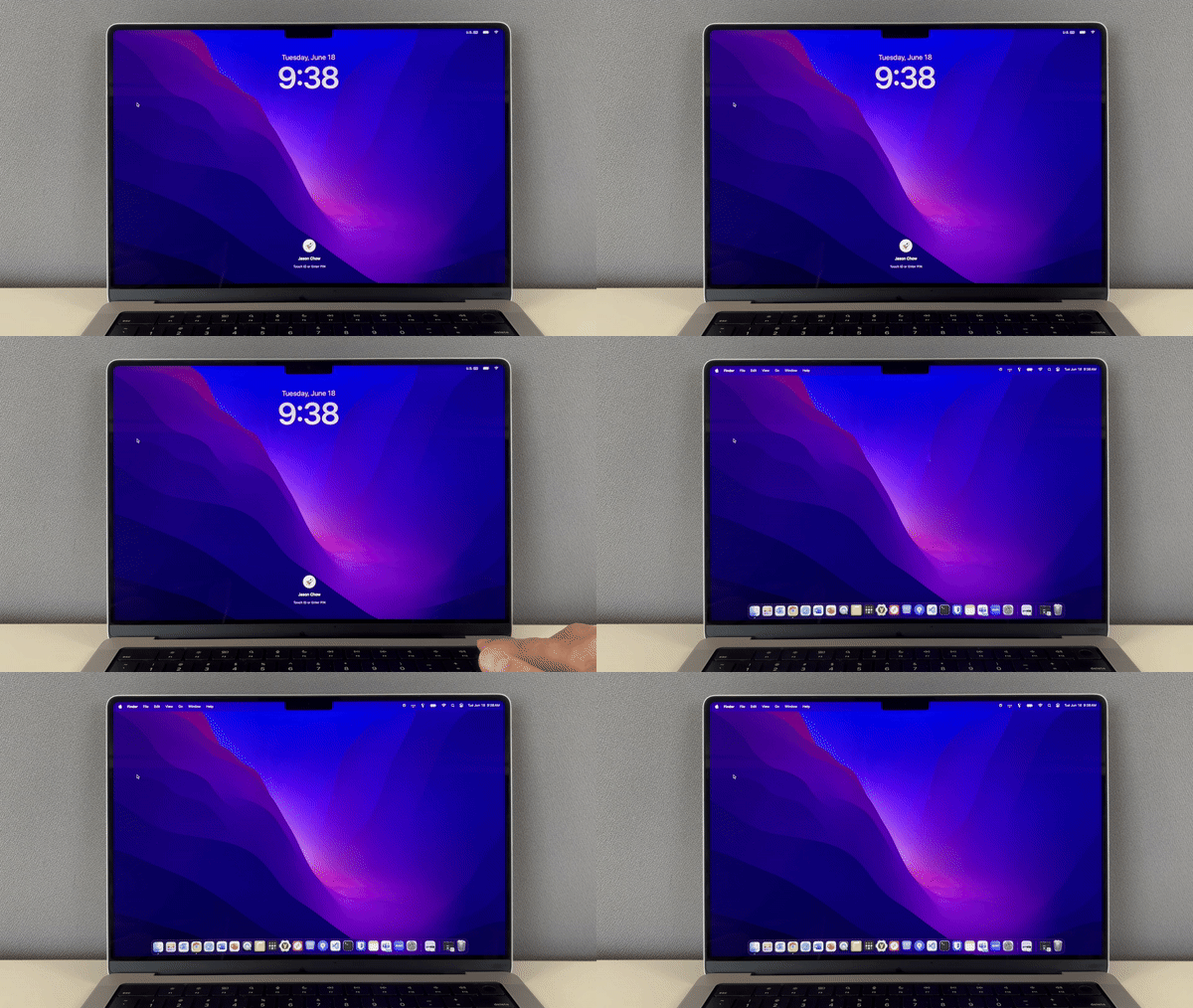 |
| Computer Login with PIN (Mac)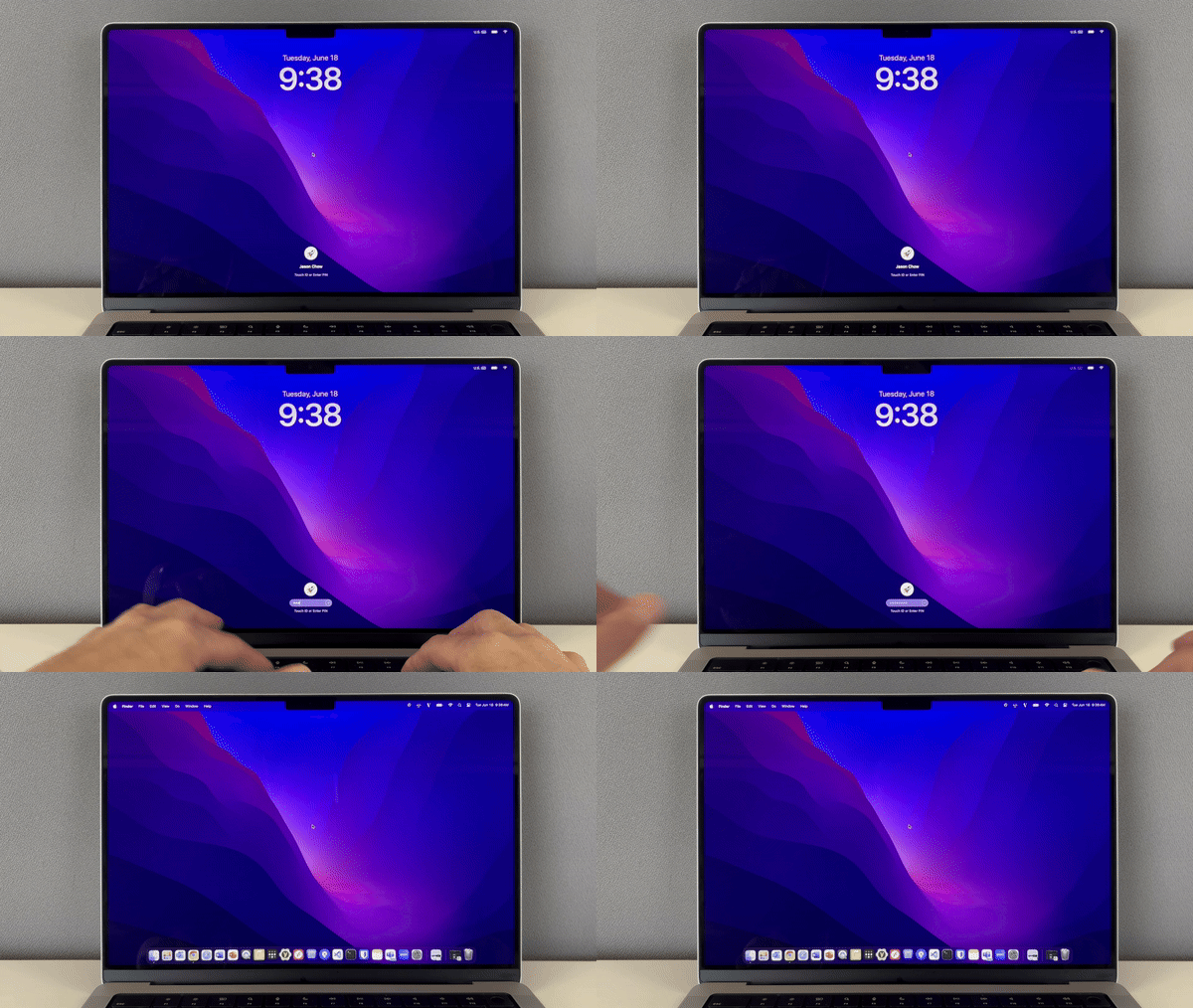 | App Login with Computer (Windows)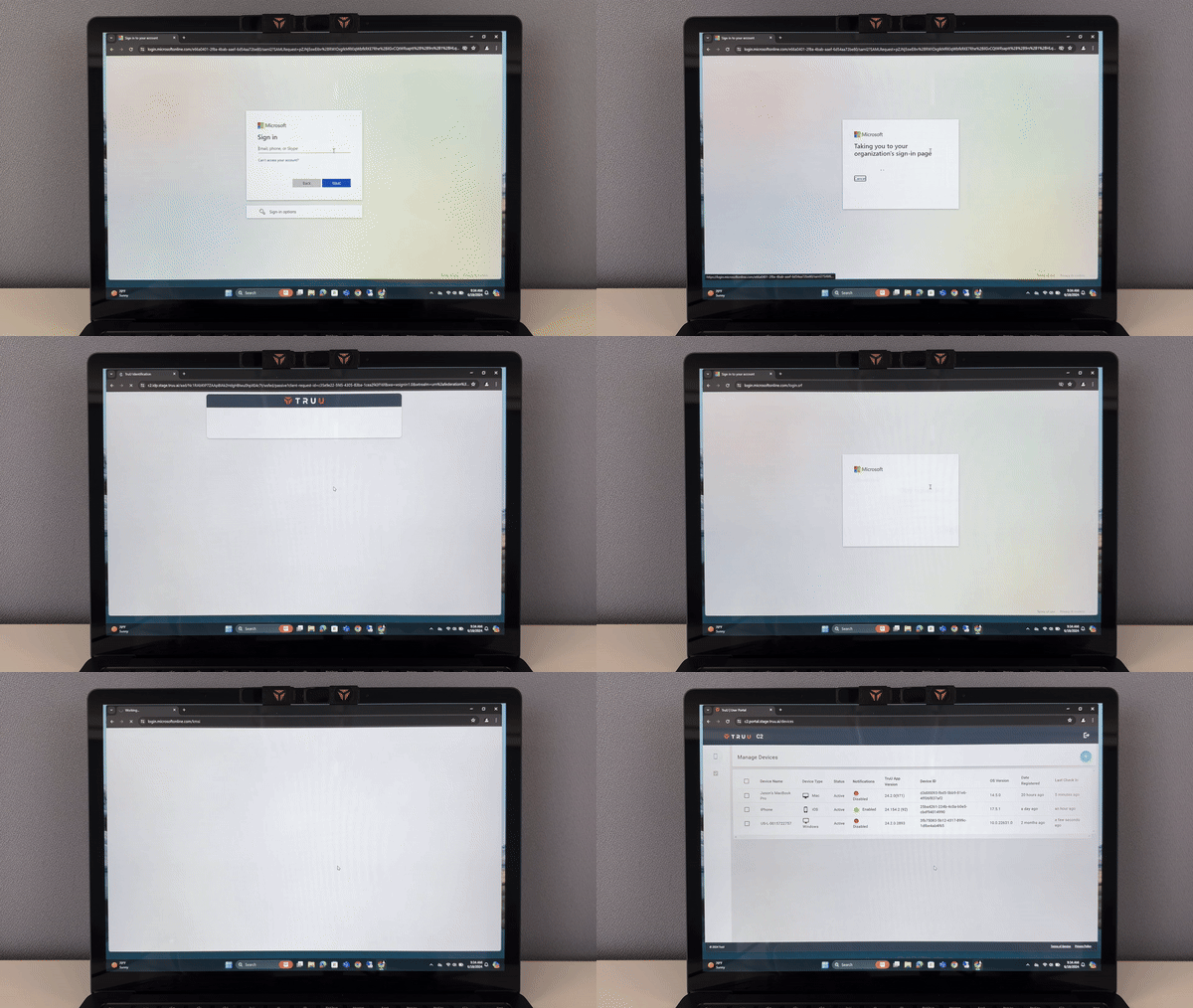 | App Login with Biometrics (Mac)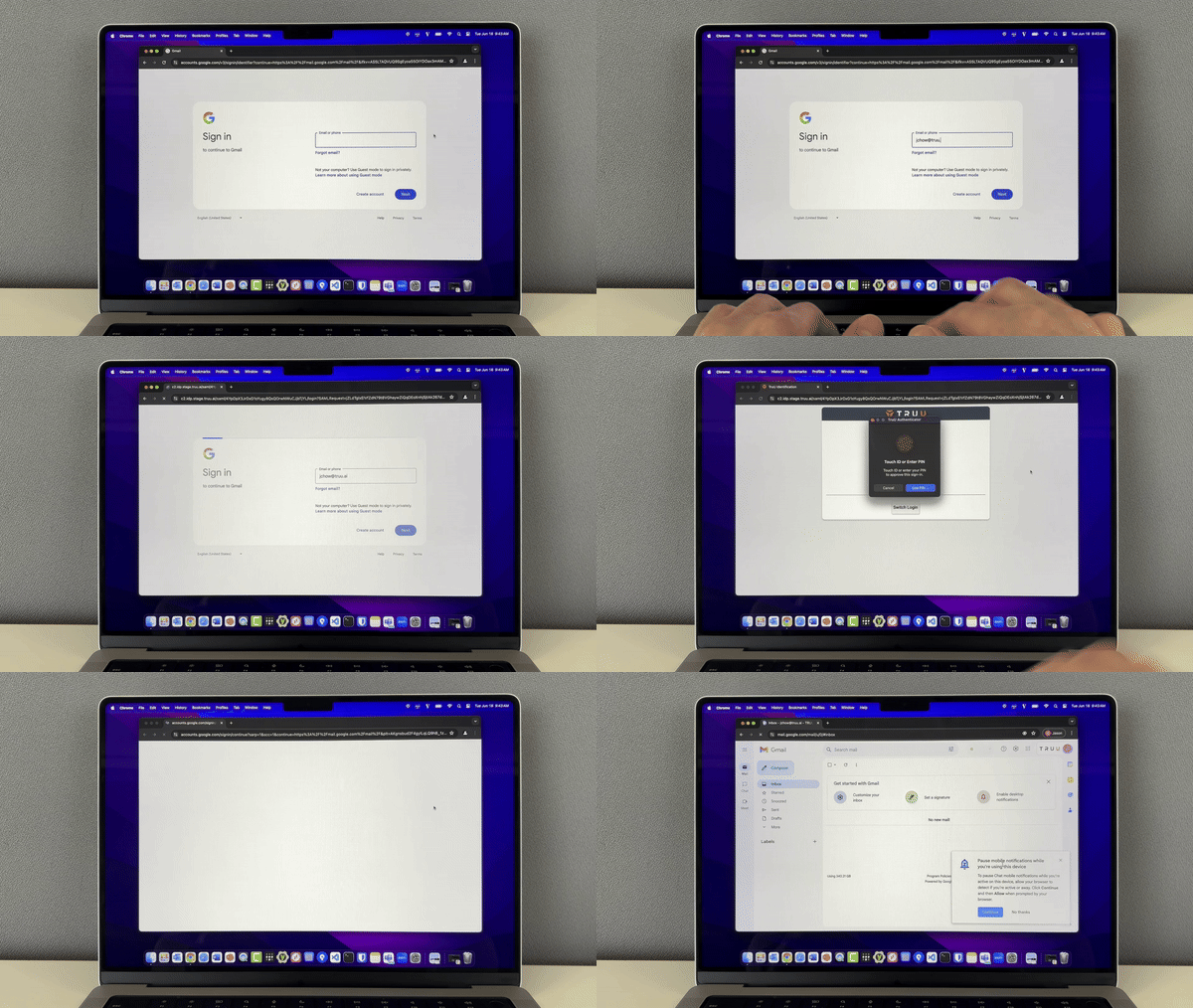 |
| App Login with PIN (Mac)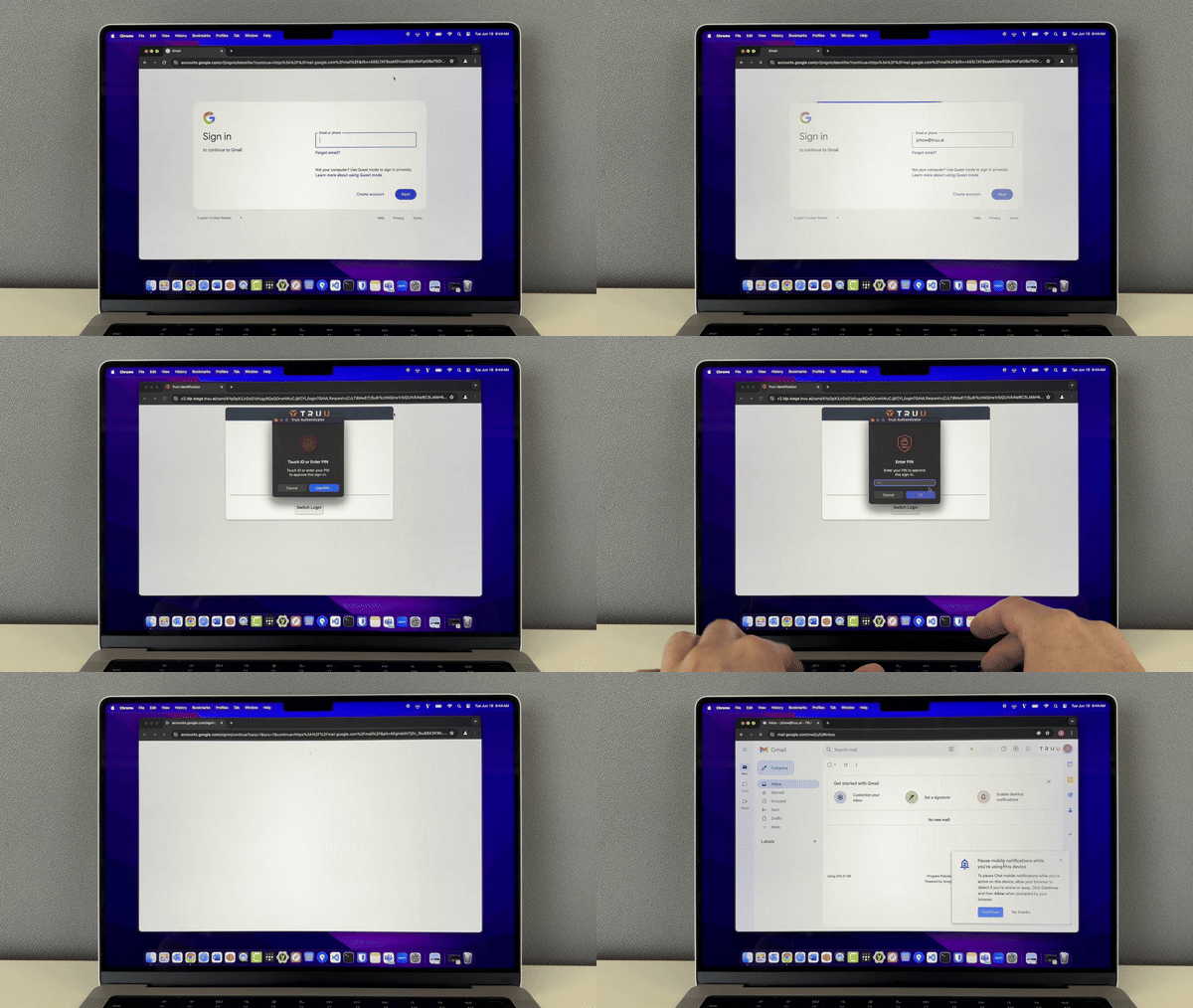 | App Login with Passkey (Browser + TouchID)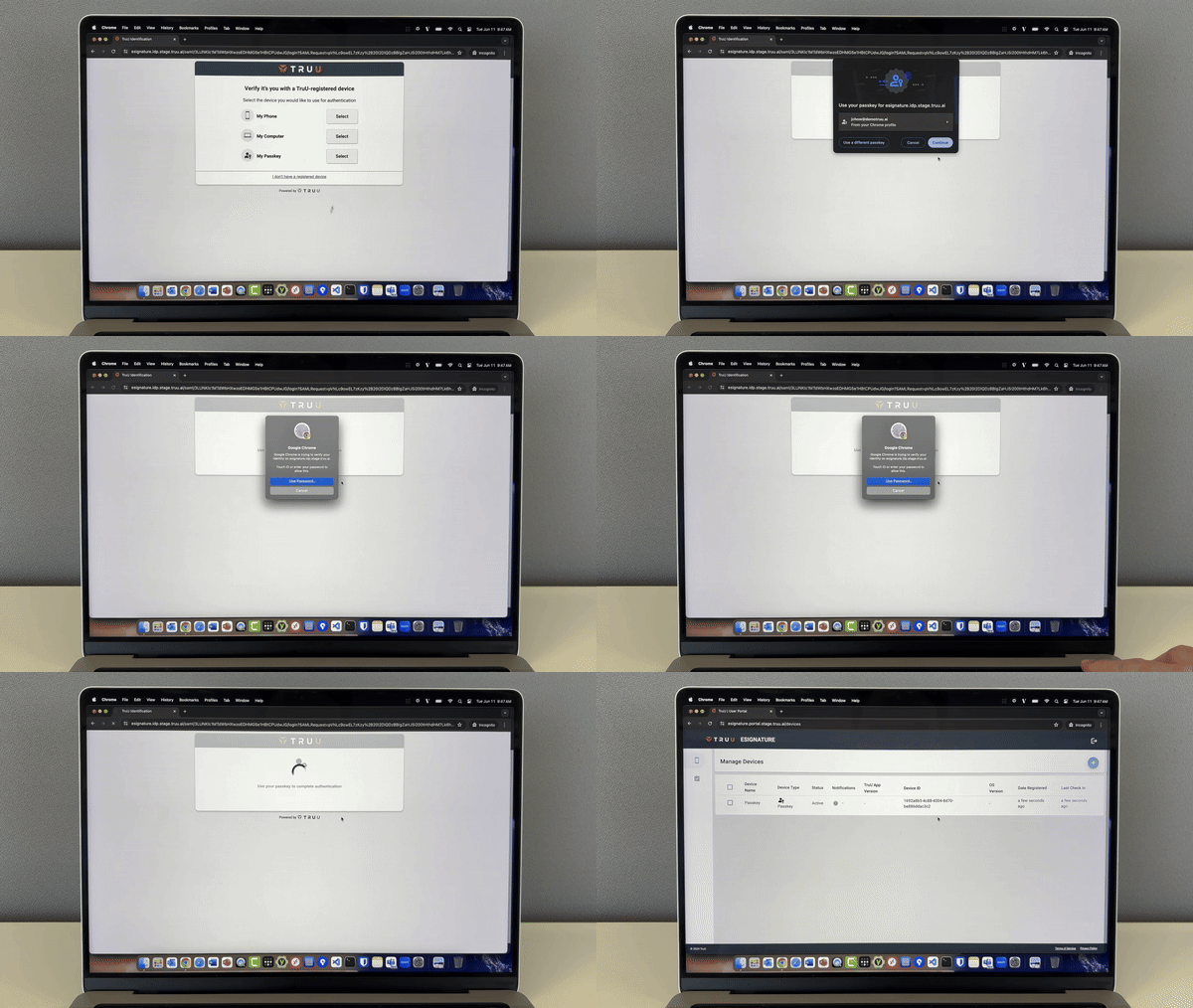 | App Login with Passkey (iPhone)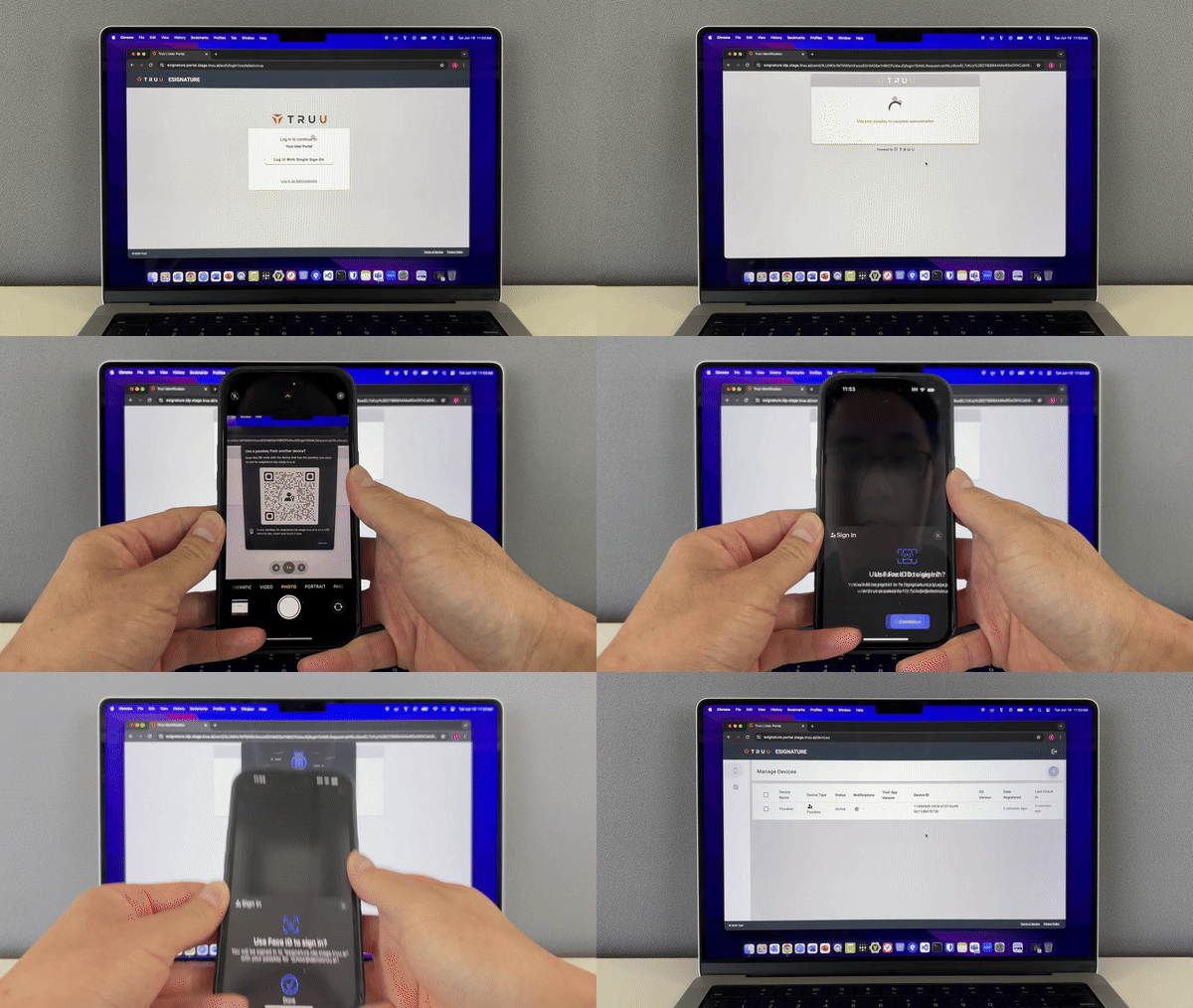 |
| App Login with YubiKey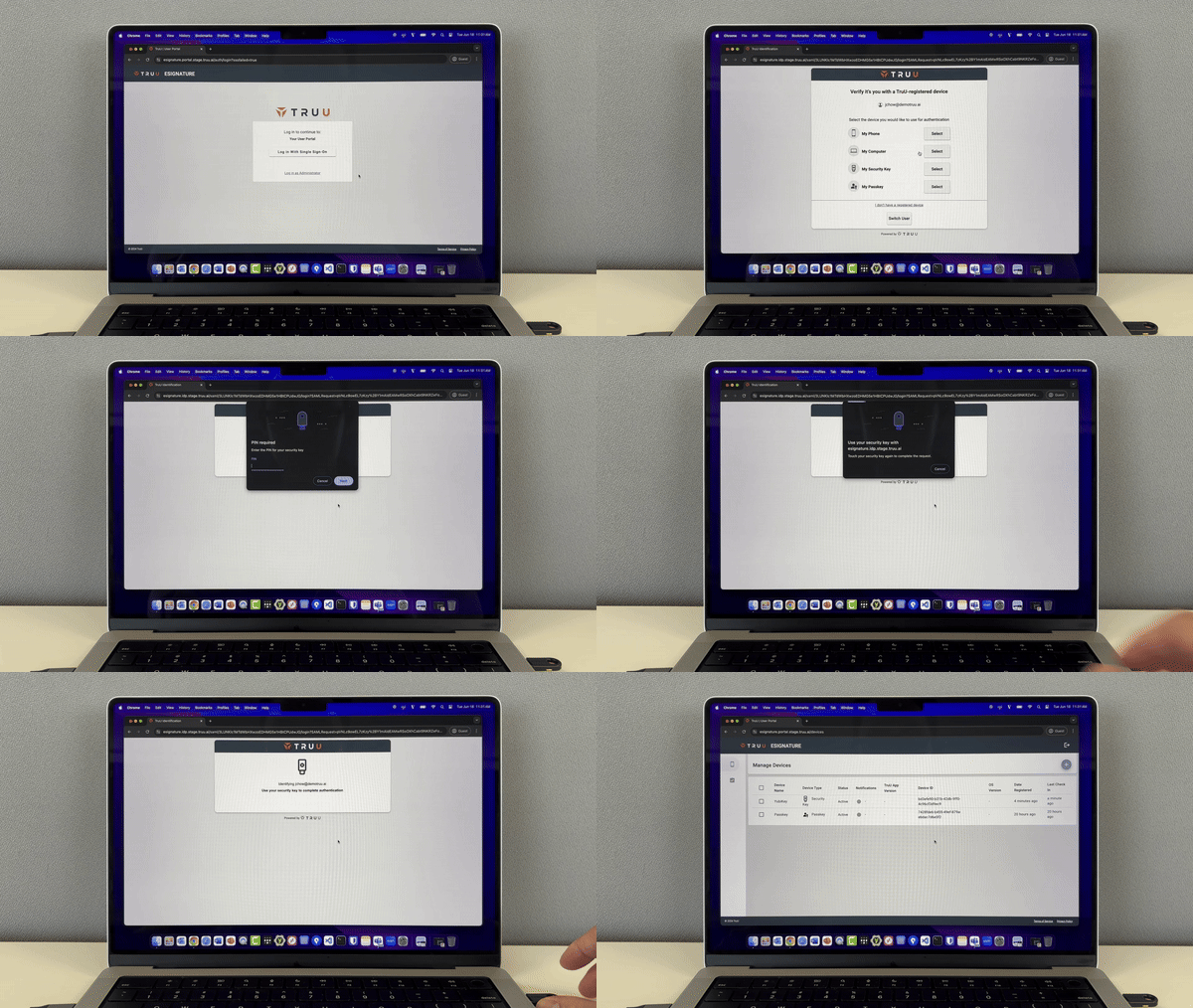 | VPN Login with Computer (Mac)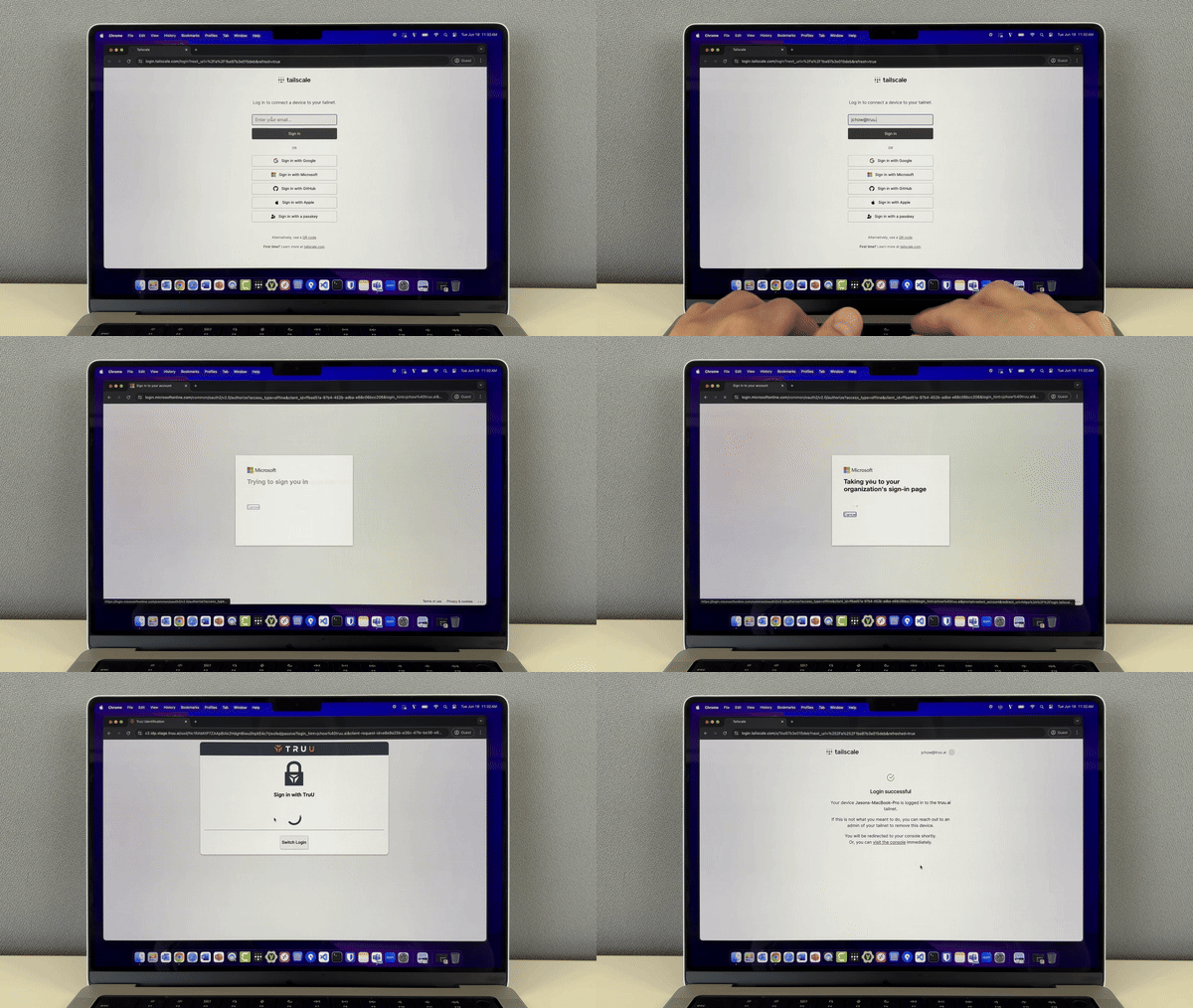 | RDP with Biometrics (Windows)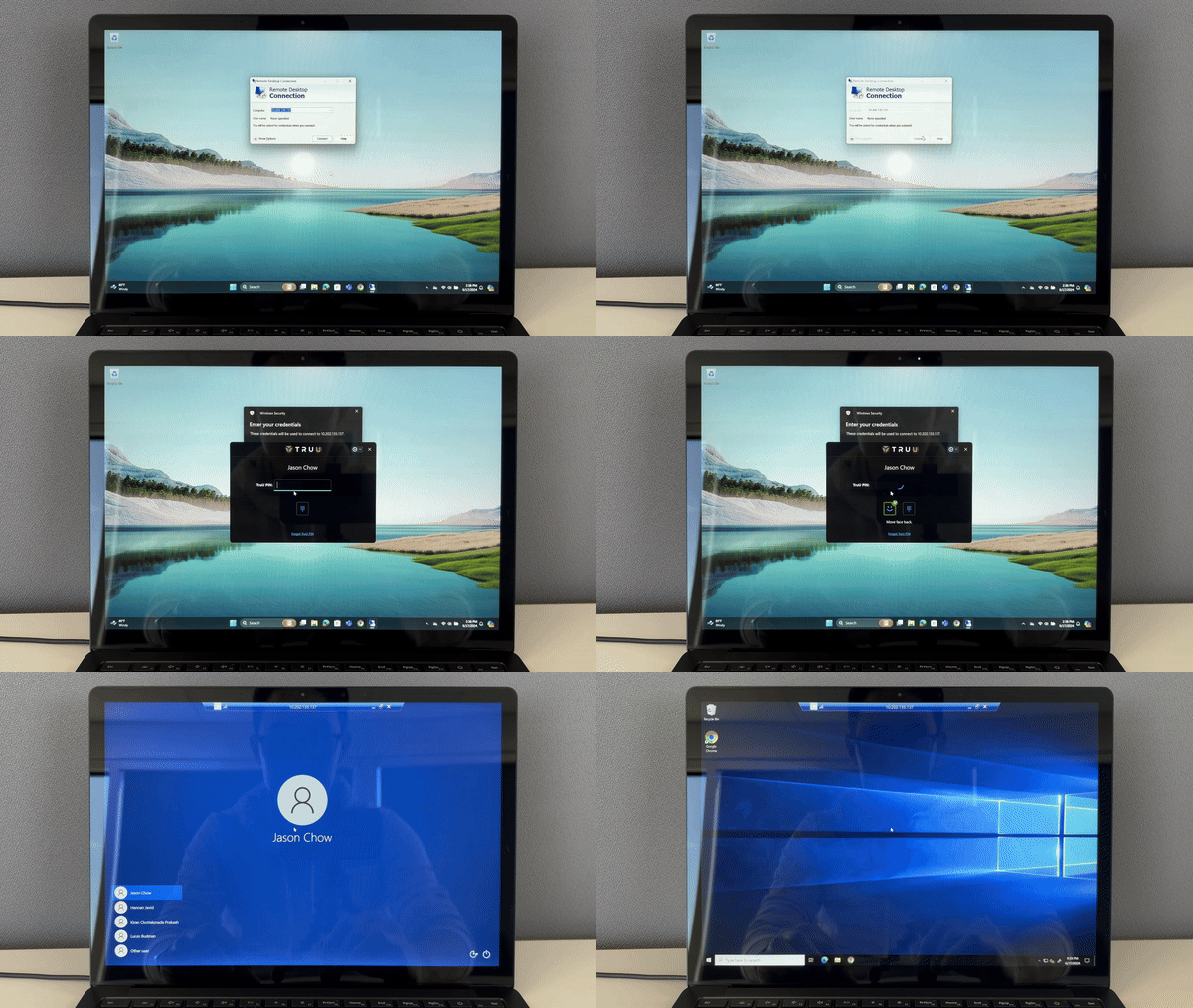 |
| SSH with Biometrics (Mac)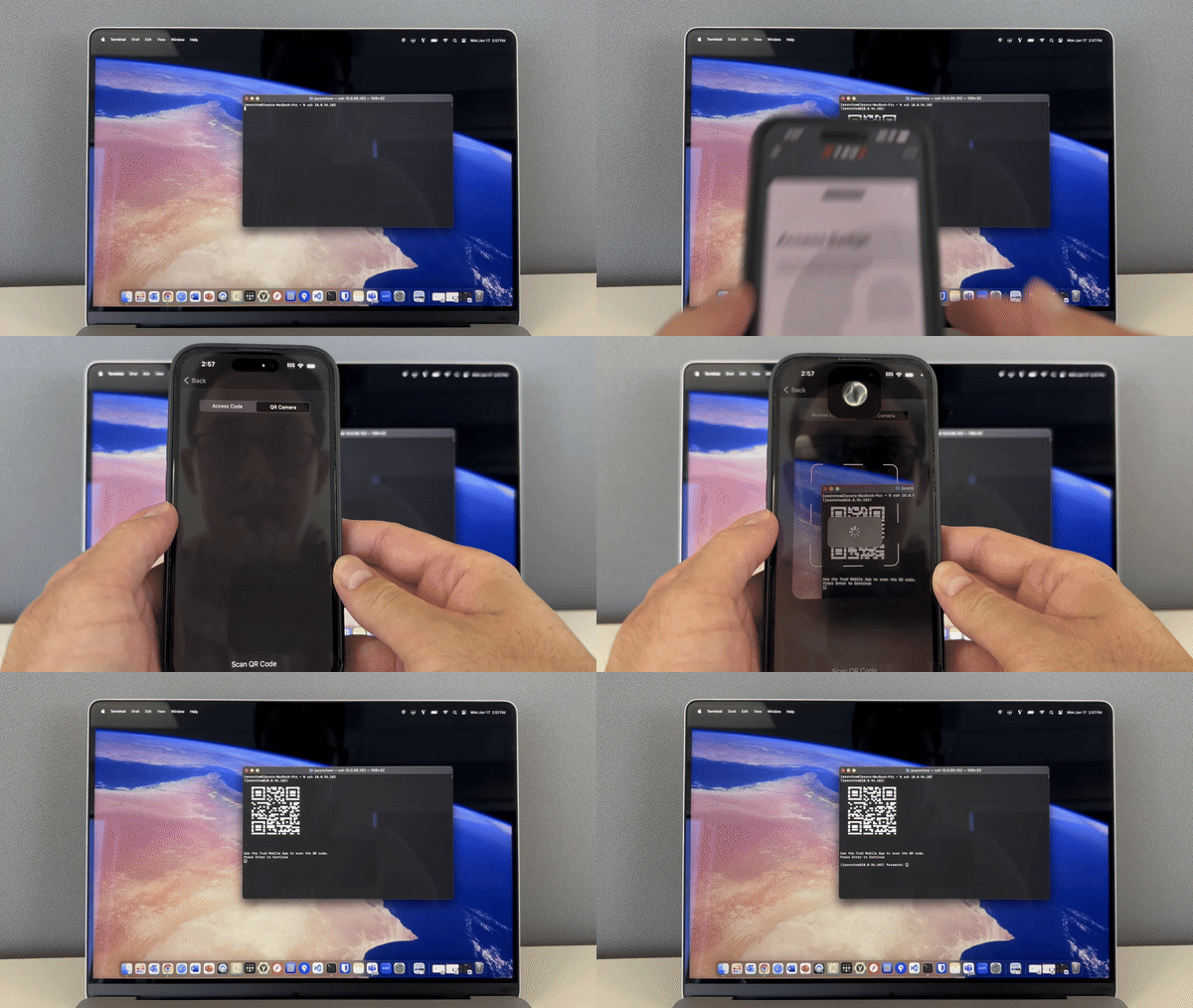 | App Login with Biometrics (Windows)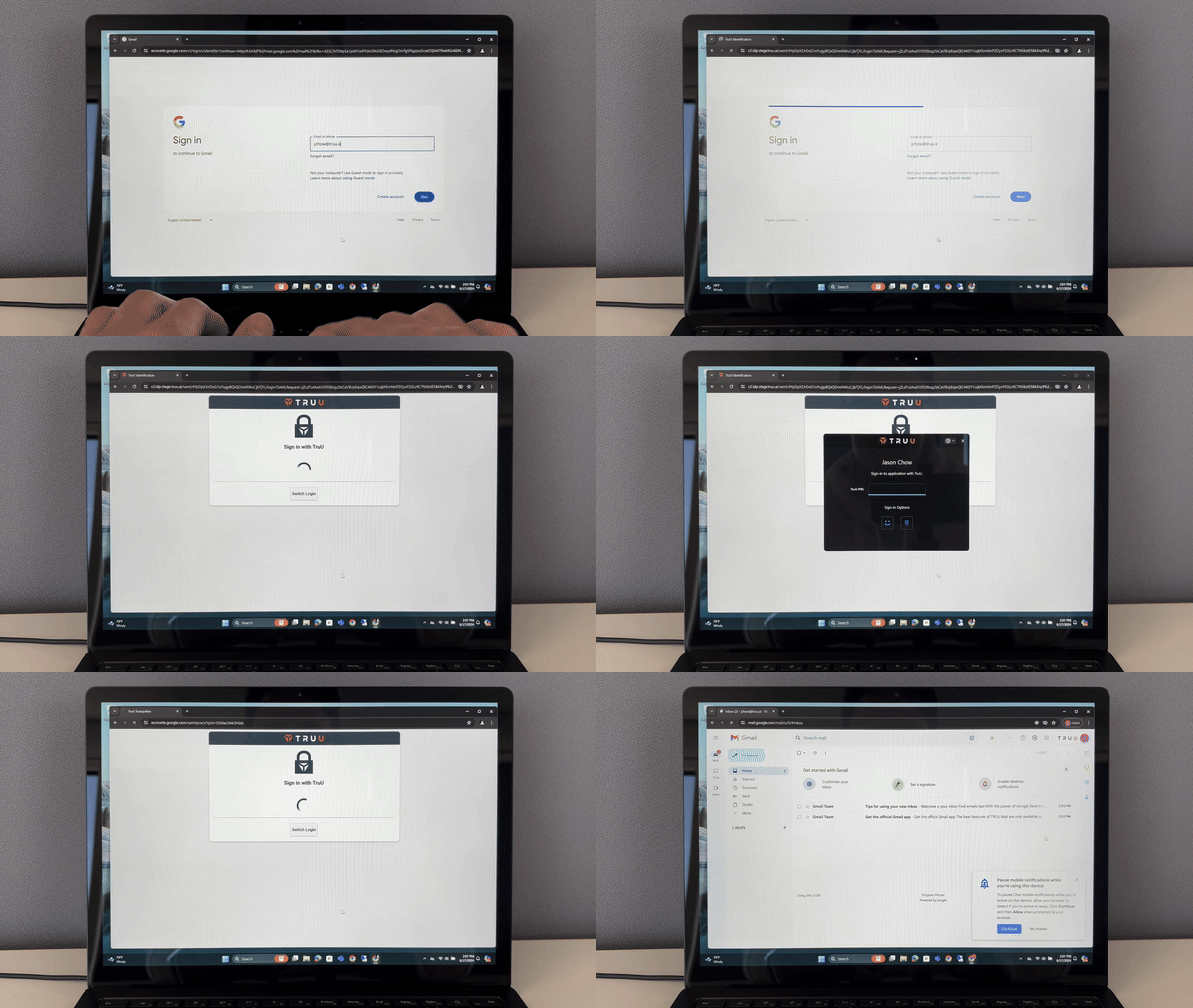 | TruU + Netskope Integration |
| Mobile Enrollment via QR Scan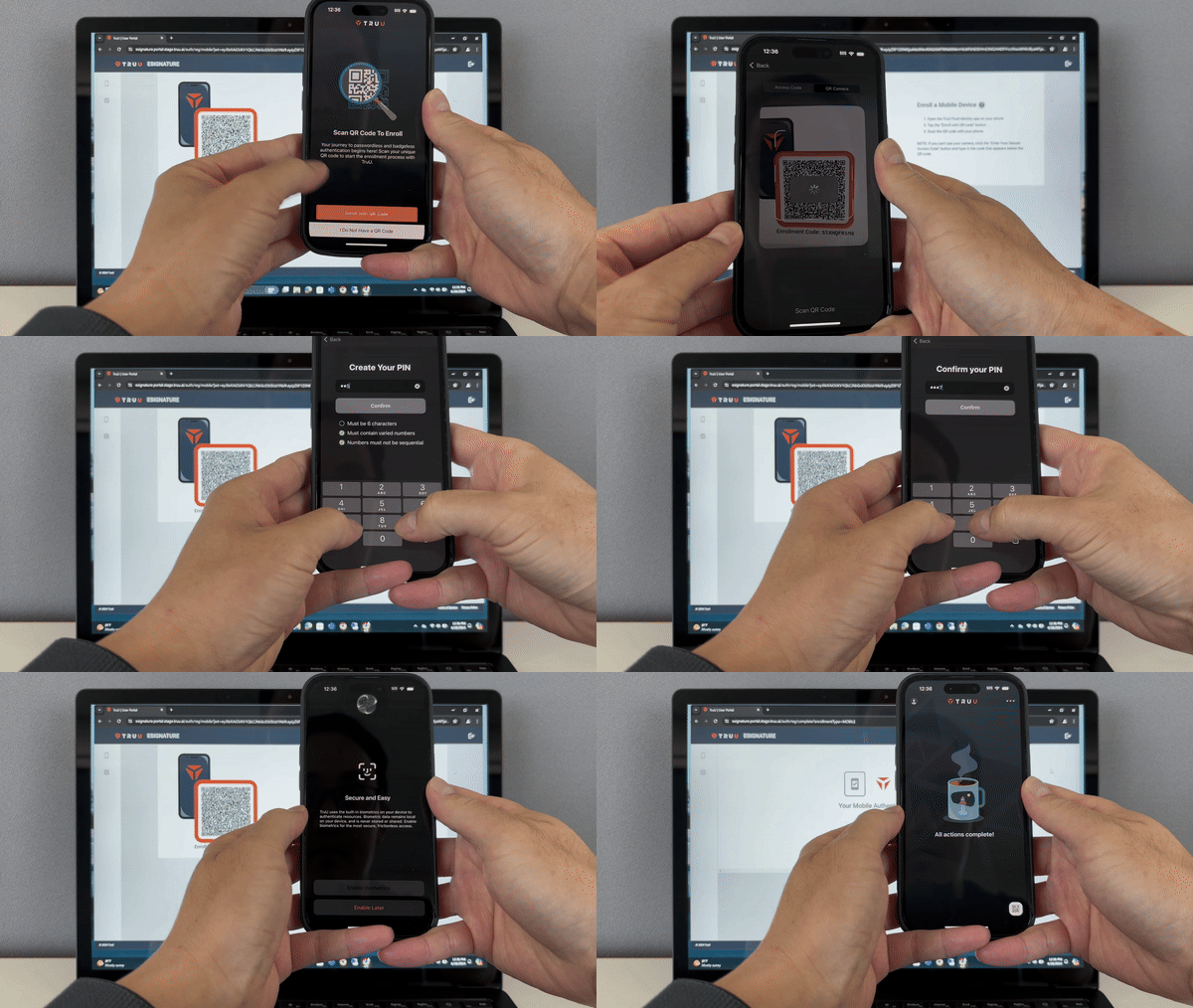 | Passkey Enrollment via Browser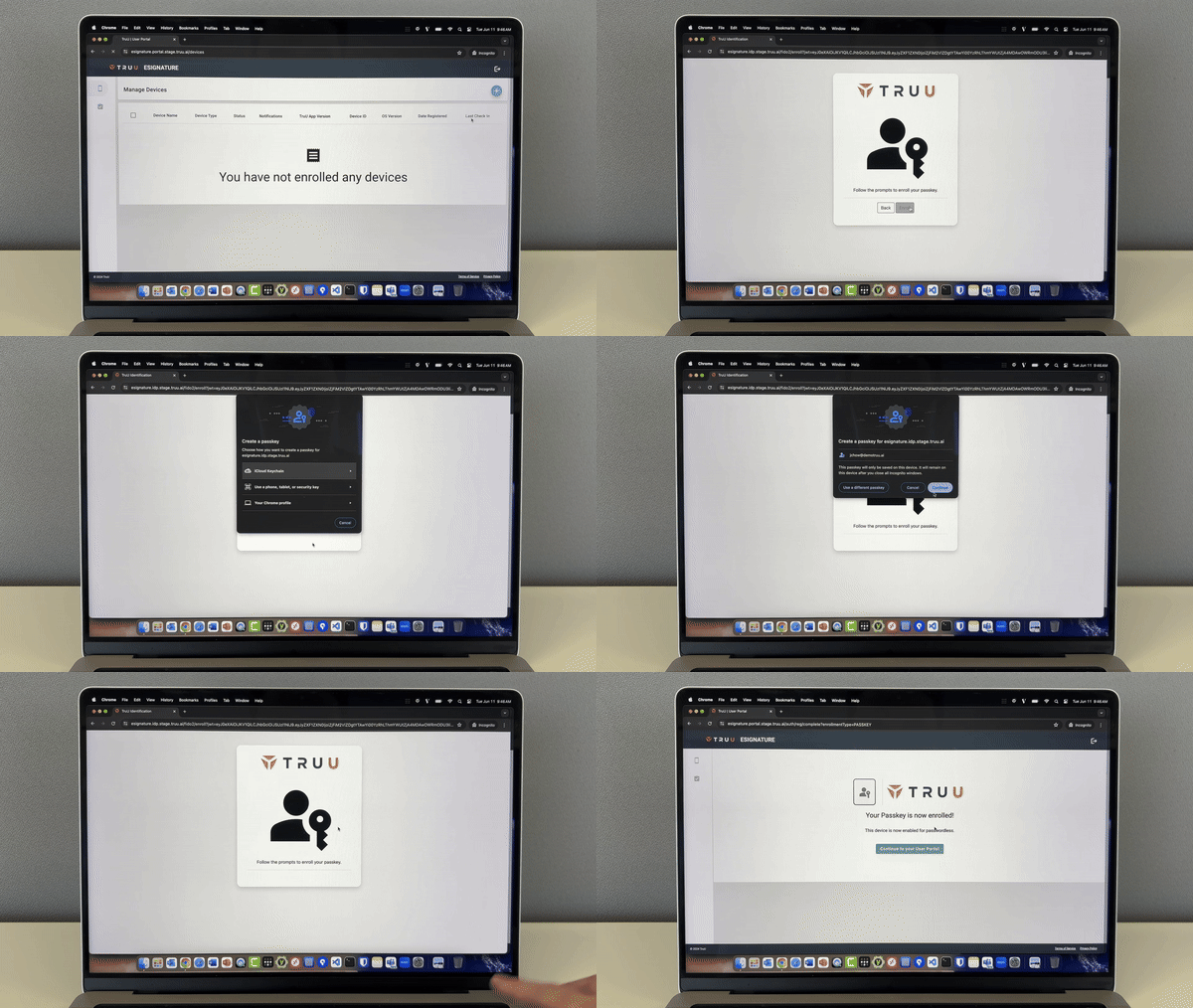 | Computer Enrollment (Windows)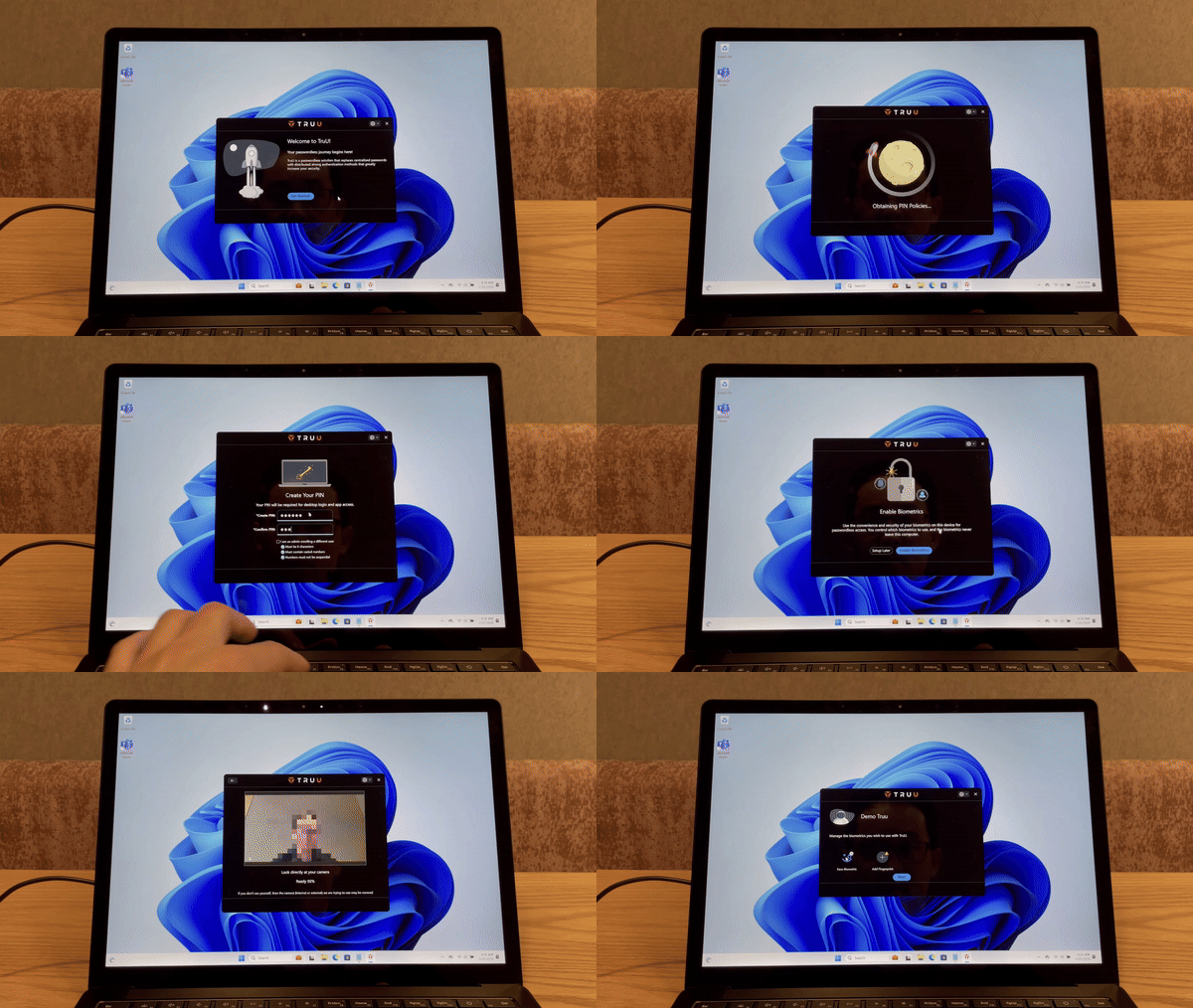 |
***
[Windows Workstation Biometric Support](/docs/workstation-biometric-support)
[Configure User Source Directory](/docs/step-1-configuring-user-source-directory)
# User Management API Guide
Source: https://docs.truu.ai/docs/user-management-api-guide
TruU has exposed four user management APIs that enable developers to better integrate TruU to existing technologies in their organization. These APIs enable management of TruU users and devices from an organization’s existing identity governance systems (e.g. SailPoint). Refer to the User Management APIs below:
* **GET User**: API to get TruU user by UPN, Email, GUID or TUID
* **DELETE User**: API to delete TruU user by GUID
* **GET Device**: API to get TruU user by UPN, Email, GUID or TUID and device by device ID
* **DELETE Device**: API to delete device by TruU user GUID and device ID
In addition, (with platform version 24.153) TruU has created two data APIs to query the platform for information about:
* Users: The Users API will return the users and their enrolled devices
* Assets: The Assets API will return the workstations and the enrolled accounts on those workstations (including user information)
At a high level, the User Management APIs require the Admin to do the following:
1. Create and OAuth Client through the Admin Console
2. Obtain a Bearer token using the OAuth credentials
3. Use the Bearer token in the authentication header when calling TruU APIs
NOTE: the APIs discussed in this guide are for user management only. If you are looking for documentation on using TruU APIs for authentication, please refer to the [Custom SSO Adapter Guide](https://docs.truu.ai/docs/custom-sso-adapter#/)
### **Step 1: Creating OAuth Clients**
We will start by adding a “User Operations” OAuth Client in the Admin Console. This will create a new OAuth credential pair (a client ID and secret) that will be needed to access the API
1. Navigate to the "Integrations/OAuth Clients" tab on the TruU Admin Console
2. Click the **(+)** button
3. Select “User Operations”

4. Name the OAuth Client (e.g., Enrollment API)
5. Click **Create**
6. Click **Download And Finish**
### **Step 2: Use the OAuth Client to Call the API**
As mentioned above, the User Operations API can be used to GET and DELETE Users and Devices. The example below explains how to use the Enrolled Users API
**Retrieving an OAuth Token**
Use the details from the configuration file downloaded when you provisioned a “User Operations” OAuth Client from your TruU admin console in order to retrieve a bearer token
```
POST [https://global.platform.truu.ai/oauth/token](https://global.platform.truu.ai/oauth/token)
```
The content-type for this POST request should be application/x-www-form-urlencoded
**Data**
```
grant_type=client_credentials&scope=tenant-management-api-user&client_id=&client_secret=
```
**Curl Example**
```
curl https://global.platform.truu.ai/oauth/token -d 'grant_type=client_credentials&scope=tenant-management-api-user&client_id=&client_secret=’
```
**Example Response**
```
\{
"access_token": "eyJ…",
"token_type": "Bearer",
"expires_in": 7199,
"scope": "tenant-management-api-user",
"domain": "4a9de178-8be4-4bb0-aa4b-1239a9695627",
"ver": "2.0",
"jti": "HY6P2g0kHuISYuQylXZ-5Fzt2bE"
}
```
Use the value from the access\_token field as the Bearer token.
**Curl Example**
Assume you have stored the value of access\_token into variable TOKEN you can query for enrolled users as follows:
```
curl [https://global.platform.truu.ai/api/v1/system/enrolled/users/](https://global.platform.truu.ai/api/v1/system/enrolled/users/) -H "Authorization: Bearer ${TOKEN}"
\{
"page": 1,
"next": null,
"previous": null,
"final": 1,
"pageSize": 100,
"count": 4,
"results": [
\{
"tuid": "4aec2a38-9a39-4df1-96fb-557c35e0dc3d",
"guid": "56aaedb0-4a8c-452b-ab61-a59b5db037bd",
"displayName": "User Name",
"userPrincipal": "[email protected]",
"email": "[email protected]",
"lastSynced": "2024-01-06T07:13:54.805219Z",
"created": "2020-10-21T17:53:06.246723Z"
},
...
]
}
```
**Enrolled Users API**
API Endpoint = [https://global.platform.truu.ai/api/v1/system/enrolled/users/](https://global.platform.truu.ai/api/v1/system/enrolled/users/)
The Enrolled Users API returns all users enrolled in your TruU tenant. These results include anyone who has enrolled a device (mobile application, desktop client, or FIDO2 hardware key) even if those devices have since been deleted (meaning a user must also be deleted from your TruU admin console to be excluded from the results of this API). Results are paginated and the API supports optional query parameters to filter by Email, User Principal Name, GUID, and/or TUID
NOTE: the trailing slash must be included in the URL when querying this endpoint. Failing to do so will result in a 301 redirect HTTP response code with no results
**Supported HTTP Methods**
* GET
**Optional Query Parameters**
* upn
* User Principal NameFull matching only
* Case insensitive
* email
* Email addressFull matching only
* Case insensitive
* guid
* User identifier from directory
* Active directory: objectGUID
* Entra ID: id
* Okta: id
* Full matching only
* Case insensitive
* tuid
* TruU user ID
* Full matching only
* Case insensitive
**Pagination Query Parameters**
* page
* Include this query parameter to fetch a specific page of results
* Page 1 will be returned by default if omitted
Query parameters may be combined as in the following example:
```
/api/v1/system/enrolled/users/?email=[[email protected]](mailto:[email protected])\&upn=[[email protected]](mailto:[email protected])
```
**Required Authorization Header**
* Authorization: Bearer \
**Response Content Type**
* application/json
**Response Status Codes**
* 200
**Parsing API Responses**
The response contains a count field that describes how many users (0 or more) were found among enrolled users with the optional query parameter filters applied. If you wish to determine if a user is enrolled, you may simply query the endpoint with an appropriate query parameter filter and then refer to the count from the response
**Examples**
Retrieve all enrolled users
```
GET https://global.platform.truu.ai/api/v1/system/enrolled/users/
{
"page": 1,
"next": 2,
"previous": null,
"final": 2,
"pageSize": 100,
"count": 117,
"results": [
{
"tuid": "ebcd0728-8fe7-4d1a-ad51-314692f49153",
"guid": "30cbe1fe-4f92-42ba-9c29-eea2a23d707d",
"displayName": "User One",
"userPrincipal": "[email protected]",
"email": "[email protected]",
"lastSynced": "2024-01-11T16:56:40.313923Z",
"created": "2023-11-01T06:16:40.297704Z"
},
{
"tuid": "75e7cae5-ab2c-40e7-832e-97293a0b5d0d",
"guid": "92e0286b-a435-4422-9aa1-5967c1db12ff",
"displayName": "User Two",
"userPrincipal": "[email protected]",
"email": "[email protected]",
"lastSynced": "2024-01-11T17:00:15.024443Z",
"created": "2022-03-31T18:24:18.397688Z"
},
...
]
}
```
Retrieve the 2nd page of all enrolled users
```
GET https://global.platform.truu.ai/api/v1/system/enrolled/users/?page=2
{
"page": 2,
"next": null,
"previous": 1,
"final": 2,
"pageSize": 100,
"count": 117,
"results": [
{
"tuid": "4801df0d-c1cf-4fca-9034-653d8519f09a",
"guid": "f29c03fb-f0c9-4083-8816-437e5408a85e",
"displayName": "User X",
"userPrincipal": "[email protected]",
"email": "[email protected]",
"lastSynced": "2022-12-08T18:31:35.655807Z",
"created": "2022-10-17T19:37:19.519701Z"
},
{
"tuid": "661b1cc1-87c2-4e77-bb06-7746418fb715",
"guid": "107663d5-02f6-4eb5-87c8-953c58950ad8",
"displayName": "User Y",
"userPrincipal": "[email protected]",
"email": "[email protected]",
"lastSynced": "2022-11-24T14:50:26.347020Z",
"created": "2022-01-21T18:40:28.644791Z"
},
...
]
}
```
Query by email address
```
GET https://global.platform.truu.ai/api/v1/system/enrolled/users/[email protected]
{
"page": 1,
"next": null,
"previous": null,
"final": 1,
"pageSize": 100,
"count": 2,
"results": [
{
"tuid": "6fdf91d0-95f0-4175-96f2-257cd7b8474d",
"guid": "b10857e1-e8c0-40ee-85b7-30af22704096",
"displayName": "User Name",
"userPrincipal": "[email protected]",
"email": "[email protected]",
"lastSynced": "2024-01-03T17:05:42.254193Z",
"created": "2018-07-16T21:04:29.182948Z"
},
{
"tuid": "c74e61b4-2b95-4777-8ddf-b30e486bedc2",
"guid": "2e39d8c7-7ae1-4dfc-a2d5-e3acfb1ca539",
"displayName": "User Name - Admin",
"userPrincipal": "[email protected]",
"email": "[email protected]",
"lastSynced": "2024-01-03T17:10:32.371213Z",
"created": "2022-05-26T04:03:26.397433Z"
}
]
}
```
### **Device Management API**
**API Endpoint** = [https://global.platform.truu.ai/api/v1/system/devices/](https://global.platform.truu.ai/api/v1/system/devices/)
The TruU Device Management API retrieves information about enrolled devices and associated users.
**Supported HTTP Methods**
* GET
**Required Authorization Header**
* Authorization: Bearer \
**Response Content Type**
* application/json
**Response Status Codes**
* 200
**Parsing API Responses**
The response contains a count field that describes how many enrolled devices were found.
Examples
```
GET https://global.platform.truu.ai/api/v1/system/devices/
{
"page": 1,
"next": 2,
"previous": null,
"final": 33,
"pageSize": 25,
"count": 825,
"results": [
{
"deviceId": "a43674e1-850c-5f87-a5ef-83d66f699faa",
"deviceName": "MacBook Air",
"appVersion": "23.4.0(673)",
"sdkVersion": "1.0",
"lastHeardFrom": 1705327828000,
"softwareIdentifier": "Version 13.6.3 (Build 22G436)",
"notificationId": null,
"appId": "com.truu.LoginHost",
"type": "MAC_TPM",
"active": true,
"created": "2024-01-12T16:02:54.066886Z",
"user": {
"tuid": "323619f2-db00-45db-8c40-71f833f1a47d",
"guid": "ef8e112f-fd1e-4010-b1b8-2913e472c982",
"displayName": "User Name",
"userPrincipal": "[email protected]",
"email": "[email protected]",
"lastSynced": "2024-01-12T16:27:31.064376Z",
"created": "2023-01-02T13:11:57.920966Z"
},
"domain": {
"key": "dbcc2f1d-aed8-4453-8f75-3542f722a752",
"name": "Tenant Name",
"domain": "domain"
}
},
...
]
}
```
### User Management API
**API Endpoint** = [https://global.platform.truu.ai/api/v1/system/domainusers/\/](https://global.platform.truu.ai/api/v1/system/domainusers/%3Cguid%3E/)
The TruU User Management API supports user and device deletion.
**Supported HTTP Methods**
* GET / DELETE
**Required Path Value**
* guid
* User identifier from directory
* Active Directory: objectGUIDEntra ID: idOkta: id Full matching only
* Case sensitive
**Required Authorization Header**
* Authorization: Bearer \
**Response Content Type**
* application/json
**Response Status Codes**
* 200 / 204
Examples
**Retrieve a specific user by GUID**
```
GET https://global.platform.truu.ai/api/v1/system/domainusers/ef8e112f-fd1e-4010-b1b8-2913e472c982/
{
"tuid": "323619f2-db00-45db-8c40-71f833f1a47d",
"guid": "ef8e112f-fd1e-4010-b1b8-2913e472c982",
"displayName": "User Name",
"userPrincipal": "[email protected]",
"email": "[email protected]",
"lastSynced": "2024-01-12T16:27:31.064376Z",
"created": "2023-01-02T13:11:57.920966Z",
"domain": {
"key": "dbcc2f1d-aed8-4453-8f75-3542f722a752",
"name": "Tenant Name",
"domain": "domain"
}
}
```
**Retrieve a specific device for a user using the user’s GUID and device ID**
```
GET https://global.platform.truu.ai/api/v1/system/domainusers/ef8e112f-fd1e-4010-b1b8-2913e472c982/devices/a43674e1-850c-5f87-a5ef-83d66f699faa/
{
"deviceId": "a43674e1-850c-5f87-a5ef-83d66f699faa",
"deviceName": "MacBook Air",
"appVersion": "23.4.0(673)",
"sdkVersion": "1.0",
"lastHeardFrom": 1705327828000,
"softwareIdentifier": "Version 13.6.3 (Build 22G436)",
"notificationId": null,
"appId": "com.truu.LoginHost",
"type": "MAC_TPM",
"active": true,
"created": "2024-01-12T16:02:54.066886Z",
"user": {
"tuid": "323619f2-db00-45db-8c40-71f833f1a47d",
"guid": "ef8e112f-fd1e-4010-b1b8-2913e472c982",
"displayName": "User Name",
"userPrincipal": "[email protected]",
"email": "[email protected]",
"lastSynced": "2024-01-12T16:27:31.064376Z",
"created": "2023-01-02T13:11:57.920966Z"
},
"domain": {
"key": "dbcc2f1d-aed8-4453-8f75-3542f722a752",
"name": "Tenant Name",
"domain": "domain"
}
}
```
**Delete a specific user device**
```
DELETE https://global.platform.truu.ai/api/v1/system/domainusers/b10857e1-e8c0-40ee-85b7-30af22704096/devices/29d57fd7-7064-47cd-90f3-3a8a899a8644/
{
"deviceId": "29d57fd7-7064-47cd-90f3-3a8a899a8644",
"deviceName": "Pixel 5",
"appVersion": "23.142.0",
"sdkVersion": "23.142.0",
"lastHeardFrom": 1704525233732,
"softwareIdentifier": "34",
"notificationId": "ezy_O305TSmpwu1JOhOuEA:APA91bGtnkdYQlhG3TsfHHJsC24a1kU4AVR1u-hn2-awucHnc8Zr9LOuyqg5ZIGJuEahGaU88G7mn05PmxTA4G7c1HhVvBEW1q6gFdYuc62LicIZUGs1u8dDNyVEqcA1fOj0TYaYdHd0",
"appId": "com.truu.android.app",
"type": "ANDROID",
"active": false,
"created": "2023-08-10T04:00:51.407853Z",
"user": {
"tuid": "6fdf91d0-95f0-4175-96f2-257cd7b8474d",
"guid": "b10857e1-e8c0-40ee-85b7-30af22704096",
"displayName": "User Name",
"userPrincipal": "[email protected]",
"email": "[email protected]",
"lastSynced": "2024-01-06T07:13:56.077245Z",
"created": "2018-07-16T21:04:29.182948Z"
},
"domain": {
"key": "dbcc2f1d-aed8-4453-8f75-3542f722a752",
"name": "Tenant Name",
"domain": "domain"
}
}
```
NOTE: the DELETE API response the active value is now false
**Delete a user and all associated devices**
```
DELETE https://global.platform.truu.ai/api/v1/system/domainusers/2e39d8c7-7ae1-4dfc-a2d5-e3acfb1ca539/
```
The response will have HTTP status code 204 with no body.
**Users Data API**
**API Endpoint** = [https://global.platform.truu.ai/data/api/v1/users/](https://global.platform.truu.ai/data/api/v1/users/)
The Users API will return the users and their enrolled devices
NOTE: the trailing slash must be included in the URL when querying this endpoint. Failing to do so will result in a 301 redirect HTTP response code with no results
* When using this API with no query parameters, all users will be returned and paginated at 25 users per page. The supported parameters for Users are:
* **page**: this is an integer which can be used to select which page you want to receive. (Note: if you enter a page that does not exist, the query will return an error.)
* **userPrincipals**: we support any number of UPNs (and are case insensitive in our search)
* **emails**: we support any number of email (and are case insensitive in our search)
* **guids**: we support any number of guids (and are case insensitive in our search)
* NOTE: when using a single parameter (e.g., emails, you can include many emails) the query will be run as an OR. If you mix parameters, (e.g. emails and guids) the query will be run as an AND.
**Supported HTTP Methods**
* GET
**Required Authorization Header**
* Authorization: Bearer \
**Response Content Type**
* application/json
**Response Status Codes**
* 200
**Examples**
Retrieve a set of users and their devices by GUIDs
```
GET https://global.platform.truu.ai/data/api/v1/users/?guids=bd0a51a1-dd1d-43bb-af80-d37126aea466&guids=066eefab-dec4-48a8-83bf-b585f93f20ad
{
"page": 1,
"next": null,
"previous": null,
"final": 1,
"pageSize": 25,
"count": 2,
"results": [
{
"tuid": "93ebf78d-7878-4b95-86b3-0858e744758e",
"guid": "bd0a51a1-dd1d-43bb-af80-d37126aea466",
"displayName": "Barbara Taylor",
"userPrincipal": "[email protected]",
"email": "[email protected]",
"lastSynced": "2024-03-18T14:54:42.329656Z",
"created": "2023-09-24T14:54:42.329492Z",
"devices": [
{
"deviceId": "59602811",
"notificationsEnabled": false,
"deviceName": "Barbara Taylor's MAC_TPM",
"appVersion": "1.0.2",
"type": "MAC_TPM",
"lastHeardFrom": "2024-03-18T14:54:37.231000Z",
"assuranceLevel": 100,
"active": true
}
]
},
{
"tuid": "7470d1cb-2d7a-4758-a5db-88f1335efa8e",
"guid": "066eefab-dec4-48a8-83bf-b585f93f20ad",
"displayName": "Deborah Jackson",
"userPrincipal": "[email protected]",
"email": "[email protected]",
"lastSynced": "2024-03-18T14:54:42.618366Z",
"created": "2023-09-14T14:54:42.618207Z",
"devices": [
{
"deviceId": "60957733",
"notificationsEnabled": true,
"deviceName": "Deborah Jackson's WINDOWS_TPM",
"appVersion": "1.0.2",
"type": "WINDOWS_TPM",
"lastHeardFrom": "2024-03-18T14:54:36.954000Z",
"assuranceLevel": 100,
"active": true
}
]
}
]
}
```
NOTE: if you are using this API to determine the Assurance Level of the user’s device, the assurance level response will be a numeric value with the following mappings:
* 100 = Basic
* 300 = Trusted
* 500 = Certified
### Assets Data API
**API Endpoint** = [https://global.platform.truu.ai/data/api/v1/assets/](https://global.platform.truu.ai/data/api/v1/assets/)
The Assets API will return the workstation and the enrolled accounts on that workstation (including user information)
NOTE: the trailing slash must be included in the URL when querying this endpoint. Failing to do so will result in a 301 redirect HTTP response code with no results
* When using this API with no query parameters, all assets will be returned and paginated at 25 assets per page. The supported parameters for Assets are:
* page: this is an integer which can be used to select which page you want to receive. (Note: if you enter a page that does not exist, the query will return an error.)
* ipAddresses: we support any number of IP addresses
* macAddresses: we support any number of MAC addresses
NOTE: when using a single parameter (e.g., ipAddresses, you can include many IPs) the query will be run as an OR. If you mix parameters, (e.g. ipAddresses and macAddresses) the query will be run as an AND.
**Supported HTTP Methods**
* GET
**Required Authorization Header**
* Authorization: Bearer \
**Response Content Type**
* application/json
**Response Status Codes**
* 200
**Examples**
Retrieve a set of users and their devices by GUIDs
```
GET https://global.platform.truu.ai/data/api/v1/assets/?ipAddresses=218.43.33.64&ipAddresses=24.237.68.37
{
"page": 1,
"next": null,
"previous": null,
"final": 1,
"pageSize": 25,
"count": 2,
"results": [
{
"machineName": "testNewData",
"displayName": "Test new Data",
"type": "MAC_AGENT",
"hardware": {
"serialNumber": "exampleSerialNumber",
"manufacturer": "Apple",
"model": "Macbook Pro 16",
"processor": "Intel i9",
"biosVersion": "2"
},
"network": {
"ipAddresses": [
"145.202.33.77",
"80.157.0.17",
"230.241.152.3",
"24.237.68.37",
"106.44.74.9",
"11.66.133.31"
],
"macAddresses": [
"b4:4a:8a.64:71:e8",
"a5:e6:f2:ea:77:14",
"83:c0:73:57:8b:d3",
"70:9e:ba:fa:22:0c",
"37:61:42:63:1d:35"
]
},
"lastHeardFrom": null,
"devices": []
},
{
"machineName": "fd1c5d98-6793-4c7a-b88f-07a198d35b56",
"displayName": "Christopher Mitchell's Computer",
"type": "WINDOWS_AGENT",
"hardware": {
"serialNumber": "5384",
"model": "Surface Pro",
"processor": "Intel i9",
"biosVersion": "N22ET33W"
},
"network": {
"ipAddresses": [
"218.43.33.64",
"246.64.33.170",
"117.227.84.146",
"205.231.96.164"
],
"macAddresses": [
"3b:f0:6f:a2:c8:fa",
"48:f4:37:ee:ca:10",
"b3:24:b1:c7:d3:7d",
"64:f6:33:f1:d9:02",
"5c:21:65:31:b3:3f"
]
},
"lastHeardFrom": null,
"devices": [
{
"deviceId": "33922867",
"notificationsEnabled": false,
"deviceName": "Sharon Johnston's WINDOWS_TPM",
"appVersion": "1.0.8",
"type": "WINDOWS_TPM",
"lastHeardFrom": "2024-03-18T14:54:38.948000Z",
"assuranceLevel": 100,
"active": true,
"user": {
"tuid": "ad6b25e5-7a7b-4491-88b6-3b06c6072c1e",
"guid": "61f8951d-abc1-4f2c-bcad-0c3caca65419",
"displayName": "Sharon Johnston",
"userPrincipal": "[email protected]",
"email": "[email protected]",
"lastSynced": "2024-03-18T14:54:41.717521Z",
"created": "2023-11-14T14:54:41.717351Z"
}
},
{
"deviceId": "40499772",
"notificationsEnabled": true,
"deviceName": "Carol Stewart's WINDOWS_TPM",
"appVersion": "1.0.7",
"type": "WINDOWS_TPM",
"lastHeardFrom": "2024-03-18T14:54:38.378000Z",
"assuranceLevel": 100,
"active": true,
"user": {
"tuid": "70404917-1dd0-4582-a11b-0732f64a7345",
"guid": "863e8d62-885a-406e-a29e-122823817123",
"displayName": "Carol Stewart",
"userPrincipal": "[email protected]",
"email": "[email protected]",
"lastSynced": "2024-03-18T14:54:41.936112Z",
"created": "2022-11-07T14:54:41.935926Z"
}
},
{
"deviceId": "32917093",
"notificationsEnabled": true,
"deviceName": "Mary Diaz's WINDOWS_TPM",
"appVersion": "1.0.8",
"type": "WINDOWS_TPM",
"lastHeardFrom": "2024-03-18T14:54:38.054000Z",
"assuranceLevel": 100,
"active": true,
"user": {
"tuid": "b7d4d174-8368-4642-954e-80f70c3f9e07",
"guid": "770e45d6-04a7-4398-8e6c-ff76c210fcc6",
"displayName": "Mary Diaz",
"userPrincipal": "[email protected]",
"email": "[email protected]",
"lastSynced": "2024-03-18T14:54:42.165055Z",
"created": "2022-08-10T14:54:42.164891Z"
}
}
]
}
]
}
```
NOTE: if you are using this API to determine the Assurance Level of the Asset, the assurance level response will be a numeric value with the following mappings:
* 100 = Basic
* 300 = Trusted
* 500 = Certified.
NOTE: the Asset may have multiple enrollments (e.g. a shared machine with 2 enrolled users). The Assurance Level is not for the device but for the user account on the device
***
[How to Determine Whether Agent is using FIDO2 or Cert based login](/docs/how-to-determine-whether-agent-is-using-fido2-or-cert-based-login)
[MacOS Local Account Creation Control for ADE](/docs/macos-local-account-creation-control-for-ade)
# User Portal and Device Management
Source: https://docs.truu.ai/docs/user-portal-and-device-management
This is a step-by-step guide as to how you can add or remove a device from a User on the TruU User Portal.
**How to Delete a Device**
1. Login to the TruU User Portal

2. Navigate to the "Manage Devices" tab, select the **device** you wish to delete, click **Actions**, and select **Delete**.

**How to Add a Device**
1. Login to the TruU User Portal

2. On the right side of the screen, click the blue **(+)** and then select which type of device you wish to add

***
[Install SW via TruU Admin Console](/docs/shared-workstation-installation)
[Manager's Approval](/docs/manager-approval)
# Overview
Source: https://docs.truu.ai/docs/users
This is the Users tab on the TruU Admin Console, allowing you to leverage the existing directory for effortless user administration.


***
[Home](/docs/home)
[Entitlements](/docs/entitlements)
# CyberArk Zero Touch PKI
Source: https://docs.truu.ai/docs/venafi-zero-touch-pki
CyberArk Zero Touch PKI (fka Venafi Zero Touch PKI) can be used for certificate-based authentication for Desktop Authenticators and Shared Workstations. This Adapter does not require software installation, as it is built into the TruU Identity Cloud. Like all CA adapters, the CyberArk adapter supports all certificate lifecycle events: issuance, renewal and revocation.
# Migrating from Another Certificate Authority
If you are already using a CA Adapter with TruU for another Certificate Authority (e.g. an Active Directory CA), when you enable the CyberArk ZTPKI CA Adapter, the transition will work as follows:
* Previously issued certificates from the original CA will continue to be used. When certificate expiration is approaching and a renewal is required, the new certificate will be issued from CyberArk Zero Touch PKI.
* New enrollments will be issued from CyberArk ZTPKI.
# Creating a CyberArk ZTPKI CA Adapter
1. Log into your TruU Admin Console
2. Navigate to Integrations > Adapters
3. Click on the “+” button to add a new adapter
4. Select “Certificate Authority”
5. Select “CyberArk ZTPKI” as the specific adapter type
6. Enter the required fields based on your CyberArk tenant
| **Field** | **Notes** |
| - | - |
| Name | \* This is the name of the TruU adapter and does not need to be tied specifically to your CyberArk tenant |
| ZTPKI URL | - This is the URL for the ZTPKI APIs |
* Most customers can leave this as the default value ( [https://ztpki.venafi.com](https://ztpki.venafi.com) ) |
\| Policy Name | \* Enter the name of the policy that should be used when issuing smartcard logon certificates for TruU desktop authenticators
- Contact your CyberArk representative or technical support to enable the appropriate policies in your ZTPKI environment, which will add support for desktop login to Windows Authenticators, and/or Shared Workstations (see the Policy Requirements below) |
\| API Key ID | - Enter the API key ID that TruU will use for authentication with CyberArk APIs
* You can get this value from your CyberArk tenant |
\| API Key Secret | \* Enter the API key secret that TruU will use for authentication with CyberArk APIs
- You can get this value from your CyberArk tenant |
7. Click “Create”
8. Optionally add specific administrator roles for managing this adapter
9. Click “Apply” to create the adapter
Within a few minutes, your TruU identity servers will start reporting the health of the CyberArk integration. See the Health status on the Identity Servers page in your TruU Admin Console. A green health indicator means that the API credentials are valid and the TruU integration is ready for use.
# CyberArk ZTPKI Certificate Policy Requirements
The certificate policy should include the following:
**DN Components:**
* CN (Common Name) - Required
* DC (Domain Component) - Must include all components of your Active Directory domain (e.g. DC=corp, DC=company, DC=com)
**Subject Alternative Names (SAN):**
* UPN (User Principal Name) - Required
**Custom Extensions (Microsoft-specific):**
* OID 1.3.6.1.4.1.311.21.7 - Microsoft Certificate Template Information (Required)
* OID 1.3.6.1.4.1.311.21.10 - Microsoft Application Policies (Required)
* OID 1.3.6.1.4.1.311.25.2 - Microsoft NTDS CA Security Extension
**Certificate Validity:**
* Standard Users - We recommend 365 days or whatever your organization uses for desktop authentication.
* Shared Workstations - We recommend 24 hours or less.
***
[Enable FIDO2 security key sign-in for Windows](/docs/enable-fido2-security-key-sign-in-for-windows)
[Importing CyberArk ZTPKI certificates into Active Directory](/docs/importing-cyberark-ztpki-certificates-into-active-directory)
# WA 24.2 Release Notes
Source: https://docs.truu.ai/docs/wa-242-release-notes
We are pleased to announce the release of the TruU Windows Authenticator version 24.2. Please review this document in its entirety for details about the release, including known issues.
Date: June 17, 2024
## Highlights
* Single Agent for AD-joined and Entra-Joined Computers
* More Efficient Key Generation
* SSO Support when User Logs in Without TruU
* Independent RDP and UAC Controls
* Augmented Computer Data
* Biometric Privacy Notice
* Install / Uninstall Improvements
## Enhancements
### Single Agent for AD-joined and Entra-Joined Computers
* In this release, we have moved from maintaining separate agents for AD-joined vs Entra-joined machines. We no longer have a Windows Authenticator and a separate Windows Authenticator for Azure. With this release, we have a unified agent that works on all Windows machines. In addition, the modality of using certificates vs FIDO2 for authentication is no longer determined based on join type, but instead is configurable through the config file. With this approach, if your machines are joined to Entra, you can choose to use certificates instead of FIDO2 for login (and not require your users to register their computers as USB security keys with Microsoft).
### More Efficient Key Generation
* In prior versions of the Authenticator, we would generate multiple keys for desktop login and for SSO with distinct keys to be used based on the type of authentication. In this approach we would generate up to 5 unique keys to be use (a smart card for desktop login, and SSO keys for possession, PIN, biometrics and TCAT). This process was time consuming and would lead to situations where the user may try to SSO and would be presented with an error message indicating that the SSO keys were not yet available. With this new Authenticator, we generate a single set of keys so that SSO is immediately available once enrollment is complete.
### SSO Support When User Logs in Without TruU
* With this version of the Authenticator, if the user logs in using the native Windows Credential Provider (e.g. does not use TruU to unlock the computer) and tries to SSO to an app using the “My Computer” option, we now enable the user to authenticate using TruU. In earlier versions of the TruU Authenticator, if the user had enrolled in TruU but logged in using the native Credential Provider, they would see an error if they tried to SSO using My Computer. Now, regardless of how the user unlocks the computer, TruU SSO will be available to the user if the user is enrolled in TruU.
### Independent RDP and UAC Controls
* RDP and UAC are now fully supported in the Windows Authenticator regardless of join-type (AD / Hybrid / Entra) and how it is configured for Login (using certificates or FIDO2). In addition, whether TruU is used for RDP and UAC can now be controlled independently through independent menu options.

### Augmented Computer Data
* With this release, the Windows Authenticator collects additional hardware data and shares that information with the platform during enrollment and subsequent “heartbeats”. This enriches the context of event data, and the computers drill-down information available in the Admin Console. The enriched data includes:
* MAC Address
* IP Address
* Manufacturer
* Model
* Serial Number
* Processor, and
* BIOS Version.
### Biometric Privacy Notice
* We have added in a privacy notice to all screens where users can setup their biometrics. The privacy notice is a link that points to the TruU privacy statement. More importantly, the link text (the words that are presented in the UI for the link) and the URL that the link opens can be changed through the config file. For example, you can change the text from “Learn how TruU protects your privacy” to “By adding your biometrics you agree to Acme Corp’s biometric use policy” which would open to your own policy on biometric usage.

### Install / Uninstall Improvements
* With this version of the Authenticator, we have made the following improvements to how the client installs and runs on the system:
* Uninstall of the TruU Authenticator now cleans up after itself properly to remove all components.
* Logs and json data files are no longer stored in the C:\Program Files\TruU Inc\ folder but are now stored in C:\ProgramData\TruU Inc. During upgrade all existing files are moved into C:\ProgramData\TruU Inc. New logs are stored in C:\ProgramData\TruU Inc\ and local app data folders C:\Users...\AppData\Local\TruU Inc.
## Bug Fixes
* There have been various performance and UI / UX improvements for using biometrics with TruU. Face biometrics have been greatly improved with ability to understand camera(s) present and to provide feedback to user for errors while enrolling face.
* We have fixed an issue where user attempts to enroll a fingerprint and would see a message stating “enrollment operation failed” or “bad capture, please try again.”
* We have improved UI / UX for using TruU for UAC and RDP.
* We have improved recognition of biometric vs non-biometric cameras (both internal and external) for biometric enrollment. If there are no available biometric cameras, user will not be asked to register face biometrics.
* We have improved “Switch User” to include capability when previous users have enrolled, and a new user is in the process of enrolling from the lock screen. If incomplete new enrollment has been started, user can now switch and login as an existing user.
* We have improved UI for enrolling biometrics in general, and in particular when enrolling from the logged in user session after enrolling in TruU from the lock screen.
* We have fixed an issue where the TruU Credential Provider was delayed in appearing on the lock screen.
* We have fixed an issue where OS login and unlock events for computers using FIDO2 were not being reported to the Platform/appearing in the Events table in the Admin Console.
* We have fixed an issue where the TruU icon would appear multiple times in the Windows taskbar.
* We have improved in-place upgrade of TruU Authenticator to automatically restart the service and prompt user to login if needed to continue using authenticator for SSO to apps.
* We have fixed an issue where required PIN change for user was not being presented after Admin enrolled on behalf of the user for Authenticator using FIDO2 login.
* We have fixed an issue where enrollment would not be preserved if user manually locked the computer to login with TruU to complete the enrollment.
* We have fixed an issue where a broken TPM would cause the login to freeze on the “Please Wait” screen.
## Known Issues
| Ticket Number | Component | Summary |
| - | - | - |
| WA-15822 | Login | Occasionally, a fingerprint reader may be unresponsive for \~15 seconds to the user placing the finger on the reader. |
| WA-17074 | Login | On some computers, when using a fingerprint reader to unlock the PC, if the user uses the wrong finger first, the correct finger may not work. If this happens, the user can use their PIN or restart TruU to use the correct finger. |
| WA-20105 | Configuration | After completing a manual upgrade, if the user does not click the “Finish” button the TruU Setup page will appear when the user logs back in to the computer. |
| WA-20012 | Configuration | If using a directory other than Entra ID, when enrolling a virtual Security Key with Microsoft, the enrollment hangs and continues to show "Confirming Readiness with Microsoft". |
| WA-20072 | Login | Face biometrics cannot be enrolled if a camera being used reports a different value for the vendor id and product id. |
| WA-20138 | Misc. | Intermittent issue where the account profile is not accessible after plugging in an external camera. |
| WA-20136 | Login | When using face biometrics for application SSO, the UI does not provide feedback if the user’s face is not in the frame. |
***
[WA 24.3.1 Release Notes](/docs/wa-2431-release-notes)
[WA 24.2.1 Release Notes](/docs/wa-2421-release-notes)
# WA 24.2.1 Release Notes
Source: https://docs.truu.ai/docs/wa-2421-release-notes
We are pleased to announce the release of the TruU Windows Authenticator version 24.2.1. Please review this document in its entirety for details about the release, including known issues.
Date: July 8, 2024
## Highlights
* This is a patch release with bug fixes only.
## Bug Fixes
* We have fixed an issue that prevented some users from being able to enroll face biometrics with TruU.
* We have fixed an intermittent issue that occasionally caused TruU’s biometric service to crash.
* We have locked down the communication channel used for Single Sign-On to ensure that agent only communicates with its own tenant.
* We have improved the user experience and usability of face biometrics by providing feedback to user (e.g. move back, look to the right, etc.) while using face to authenticate.
* We have fixed an issue that prevented user from being able to open the account profile, or other items in system tray when an external camera is plugged in.
* We have improved the user experience when user tries to unlock computer with face recognition when face is not recognized.
* We have fixed an issue that could lead to the agent getting “hung” at the login screen with an indefinite spinner.
* We have fixed an issue where user may see a “Please wait” message that does not go away after waking a computer from sleep.
* We have removed the toast message instructing user to lock and unlock computer to continue using TruU after upgrade. This prompt can be reenabled through a configuration option in the config file and is only recommended for customers who are using TruU to authenticate to thick apps with a smart card or are using TruU for certificate based authentication for SSO. If authenticating with TruU for these scenarios, Windows will present a notification telling users that it needs their current credentials. Taking action on the TruU notification will prevent the Windows notifications for the same.
* We have fixed an issue where a fingerprint reader may be unresponsive for \~15 seconds to the user placing the finger on the reader.
* We have fixed an issue where on some computers, when using a fingerprint reader to unlock the PC, if the user uses the wrong finger first, the correct finger may not work. If this happens, the user can use their PIN or restart TruU to use the correct finger.
* We have fixed an issue where face biometrics could not be enrolled if a camera being used reports a different value for the vendor id and product id.
## Known Issues
| Ticket Number | Component | Summary |
| - | - | - |
| WA-20105 | Configuration | After completing a manual upgrade, if the user does not click the “Finish” button the TruU Setup page will appear when the user logs back in to the computer. |
| WA-20012 | Enrollment | If using a directory other than Entra ID, when enrolling a virtual Security Key with Microsoft, the enrollment hangs and continues to show "Confirming Readiness with Microsoft". |
| WA-19915 | Login | Unable to enroll fingerprint when using computers with Windows Enhanced Sign-in Security (ESS) enabled. |
***
[WA 24.2 Release Notes](/docs/wa-242-release-notes)
[WA 24.2.2 Release Notes](/docs/wa-2422-release-notes)
# WA 24.2.2 Release Notes
Source: https://docs.truu.ai/docs/wa-2422-release-notes
We are pleased to announce the release of the TruU Windows Authenticator version 24.2.2. Please review this document in its entirety for details about the release, including known issues.
Date: August 2, 2024
## Highlights
* This is a patch release with bug fixes only.
## Bug Fixes
* We have fixed an issue where certain error conditions would result in agent getting stuck during enrollment.
* We have extended the time from three minutes to ten minutes to unlock computer before aborting an enrollment to prevent enrollments from being discarded prematurely.
* We have fixed an issue where an incorrect error screen might appear warning user that TruU could not connect to their mobile device.
* To address the ESS bug referenced below (WA-19915), we no longer allow users to enroll a fingerprint if ESS is enabled.
* We have fixed an issue where Switch User would not work if group policy for “Interactive logon: Don’t display last signed-in” is enabled.
* To prevent incompatibility issues with Windows Hello, TruU now disables Windows Hello during installation.
* We have improved performance of loading of TruU Agent UI.
* We have fixed an issue where an “Incorrect PIN” error would appear when attempting to unlock computer with a fingerprint reader.
## Known Issues
| Ticket Number | Component | Summary |
| - | - | - |
| WA-20105 | Configuration | After completing a manual upgrade, if the user does not click the “Finish” button the TruU Setup page will appear when the user logs back in to the computer. |
| WA-19915 | Login | Unable to enroll fingerprint when using computers with Windows Enhanced Sign-in Security (ESS) enabled. |
***
[WA 24.2.1 Release Notes](/docs/wa-2421-release-notes)
[Mac Authenticator](/docs/mac-authenticator)
# WA 24.3 Release Notes
Source: https://docs.truu.ai/docs/wa-243-release-notes
We are pleased to announce the release of the TruU Windows Authenticator version 24.3. Please review this document in its entirety for details about the release, including known issues.
Date: August 30, 2024
## Highlights
* Improved Enrollment Experience for FIDO2 Deployments.
* Improved FIDO2 Support
* Local Language Support
## Enhancements
### Improved Enrollment Experience for FIDO2 Deployments
* When the Windows Authenticator is configured to require FIDO2 for login (e.g. for machines authenticating with Entra directly), in the past we’d guide users through a confusing process of logging in to Microsoft and then enrolling their computer as a Security Key. With this release, we have automated this process. For customers with a Managed Microsoft Domain, the user will still need to authenticate into Microsoft, but otherwise users will not be asked to login to Microsoft. The one exception here is that for customers with federated domains, we still support manual login in the event that the automated login fails. Similarly, users will not need to enroll their device as a security key unless the automation were to fail (in which case, we will fall back to the old method of enrolling the device).

### Improved FIDO2 Support
* Ability to use TruU Windows Authenticator configured to use FIDO2 authentication, and a physical security key. In the past, when running the Windows Authenticator configured as a security key, you could not also use a physical security key (as the Windows Authenticator was always “inserted” as a security key and would prevent the use of the physical key). With this version, the TruU virtual security key is only inserted when it is needed (e.g. for login), so registering and using a physical security key now works without interference. In addition, the TruU virtual FIDO2 security key can now be used for mandatory authentication with applications that require explicit authentication every time for compliance reasons (e.g. e-Signature apps).
### Local Language Support
* The new agent has been localized for the following languages:
* Chinese (Simplified)
* French
* German
* Italian
* Japanese
* Portuguese
* Russian
* Spanish
* Swedish
* Turkish
* Korean
* The Agent will present the language based on the system settings of the computer. If the computer is using a language that is not supported, the Agent will continue to present in English.
* **NOTE**: the enrollment UI still appears in English currently. Localization support for that will come in the future through a Platform update.
## Bug Fixes
* We have improved performance for loading the TruU Credential Provider.
## Known Issues
| Ticket Number | Component | Summary |
| - | - | - |
| WA-19915 | Login | Unable to enroll fingerprint when using computers with Windows Enhanced Sign-in Security (ESS) enabled. |
| WA-20105 | Enrollment | After completing a manual upgrade, if the user does not click the “Finish” button the TruU Setup page will appear when the user logs back in to the computer. |
***
[WA 24.4.2 Release Notes](/docs/wa-2442-release-notes)
[WA 24.3.1 Release Notes](/docs/wa-2431-release-notes)
# WA 24.3.1 Release Notes
Source: https://docs.truu.ai/docs/wa-2431-release-notes
We are pleased to announce the release of the TruU Windows Authenticator version 24.3.1. Please review this document in its entirety for details about the release, including known issues.
Date: September 25, 2024
## Highlights
* This is a patch release with bug fixes only.
## Bug Fixes
* We have resolved a rare security issue in Windows Authenticator configured for FIDO2 where the security context for FIDO2 might not have been destroyed immediately after a user locked their device. In some uncommon scenarios, this would have allowed a user to lock their computer and then log in immediately afterward without providing the necessary user authentication.
## Known Issues
| Ticket Number | Component | Summary |
| - | - | - |
| WA-19915 | Login | Unable to enroll fingerprint when using computers with Windows Enhanced Sign-in Security (ESS) enabled. |
| WA-20105 | Enrollment | After completing a manual upgrade, if the user does not click the “Finish” button the TruU Setup page will appear when the user logs back in to the computer. |
***
[WA 24.3 Release Notes](/docs/wa-243-release-notes)
[WA 24.2 Release Notes](/docs/wa-242-release-notes)
# WA 24.4 Release Notes
Source: https://docs.truu.ai/docs/wa-244-release-notes
We are pleased to announce the release of the TruU Windows Authenticator version 24.4. Please review this document in its entirety for details about the release, including known issues.
Date: September 30, 2024
## Highlights
* Improved Enrollment UI
* Improved Agent UI
* More Resilient Storage of Enrollment Data
## Enhancements
### Improved Enrollment UI
* The enrollment wizard has continued to be refined. The updated wizard now uses consistent sizing as the steps in the wizard change, and the loading spinner has been updated to use a more native-looking spinner.
### Improved Agent UI
* The agent UI has been updated to provide an improved look and feel and more intuitive use. The title bar has been replaced with a native title bar, and the report issue icon has been updated to use a more intuitive icon. The colors and opacity have been updated to improve the usability of the product. In addition, the agent now supports light and dark modes.

### More Resilient Storage of Enrollment Data
* This version of the Windows Authenticator uses a more resilient mechanism for storing enrollment records (e.g. the fact that a user has enrolled). This new mechanism ensures user enrollments do not get lost in the event of a loss of power on the device.
## Bug Fixes
* We have fixed an issue that occasionally caused a delay in starting the enrollment wizard.
* We have fixed an issue that prevented user from being able to use an available fingerprint reader to unlock the computer.
* We have fixed an issue that prevented TruU credential provider from loading.
## Known Issues
| Ticket Number | Component | Summary |
| - | - | - |
| WA-19915 | Enrollment | Unable to enroll fingerprint when using computers with Windows Enhanced Sign-in Security (ESS) enabled. |
***
[WA 24.5.2 Release Notes](/docs/wa-2452-release-notes)
[WA 24.4.1 Release Notes](/docs/wa-2441-release-notes)
# WA 24.4.1 Release Notes
Source: https://docs.truu.ai/docs/wa-2441-release-notes
We are pleased to announce the release of the TruU Windows Authenticator version 24.4.1. Please review this document in its entirety for details about the release, including known issues.
Date: October 4, 2024
## Highlights
* This is a patch release with bug fixes only.
## Bug Fixes
* We have resolved an issue where the TruU bundle installer incorrectly triggered an immediate system restart when a .NET prerequisite returned a 3010 exit code. The installer now returns the 3010 exit code to the corresponding party (e.g., SCCM, Intune), which will be responsible for managing it. The installer no longer manages the 3010 exit code or makes the decision to restart the system.
* **NOTE**: Starting with version 24.5, we are enhancing our installer by offering a separate .msi installer for the TruU agent that excludes the .NET prerequisite. This allows administrators to pre-install the required .NET version independently through Microsoft. Once the necessary .NET version is installed, administrators can seamlessly deploy the TruU agent using the standalone .msi installer.Known Issues
## Known Issues
| Ticket Number | Component | Summary |
| - | - | - |
| WA-19915 | Login | Unable to enroll fingerprint when using computers with Windows Enhanced Sign-in Security (ESS) enabled. |
***
[WA 24.4 Release Notes](/docs/wa-244-release-notes)
[WA 24.4.2 Release Notes](/docs/wa-2442-release-notes)
# WA 24.4.2 Release Notes
Source: https://docs.truu.ai/docs/wa-2442-release-notes
We are pleased to announce the release of the TruU Windows Authenticator version 24.4.2. Please review this document in its entirety for details about the release, including known issues.
Date: October 18, 2024
## Highlights
* This is a patch release with bug fixes only.
## Bug Fixes
* Faster loading of biometric icons on the TruU Login UI for desktop login.
* Faster loading of TruU Login UI for desktop login.
* Added timeout for biometric readers to prevent battery drain and unstable behavior for long-running biometric processes.
## Known Issues
| Ticket Number | Component | Summary |
| - | - | - |
| WA-19915 | Login | Unable to enroll fingerprint when using computers with Windows Enhanced Sign-in Security (ESS) enabled. |
***
[WA 24.4.1 Release Notes](/docs/wa-2441-release-notes)
[WA 24.3 Release Notes](/docs/wa-243-release-notes)
# WA 24.5 Release Notes
Source: https://docs.truu.ai/docs/wa-245-release-notes
We are pleased to announce the release of the TruU Windows Authenticator version 24.5. Please review this document in its entirety for details about the release, including known issues.
Date: November 12, 2024
## Highlights
* Improved Login Performance
* Improved Enrollment Flow
## Enhancements
### Improved Login Performance
* The time it takes to load the login UI has been decreased. In addition, fingerprint and camera biometrics are ready sooner, allowing for a quicker login experience.
### Improved Enrollment Flow
* Users enrolling an account on the login screen will experience a more streamlined flow. The screen informing the user they are almost done has been removed, and the user is taken directly to login. In addition, the dialog to add biometrics will be opened automatically upon login to guide the user.
## Bug Fixes
* Fixed an issue where the option to use facial biometrics was not available.
* Fixed an issue where the Windows Hello Credential Provider was incorrectly shown as a login option.
* Will now display an error message if the Microsoft Frame Server crashes. The message informs the user camera biometrics are unavailable, and they should use their PIN for login.
* Fixed an issue where text would not display in the proper language when the localization for that language had multiple regions.
* Fixed an issue where users would see an error message about inserting their smart card on the login screen.
* Fixed an issue where biometric icons were not present on the login screen after waking the system from sleep.
## Recommendations
* For the best experience using TruU Windows Authenticator, we recommend removing the Windows Hello enrollment and disabling Windows Hello policy enforcement on your device.
* To ensure the correct operation of fingerprint and external peripheral biometric devices with the TruU Windows Authenticator, we recommend disabling Windows Enhanced Sign-in Security (ESS) on your device (do not re-enable while using TruU).
## Known Issues
| Ticker Number | Component | Summary |
| - | - | - |
| WA-20970 | Login | In rare circumstances, Windows fails to recognize the insertion of the TruU FIDO2 device, the login fails, and the user must retry their login. |
| WA-21209 | Biometrics | On some devices, obscuring the camera can result in a biometric timeout and can require the user to retry to login. |
| WA-21139 | Login | When logging in and connect to an unstable network, the “Preparing your desktop” window remains for several seconds |
| WA-21196 | Biometrics | In rare circumstances, facial biometrics can be slow to load. |
***
[WA 24.6 Release Notes](/docs/wa-246-release-notes)
[WA 24.5.1 Release Notes](/docs/wa-2451-patch-notes)
# WA 24.5.1 Release Notes
Source: https://docs.truu.ai/docs/wa-2451-patch-notes
We are pleased to announce the release of the TruU Windows Authenticator patch version 24.5.1. Please review this document in its entirety for details about the release, including known issues.
Date: November 22, 2024
## Highlights
This is a patch release with bug fixes only.
## Bug Fixes
* We have updated the web automation for FIDO2 to be compatible with recent Microsoft changes to the portal for managing security keys.
* We have fixed an infrequent issue where facial biometrics would enter a bad state. Scanning would fail when a face was recognized as present, but it could not be associated to an enrolled user.
* We have fixed an issue where errors in Azure AD Cloud App Plugin would cause authentication to SSO apps to fail.
* We have removed a window (Preparing Your Desktop) from the login process that obscured messages from the operating system when using FIDO2 login.
## Recommendations
* For the best experience using the TruU Windows Authenticator, we recommend removing the Windows Hello enrollment and disabling Windows Hello policy enforcement on your device.
* To ensure the correct operation of fingerprint and external peripheral biometric devices with the TruU Windows Authenticator, we recommend disabling Windows Enhanced Sign-in Security (ESS) on your device (do not re-enable while using TruU).
## Known Issues
| Ticket Number | Component | Summary |
| - | - | - |
| WA-21196 | Biometrics | In rare circumstances, facial biometrics can be slow to load. |
| WA-21278 | Login | Infrequently when waking from sleep during login, the PIN/Biometrics UI takes a long time to load. |
***
[WA 24.5 Release Notes](/docs/wa-245-release-notes)
[WA 24.5.2 Release Notes](/docs/wa-2452-release-notes)
# WA 24.5.2 Release Notes
Source: https://docs.truu.ai/docs/wa-2452-release-notes
We are pleased to announce the release of the 24.5.2 version of the TruU Windows Authenticator. Please review this document for details about the release.
Date: December 10, 2024
## Highlights
This is a patch release with bug fixes only.
## Bug Fixes
* In the Admin Console, changing the registration policy to "enable biometrics" or "disable biometrics" is now honored after enrollment. For example, users who were prevented from enabling biometrics upon registration due to policy can now add their biometrics if the policy is changed subsequently.
* Previously, upon logging into the workstation, if a user had taken too long to sign in via biometrics, the icon that would appear indicated that biometrics were locked out. Now, new icons are shown to indicate when the fingerprint and facial biometric scanning have simply timed out (after 2 minutes) prompting the user to try to login once again.
* When a system is awoken from sleep and under heavy load, we have fixed the slow login experience that some users encountered
## Recommendations
* For the best experience using the TruU Windows Authenticator, we recommend removing the Windows Hello enrollment and disabling Windows Hello policy enforcement on your device.
* To ensure the correct operation of fingerprint and external peripheral biometric devices with the TruU Windows Authenticator, we recommend disabling Windows Enhanced Sign-in Security (ESS) on your device (do not re-enable while using TruU).
## Known Issues
| Ticker Number | Component | Summary |
| - | - | - |
| WA-21196 | Biometrics | In rare circumstances, facial biometrics can be slow to load. |
| WA-20013 | User Experience | When attempting to add facial biometrics, user is unable to select any option, as the camera shows a blank screen on the following prompt |
***
[WA 24.5.1 Release Notes](/docs/wa-2451-patch-notes)
[WA 24.4 Release Notes](/docs/wa-244-release-notes)
# WA 24.6 Release Notes
Source: https://docs.truu.ai/docs/wa-246-release-notes
We are pleased to announce the release of the TruU Windows Authenticator version 24.6. Please review this document in its entirety for details about the release, including known issues.
Date: December 24, 2024
## Highlights
* Support for Encrypted OAuth Client Credentials in Config Files
* Removed TruU Window when Shutting Down/Restarting Lock Screen
## Enhancements
### Support for Encrypted OAuth Client Credentials in Config Files
* Within our Windows Authenticator Config Files, the OAuth client and secret are now able to be encrypted, or decrypted, so that stored credentials are not stored/transmitted in the clear. Additionally, the config file that is bundled with our installer is now removed upon completion of installation or the upgrade progress. The decryption of the OAuth client and secret are now performed as a part of the asset enrollment process as well. Previous versions of the config file do still work with our new 24.6 version; however, if you would like to encrypt your OAuth client and secret, you must install the newest build.
### Removed TruU Window when Shutting Down/Restarting Lock Screen
* Previously, when shutting down or restarting your workstation from the Lock Screen, the TruU window would otherwise block the OS "Shutting down" or "restarting" message. Now, upon restarting your workstation, the TruU prompt will no longer show and you are able to follow the messaging from the OS through the restart process.
## Bug Fixes
* We have fixed an issue where users would get stuck on the login screen while attempting to submit a report.
* We have fixed an issue where upgrading to the latest version of .Net resulted in the user being stuck on the login screen. Users will no longer need to restart their systems after updating as a result of the fix.
* We have fixed an issue where, in some scenarios, logging in after entering one's PIN/biometrics was slowed. **NOTE**: operating on a slow network could still result in latency issues.
* We have fixed an issue where users, attempting to login using a FIDO2 key on computers with an installed SIM card, would not be able to login. Now, individuals will experience a faster login experienced when using a FIDO2 key, as the authenticator will not be attempting to read the SIM card as opposed to the FIDO2 key.
* We have fixed an issue where the TruU in place upgrade leaves two installers in the registry. Now, the upgrade from the .exe bundle to the MSI installer will be successful.
* We have fixed an issue where the login UI flickered on user's workstations. The login prompt now appears correctly.
## Known Issues
| Ticker Number | Component | Summary |
| - | - | - |
| WA-21196 | Biometrics | In rare circumstances, facial biometrics can be slow to load. |
| WA-20013 | User Experience | When attempting to add facial biometrics, user is unable to select any option, as the camera shows a blank screen on the following prompt |
***
[WA 25.1.2 Release Notes](/docs/wa-2512-release-notes)
[WA 24.5 Release Notes](/docs/wa-245-release-notes)
# WA 25.1 Release Notes
Source: https://docs.truu.ai/docs/wa-251-release-notes
We are pleased to announce the release of the TruU Windows Authenticator version 25.1. Please review this document in its entirety for details about the release, including known issues.
Date: January 31, 2024
## Highlights
* Support for the latest version of .Net (v 8.0.12)
* Various Bug Fixes
## Enhancements
### Support for the latest version of .Net (v 8.0.12)
* With the launch of the latest version of .Net 8, TruU now supports this updated version (8.0.12). If you choose to run our new installer, it will update your system to the newest version of the .net 8. Either independently of our updated installer or with, users are now able to update confidently to the newest version of the .Net 8.0.12.
## Bug Fixes
* We have fixed a bug where the log file for installation was not placed in the correct location. Now, it is correctly copied to the TruU directory at the end of the installation.
* We have fixed, in very rare circumstances, an issue where necessary drivers have failed. The user will now be alerted and directed to restart their system if this error happens to occur.
* We have fixed an issue where users experienced a slight delay upon installing the Windows Authenticator. Now, TruU should should start, and be available, immediately after installation.
* We have fixed an issue where the installer would say the config file was not present, even though it was. Now, no error will appear and the installation will proceed normally.
## Known Issues
| Ticker Number | Component | Summary |
| - | - | - |
| WA-20013 | User Experience | When attempting to add facial biometrics, user is unable to select any option, as the camera shows a blank screen on the following prompt |
***
[WA 25.2.2 Release Notes](/docs/wa-2522-release-notes)
[WA 25.1.1 Release Notes](/docs/wa-2511-release-notes)
# WA 25.1.1 Release Notes
Source: https://docs.truu.ai/docs/wa-2511-release-notes
We are pleased to announce the release of the TruU Windows Authenticator version 25.1.1. Please review this document in its entirety for details about the release, including known issues.
Date: February 21, 2025
## Highlights
* Localization improvements
* Bug Fixes
## Enhancements
### Localization Improvements
* We have improved the accuracy of several languages within our localization library to catch missed translations properly. These languages include:
1. Portuguese
2. Russian
3. Spanish
4. Swedish
5. Turkish
## Bug Fixes
* We have fixed an issue where users were unable to login upon upgrading from Windows 10 to Windows 11. Now, TruU will ensure all necessary services are running correctly so the user can login without issue post-upgrade.
* We have fixed an issue where computers removed from the admin console were not handled correctly. This fix now properly triggers un-enrollment of users.
* We have fixed an issue where upon authenticating with facial biometrics, users ended in a "stuck state" with the messaging "Please Wait". Users should no longer encounter this issue.
* We have improved the user experience when a user's password is expired. Now, if a user selects either "OK" or "Cancel", they are directed back to the original credential provider selection and all credential provider options are present.
* We have fixed an issue where, after a cold reboot, users were unable to login to TruU. Now, users are able to login as expected.
* We have fixed an issue where users were unable to login to their accounts after enrolling from the login/Lock Screen. Now, the "You can't sign in with this account" message does not appear upon enrollment from the Lock Screen.
* We have fixed an issue where, in rare circumstances, users would experience a black screen after login. This occurred when the system was repeatedly locked and unlocked.
## Known Issues
| Ticket Number | Component | Summary |
| - | - | - |
| WA-21196 | Biometrics | In rare circumstances, facial biometrics can be slow to load. |
| WA-21278 | Login | Infrequently when waking from sleep during login, the PIN/Biometrics UI takes a long time to load. |
***
[WA 25.1 Release Notes](/docs/wa-251-release-notes)
[WA 25.1.2 Release Notes](/docs/wa-2512-release-notes)
# WA 25.1.2 Release Notes
Source: https://docs.truu.ai/docs/wa-2512-release-notes
We are pleased to announce the release of the TruU Windows Authenticator version 25.1.2. Please review this document in its entirety for details about the release, including known issues.
Date: May 8, 2025
## Highlights
* Bug Fixes
## Bug Fixes
* We have fixed an issue where users were not able to sign in using TruU following an upgrade. This impacted users that were running a 23.2.x version of Windows Authenticator, upgraded to a 24.2.x or later version of Windows Authenticator, and then updated again. This sequence resulted in corrupted enrollment data which prevented users from signing in and required them to re-enroll. This is now fixed and there should be no issues updating from version 23.2.x or later to 25.1.2.
## Known Issues
| Ticket Number | Component | Summary |
| - | - | - |
| WA-21196 | Biometrics | In rare circumstances, facial biometrics can be slow to load. |
| WA-21278 | Login | Infrequently when waking from sleep during login, the PIN/Biometrics UI takes a long time to load. |
***
[WA 25.1.1 Release Notes](/docs/wa-2511-release-notes)
[WA 24.6 Release Notes](/docs/wa-246-release-notes)
# WA 25.2.1 Release Notes
Source: https://docs.truu.ai/docs/wa-2521-release-notes
We are pleased to announce the release of the TruU Windows Authenticator version 25.2.1. Please review this document in its entirety for details about the release, including known issues.
Date: May 23, 2025
## Highlights
* New Sign-in UI
* Branding Capabilities for New Sign-in UI
* Enrollment Events
* Improved Error Handling
* Improved Sign In Performance
* Validation of Config File
* TruU .NET version 8.0.14 Support Validation
* Bug Fixes
## Enhancements
### New Sign-in UI
* With our new and improved Sign-in UI, we have completely redesigned the sign-in experience. It now is both an intuitive and straightforward process, providing a seamless sign-in experience for each and every end user. This includes subtle animations to help users through the sign-in workflow, as well as updated native screen to present a more consistent experience.

### Branding Capabilities for New Sign-in UI
* To complement our redesigned sign-in experience. we also allow administrators the ability to add branding to their end users' sign-in experience. Keeping one's brand consistent throughout the process, we want to help your users feel confident that they are using the correct software, as they will otherwise see your company logo.

### Enrollment Events
* The Windows Authenticator now sends events when enrollment begins and when enrollment ends or is cancelled. These events are visible in the Admin Console and include details about the client system, as well as information on any errors the user may have encountered while enrolling.
### Improved Error Handling
* In this release, we have implemented several different instances of more user friendly error failover events throughout workflows. For instance, the user will see more detailed errors during the enrollment process if there happens to be an issue creating a smart card. Users will also see more informative error screens with respect to diagnostics for login issues.


### Improved Sign In Performance
* After a user enters their PIN or successfully authenticates using their biometrics, signing in to your workstation will proceed much faster. We have focused here on improving both the stability and functionality of the sign-in process, as addressed in this feature.
### Validation of Config File
* With this release, our Windows Installer will now flag common errors surrounding corrupted or invalid config files, ensuring that users stay informed about the login/enrollment processes.
### TruU .NET version 8.0.14 Support Validation
* Administrators now are free to upgrade their .NET version to 8.0.14 to support TruU functionality.
## Bug Fixes
* We have fixed an issue where administrators would see duplicated login events in the admin console for the same device. Now, events are represented properly.
* We have fixed an issue where if a network API call failed, the user would see an "error" or "failure" message. Now, it will automatically retry the API call.
* We have fixed an issue where, if an administrator deletes a computer from the admin console, the user would be left in a zombie state, unable to enroll. Now, upon deletion, it will uninstall TruU entirely from the console.
* We have fixed an issue where users' enrollments failed when creating a PIN. Users now can enroll properly without fail.
* We have fixed an issue where software from other vendors interfered with TruU, preventing the sign-in UI to be presented. Now, users can click a button to show the UI - if it is being blocked - so they may sign-in using TruU.
* We have improved the reliability of web SSO authentications.
* We have fixed an issue where the "Get Started" button is unresponsive on the Lock Screen. Now, users should be able to begin the enrollment process as designed.
* We have fixed an issue where users that have not used TruU for a significant amount of time (more than 3 months) would see a "Username or password is incorrect" error from Windows when trying to sign in. Now, user sign in should succeed.
* We have fixed an issue where if an Admin removes a user from the Admin Console - thus the user then is unenrolled - they **would** be unenrolled but not forced out of their system session. Now, users will be locked from the system session upon removal from the Admin Console.
* We have fixed an issue where if standard users run a command as an Admin - or have enabled authentication for UIC - the windows prompt appears in the background behind the TruU UI. Now, if you are a standard user who is trying to authenticate in such. manner, we no longer automatically show the TruU prompt screen.
## Known Issues
| Ticket Number | Component | Summary |
| - | - | - |
| WA-21196 | Biometrics | In rare circumstances, facial biometrics can be slow to load. |
***
[WA 25.3.2 Release Notes](/docs/wa-2532-release-notes)
[WA 25.2.2 Release Notes](/docs/wa-2522-release-notes)
# WA 25.2.2 Release Notes
Source: https://docs.truu.ai/docs/wa-2522-release-notes
We are pleased to announce the release of the TruU Windows Authenticator version 25.2.2. Please review this document in its entirety for details about the release, including known issues.
Date: June 24, 2025
## Highlights
* Improved fingerprint Registration
* Improvement to PIN entry focus
* Minor sign-in design changes
* Updated link text for privacy policies
* Enrollment registry key for scripts
* Bug Fixes
## Enhancements
### Improved fingerprint Registration
* The interface for adding your fingerprint has been redesigned, and the registration process has been made more robust. The new registration process improves the reliability of fingerprint scanning during authentication.
### Improvement to PIN entry focus
* It was possible to click outside of the sign-in window and lose focus on the PIN entry box. It was not obvious to the user when this occurred, and it was not obvious what action the user needed to take to be able to enter their PIN. There is a now an animation that alerts the user to click on the PIN entry box to restore focus and allow the user to enter their PIN.
### Minor sign-in design changes
* Some text has been updated to make it more clear the user can enter their PIN at any time during the sign-in process.
* The size of the text for options in the user drop down has been reduced.
### Updated link text for privacy policies
* The text for privacy policy links has been updated to make it more clear when a user will see a TruU policy versus their own company's policy.
### Enrollment registry key for scripts
* To enable writing scripts with logic that depends on whether users are enrolled, there is a new registry key that indicates if enrollments are present on the system. The path to the key is as follows:`HKEY_LOCAL_MACHINE\SOFTWARE\Microsoft\Windows\CurrentVersion\Authentication\Credential Providers\{5fd3d285-0dd9-4362-8855-e0abaacd4af6}\UsersAreEnrolled`
**NOTE**: A value of 0 indicates no users are enrolled. A value of 1 indicates one or more users are enrolled.
## Bug Fixes
* An issue was fixed where a failed enrollment would cause subsequent enrollments to fail as well. If there is an enrollment failure, it should not impact any subsequent attempts by the user to enroll.
* When switching back and forth between PIN and fingerprint sign-in options, the fingerprint screen would display an incorrect message to the user. The message will now properly inform the user as to their options for signing in.
## Known Issues
| Ticket Number | Component | Summary |
| - | - | - |
| WA-22256 | Sign-in | Intermittently, after waking a device from sleep the sign-in window can be slow to display. |
***
[WA 25.2.1 Release Notes](/docs/wa-2521-release-notes)
[WA 25.1 Release Notes](/docs/wa-251-release-notes)
# WA 25.3.2 Release Notes
Source: https://docs.truu.ai/docs/wa-2532-release-notes
We are pleased to announce the release of the TruU Windows Authenticator version 25.3.2. Please review this document in its entirety for details about the release, including known issues.
Date: September 24, 2025
## Highlights
* **Note:** Recommended to install with a new configuration file
* Support for external biometric cameras
* Added Biometric Permissions
* Auto Submission of PIN
* Translations for Traditional Chinese and Malay
* Additional Pre-enrollment Checks
* Support for .Net (v 8.0.17)
* Proper Handling of ESS
* Guidance to user to re-add their fingerprint when experiencing repeated errors
* Configurable Credential Provider Filtering
* Configuration of Add Biometric Notifications
* Configuration of "Add User" on Login Screen
* Support for Custom Help Desk Information
* Configurable Self-Service Password Reset URL
* Configurable Custom Text on the Enrollment "Getting Started" view
* Improved Error Messaging for Sign-in errors
* Improved process to cache Windows credential for offline sign in
* Improved experience when adding a facial biometric
* Improved messaging when a compatible biometric camera is not present
* Feedback submitted before enrollment captures user identifier
* Support for sign-in events for other credential providers in TruU Admin Console
* Bug Fixes
## Enhancements
### Note: Recommended to install with a new configuration file
* This release includes some self-healing functionality, and it is recommended to install the update with a new config file to enable this functionality.
### Support for external biometric cameras
* TruU now supports the use of both an internal laptop camera and an external camera for adding facial biometrics and for authentication. A camera **must** be IR capable to be used for facial biometrics.
### Added Biometric Permissions
* In some cases, organizations necessitate that their users accept their corporate biometric policies before they authenticate into their workstations. Now, TruU enables organizations the ability to require biometric permissions from the end user before they can login using their fingerprint or facial biometrics.


**NOTE**: the minimum IDS requirement is 25.186 for this feature
### Auto Submission of PIN
* In the past, users would have to click the "Enter" button after each individual PIN authentication attempt. Now, with this change, after the first PIN authentication attempt - where the user would indeed have to click the "Enter" button to submit - users would automatically login upon completion of their unique PIN.
### Translations for Traditional Chinese and Malay
* Now, across our products, we support translations for both Traditional Chinese and Malay, along with the other languages supported for internationalization support (See [Internationalization Support](https://docs.truu.ai/docs/truus-internationalization#/)).
### Additional Pre-Enrollment Checks
* With this release, we have added additional pre-enrollment checks to ensure/check the health and status of different subsystem services and drivers. This way, we can give more of an explanation to the user if they encounter some sort of error due to unhealthy/uninstalled system software.
### Support for .Net (v 8.0.17)
* With the launch of the latest version of .Net 8, TruU now supports this updated version (8.0.17). If you choose to run our new installer, it will update your system to the newest version of the .Net 8. Either independently of our updated installer or with, users are now able to update confidently to the newest version of the .Net 8.0.17.
### Proper Handling of ESS
* In this release, we now detect when ESS is enabled for fingerprint readers; furthermore, we properly handle it so users can have a smooth fingerprint enrollment and login process.
### Guidance to user to re-add their fingerprint when experiencing repeated errors
* Users experiencing many repeated failures signing in using their fingerprint will now see a series of new prompts asking if they would like to try re-adding their fingerprint.

### Configurable Credential Provider Filtering
* Administrators will now be able to configure which credential providers are available for sign in, RDP, and UAC. They will also be able to customize the available credential providers depending on if any user has enrolled with TruU or not.
* There are six registry settings that take a list of allowed credential provider GUIDs to allow. Three govern the allowed credential providers at all times. They control sign in, RDP, and UAC. Three additional settings only apply when a user has enrolled with TruU and again control the credential providers for sign in, RDP, and UAC.
* If the registry keys are not present, filtering is performed
### Configuration of Add Biometric Notifications
* Some users do not wish to use biometrics and do not want to be repeatedly notified to add them. Notifications for adding biometrics can be suppressed by setting the `disableAddBioNotifications`configuration setting to a value of `1`.
### Configuration of "Add User" on Login Screen
* Administrators will now be able to configure how a user sees the "Add User" options.
* Setting the configuration value of `hideAddUserSignin` to a value of `1` will remove the option to add another user to TruU on the sign-in interface.
* Setting the configuration value of `hideAddAccount` to a value of `1` will remove the option to add another user from the TruU system tray menu when the user is already enrolled.
### Support for Custom Help Desk Information
* Users will now see the custom values for contacting the help desk on most error screens. These can be configured in the admin console under "Settings" -> "Customization" -> "Labels".
### Configurable Self-Service Password Reset URL
* Administrators can add a URL directing users to their password reset tool by setting the URL in the `ssprUrl` configuration settings. Users will be directed to use the URL when they experience a sign-in error such as an expired directory password or a locked out directory account.
### Configurable Custom Text on the Enrollment "Getting Started" view
* Administrators can customize the message on the enrollment getting started view as well as provide a link for the user to learn more about the benefits of passwordless authentication. This is controlled by setting text in the `enrollmentLearnMoreParagraph`, a URL in `enrollmentLearnMoreUrl`, and a label for the URL in `enrollmentLearnMoreLabel` configuration settings.
### Improved Error Messaging for Sign-in errors
* This release enhances many of the common error messages users may encounter when sign in fails. This includes: password expired, account locked out, password change required, account UPN changed, no network connection to AD, and many others.
### Improved process to cache Windows credential for offline sign in
* When users enroll while already signed in to their system, they will see a new prompt guiding them to lock their screen and then unlock using TruU. This ensures the Windows credential is properly cached to allow the user to sign in when offline.
### Improved experience when adding a facial biometric
* The experience of adding a facial biometric has been improved with a new design, facial tracking, better feedback messages, increased error handling, and support for external cameras.
### Improved messaging when a compatible biometric camera is not present
* Many users have cameras that do not include IR capability and have expressed confusiong when they were not able to add their facial biometrics. They will now see a message that an infrared capable camera is not present. In addition, laptop users will see messaging when their lid is closed in a docking station and they need to open it to add their facial biometric.
### Feedback submitted before enrollment captures user identifier
* Users would start the enrollment process, encounter an error, and then submit an issue report. These reports did not contain any information about the user submitting the report, making it hard for support to identify the user in need of assistance. In this release, when a user enters their user identifier during enrollment, it will be used when submitting an issue report.
* **NOTE**: the minimum IDS requirement is 25.190 for this feature
### Support for sign-in events for other credential providers in TruU Admin Console (coming in a future admin console release)
* In this release, successful sign-in events will be sent to the admin console whether the user has signed in with TruU or with a different credential provider. This should allow administrators to analyze if users are using TruU for sign in, or are using another method.
## Bug Fixes
* We have fixed an issue where upon adding one's facial biometrics, the preview window was not available. Now, users should see their previewed facial biometrics.
* We have fixed an issue where some users were unable to submit feedback.
* We have fixed an issue where when the camera was slow to load upon facial biometric scan. Now, even if the camera is slow to load, it will indeed scan your face before failing over to PIN authentication.
* We have fixed an issue where some users were unable to add their facial biometric because of a hanging screen.
* We have fixed an issue where the user would see an "Initializing" screen instead of sign in.
* We have fixed an issue where TruU would become unresponsive when trying to cancel adding a facial biometric.
* An incorrect message was shown to the user when they were in a directory group that was not permitted to enroll. Users will now see an error message that properly describes the situation with directory groups.
* Some users were experiencing enrollment failures when trying to enroll using a fallback workflow. This is fixed and should no longer fail.
* Systems that were connected to a docking station and had their lid closed would still prompt the user for their fingerprint when signing in. This has been changed and the sign-in interface will default to PIN when the laptop lid is closed and the fingerprint reader is not available.
* In instances where the user's issued smart card certificate had expired, they were unable to authenticate with their PIN to modify their biometric settings. This has been changed, and that status of the smart card certificate will no longer prevent a user from modifying their biometrics.
* If users attempted to close the window while adding their facial biometric, the UI would become unresponsive and the user would be unable to proceed. This has been fixed, and users are able to cancel the process of adding their facial biometric by closing the window.
## Known Issues
| Ticket Number | Component | Summary |
| - | - | - |
| WA-22786 | Sign in | Biometric camera is slow to initialize following a system restart |
***
[WA 26.1.1 Release Notes](/docs/wa-2611-release-notes)
[WA 25.2.1 Release Notes](/docs/wa-2521-release-notes)
# WA 26.1.1 Release Notes
Source: https://docs.truu.ai/docs/wa-26-1-1-release-notes
Date: March 27, 2026
## Notes
#### Recommended to install with a new configuration file
* This release includes some self-healing functionality, and it is recommended to install the update with a new config file to enable this functionality.
#### New FIDO 2 AAGUID
* TruU is in the final stages of Windows Authenticator certification with the FIDO Alliance and new enrollments made using version 26.1.1 or later of Windows Authenticator will use a new AAGUID. If your organization is restricting security keys the new AAGUID will need to be added to Entra ID > Authentication methods > Policies. The new AAGUID is: `bb878d7b-cf54-4784-b390-357030497043`
## Highlights
* Support for ARM systems
* Continuous Authentication
* RDP to Windows systems running TruU Windows Authenticator
* Support for admin requested certificate renewal
* Ability to improve facial biometric to better handle glasses
* PowerShell Module
* Configurable registry settings moved
* Better performance when removing/cleaning systems from the Admin Console
* Better user messaging for errors with FIDO2
* Log files no longer written into system folders
* FIDO2 Enrollment Improvements
* Update .Net to 8.0.22
* Bug Fixes
## Enhancements
### Support for ARM systems
* We are excited to announce native support for Windows on ARM in the TruU Windows Authenticator! The Admin Console now contains a download for a dedicated ARM64 Installer. This fully native ARM64 build is optimized for Windows devices powered by Qualcomm Snapdragon, Microsoft SQ-series, and other Arm-based processors (including Surface Pro X, Copilot+ PCs, and compatible laptops/desktops running Windows 11 on ARM).
### Continuous Authentication
* Continuous Authentication (CAuth) is a realtime risk engine that learns who the authorized user is based on how they interact with their computer. It uses a blend of behavioral signals and machine context data to generate a set of continuous risk scores which can trigger actions depending on configurable policy settings.
* Once your organization has requested CAuth from TruU, it is enabled in the TruU Admin Console as a policy setting for both Applications and Computers.
* As an application policy it can be used for SSO authentication. If the user's risk is below a configured threshold, they will be able to seamlessly authenticate to SSO applications. If the user's risk is above the threshold, they will be prompted to authenticate using PIN or biometrics depending on the configured behavior.
* If enabled as a computer policy, when a user's risk level crosses a configured threshold, they are prompted to verify their identity using face, fingerprint, or PIN. If the user does not respond in time, the screen is locked automatically. An event is sent to the platform recording that the user was prompted and the result of the authentication.
* A single installer bundle is now available that includes both the Windows Authenticator and Continuous Authentication (CAuth), making it easier for administrators to deploy and upgrade both components together in one operation. \
Refer to enable CAuth flag, [https://docs.truu.ai/cauth/enable-cauth-application](https://docs.truu.ai/cauth/enable-cauth-application)
### RDP to Windows systems running TruU Windows Authenticator
* Users of TruU's Windows Authenticator and Frontline Access products can now RDP to systems running Windows Authenticator. This allows users RDP to their systems where they have enrolled with TruU. The destination system must be running Windows Authenticator version 26.1.0 or later for the RDP connection to succeed.
### Support for admin requested certificate renewal
* Administrators can now select systems and users in the admin console and request they renew their certificate immediately. This should help in cases where administrators want to make changes to their PKI infrastructure and do not want to wait for the existing certificate expiration before renewing.
### Ability to improve facial biometric to better handle glasses
* Users who wear glasses can now improve their facial biometric by capturing their face without glasses. This should allow them to authenticate with their facial biometric more consistently whether wearing glasses or not.
### PowerShell Module
* The Windows Authenticator now includes a PowerShell module. This provides administrators the ability to get information about enrolled users via PowerShell script. In a PowerShell session, type `truu -help`to see the available options
### Configurable registry settings moved
* Registry values to configure the TruU Windows Authenticator have moved to `HKLM\SOFTWARE\Policies\TruU\Authenticator`. With that in mind. existing settings will be copied to the new location when upgrading to the 26.1.0 version. These settings were moved to make it obvious to administrators which values to change and reduce the risk of accidentally changing settings required by TruU for proper functioning of the product.
### Better performance when removing/cleaning systems from the Admin Console
* In previous versions, it could take the Windows Authenticator up to an hour to respond after an administrator had removed the system from the Admin Console, or the system was cleaned up due to inactivity. The Windows Authenticator will now respond within 5 minutes when removed. The system requires internet connectivity to check in with the TruU cloud to determine if it has been removed
### Better user messaging for errors with FIDO2
* Organizations that configured the Windows Authenticator to use FIDO2 for Windows sign-in will now see better error messages when policies for using security keys are misconfigured.
### Log files no longer written into system folders
* The Windows Authenticator no longer writes any data into the System32 directory, and should no longer trigger security software to think TruU is malicious.
### FIDO2 Enrollment Improvements
* Enrollment for FIDO2-configured devices is now more flexible. If UAC and RDP are both disabled, no smart card certificate is requested, allowing enrollment to complete without an additional dependency. If either UAC or RDP is enabled, a certificate is requested and retried automatically on failure. Devices that already have a certificate are not affected. If a user on a FIDO2 device attempts an action that requires a certificate when none is available, a clear error message is shown directing them to contact their IT administrator.
### Update .Net to 8.0.22
* TruU now supports .Net version 8.0.22. If you run our exe installer bundle it will update your system to the 8.0.22 version.
## Bug Fixes
* We have fixed an issue where occasionally the mouse pointer would not be visible after signing in.
* We have fixed an issue with the placement of the menu when right clicking the TruU system tray icon
* We have added an error message when signing in and the system TPM was in a locked or disabled state
* We have fixed an issue where events were not sent to the Admin Console when signing in with a biometric timed out and the user was directed to use their PIN
* Biometric sign in events will now indicate if the user used their fingerprint or face
* We have fixed an issue where users would see an error screen while signing in and multiple sign in methods succeeded simultaneously. Users will no long see an error.
* We have fixed an issue where some users would see an errant window prompting them to enroll their biometrics
* We have improved the process to fetch a valid certificate when a system has been offline for a long time
* We have fixed an issue where users who are signing in and are trying to submit feedback were shown a message about downloading to their desktop which is not yet available
* We have added a prompt to restart the system when a failed Windows update puts the TPM into an invalid state
* We have fixed a crash that would occur when inserting a virtual smart card into the smart card reader
* When creating or changing the PIN, it is now more obvious when the PIN and confirmation do not match and the user is not allowed to proceed
* We have updated the sign in behavior to close any error windows when switching credential providers
* We have fixed an issue where the number of enrollment begin and enrollment end events did not match
* We have fixed an issue where the credential provider label text was not displayed
* We have added self-healing capabilities to try installing missing drivers or enable smart card services when they are corrupted or disabled
* We have fixed an issue where FIDO2 sign-ins would fail after switching users
* We have fixed an issue where sign-in events were missing data
* We have fixed an issue where the TruU sign-in UI would not display
* We have improved the performance of displaying the sign-in UI after a system start
* We have fixed an issue where the keyboard would no longer respond when trying to sign in.
* We have fixed an issue where - when configured with an invalid URL for self service password recover - the sign-in screen would freeze
* We have improved the alignment of some items on the face biometric success screen
* We have fixed an issue where a user would see the wrong screen when an administrator had the user change their PIN multiple times
* We have fixed an issue during sign in where having the user selection drop down open, and the system recognized the user's face or fingerprint would result in the sign-in screen freezing
* We have fixed a crash when the system was experiencing intermittent network connectivity
* We have added an error message informing the user their Windows Authenticator was installed using a configuration file with invalid OAuth credentials
* We have fixed an issue where users could not remove their biometrics when the "Device Biometrics" option was disabled in the Desktop Registration policy. Users can now remove biometrics at any time, regardless of policy settings. When biometrics are prevented by policy and no compatible camera is connected, a clear message is shown.
* We have fixed a UI layout issue where text stretching caused the TruU logo, close button, and info button to be positioned incorrectly in the enrollment window.
* We have fixed an issue where camera switching during face verification did not work correctly when an external camera was unplugged and then reconnected. The authenticator now properly reactivates the external camera when it is plugged back in.
* We have fixed an issue where fingerprint enrollment would pause silently when the enrollment window lost focus, leaving users unaware of why progress had stopped. The window now displays "Fingerprint capture paused" and instructs the user to click the window to resume.
* We have fixed an issue where the username field in the Admin Console showed as blank instead of "Unspecified" when logs were submitted from the lock screen or a local account.
* We have fixed an issue where configuration changes in the application config were not applied after upgrading from an older version.
* We have fixed an issue where timer-dependent logic could behave incorrectly on some machines due to overly long delays between ticks.
* We have fixed an issue where configuration values from the application config file were not applied when installing via MSI.
* We have fixed an issue where the enrollment file could not be found, causing an unhandled exception on startup.
* We have fixed an issue where an unhandled exception was thrown when no biometric sensors were detected on the device.
## Known Issues
| Ticket Number | Component | Summary |
| :- | :- | :- |
| WA-22786 | Sign in | Biometric camera is slow to initialize following a system restart |
# WA 26.1.3 Release Notes
Source: https://docs.truu.ai/docs/wa-26-1-3-release-notes
We are pleased to announce the release of the TruU Windows Authenticator version 26.1.3. Please review this document in its entirety for details about the release, including known issues.
Date: May 27, 2026
## Highlights
* Bug Fixes
***
## Bug Fixes
* Fixed an issue where the Windows Authenticator would lock the screen directly instead of showing a re-authentication prompt when CAuth signaled elevated risk. You will now see the prompt and have the chance to verify your identity before the screen is locked.
* Fixed an issue where no notification was displayed when your biometrics were removed by an administrator or by a change in policy. You will now see a clear message confirming that your biometrics have been removed, including the date and time when they expired if applicable.
* Fixed an issue where biometrics were not being removed after a user declined a new biometric consent policy. Biometrics are now correctly revoked when consent is not granted within the required time window, and you are notified when this happens.
# Welcome to TruU
Source: https://docs.truu.ai/docs/welcome-to-truu
The TruU Identity Platform is the only solution to provide full passwordless and badgeless capabilities for the Enterprise. From strong and flexible identity verification workflows to behavioral biometric and environmental risk detection capabilities, TruU provides a holistic view of human centric identity risk.
TruU provides passwordless digital access and badgeless physical access throughout the entire Enterprise. Utilizing TruU’s Identity Verification Workflows, administrators can create a seamless, customizable experience for users to enroll, ensuring their identities are verified against the corporate directory. The self-service component introduces the utilization of knowledge factors, allowing users to receive enrollment links, or codes, via both email or SMS. Administrators can also opt for additional verification steps configurable by policy. Once enrolled, devices are registered with an assurance level matching the verification steps taken.
### TruU enables passwordless login for:
> **Workstation**
>
> Windows, Mac
> **Applications**
> **Network Devices**
>
> VPN, Wi-Fi
> **Server Infrastructure**
>
> RDP, SSH
> **Virtual Desktop Resources**
[Supported Platforms](/docs/supported-platforms)
# Windows Authenticator Uninstallation
Source: https://docs.truu.ai/docs/windows-authenticator-uninstall-guide
This is a step by step guide as to how one uninstalls the TruU Windows Authenticator.
### Steps to Uninstall
1. Create a PowerShell Script
1. Copy the code below and paste it into a new file.
2. Save the file with a .ps1 extension, for example: *Uninstall-TruU.ps1.*
```
$truuBundleUpgradeCode = "{56C43B4D-86F9-49C7-AD9D-1A95BAEA5916}"
$truuBundleCachePath = ""
$uninstallReg = Get-ChildItem HKLM:\Software\WOW6432Node\Microsoft\Windows\CurrentVersion\Uninstall
$items = $uninstallReg |foreach-object {Get-ItemProperty $_.PsPath}
foreach ($item in $items)
{
if ($truuBundleUpgradeCode -eq $item.BundleUpgradeCode) {
$truuBundleCachePath = $item.BundleCachePath
break
}
}
if ($truuBundleCachePath) {
& $truuBundleCachePath /uninstall /quiet
} else {
'TruU is not installed'
}
```
2. Run the Script
1. Right-click the .ps1 file and choose Run with PowerShell.
2. The script will automatically uninstall the TruU Windows Authenticator.
3. If the app isn’t found, you’ll see the message:
1. TruU Windows Authenticator is not installed.
***
[Package and Deploy TruU Windows Authenticator in Intune](/docs/package-and-deploy-truu-windows-authenticator-in-intune)
[Adjust the Installer Application.config file](/docs/adjust-the-installer-applicationconfig-file)
# Overview
Source: https://docs.truu.ai/docs/windows-enrollment-azure-joined-machine
This is a step-by-step walkthrough of the Windows Enrollment on a Azure joined machine.
1. User turns on the device and connects to Intune
2. The TruU Authenticator started and presents the enrollment wizard, beginning the enrollment process
3. The TruU Authenticator asks the User to enter their *email address*
4. The User enters their *email address* and starts the enrollment process
5. TruU processes the request by validating the user status, thereby presenting the User with the enrollment workflow
6. TruU sends enrollment code to the email
7. User enters the *enrollment code* on the TruU prompted screen
8. TruU processes the information and requests the user to set **PIN** and/or **Biometrics**
9. User enters **PIN** and/or sets **Biometrics**
10. TruU Authenticator starts the Microsoft FIDO2 key creation process
11a. TruU creates the FIDO 2 key with a creation process
11b. TruU validates the FIDO2 key after the creation
12. TruU Authenticator completes the enrollment and prompts the user to login
13. User is enrolled and is ready to use TruU

***
[Custom Policy Creation](/docs/custom-policy-creation)
[Federating EntraID to TruU](/docs/federating-entraid-to-truu)
# Windows FAQs
Source: https://docs.truu.ai/docs/windows-faqs
Frequently asked Questions about TruU's Windows agent.
**What happens when I send logs to TruU?**
* You do not need to send logs to TruU. Sometimes, however, when we have an issue, we may be asked by IT Support to send our TruU logs for investigation. When you send logs to TruU, they will be reviewed by the TruU support team. Sending logs helps the TruU team gain insights into any potential issues and aids in resolving them efficiently. Refer to the [Submitting Logs - Windows Guide](https://docs.truu.ai/docs/submitting-logs)
**If I forget my PIN, what is the process to reset it?**
* Please follow the [Pin Recovery - Windows Guide](https://docs.truu.ai/docs/pin-recovery). Essentially, users will need to re-enroll to reset their PIN
**I am getting a message that says please connect to your organization's network, what does this mean?**
* You need to be connected to the VPN, or the company's network (or in office) to enroll your Windows Workstation
**How many chances do I have to enter my PIN before my account gets locked?**
* With the Windows Authenticator, we protect the PIN by disallowing its use after too many wrong attempts. The default value for this is 8 allows incorrect attempts
**Does my PIN expire and will I be required to change my PIN?**
* Your PIN does not expire. You will not be required to change your PIN. If you forget your PIN, please follow the [Forgot PIN - Windows Guide](https://docs.truu.ai/docs/pin-recovery). If you want to change your PIN, please follow the [Change PIN - Windows Guide](https://docs.truu.ai/docs/change-pin-windows)
**I am getting a message that says please connect to your organization's network, what does this mean?**
* You need to be connected to the VPN, or the company's network (or in office) to enroll your Windows Workstation
**I am seeing a yellow caution sign when I try to add Biometrics. What is this?**
* This means that your device does not have the biometric hardware to support either fingerprint or face

**What happens when my account gets locked?**
* When the user is locked out, the screen below will appear. The account will be locked for 1 hour. After that, the user gets 8 more tries to enter the correct PIN. The user can also choose to reset the PIN by clicking "Forgot PIN" or re-enroll.

**Can the same person enroll two different accounts with two different fingerprints (left hand and right hand)?**
* Yes, the user can enroll in two different accounts with different fingerprints
**After enrollment, do I need to lock my screen?**
* After you create your PIN, you will be prompted to with the button saying "Lock now". You can either click this button to lock immediately or wait for 40 sec to lock automatically.

***
[Enrollment FAQs](/docs/enrollment)
[macOS FAQs](/docs/macos-faqs)
# Windows Login
Source: https://docs.truu.ai/docs/windows-login
This guide provides a step-by-step tutorial as to how to login on your Windows device enrolled utilizing TruU, as well as what the login experience would look like.
## **Option 1.** Enter your *TruU PIN*

## **Option 2.** Use your Fingerprint

## **Option 3.** Use your Face ID and look into your Camera

**Windows Logon Workflow**

***
[Enroll your Entra Joined Windows](/docs/enroll-your-entra-joined-windows)
[Enroll Biometrics](/docs/enroll-biometrics)
# Android Work Profile Biometric Setup Guide
Source: https://docs.truu.ai/docs/work-profile
Android keeps biometric data separate between personal and work profiles. If TruU is installed in your work profile, you'll need to enroll your fingerprint (or face) specifically for work apps.
> ⚠️ **Why am I seeing "Biometrics Not Set"?** Even if you already use fingerprint unlock on your phone, your work profile has its own biometric store. You need to register your fingerprint again in your work profile settings. This is an Android security requirement — not a TruU limitation.
***
## Google Pixel
**Android 15+ (Pixel 9 series)**
```text theme={null}
Settings → Security & privacy → Device Unlock → Face & Fingerprint unlock for work
```
**Android 12–14 (Pixel 6 / 7 / 8)**
```text theme={null}
Settings → Security → Advanced Settings → Fingerprint Unlock for work
```
You'll be asked to enter your work profile PIN first, then enroll a new fingerprint specifically for the work profile.
***
## Samsung Galaxy
**One UI 6 and earlier (S22, S23, A-series)**
```text theme={null}
Settings → Security and privacy → More security settings → Work profile security → Fingerprints
```
**One UI 7 (S24 Ultra, S25 series)**
```text theme={null}
Settings → Security and privacy → More security settings → Work profile security
```
> ⚠️ **One UI 7 extra steps:**
>
> 1. Turn off **"Use one lock"** to separate personal and work profile locks.
> 2. Go to **Work profile lock** to add a PIN, fingerprint, and face recognition.
> 3. If you see a **blank screen** when adding fingerprints, temporarily disable **Identity Check** (Settings → Security and privacy → Identity Check), enroll the fingerprint, then re-enable it.
**Older Samsung (One UI 5 / Android 13)**
```text theme={null}
Settings → Security and privacy → Work profile security → add fingerprint
```
***
## Xiaomi / Redmi / POCO
**HyperOS / MIUI 14+**
```text theme={null}
Settings → Passwords & security → Fingerprint unlock
```
If a work profile is active, a separate **"Fingerprint for work"** option may appear here or under the work profile settings section.
**Alternative path**
```text theme={null}
Settings → Work Profile → Fingerprints
```
**Fallback (stock Android behavior)**
```text theme={null}
Settings → Security → More security settings → Face & fingerprint unlock for work
```
> **Note:** Xiaomi's implementation varies significantly across devices and MIUI/HyperOS versions. If the option isn't visible, your IT admin's MDM policy may need to explicitly allow it.
***
## OnePlus
**OxygenOS 14+ (OnePlus 12, 13, Nord)**
```text theme={null}
Settings → Security & privacy → More security settings → Fingerprint for work
```
**Older OxygenOS (OnePlus 8–10)**
```text theme={null}
Settings → Security & lock screen → (scroll to bottom) → Fingerprint for work
```
***
## Huawei
**EMUI 12 / HarmonyOS 2+**
```text theme={null}
Settings → Biometrics & password → Fingerprint ID
```
If a work profile is active, look for a separate **"Fingerprint for work"** option under this section or in additional security settings.
> **Note:** Newer Huawei devices running pure HarmonyOS (without Android) do not support Android Enterprise work profiles. This applies only to Huawei devices still running EMUI or with GMS support.
***
## Motorola / Lenovo
**Android 13+**
```text theme={null}
Settings → Security → More security settings → Fingerprint for work
```
**Android 12**
```text theme={null}
Settings → Security → Advanced Settings → Fingerprint Unlock for work
```
***
## Other Android Devices
**Android 15+**
```text theme={null}
Settings → Security & privacy → Device Unlock → Face & Fingerprint unlock for work
```
**Android 12–14**
```text theme={null}
Settings → Security → More security settings → Fingerprint for work
```
These paths follow stock Android conventions. Your device manufacturer may have a slightly different location — look for anything labeled "for work" in your security settings.
***
## Common Issues
**Must enroll again:** Your existing personal fingerprints are not shared with the work profile. You need to register the same (or different) finger again within the work profile settings.
**PIN required first:** Before biometrics can be added, a separate PIN or password for the work profile must be set up. You'll be prompted for this during enrollment.
**Option greyed out?:** Your organization's MDM policy may restrict biometric unlock for work apps. Contact your IT administrator to confirm biometrics are permitted.
**Setting not visible?:** The "for work" biometric options only appear when a work profile is actively provisioned on your device. If you don't see it, your work profile may not be set up yet.
# Windows Workstation Biometric Support
Source: https://docs.truu.ai/docs/workstation-biometric-support
These are PowerShell commands you can use in a script that will allow you to poll your company's devices to check whether they have the hardware required to support biometrics for the TruU authenticators.
1. Open the PowerShell Application on your Windows device
2. Enter the code below to check for both fingerprint and facial recognition modules, as well as all viable camera devices
```
Get-PnpDevice -Class Biometric, Camera
```

**NOTE**: The results from these commands would need to be compiled in a third party tool of your choosing. Additionally, TruU only supports "IR" compatible camera. If you do not see an "IR" within the generated response, facial recognition will not be supported. We have seen that the "Logitech Brio" camera to work best with Enterprise setups. Make sure that you work with your Admin to install the necessary drivers to ensure the highest performance.
However, for the biometrics to work in TruU application, the biometric driver should be up to date. You would not able to register the fingerprint or face biometric is the drivers are not upgraded. In order to upgrade the drivers manually, please follow the steps below Please upgrade the biometric drivers using the following steps:
1. Open Device Manager by pressing Windows + X and selecting Device Manager.
2. Expand the Biometric Devices section.
3. Right-click on the biometric device (e.g., "Fingerprint Sensor").
4. Select Update Driver.

You will be given two options:
* Search automatically for updated driver software: This option will search your computer and online sources for the latest driver version and install it automatically.
* Browse my computer for driver software: If you've already downloaded the driver from the manufacturer's website, you can select this option to manually install it. Once the drivers are upgraded, you should be able to use the fingerprint sensor.
If you do not have administrative access to upgrade the drivers, please contact your internal IT help desk for assistance.
***
[Supported Platforms](/docs/supported-platforms)
[Use Cases](/docs/use-cases)
# Enabling PRT support for Username and Password user for Entra ID Domains Federated to TruU
Source: https://docs.truu.ai/enabling-prt-support-for-username-and-password-user-for-entra-id-domains-federated-to-tru-u
**SCRIPTS PENDING UPDATE**
## Prerequisites:
1. Hybrid Federated Environments: Ensure your setup involves a hybrid federated environment where user accounts are synchronized from an on-premises Active Directory to Entra ID using Entra ID Connect. Password access is only possible under these conditions
2. Password Hash Synchronization: Verify that Password hash synchronization is enabled in Entra ID Connect
3. Multi-Factor Authentication (MFA): Ensure that MFA is not enabled for Entra ID users. TruU utilizes the OAuth 2.0 ROPC (Resource Owner Password Credentials) flow to verify passwords, which does not support MFA
## Verify that Entra ID Connect synchronizes password hashes
To verify that Entra ID Connect synchronizes password hashes from an on-premises AD to Entra ID, follow these steps:
1. Open the Entra ID Connect application on a Windows machine
2. Click on **Configure**
3. Select **Customize synchronization options** and then click **Next**
4. Log in to Entra ID using a global administrator account and proceed through all steps up to the "Optional Features" section. Ensure that the **Password hash synchronization** option is enabled at this stage
## Configuring Home Realm Discovery policy
As mentioned earlier, the Home Realm Discovery (HRD) policy enables TruU to authenticate passwords within a federated environment. This policy needs to be specifically applied to the client—TruU's application registered in Entra—configured within the TruU Management console's directory settings. Without this setup, the policy will not take effect. Below is an example demonstrating the creation of an HRD policy using the Entra ID PowerShell module for the TruU IDS Application.
## **Creating an HRD Policy**
To create a new Home Realm Discovery (HRD) policy, follow this *script*:
```powershell theme={null}
$AzureADPreview = Get-Module AzureADPreview
if($AzureADPreview.Name -eq "AzureADPreview"){
Write-Host "AzureADPreview is installed, moving forward for authentication"}
else{
Write-Host "AzureADPreview is not installed, Installing ...."
Install-Module AzureADPreview
}
#Connect-AzureAD user willl be prompted to enter
$TruUApp = Read-Host "Enter the name of TruU IDS Application that you created during the directory setup for TruU"
$AzureADServicePrincipal = Get-AzureADServicePrincipal -SearchString $TruUApp
Write-Host "Creating New HomeRealmDiscoveryPolicy for TruU"
$HomeRealmDiscoveryPolicy = New-AzureADPolicy -Definition @("{`"HomeRealmDiscoveryPolicy`":{`"AllowCloudPasswordValidation`":true}}") -DisplayName TruUPasswordAuth -Type HomeRealmDiscoveryPolicy -IsOrganizationDefault $false
Write-Host "Deploying HomeRealmDiscoveryPolicy with $TruUApp"
Add-AzureADServicePrincipalPolicy -Id $AzureADServicePrincipal.ObjectId -RefObjectId $HomeRealmDiscoveryPolicy.id
```
## **Removing the HRD Policy**
If you need to disable password verification later, you can remove the HRD policy by using the following *command*:
```powershell theme={null}
$AzureADPreview = Get-Module AzureADPreview
if($AzureADPreview.Name -eq "AzureADPreview"){
Write-Host "AzureADPreview is installed, moving forward for authentication"}
else{
Write-Host "AzureADPreview is not installed, Installing ...."
Install-Module AzureADPreview
}
#Connect-AzureAD user willl be prompted to enter
#$TruUApp = Read-Host "Enter the name of TruU IDS Application that you created during the directory setup for TruU"
#$AzureADServicePrincipal = Get-AzureADServicePrincipal -SearchString $TruUApp
$AzureADpolicies =Get-AzureADPolicy
if($AzureADpolicies -eq $Null){
write-host "Unabel to find TruUPasswordAuth policy"
}
ForEach($AzureADPolicy in $AzureADpolicies)
{
if($AzureADPolicy.DisplayName -eq "TruUPasswordAuth"){
write-host "Removing TruUPasswordAuth policy"
Remove-AzureADPolicy -Id $AzureADPolicy.Id
}
else{write-host "Unabel to find TruUPasswordAuth policy"}
}
```
## **Approving a Delegated Permission in Entra**
The ROPC OAuth 2.0 flow used by TruU for password verification requires the "user.Read" scope to function correctly. This permission must also be granted to the application in Entra.
To configure this permission:
1. Open the **Microsoft Entra ID service** (former Azure AD) in Entra Portal
2. Go to **App registrations**, then navigate to , then **API permissions**
3. Click **Add a Permission** to proceed
This process allows you to grant the necessary permission for the application
4. Add a new Microsoft Graph delegated to “User.Read” permission as you can see below
5. After adding the permission, you must grant administrative consent to the permission
6. Click the **Grant admin consent for …** button
# Enforcement Events
Source: https://docs.truu.ai/enforcement-events
Enforcement events are a log of actions taken against users or sessions according to your organization’s workflows—such as self-policing steps or escalations. They appear on the **Enforcement events** tab in Protect, separate from raw security detections.
## Overview
Enforcement rows document *what* was done, *who* it applied to, *why* it ran (trigger), and *whether* it completed successfully. Use this tab to audit policy outcomes and handoffs to people or teams.
For the list of detected activities that may lead to enforcement, see [Threat events](/total/protect/threat-events). To narrow either tab by date, user, or outcome, see [Filters](/total/protect/filters).
## The Enforcement Table
Events are listed with time, subject user, action type, how the action was initiated, and current outcome.

| Column | Description |
| - | - |
| **Time** | When the enforcement action was recorded. |
| **User** | The user the action applies to. |
| **Action** | The enforcement type that ran (for example self-policing or an escalation). |
| **Trigger** | Whether the action was started manually, by automation, or by another defined trigger. |
| **Status** | Whether the action succeeded, failed, or is still in progress. |
## Actions
Self Policing refers to automated or guided corrective steps applied without escalating outside the immediate security workflow.
Escalate to HR and Escalate to Manager record handoffs to human stakeholders according to your configured playbooks. Additional action types may appear if your tenant defines more enforcement options.
## Triggers
Manual means an operator or integrated workflow explicitly started the action from the product or an admin surface.
Automated (and other trigger values your org enables) means the action ran from a rule, policy engine, or integration without a one-off manual start. The trigger column answers “how this run was initiated,” not the underlying threat category.
## Status tracking
Succeeded indicates the enforcement step completed as intended (for example notification sent, ticket created, or integration call returned success—depending on configuration).
Failed means the step did not complete; use detail views or your integration logs to diagnose. Pending means the action is queued or in progress and has not reached a terminal state yet.
Statuses are shown as badges in the table so you can scan open or failed work quickly.
# Enforcement Status
Source: https://docs.truu.ai/enforcement-status
Enforcement status tracks which responsive actions were taken from assessment workflows—especially the Quick Enforce panel in Predict—and whether they succeeded, are pending, or require follow-up.
## Overview
TOTAL Enforce is the enforcement fabric built on risk assessment: signals from Predict and related surfaces drive available actions, and the platform records what ran and how it completed. That visibility complements open [Investigations](/investigations) and supports accountability after [closure](/closing-an-investigation).
## Available Actions
Quick Enforce exposes a fixed set of actions (exact availability may depend on role and policy):
### Self Police
User-facing nudge or self-remediation path where policy allows the subject to correct behavior or acknowledge policy without immediate IT lockout.
### Lock Device
Remotely locks the subject device to contain risk until the investigation is cleared or another step is taken.
### Escalate to HR
Routes the case into HR workflow per your integration—typically with context from the investigation and threat summary.
### Escalate to Manager
Notifies or assigns the subject’s manager for awareness or local handling according to policy.
### Restrict Access
Applies conditional or partial access limits (applications, resources, or sessions) short of a full device lock.
### Emergency (911)
Initiates or surfaces an emergency escalation path your organization defines for imminent-harm scenarios. Use only in line with legal and corporate policy.
## Action Statuses
Each action moves through states such as **requested, in progress, completed, or failed** (labels may vary by integration). Failed or stuck actions should be retried or handled manually per runbooks. Status appears in the enforcement UI tied to the user or investigation context.
## Tracking Enforcement Outcomes
Tie enforcement records to the investigation ID and subject so reviewers can see what was attempted and final disposition alongside [Investigations](/investigations) cards and [past investigations](/past-investigations). Outcome tracking supports reporting on time-to-enforce and effectiveness of each action type.
# Entra ID FIDO2 Enrollment Adapter
Source: https://docs.truu.ai/entra-id-fido-2-enrollment-adapter
For customer using user source directory other than Entra ID (like Okta, Ping Directory, JumpCloud, Google Cloud Directory, OneLogin etc) need to add additional adapter to give TruU permission to setup FIDO2 key in Entra ID for the users.
> [!WARNING]
>
> If you are using Entra ID as your directory, this adapter is not required.
The Entra ID FIDO2 Enrollment Adapter is required only when your primary user directory is not Microsoft Entra ID (for example, Okta, PingFederate, OneLogin, JumpCloud, or Google Cloud Directory). The adapter enables TruU to communicate with Microsoft Entra ID so that TruU can create and manage FIDO2 passkeys on behalf of users for Windows sign-in
## **Create the Entra ID FIDO2 Enrollment Adapter**
In the TruU Admin Console, create an Entra ID FIDO2 Enrollment Adapter to allow TruU to communicate with Microsoft Entra ID for FIDO2 passkey enrollment.
1. Sign in to the TruU Admin Console.
2. Navigate to Integrations > Adapters.
3. Click the + (Add Adapter) button.
4. Select Entra ID as the Adapter Type.

Select Entra ID as the adapter type when creating a new adapter.
## **Register TruU in Entra ID**
## Prerequisites
Before you begin, confirm you have:
* Global Administrator access in Microsoft Entra ID
* Admin access to the TruU Admin Console
## Step 1: Register TruU in Entra ID
Choose your preferred setup method:
**Manual Setup**
1. In the **Microsoft Entra admin center**, go to **Applications > App Registrations** and click **New Registration**.
2. Set the display name to *TruU* and click **Register**.
3. From the app page, go to **API permissions**, click **Add a permission**, select **Microsoft Graph**, then choose **Application permissions**.
4. Add the following permissions and grant admin consent for each:
* Device.Read.All
* Group.Read.All
* Directory.Read.All
* User.Read *(Delegated — enabled by default; grant admin consent if missing)*
* User.Read.All
* UserAuthenticationMethod.Read.All
* Application.Read.All
* UserAuthenticationMethod.ReadWrite.All
> [!WARNING]
>
> Verify all permission names, types, and admin consent status before continuing.
5. Go to **Certificates & secrets**, click **New client secret**, enter "TruU" as the description, and choose an expiry (12 months recommended).
6. **Copy the Value immediately** — it will not be shown again. You will need it in Step 2.
**PowerShell (Quick Setup)**
This script automates the manual steps. It registers an app named **TruUIDS** in Entra ID, grants the required Microsoft Graph permissions with admin consent, and outputs the credentials you need for TruU.
**Requirements:**
* Global Administrator (or sufficient rights to register apps and grant Microsoft Graph permissions)
* Microsoft Graph PowerShell SDK installed
> [!WARNING]
>
> The client secret is displayed only once when the script completes. Copy it to a secure location before closing the terminal.
Run the following in **PowerShell as Administrator**:
```powershell theme={null}
# Define the application name
$appName = "TruUIDS"
# Define required Application permissions
$permissionNames = @(
"Application.Read.All",
"Device.Read.All",
"Group.Read.All",
"Directory.Read.All",
"User.Read.All",
"UserAuthenticationMethod.Read.All",
"UserAuthenticationMethod.ReadWrite.All"
)
Write-Host "Connecting to Microsoft Graph..." -ForegroundColor Cyan
Connect-MgGraph -Scopes "Application.ReadWrite.All", "AppRoleAssignment.ReadWrite.All"
if (-not (Get-MgContext)) {
Write-Host "Could not connect. Exiting." -ForegroundColor Red
exit
}
$graphSP = Get-MgServicePrincipal -Filter "DisplayName eq 'Microsoft Graph'"
$graphResourceId = $graphSP.AppId
Write-Host "Building permission list..." -ForegroundColor Cyan
$resourceAccessList = @()
foreach ($name in $permissionNames) {
$role = $graphSP.AppRoles | Where-Object { $_.Value -eq $name }
if ($role) {
$resourceAccessList += @{ Id = $role.Id; Type = "Role" }
Write-Host " Added: $name" -ForegroundColor Gray
}
}
$requiredAccess = @(@{ ResourceAppId = $graphResourceId; ResourceAccess = $resourceAccessList })
Write-Host "Creating app registration..." -ForegroundColor Cyan
try {
$app = New-MgApplication -DisplayName $appName -RequiredResourceAccess $requiredAccess
Write-Host "App created: $($app.AppId)" -ForegroundColor Green
} catch {
Write-Error $_.Exception.Message; exit
}
Write-Host "Creating service principal..." -ForegroundColor Cyan
$sp = New-MgServicePrincipal -AppId $app.AppId
Write-Host "Service principal created." -ForegroundColor Green
Write-Host "Granting admin consent..." -ForegroundColor Cyan
foreach ($name in $permissionNames) {
$role = $graphSP.AppRoles | Where-Object { $_.Value -eq $name }
if (-not $role) { continue }
$params = @{
PrincipalId = $sp.Id
ResourceId = $graphSP.Id
AppRoleId = $role.Id
}
try {
New-MgServicePrincipalAppRoleAssignment -ServicePrincipalId $sp.Id -BodyParameter $params
Write-Host " Granted: $name" -ForegroundColor Green
} catch {
Write-Host " Failed: $name" -ForegroundColor Red
}
}
$secretParams = @{
PasswordCredential = @{
DisplayName = "TruU"
EndDateTime = (Get-Date).AddMonths(12)
}
}
try {
$secret = Add-MgApplicationPassword -ApplicationId $app.Id -BodyParameter $secretParams
Write-Host "Client secret created." -ForegroundColor Green
} catch {
Write-Error $_.Exception.Message; exit
}
$tenantId = (Get-MgContext).TenantId
Write-Host ""
Write-Host "========================================" -ForegroundColor Cyan
Write-Host " APPLICATION CREDENTIALS " -ForegroundColor Cyan
Write-Host "========================================" -ForegroundColor Cyan
Write-Host "Application Name : $appName" -ForegroundColor White
Write-Host "Tenant ID : $tenantId" -ForegroundColor White
Write-Host "Client ID (AppId): $($app.AppId)" -ForegroundColor White
Write-Host "Client Secret : $($secret.SecretText)" -ForegroundColor Yellow
Write-Host "Secret Expires : $($secret.EndDateTime)" -ForegroundColor White
Write-Host "========================================" -ForegroundColor Cyan
Write-Host "IMPORTANT: Copy the Client Secret now!" -ForegroundColor Red
```
When the script finishes, note the **Tenant ID**, **Client ID**, and **Client Secret** from the output. You will need these in Step 2.
## Step 2: Configure in TruU
1. In the TruU Admin Console, go to **Settings > Directory** and click **+** to add a new directory.
2. Select **Entra ID** from the drop-down.
3. Enter a **Configuration Name** and your Entra ID domain name.
4. Select whether all users share the same UPN suffix.
5. Enter the credentials from Step 1:
* **Directory (Tenant ID)**
* **Application Client ID**
* **Application Client Secret Value**
6. Choose whether TruU should automatically unenroll devices when a user is disabled or removed, then click **Save**.
7. When prompted, click **Go Now** to continue to the Global Attributes tab.
8. Click the **Gear icon**, select your **Primary User Identifier** (typically "mail"), and click **Save**.
## Verification
Once saved, check that the directory shows **Active** and **Healthy** in the TruU Admin Console. Initial connectivity after a new configuration may take 3–5 minutes.
# Federating Entra ID Domain to TruU for Authentication
Source: https://docs.truu.ai/federating-entra-id-domain-to-tru-u-for-authentication
This guide provides detailed instructions on configuring the TruU Entra ID Adapter. This adapter enables Entra ID to communicate with TruU Identity Server(s) and the TruU Identity Platform for passwordless authentication to Entra ID applications. The steps to integrate TruU with Entra ID for SSO include registering a custom domain in EID, creating an Entra ID adapter in TruU Admin Console, setting up Entra ID to TruU federation using a PowerShell script, ensuring all users in the federated domain have “ImmutableId” field configured, and testing federated authentication.
### Registering a Custom Domain in Entra ID
**Step 1:** Sign into the portal with a user who has Global administrator role
**Step 2:** Search and run Entra Active Directory service
**Step 3:** Navigate to **Custom domain names** and start the registration flow by clicking on **Add Custom Domain**
**Step 4:** Verify ownership of the domain at the end of the process. This is usually done by adding a TXT record with a specific value in a primary DNS server for your domain. Note that this process may take some time as DNS records have TTL set in hours in some cases

### Creating a New Entra ID Adapter Using TruU Admin Console
**Step 1:** Navigate to **Integrations** and click on the **(+)** in the top right corner
**Step 2:** Add a new Single Sign On adapter by clicking the **(+)** in the upper right corner
**Step 3:** Select Entra ID type and click **Create**
**Step 4:** Enter the *adapter descriptive name*, the *public URL* where the IDS will be available, the *domain which is going to be federated*, and select a **certificate validity period**

**Step 5:** Click **Apply**. This will download a PowerShell script needed to setup federation in AAD

### Setting Up Entra ID to TruU Federation Using a PowerShell Script
**Step 1:** Run Powershell 64 app on Windows as administrator
**Step 2:** Copy and Paste the following script
```powershell theme={null}
# Check if Microsoft.Graph module is installed, install if not
if (-not (Get-Module -ListAvailable -Name Microsoft.Graph)) {
Write-Host "Microsoft.Graph module not found. Installing..."
Install-Module Microsoft.Graph -Scope CurrentUser -Force
}
Else{
Write-Host "Microsoft.Graph module is already installed."
}
# Step 1: Connect to Microsoft Graph with required scopes
$requiredScopes = @("Domain.ReadWrite.All", "Directory.ReadWrite.All")
Connect-MgGraph -Scopes $requiredScopes
# Step 2: Validate that the required scopes are granted
$tokenDetails = Get-MgContext
if (-not ($tokenDetails.Scopes -contains "Domain.ReadWrite.All" -and $tokenDetails.Scopes -contains "Directory.ReadWrite.All")) {
Write-Error "Required scopes not granted. Please re-authenticate with the correct scopes."
exit
}
Else {
Write-Host "Required scopes are granted."
}
# Step 3: Federate the domain to TruU IDP copy and paste the content from TruU downlaoded script here.
# Check if domain is already federated before proceeding
$domain = Get-MgDomain -DomainId $dom
if ($domain.AuthenticationType -eq "Federated") {
Write-Host "Domain $dom is already federated. Converting to managed before proceeding..."
Update-MgDomain -DomainId $dom -AuthenticationType "Managed"
# Refresh domain info after conversion
$domain = Get-MgDomain -DomainId $dom
if ($domain.AuthenticationType -eq "Managed") {
Write-Host "Domain $dom successfully converted to managed. Waiting for a few moments before federating."
Pause -Seconds 60 # Wait for a few seconds to ensure the change is applied
} else {
Write-Error "Failed to convert $dom to managed. Aborting federation."
exit
}
}
# Proceed with federation
New-MgDomainFederationConfiguration -DomainId $dom -DisplayName $brandName -PassiveSignInUri $passiveLogOnIdpUri -SigningCertificate $signingCert -IssuerUri $issuerUri -SignOutUri $logoffIdpUri -MetadataExchangeUri $metadataExchangeUri -PreferredAuthenticationProtocol $protocol -FederatedIdpMfaBehavior $mfaBehavior
Write-Host "Domain federated to TruU successfully."
# Step 4: Validate federation
$domain = Get-MgDomain -DomainId $dom
if ($domain.AuthenticationType -eq "Federated") {
Write-Host "Federation validated for $dom."
} else {
Write-Error "Federation not applied. Please check the configuration."
}
```
**Step 3:** Open the script download from the TruU Admin Console
**Step 4:** Copy the following section and paste it under *Step 3* of the Powershell script
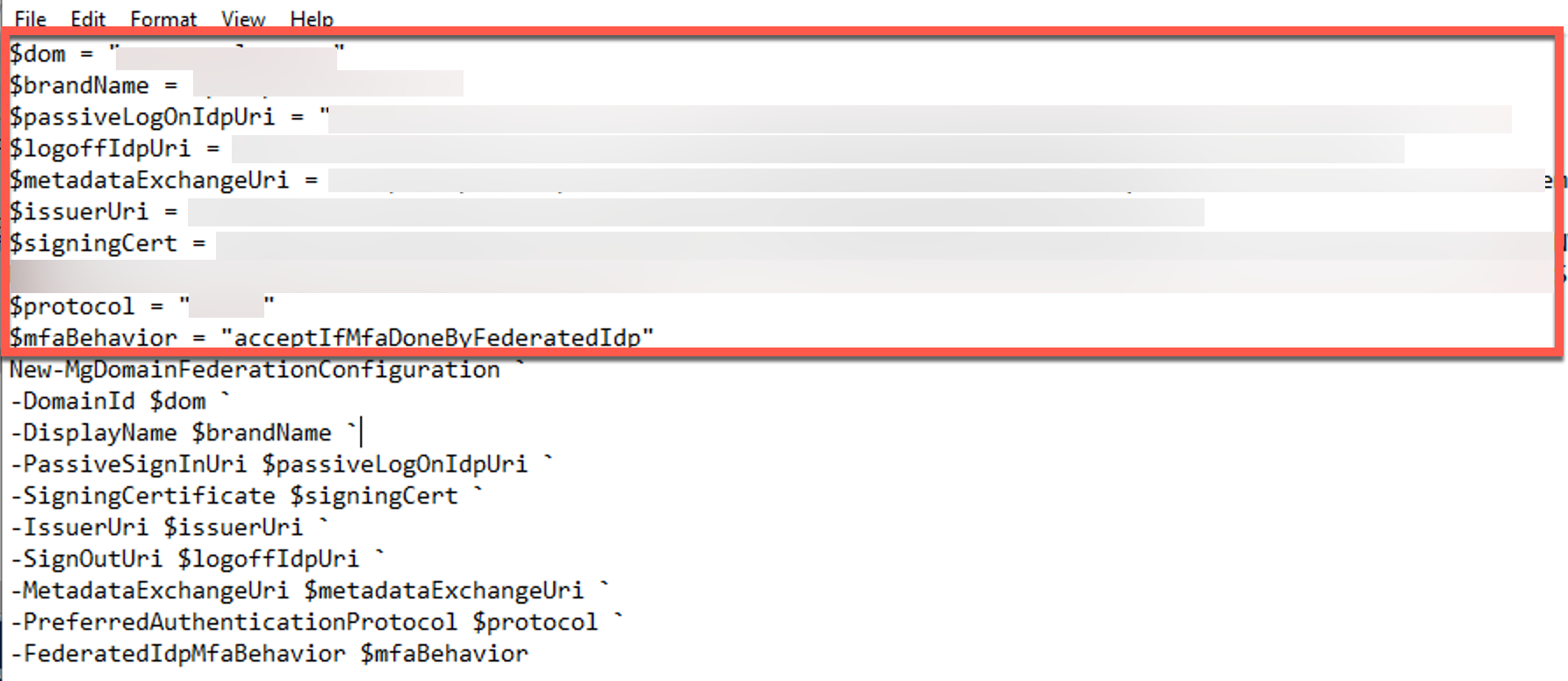
### Ensuring All Users in the Federated Domain Have “ImmutableId” Field Configured
All users from the federated domain must have ImmutableId field specified. For existing users run a powershell command similar to this one:
Set-MsolUser -UserPrincipalName “[test1@exitcode.net](mailto:test1@exitcode.net)” -ImmutableId “[test1@exitcode.net](mailto:test1@exitcode.net)”
To create a new user, use Powershell:
New-MsolUser -UserPrincipalName “[test2@exitcode.net](mailto:test2@exitcode.net)” -ImmutableId “[test2@exitcode.net](mailto:test2@exitcode.net)” -DisplayName “Test User 2”
Note, once you federate a domain, you won’t be able to create users for that domain in Entra Portal directly. In that case, only two options are available:
Use New-MsolUser command
Use Entra ID Connect sync
### Testing Federated Authentication
After all of the above steps have been completed, test the federated authentication. Try to sign into Entra Portal or Office365 with one of test AAD users. You should be redirected to TruU authentication page. Once you approve the request on your mobile device, you should be automatically signed into portal or office.
## Reverting Federation
To revert federation and switch authentication back to managed mode, you can use the PowerShell command:
```powershell theme={null}
Update-MgDomain -DomainId "#Domain name" -AuthenticationType "Managed"
```
## Prerequisites
## Domain Properties
Before federating an Entra ID domain with TruU, review all configured domains within the customer's Microsoft Entra ID tenant. The domain to be federated must meet the following prerequisites:
* The domain **MUST** be in a **Verified** state.
* The domain **CANNOT** be the **Primary** domain.
* The domain **CANNOT** be the default [**onmicrosoft.com**](http://onmicrosoft.com) domain created with the tenant.
In the example below, the [**demotruu.com**](http://demotruu.com) domain meets all the prerequisites above and is eligible for federation with TruU. The [**demotruu.onmicrosoft.com**](http://demotruu.onmicrosoft.com) domain is not eligible because it is the default suffix created with the tenant, and the domain is configured as the **Primary** domain (the Primary domain determines the default suffix assigned when new user accounts are created).

If the domain does not meet the Microsoft Entra ID federation prerequisites, the federation command will fail. The example below shows the error displayed when attempting to federate the default [**onmicrosoft.com**](http://onmicrosoft.com) domain with TruU.

## Reverting a Federated Domain
Although users will not be locked out of Microsoft Entra ID during a domain cut-over, it is recommended to keep the revert command available in case the domain needs to be returned from **Federated** to **Managed** authentication.
The example below demonstrates the complete workflow:
* **Step 1** – Federate the [**demotruu.com**](http://demotruu.com) domain to TruU.
* **Step 2** – Verify that the [**demotruu.com**](http://demotruu.com) domain has been successfully federated.
* **Step 3** – Revert the [**demotruu.com**](http://demotruu.com) domain back to **Managed** authentication and verify the updated status.

## Federating the Default [onmicrosoft.com](http://onmicrosoft.com) Domain
The default [**onmicrosoft.com**](http://onmicrosoft.com) domain created for a Microsoft 365 tenant cannot be federated with TruU or any third-party identity provider. For cloud-only organizations that only use the default [**onmicrosoft.com**](http://onmicrosoft.com) domain, complete the following steps before federation:
1. Create a secondary custom domain.
2. Change the UPN suffix for all users to the new custom domain.
3. Configure the new custom domain as the **Primary** domain.
4. Verify that users can successfully sign in to Microsoft Entra ID and access federated resources using the new domain suffix.
5. After completing these steps, proceed with federating the new custom domain with TruU.

## Immutable ID
Another federation prerequisite is the presence of an **On-premises Immutable ID** for every synchronized user. An Immutable ID is automatically populated for users synchronized from on-premises Active Directory to Microsoft Entra ID.
For cloud-only users, the provided PowerShell scripts can be used to manually configure the Immutable ID by using the user's UPN as the Immutable ID value.

*Before running Command*

*After running Command*
## Account Creation After Federation
For cloud-only customers whose users are created directly in Microsoft Entra ID (and are not synchronized from on-premises Active Directory), new user accounts must be created programmatically using the provided PowerShell scripts after the domain has been federated with TruU. This is required because Microsoft Entra ID does not allow account creation, modification, or delegation directly through the portal for the federated domains.
# Overview
Source: https://docs.truu.ai/getting-started/EntraID/Entra-ID-Overview
This guide walks your IT or identity team through connecting TOTAL to your Microsoft Entra ID tenant. When complete, your administrators will sign into TOTAL using their existing Microsoft credentials.
**Estimated time:** 30–45 minutes\
**Who should do this:** Your IT administrator or the person who manages your Azure / Entra ID tenant\
**What you need before starting:** A TOTAL representative will send you a short list of values to enter into Azure. Have that information ready.
***
## What You Are Setting Up
TOTAL uses two Microsoft standards to manage your administrators:
* **OIDC (Single Sign-On)** — Your admins click **Sign in with Microsoft** on the TOTAL login page. Microsoft verifies their identity and sends TOTAL a confirmation. No password is stored in TOTAL.
* **SCIM (Automatic Provisioning)** — Azure automatically tells TOTAL when someone joins or leaves your admin group. You never manually create or delete accounts in TOTAL — it stays in sync with your directory.
Administrative access to the TOTAL Threat Console is controlled entirely by **group membership in Entra ID**. Add someone to the group → they get access. Remove them → access is revoked automatically within 40 minutes.
***
## What Permissions You Need
1. **Applications** — To create or manage the TOTAL enterprise app / app registration, set redirect URIs, create a client secret, add Microsoft Graph permissions, and **grant tenant-wide admin consent** (including **application permissions such as [GroupMember.Read](http://GroupMember.Read).All**).
2. **Groups** — To create security groups, look up users, and add or remove group members (your TOTAL admin group).
3. **Provisioning (SCIM)** — To configure **enterprise app provisioning** to TOTAL (sync job, secrets, schema mapping). This requires **Microsoft Entra ID P1 or P2**; the **Free** tier does **not** support the group-based SCIM provisioning TOTAL uses.
**Typical directory roles that cover this work**
* **Global Administrator** — covers everything above in one role, **or**
* **Application Administrator** + **Groups Administrator** + **Privileged Role Administrator** (or another role that can grant **tenant-wide admin consent** for application permissions — \*\*Application Administrator alone is not enough \*\*for that consent step).
***
## License Requirement
Your organization must be on **Microsoft Entra ID P1 or P2** (formerly Azure AD Premium P1/P2).
The Free tier and Microsoft 365 Basic do **not** support automatic group-based provisioning via SCIM. If you are unsure which plan you are on: Azure Portal → Microsoft Entra ID → Overview — your license is listed there.
# Ongoing Administration
Source: https://docs.truu.ai/getting-started/EntraID/Ongoing
### Giving someone access to TOTAL
Add them to the appropriate TOTAL group in Entra ID. Azure will sync the change to TOTAL within \~40 minutes. No action needed in TOTAL itself.
### Removing someone's access
Remove them from the TOTAL group in Entra ID. Azure will sync within \~40 minutes and their TOTAL account will be deactivated. Their active session will be terminated on their next request.
### Need it done immediately?
Azure Portal → Enterprise applications → TOTAL → Provisioning → **Provision on demand** → search for the **group name** → Provision. This syncs the group and all its members instantly. Azure Portal → Enterprise applications → TOTAL → Provisioning → **Provision on demand** → search for the **user's name** → Provision. TOTAL will verify their group membership via Microsoft Graph and grant access instantly.
> Note: "Provision on demand" for an individual *user* only updates their profile (name, email). To add or remove access, always provision the *group*. Note: You can also provision the group on demand — Azure will send TOTAL a membership update for all members in that group.
### When your client secret expires
Client secrets expire based on the duration you set in Part 1. When it expires, sign-in will stop working. To rotate it:
1. Create a new secret in the App registration → Certificates & secrets
2. Send the new value to your TOTAL representative via secure channel
3. Delete the old secret after TOTAL confirms the update
# 1. Create the TOTAL Application in Azure
Source: https://docs.truu.ai/getting-started/EntraID/Part1
### 1.1 — Create the Enterprise Application
1. Sign in to the [Entra Portal](https://entra.microsoft.com/#home)
2. In the left sidebar, click **Enterprise applications**

3. Click **New application** (top left)

4. Click **Create your own application**

5. Give it a name — we recommend **"TOTAL"**
6. Select **"Integrate any other application you don't find in the gallery"**
7. Click **Create**

### 1.2 — Register the Application to Get Credentials
You now need to create an App Registration, which is where Azure issues the credentials TOTAL uses to verify sign-ins.
1. In the Azure search bar, search for **App registrations** and open it

2. Find the app you just created and click it (it should appear under "All applications")

3. You are now on the app registration page. From the left sidebar:
**Collect your Tenant ID and Client ID:**
* Click **Overview**

* Copy the **Application (client) ID** — enter into the TOTAL enrollment console
* Copy the **Directory (tenant) ID** — enter into the TOTAL enrollment console
**Create a Client Secret:**
* Click **Certificates & secrets** in the left sidebar
* Click **New client secret**

* Enter a description (e.g. "TOTAL integration") and choose an expiry (24 months recommended)
* Click **Add**
* **Copy the secret Value immediately** — it is only shown once. If you navigate away, you must create a new one.

* Save this value and enter it into the TOTAL enrollment console
**Configure the Redirect URI (where Microsoft sends users after sign-in):**
* Click **Authentication** in the left sidebar
* Click **Add Redirect URI** → select **Web**

* In the **Redirect URIs** field, enter the value given in the TOTAL Enrollment console (it will look like `https://app.yourtotal.com/auth/oidc/callback`).
* Click **Configure**, then **Save**

**Grant API permissions (required for sign-in and provisioning to work):**
* Click **API permissions** in the left sidebar
* Click **Add a permission** → **Microsoft Graph**

* Click **Delegated Permissions**

* Search for and add: `openid`, `profile`, `email`

* Click **Add permissions**
* Navigate back to the "Overview" screen and, again, click **Add a permission** → **Microsoft Graph**

* Click **Application Permissions**

* Search for and add: `User.ReadBasic.All, GroupMember.Read.All`


* Click **Add permissions**
> These scopes are required. `profile` tells Azure to include the user's Object ID (`oid`) in the sign-in token — which is how TOTAL identifies each user. `email` includes their email address. Without these, sign-in will fail. **Why these are required:**
>
> * `profile` / `email` / `openid` — required for sign-in. `profile` includes the user's Object ID (`oid`), which is how TOTAL identifies each user.
> * `GroupMember.Read.All` — required to let TOTAL query Microsoft and see whether a user belongs to certain groups when needed to confirm access immediately.
> * `User.ReadBasic.All`— required so TOTAL can query Microsoft Graph for users’ basic directory profile (for example name and UPN) when it needs to resolve or show who someone is
* Click **Grant Admin Consent** to apply changes

# 2. Create Your Admin Groups
Source: https://docs.truu.ai/getting-started/EntraID/Part2
TOTAL access is controlled by Entra ID security groups.
**One group is required:** you must create a group named **"TOTAL-Admin"** (or your agreed equivalent). Every person in this group will have full administrative access to the TOTAL Threat Console.
**For each group you want to create:**
1. In the Azure Portal, go to **Microsoft Entra ID** → **Groups** → **New group**

2. Set **Group type** to **Security**
3. Name it clearly, e.g. "TOTAL-Admin", "TOTAL-Analyst"
4. Add the people who should have that access level as **Members**

5. Click **Create**
6. After creation, click on the group → **Overview** → copy the **Object ID**
Collect all group Object IDs. You will enter these in the TOTAL Threat Console in the next step.
Once saved, the console will display your:
* **SCIM Tenant URL** — you will enter this in Azure in Part 3
* **SCIM Secret Token** — you will enter this in Azure in Part 3
# 3. Configure Automatic Provisioning (SCIM)
Source: https://docs.truu.ai/getting-started/EntraID/Part3
This is what keeps TOTAL in sync with your directory automatically.
### 3.1 — Connect Azure to TOTAL's Provisioning Endpoint
1. Azure Portal → **Enterprise applications** → TOTAL → **Provisioning** (left sidebar)

2. Set **Provisioning Mode** to **Automatic**

3. Under **Admin Credentials**, enter:
* **Tenant URL**: copy this from the TOTAL Enrollment Console (Settings → SSO & Provisioning)
* **Secret Token**: copy this from the TOTAL Enrollment Console (Settings → SSO & Provisioning)
4. Click **Test Connection** — wait for the green checkmark confirming it can reach TOTAL
5. Click **Save**
### 3.2 — Fix the User ID Mapping (Critical Step)
Azure's default configuration sends the wrong identifier for users, which will cause sign-in to fail. You must change one setting:
1. Still in the **Provisioning** section, click **Mappings**
2. Still in the **Provisioning** section, click **Provision Microsoft Entra ID Users**
3. In the attribute mapping table, find the row where the **customappsso** column says `externalId`
4. Click **Edit**
5. Change the **Source attribute** dropdown to `objectId`
* If `externalId` is not already in the list, click **Add New Mapping**, set **Source attribute** to `objectId` and **Target attribute** to `externalId`, then click **Ok**
6. Ensure that the **customappsso Attribute** "title" is "jobTitle"
7. Ensure that the **customappsso Attribute** "urn:ietf:params:scim:schemas:extension:enterprise:2.0:User:department" is "department".
8. Click **Ok**, then **Save**
> **Why this matters:** TOTAL identifies each user by their Azure Object ID — a unique identifier that is the same across both sign-in (OIDC) and provisioning (SCIM). Azure's default maps a different field here, which causes a mismatch. Setting it to `objectId` ensures both systems use the same identifier.
### 3.3 — Assign Your Admin Groups to the Application
1. **Enterprise applications** → TruU TOTAL Security → **Users and groups** → **Add user/group**
2. Click **None Selected** under Groups
3. Search for and select each of the TOTAL groups you created in Part 2
4. Click **Select**, then **Assign** There is no Scope tab in Provisioning. Instead, you assign groups through the **Users and groups** tab:

Only users in these groups will be provisioned to TOTAL. Only users and groups assigned here will be provisioned to TOTAL.
### 3.4 — Start Provisioning
1. **Enterprise applications** → TOTAL → **Provisioning**
2. Click **Start provisioning**
3. Navigate back to **Enterprise applications** → TOTAL → **Provisioning**
4. Set **Provisioning Status** to **On**
5. Click **Save**
Azure will run an initial sync. For small groups (under 50 users) this typically completes in 5–10 minutes. You will see a summary on the Provisioning page showing how many users and groups were synced.
### 3.5 — Provision on Demand
1. Open **Provision on demand**
2. Search for and **select** your created admin group (see above)
3. Keep **View members only** selected
4. Select the admin users you want to provision, then run **Provision**
# 4. Test Sign-in
Source: https://docs.truu.ai/getting-started/EntraID/Part4
Once provisioning is complete, have one of your administrators go to your TOTAL login page and click **Sign in with Microsoft**.
They should authenticate with their Microsoft account and land on the TOTAL dashboard.
If they see an error, refer to the troubleshooting section below or contact your TOTAL representative.
# Troubleshooting
Source: https://docs.truu.ai/getting-started/EntraID/Troubleshooting
**"You do not have access to this platform":** The user's account has not been provisioned yet. Check that they are in one of the TOTAL groups assigned to the application, then trigger an on-demand sync for the group.
**"Account is deactivated":** The user was removed from the TOTAL group and the change has synced. Re-add them to the group and provision the group on demand.
**Sign-in redirects back to the login page with no error:** Try a private/incognito browser window. If that works, clear cookies in the main browser.
**Provisioning shows errors in Azure:** Check that the SCIM Tenant URL and Secret Token are entered correctly with no trailing spaces. Click Test Connection to verify. If the connection fails, contact your TOTAL representative to confirm the endpoint is active.
**Users provisioned but cannot sign in:** The `externalId` attribute mapping (Part 4, Step 4.2) was likely not set to `objectId`. Go back and verify the mapping, then contact your TOTAL representative to re-sync the provisioning data.
# Add Users to TOTAL via Azure AD
Source: https://docs.truu.ai/getting-started/EntraID/add-users
1. Sign in to the [Entra Portal](https://entra.microsoft.com/#home)
2. In the left sidebar, click **Enterprise applications**

3. Select your **TOTAL** application, then select **Users and Groups**

4. Click **Add user/group**

5. Under "Users and Groups", click **None Selected**

6. Search for and select any combination of:
* Individual users you want to provision
* Existing groups whose members should be provisioned
* A new group — if you need one, create it first:
* Microsoft Entra ID → Groups → New group

* Set "Group type" to **Security**
* Enter a *Group name* (e.g. TOTAL - Engineering)
* Set "Membership type" to **Assigned** (or Dynamic for rule-based)
* Click **Add members**, select users, click **Select**, then **Create**

* Return to Enterprise applications → TOTAL → Users and groups → Add user/group and search for the new group
7. Click **Select**, then click **Assign**


8. Trigger provisioning — either:
* Wait for the next automatic cycle (\~40 minutes), or
* Provision on demand: Enterprise applications → TOTAL → Provisioning → Provision on demand, search for the user or group, and run it
### Key points:
* Adding a user to an already-assigned group automatically provisions them — no need to re-assign the group
* Removing a user from all assigned groups/users will deprovision them on the next sync
* Admins are not part of the monitored group by default. If you want admins to be monitored, you must also add them to the monitored group.
# Global Search
Source: https://docs.truu.ai/global-search
Global Search is the primary entry point for asking questions about your security events in natural language. It queries across your event data so you can investigate without building filters first.
## Overview
You describe what you want in plain English; the system interprets the request and returns relevant security events and context. Search is intended for open-ended investigation, triage support, and follow-up questions as you work.
## The Search Interface
The Search (Home) page shows the **TOTAL Trust**, a large prompt field labeled for asking about security events, a bookmark control to save the query, and a **Send** control to submit it. The left sidebar lists the main app areas and highlights Home (Globe Icon) while you are on this page.

## Asking Questions
Phrase questions the way you would to a colleague: by actor, time, risk, or outcome. Examples: events for a specific user in the last day, failed authentications from a region, or unusual access patterns for an application.
Refine with follow-up prompts if results are too broad or narrow. There is no separate query language; clarity and specificity in natural language usually improve results.
## Saved Searches
Use the bookmark icon next to the search field to save the current query to **Saved** for later reuse. Saved searches help you return to recurring investigations without retyping the same prompt.
For how search relates to moving around the product and the sidebar, see [Navigation via Search](/navigation).
# Investigations
Source: https://docs.truu.ai/investigations
Investigations are tracked cases in Enforce that tie a subject user to a threat signal and the work your team does to assess and resolve it. The Investigations page groups them by workflow state so you can see what is active, what is waiting for assignment, and what is closed.

> [!NOTE]
>
> Investigations view may have a different look and interface if you're not using TruU Passwordless. So kindly use this documentation as only a reference in that case.
## Overview
An investigation represents a single enforcement case: who is involved, what kind of threat the platform surfaced, a short narrative summary (typically AI-generated), and who opened or is working it. Investigations are the operational record that connects [risk assessment in Predict](/predict-card) to resolution and [enforcement actions](/enforcement-status).
## Investigation Cards
Each card surfaces the investigation ID (for example `INV-C2B36584-C000-46A…`) for reference in tickets and audits. The subject is shown by name. A threat type badge summarizes the category at a glance. A description gives the investigation summary.
Avatars indicate who opened the case or is collaborating. The footer shows status and relative time (for example “You opened | a month ago”). Use the more menu (three dots) for actions specific to that investigation.
## Investigation Statuses
The page uses three tabs:
### In Progress
Cases your team is actively working. Counts reflect how many investigations are in this state (for example “In Progress (3)”).
### Pending
Investigations that are open but not yet picked up. Use this tab to triage new work and assign ownership.
### Completed
Closed investigations. For history and review patterns, see [Past Investigations](/past-investigations).
## Threat Types
Badges map to high-level categories:
### Identity Vulnerability
Displayed with a blue badge. Indicates identity- or credential-related risk signals that warrant verification or corrective steps.
### Insider Threat
Displayed with an orange badge. Highlights elevated concern for insider-risk scenarios; workflow and enforcement choices often align with policy.
### Unknown / Not Classified Yet
Displayed with a gray badge. General external or policy-relevant threat context surfaced for analyst review, and can be classified by the user.
## Opening an Investigation
Investigations are created from assessment and triage workflows (for example when you escalate from Predict). Opening a case attaches you (or your team) as participants, sets the initial tab (often Pending or In Progress depending on configuration), and preserves the threat summary on the card. To finish a case, follow [Closing an Investigation](/closing-an-investigation).
# MA 26.2.1 Release Notes
Source: https://docs.truu.ai/ma-26-2-1-release-notes
We are pleased to announce the release of the TruU Mac Authenticator version 26.2.1 Please review this document in its entirety for details about the release, including known issues.
Date: October 1, 2026
## Highlights
* Smart Card Enrollment Without PIN Prompts
* Redesigned Enrollment and PIN Screens
* Clearer Setup Progress During Automated Device Enrollment
* Bug Fixes
***
## Enhancements
### Smart Card Enrollment Without PIN Prompts
* You are no longer asked for your smart card PIN during enrollment. Pairing now completes using the authentication you just passed, and falls back to the familiar PIN prompt if it can't. Unlocking from the lock screen still asks for your PIN as before.
### Redesigned Enrollment and PIN Screens
* Enrollment now looks and behaves like the rest of macOS. Buttons use the system appearance, each screen has one clear action, and the layout no longer shifts between steps. This covers both enrollment paths — Automated Device Enrollment and the menu bar app — in light and dark mode.
* The PIN screen lets you reveal what you've typed, matches the Change PIN requirements list, and submits once when you press Return. If your organization's password policy rejects a PIN, you get one clear line explaining why.
* Accept & Continue on the Terms and Conditions screen now unlocks only once you've scrolled to the end, and reopening enrollment is noticeably faster.
### Clearer Setup Progress During Automated Device Enrollment
* The installation screen now shows a progress bar with a percentage while the package downloads, and progress only moves forward. If setup runs long, that message replaces the body text instead of stacking under it.
* A failed setup now says so plainly and directs you to your help desk, with no spinner left turning underneath the error.
* The "not yet enrolled" warning no longer appears while enrollment is still starting up, so a normal part of setup no longer looks like a problem.
***
## Bug Fixes
* Fixed an issue where uninstalling could leave a Mac with no login screen at all, locking out every account including local administrators. Uninstalling now finishes its cleanup before reporting success, and the Mac Authenticator repairs the login screen on startup if it finds it damaged.
* Fixed an issue where spending more than a few minutes on the Create a PIN screen could leave you permanently unable to enroll. Your local account is now created only after enrollment is confirmed, so a failed attempt leaves nothing behind and you can retry immediately.
* Fixed an issue where enrollment could fail with an unrecoverable error before any request left your Mac, caused by an internal communication stall.
* Fixed an issue where the PIN was slow to accept after a long sleep, sometimes showing the Apple logo first. When no authentication server is reachable, the Mac now retries less often and wakes immediately when the network returns or you unlock.
* Fixed an issue where enabling certificate trust repeatedly prompted you even after you had approved it.
* Fixed an issue where enrollment briefly showed "Something Went Wrong — Smart card pairing failed" while preparing your sign-in credentials.
* Fixed an issue where a dialog warned that enrollment was in progress when it had already failed.
* Fixed an issue where the Wi-Fi panel kept showing "Wi-Fi not connected" and a spinning indicator after you had successfully joined a network.
* Fixed an issue where enrollment could sit on "Finalizing enrollment" for several minutes without saying the connection had dropped. You're now told when enrollment is waiting on the network, and a step that never reaches it is no longer recorded as completed.
* Fixed an issue where a Mac that couldn't reach the network early in startup quietly finished setup as an unmanaged computer with a generic local administrator account.
* Fixed an issue where the screen went blank for around 20 seconds after you created your PIN.
# Monitor with AI
Source: https://docs.truu.ai/monitor-with-ai
**Monitor with AI** is the center action on the Predict triage bar. Use it when you want continued automated assessment without clearing or escalating the case.
## Overview
Selecting Monitor with AI records a continue monitoring outcome instead of clearing the case (Mark Safe) or flagging it for follow-up as unsafe (Mark Unsafe). The case stays open while TOTAL keeps evaluating the identity.

## When to Use It
Use it when the [Threat Brief](/total/protect/threat-events) or [Timeline](/timeline) is inconclusive—for example early-stage insider patterns, one-off context that might be benign, or activity that needs more time or more events to judge. It is also appropriate when policy requires a waiting period before enforcement.
## How It Works
After you select **Monitor with AI**, TOTAL **keeps monitoring** without applying the outcomes tied to **Mark Safe** or **Mark Unsafe**.
When you click **Monitor with AI**, the console asks you to mark any events or drift patterns that are of interest and optionally add an (optional) note of what you'd like Total AI to look out for, for this case.
These cases will move out of the triage queue for now, but will reappear if Total AI senses something suspicious, given your feedback.\
\
You can return to the case later via the [Triage Queue](/triage-queue) or related workflows if new suspicious activity for this case happens. For immediate response options, see [Quick Enforce](/quick-enforce) and [Swiping Actions](/swiping-actions).
# Navigation via Search
Source: https://docs.truu.ai/navigation
Search sits on the Home entry point and works together with the app’s primary navigation. You can start from the global prompt and still move to dedicated areas for personas, protection workflows, or settings.
## Overview
The Home / Search page is both where you ask cross-cutting questions and where you see the rest of the product structure in the sidebar. Use search for event-wide questions; use sidebar destinations when you need a specific module’s tools and views.
## The Sidebar
The left sidebar is the main navigation for TOTAL. Items typically include:
### Home
Opens the Search / Home experience with the global prompt and **TOTAL Trust** context. This item is active while you are on the search page.
### Persona
Persona-related views and directories for understanding users and identity context.
### Protect
Protection-oriented workflows and event views tied to defensive coverage.
### Predict
Predictive and analytical surfaces (for example triage, timelines, and AI-assisted review in that area of the product).
### Enforce
Enforcement-related events and actions connected to policy and response.
### Settings
Configuration and account or workspace settings.
Exact labels and sub-pages may vary by deployment; the sidebar order reflects how the app groups major capabilities.
## Quick Navigation
Click a sidebar item to leave Search and open that section’s default view. Return to **Home** when you want the global natural-language search again. You do not need to finish a search session before switching sections.
## Using Search to Find Specific Cases or Personas
Ask in the Home search field when your goal is to locate events or identity context by description rather than by clicking through module-by-module. For example, search by user identifier, application name, time window, or behavior described in plain language.
After results surface, use the relevant sidebar area (for example **Persona** or **Protect**) for deeper, structured work on a case or identity. For how the search field, bookmark, and Send control work together, see [Global Search](global-search.md).
# Overview
Source: https://docs.truu.ai/overview
This guide explains how to connect TOTAL to Okta so administrators can sign in with Okta and be provisioned automatically.
**Estimated time**: 30–45 minutes
**Audience**: Okta admin, identity admin
**Prerequisite**: You must have the values provided by TOTAL (OIDC redirect URI, plus the SCIM Base URL and SCIM Secret Token).
## What you are setting up (two separate Okta apps)
TOTAL uses two Okta app integrations:
1. OIDC app (SSO only)
* Used for administrator sign-in to TOTAL using “Sign in with Okta”.
* No SCIM provisioning is configured on this app.
2. SAML app (**Provisioning only**: SCIM plus Push Groups)
* Used to enable SCIM provisioning and Push Groups in Okta.
* This app is not used for sign-in. Administrative access to TOTAL is controlled by Okta group membership:
* Added to the admin group: provisioned and granted access
* Removed from the admin group: deactivated on the next provisioning update
## Permissions and licensing
You need permissions to manage:
```text theme={null}
● Applications (create and configure app integrations)
● Groups (create groups and assign users)
● Provisioning (requires Okta Lifecycle Management)
```
# Past Investigations
Source: https://docs.truu.ai/past-investigations
Past investigations are closed cases listed under the **Completed** tab. They preserve who was involved, threat context, and collaboration history without cluttering active work queues.
## Overview
After you [close an investigation](/closing-an-investigation), it no longer appears under **In Progress** or **Pending** for operational triage. Completed cards retain investigation IDs, subject names, threat badges, and summaries so you can verify outcomes and support audits. For how open cases are structured, see [Investigations](/investigations).
## The Completed Tab
The tab bar still shows counts for **In Progress** and **Pending** (for example “In Progress (0)”, “Pending (3)”) so you can see backlog at a glance while browsing history. Selecting **Completed** lists resolved investigations only.

Cards may show **multiple avatars** when several people collaborated on the same case. Subject names and threat types match the conventions used on open investigations.
## Reviewing Past Cases
Use completed cards to confirm how similar threats were handled, which [enforcement actions](/enforcement-status) were taken, and who participated. Search or filter behavior depends on your deployment; the list itself is ordered for recent closure by default in typical configurations.
## Investigation History
History is the sequence of status changes, assignments, and outcomes tied to each investigation ID. Together with notes from [closing](/closing-an-investigation), it forms the audit trail for Enforce. Cross-reference IDs when correlating with Predict or external ticketing systems.
# Clusters
Source: https://docs.truu.ai/personas/clusters
Clusters group several like-minded Personas so analysts can reason about cohorts, not only individuals. Clustering supports continuous drift measurement from enrollment onward by giving each identity a stable peer context for comparison.
## What are Clusters
TOTAL clusters Personas with a modified DBSCAN approach. Grouping emphasizes accuracy and ease of risk assessment, with highest weight on risk-sorted attributes so cohorts align with how security teams think about exposure and behavior similarity—not merely org chart proximity.
Cluster membership enables drift from cluster (see [Drift Insights](https://docs.truu.ai/personas/drift-insights)) and metrics such as cluster switching volatility when identities move between behavioral cohorts over time.
## Cluster View
From the [Persona Directory](https://docs.truu.ai/personas/directory), open the cluster grid to see all clusters as cards with counts, or open a specific cluster’s detail page for cohort-level attributes and members.

For the directory grid layout, see [Persona Directory — Cluster View](https://docs.truu.ai/personas/directory).
## Shared Attributes
Cluster pages summarize Shared Attributes across members—typically organized into areas such as:
* **Job Function**: role-aligned behavior and access congruence signals.
* **Routine**: work rhythm, geo-temporal, and stability-related dimensions.
* **Reputation**: continuity, enrollment trust, and peer-relative standing where modeled.
Exact fields reflect your deployment’s signal configuration.
## Member Personas
Each cluster lists member identities with roles and links into individual Persona pages. Use this list to investigate outliers within a cohort or to compare a user to their cluster baseline in Persona Signals.
Related: [Personas overview](https://docs.truu.ai/personas/overview), [Persona Directory](https://docs.truu.ai/personas/directory), [Persona Signals](https://docs.truu.ai/personas/persona-signals).
# Persona Directory
Source: https://docs.truu.ai/personas/directory
The Persona Directory is the entry point for browsing all enrolled Identity Personas and their Clusters. Switch between a sortable list and a cluster-oriented grid to match how you triage volume vs cohort structure.
## List View
The list shows one row per Persona with key columns such as user, position, groups, and open threat cases. Use it for scanning many identities and jumping into a single Persona page.

## Cluster View
The grid presents **Clusters** as cards with member counts, so you can see how identities distribute across cyber-behavior cohorts at a glance.

For what defines a cluster and how shared attributes appear on a cluster detail page, see [Clusters](https://docs.truu.ai/personas/clusters). For what defines a cluster and how shared attributes appear on a cluster detail page, see [Clusters](/personas/clusters).
## Searching and Filtering
Use search and filters to narrow by name, role, group, threat state, or other directory fields (exact controls depend on your deployment). Results apply to the active view—list or cluster grid—so you can focus a review set before opening individual Personas.
Related: [Personas overview](/personas/overview), [Persona Signals](/personas/persona-signals), [Drift Insights](/personas/drift-insights).
# Drift Insights
Source: https://docs.truu.ai/personas/drift-insights
**Drift** is measurable change in a Persona away from what TOTAL learned as normal for that identity and peer context. Drift insights prioritize slow, plausible shifts that simple rule sets often miss.
## What is Drift
Drift compares current signal behavior to a **baseline Persona** built from historical observation. When values, relationships, or rhythms move beyond expected bounds, TOTAL surfaces **drift highlights** and detailed signal views so you can validate whether change is benign (new role, travel, tooling) or threat-related.
## Drift Highlights
**Drift Highlights** show human-readable **before / after** summaries for the strongest deviations—often with attribute-level detail so you can see what changed without opening every chart.

Toggle between highlights and the full signal explorer from the Persona page (see also [Persona Signals](https://docs.truu.ai/personas/persona-signals).
## Types of Drift
### Collaboration Topology Shift
Changes in who the identity works with, how resources are shared, and how collaboration graphs evolve—surfaced as cards with before/after attributes when the model detects a structural shift.
### Behavioral Pattern Shift
Broader changes in routine, tool usage, or work rhythm that do not map cleanly to a single category but still depart from the baseline (often visible across multiple signals in All Signals).
### New Login Locations
Geographic or logical origin of authentication expands in ways that are new relative to baseline (for example, additional cities or regions appearing alongside prior anchors).
### Auth Frequency Spike
Authentication or session-related activity accelerates compared to the learned cadence—useful for catching automation, shared credentials, or compromise-driven repetition.
Other dimensions (sentiment, email patterns, passwordless metrics, peer Jaccard similarity, etc.) contribute to drift scoring as configured in your tenant.
## Drift from Base Persona vs Drift from Cluster
TOTAL measures two related notions:
* **Drift from base Persona**: deviation from this identity’s own historical profile.
* **Drift from Cluster**: deviation from the like-cyber-minded cohort this Persona belongs to (see [Clusters](https://docs.truu.ai/personas/clusters))
* **Drift from Cluster**: deviation from the like-cyber-minded cohort this Persona belongs to (see [Clusters](/personas/clusters))
Together they separate “this person changed” from “this person is diverging from peers who used to look similar,” which helps prioritize insider-style and slow-burn cases.
## Collusion Detection
When two identities’ Personas drift in a similar or complementary direction, TOTAL can place them on a collusion watchlist. The intent is to catch coordinated behavior that may not spike on any single account in isolation.
Related: [Personas overview](https://docs.truu.ai/personas/overview), [Persona Signals](https://docs.truu.ai/personas/persona-signals), [Clusters](https://docs.truu.ai/personas/clusters), [Persona Directory](https://docs.truu.ai/personas/directory)
# Personas Overview
Source: https://docs.truu.ai/personas/overview
Identity Personas are multi-dimensional profiles TOTAL builds for each enrolled identity. They combine behavioral, environmental, and access signals so analysts can see how someone typically works, how that profile is changing, and where risk concentrates.
## Overview
A **Persona** is TOTAL’s consolidated view of one identity across 72 dimensions derived from cross-domain data: how they collaborate, authenticate, use tools, move through time and space, and align with their role and peers. Personas support next-step prediction for identity-related events and are continuously evaluated for drift so slow, sophisticated changes do not go unnoticed.
## The Persona Page
Open any identity from the [Persona Directory](/personas/directory) to see their Persona page: AI-generated narrative, peer and group context, active threat cases when present, and links into cluster-level context.

## Identity Persona Visualization
The **Identity Persona** visualization maps signals into a network-style graph: nodes reflect signal categories and relationships, so you can scan how strongly different dimensions cohere for this user.

For dimension-level detail, drift cards, and peer comparison charts, use [Persona Signals](/personas/persona-signals) and [Drift Insights](/personas/drift-insights).
## Persona Cluster Visualization
The Persona Cluster view situates this identity among like-cyber-minded peers grouped by TOTAL’s clustering model. It complements the identity graph by showing how this Persona fits a broader risk and behavior cohort.

See [Clusters](/personas/clusters) for how clusters are formed, shared attributes, and drift at the cohort level.
# Persona Signals
Source: https://docs.truu.ai/personas/persona-signals
Persona Signals are the observable inputs behind each identity’s 72-dimensional Persona. They span collaboration, communication, devices, geography, continuity, role fit, tooling, and work rhythm so TOTAL can represent behavior and psychology in a single assessment surface.
## Signal Categories
Signals roll up into eight categories. Each category groups related dimensions used for baselineing, drift, and peer comparison.
#### Collaboration Topology Shift
How this identity connects and works with others: collaboration graphs, peer interaction patterns, resource and application access patterns, and indicators of abnormal cross-user coordination.
#### Communication Risk Posture
Email and messaging behavior: patterns, volume, timing, sentiment, and similarity to peers (for example, overlap of correspondent sets over time).
#### Environmental Familiarity
Context of work locations and channels: geo-temporal consistency, VPN or proxy reliance, network destination exposure, and facility-related access attempts outside normal hours.
#### Geo Temporal Coherence
Whether access and activity align with expected locations and schedules, including login cadence anomalies and routine stability.
#### Identity Continuity
Stability of the identity story across sessions and proofs: enrollment and step-up signals, device trust at enrollment, identity proofing confidence, biometric outcomes, and passwordless auth diversity and geo consistency.
#### Role Behavior Congruence
Alignment with stated job function: frontline vs knowledge-work patterns, sensitive responsibilities and data access, and congruence between observed behavior and role.
#### Toolchain Novelty
Changes in tools and agents: novel applications, AI agent usage, and deviation from how similar peers use systems.
#### Work Rhythm Integrity
Stability of day-to-day and hybrid work patterns: after-hours activity, context-switch cadence, and broader routine signals.
Individual dimensions include examples such as mouse and keystroke dynamics, device quantity and primary device type, peer enrollment deviation, entitlement expansion velocity, privileged activity level, file accesses, TCAT geo cluster consistency, and others named in your signal catalog.
## All Signals View
The All Signals layout lists categories on one side and a signal explorer in the center, with a user value chart on the right. Pick a signal to inspect its time series and how it compares to the peer baseline.

#### Time Windows
Charts and aggregates can be viewed over 7D, 30D, 90D, and 180D windows. Shorter windows highlight recent change; longer windows stabilize baselines for seasonal or slow drift.
#### Drift Indicators
In the explorer, Drift Indicators call out dimensions whose current distribution or trajectory departs from the established baseline for that identity—often the same dimensions surfaced as cards on [Drift Insights](/personas/drift-insights) In the explorer, Drift Indicators call out dimensions whose current distribution or trajectory departs from the established baseline for that identity—often the same dimensions surfaced as cards on [Drift Insights](/personas/drift-insights).
#### User Value vs Peer Baseline
For many signals, TOTAL plots the user’s value against a peer baseline average (and related cohort statistics where configured). Use this to separate individual noise from population-level norms.
Related: [Personas overview](/personas/overview), [Drift Insights](/personas/drift-insights), [Clusters](/personas/clusters).
# PKI Configuration & Setup Overview
Source: https://docs.truu.ai/pki-configuration-and-setup-overview
TruU offers the following PKI configuration options:
1. **Active Directory Certificate Services (ADCS)** Integration with your on-premises Microsoft PKI infrastructure for certificate issuance and trust.
2. **TruU Cloud Trust** TruU-managed cloud-based certificate trust model, reducing dependency on on-premises CA infrastructure.
3. **Third-Party Certificate Authority (e.g., Venafi)** Integration with supported external certificate management platforms for environments leveraging centralized enterprise PKI solutions.
The appropriate option depends on your organization’s certificate authority model, security policies, and operational requirements. Please see these admin setup guides as to how to move forward with your setup.
Ensure all domain controllers have the KDC certificate present and set to auto enroll. Refer to [KDC Certificate Prerequisite](https://docs.truu.ai/docs/prerequisites#kdc-template-issuance-validation) for details.
***
[Configure TruU CA Adapter with ADCS - TruU Docs](https://docs.truu.ai/docs/untitled-page)
[TruU Cloud Trust](https://docs.truu.ai/docs/tru-u-cloud-trust-overview)
[CyberArk PKI](https://docs.truu.ai/docs/venafi-zero-touch-pki)
# Predict Card
Source: https://docs.truu.ai/predict-card
The Predict card is the main panel in Predict triage. It surfaces who is at risk, how they are classified, which categories apply, and an AI-written summary you can act on from one place.

## Overview
The card sits between the [Triage Queue](/triage-queue) and the [Timeline](/timeline). It is scoped to the case you have selected in the queue. Everything on the card updates when you move to another person.
## Card Header
The header shows the person’s **name** and **title** so you can confirm you are reviewing the right identity. A **threat type** badge indicates whether the case is labeled **Threat** or **Insider Threat**, matching how the person appears in the queue.
## Category Tags
Tags summarize **why** the case surfaced—for example suspicious financial behavior, requests for personal information, or salary or compensation–related inquiries. Use them to skim severity and theme before you read the full [Threat Brief](/threat-brief).
## Threat Brief
The Threat Brief is an AI-generated narrative that ties signals into a short story of concern. Highlighted phrases in the brief act as [Citations](/citations) to specific timeline entries. See [Threat Brief](/threat-brief) for how to read it end to end.
## Action Buttons
### Copy and share
Use **copy** and **share** to pull the brief or case context into tickets, chat, or runbooks without retyping.
### Persona
**Persona** opens the full identity profile for deeper drift, signals, and cluster context. See [Connecting to Personas](/connecting-to-persona).
### Quick Enforce
**Quick Enforce** opens the Case Actions panel so you can apply enforcement, justify the action, and classify the threat in one flow. See [Quick Enforce](/quick-enforce).
# Quick Enforce
Source: https://docs.truu.ai/quick-enforce
**Quick Enforce** opens the Case Actions panel from the [Predict Card](/predict-card). It groups enforcement choices, justification, and threat classification so you can respond while context from the [Threat Brief](/threat-brief) and [Timeline](/timeline) is still in view.

## Overview
Use Quick Enforce when triage should immediately drive action — for example access restriction, device lock, or HR or manager escalation. The panel is separate from [Swiping Actions](/swiping-actions); you can enforce and still record triage outcome as your process requires.
## Enforcement Actions
Available actions may include:
* **Self Police** — User-directed or light-touch remediation where policy allows.
* **Lock Device** — Remote lock of the user’s enrolled device.
* **Escalate to HR** — Route the case to HR for policy or employment review.
* **Escalate to Manager** — Notify or hand off to the person’s manager.
* **Restrict Access** — Narrow application or resource access per policy.
* **Emergency 911** — Highest-severity path for imminent harm; use only when your organization defines it for true emergencies.
Exact availability may depend on tenant configuration and role.
## Enforcement Justification
Enter a clear Enforcement Justification so auditors and downstream owners understand why the action was taken. Reference concrete timeline facts or cited phrases from the [Threat Brief](/threat-brief) when helpful.
## Classify Threat
Use Classify Threat (and related Behavioral Assessment sections in the panel) to tag the case with the categories your organization tracks. Consistent classification improves reporting and ties enforcement back to [Citations](/citations) and queue labels such as Insider Threat.
## Submitting Actions
Review enforcement type, justification, and classification, then submit through the panel’s primary action. Afterward, confirm the case state in the [Triage Queue](/triage-queue) or follow your runbook for post-enforcement steps.
# Welcome to TOTAL
Source: https://docs.truu.ai/quickstart
TOTAL is TruU’s enterprise security platform that builds dynamic, multi-dimensional Identity Personas to predict sophisticated threats and act early.
Through these docs, you can understand TOTAL's [features](/personas/overview), [Integrations](/adding-integrations-to-total), and [API](https://docs.truu.ai/api-reference/cases/list-cases) reference.

### Jump To
> **[Setup TOTAL via Microsoft Entra ID](https://docs.truu.ai/integrating/Entra-ID-Overview)**
> **[Explore TOTAL's key concepts](https://docs.truu.ai/personas/overview)**
> **[Explore and Test the TOTAL API](https://docs.truu.ai/api-reference/cases/list-cases)**
### TOTAL Basics
> **[Personas](https://docs.truu.ai/personas/overview)**
> **[Protect](https://docs.truu.ai/total/protect/threat-events)**
> **[Predict](https://docs.truu.ai/predict-card)**
> **[Enforce](https://docs.truu.ai/investigations)**
# Swiping Actions
Source: https://docs.truu.ai/swiping-actions
The bottom action bar finishes each Predict triage step. After you review the [Predict Card](/predict-card), [Threat Brief](/threat-brief), and [Timeline](/timeline), you record an outcome with one of three controls.

## Overview
The bar is a **linear triage workflow**: left and right actions resolve or escalate; the center action **holds** the case open for continued analysis. Icons reinforce direction: \
\
**Left** to Mark Safe, **Right** to Mark Unsafe, **Center** to Monitor with AI.
## Mark Safe
**Mark Safe** dismisses the current case as a false positive or acceptable behavior. The queue advances so you can continue with the next person. Use it when the [Threat Brief](/threat-brief) and timeline do not support continued concern.
## Monitor with AI
Monitor with AI keeps the identity under automated watch without closing the case as safe or escalating as unsafe. See [Monitor with AI](/monitor-with-ai) for when and how to use it.
## Mark Unsafe
Mark Unsafe indicates the case warrants human follow-up or escalation—for example investigation, enforcement, or handoff. Pair with [Quick Enforce](/quick-enforce) when you need immediate technical or organizational actions.
# Active Directory Permissions
Source: https://docs.truu.ai/tams-ad-permissions
The minimum Active Directory permissions the TAMS service account requires, and the recommended way to delegate them.
TAMS performs all AD operations under the Windows service account identity it runs as. **No AD credentials are stored** in the application configuration or registry.
Grant this account the least privilege needed to unlock accounts — nothing more.
## Minimum Required Permissions
The service account must have the following permissions granted in Active Directory:
| Permission | Scope | Required For |
| - | - | - |
| Log on as a service | Local machine | Running the TAMS Windows Service |
| Read (objectClass, userPrincipalName, distinguishedName) | All user objects in the forest (via Global Catalog) | Forest-wide user lookup by UPN |
| Read all user properties | User objects in the target domain | Checking `IsAccountLockedOut()` status |
| Reset Password / Unlock User Accounts | User objects in the target domain | Unlocking the AD account (`UnlockAccount()` + `Save()`) |
> [!TIP]
>
> **Recommended approach:** Create a dedicated service account and delegate the "Unlock User Accounts" task using the Active Directory **Delegation of Control Wizard**, scoped to the specific OUs containing end-user accounts. Avoid adding the account to `Account Operators` or `Domain Admins`.
## What the Service Does NOT Require
TAMS is intentionally scoped to a single privileged action. The service account does **not** need:
* Domain Admin or Enterprise Admin rights
* Write access to AD objects other than unlocking accounts
* The ability to create, delete, or move AD objects
* Access to password hashes or credential attributes
# High Availability & Load Balancing
Source: https://docs.truu.ai/tams-high-availability
Deploy multiple TAMS instances behind round-robin DNS for resilience, zero-downtime maintenance, and horizontal scale.
A single TAMS instance is a potential single point of failure for all unlock operations within the environment. The recommended deployment pattern is to run **two or more** TAMS instances across separate Windows Server hosts and expose them behind an internal DNS record.
Because TAMS is stateless (no session or in-memory state is shared between instances), round-robin DNS is sufficient. **No dedicated load balancer appliance is required.**
-2.png?fit=max\&auto=format\&n=oYCvFfzmw5MpZcBq\&q=85\&s=2782c03cc7754e9cd2cba512373f5276)
## Recommended Setup
**1. Deploy multiple TAMS hosts**
Install TAMS on two or more Windows Server hosts (for example, `tams-server-1.corp.example.com`, `tams-server-2.corp.example.com`).
**2. Create an internal DNS record**
Create an internal DNS A record (for example, `tams.corp.example.com`) with multiple address entries, one per host. This gives round-robin DNS load distribution at no additional infrastructure cost.
**3. Point the Windows Authenticator at the DNS name**
Configure the TruU Windows Authenticator (**v26.1.0 or later**) to target the DNS FQDN (`tams.corp.example.com:`) instead of a single host IP. Any instance can then serve the request, and hosts can be replaced or taken offline without reconfiguring agents.
**4. Standardize configuration and certificates**
Each instance must be configured with the same registry settings and must hold a valid `TRUU-HTTPS` TLS certificate. The certificate must cover the shared FQDN as a Subject Alternative Name, or you can use a wildcard certificate.
## Benefits
* **Resilience** — agent unlock requests succeed even when one TAMS host is unavailable (patching, reboot, hardware failure).
* **Maintenance without downtime** — instances can be updated or restarted one at a time.
* **Horizontal scalability** — add capacity by registering a new host and appending its IP to the DNS record.
* **Geo-located services** — with DNS entries and localized DNS servers, TAMS can be positioned to provide low network latency and connectivity to localized AD instances.
# Installation & Configuration
Source: https://docs.truu.ai/tams-installation
Install the TAMS Windows Service, configure it via the registry, and open the required network ports and firewall rules.
This guide walks through installing TAMS and configuring the host so the service can serve unlock requests and reach both Active Directory and the TruU cloud.
> [!NOTE]
>
> Complete the [Prerequisites & Requirements](/docs/tams-prerequisites) before starting. In particular, confirm the host OS is supported and the `TRUU-HTTPS` certificate is installed.
## Installation
**1. Install the MSI**
Run the TAMS MSI installer on the target Windows Server. TAMS installs as a native Windows Service.
**2. Assign the service account**
Configure the service to run under the dedicated Windows service account that holds the [minimum AD permissions](/docs/tams-ad-permissions). The account needs the **Log on as a service** right on the local machine.
**3. Confirm the TLS certificate**
Ensure the `TRUU-HTTPS` certificate is present in the Windows Certificate Store. Kestrel loads it at startup to serve HTTPS.
**4. Apply registry configuration**
Set the required values under `HKLM\SOFTWARE\TruU\AccountManagement` (see below), then start the service.
## Registry Configuration
All TAMS configuration is stored in the Windows Registry under:
```text theme={null}
HKLM\SOFTWARE\TruU\AccountManagement
```
This includes the listening web server port and other runtime settings. Each instance in a high-availability deployment must be configured with the same registry settings.
> [!WARNING]
>
> Protect the `HKLM\SOFTWARE\TruU\AccountManagement` registry key with appropriate ACLs to prevent tampering by non-administrative users.
## Listening Port
| Port | Protocol | Direction | Description |
| - | - | - | - |
| WebServerPort (configurable, stored in Registry) | HTTPS (TLS) | Inbound | Kestrel web server — REST API for account operations |
## Network Calls
All network communication is outbound from TAMS except for the single inbound REST endpoint consumed by the Windows Authenticator.
### Inbound Traffic
| Direction | Protocol | Source | Destination | Purpose |
| - | - | - | - | - |
| Inbound | HTTPS | Windows Authenticator | TAMS (:WebServerPort) | Account unlock API requests |
> [!NOTE]
>
> If this endpoint is resolved via local DNS only, then for Hybrid or domain-joined systems the device must be connected to the corporate network for the unlock to work.
### Outbound Traffic
All outbound HTTP calls use a configurable **20-second** request timeout. Identity Server calls use a **10-second** cancellation timeout. The Directory Searcher server-side time limit is **10 seconds**.
| Direction | Protocol | Destination | Endpoint | Purpose |
| - | - | - | - | - |
| Outbound | HTTPS | TruU Platform API | Domain lookup at service startup to resolve Identity Server URL | |
| Outbound | HTTPS | TruU Identity Server (IDS) | GET /api/v1/user/info | OAuth token validation for every unlock request |
| Outbound | LDAP | Active Directory (RootDSE) | LDAP://RootDSE | Discover forest root naming context |
| Outbound | LDAP/GC | Active Directory (Global Catalog) | GC://\ | Forest-wide user lookup by UPN |
| Outbound | LDAP | Active Directory (Domain Controller) | LDAP://\ | Bind to user's domain to unlock account |
## Required Firewall Rules (Outbound from TAMS Host)
| Port | Protocol | Destination | Purpose |
| - | - | - | - |
| 443 | HTTPS | TruU Platform / Identity Server | Domain lookup & OAuth token validation |
| 389 | LDAP | Active Directory DC(s) | Directory queries and account unlock |
| 636 | LDAPS | Active Directory DC(s) | LDAP over TLS (if enforced by AD policy) |
| 3268 | LDAP | Global Catalog server(s) | Forest-wide user search |
| 3269 | LDAPS | Global Catalog server(s) | Forest-wide user search over TLS |
> [!NOTE]
>
> * The LDAP/GC ports used depend on your Active Directory TLS policy. In hardened environments LDAPS (636/3269) may be required. TAMS uses Windows Integrated Authentication for all LDAP connections; no LDAP credentials are stored in the application.
> * Firewall rules are necessary if internal firewalls block inbound and outbound communication between the domain controller and the TAMS server.
### Allowed URLs (TAMS → TruU Cloud)
The following URLs must be allowed from the TAMS server to the TruU cloud:
* `https://global.platform.truu.ai`
* `https://[Customer].idp.id.truu.ai` — replace `[Customer]` with your tenant domain.
# TAMS Overview
Source: https://docs.truu.ai/tams-overview
What the TruU Account Management Service (TAMS) is, how it is architected, and how it fits into your environment.
The **TruU Account Management Service (TAMS)** is a Windows Service installed in your on-premises environment. It exposes a lightweight HTTPS REST API that allows the TruU Windows Authenticator to trigger Active Directory (AD) account operations — currently, unlocking a locked-out user account.
TAMS acts as a secure bridge between the TruU platform and your Active Directory infrastructure. All account operations run under a dedicated Windows service account, and no AD credentials are ever stored in the application.
> [!NOTE]
>
> TAMS does not connect to any password store or hold AD credentials. It performs AD operations using the Windows service account identity it runs as, and it trusts the TruU Identity Server as the authoritative source of user identity.
## Architecture
### Component Overview
A TAMS deployment is made up of the following logical components:
* **Web server** — hosts the REST API (ASP.NET Core) that the Windows Authenticator calls to request an account unlock.
* **Token validation layer** — validates the OAuth2 Bearer token on every request against the TruU Identity Server.
* **Active Directory integration layer** — locates the user by UPN and performs the unlock via `System.DirectoryServices` and `System.DirectoryServices.AccountManagement`.
* **Configuration store** — settings are read from the Windows Registry under `HKLM\SOFTWARE\TruU\AccountManagement`.
* **Observability** — health checks, structured logging (NLog), and event reporting (Sentry).
### Deployment Model
* Installed as a native Windows Service via an MSI installer.
* Runs on a Windows Server joined to, or with access to, your Active Directory domain/forest.
* Configuration is stored in the Windows Registry under `HKLM\SOFTWARE\TruU\AccountManagement`.
* The service process identity is a Windows service account with the minimum AD permissions required.
* Compiled for **x64 only** — ARM64 and x86 hosts are not supported.
> [!NOTE]
>
> TAMS is stateless — no session or in-memory state is shared between instances. This makes it straightforward to run multiple instances for high availability. See [High Availability & Load Balancing](/docs/tams-high-availability).
-1.png?fit=max\&auto=format\&n=oUVNMOp0X8IEcmRy\&q=85\&s=0f7eeddb78befc5d9edcd278a2d66c38)
## Technology Stack
| Component | Technology |
| - | - |
| Runtime | .NET 10 (Windows) |
| Web server | ASP.NET Core on Kestrel |
| AD integration | System.DirectoryServices & System.DirectoryServices.AccountManagement |
| Installer | WiX Toolset (MSI) |
| Monitoring | Sentry, NLog |
| Configuration | Windows Registry |
# Prerequisites & Requirements
Source: https://docs.truu.ai/tams-prerequisites
Host, operating system, network, and identity requirements to meet before deploying TAMS.
Confirm the following requirements are met before installing TAMS. Meeting these prerequisites up front avoids the most common deployment and startup failures.
## Host Requirements
* **Architecture:** x64 only. ARM64 and x86 hosts are not supported.
* **Role:** A Windows Server joined to, or with network access to, your Active Directory domain/forest.
* **Runtime:** .NET 10 (Windows) — see [TAMS Overview](/docs/tams-overview) for the full technology stack.
## Supported Windows Server Versions
TAMS targets `net10.0-windows10.0.18362.0`, which sets the minimum required OS API level at Windows build **18362** (Windows 10 version 1903, May 2019).
| Windows Server Version | Build | Supported | Notes |
| - | - | - | - |
| Windows Server 2025 | 26100 | ✅ Yes — recommended | Highest LTS alignment with .NET 10 |
| Windows Server 2022 | 20348 | ✅ Yes | — |
| Windows Server 2019 | 17763+ | ✅ Yes — requires cumulative updates applied past build 18362 | Baseline LTSC install (17763) must be patched before deployment |
| Windows Server 2016 | 14393 | ❌ No | OS build is below the TFM minimum (18362) |
| Windows Server 2012 R2 and earlier | — | ❌ No | Dropped in .NET 7 |
> [!WARNING]
>
> For **Windows Server 2019** deployments, ensure all Windows Updates are applied before installing TAMS. The LTSC baseline build (17763) is below the required API floor (18362) and TAMS will not run until the host is patched.
## Network Connectivity
TAMS requires outbound HTTPS connectivity to the TruU cloud and LDAP/LDAPS connectivity to your domain controllers and global catalog servers. The single inbound connection is the REST endpoint consumed by the Windows Authenticator.
Ensure the following are reachable from the TAMS host:
* **TruU Platform API** and **TruU Identity Server** over HTTPS (port 443).
* **Active Directory** domain controllers and global catalog servers over LDAP/LDAPS.
See [Installation & Configuration](/docs/tams-installation) for the full port and firewall rule details.
## TLS Certificate
TAMS requires a valid TLS certificate installed in the Windows Certificate Store with the friendly name **`TRUU-HTTPS`**. Kestrel loads this certificate at startup to serve the HTTPS REST API.
> [!WARNING]
>
> The `TRUU-HTTPS` certificate must be managed and renewed by your team. An expired or missing certificate will cause the service to fail on startup, which is surfaced through the health check endpoint.
## Service Account
TAMS runs under a dedicated Windows service account that holds only the minimum Active Directory permissions required to unlock accounts. No AD credentials are stored in the application or registry.
Review the full permission set and the recommended delegation approach in [Active Directory Permissions](/docs/tams-ad-permissions).
## Windows Authenticator Version
To target a shared DNS name for high availability, use **TruU Windows Authenticator v26.1.0 or later**.
# Security & Auditing
Source: https://docs.truu.ai/tams-security
How TAMS authenticates unlock requests, secures transport, validates input, and produces audit and observability signals.
TAMS is designed so that the caller can never influence which account is unlocked, all transport is encrypted, and every operation is observable. This page describes those controls and the assumptions the deployment relies on.
## Token-Based Authentication
Every account unlock request must include a valid **OAuth2 Bearer token** in the request body (`token` field). TAMS validates the token by calling the TruU Identity Server's `/api/v1/user/info` endpoint using the token as a Bearer credential:
**1. Forward the token**
The token is forwarded to the Identity Server with `Authorization: Bearer `.
**2. Reject invalid tokens**
If the Identity Server returns HTTP 401, TAMS returns **HTTP 401 Unauthorized** to the caller and the operation is aborted.
**3. Extract the verified identity**
On a successful response, the user's GUID and UserPrincipalName (UPN) are extracted from the Identity Server response.
**4. Use only the verified UPN**
The UPN extracted from the token response is the **only** identity used for AD lookup. The caller cannot supply or influence which account is unlocked.
## Transport Security
| Control | Detail |
| - | - |
| HTTPS enforced | Kestrel is configured with a TLS certificate (production only) |
| Certificate source | Windows Certificate Store; certificate must have friendly name `TRUU-HTTPS` |
| HSTS | HTTP Strict Transport Security enforced in production (`UseHsts`) |
| Server header suppressed | `AddServerHeader = false` (Kestrel) |
| Request body size limit | 1 MB maximum (`MaxRequestBodySize = 1 MB`) |
## Input Validation
| Control | Detail |
| - | - |
| UPN format validation | `MailAddress.TryCreate()` validates the UPN before any AD operation |
| LDAP injection prevention | All user-supplied values are escaped via `LdapFilter.EscapeLdapFilter()` before being included in LDAP search filters |
| Ambiguous user prevention | If more than one AD user matches the UPN, the operation is rejected (`MultipleUsersWithSameUpn`) |
| Pre-unlock state check | The account is verified to be locked before the unlock is attempted (`UserNotLocked` error if already unlocked) |
| Required request fields | `token`, `assetId`, and `assetName` are all marked `[Required]` in the DTO |
## Audit Logging & Observability
TAMS emits operational and security-relevant signals across Windows, the TruU platform, and local logs.
| Mechanism | Detail |
| - | - |
| Windows Security | Windows logs unlock requests to the local machine Security log. Relevant event IDs: **4767** — a user account was unlocked (primary AD confirmation after a successful unlock); **4740** — a user account was locked out (preceding signal in the lock/unlock lifecycle); **4625** — an account failed to log on (often correlated with lockout scenarios). The record contains the target account Security ID, Account Name, and Account Domain. AD event availability depends on Domain Controller audit policy (especially Account Management and Logon auditing). |
| Health checks | `/health` and `/health/base` endpoints expose AD reachability and SSL certificate status |
| NLog | Structured logs written to disk under `%ProgramData%\TruU Inc\AccountManagement\Logs\` |
### Events
TAMS emits the following operational/security-relevant events for both unlock-flow failures and service health/runtime issues:
| Event type | When it is sent | What it contains |
| - | - | - |
| ClientAccountUnlockUserInfo (Failure) | Identity Server call fails during processing | Asset ID, asset name, failure error code in additional description |
| ClientAccountUnlock (Success) | AD unlock operation completes successfully | User GUID/UPN (from validated token), asset ID, asset name |
| ClientAccountUnlock (Failure) | AD unlock operation fails (e.g., user not found / locked state / AD error) | User GUID/UPN when available, asset ID, asset name, failure error code in additional description |
| TamsHealthcheck (Success for degraded, Failure for unhealthy) | Daily background health check detects a degraded or unhealthy result | Health check description as event reason/message |
| TamsStartup (Failure) | Service startup fails (e.g., HTTPS cert load failure, unexpected startup error) | Startup failure reason/message |
## Security Boundaries & Assumptions
The deployment relies on the following assumptions. Review each before going to production.
1. **Trusted network placement.** TAMS is deployed inside your trusted network. Network-layer access to the listening port should be restricted via firewall rules to only the Windows Authenticator host(s).
2. **Identity authority.** TAMS trusts the TruU Identity Server as the authoritative source of user identity. The UPN used for AD operations comes exclusively from the IDS `/userinfo` response.
3. **Certificate lifecycle.** The `TRUU-HTTPS` TLS certificate must be managed and renewed by your team. Expired certificates cause startup failure and are surfaced via the health check endpoint.
4. **Configuration integrity.** Registry-based configuration (`HKLM\SOFTWARE\TruU\AccountManagement`) should be protected with appropriate ACLs to prevent tampering by non-administrative users.
# Threat Brief
Source: https://docs.truu.ai/threat-brief
The Threat Brief is an AI-synthesized narrative on the [Predict Card](/predict-card). It explains why the case matters in plain language and points you to the underlying events.

## Overview
The brief is generated from signals and timeline activity for the selected person. It is not a raw log; it is a **summary you can scan** before opening every event. Use it with category tags on the card to orient quickly.
## Reading the Brief
The opening usually frames **who** and **what** is unusual; later sentences often tie behavior to **categories** (for example financial or HR-related patterns) that match the tags on the card. If something is unclear, expand matching items on the [Timeline](/timeline).
## Citations
Phrases in the brief may appear **underlined or highlighted**. Those spans are [Citations](/citations): they map to specific timeline events or drift patterns. Click or follow them to validate the narrative against source activity and metadata.
# Timeline
Source: https://docs.truu.ai/timeline
The timeline is the right-hand panel in Predict. It lists chronological activity and drift-style patterns for the person selected in the [Triage Queue](/triage-queue).

## Overview
The timeline complements the [Threat Brief](/threat-brief): the brief tells the story; the timeline shows what happened and when. Scroll to compare multiple items before you choose [Swiping Actions](/swiping-actions) or [Quick Enforce](/quick-enforce).
## Events and Drift Patterns
Rows use Blue dots for standard **Events** and red diamonds for **Drift Patterns**. Events are point-in-time observations; drift patterns reflect sustained or evolving deviation from expected behavior. Both types can support [Citations](/citations) in the brief.
## Expanding Events
Click a row to expand it. Expanded content includes a short description of the activity (for example what was asked or observed) and actions such as **View Metadata** for deeper fields.
## Event Details
Inside an expanded row, read the summary line first, then open metadata when you need identifiers, timestamps, or source system detail. Cross-check highlighted phrases in the [Threat Brief](/threat-brief) against the matching row before you **Mark Safe**, **Monitor with AI**, or **Mark Unsafe**.
# TOTAL Calibration Period
Source: https://docs.truu.ai/total-calibration-period
Depending on user group size, there is typically a **1–2 week** period of time in which the models require to silently gather data. Over this time, TOTAL automatically calibrates and tunes its models to your specific organization so that personas, drift detection, threat context, case generation, and related downstream resources can be returned with the right organizational baseline.
## What This Means
When a domain is newly enabled for TOTAL, the platform needs an initial calibration period before certain higher-order resources are exposed. During that period:
* TOTAL is building personas for the domain.
* The API intentionally blocks specific routes that depend on those personas or on derived organizational behavior.
* The blocked response is temporary and time-based.
* The readiness state lasts until `external_api_enabled_at_utc` is reached.
In practice, clients should interpret this state as **not ready yet**, not **failed**.
***
## Status Code
* `423 Locked`
TOTAL uses `423 Locked` to indicate that the route exists and is recognized, but the requested resource is not yet available because the domain is still within the readiness window.
## Blocked Response Shape
All routes return the same response structure while the models are converging.
```text theme={null}
{
"error": "resource_not_ready",
"resource": "",
"message": "TOTAL is building personas for this domain. This resource will be ready in days.",
"details": "",
"days_until_ready": 12.34,
"external_api_enabled_at_utc": "2026-04-15T00:00:00+00:00",
"now_utc": "2026-04-02T15:12:40.123456+00:00"
}
```
## Response Fields
### `error`
Always returned as `resource_not_ready`. This is the canonical machine-readable signal that the resource is blocked by.
### `resource`
Identifies the route group that is currently unavailable. The possible values are:
* `cases`
* `personas`
* `threats`
* `drift`
* `integrations`
* `audit`
This allows clients to handle blocked resources by type.
### `message`
A human-readable explanation that the resource is still being prepared for the domain and will be ready in `` days.
### `details`
A route-group-specific explanation of what is not ready yet. This is the only descriptive field that varies by blocked resource type.
### `days_until_ready`
A numeric estimate of the remaining time until the resource becomes available.
### `external_api_enabled_at_utc`
The UTC timestamp when the training period will lift for the blocked routes.
### `now_utc`
The current UTC timestamp at the time the response was generated.
## How Clients Should Use This Response
When your client receives this response:
1. Detect `423 Locked`.
2. Check whether `error` is `resource_not_ready`.
3. Read `resource` to determine which resource family is unavailable.
4. Use `days_until_ready` and `external_api_enabled_at_utc` to inform retry logic, UI messaging, or onboarding workflows.
5. Treat the response as a temporary readiness condition rather than an application failure.
This is especially useful for customer onboarding, staged enablement, and external API consumers that need to distinguish between a blocked resource, a missing resource, and a server error.
***
## Cases
**Resource:** `cases`
Cases appear to depend on completed persona construction and domain-level behavioral context. Until the domain is ready, all listed case endpoints return the blocked response shape.
**Routes:**
* `GET /api/v1/eris/cases`
* `GET /api/v1/eris/cases/stats`
* `GET /api/v1/eris/cases/{case_id}`
* `GET /api/v1/eris/cases/{case_id}/versions`
* `GET /api/v1/external/cases/feed`
* `POST /api/v1/external/cases/{case_id}/verdict`
**details:**
```text theme={null}
Cases are not ready yet for this domain.
```
## Personas
**Resource:** `personas`
These endpoints are directly tied to persona availability, so they remain blocked until persona construction is complete for the domain.
**Routes:**
* `GET /api/v1/eris/personas`
* `GET /api/v1/eris/personas/{tuid}`
* `GET /api/v1/eris/personas/{tuid}/history`
**details:**
```text theme={null}
Personas are not ready yet for this domain.
```
## Threats
**Resource:** `threats`
Threat events are blocked during the readiness phase, as they rely on domain-specific context or calibration before being surfaced externally.
**Routes:**
* `GET /api/v1/external/threats`
**details:**
```text theme={null}
Threat events are not ready yet for this domain.
```
## Drift
**Resource:** `drift`
Drift endpoints remain blocked while TOTAL is still establishing baseline persona behavior for the domain. This is consistent with drift detection depending on a calibrated organizational norm.
**Routes:**
* `GET /api/v1/eris/drift`
* `GET /api/v1/eris/drift/{drift_id}`
* `GET /api/v1/eris/drift/users/{tuid}`
**details:**
```text theme={null}
Drift events are not ready yet for this domain.
```
## Integrations
**Resource:** `integrations`
These integration-facing endpoints are blocked during readiness for this domain. Based on the route names, this likely covers integration status and signal visibility that are downstream of initial organizational calibration.
**Routes:**
* `GET /api/v1/eris/integrations`
* `GET /api/v1/eris/integrations/signals`
* `GET /api/v1/eris/integrations/{connector_type}`
**details:**
```text theme={null}
Integrations are not ready yet for this domain.
```
## Audit
**Resource:** `audit`
Audit log endpoints are also gated during the training window for this domain.
**Routes:**
* `GET /api/v1/eris/audit-logs`
* `GET /api/v1/eris/audit-logs/{log_id}`
**details:**
```text theme={null}
Audit logs are not ready yet for this domain.
```
## Routes Not Blocked by the Training Period
The following routes remain available even before personas are fully constructed:
* Users routes: `/api/v1/eris/users...`
* Admins routes: `/api/v1/eris/admins...`
* External docs routes:
* `/api/v1/external/docs`
* `/api/v1/external/docs/ui`
This indicates that user management, admin workflows, and documentation access are available immediately, even while higher-level TOTAL resources are still being prepared.
# AWS CloudTrail
Source: https://docs.truu.ai/total/integrations/aws-cloudtrail
This guide walks you through connecting AWS CloudTrail to TruU TOTAL for persona generation and threat detection.
***
## Overview
TOTAL ingests cloud infrastructure activity events from AWS CloudTrail via the CloudTrail Lookup Events API or by reading from an S3 bucket where CloudTrail logs are delivered. We poll for new events on a configurable interval to collect, normalize, and correlate API calls, console sign-ins, IAM changes, resource access, and security-relevant actions across your AWS environment.
**Connector Type:** Polling
***
## Prerequisites
* **AWS IAM** access with permission to create IAM users or roles and manage policies
* **CloudTrail** enabled with at least one trail logging management events (most AWS accounts have this by default)
* For enhanced coverage: **Data events** enabled for S3, Lambda, or other services
* **S3 bucket** where CloudTrail delivers logs (if using S3-based ingestion)
* Approximately **15 minutes** to complete setup
***
## Step 1: Choose Your Ingestion Method
TOTAL supports two methods for ingesting CloudTrail events:
| Method | Best For | Latency | Coverage |
| - | - | - | - |
| **CloudTrail Lookup API** | Quick setup, management events | \~15 min | Management events (last 90 days) |
| **S3 Bucket** | Full coverage, data events | \~5-15 min | Management + data events (unlimited retention) |
> We recommend the **S3 Bucket** method for production deployments, as it provides access to both management and data events with configurable retention.
***
## Step 2: Create an IAM Role for TOTAL
TOTAL authenticates to your AWS account using an IAM role with cross-account assume-role trust (recommended) or an IAM user with access keys.
### Option A: Cross-Account IAM Role (Recommended)
1. Sign in to the [AWS Console](https://console.aws.amazon.com)
2. Navigate to **IAM** → **Roles** → **Create role**
3. Select **Another AWS account** as the trusted entity
4. Enter the TOTAL AWS Account ID (provided in the TruU Portal)
5. Check **Require external ID** and enter the External ID shown in the TruU Portal
6. Click **Next: Permissions**
7. Attach the following managed policy (or create a custom one — see below):
* `CloudTrailReadOnlyAccess`
8. If using S3 ingestion, also attach:
* A custom policy granting `s3:GetObject` and `s3:ListBucket` on your CloudTrail S3 bucket
9. Name the role: `TruU-TOTAL-CloudTrail-Reader`
10. Click **Create role**
11. Copy the **Role ARN** and paste it into the TruU Portal
### Option B: IAM User with Access Keys
1. Navigate to **IAM** → **Users** → **Create user**
2. Enter:
* **Username**: `truu-total-cloudtrail`
3. Select **Programmatic access**
4. Attach the `CloudTrailReadOnlyAccess` policy (and S3 read policy if applicable)
5. Click **Create user**
6. Copy the **Access Key ID** and **Secret Access Key**
7. Paste them into the TruU Portal
### Custom IAM Policy (Least Privilege)
```json theme={null}
{
"Version": "2012-10-17",
"Statement": [
{
"Effect": "Allow",
"Action": [
"cloudtrail:LookupEvents",
"cloudtrail:GetTrailStatus",
"cloudtrail:DescribeTrails",
"cloudtrail:ListTrails"
],
"Resource": "*"
},
{
"Effect": "Allow",
"Action": [
"s3:GetObject",
"s3:ListBucket"
],
"Resource": [
"arn:aws:s3:::your-cloudtrail-bucket",
"arn:aws:s3:::your-cloudtrail-bucket/*"
]
}
]
}
```
***
## Step 3: Configure S3 Bucket Access (If Using S3 Method)
1. In the TruU Portal, enter:
* **S3 Bucket Name**: Your CloudTrail log bucket name
* **S3 Prefix** (optional): The path prefix if CloudTrail logs are organized by account/region
* **AWS Region**: The region where your S3 bucket resides
2. TOTAL will validate access by listing recent log files
***
## Step 4: Verify Connectivity
Once credentials are entered in the TruU Portal:
1. Click **Test Connection** — TOTAL will attempt to read recent CloudTrail events
2. If successful, you'll see a confirmation with the number of recent events and trails detected
3. If configured, TOTAL will run a historical data pull to seed user personas
***
## Security & Privacy
### What We Access
* **Read-only access** to CloudTrail events via the Lookup API or S3 bucket
* Management events (API calls, console sign-ins, IAM changes)
* Data events (if enabled): S3 object access, Lambda invocations, DynamoDB operations
* All queries use timestamp filtering — we only fetch new events since the last poll
### What We Don't Have Access To
* Write access to any AWS resources
* Ability to create, modify, or delete IAM users, roles, or policies
* Access to resource contents (S3 objects, database records, etc.)
* Access to billing, cost management, or account settings
* CloudTrail configuration or trail management
***
## Updating or Rotating Credentials
### Rotate Access Keys (If Using IAM User)
1. In AWS Console, go to **IAM** → **Users** → `truu-total-cloudtrail`
2. Under **Security credentials**, click **Create access key**
3. Copy the new Access Key ID and Secret Access Key
4. Paste them in the TruU Portal
5. After TOTAL confirms the new keys are active, deactivate the old access key
### Revoke Access
To immediately remove TOTAL's access:
1. **Option A** — Disable in the TruU Portal
2. **Option B** — Delete or deactivate the IAM role/user in AWS
3. **Option C** — Remove the trust relationship from the IAM role (for cross-account)
***
## Rate Limiting & Scalability
### AWS CloudTrail Rate Limits
#### Lookup Events API
| Parameter | Limit |
| - | - |
| **LookupEvents API** | 2 req/s per account per region (hard limit) |
| **Max results per request** | 50 events |
| **Lookback window** | Last 90 days |
#### S3 Bucket Ingestion (Recommended for Production)
| Parameter | Limit |
| - | - |
| **Log delivery frequency** | \~5 minutes |
| **S3 GetObject rate** | 5,500 req/s per prefix |
| **Retention** | Unlimited (customer-controlled S3 lifecycle) |
### Ingestion Capacity
The Lookup Events API is severely rate-limited at 2 req/s (\~100 events/sec) and is only suitable for low-volume environments or initial testing. For production, TOTAL uses the **S3 bucket ingestion method**, where throughput is bounded by S3 read speed (5,500 req/s per prefix) — effectively unlimited for log ingestion.
A large enterprise with 100K+ users across a multi-account AWS Organization generates 1M–100M+ raw CloudTrail events/day depending on data event configuration. After filtering to human identities only (excluding service roles, Lambda execution roles, machine identities), the TOTAL-relevant subset is **500K–5M events/day**. The practical constraint is AWS's \~5-minute log delivery lag, not TOTAL's read speed.
TOTAL can ingest from an organization-wide CloudTrail trail that aggregates logs from all member accounts into a single S3 bucket. AWS costs are minimal — S3 GET requests for a typical enterprise are \< \$10/month.
### Event Freshness
AWS delivers CloudTrail logs to S3 approximately every 5 minutes. TOTAL polls on a configurable interval (default: 5 minutes). End-to-end latency is typically **5–15 minutes**.
### Resilience
TOTAL uses cursor-based ingestion with at-least-once delivery. The polling cursor only advances after events are successfully collected, normalized, and published. If any step fails, the cursor stays put and the next poll replays from the last known-good position. No events are lost.
Transient failures (S3 errors, throttling, timeouts) are retried automatically with exponential backoff. STS-based role assumption means no long-lived credentials — tokens auto-refresh before expiry. After 5 consecutive failures, the connector self-pauses and can be re-enabled from the TruU Portal. S3 log retention is customer-controlled (typically 90+ days), so data loss requires an outage longer than your retention policy.
### Connector Design
Each connector polls on an independent, configurable interval. Events are batched and published in per-user order to preserve sequence integrity for persona building. Connector workers are stateless and scale horizontally — S3 log file processing parallelizes naturally across workers for multi-account environments. All polling intervals, concurrency, and event filtering rules are tunable from the TruU Portal.
***
# Part 2: Event Types & Data Schema
## Signal Classification
| Signal Class | TOTAL Category |
| - | - |
| Cloud & Infrastructure | Authentication, Admin, Data Access, Network |
## Event Types We Ingest
TOTAL extracts the following categories of events from AWS CloudTrail. While CloudTrail records every API call in your AWS account, TOTAL only ingests events attributable to human identities — IAM users, federated users, and SSO users. Events from service roles, Lambda execution roles, and other machine identities are filtered out. Every event below includes a `userIdentity` block that resolves to a specific person.
### Console & Authentication Events
| Event Name | Event Source | Description | TOTAL Classification |
| - | - | - | - |
| `ConsoleLogin` | `signin.amazonaws.com` | AWS Console sign-in | Authentication |
| `ConsoleLoginFailure` | `signin.amazonaws.com` | Failed console sign-in attempt | Authentication |
| `SwitchRole` | `signin.amazonaws.com` | User switched IAM role | Authentication |
| `AssumeRole` | `sts.amazonaws.com` | Role assumed via STS | Authentication |
| `AssumeRoleWithSAML` | `sts.amazonaws.com` | Role assumed via SAML federation | Authentication |
| `GetSessionToken` | `sts.amazonaws.com` | User requested temporary session token | Authentication |
| `GetFederationToken` | `sts.amazonaws.com` | User requested federation token | Authentication |
### IAM Events
| Event Name | Event Source | Description | TOTAL Classification |
| - | - | - | - |
| `CreateUser` | `iam.amazonaws.com` | New IAM user created | Admin |
| `DeleteUser` | `iam.amazonaws.com` | IAM user deleted | Admin |
| `CreateRole` | `iam.amazonaws.com` | New IAM role created | Admin |
| `DeleteRole` | `iam.amazonaws.com` | IAM role deleted | Admin |
| `AttachUserPolicy` | `iam.amazonaws.com` | Policy attached to user | Admin |
| `DetachUserPolicy` | `iam.amazonaws.com` | Policy detached from user | Admin |
| `AttachRolePolicy` | `iam.amazonaws.com` | Policy attached to role | Admin |
| `PutUserPolicy` | `iam.amazonaws.com` | Inline policy added to user | Admin |
| `CreateAccessKey` | `iam.amazonaws.com` | Access key created for user | Admin |
| `DeleteAccessKey` | `iam.amazonaws.com` | Access key deleted | Admin |
| `UpdateAccessKey` | `iam.amazonaws.com` | Access key activated/deactivated | Admin |
| `CreateLoginProfile` | `iam.amazonaws.com` | Console password created for user | Admin |
| `UpdateLoginProfile` | `iam.amazonaws.com` | Console password updated | Admin |
| `AddUserToGroup` | `iam.amazonaws.com` | User added to IAM group | Admin |
| `RemoveUserFromGroup` | `iam.amazonaws.com` | User removed from IAM group | Admin |
| `EnableMFADevice` | `iam.amazonaws.com` | MFA device enabled for user | Admin |
| `DeactivateMFADevice` | `iam.amazonaws.com` | MFA device deactivated | Admin |
### S3 Data Events (If Enabled)
| Event Name | Event Source | Description | TOTAL Classification |
| - | - | - | - |
| `GetObject` | `s3.amazonaws.com` | Object downloaded from S3 | Data Access |
| `PutObject` | `s3.amazonaws.com` | Object uploaded to S3 | Data Access |
| `DeleteObject` | `s3.amazonaws.com` | Object deleted from S3 | Data Access |
| `CopyObject` | `s3.amazonaws.com` | Object copied within S3 | Data Access |
| `CreateBucket` | `s3.amazonaws.com` | New S3 bucket created | Admin |
| `DeleteBucket` | `s3.amazonaws.com` | S3 bucket deleted | Admin |
| `PutBucketPolicy` | `s3.amazonaws.com` | Bucket policy modified | Admin |
| `PutBucketPublicAccessBlock` | `s3.amazonaws.com` | Public access block modified | Admin |
### EC2 & Network Events
| Event Name | Event Source | Description | TOTAL Classification |
| - | - | - | - |
| `RunInstances` | `ec2.amazonaws.com` | User launched an EC2 instance | Admin |
| `TerminateInstances` | `ec2.amazonaws.com` | User terminated an EC2 instance | Admin |
| `StopInstances` | `ec2.amazonaws.com` | User stopped an EC2 instance | Admin |
| `StartInstances` | `ec2.amazonaws.com` | User started an EC2 instance | Admin |
| `AuthorizeSecurityGroupIngress` | `ec2.amazonaws.com` | User added security group inbound rule | Network |
| `AuthorizeSecurityGroupEgress` | `ec2.amazonaws.com` | User added security group outbound rule | Network |
| `RevokeSecurityGroupIngress` | `ec2.amazonaws.com` | User removed security group inbound rule | Network |
| `CreateSecurityGroup` | `ec2.amazonaws.com` | User created a new security group | Network |
### Lambda & Serverless Events
| Event Name | Event Source | Description | TOTAL Classification |
| - | - | - | - |
| `CreateFunction` | `lambda.amazonaws.com` | User created a Lambda function | Admin |
| `UpdateFunctionCode` | `lambda.amazonaws.com` | User updated Lambda function code | Admin |
| `UpdateFunctionConfiguration` | `lambda.amazonaws.com` | User updated Lambda configuration | Admin |
| `AddPermission` | `lambda.amazonaws.com` | User added permission to Lambda | Admin |
### Secrets & Key Management Events
| Event Name | Event Source | Description | TOTAL Classification |
| - | - | - | - |
| `GetSecretValue` | `secretsmanager.amazonaws.com` | User retrieved a secret from Secrets Manager | Data Access |
| `CreateSecret` | `secretsmanager.amazonaws.com` | User created a new secret | Admin |
| `CreateKey` | `kms.amazonaws.com` | User created a new KMS key | Admin |
| `DisableKey` | `kms.amazonaws.com` | User disabled a KMS key | Admin |
| `ScheduleKeyDeletion` | `kms.amazonaws.com` | User scheduled KMS key deletion | Admin |
### CloudTrail & Logging Events
| Event Name | Event Source | Description | TOTAL Classification |
| - | - | - | - |
| `StopLogging` | `cloudtrail.amazonaws.com` | User stopped CloudTrail logging | Alert |
| `DeleteTrail` | `cloudtrail.amazonaws.com` | User deleted a CloudTrail trail | Alert |
| `UpdateTrail` | `cloudtrail.amazonaws.com` | User modified CloudTrail trail configuration | Admin |
| `PutEventSelectors` | `cloudtrail.amazonaws.com` | User modified event selectors | Admin |
***
## Sample Source Event (CloudTrail — AssumeRole)
```json theme={null}
{
"eventVersion": "1.09",
"userIdentity": {
"type": "IAMUser",
"principalId": "AIDAEXAMPLE123456",
"arn": "arn:aws:iam::123456789012:user/jane.doe",
"accountId": "123456789012",
"accessKeyId": "AKIAIOSFODNN7EXAMPLE",
"userName": "jane.doe",
"sessionContext": {
"attributes": {
"mfaAuthenticated": "true",
"creationDate": "2026-03-15T08:00:00Z"
}
}
},
"eventTime": "2026-03-15T08:15:30Z",
"eventSource": "sts.amazonaws.com",
"eventName": "AssumeRole",
"awsRegion": "us-east-1",
"sourceIPAddress": "198.51.100.42",
"userAgent": "aws-cli/2.15.0 Python/3.11.6",
"requestParameters": {
"roleArn": "arn:aws:iam::123456789012:role/ProductionAdmin",
"roleSessionName": "jane-doe-prod-session",
"durationSeconds": 3600
},
"responseElements": {
"credentials": {
"accessKeyId": "ASIAEXAMPLE789",
"expiration": "Mar 15, 2026 9:15:30 AM",
"sessionToken": "FwoGZX..."
},
"assumedRoleUser": {
"assumedRoleId": "AROAEXAMPLE:jane-doe-prod-session",
"arn": "arn:aws:sts::123456789012:assumed-role/ProductionAdmin/jane-doe-prod-session"
}
},
"requestID": "req-id-001",
"eventID": "evt-id-001",
"readOnly": false,
"resources": [
{
"accountId": "123456789012",
"type": "AWS::IAM::Role",
"ARN": "arn:aws:iam::123456789012:role/ProductionAdmin"
}
],
"eventType": "AwsApiCall",
"managementEvent": true,
"recipientAccountId": "123456789012",
"eventCategory": "Management"
}
```
## TOTAL Normalized Event
```json theme={null}
{
"event_id": "b8c9d0e1-f2a3-4567-hijk-890123456789",
"event_type": "AUTH",
"source": "AWS_CLOUDTRAIL",
"signal_type": "CLOUD",
"domain_id": "customer-domain-001",
"tuid": "tuid-jane-doe-001",
"timestamp": "2026-03-15T08:15:30.000Z",
"payload": {
"user": "jane.doe",
"action": "AssumeRole",
"event_source": "sts.amazonaws.com",
"target_role": "ProductionAdmin",
"role_arn": "arn:aws:iam::123456789012:role/ProductionAdmin",
"session_name": "jane-doe-prod-session",
"source_ip": "198.51.100.42",
"region": "us-east-1",
"mfa_authenticated": true,
"read_only": false
},
"raw_metadata": {
"platform_event_id": "evt-id-001",
"event_version": "1.09",
"user_identity_type": "IAMUser",
"principal_id": "AIDAEXAMPLE123456",
"user_arn": "arn:aws:iam::123456789012:user/jane.doe",
"account_id": "123456789012",
"user_name": "jane.doe",
"mfa_authenticated": true,
"event_source": "sts.amazonaws.com",
"event_name": "AssumeRole",
"aws_region": "us-east-1",
"source_ip": "198.51.100.42",
"user_agent": "aws-cli/2.15.0 Python/3.11.6",
"role_arn": "arn:aws:iam::123456789012:role/ProductionAdmin",
"role_session_name": "jane-doe-prod-session",
"duration_seconds": 3600,
"assumed_role_arn": "arn:aws:sts::123456789012:assumed-role/ProductionAdmin/jane-doe-prod-session",
"event_type": "AwsApiCall",
"management_event": true,
"event_category": "Management",
"read_only": false,
"created_at": "2026-03-15T08:15:30.000Z",
"source_platform": "aws_cloudtrail"
},
"platform_event_id": "evt-id-001",
"platform_event_source": "AWS_CLOUDTRAIL_API"
}
```
***
## How This Feeds TOTAL
### Persona Building
CloudTrail events define a user's **cloud infrastructure behavior profile** — which AWS services they interact with, what roles they assume, which regions they operate in, and what resources they access. This forms the cloud layer of each persona, establishing expected patterns for cloud operations tied to job function.
### Anomaly Detection
TOTAL's behavioral engine uses CloudTrail events to detect:
* **Role assumption anomalies** — assuming production roles at unusual times, from unusual IPs, or without MFA when MFA is normally used
* **Privilege escalation** — IAM policy attachments, role creations, or access key generations that expand a user's cloud permissions
* **Data exfiltration indicators** — unusual S3 GetObject patterns, bulk downloads, or access to buckets outside normal scope
* **Security control tampering** — stopping CloudTrail logging, deleting trails, or modifying security group rules to open network access
* **Secrets access anomalies** — retrieving secrets or KMS keys outside normal patterns, especially for production environments
* **Infrastructure manipulation** — launching instances, modifying configurations, or creating resources in regions or accounts outside the user's baseline
### Breach Lifecycle Coverage
CloudTrail events provide primary coverage across **Privilege Escalation** and **Siege** stages. Similar to EDR, this is a high-fidelity signal that emerges later in the attack chain and validates earlier persona-based risk. When an attacker reaches the cloud infrastructure layer, CloudTrail captures the precise API calls that reveal their objectives — making it invaluable for confirming and attributing threats detected by upstream identity and behavioral signals.
# CrowdStrike Next-Gen SIEM
Source: https://docs.truu.ai/total/integrations/crowdstrike-next-gen-siem
Create a Falcon API client and connect your CrowdStrike data to TOTAL.
## Prerequisites
* **CrowdStrike Falcon** with **Next-Gen SIEM** or **Falcon LogScale**
* Access to create API clients in the Falcon Console
## Step 1: Determine your CrowdStrike product
TOTAL supports two CrowdStrike products. Each requires a different API scope:
| Product | How to tell | Scopes to enable |
| - | - | - |
| **Next-Gen SIEM** | You have detection rules, correlation, and Falcon Fusion SOAR in your console | **NGSIEM** — Read and Write, **App Logs** — Read only |
| **Falcon LogScale** | You use LogScale primarily for log management and search | **App Logs** — Read and Write |
If you're unsure, check with your CrowdStrike administrator or contact us — we can help identify your product during setup.
## Step 2: Create a Falcon API client
1. Log in to the [Falcon Console](https://falcon.crowdstrike.com)
2. Navigate to **Support and resources > API Clients and Keys**
3. Click **Create API client**
4. Enter a name (e.g. `TOTAL Integration`)
5. In the scope list, enable the scopes from Step 1:
* For Next-Gen SIEM: enable **NGSIEM** — Read and Write, and **App Logs** — Read only
* For Falcon LogScale: enable **App Logs** — Read and Write
6. Click **Create**
> [!NOTE]
>
> Write access on NGSIEM or App Logs is required because executing a search is a write operation in CrowdStrike's API. TOTAL only uses this to run CQL queries and read results.
>
> App Logs Read is needed for NGSIEM customers so TOTAL can discover which repositories and views are available.
## Step 3: Copy your credentials
After creating the client, the console displays:
| Value | Description |
| - | - |
| **Client ID** | Your API client identifier |
| **Client Secret** | Your API client secret — copy and store it securely |
| **Base URL** | Identifies your cloud region (see below) |
> [!WARNING]
>
> Copy the Client Secret immediately. You may not be able to retrieve it later.
## Step 4: Identify your cloud region
Your Base URL maps to a cloud region:
| Base URL | Region |
| - | - |
| `api.crowdstrike.com` | US-1 |
| `api.us-2.crowdstrike.com` | US-2 |
| `api.us-3.crowdstrike.com` | US-3 |
| `api.eu-1.crowdstrike.com` | EU-1 |
| `api.laggar.gcw.crowdstrike.com` | US-GOV-1 |
| `api.us-gov-2.crowdstrike.mil` | US-GOV-2 |
Your region also appears in the URL you use to log in to the Falcon Console (e.g. `falcon.us-2.crowdstrike.com` is US-2).
## Step 5: Connect in TOTAL
1. Open **Settings > Connectors** in TOTAL
2. Select **CrowdStrike**
3. Choose your product: **Next-Gen SIEM** or **Falcon LogScale**
4. Enter:
* **Falcon API Client ID** — from Step 3
* **Falcon API Client Secret** — from Step 3
* **Cloud Region** — select the region matching your Base URL from Step 4
5. Click **Connect**
TOTAL stores your credentials securely. Data discovery begins automatically after connection.
# CyberArk
Source: https://docs.truu.ai/total/integrations/cyberark
This guide walks you through connecting your CyberArk Privileged Access Management (PAM) platform to TruU TOTAL for persona generation and threat detection.
***
## Overview
TOTAL ingests privileged session and vault activity events from CyberArk via the CyberArk REST API and SIEM integration endpoints. We poll the audit log and session monitoring APIs on a configurable interval to collect, normalize, and correlate privileged account usage, session recordings metadata, credential checkouts, and vault administration events.
**Connector Type:** Polling
***
## Prerequisites
* **CyberArk Privilege Cloud** or **CyberArk PAM Self-Hosted** (v12.0+) with REST API enabled
* **Vault Administrator** or **Auditor** role with API access
* For Privilege Cloud: **Secure Tunnel** deployed and operational
* For Self-Hosted: Network connectivity from TOTAL to the PVWA (Password Vault Web Access) server
* Approximately **20 minutes** to complete setup
***
## Step 1: Identify Your CyberArk Instance
### Privilege Cloud
Your CyberArk Privilege Cloud URL follows the format:
```
https://your-company.privilegecloud.cyberark.cloud
```
### Self-Hosted
Your PVWA URL follows the format:
```
https://pvwa.your-company.com/PasswordVault
```
Paste the appropriate URL into the TruU Portal.
***
## Step 2: Create a Dedicated API User
### Privilege Cloud
1. Sign in to the CyberArk Identity Administration portal
2. Navigate to **Users** → **Add User**
3. Enter:
* **Username**: `truu-total-integration`
* **Authentication Method**: OAuth2 / OIDC (recommended) or CyberArk
4. Assign the user to the **Auditors** group (or a custom group with read-only vault and audit permissions)
5. Save the user
### Self-Hosted
1. Log in to the PVWA
2. Navigate to **Administration** → **Users & Groups**
3. Click **Add User**
4. Enter:
* **Username**: `truu-total-integration`
* **Authentication Method**: CyberArk or LDAP
5. Assign the following authorizations:
* **Audit Users** — read audit logs
* **List Accounts** — read account inventory
* **View Audit** — view session recordings metadata
6. Save the user
***
## Step 3: Configure API Access
### Privilege Cloud (OAuth 2.0)
1. In CyberArk Identity Administration, navigate to **Settings** → **OAuth 2.0**
2. Register a new OAuth 2.0 client:
* **Client Name**: `TruU TOTAL Integration`
* **Grant Type**: Client Credentials
* **Scopes**: `audit`, `accounts` (read-only)
3. Copy the **Client ID** and **Client Secret**
4. Paste them into the TruU Portal
### Self-Hosted (API Key / Session Token)
1. TOTAL will authenticate using the service account credentials via the CyberArk Logon API (`/api/auth/cyberark/logon`)
2. Enter the **Username** and **Password** in the TruU Portal
3. TOTAL will manage session tokens automatically
***
## Step 4: Verify Connectivity
Once credentials are entered in the TruU Portal:
1. Click **Test Connection** — TOTAL will authenticate and query the audit log endpoint
2. If successful, you'll see a confirmation with recent privileged session events detected
3. If configured, TOTAL will run a historical data pull (up to 7 days) to seed user personas
***
## Security & Privacy
### What We Access
* **Read-only access** to CyberArk audit logs and session metadata via REST API
* Privileged session start/end events, credential checkout/checkin events, and vault administration audit trail
* All queries use timestamp filtering — we only fetch new events since the last poll
### What We Don't Have Access To
* Stored passwords or credentials in the vault
* Ability to check out, modify, or rotate credentials
* Session recording video content (only metadata)
* Vault configuration or policy management
* Safe management or account provisioning
***
## Updating or Rotating Credentials
### Rotate Credentials
1. In CyberArk Identity Administration (Privilege Cloud) or PVWA (Self-Hosted), update the `truu-total-integration` user credentials
2. For OAuth 2.0: Generate a new client secret and update it in the TruU Portal
3. For session-based: Update the password in the TruU Portal
4. Click **Test Connection** to verify
### Revoke Access
To immediately remove TOTAL's access:
1. **Option A** — Disable in the TruU Portal
2. **Option B** — Disable the `truu-total-integration` user in CyberArk
3. **Option C** — Delete the API user or revoke the OAuth 2.0 client
***
## Rate Limiting & Scalability
### CyberArk API Rate Limits
| Parameter | Limit |
| - | - |
| **Throttling model** | Dynamic — based on PVWA CPU usage + request queue depth |
| **Throttle triggers** | CPU > 90% and avg requests per processor > 8 (both must be exceeded) |
| **SIEM API event window** | Last 7 days of audit events |
| **Practical request rate** | \~5–15 req/s under normal PVWA load |
### Ingestion Capacity
PAM events are inherently moderate-volume. A large enterprise with 100K+ users and 5K–20K privileged accounts typically generates 15K–150K CyberArk events/day. At 5–15 req/s practical throughput, TOTAL has significant headroom. CyberArk's dynamic throttling ensures the PVWA always prioritizes interactive privileged sessions over API consumers — TOTAL adapts its request pacing to stay well below the throttle threshold.
### Event Freshness
Events appear in the CyberArk audit log within seconds. TOTAL polls on a configurable interval (default: 2 minutes). End-to-end latency is typically **under 5 minutes**.
### Resilience
TOTAL uses cursor-based ingestion with at-least-once delivery. The polling cursor only advances after events are successfully collected, normalized, and published. If any step fails, the cursor stays put and the next poll replays from the last known-good position. No events are lost.
Transient failures (throttling, 5xx, timeouts) are retried automatically with exponential backoff. After 5 consecutive failures, the connector self-pauses and can be re-enabled from the TruU Portal. The CyberArk SIEM API retains 7 days of audit events, so any outage shorter than that results in zero data loss.
### Connector Design
Each connector polls on an independent, configurable interval. Events are batched and published in per-user order to preserve sequence integrity for persona building. Connector workers are stateless and scale horizontally. All polling intervals, page sizes, and batching parameters are tunable from the TruU Portal.
***
# Part 2: Event Types & Data Schema
## Signal Classification
| Signal Class | TOTAL Category |
| - | - |
| Privileged Access (PAM) | Authentication, Admin, Endpoint |
## Event Types We Ingest
TOTAL extracts the following categories of events from CyberArk. Every event is tied to a human identity — the user who initiated the privileged session, retrieved the credential, or performed the vault action. Automated CPM (Central Policy Manager) events are excluded since they are machine-initiated.
### Privileged Session Events
| CyberArk Audit Code | Event | Description | TOTAL Classification |
| - | - | - | - |
| 300 | `PSM Connect` | Privileged session initiated via PSM | Authentication |
| 301 | `PSM Disconnect` | Privileged session terminated | Authentication |
| 302 | `PSM Session Duration` | Session duration recorded | Authentication |
| 303 | `PSM Keystroke Logging` | Keystroke activity metadata captured | Endpoint |
| 304 | `PSM Command Executed` | Command executed in privileged session (SSH/CLI) | Endpoint |
| 305 | `PSM File Transfer` | File transferred during privileged session | Data Access |
| 306 | `PSM Window Title Changed` | Application window changed during RDP session | Endpoint |
| 307 | `PSM Session Suspended` | Privileged session suspended | Authentication |
| 308 | `PSM Session Resumed` | Privileged session resumed | Authentication |
| 309 | `PSM Session Terminated by Admin` | Session forcefully terminated by admin | Admin |
### Credential Vault Events
| CyberArk Audit Code | Event | Description | TOTAL Classification |
| - | - | - | - |
| 22 | `Retrieve Password` | Password retrieved (checked out) from vault | Authentication |
| 24 | `Password Used` | Retrieved password was used to connect | Authentication |
| 51 | `Store Password` | User stored a new password in vault | Admin |
| 52 | `Delete Password` | User deleted a password from vault | Admin |
| 57 | `Copy Password` | Password copied to clipboard | Authentication |
| 60 | `Retrieve File` | File retrieved from vault | Data Access |
| 61 | `Store File` | File stored in vault | Admin |
### User & Access Events
| CyberArk Audit Code | Event | Description | TOTAL Classification |
| - | - | - | - |
| 4 | `Logon` | User authenticated to CyberArk vault | Authentication |
| 5 | `Logon Failed` | Failed authentication attempt | Authentication |
| 6 | `Logoff` | User logged off from vault | Authentication |
| 7 | `User Created` | New vault user created | Admin |
| 8 | `User Deleted` | Vault user deleted | Admin |
| 9 | `User Updated` | Vault user properties modified | Admin |
| 10 | `Group Created` | Vault group created | Admin |
| 11 | `Group Deleted` | Vault group deleted | Admin |
| 12 | `Member Added to Group` | User added to vault group | Admin |
| 13 | `Member Removed from Group` | User removed from vault group | Admin |
### Safe Membership Events
| CyberArk Audit Code | Event | Description | TOTAL Classification |
| - | - | - | - |
| 16 | `Safe Member Added` | User added as member to a safe | Admin |
| 17 | `Safe Member Removed` | User removed from a safe | Admin |
| 18 | `Safe Member Updated` | User's safe permissions modified | Admin |
### JIT (Just-In-Time) Access Events
| CyberArk Event | Description | TOTAL Classification |
| - | - | - |
| `JIT Access Requested` | Just-in-time access request submitted | Access |
| `JIT Access Granted` | JIT access approved and activated | Access |
| `JIT Access Expired` | JIT access window expired | Access |
| `JIT Access Revoked` | JIT access manually revoked | Access |
***
## Sample Source Event (CyberArk Audit Log — Password Retrieval)
```json theme={null}
{
"AuditCode": 22,
"Action": "Retrieve Password",
"User": "jane.doe@acme.com",
"SourceAddress": "10.0.1.45",
"Safe": "AWS-Production-Admins",
"Object": "aws-root-account",
"Reason": "Emergency maintenance - ticket INC-2026-0451",
"RequestId": "req-001",
"Timestamp": "2026-03-15T02:15:30.000Z",
"SessionId": "sess-001",
"GatewayAccount": "PSM-Gateway-01",
"TargetAddress": "console.aws.amazon.com",
"Protocol": "HTTPS",
"Database": "",
"Platform": "AWS",
"DeviceType": "Operating System",
"AdditionalInfo": {
"DualControl": true,
"DualControlRequestConfirmedBy": "john.manager@acme.com",
"TicketId": "INC-2026-0451",
"ConnectionComponent": "PSM-RDP",
"IsExclusive": false
}
}
```
## TOTAL Normalized Event
```json theme={null}
{
"event_id": "a7b8c9d0-e1f2-3456-ghij-789012345678",
"event_type": "AUTH",
"source": "CYBERARK",
"signal_type": "PAM",
"domain_id": "customer-domain-001",
"tuid": "tuid-jane-doe-001",
"timestamp": "2026-03-15T02:15:30.000Z",
"payload": {
"user": "jane.doe@acme.com",
"action": "Retrieve Password",
"safe": "AWS-Production-Admins",
"account": "aws-root-account",
"target": "console.aws.amazon.com",
"protocol": "HTTPS",
"platform": "AWS",
"reason": "Emergency maintenance - ticket INC-2026-0451",
"dual_control": true,
"approved_by": "john.manager@acme.com"
},
"raw_metadata": {
"platform_event_id": "req-001",
"audit_code": 22,
"action": "Retrieve Password",
"user": "jane.doe@acme.com",
"source_address": "10.0.1.45",
"safe": "AWS-Production-Admins",
"object": "aws-root-account",
"reason": "Emergency maintenance - ticket INC-2026-0451",
"session_id": "sess-001",
"gateway_account": "PSM-Gateway-01",
"target_address": "console.aws.amazon.com",
"protocol": "HTTPS",
"platform": "AWS",
"dual_control": true,
"dual_control_confirmed_by": "john.manager@acme.com",
"ticket_id": "INC-2026-0451",
"connection_component": "PSM-RDP",
"is_exclusive": false,
"created_at": "2026-03-15T02:15:30.000Z",
"source_platform": "cyberark"
},
"platform_event_id": "req-001",
"platform_event_source": "CYBERARK_VAULT_API"
}
```
***
## How This Feeds TOTAL
### Persona Building
CyberArk events define a user's **privileged access profile** — which safes they access, what credentials they check out, when they initiate privileged sessions, and what targets they connect to. This forms the privileged layer of each persona, establishing expected privileged workflows and separating normal administrative behavior from anomalous activity.
### Anomaly Detection
TOTAL's behavioral engine uses CyberArk events to detect:
* **Anomalous privileged sessions** — credential checkouts at unusual times, for unusual targets, or from unusual source IPs
* **Privilege escalation indicators** — users accessing safes or credentials outside their historical pattern
* **Session anomalies** — unusually long sessions, sessions terminated by admin (indicating suspicious activity), or sessions with unusual command patterns
* **Credential misuse** — password retrievals without corresponding session activity, or retrievals that bypass dual-control workflows
* **Vault administration anomalies** — unexpected safe creation, member additions, or permission changes that expand privileged access
* **JIT access abuse** — frequent JIT requests, requests outside normal hours, or requests for credentials not aligned with the user's role
### Breach Lifecycle Coverage
CyberArk events provide primary coverage across **Privilege Escalation** and **Siege** stages. By monitoring real-time use of privileged identities, TOTAL detects when an attacker has obtained elevated access and is actively using it — the critical window between privilege escalation and material impact. When correlated with upstream identity and communication signals, PAM events provide high-confidence confirmation of active threat.
# Microsoft Sentinel
Source: https://docs.truu.ai/total/integrations/ms-sentinel
This guide walks you through connecting your Microsoft Sentinel (Azure Log Analytics) environment to TruU TOTAL for persona generation and threat detection.
***
## Overview
TOTAL ingests security event data from your Microsoft Sentinel workspace via the Azure Monitor Logs API. We poll your Log Analytics tables using KQL (Kusto Query Language) on a configurable interval to collect, normalize, and correlate events across your environment.
***
## Prerequisites
* **Azure Active Directory** (Entra ID) access with permission to create App Registrations
* **Microsoft Sentinel** or a **Log Analytics workspace** with data flowing into it
* **Reader** or **Log Analytics Reader** role on the target workspace
* Approximately **15 minutes** to complete setup
***
## Step 1: Locate Your Log Analytics Workspace
1. Sign in to the [Azure Portal](https://portal.azure.com)
2. Navigate to **Microsoft Sentinel** (or **Log Analytics workspaces**)
3. Select your workspace
4. In the **Overview** pane, copy the **Workspace ID** and paste it into the TruU Portal
> The Workspace ID is a GUID that looks like `07bdbc78-aaef-410a-a8d9-aa2f54a8c5b0`.
***
## Step 2: Register an Application in Entra ID
TOTAL authenticates to your workspace using an Entra ID (Azure AD) service principal. You'll create a dedicated App Registration for this.
1. In the Azure Portal, navigate to **Microsoft Entra ID** → **App registrations**
2. Click **New registration**
3. Enter:
* **Name**: `TruU TOTAL - Log Analytics Reader`
* **Supported account types**: *Accounts in this organizational directory only*
* **Redirect URI**: Leave blank
4. Click **Register**
5. On the app's **Overview** page, copy:
* **Application (client) ID**
* **Directory (tenant) ID**
6. Paste the Client ID and Tenant ID into the TruU Portal
***
## Step 3: Create a Client Secret
1. In your new App Registration, go to **Certificates & secrets**
2. Click **New client secret**
3. Enter:
* **Description**: `TOTAL integration`
* **Expires**: Choose your organization's preferred expiry
4. Click **Add**
5. Immediately copy the secret **Value** — it will only be shown once
6. Paste the Client Secret value into the TruU Portal
***
## Step 4: Grant Workspace Permissions
The App Registration needs read access to your Log Analytics workspace.
1. Navigate to your **Log Analytics workspace** in the Azure Portal
2. Go to **Access control (IAM)**
3. Click **Add** → **Add role assignment**
4. Select the **Log Analytics Reader** role
5. Under **Members**, click **Select members** and search for `TruU TOTAL - Log Analytics Reader`
6. Select it and click **Review + assign**
> **Log Analytics Reader** is a read-only role. It cannot modify workspace configuration, create alerts, or write data.
***
## Step 5: Custom Tables
If you have custom Log Analytics tables (e.g., tables ending in `_CL`) or want to ingest data from a table not in the predefined list above, TOTAL supports custom table mapping.
The purpose of custom table mapping is to define the **field mappings between your integration's data and the TOTAL Event Schema** — so TOTAL knows what data is coming into the data layer from these tables. Specifically, TOTAL needs to understand:
* **Column names and paths** — which columns (and nested JSON paths within those columns) correspond to core TOTAL fields like user ID, timestamp, IP address, device, and status
* **Categorical values** — what distinct values exist in fields like status, action type, or severity, and how they map to TOTAL's normalized categories
* **Event type classification** — how records in your table should be categorized into TOTAL event types (authentication, endpoint, admin, alert, etc.)
### How It Works
The **Custom Log Mapping** interface in the TruU portal will guide you through a series of KQL queries against your Sentinel workspace to discover your table's schema, sample data, and distinct field values. Using that information, the interface walks you through mapping your custom events to TOTAL events by event type.
Follow the instructions in the console to complete the mapping — no manual configuration files are needed.
***
## Security & Privacy
### What We Access
* **Read-only access** to Log Analytics data via the Azure Monitor Logs API
* Queries are scoped to the specific tables you authorize
* All queries use `TimeGenerated` filtering — we only fetch new data since the last poll
* If configured, TOTAL will run a historical data pull on initial setup to seed user personas before live monitoring begins
### What We Don't Have Access To
* Write access to your workspace
* Ability to create, modify, or delete alerts, rules, or workbooks
* Access to Azure resource management APIs
* Access to tables you haven't authorized
***
## Updating or Rotating Credentials
### Rotate Client Secret (Recommended: Before expiry)
1. In Azure Portal, go to **Entra ID** → **App registrations** → `TruU TOTAL - Log Analytics Reader`
2. Go to **Certificates & secrets**
3. Click **New client secret** (create the new one before deleting the old one)
4. Copy the new secret value
5. Paste the new secret in the Sentinel section in the TruU Portal
6. After TOTAL confirms the new secret is active, delete the old secret
### Revoke Access
To immediately remove TOTAL's access:
1. **Option A** — Disable in the TruU portal:
* Go to the TruU Portal → **Settings → Connectors**
* Find the Sentinel connector and click **Disable**
2. **Option B** — Remove the role assignment:
* Go to your Log Analytics workspace → **Access control (IAM)**
* Find the `TruU TOTAL - Log Analytics Reader` assignment and click **Remove**
3. **Option C** — Delete the App Registration:
* Go to **Entra ID** → **App registrations** → `TruU TOTAL - Log Analytics Reader`
* Click **Delete**
# Microsoft Defender for Endpoint
Source: https://docs.truu.ai/total/integrations/msdefender-endpoint
This guide walks you through connecting Microsoft Defender for Endpoint to TruU TOTAL for persona generation and threat detection.
***
## Overview
TOTAL ingests endpoint security events from Microsoft Defender for Endpoint via the Microsoft Defender XDR Advanced Hunting API. We poll the advanced hunting tables on a configurable interval to collect, normalize, and correlate device events, process executions, network connections, logon events, file operations, and security alerts across your managed endpoints.
**Connector Type:** Polling
***
## Prerequisites
* **Microsoft Entra ID** (Azure AD) access with **Application Administrator** or **Global Administrator** role
* **Microsoft Defender for Endpoint Plan 2** or **Microsoft 365 E5 Security** license
* **Devices onboarded** to Defender for Endpoint with active telemetry
* Approximately **20 minutes** to complete setup
***
## Step 1: Register an Application in Entra ID
1. Sign in to the [Azure Portal](https://portal.azure.com)
2. Navigate to **Microsoft Entra ID** → **App registrations**
3. Click **New registration**
4. Enter:
* **Name**: `TruU TOTAL - Defender for Endpoint`
* **Supported account types**: *Accounts in this organizational directory only*
* **Redirect URI**: Leave blank
5. Click **Register**
6. On the app's **Overview** page, copy:
* **Application (client) ID**
* **Directory (tenant) ID**
7. Paste the Client ID and Tenant ID into the TruU Portal
***
## Step 2: Create a Client Secret
1. In your App Registration, go to **Certificates & secrets**
2. Click **New client secret**
3. Enter:
* **Description**: `TOTAL Defender integration`
* **Expires**: Choose your organization's preferred expiry
4. Click **Add**
5. Immediately copy the secret **Value** — it will only be shown once
6. Paste the Client Secret value into the TruU Portal
***
## Step 3: Grant API Permissions
1. In the App Registration, click **API permissions**
2. Click **Add a permission** → **APIs my organization uses** → search for **Microsoft Threat Protection**
3. Select **Application permissions** and add:
* `AdvancedHunting.Read.All` — Run advanced hunting queries
4. Additionally, add **WindowsDefenderATP** → **Application permissions**:
* `Alert.Read.All` — Read alerts
* `Machine.Read.All` — Read device information
5. Add **Microsoft Graph** → **Application permissions**:
* `User.Read.All` — Read user profiles for identity resolution
6. Click **Add permissions**
7. Click **Grant admin consent for \[Your Organization]**
8. Click **Yes** to confirm
> All permissions are **read-only**. TOTAL cannot isolate machines, run scans, or modify any Defender configuration.
***
## Step 4: Verify Connectivity
Once credentials are entered in the TruU Portal:
1. Click **Test Connection** — TOTAL will run a test advanced hunting query to confirm access
2. If successful, you'll see a confirmation with the number of devices and recent events detected
3. If configured, TOTAL will run a historical data pull (up to 30 days) to seed user personas
***
## Security & Privacy
### What We Access
* **Read-only access** to Defender for Endpoint advanced hunting tables via the Microsoft 365 Defender API
* Device events, process events, network events, logon events, and file events
* Security alerts and alert evidence
* All queries use `Timestamp` filtering — we only fetch new events since the last poll
### What We Don't Have Access To
* Ability to isolate, scan, or remediate devices
* Access to response actions or live response sessions
* Write access to Defender configuration, policies, or rules
* Access to file contents or memory dumps
***
## Updating or Rotating Credentials
### Rotate Client Secret (Recommended: Before expiry)
1. In Azure Portal, go to **Entra ID** → **App registrations** → `TruU TOTAL - Defender for Endpoint`
2. Go to **Certificates & secrets**
3. Click **New client secret** (create the new one before deleting the old one)
4. Copy the new secret value and paste it in the TruU Portal
5. After TOTAL confirms the new secret is active, delete the old secret
### Revoke Access
To immediately remove TOTAL's access:
1. **Option A** — Disable in the TruU Portal
2. **Option B** — Remove the App Registration's API permissions in Entra ID
3. **Option C** — Delete the App Registration entirely
***
## Rate Limiting & Scalability
### Defender XDR Advanced Hunting API Rate Limits
| Parameter | Limit |
| - | - |
| **Advanced Hunting API calls** | 45 req/min, 1,500/hour |
| **CPU execution time** | 10 min/hour, 4 hours/day |
| **Max rows per query** | 100,000 |
| **Query data range** | Last 30 days |
| **Throttle response** | HTTP 429 with retry timeframe |
### Ingestion Capacity
The Advanced Hunting API is the most rate-constrained of the Microsoft APIs. The CPU execution budget (10 min/hour) is the binding constraint, not request count. TOTAL optimizes for this with efficient KQL queries using tight timestamp filters, minimal column projection, and distributed queries across tables.
A large enterprise with 100K+ endpoints generates 20M–80M raw endpoint events/day, but after filtering to human-attributable events only, the TOTAL-relevant subset is **2M–10M events/day**. TOTAL prioritizes high-value tables (DeviceLogonEvents, AlertInfo) and adjusts polling frequency per table based on volume. The CPU budget share is configurable — by default TOTAL consumes up to 50% of the hourly budget, leaving the rest available for SOC analysts.
### Event Freshness
Events appear in Advanced Hunting tables 5–30 minutes after occurrence (Microsoft's ingestion pipeline). TOTAL polls on a configurable interval per table (default: 5 minutes). End-to-end latency is typically **10–35 minutes**.
### Resilience
TOTAL uses cursor-based ingestion with at-least-once delivery, maintaining a separate cursor per table. The cursor only advances after events are successfully collected, normalized, and published. If any step fails, the cursor stays put and the next poll replays from the last known-good position. No events are lost.
Transient failures (429s, 5xx, timeouts) are retried automatically with exponential backoff. If the CPU budget is exhausted, remaining queries are deferred to the next hour. After 5 consecutive failures, the connector self-pauses and can be re-enabled from the TruU Portal. Advanced Hunting retains 30 days of data, so any outage shorter than that results in zero data loss.
### Connector Design
Each connector polls on an independent, configurable interval per table. High-value tables are polled first via a configurable priority order. Events are batched and published in per-user order to preserve sequence integrity for persona building. Connector workers are stateless and scale horizontally. All polling intervals, table priorities, CPU budget share, and batching parameters are tunable from the TruU Portal.
***
# Part 2: Event Types & Data Schema
## Signal Classification
| Signal Class | TOTAL Category |
| - | - |
| Endpoint Security | Endpoint, Authentication, Network, Data Access, Alert |
## Event Types We Ingest
TOTAL queries the following Defender XDR Advanced Hunting tables. Every event ingested is filtered to those attributable to a human user identity via `AccountName`, `InitiatingProcessAccountName`, or `LoggedOnUsers`. System-only and service-account events are excluded.
### Device Logon Events (`DeviceLogonEvents`)
| Field | Type | Description |
| - | - | - |
| `Timestamp` | datetime | Event timestamp |
| `DeviceId` | string | Unique device identifier |
| `DeviceName` | string | FQDN of the device |
| `ActionType` | string | Logon action (LogonSuccess, LogonFailed, LogonAttempted) |
| `LogonType` | string | Interactive, RemoteInteractive, Network (filtered to human users only) |
| `AccountDomain` | string | Domain of the account |
| `AccountName` | string | Username |
| `AccountSid` | string | Security identifier |
| `IsLocalAdmin` | boolean | Whether the user is a local admin |
| `RemoteDeviceName` | string | Source device for remote logons |
| `RemoteIP` | string | Source IP address |
| `RemoteIPType` | string | Public, Private, etc. |
| `Protocol` | string | Authentication protocol used |
| `FailureReason` | string | Reason for logon failure |
**TOTAL Classification:** Authentication
### Device Process Events (`DeviceProcessEvents`)
| Field | Type | Description |
| - | - | - |
| `Timestamp` | datetime | Event timestamp |
| `DeviceId` | string | Unique device identifier |
| `DeviceName` | string | FQDN of the device |
| `ActionType` | string | ProcessCreated, ProcessTerminated |
| `FileName` | string | Process executable name |
| `FolderPath` | string | Full path to the executable |
| `SHA256` | string | File hash |
| `ProcessCommandLine` | string | Command line used to launch the process |
| `AccountDomain` | string | Domain of the account |
| `AccountName` | string | Username that launched the process |
| `ProcessTokenElevation` | string | Token elevation type |
| `InitiatingProcessFileName` | string | Parent process name |
| `InitiatingProcessCommandLine` | string | Parent process command line |
**TOTAL Classification:** Endpoint
### Device Network Events (`DeviceNetworkEvents`)
| Field | Type | Description |
| - | - | - |
| `Timestamp` | datetime | Event timestamp |
| `DeviceId` | string | Unique device identifier |
| `DeviceName` | string | FQDN of the device |
| `ActionType` | string | ConnectionSuccess, ConnectionFailed, InboundConnectionAccepted |
| `RemoteIP` | string | Destination IP address |
| `RemotePort` | int | Destination port |
| `RemoteUrl` | string | Destination URL or hostname |
| `LocalIP` | string | Source IP address |
| `LocalPort` | int | Source port |
| `Protocol` | string | TCP, UDP, etc. |
| `InitiatingProcessFileName` | string | Process that initiated the connection |
| `InitiatingProcessCommandLine` | string | Command line of initiating process |
| `InitiatingProcessAccountName` | string | User account of initiating process |
**TOTAL Classification:** Network
### Device File Events (`DeviceFileEvents`)
| Field | Type | Description |
| - | - | - |
| `Timestamp` | datetime | Event timestamp |
| `DeviceId` | string | Unique device identifier |
| `DeviceName` | string | FQDN of the device |
| `ActionType` | string | FileCreated, FileModified, FileDeleted, FileRenamed |
| `FileName` | string | Name of the file |
| `FolderPath` | string | Full path to the file |
| `SHA256` | string | File hash |
| `FileSize` | long | File size in bytes |
| `InitiatingProcessFileName` | string | Process that performed the file operation |
| `InitiatingProcessAccountName` | string | User account |
| `SensitivityLabel` | string | Sensitivity label applied to the file |
| `IsAzureInfoProtectionApplied` | boolean | Whether AIP protection is applied |
**TOTAL Classification:** Data Access
### Device Events (`DeviceEvents`)
| Field | Type | Description |
| - | - | - |
| `Timestamp` | datetime | Event timestamp |
| `DeviceId` | string | Unique device identifier |
| `DeviceName` | string | FQDN of the device |
| `ActionType` | string | Event action type |
| `AccountDomain` | string | Domain of the account |
| `AccountName` | string | Username |
| `RemoteUrl` | string | URL or IP connected to |
| `AdditionalFields` | string | Additional event context (JSON) |
Common user-attributable `ActionType` values: `UsbDriveMounted`, `UsbDriveUnmounted`, `SmartScreenUrlWarning`, `SmartScreenAppWarning`, `BrowserLaunchedToOpenUrl`, `PowerShellCommand`, `ScheduledTaskCreated`
**TOTAL Classification:** Endpoint
### Device Registry Events (`DeviceRegistryEvents`)
| Field | Type | Description |
| - | - | - |
| `Timestamp` | datetime | Event timestamp |
| `DeviceId` | string | Unique device identifier |
| `ActionType` | string | RegistryKeyCreated, RegistryValueSet, RegistryKeyDeleted |
| `RegistryKey` | string | Registry key path |
| `RegistryValueName` | string | Value name |
| `RegistryValueData` | string | Value data |
| `InitiatingProcessFileName` | string | Process that modified the registry |
| `InitiatingProcessAccountName` | string | User account |
**TOTAL Classification:** Endpoint
### Alert Events (`AlertInfo` + `AlertEvidence`)
| Field | Type | Description |
| - | - | - |
| `AlertId` | string | Unique alert identifier |
| `Title` | string | Alert title |
| `Severity` | string | Informational, Low, Medium, High |
| `Category` | string | MITRE ATT\&CK category |
| `DetectionSource` | string | Detection technology |
| `AttackTechniques` | string | MITRE techniques |
| `ServiceSource` | string | Source service |
| `EntityType` | string | Evidence entity type (User, Device, IP, File, Process) |
| `EvidenceRole` | string | Role of the evidence in the alert |
| `AccountName` | string | Associated user account |
| `DeviceId` | string | Associated device |
| `RemoteIP` | string | Associated remote IP |
| `FileName` | string | Associated file |
| `SHA256` | string | Associated file hash |
**TOTAL Classification:** Alert
***
## Sample Source Event (Advanced Hunting — DeviceLogonEvents)
```json theme={null}
{
"Timestamp": "2026-03-15T08:45:12.000Z",
"DeviceId": "device-id-001",
"DeviceName": "ACME-WS-001.acme.local",
"ActionType": "LogonSuccess",
"LogonType": "RemoteInteractive",
"AccountDomain": "ACME",
"AccountName": "jane.doe",
"AccountSid": "S-1-5-21-1234567890-1234567890-1234567890-1001",
"IsLocalAdmin": false,
"RemoteDeviceName": "ACME-JUMP-001",
"RemoteIP": "10.0.5.22",
"RemoteIPType": "Private",
"RemotePort": 3389,
"Protocol": "RDP",
"FailureReason": "",
"InitiatingProcessAccountDomain": "ACME",
"InitiatingProcessAccountName": "jane.doe",
"InitiatingProcessAccountSid": "S-1-5-21-1234567890-1234567890-1234567890-1001",
"InitiatingProcessAccountUpn": "jane.doe@acme.com",
"InitiatingProcessAccountObjectId": "user-aad-id-001",
"LogonId": 12345678,
"ReportId": 98765432
}
```
## TOTAL Normalized Event
```json theme={null}
{
"event_id": "f6a7b8c9-d0e1-2345-fghi-678901234567",
"event_type": "AUTH",
"source": "DEFENDER_ENDPOINT",
"signal_type": "ENDPOINT",
"domain_id": "customer-domain-001",
"tuid": "tuid-jane-doe-001",
"timestamp": "2026-03-15T08:45:12.000Z",
"payload": {
"user": "jane.doe@acme.com",
"action": "LogonSuccess",
"logon_type": "RemoteInteractive",
"device": "ACME-WS-001.acme.local",
"remote_device": "ACME-JUMP-001",
"remote_ip": "10.0.5.22",
"protocol": "RDP",
"is_local_admin": false
},
"raw_metadata": {
"platform_event_id": "98765432",
"action_type": "LogonSuccess",
"logon_type": "RemoteInteractive",
"device_id": "device-id-001",
"device_name": "ACME-WS-001.acme.local",
"account_domain": "ACME",
"account_name": "jane.doe",
"account_sid": "S-1-5-21-1234567890-1234567890-1234567890-1001",
"is_local_admin": false,
"remote_device_name": "ACME-JUMP-001",
"remote_ip": "10.0.5.22",
"remote_ip_type": "Private",
"remote_port": 3389,
"protocol": "RDP",
"logon_id": 12345678,
"created_at": "2026-03-15T08:45:12.000Z",
"source_platform": "defender_endpoint"
},
"platform_event_id": "98765432",
"platform_event_source": "DEFENDER_XDR_ADVANCED_HUNTING_API"
}
```
***
## How This Feeds TOTAL
### Persona Building
Defender for Endpoint events define a user's **endpoint behavior profile** — which devices they log into, what processes they run, what network connections originate from their workstation, and what files they interact with locally. This forms the endpoint layer of each persona, establishing what "normal" looks like at the device level.
### Anomaly Detection
TOTAL's behavioral engine uses Defender for Endpoint events to detect:
* **Lateral movement** — RDP or network logons to devices outside a user's normal scope, especially from jump servers or administrative workstations
* **Credential misuse** — logon failures followed by success on different devices, indicating credential stuffing or pass-the-hash attacks
* **Suspicious process execution** — processes launched from unusual paths, with elevated tokens, or matching known attack tooling patterns
* **USB exfiltration** — USB drive mount events correlated with file copy activity on devices handling sensitive data
* **Network anomalies** — outbound connections to unusual IPs or ports from a user's device, especially when correlated with process events
* **Registry persistence** — registry modifications associated with persistence mechanisms (run keys, scheduled tasks, services)
### Breach Lifecycle Coverage
Defender for Endpoint events provide primary coverage across **Privilege Escalation**, **Siphon Data**, and **Siege** stages. This is high-fidelity signal that emerges later in the attack chain and validates earlier persona-based risk signals from identity and communication layers. When correlated with upstream signals, endpoint events provide the confirmation needed to escalate from behavioral anomaly to confirmed threat.
# Microsoft Teams
Source: https://docs.truu.ai/total/integrations/msteams
This guide walks you through connecting Microsoft Teams to TruU TOTAL for persona generation and threat detection.
***
## Overview
TOTAL collects collaboration and communication events from Microsoft Teams via Microsoft Graph API change notifications (webhooks). Events are streamed in real time — when a message is sent, a meeting occurs, or a membership changes, TOTAL receives the notification within seconds. We collect **metadata only** — message content is never accessed or stored.
**Connector Type:** Streaming (Webhooks via Microsoft Graph Change Notifications)
***
## Prerequisites
* **Microsoft Entra ID** (Azure AD) access with **Application Administrator** or **Global Administrator** role
* **Microsoft Teams** enabled and actively used in your organization
* **Microsoft 365 E3/E5** or equivalent license (for Graph API access)
* Approximately **20 minutes** to complete setup
***
## Step 1: Register an Application in Entra ID
1. Sign in to the [Azure Portal](https://portal.azure.com)
2. Navigate to **Microsoft Entra ID** → **App registrations**
3. Click **New registration**
4. Enter:
* **Name**: `TruU TOTAL - Teams Integration`
* **Supported account types**: *Accounts in this organizational directory only*
* **Redirect URI**: Leave blank
5. Click **Register**
6. On the app's **Overview** page, copy:
* **Application (client) ID**
* **Directory (tenant) ID**
7. Paste the Client ID and Tenant ID into the TruU Portal
***
## Step 2: Create a Client Secret
1. In your App Registration, go to **Certificates & secrets**
2. Click **New client secret**
3. Enter:
* **Description**: `TOTAL Teams integration`
* **Expires**: Choose your organization's preferred expiry
4. Click **Add**
5. Immediately copy the secret **Value** — it will only be shown once
6. Paste the Client Secret value into the TruU Portal
***
## Step 3: Grant API Permissions
1. In the App Registration, click **API permissions**
2. Click **Add a permission** → **Microsoft Graph** → **Application permissions**
3. Add the following permissions:
* `ChannelMessage.Read.All` — Read Teams channel messages (metadata)
* `Chat.Read.All` — Read chat metadata
* `Team.ReadBasic.All` — Read team properties
* `TeamMember.Read.All` — Read team membership
* `OnlineMeetings.Read.All` — Read meeting metadata
* `CallRecords.Read.All` — Read call/meeting records
* `User.Read.All` — Read user profiles for identity resolution
4. Click **Add permissions**
5. Click **Grant admin consent for \[Your Organization]**
6. Click **Yes** to confirm
> All permissions are **read-only**. TOTAL cannot send messages, create teams, schedule meetings, or modify any Teams resources.
***
## Step 4: Verify Connectivity
Once credentials are entered in the TruU Portal:
1. Click **Test Connection** — TOTAL will validate the credentials and confirm Graph API access
2. TOTAL will automatically create webhook subscriptions for your Teams resources
3. Real-time event streaming will begin within minutes
> Webhook subscriptions are automatically renewed by TOTAL before they expire. No manual maintenance is required.
***
## Security & Privacy
### What We Access
* **Read-only access** to Teams event metadata via Microsoft Graph webhooks
* Channel message metadata (sender, timestamp, channel — **not message content**)
* Team membership changes
* Meeting metadata (participants, duration, join/leave times)
* Call records (participants, duration, modality)
### What We Don't Have Access To
* Message content (body text, subject lines)
* Private chat content
* File contents shared in Teams
* Screen sharing or recording content
* User passwords or authentication tokens
***
## Updating or Rotating Credentials
### Rotate Client Secret (Recommended: Before expiry)
1. In Azure Portal, go to **Entra ID** → **App registrations** → `TruU TOTAL - Teams Integration`
2. Go to **Certificates & secrets**
3. Click **New client secret** (create the new one before deleting the old one)
4. Copy the new secret value
5. Paste the new secret in the Teams section in the TruU Portal
6. After TOTAL confirms the new secret is active, delete the old secret
### Revoke Access
To immediately remove TOTAL's access:
1. **Option A** — Disable in the TruU Portal
2. **Option B** — Remove the App Registration's API permissions in Entra ID
3. **Option C** — Delete the App Registration entirely
***
## Rate Limiting & Scalability
### Microsoft Graph Rate Limits (Teams)
| Parameter | Limit |
| - | - |
| **Global Graph API limit** | 130,000 requests per 10 seconds per app |
| **Teams subscription limit** | 10,000 total subscriptions per organization |
| **Subscription max lifetime** | 60 minutes (auto-renewed) |
| **Throttle response** | HTTP 429 with `Retry-After` header |
### Ingestion Capacity
Teams uses a **streaming/webhook model** — Microsoft pushes change notifications to TOTAL in near real-time, so throughput is not constrained by polling rate limits. TOTAL uses tenant-wide subscription resources (e.g., `/teams/getAllMessages`) to minimize subscription count well below the 10,000 limit. A large enterprise with 100K+ users typically generates 3M–15M Teams events/day. Webhook delivery capacity is effectively unlimited.
### Event Freshness
Microsoft delivers change notifications within seconds of the event. TOTAL acknowledges and processes them immediately. End-to-end latency from event occurrence to TOTAL processing is typically **under 10 seconds**.
### Resilience
TOTAL acknowledges webhook notifications immediately and processes them in the background. If the webhook endpoint is temporarily unavailable, Microsoft retries delivery with exponential backoff for up to 4 hours. Subscriptions are auto-renewed before their 60-minute expiry. If a subscription lapses, TOTAL creates a new one and performs a catch-up poll via the Graph API delta query to fill any gap. For outages exceeding 4 hours (beyond Microsoft's retry window), the same delta query mechanism ensures no events are permanently lost.
### Connector Design
TOTAL's webhook endpoint acknowledges notifications immediately and processes them asynchronously. Events are batched and published in per-user order to preserve sequence integrity for persona building. The webhook service scales horizontally behind a load balancer. All subscription scopes and batching parameters are tunable from the TruU Portal.
***
# Part 2: Event Types & Data Schema
## Signal Classification
| Signal Class | TOTAL Category |
| - | - |
| Communications | Activity, Collaboration |
## Event Types We Ingest
TOTAL subscribes to the following Microsoft Graph change notification resources for Teams. Every event is tied to a human identity — the user who sent the message, joined the meeting, or modified the team. Bot and application-generated events are excluded.
### Channel Message Events
| Graph Resource | Change Types | Description | TOTAL Classification |
| - | - | - | - |
| `/teams/{id}/channels/{id}/messages` | created | New message posted in a channel | Activity |
| `/teams/{id}/channels/{id}/messages` | updated | Message edited in a channel | Activity |
| `/teams/{id}/channels/{id}/messages` | deleted | Message deleted from a channel | Activity |
| `/teams/getAllMessages` | created, updated, deleted | All messages across all teams (tenant-wide) | Activity |
### Chat Events
| Graph Resource | Change Types | Description | TOTAL Classification |
| - | - | - | - |
| `/chats/getAllMessages` | created, updated, deleted | Chat message events across all chats | Activity |
| `/chats` | created, updated | New chat created or chat properties updated | Activity |
| `/chats/{id}/members` | created, deleted | Members added/removed from a chat | Activity |
### Team & Channel Membership Events
| Graph Resource | Change Types | Description | TOTAL Classification |
| - | - | - | - |
| `/teams` | created, updated, deleted | User created, updated, or deleted a team | Admin |
| `/teams/{id}/channels` | created, updated, deleted | User created, updated, or deleted a channel | Admin |
| `/teams/{id}/members` | created, updated, deleted | User added/removed a member or changed a member's role | Admin |
### Meeting & Call Events
| Graph Resource | Change Types | Description | TOTAL Classification |
| - | - | - | - |
| `/communications/callRecords` | created | User participated in a call or meeting | Activity |
| `/communications/onlineMeetings` | created, updated | User created or updated an online meeting | Activity |
| `/communications/callRecords/{id}/sessions` | — | Individual user session details within a call | Activity |
### Presence Events
| Graph Resource | Change Types | Description | TOTAL Classification |
| - | - | - | - |
| `/communications/presences/{id}` | updated | User presence status changed | Activity |
***
## Sample Source Event (Microsoft Graph Change Notification — Channel Message)
```json theme={null}
{
"value": [
{
"subscriptionId": "a1b2c3d4-e5f6-7890-abcd-ef1234567890",
"changeType": "created",
"clientState": "total-verification-token",
"resource": "teams('team-id-001')/channels('channel-id-001')/messages('msg-id-001')",
"subscriptionExpirationDateTime": "2026-03-16T14:00:00.000Z",
"resourceData": {
"@odata.type": "#Microsoft.Graph.chatMessage",
"@odata.id": "teams('team-id-001')/channels('channel-id-001')/messages('msg-id-001')",
"id": "msg-id-001",
"from": {
"user": {
"id": "user-aad-id-001",
"displayName": "Jane Doe",
"userIdentityType": "aadUser"
}
},
"createdDateTime": "2026-03-15T14:45:30.000Z",
"lastModifiedDateTime": "2026-03-15T14:45:30.000Z",
"chatId": null,
"channelIdentity": {
"teamId": "team-id-001",
"channelId": "channel-id-001"
},
"messageType": "message",
"importance": "normal",
"locale": "en-us",
"webUrl": "https://teams.microsoft.com/l/message/...",
"mentions": [
{
"id": 0,
"mentionText": "John Smith",
"mentioned": {
"user": {
"id": "user-aad-id-002",
"displayName": "John Smith"
}
}
}
],
"attachments": [
{
"id": "attachment-001",
"contentType": "reference",
"name": "Q1-Report.xlsx"
}
],
"reactions": []
},
"tenantId": "tenant-id-001"
}
]
}
```
## TOTAL Normalized Event
```json theme={null}
{
"event_id": "c3d4e5f6-a7b8-9012-cdef-345678901234",
"event_type": "CHAT",
"source": "TEAMS",
"signal_type": "COMMUNICATIONS",
"domain_id": "customer-domain-001",
"tuid": "tuid-jane-doe-001",
"timestamp": "2026-03-15T14:45:30.000Z",
"payload": {
"event_id": "msg-id-001",
"user": "jane.doe@acme.com",
"action": "message_created",
"channel": "channel-id-001",
"team": "team-id-001",
"message_type": "message",
"importance": "normal",
"has_mentions": true,
"mention_count": 1,
"has_attachments": true,
"attachment_count": 1
},
"raw_metadata": {
"platform_event_id": "msg-id-001",
"change_type": "created",
"from_user_id": "user-aad-id-001",
"from_display_name": "Jane Doe",
"from_identity_type": "aadUser",
"team_id": "team-id-001",
"channel_id": "channel-id-001",
"message_type": "message",
"importance": "normal",
"locale": "en-us",
"mentions": ["user-aad-id-002"],
"attachment_names": ["Q1-Report.xlsx"],
"attachment_types": ["reference"],
"created_at": "2026-03-15T14:45:30.000Z",
"source_platform": "microsoft_teams"
},
"platform_event_id": "msg-id-001",
"platform_event_source": "MICROSOFT_GRAPH_TEAMS_API"
}
```
***
## How This Feeds TOTAL
### Persona Building
Teams events define a user's **communication graph and collaboration pattern** — who they message, which channels they're active in, what meetings they attend, and when they're online. This forms a behavioral fingerprint of each identity's normal collaboration routine, including peer networks, working hours, and communication cadence.
### Anomaly Detection
TOTAL's behavioral engine uses Teams events to detect:
* **Communication graph anomalies** — sudden messaging with users outside normal peer networks, indicating potential collusion or account takeover
* **Insider threat indicators** — unusual file sharing patterns, bulk data sharing in channels, or communication with external contacts that deviates from baseline
* **Low-and-slow activity** — gradual shifts in communication patterns that represent behavioral precursors to exploitation
* **Working hours drift** — activity outside established patterns that may indicate compromised credentials being used from a different time zone
* **Collaboration pattern breaks** — sudden absence from regular channels/meetings combined with activity in unusual contexts
### Breach Lifecycle Coverage
Teams events provide primary coverage across **Intent Exposed** and **Scope / Lateral Movement** stages. Communication metadata is one of the strongest signals for surfacing insider intent and social engineering activity before it manifests as a technical exploit.
# Okta
Source: https://docs.truu.ai/total/integrations/okta
This guide walks you through connecting your Okta environment to TruU TOTAL for persona generation and threat detection.
***
## Overview
TOTAL ingests identity and authentication event data from your Okta tenant via the Okta System Log API. We poll the `/api/v1/logs` endpoint on a configurable interval to collect, normalize, and correlate authentication events, MFA challenges, user lifecycle changes, and administrative actions across your environment.
**Connector Type:** Polling
***
## Prerequisites
* **Okta Administrator** access with permission to create API tokens or OAuth 2.0 service apps
* **Okta tenant** (production or preview) with active users and event logging enabled
* **Super Admin** or **Read-Only Admin** role for the service account
* Approximately **15 minutes** to complete setup
***
## Step 1: Identify Your Okta Org URL
1. Sign in to your [Okta Admin Console](https://your-org.okta.com/admin)
2. Your Okta Org URL is displayed in the browser address bar — it follows the format `https://your-org.okta.com`
3. Paste the Org URL into the TruU Portal
> The Org URL is your unique Okta domain, e.g. `https://acme.okta.com` or `https://acme.oktapreview.com` for sandbox environments.
***
## Step 2: Create an API Service Account (OAuth 2.0 — Recommended)
TOTAL authenticates to your Okta tenant using a scoped OAuth 2.0 service app with the Client Credentials grant flow.
1. In the Okta Admin Console, navigate to **Applications** → **Applications**
2. Click **Create App Integration**
3. Select **API Services** and click **Next**
4. Enter:
* **Name**: `TruU TOTAL - Log Reader`
5. Click **Save**
6. On the app's **General** tab, copy the **Client ID**
7. Under **Client Credentials**, select **Public key / Private key**
8. Click **Add Key**, generate a new key pair, and copy the **Private Key (JSON)**
9. Paste the Client ID and Private Key into the TruU Portal
### Assign Required Scopes
1. Navigate to **Security** → **API** → **Tokens** (or the app's **Okta API Scopes** tab)
2. Grant the following scope:
* `okta.logs.read`
3. Optionally assign the **Read-Only Administrator** role to the service app under **Admin Roles**
> **Alternative:** If your organization prefers SSWS API tokens, you can generate one under **Security → API → Tokens**. Copy the token value immediately — it is only shown once. Paste it into the TruU Portal. Note that SSWS tokens have broader access and shorter rotation cycles than scoped OAuth 2.0 tokens.
***
## Step 3: Verify Connectivity
Once credentials are entered in the TruU Portal:
1. Click **Test Connection** — TOTAL will issue a test query against your System Log API
2. If successful, you'll see a confirmation with the number of recent events detected
3. If configured, TOTAL will run a historical data pull on initial setup to seed user personas before live monitoring begins
***
## Security & Privacy
### What We Access
* **Read-only access** to the Okta System Log via `/api/v1/logs`
* Queries use `since` / `until` filtering — we only fetch new events since the last poll
* All API calls are scoped to the `okta.logs.read` permission
### What We Don't Have Access To
* Write access to your Okta tenant
* Ability to create, modify, or delete users, groups, or policies
* Access to user passwords or MFA secrets
* Access to Okta configuration or administrative functions
***
## Updating or Rotating Credentials
### Rotate OAuth 2.0 Keys (Recommended: Before expiry)
1. In Okta Admin Console, go to **Applications** → `TruU TOTAL - Log Reader`
2. Under **Client Credentials**, click **Add Key** to generate a new key pair
3. Copy the new private key and paste it into the TruU Portal
4. After TOTAL confirms the new key is active, deactivate the old key
### Revoke Access
To immediately remove TOTAL's access:
1. **Option A** — Disable in the TruU Portal:
* Go to the TruU Portal → **Settings → Connectors**
* Find the Okta connector and click **Disable**
2. **Option B** — Deactivate the app in Okta:
* Go to **Applications** → `TruU TOTAL - Log Reader`
* Click **Deactivate**
3. **Option C** — Delete the app:
* Go to **Applications** → `TruU TOTAL - Log Reader`
* Click **Delete**
***
## Rate Limiting & Scalability
### Okta API Rate Limits
| Parameter | Limit |
| - | - |
| **System Log endpoint** | \~120 req/min org-wide (varies by tier) |
| **Per-token share** | Up to 50% of the org-wide bucket |
| **Response page size** | 100 events per response (adjustable) |
| **Throttle response** | HTTP 429 with `Retry-After` header |
| **DynamicScale add-on** | Multiplies limits on eligible endpoints |
### Ingestion Capacity
At the standard tier, TOTAL sustains \~**200 events/sec** — approximately **17.2M events/day**. A large enterprise with 100K+ users typically generates 500K–2M Okta events/day, giving TOTAL **8–30× headroom** above expected volume. Peak-hour surges (3–5× average during morning logins) are absorbed without approaching the ceiling.
### Event Freshness
Events appear in the Okta System Log within seconds. TOTAL polls on a configurable interval (default: 60 seconds). End-to-end latency from event occurrence to TOTAL processing is typically **under 2 minutes**.
### Resilience
TOTAL uses cursor-based ingestion with at-least-once delivery. The polling cursor only advances after events are successfully collected, normalized, and published. If any step fails — API throttling, network interruption, process restart — the cursor stays put and the next poll replays from the last known-good position. No events are lost.
Transient failures (429s, 5xx, timeouts) are retried automatically with exponential backoff. After 5 consecutive failures, the connector self-pauses to prevent runaway retries and can be re-enabled from the TruU Portal. On recovery from an extended outage, TOTAL resumes from its last cursor — Okta retains System Log events for 90 days, so data loss requires 90+ days of downtime.
***
# Part 2: Event Types & Data Schema
## Signal Classification
| Signal Class | TOTAL Category |
| - | - |
| Core IAM | Authentication, Admin |
| MFA & Device Trust | Authentication |
## Event Types We Ingest
TOTAL extracts the following categories of events from the Okta System Log. Every event is tied to a human identity via the `actor` field. System-level events (policy creation, application lifecycle) that are not attributable to a specific user are excluded.
### Authentication Events
| Okta Event Type | Description | TOTAL Classification |
| - | - | - |
| `user.authentication.sso` | SSO authentication into an application | Authentication |
| `user.authentication.auth_via_mfa` | Authentication via MFA challenge | Authentication |
| `user.authentication.auth_via_IDP` | Authentication via external Identity Provider | Authentication |
| `user.authentication.auth_via_social` | Authentication via social login | Authentication |
| `user.authentication.verify` | Step-up authentication verification | Authentication |
| `user.session.start` | User session initiated | Authentication |
| `user.session.end` | User session terminated | Authentication |
| `user.session.clear` | All sessions cleared for a user | Authentication |
| `user.authentication.auth_via_radius` | Authentication via RADIUS | Authentication |
### MFA / Factor Events
| Okta Event Type | Description | TOTAL Classification |
| - | - | - |
| `user.mfa.factor.activate` | MFA factor enrolled and activated | Authentication |
| `user.mfa.factor.deactivate` | MFA factor removed | Authentication |
| `user.mfa.factor.reset_all` | All MFA factors reset for a user | Authentication |
| `user.mfa.factor.update` | MFA factor updated | Authentication |
| `user.mfa.attempt_bypass` | MFA bypass attempted | Authentication |
| `user.authentication.auth_via_mfa` | MFA challenge completed | Authentication |
### User Lifecycle Events
| Okta Event Type | Description | TOTAL Classification |
| - | - | - |
| `user.lifecycle.create` | New user created | Admin |
| `user.lifecycle.activate` | User account activated | Admin |
| `user.lifecycle.deactivate` | User account deactivated | Admin |
| `user.lifecycle.suspend` | User account suspended | Admin |
| `user.lifecycle.unsuspend` | User account unsuspended | Admin |
| `user.lifecycle.delete.initiated` | User deletion initiated | Admin |
| `user.account.lock` | User account locked | Authentication |
| `user.account.unlock` | User account unlocked | Admin |
| `user.account.unlock_token` | Unlock token generated | Admin |
### Group & Role Events
| Okta Event Type | Description | TOTAL Classification |
| - | - | - |
| `group.user_membership.add` | User added to group | Admin |
| `group.user_membership.remove` | User removed from group | Admin |
| `user.account.privilege.grant` | Admin privilege granted to user | Admin |
| `user.account.privilege.revoke` | Admin privilege revoked from user | Admin |
### Application Access Events
| Okta Event Type | Description | TOTAL Classification |
| - | - | - |
| `app.user_management.assign_user_to_app` | User assigned to application | Admin |
| `app.user_management.deactivate_user` | User deactivated from application | Admin |
| `application.provision.user.push` | User pushed to downstream app | Admin |
### Security Events
| Okta Event Type | Description | TOTAL Classification |
| - | - | - |
| `security.threat.detected` | Threat detected for a user by Okta ThreatInsight | Alert |
| `security.request.blocked` | User's request blocked by ThreatInsight | Alert |
***
## Sample Source Event (Okta System Log)
```json theme={null}
{
"uuid": "f4d7e3c2-1a2b-3c4d-5e6f-7a8b9c0d1e2f",
"published": "2026-03-15T14:32:18.000Z",
"eventType": "user.authentication.sso",
"version": "0",
"severity": "INFO",
"displayMessage": "User single sign on to app",
"actor": {
"id": "00u1a2b3c4d5e6f7g8",
"type": "User",
"alternateId": "jane.doe@acme.com",
"displayName": "Jane Doe"
},
"client": {
"userAgent": {
"rawUserAgent": "Mozilla/5.0 (Windows NT 10.0; Win64; x64)",
"os": "Windows 10",
"browser": "CHROME"
},
"zone": "null",
"device": "Computer",
"id": null,
"ipAddress": "198.51.100.42",
"geographicalContext": {
"city": "San Francisco",
"state": "California",
"country": "United States",
"postalCode": "94105",
"geolocation": {
"lat": 37.7749,
"lon": -122.4194
}
}
},
"outcome": {
"result": "SUCCESS",
"reason": null
},
"target": [
{
"id": "0oa1a2b3c4d5e6f7g8",
"type": "AppInstance",
"alternateId": "Salesforce",
"displayName": "Salesforce Production"
}
],
"transaction": {
"type": "WEB",
"id": "WcKr0pJxZmwAkLo2s",
"detail": {}
},
"authenticationContext": {
"authenticationProvider": "FACTOR_PROVIDER",
"credentialProvider": null,
"credentialType": "OTP",
"externalSessionId": "102abc_session_xyz",
"interface": null,
"issuer": null
},
"securityContext": {
"asNumber": 7018,
"asOrg": "AT&T",
"isp": "AT&T",
"domain": "att.net",
"isProxy": false
}
}
```
## TOTAL Normalized Event
The raw Okta event above is normalized into the TOTAL event schema:
```json theme={null}
{
"event_id": "a1b2c3d4-e5f6-7890-abcd-ef1234567890",
"event_type": "AUTH",
"source": "OKTA",
"signal_type": "CORE_IAM",
"domain_id": "customer-domain-001",
"tuid": "tuid-jane-doe-001",
"timestamp": "2026-03-15T14:32:18.000Z",
"payload": {
"event_id": "f4d7e3c2-1a2b-3c4d-5e6f-7a8b9c0d1e2f",
"user": "jane.doe@acme.com",
"action": "user.authentication.sso",
"outcome": "SUCCESS",
"target_app": "Salesforce Production",
"ip_address": "198.51.100.42",
"city": "San Francisco",
"country": "United States",
"device": "Computer",
"browser": "CHROME",
"os": "Windows 10",
"mfa_method": "OTP"
},
"raw_metadata": {
"platform_event_id": "f4d7e3c2-1a2b-3c4d-5e6f-7a8b9c0d1e2f",
"event_type": "user.authentication.sso",
"actor_id": "00u1a2b3c4d5e6f7g8",
"actor_email": "jane.doe@acme.com",
"actor_display_name": "Jane Doe",
"outcome": "SUCCESS",
"client_ip": "198.51.100.42",
"client_user_agent": "Mozilla/5.0 (Windows NT 10.0; Win64; x64)",
"client_device": "Computer",
"geo_city": "San Francisco",
"geo_state": "California",
"geo_country": "United States",
"geo_lat": 37.7749,
"geo_lon": -122.4194,
"authentication_provider": "FACTOR_PROVIDER",
"credential_type": "OTP",
"external_session_id": "102abc_session_xyz",
"target_id": "0oa1a2b3c4d5e6f7g8",
"target_type": "AppInstance",
"target_display_name": "Salesforce Production",
"security_as_org": "AT&T",
"security_is_proxy": false,
"created_at": "2026-03-15T14:32:18.000Z",
"source_platform": "okta"
},
"platform_event_id": "f4d7e3c2-1a2b-3c4d-5e6f-7a8b9c0d1e2f",
"platform_event_source": "OKTA_SYSTEM_LOG_API"
}
```
***
## How This Feeds TOTAL
### Persona Building
Okta is one of the highest-value signal sources for TOTAL. Every SSO authentication, MFA challenge, and session event contributes to a user's **digital routine baseline** — what apps they access, when, from where, and how they authenticate. This forms the core identity anchor of each persona.
### Anomaly Detection
TOTAL's behavioral engine uses Okta events to detect:
* **Impossible travel** — authentication from geographically impossible locations within a short time window
* **Credential compromise indicators** — failed authentication bursts, password spray patterns, unusual SSO targets
* **MFA fatigue attacks** — rapid repeated MFA push notifications indicating an attacker trying to exhaust a user into approving
* **Privilege escalation** — unexpected admin role grants, group membership changes that expand access boundaries
* **Account takeover signals** — MFA factor resets, session anomalies, authentication from new devices or ISPs that deviate from the established persona
### Breach Lifecycle Coverage
Okta events provide primary coverage across **Compromise Identity**, **Scope / Lateral Movement**, and **Privilege Escalation** stages — the earliest and most critical phases where TOTAL aims to shift detection left toward t₀.
# Microsoft Outlook
Source: https://docs.truu.ai/total/integrations/outlook
This guide walks you through connecting Microsoft Outlook (Exchange Online) to TruU TOTAL for persona generation and threat detection.
***
## Overview
TOTAL collects email activity events from Microsoft Outlook via Microsoft Graph API change notifications (webhooks). Events are streamed in real time — when an email is sent, received, forwarded, or a mailbox rule is created, TOTAL receives the notification within seconds. We collect **metadata only** — email content (subject, body, attachments) is never accessed or stored.
**Connector Type:** Streaming (Webhooks via Microsoft Graph Change Notifications)
***
## Prerequisites
* **Microsoft Entra ID** (Azure AD) access with **Application Administrator** or **Global Administrator** role
* **Exchange Online** enabled for your organization
* **Microsoft 365 E3/E5** or equivalent license
* Approximately **20 minutes** to complete setup
***
## Step 1: Register an Application in Entra ID
1. Sign in to the [Azure Portal](https://portal.azure.com)
2. Navigate to **Microsoft Entra ID** → **App registrations**
3. Click **New registration**
4. Enter:
* **Name**: `TruU TOTAL - Outlook Integration`
* **Supported account types**: *Accounts in this organizational directory only*
* **Redirect URI**: Leave blank
5. Click **Register**
6. On the app's **Overview** page, copy:
* **Application (client) ID**
* **Directory (tenant) ID**
7. Paste the Client ID and Tenant ID into the TruU Portal
***
## Step 2: Create a Client Secret
1. In your App Registration, go to **Certificates & secrets**
2. Click **New client secret**
3. Enter:
* **Description**: `TOTAL Outlook integration`
* **Expires**: Choose your organization's preferred expiry
4. Click **Add**
5. Immediately copy the secret **Value** — it will only be shown once
6. Paste the Client Secret value into the TruU Portal
***
## Step 3: Grant API Permissions
1. In the App Registration, click **API permissions**
2. Click **Add a permission** → **Microsoft Graph** → **Application permissions**
3. Add the following permissions:
* `Mail.Read` — Read mail metadata across all mailboxes
* `MailboxSettings.Read` — Read mailbox settings and rules
* `User.Read.All` — Read user profiles for identity resolution
4. Click **Add permissions**
5. Click **Grant admin consent for \[Your Organization]**
6. Click **Yes** to confirm
> All permissions are **read-only**. TOTAL cannot send, modify, or delete emails, nor can it access email content.
***
## Step 4: Verify Connectivity
Once credentials are entered in the TruU Portal:
1. Click **Test Connection** — TOTAL will validate the credentials and confirm Graph API access
2. TOTAL will automatically create webhook subscriptions for mail activity
3. Real-time event streaming will begin within minutes
***
## Security & Privacy
### What We Access
* **Read-only access** to email activity metadata via Microsoft Graph webhooks
* Email send/receive events (sender ID, recipient count, timestamp — **not subject or body**)
* Email forwarding and delegation activity
* Mailbox rule creation and modification
* Folder operations (create, move, delete)
### What We Don't Have Access To
* Email content (subject lines, body text)
* Attachment contents
* Contact lists or address books
* Calendar data (separate connector)
* User passwords
***
## Updating or Rotating Credentials
### Rotate Client Secret (Recommended: Before expiry)
1. In Azure Portal, go to **Entra ID** → **App registrations** → `TruU TOTAL - Outlook Integration`
2. Go to **Certificates & secrets**
3. Click **New client secret** (create the new one before deleting the old one)
4. Copy the new secret value and paste it in the TruU Portal
5. After TOTAL confirms the new secret is active, delete the old secret
### Revoke Access
To immediately remove TOTAL's access:
1. **Option A** — Disable in the TruU Portal
2. **Option B** — Remove the App Registration's API permissions in Entra ID
3. **Option C** — Delete the App Registration entirely
***
## Rate Limiting & Scalability
### Microsoft Graph Rate Limits (Outlook)
| Parameter | Limit |
| - | - |
| **Global Graph API limit** | 130,000 requests per 10 seconds per app |
| **Mail-specific limit** | 10,000 requests per 10 minutes per mailbox |
| **Subscription max lifetime** | \~3 days for mail resources (auto-renewed) |
| **Throttle response** | HTTP 429 with `Retry-After` header |
### Ingestion Capacity
Outlook uses a **streaming/webhook model** — Microsoft pushes change notifications to TOTAL in near real-time, so throughput is not constrained by polling rate limits. The per-mailbox limits (10K req/10 min) apply only to supplementary enrichment calls, not to webhook delivery itself. A large enterprise with 100K+ users typically generates 5M–20M mail events/day. Webhook delivery capacity is effectively unlimited.
### Event Freshness
Microsoft delivers change notifications within seconds of the mail event. TOTAL acknowledges and processes them immediately. End-to-end latency from event occurrence to TOTAL processing is typically **under 10 seconds**.
### Resilience
TOTAL acknowledges webhook notifications immediately and processes them in the background. If the webhook endpoint is temporarily unavailable, Microsoft retries delivery with exponential backoff for up to 4 hours. Subscriptions are auto-renewed before their \~3-day expiry. If a subscription lapses, TOTAL creates a new one and performs a catch-up delta query to fill any gap. For outages exceeding 4 hours, the same delta query mechanism ensures no events are permanently lost.
### Connector Design
TOTAL's webhook endpoint acknowledges notifications immediately and processes them asynchronously. Events are batched and published in per-user order to preserve sequence integrity for persona building. The webhook service scales horizontally behind a load balancer. All subscription scopes and batching parameters are tunable from the TruU Portal.
***
# Part 2: Event Types & Data Schema
## Signal Classification
| Signal Class | TOTAL Category |
| - | - |
| Communications | Activity, Email |
## Event Types We Ingest
TOTAL subscribes to the following Microsoft Graph change notification resources for Outlook. Every event is tied to a specific user's mailbox — the human identity who sent, received, or acted on the email.
### Mail Events
| Graph Resource | Change Types | Description | TOTAL Classification |
| - | - | - | - |
| `/users/{id}/messages` | created | New email received or sent | Email |
| `/users/{id}/messages` | updated | Email read, flagged, or moved | Email |
| `/users/{id}/messages` | deleted | Email deleted | Email |
| `/users/{id}/mailFolders` | created, updated, deleted | Mail folder created, renamed, or deleted | Email |
### Mailbox Rule Events
| Graph Resource | Change Types | Description | TOTAL Classification |
| - | - | - | - |
| `/users/{id}/mailFolders/inbox/messageRules` | created | New inbox rule created | Email |
| `/users/{id}/mailFolders/inbox/messageRules` | updated | Inbox rule modified | Email |
| `/users/{id}/mailFolders/inbox/messageRules` | deleted | Inbox rule deleted | Email |
### Mail Activity Metadata Collected Per Event
For each mail event, TOTAL captures the following metadata fields (content is never accessed):
| Field | Description | Example |
| - | - | - |
| `sender` | Sender identity (hashed or resolved to TUID) | `user-aad-id-001` |
| `recipientCount` | Number of recipients | `3` |
| `toRecipientDomains` | Recipient domain(s) — internal vs. external | `["acme.com", "partner.com"]` |
| `hasAttachments` | Whether the email has attachments | `true` |
| `importance` | Email importance level | `high` |
| `isRead` | Whether the email has been read | `false` |
| `isDraft` | Whether the email is a draft | `false` |
| `internetMessageId` | Unique message identifier | `` |
| `conversationId` | Thread/conversation identifier | `conv-id-001` |
| `createdDateTime` | Timestamp of the event | `2026-03-15T09:15:00Z` |
| `flag` | Follow-up flag status | `flagged` |
| `categories` | User-applied categories | `["Project Alpha"]` |
***
## Sample Source Event (Microsoft Graph Change Notification — New Email)
```json theme={null}
{
"value": [
{
"subscriptionId": "d4e5f6a7-b8c9-0123-defg-456789012345",
"changeType": "created",
"clientState": "total-verification-token",
"resource": "users('user-aad-id-001')/messages('msg-graph-id-001')",
"resourceData": {
"@odata.type": "#Microsoft.Graph.message",
"@odata.id": "users('user-aad-id-001')/messages('msg-graph-id-001')",
"id": "msg-graph-id-001",
"createdDateTime": "2026-03-15T09:15:00.000Z",
"receivedDateTime": "2026-03-15T09:15:02.000Z",
"sentDateTime": "2026-03-15T09:14:58.000Z",
"hasAttachments": true,
"importance": "high",
"isRead": false,
"isDraft": false,
"internetMessageId": "",
"conversationId": "conv-id-001",
"from": {
"emailAddress": {
"name": "External Partner",
"address": "partner@external.com"
}
},
"toRecipients": [
{
"emailAddress": {
"name": "Jane Doe",
"address": "jane.doe@acme.com"
}
}
],
"ccRecipients": [
{
"emailAddress": {
"name": "John Smith",
"address": "john.smith@acme.com"
}
}
],
"flag": {
"flagStatus": "notFlagged"
},
"categories": []
},
"tenantId": "tenant-id-001"
}
]
}
```
## TOTAL Normalized Event
```json theme={null}
{
"event_id": "d4e5f6a7-b8c9-0123-defg-456789012345",
"event_type": "EMAIL",
"source": "OUTLOOK",
"signal_type": "COMMUNICATIONS",
"domain_id": "customer-domain-001",
"tuid": "tuid-jane-doe-001",
"timestamp": "2026-03-15T09:15:02.000Z",
"payload": {
"event_id": "msg-graph-id-001",
"user": "jane.doe@acme.com",
"action": "email_received",
"from_domain": "external.com",
"is_external_sender": true,
"recipient_count": 2,
"to_domains": ["acme.com"],
"cc_domains": ["acme.com"],
"has_attachments": true,
"importance": "high",
"is_read": false,
"conversation_id": "conv-id-001"
},
"raw_metadata": {
"platform_event_id": "msg-graph-id-001",
"change_type": "created",
"from_address": "partner@external.com",
"from_name": "External Partner",
"to_count": 1,
"cc_count": 1,
"to_domains": ["acme.com"],
"cc_domains": ["acme.com"],
"from_domain": "external.com",
"is_external": true,
"has_attachments": true,
"importance": "high",
"is_read": false,
"is_draft": false,
"internet_message_id": "",
"conversation_id": "conv-id-001",
"flag_status": "notFlagged",
"received_at": "2026-03-15T09:15:02.000Z",
"sent_at": "2026-03-15T09:14:58.000Z",
"created_at": "2026-03-15T09:15:00.000Z",
"source_platform": "microsoft_outlook"
},
"platform_event_id": "msg-graph-id-001",
"platform_event_source": "MICROSOFT_GRAPH_OUTLOOK_API"
}
```
***
## How This Feeds TOTAL
### Persona Building
Outlook events define a user's **email communication pattern** — who they correspond with, how frequently, at what times, and whether communication is internal or external. This builds a communication graph that anchors each persona's expected email behavior, including typical correspondents, volume patterns, and working hours.
### Anomaly Detection
TOTAL's behavioral engine uses Outlook events to detect:
* **Mailbox rule manipulation** — creation of forwarding rules that silently redirect email to external addresses (a hallmark of business email compromise)
* **Exfiltration indicators** — sudden spikes in emails with attachments to external domains, or bulk email activity outside normal patterns
* **Communication graph anomalies** — correspondence with unusual external domains or contacts not in the user's baseline
* **Account compromise signals** — email activity from a mailbox during hours inconsistent with the user's established pattern
* **Insider threat precursors** — gradual shifts in external communication patterns that precede data exfiltration
### Breach Lifecycle Coverage
Outlook events provide primary coverage across **Intent Exposed** and **Scope / Lateral Movement** stages. Email is often the primary vector for both initial compromise (phishing) and data exfiltration, making it a critical signal for detecting threats at multiple points in the breach lifecycle.
# Saviynt
Source: https://docs.truu.ai/total/integrations/savyint
This guide walks you through connecting your Saviynt Identity Governance and Administration (IGA) platform to TruU TOTAL for persona generation and threat detection.
***
## Overview
TOTAL ingests identity governance events from your Saviynt instance via the Saviynt REST API. We poll the audit log and access request endpoints on a configurable interval to collect, normalize, and correlate access governance events — including access requests, approval workflows, entitlement changes, role assignments, certification campaigns, and policy violations.
**Connector Type:** Polling
***
## Prerequisites
* **Saviynt Administrator** access with permission to create service accounts and manage API access
* **Saviynt Enterprise Identity Cloud** (EIC) instance with active users and governance workflows
* **API access** enabled on your Saviynt tenant
* Approximately **15 minutes** to complete setup
***
## Step 1: Identify Your Saviynt Instance URL
1. Sign in to your Saviynt Admin Console
2. Your instance URL follows the format `https://your-company.saviyntcloud.com`
3. Paste the Base URL into the TruU Portal
***
## Step 2: Create a Service Account
1. In the Saviynt Admin Console, navigate to **Admin** → **Identity Repository** → **Users**
2. Click **Create User**
3. Enter:
* **Username**: `truu-total-integration`
* **Email**: Your TOTAL admin contact email
* **User Type**: Service Account
4. Click **Save**
5. Set a strong password for this account
***
## Step 3: Grant API Permissions
1. Navigate to **Admin** → **SAV Roles**
2. Create or assign a role with the following API permissions:
* **Read Audit Logs** (`/ECM/api/v5/getAuditLogs`)
* **Read Access Request History** (`/ECM/api/v5/getRequestHistory`)
* **Read User Data** (`/ECM/api/v5/getUser`)
* **Read Entitlements** (`/ECM/api/v5/getEntitlements`)
* **Read Roles** (`/ECM/api/v5/getRoles`)
* **Read Certification Data** (`/ECM/api/v5/getCertificationData`)
3. Assign this role to the `truu-total-integration` user
4. Click **Save**
> All permissions are **read-only**. TOTAL cannot create, approve, or modify access requests or governance workflows.
***
## Step 4: Enter Credentials in the TruU Portal
In the TruU Portal, navigate to **Settings → Connectors → Add Connector → Saviynt** and enter:
* **Saviynt Base URL**: `https://your-company.saviyntcloud.com`
* **Username**: `truu-total-integration`
* **Password**: The service account password
Click **Test Connection** to verify. TOTAL will authenticate and confirm access to the audit log endpoints.
***
## Security & Privacy
### What We Access
* **Read-only access** to Saviynt audit logs and access request history via REST API
* Queries use timestamp filtering — we only fetch new events since the last poll
* All API calls use HTTPS (TLS 1.2+)
### What We Don't Have Access To
* Write access to your Saviynt instance
* Ability to create, approve, or reject access requests
* Access to user passwords or Saviynt configuration
* Administrative functions or policy management
***
## Updating or Rotating Credentials
### Rotate Password (Recommended: Every 90 days)
1. In Saviynt Admin Console, navigate to **Identity Repository** → **Users**
2. Find the `truu-total-integration` user
3. Reset the password
4. Paste the new password in the TruU Portal under the Saviynt connector settings
5. Click **Test Connection** to verify
### Revoke Access
To immediately remove TOTAL's access:
1. **Option A** — Disable in the TruU Portal:
* Go to the TruU Portal → **Settings → Connectors**
* Find the Saviynt connector and click **Disable**
2. **Option B** — Disable the service account:
* In Saviynt, navigate to **Identity Repository** → **Users**
* Find `truu-total-integration` and click **Disable**
3. **Option C** — Delete the service account:
* Find `truu-total-integration` and click **Delete**
***
## Rate Limiting & Scalability
### Saviynt API Rate Limits
| Parameter | Limit |
| - | - |
| **API requests** | Tenant-level throttling (no published fixed limit) |
| **Audit log page size** | Configurable per request |
| **Throttle response** | HTTP 429 with retry guidance |
### Ingestion Capacity
IGA events are inherently low-volume. A large enterprise with 100K+ users typically generates 1K–15K Saviynt events/day (with spikes up to 50K during certification campaigns). At \~5–10 req/s practical throughput, TOTAL has **orders of magnitude of headroom** above expected volume. Rate limiting is rarely a factor for this signal class.
### Event Freshness
Events appear in the Saviynt audit log within seconds to low minutes. TOTAL polls on a configurable interval (default: 5 minutes). End-to-end latency is typically **under 10 minutes**.
### Resilience
TOTAL uses cursor-based ingestion with at-least-once delivery. The polling cursor only advances after events are successfully collected, normalized, and published. If any step fails, the cursor stays put and the next poll replays from the last known-good position. No events are lost.
Transient failures (429s, 5xx, timeouts) are retried automatically with exponential backoff. After 5 consecutive failures, the connector self-pauses and can be re-enabled from the TruU Portal. On recovery from an extended outage, TOTAL resumes from its last cursor — Saviynt retains audit logs for the configured retention period.
### Connector Design
Each connector polls on an independent, configurable interval. Events are batched and published in per-user order to preserve sequence integrity for persona building. Connector workers are stateless and scale horizontally. All polling intervals, page sizes, and batching parameters are tunable from the TruU Portal.
***
# Part 2: Event Types & Data Schema
## Signal Classification
| Signal Class | TOTAL Category |
| - | - |
| Identity Governance (IGA) | Admin, Access |
## Event Types We Ingest
TOTAL extracts the following categories of events from Saviynt. Every event ingested is tied to a specific human identity — either the user performing the action or the user being acted upon. System-level events (campaign launches, configuration changes, report generation) that cannot be attributed to a specific person are excluded.
### Access Request Events
| Saviynt Event Type | Description | TOTAL Classification |
| - | - | - |
| `Request Submitted` | User submits a new access request | Access |
| `Request Approved` | Access request approved by approver | Access |
| `Request Rejected` | Access request rejected by approver | Access |
| `Request Auto-Approved` | Access request auto-approved by policy | Access |
| `Request Escalated` | Access request escalated to next approver | Access |
| `Request Expired` | Access request expired without action | Access |
| `Request Cancelled` | Access request cancelled by requester | Access |
### Entitlement & Role Events
| Saviynt Event Type | Description | TOTAL Classification |
| - | - | - |
| `Entitlement Granted` | Entitlement provisioned to user | Admin |
| `Entitlement Revoked` | Entitlement removed from user | Admin |
| `Role Assigned` | Role assigned to user | Admin |
| `Role Removed` | Role removed from user | Admin |
| `Entitlement Auto-Provisioned` | Entitlement provisioned by birthright rule | Admin |
| `Entitlement Auto-Revoked` | Entitlement revoked by lifecycle rule | Admin |
### User Lifecycle Events
| Saviynt Event Type | Description | TOTAL Classification |
| - | - | - |
| `User Created` | New user provisioned in Saviynt | Admin |
| `User Updated` | User attributes modified | Admin |
| `User Disabled` | User account disabled | Admin |
| `User Enabled` | User account re-enabled | Admin |
| `User Terminated` | User terminated and deprovisioned | Admin |
| `Account Created` | Application account created for user | Admin |
| `Account Disabled` | Application account disabled | Admin |
| `Account Deleted` | Application account deleted | Admin |
### Certification & Compliance Events
| Saviynt Event Type | Description | TOTAL Classification |
| - | - | - |
| `Access Certified` | Reviewer certified a user's access as appropriate | Admin |
| `Access Revoked (Certification)` | Reviewer revoked a user's access during certification | Admin |
| `Certification Escalated` | Certification item for a user escalated to next reviewer | Admin |
### SoD & Policy Violation Events
| Saviynt Event Type | Description | TOTAL Classification |
| - | - | - |
| `SoD Violation Detected` | Segregation of Duties violation detected | Alert |
| `SoD Violation Approved` | SoD violation approved with exception | Alert |
| `SoD Violation Mitigated` | SoD violation mitigated with compensating control | Alert |
| `Policy Violation` | Governance policy violation detected | Alert |
| `Risk Score Changed` | User risk score changed | Alert |
### Audit Trail Events
| Saviynt Event Type | Description | TOTAL Classification |
| - | - | - |
| `Admin Login` | Administrator logged into Saviynt | Authentication |
| `Bulk Action Executed` | Admin executed bulk provisioning or deprovisioning affecting users | Admin |
***
## Sample Source Event (Saviynt Audit Log)
```json theme={null}
{
"id": 1048576,
"action": "Request Approved",
"objectType": "AccessRequest",
"objectName": "REQ-2026-00451",
"performedBy": "john.manager@acme.com",
"performedFor": "jane.doe@acme.com",
"performedOn": "2026-03-15T10:22:45.000Z",
"details": {
"requestId": "REQ-2026-00451",
"requestType": "Add Access",
"entitlementName": "AWS-Admin-ReadOnly",
"entitlementType": "Role",
"applicationName": "AWS Production",
"justification": "Quarterly audit review requires read access to production logs",
"riskLevel": "Medium",
"approvalLevel": 2,
"approverComments": "Approved for 90-day window per policy",
"expirationDate": "2026-06-15T00:00:00.000Z"
},
"sourceIP": "10.0.1.45",
"userAgent": "Mozilla/5.0 (Windows NT 10.0; Win64; x64)",
"status": "SUCCESS",
"timestamp": "2026-03-15T10:22:45.000Z"
}
```
## TOTAL Normalized Event
```json theme={null}
{
"event_id": "b2c3d4e5-f6a7-8901-bcde-f23456789012",
"event_type": "ACCESS",
"source": "SAVIYNT",
"signal_type": "IGA",
"domain_id": "customer-domain-001",
"tuid": "tuid-jane-doe-001",
"timestamp": "2026-03-15T10:22:45.000Z",
"payload": {
"event_id": 1048576,
"user": "jane.doe@acme.com",
"action": "Request Approved",
"request_id": "REQ-2026-00451",
"request_type": "Add Access",
"entitlement": "AWS-Admin-ReadOnly",
"application": "AWS Production",
"approver": "john.manager@acme.com",
"risk_level": "Medium",
"status": "SUCCESS"
},
"raw_metadata": {
"platform_event_id": "1048576",
"action": "Request Approved",
"object_type": "AccessRequest",
"object_name": "REQ-2026-00451",
"performed_by": "john.manager@acme.com",
"performed_for": "jane.doe@acme.com",
"request_type": "Add Access",
"entitlement_name": "AWS-Admin-ReadOnly",
"entitlement_type": "Role",
"application_name": "AWS Production",
"justification": "Quarterly audit review requires read access to production logs",
"risk_level": "Medium",
"approval_level": 2,
"approver_comments": "Approved for 90-day window per policy",
"expiration_date": "2026-06-15T00:00:00.000Z",
"source_ip": "10.0.1.45",
"status": "SUCCESS",
"created_at": "2026-03-15T10:22:45.000Z",
"source_platform": "saviynt"
},
"platform_event_id": "1048576",
"platform_event_source": "SAVIYNT_API"
}
```
***
## How This Feeds TOTAL
### Persona Building
Saviynt events define the **access boundary** of each user's persona. By tracking which entitlements, roles, and applications a user has been granted access to — and the governance workflows that authorized that access — TOTAL builds a precise model of what each identity *should* be doing. This separates baseline user behavior from expected privileged actions, particularly for administrators and operators.
### Anomaly Detection
TOTAL's behavioral engine uses Saviynt events to detect:
* **Abnormal privilege activation** — access requests for entitlements outside a user's historical pattern or job function
* **Privilege accumulation** — gradual buildup of entitlements that collectively represent excessive access
* **Governance bypass indicators** — auto-approved requests that circumvent normal approval chains, or bulk provisioning actions
* **SoD violations** — segregation of duties conflicts that indicate a single identity holds incompatible privileges
* **Certification anomalies** — rubber-stamping patterns where reviewers certify all access without meaningful review
* **Orphaned access** — entitlements that persist after role changes or termination events
### Breach Lifecycle Coverage
Saviynt events provide primary coverage across **Scope / Lateral Movement** and **Privilege Escalation** stages. By monitoring the governance layer, TOTAL detects when an attacker (or compromised insider) begins expanding their access footprint — often the clearest signal of intent before data exfiltration occurs.
# SharePoint Online
Source: https://docs.truu.ai/total/integrations/sharepoint
This guide walks you through connecting SharePoint Online to TruU TOTAL for persona generation and threat detection.
***
## Overview
TOTAL ingests document and collaboration activity events from SharePoint Online via the Office 365 Management Activity API. We poll the activity feed on a configurable interval to collect, normalize, and correlate file access, sharing, permission changes, and site administration events across your SharePoint environment.
**Connector Type:** Polling
***
## Prerequisites
* **Microsoft Entra ID** (Azure AD) access with **Application Administrator** or **Global Administrator** role
* **SharePoint Online** enabled with active sites and document libraries
* **Microsoft 365 E3/E5** or equivalent license
* Approximately **20 minutes** to complete setup
***
## Step 1: Register an Application in Entra ID
1. Sign in to the [Azure Portal](https://portal.azure.com)
2. Navigate to **Microsoft Entra ID** → **App registrations**
3. Click **New registration**
4. Enter:
* **Name**: `TruU TOTAL - SharePoint Integration`
* **Supported account types**: *Accounts in this organizational directory only*
* **Redirect URI**: Leave blank
5. Click **Register**
6. On the app's **Overview** page, copy:
* **Application (client) ID**
* **Directory (tenant) ID**
7. Paste the Client ID and Tenant ID into the TruU Portal
***
## Step 2: Create a Client Secret
1. In your App Registration, go to **Certificates & secrets**
2. Click **New client secret**
3. Enter:
* **Description**: `TOTAL SharePoint integration`
* **Expires**: Choose your organization's preferred expiry
4. Click **Add**
5. Immediately copy the secret **Value** — it will only be shown once
6. Paste the Client Secret value into the TruU Portal
***
## Step 3: Grant API Permissions
1. In the App Registration, click **API permissions**
2. Click **Add a permission** → **Office 365 Management APIs** → **Application permissions**
3. Add the following permission:
* `ActivityFeed.Read` — Read activity data for your organization
4. Additionally, add **Microsoft Graph** → **Application permissions**:
* `Sites.Read.All` — Read SharePoint site metadata for context enrichment
* `User.Read.All` — Read user profiles for identity resolution
5. Click **Add permissions**
6. Click **Grant admin consent for \[Your Organization]**
7. Click **Yes** to confirm
> All permissions are **read-only**. TOTAL cannot create, modify, or delete sites, documents, or permissions.
***
## Step 4: Enable the Activity Feed Subscription
TOTAL will automatically start a subscription to the `Audit.SharePoint` content type via the Management Activity API. This is handled during the **Test Connection** step in the TruU Portal — no manual action is required on your part.
***
## Step 5: Verify Connectivity
Once credentials are entered in the TruU Portal:
1. Click **Test Connection** — TOTAL will validate credentials and start the activity feed subscription
2. If successful, you'll see a confirmation with recent SharePoint activity detected
3. If configured, TOTAL will run a historical data pull (up to 7 days) to seed user personas
***
## Security & Privacy
### What We Access
* **Read-only access** to SharePoint activity logs via the Office 365 Management Activity API
* File access, modification, sharing, and deletion events (metadata only — **not file contents**)
* Site and permission administration events
* All queries use timestamp filtering — we only fetch new events since the last poll
### What We Don't Have Access To
* File contents or document text
* Write access to SharePoint sites or libraries
* Ability to modify permissions, sharing settings, or site configuration
* Access to SharePoint admin center functions
***
## Updating or Rotating Credentials
### Rotate Client Secret (Recommended: Before expiry)
1. In Azure Portal, go to **Entra ID** → **App registrations** → `TruU TOTAL - SharePoint Integration`
2. Go to **Certificates & secrets**
3. Click **New client secret** (create the new one before deleting the old one)
4. Copy the new secret value and paste it in the TruU Portal
5. After TOTAL confirms the new secret is active, delete the old secret
### Revoke Access
To immediately remove TOTAL's access:
1. **Option A** — Disable in the TruU Portal
2. **Option B** — Remove the App Registration's API permissions in Entra ID
3. **Option C** — Delete the App Registration entirely
***
## Rate Limiting & Scalability
### Office 365 Management Activity API Rate Limits
| Parameter | Limit |
| - | - |
| **Management Activity API** | 60,000 requests per minute per tenant |
| **Content blob availability** | 5–15 minutes after event occurrence |
| **Content retention** | 7 days (blobs expire after 7 days) |
| **Throttle response** | HTTP 429 with `Retry-After` header |
### Ingestion Capacity
At \~1,000 req/s (60K req/min), the Management Activity API provides massive headroom. A large enterprise with 100K+ users typically generates 500K–5M SharePoint events/day. The practical throughput constraint is Microsoft's content blob delivery lag (5–15 minutes), not the API rate limit itself. TOTAL processes content blobs in parallel as they become available.
### Event Freshness
SharePoint events are delivered via content blobs that become available 5–15 minutes after the event occurs. TOTAL polls on a configurable interval (default: 5 minutes). End-to-end latency is typically **10–20 minutes**.
### Resilience
TOTAL uses cursor-based ingestion with at-least-once delivery. The polling cursor only advances after events are successfully collected, normalized, and published. If any step fails, the cursor stays put and the next poll replays from the last known-good position. No events are lost.
Transient failures (429s, 5xx, timeouts) are retried automatically with exponential backoff. After 5 consecutive failures, the connector self-pauses and can be re-enabled from the TruU Portal. Content blobs are retained for 7 days — any outage shorter than that results in zero data loss. For outages exceeding 7 days, events older than 7 days are unrecoverable.
### Connector Design
Each connector polls on an independent, configurable interval. Events are batched and published in per-user order to preserve sequence integrity for persona building. Connector workers are stateless and scale horizontally. All polling intervals, page sizes, and batching parameters are tunable from the TruU Portal.
***
# Part 2: Event Types & Data Schema
## Signal Classification
| Signal Class | TOTAL Category |
| - | - |
| Productivity & SaaS | Activity, Data Access |
## Event Types We Ingest
TOTAL extracts the following categories of events from the SharePoint activity feed. Every event is tied to a specific `UserId` (human identity). The Office 365 Management Activity API provides granular event types across file operations, sharing, and access control — all attributable to the user who performed the action.
### File Operation Events
| Operation | Description | TOTAL Classification |
| - | - | - |
| `FileAccessed` | User accessed a file | Data Access |
| `FileDownloaded` | User downloaded a file | Data Access |
| `FileUploaded` | User uploaded a file | Data Access |
| `FileModified` | User modified a file | Data Access |
| `FileDeleted` | User deleted a file | Data Access |
| `FileDeletedFirstStageRecycleBin` | File moved to first-stage recycle bin | Data Access |
| `FileDeletedSecondStageRecycleBin` | File permanently deleted from recycle bin | Data Access |
| `FileRestored` | User restored a file from recycle bin | Data Access |
| `FileMoved` | User moved a file between locations | Data Access |
| `FileRenamed` | User renamed a file | Data Access |
| `FileCopied` | User copied a file | Data Access |
| `FileCheckedOut` | User checked out a file | Data Access |
| `FileCheckedIn` | User checked in a file | Data Access |
| `FilePreviewed` | User previewed a file | Data Access |
| `FileSyncDownloadedFull` | User synced a full file download | Data Access |
| `FileSyncUploadedFull` | User synced a full file upload | Data Access |
| `FileVersionsAllDeleted` | All file versions deleted | Data Access |
### Sharing Events
| Operation | Description | TOTAL Classification |
| - | - | - |
| `SharingSet` | User shared a file or folder | Data Access |
| `SharingRevoked` | User revoked sharing on a resource | Data Access |
| `SharingInvitationCreated` | Sharing invitation sent | Data Access |
| `SharingInvitationAccepted` | Sharing invitation accepted | Data Access |
| `AnonymousLinkCreated` | Anonymous sharing link created | Data Access |
| `AnonymousLinkUsed` | Anonymous sharing link accessed | Data Access |
| `AnonymousLinkRemoved` | Anonymous sharing link removed | Data Access |
| `CompanyLinkCreated` | Company-wide sharing link created | Data Access |
| `SecureLinkCreated` | Secure sharing link created | Data Access |
| `AddedToSecureLink` | User added to a secure sharing link | Data Access |
### Site Administration Events
| Operation | Description | TOTAL Classification |
| - | - | - |
| `SiteCollectionAdminAdded` | User added as site collection admin | Admin |
| `SiteCollectionAdminRemoved` | User removed as site collection admin | Admin |
| `MemberAdded` | User added to a SharePoint group | Admin |
| `MemberRemoved` | User removed from a SharePoint group | Admin |
### Permission Events
| Operation | Description | TOTAL Classification |
| - | - | - |
| `SitePermissionsModified` | User's site permissions changed | Admin |
| `SharingInheritanceBroken` | Unique permissions set on a resource for a user | Admin |
| `SharingInheritanceReset` | Permissions inheritance restored for a user | Admin |
### DLP & Compliance Events
| Operation | Description | TOTAL Classification |
| - | - | - |
| `DLPRuleMatch` | User's action triggered a DLP policy rule match | Alert |
| `SensitivityLabelApplied` | User applied a sensitivity label to a document | Admin |
| `SensitivityLabelRemoved` | User removed a sensitivity label from a document | Admin |
| `SensitivityLabelChanged` | User changed a sensitivity label on a document | Admin |
***
## Sample Source Event (Office 365 Management Activity API — File Downloaded)
```json theme={null}
{
"CreationTime": "2026-03-15T11:30:45.000Z",
"Id": "e5f6a7b8-c9d0-1234-efgh-567890123456",
"Operation": "FileDownloaded",
"OrganizationId": "org-id-001",
"RecordType": 6,
"UserKey": "user-aad-id-001",
"UserType": 0,
"Workload": "SharePoint",
"ClientIP": "198.51.100.42",
"UserId": "jane.doe@acme.com",
"EventSource": "SharePoint",
"ItemType": "File",
"Site": "https://acme.sharepoint.com/sites/engineering",
"SiteUrl": "https://acme.sharepoint.com/sites/engineering",
"SourceRelativeUrl": "Shared Documents/Confidential",
"SourceFileName": "architecture-review-2026.docx",
"SourceFileExtension": "docx",
"UserAgent": "Mozilla/5.0 (Windows NT 10.0; Win64; x64) AppleWebKit/537.36",
"MachineDomainInfo": "ACME-WS-001",
"MachineId": "machine-id-001",
"ObjectId": "https://acme.sharepoint.com/sites/engineering/Shared Documents/Confidential/architecture-review-2026.docx",
"ListId": "list-id-001",
"ListItemUniqueId": "item-id-001",
"CorrelationId": "corr-id-001",
"CustomUniqueId": true,
"SensitivityLabelId": "label-confidential-001",
"SensitiveInfoTypeData": ""
}
```
## TOTAL Normalized Event
```json theme={null}
{
"event_id": "e5f6a7b8-c9d0-1234-efgh-567890123456",
"event_type": "DATA_ACCESS",
"source": "SHAREPOINT",
"signal_type": "PRODUCTIVITY",
"domain_id": "customer-domain-001",
"tuid": "tuid-jane-doe-001",
"timestamp": "2026-03-15T11:30:45.000Z",
"payload": {
"event_id": "e5f6a7b8-c9d0-1234-efgh-567890123456",
"user": "jane.doe@acme.com",
"action": "FileDownloaded",
"site": "engineering",
"file_name": "architecture-review-2026.docx",
"file_extension": "docx",
"file_path": "Shared Documents/Confidential",
"ip_address": "198.51.100.42",
"device": "ACME-WS-001",
"sensitivity_label": "label-confidential-001"
},
"raw_metadata": {
"platform_event_id": "e5f6a7b8-c9d0-1234-efgh-567890123456",
"operation": "FileDownloaded",
"workload": "SharePoint",
"record_type": 6,
"user_id": "jane.doe@acme.com",
"user_key": "user-aad-id-001",
"client_ip": "198.51.100.42",
"user_agent": "Mozilla/5.0 (Windows NT 10.0; Win64; x64) AppleWebKit/537.36",
"site_url": "https://acme.sharepoint.com/sites/engineering",
"source_relative_url": "Shared Documents/Confidential",
"source_file_name": "architecture-review-2026.docx",
"source_file_extension": "docx",
"item_type": "File",
"machine_domain": "ACME-WS-001",
"machine_id": "machine-id-001",
"sensitivity_label_id": "label-confidential-001",
"correlation_id": "corr-id-001",
"created_at": "2026-03-15T11:30:45.000Z",
"source_platform": "sharepoint"
},
"platform_event_id": "e5f6a7b8-c9d0-1234-efgh-567890123456",
"platform_event_source": "OFFICE365_MANAGEMENT_ACTIVITY_API"
}
```
***
## How This Feeds TOTAL
### Persona Building
SharePoint events define a user's **document access and data interaction pattern** — which sites they visit, what files they access, how frequently they download or share documents, and what sensitivity levels they typically interact with. This forms the data access baseline of each persona, anchored to job function and routine.
### Anomaly Detection
TOTAL's behavioral engine uses SharePoint events to detect:
* **Data exfiltration indicators** — bulk file downloads, unusual download volumes, or access to sensitive documents outside normal patterns
* **Sharing anomalies** — creation of anonymous links to sensitive documents, sharing with external domains not in the user's baseline
* **Permission escalation** — unexpected site admin additions or permission level changes
* **Sensitivity label manipulation** — removal or downgrade of sensitivity labels that may indicate an attempt to circumvent DLP controls
* **Access pattern drift** — users accessing sites or document libraries outside their normal scope, indicating potential lateral movement or insider threat preparation
### Breach Lifecycle Coverage
SharePoint events provide primary coverage across the **Intent Exposed** stage. Document access patterns are a core predictive indicator for exposing early intent and preparation — when a user begins accessing resources outside their normal routine, it often signals the earliest observable phase of an insider threat or compromised account.
# Workday
Source: https://docs.truu.ai/total/integrations/workday
Connect your Workday tenant to TOTAL for insider threat detection. This guide walks through the one-time setup your Workday administrator needs to complete.
TOTAL connects to Workday using **OAuth 2.0** (Client Credentials Grant). All access is read-only.
## What you'll need
* Access to the **Workday Developer Site** (developer.workday.com) with Company Administrator permissions
* **Workday tenant admin access** to create users and security groups
* About 30 minutes
## What TOTAL reads from Workday
TOTAL queries Workday for:
* **User activity** — what users do inside Workday (report runs, data downloads, exports, configuration changes)
* **Business process events** — HR workflow events like job changes, terminations, promotions, and other staffing actions
* **Worker profiles** — employee identity, job, department, manager, org structure
* **Goals and feedback** — employee goals, development items, feedback events, check-ins
* **Talent and succession** — succession plans, mentorships
All access is **read-only**. TOTAL never writes to or modifies data in your Workday tenant.
## Permissions
TOTAL needs **View** access to the security domains below. Each domain group controls a different type of data — the more you enable, the richer the threat profile TOTAL can build. We appreciate access to all of them, but TOTAL will work with whatever your organization is comfortable sharing.
**User activity** — what users do inside Workday (downloads, report runs, data access):
* `System Auditing`
**Business process events** — HR workflow events as timestamped records (job changes, staffing actions):
* `Public Business Processes`
* `Core Navigation`
**Worker identity** — name, job, department, manager:
* `Worker Data: Public Worker Reports`
* `Self-Service: Current Staffing Information`
**Data queries** — targeted queries against your Workday data:
* `Workday Query Language`
* `WQL for Workday Extend`
* `Workday Graph API Applications`
* `Graph API Descriptor`
**Goals and PIPs** — employee goals, performance improvement plans:
* `Worker Data: Employee Goals`
* `Self-Service: Employee Goals`
**Feedback** — feedback from colleagues and managers:
* `Worker Data: Anytime Feedback`
* `Self-Service: Anytime Feedback`
* `Worker Data: Role Requested Feedback`
* `Worker Data: Self Requested Feedback`
* `Self-Service: Role Requested Feedback`
* `Self-Service: Self Requested Feedback`
**Development items** — development plans and improvement items:
* `Worker Data: Development Items`
* `Self-Service: Development Items`
**Check-ins** — 1:1 meeting notes between workers and managers:
* `Worker Data: Check-Ins`
* `Self-Service: Check-Ins`
**Service dates** — hire date, continuous service date, seniority:
* `Worker Data: Service Dates`
* `Self-Service: Service Dates`
**Succession and mentoring** — succession plans, mentorship relationships:
* `Worker Data: Succession`
* `Worker Data: Mentoring`
* `Self-Service: Mentoring`
**Leave and time off** — leaves of absence, vacation, sick days:
* `Worker Data: Leave of Absence`
* `Self-Service: Leave of Absence`
* `Worker Data: Time Off`
* `Worker Data: Time Off (Time Off Balances)`
* `Self-Service: Time Off`
* `Self-Service: Time Off Balances`
**Job change details** — title, position, location, reason:
* `Staffing Actions`
* `Staffing Actions: Business Title`
* `Staffing Actions: Change Job Date and Reason`
* `Staffing Actions: Job Profile`
* `Staffing Actions: Location`
* `Staffing Actions: Contract Details`
**Skills** — worker skills and competencies:
* `Person Data: Skills`
* `Self-Service: Skills`
**Help cases** — employee HR cases and support tickets:
* `Help Case Data`
* `Self Service: Help Case Management`
## Setup steps
### Step 1: Create an Integration System User
The ISU is a service account TOTAL uses to authenticate. It cannot log into the Workday UI.
1. In your Workday tenant, search for and run the **Create Integration System User** task
2. Enter a username (e.g. `ISU_TOTAL`)
3. Check **Do Not Allow UI Sessions**
4. Keep **Session Timeout Minutes** at `0` (prevents session expiration)
### Step 2: Create a Security Group
1. Search for and run the **Create Security Group** task
2. Set **Type of Tenanted Security Group** to `Integration System Security Group (Unconstrained)`
3. Enter a group name (e.g. `ISSG_TOTAL`)
4. Add the ISU you created in Step 1
### Step 3: Grant security domain permissions
1. Search for and run the **Maintain Permissions for Security Group** task (or from the security group's related actions: Security Groups → Maintain Domain Permissions for Security Group)
2. Grant **View** access to the security domains listed in the Permissions section above
### Step 4: Activate security policy changes
Search for and run the **Activate Pending Security Policy Changes** task. Domain permission changes are not active until this step is completed.
### Step 5: Register an API Client
Scopes control which functional areas the API Client can access. They apply to REST APIs, WQL queries, and Graph API — all three use the same scopes.
1. Go to the **Workday Developer Site** ([developer.workday.com](http://developer.workday.com))
2. From the **Console** section, select **API Clients**
3. Click **Create API Client**
4. Enter a client name (e.g. `TOTAL`)
5. Select these **Scopes** (functional areas):
| Scope | What it unlocks |
| - | - |
| **System** | WQL queries, activity logging, user info |
| **Staffing** | Worker profiles, job changes, service dates, orgs |
| **Performance Enablement** | Goals, PIPs, feedback, check-ins |
| **Worker Profile and Skills** | Skills, external skill levels, feedback |
| **Career and Development Planning** | Development items, mentorships |
| **Talent Pipeline** | Succession plans |
| **Organizations and Roles** | Supervisory orgs, org structure |
| **Contact Information** | Work/home email, phone, address |
| **Time Off and Leave** | Absence, time off balances |
| **Time Tracking** | Time clock events, work hours |
| **Help** | HR cases and support tickets |
| **Tenant Non-Configurable** | Business process types and events |
| **Jobs & Positions** | Job families, job profiles |
| **Recruiting** | Prospects, job postings, interviews |
| **Learning Core** | Training records, course enrollments |
6. Save the **Client ID** and **Client Secret** — the secret is masked if you navigate away from the page
### Step 6: Create a Client Credentials Mapping
This links the API Client to the ISU, so TOTAL authenticates as the ISU.
1. In your Workday tenant, search for and run the **Create Client Credentials Mapping** task
2. Enter the **Client ID** from Step 5
3. Select the **ISU** from Step 1
### Step 7: Enable User Activity Logging
User activity logging is off by default. Without it, TOTAL cannot see behavioral data (report runs, data downloads, etc.).
1. Search for and run the **Edit Tenant Setup - System** task
2. Check **Enable User Activity Logging**
Note: Workday retains activity logs for the last 30 days.
## Connect to TOTAL
In the TOTAL integrations page, select **Workday** and enter:
| Field | Where to find it |
| - | - |
| **Client ID** | From Step 5 — the Workday Developer Site Console |
| **Client Secret** | From Step 5 — generated when you created the API Client |
| **Tenant alias** | Your Workday tenant name — it appears in every Workday URL you use |
| **API Gateway URL** | Workday Developer Site → your Profile → API Gateway URL (region-specific) |
TOTAL will validate the connection by requesting an access token and verifying it can read your tenant.
## Regional API Gateways
Each Workday account is associated with a region. You must use the correct API Gateway for your region. Using the wrong one returns a 401 error.
| Region | API Gateway URL |
| - | - |
| United States | `https://api.workday.com` |
| Germany | `https://api.eu.wcp.workday.com` |
| Singapore | `https://api.sg.wcp.workday.com` |
| United Kingdom | `https://api.uk.wcp.workday.com` |
You can find your API Gateway URL on your profile on the Workday Developer Site.
## Technical details
* **Auth flow:** OAuth 2.0 Client Credentials Grant
* **Token expiry:** 60 minutes (TOTAL refreshes automatically)
* **Access:** Read-only (View permissions only, no Modify/Put)
# Filters
Source: https://docs.truu.ai/total/protect/filters
The Protect filter bar sits above the event tables and limits rows by date, people, actions, triggers, and status. The same controls apply whether you are on Threat events or Enforcement events, with options that match the active tab’s columns.
## Overview
Filters reduce noise when you are investigating a user, a time window, or a specific outcome. They work together: multiple criteria combine so only rows matching all selected filters remain visible.
After filtering, you can still expand rows for full event or enforcement detail. For what each tab shows, see [Threat events](/total/protect/threat-events) and [Enforce events](/enforcement-events).
## Available Filters
Filter chips or dropdowns typically include Date Range, User, Action, Trigger, and Status. The exact set may vary slightly by tab; for example, threat-focused dimensions align with threat columns, while enforcement dimensions align with enforcement columns.

### Date Range
Restricts events to a chosen interval (preset or custom, depending on your UI). Use this first when reviewing incidents or compliance questions tied to a specific period.
### User
Limits rows to one or more named users. Helpful when following up on a single account or comparing activity for a small set of people.
### Action
On the enforcement tab, filters by enforcement type (for example self-policing or escalations). On the threat tab, analogous dimensions may appear under different labels tied to threat metadata.
### Trigger
Shows only events whose actions were started in a particular way (for example manual vs automated), when that field exists on the current view.
### Status
For enforcement rows, filters by Succeeded, Failed, Pending, or equivalent values so you can focus on incomplete or failed runs.
## Applying Filters
Open each filter control, select values, and confirm or apply as the UI indicates. The table updates immediately or after you dismiss the panel, depending on the control pattern.
You can stack filters across dimensions; the list always reflects the intersection of your choices.
## Clearing Filters
Use **Clear All** to remove every active filter and restore the full default time range and audience for that tab.
You can also clear filters individually from each dropdown if you only want to widen one dimension.
## Searching Events
The search bar (when present) matches text across fields exposed for search on the current tab—such as user name, source labels, or action names. It is additive to dropdown filters: both search text and facet filters apply together.
If a row disappears after typing, remove or relax filters to confirm whether the match is excluded by a facet, not by the query string.
# Threat Events
Source: https://docs.truu.ai/total/protect/threat-events
Threat events are security-relevant activities detected across your integrated data sources. They appear on the Threat events tab in Protect and help you review potential risk in one place.
## Overview
Each row represents a detected event tied to a user and a source application. Use the table to scan recent activity, compare severity, and open a row when you need full context.
Threat events complement [Enforcement events](/enforcement-events), which log actions taken in response to policy or workflow—not raw detections.
## The Events Table
The table lists events in reverse chronological order. Columns group identity, origin, classification, and severity so you can triage without opening every row.

| Column | Description |
| - | - |
| **Time** | When the event was recorded. |
| **User** | The account or person associated with the activity. |
| **Source** | The integrated application (and subtype where shown) that produced the signal. |
| **Category** | The threat or behavior type assigned to the event. |
| **Severity** | How serious the event is rated (Low, Medium, or High). |
## Event Sources
Sources are the systems TOTAL connects to for productivity, communications, and authentication signals. Examples include Outlook and Teams for messaging and collaboration, and Duo Security for passwordless and access-related context.
Sub-labels under a source (for example Productivity, Communications, or Passwordless) clarify which product area the event came from. The exact list depends on your organization’s integrations and configuration.
## Threat Categories
Categories describe the kind of risk or behavior the detection maps to. Examples you may see include Privilege Escalation, Employee Data Inquiries, Intellectual Property Rights, Security Evasion, Financial Fraud, and Strategic Inquiries.
Categories are assigned by detection logic and policies; they are meant for consistent reporting and review, not as a legal or HR determination on their own.
## Severity Levels
Low, Medium, and High indicate relative urgency and impact. Badges in the table make severity scannable at a glance.
Use severity together with category and source when deciding what to investigate first. High-severity events are not always malicious; they signal that the system rated the activity as more sensitive or risky.
## Expanding Event Details
Click a row (or the row’s expand control, if shown) to open detailed fields for that event. Expanded views typically include timestamps, user and source metadata, and any additional context your deployment surfaces for analysts.
From detail view you can confirm what happened, correlate with other events, and align with your internal runbooks. For narrowing the list before you expand rows, use [Filters](/total/protect/filters).
# Triage Queue
Source: https://docs.truu.ai/triage-queue
The triage queue is the left sidebar on Predict. It lists open threat cases—people with **Threat** or **Insider Threat** labels—so analysts can work through them in order without losing context.

## Overview
The queue is a **prioritized list of threat cases**, not a full directory of users. Selecting an item loads that person’s [Predict Card](/predict-card), [Threat Brief](/threat-brief), and [Timeline](/timeline) in the main workspace.
## Queue Items
Each row shows the **person’s name** and their **threat type** (for example “Insider Threat” or “Threat”). Names and labels mirror how cases are represented elsewhere in TOTAL so you can match queue entries to enforcement and Persona workflows.
## Navigation
The top bar shows your position in the queue (**1 of N**), a **slider** to jump roughly within the set, and **arrow** controls to move to the previous or next case. A **list view** toggle and **filter** help you change how the queue is presented or narrowed.
## Queue Ordering
Ordering reflects how Predict surfaces cases for review (priority and open-case state). Work through the queue with [Swiping Actions](/swiping-actions) when you are ready to dismiss, continue monitoring, or escalate.
# Troubuleshooting
Source: https://docs.truu.ai/troubuleshooting
User can authenticate via Okta but has “no access” in TOTAL
1. Check TOTAL (Provisioning) app assignments and push group membership, not the OIDC app assignments. SCIM test fails (401, invalid token)
2. Re-copy the SCIM token from TOTAL and paste it again, then re-test API credentials. Avoid leading or trailing spaces. User is provisioned but missing admin rights
3. Confirm the TOTAL-Admin group is pushed and the user is a current member.
# TruU SSO — Mandatory Browser Policies on macOS (MSEdge and Chrome 147x)
Source: https://docs.truu.ai/truu/sso/mandatory/browser/policies/on/macOS
Chromium-based browsers enforce Local Network Access rules (including loopback). TruU web origins must be explicitly allowlisted so flows that reach localhost, the local device, or local network endpoints are not blocked. On macOS this is configured with managed preferences delivered by MDM (for example Jamf), not Group Policy.
## Microsoft Edge on macOS Required Configuration
* **Preference domain**: [com.microsoft](http://com.microsoft).Edge
* **Policy key**: *LocalNetworkAccessAllowedForUrls*
* **Entry**: \[\*.][truu.ai](http://truu.ai)
## **JAMF**
1. Navigate to the **Computers** tab, then to **Configuration Profiles** → **macOS** → Click **New**
2. Use **Application & Custom Settings** to then upload the plist
3. Set Domain to [*com.microsoft*](http://com.microsoft)*.Edge* and add the following plist:
```text theme={null}
LocalNetworkAccessAllowedForUrls
[*.]truu.ai
```

4. Scope to **devices/users** that run TruU in MSedge.
5. After deploying, on a test Mac verify "edge://policy" shows *LocalNetworkAccessAllowedForUrls*, and \_edge://settings/privacy/sitePermissions/allPermissions/localNetwork \_

## **Google Chrome on macOS** **Required Configuration**
* **Preference domain**: [com.google.Chrome](http://com.google.Chrome)
* **Policy key:** *LoopbackNetworkAllowedForUrls*
* **Entry:** \[\*.][truu.ai](http://truu.ai)
## **JAMF**
1. Navigate to the **Computers** tab, then to **Configuration Profiles** → **macOS** → Click **New**
2. Use **Application & Custom Settings** to then upload the plist
3. Set Domain to [com.google.Chrome](http://com.google.Chrome) and add the following plist:
```text theme={null}
LoopbackNetworkAllowedForUrls
[*.]truu.ai
```

4. Scope to devices/users that run TruU in Chrome.
5. After deploying, on a test Mac open **chrome://policy**, confirm *LoopbackNetworkAllowedForUrls* lists \[\*.][truu.ai](http://truu.ai), and check *chrome://settings/content/loopbackNetwork* (aligned with your Windows validation).


# Updating Entra ID Federation with TruU
Source: https://docs.truu.ai/updating-entra-id-federation
Over time you may need to update the federation configuration between your Entra ID domain and TruU — most commonly because the signing certificate on the existing adapter is nearing expiration and needs to be rotated. This guide walks through generating a fresh configuration and applying it to your existing federated domain.
Updating federation does not require you to re-register your custom domain in Entra ID or repeat the initial onboarding steps. The process is performed through a combination of actions in the TruU Admin Console and PowerShell scripts. You will generate a new certificate for the Entra ID federation adapter in the TruU Admin Console, stage that certificate in Entra using PowerShell (so your federation accepts assertions signed by both the old and new certificate), rotate the
1. Generate a new certificate for the Entra ID fedefration adapter in the TruU Admin Console
2. Run a PowerShell script to stage the new certificate in Entra (enabling trust for both old and new certificates)
3. Rotate the certificate used for assertion signing in the TruU Admin Console (now TruU begins signing assertions with the new certificate)
4. Validate that federation continues functioning properly
5. Run a PowerShell script to promote the new certificate into the primary slot
6. Finalize the transaction in the TruU Admin Console to mark the rotation as complete
## Prerequisites
* Global administrator role in the Entra ID tenant
* Access to the TruU Admin Console for the environment being updated
* The domain must already be federated with TruU (see [Federating Entra ID Domain to TruU for Authentication](https://docs.truu.ai/federating-entra-id-domain-to-tru-u-for-authentication))
* PowerShell or PowerShell ISE, run as administrator, on a Windows machine with network access to Entra ID
* The Microsoft Graph PowerShell module installed, with an active `Connect-MgGraph` session authenticated as an account with permission to manage domain federation settings (`Domain.ReadWrite.All`)
## Generating a New Federation Signing Certificate
1. Navigate to **Integrations** and find the appropriate **Entra ID** adapter
2. Click on the adapter to open the Edit dialog window
3. Click **Rotate signing certificate** to generate the new certificate
> **Note:** You can keep Edit Adapter dialog window open. If you close it, you can click on the adapter to open the dialog and resume.
## Stage the New Certificate Using stage.ps1 PowerShell
1. Run PowerShell ISE
2. Copy the `stage.ps1` script below into a new file
3. Copy the `Domain` value from the Edit Adapter dialog in the TruU Admin Console
4. Paste the copied `Domain` value as the value for the `$domain` variable in the `stage.ps1` script
5. Do the same with the new signing certificate, pasting it into the `$nextCertificate` variable in the PowerShell script
6. On the PowerShell command line, execute `Connect-MgGraph -Scopes "Domain.ReadWrite.All"`
7. Run the `stage.ps1` PowerShell script
> **Note:** The script will output a few lines describing the steps being executed. Analyze and correct any errors before continuing.
### stage.ps1 PowerShell Script
```powershell theme={null}
#==============================================================================
# Run this script to stage a new federation signing certificate.
# After executing this script, your Entra ID tenant will accept
# assertions signed by the previous certificate and by the staged certificate.
#==============================================================================
#=============================
# Edit the script here.
# Copy the values from your adapter into these variables.
#=============================
$domain = ''
$nextCertificate = ''
#=============================
# No need to edit below this
#=============================
# Test Graph authentication status
Write-Host "Checking to see if session is logged into Graph..."
$graphContext = Get-MgContext
if ($null -ne $graphContext) {
Write-Host "Success: Logged into Graph as $($graphContext.Account) (Tenant: $($graphContext.TenantId))" -ForegroundColor Green
# Check if the required scope is in the Scopes array (case-insensitive)
if ($graphContext.Scopes -contains "Domain.ReadWrite.All") {
Write-Host "Success: 'Domain.ReadWrite.All' scope is present." -ForegroundColor Green
} else {
Write-Warning "Missing Scope: Current session does not have 'Domain.ReadWrite.All'."
Write-Host "Active scopes: $($graphContext.Scopes -join ', ')" -ForegroundColor Yellow
Write-Host "Please check the roles attached to the user and try again." -ForegroundColor Yellow
exit
}
} else {
Write-Warning "Please log into Graph using Connect-MgGraph -Scopes \"Domain.ReadWrite.All\""
exit
}
# Validate existing federation settings for the domain
$existing = Get-MgDomainFederationConfiguration -DomainId $domain
if (-not $existing) {
throw "No existing federation configuration found for '$domain'. This script only rotates an already-federated domain."
}
# Extract the federation ID (UUID) into a variable
$fedId = $existing.Id
Write-Host "Found existing federation config for $dom (InternalDomainFederationId: $fedId)" -ForegroundColor Green
# Update the federation configuration's staged signing certificate.
# This will not change the existing signing certificate.
# After executing this, the tenant will accept assertions signed by the existing
# signing certificate and assertions signed by the next signing certificate.
Update-MgDomainFederationConfiguration `
-DomainId $domain `
-InternalDomainFederationId $fedId `
-NextSigningCertificate $nextCertificate
Write-Host "New signing certificate staged for $domain" -ForegroundColor Green
Write-Host "`nIn your TruU admin console, click to confirm that the stage script has been run." -ForegroundColor Green
#=============================
# End of script
#=============================
```
## Begin Using the New Certificate
1. Click the **I've run the stage script - Confirm** button in the TruU Admin Console
2. In a minute or two TruU will begin using the new certificate
3. Open a new browser (and optionally a SAML tracer extension) and test SSO by logging into [https://login.microsoftonline.com/](https://login.microsoftonline.com/) or any federated application
4. If using a SAML tracer, you should see the new certificate in the WS-Fed/SAML assertion sent to `https://login.microsoftonline.com/login.srf`
> **Note:** You can keep the Edit Adapter dialog open and proceed to the next step.
## Promoting the New Certificate
At this point you should see a note in the Edit Adapter dialog window stating, "TruU is now signing with the new certificate." Now it is time to promote the new certificate, removing the old certificate from your federation configuration in Entra ID.
1. Copy the `promote.ps1` PowerShell script below into a new file in PowerShell ISE
2. Update the `$domain` and `$signingCertificate` variables in the script with the values from the Edit Adapter dialog (copy the **Domain** and **New Signing Certificate** values from the dialog window into the `promote.ps1` script)
3. Run the `promote.ps1` script
> **Note:** The script will output a few lines describing the steps being executed. Analyze and correct any errors before continuing.
### promote.ps1 PowerShell Script
```powershell theme={null}
#==============================================================================
# Run this script to promote a staged federation signing certificate.
# After executing this script, your Entra ID tenant will only accept
# assertions signed by a single certificate.
#==============================================================================
#=============================
# Edit the script here.
# Copy the values from your adapter into these variables.
#=============================
$domain = ''
$signingCert = ''
#=============================
# No need to edit below this
#=============================
# Test Graph authentication status
Write-Host "Checking to see if session is logged into Graph..."
$graphContext = Get-MgContext
if ($null -ne $graphContext) {
Write-Host "Success: Logged into Graph as $($graphContext.Account) (Tenant: $($graphContext.TenantId))" -ForegroundColor Green
# Check if the required scope is in the Scopes array (case-insensitive)
if ($graphContext.Scopes -contains "Domain.ReadWrite.All") {
Write-Host "Success: 'Domain.ReadWrite.All' scope is present." -ForegroundColor Green
} else {
Write-Warning "Missing Scope: Current session does not have 'Domain.ReadWrite.All'."
Write-Host "Active scopes: $($graphContext.Scopes -join ', ')" -ForegroundColor Yellow
Write-Host "Please check the roles attached to the user and try again." -ForegroundColor Yellow
exit
}
} else {
Write-Warning "Please log into Graph using Connect-MgGraph -Scopes \"Domain.ReadWrite.All\""
exit
}
# Validate existing federation settings for the domain
$existing = Get-MgDomainFederationConfiguration -DomainId $domain
if (-not $existing) {
throw "No existing federation configuration found for '$domain'. This script only rotates an already-federated domain."
}
# Extract the federation ID (UUID) into a variable
$fedId = $existing.Id
Write-Host "Found existing federation config for $domain (InternalDomainFederationId: $fedId)" -ForegroundColor Green
# Update the federation configuration's signing certificate.
# This should use the NextSigningCertificate configured in the stage.ps1 script.
Update-MgDomainFederationConfiguration `
-DomainId $domain `
-InternalDomainFederationId $fedId `
-SigningCertificate $signingCert
Write-Host "Certificate rotation completed for $domain" -ForegroundColor Green
Write-Host "`nIn your TruU admin console, click to confirm that the promote script has been run." -ForegroundColor Green
#=============================
# End of script
#=============================
```
## Finalizing the Rotation
1. Click the **I've run the promote script - Confirm** button in the Edit Adapter dialog
2. Click **Accept** on the Complete Rotation confirmation dialog window
> **Note:** The old certificate is no longer paired with this Entra ID federation adapter. You may delete the old certificate and private key from the **Integrations** > **Key Store** page in the TruU Admin Console.
## Related Documentation
* [Federating Entra ID Domain to TruU for Authentication](https://docs.truu.ai/federating-entra-id-domain-to-tru-u-for-authentication)
# WA 26.2.1 Release Notes
Source: https://docs.truu.ai/wa-26-2-1-release-notes
We are pleased to announce the release of the TruU Windows Authenticator version 26.2.1. Please review this document in its entirety for details about the release, including known issues.
Date: August 24, 2026
## Highlights
* Refreshed Sign-In Layout
* Bug Fixes
***
## Enhancements
### Refreshed Sign-In Layout
* Your sign-in window now shows your account name and company branding more prominently. Your name and the account picker have moved up into the top toolbar, and your company logo is displayed larger and more clearly below it, so you can confirm which account you're signing in to at a glance. The updated layout applies across the PIN, fingerprint, and face screens, on both the sign-in and unlock windows, and in light and dark mode.
***
## Bug Fixes
* Fixed black-screen conditions in the Windows sign-in interface that could occur after locking, changing a PIN, closing and reopening the lid, or resuming from sleep. The sign-in screen now loads reliably in these situations.
# WA 26.2.2 Release Notes
Source: https://docs.truu.ai/wa-26-2-2-release-notes
We are pleased to announce the release of the TruU Windows Authenticator version 26.2.2. Please review this document in its entirety for details about the release, including known issues.
Date: September 10, 2026
## Highlights
* Bug Fixes
***
## Bug Fixes
* Improved sign-in resilience: In the rare case that a device temporarily can't reach Entra or a Domain Controller due to an inconsistent network state, Windows Authenticator now returns you to the credential tiles so you can sign in with your password or another available method.
* More reliable sign-in window: The TruU sign-in window now appears consistently across all machine configurations, including hardware where display detection previously prevented it from loading.
* Smoother installation with endpoint protection: Temporary files created during installation are now digitally signed, ensuring compatibility with Windows Defender and Attack Surface Reduction rules so installations complete without interruption.
# WA 26.2.3 Release Notes
Source: https://docs.truu.ai/wa-26-2-3-release-notes
We are pleased to announce the release of the TruU Windows Authenticator version 26.2.3. Please review this document in its entirety for details about the release, including known issues.
Date: October 1, 2026
## Highlights
* Bug Fixes
***
## Bug Fixes
* Fixed an issue where signing in or unlocking with a FIDO2 credential could be interrupted by a Windows security key prompt asking you to take action on your security key. Clicking OK completed the sign-in, but the extra step appeared intermittently and without warning. Sign-in and unlock now complete on the first attempt, including on devices whose security hardware responds more slowly.
# WA 26.2 Release Notes
Source: https://docs.truu.ai/wa-26-2-release-notes
We are pleased to announce the release of the TruU Windows Authenticator version 26.2.0. Please review this document in its entirety for details about the release, including known issues.
Date: July 28, 2026
## Highlights
* Redesigned Account Profile
* Light and Dark Mode Support
* Automatic FIDO2 Security Key Recovery
* Improved Lock Screen Experience on Shared Devices
* Managed Automatic Updates
* Platform-Aware Installation
* Bug Fixes
***
## Enhancements
### Redesigned Account Profile
* You now have a redesigned Account Profile window for managing TruU directly from your desktop. Clicking the system tray icon opens it.
* **My Account** tab shows your enrollment details and company name
* **Sign-in Options** tab lets you manage your biometrics, set a preferred sign-in method, and control biometric permissions
* **My Devices** tab lists every device enrolled to your account so you can spot any you don't recognize
* **Settings** tab lets you adjust preferences such as appearance.
* If your device's secure storage is locked when you open the profile, you'll be prompted to verify with face, fingerprint, or PIN first.


### Light and Dark Mode Support
* TruU now honors your light, dark, or system appearance preference across the experience, including enrollment, the sign-in screen, SSO prompts, RDP sessions, re-authentication prompts, and update notifications. Changing the setting applies the new appearance immediately, so the look stays consistent with the rest of your desktop.
### Automatic FIDO2 Security Key Recovery
* If your FIDO2 security key is removed from Azure, the Windows Authenticator now detects the problem during sign-in and repairs it automatically by re-enrolling a new key, showing you a clear status while it works. Transient communication failures with Microsoft during FIDO2 sign-in are now retried automatically so you're less likely to be blocked from signing in. The default enrollment timeout has also been extended to give the process more time to complete.
### Improved Lock Screen Experience on Shared Devices
* When your organization policy specified hiding the last signed-in user on the lock screen, FIDO2 and smart card sign-in and enrollment now behave correctly even when the locked Windows session belongs to a different account than the one enrolled with TruU. This removes confusing prompts and dead ends on multi-user machines.
### Managed Automatic Updates
* Administrators can now manage client updates centrally through TruU, with the Updater Service installed automatically by default. Administrators can set custom update schedules to control when updates are applied, and can choose whether TruU installs required .NET libraries automatically or manage that installation independently within their organization. Updates can retrieve any required configuration as part of the upgrade, and configuration changes now take effect without restarting the service or rebooting the machine, so settings can be pushed to users without interrupting their work.
### Platform-Aware Installation
* The installer now prevents an x64 build from being installed on an ARM64 device and vice versa. Attempting a mismatched installation displays a clear message, and silent installations return an appropriate error code, avoiding hard-to-diagnose conflicts after deployment.
***
## Bug Fixes
* Fixed several issues where TruU could fail to load, the camera could flash, or the sign-in screen could get stuck on initialization after resuming from sleep.
* Fixed an issue where the lock screen could freeze due to an internal threading deadlock.
* Fixed an issue where signing in with a FIDO2 key could fail with a "Can't read your security key" error.
* Fixed an issue where the authenticator repeatedly prompted to install an update even after the update had been installed successfully.
* Fixed an issue where the wrong camera was used for biometrics: an external camera could be used even when the internal camera was selected, and the lock screen could prompt you to look at the internal camera while an external camera was connected.
* Fixed an issue where face enrollment failed when using an external camera on a device without an infrared-compatible internal camera.
* Fixed an issue where an infrared camera continued blinking on the lock screen after the authenticator was disabled.
* Fixed an issue where the "Initializing your Camera" text appeared on the face preview screen and was not translated in Malay or Chinese.
* Fixed an issue where registering the same face for two users caused the first user's face to stop being recognized.
* Fixed an issue where an "Access Denied" message persisted even after biometric authentication succeeded.
* Fixed an issue where the Biometric Consent dialog could not be closed, and another where its buttons were not visible on certain displays.
* Fixed an issue where the Biometric Consent form was pushed from the Admin Console even when internet access was disabled.
* Fixed several issues where users could be stuck on the "Initializing Sign-in" or "Preparing your desktop" screens, including during enrollment from the lock screen on FIDO2-joined machines, and a case where the login window did not appear at all.
* Fixed an issue where biometric status was incorrect and the close button was unresponsive after a fingerprint enrollment failure.
* Fixed an issue where an incorrect error screen appeared before the correct message when an unverified user attempted SSO login.
* Fixed an issue where a "Files in use" popup appeared during uninstall.
* Fixed an issue where the installer displayed placeholder text instead of real values during installation.
* Fixed an issue where locking the workstation did not work after a device was removed or unenrolled.
* Fixed an issue where the "too many incorrect attempts" lockout duration set in the registry did not take effect.
* Fixed an issue where certain configuration settings were silently dropped instead of being applied.
* Fixed an issue where the admin console did not show a "TPM is not available" message when a device's TPM was locked or disabled.
* Fixed an issue where unenrolling a device could silently fail.
* Fixed an issue where the send-feedback option on the login screen could be reached after a successful face sign-in.
* Fixed an issue where the mouse cursor appeared inconsistently when hovering over buttons.
* Fixed a misleading prompt during sign-in that asked you to tap a USB key when there was nothing to tap. You now see a clear "Sign-in is taking longer than expected, please wait" message instead.
# WA 26.3.0 Release Notes
Source: https://docs.truu.ai/wa-26-3-0-release-notes
We are pleased to announce the release of the TruU Windows Authenticator version 26.3.0. Please review this document in its entirety for details about the release, including known issues.
Date: October 30, 2026
***
> **Please Note: The Windows Authenticator now runs on .NET 10**
>
> This release moves the Windows Authenticator from .NET 8 to .NET 10, which is a supported Long Term Support release. You get the security, performance, and compatibility improvements that come with it, and TruU is no longer running on a runtime approaching end of support. The .NET 10 runtime is included in the installer, so you do not need to deploy it separately, and there is no change to how you sign in, enroll, or administer devices. If your organization tracks runtime versions on managed endpoints, update your inventory to expect .NET 10 after upgrading.
***
## Highlights
* Upgrades Can Complete on the Sign-In Screen
* Report Only Mode for Continuous Authentication
* Clearer Re-Authentication Experience
* Automatic FIDO2 Sign-In Policy Configuration
* Redesigned System Tray Menu
* Updated Biometrics UI During Enrollment
* Additional PIN Events
* Bug Fixes
***
## Enhancements
### Upgrades Can Complete on the Sign-In Screen
* Upgrades can now complete while a machine is sitting at the lock screen without disrupting the sign-in surface. Previously an upgrade in that state could leave the screen blank until the next Ctrl+Alt+Del. During the brief window while the upgrade runs, the password tiles remain available, so no one is locked out of the machine.
### Report Only Mode for Continuous Authentication
* You can now run Continuous Authentication in Report Only mode. In this mode the Windows Authenticator evaluates risk and reports what it would have done, without prompting users to re-authenticate or locking their workstation. This lets you collect telemetry, establish baselines, and tune sensitivity before switching to Enforce mode.
### Clearer Re-Authentication Experience
* When continuous authentication risk crosses the lock threshold, the re-authentication prompt now stays on top of other windows, including full-screen apps, and plays a single chime when it first appears. The reason for the prompt and the countdown are combined into one message, and the countdown banner only turns red in the final seconds. If the prompt times out, you now see a brief transition screen explaining what is happening instead of the workstation locking with no warning.
-1.png?fit=max\&auto=format\&n=fGoDXd1abFoE_5lt\&q=85\&s=0f4a444eec74726e00ab893a99dd5286)
-1.png?fit=max\&auto=format\&n=fGoDXd1abFoE_5lt\&q=85\&s=762fee3c68735ce31ea9463e19885a84)
### Automatic FIDO2 Sign-In Policy Configuration
* When the Windows Authenticator is configured for FIDO2 login, it now enables the Windows security key sign-in policies it depends on automatically. You no longer need to push the equivalent Group Policy or Intune settings separately to every device, and devices can no longer end up in a state where TruU expects FIDO2 but Windows will not allow it. The FIDO2 requirement recorded at initial installation is also now locked in, so a later update carrying a different value cannot silently change how an enrolled user signs in.
### Redesigned System Tray Menu
* The system tray menu has been redesigned and now follows your Windows light or dark mode setting. The privacy policy link in the tray is also now configurable, so you can point users at your own biometric privacy policy instead of the default TruU page.
### Updated Biometrics UI During Enrollment
* Adding a face or fingerprint during enrollment now opens the redesigned Account Profile view instead of the legacy window. Enrollment looks consistent with the rest of the Windows experience, and closing the view returns you to the right step in the enrollment flow.
### Additional PIN Events
* An event is now sent when a user's PIN becomes locked out after too many failed attempts, and again when it is no longer locked. This makes repeated lockouts easier to spot in the Admin Console.
***
## Bug Fixes
* Fixed an issue where signing in after the machine woke from sleep could take up to two minutes, or fail entirely, and got worse the longer the machine sat at the sign-in screen. Related delays after a restart or a long idle period at the sign-in screen, and slow face authentication after resuming from standby, are also resolved.
* Fixed an issue where a user could be left stuck on the Welcome screen with a loading spinner after a certificate expired message, requiring a reboot to recover.
* Fixed an issue where an upgrade could leave a device unable to sign in with a smart card, with enrollment blocked and the Get Started button disabled.
* Fixed an issue where enrollment was impossible on machines whose network adapter is attached to a Hyper-V external virtual switch or a Windows network bridge, because the device was incorrectly treated as offline.
* Fixed an issue where selecting Add Account from the lock screen while a sign-in was already in progress failed with a "Reinsert your Security Key" error. Add Account is now unavailable while a sign-in is underway.
* Fixed an issue where a re-authentication prompt could be dismissed by ending the TruU process, leaving the workstation unlocked when it should have locked.
* Fixed an issue where the "Too Many Incorrect Attempts" dialog suggested signing in with biometrics to users who had no biometrics enrolled.
* Fixed an issue where the Account Profile failed to open after a correct PIN was entered following a TruU service restart.
* Fixed an issue where the Account Profile window was cropped and shifted partly off screen after being restored from a maximized state.
* Fixed an issue where the PIN change window's close button did nothing, and an issue where entering a confirmation PIN could cause the window to crash.
* Fixed an issue where right-clicking in the PIN field froze the sign-in window for several seconds.
* Fixed an issue where the PIN dots and cursor were sometimes drawn at half size after signing in with a local account and then switching to a TruU domain sign-in.
* Fixed an issue where an enrollment error opened a second small window that could not be closed without Task Manager.
* Fixed an issue where resuming an enrollment that had been left part-way through showed a generic unexpected error instead of returning the user to the enrollment flow.
* Fixed an issue where losing network connectivity during SSO sign-in produced a generic "Oops! Something went wrong" message instead of explaining that the device was offline.
* Fixed an issue where cancelling verification and switching away from the "My computer" sign-in option briefly displayed an unexpected error instead of a clear message.
* Fixed an issue where the Biometric Consent review page was unreadable in dark mode.
* Fixed an issue where the camera switched between the internal and external camera during a second face enrollment, even though neither camera was disconnected.
* Fixed an issue where a successful fingerprint sign-in could be reported as a failed authentication event when the user's certificate had expired.
* Fixed an issue where keyboard model events were generated for the local Administrator account rather than only for the enrolled TruU user.
* Fixed an issue where enrolled user certificates were left behind in the Windows certificate store after the TruU Authenticator was uninstalled.
* Fixed an issue where repairing an existing installation completed successfully but then prompted for an unnecessary system restart.
* Fixed an issue where upgrading could briefly display an unexpected popup.
* Fixed an issue where the Updater Service occasionally failed to start after installation, leaving updates unprocessed until the service was restarted.
* Fixed an issue where rebooting during an update could leave two TruU entries in the Control Panel and two icons in the taskbar.
* Fixed an issue where an older version could be downloaded and installed over a newer one.
* Fixed an issue where an update that performed no work reported "The client application was installed successfully" instead of explaining that no installation was needed.
* Fixed an issue where an update could fail to install and leave the device stuck on its current version.
* Fixed an issue where the update notification layout broke in some languages, leaving the action buttons misaligned.
* Fixed an issue on Shared Workstation where the update notification referred to the TruU Authenticator instead of Frontline Access.
* Fixed an issue on Shared Workstation where the agent could crash during rapid, repeated sign-ins, causing any sign-in or unlock in progress at that moment to fail.
* Fixed an issue where an event sent after a biometric sign-in timeout was categorized incorrectly in the Admin Console.