> ## Documentation Index
> Fetch the complete documentation index at: https://docs.truu.ai/llms.txt
> Use this file to discover all available pages before exploring further.
# TruU SSO — Mandatory Browser Policies on macOS (MSEdge and Chrome 147x)
Chromium-based browsers enforce Local Network Access rules (including loopback). TruU web origins must be explicitly allowlisted so flows that reach localhost, the local device, or local network endpoints are not blocked. On macOS this is configured with managed preferences delivered by MDM (for example Jamf), not Group Policy.
## Microsoft Edge on macOS Required Configuration
* **Preference domain**: [com.microsoft](http://com.microsoft).Edge
* **Policy key**: *LocalNetworkAccessAllowedForUrls*
* **Entry**: \[\*.][truu.ai](http://truu.ai)
## **JAMF**
1. Navigate to the **Computers** tab, then to **Configuration Profiles** → **macOS** → Click **New**
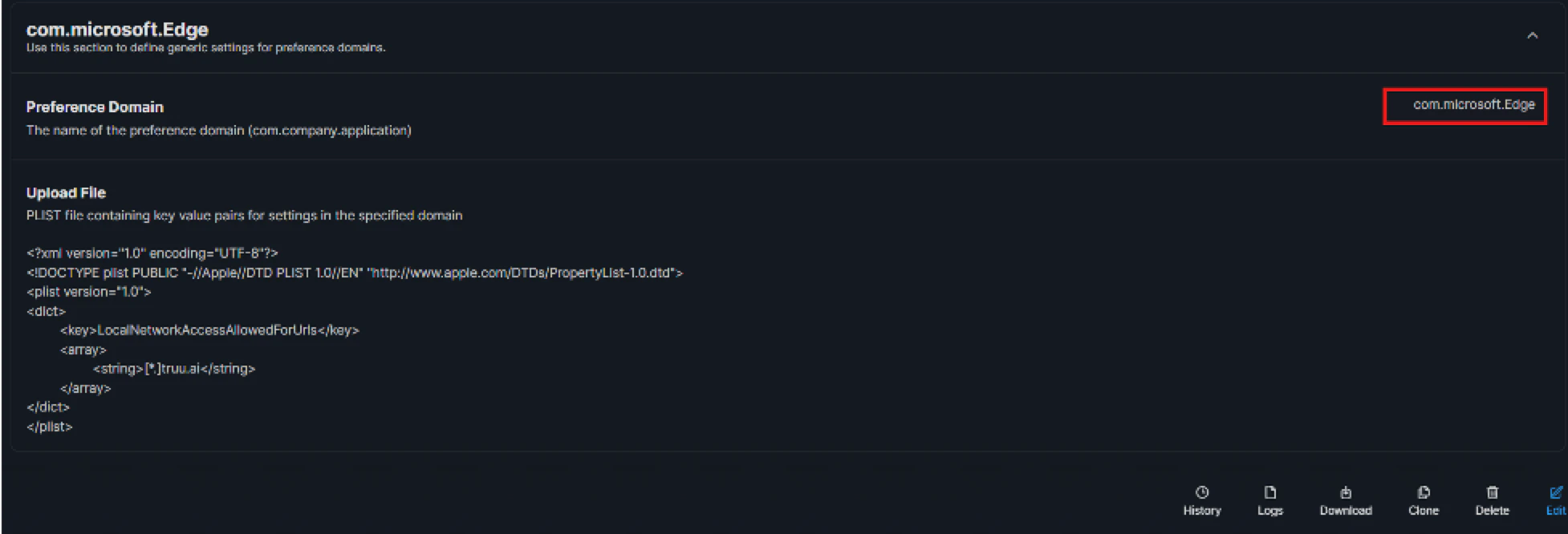
2. Use **Application & Custom Settings** to then upload the plist
3. Set Domain to [*com.microsoft*](http://com.microsoft)*.Edge* and add the following plist:
```text theme={null}
LocalNetworkAccessAllowedForUrls
[*.]truu.ai
```
 4. Scope to **devices/users** that run TruU in MSedge.
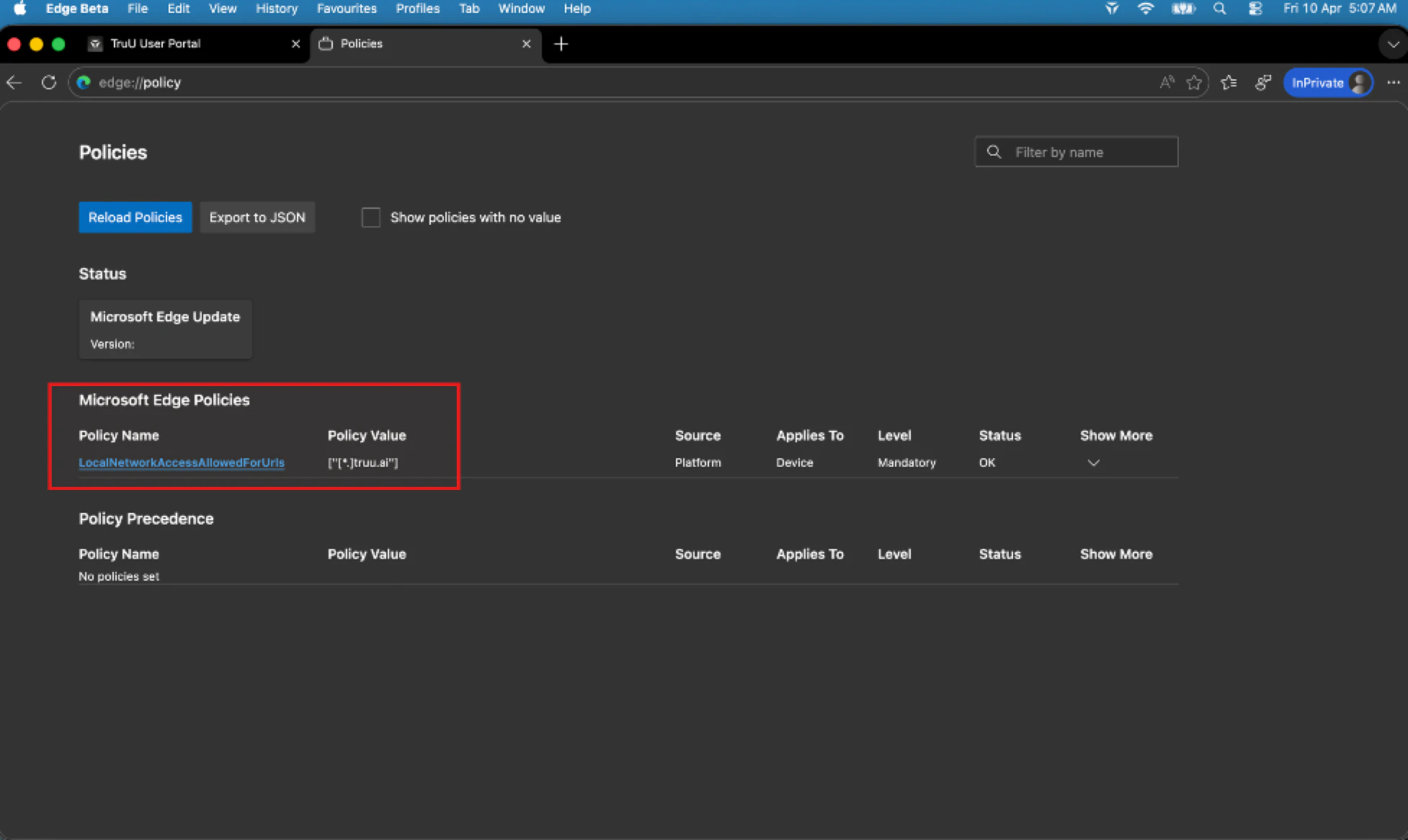
5. After deploying, on a test Mac verify "edge://policy" shows *LocalNetworkAccessAllowedForUrls*, and \_edge://settings/privacy/sitePermissions/allPermissions/localNetwork \_
4. Scope to **devices/users** that run TruU in MSedge.
5. After deploying, on a test Mac verify "edge://policy" shows *LocalNetworkAccessAllowedForUrls*, and \_edge://settings/privacy/sitePermissions/allPermissions/localNetwork \_
 ## **Google Chrome on macOS** **Required Configuration**
* **Preference domain**: [com.google.Chrome](http://com.google.Chrome)
* **Policy key:** *LoopbackNetworkAllowedForUrls*
* **Entry:** \[\*.][truu.ai](http://truu.ai)
## **JAMF**
1. Navigate to the **Computers** tab, then to **Configuration Profiles** → **macOS** → Click **New**
2. Use **Application & Custom Settings** to then upload the plist
3. Set Domain to [com.google.Chrome](http://com.google.Chrome) and add the following plist:
```text theme={null}
LoopbackNetworkAllowedForUrls
[*.]truu.ai
```
## **Google Chrome on macOS** **Required Configuration**
* **Preference domain**: [com.google.Chrome](http://com.google.Chrome)
* **Policy key:** *LoopbackNetworkAllowedForUrls*
* **Entry:** \[\*.][truu.ai](http://truu.ai)
## **JAMF**
1. Navigate to the **Computers** tab, then to **Configuration Profiles** → **macOS** → Click **New**
2. Use **Application & Custom Settings** to then upload the plist
3. Set Domain to [com.google.Chrome](http://com.google.Chrome) and add the following plist:
```text theme={null}
LoopbackNetworkAllowedForUrls
[*.]truu.ai
```
 4. Scope to devices/users that run TruU in Chrome.
5. After deploying, on a test Mac open **chrome://policy**, confirm *LoopbackNetworkAllowedForUrls* lists \[\*.][truu.ai](http://truu.ai), and check *chrome://settings/content/loopbackNetwork* (aligned with your Windows validation).
4. Scope to devices/users that run TruU in Chrome.
5. After deploying, on a test Mac open **chrome://policy**, confirm *LoopbackNetworkAllowedForUrls* lists \[\*.][truu.ai](http://truu.ai), and check *chrome://settings/content/loopbackNetwork* (aligned with your Windows validation).

