

Enforcement events are a log of actions taken against users or sessions according to your organization’s workflows—such as self-policing steps or escalations. They appear on the Enforcement events tab in Protect, separate from raw security detections.

Overview

Enforcement rows document what was done, who it applied to, why it ran (trigger), and whether it completed successfully. Use this tab to audit policy outcomes and handoffs to people or teams. For the list of detected activities that may lead to enforcement, see Threat events. To narrow either tab by date, user, or outcome, see Filters.

The Enforcement Table

Events are listed with time, subject user, action type, how the action was initiated, and current outcome.
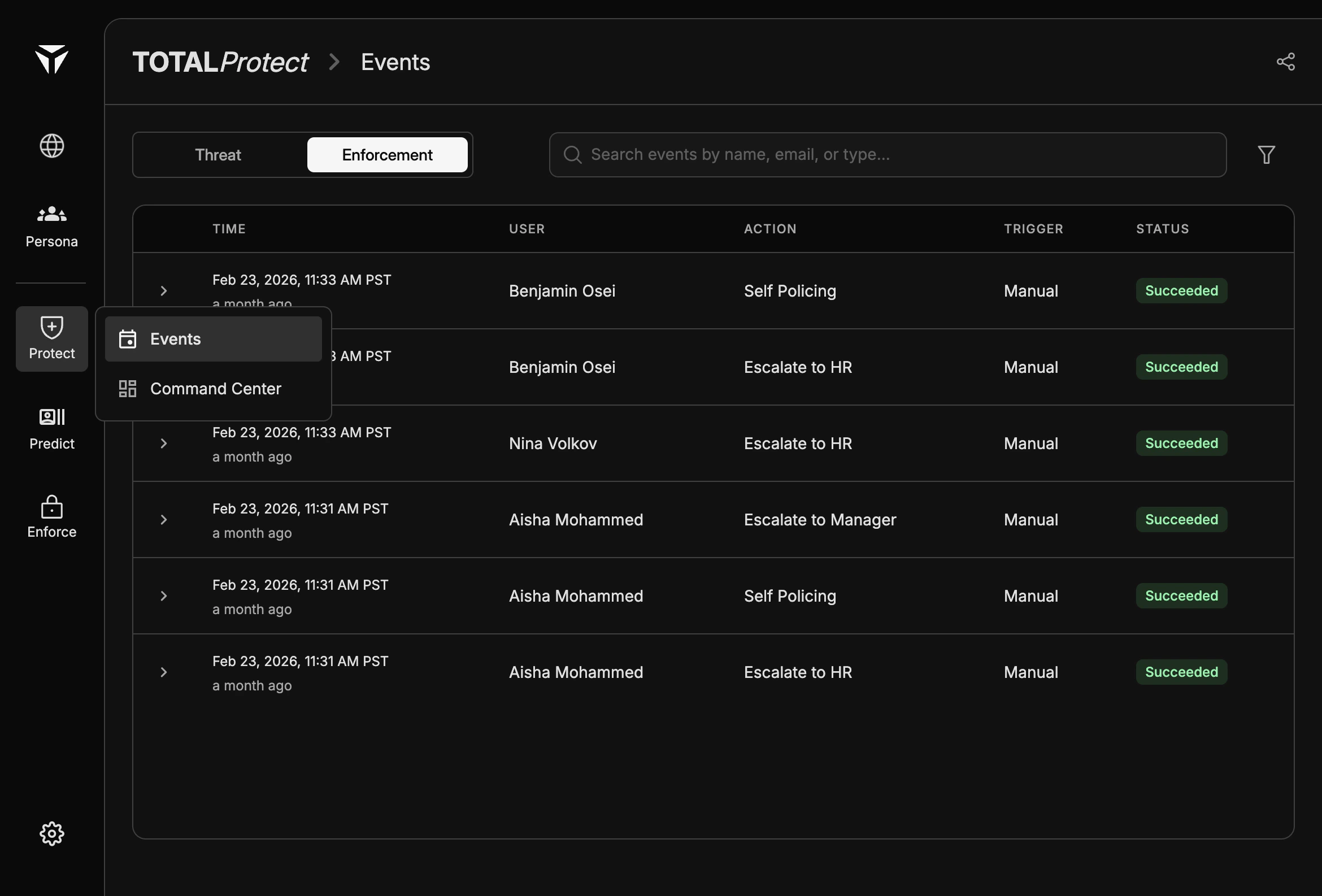
Enforce Events
ColumnDescription
TimeWhen the enforcement action was recorded.
UserThe user the action applies to.
ActionThe enforcement type that ran (for example self-policing or an escalation).
TriggerWhether the action was started manually, by automation, or by another defined trigger.
StatusWhether the action succeeded, failed, or is still in progress.

Actions

Self Policing refers to automated or guided corrective steps applied without escalating outside the immediate security workflow. Escalate to HR and Escalate to Manager record handoffs to human stakeholders according to your configured playbooks. Additional action types may appear if your tenant defines more enforcement options.

Triggers

Manual means an operator or integrated workflow explicitly started the action from the product or an admin surface. Automated (and other trigger values your org enables) means the action ran from a rule, policy engine, or integration without a one-off manual start. The trigger column answers “how this run was initiated,” not the underlying threat category.

Status tracking

Succeeded indicates the enforcement step completed as intended (for example notification sent, ticket created, or integration call returned success—depending on configuration). Failed means the step did not complete; use detail views or your integration logs to diagnose. Pending means the action is queued or in progress and has not reached a terminal state yet. Statuses are shown as badges in the table so you can scan open or failed work quickly.