

3.1 — Connect Azure to TOTAL’s Provisioning Endpoint
- Azure Portal → Enterprise applications → TOTAL → Provisioning (left sidebar)
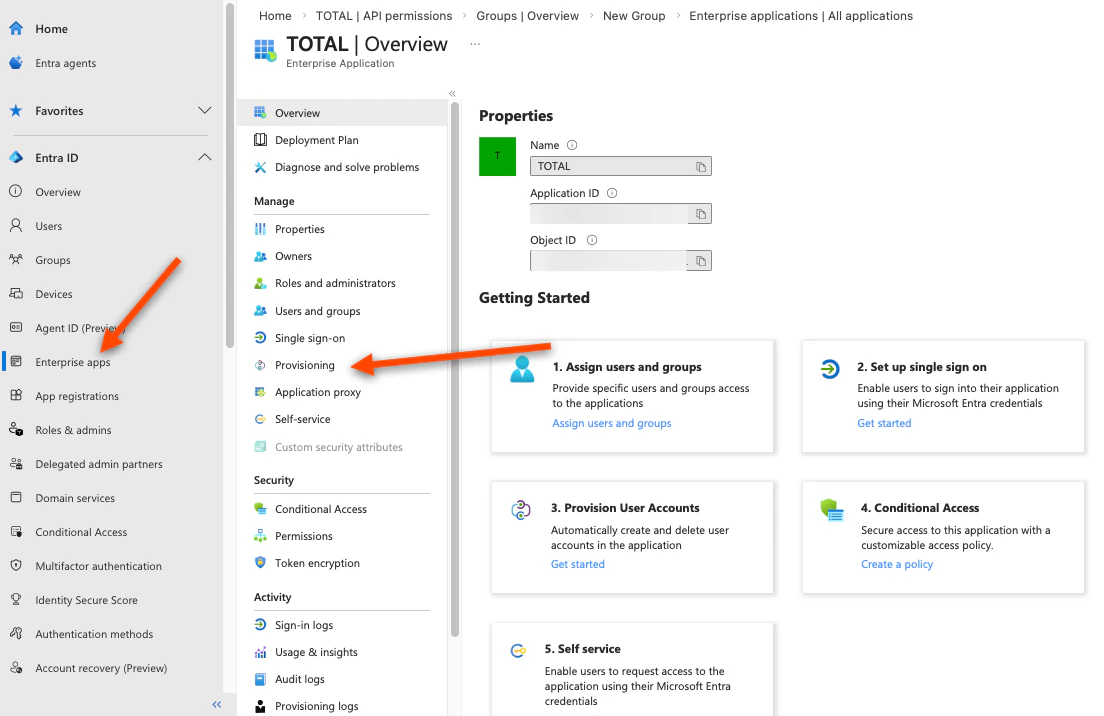
- Set Provisioning Mode to Automatic
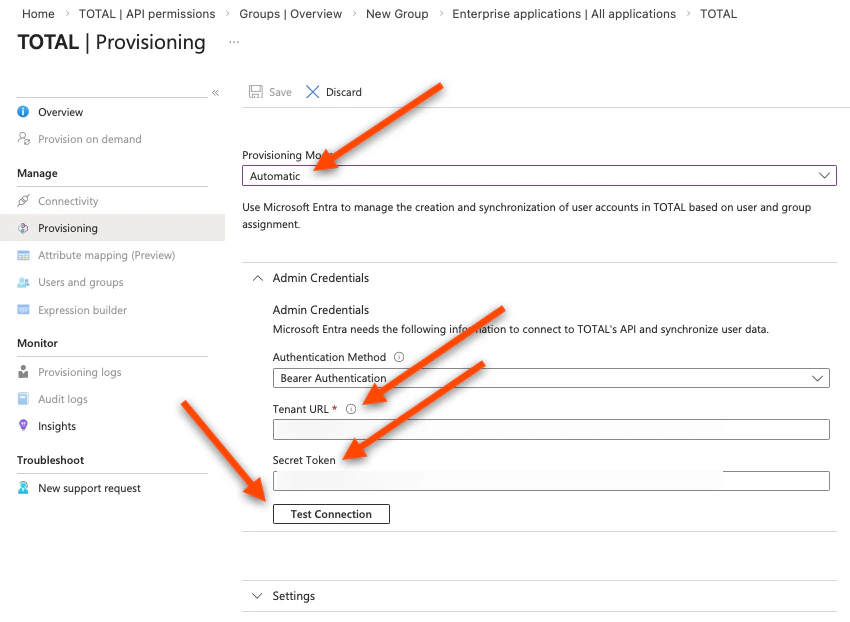
- Under Admin Credentials, enter:
- Tenant URL: copy this from the TOTAL Enrollment Console (Settings → SSO & Provisioning)
- Secret Token: copy this from the TOTAL Enrollment Console (Settings → SSO & Provisioning)
- Click Test Connection — wait for the green checkmark confirming it can reach TOTAL
- Click Save
3.2 — Fix the User ID Mapping (Critical Step)
Azure’s default configuration sends the wrong identifier for users, which will cause sign-in to fail. You must change one setting:- Still in the Provisioning section, click Mappings
- Still in the Provisioning section, click Provision Microsoft Entra ID Users
- In the attribute mapping table, find the row where the customappsso column says
externalId - Click Edit
- Change the Source attribute dropdown to
objectId- If
externalIdis not already in the list, click Add New Mapping, set Source attribute toobjectIdand Target attribute toexternalId, then click Ok
- If
- Ensure that the customappsso Attribute “title” is “jobTitle”
- Ensure that the customappsso Attribute “urn:ietf:params:scim:schemas:extension:enterprise:2.0:User:department” is “department”.
- Click Ok, then Save
Why this matters: TOTAL identifies each user by their Azure Object ID — a unique identifier that is the same across both sign-in (OIDC) and provisioning (SCIM). Azure’s default maps a different field here, which causes a mismatch. Setting it to objectId ensures both systems use the same identifier.
3.3 — Assign Your Admin Groups to the Application
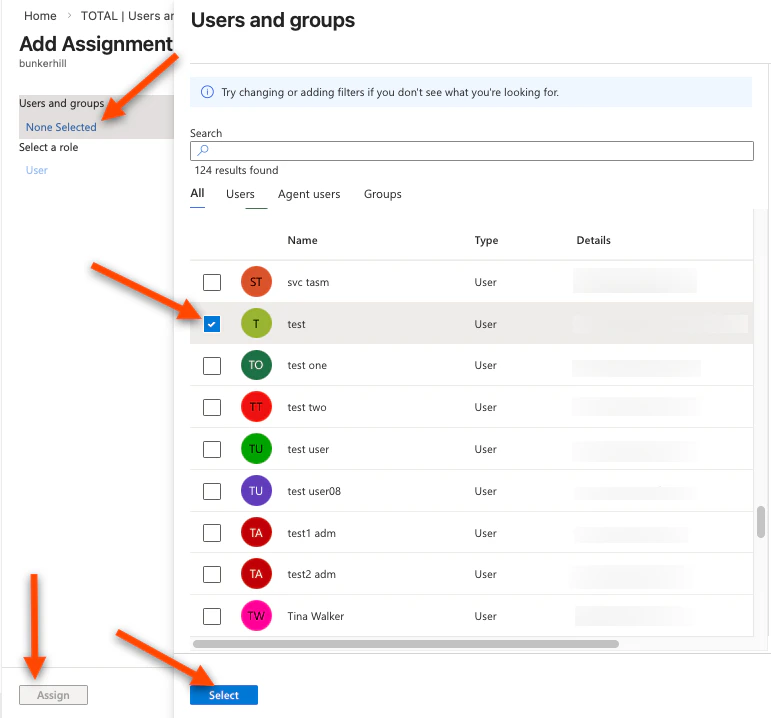
- Enterprise applications → TruU TOTAL Security → Users and groups → Add user/group
- Click None Selected under Groups
- Search for and select each of the TOTAL groups you created in Part 2
- Click Select, then Assign There is no Scope tab in Provisioning. Instead, you assign groups through the Users and groups tab:
3.4 — Start Provisioning
- Enterprise applications → TOTAL → Provisioning
- Click Start provisioning
- Navigate back to Enterprise applications → TOTAL → Provisioning
- Set Provisioning Status to On
- Click Save
3.5 — Provision on Demand
- Open Provision on demand
- Search for and select your created admin group (see above)
- Keep View members only selected
- Select the admin users you want to provision, then run Provision