

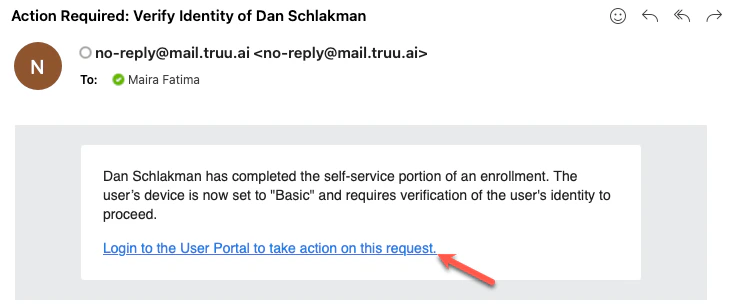
- Click the Login to the User Portal to take action on this request to be rerouted to the TruU User Portal.
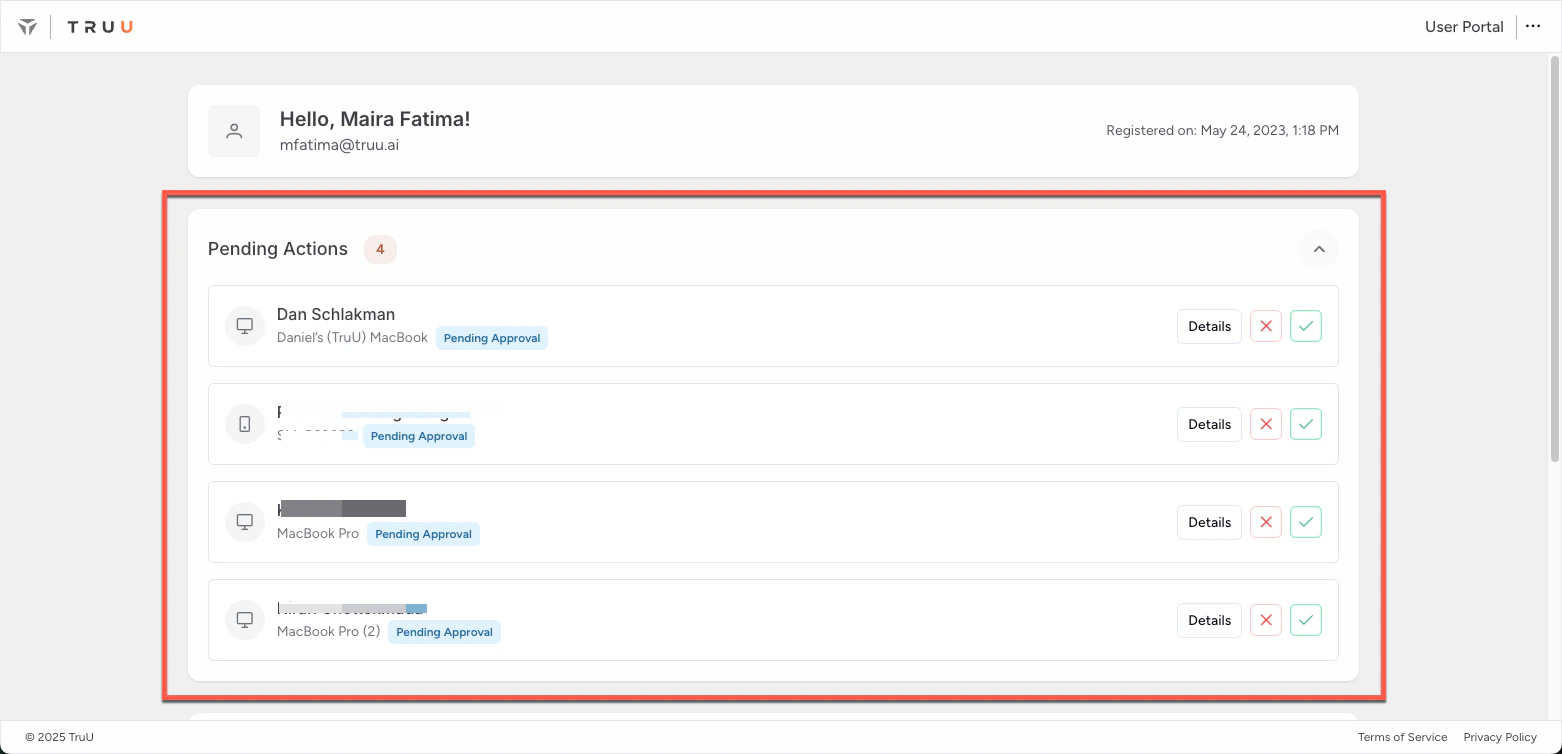
- The pending enrollment requests will be displayed on the manager dashboard. Contacts the employee directly (via email, phone, or in-person) to confirm that the device enrollment request is legitimate.
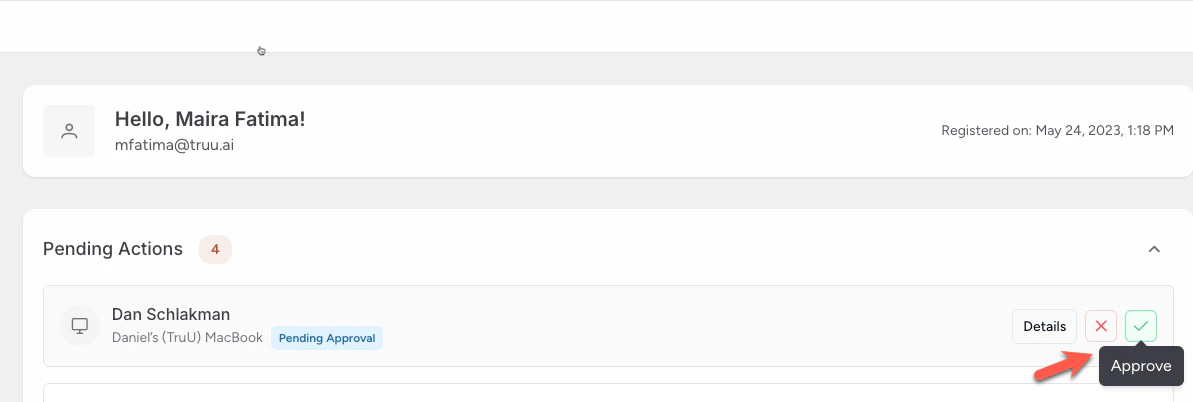
- After confirming with the employee, Click Approve
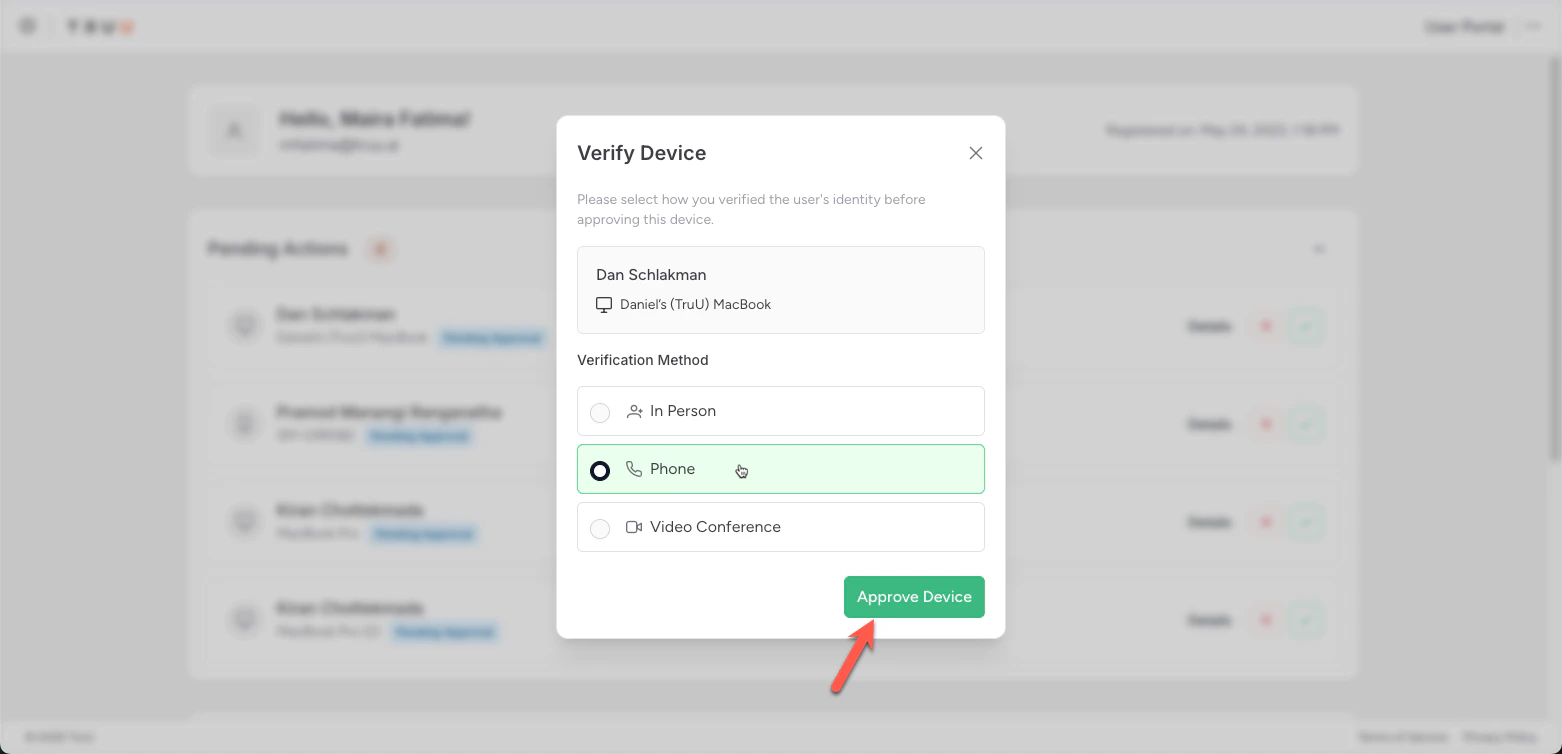
- Select the mode of verification and click Approve Device
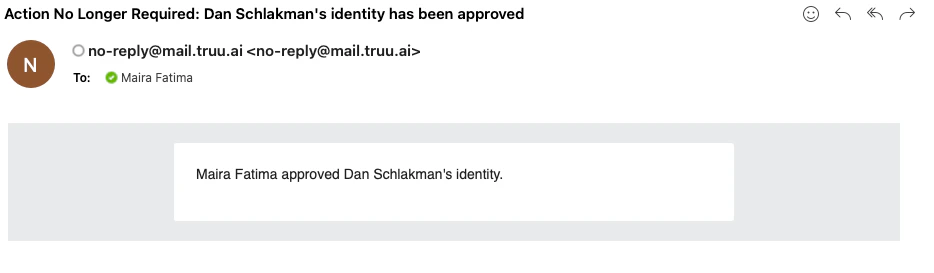
- Once approval and verification are complete, the employee is notified via email and will be able to access company resources on that device.
User Portal and Device Management Windows