

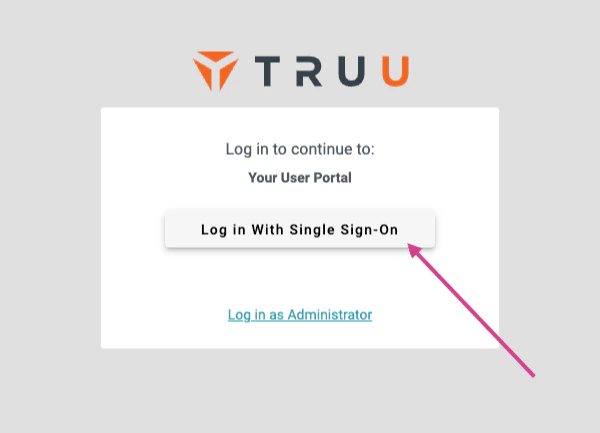
- Log in to your TruU User Portal
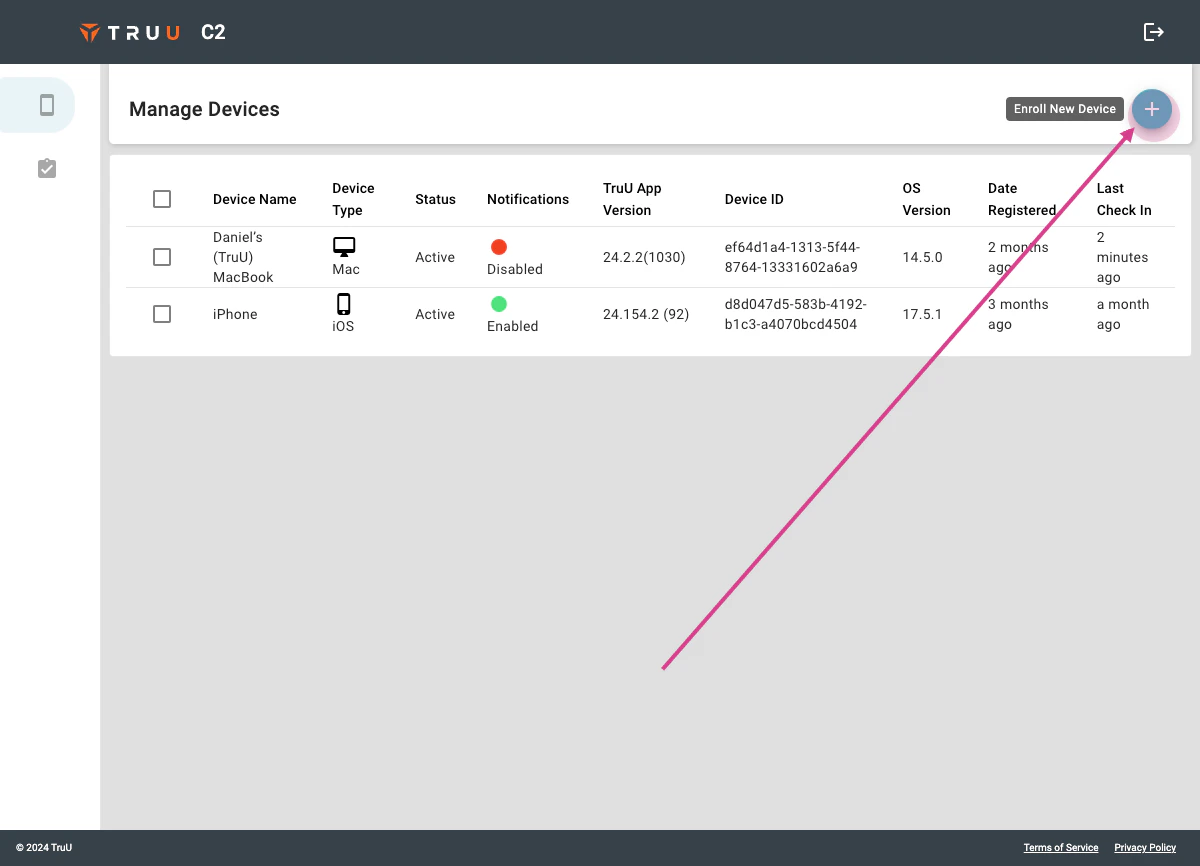
- Click the (+) button to “Enroll a New Device”
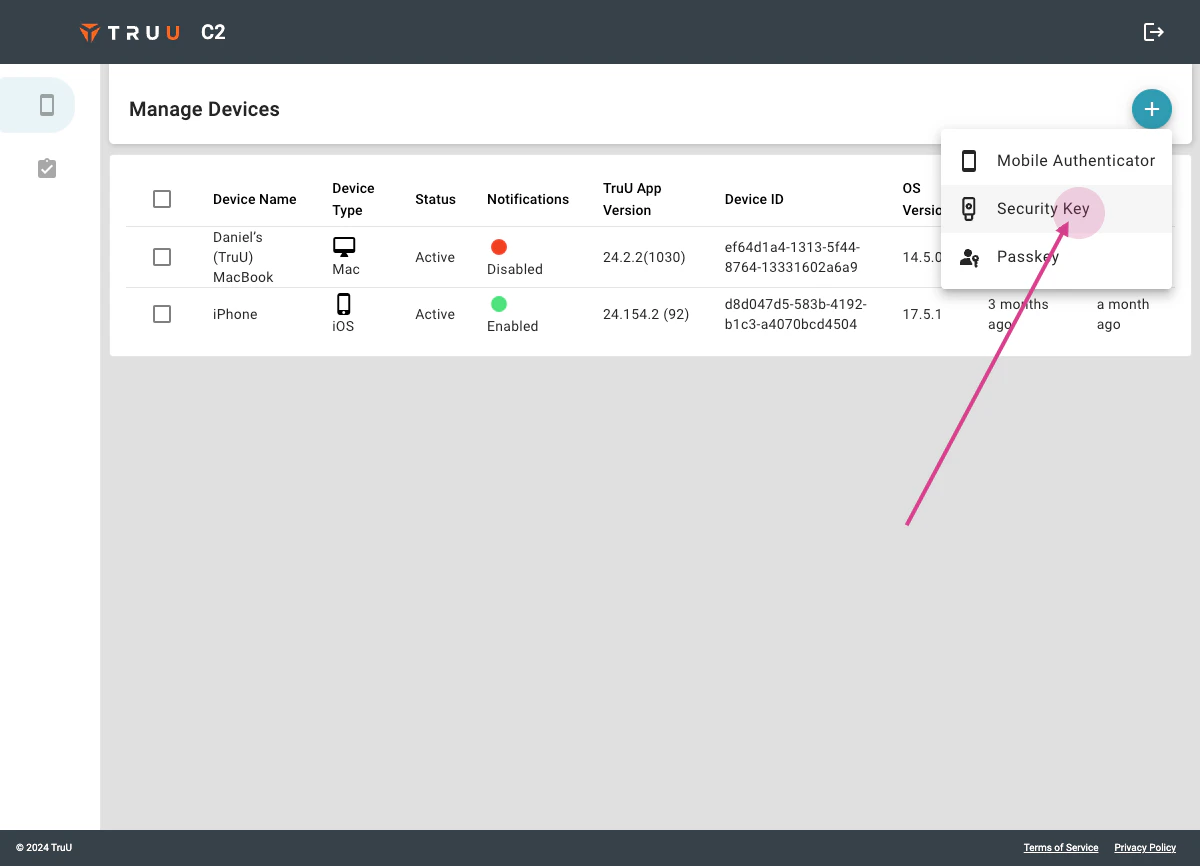
- Choose Security Key
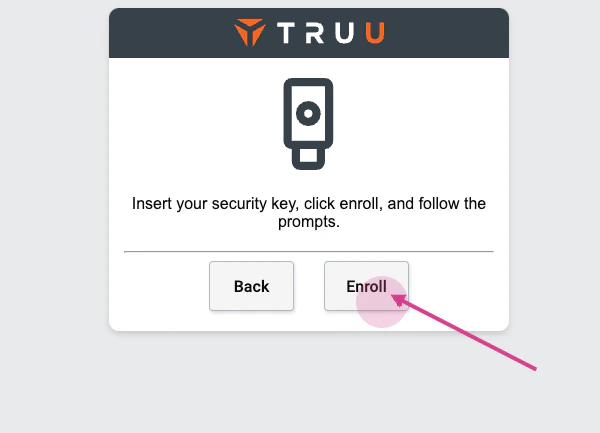
- Insert your security key and click Enroll
-
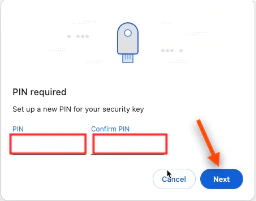
Create a PIN and click Next
-
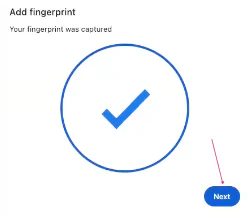
Touch your security key to add your fingerprint, then click Next
-
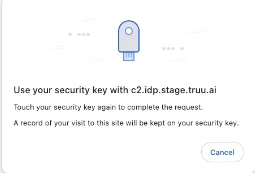
Touch your security key one last time to complete the enrollment
-
Click Allow
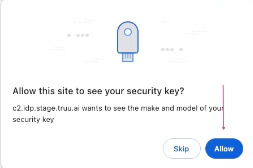
- Your security key is now enrolled
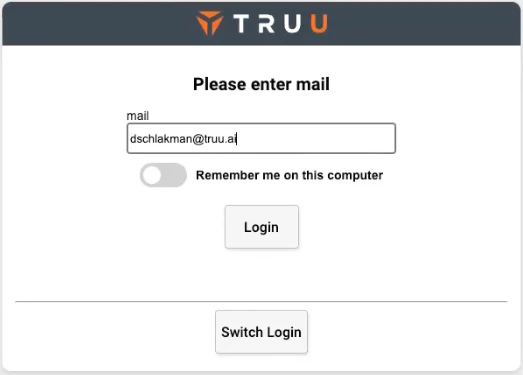
- Enter your username to sign in to an application

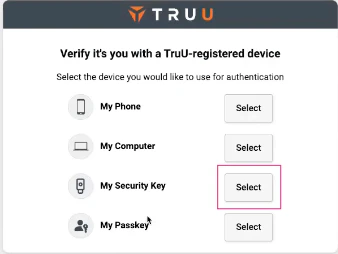
- Select My Security Key
- Enter your email
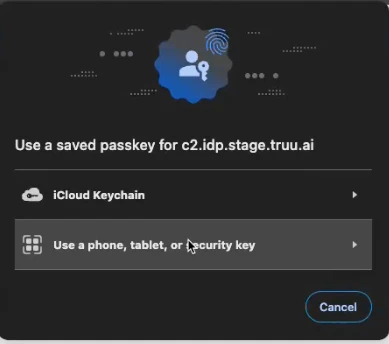
- When this prompt appears, touch your registered security key with your validated fingerprint
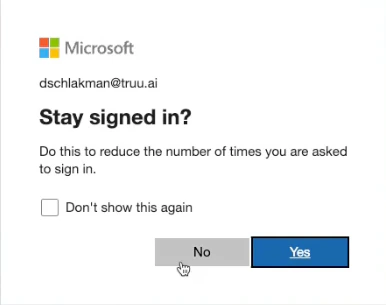
- You are now logged into your application
Passkey User Guide Badgeless (Physical)