

- Computer: General support is available across modern Windows and MacOS devices with biometrics enabled (i.e., Windows Hello or TouchID)
- Windows: Windows 10 or higher (Windows 11 22H2+ preferred)
- MacOS: MacOS Ventura or higher.
- Mobile Device:
- iPhone: iOS 16 or greater
- Android: Android 9 O/S or greater
- Browser: Most modern browsers now support Passkeys – ensure browsers are up to date to take advantage of the latest capabilities for Passkeys
- Chrome: 109
- Safari: 16
- Edge: 109
- Security Key: Hardware keys that support FIDO2 protocol (i.e., YubiKey)
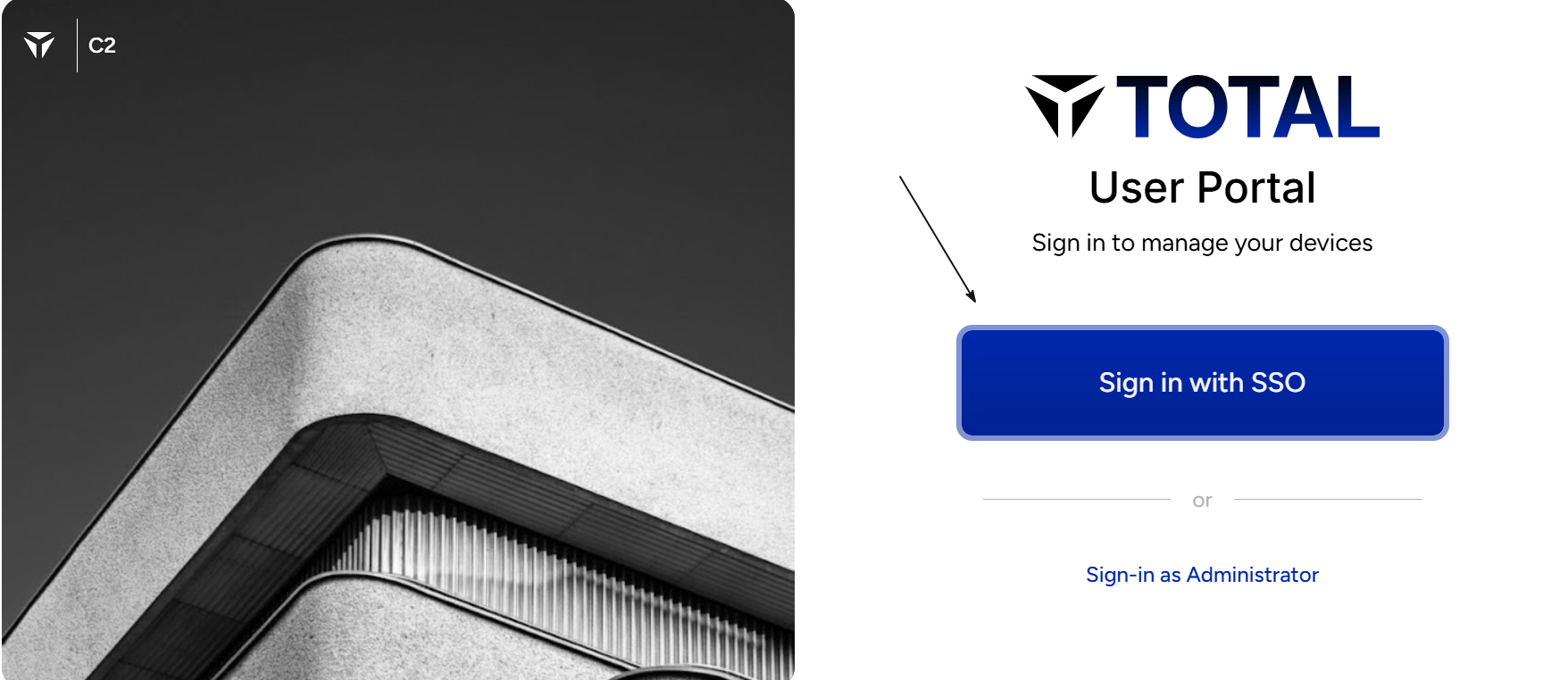
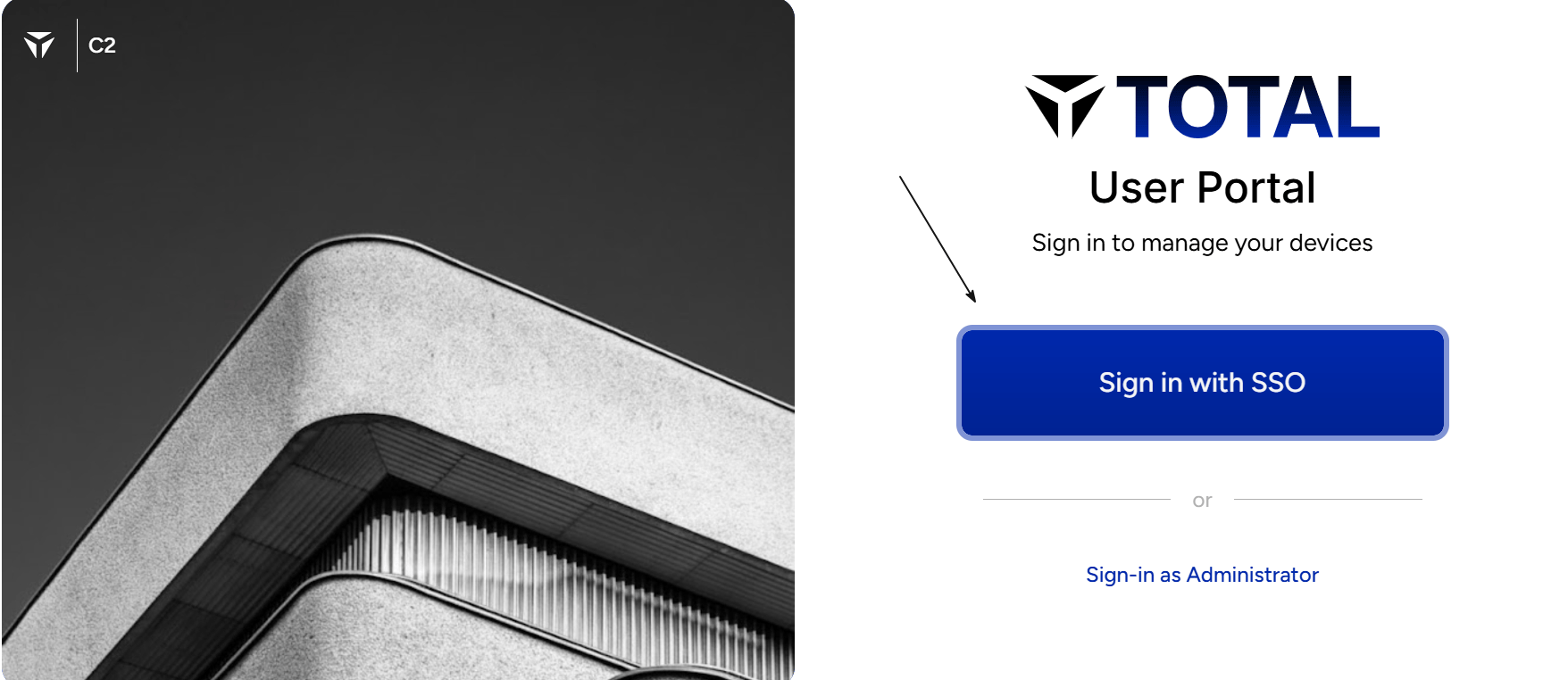
- Login to your Organization’s TruU User Portal
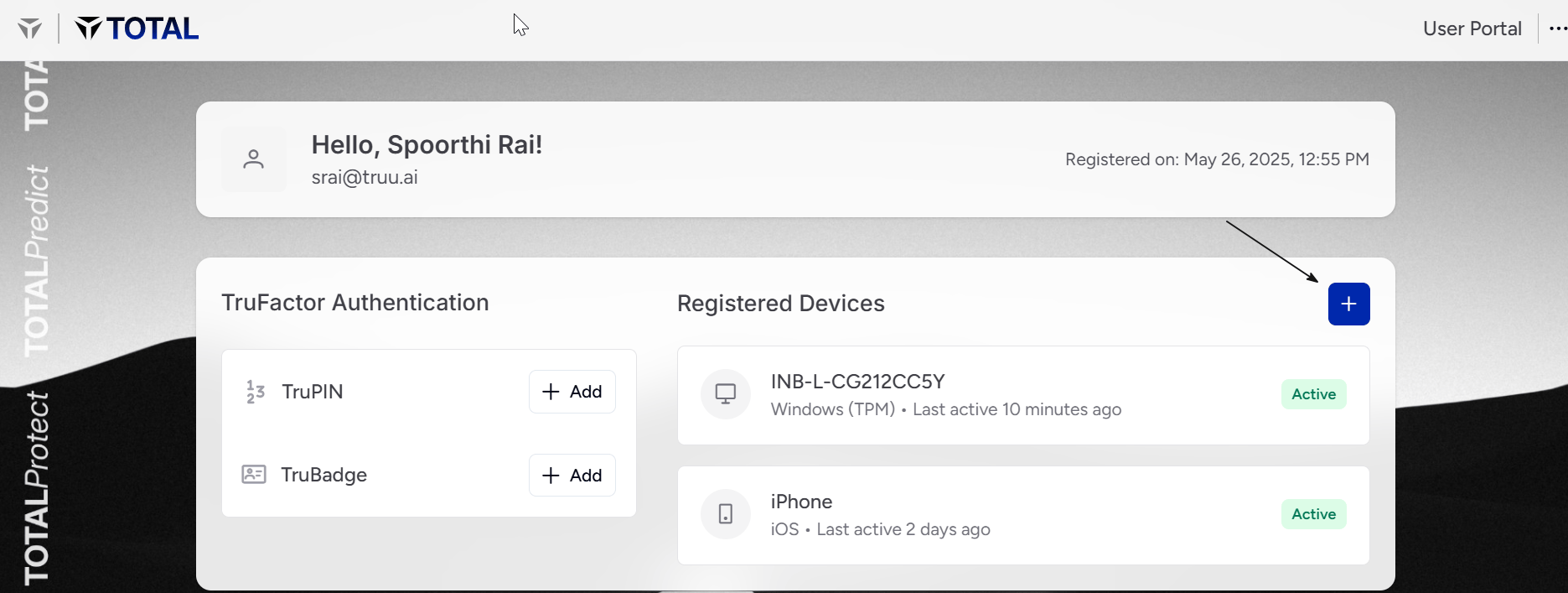
- Click the (+) button, then choose the Passkey option
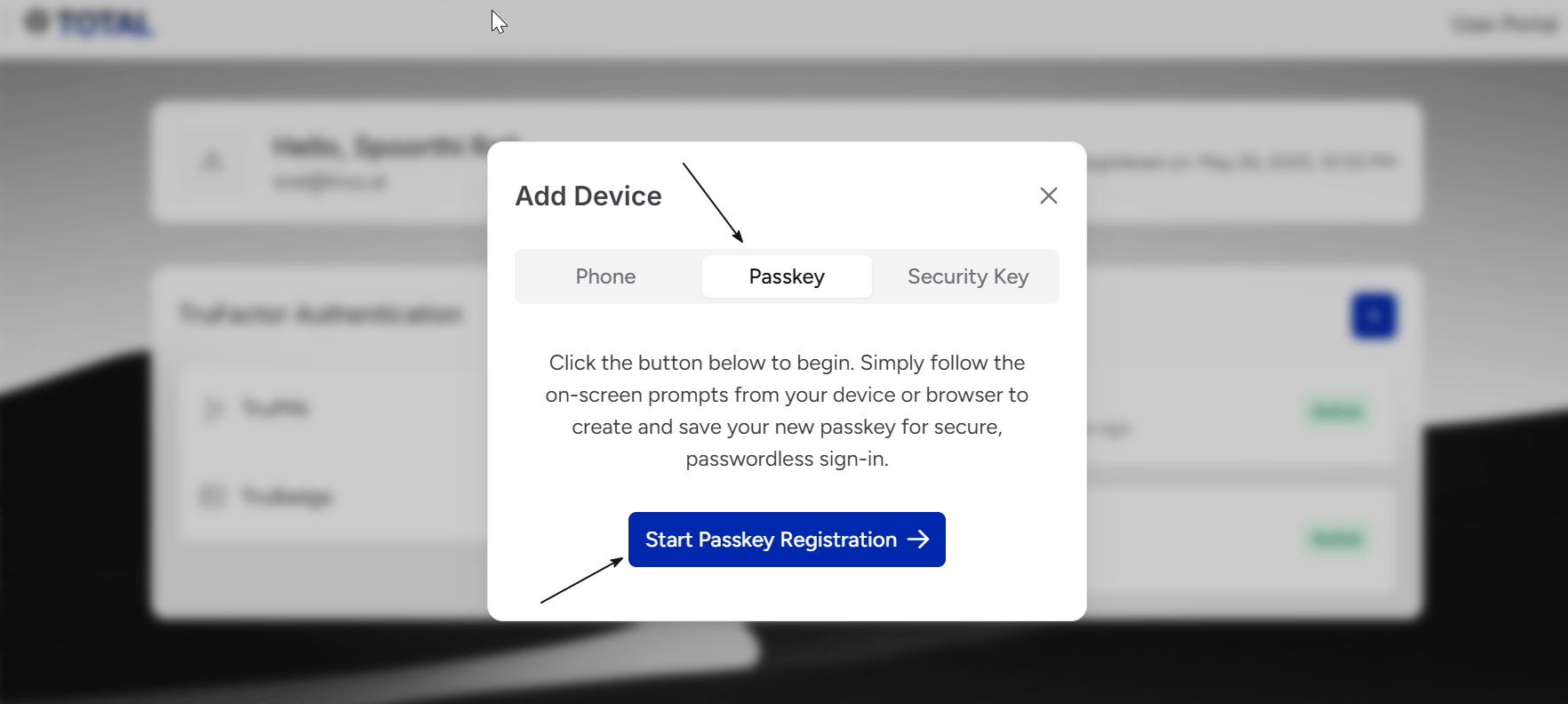
- Next, click on the Enroll button
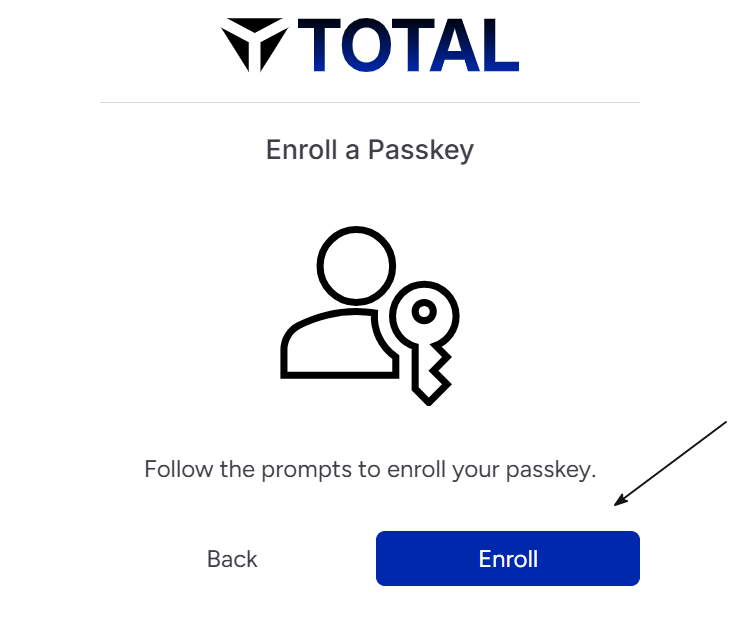
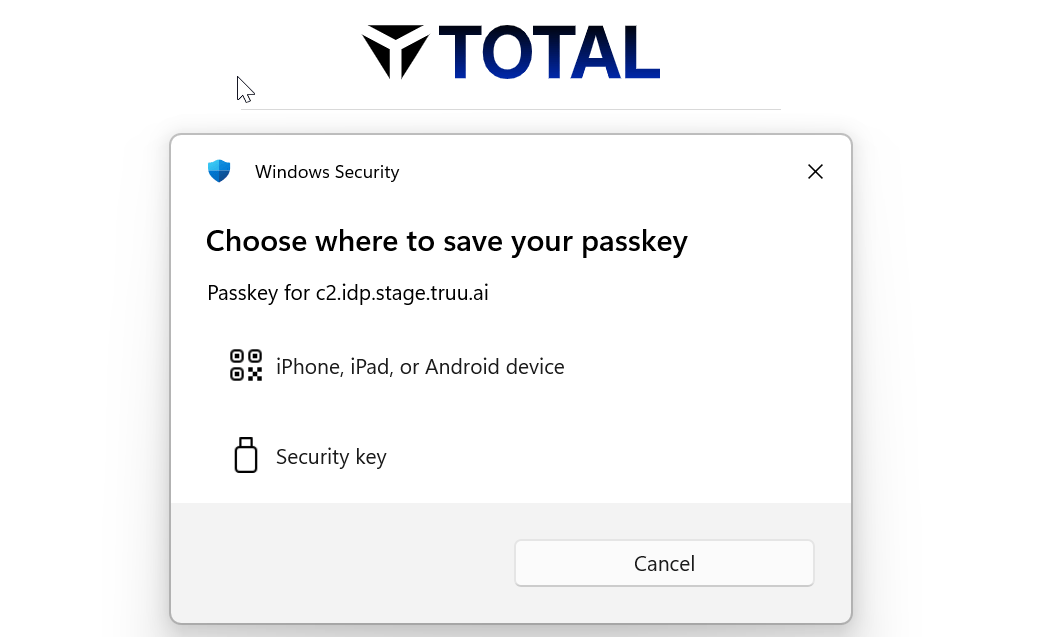
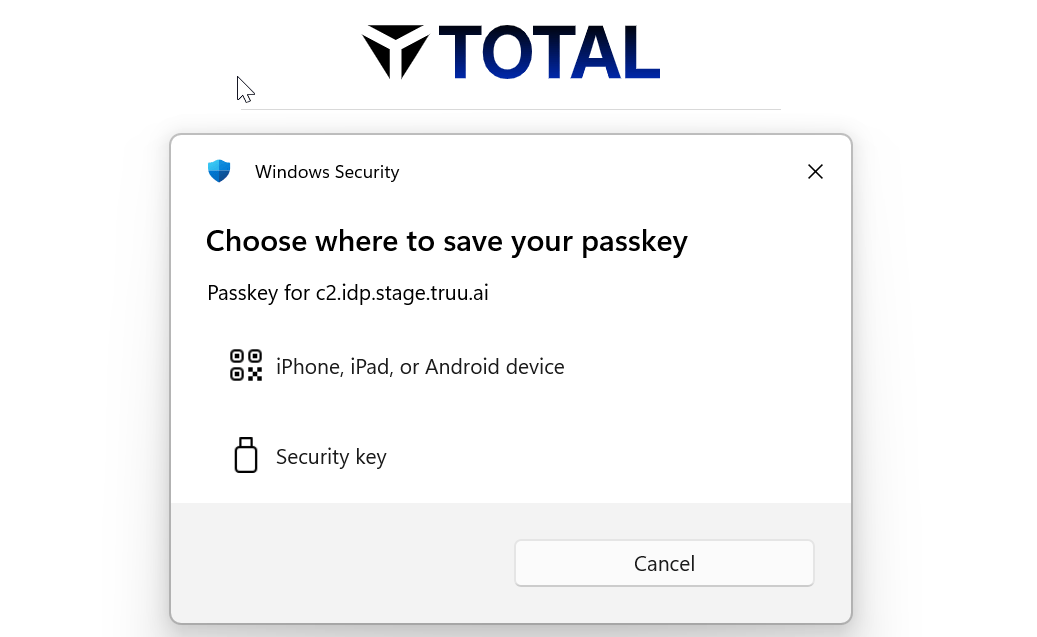
- Select the appropriate passkey storage option from the Windows Security prompt. For example, select iPhone, iPad, or Android device to create a passkey using your mobile device, or Security key if using a hardware security key.
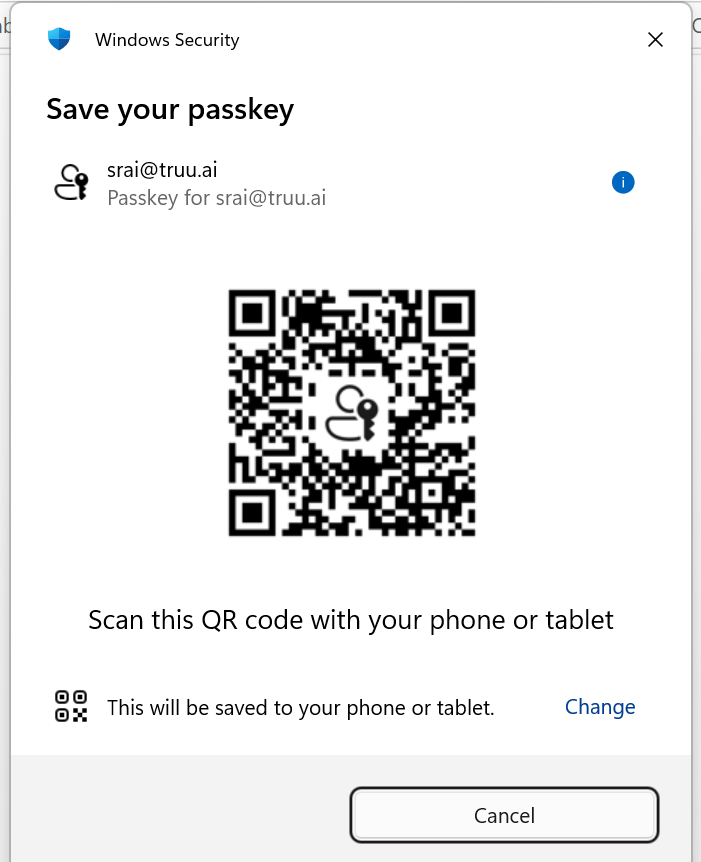
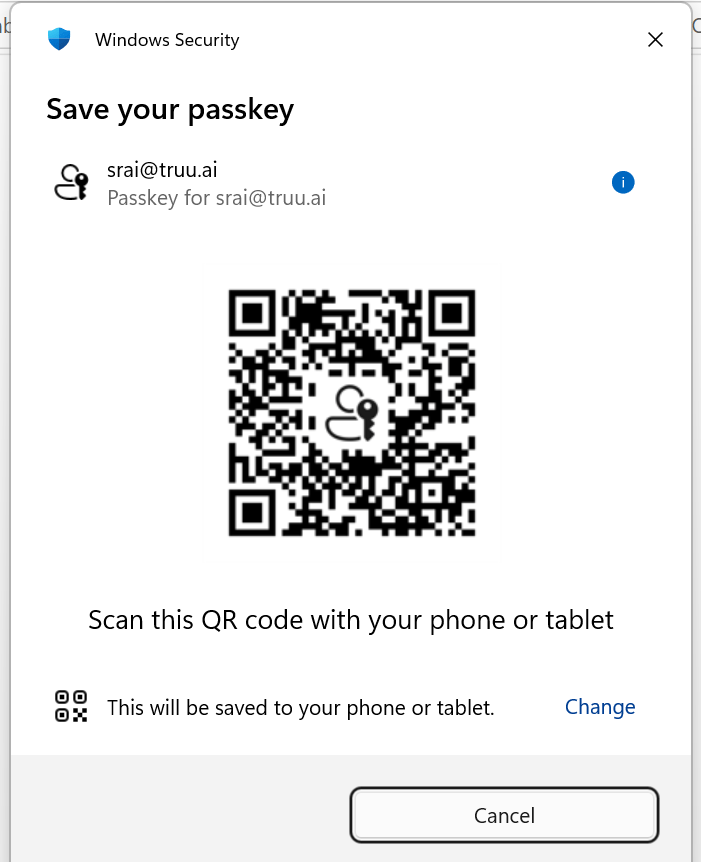
- Scan the QR code using your phone or tablet and complete the passkey registration by following the on-screen instructions.
- Complete the biometric or device authentication on your phone. Once authentication is successful, the passkey is created and registered to your account.
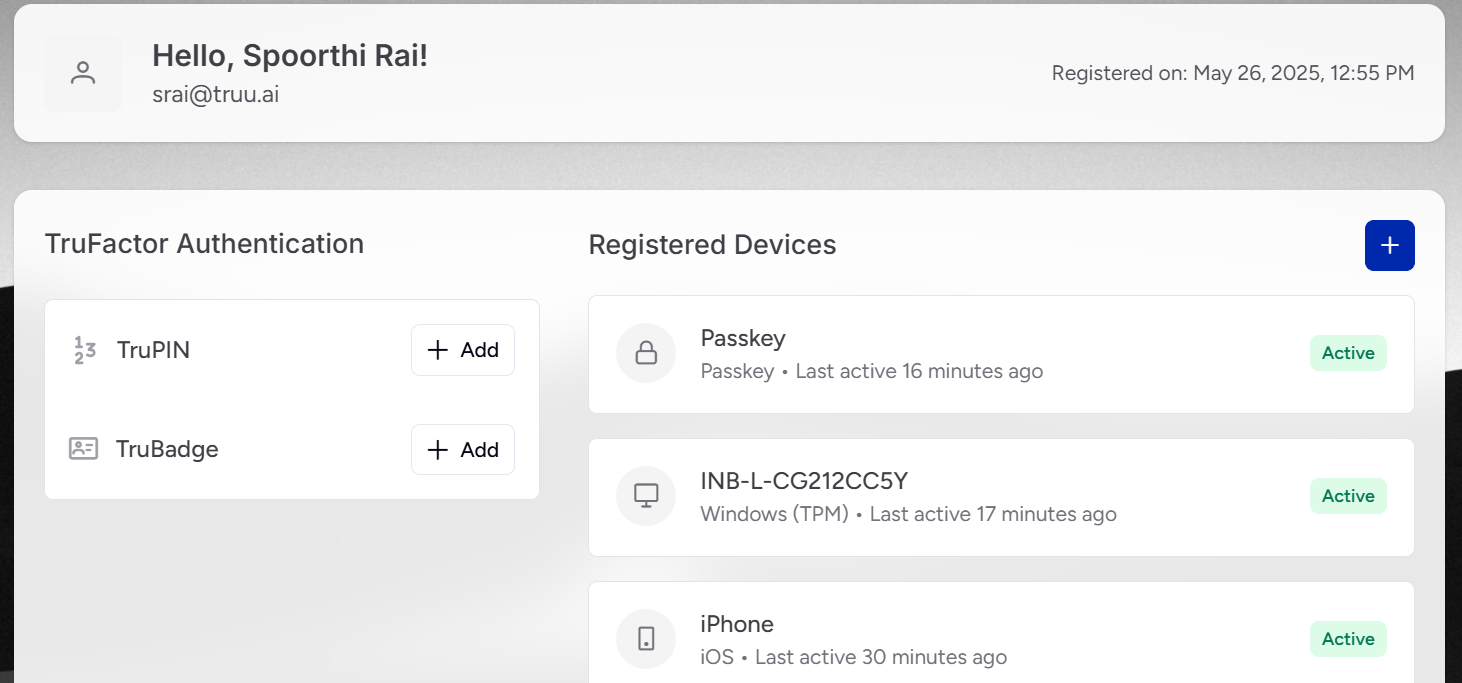
- As a continuation from above, navigate to a resource, then select the Passkey option for login
- Confirm the Passkey you wish to use for sign-in, then click “Continue” Note: You can register for multiple Passkeys with your Organization and personal apps. All previously registered Passkeys will appear in this menu for your selection
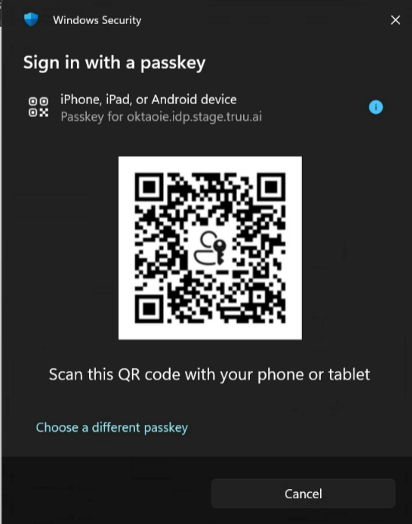
- To access your Passkey, provide your biometrics (or password) to authenticate to the app
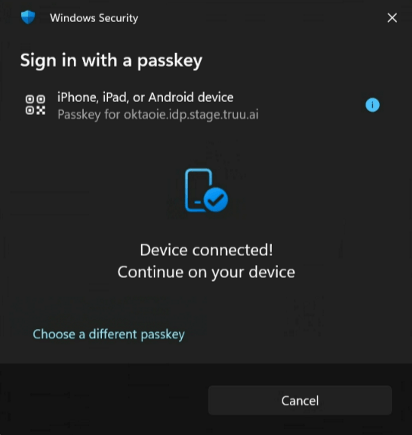
 Creating Passkey in Phone
- As a continuation from above, once your browser presents the available options for you to create a Passkey, choose the Use a phone, tablet, or security key option
- Next, use the native camera on your phone to scan the QR code on your screen Note: Bluetooth must be enabled on both the device and phone during the scanning process
- As a continuation from above, navigate to a resource, then select the Passkey option for login
- Confirm the Passkey you wish to use for sign-in, then click Continue
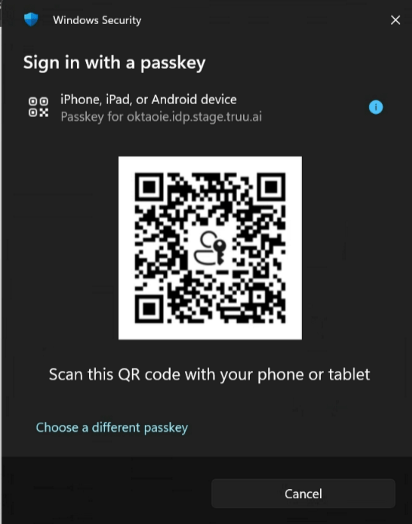
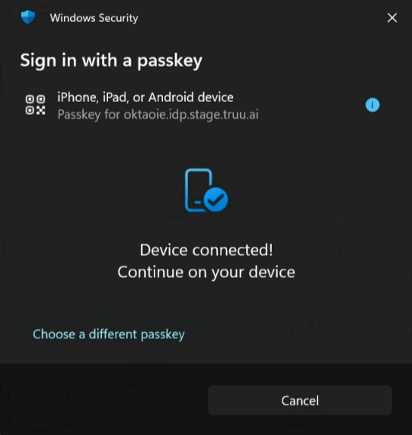
- Based on the Passkey you selected, the browser will intelligently display the appropriate options for authentication. In this example, a QR code is displayed – scan the QR code with the phone containing the Passkey and provide your biometrics (i.e., FaceID for iPhone or Trusted Face for Android)
Switching Accounts on Mobile Security Key User Guide