

Highlights
- Redesigned Account Profile
- Light and Dark Mode Support
- Automatic FIDO2 Security Key Recovery
- Improved Lock Screen Experience on Shared Devices
- Managed Automatic Updates
- Platform-Aware Installation
- Bug Fixes
Enhancements
Redesigned Account Profile
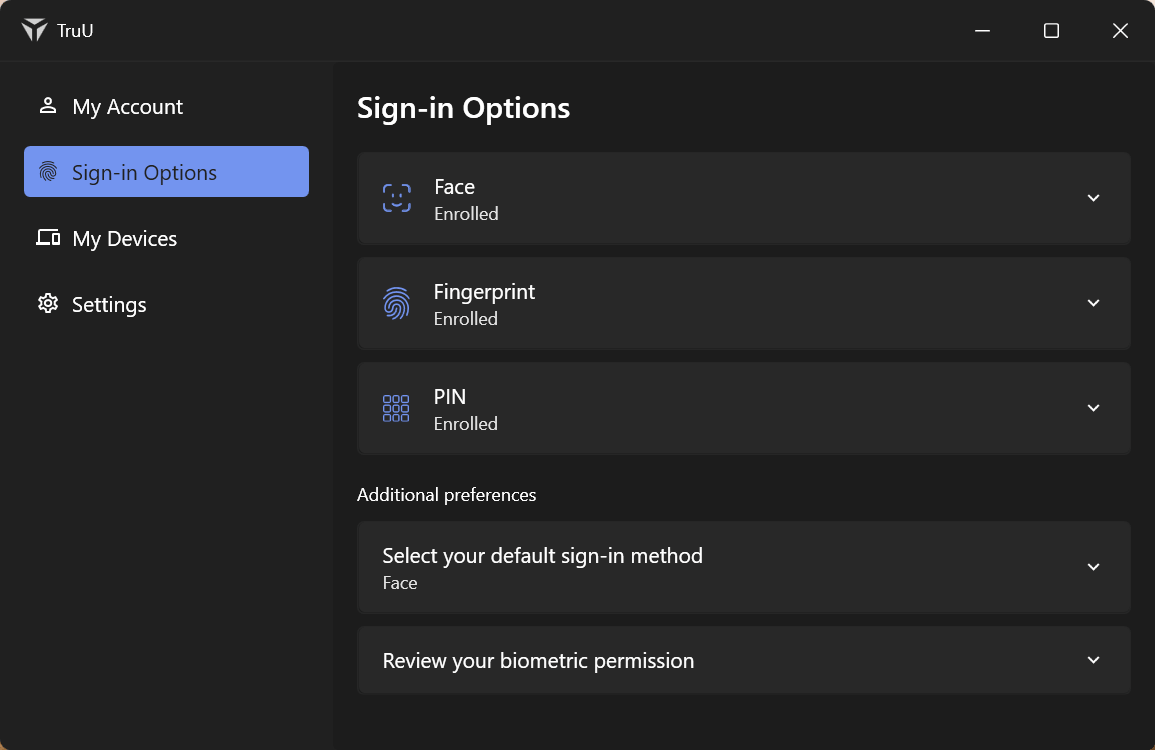
- You now have a redesigned Account Profile window for managing TruU directly from your desktop. Clicking the system tray icon opens it.
- My Account tab shows your enrollment details and company name
- Sign-in Options tab lets you manage your biometrics, set a preferred sign-in method, and control biometric permissions
- My Devices tab lists every device enrolled to your account so you can spot any you don’t recognize
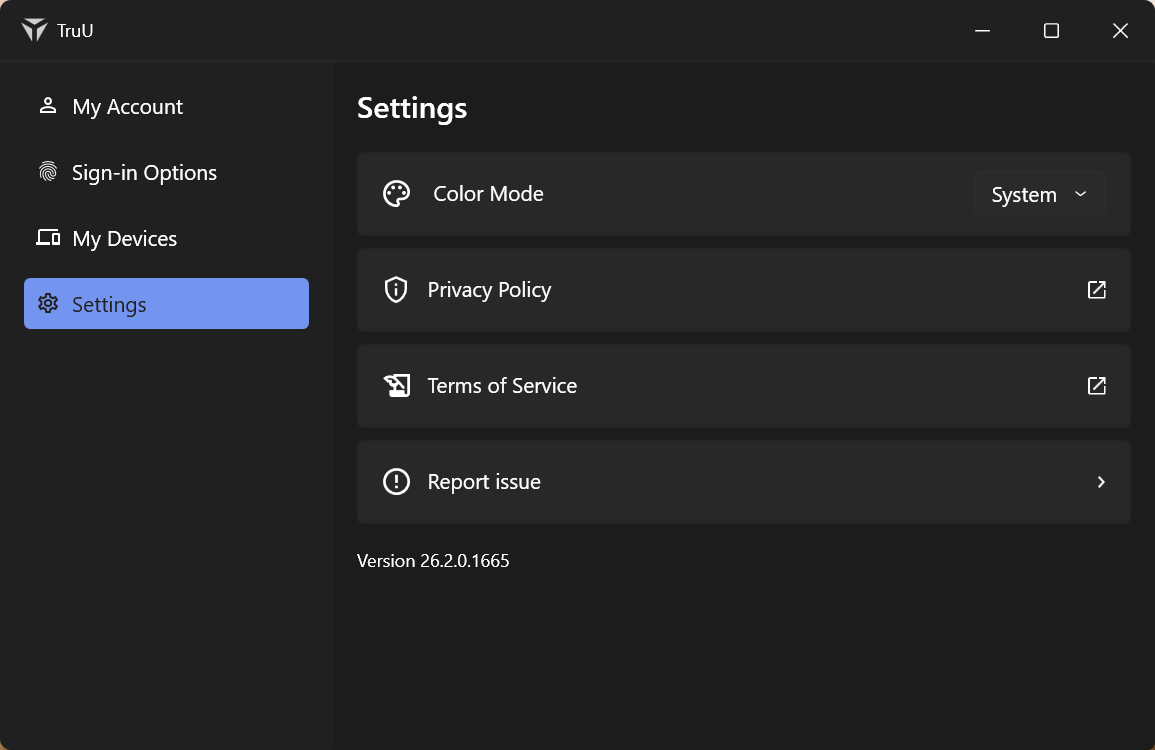
- Settings tab lets you adjust preferences such as appearance.
- If your device’s secure storage is locked when you open the profile, you’ll be prompted to verify with face, fingerprint, or PIN first.
Light and Dark Mode Support
- TruU now honors your light, dark, or system appearance preference across the experience, including enrollment, the sign-in screen, SSO prompts, RDP sessions, re-authentication prompts, and update notifications. Changing the setting applies the new appearance immediately, so the look stays consistent with the rest of your desktop.
Automatic FIDO2 Security Key Recovery
- If your FIDO2 security key is removed from Azure, the Windows Authenticator now detects the problem during sign-in and repairs it automatically by re-enrolling a new key, showing you a clear status while it works. Transient communication failures with Microsoft during FIDO2 sign-in are now retried automatically so you’re less likely to be blocked from signing in. The default enrollment timeout has also been extended to give the process more time to complete.
Improved Lock Screen Experience on Shared Devices
- When your organization policy specified hiding the last signed-in user on the lock screen, FIDO2 and smart card sign-in and enrollment now behave correctly even when the locked Windows session belongs to a different account than the one enrolled with TruU. This removes confusing prompts and dead ends on multi-user machines.
Managed Automatic Updates
- Administrators can now manage client updates centrally through TruU, with the Updater Service installed automatically by default. Administrators can set custom update schedules to control when updates are applied, and can choose whether TruU installs required .NET libraries automatically or manage that installation independently within their organization. Updates can retrieve any required configuration as part of the upgrade, and configuration changes now take effect without restarting the service or rebooting the machine, so settings can be pushed to users without interrupting their work.
Platform-Aware Installation
- The installer now prevents an x64 build from being installed on an ARM64 device and vice versa. Attempting a mismatched installation displays a clear message, and silent installations return an appropriate error code, avoiding hard-to-diagnose conflicts after deployment.
Bug Fixes
- Fixed several issues where TruU could fail to load, the camera could flash, or the sign-in screen could get stuck on initialization after resuming from sleep.
- Fixed an issue where the lock screen could freeze due to an internal threading deadlock.
- Fixed an issue where signing in with a FIDO2 key could fail with a “Can’t read your security key” error.
- Fixed an issue where the authenticator repeatedly prompted to install an update even after the update had been installed successfully.
- Fixed an issue where the wrong camera was used for biometrics: an external camera could be used even when the internal camera was selected, and the lock screen could prompt you to look at the internal camera while an external camera was connected.
- Fixed an issue where face enrollment failed when using an external camera on a device without an infrared-compatible internal camera.
- Fixed an issue where an infrared camera continued blinking on the lock screen after the authenticator was disabled.
- Fixed an issue where the “Initializing your Camera” text appeared on the face preview screen and was not translated in Malay or Chinese.
- Fixed an issue where registering the same face for two users caused the first user’s face to stop being recognized.
- Fixed an issue where an “Access Denied” message persisted even after biometric authentication succeeded.
- Fixed an issue where the Biometric Consent dialog could not be closed, and another where its buttons were not visible on certain displays.
- Fixed an issue where the Biometric Consent form was pushed from the Admin Console even when internet access was disabled.
- Fixed several issues where users could be stuck on the “Initializing Sign-in” or “Preparing your desktop” screens, including during enrollment from the lock screen on FIDO2-joined machines, and a case where the login window did not appear at all.
- Fixed an issue where biometric status was incorrect and the close button was unresponsive after a fingerprint enrollment failure.
- Fixed an issue where an incorrect error screen appeared before the correct message when an unverified user attempted SSO login.
- Fixed an issue where a “Files in use” popup appeared during uninstall.
- Fixed an issue where the installer displayed placeholder text instead of real values during installation.
- Fixed an issue where locking the workstation did not work after a device was removed or unenrolled.
- Fixed an issue where the “too many incorrect attempts” lockout duration set in the registry did not take effect.
- Fixed an issue where certain configuration settings were silently dropped instead of being applied.
- Fixed an issue where the admin console did not show a “TPM is not available” message when a device’s TPM was locked or disabled.
- Fixed an issue where unenrolling a device could silently fail.
- Fixed an issue where the send-feedback option on the login screen could be reached after a successful face sign-in.
- Fixed an issue where the mouse cursor appeared inconsistently when hovering over buttons.
- Fixed a misleading prompt during sign-in that asked you to tap a USB key when there was nothing to tap. You now see a clear “Sign-in is taking longer than expected, please wait” message instead.