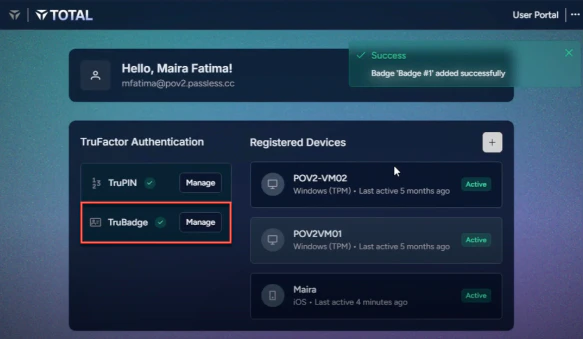
- Login to the TruU User Portal
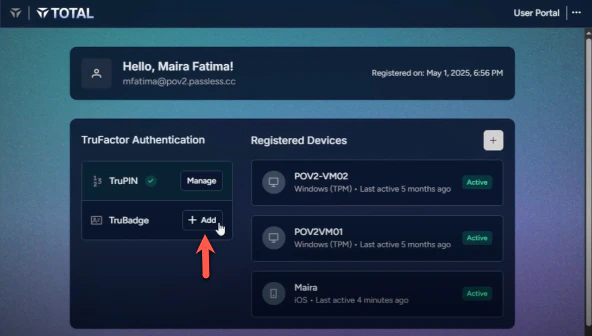
- Under the TruFactor Authentication section, locate the TruBadge and Click + Add
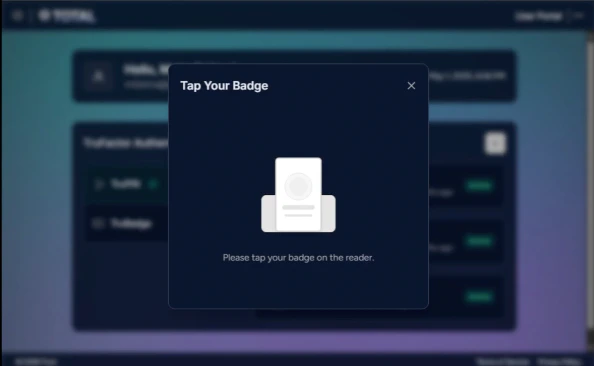
- A screen will appear prompting you to tap your badge. Place your physical access badge on the connected badge reader. The system will automatically detect the badge.
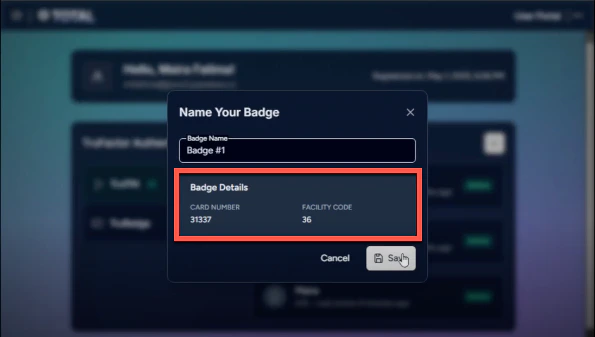
- Once the badge is detected, enter a name for you badge (e.g, “Badge #1”).
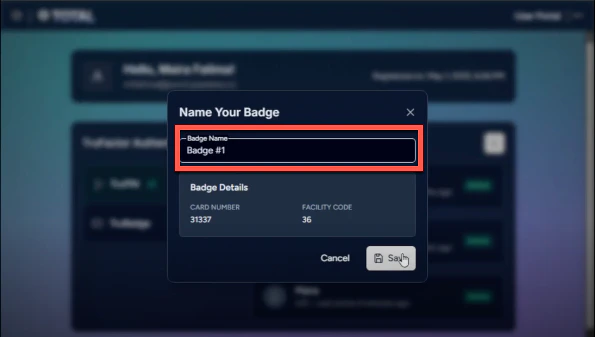
- Verify the badge details showing the card number and facility code.
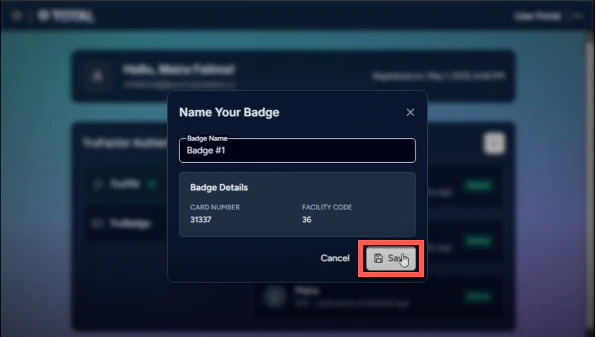
- Click Save to continue
- A success notification will appear on the top right, confirming your badge has been added. TruBadge will now show a checkmark, indicating successful enrollment.