

Enrollment Methods Overview
Enrollment using Knowledge Factor
Set up TruPIN
- Go to your TruU User Portal (URL provided by your admin).
- Log in using your username and knowledge factor (depending on the configuration set by your organization).
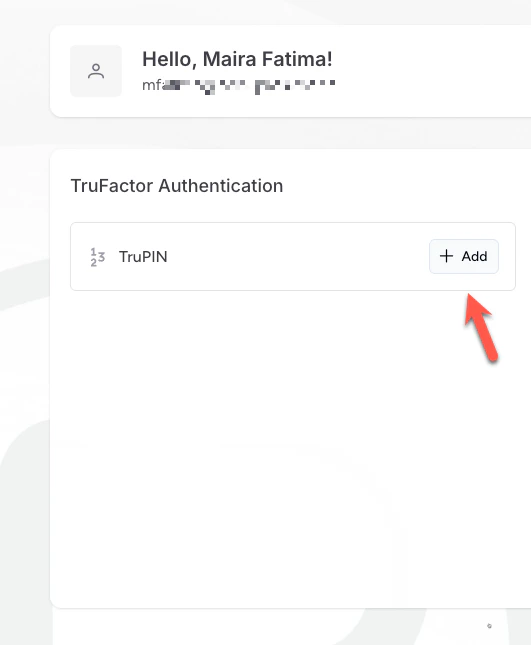
- Under TruFactor Authentication, Click + Add to begin the setup process.
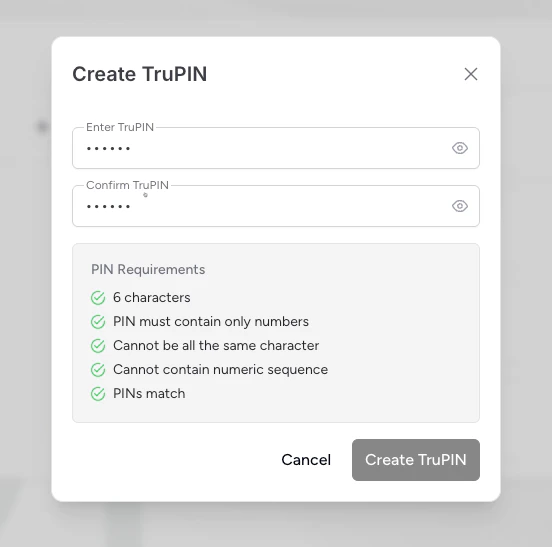
- Create your TruPIN. Ensure it meets all the PIN requirements listed below
Set up your Badge
- Follow the on-screen instructions to set up your TruU badge (virtual or physical, depending on configuration).
- Once setup is complete, your badge will appear under your TruFactor Authentication section.
Admin Invite Enrollment
- Open the enrollment email from TruU.
- Click the enrollment link provided in the email.
- Under TruFactor Authentication, Click + Add to begin the setup process.
- Create your TruPIN. Ensure it meets all the PIN requirements listed below
Badgeless (Physical) Shared Workstation Login