

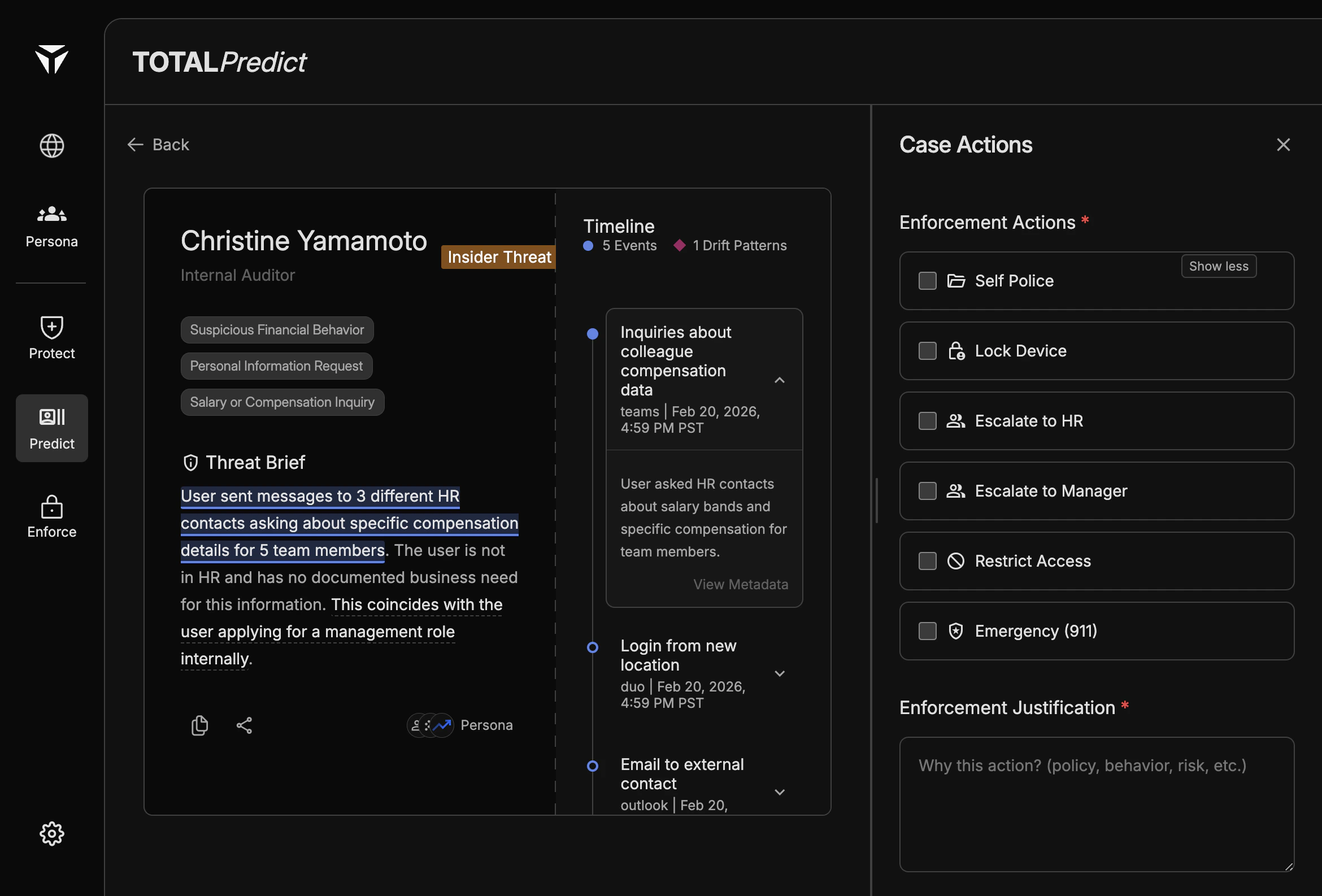
Quick Enforce opens the Case Actions panel from the Predict Card. It groups enforcement choices, justification, and threat classification so you can respond while context from the Threat Brief and Timeline is still in view.
Predict Quick Enforce

Overview

Use Quick Enforce when triage should immediately drive action — for example access restriction, device lock, or HR or manager escalation. The panel is separate from Swiping Actions; you can enforce and still record triage outcome as your process requires.

Enforcement Actions

Available actions may include:
  • Self Police — User-directed or light-touch remediation where policy allows.
  • Lock Device — Remote lock of the user’s enrolled device.
  • Escalate to HR — Route the case to HR for policy or employment review.
  • Escalate to Manager — Notify or hand off to the person’s manager.
  • Restrict Access — Narrow application or resource access per policy.
  • Emergency 911 — Highest-severity path for imminent harm; use only when your organization defines it for true emergencies.
Exact availability may depend on tenant configuration and role.

Enforcement Justification

Enter a clear Enforcement Justification so auditors and downstream owners understand why the action was taken. Reference concrete timeline facts or cited phrases from the Threat Brief when helpful.

Classify Threat

Use Classify Threat (and related Behavioral Assessment sections in the panel) to tag the case with the categories your organization tracks. Consistent classification improves reporting and ties enforcement back to Citations and queue labels such as Insider Threat.

Submitting Actions

Review enforcement type, justification, and classification, then submit through the panel’s primary action. Afterward, confirm the case state in the Triage Queue or follow your runbook for post-enforcement steps.