

Add your Fingerprint to your Mac
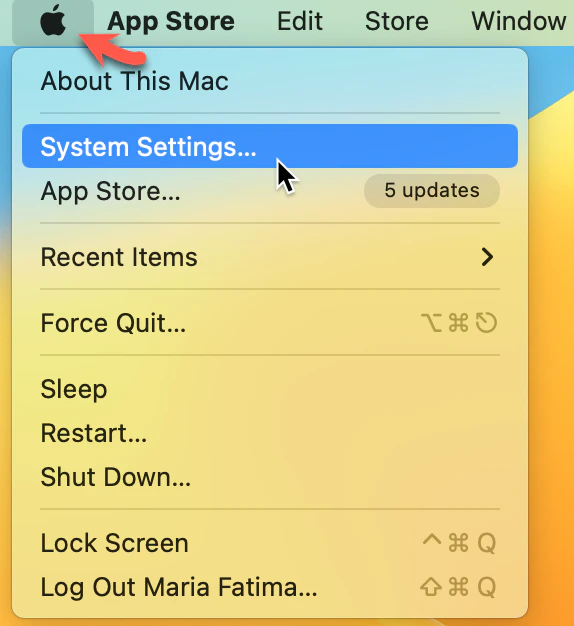
- On the top left corner, Click the Apple icon and Select System Settings
- Click Touch ID & Password, and Add Fingerprint
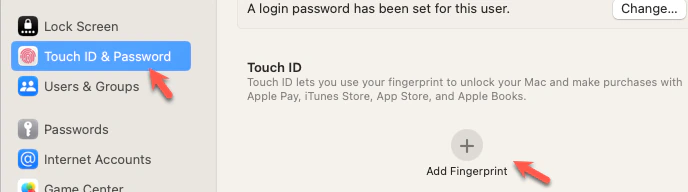
- Identify the fingerprint sensor on your device to set Touch ID
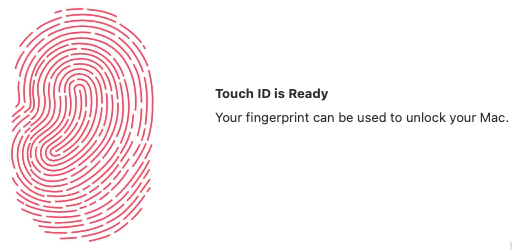
Add your TouchID to TruU
Enroll your fingerprint during enrollment process
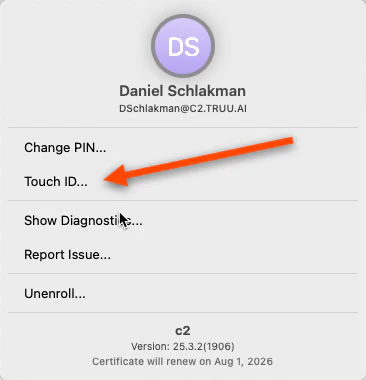
- On your Mac, Click on the TruU icon on the top right of the Menu Bar (If TruU icon is not appearing and enrollment menu is not appearing, run the following command in terminal:
-R 777 /Library/TruU)

- Click the Tough ID button in the dropdown menu
- Click Enable in the prompted window
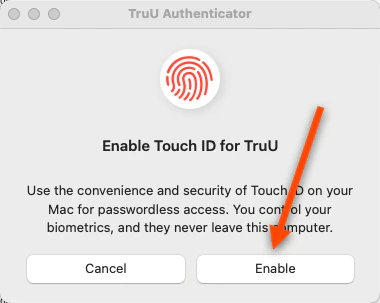
- You will then be able to login/authenticate to TruU using your fingerprint
Mac Workstation Login Passwordless Login to Apps - Mac