

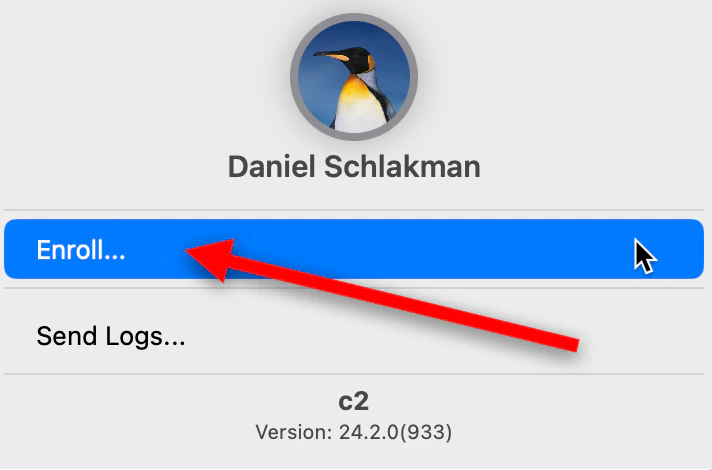
- On your Mac, Click on the TruU icon on the top right of the Menu Bar (If TruU icon is not appearing and enrollment menu is not appearing, run the following command in terminal:
-R 777 /Library/TruU)

- Click Enroll
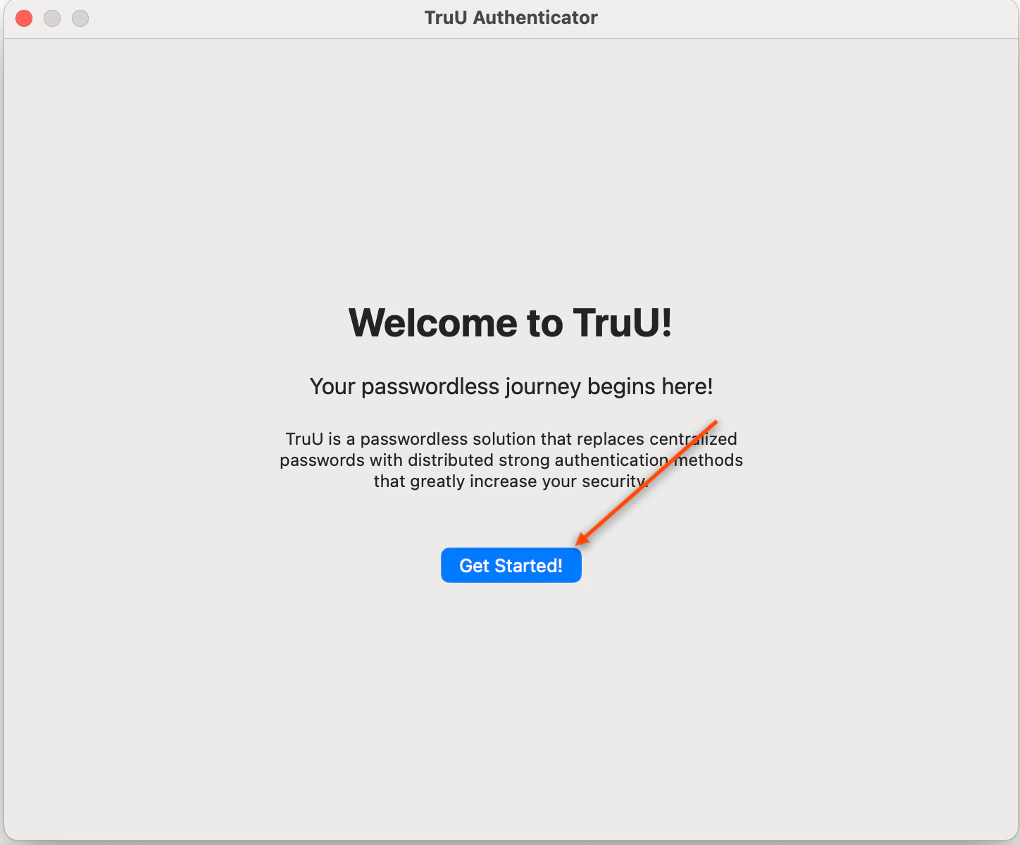
- Click Get Started
- Enter your current password for your workstation login to begin the enrollment process, then click OK

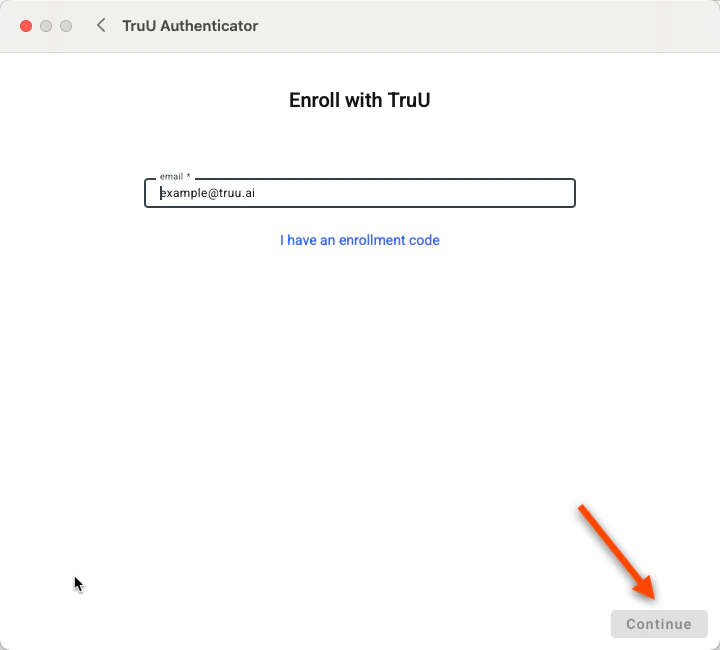
- Enter your email, then click Continue
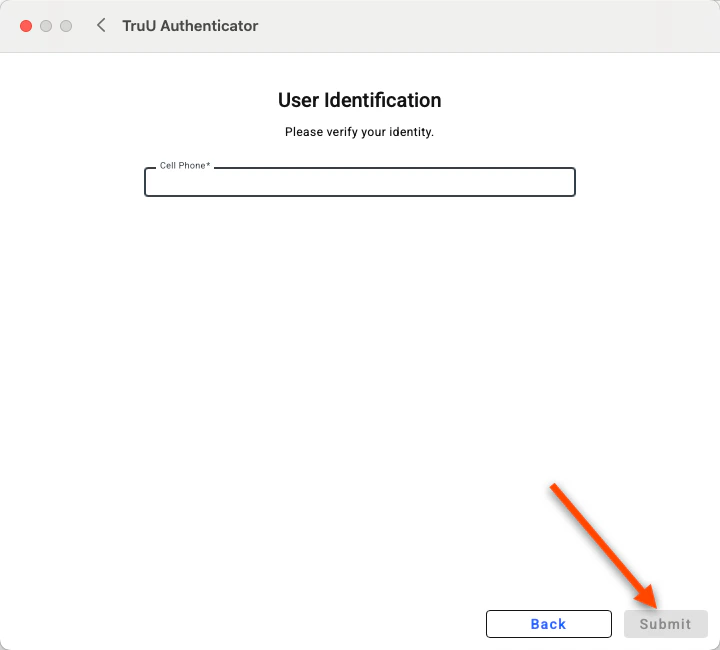
- Select either your email or your phone number to receive your enrollment code, then click Send Enrollment Code
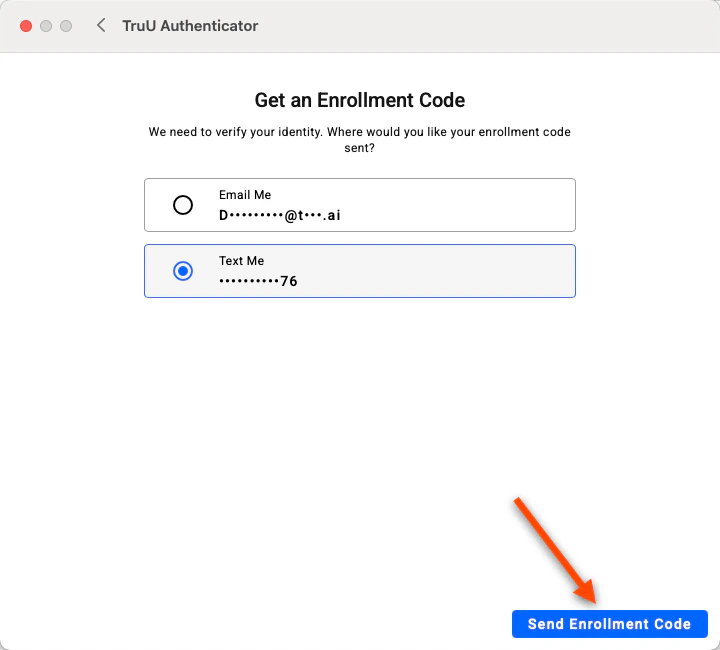
- Check your email/phone for a message from TruU
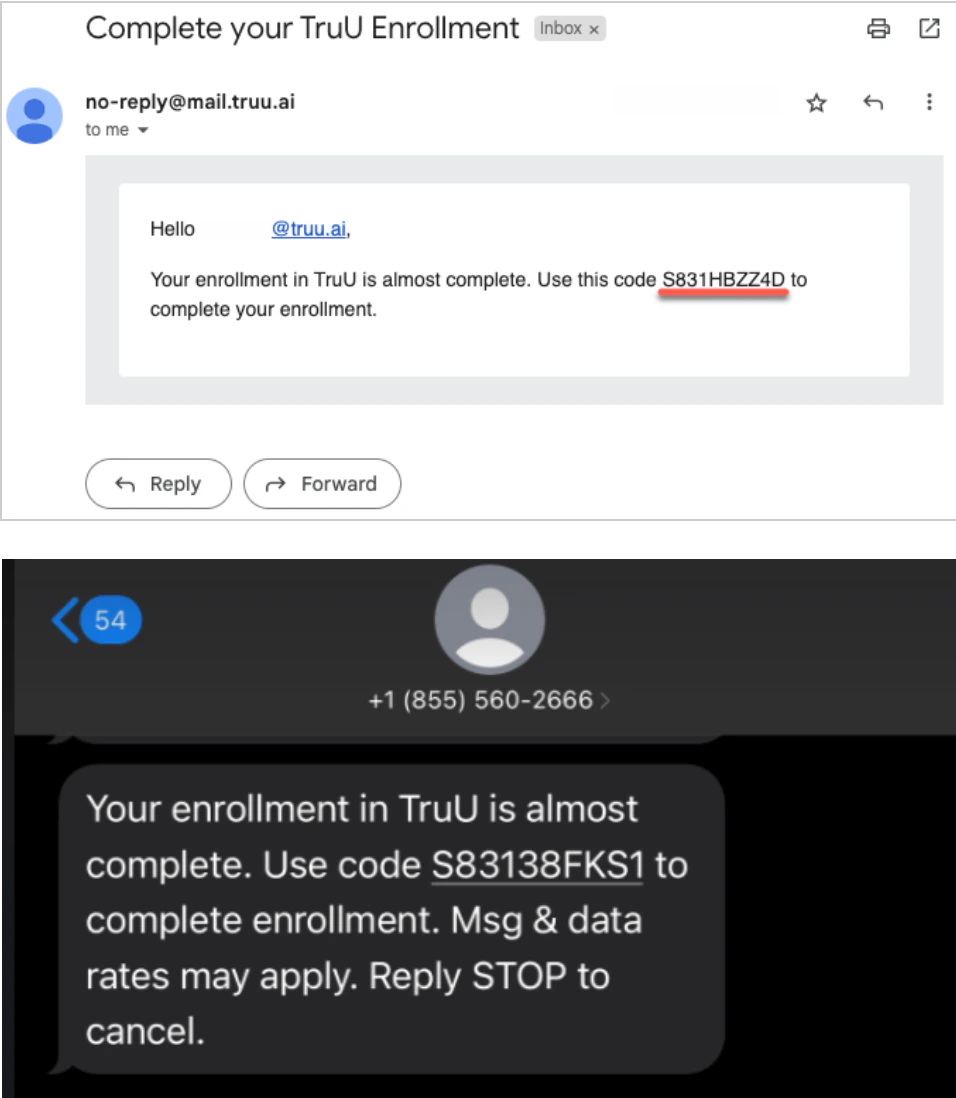
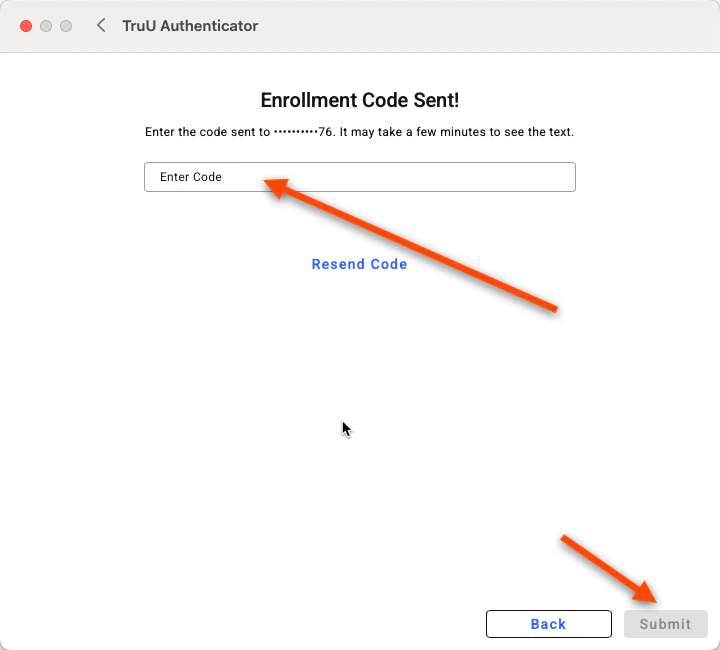
- Enter the enrollment code sent to your email/text
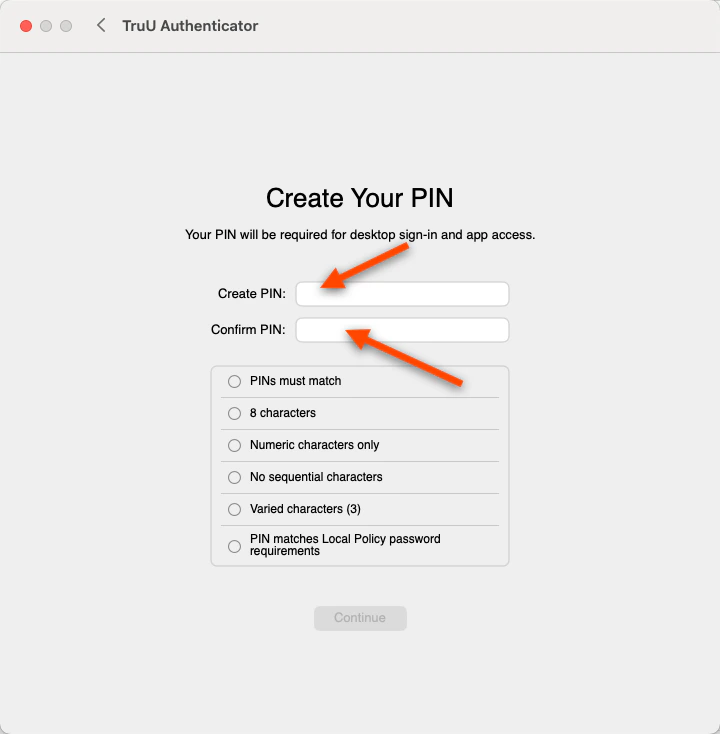
- Create and Confirm your TruU PIN and Click the Blue arrow to continue
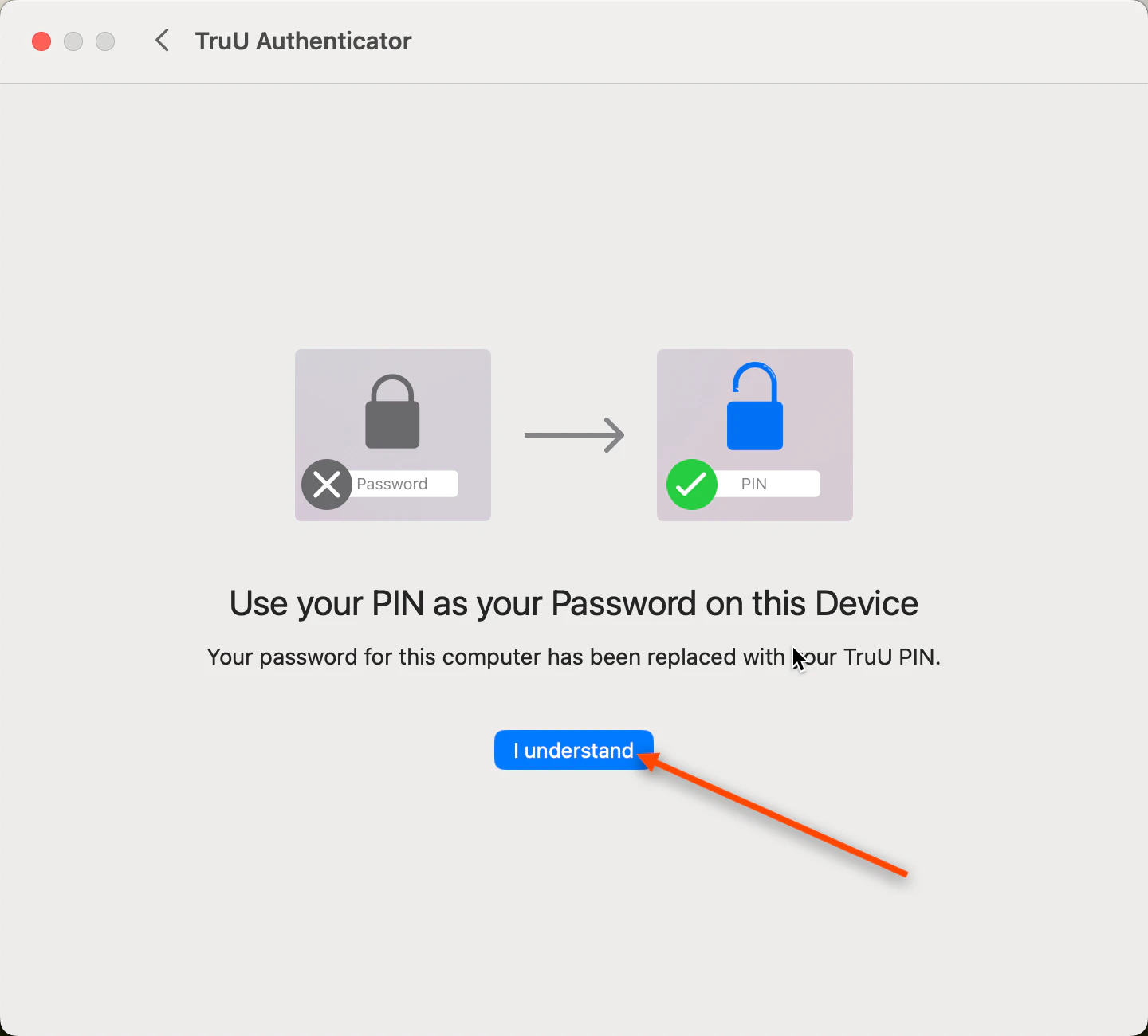
- Click I Understand
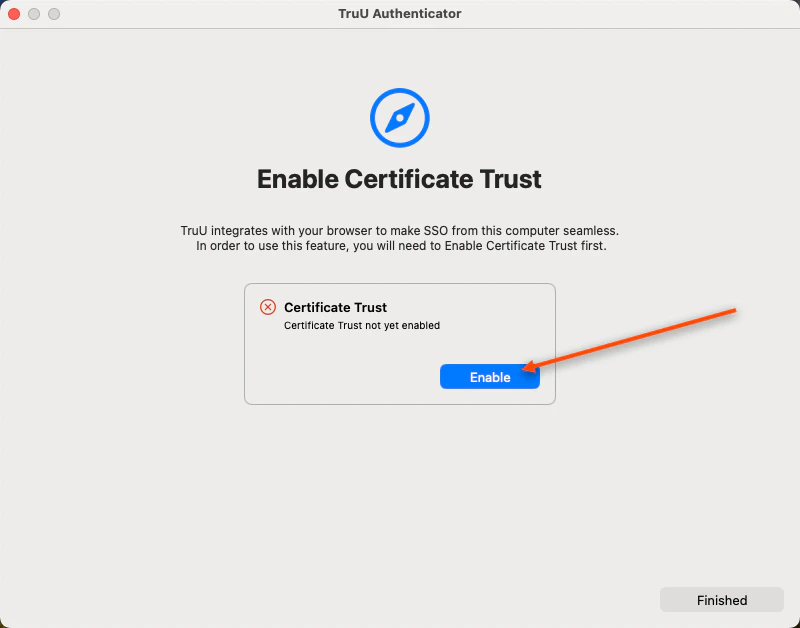
- Select Enable to trust Safari’s Certificate Trust
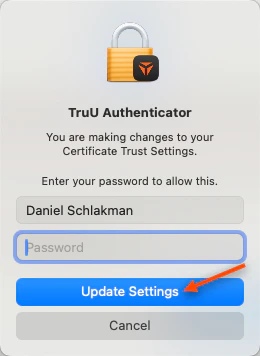
- Enter your PIN to complete the enrollment process, then click Update Settings and Finished
Admin Assisted Onboarding: Windows Mac Workstation Login