

Highlights
- Single Agent for AD-joined and Entra-Joined Computers
- More Efficient Key Generation
- SSO Support when User Logs in Without TruU
- Independent RDP and UAC Controls
- Augmented Computer Data
- Biometric Privacy Notice
- Install / Uninstall Improvements
Enhancements
Single Agent for AD-joined and Entra-Joined Computers
- In this release, we have moved from maintaining separate agents for AD-joined vs Entra-joined machines. We no longer have a Windows Authenticator and a separate Windows Authenticator for Azure. With this release, we have a unified agent that works on all Windows machines. In addition, the modality of using certificates vs FIDO2 for authentication is no longer determined based on join type, but instead is configurable through the config file. With this approach, if your machines are joined to Entra, you can choose to use certificates instead of FIDO2 for login (and not require your users to register their computers as USB security keys with Microsoft).
More Efficient Key Generation
- In prior versions of the Authenticator, we would generate multiple keys for desktop login and for SSO with distinct keys to be used based on the type of authentication. In this approach we would generate up to 5 unique keys to be use (a smart card for desktop login, and SSO keys for possession, PIN, biometrics and TCAT). This process was time consuming and would lead to situations where the user may try to SSO and would be presented with an error message indicating that the SSO keys were not yet available. With this new Authenticator, we generate a single set of keys so that SSO is immediately available once enrollment is complete.
SSO Support When User Logs in Without TruU
- With this version of the Authenticator, if the user logs in using the native Windows Credential Provider (e.g. does not use TruU to unlock the computer) and tries to SSO to an app using the “My Computer” option, we now enable the user to authenticate using TruU. In earlier versions of the TruU Authenticator, if the user had enrolled in TruU but logged in using the native Credential Provider, they would see an error if they tried to SSO using My Computer. Now, regardless of how the user unlocks the computer, TruU SSO will be available to the user if the user is enrolled in TruU.
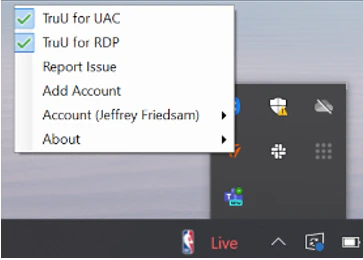
Independent RDP and UAC Controls
- RDP and UAC are now fully supported in the Windows Authenticator regardless of join-type (AD / Hybrid / Entra) and how it is configured for Login (using certificates or FIDO2). In addition, whether TruU is used for RDP and UAC can now be controlled independently through independent menu options.
Augmented Computer Data
-
With this release, the Windows Authenticator collects additional hardware data and shares that information with the platform during enrollment and subsequent “heartbeats”. This enriches the context of event data, and the computers drill-down information available in the Admin Console. The enriched data includes:
- MAC Address
- IP Address
- Manufacturer
- Model
- Serial Number
- Processor, and
- BIOS Version.
Biometric Privacy Notice
- We have added in a privacy notice to all screens where users can setup their biometrics. The privacy notice is a link that points to the TruU privacy statement. More importantly, the link text (the words that are presented in the UI for the link) and the URL that the link opens can be changed through the config file. For example, you can change the text from “Learn how TruU protects your privacy” to “By adding your biometrics you agree to Acme Corp’s biometric use policy” which would open to your own policy on biometric usage.

Install / Uninstall Improvements
-
With this version of the Authenticator, we have made the following improvements to how the client installs and runs on the system:
- Uninstall of the TruU Authenticator now cleans up after itself properly to remove all components.
- Logs and json data files are no longer stored in the C:\Program Files\TruU Inc\ folder but are now stored in C:\ProgramData\TruU Inc. During upgrade all existing files are moved into C:\ProgramData\TruU Inc. New logs are stored in C:\ProgramData\TruU Inc\ and local app data folders C:\Users…\AppData\Local\TruU Inc.
Bug Fixes
- There have been various performance and UI / UX improvements for using biometrics with TruU. Face biometrics have been greatly improved with ability to understand camera(s) present and to provide feedback to user for errors while enrolling face.
- We have fixed an issue where user attempts to enroll a fingerprint and would see a message stating “enrollment operation failed” or “bad capture, please try again.”
- We have improved UI / UX for using TruU for UAC and RDP.
- We have improved recognition of biometric vs non-biometric cameras (both internal and external) for biometric enrollment. If there are no available biometric cameras, user will not be asked to register face biometrics.
- We have improved “Switch User” to include capability when previous users have enrolled, and a new user is in the process of enrolling from the lock screen. If incomplete new enrollment has been started, user can now switch and login as an existing user.
- We have improved UI for enrolling biometrics in general, and in particular when enrolling from the logged in user session after enrolling in TruU from the lock screen.
- We have fixed an issue where the TruU Credential Provider was delayed in appearing on the lock screen.
- We have fixed an issue where OS login and unlock events for computers using FIDO2 were not being reported to the Platform/appearing in the Events table in the Admin Console.
- We have fixed an issue where the TruU icon would appear multiple times in the Windows taskbar.
- We have improved in-place upgrade of TruU Authenticator to automatically restart the service and prompt user to login if needed to continue using authenticator for SSO to apps.
- We have fixed an issue where required PIN change for user was not being presented after Admin enrolled on behalf of the user for Authenticator using FIDO2 login.
- We have fixed an issue where enrollment would not be preserved if user manually locked the computer to login with TruU to complete the enrollment.
- We have fixed an issue where a broken TPM would cause the login to freeze on the “Please Wait” screen.
Known Issues
WA 24.3.1 Release Notes WA 24.2.1 Release Notes