

- The admin will Login to TruU Admin Portal to Generate an enrollment code for the New Hire. Then navigate to Users and Click on the blue mannequin with plus sign.

- Go to the Generate Enrollment QR tab, and enter the New Hire’s email address in the Enter UPN field, click Search, and when the user is found, click Phone for Verification Method, and then Click the Generate Enrollment QR button.

- Copy the enrollment code shown with red arrow below and share it with user.

- On the Windows device the user will click “Get Started” on the TruU Prompt.

- Click “I have an enrollment code”
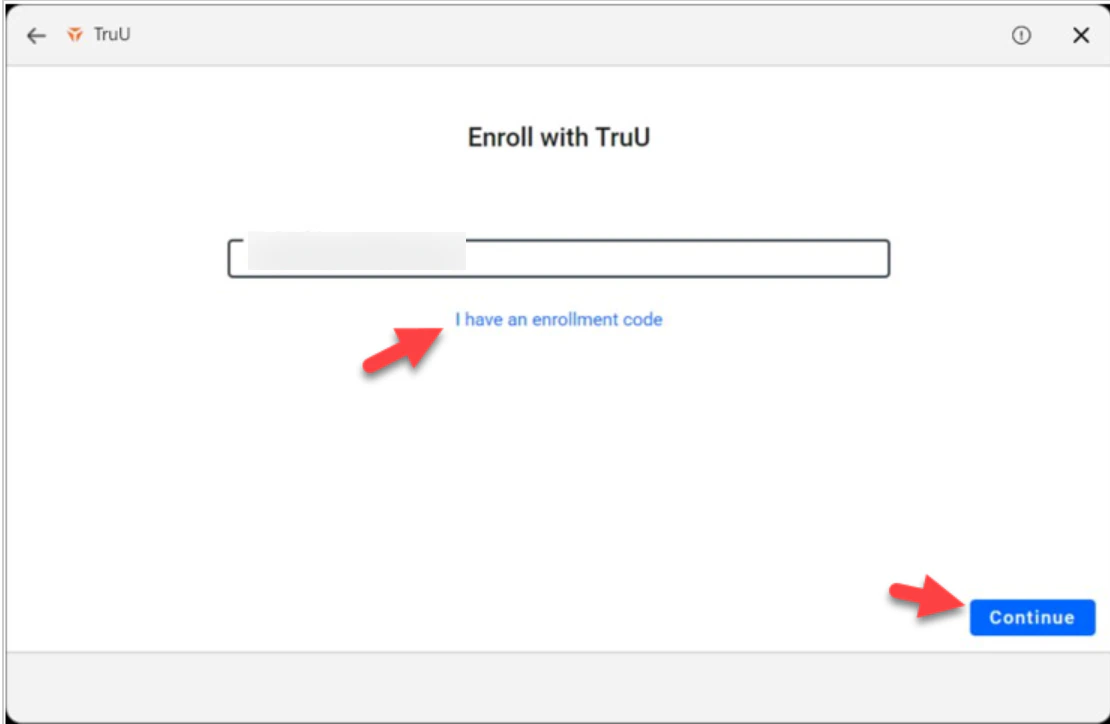
- Enter the enrollment code shared by the admin.

- User will then create their PIN.

- Click “Login with TruU” to complete enrollment. This will lock your device, use the temporary PIN to login. This step must be done to complete the enrollment.

Manually Reporting TruU Logs MAC