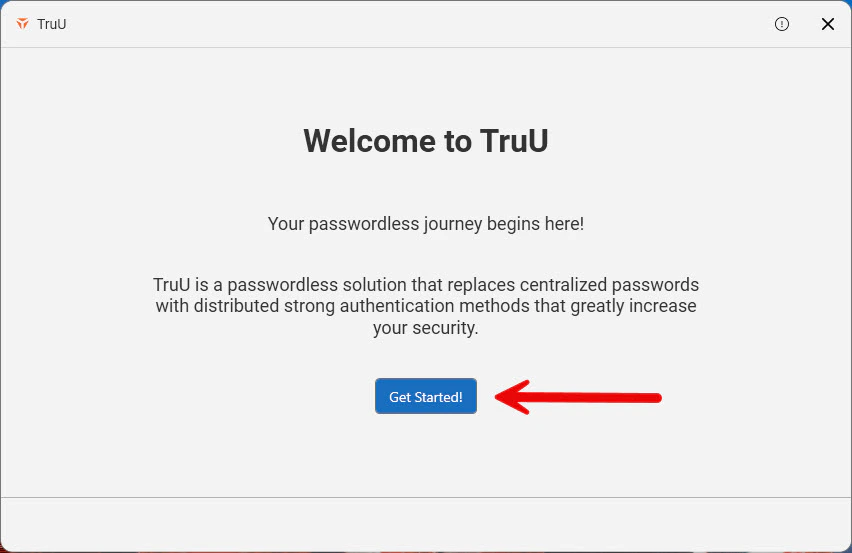
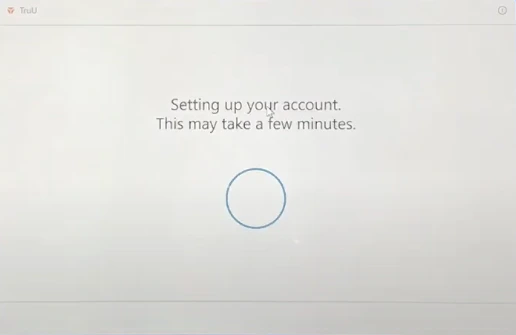
Step 1: Click Get Started! to start the wizardStep 2: Enter the primary user identifier as configured in your tenant (shown below as email)Step 3: Select either your email or your phone number to receive your enrollment code, then click Send Enrollment CodeStep 4: Enter the enrollment code sent to your email/textStep 5: Create and Confirm your TruU PIN and Click the Blue arrow to continueStep 6: You will then be directed to the following “Setting up your account” screenStep 7: Click Login Using TruU to log into your deviceStep 7: As the desktop loads, you may see a TruU pop-up appear on the screen. Here, you are able to setup your face or fingerprint for biometric basic login. Click Setup Later or Enable Biometrics to enable the use of biometrics upon loginEnroll your AD Joined WindowsWindows Login
Was this page helpful?
Assistant
Responses are generated using AI and may contain mistakes.