To manually report Windows Agent logs, copy the logs from the following paths and zip them and share with TruU: System profile logs:
C:\Windows\System32\config\systemprofile\AppData\Local\TruU Inc\Logs
TruU service and installation logs:
C:\ProgramData\TruU Inc\logs
User profile logs (each user has their own folder by\(user_name)):
C:\Users\(user_name)\AppData\Local\TruU Inc\logs
NOTE: After saving all the logs on your desktop, create a Zip file of the set of logs to prepare them for sharing with the TruU team

How to Manually Report Event Viewer Logs

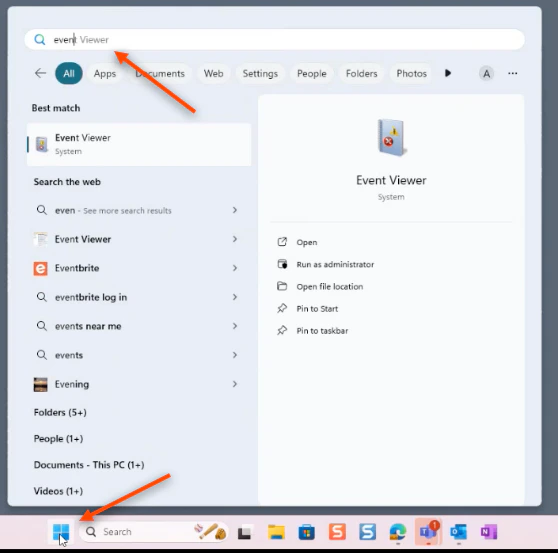
  1. Search for “Event Viewer” in your Windows search bar
  1. Open the desired logs from the user (whether it be Application, Security, Biometrics, or System) in your “Event Viewer Windows Logs”. Here, you can see the Application logs being selected
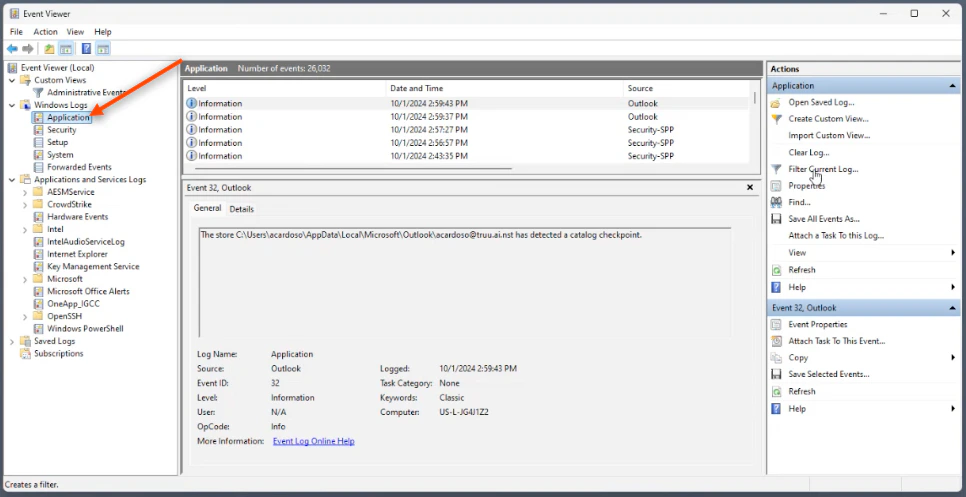
NOTE: You can find Biometrics Logs under Applications, then navigate to “Service Logs”, then “Microsoft”, then “Windows”, then go to “Biometrics” and then “Operational”
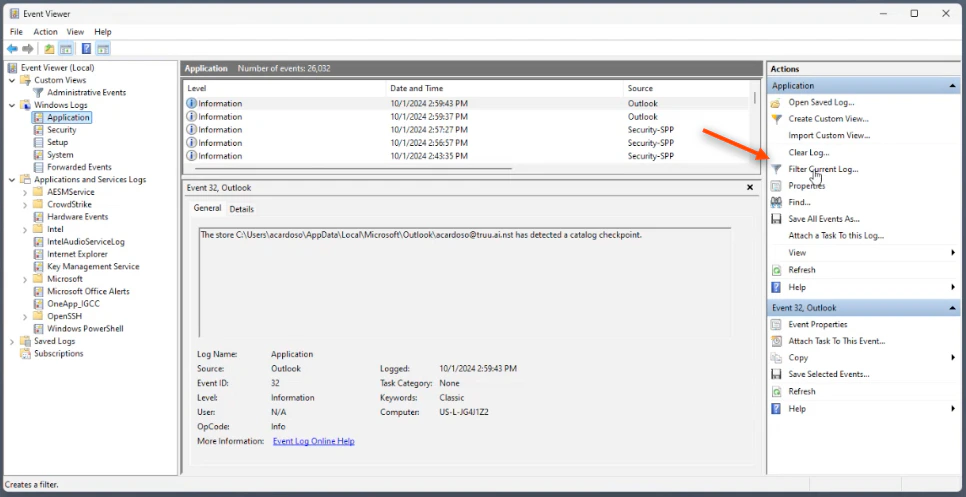
  1. Click Filter Current Log
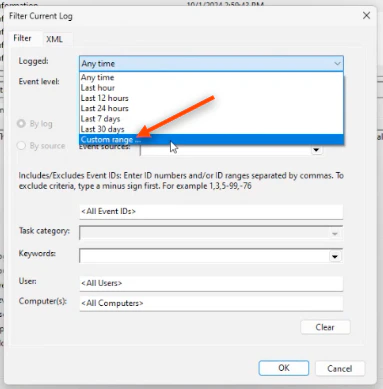
  1. In the prompted dropdown menu, select Custom Range
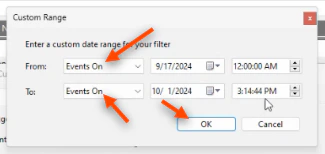
  1. Input the desired time range for the requested logs and click OK
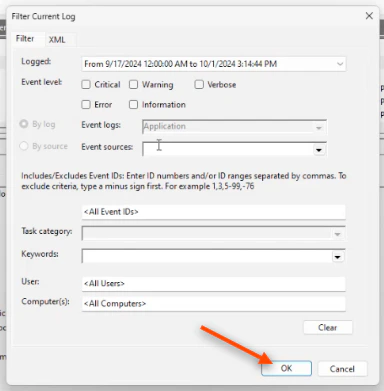
  1. Then, click OK once again after you had specified your desired “Logged Custom Range”
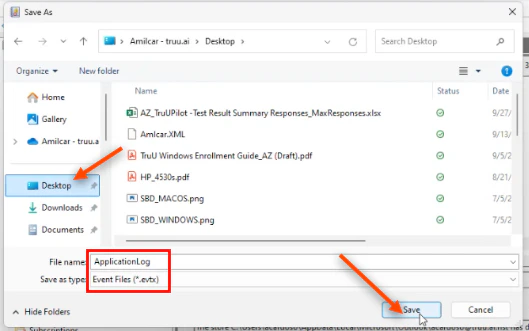
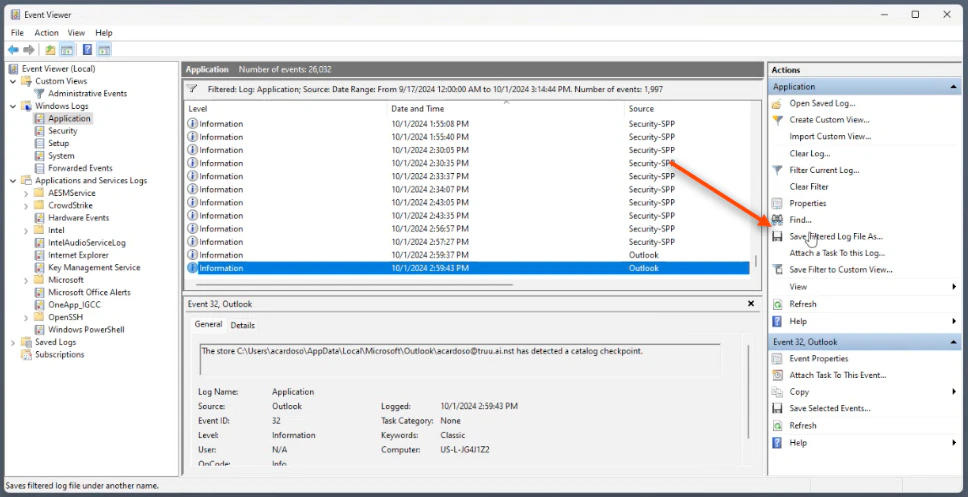
  1. Next, click Save Filtered Log File As… and save it as the type .evtx. Name your saved file and save it to your desktop. Then, click Save
NOTE: After saving all the logs on your desktop, create a Zip file of the set of logs to prepare them for sharing with the TruU team
Change PIN - Windows Admin Assisted Onboarding: Windows